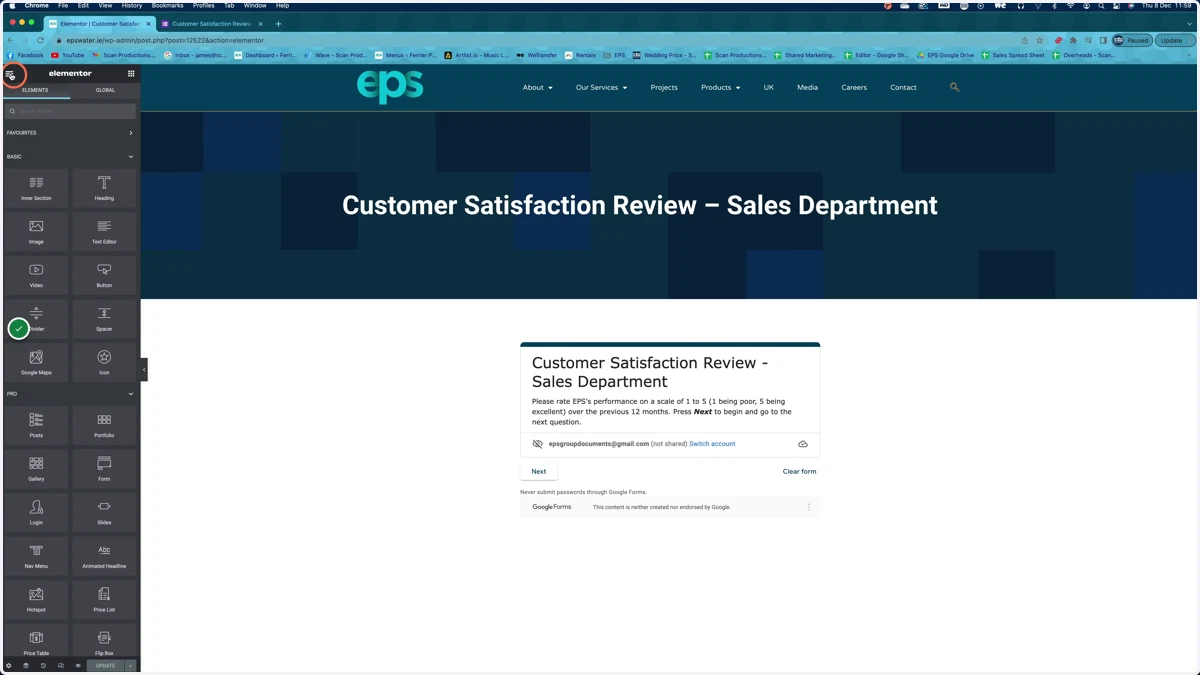
Create a google form on the website
1. Go to the EPS website
Go to epswater.ie/login to get to the backend of the website.
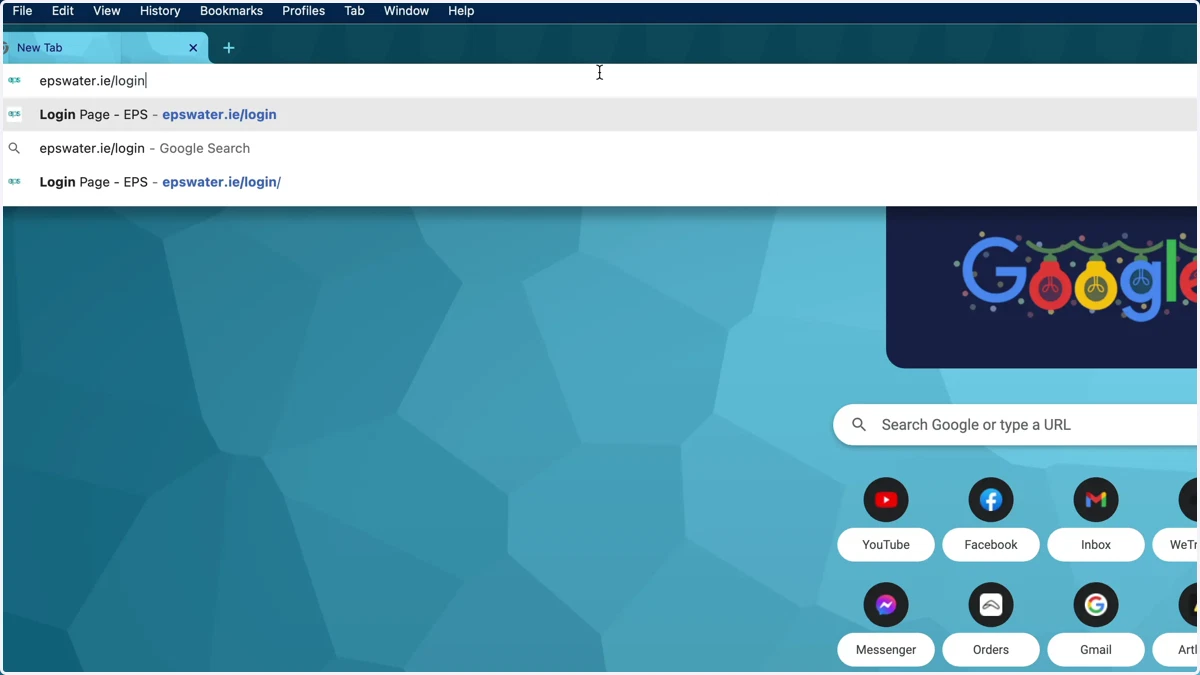
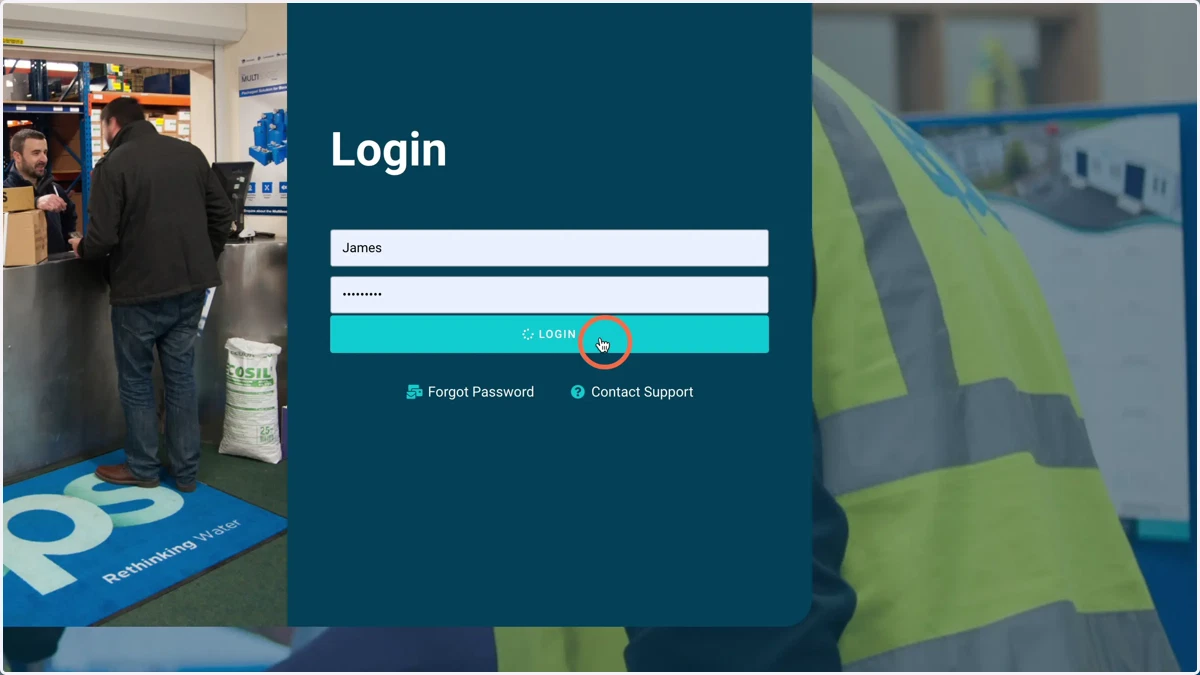
2. Login to the backend
Enter your login details and hit login
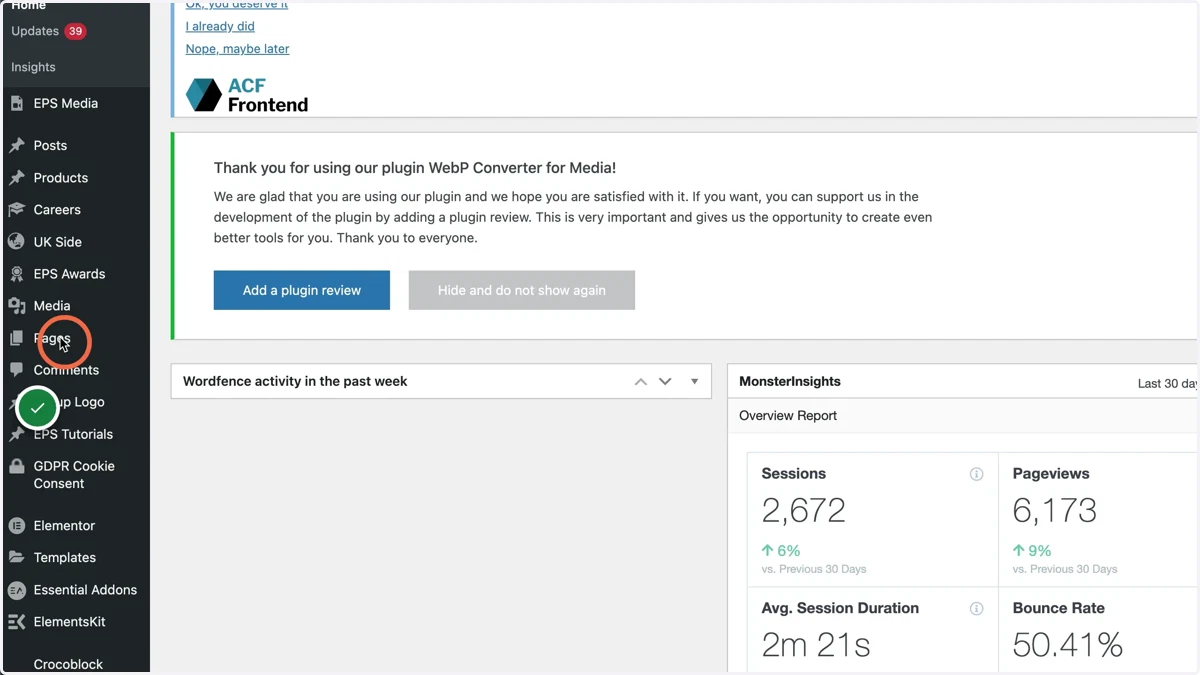
3. Go to pages
Once you are in the backend dashboard, click on pages.
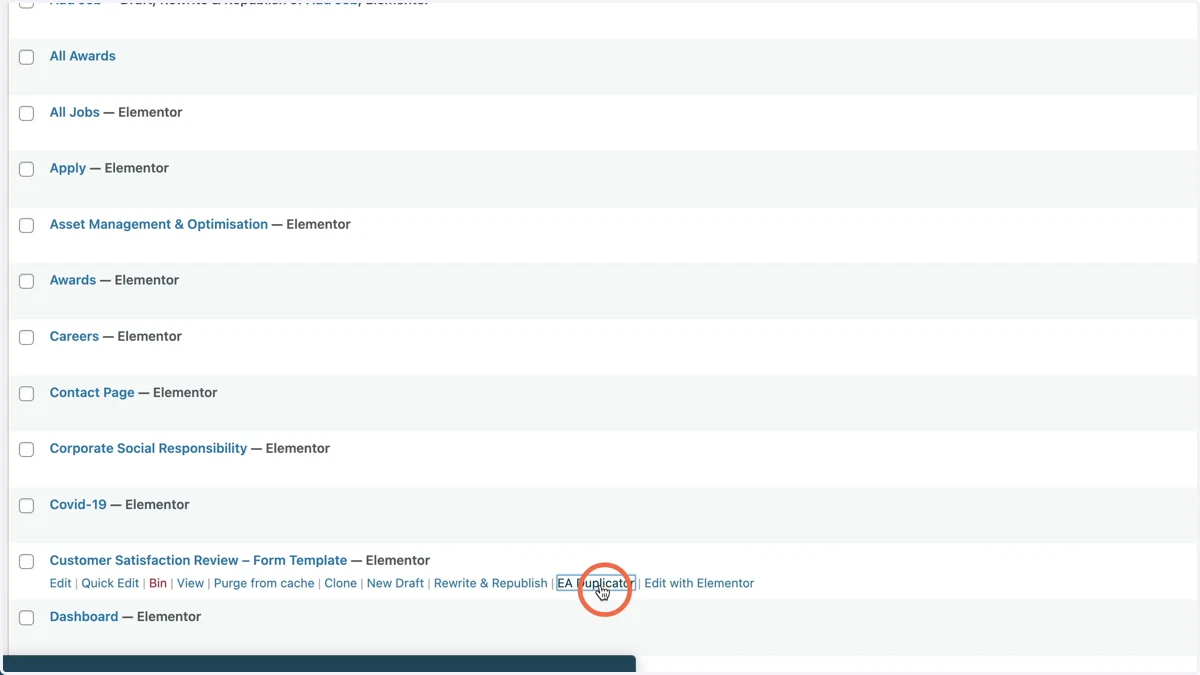
4. Duplicate Template
Scroll down until you find the form template page and click EA duplicator to make a copy of it.
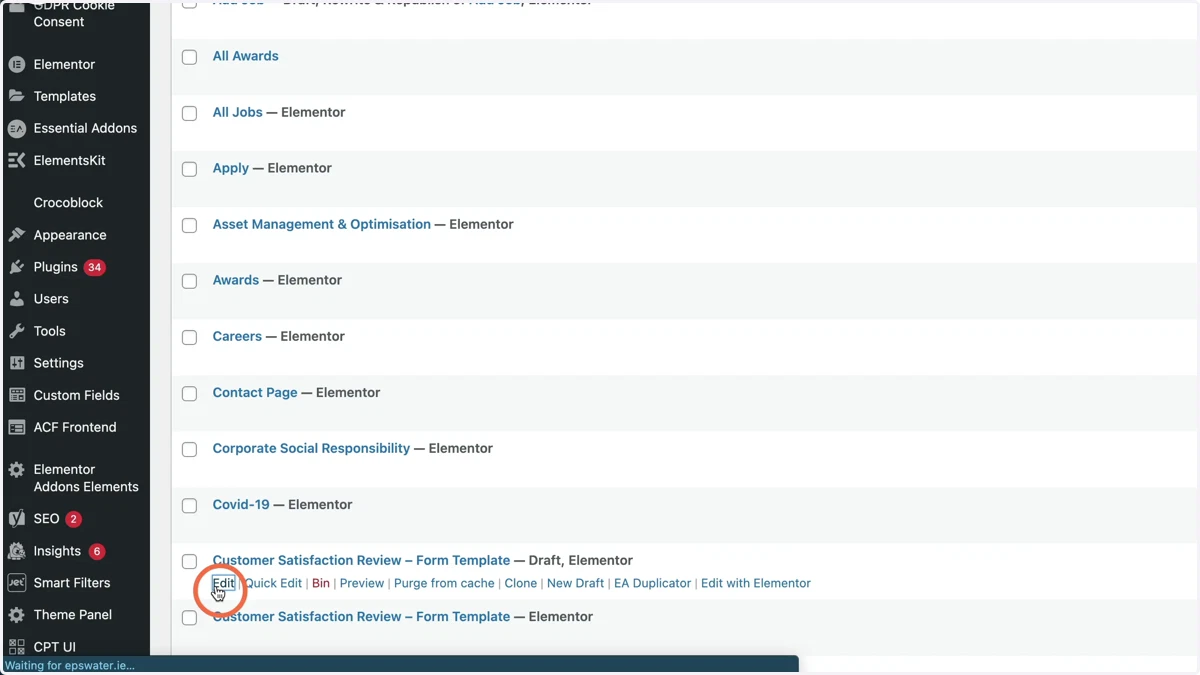
5. Edit the duplicate.
Once you have duplicated the template, scroll down until you find it and click edit.
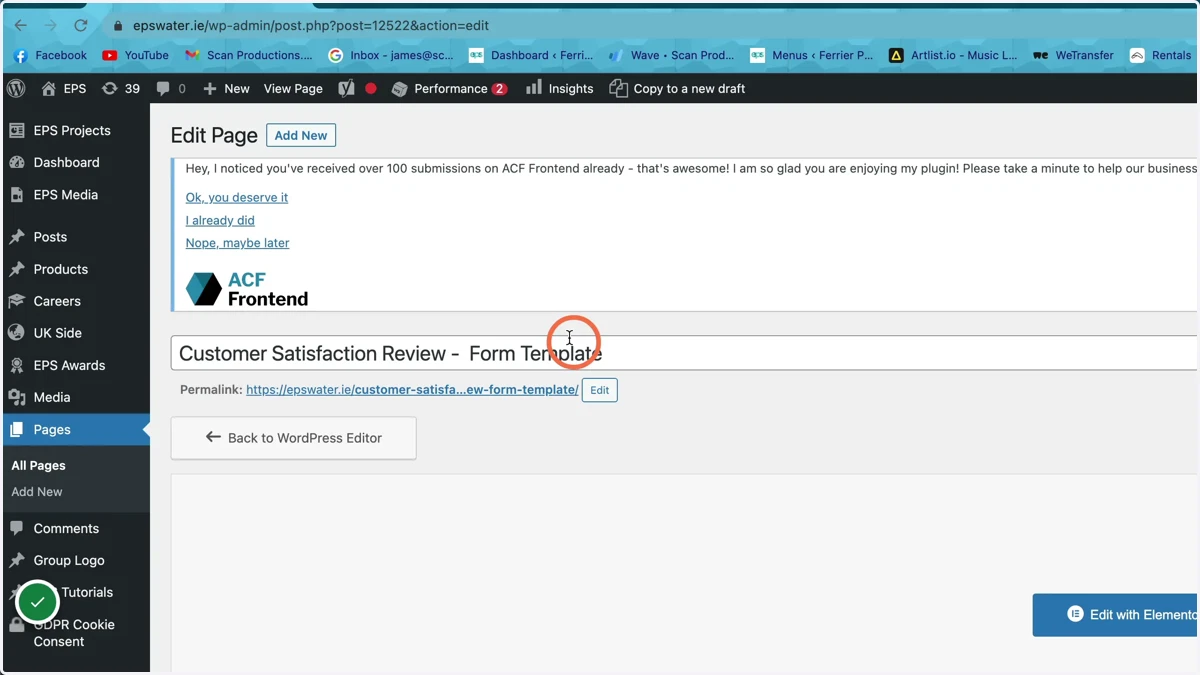
6. Input the details
When you are on the edit page of the duplicated template, edit the title of your form.
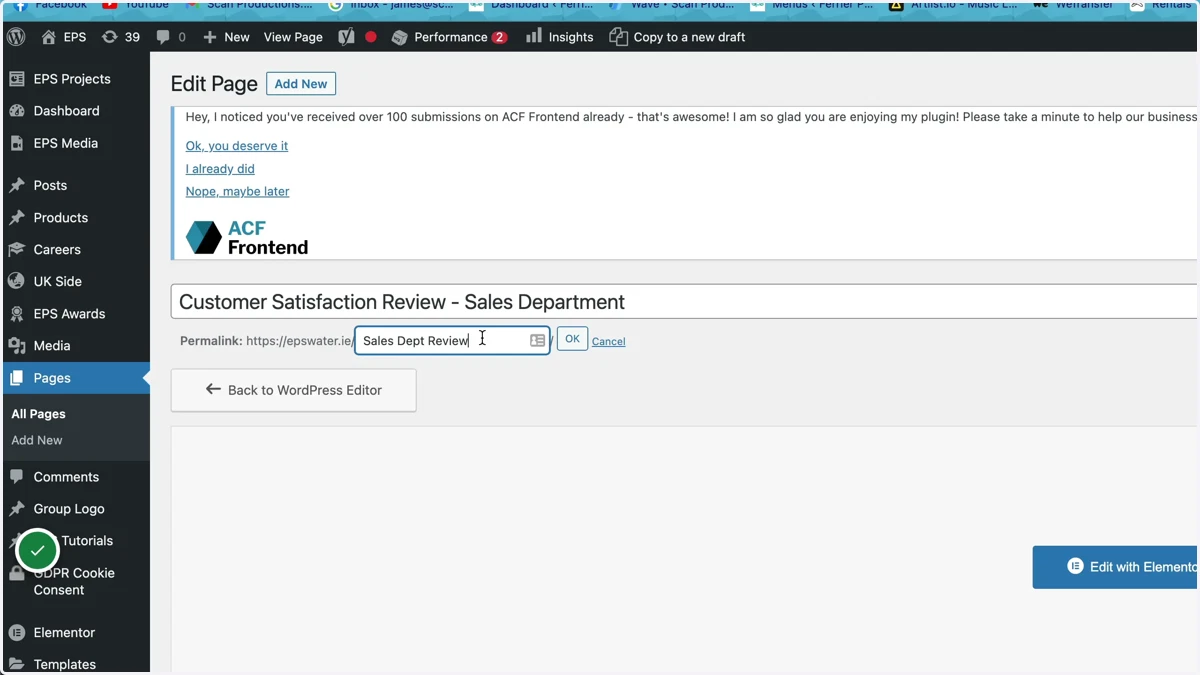
7. Edit the URL
Once you have entered your title, click edit next to the permalink to edit the URL, keep it short and simple.
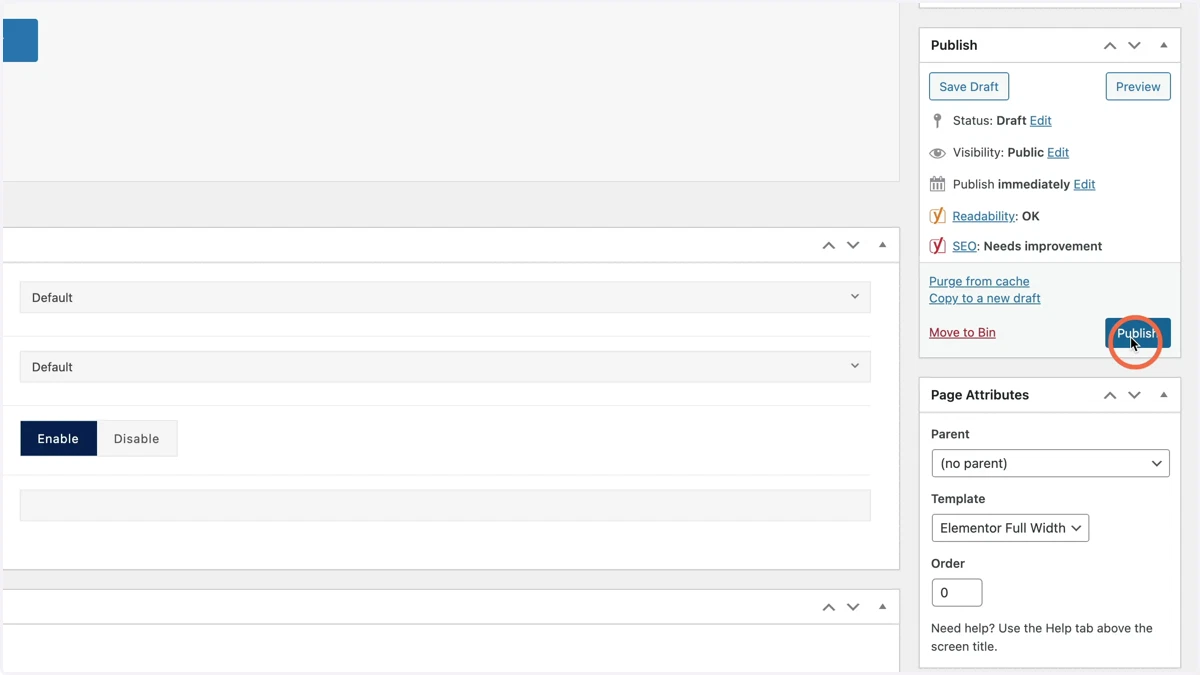
8. Publish the page
When you are happy that all the details are correct, hit publish.
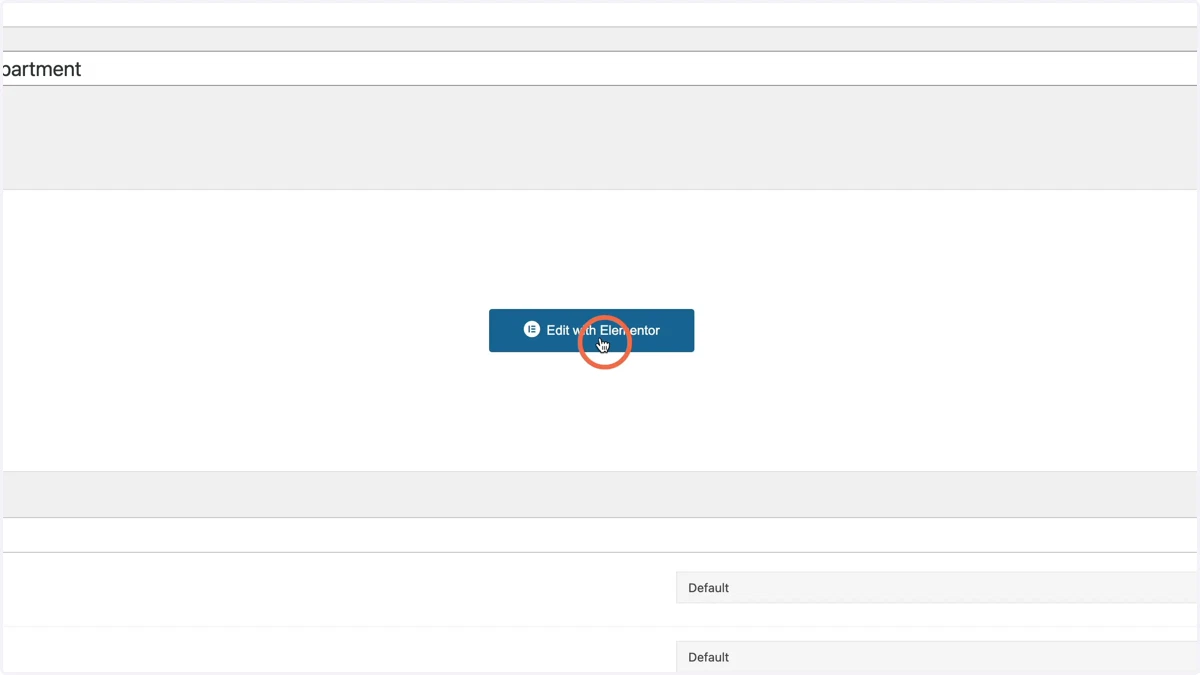
9. Edit with Elementor
When the page has published and refreshed, you can now proceed to edit with elementor.
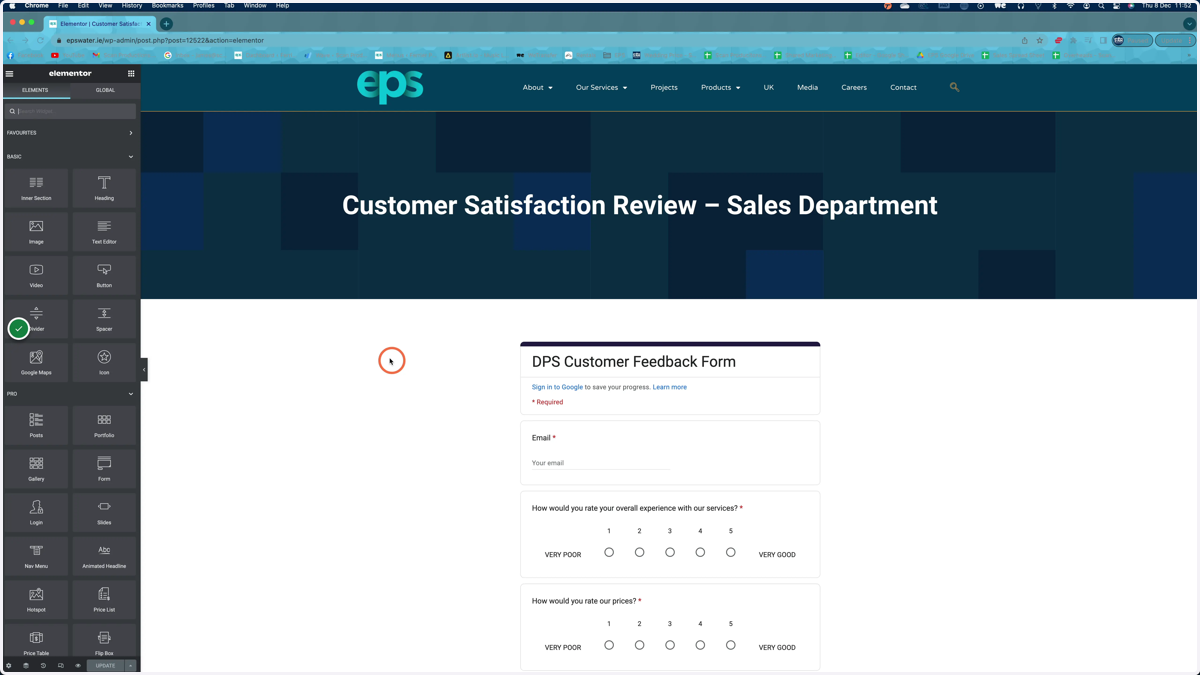
10. Elementor Editor
You are now in the elementor page where you can edit the content.
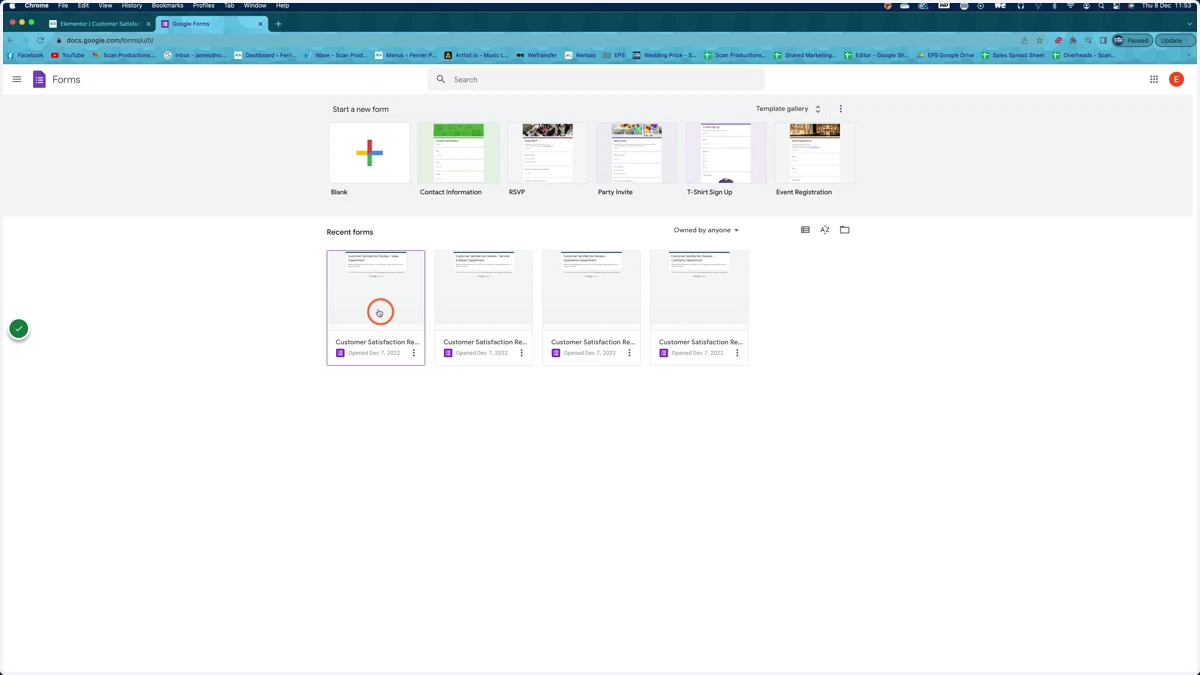
11. Open Google Forms
Open google forms and click on the form you want to put on the website.
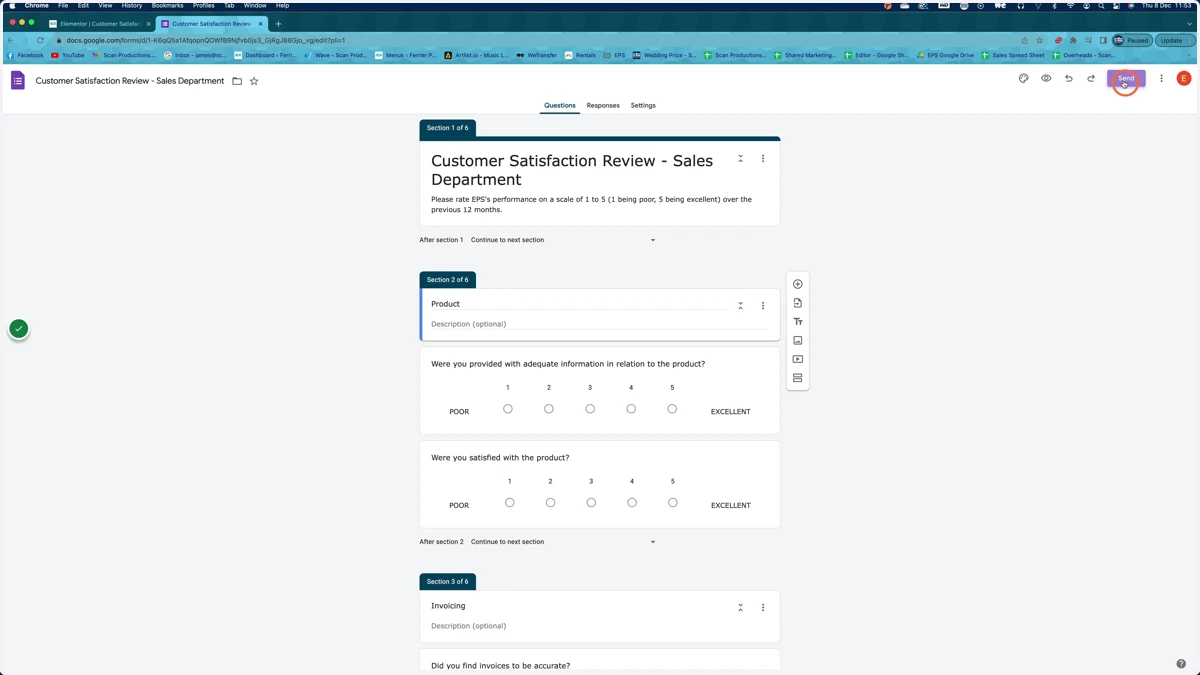
12. Click Send
Open the form and click send in the top right corner.
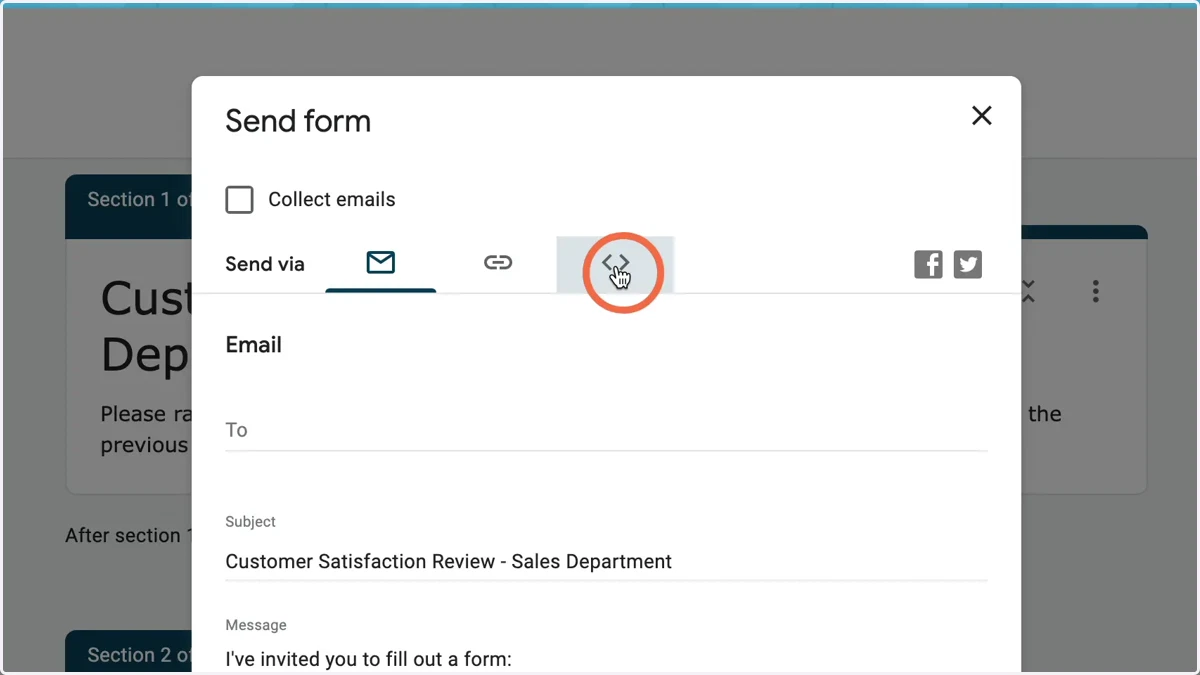
13. Go to iframe
Click on the third option in the "send via" area.
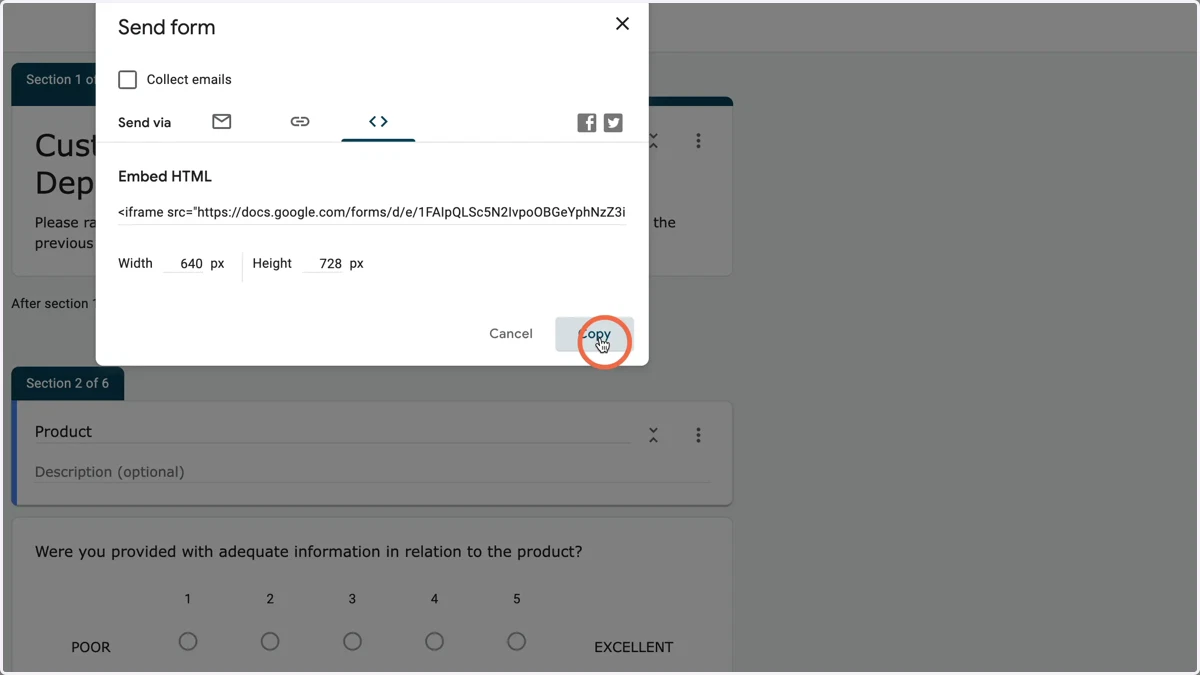
14. Copy the iframe link
When the iframe embed HTML link shows on the screen, click copy in the bottom right corner.
15. Back to EPS
Head back to the EPS website elementor builder.
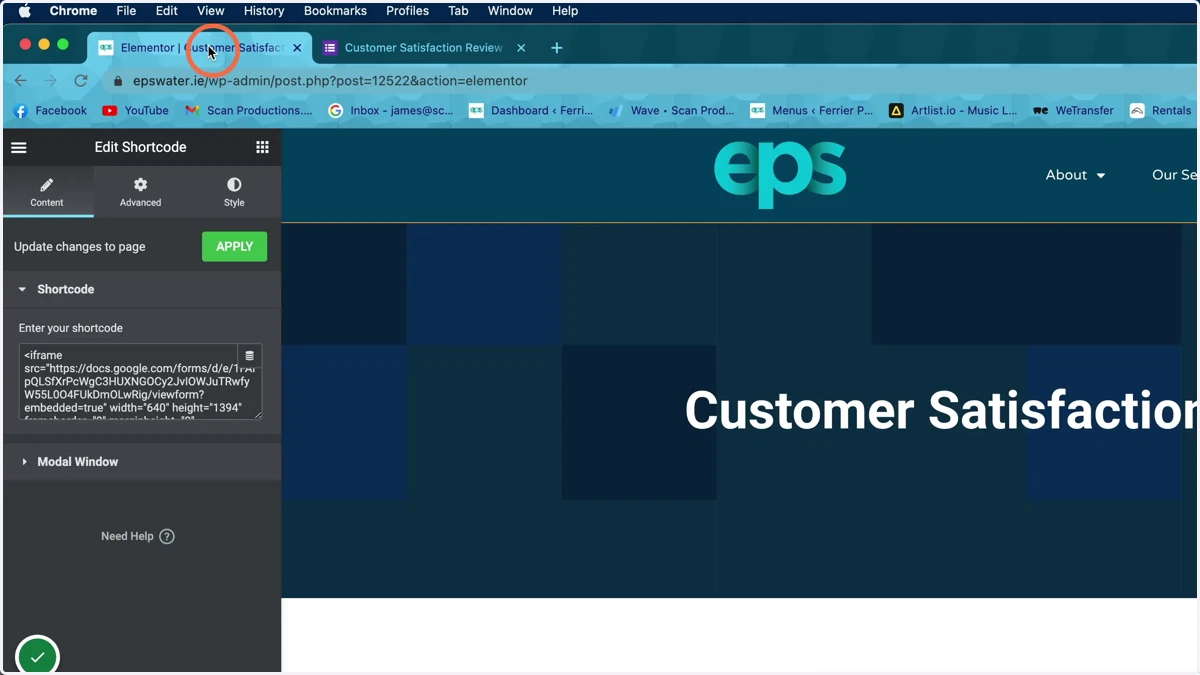
16. Edit the form
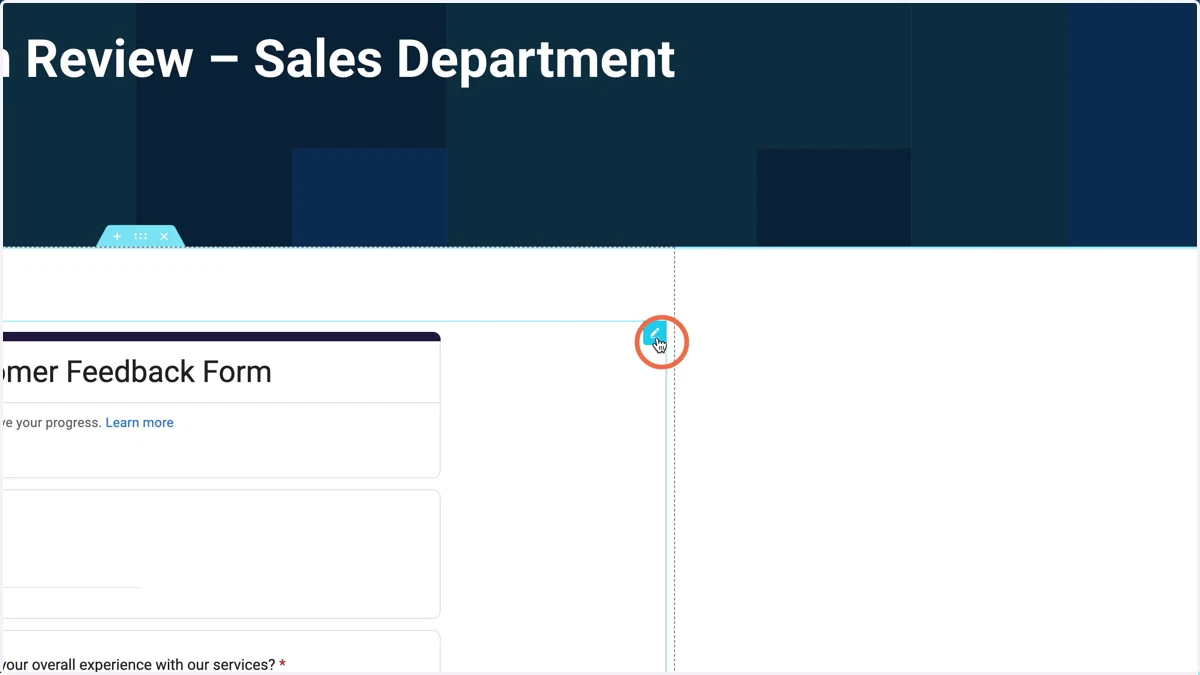
Click the pen icon at the top right of the google form on the website.
17. Edit the iframe
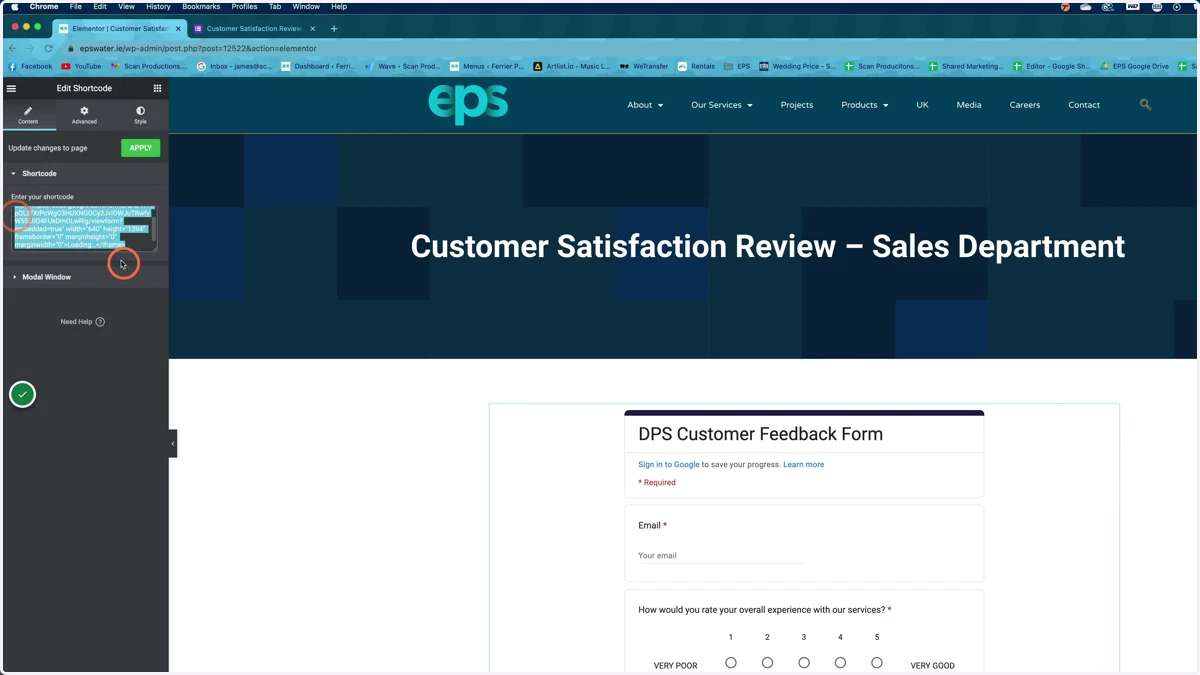
Click and highlight the old iframe details and hit delete.
18. Paste new iframe
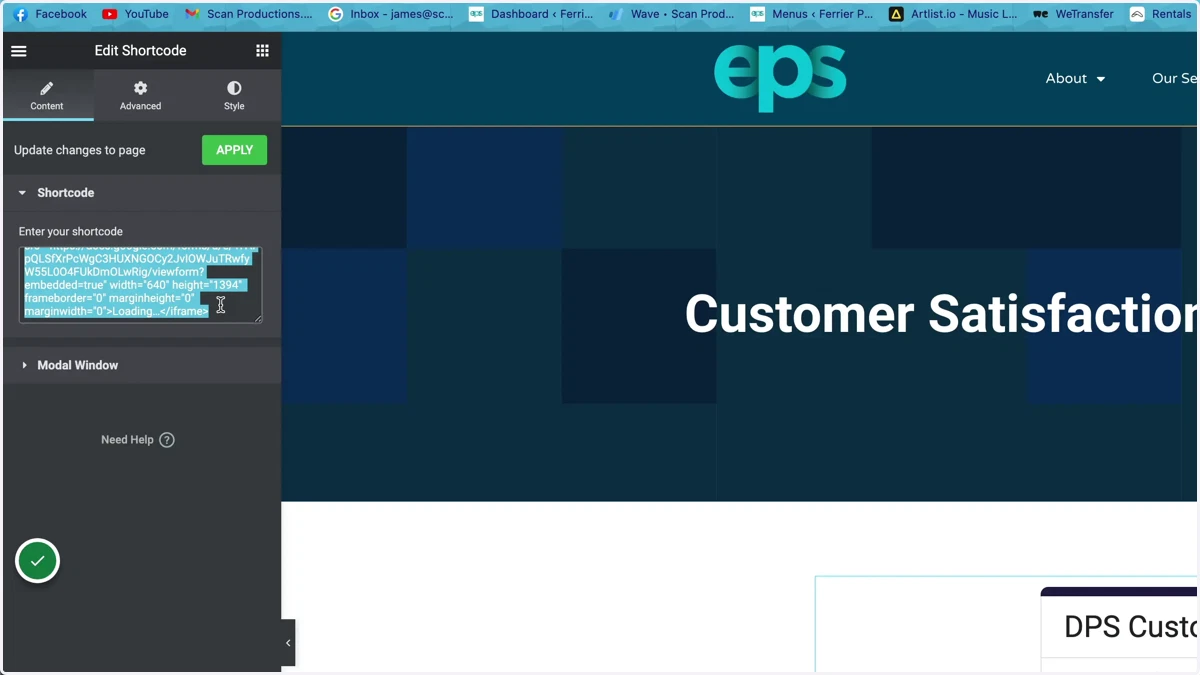
Paste the new iframe details which you copied from the google form.
19. Click apply
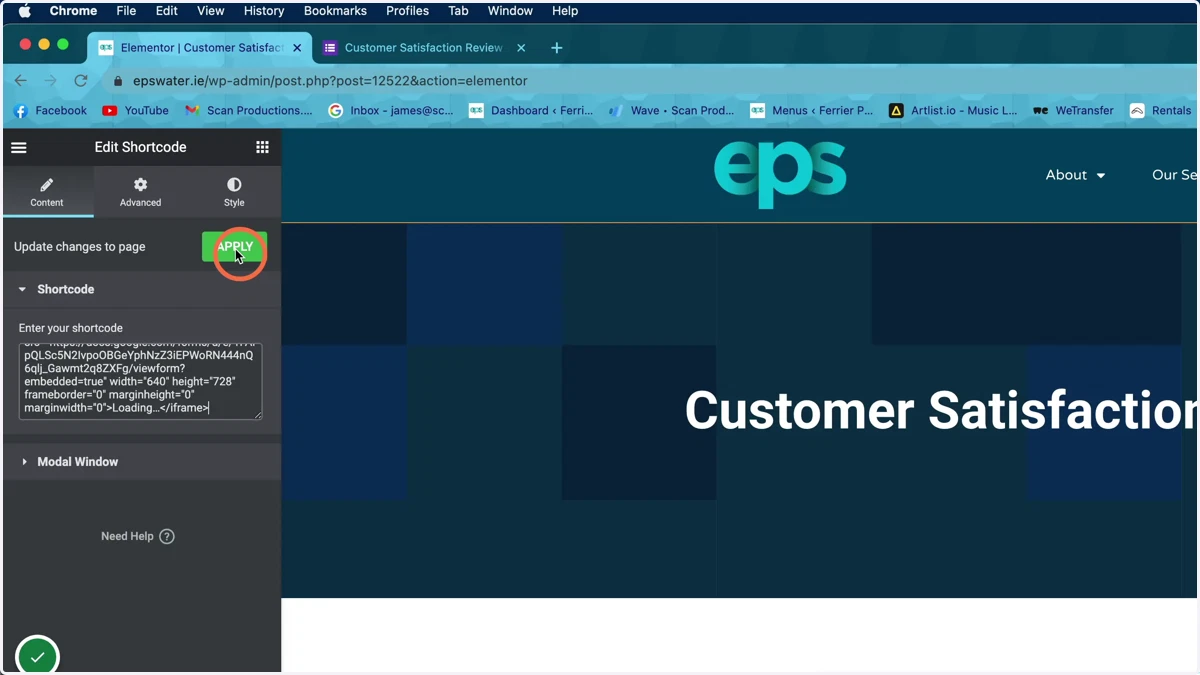
When you've pasted the new iframe, click apply and it will refresh with the new form.
20. Click update.
Click update in the bottom left corner to update and save the page.

21. All done!
You're all done, you can now edit the page and start the next one. If you make updates to the form in google forms, it will automatically update here also.