Setting up Asset Guard
1. IMPORTANT FIRST STEP:
If you have been invited to join an existing Plant Assessor account, you must first confirm your login details via the invitation email.
Once you have confirmed this step, you can login to both Plant Assessor and Asset Guard with the same credentials.
2. Login
Once you have downloaded the app, login with the details set in step 1
TO CREATE A NEW ACCOUNT:
Create an account straight away with your existing Google or Microsoft details or simply enter an email address in the 'work email' field. The next prompt will be to set a password.
3. Finding / Adding machines
If favourite machines have been assigned to your user account in Plant Assessor, they will automatically show in your machine listing.
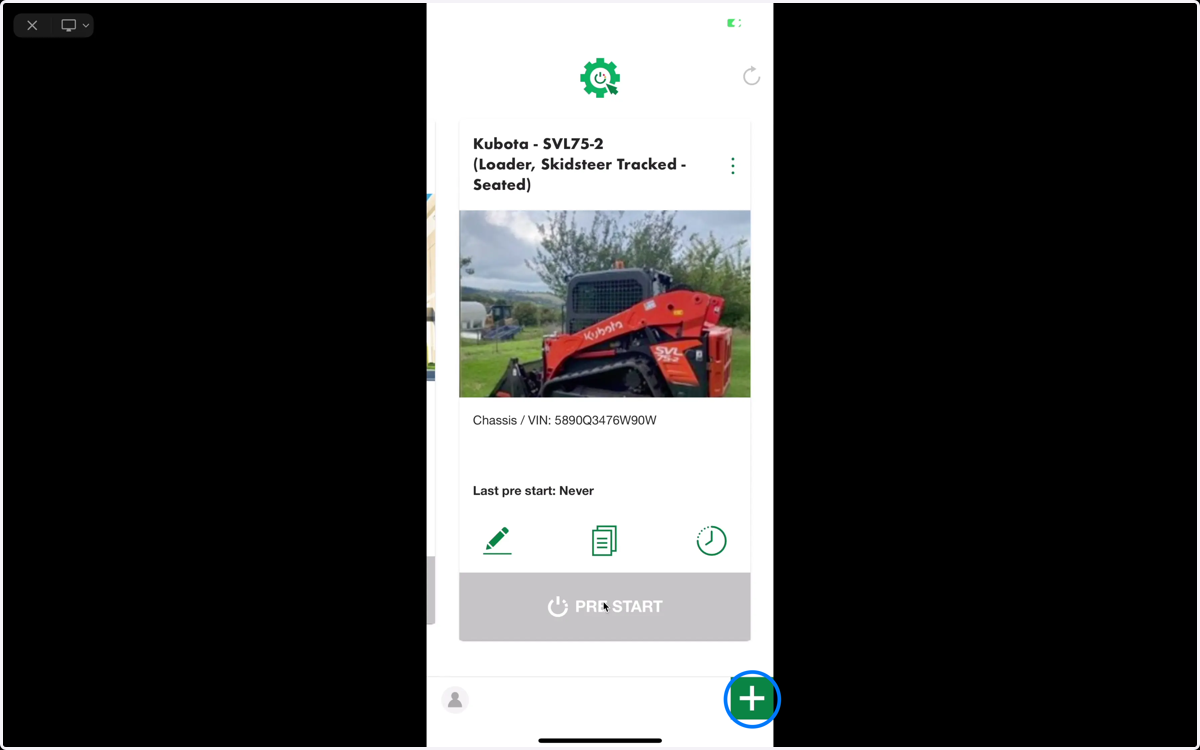
To find a machine not listed, click the green + button bottom right.
4. To search for a machine that already exists in your Plant Assessor account
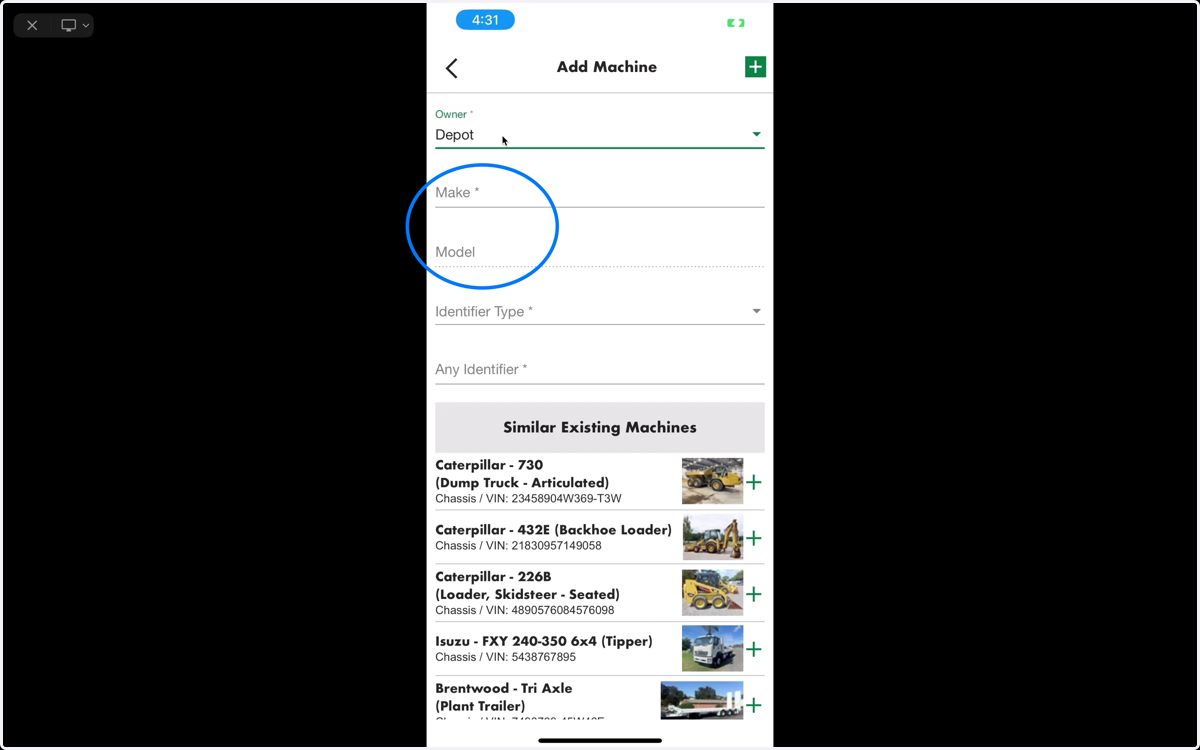
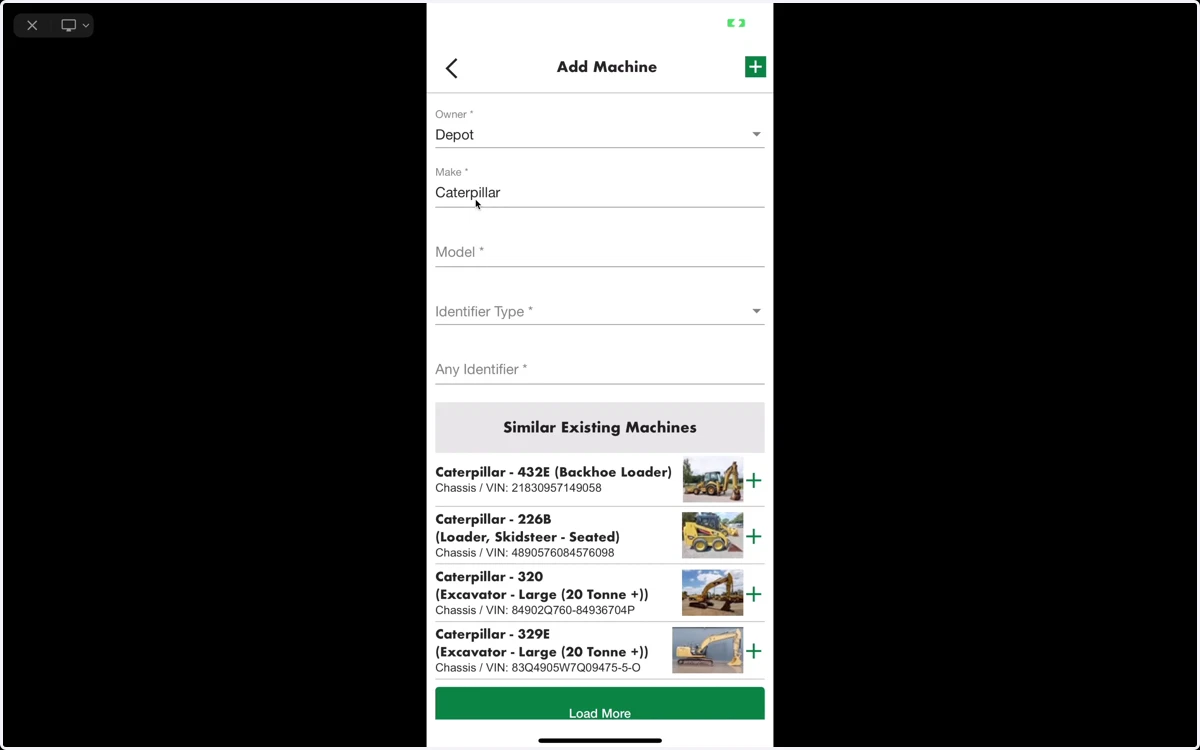
You can search for an existing machine by selecting the make and model from the drop down menus. A listing of machines will appear at the bottom of the screen. Click the green + button to add the machine to your Asset Guard account.
IMPORTANT: If you account has Owners setup, ensure you have selected the appropriate Owner from the top drop down menu. Only machines assigned to each Owner will show.
If your account does not use Owners, you can skip this step.
5. To add a new machine
To add a new machine that has not yet been setup, simply select the make and model, add a unique identifier and add a photo of the machine directly from the app.
6. Conducting a pre start
Once you have found or added the machine, you can begin a pre start inspection. Simply click the Pre Start button and a machine specific checklist will commence.
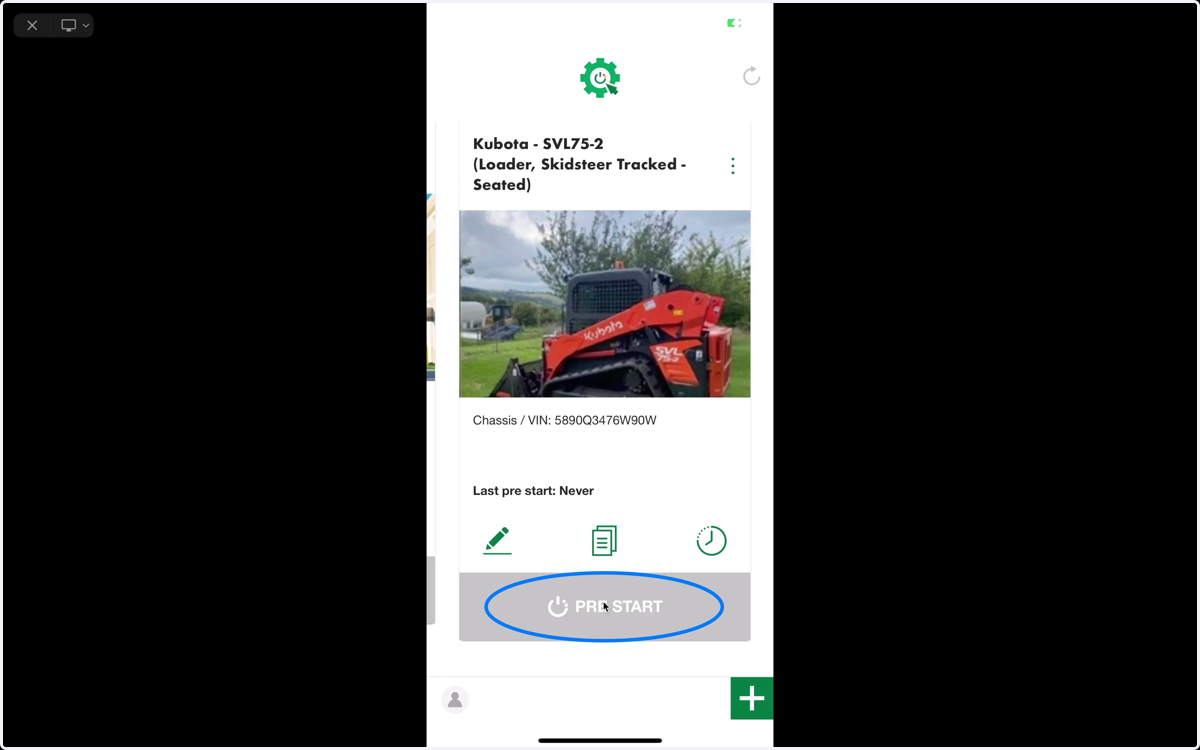
7. Follow the checklist questions
Enter the machine usage and answer the questions as you inspect the machine
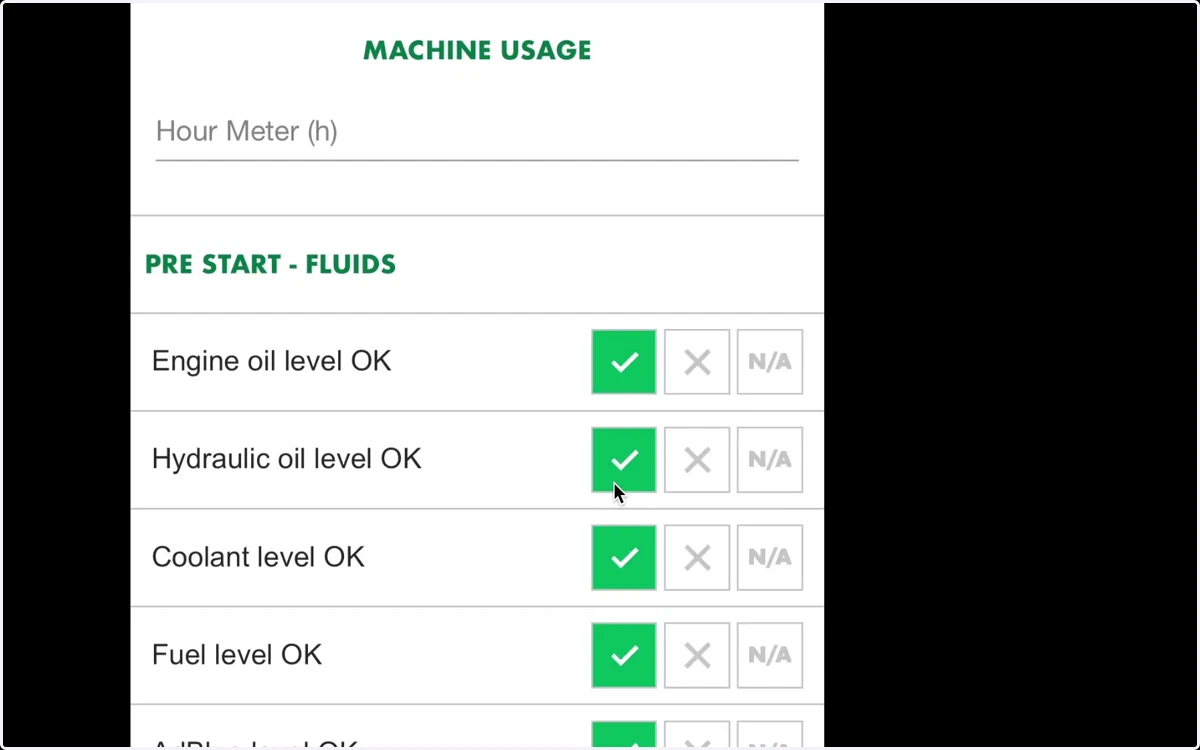
8. Add photos of any identified issues or to add more information
Click the camera button to take a photo or add from photo library
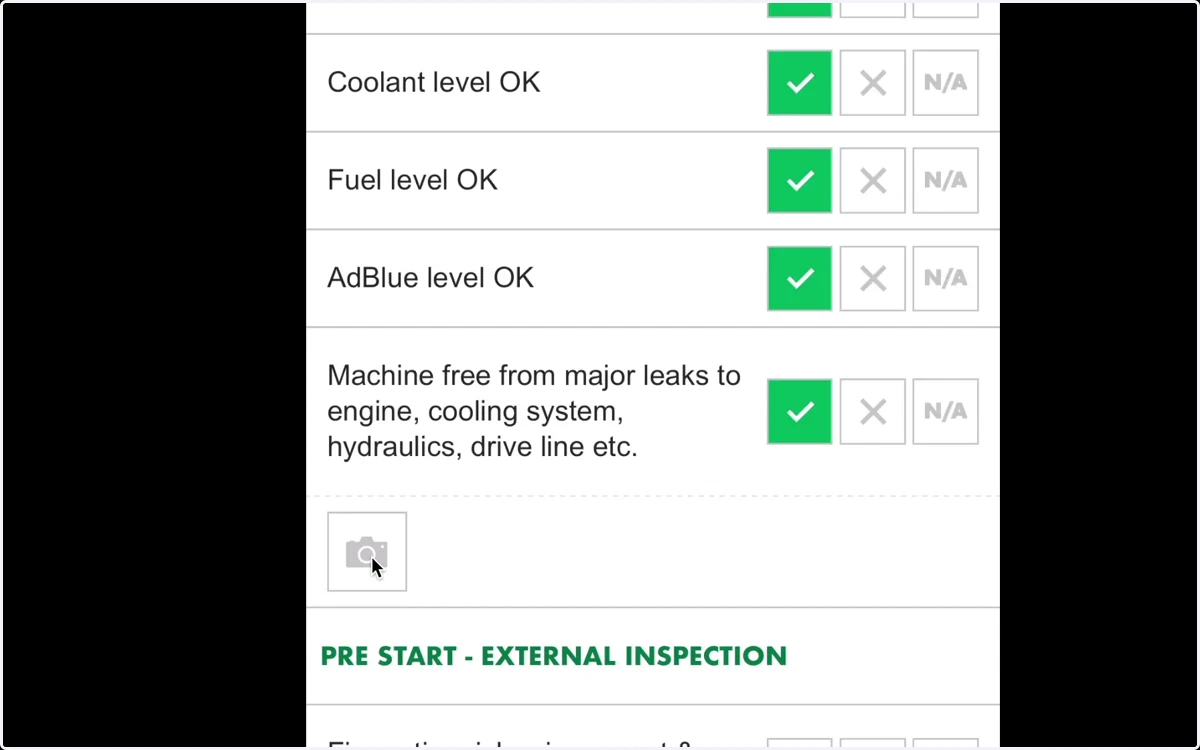
9. Your operational status and Pre Start report
Once you have completed your pre start inspection, you will be given an operational status.
Green = Machine is right to operate
Orange = Non-critical issues identified, machine is still right to operate but actions are required.
Red = Do NOT operate. Critical issues have been identified and must be actioned immediately.
To share the Pre Start report, click the Share Pre Start button. You will have the option to share a link via SMS, email or social apps.
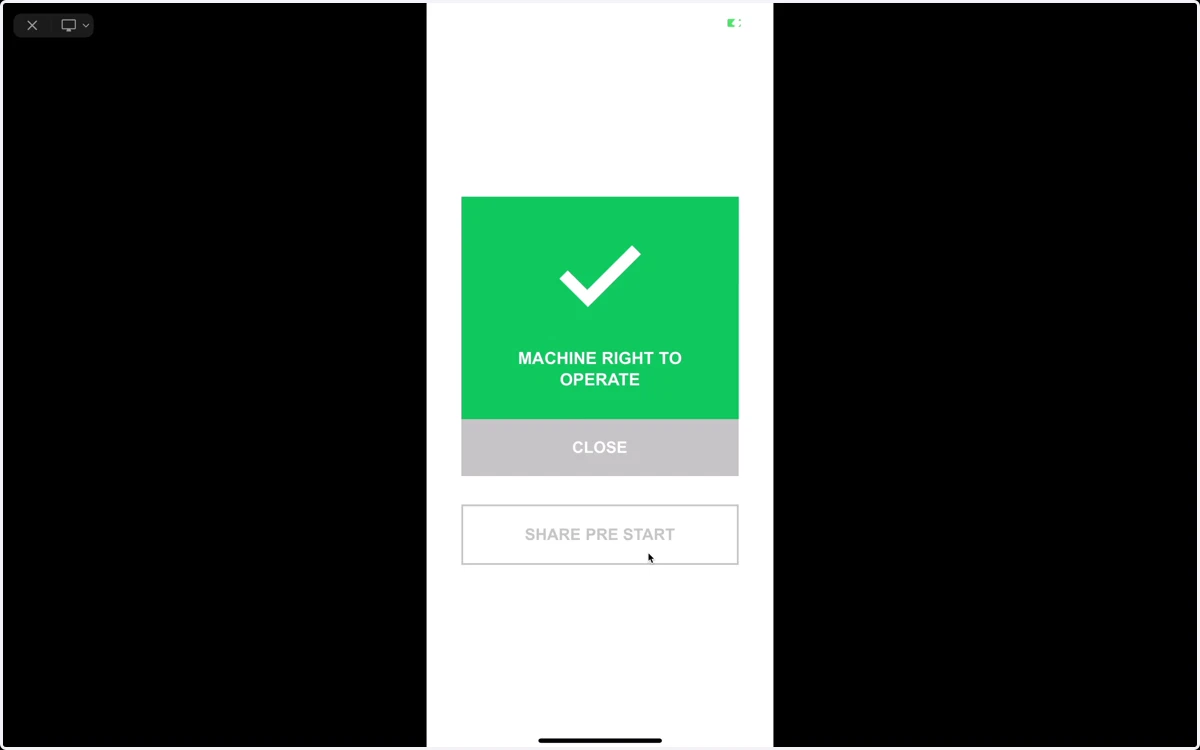
10. Home Screen icons
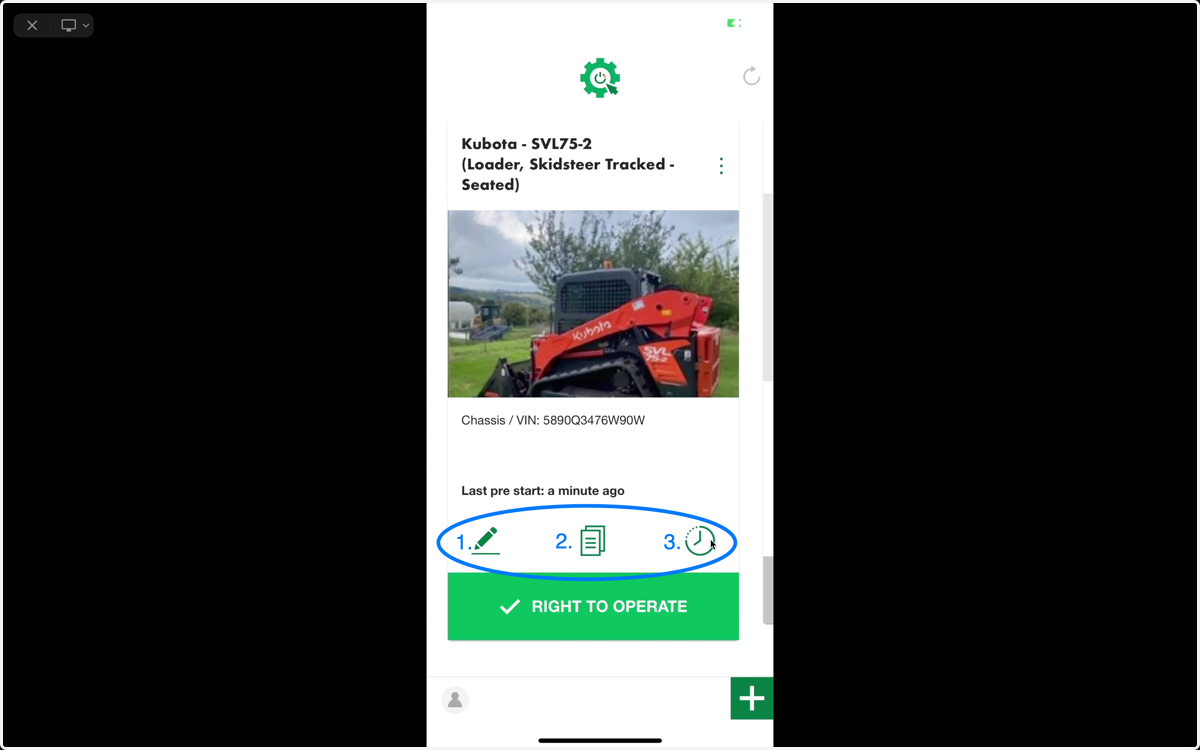
The green icons at the bottom of each machine allow you to:
1. View the machine details
2. View the machine document library
3. View Pre Start history
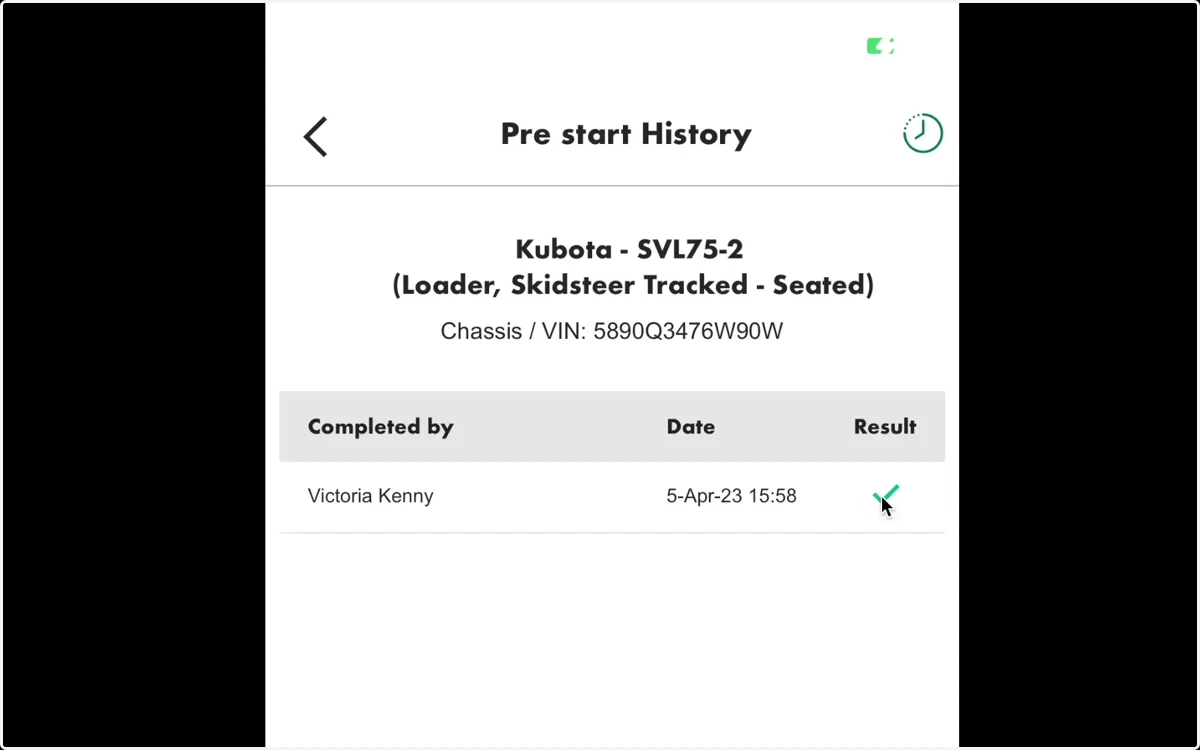
11. Pre Start history
Clicking the Clock icon shows you the history of all pre starts recorded against a machine.
Each pre start is time stamped and records the name of the person who conducted the pre start.
To view the report, click the icon in the Result column.