Navigating Call History

  1. 1. To view details, click on View Call Details
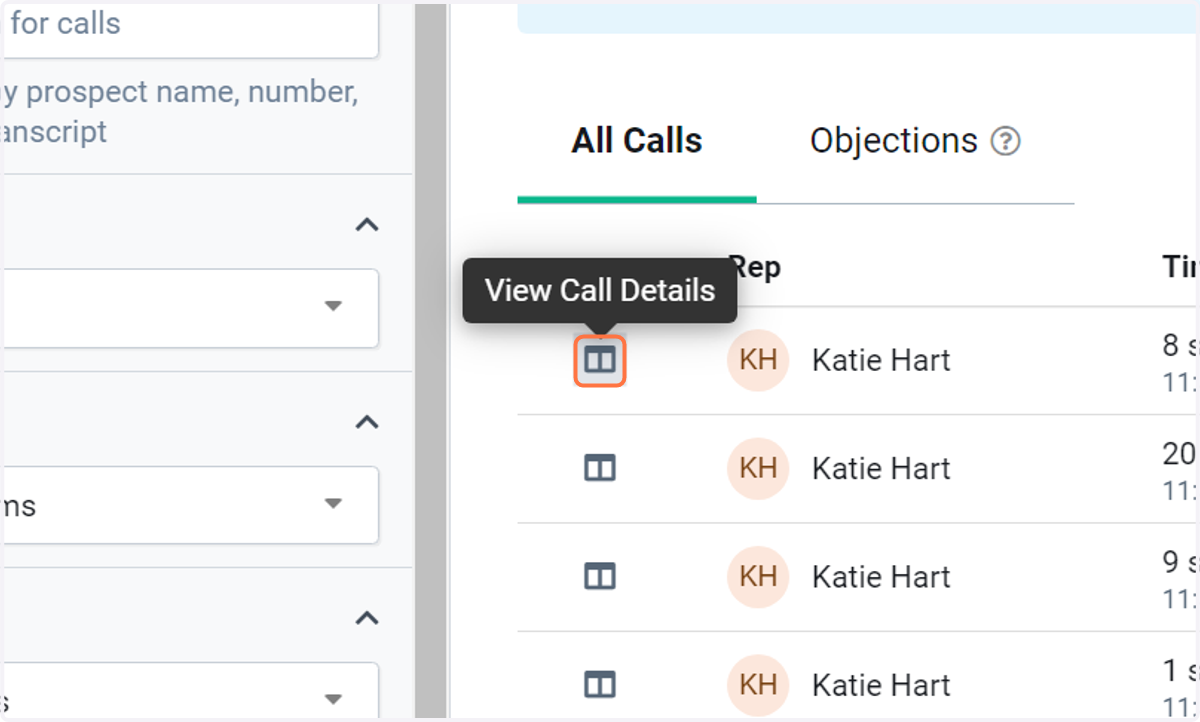
    To view details, click on View Call Details
  2. 2. From Call History, you'll be able to see the detail of every call made in Orum and search and filter as needed.
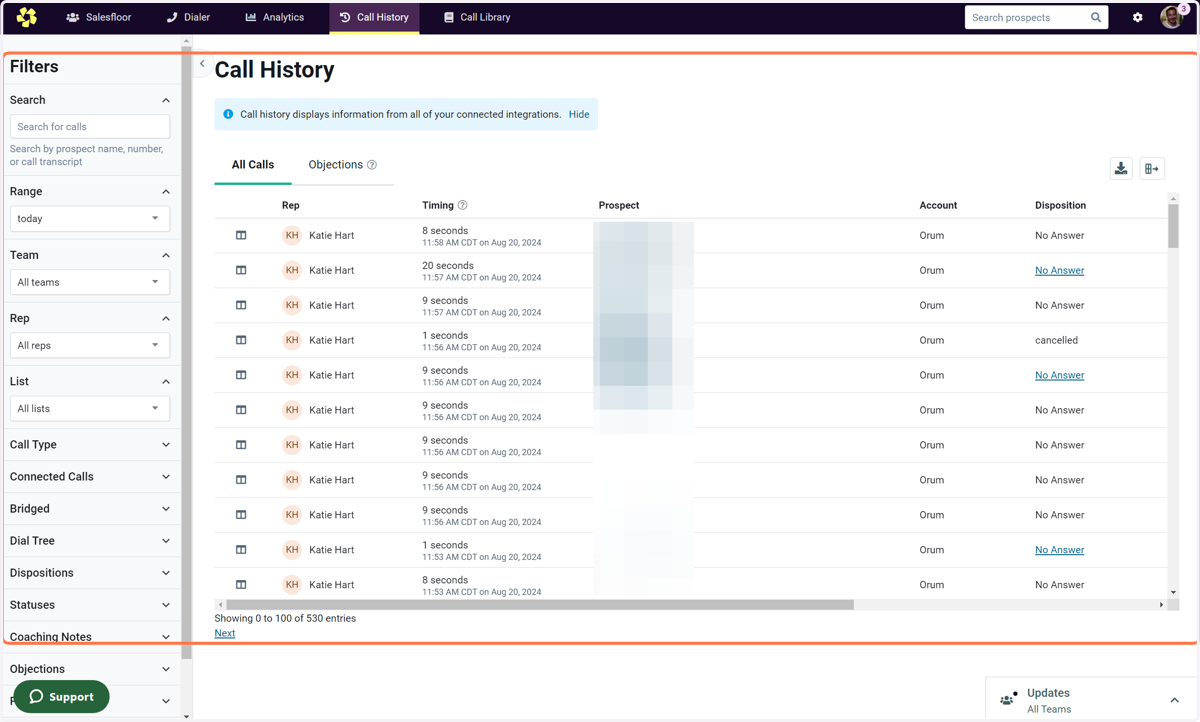
    From Call History, you'll be able to see the detail of every call made in Orum and search and filter as needed.
  3. 3. A right-side window will expand with all the relevant details and call recording
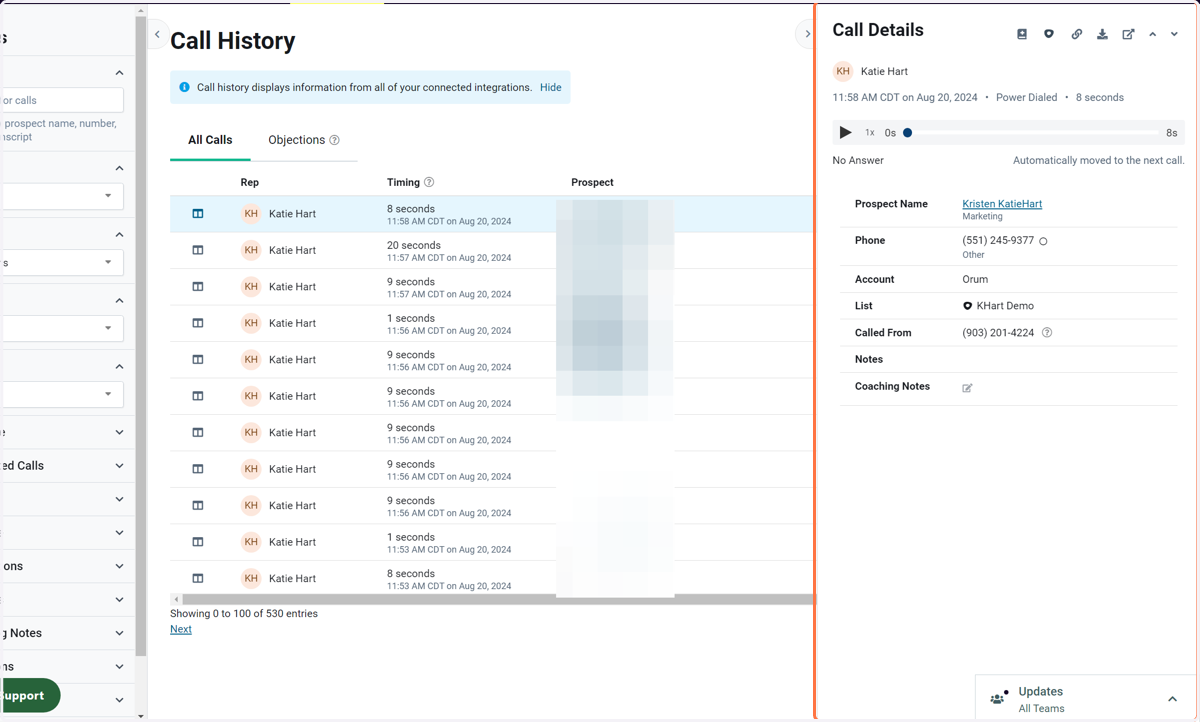
    A right-side window will expand with all the relevant details and call recording
  4. 4. Click on the player to listen to the recording
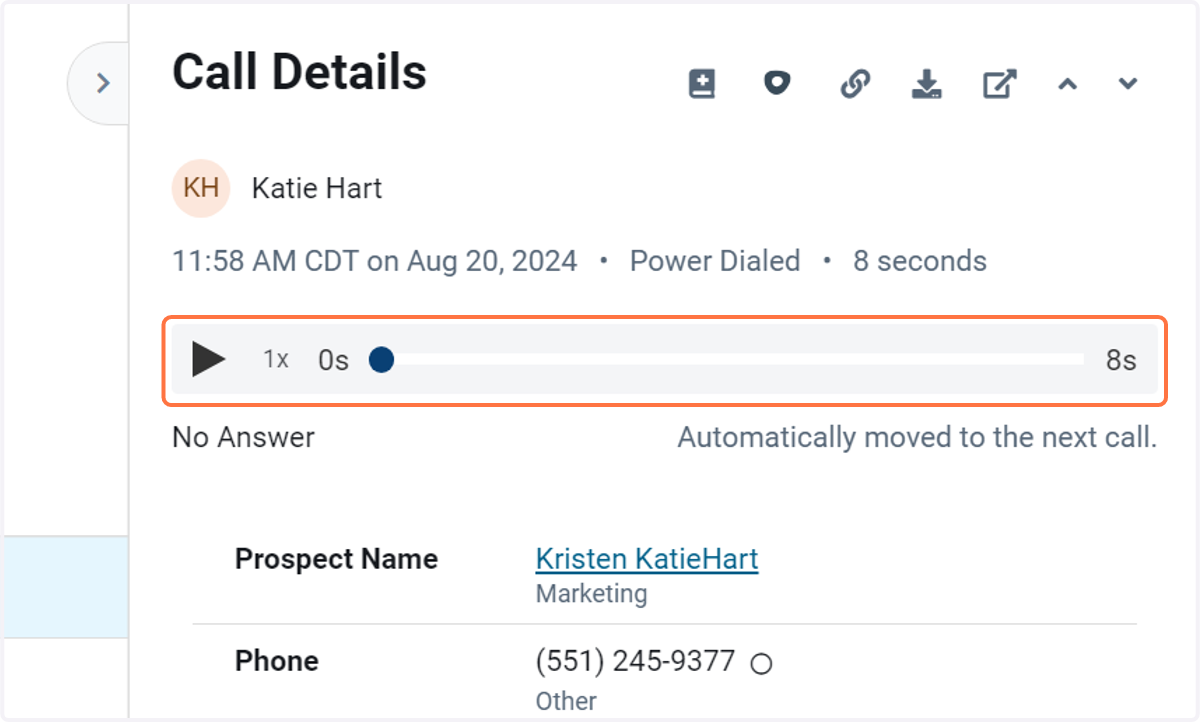
    Click on the player to listen to the recording
  5. 5. This row of buttons has more actions like adding the call to Call Library
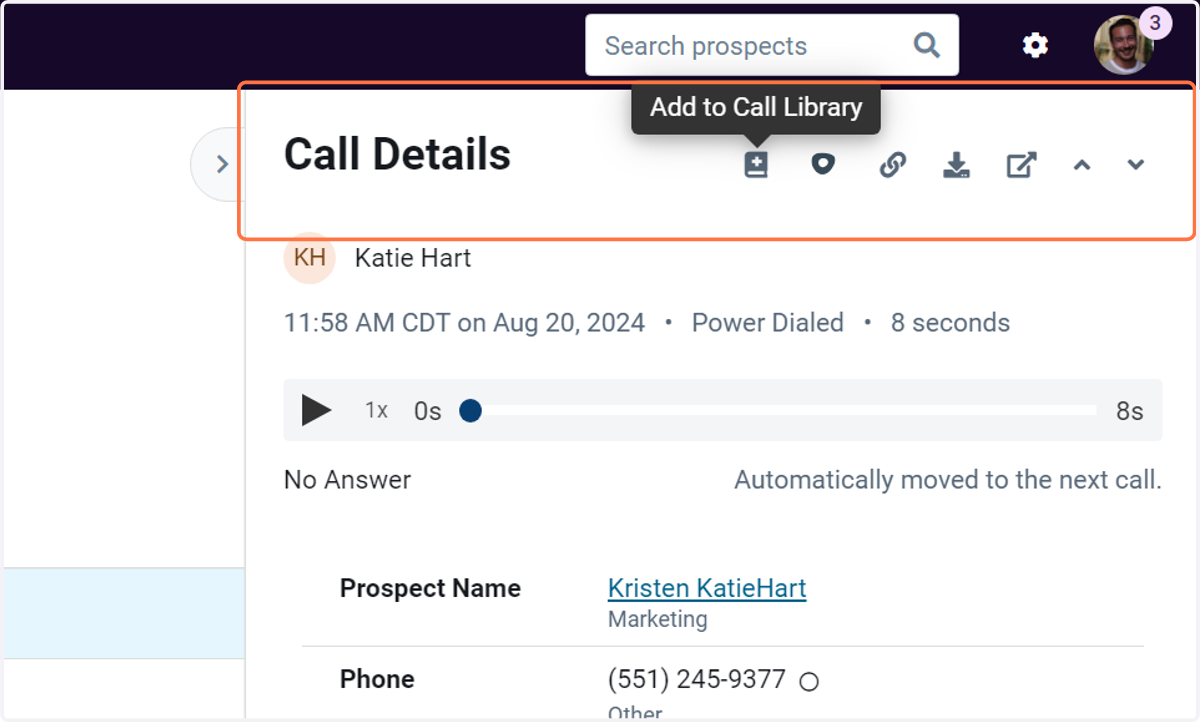
    This row of buttons has more actions like adding the call to Call Library
  6. 6. Adding an Outreach task from the call
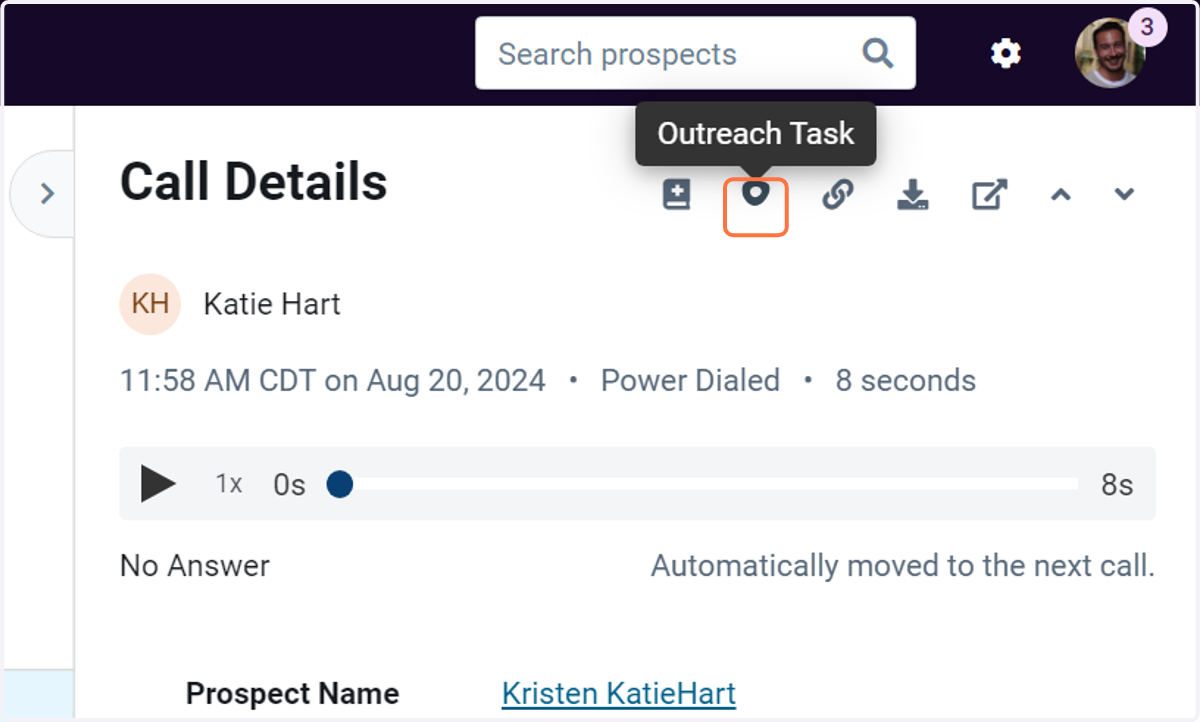
    Adding an Outreach task from the call
  7. 7. Getting the link to share the recording
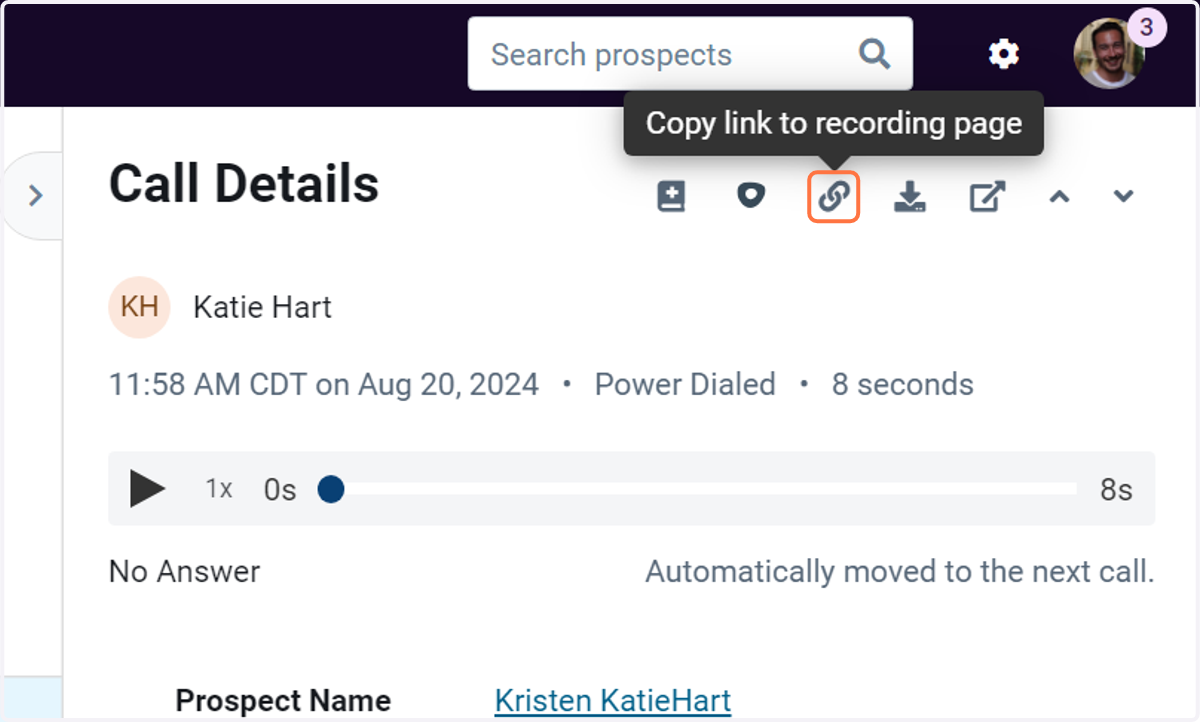
    Getting the link to share the recording
  8. 8. Download the recording in a .wav file
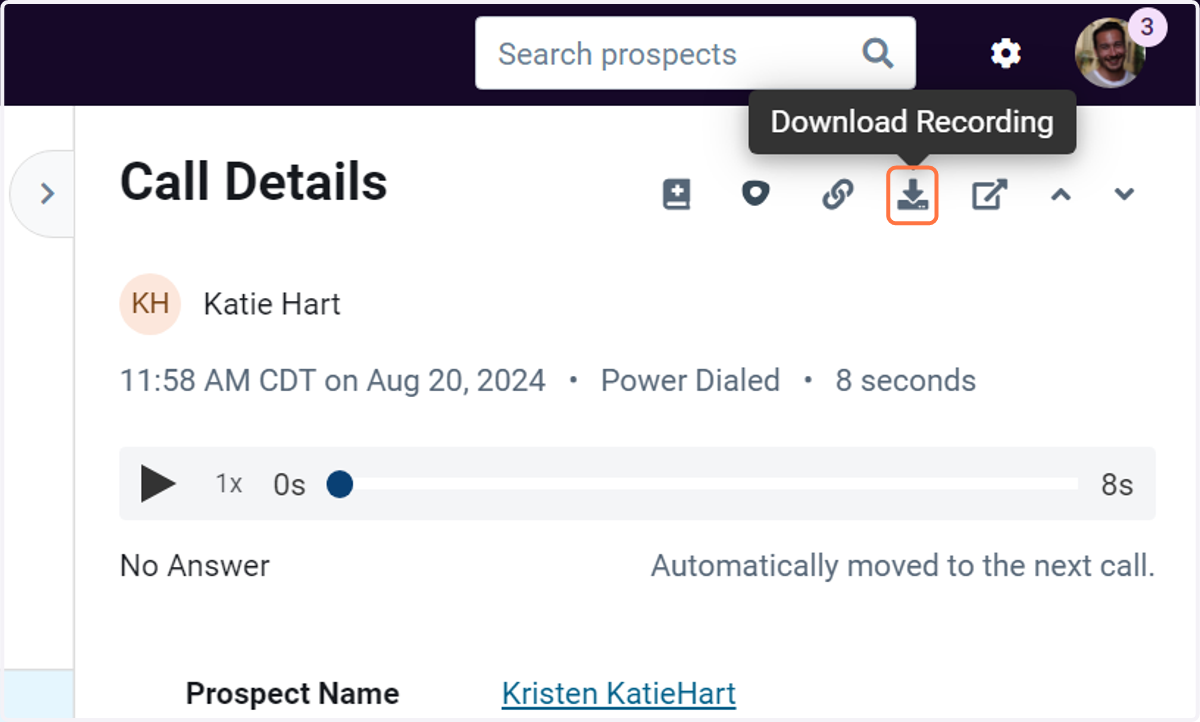
    Download the recording in a .wav file
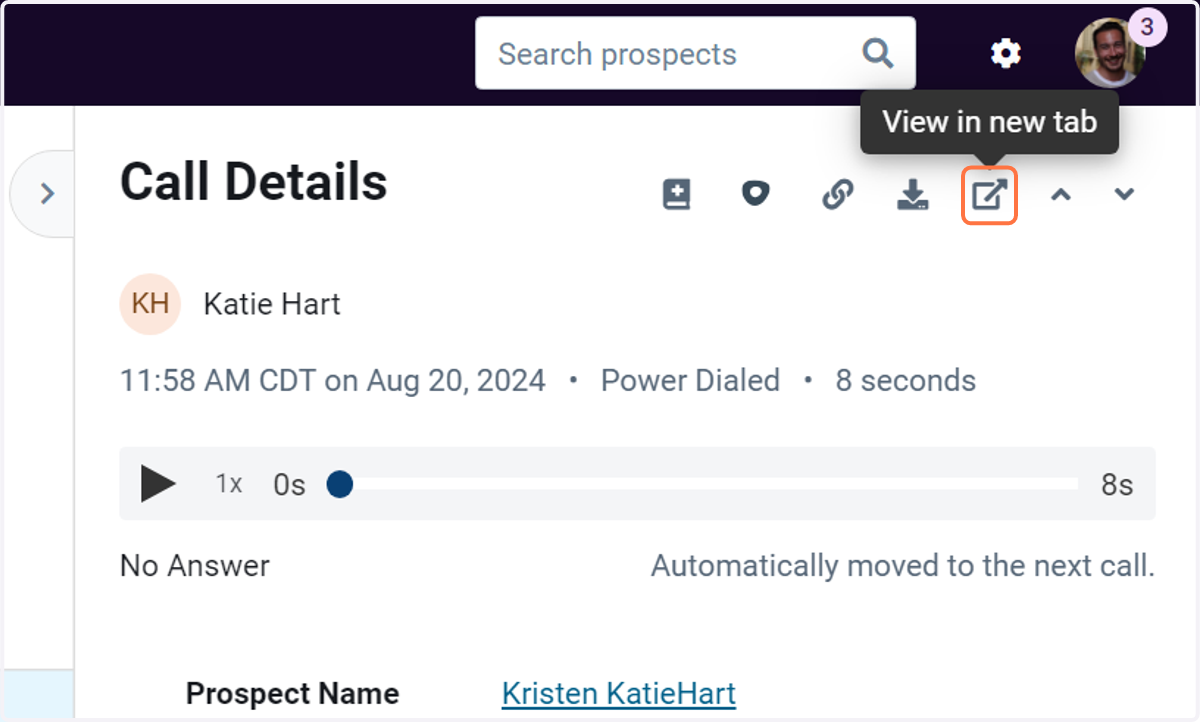
  9. 9. View the recording in another tab

    View the recording in another tab
  10. 10. And move to the previous or next call
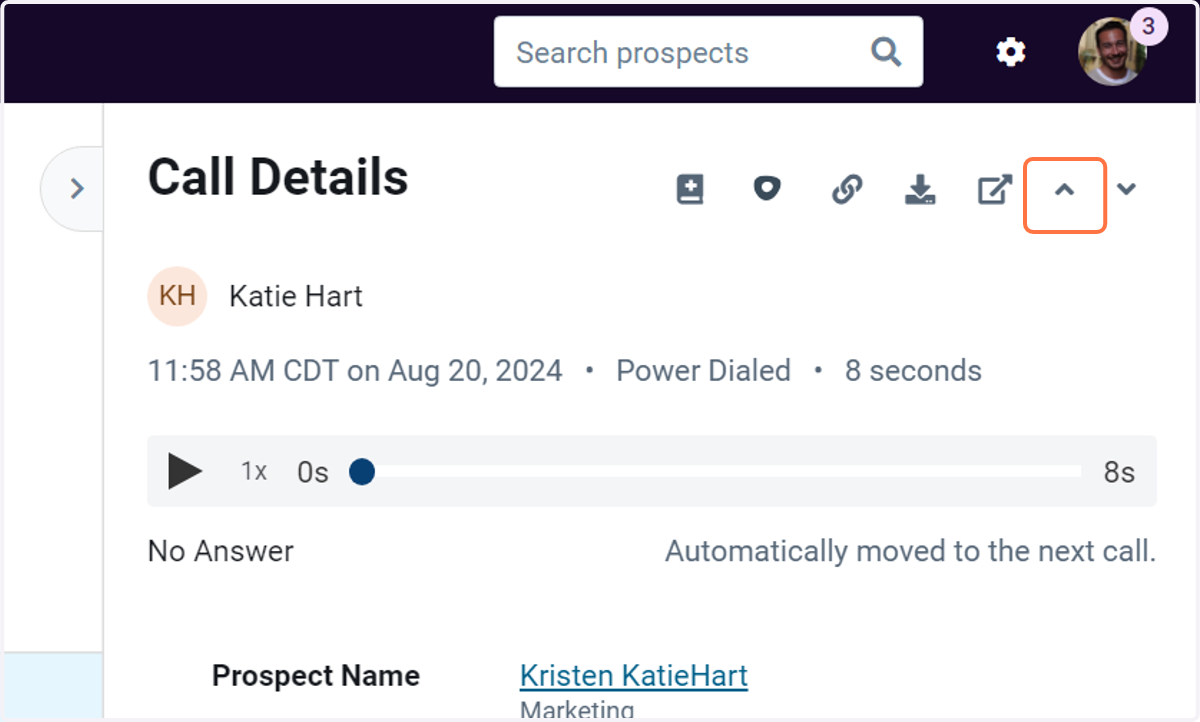
    And move to the previous or next call
  11. 11. You can always click on the button here to collapse the sidebar.
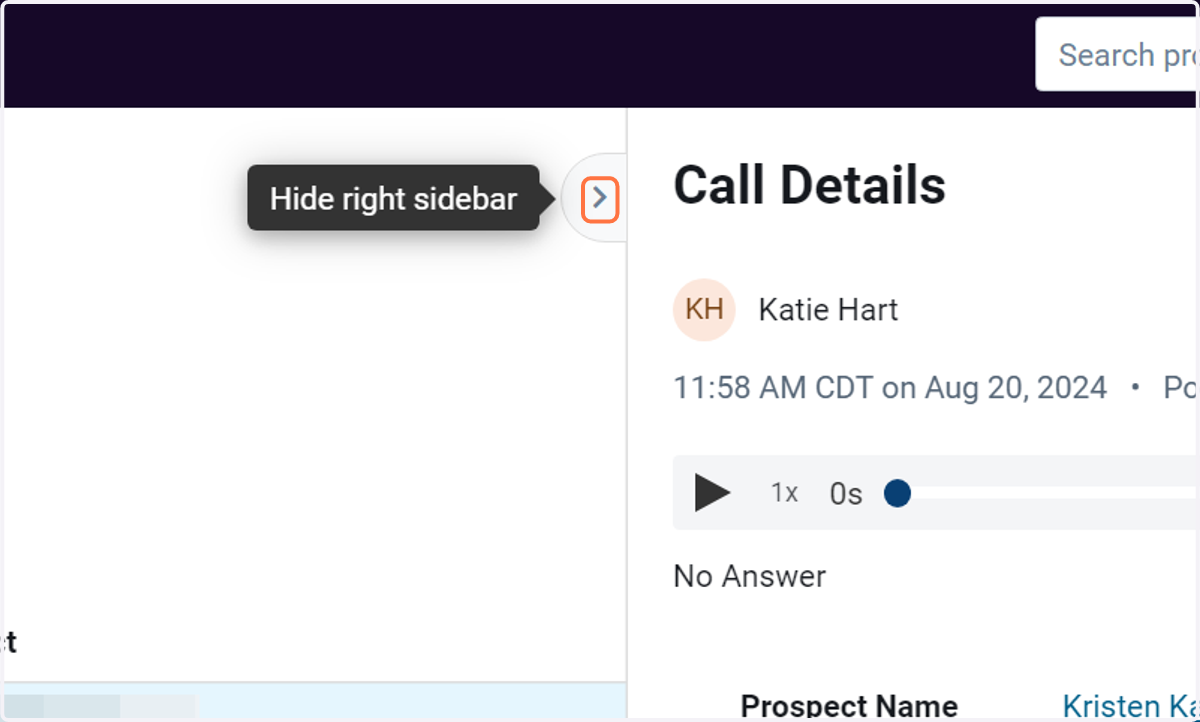
    You can always click on the button here to collapse the sidebar.
  12. 12. From the left-hand side you can add filters
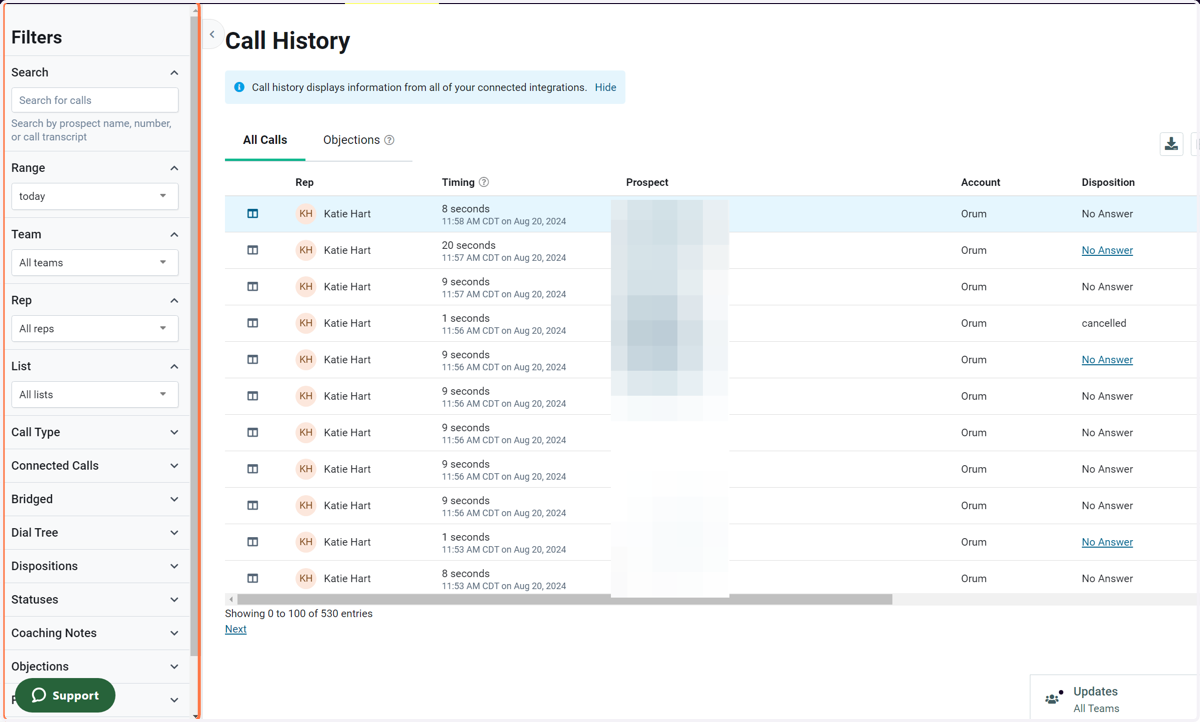
    From the left-hand side you can add filters
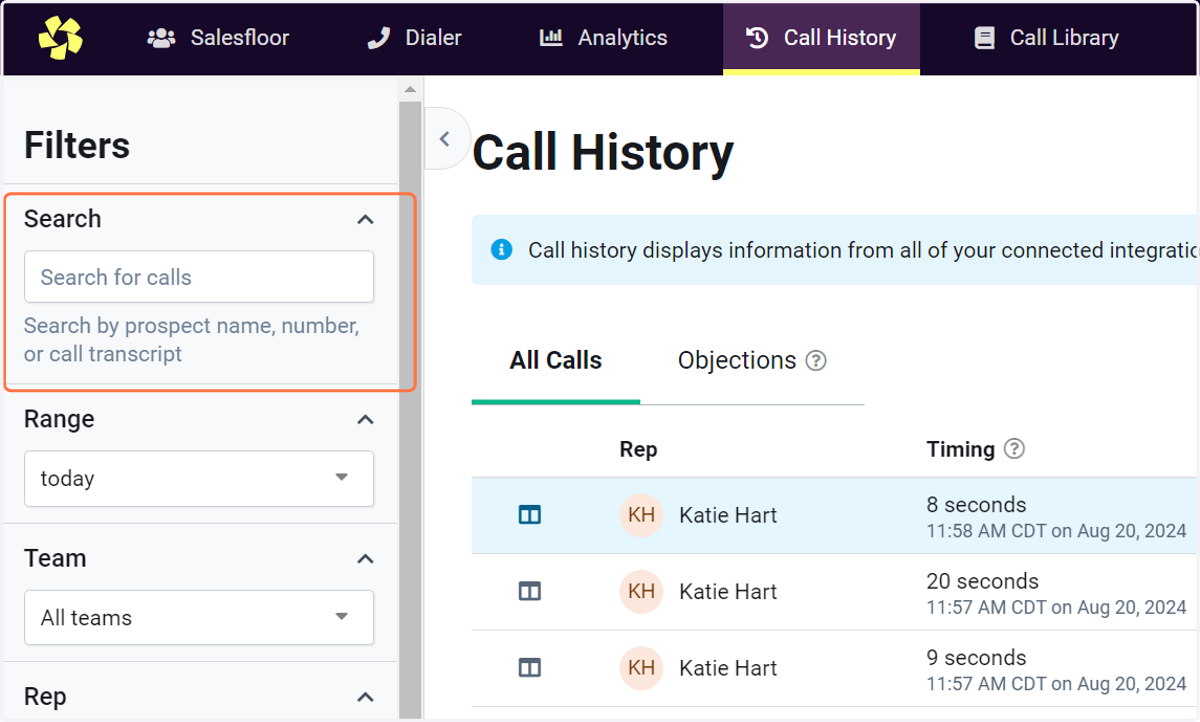
  13. 13. or search for anything

    or search for anything
  14. 14. Lastly, we have another view to see call history by Objections
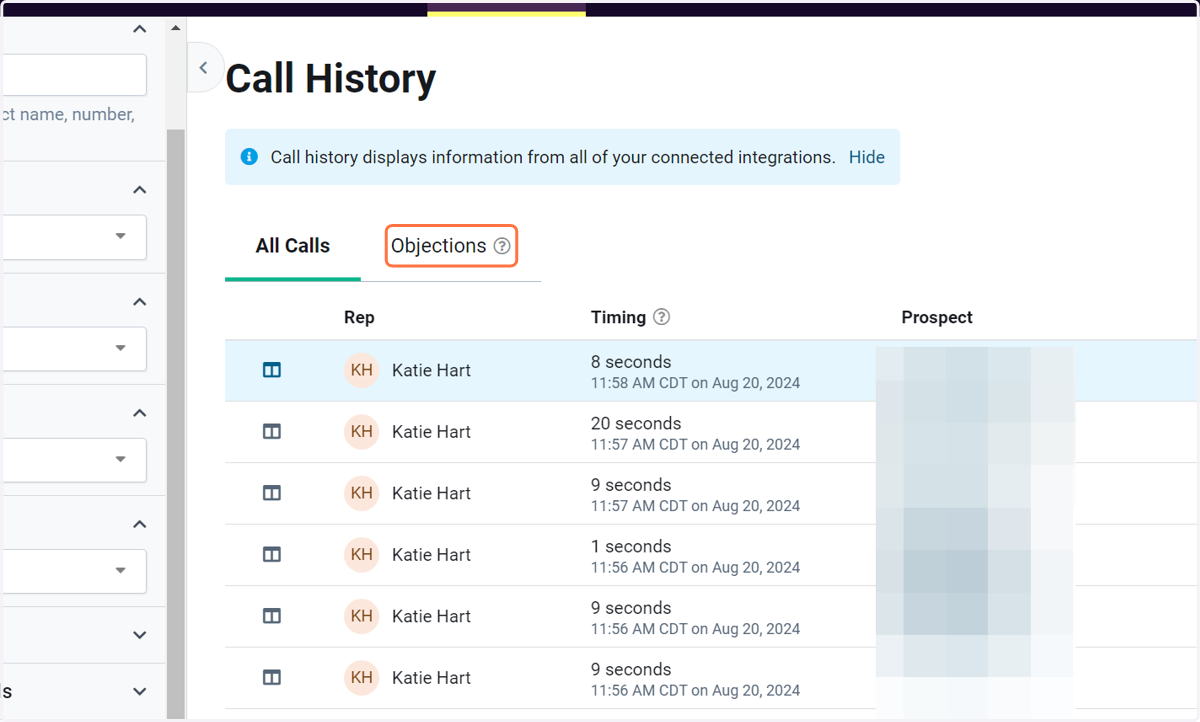
    Lastly, we have another view to see call history by Objections
  15. 15. From this view, you can quickly see what Orum's AI has identified as the main objections to get a sense of what your team is running into.
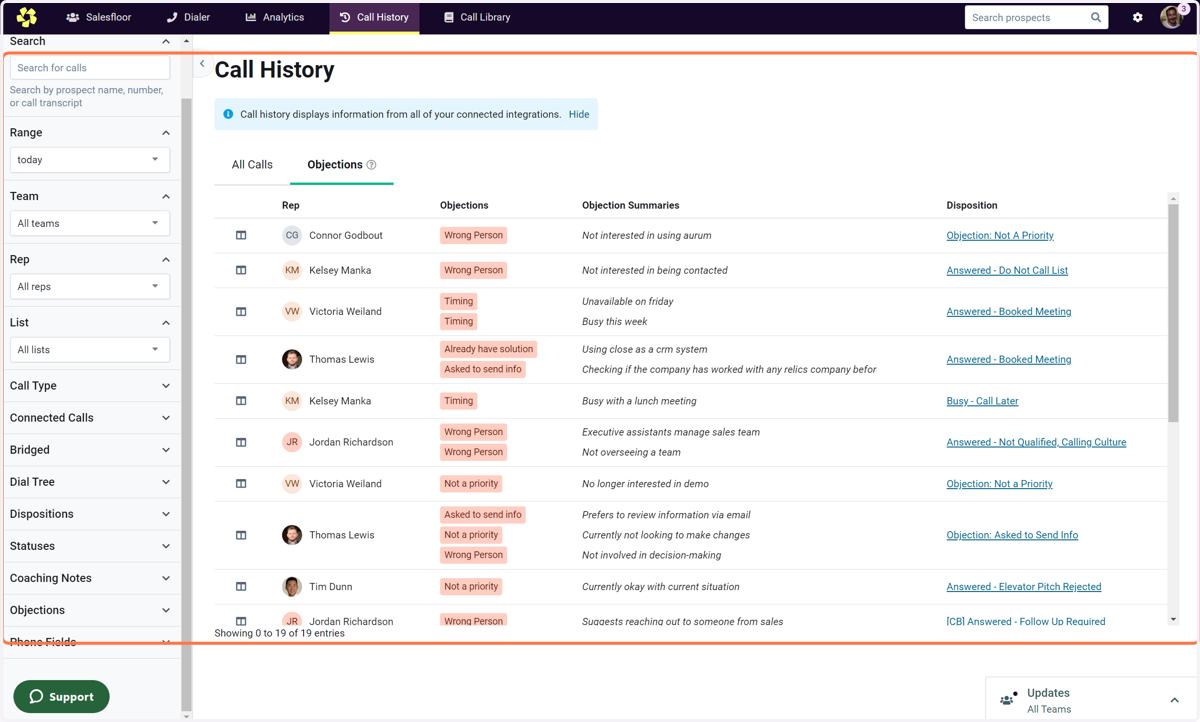
    From this view, you can quickly see what Orum's AI has identified as the main objections to get a sense of what your team is running into.