Introducing CSV Upload for CompPass Distribution
Distributors using CompPass can now upload multiple Passholders to the CompPass Distribution Form using a CSV file. This feature saves time by allowing you to distribute Passbooks to several Passholders in one quick action, instead of entering details individually.
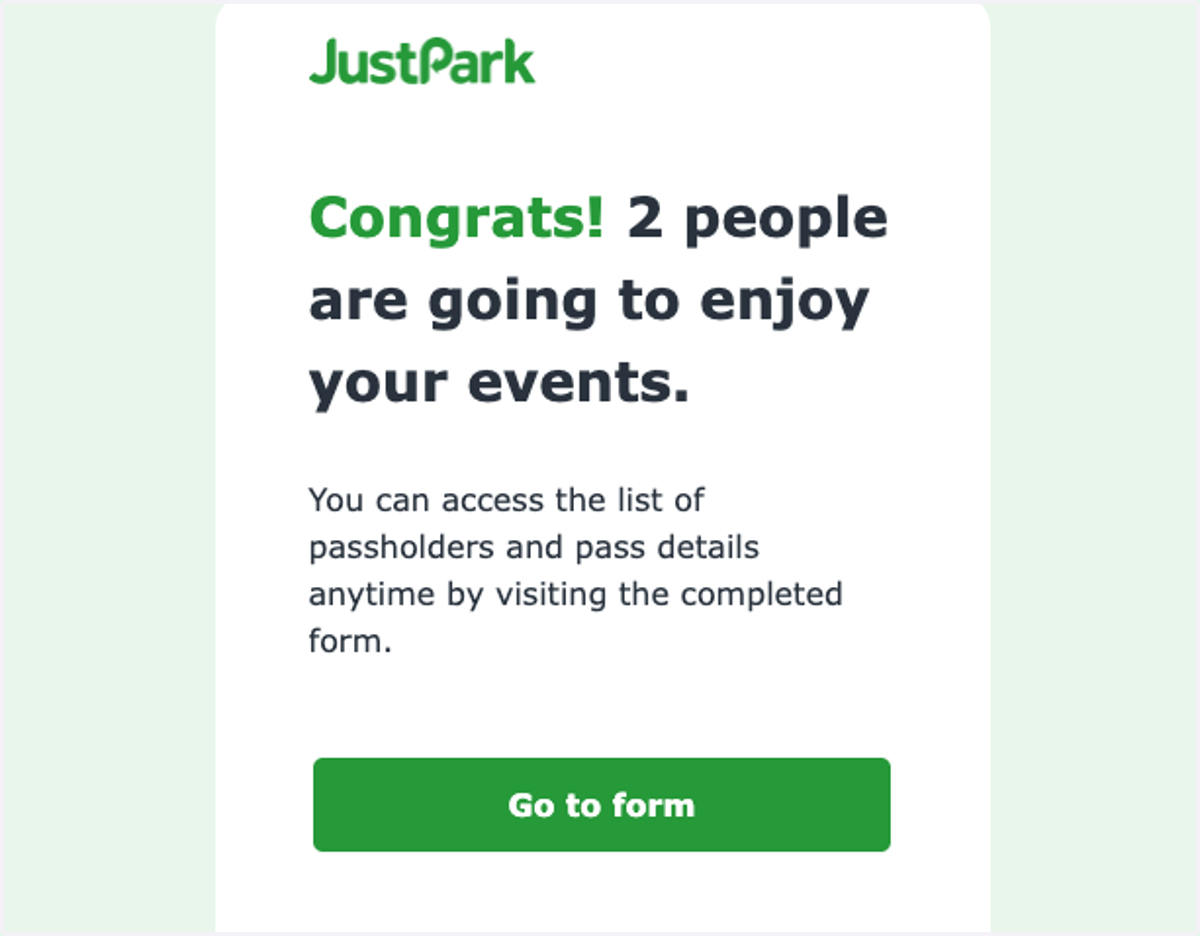
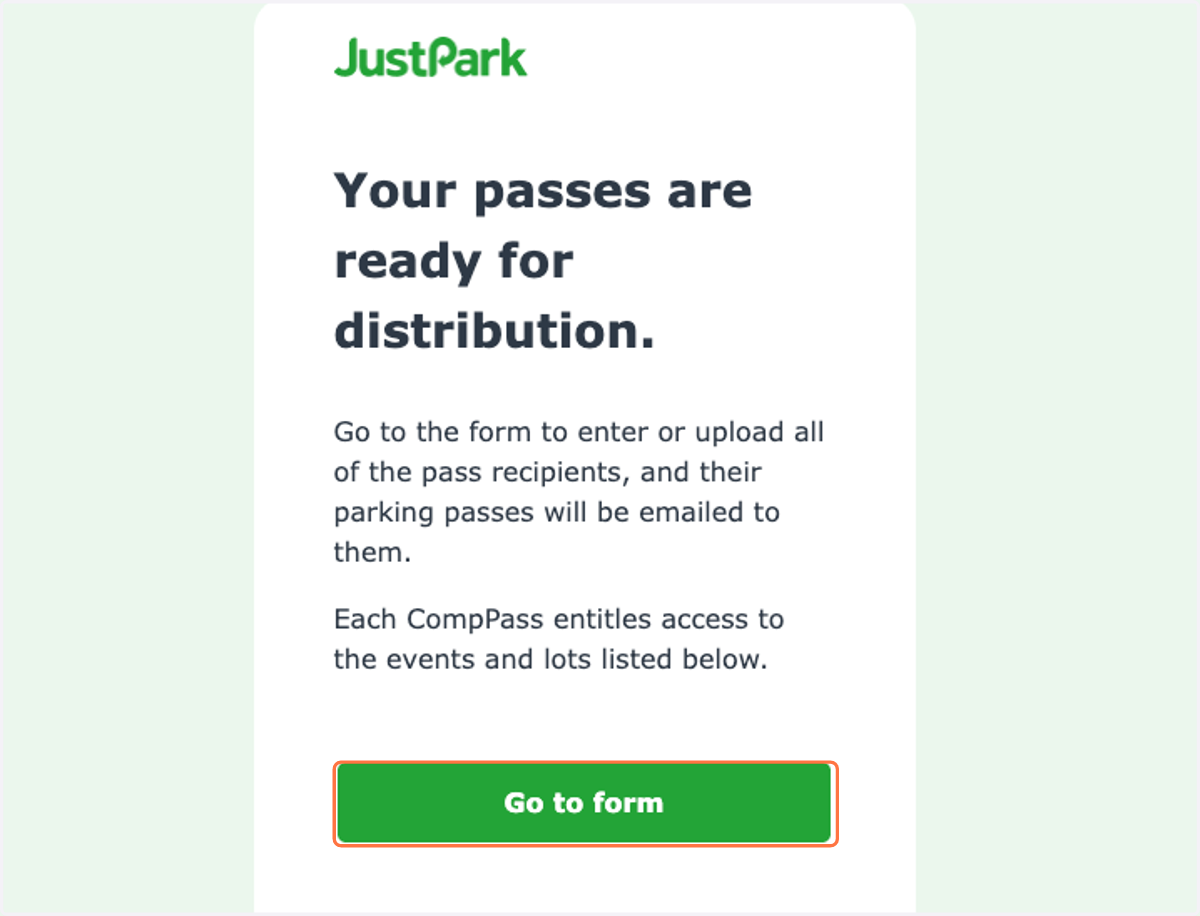
1. From your email, navigate to the Distribution Form for the CompPass Passbook you would like to distribute.
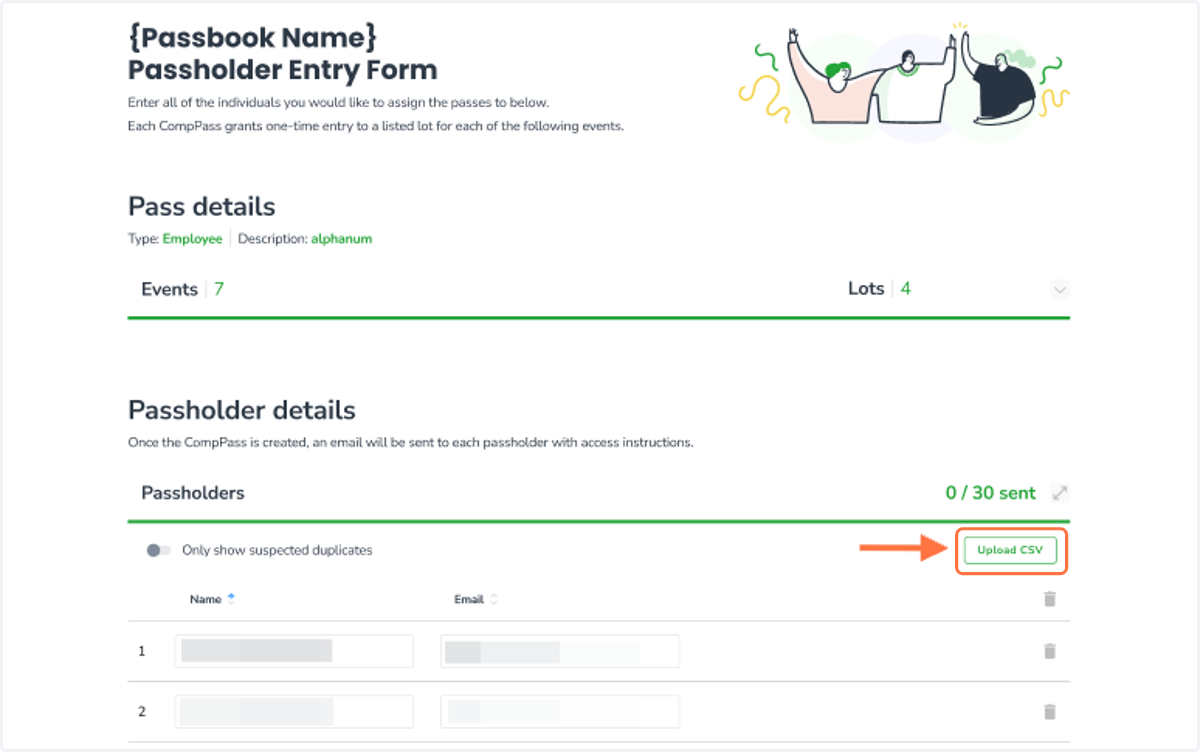
2. Under Passholder details, click the Upload CSV button
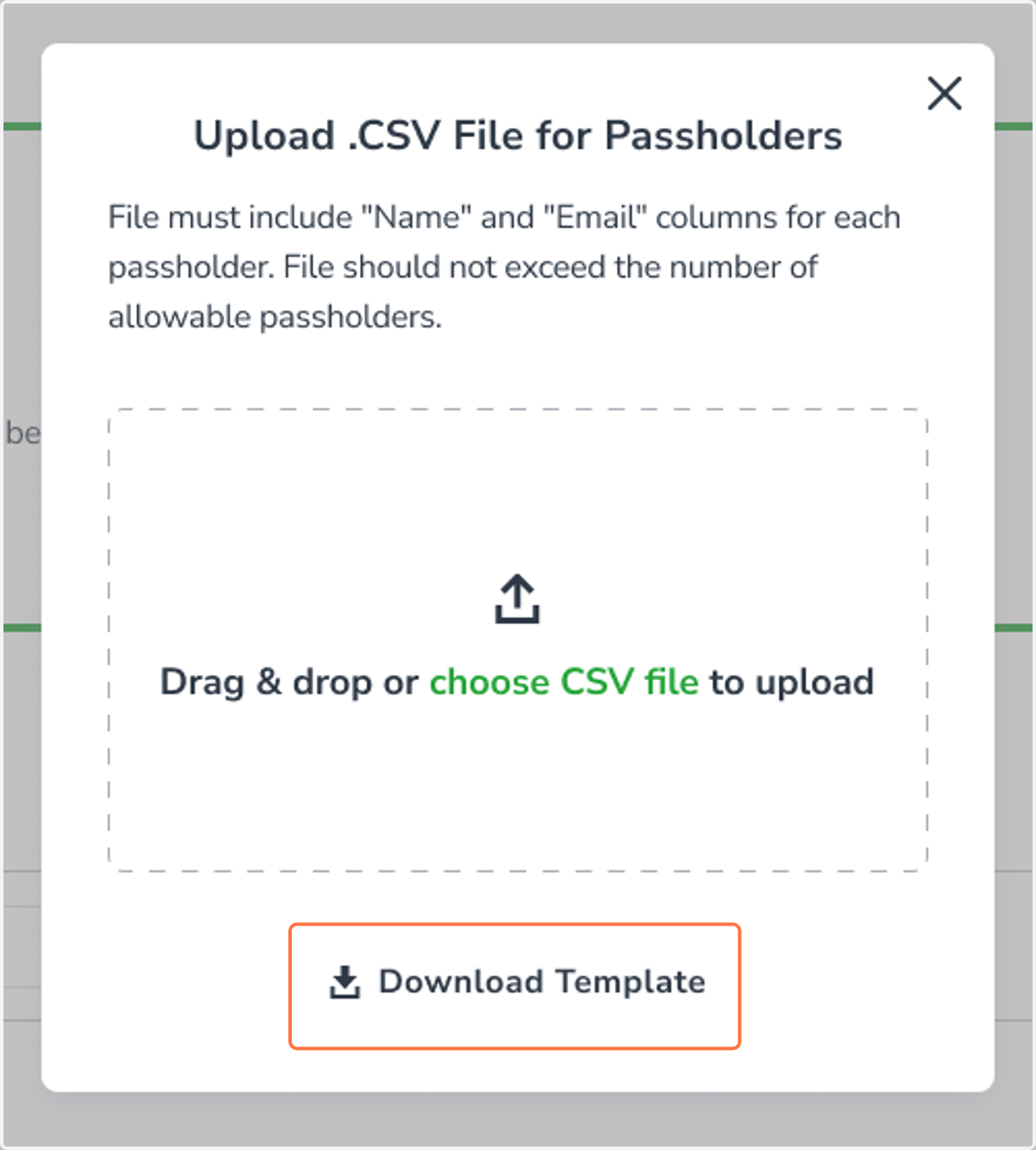
3. You may download the provided CSV template to ensure your file is formatted correctly.
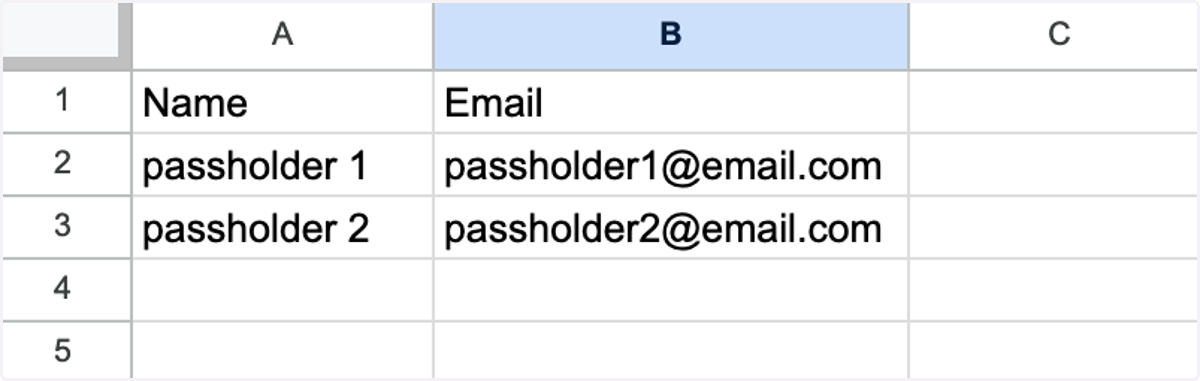
4. Enter your Passholder information into the template.
Only two fields are required:
Name
Email
Save the file as a CSV once complete.
5. Return to the CompPass Distribution Form.
You can either:
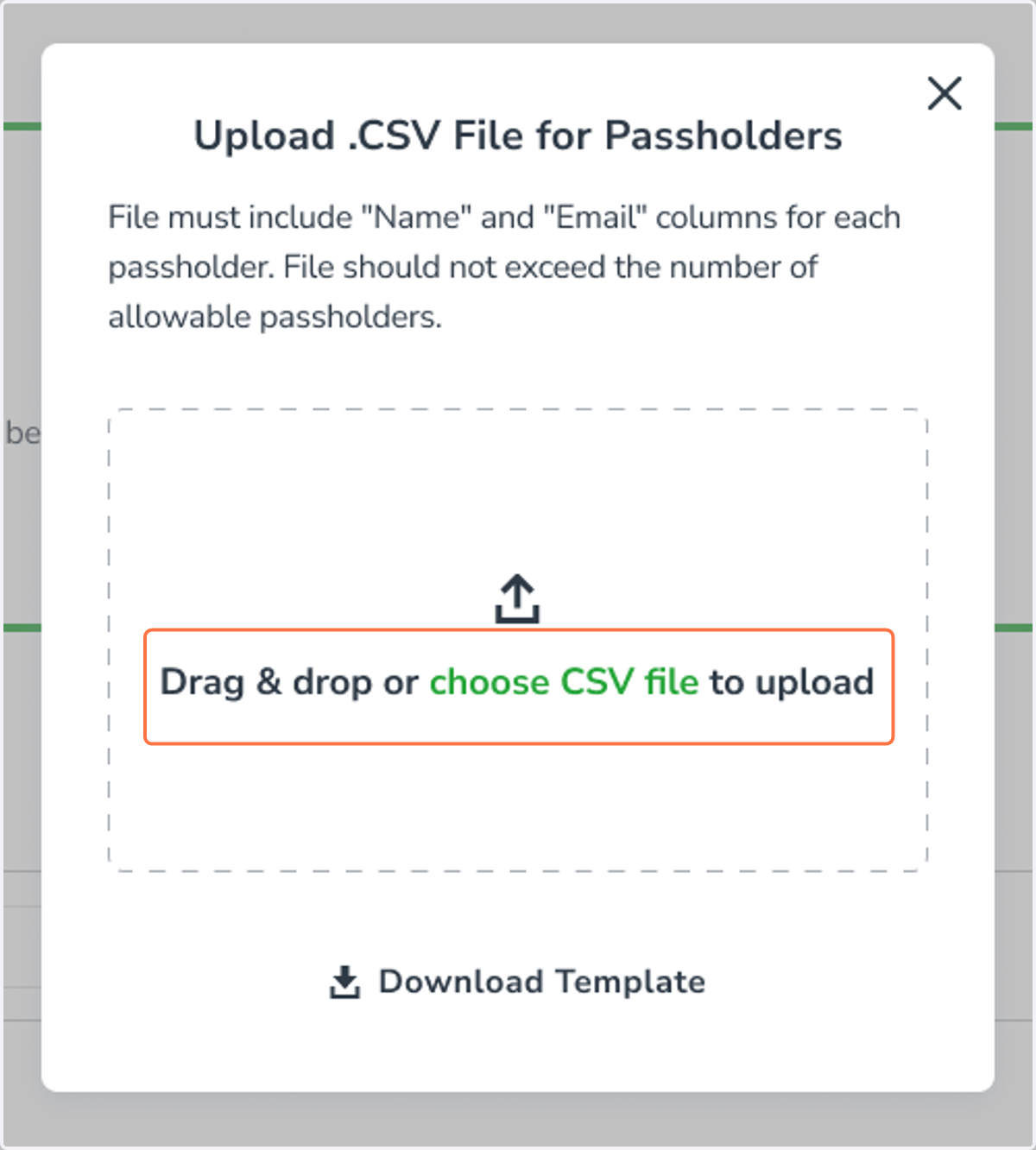
Drag and drop your completed CSV file into the upload area
Click to select and upload the CSV file from your computer
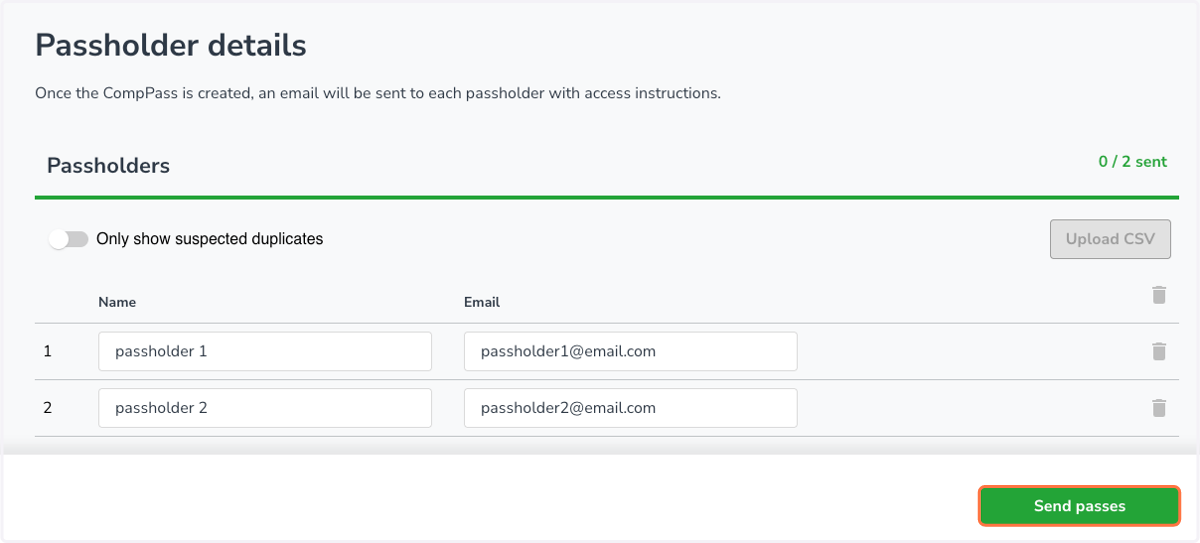
6. After uploading, the Name and Email fields for each Passholder will automatically populate on the form.
Important Notes:
If the number of Passholders in your CSV exceeds the number of available passes in the Passbook, the upload will fail and you will receive an error message.
Invalid email formats will also cause the upload to fail.
Duplicate Passholders will be flagged but you can still proceed with distribution if desired.
You may continue to manually enter Passholders line-by-line if needed.
Once everything looks correct, click Send Passes to distribute.
7. You will receive an email confirming that your CompPasses have been successfully distributed.