Navigating the Organization Profile
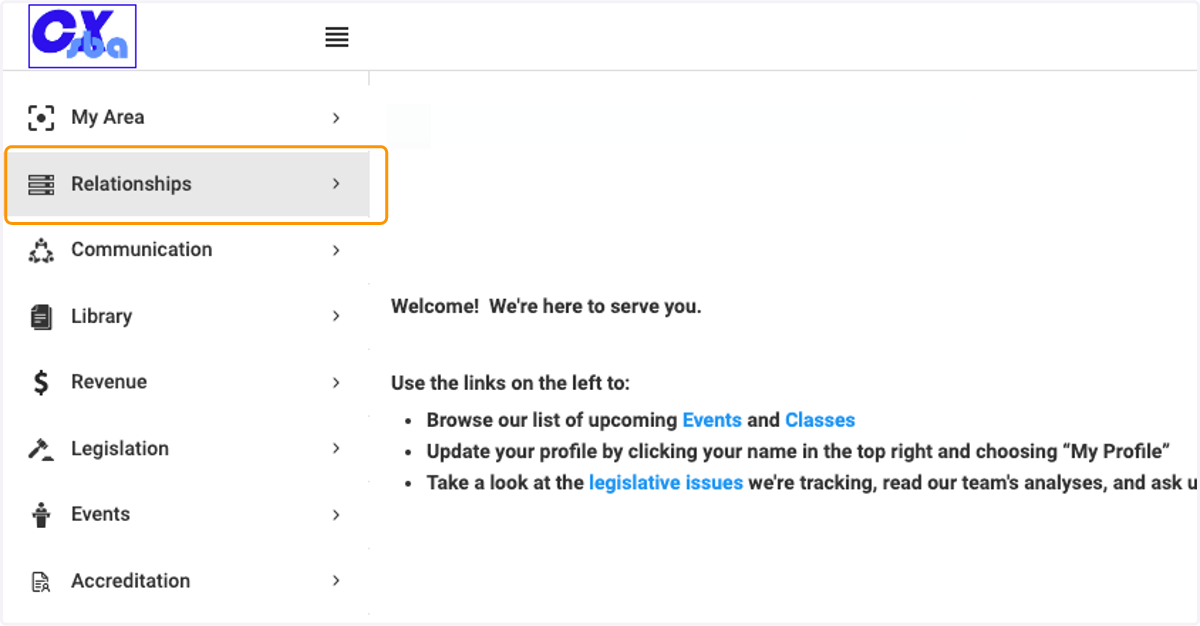
1. Click on Relationships
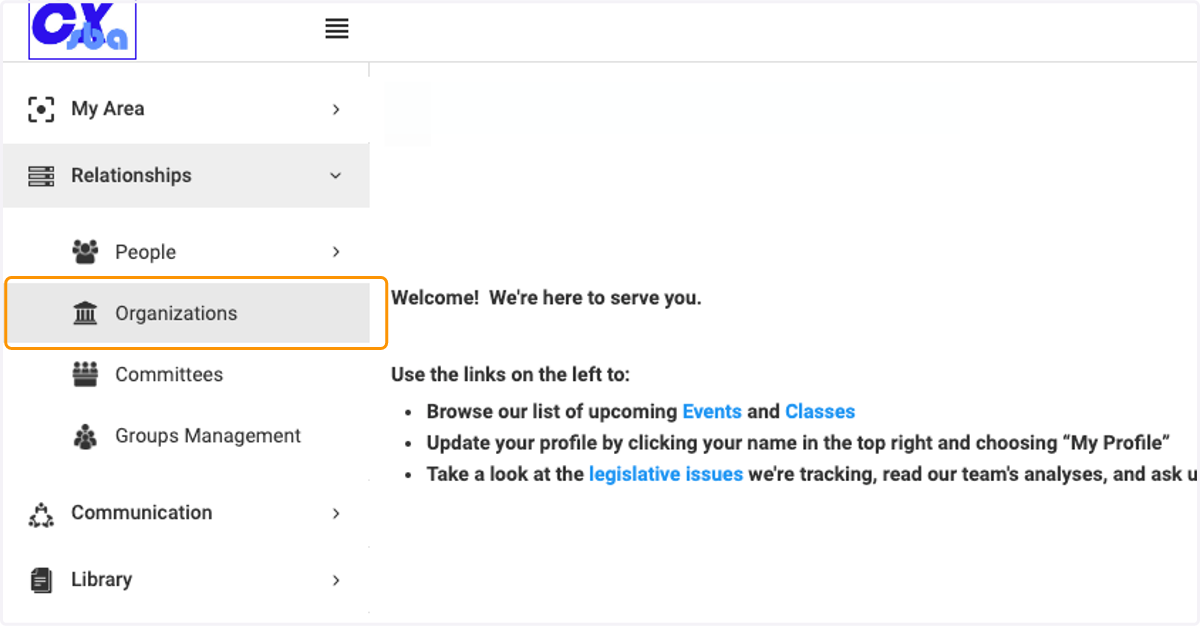
2. Click on Organizations
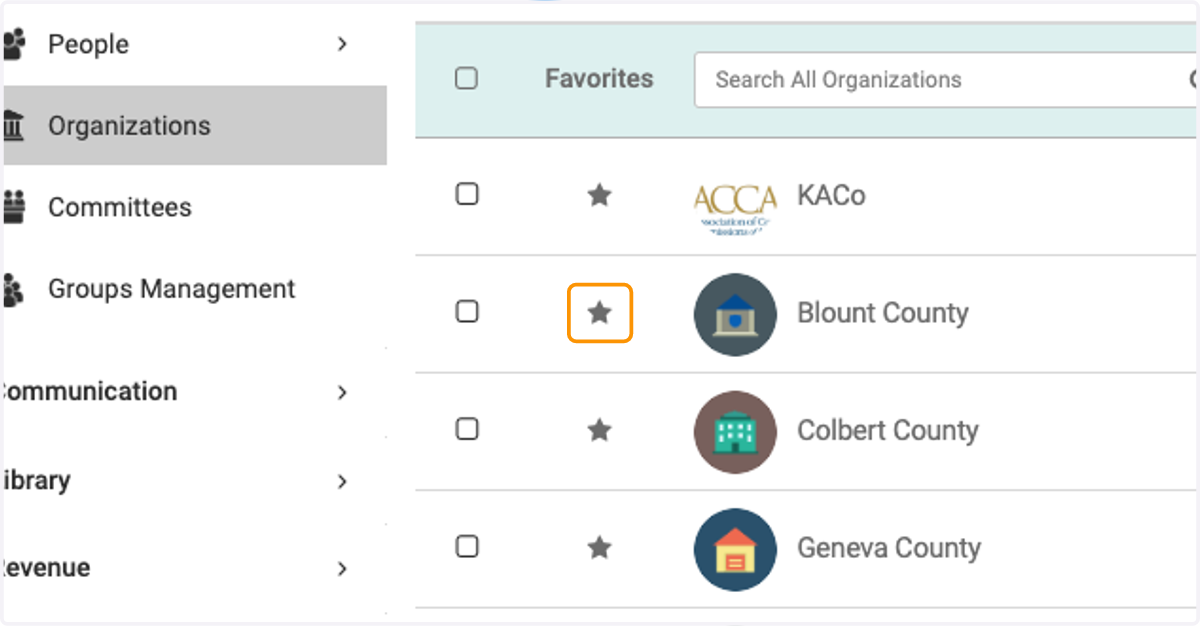
3. Click on the star if you want to make this organization a favorite
4. Click on the filter icon to filter and sort your list of organizations
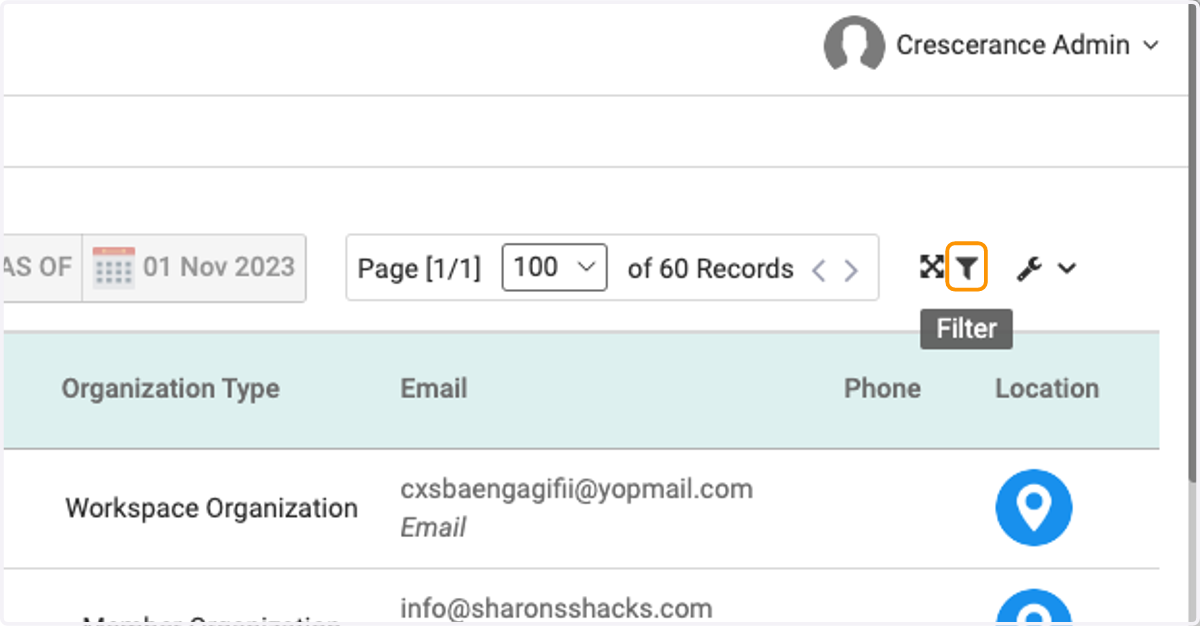
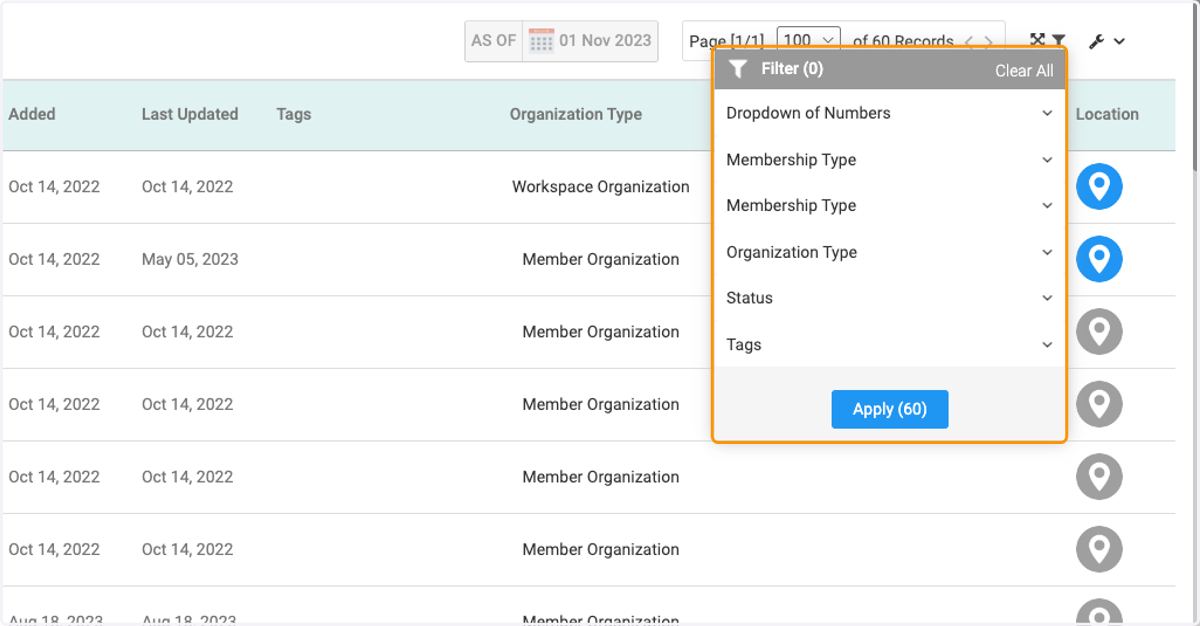
5. Click on the dropdown menus to chose your criteria
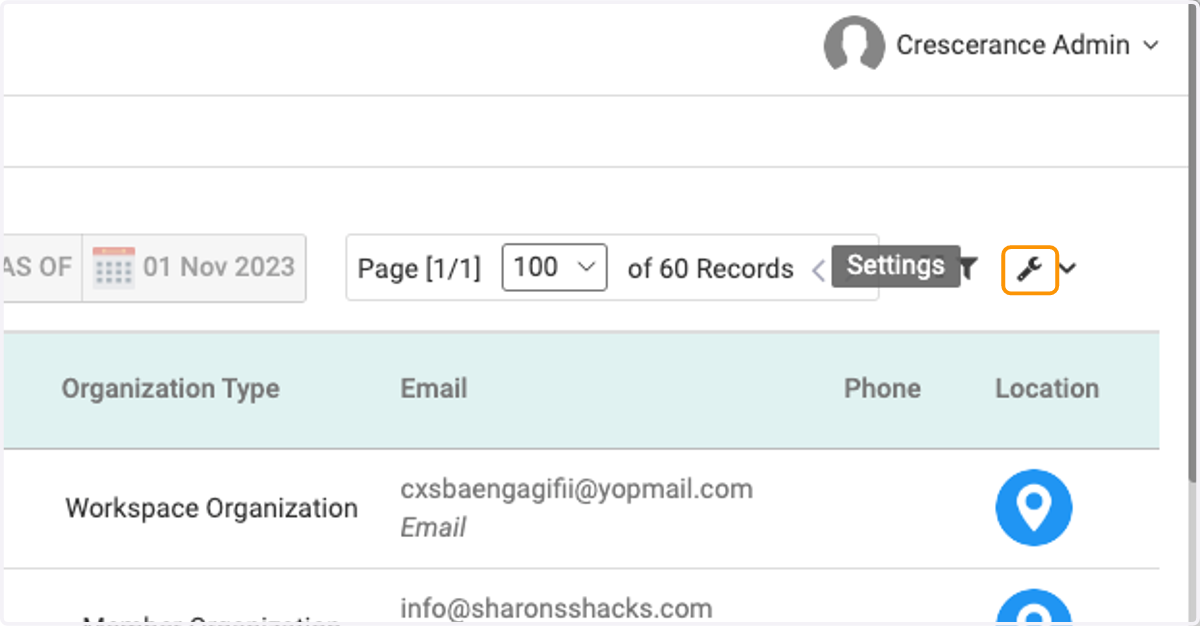
6. Click on the wrench icon to get to settings
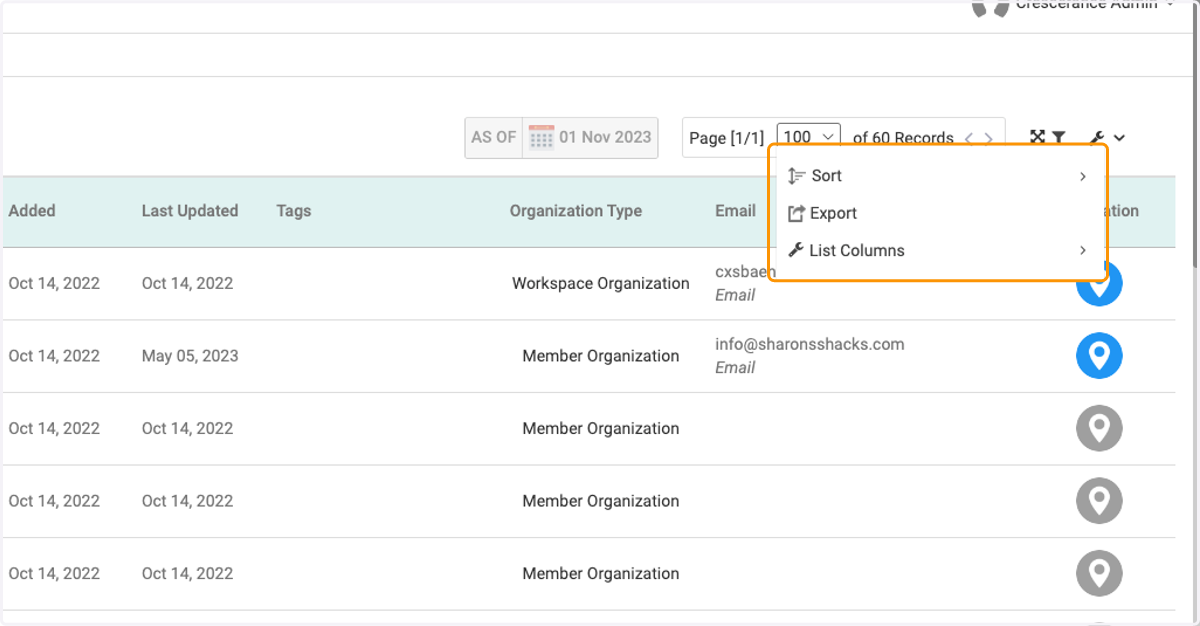
7. You can either sort, export list of organizations or rearrange the columns/view
8. Click on an organization to view details
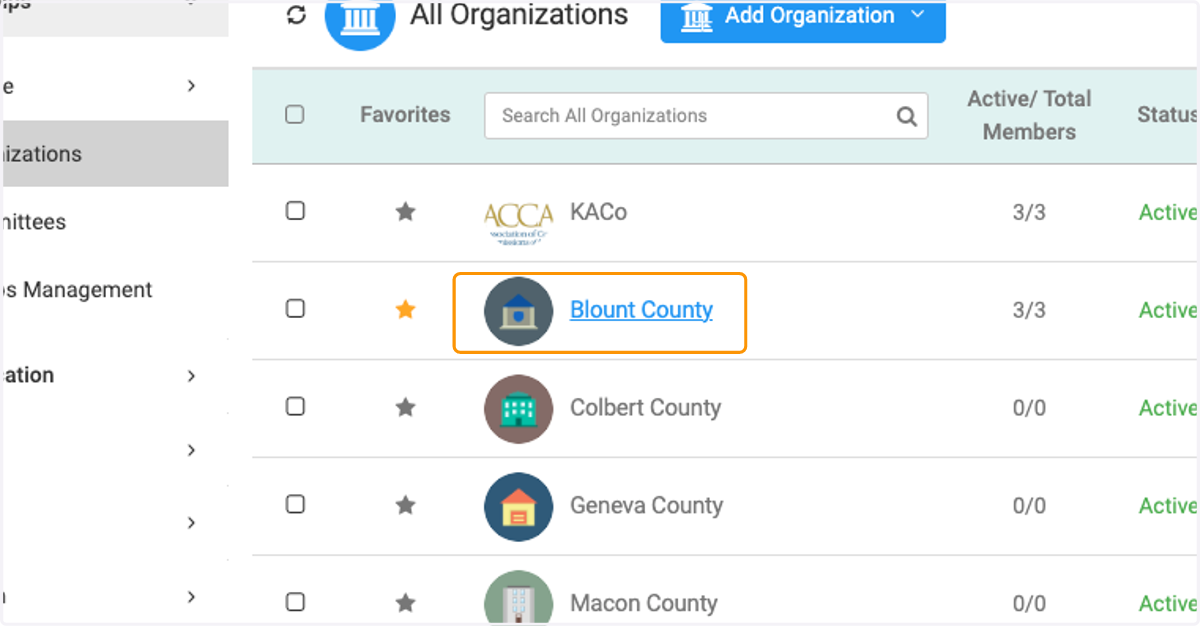
9. To add or change the organization icon, click on the image
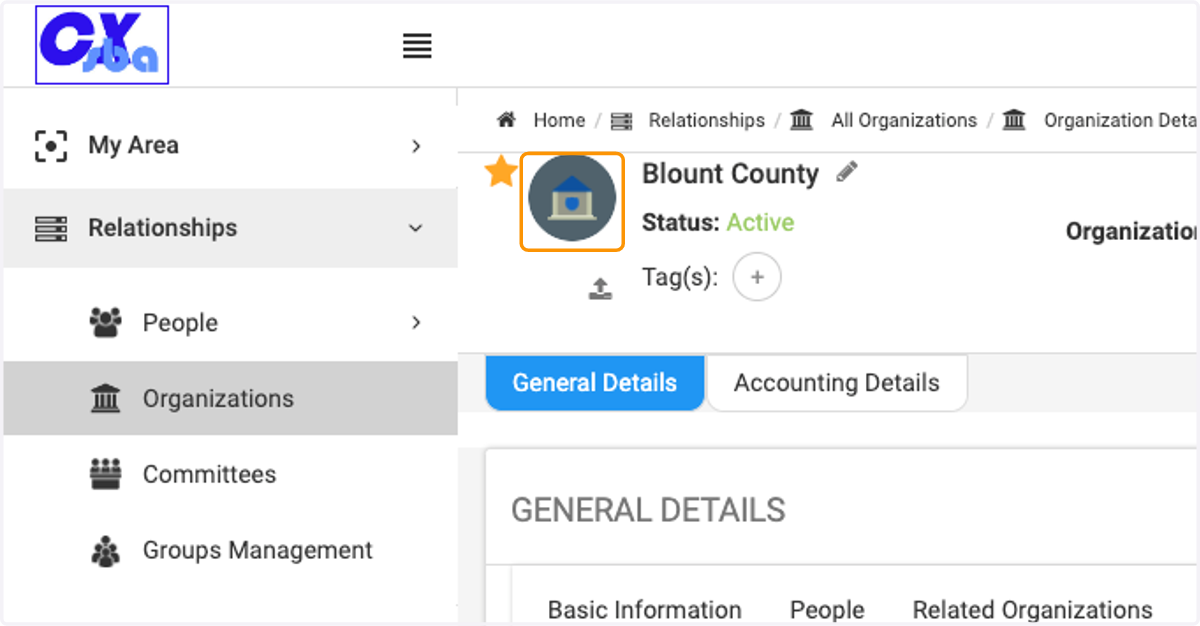
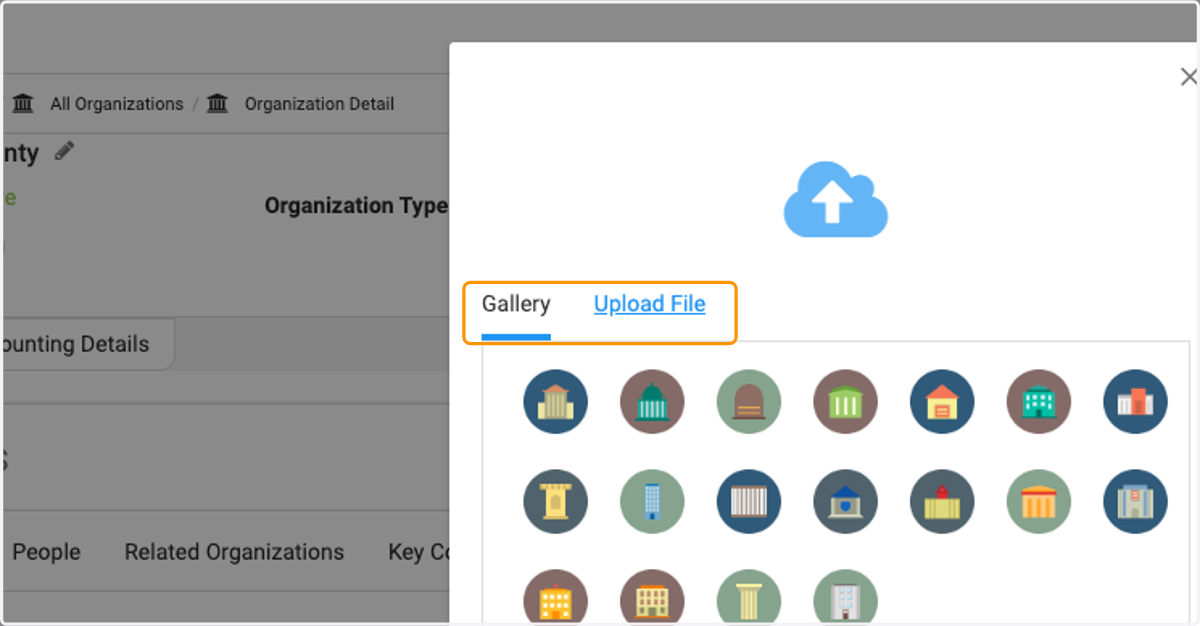
10. You can choose an avatar or upload your own image
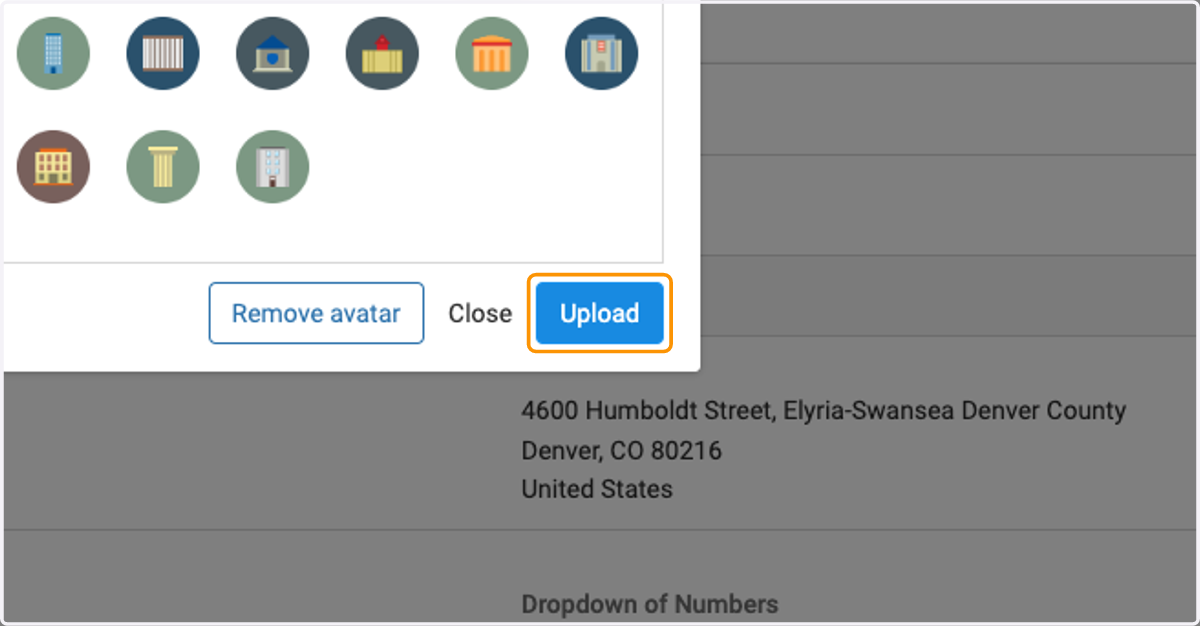
11. Click on Upload when finished
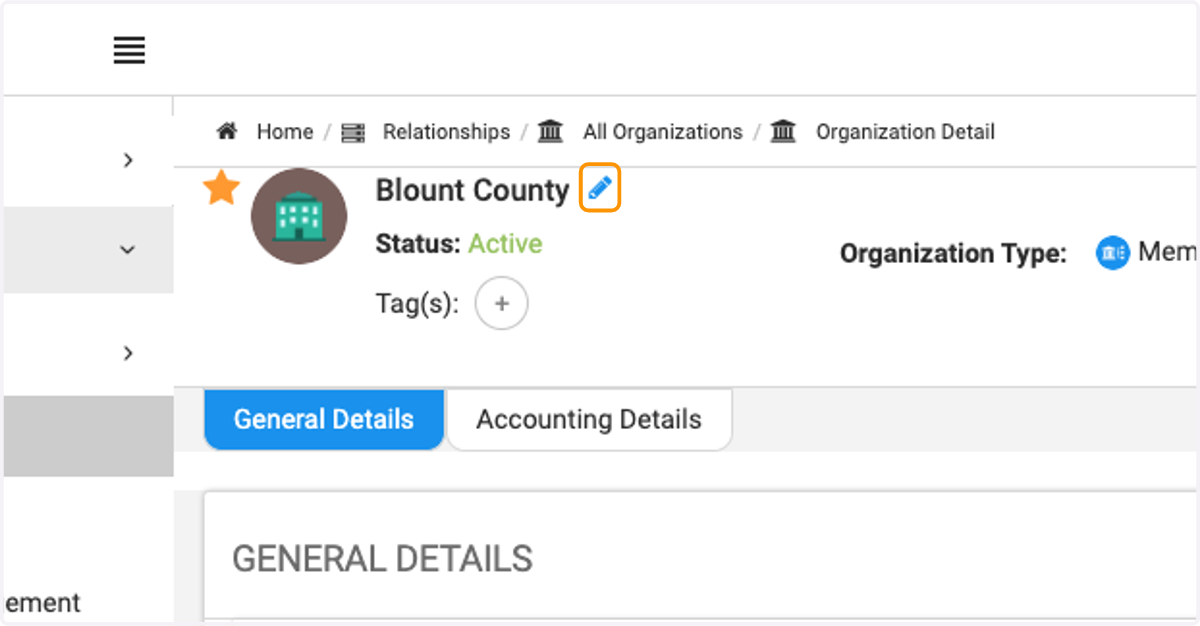
12. Click on the pencil icon to update the name
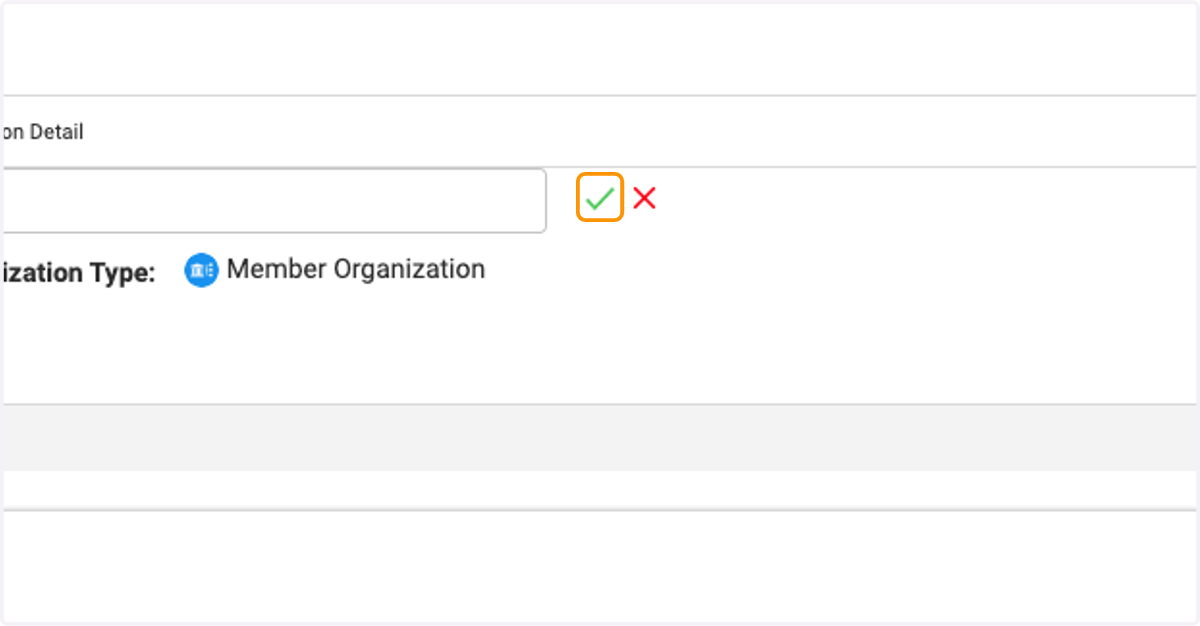
13. Click on the checkmark when finished
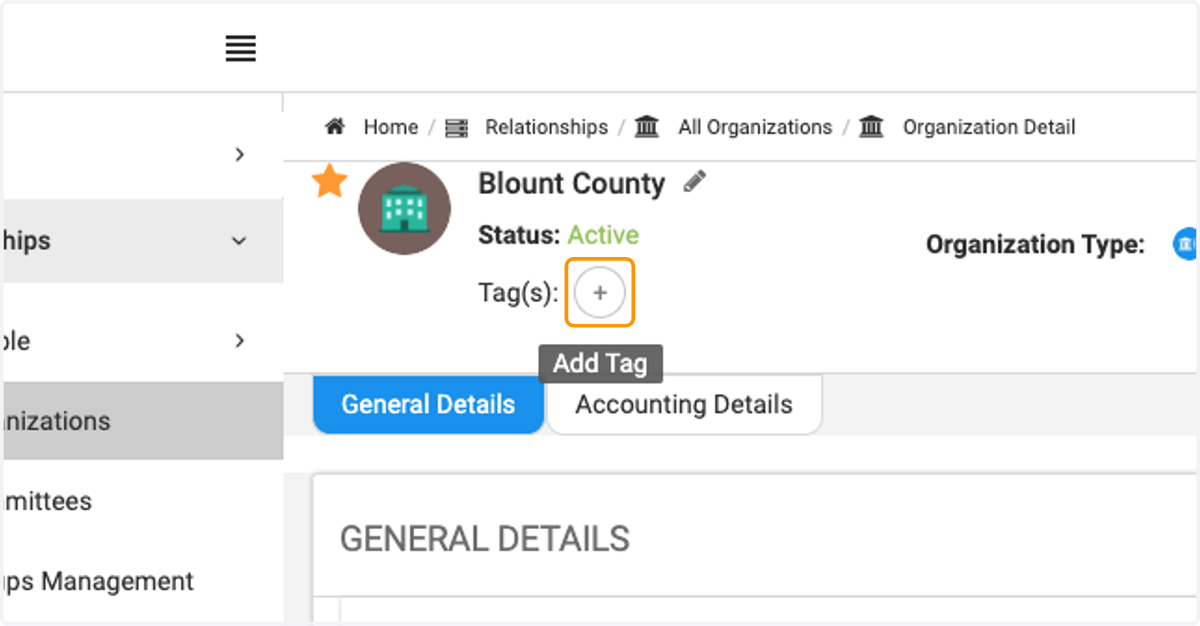
14. You have the option to add a tag to the organization.
15. You can choose from the list or type a new one in the text field
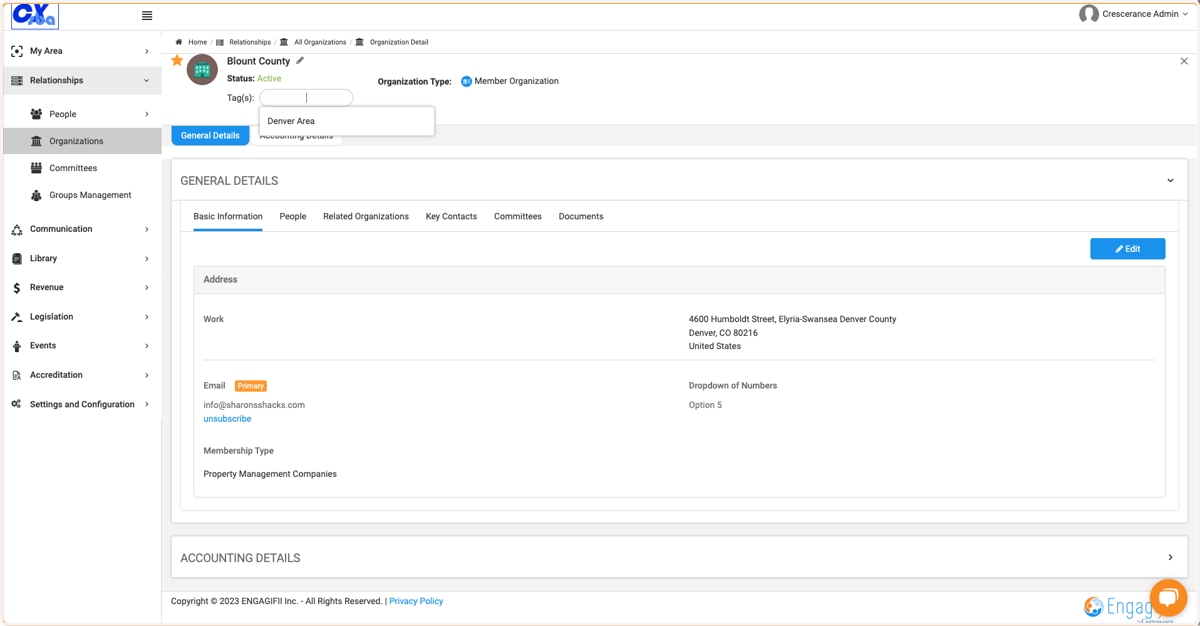
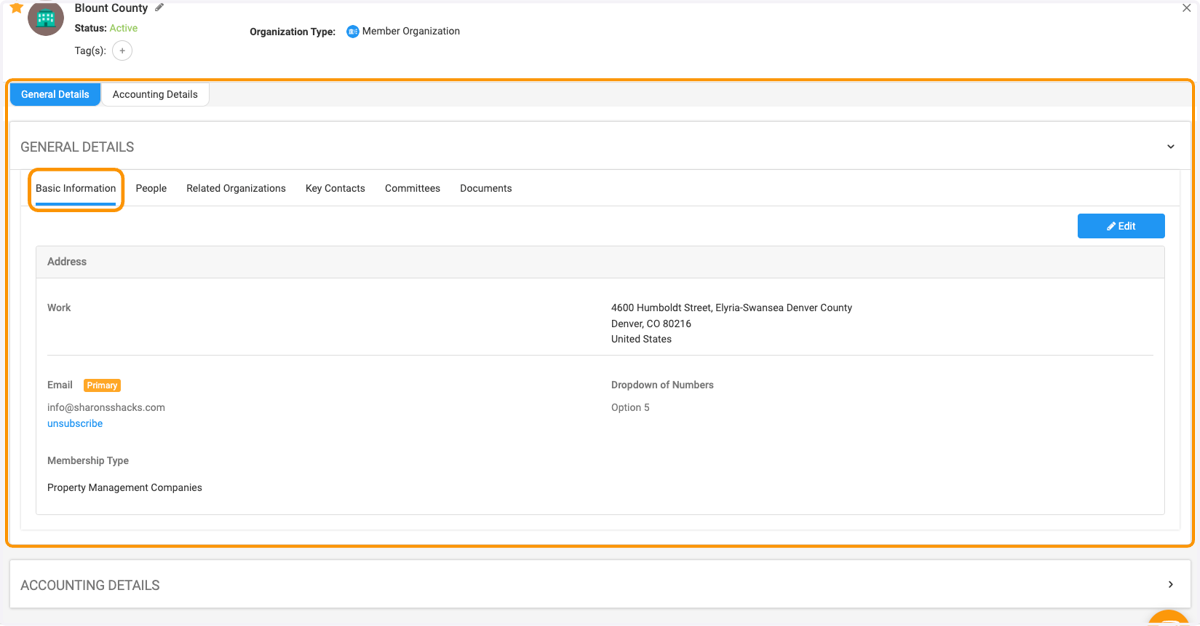
16. Click on General Details to view organization details
The Basic Information tab has all of the details related to the organization, such as address, phone, etc.
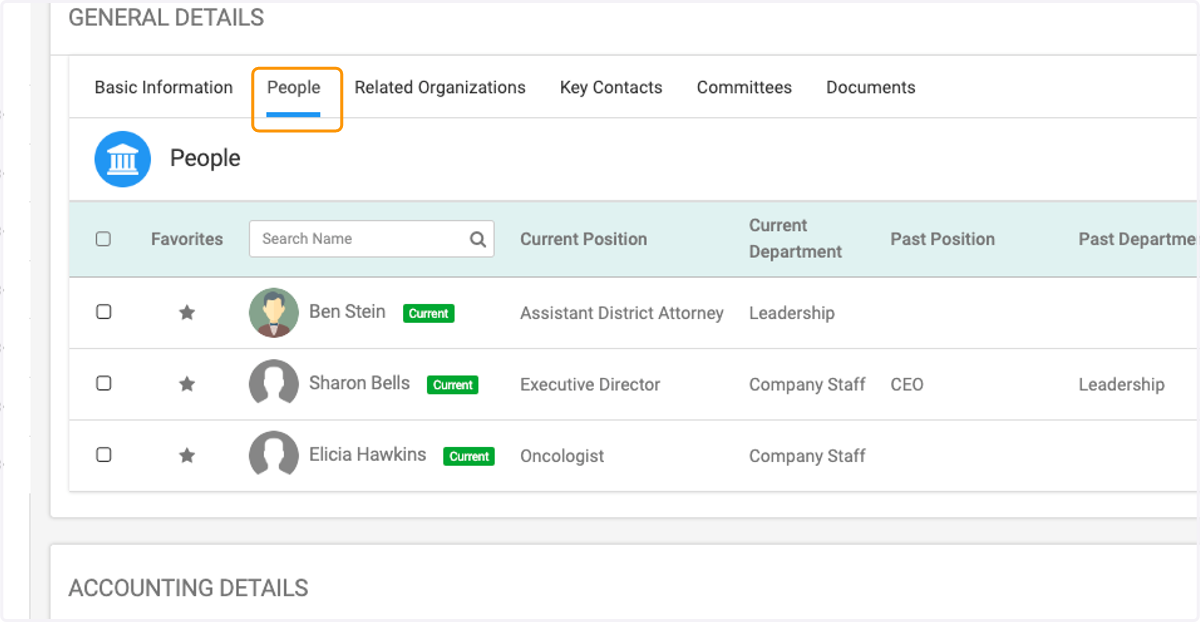
17. The People tab lists all of the people in your organization
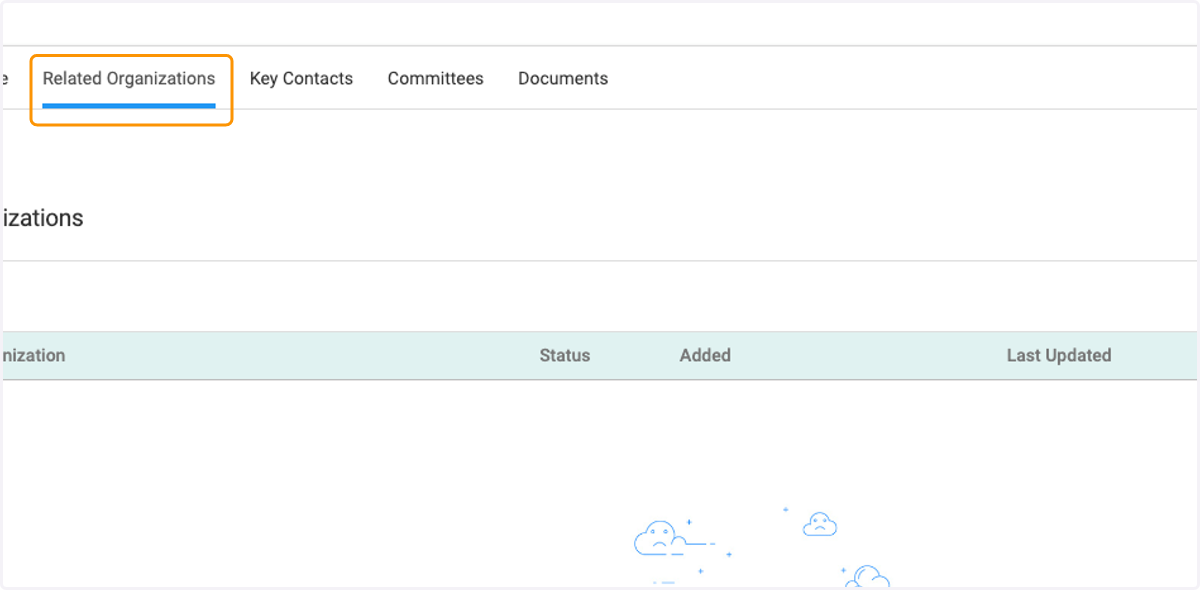
18. Click on Related Organizations to view any parent or other related organizations
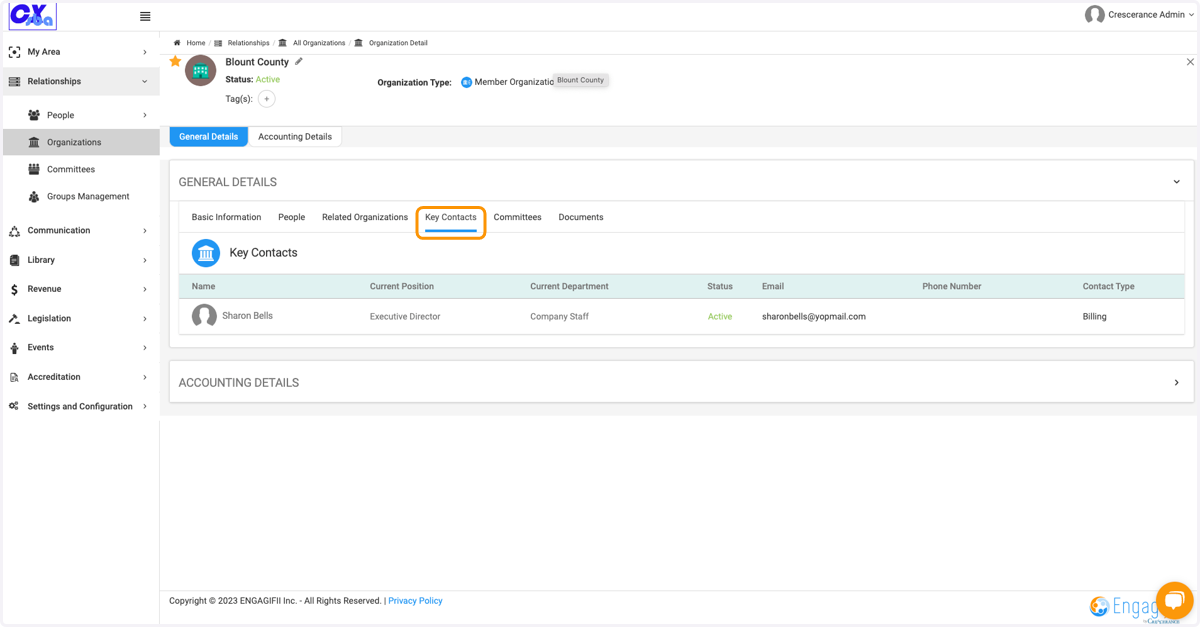
19. Click on Key Contacts to view
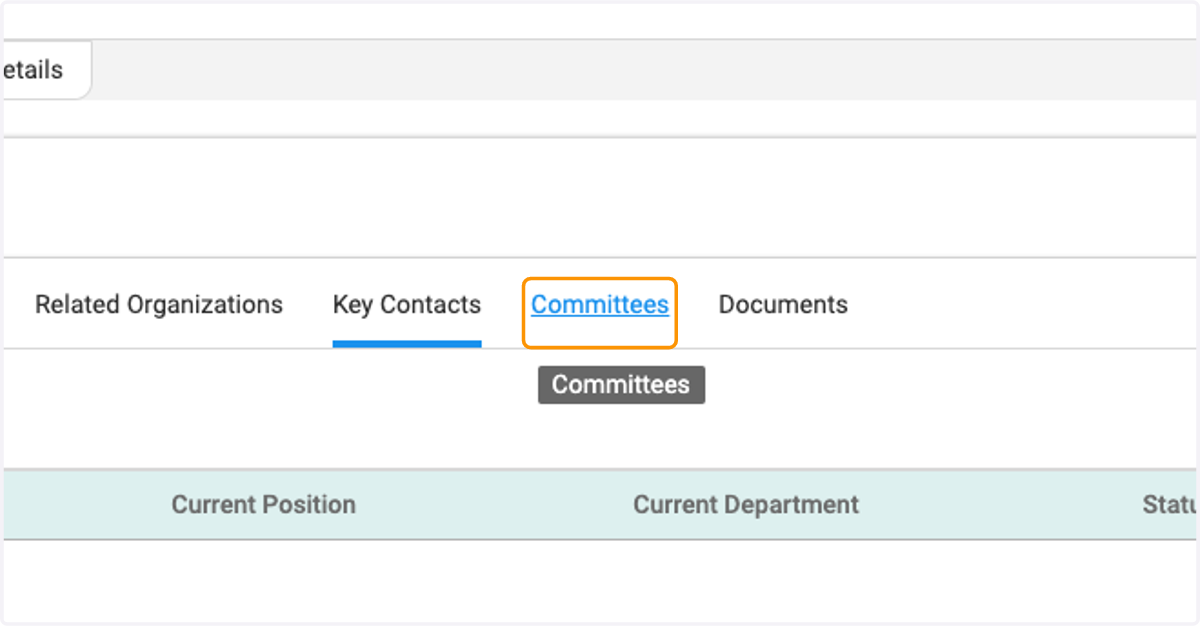
20. Click on Committees to view any committees the organization may be associated with
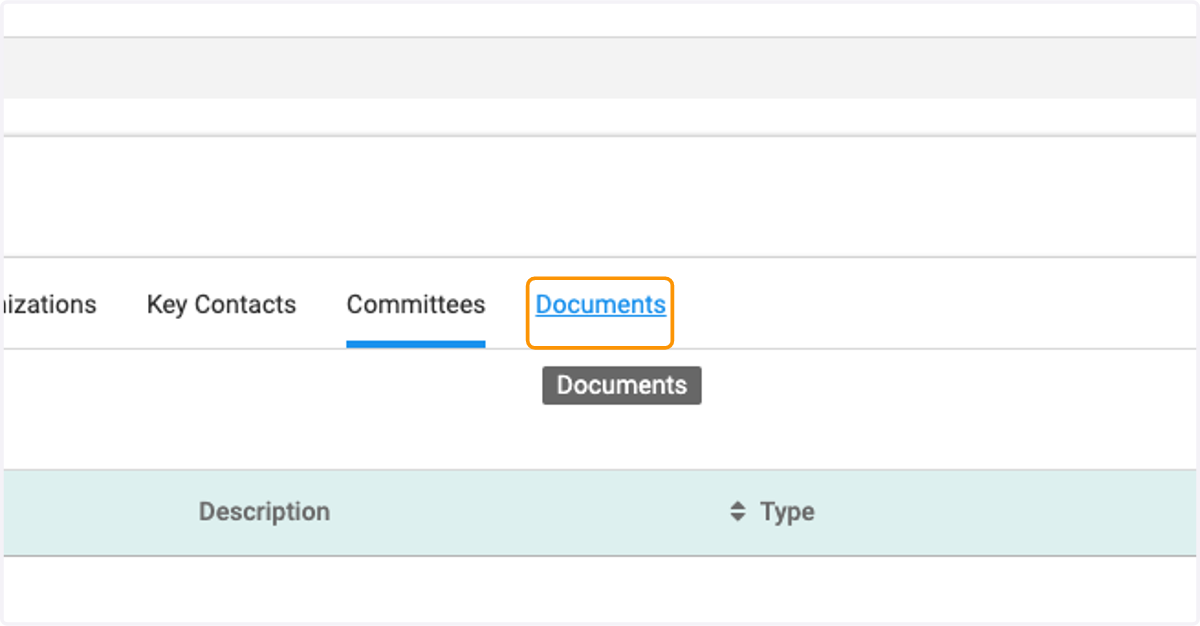
21. Click on Documents to view any stored documents
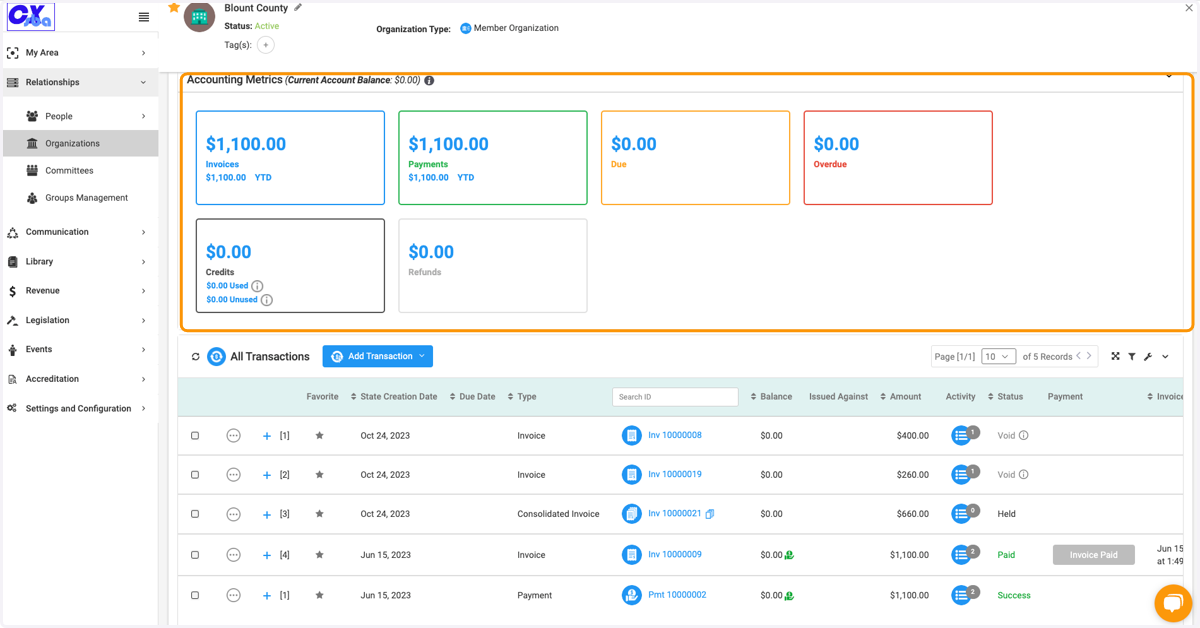
22. Click on the Accounting Details Tab to view financial details
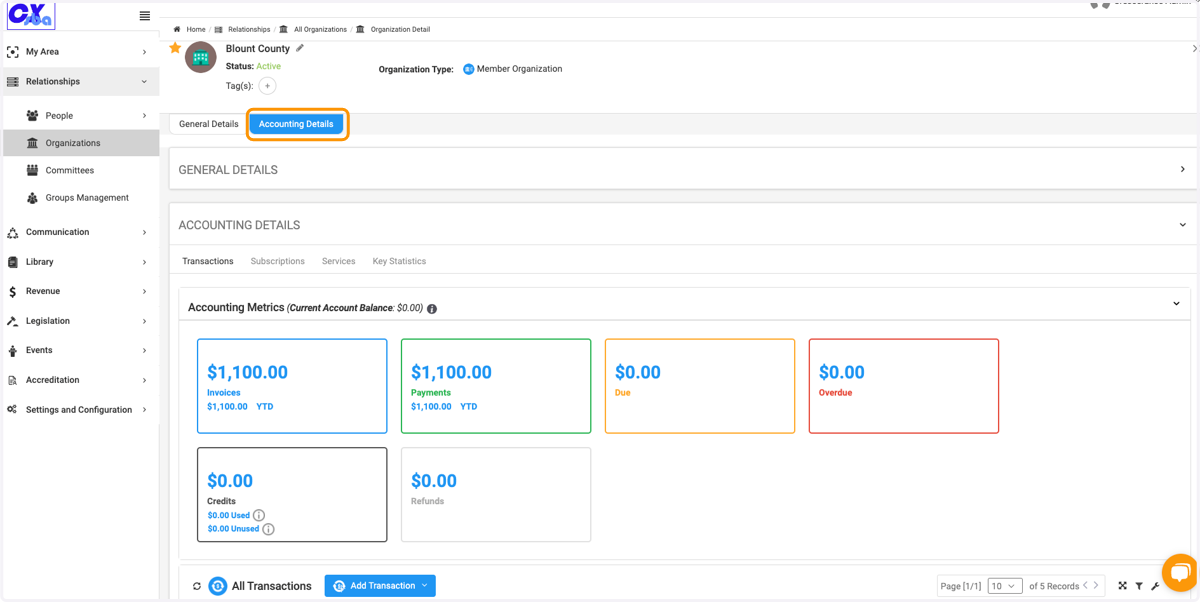
23. Here you can view all the financial transactions and their statuses.
You can also scroll down and view all transactions in a list view