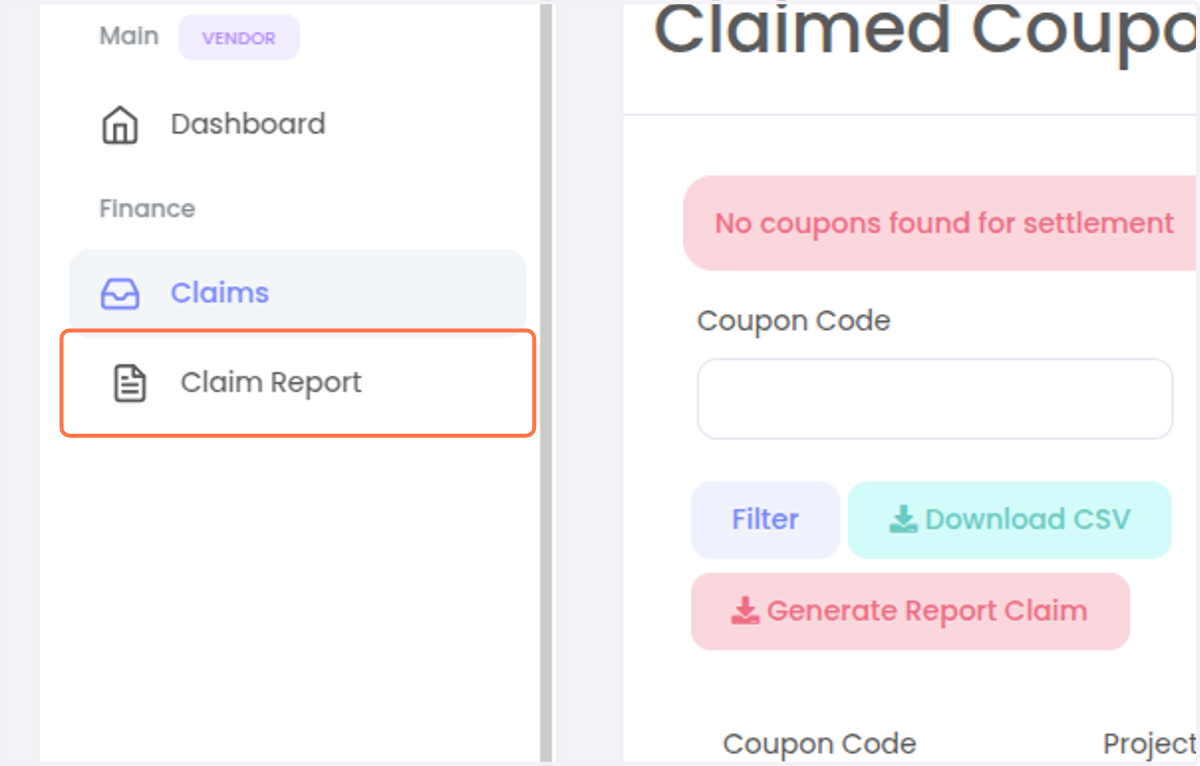
Guide for Vendor Login, Accessing and Generating Claim Reports
Go to ECoupon IIUM and click Vendor
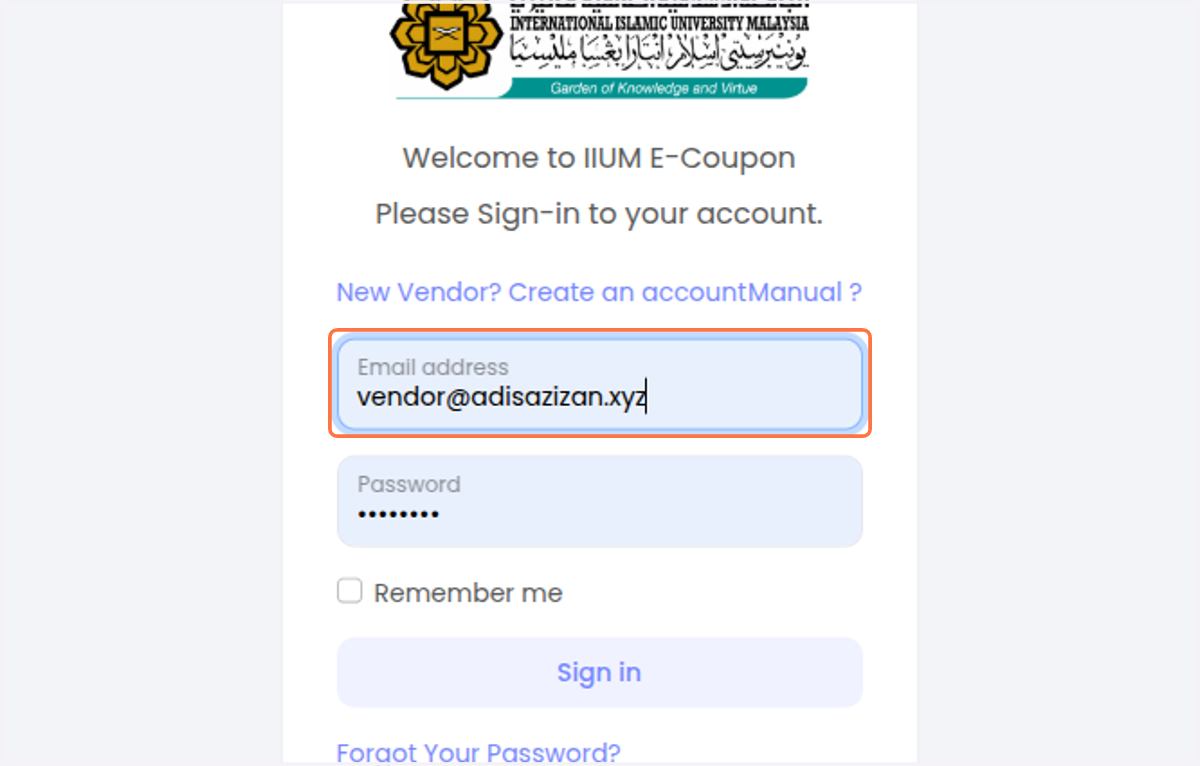
1. Enter your email address
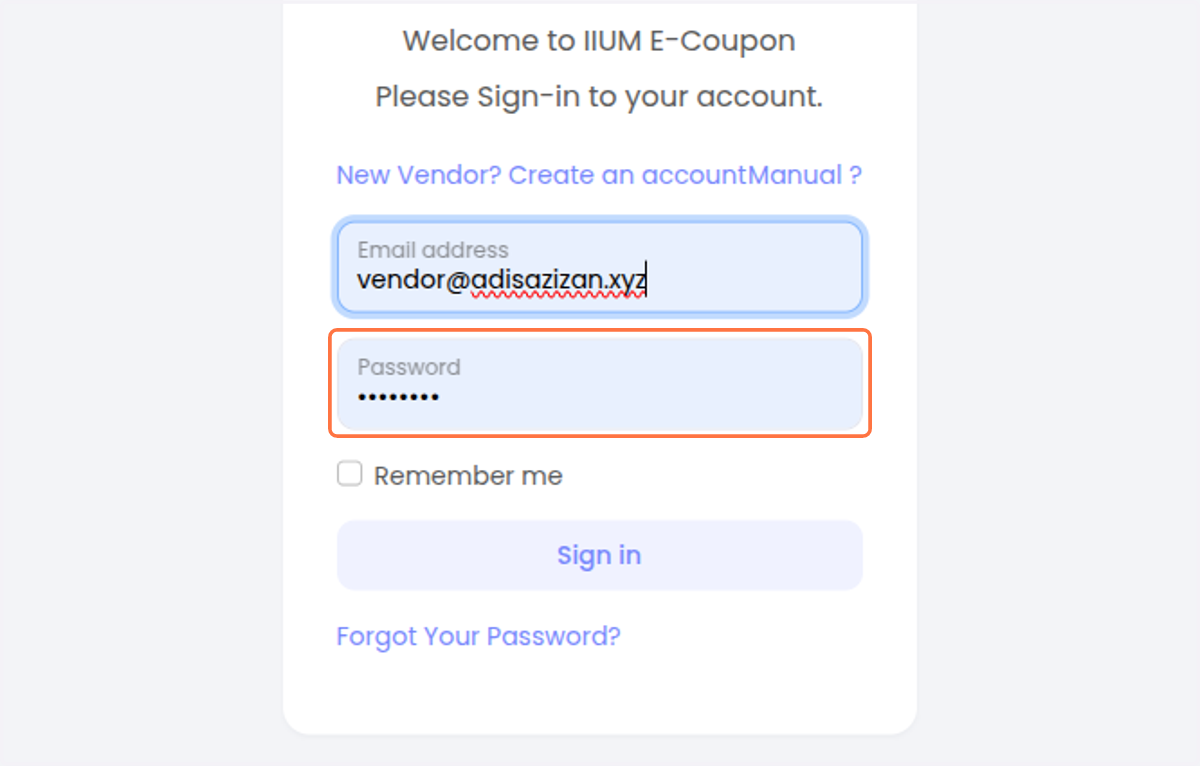
2. Enter password
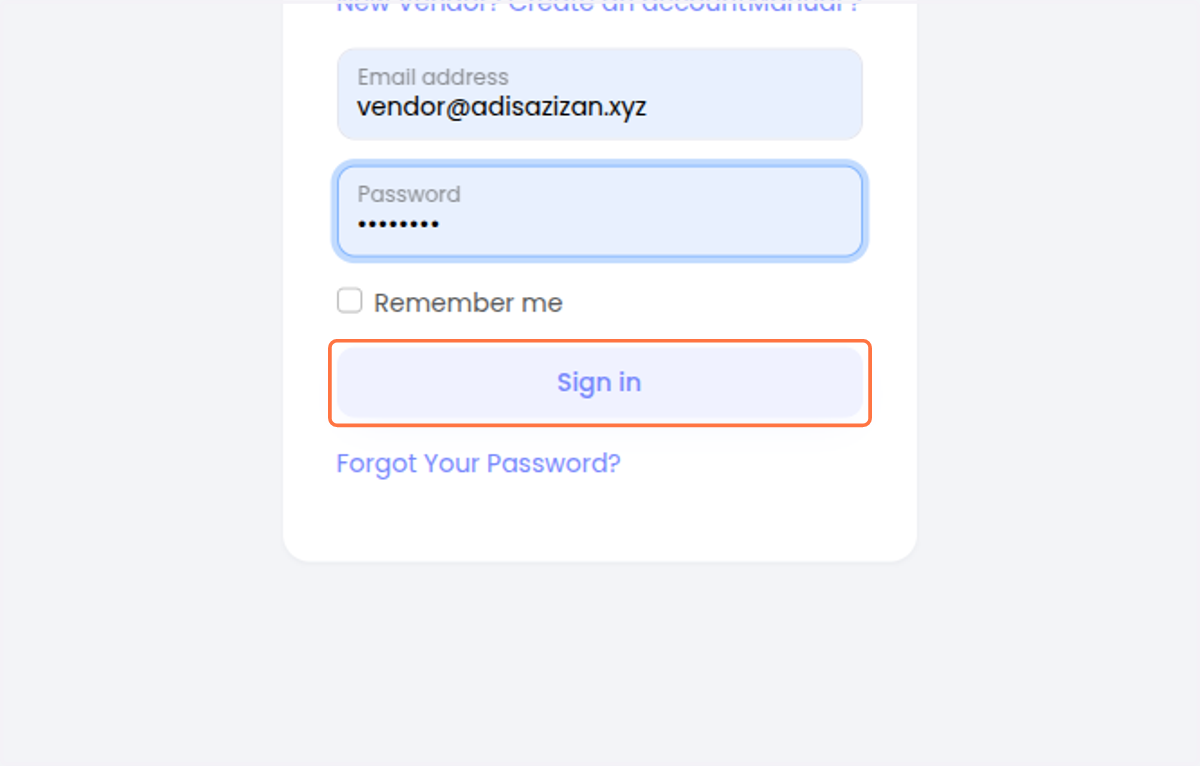
3. Click on Sign in
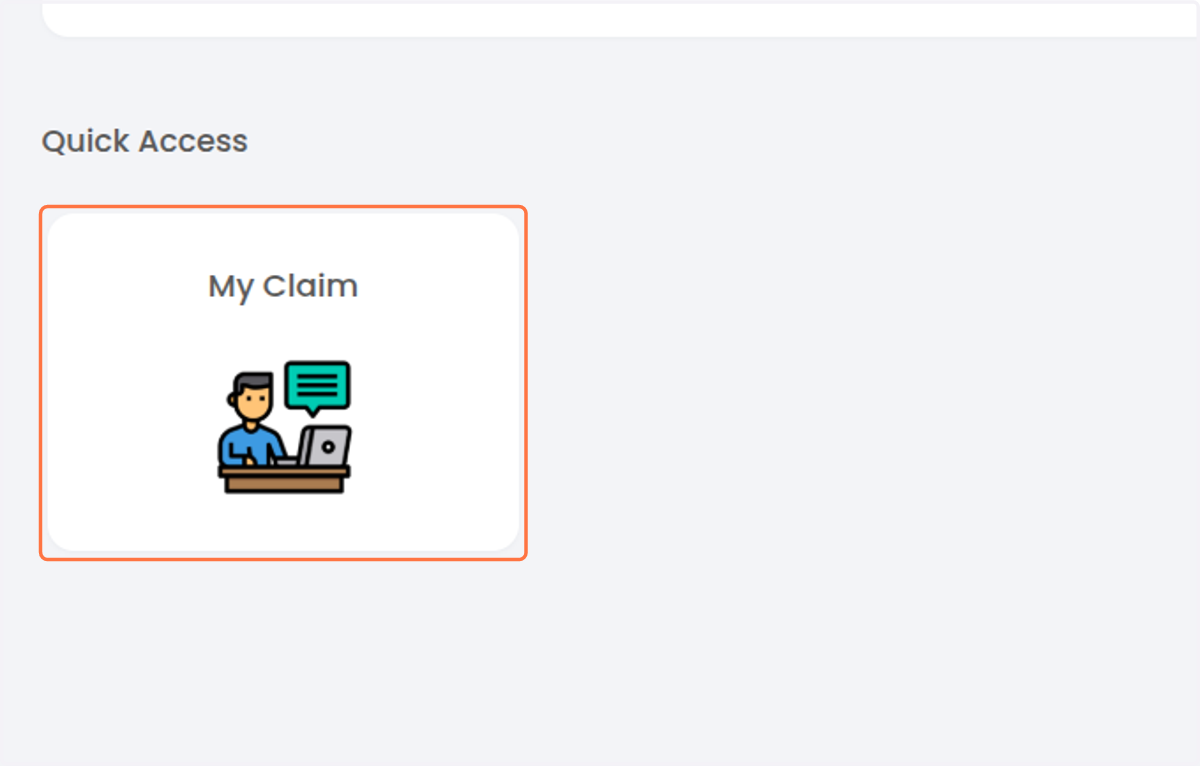
4. Once you have been approved, you will be able to see your claim. To see your claim just Click on My Claim
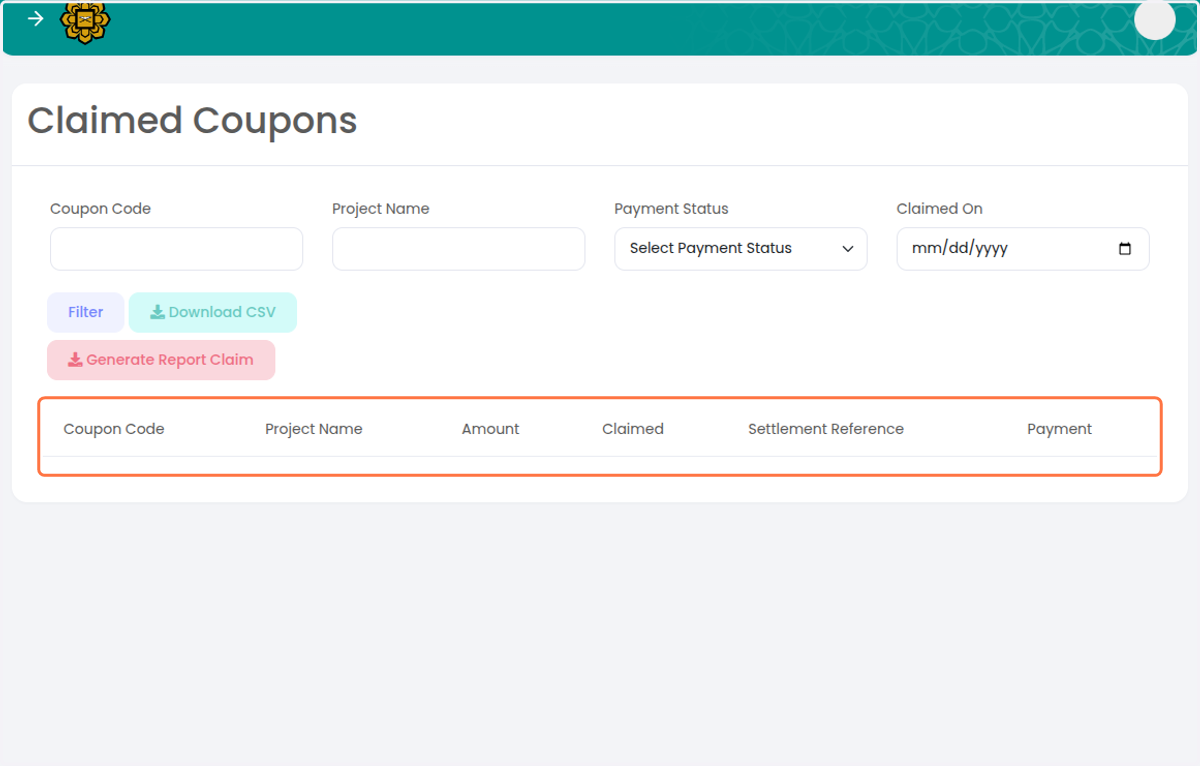
5. You will be able to see the Claimed Coupon dashboard
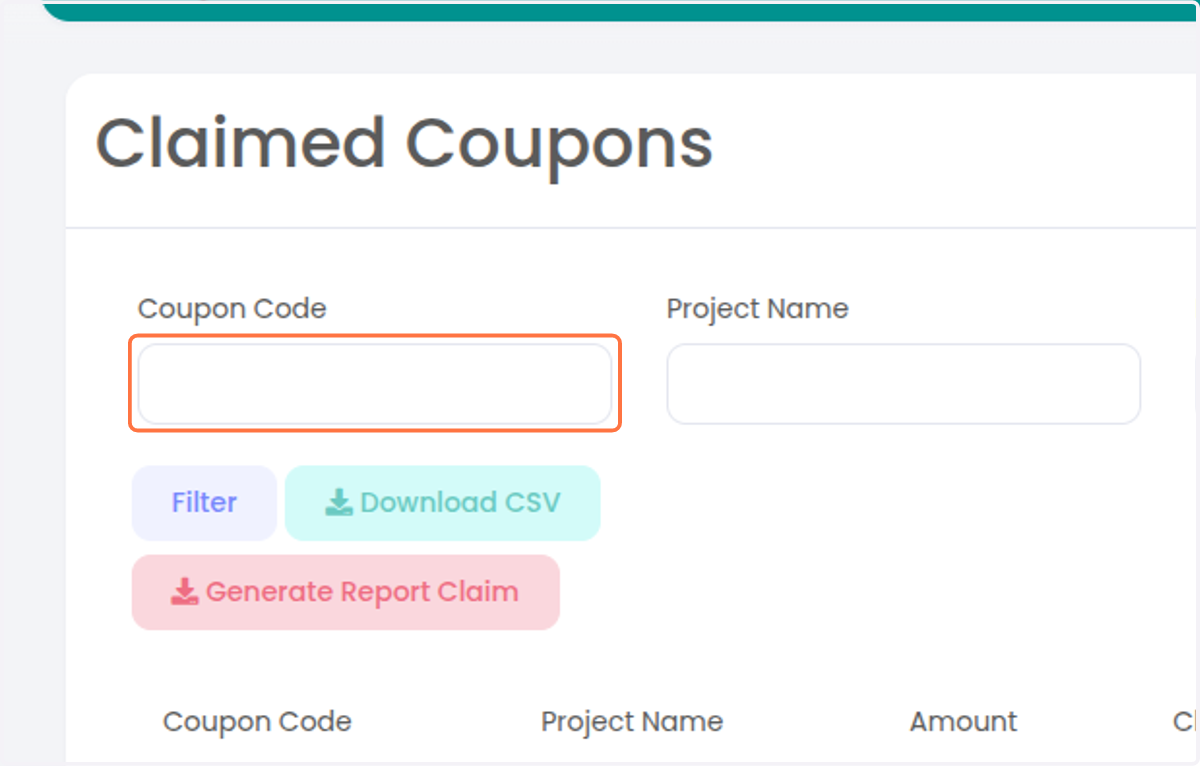
6. Input on Coupon Code if you want to find specific coupon code
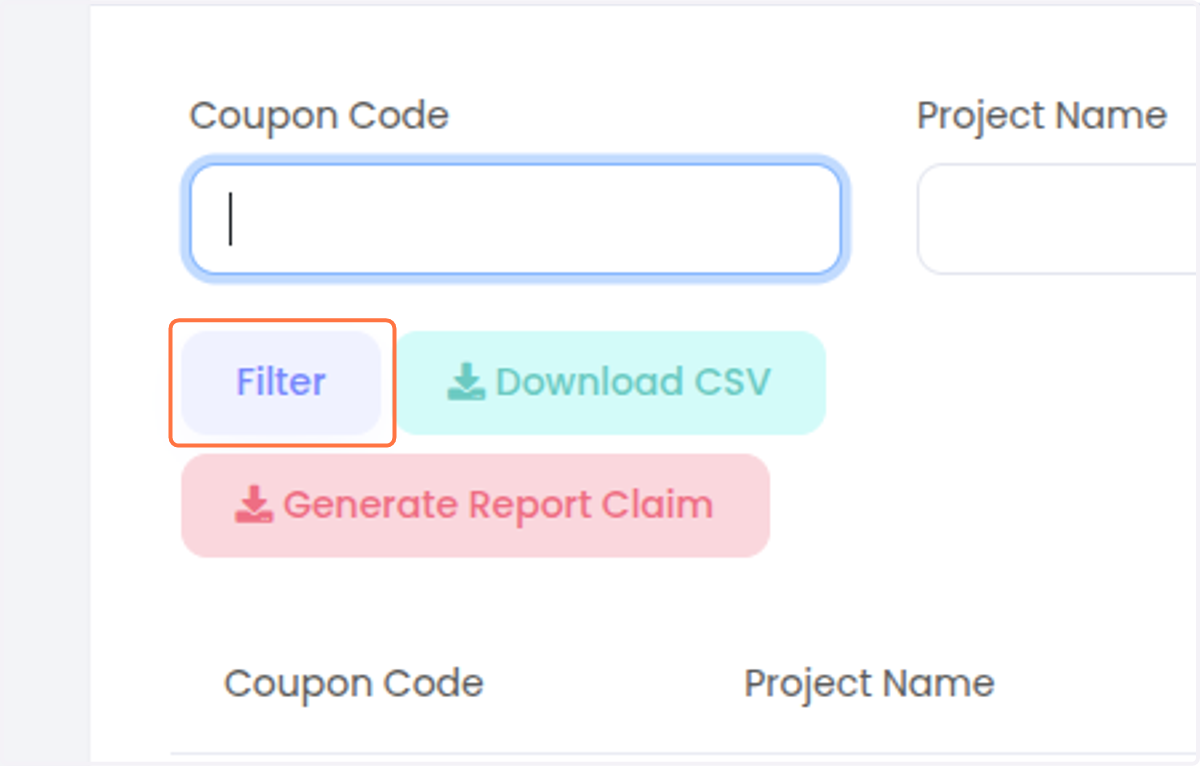
7. Click on Filter to show the list of the filter
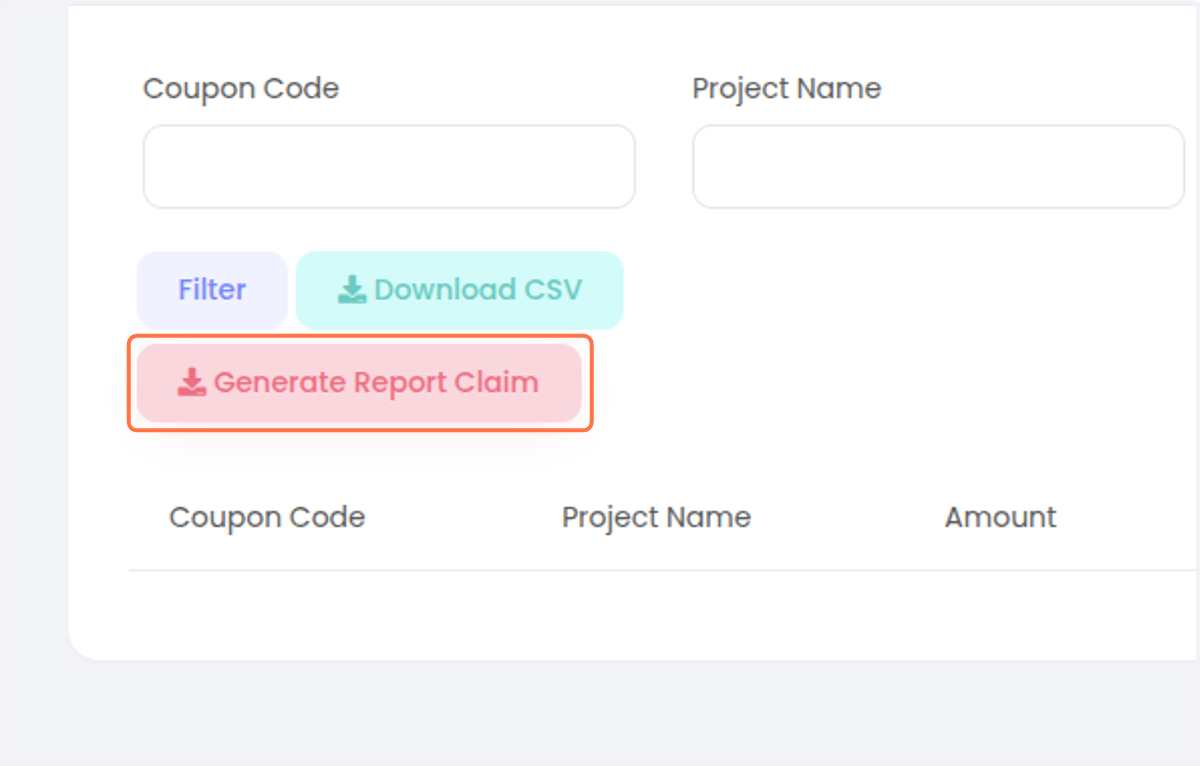
8. If you already claim some coupon and ready to Claim to IIUM STADD / Finance, you can click on Generate Report Claim
You will be prompt to download the report. The report can be used to submit to relevant IIUM office.
9. Click on Claim Report if you want to see the history of the one you generated