How to Convert an Appointment from Virtual to Telephonic & Telephonic to Virtual
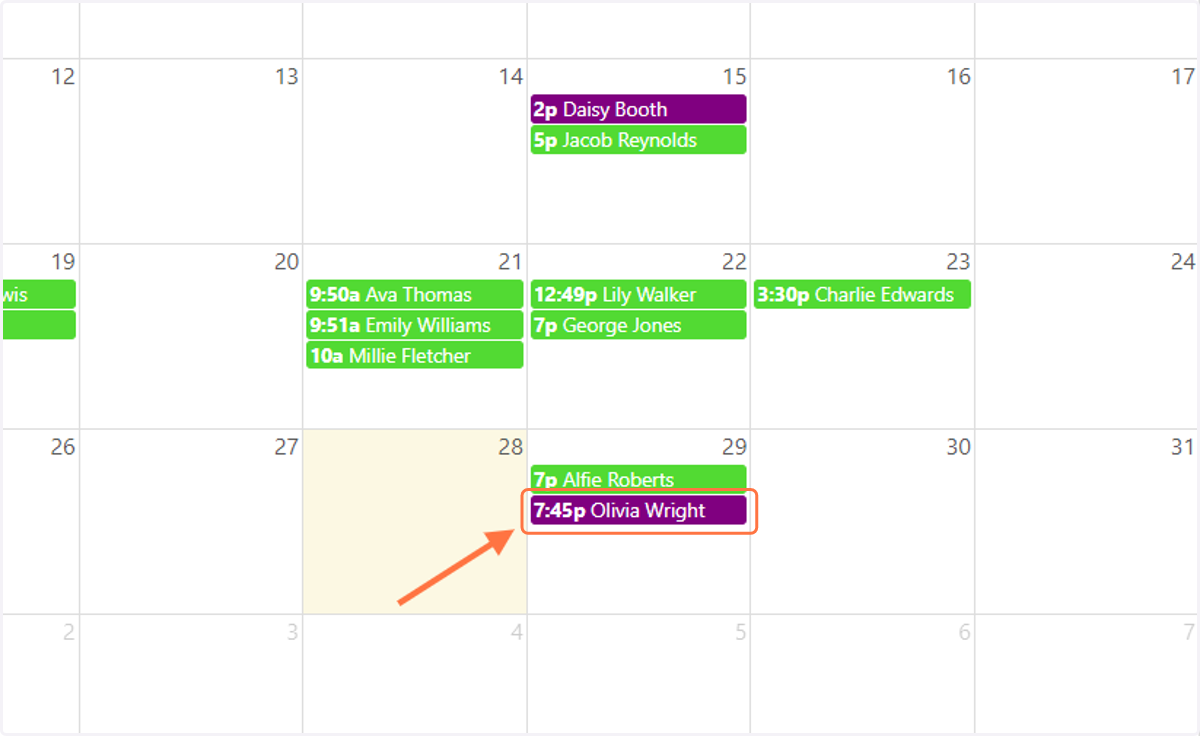
1. To convert a Video appointment to a Telephonic appointment, first click on the Video appointment from your calendar.
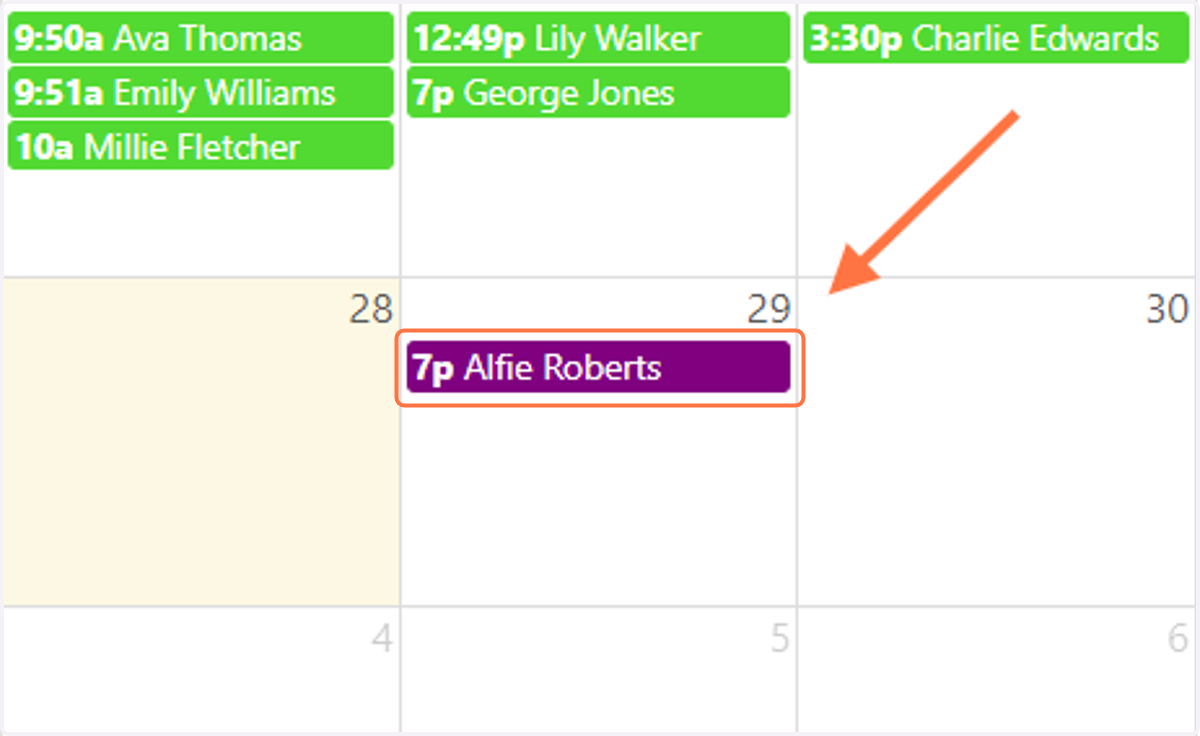
2. From the PDA, click 'Convert to Telephonic'.
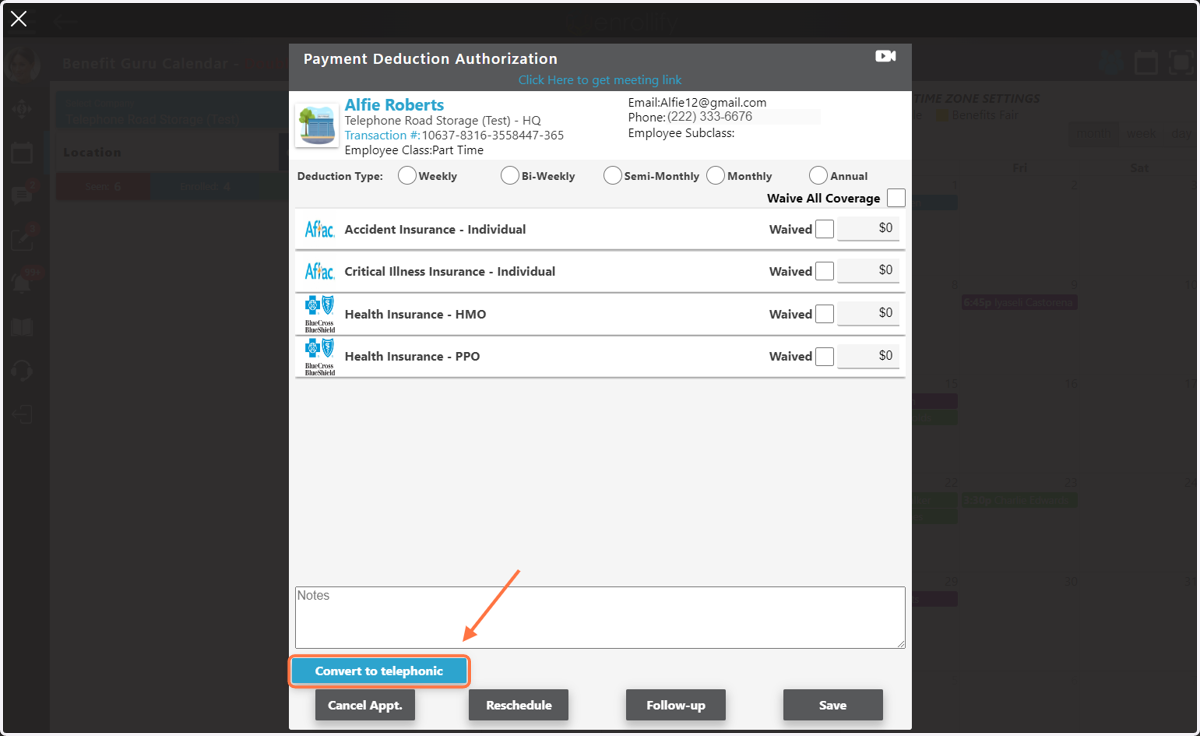
3. The PDA will now repopulate as a Telephonic appointment with the "Start Call" icon available in the upper right-hand corner to initiate the telephonic call.
When you are ready to begin your Telephonic appointment, click 'Start Call'. The conversion from Video appointment to Telephonic appointment is complete!
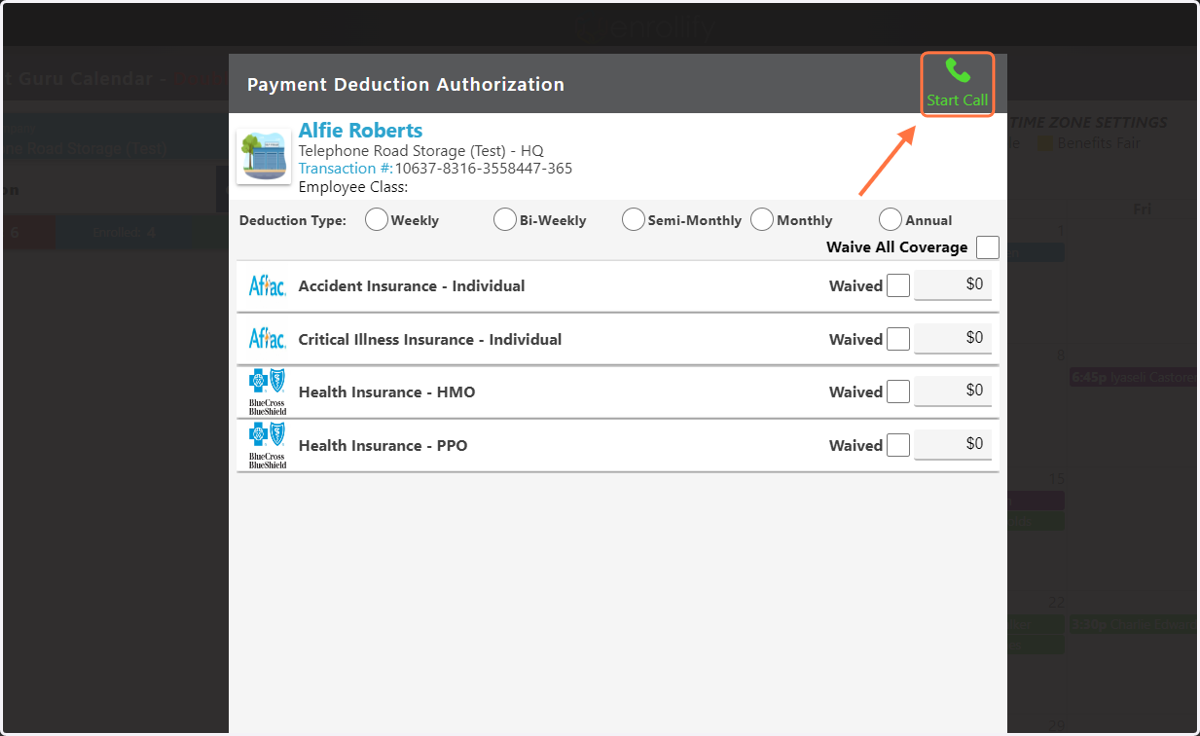
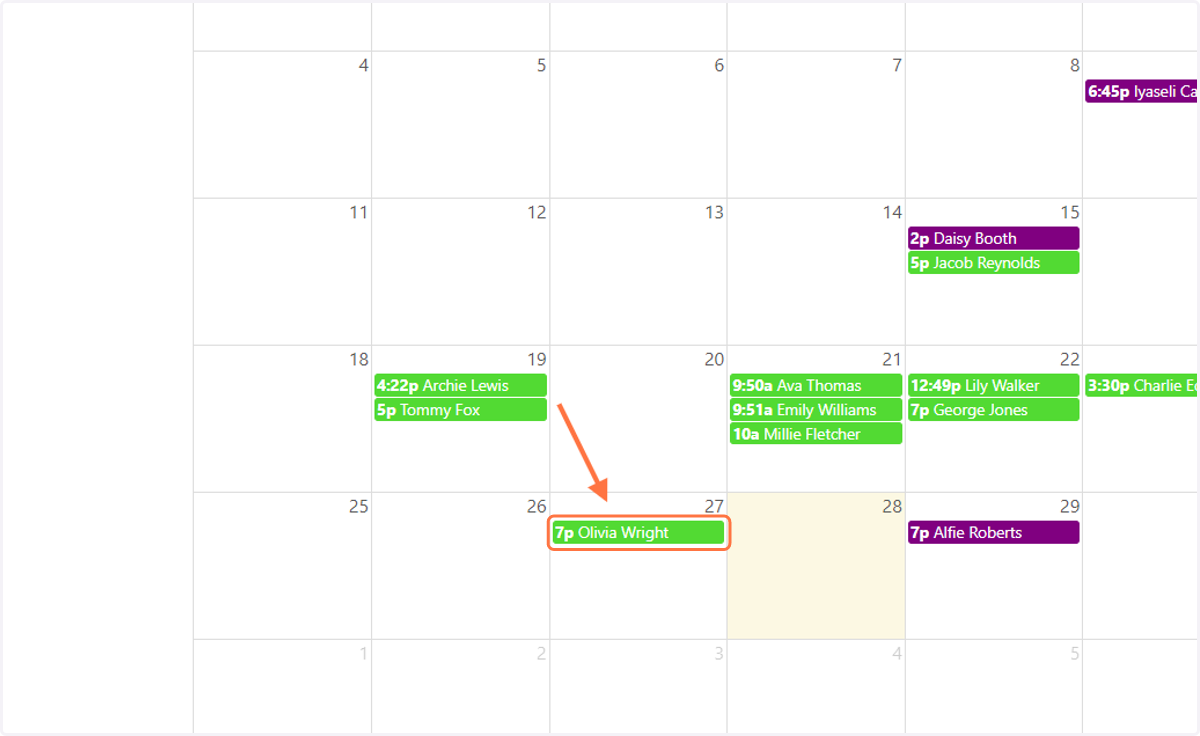
4. To convert a Telephonic appointment to a Video appointment, first click on the Telephonic appointment from your calendar.
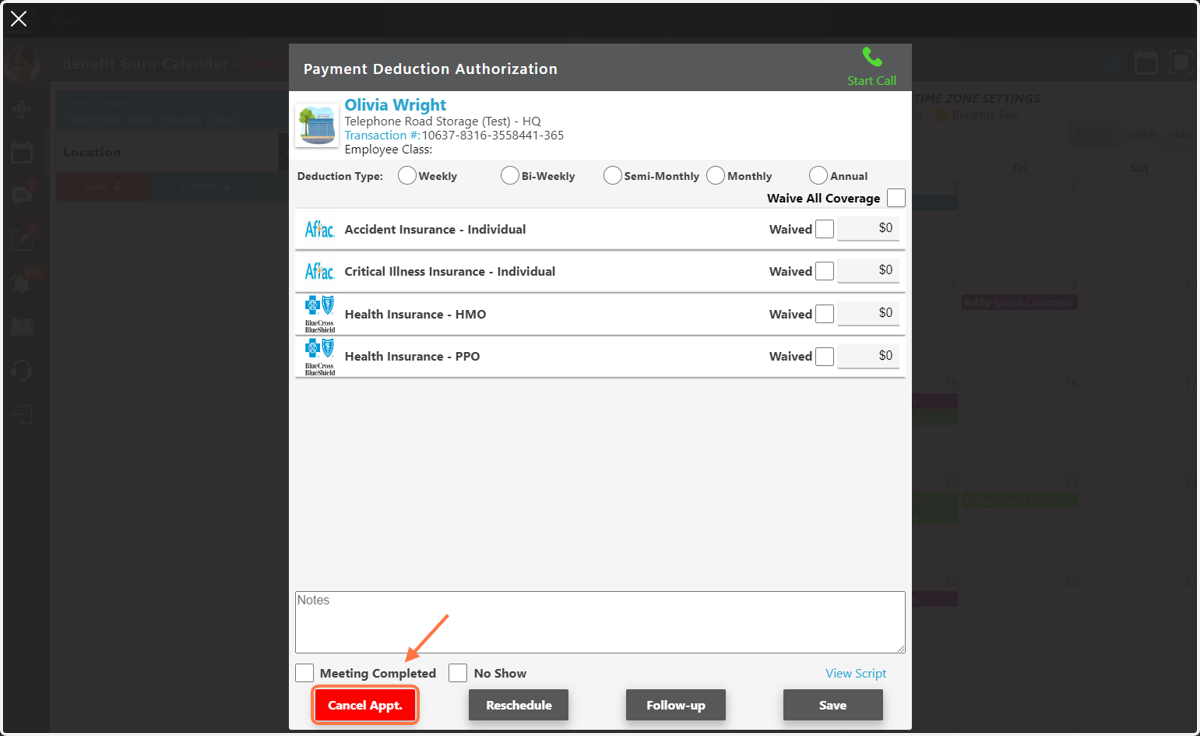
5. From the PDA click on "Cancel Appt".
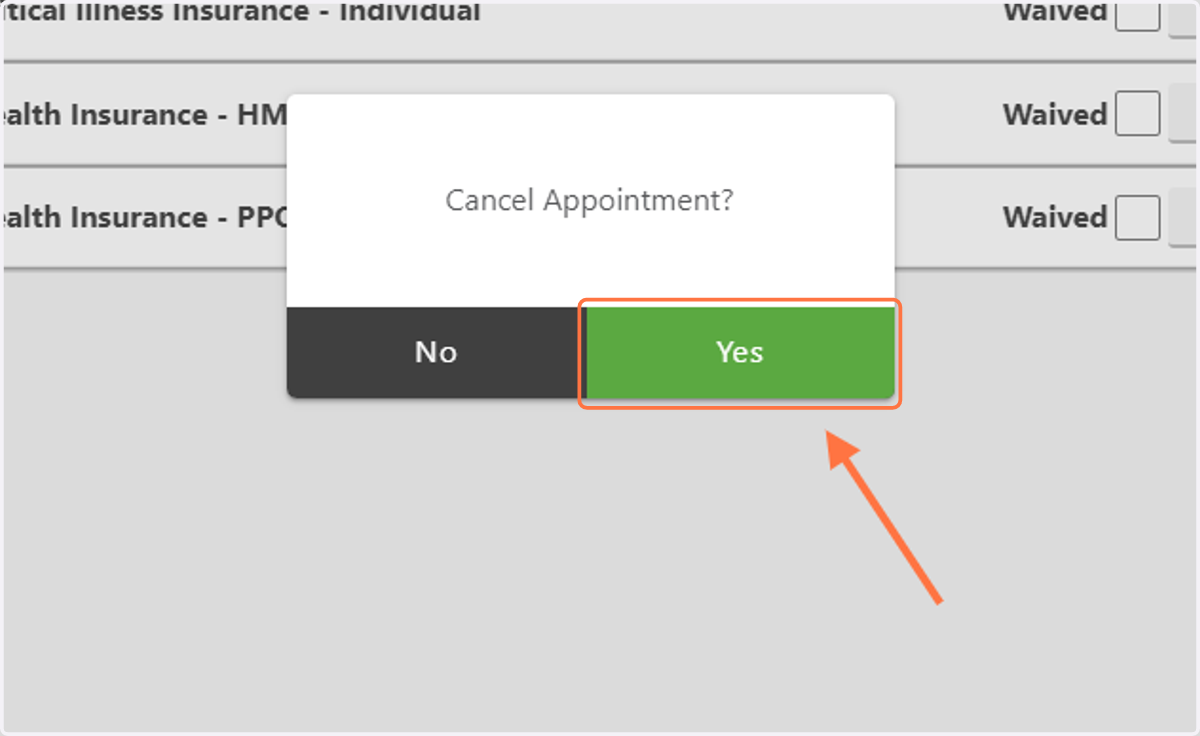
6. Click on 'Yes'
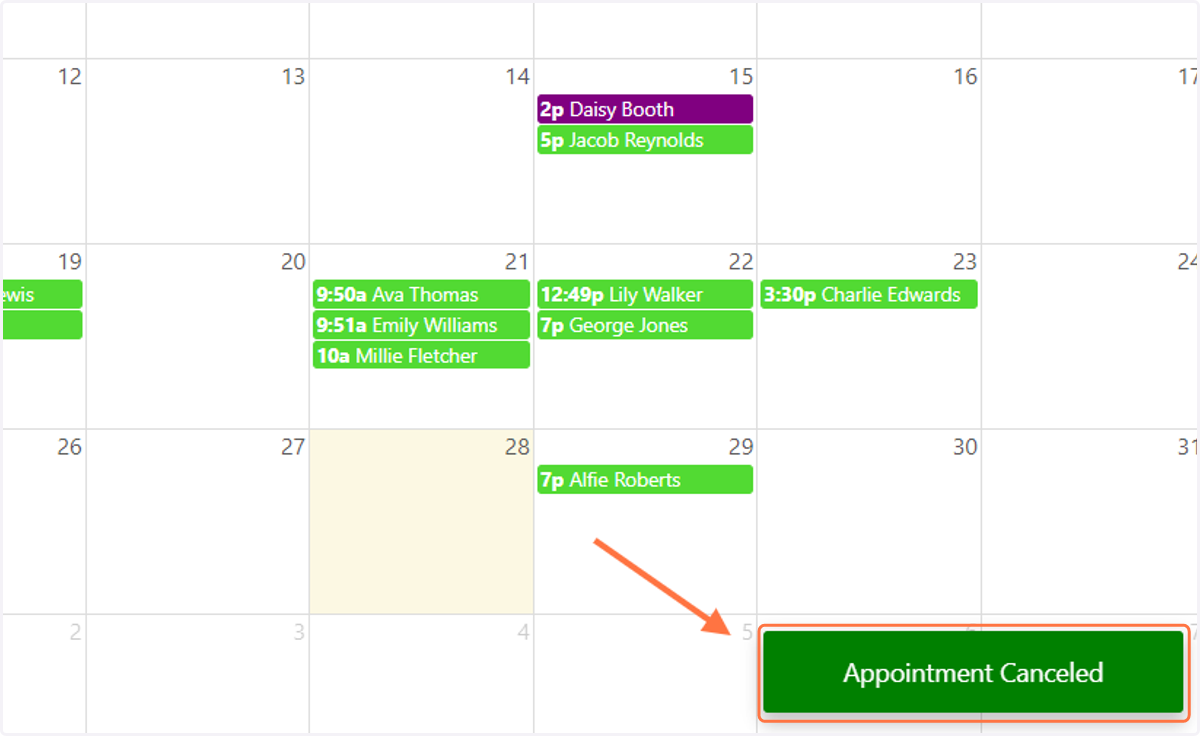
7. You will get a confirmation message that the appointment has been canceled.
8. Now that the Telephonic appointment is canceled, click the Calendar icon in the upper right corner of your Calendar.
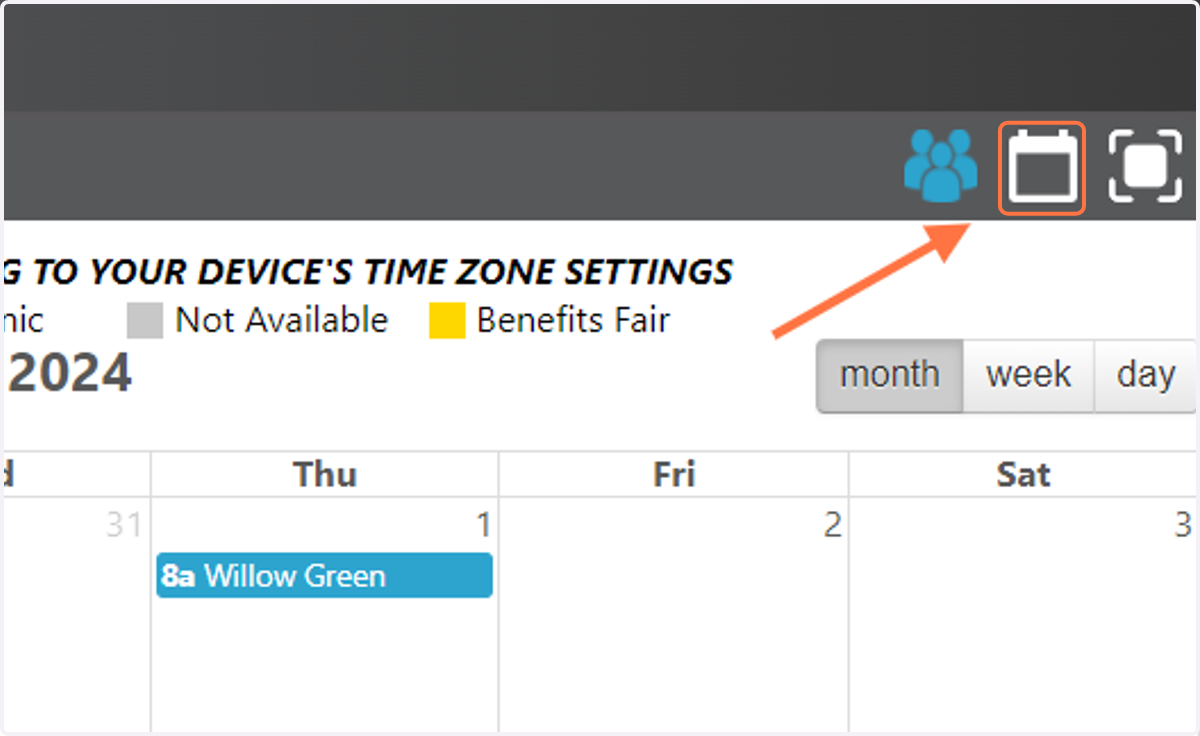
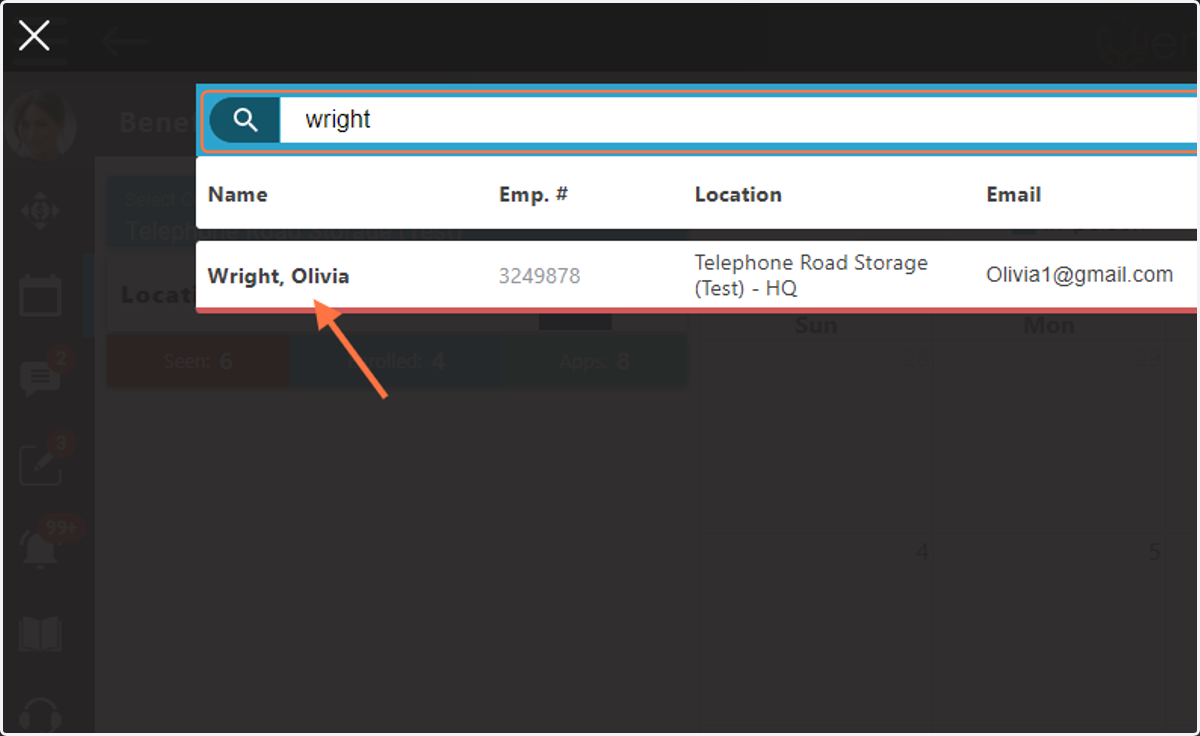
9. Use the search feature to find the name of the employee whose appointment you would like to change from Telephonic to Virtual, then click on their name.
10. Under 'Meeting Type' select 'Video', then choose from an available appointment time or use the 'Schedule Now' feature to schedule a Video appointment.
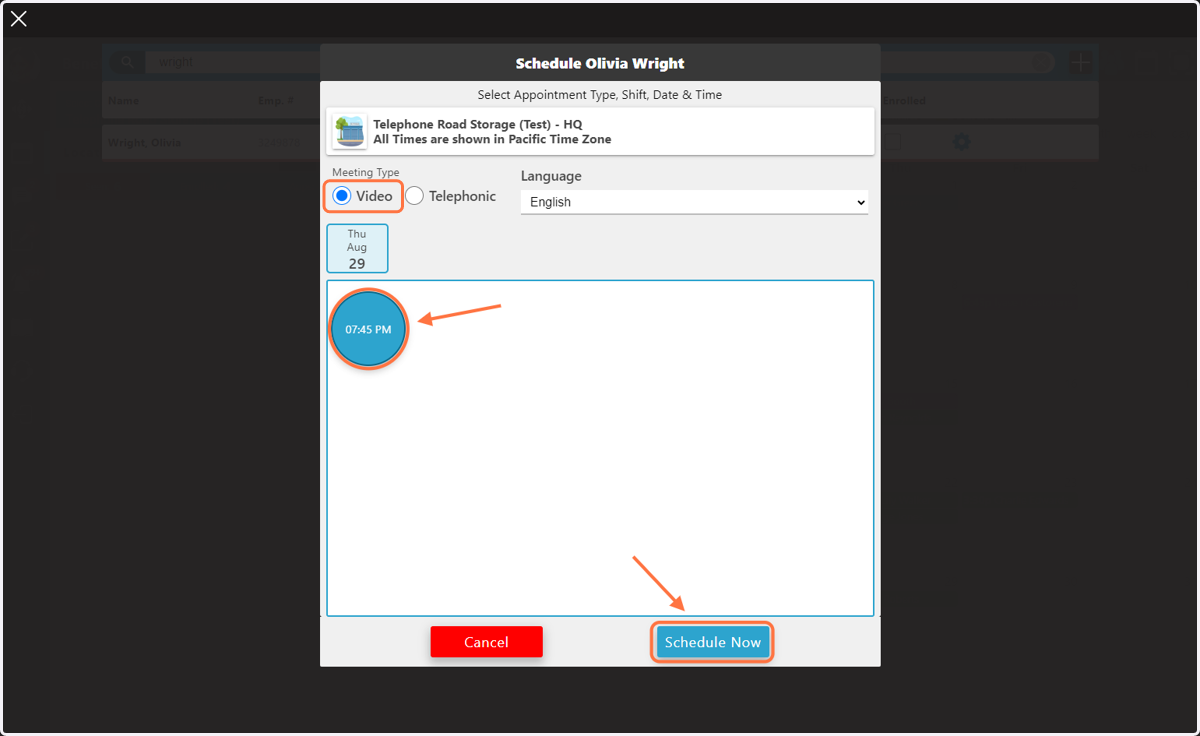
11. This Video appointment will now be visible on your calendar. Launch the video conference when you are ready!