Navigating Events List Dashboard
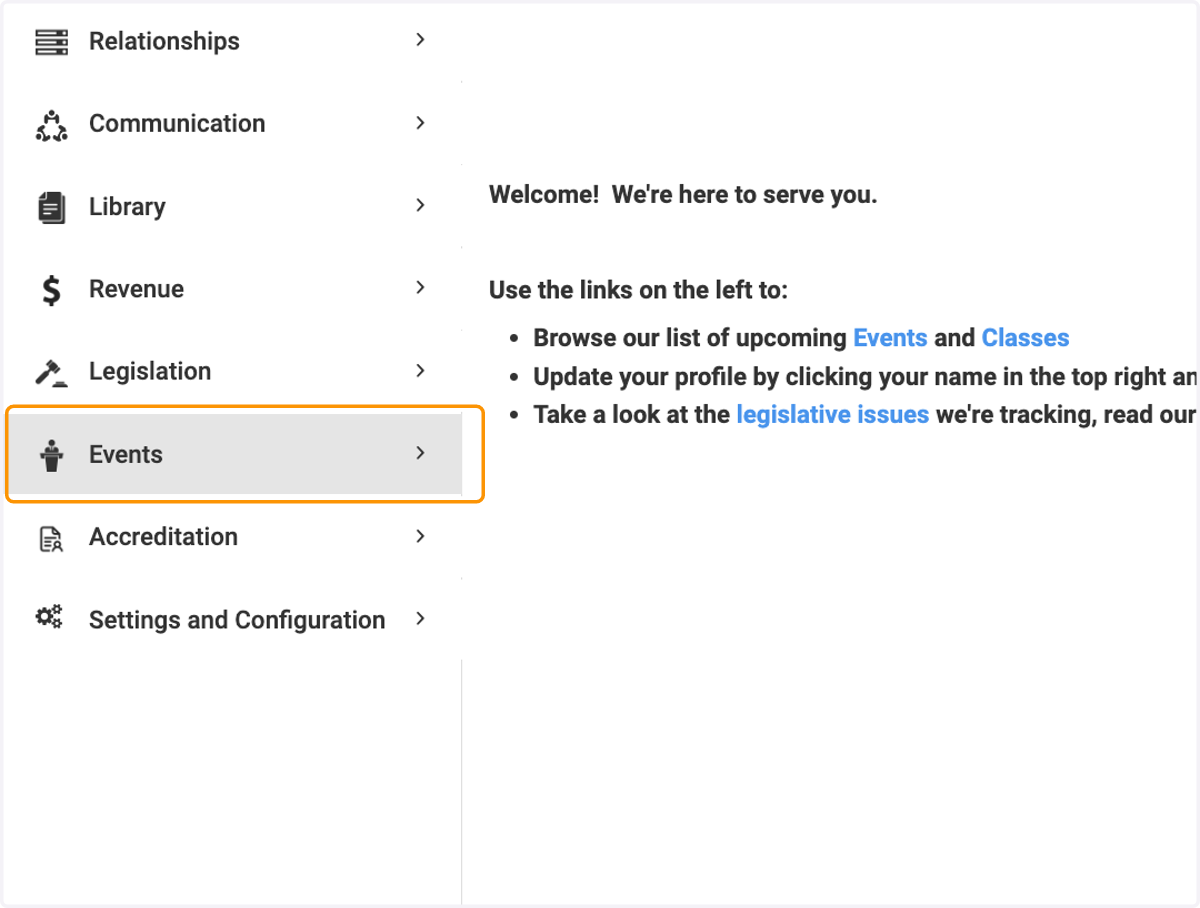
1. Click on Events
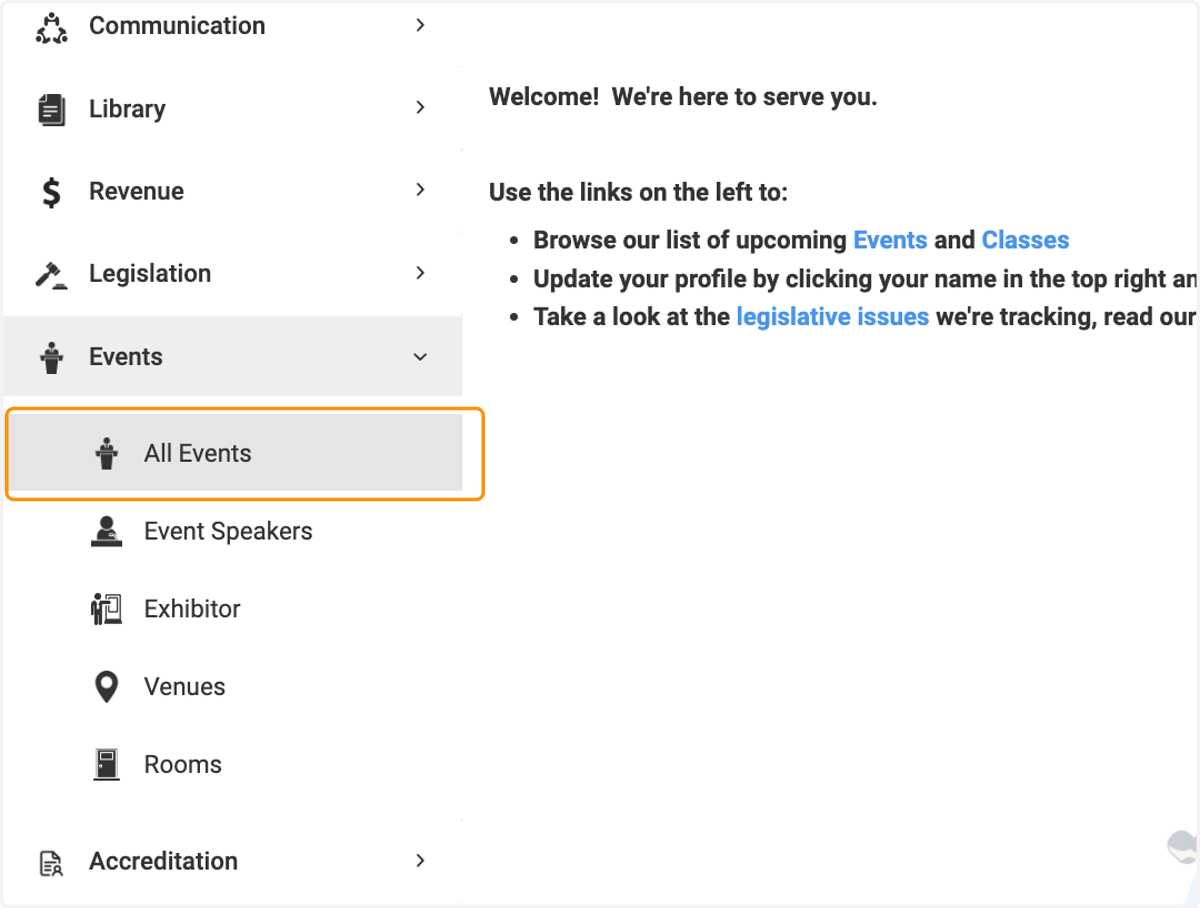
2. Click on All Events
3. The full list of events is now viewable
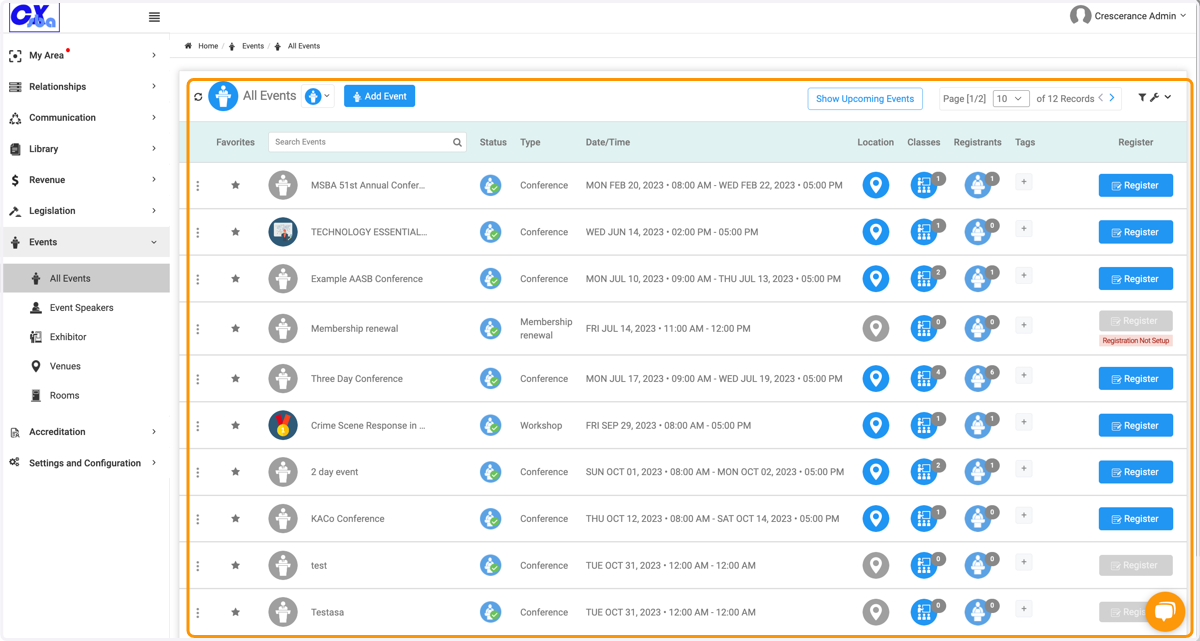
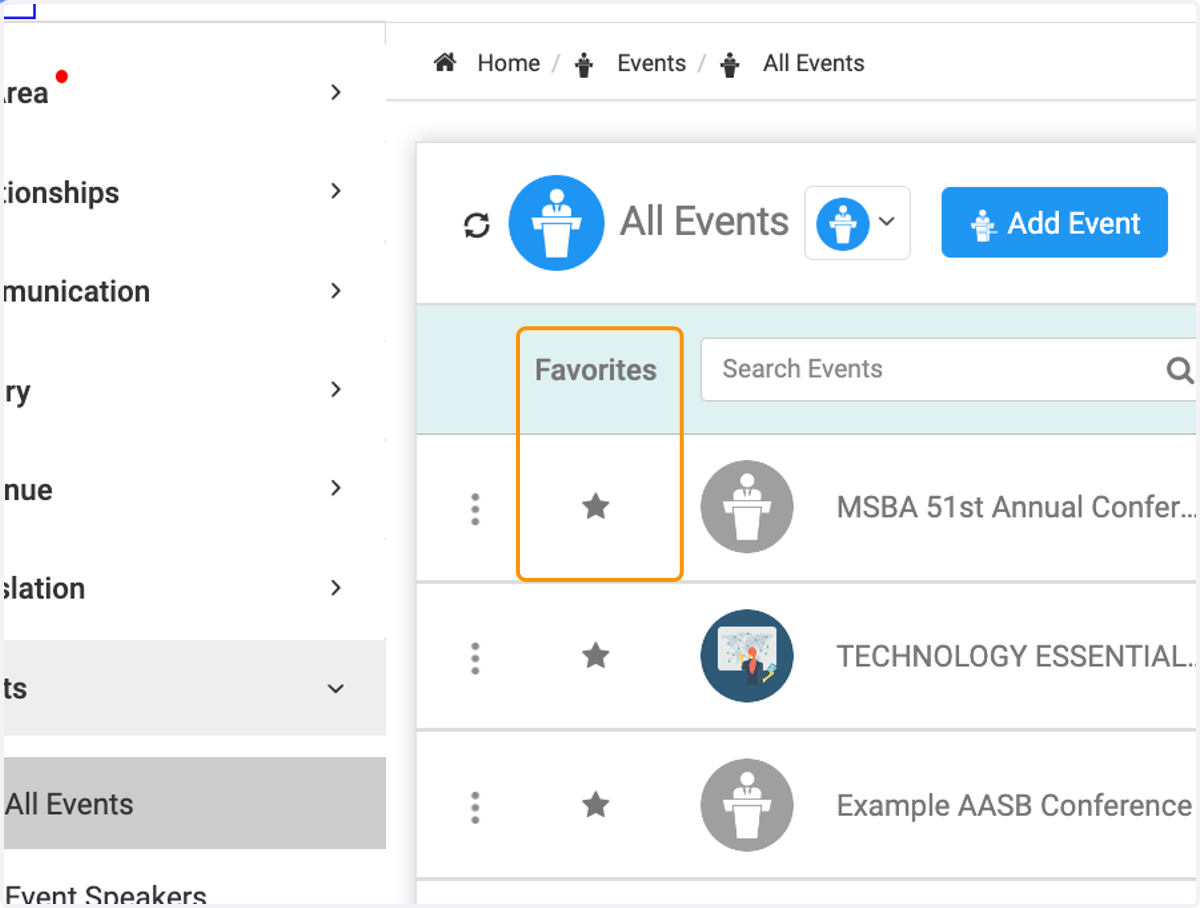
4. Click on the star to mark an Event as a favorite
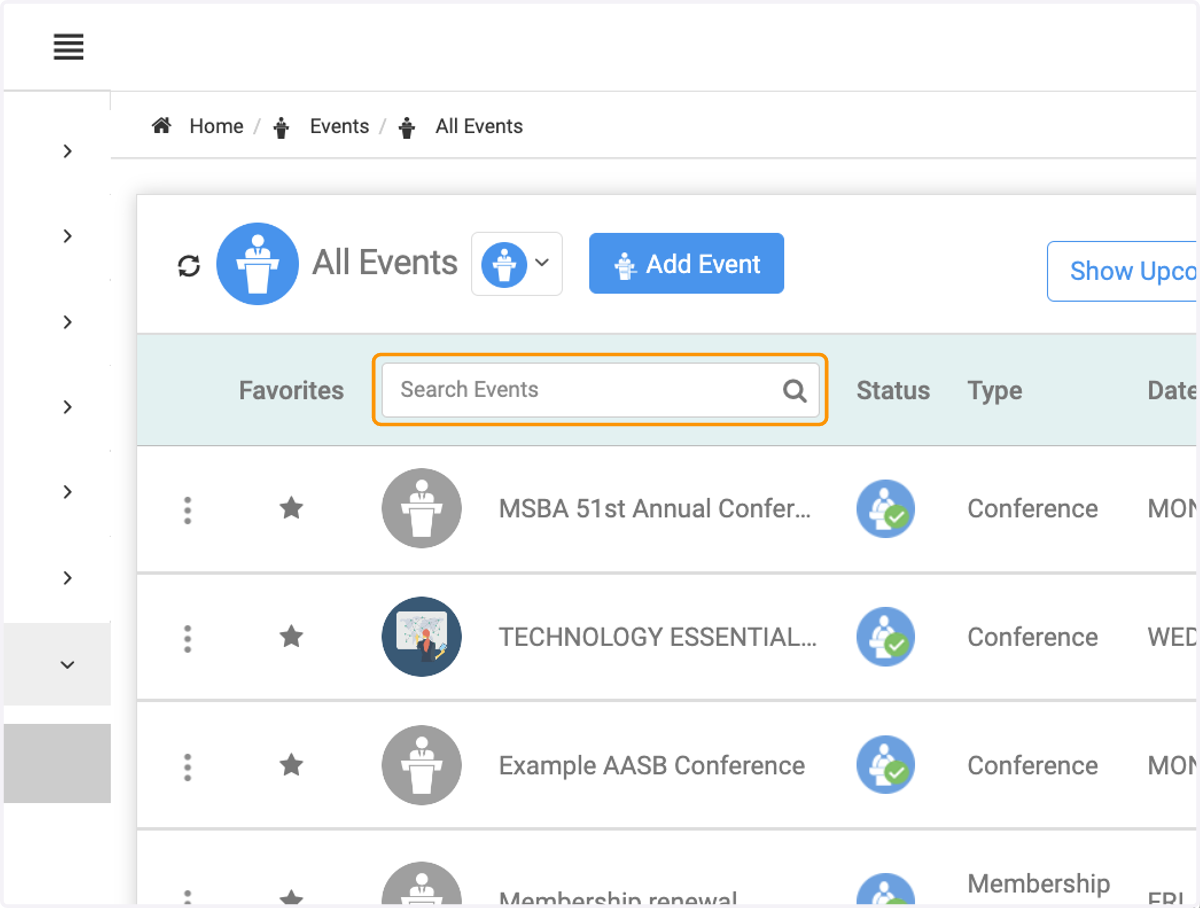
5. Click on Search Events to search for events by name
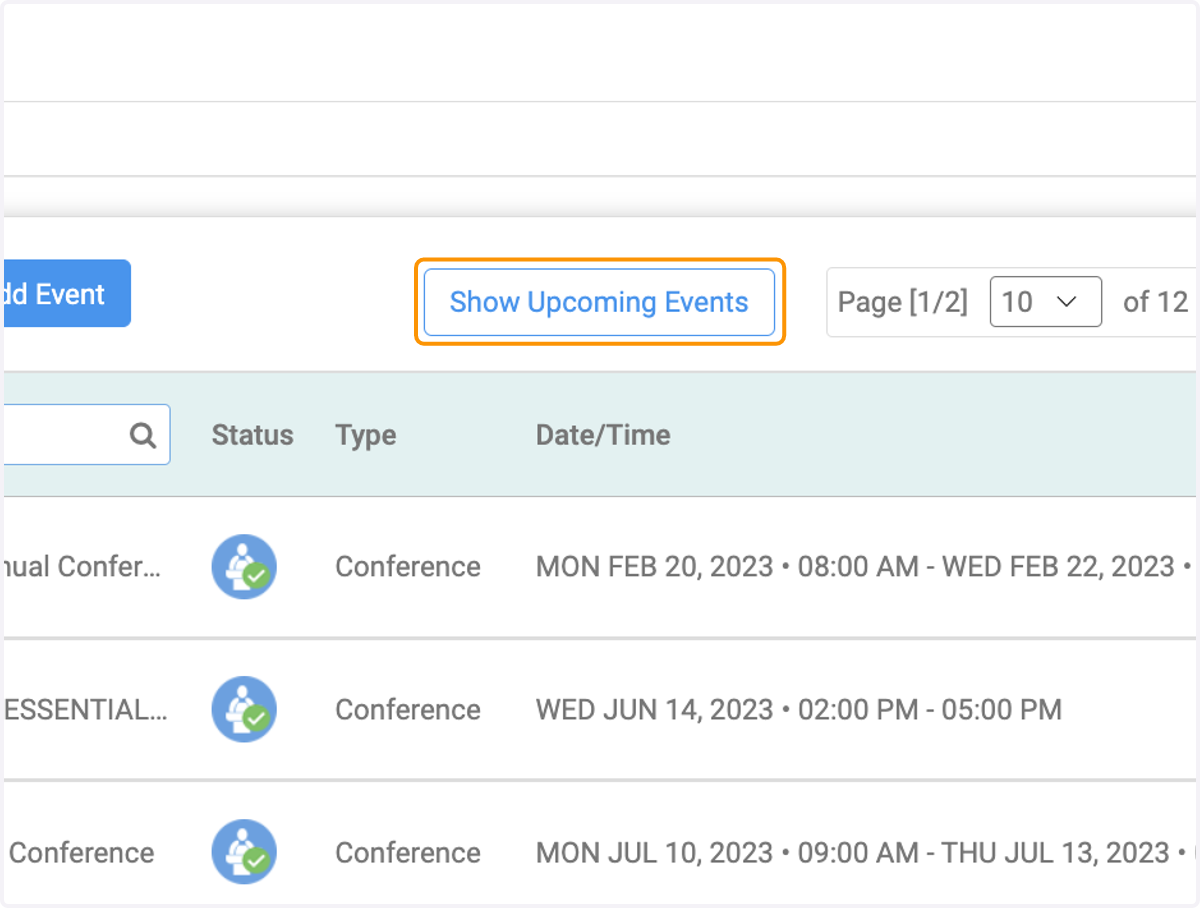
6. Click on Show Upcoming Events to only show upcoming events rather than all events
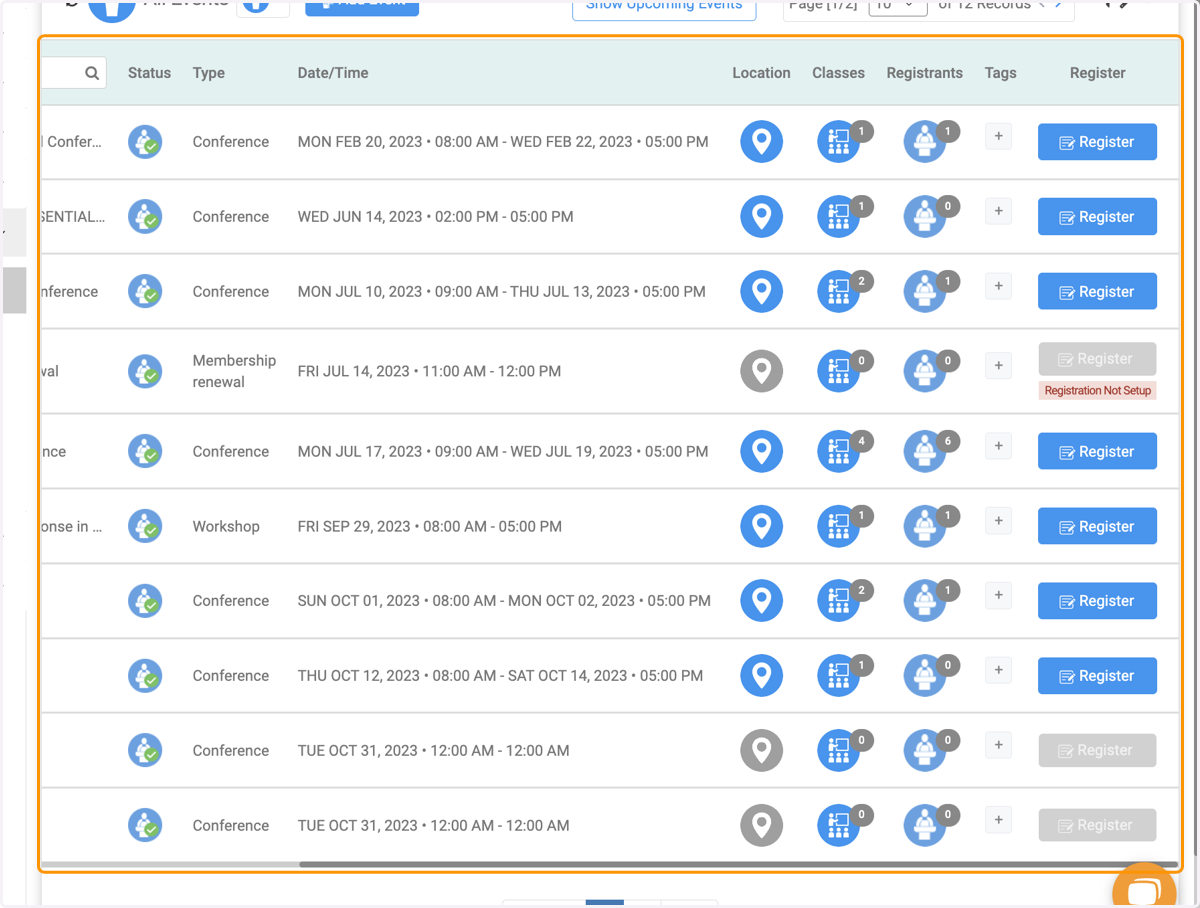
7. Viewing the events list page
On this page, you can view a lot details about the events, click into the event itself, register someone for the event or even add a new event.
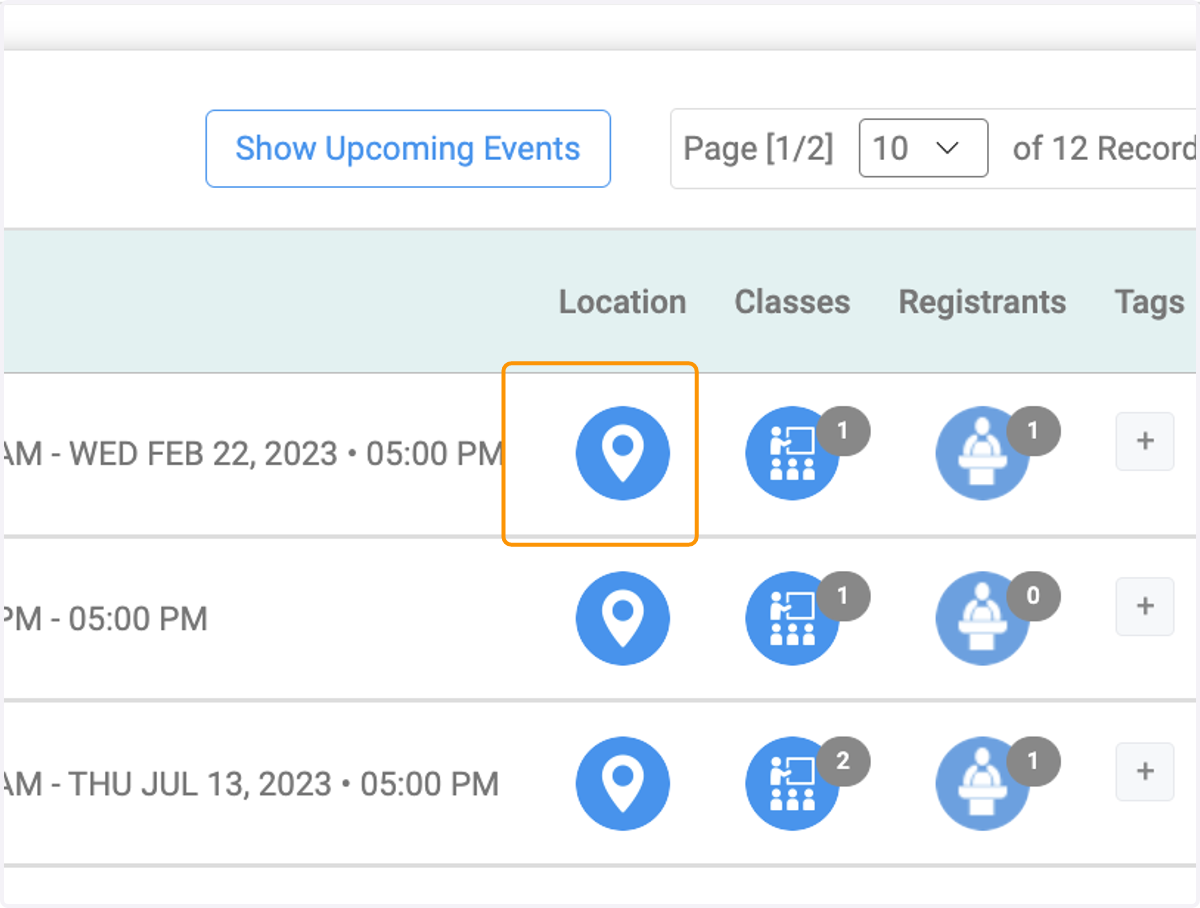
8. Click on the location icon to view where the event is located
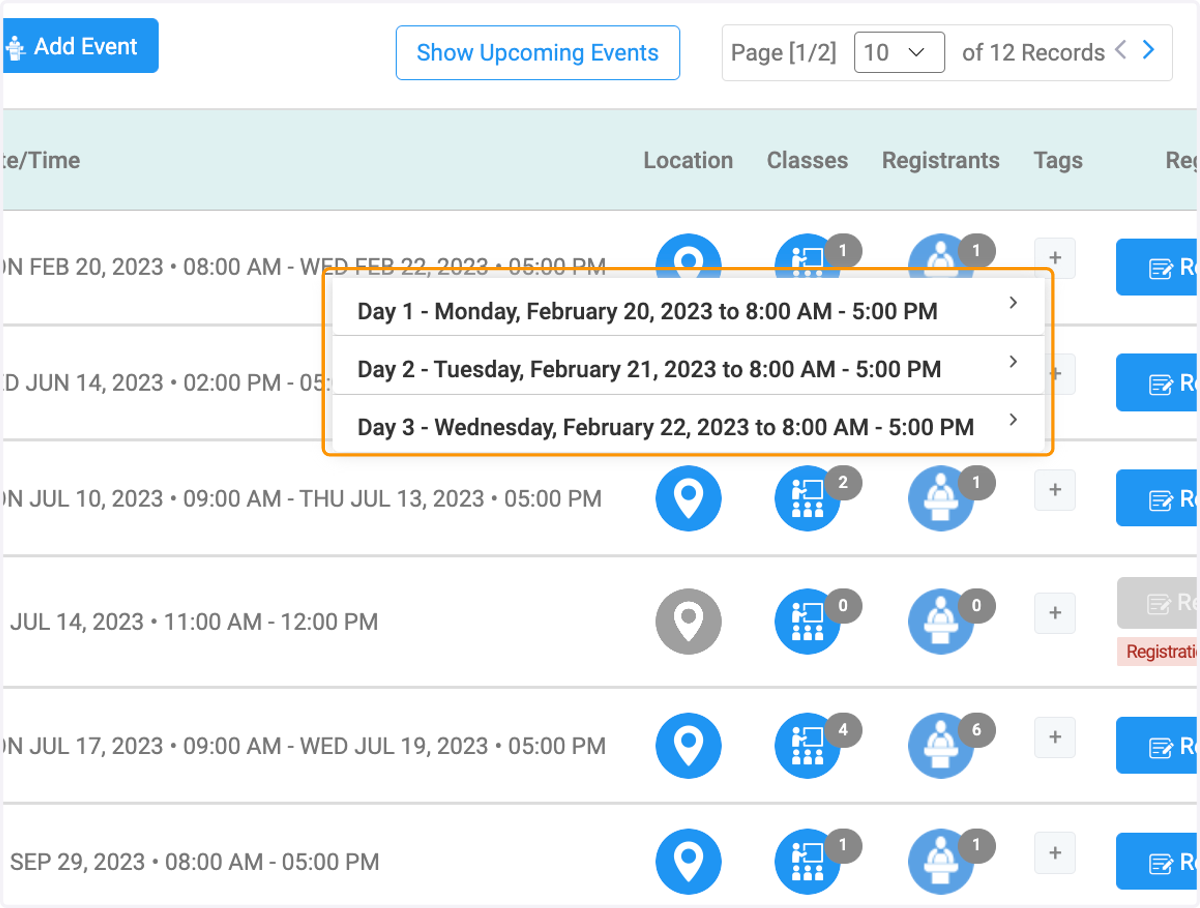
9. View location for each day of the event
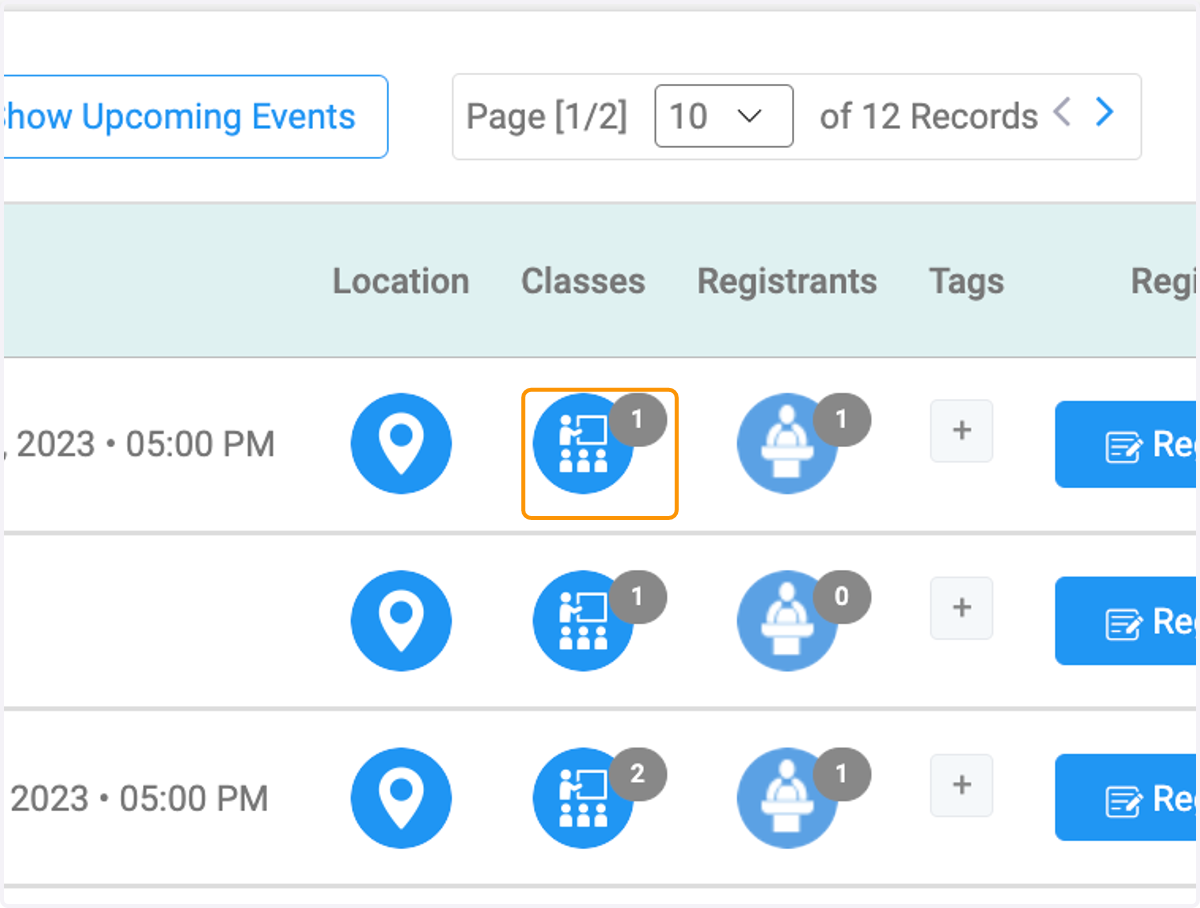
10. Click on the Classes icon to see any associated classes
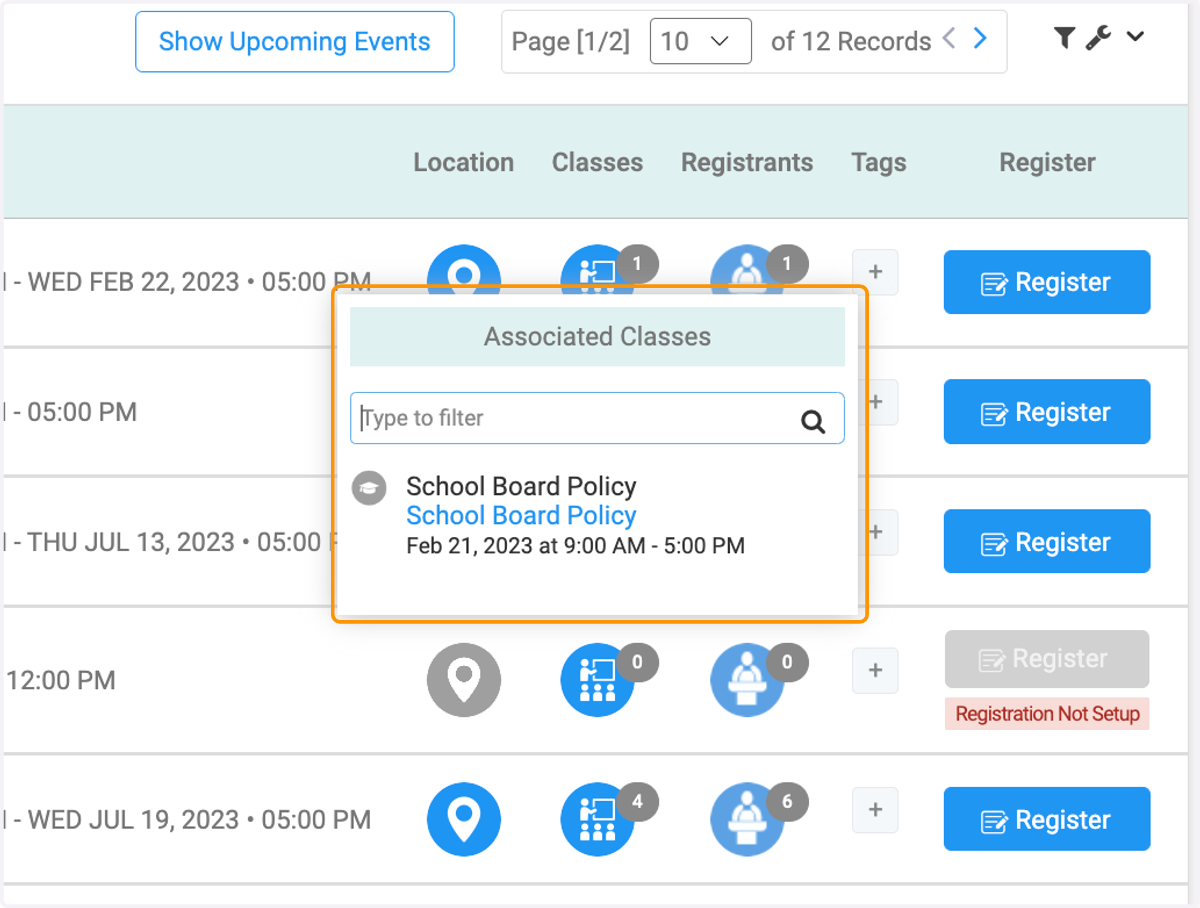
11. View classes associated with the event
12. Click on registrants icon
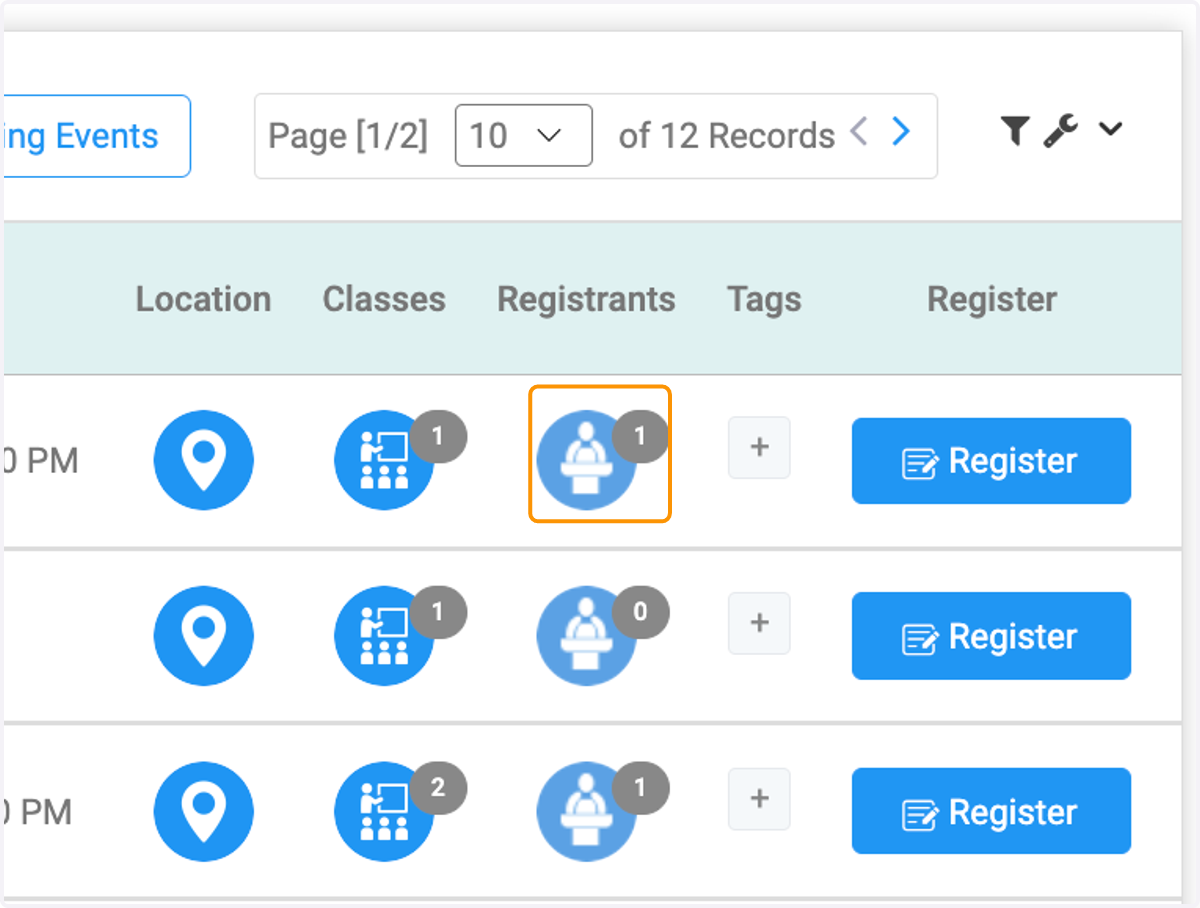
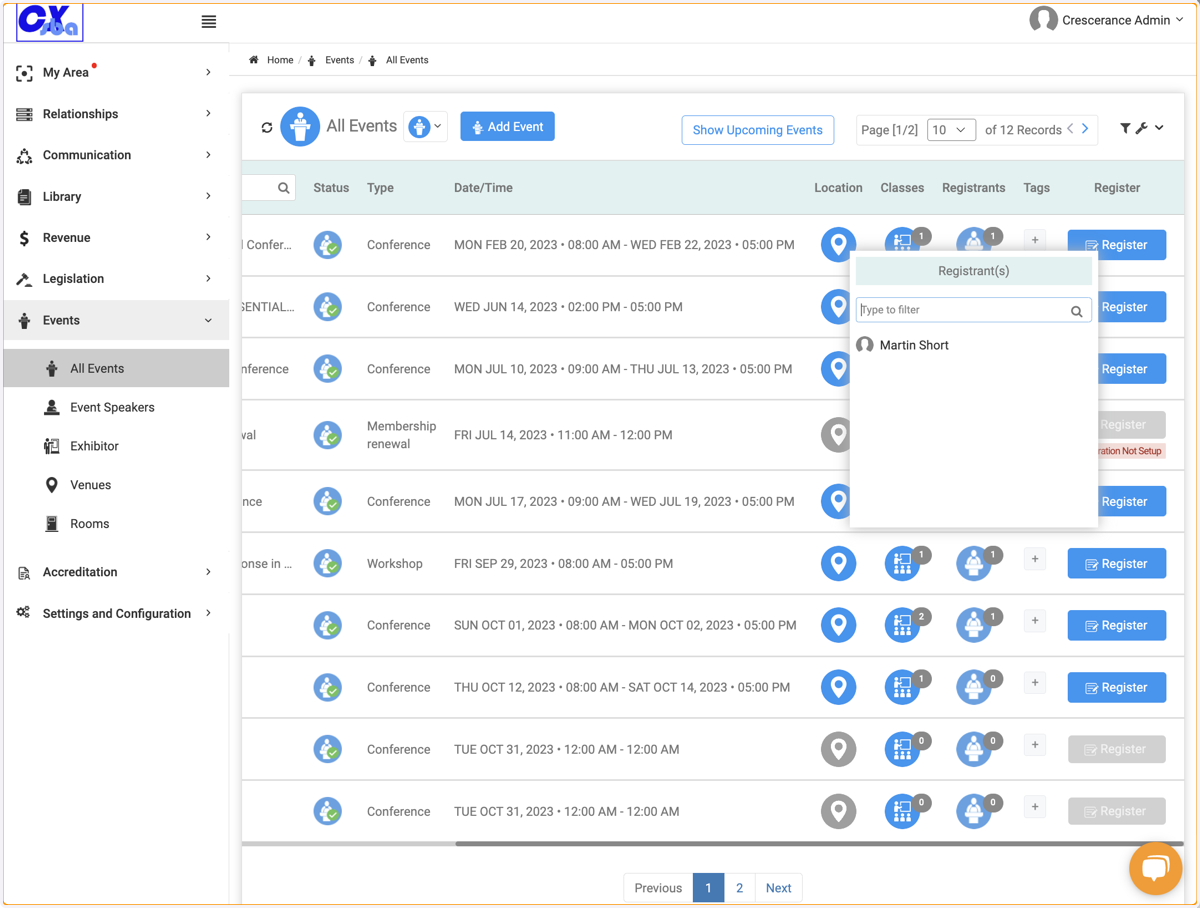
13. Click on Registrant(s) to view those attending the event
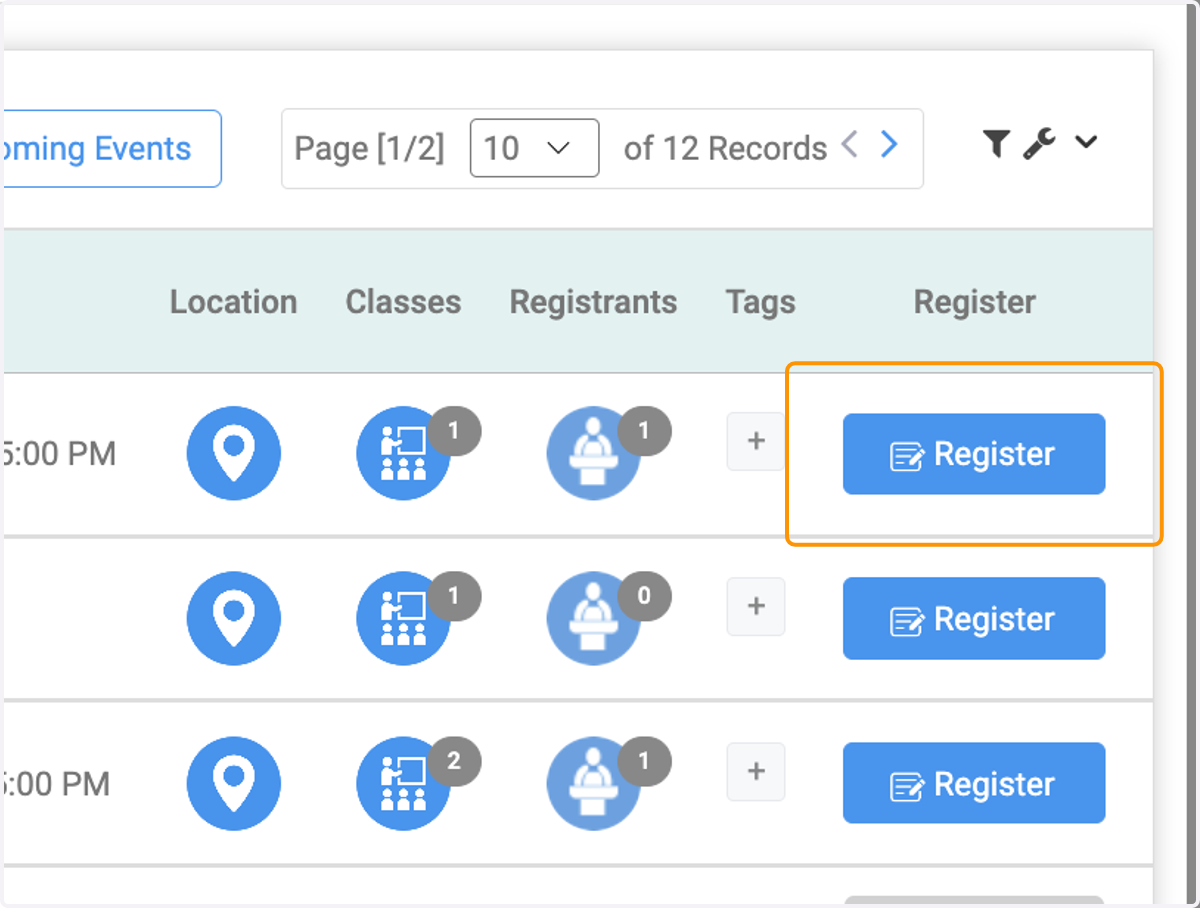
14. Click on Register to register participants
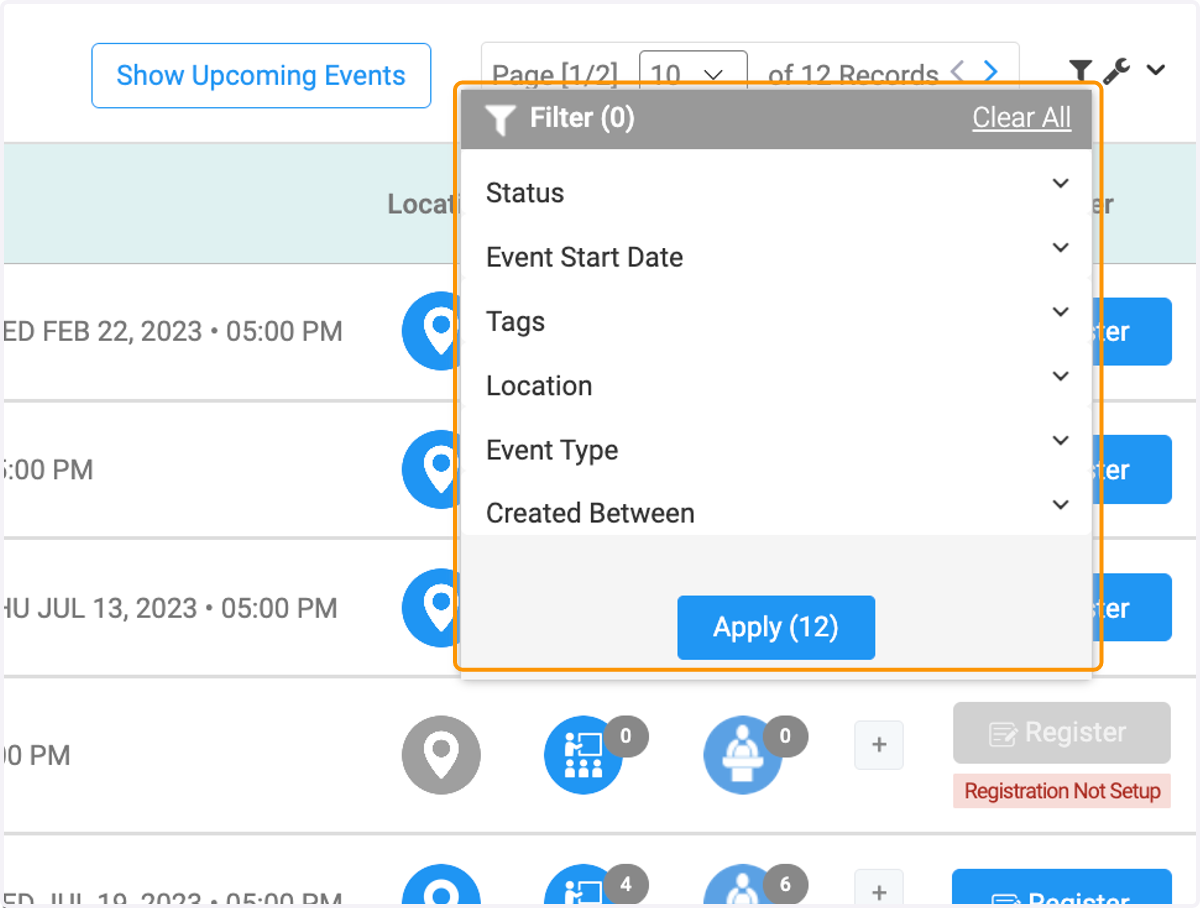
15. Click on the filter icon
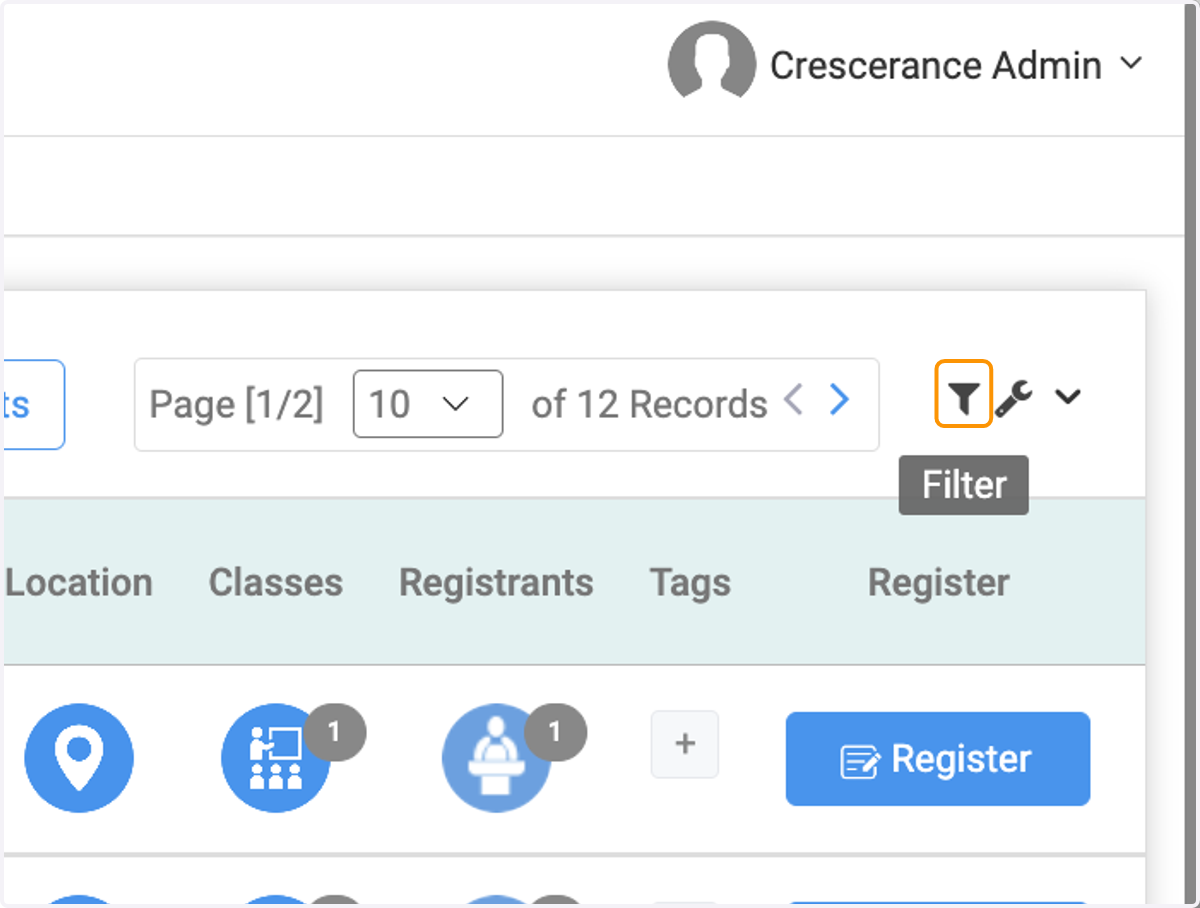
16. Select from menu and dropdown lists for filter criteria
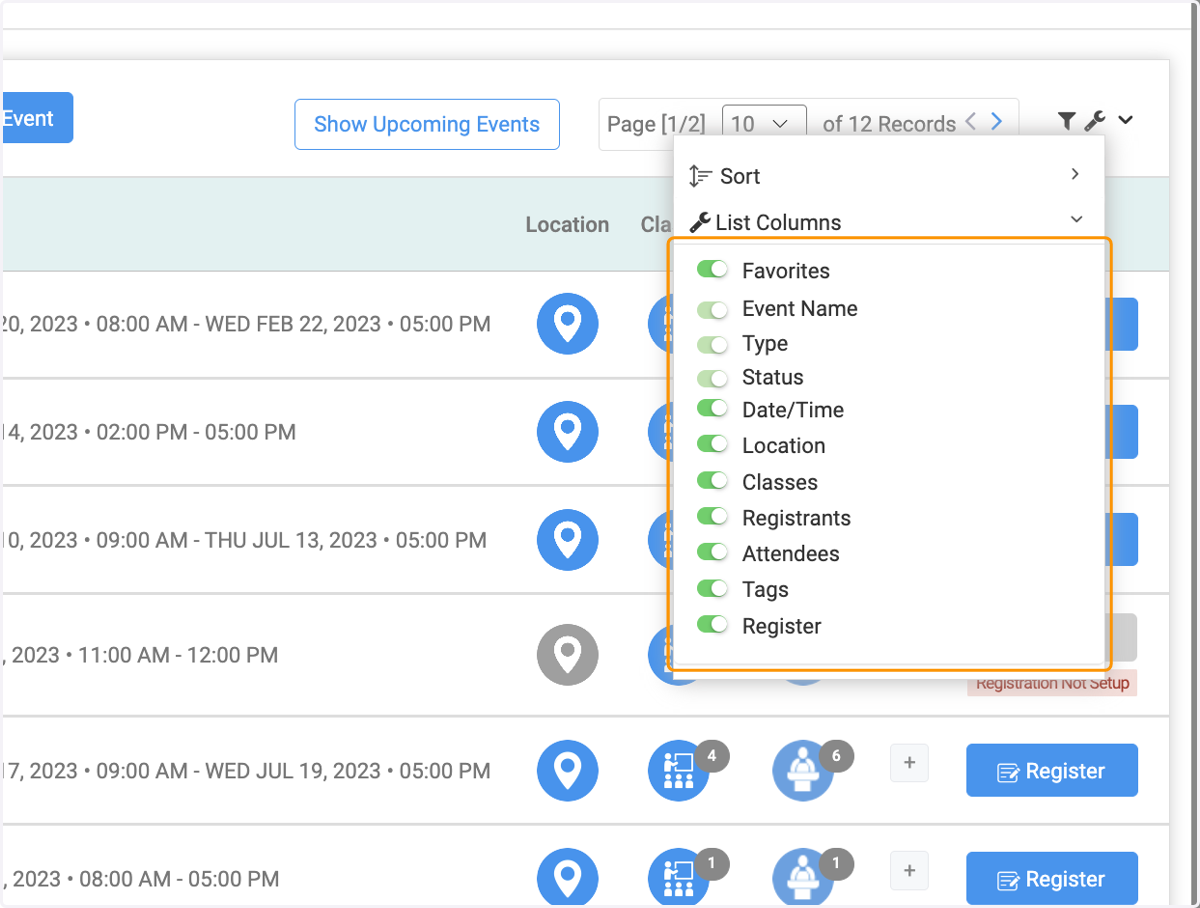
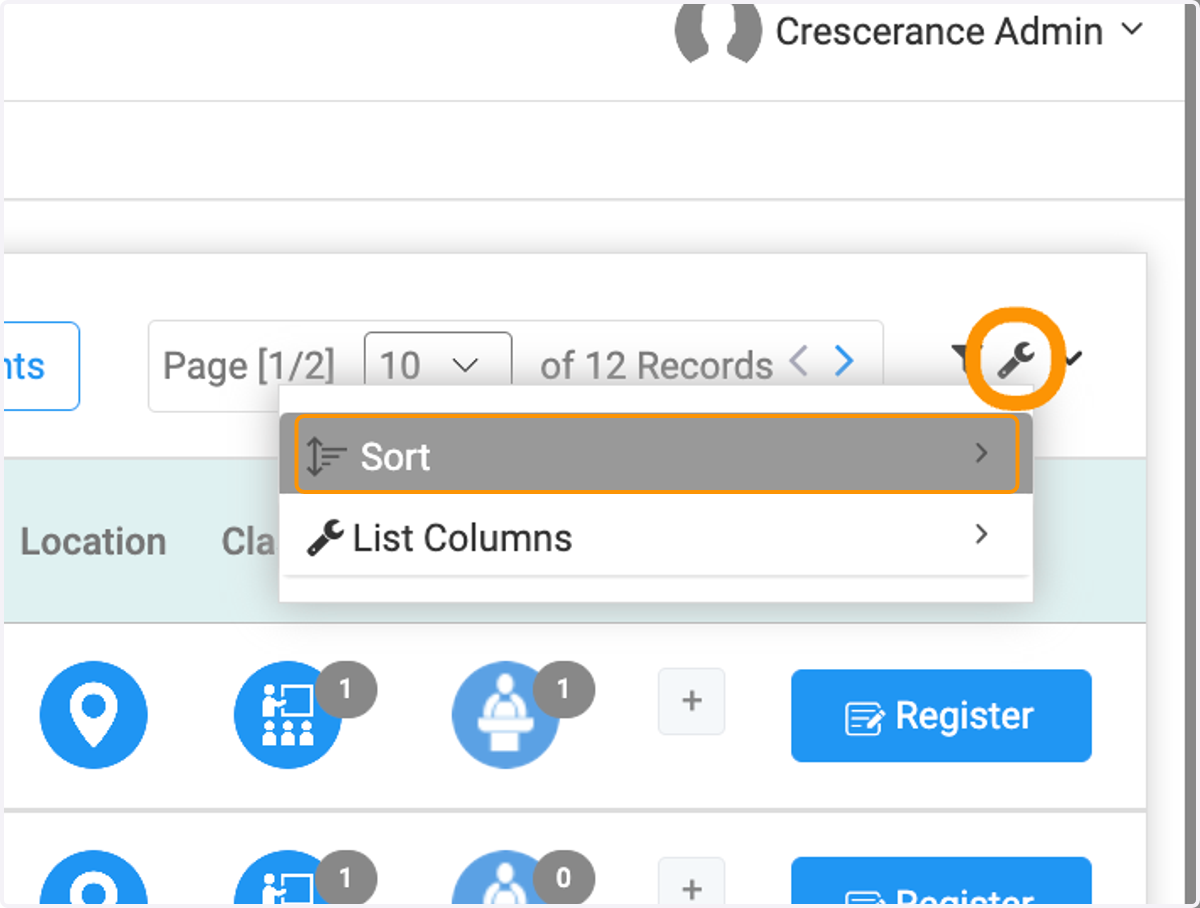
17. Click on the wrench icon to sort your event list
18. Click on List Columns to change the columns on the detail page
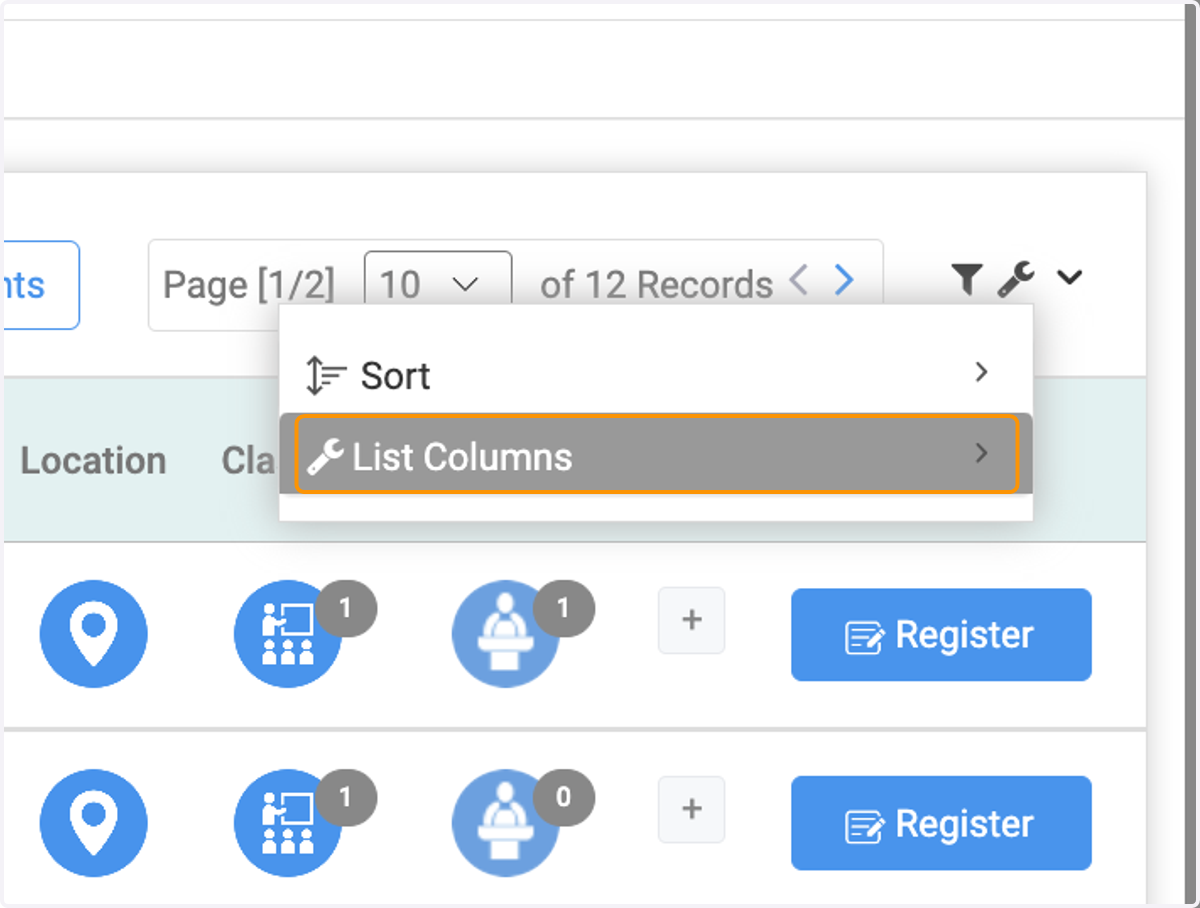
19. Toggle on or off column to add/remove the column from view.