Creating a List Style Report
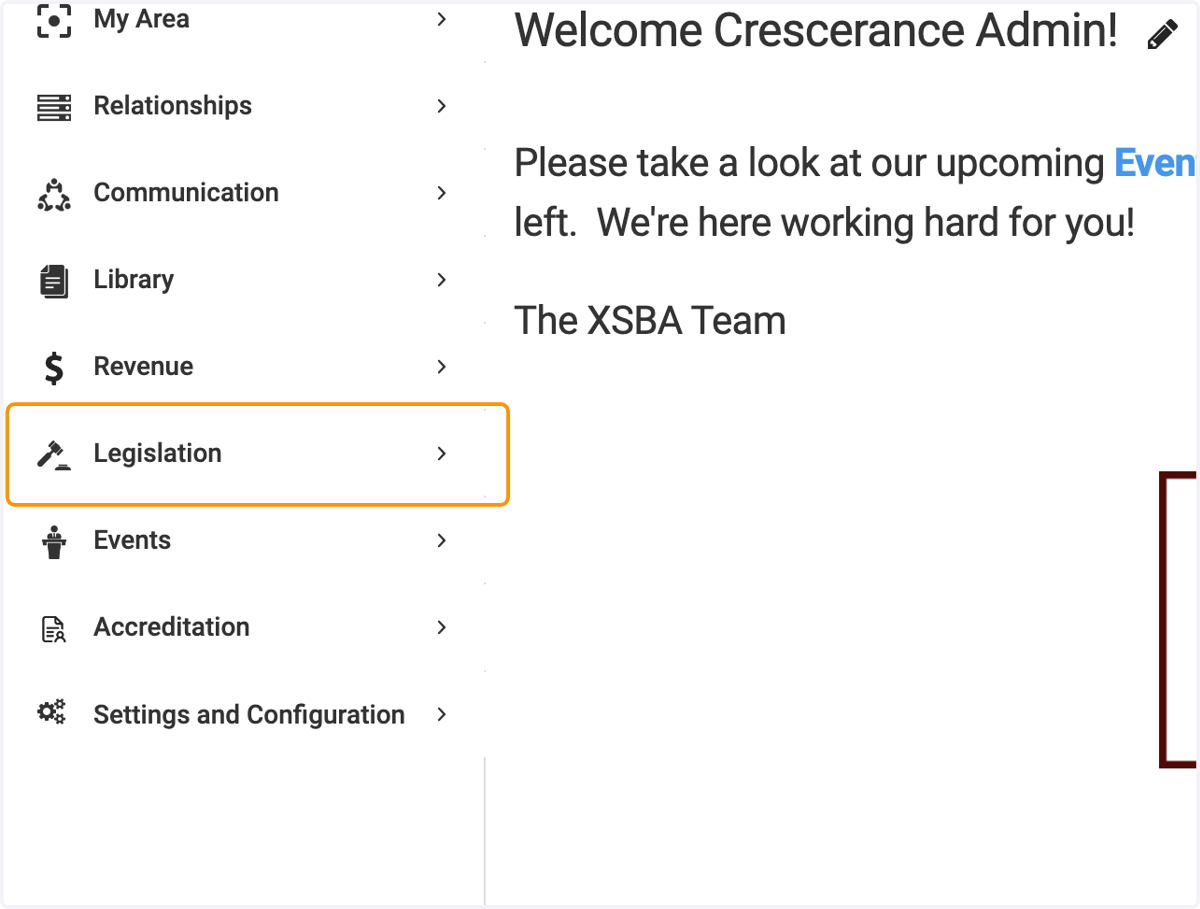
1. Click on Legislation
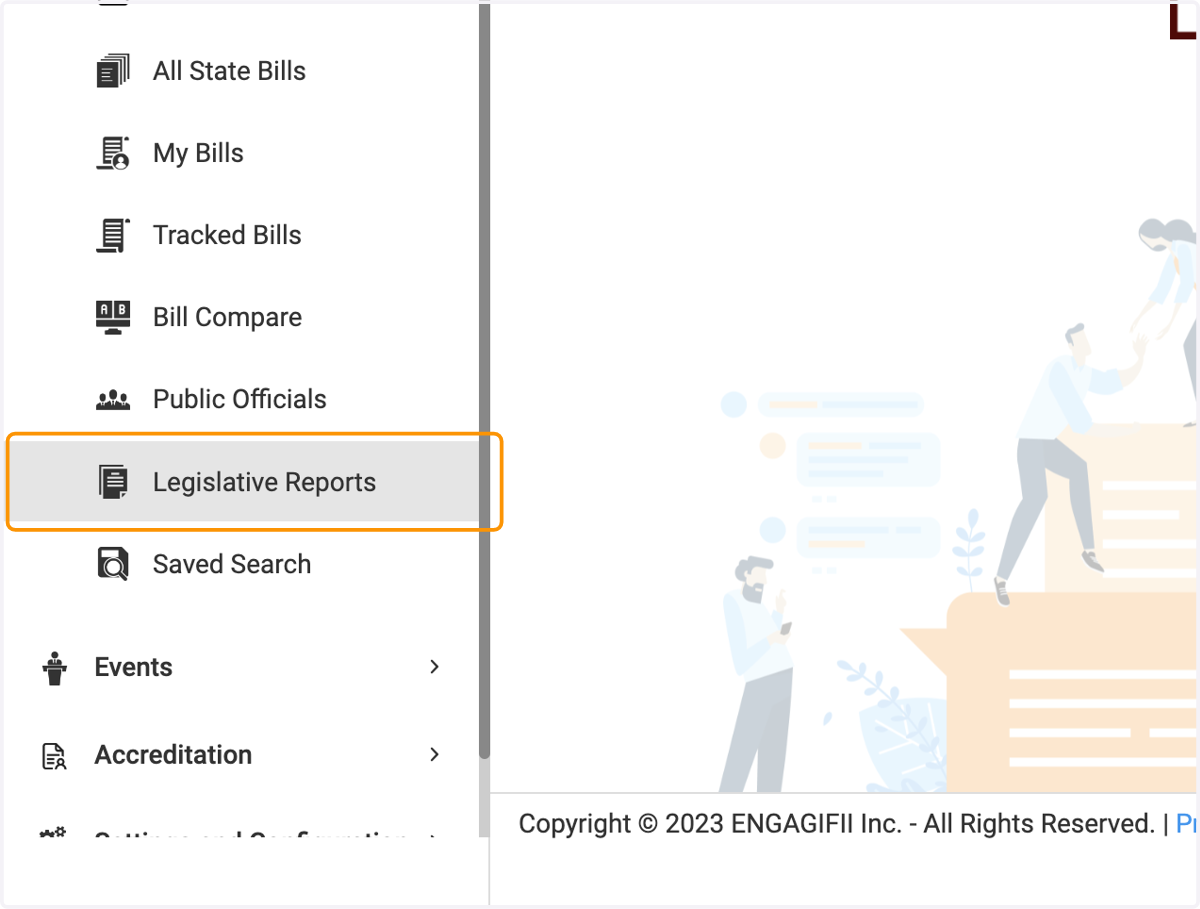
2. Click on Legislative Reports
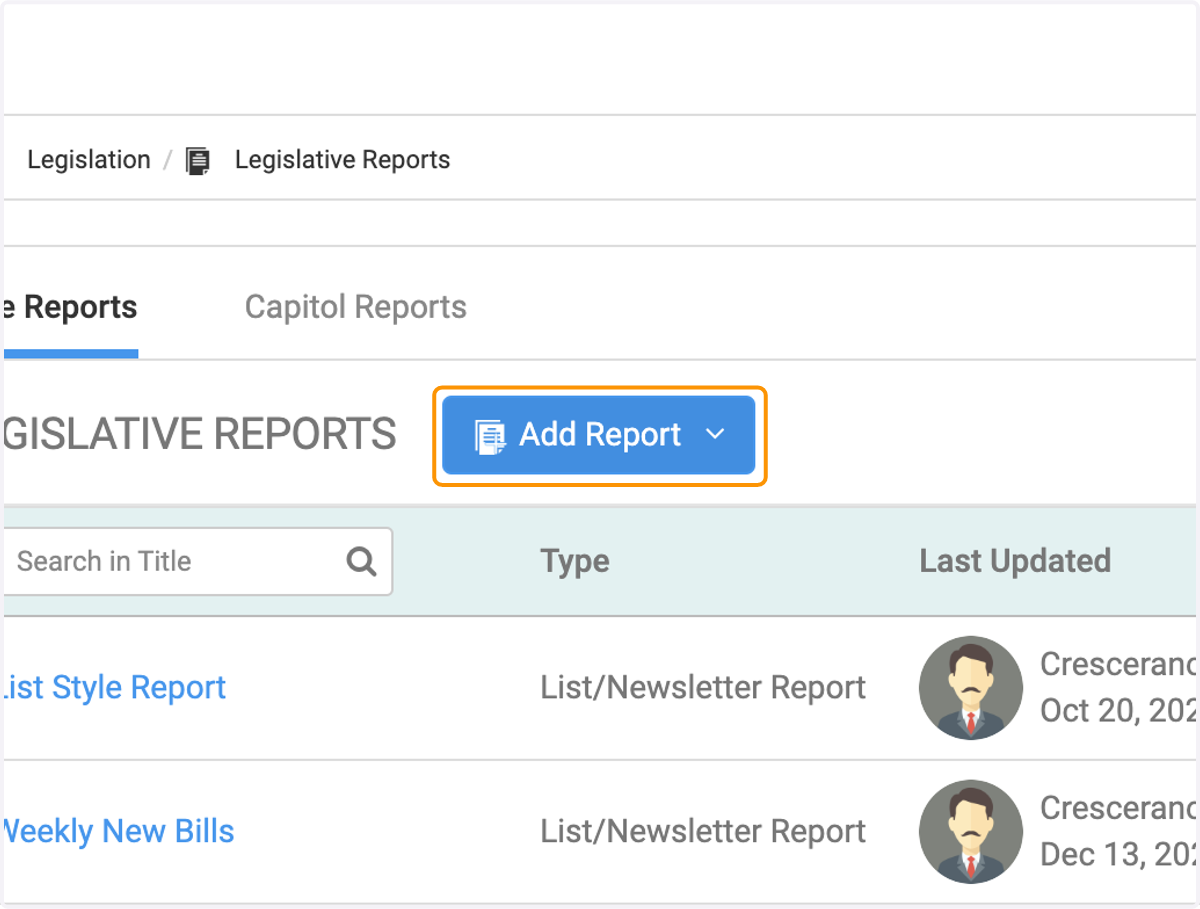
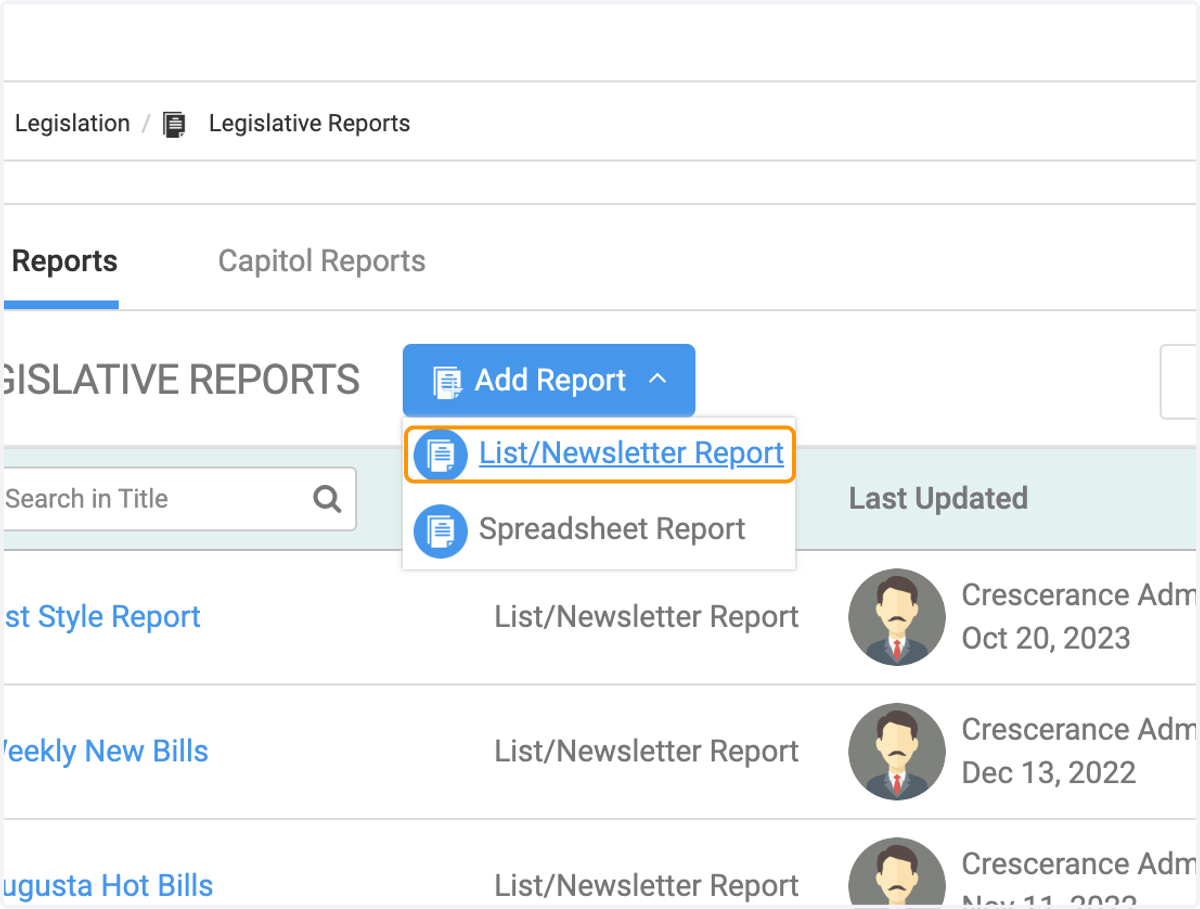
3. Click on Add Report
4. Click on List/Newsletter Report
5. Type in the name of your report
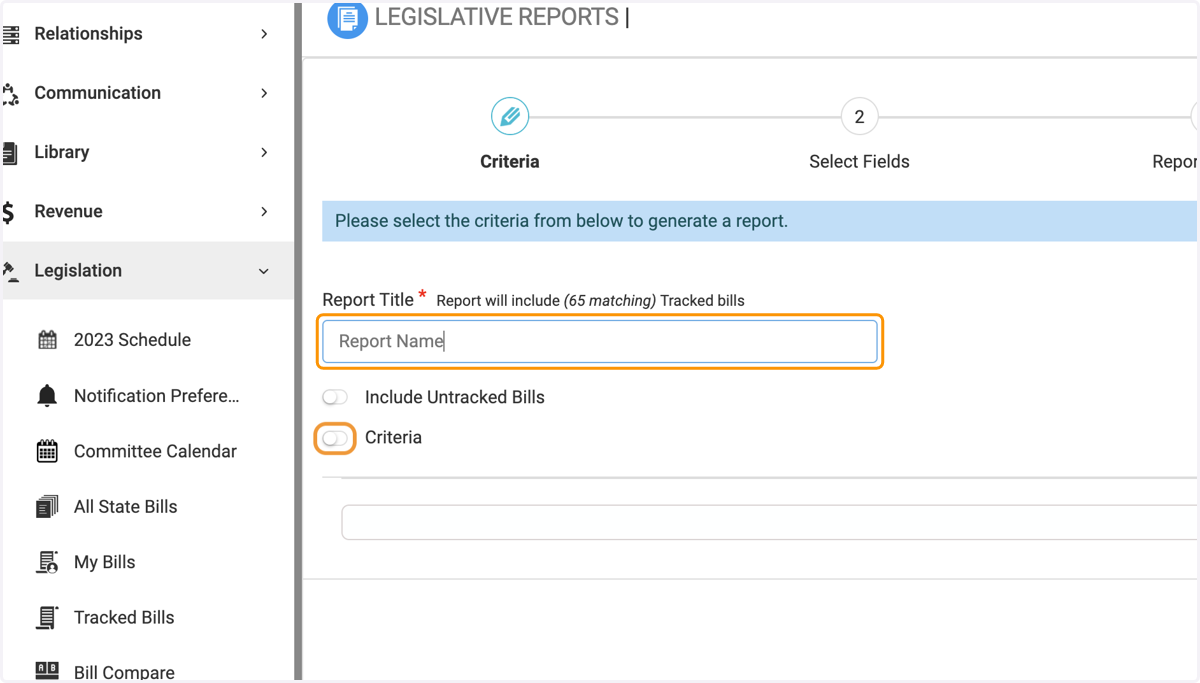
6. Criteria
Criteria allows you to create a dynamic report based on pieces of information (such as Introduced Date, or Tags). Think of them like a filter
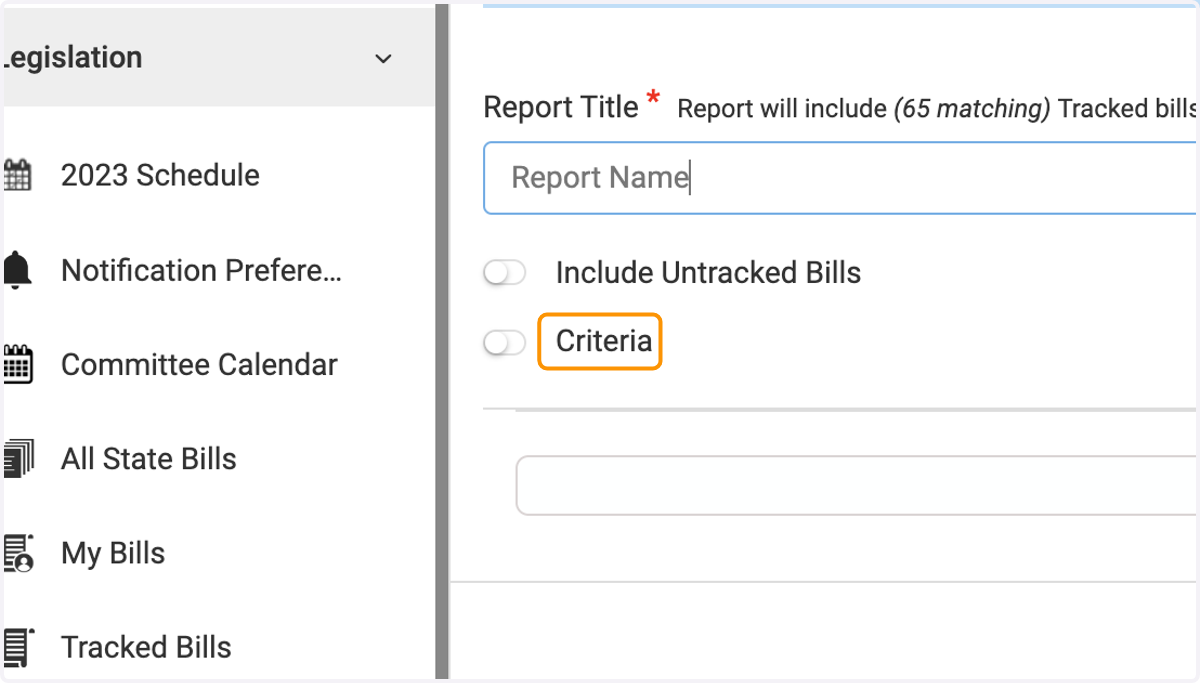
7. Adding your Criteria
Once you've toggled Criteria to on, you'll see a criteria builder pop up below
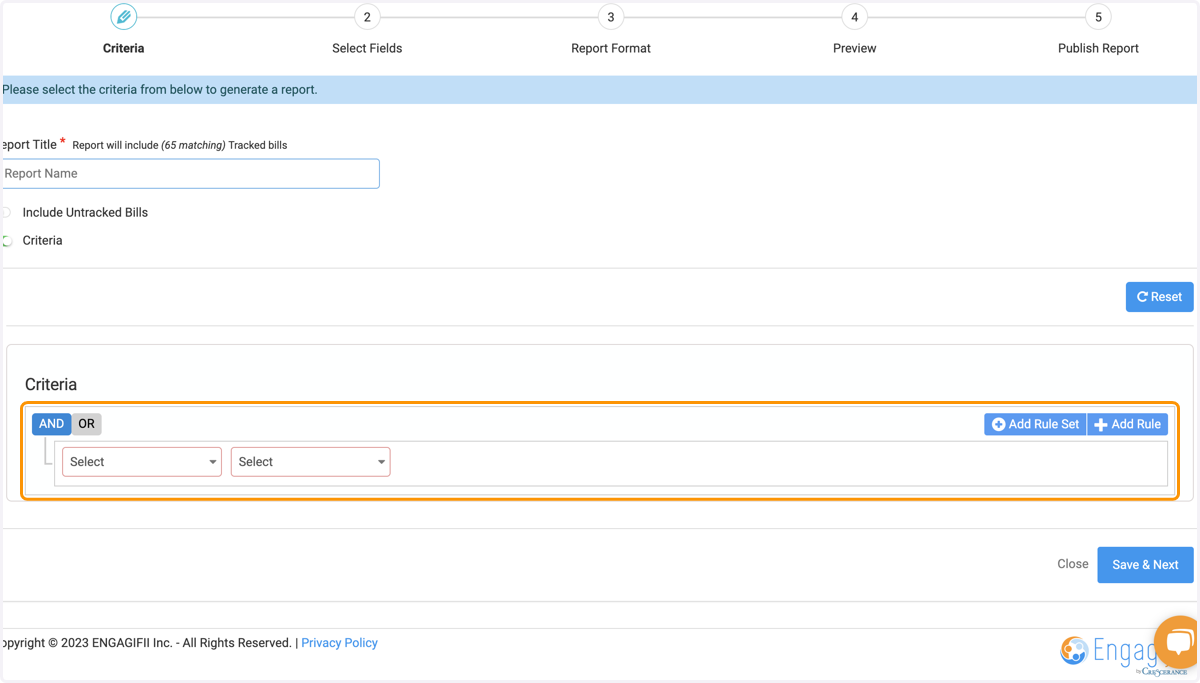
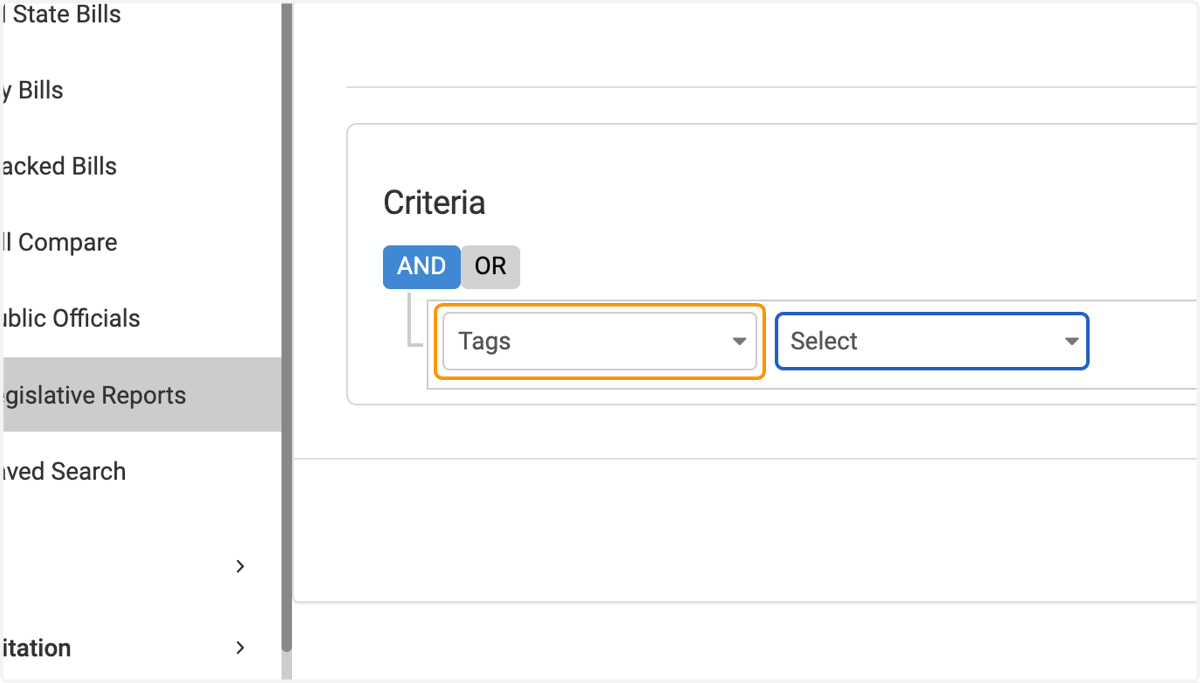
8. Select your Criteria
In the example below, we'll be using Tags as our criteria, but there are many options available.
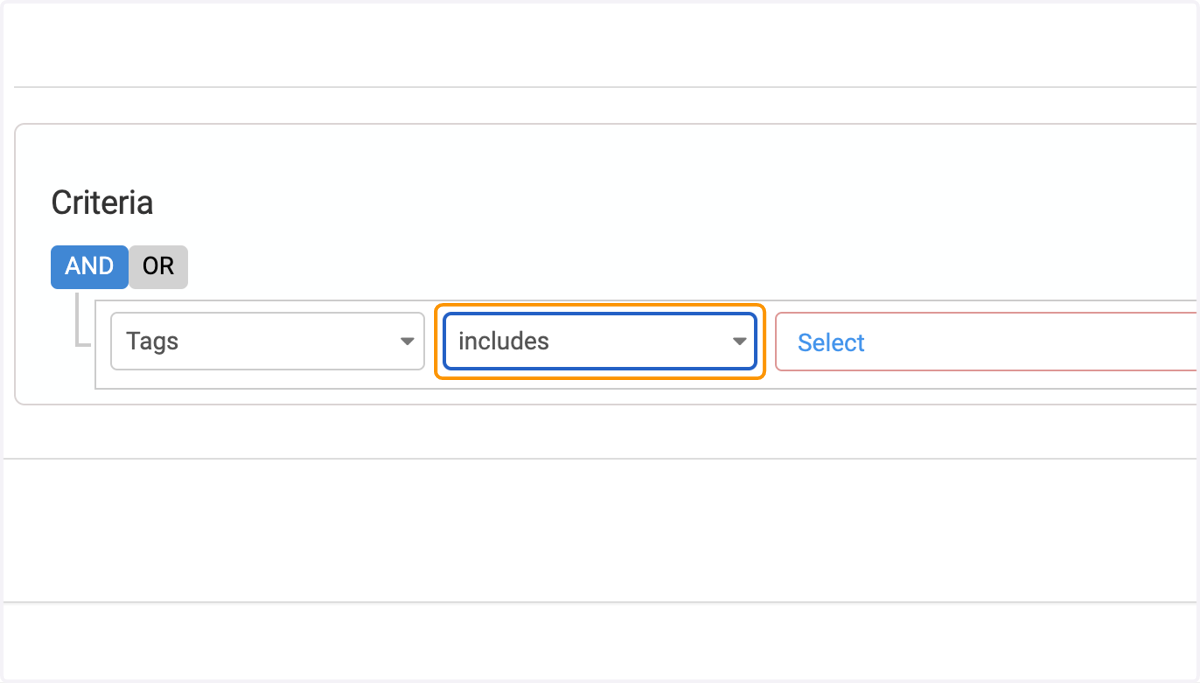
9. Select includes
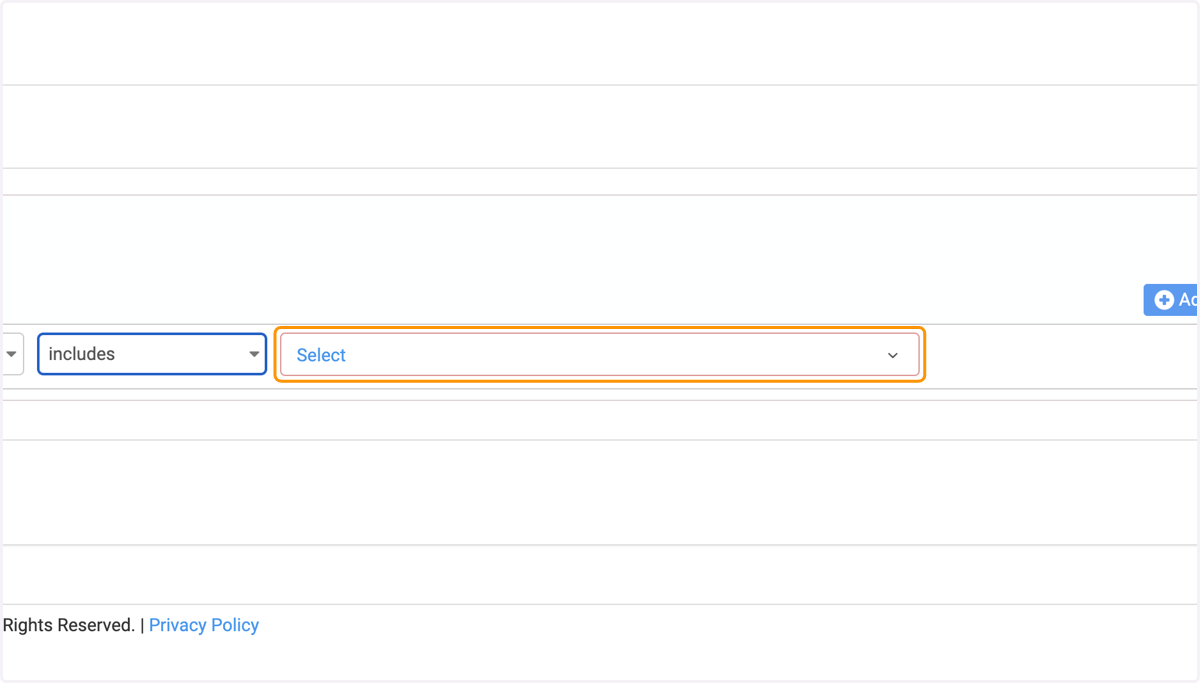
10. Click on Select
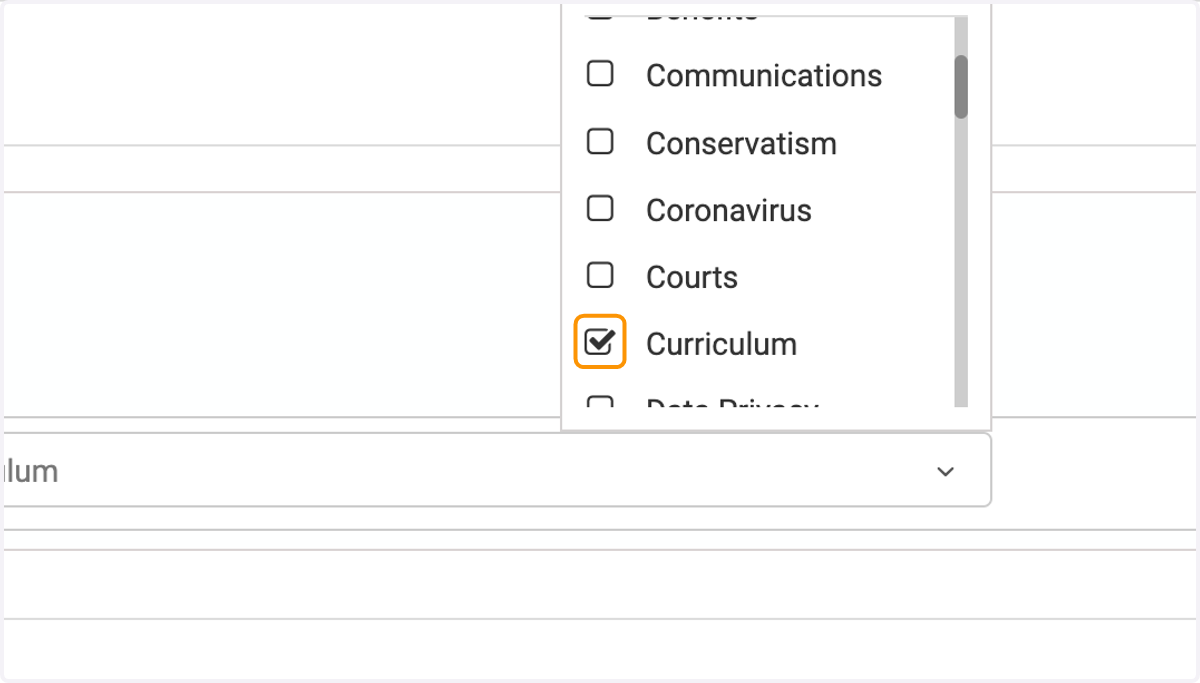
11. Select the Tag(s) you'd like to include
12. And/Or
The And/Or option allows you to utilize additional rules and hyper-focus your results. For example, you may be looking for Tags AND Introduced Date, another example is look for either/or.
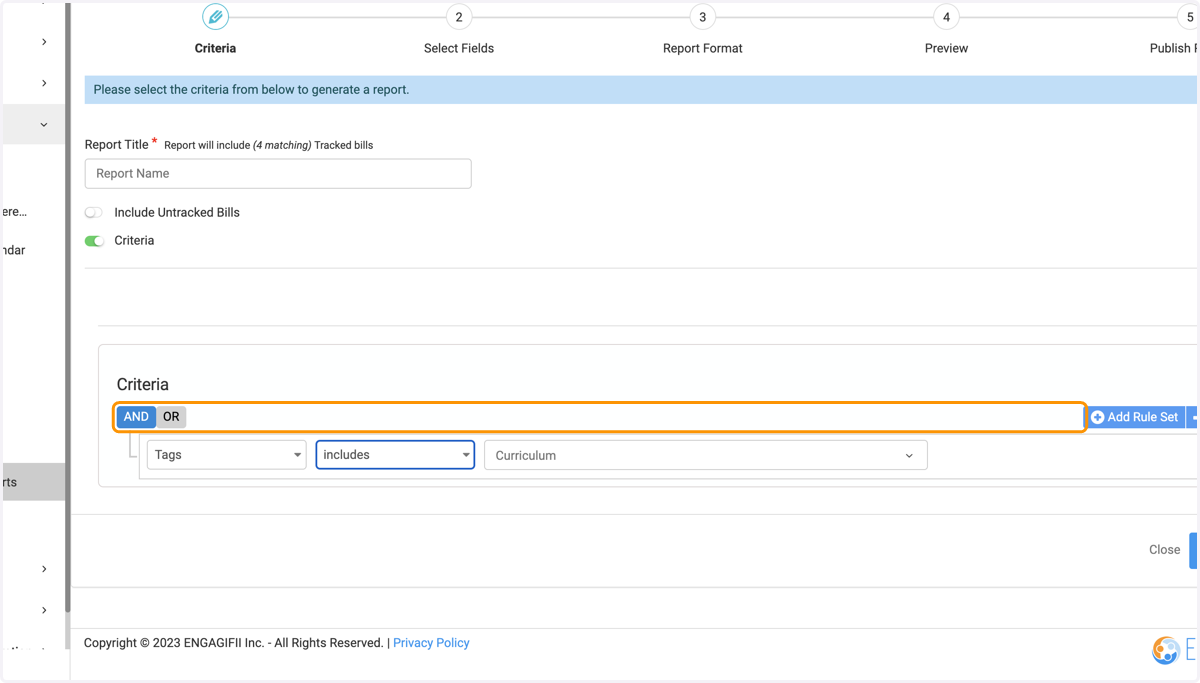
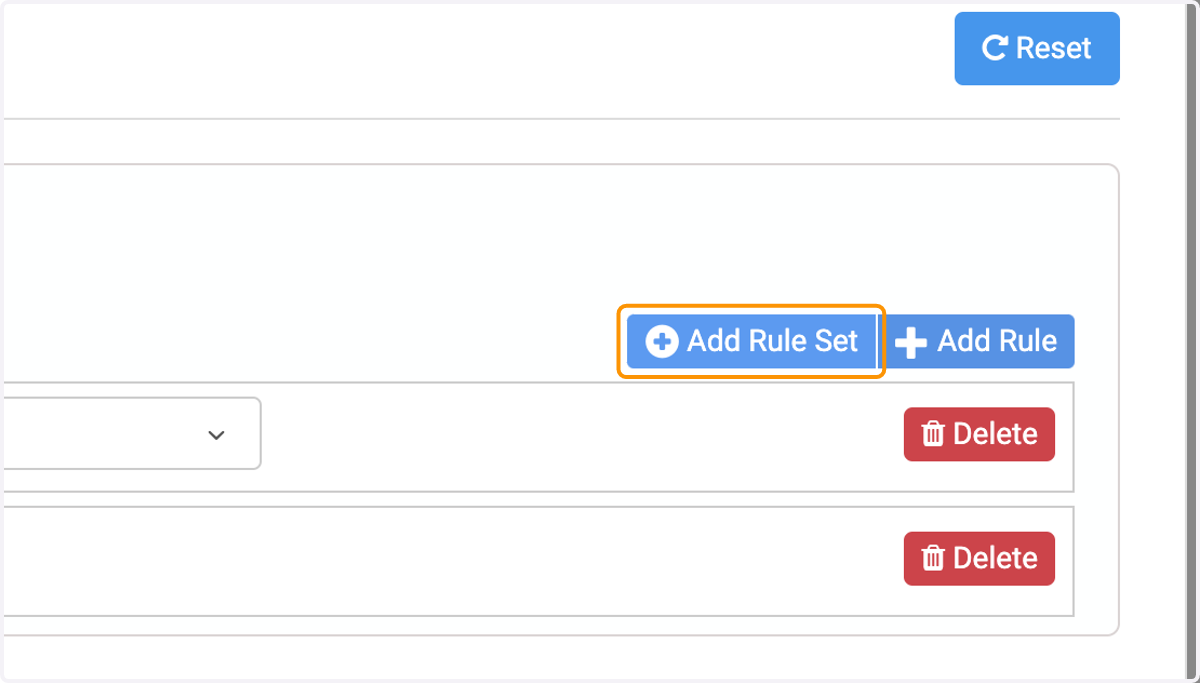
13. Add Additional Rule Sets or Rules
14. Click on Save & Next
15. Available Fields
In the left hand box you'll find all available fields for your report
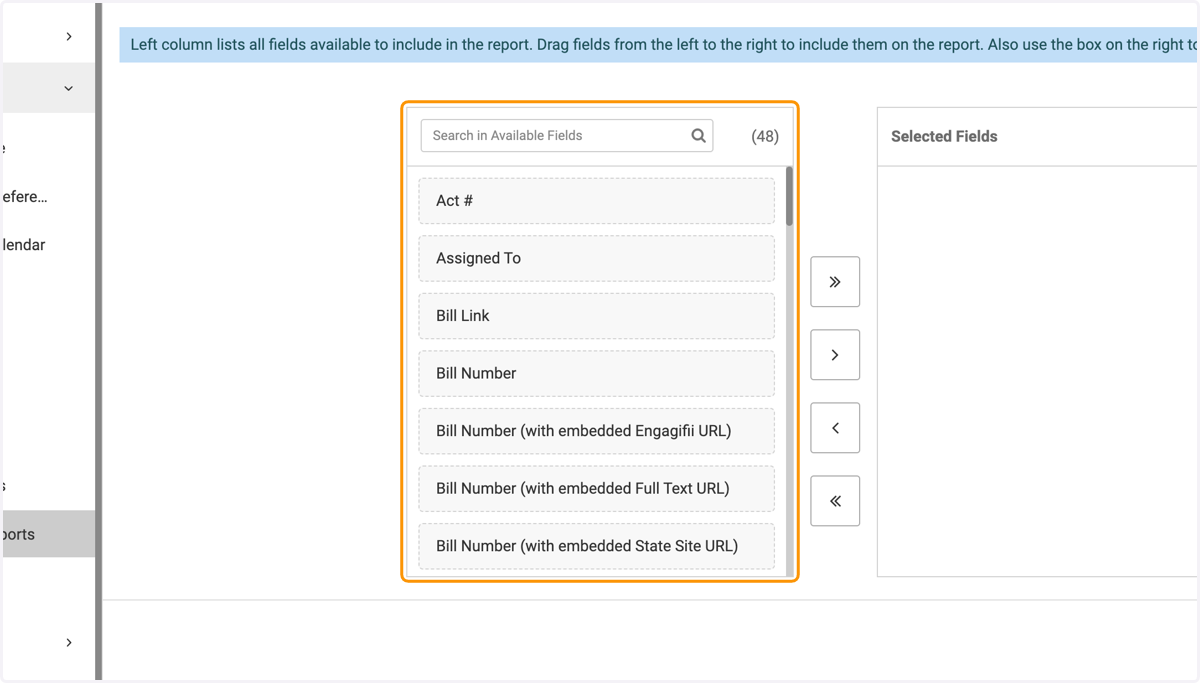
16. Click and Drag the fields you want into the right hand box labeled Selected Fields
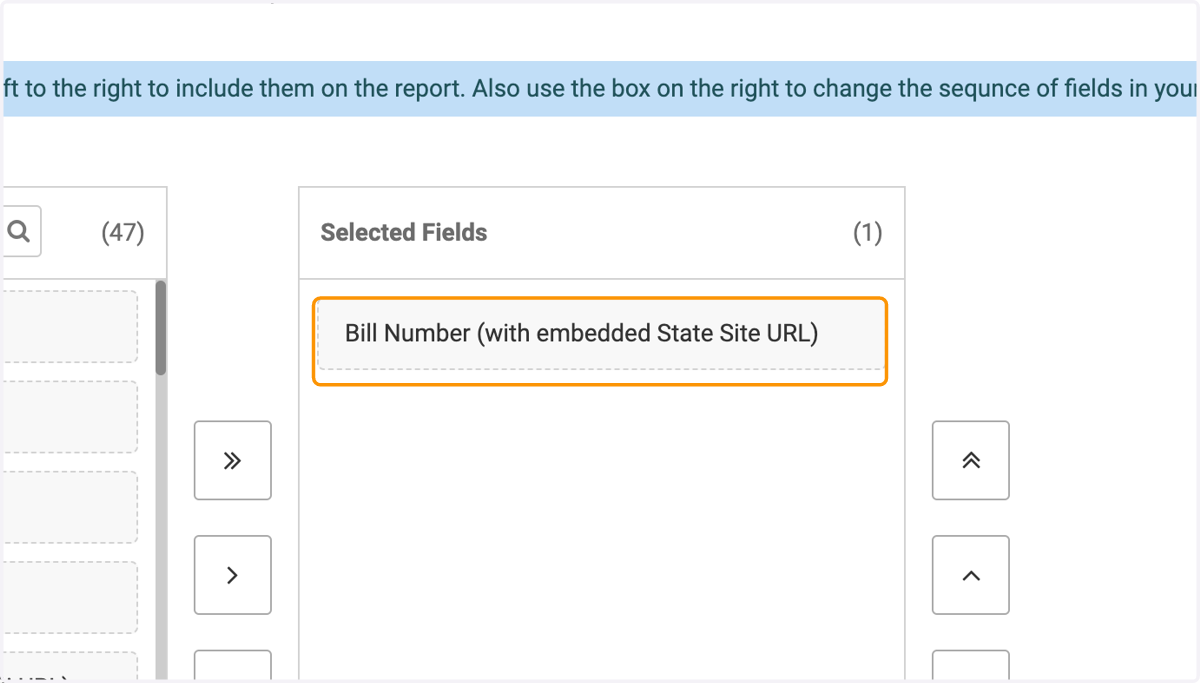
17. Click on Selected Fields…
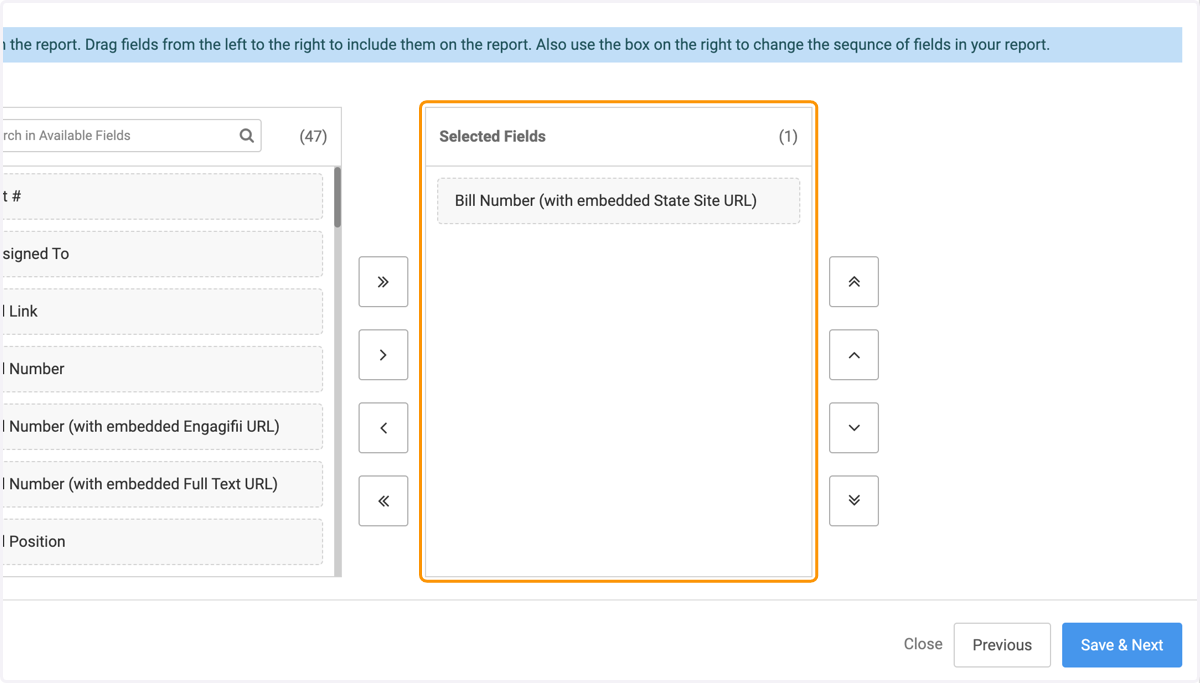
18. Click on Save & Next
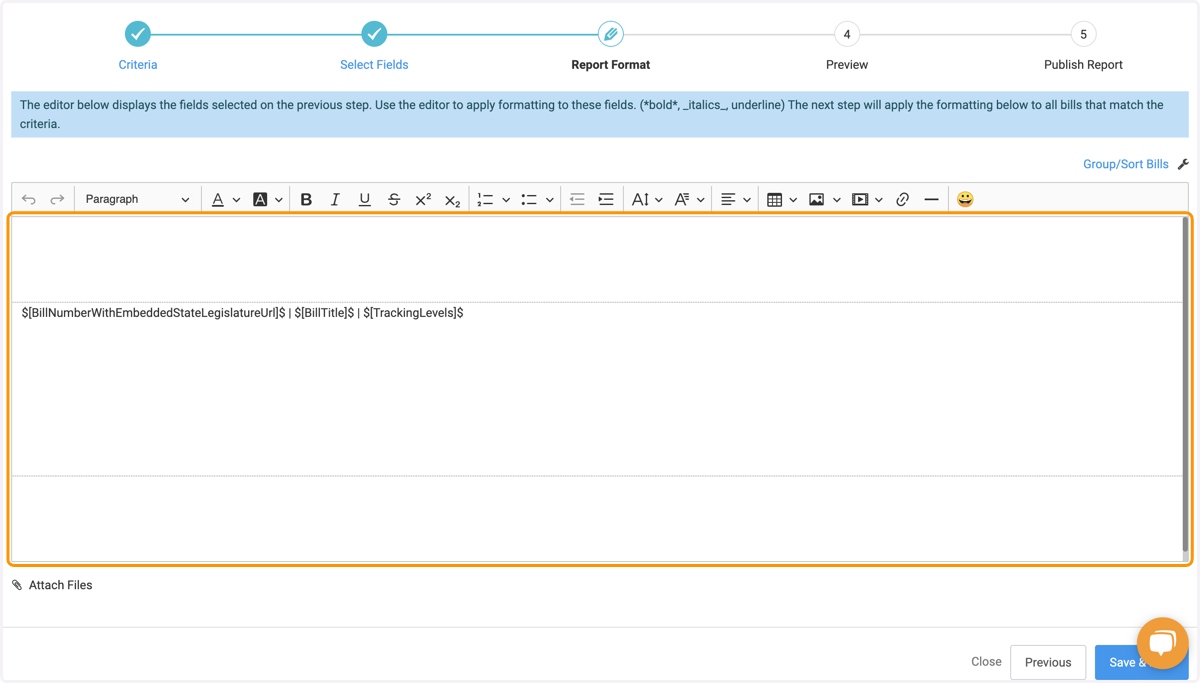
19. Report Format
In this screen, you'll have three different sections available for editing/formatting. The top and bottom boxes are your header and footer (think intro text or dates, and organization info). The middle section is the meat, this is where your report will be dynamically created. To format the bills, make sure you're capturing the whole short code (for example, Bill Title's short code is $[BillTitle]$).
20. Click on Save & Next
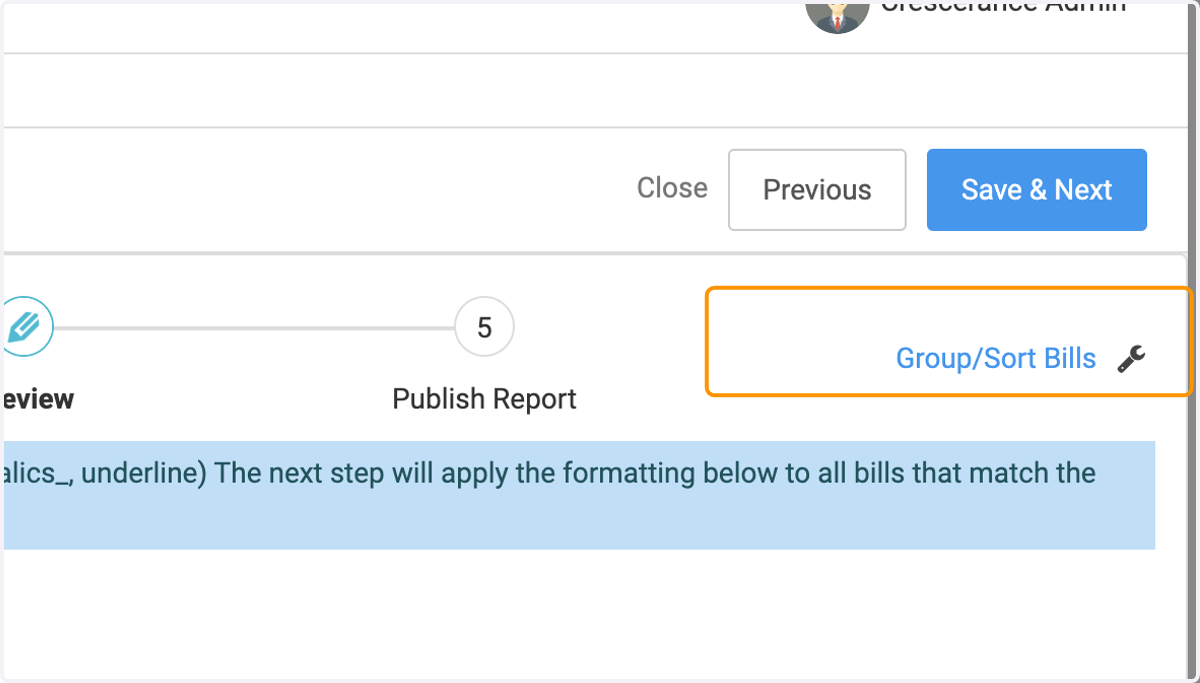
21. Group/Sort Bills
If the bills aren't in the order you'd like them to be, you have the option to group and sort them in the fashion you need
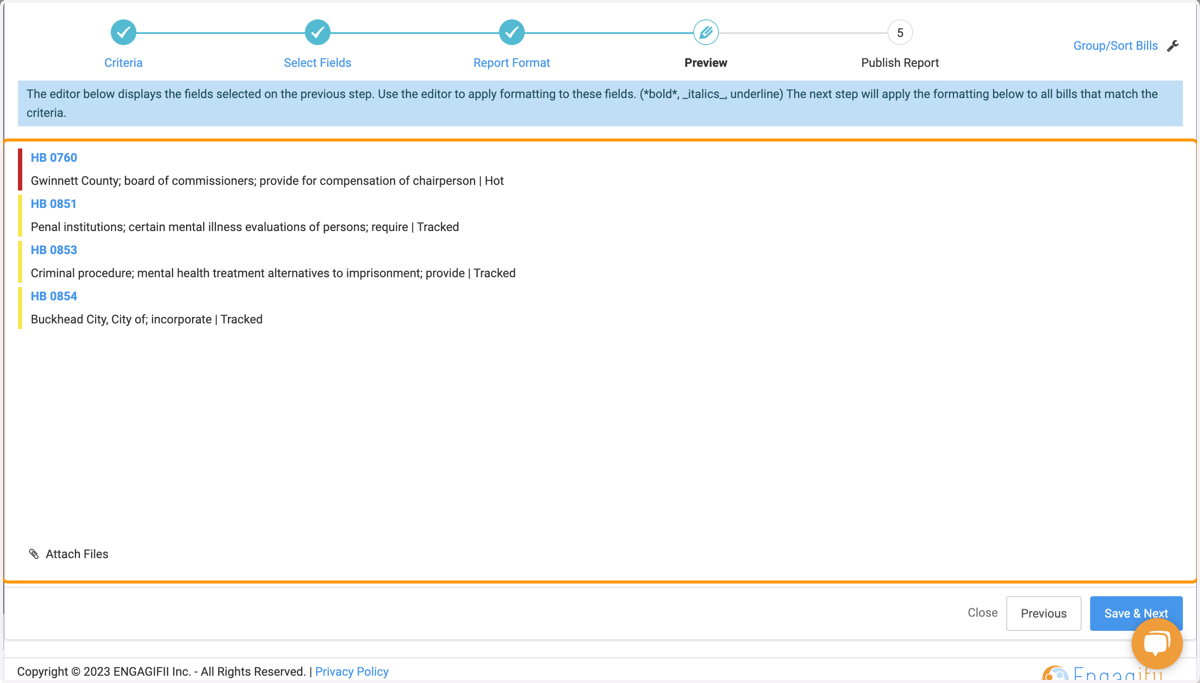
22. Preview Step
This is the step that you'll be able to see what your report will look like, take a look at the formatting and move back to the previous step as needed until you're happy with how it looks
23. Click on Save & Next
Sharing your Report
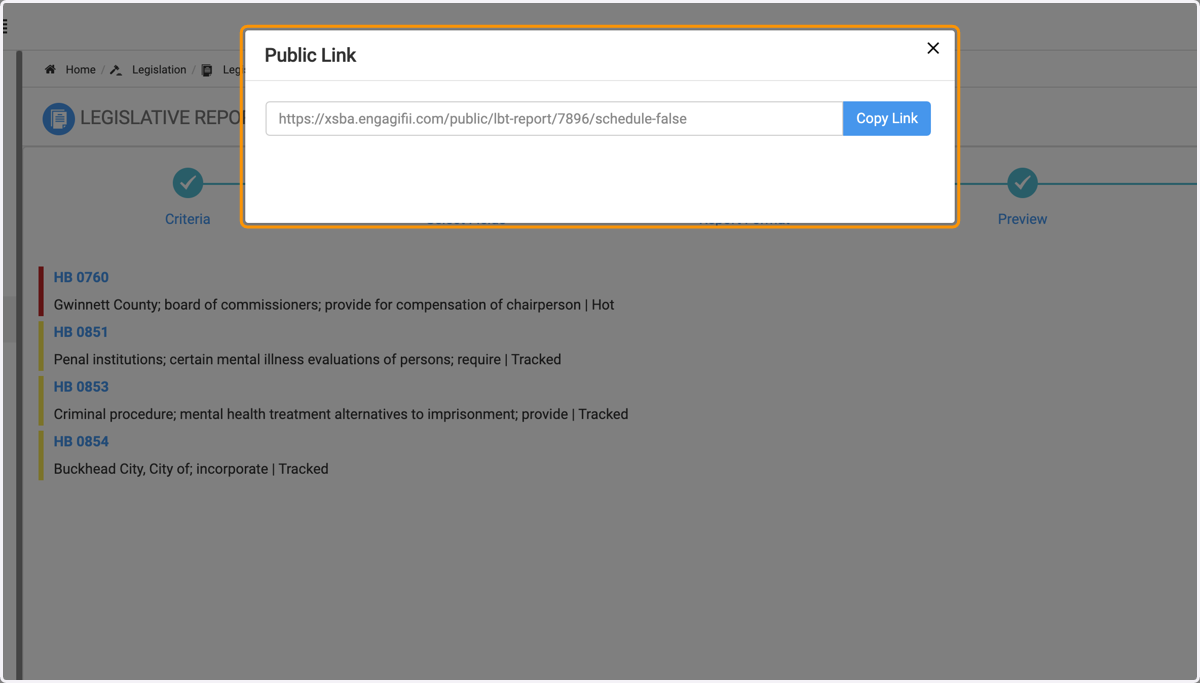
24. Public Link
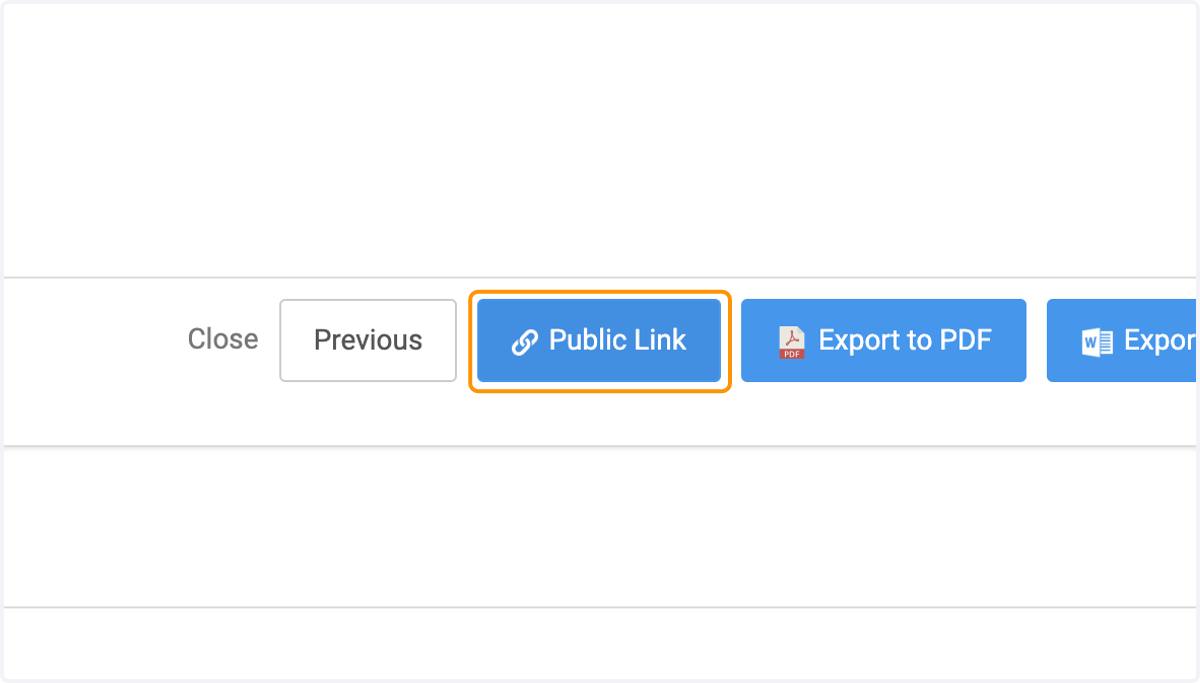
25. Click on Public Link…
You can share this link to anyone in or outside of the system for a public view of this report. As long as your report is dynamic, anytime this link is accessed, it will be updated with the most recent information.
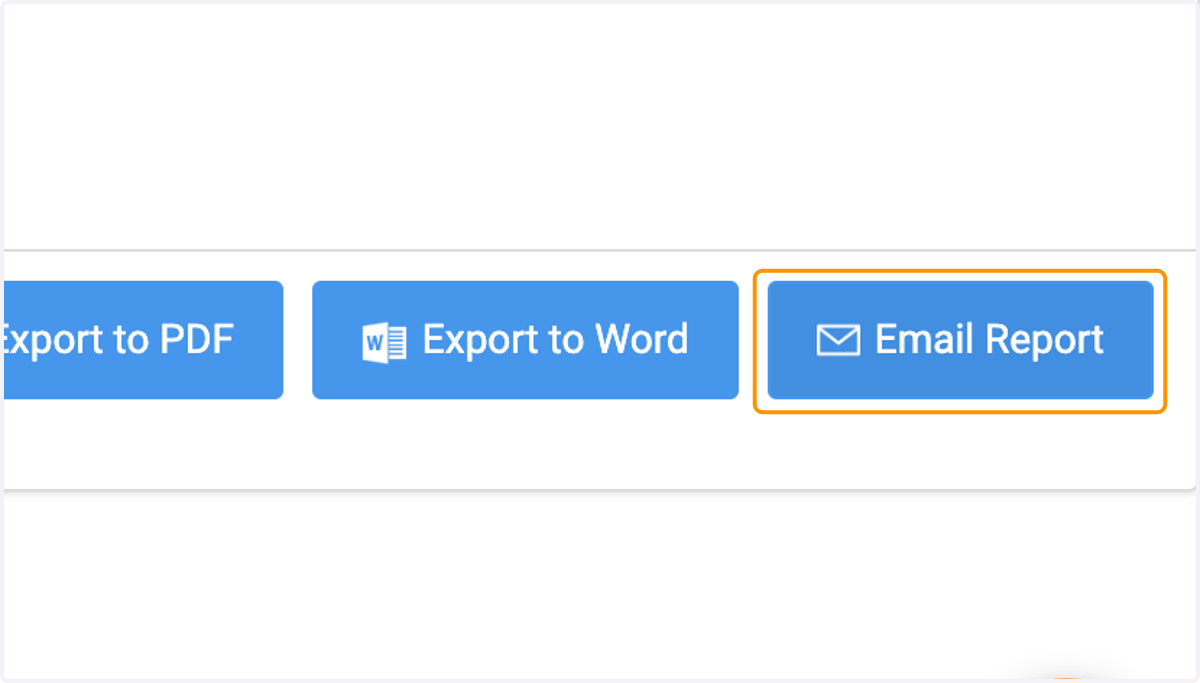
26. Export to PDF
27. Export to Word
28. Email Report
Should you like to email the report out, ensure all intended recipients are added to the Engagifii Relationships database