Quickly Set up Translation Delivery using Localazy CDN
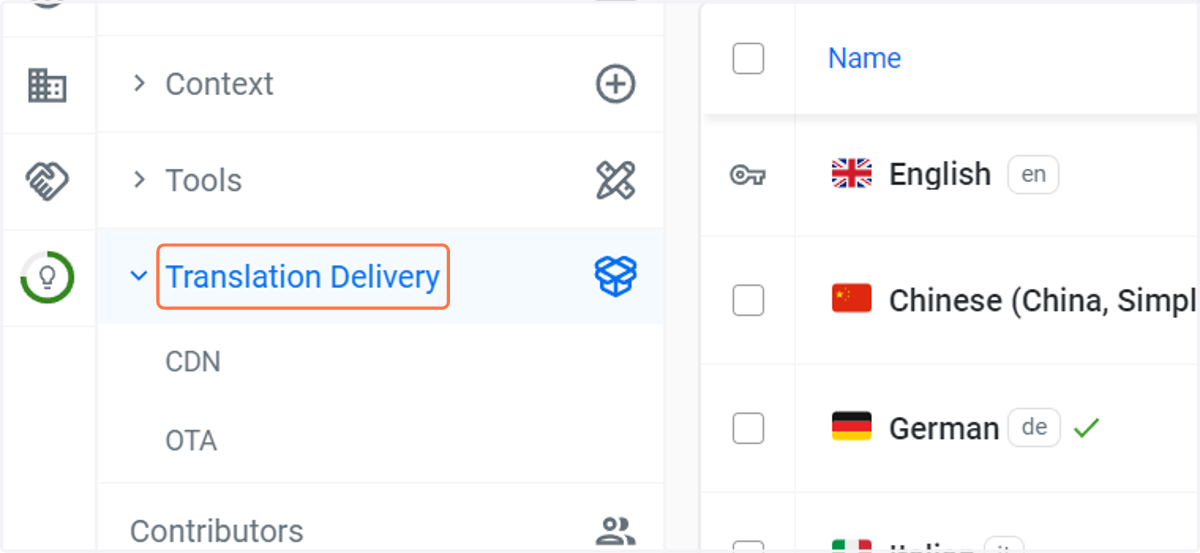
1. Navigate to your project and select the Translation Delivery option in the left menu. From there, you can select if you’d like to set up CDN or OTA Updates.
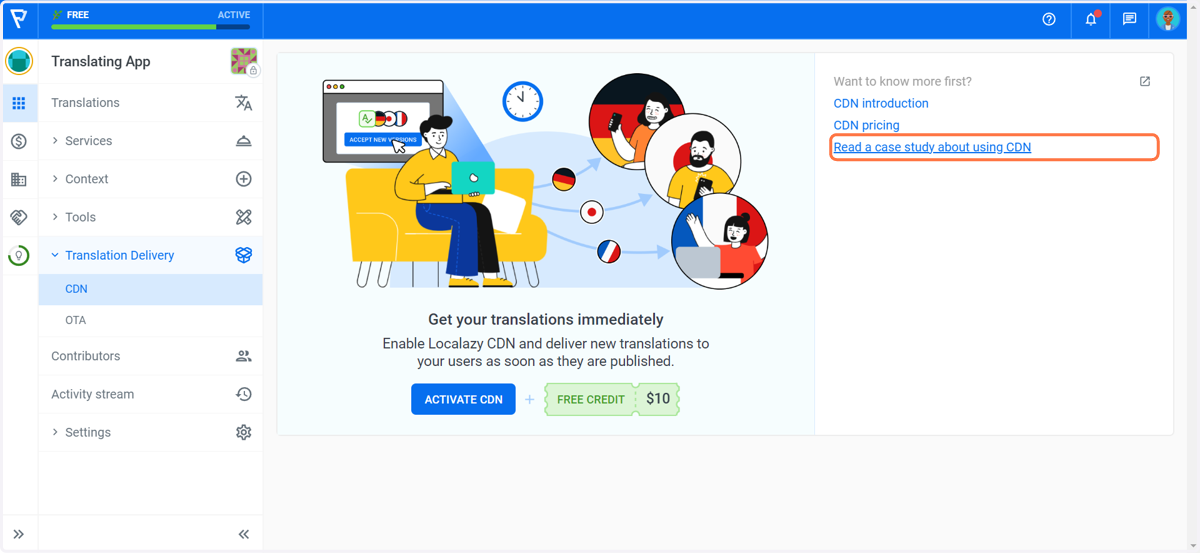
2. Click on CDN

3. On the right, you can find links to more information about CDN.
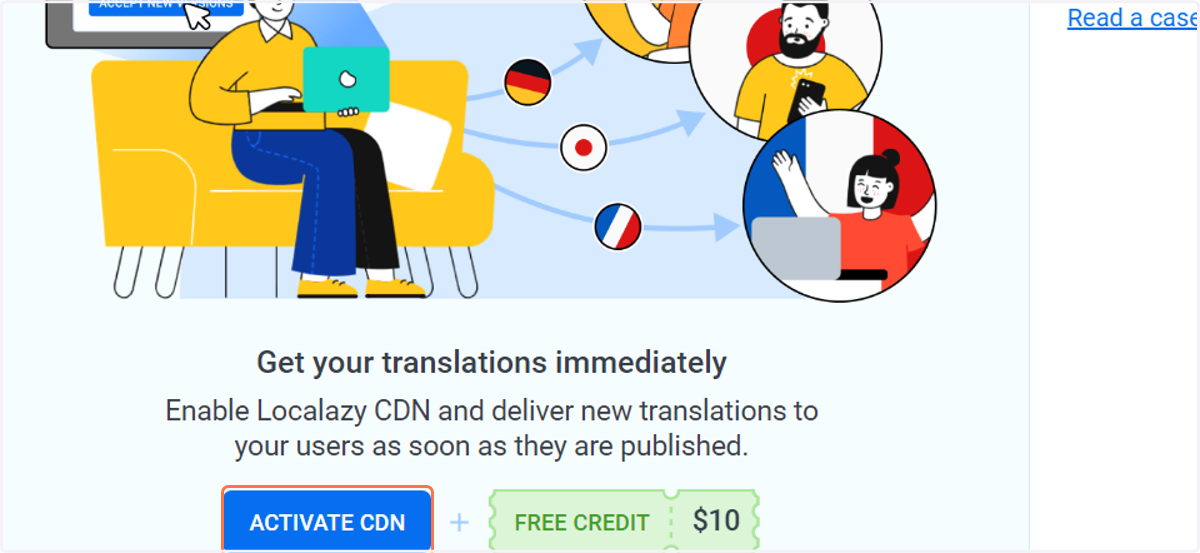
4. Click on the ACTIVATE CDN button.
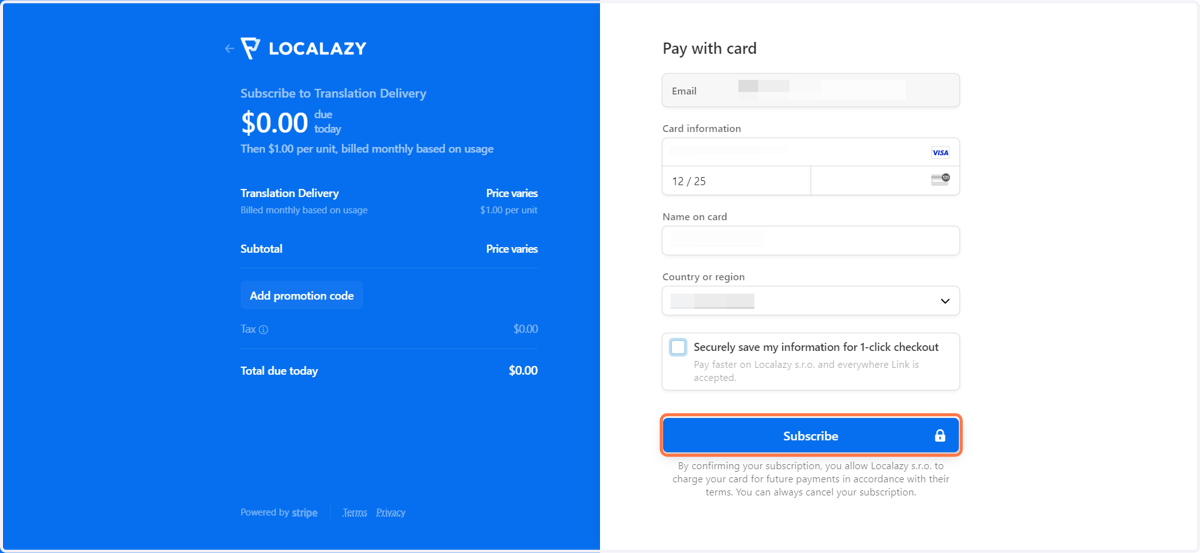
5. Fill in your payment card information and click on Subscribe
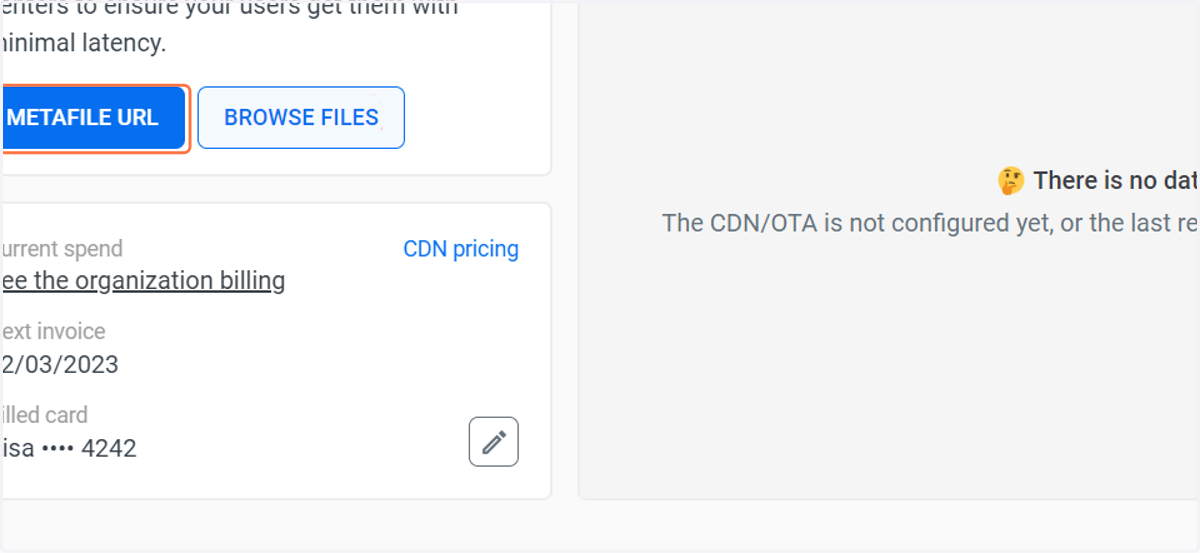
6. Get your Metafile by clicking the METAFILE URL button.
Metafiles contain all your translated file URLs and additional information that can help you, e.g., make the language selector completely manageable from within Localazy.
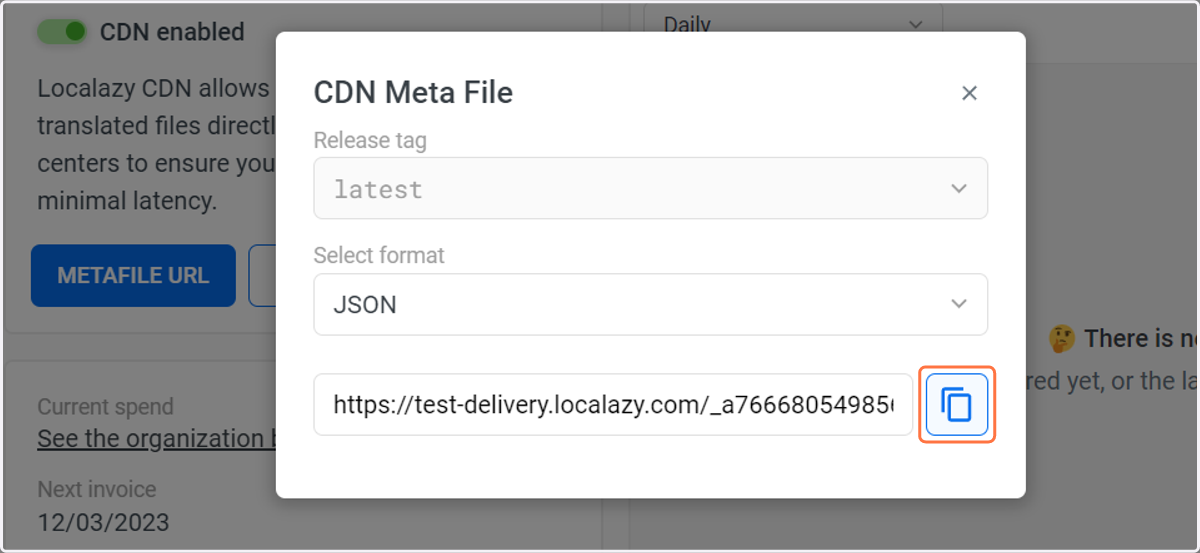
7. Copy CDN Meta File URL
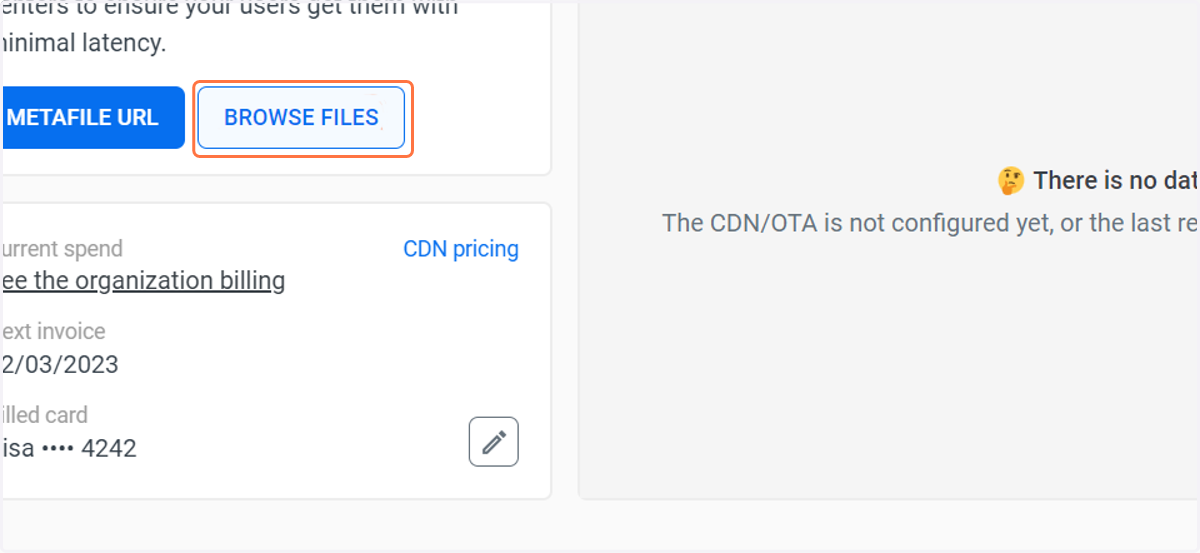
8. Find your file URLs
You can also quickly navigate to browse your files from this screen by clicking BROWSE FILES
9. In the File Management section, click on the three dots menu of the file for which you want to get the CDN links.
Here you can copy the URL for one of your languages and a metafile URL as well.
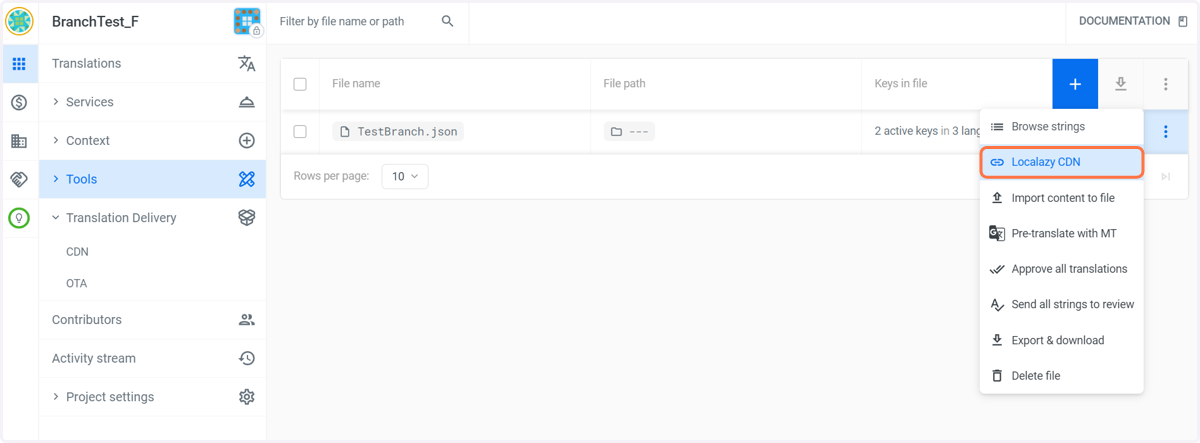
10. Localazy CDN: Language file URL and Meta file URL
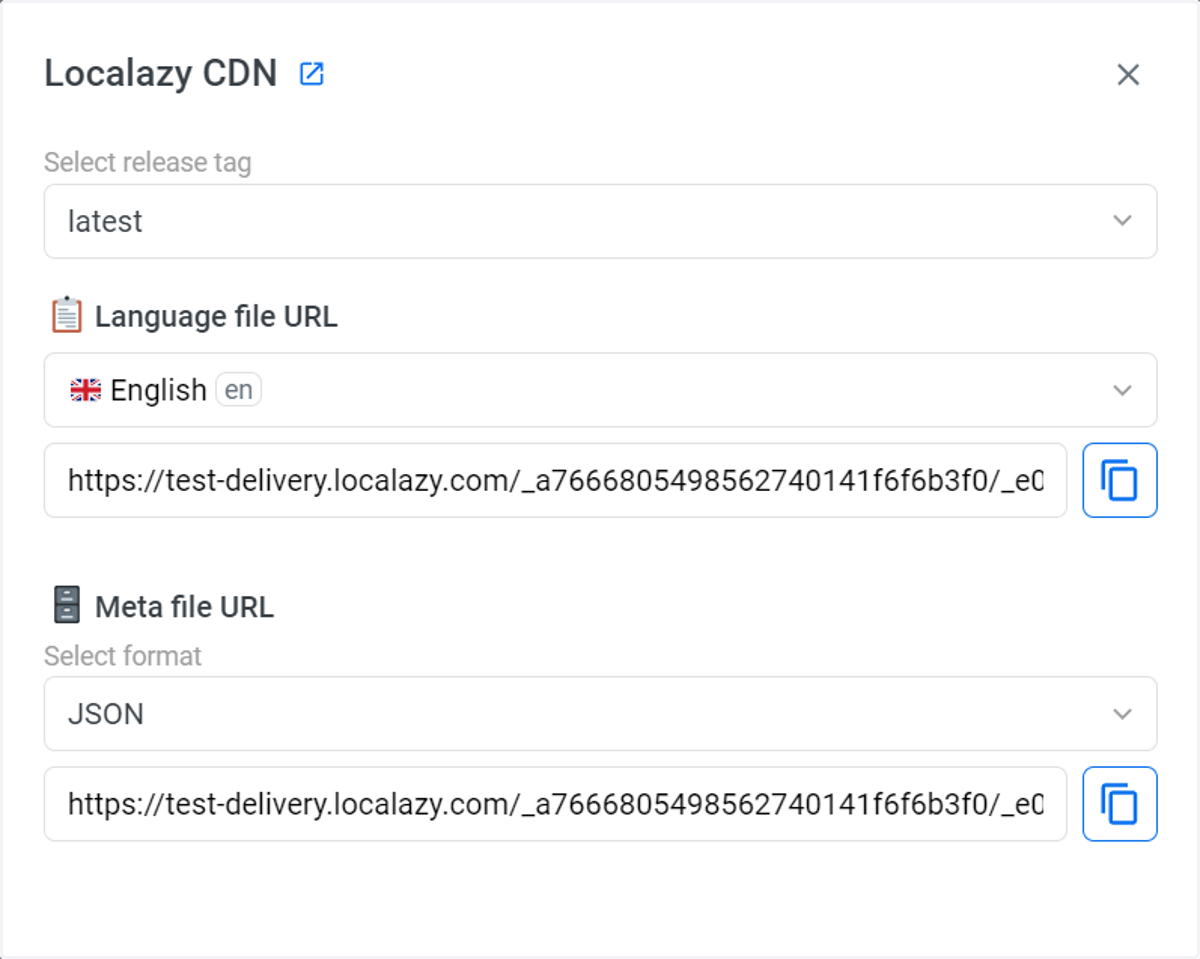
11. Language file URL option
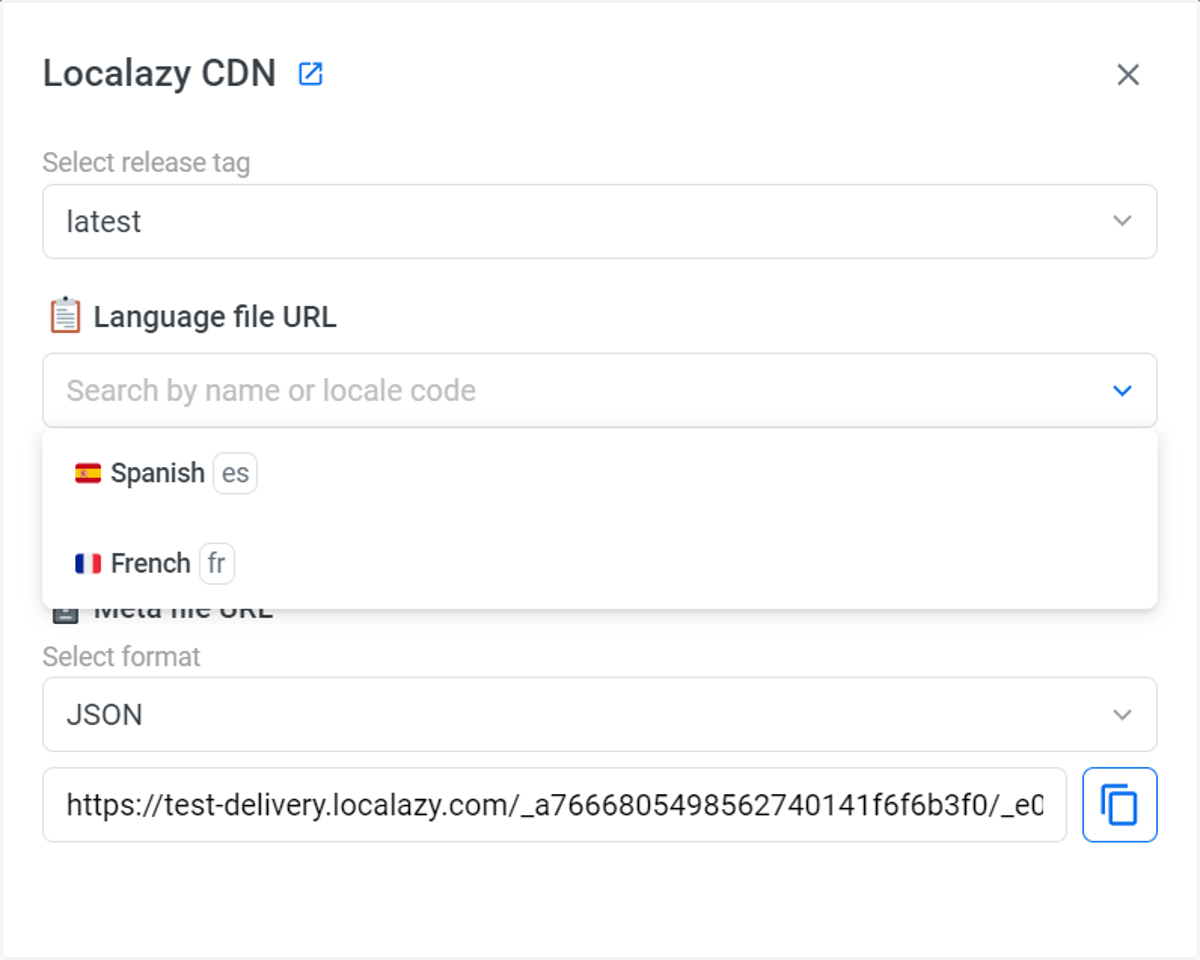
12. Learn more about CDN