The Planning Tool
The planning tool helps to unpack the curriculum outcomes and indicators into lesson-sized learning intentions.
Clarify-ed
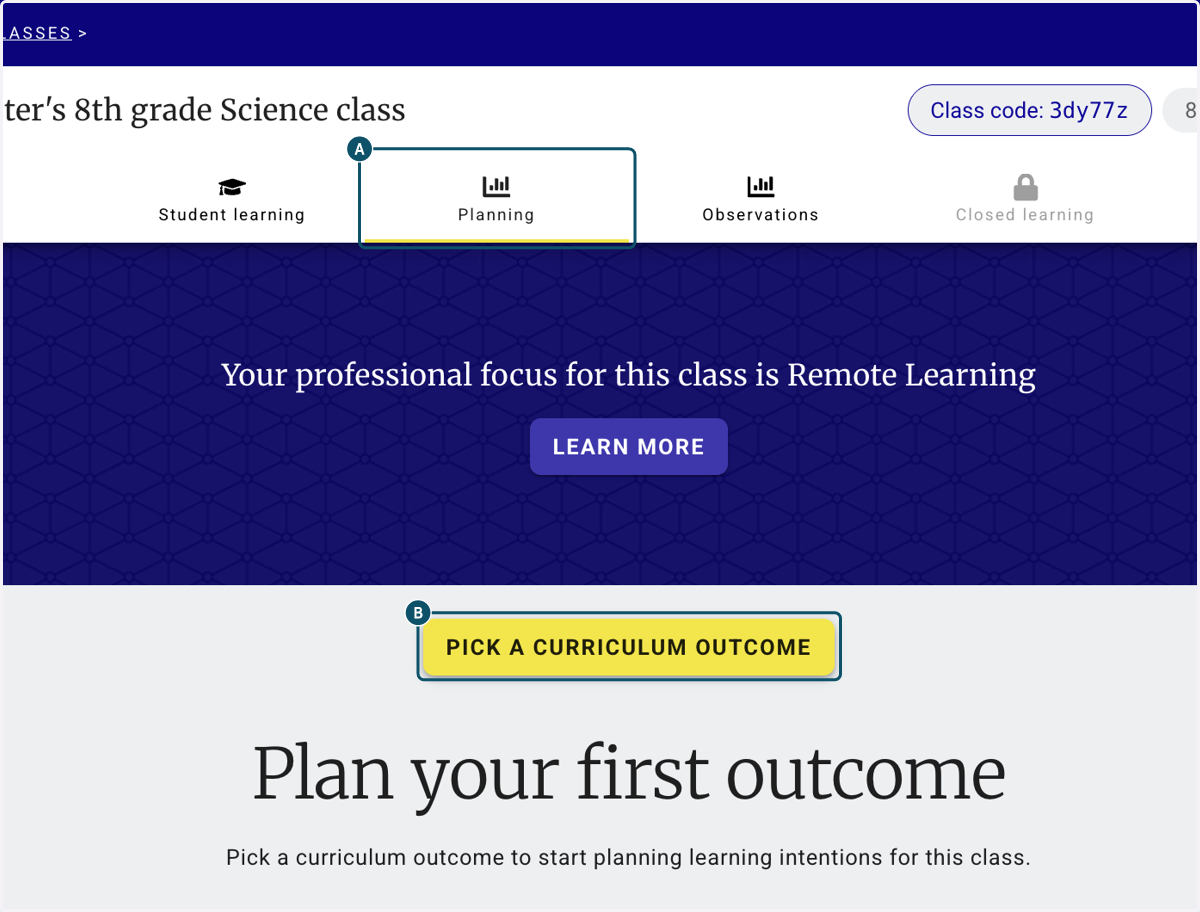
1. A. From your class homepage click on the Planning tab.
1. B. Click on PICK A CURRICULUM OUTCOME
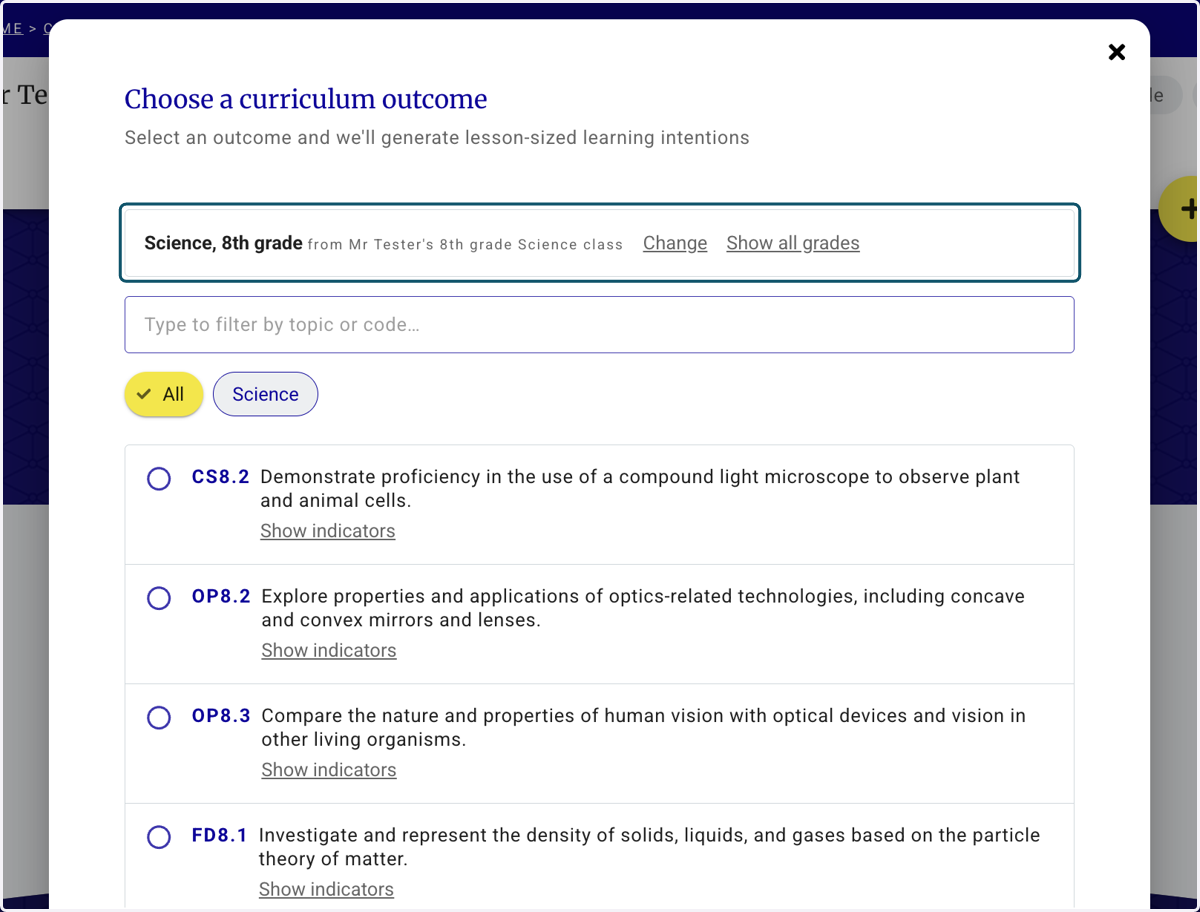
2. The subject and grade level being searched are written in the box. Click change or see all grades in order to browse broader curriculum outcomes.
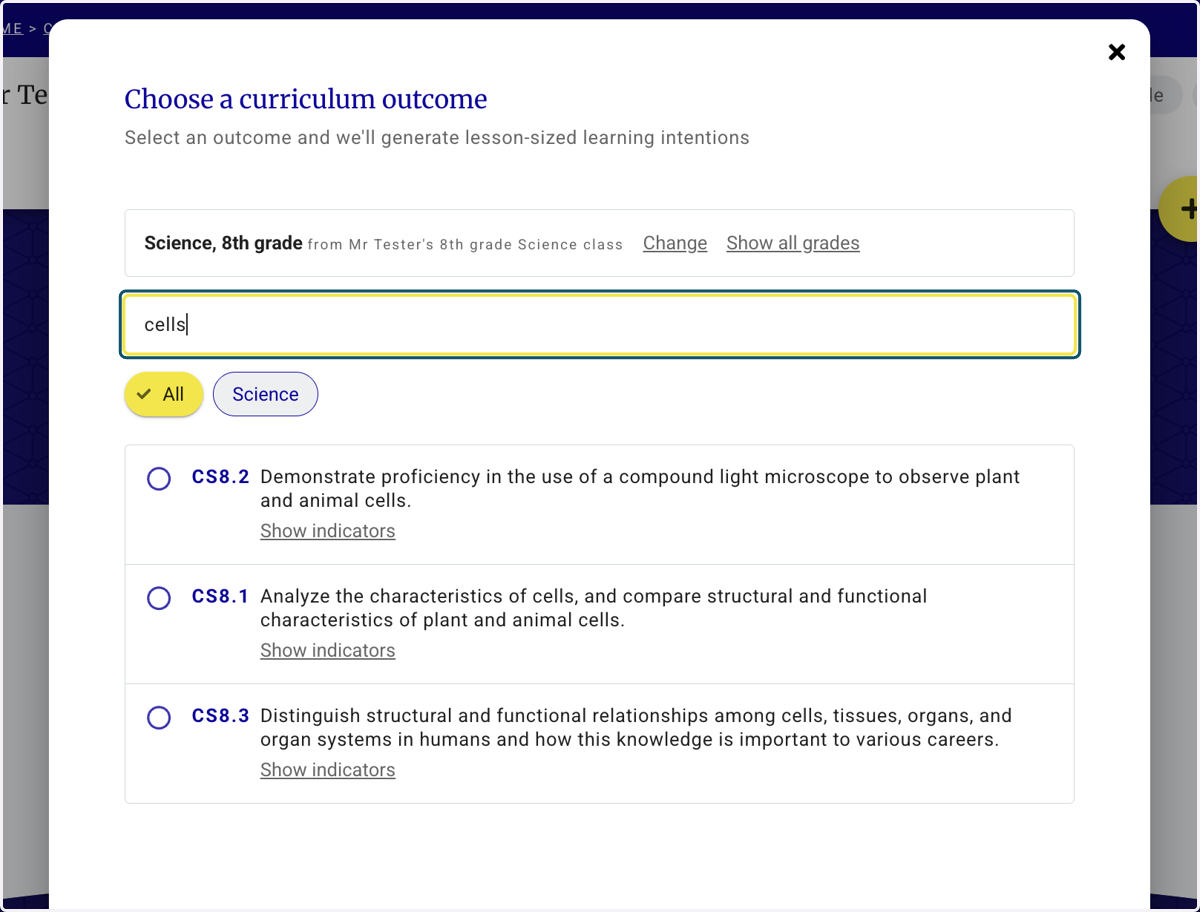
3. Use the filter box to narrow the list of outcomes.
4. Click on the outcome you are planning to teach.
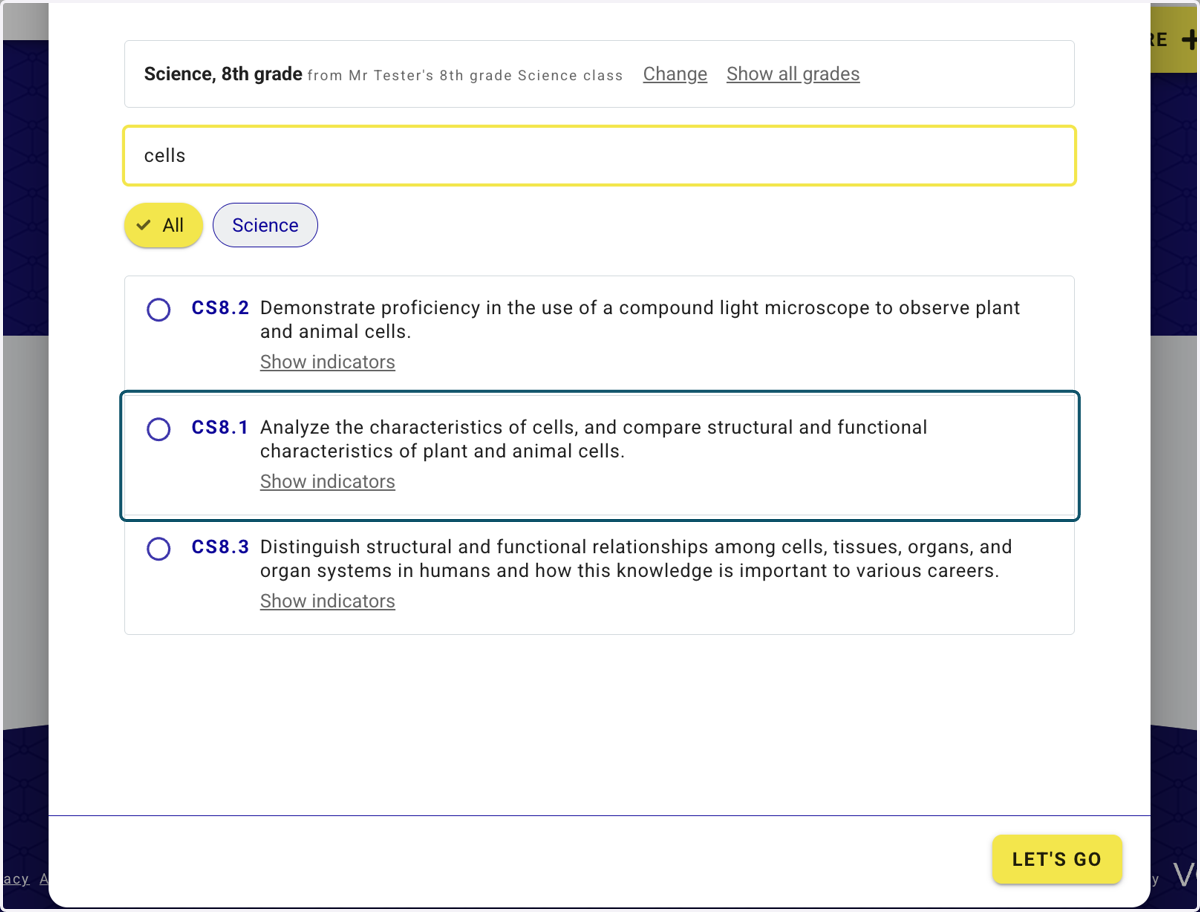
5. Click on Show indicators.
This will display all the indicators associated with the outcome.
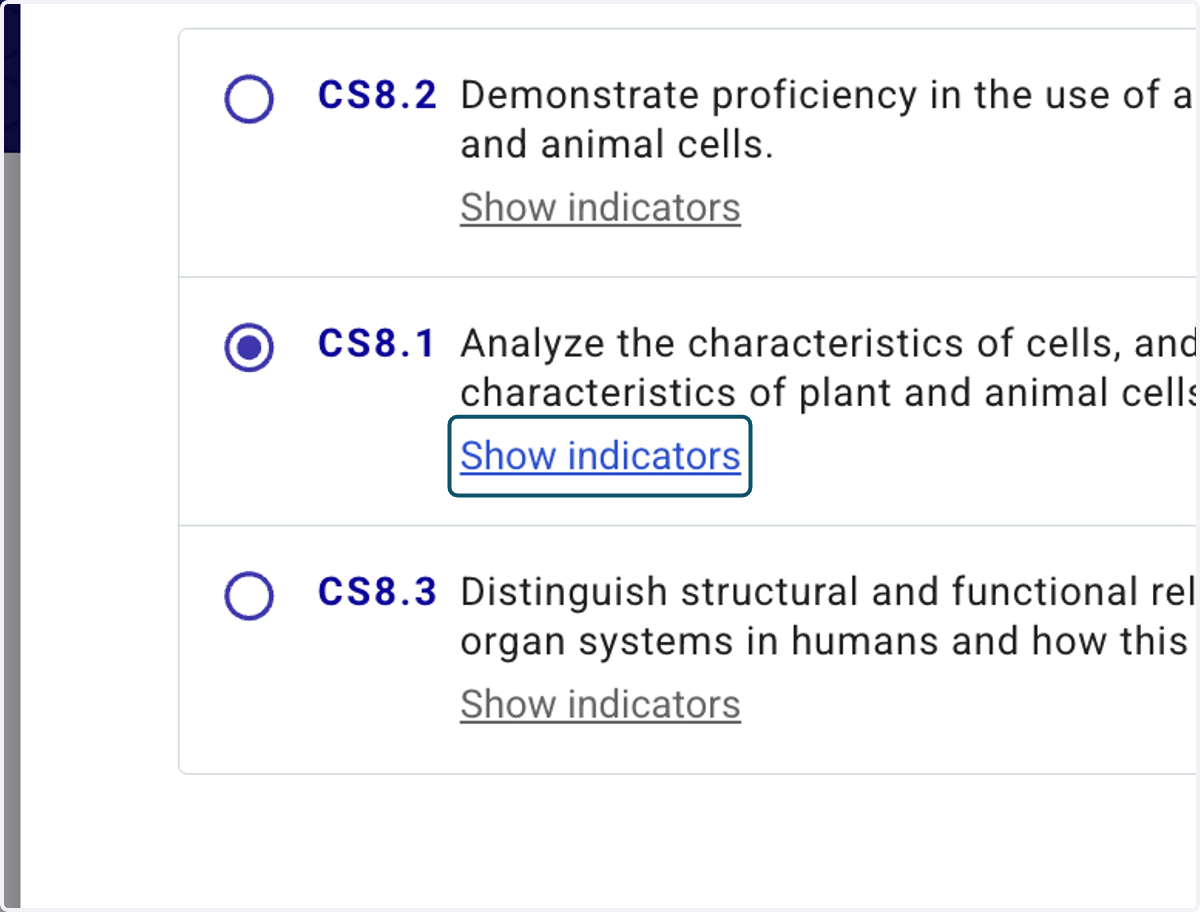
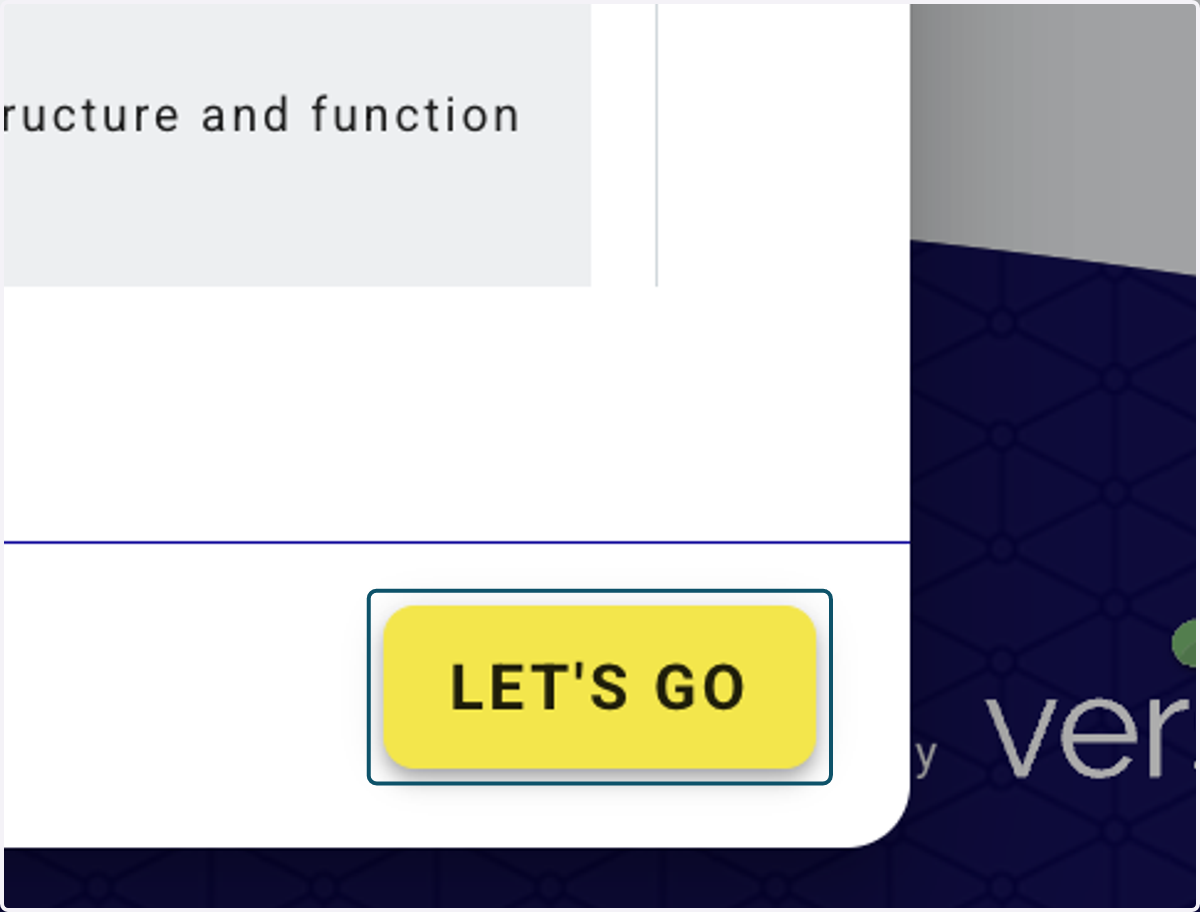
6. Click on LET'S GO to produce lesson-sized learning intentions.
7. The tool will now unpack the curriculum outcome and identify the learning requirements.
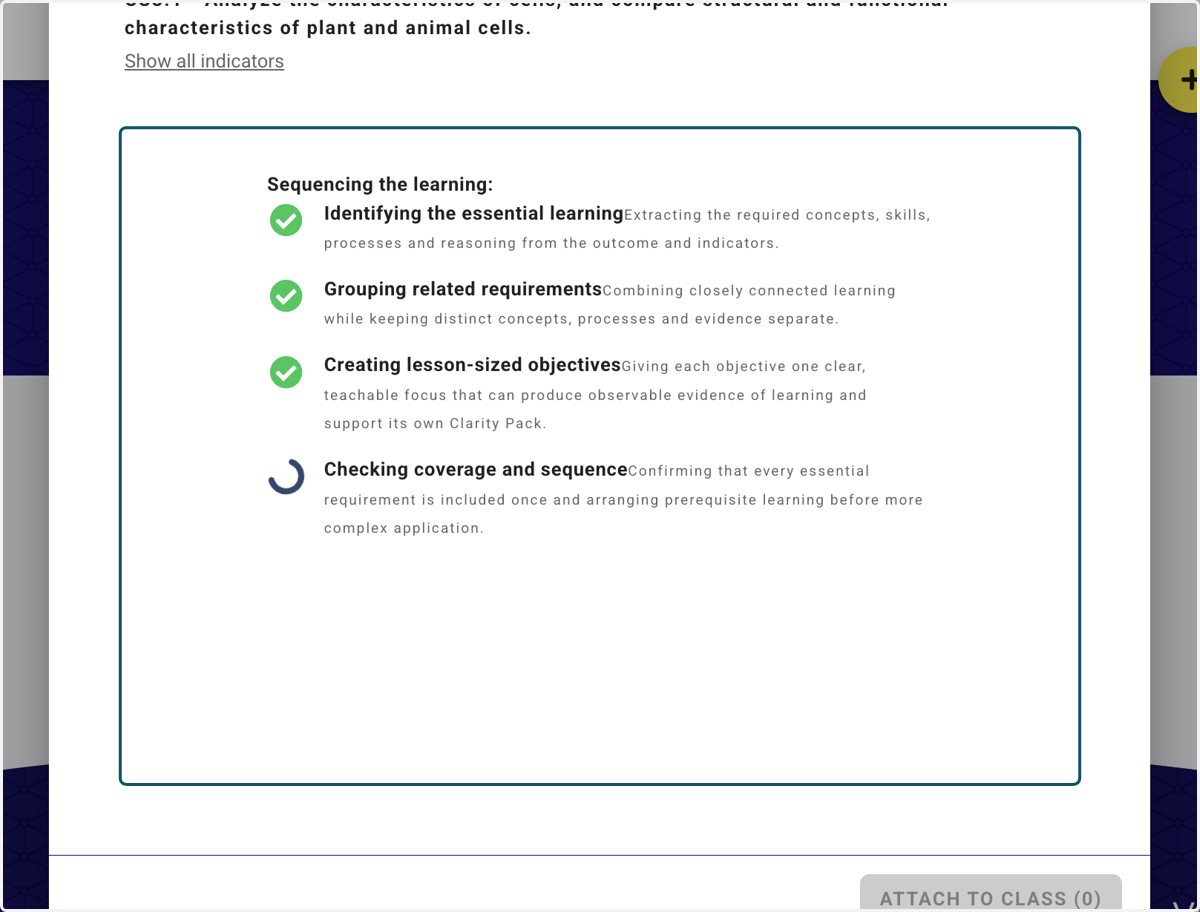
8. Click on Show all indicators to recap what you need to teach.
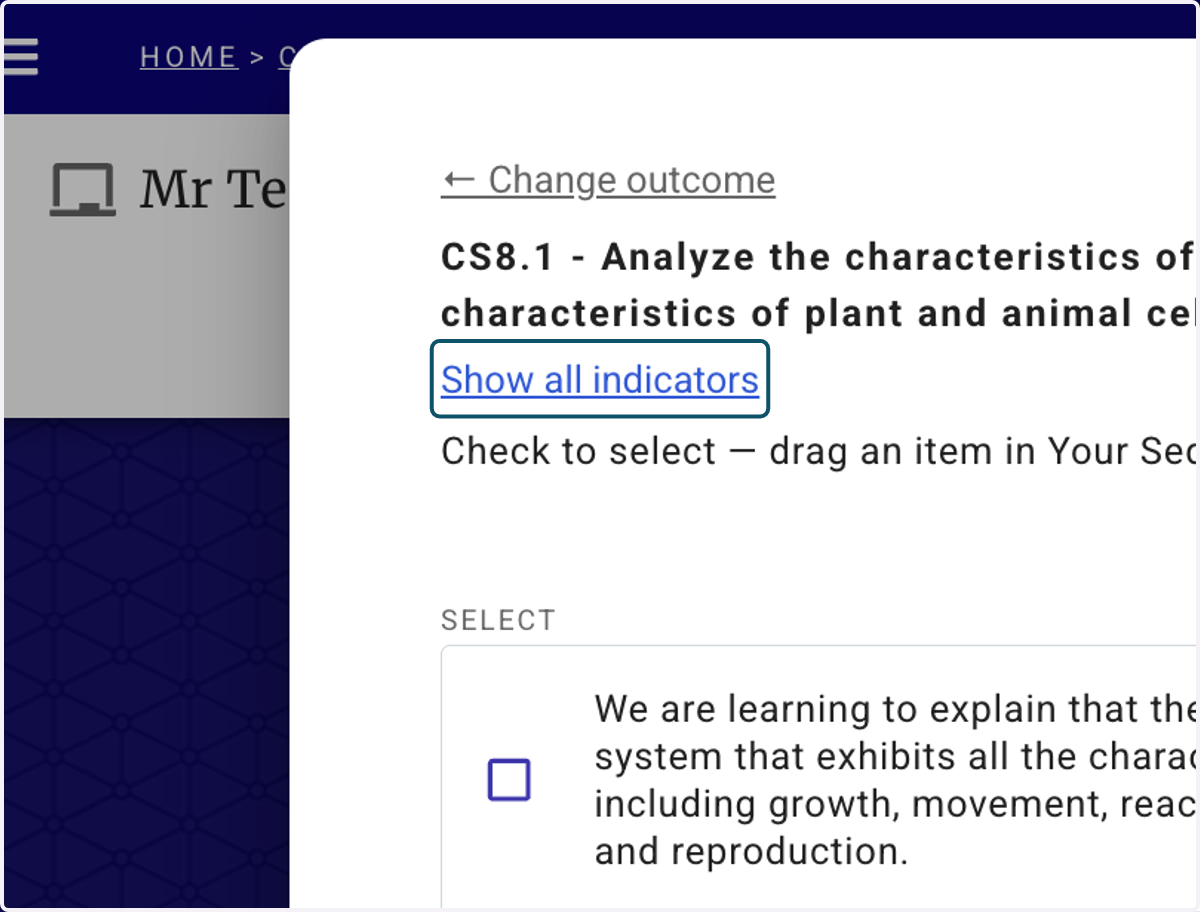
9. You can hide them once you're finished reviewing the list.
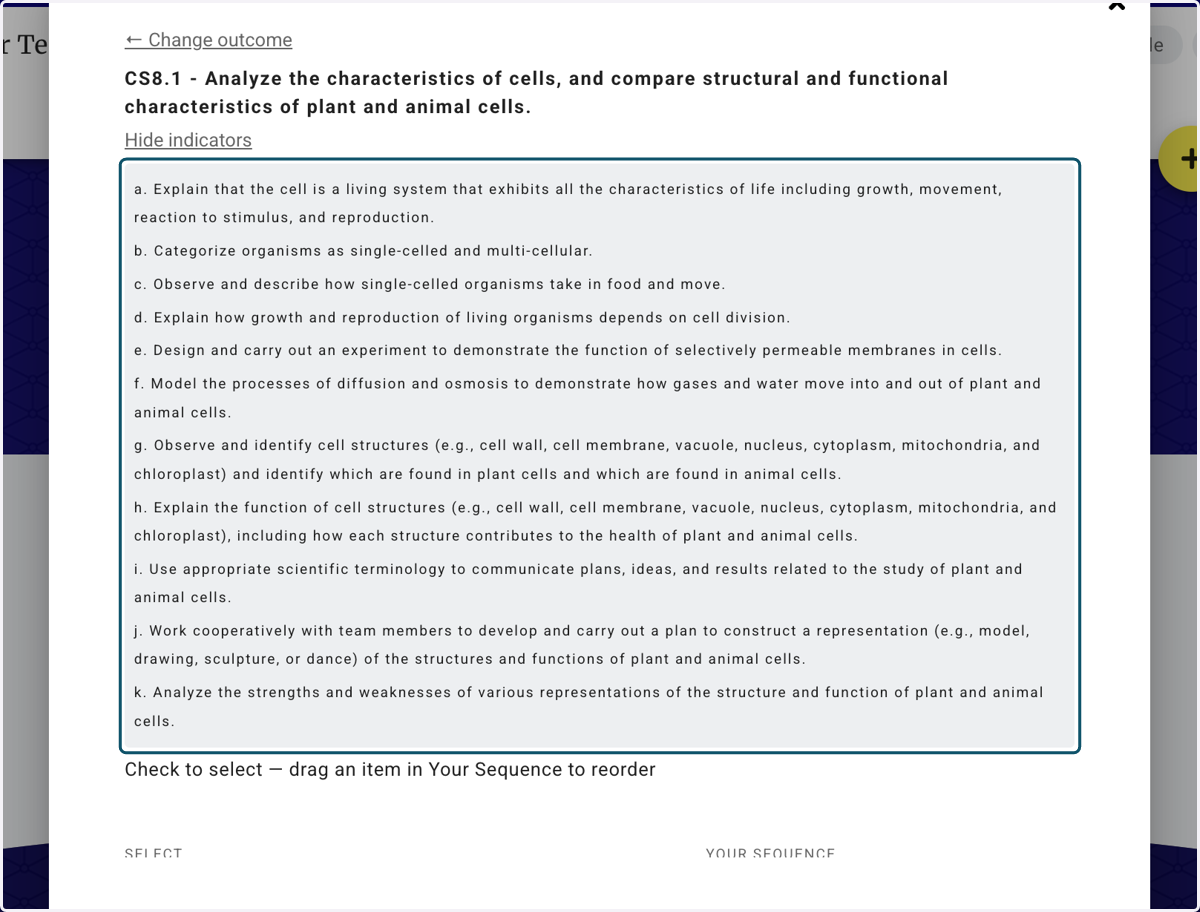
10. Select the lesson-sized learning intentions that you plan to teach.
Choose the learning intentions that will ensure your students are exposed to the depth and breadth of the learning outcome.
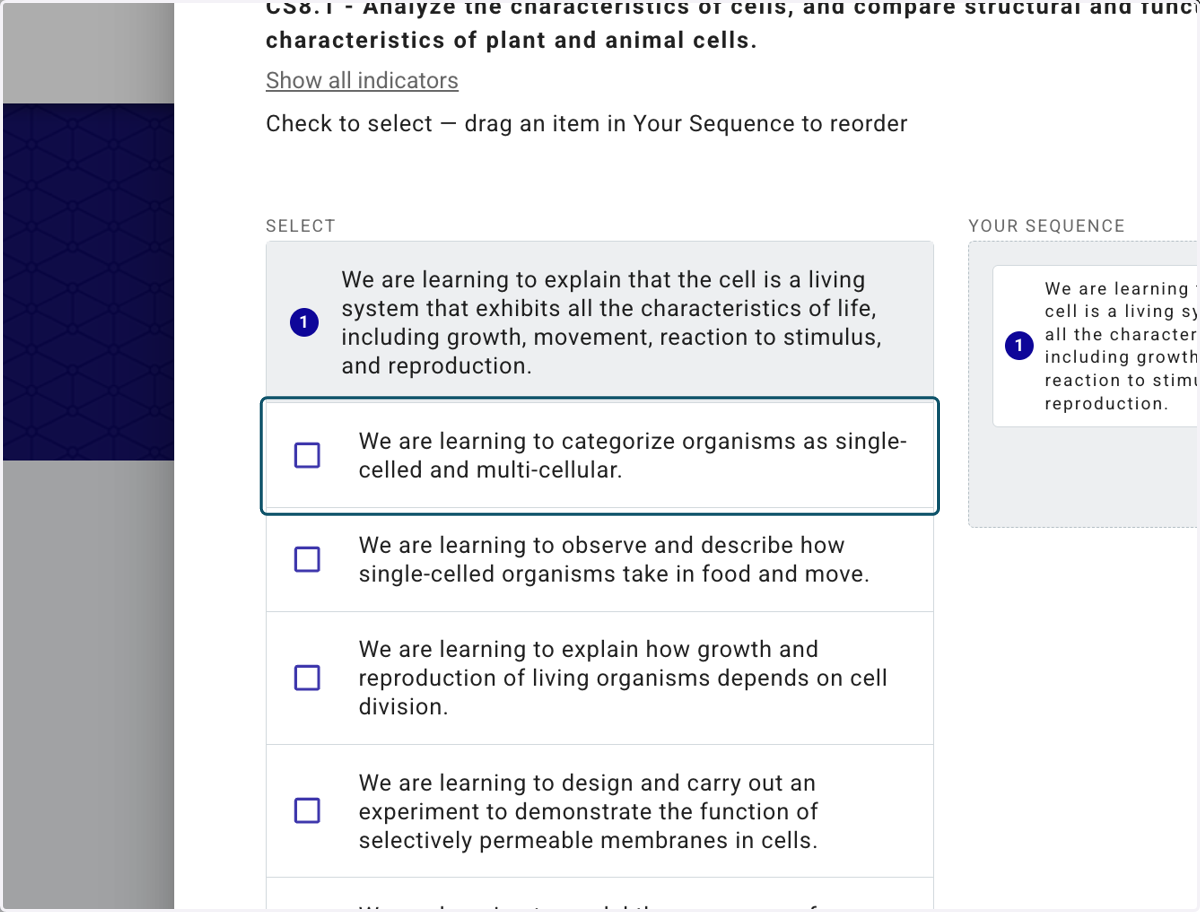
11. Click and drag any lesson-sized learning intention in your sequence to the order you want to teach the lessons in.
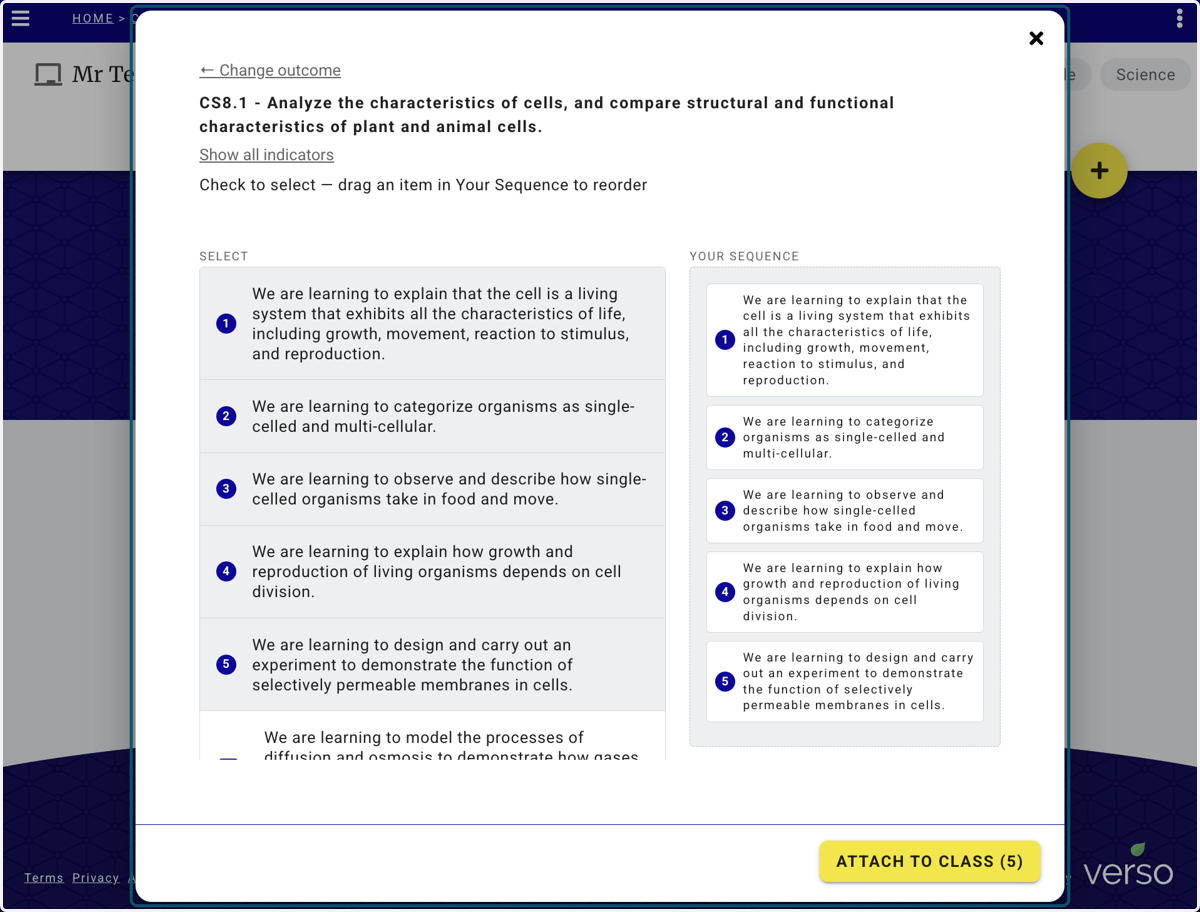
12. Once completed, Click on ATTACH TO CLASS.
The number in brackets states how many lesson-sized learning intentions you are adding to the class.
13. Click on the "bin" icon to remove a learning intention from your planning page.
14. Click on Edit to add any other learning intentions to the outcome or change the order.
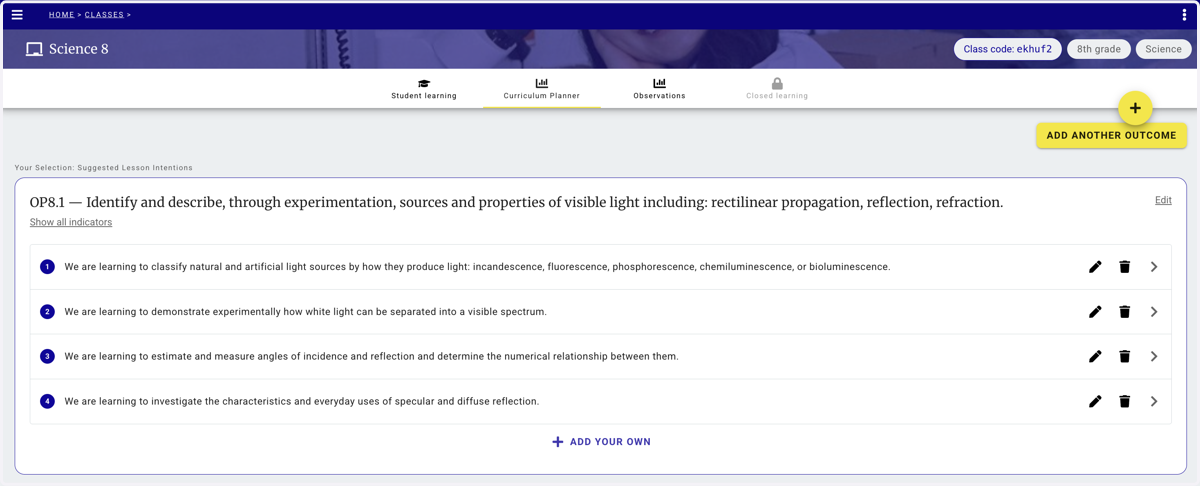
15. Click + ADD YOUR OWN to add a learning intention that wasn't generated by the planning tool.
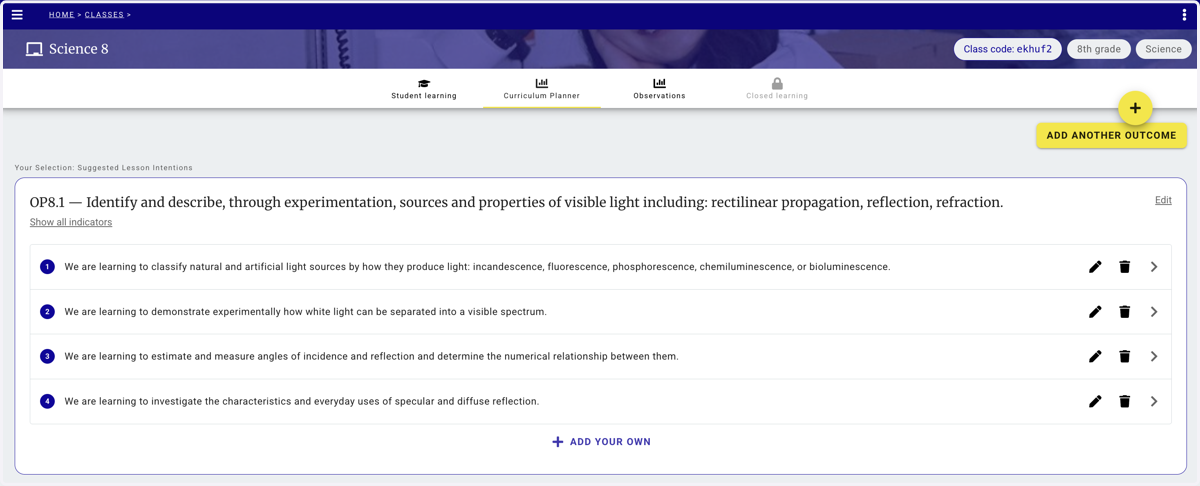
16. Click the pencil icon to edit any of the lesson sized learning intentions prior to creating the clarity pack
This feature allows you to curate you entire scope and sequence for an outcome
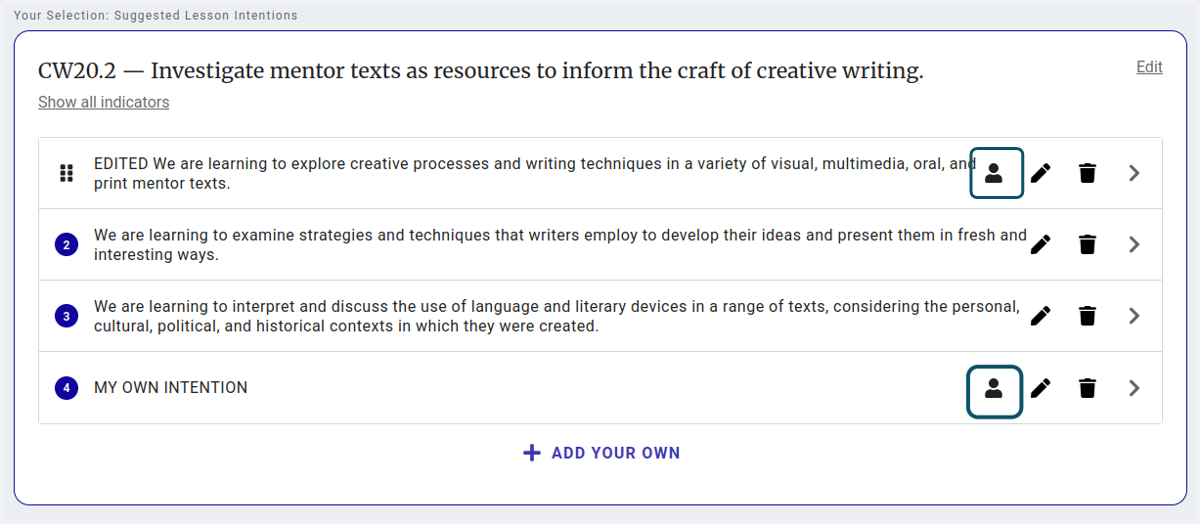
17. An avatar (person) icon appears in the event a learning intention is added by the teacher or has been edited.
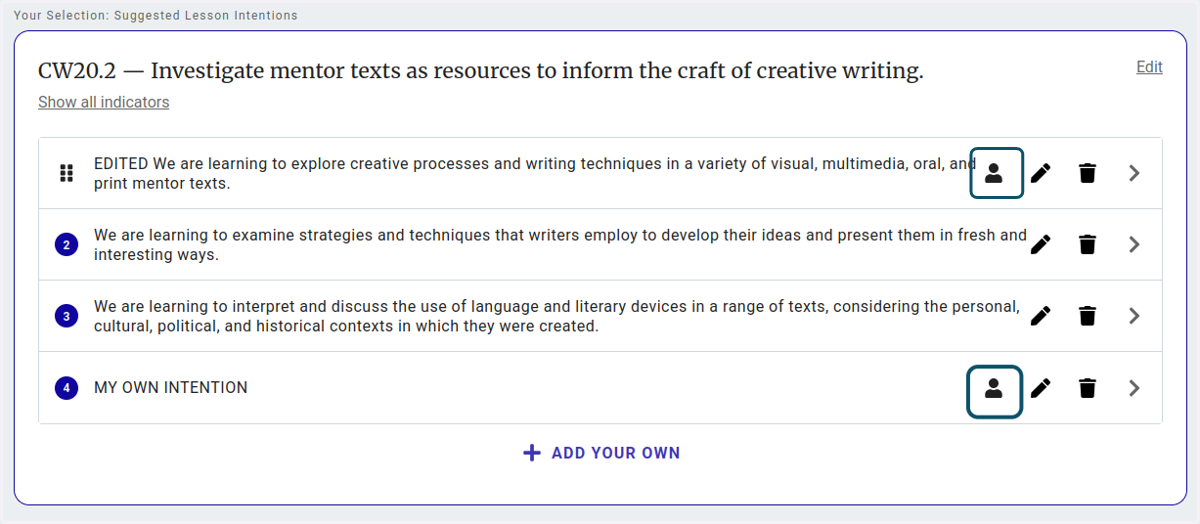
18. When you hover over a learning intention the drag icon will appear on the left. This allows you to drag the learning intention to change the order.
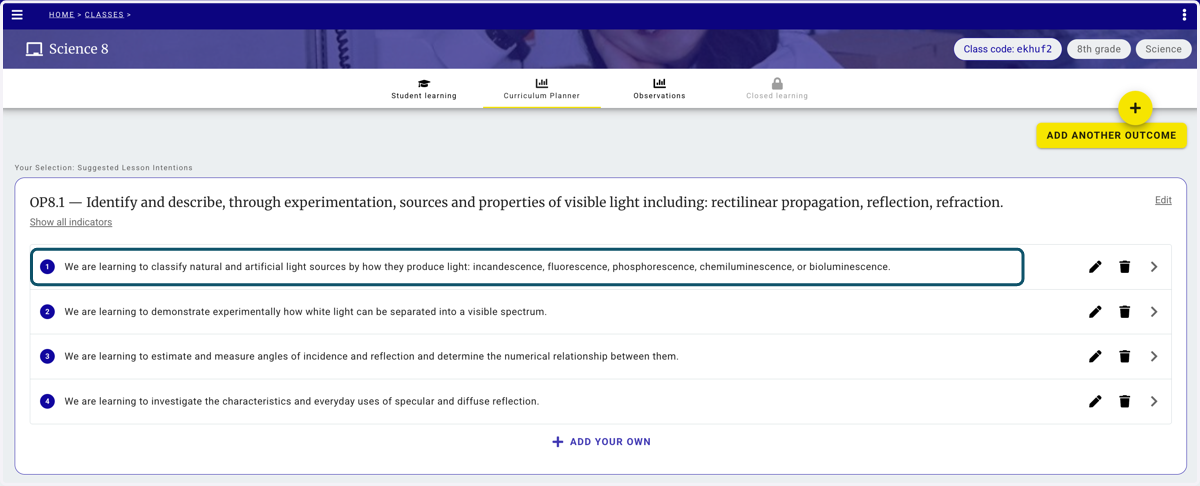
19. When you are ready to create your Clarity Packs simply click on the learning intention and it will launch the Clarity Pack builder.
This feature allows you to curate you entire scope and sequence for an outcome
20. The Clarity Pack builder will automatically launch from the Planning Tool.
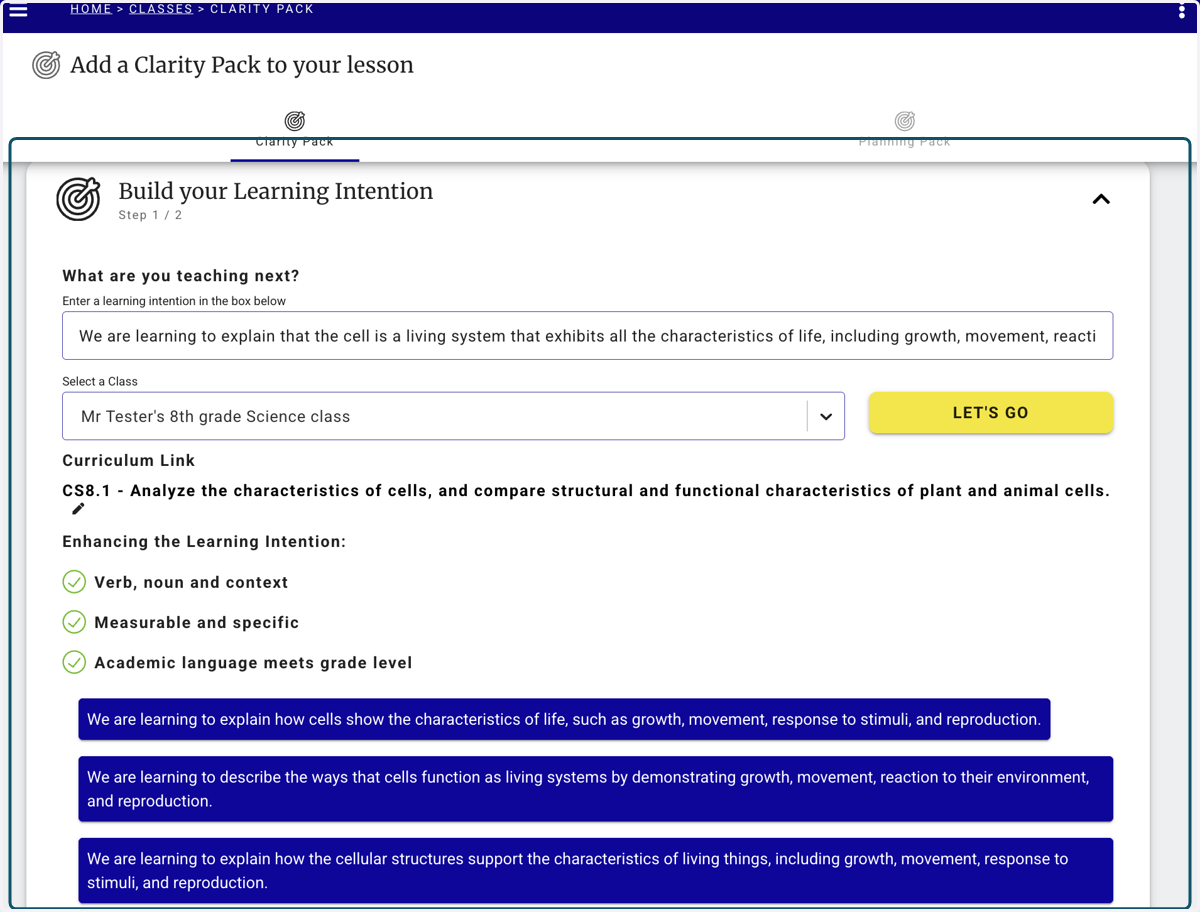
21. Once you've created a Clarity Pack from the Planning Tool learning intention will have a green checkmark icon.