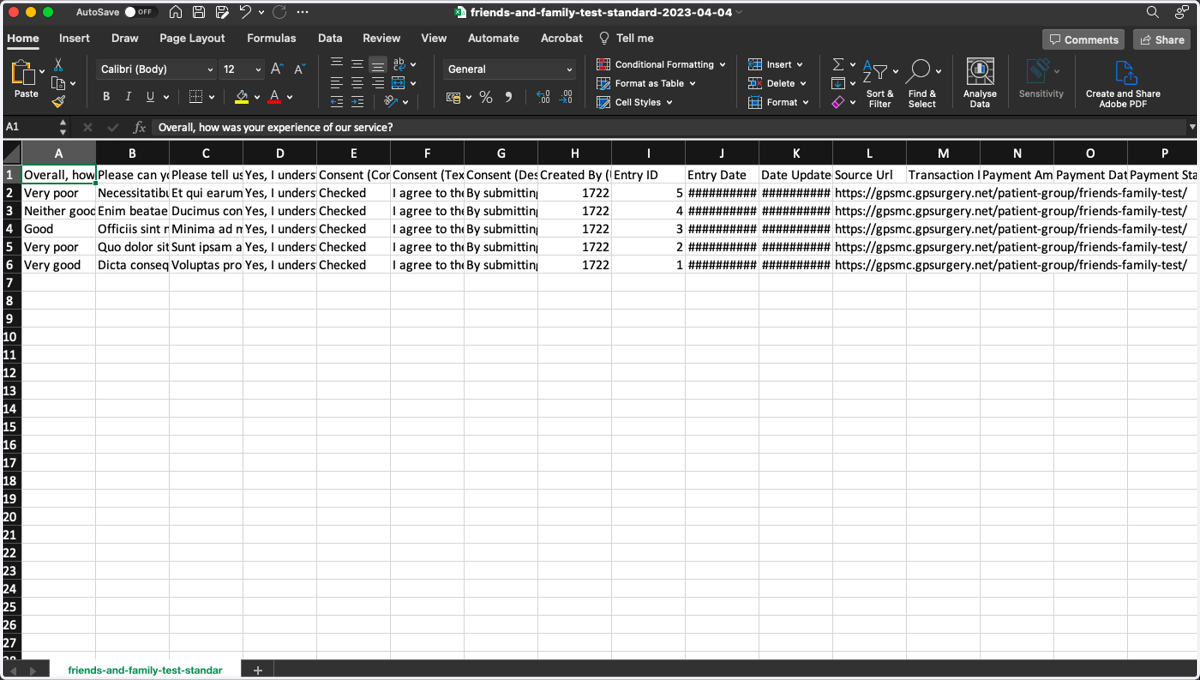
Export Friends and Family Test Form entries as a spreadsheet - Navigator
This tutorial will show you how to export form entries from your GPsurgery.net Navigator website as a CSV file, which can be opened by most spreadsheet applications. You can move through the tutorial at your own pace using the Next button.
Please note, Friends and Family Test entries are automatically deleted after 60 days and all other form entries after 7 days.
1. Log in to your Navigator website
Ensure that you are logged into your Navigator website. The black admin toolbar will be visible at the top of the screen. Learn how to login to your website.
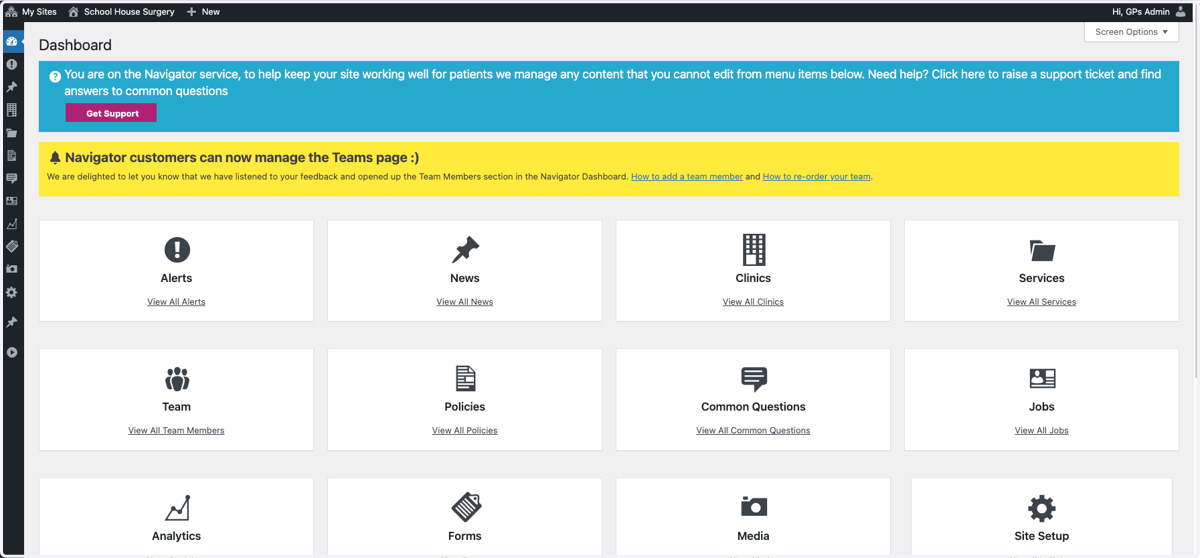
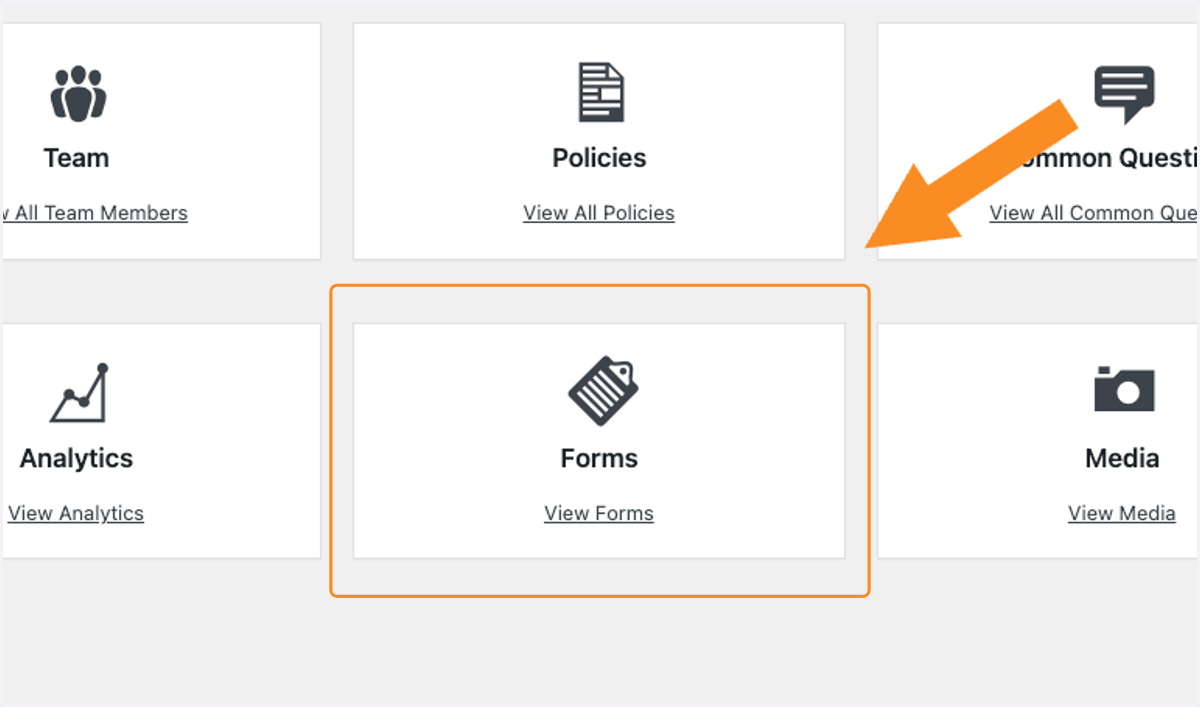
2. Select Forms from your Dashboard
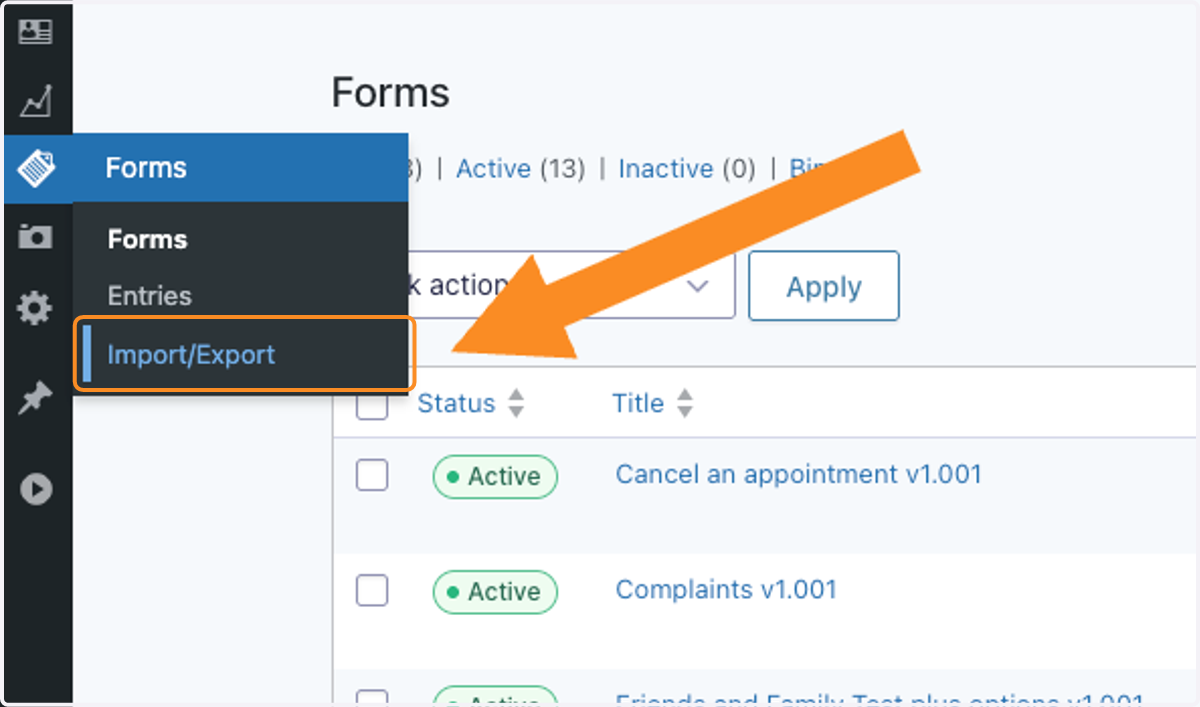
3. Select Import/Export
Select Import/Export from the left-hand toolbar under Forms
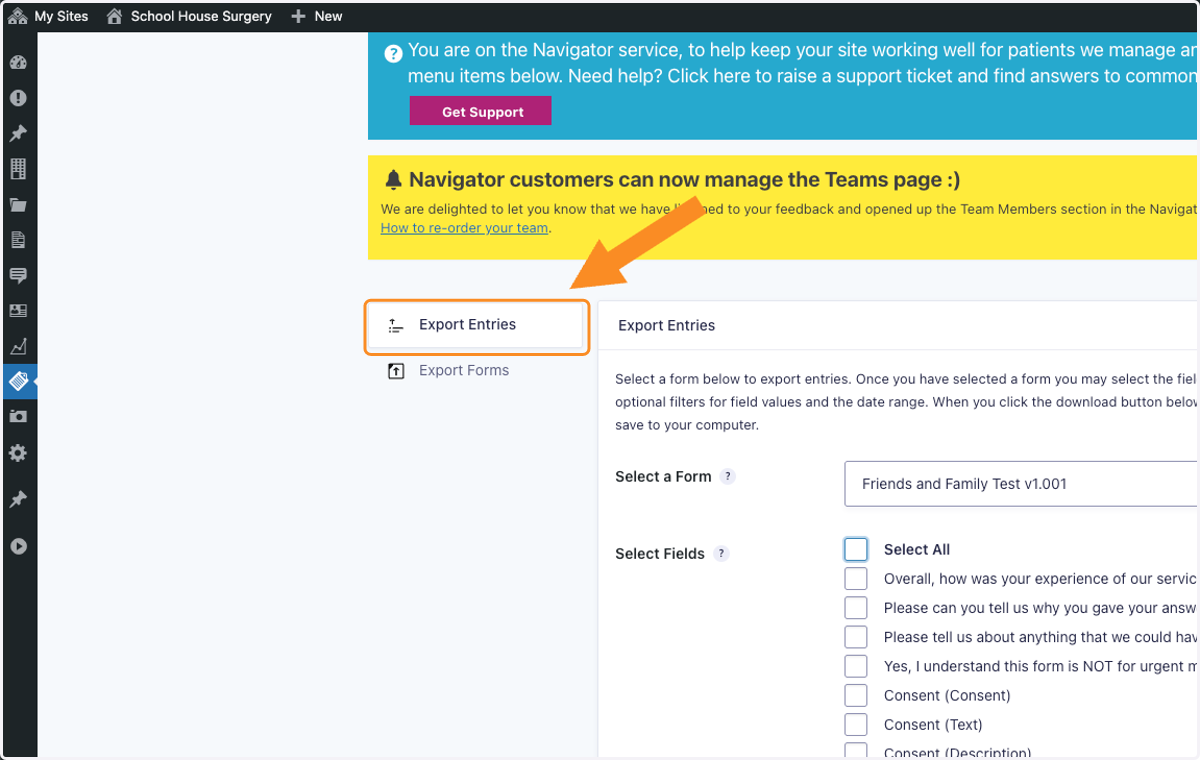
4. Ensure that you are in the Export Entries section.
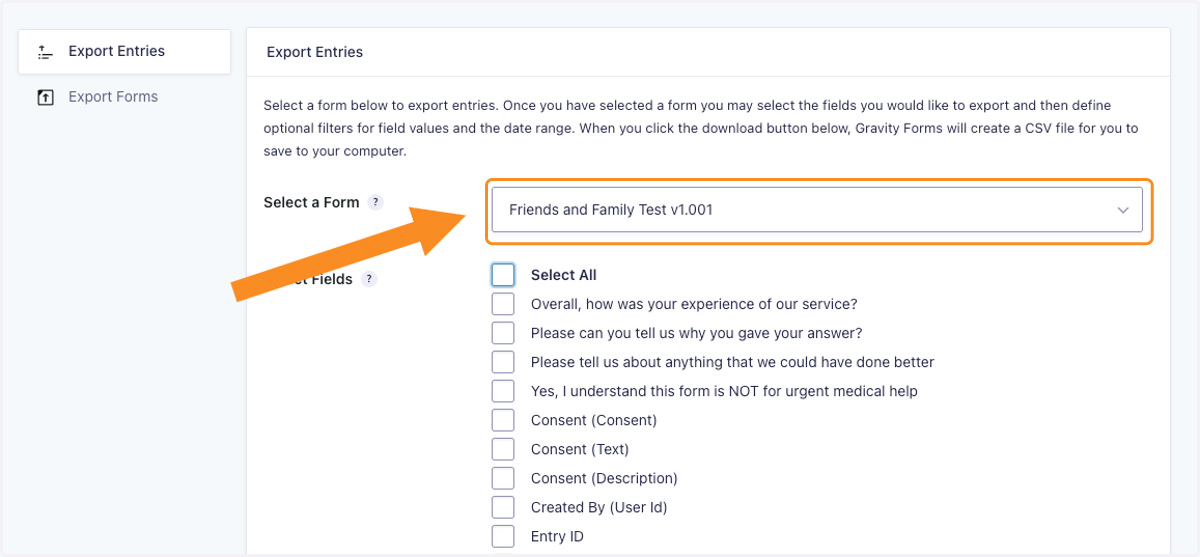
5. Select a Form from the drop-down menu
This works for any form, but for this example we are exporting entries for the Friends and Family Test v1.001.
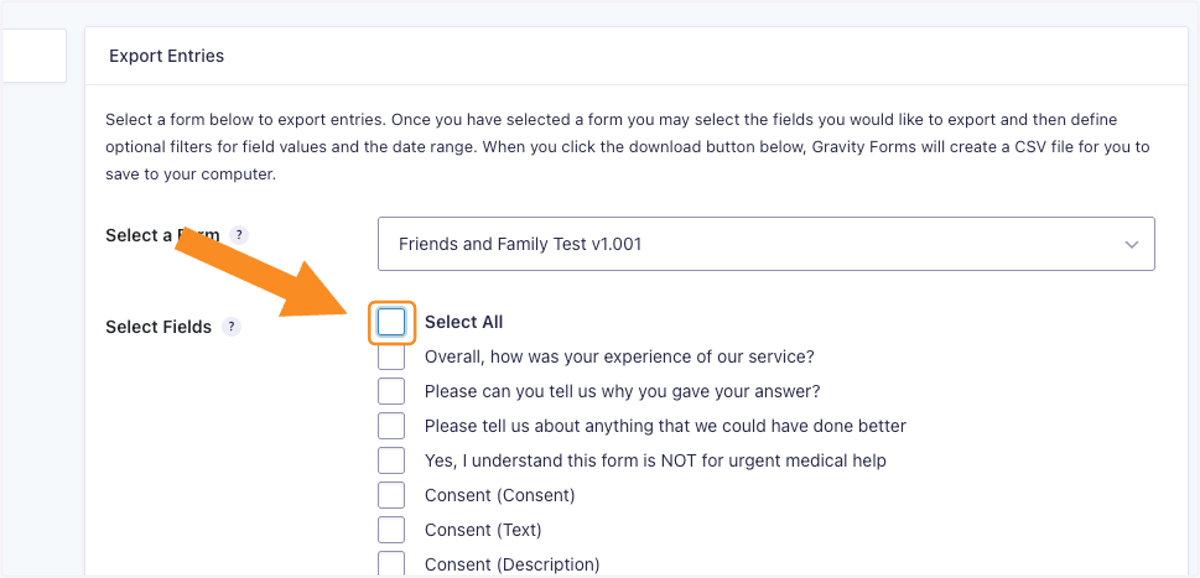
6. From the Selected Fields, use the option to Select All
Ensure this ticks all of the boxes so all the questions from the form entries are exported.
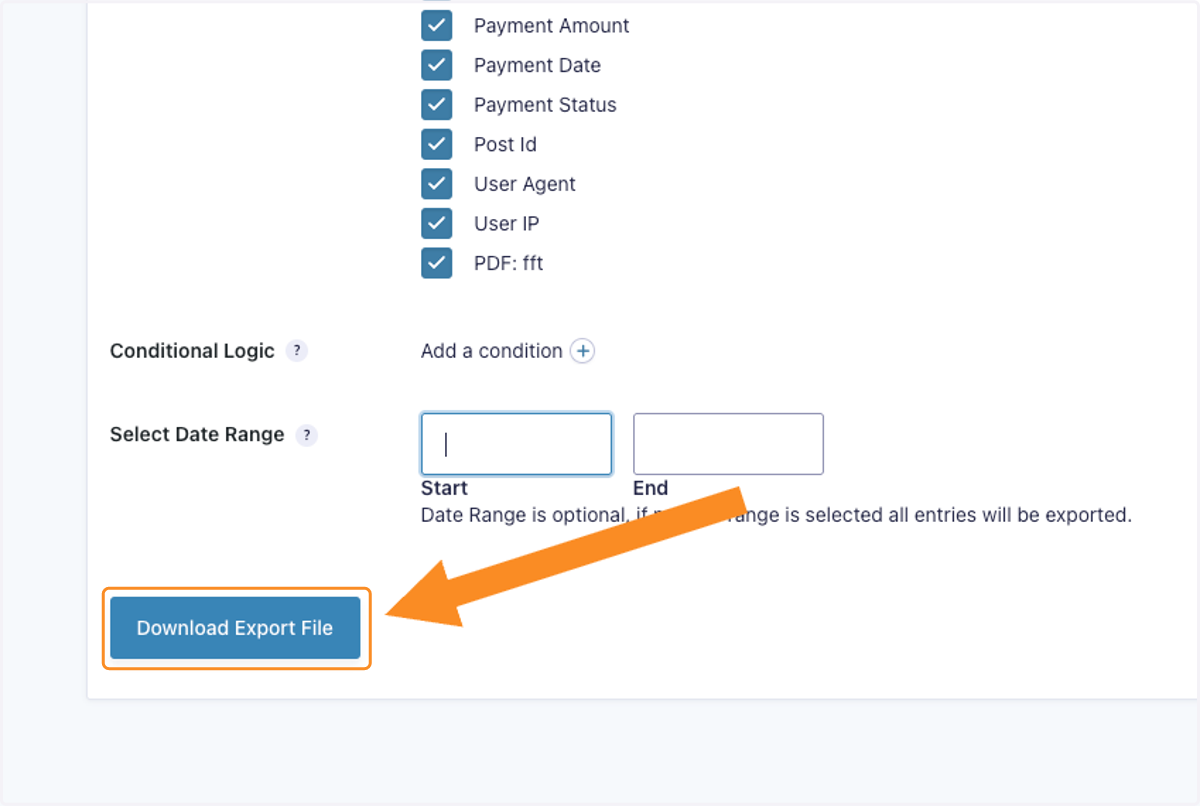
7. Select date range
Date range is optional, if no date range is selected, all entries will be exported.
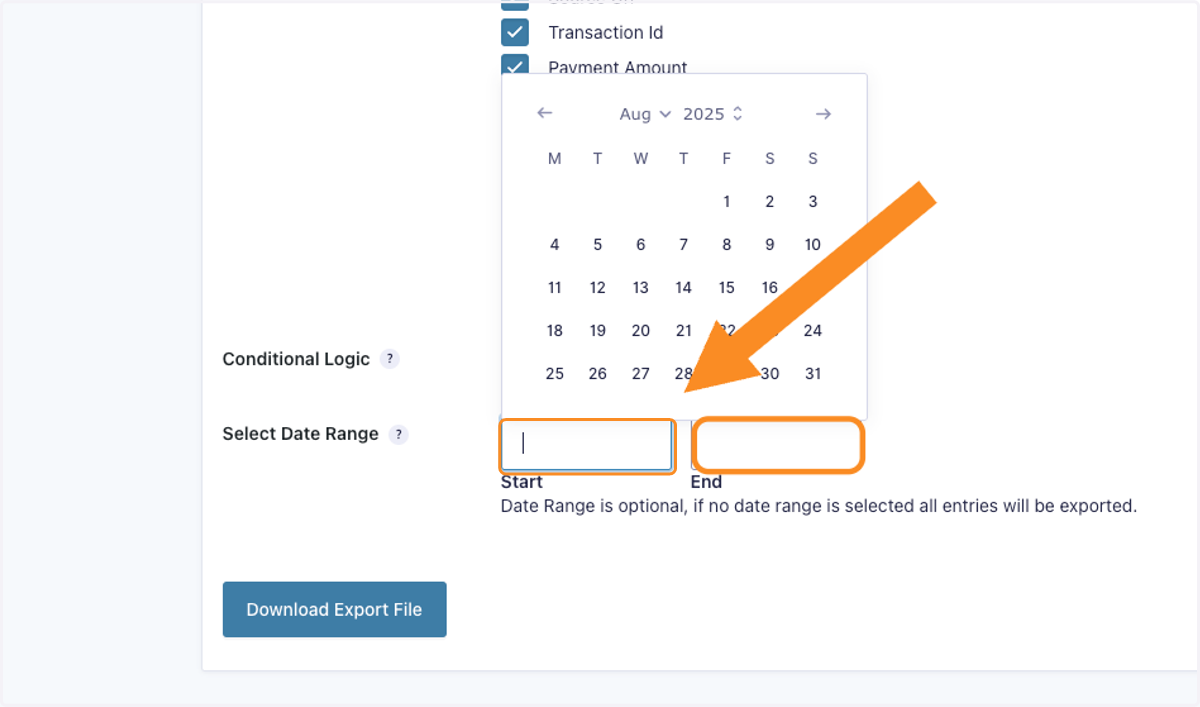
8. Click the blue Download Export File button
Download the file. This may take a few moments.
9. Open file
When the file is downloaded, you will be able to open it and view the results from all form entries for the Friends and Family Test.