How to Create Departments and Job Positions in Odoo- iLines HR

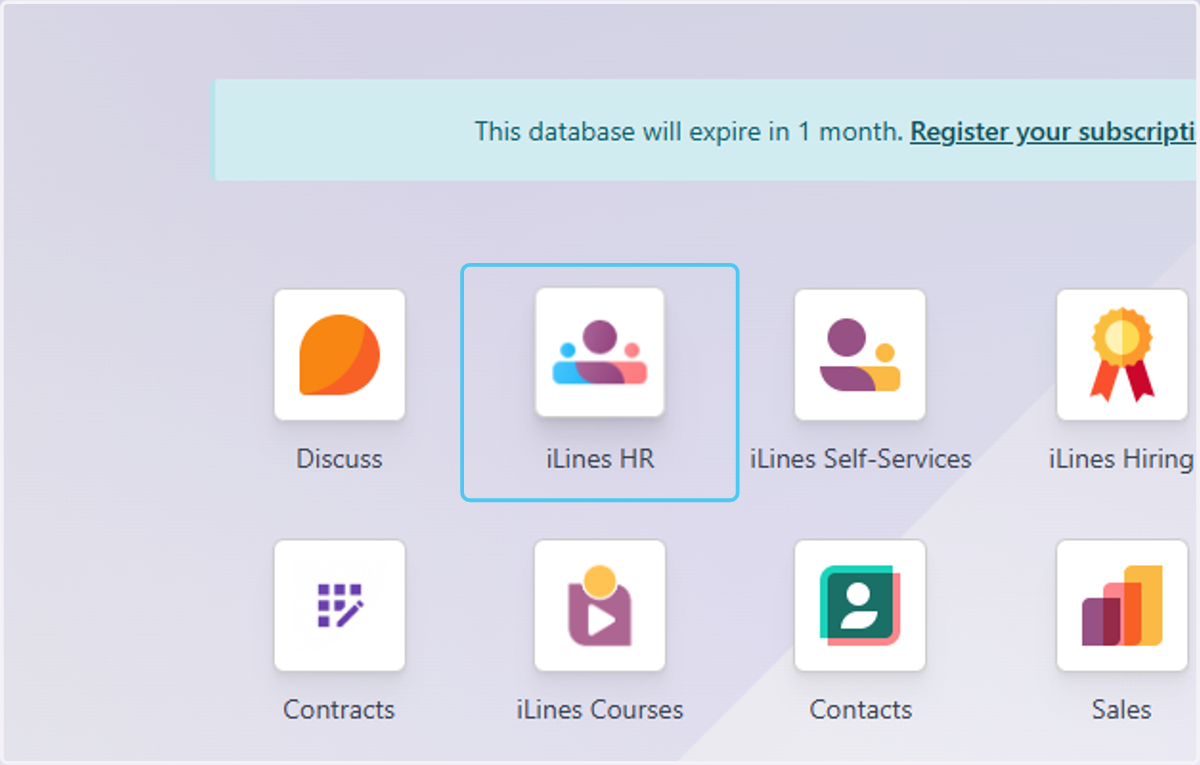
  1. 1. Click on iLines HR

    Click on iLines HR
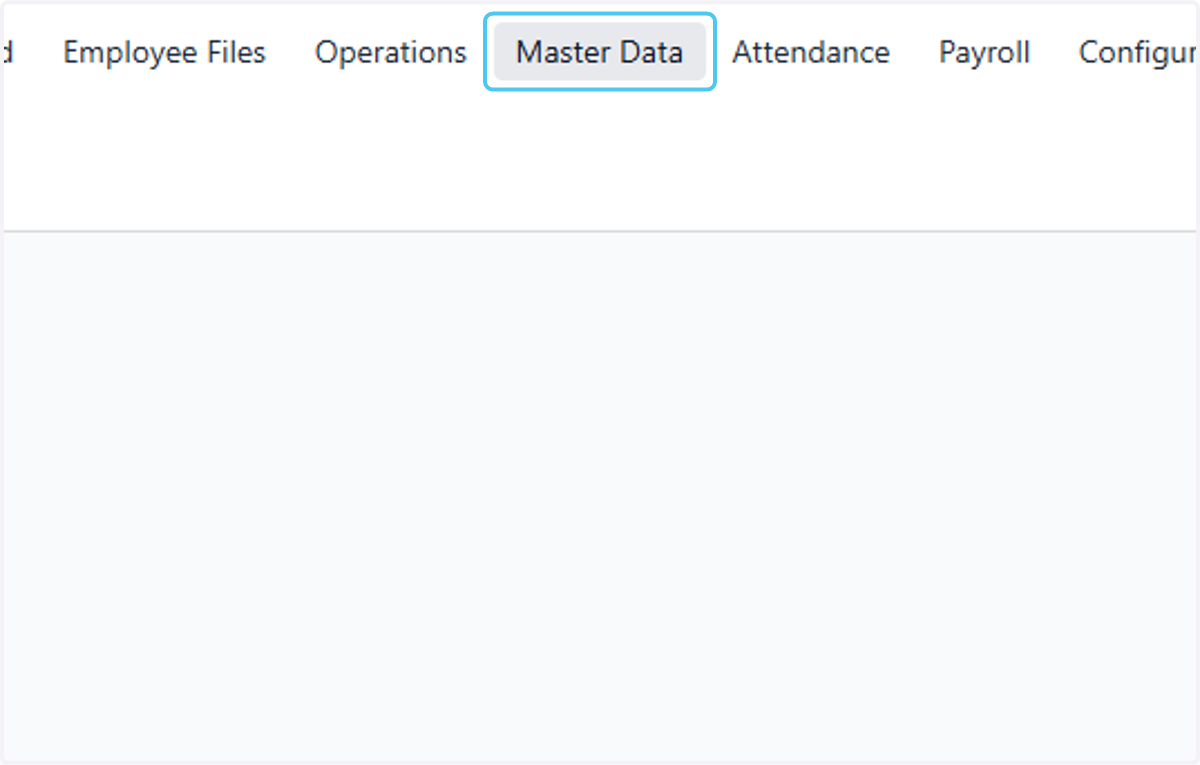
  2. 2. Click on Master Data

    Click on Master Data
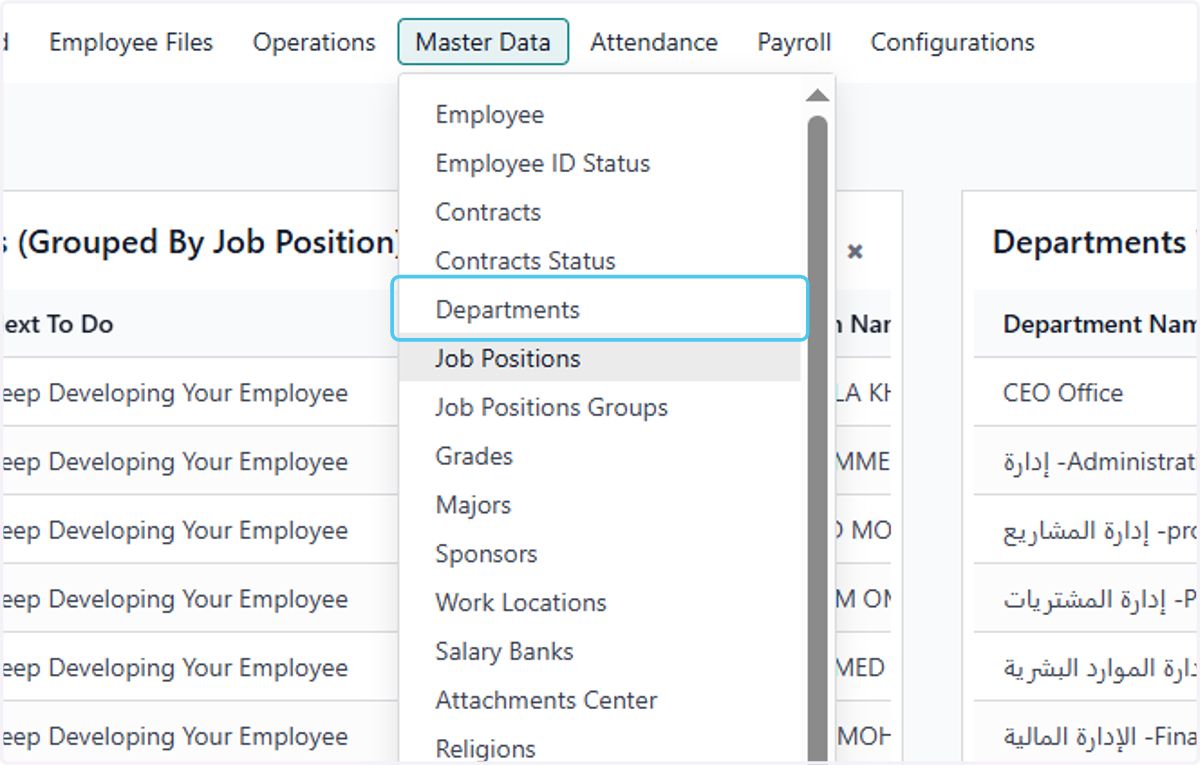
  3. 3. Click on Departments

    Click on Departments
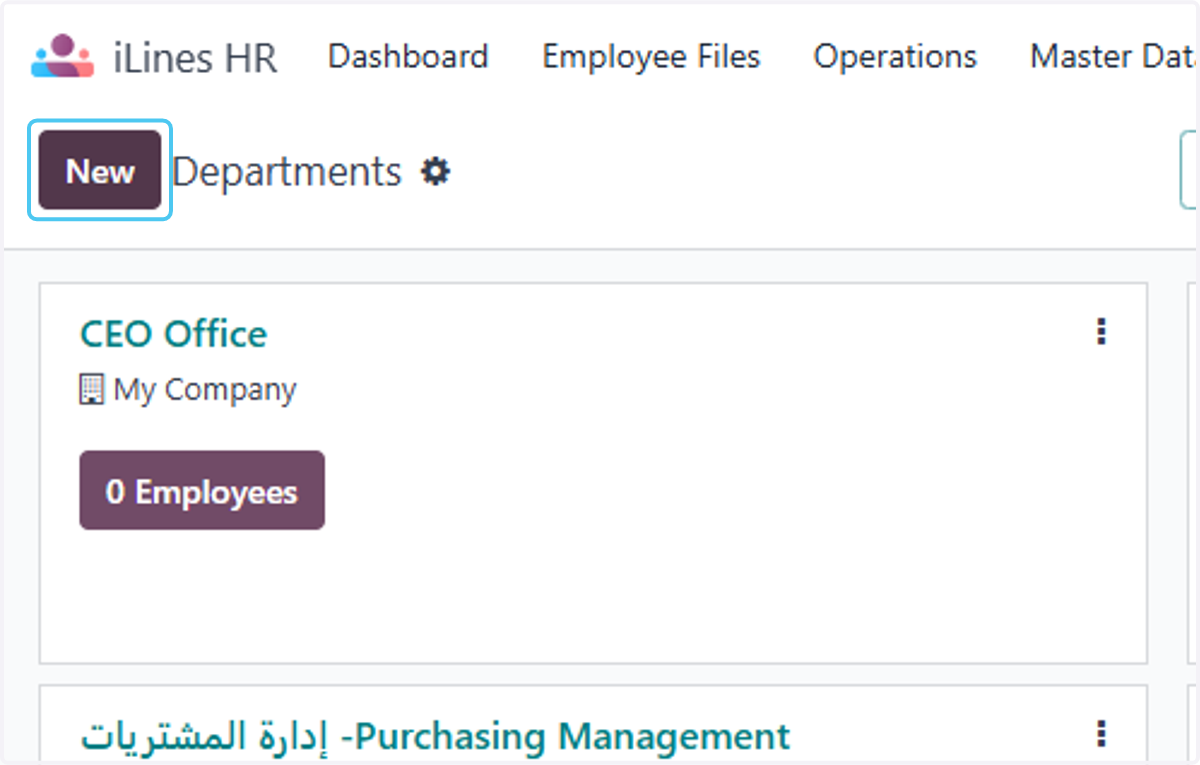
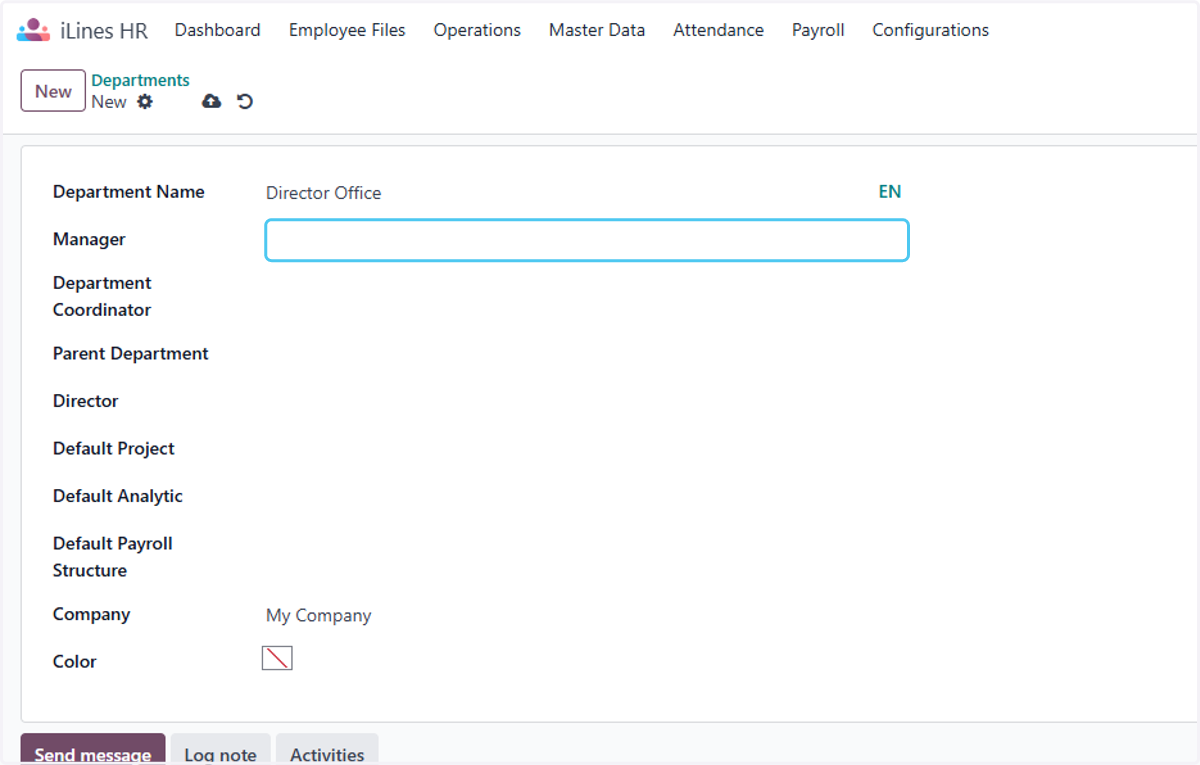
  4. 4. Click on New

    Click on New
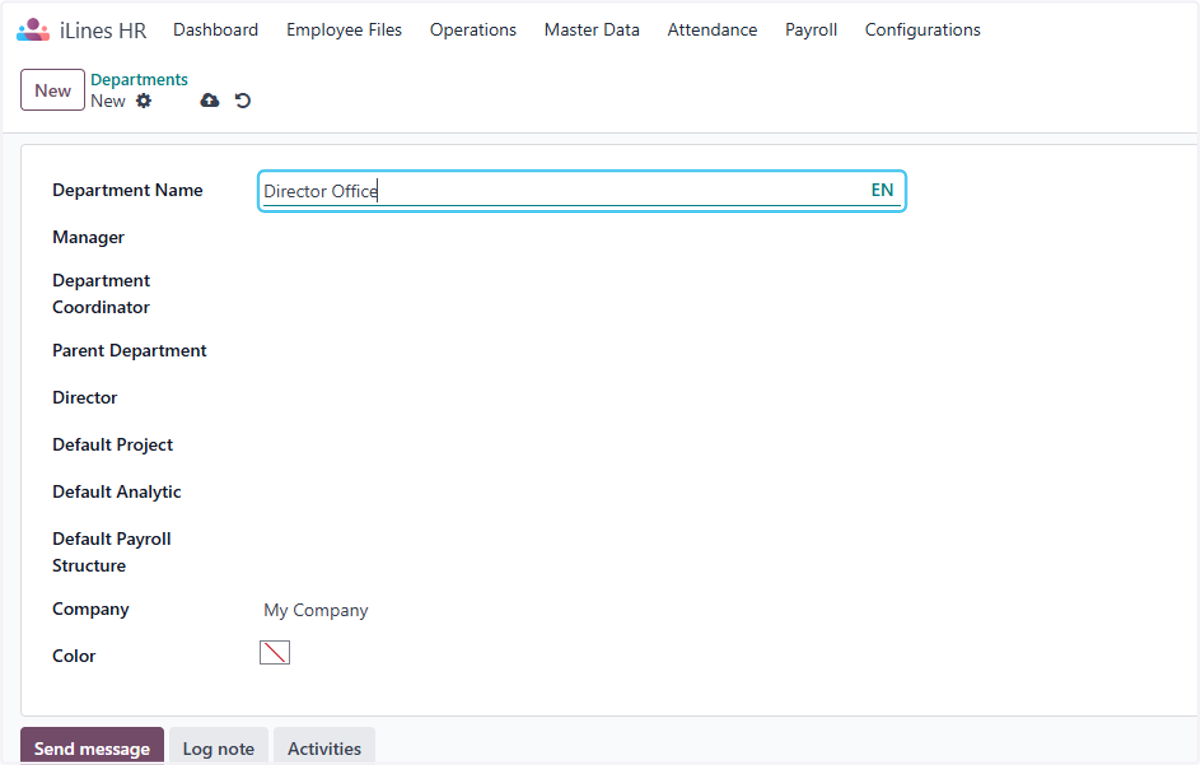
  5. 5. Type "Director Office"

    Type "Director Office"
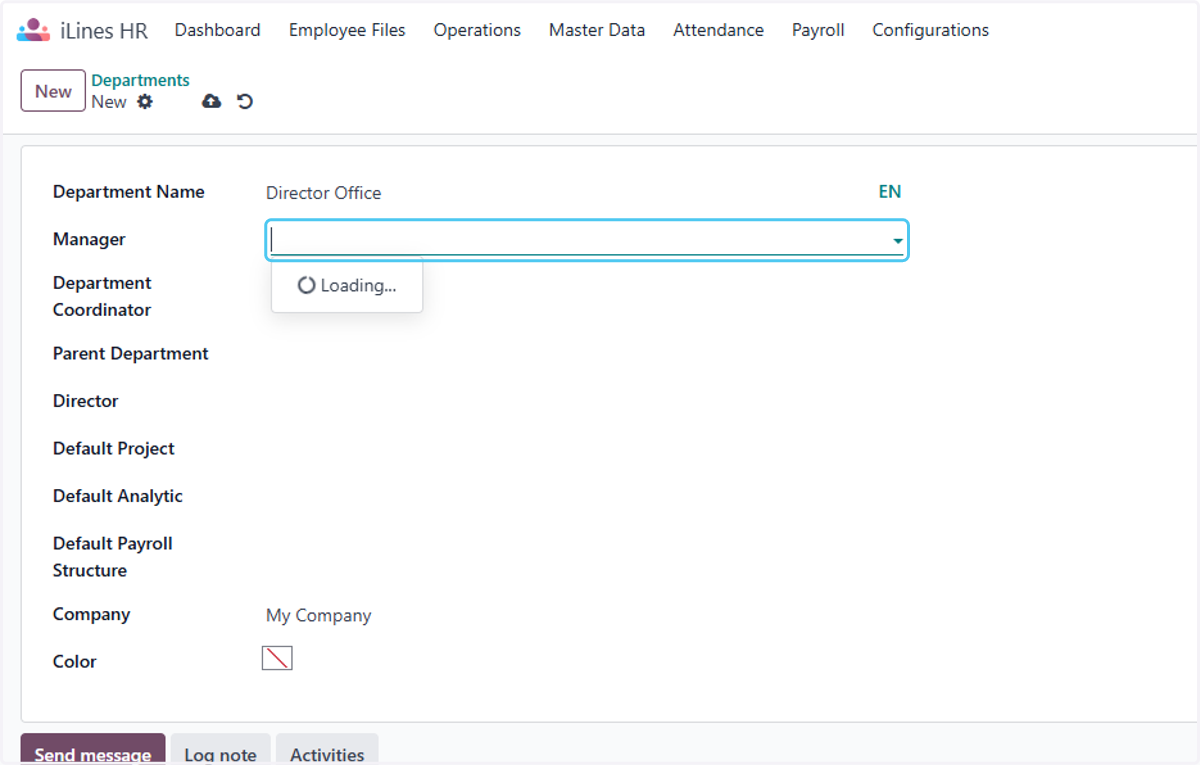
  6. 6. Click on Manager

    Click on Manager
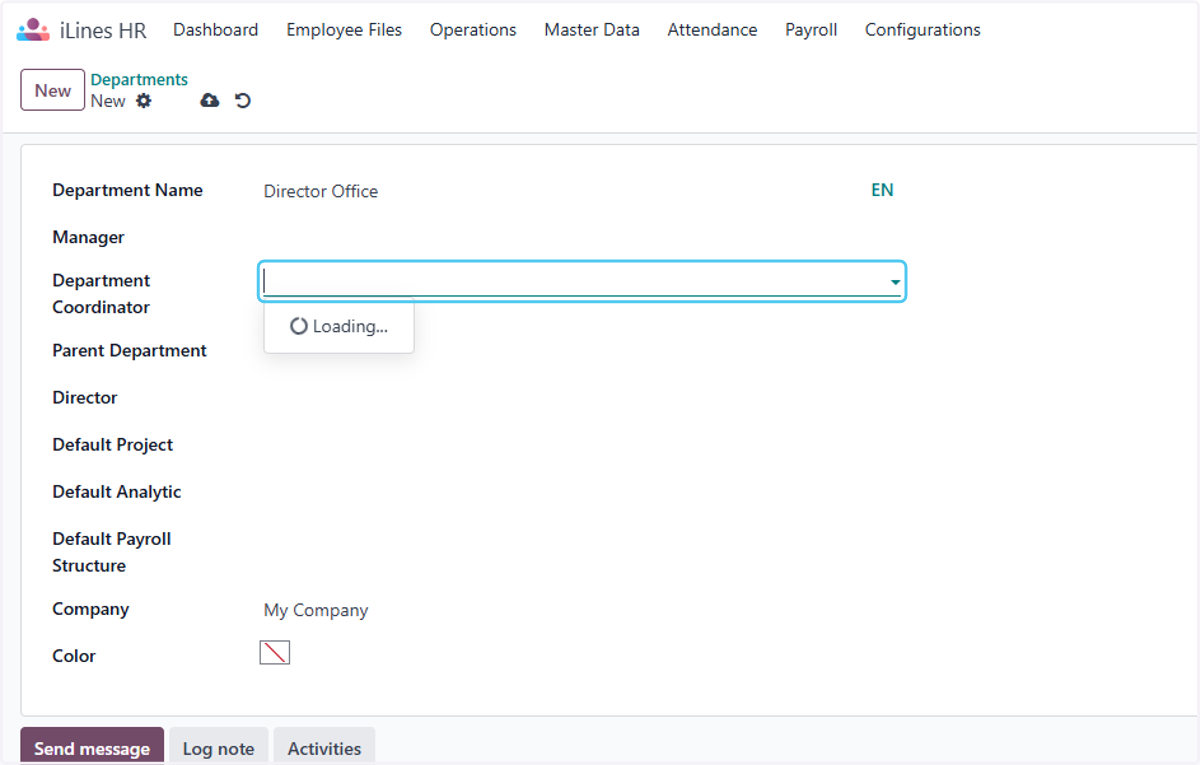
  7. 7. Click on Department Coordinator

    Click on Department Coordinator
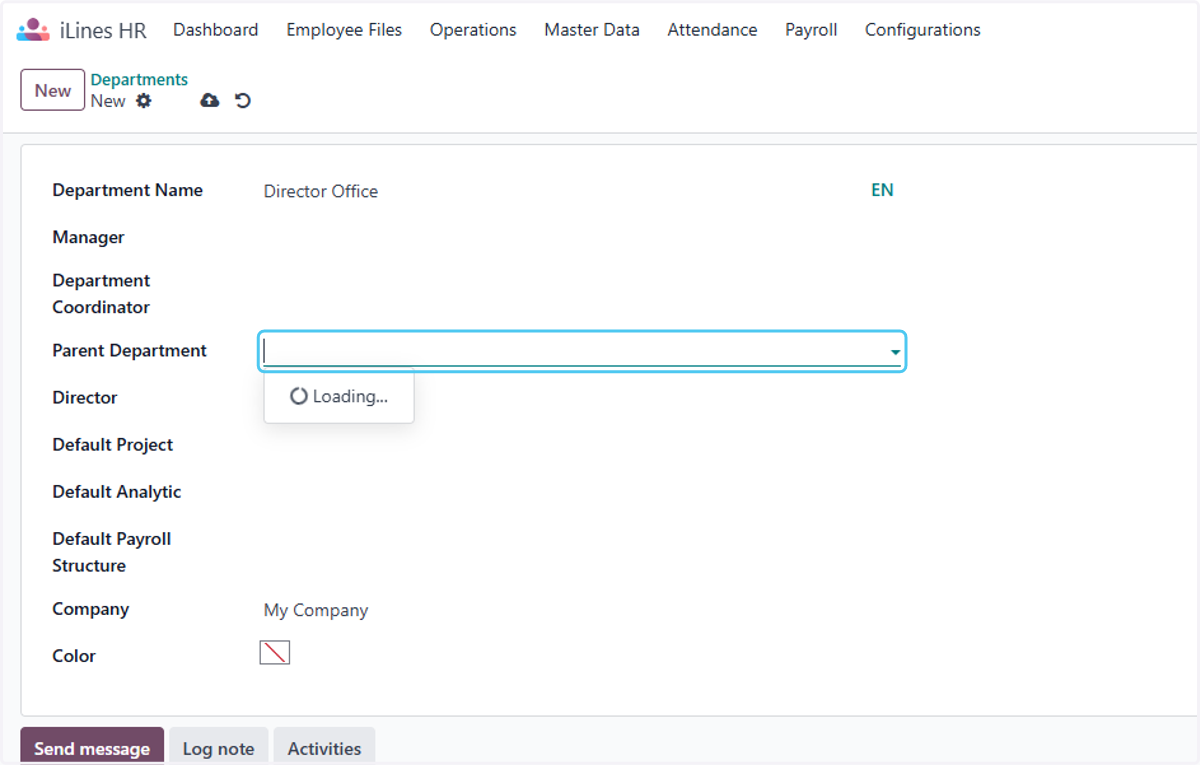
  8. 8. Click on Parent Department

    Click on Parent Department
  9. 9. Click on Manager

    Click on Manager
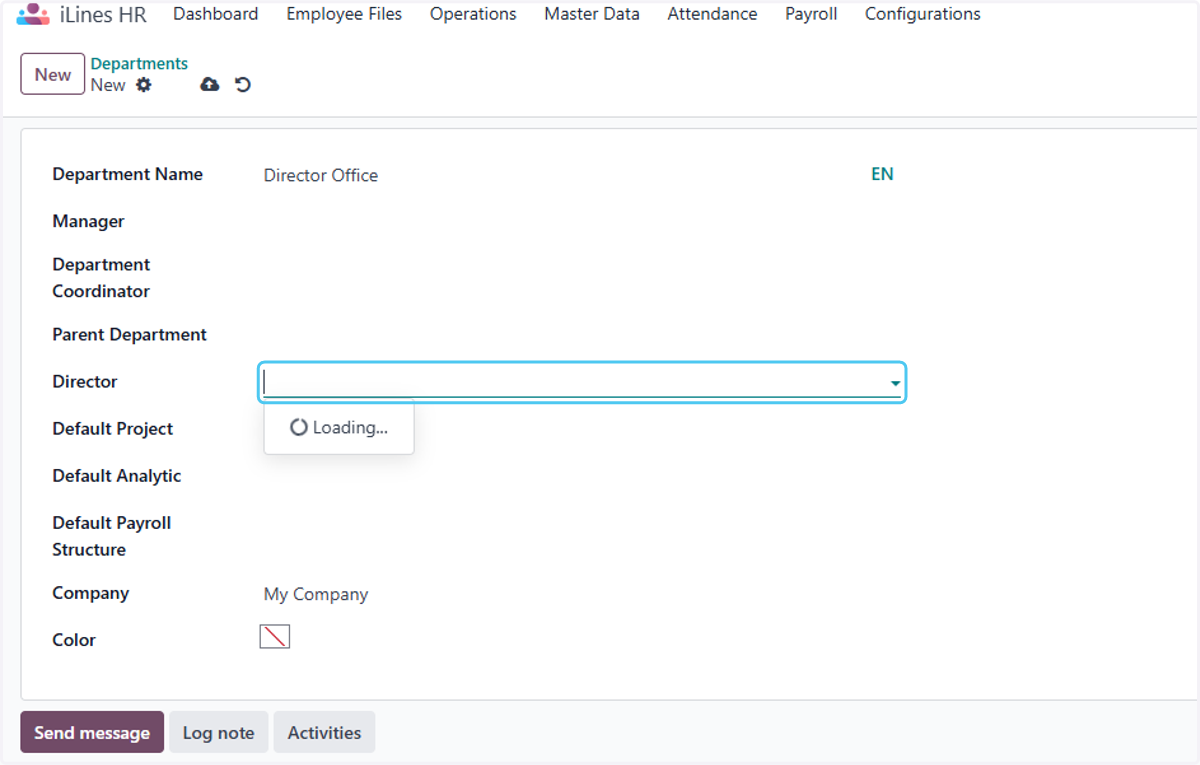
  10. 10. Click on Director

    Click on Director
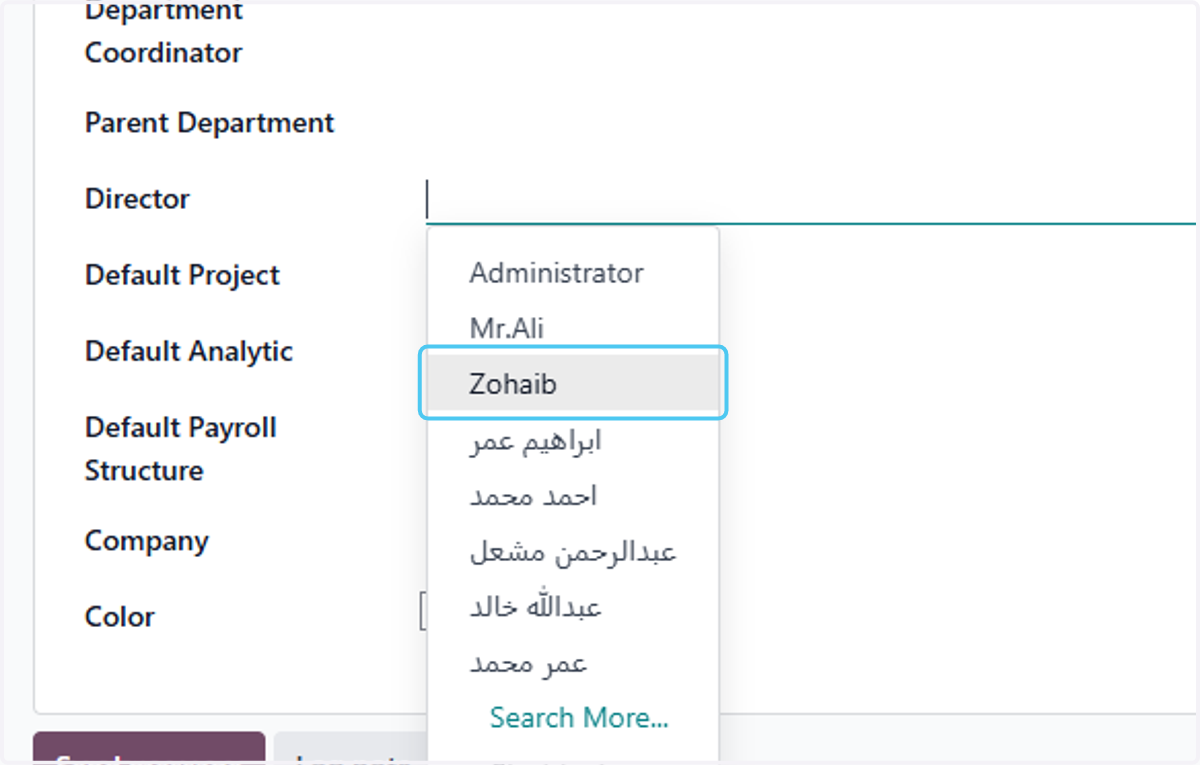
  11. 11. Click on Zohaib

    Click on Zohaib
  12. 12. Click on Default Payroll Structure if You want to add default Payroll Structure
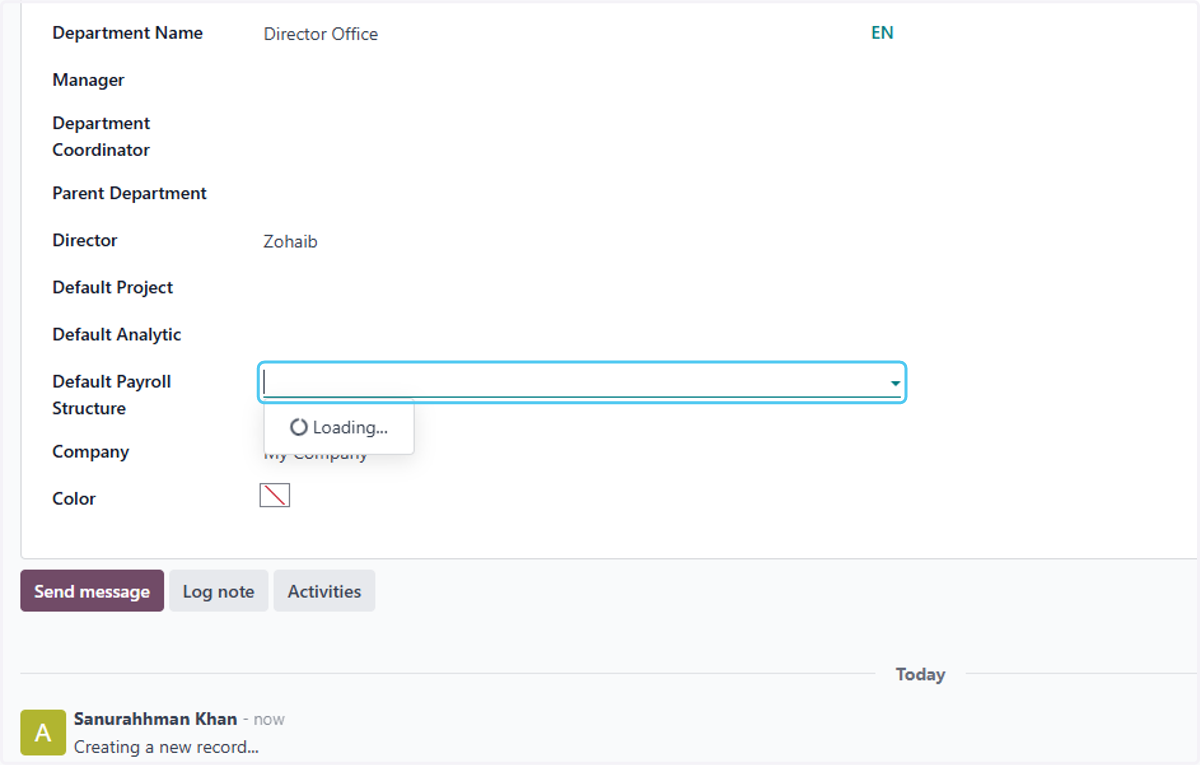
    Click on Default Payroll Structure if You want to add default Payroll Structure
  13. 13. Click on Save manually finally the Department is Created
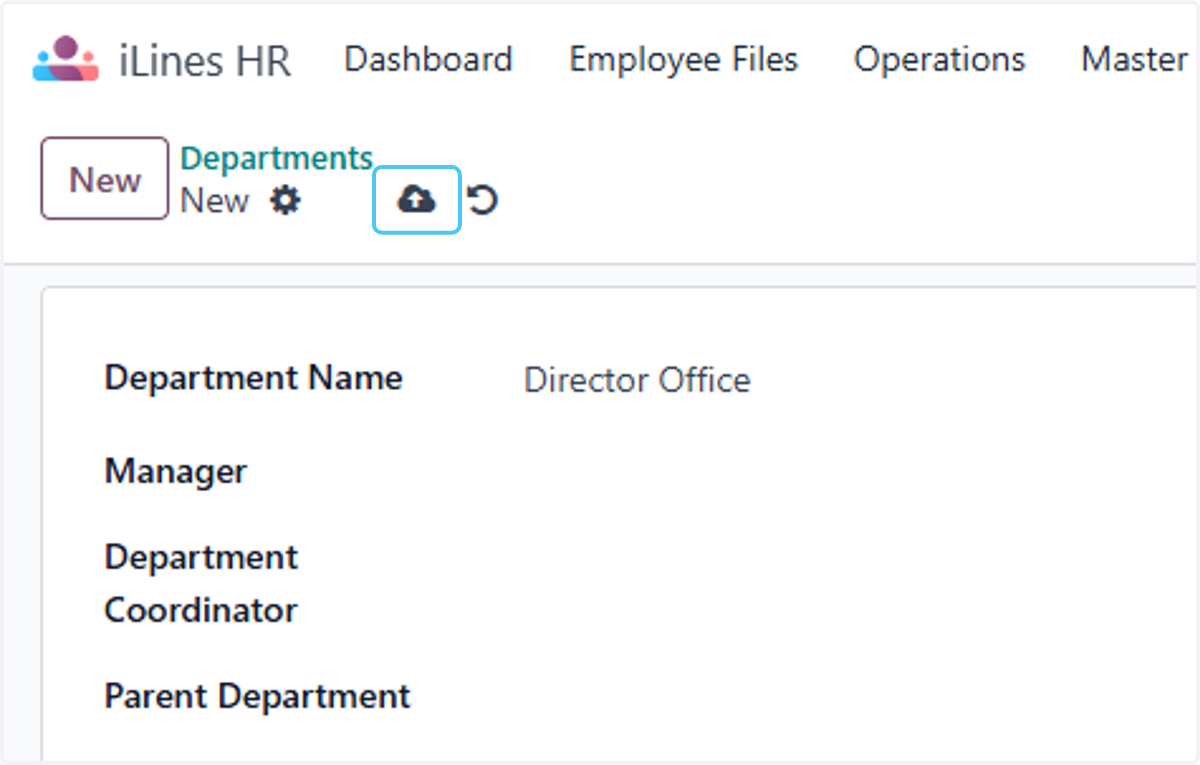
    Click on Save manually finally the Department is Created
  14. 14. Click on Departments if you want to add the parent department
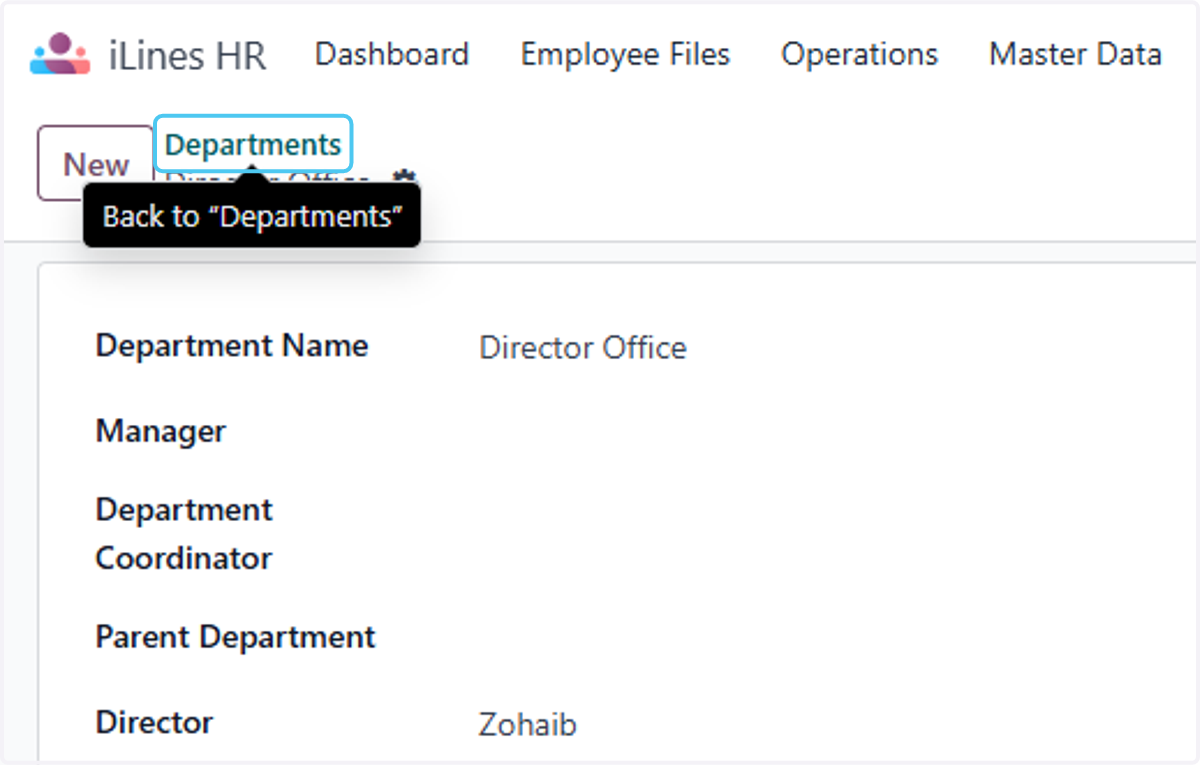
    Click on Departments if you want to add the parent department
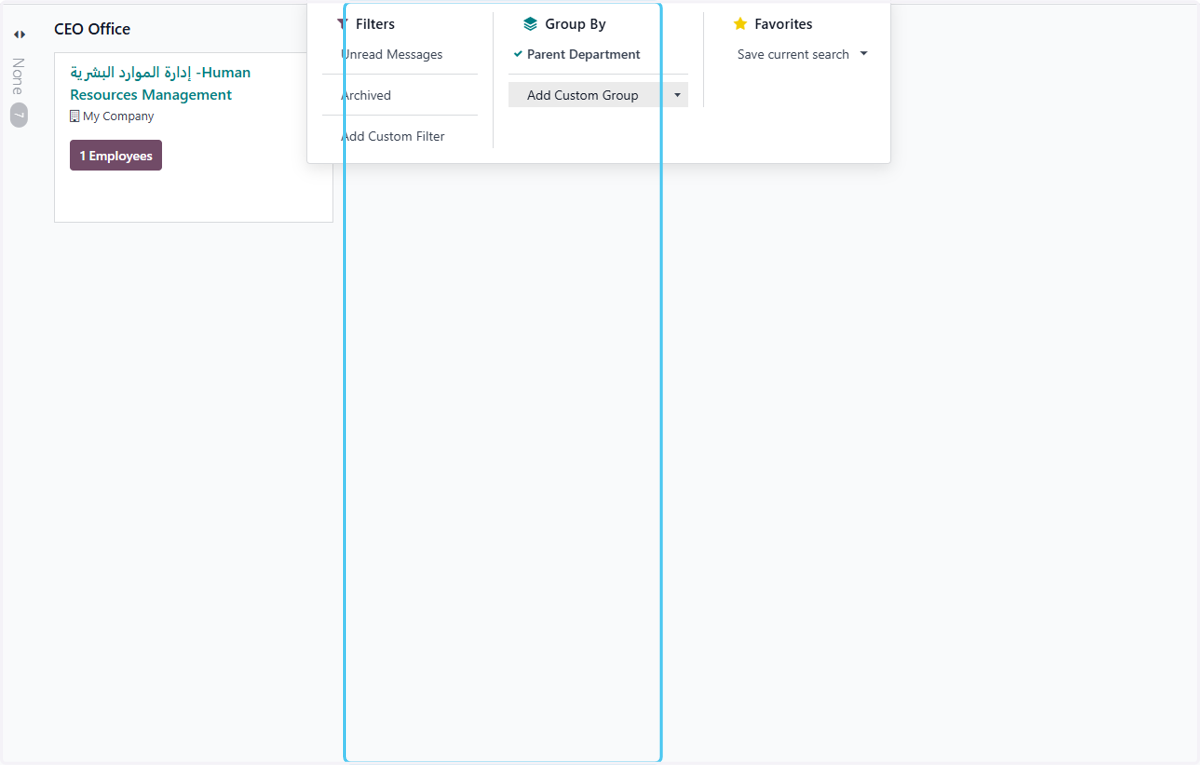
  15. 15. Click on highlight group it by Parent
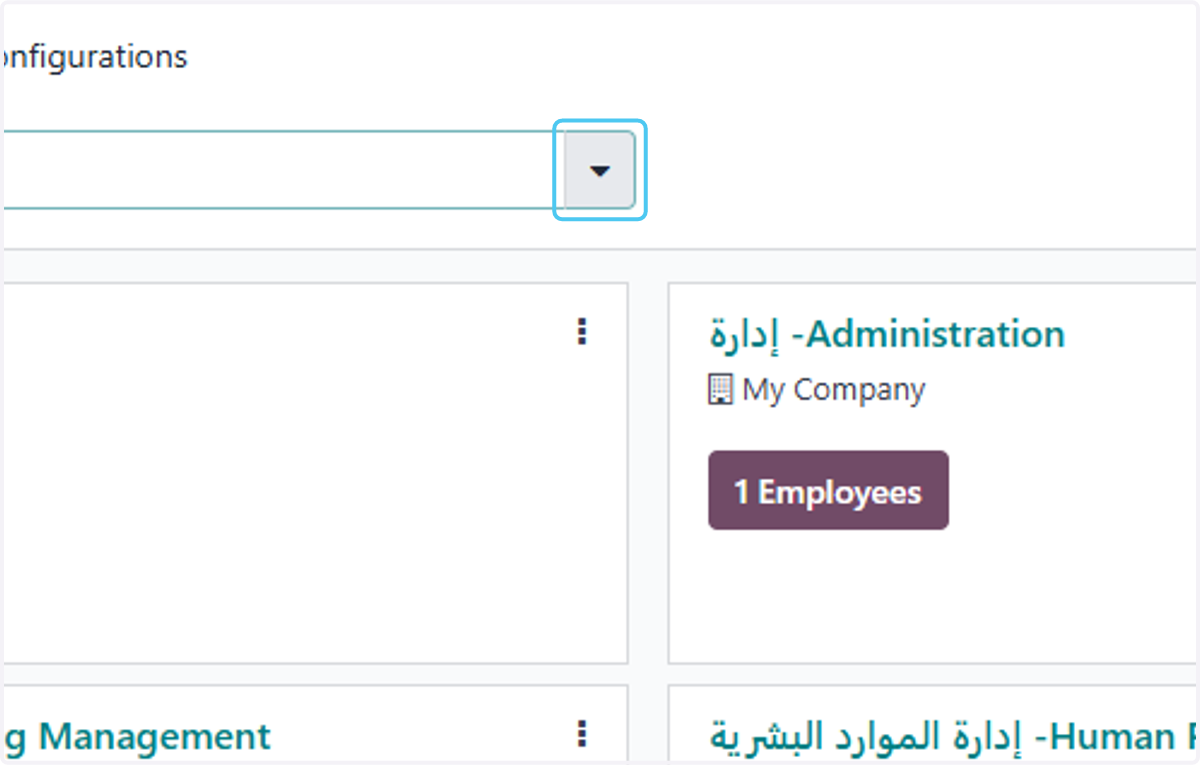
    Click on highlight group it by Parent
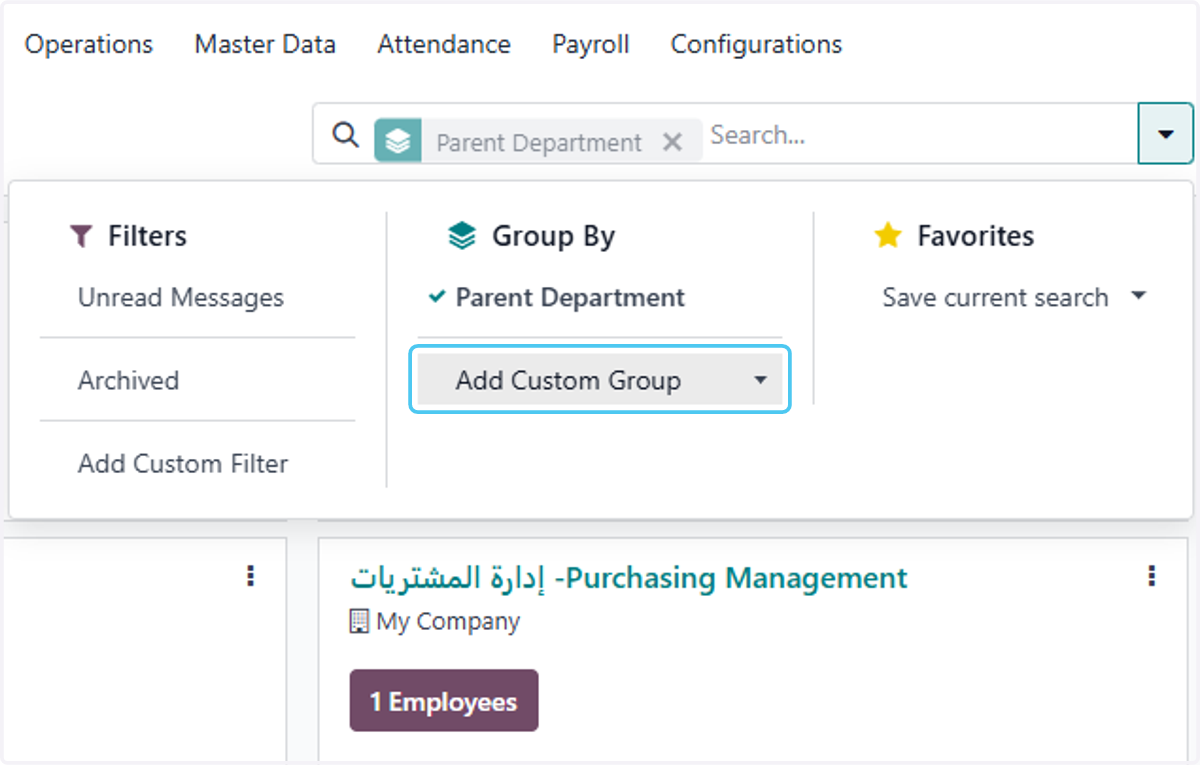
  16. 16. Select Add Custom Group

    Select Add Custom Group
  17. 17. Click on Parent Department

    Click on Parent Department
  18. 18. Click on highlight and expend the details
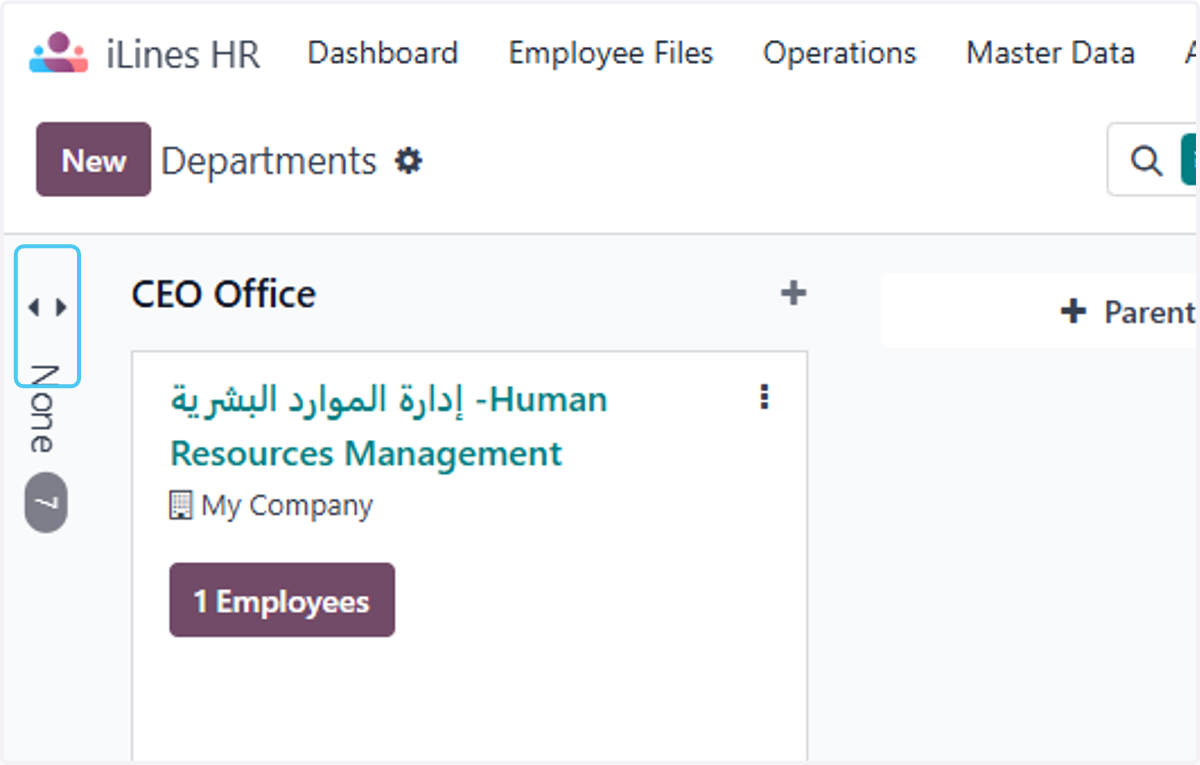
    Click on highlight and expend the details
  19. 19. Click on إدارة المشاريع -project management and any Departement for who you want to create the parent or child Department
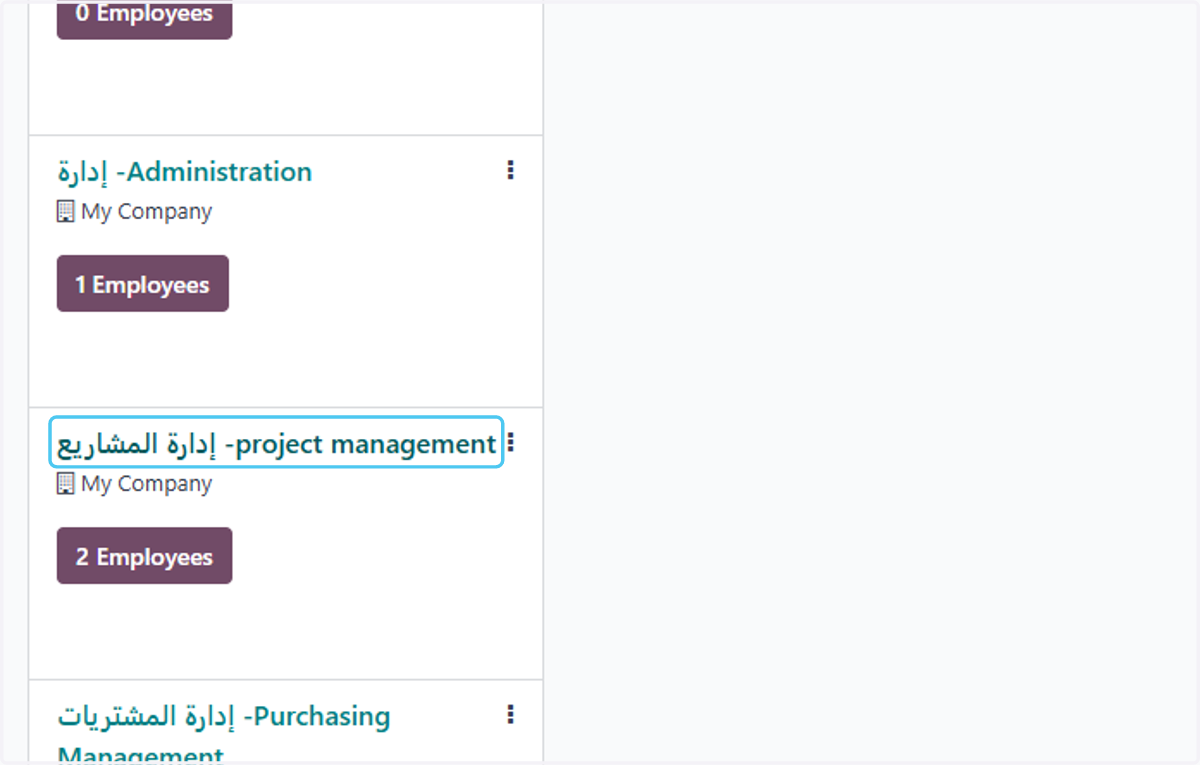
    Click on إدارة المشاريع -project management and any Departement for who you want to create the parent or child Department
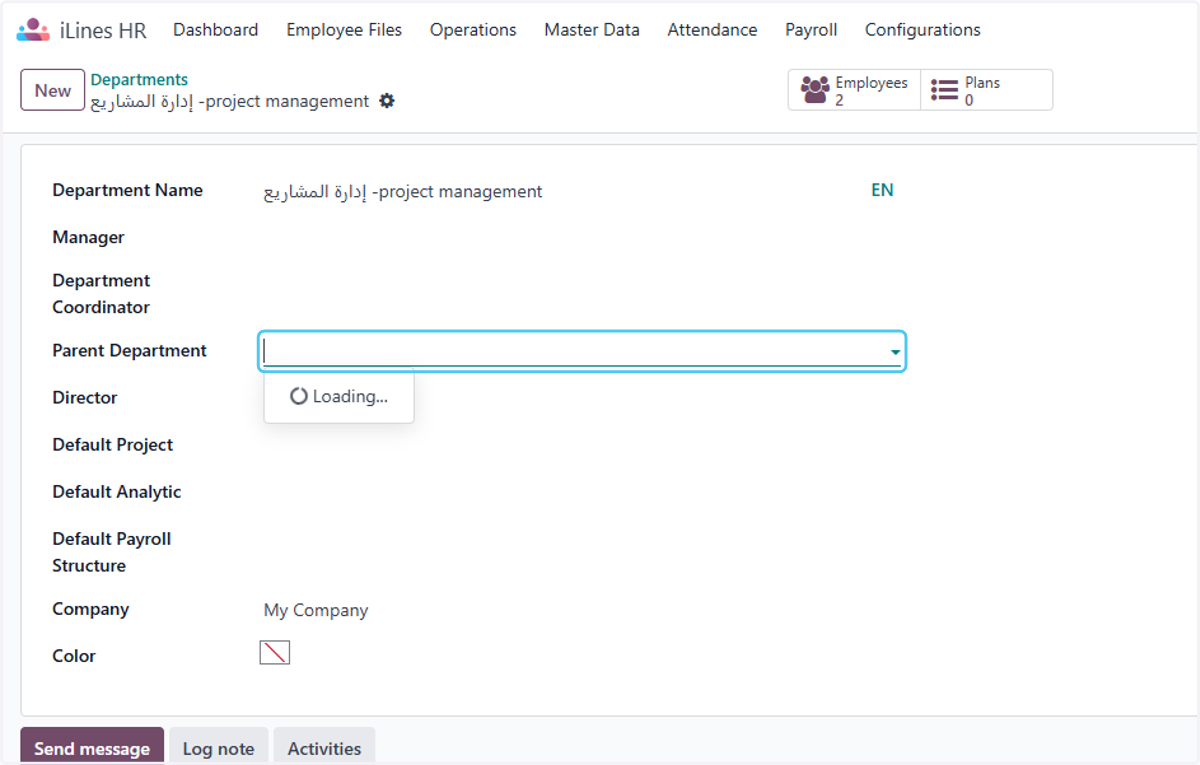
  20. 20. Click on Parent Department

    Click on Parent Department
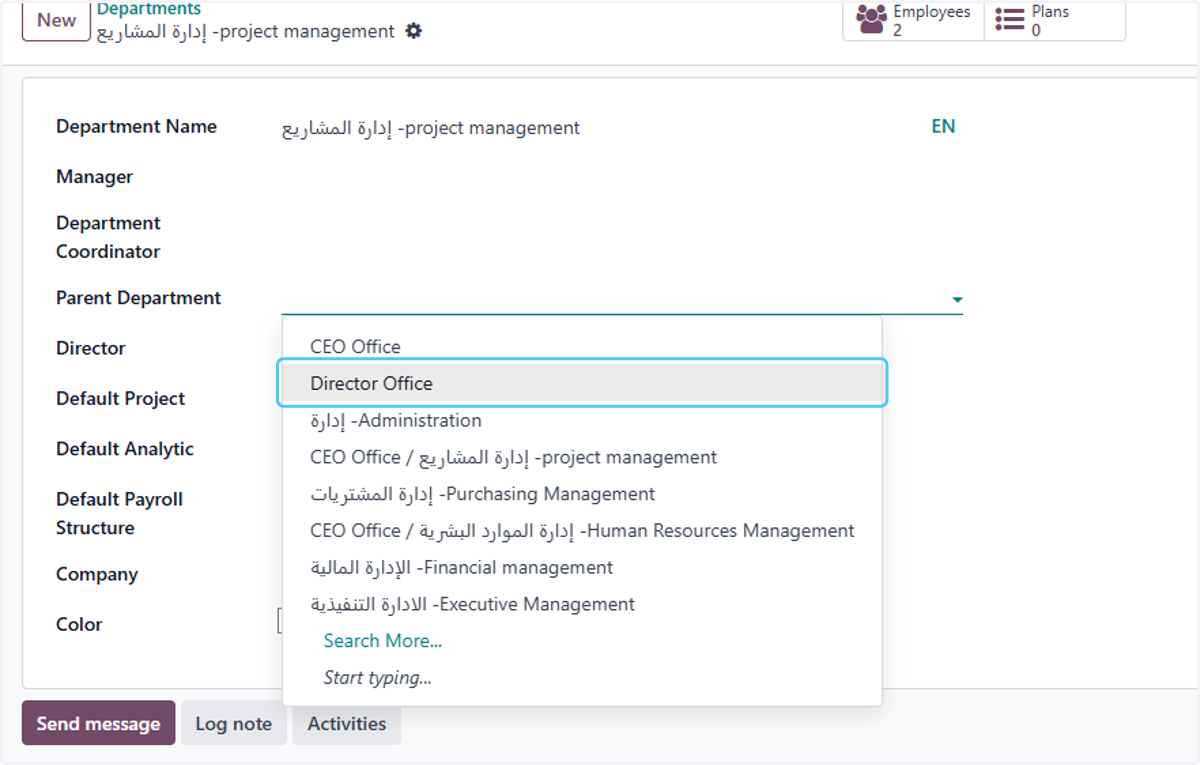
  21. 21. Click on Director Office

    Click on Director Office
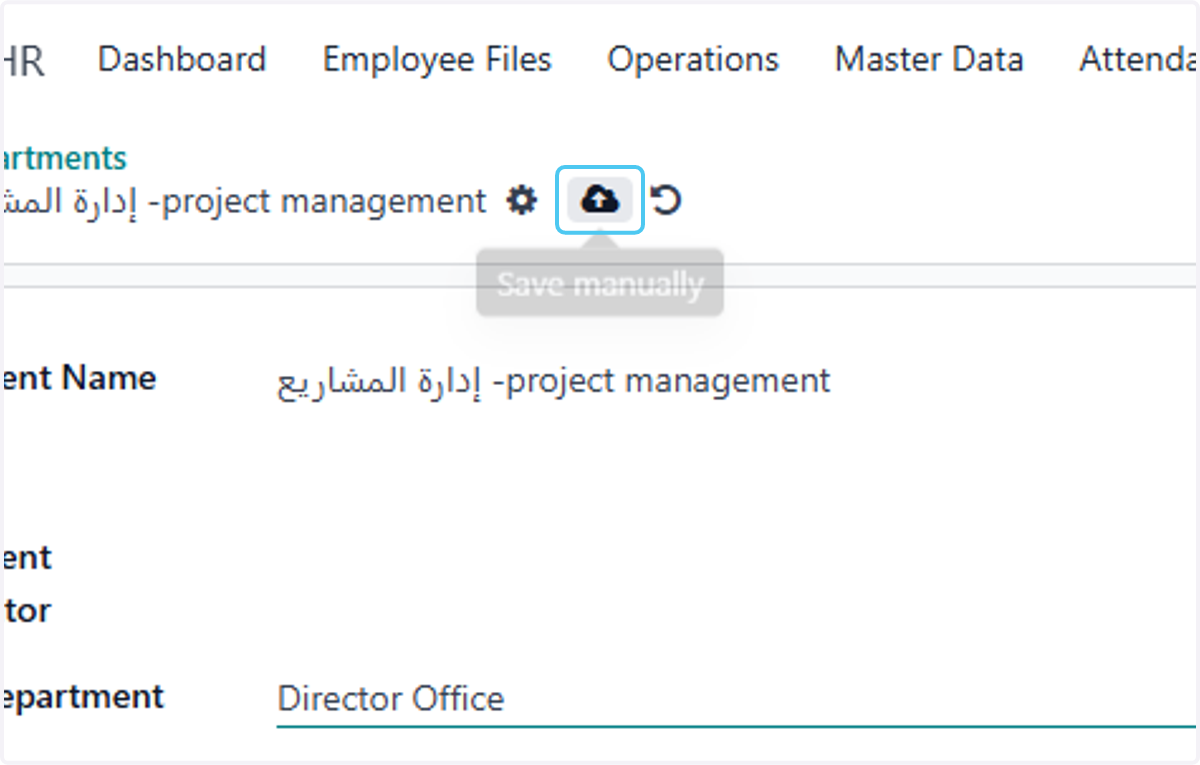
  22. 22. Click on Save manually

    Click on Save manually
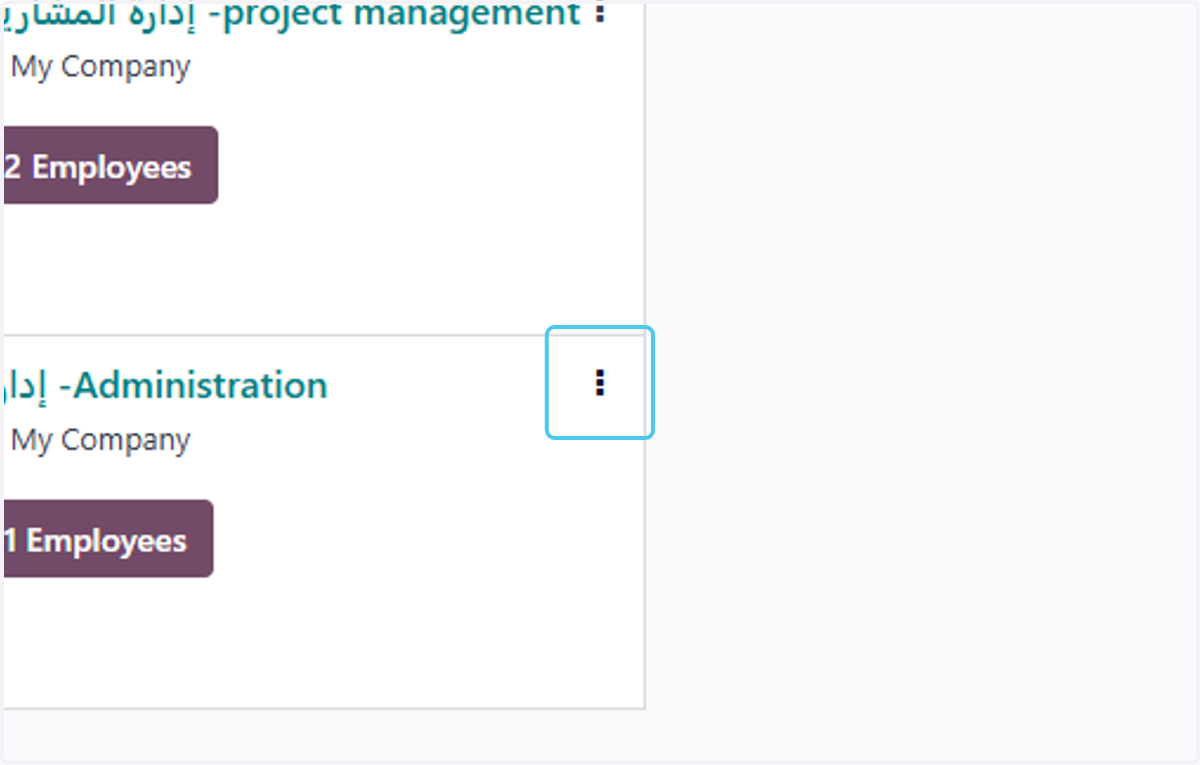
  23. 23. Click on Dropdown menu

    Click on Dropdown menu
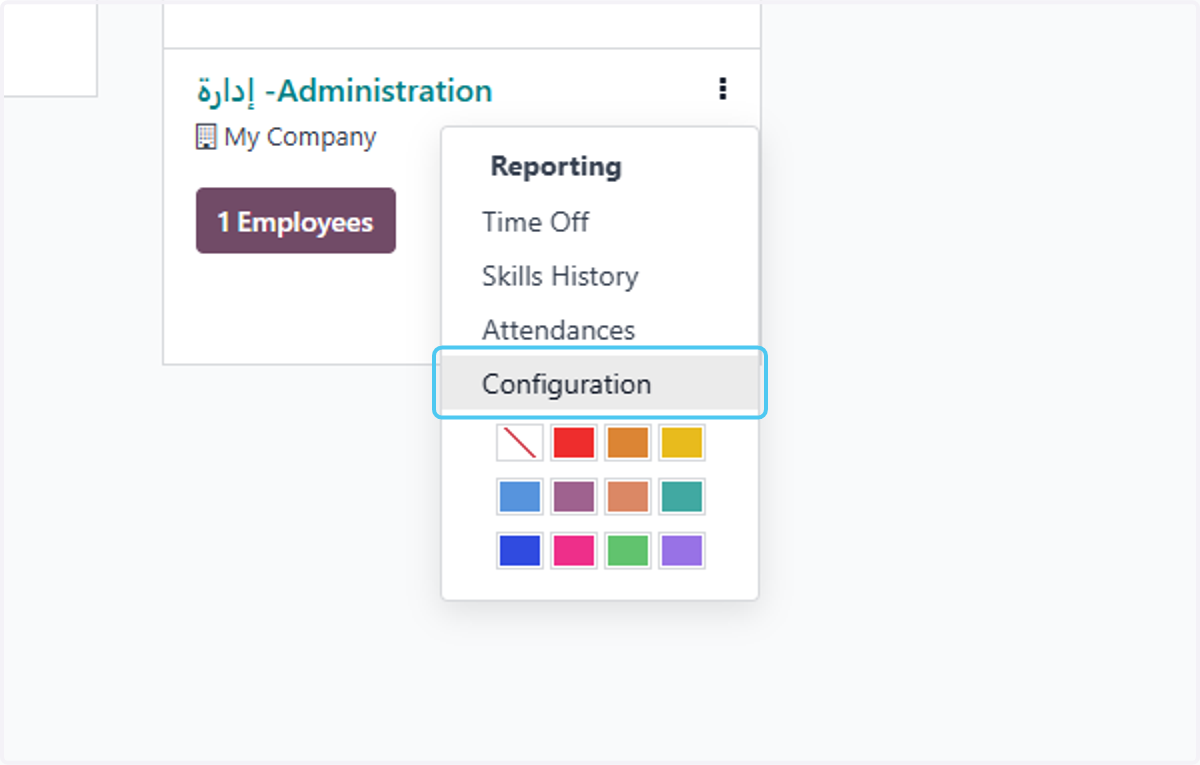
  24. 24. Click on Configuration

    Click on Configuration
  25. 25. Click on Parent Department and add it to the relevent hararichy
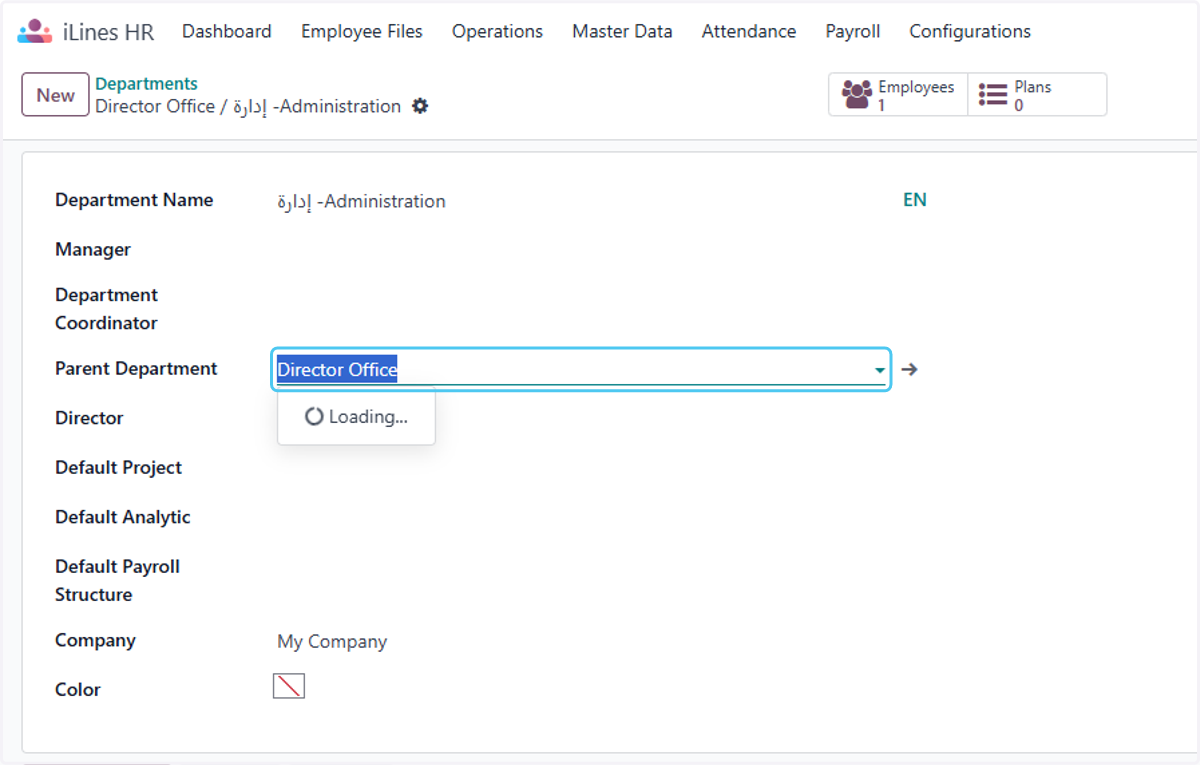
    Click on Parent Department and add it to the relevent hararichy
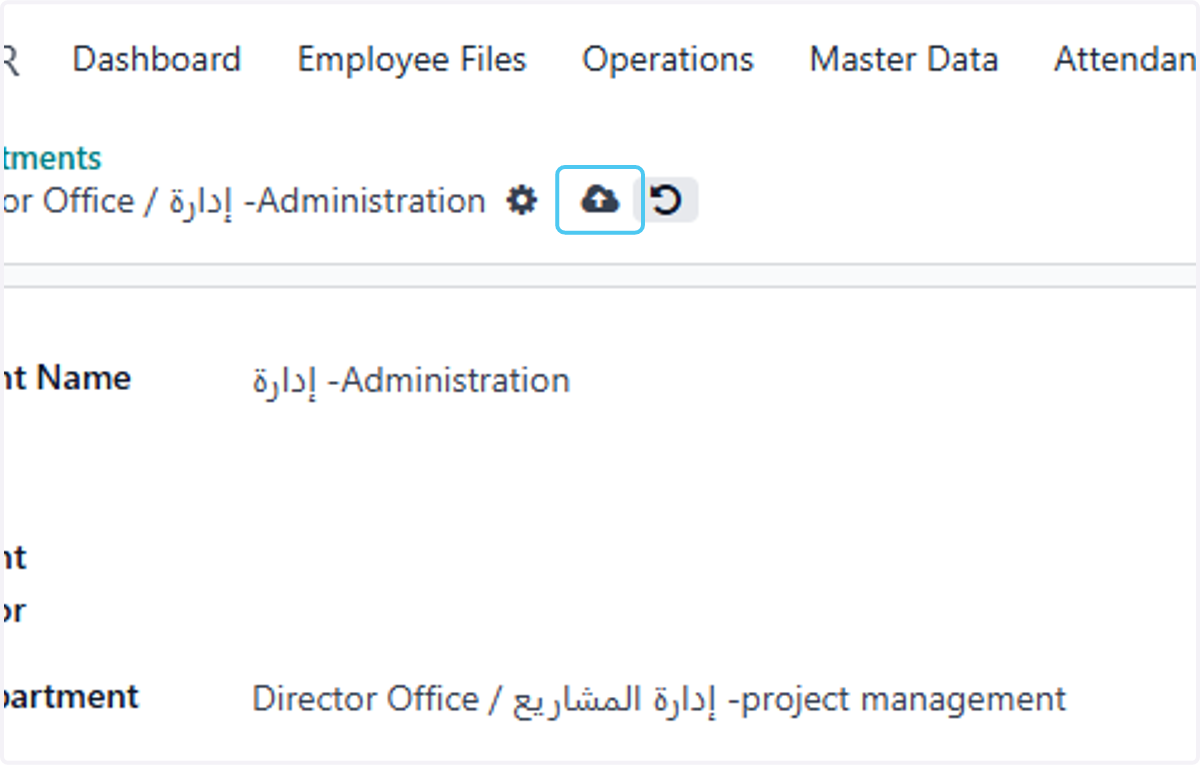
  26. 26. Click on Save manually

    Click on Save manually
  27. 27. Click on Departments and now finally the exact department harraichy is created
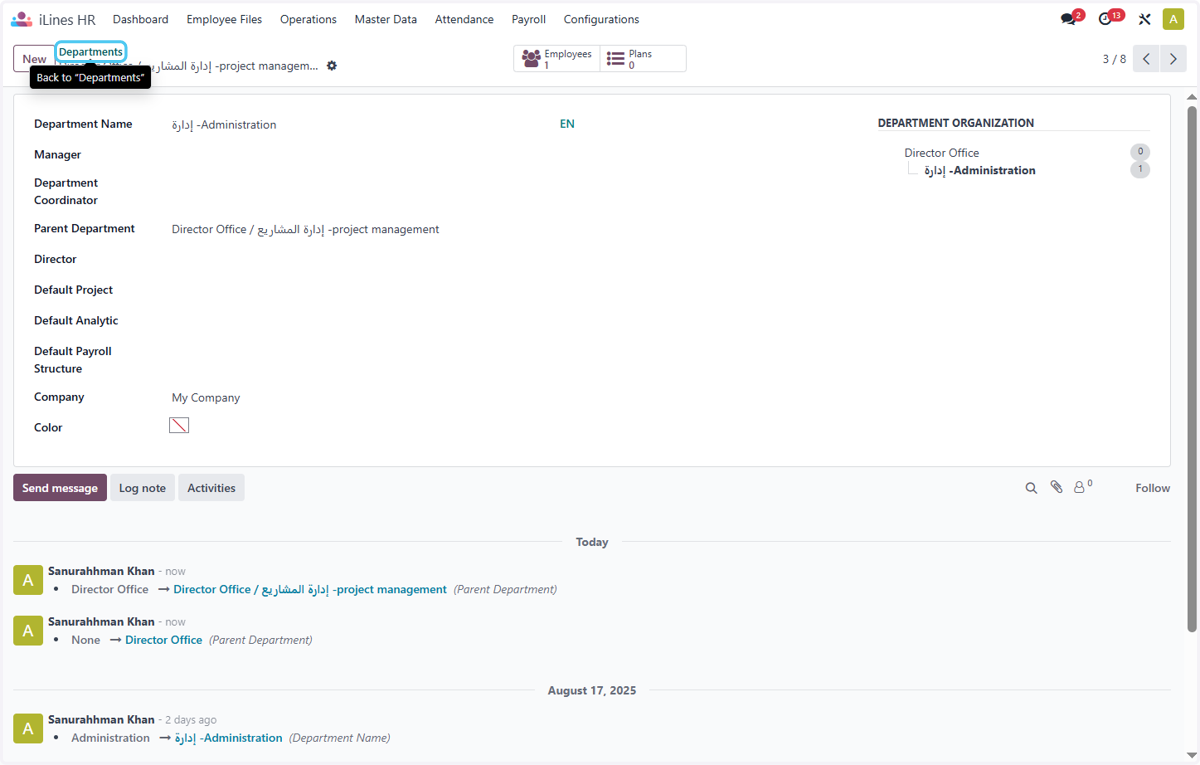
    Click on Departments and now finally the exact department harraichy is created
  28. 28. Click on Master Data for Creation of Job Position
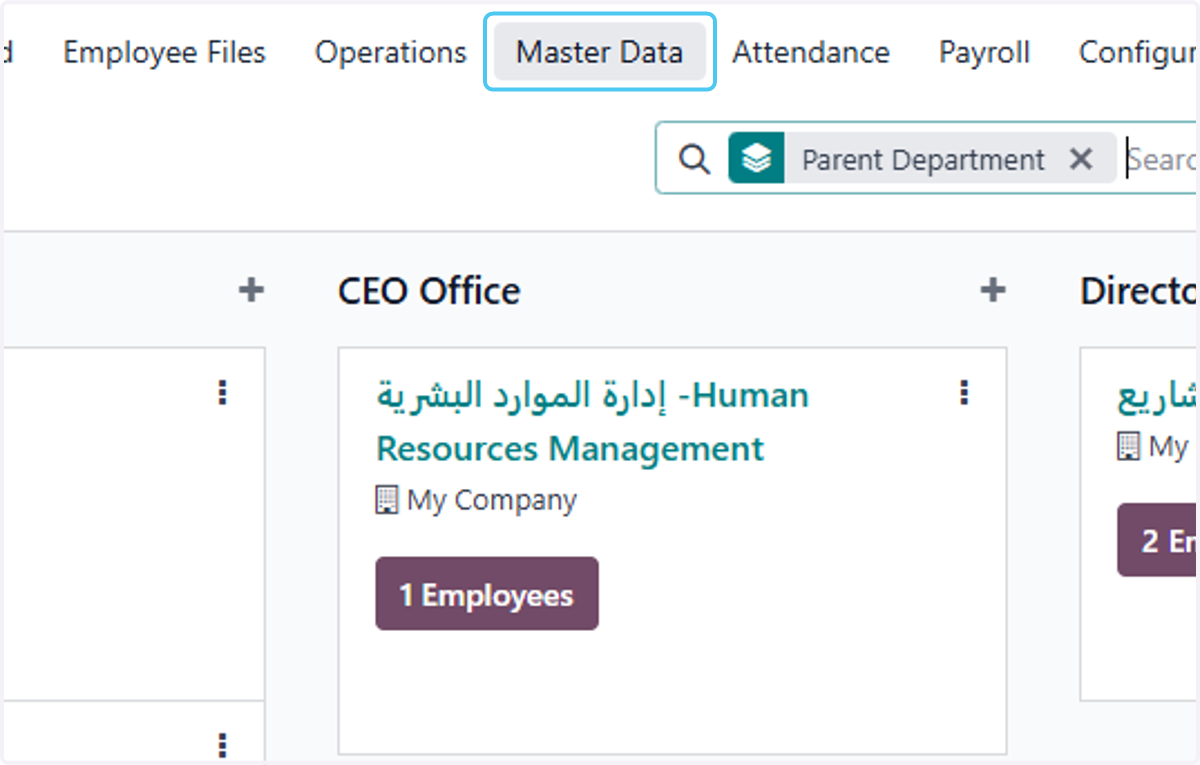
    Click on Master Data for Creation of Job Position
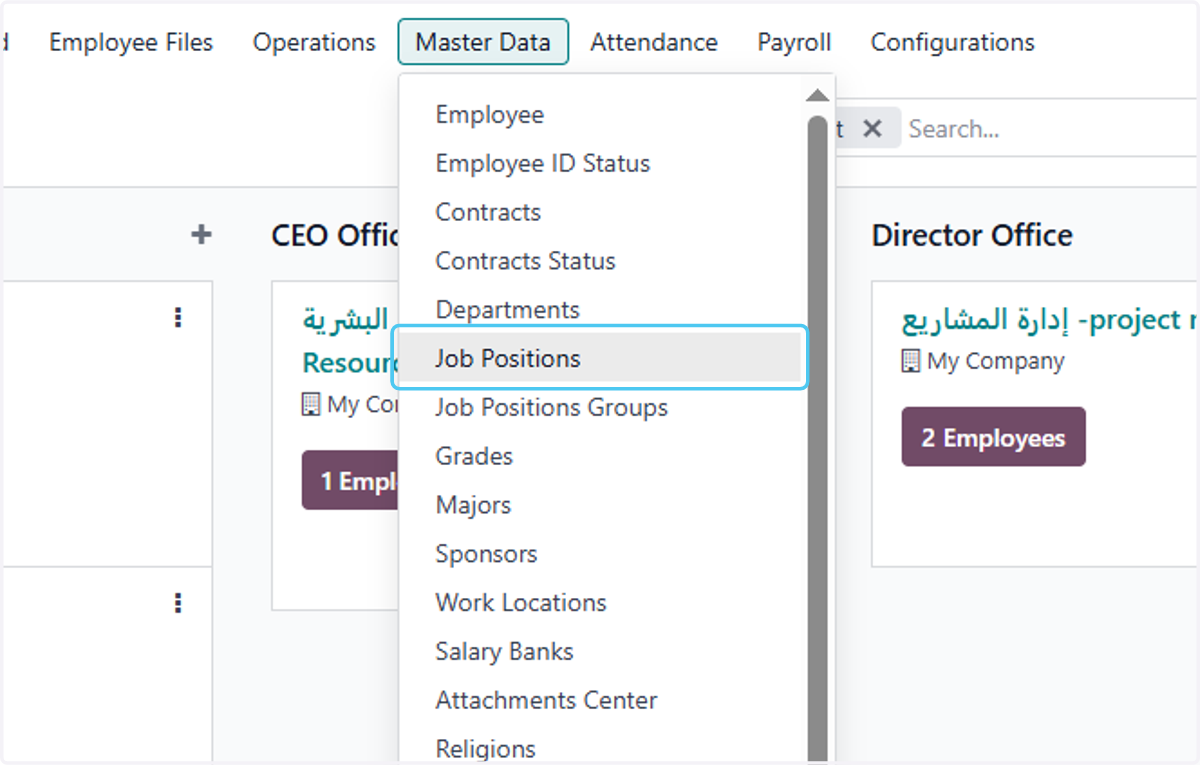
  29. 29. Click on Job Positions

    Click on Job Positions
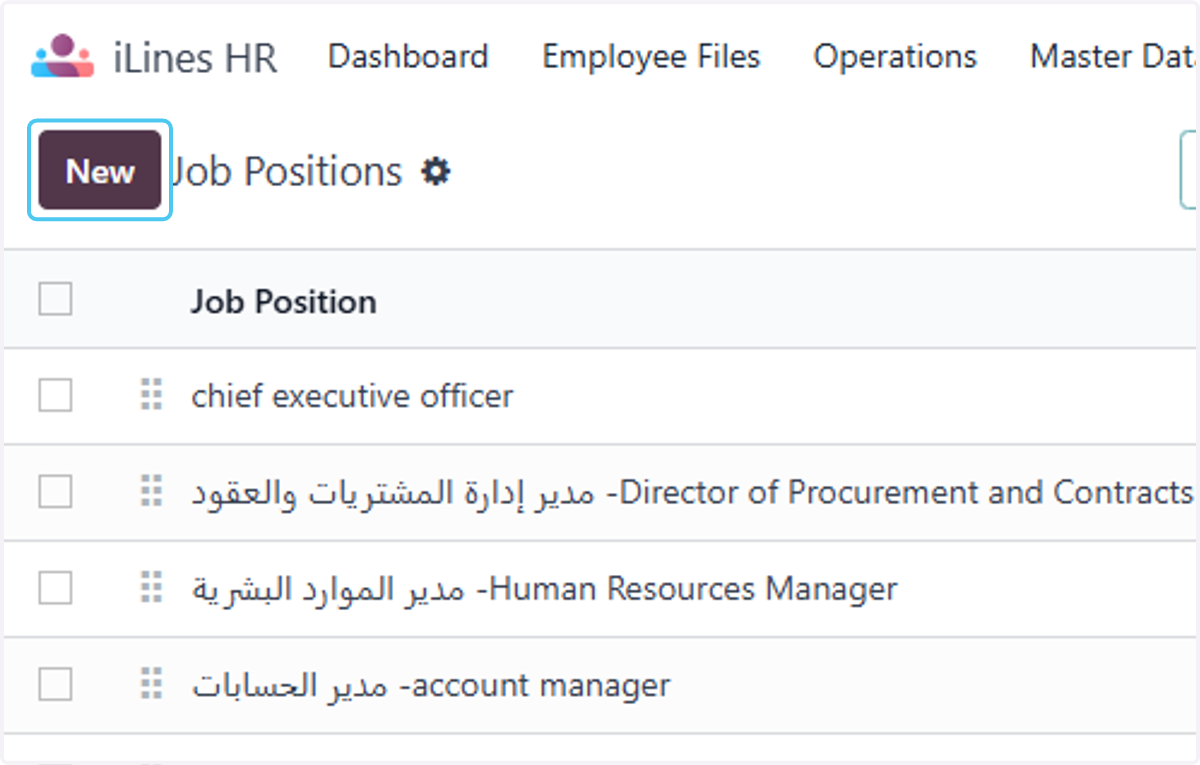
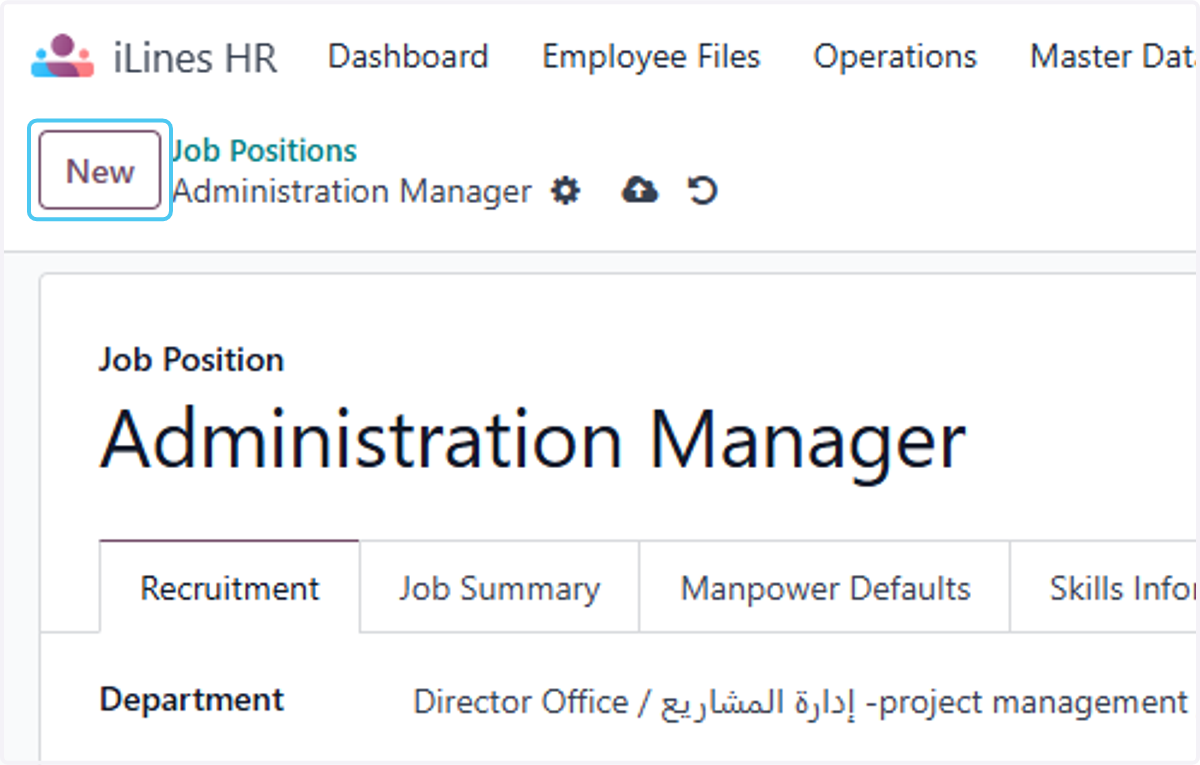
  30. 30. Click on New

    Click on New
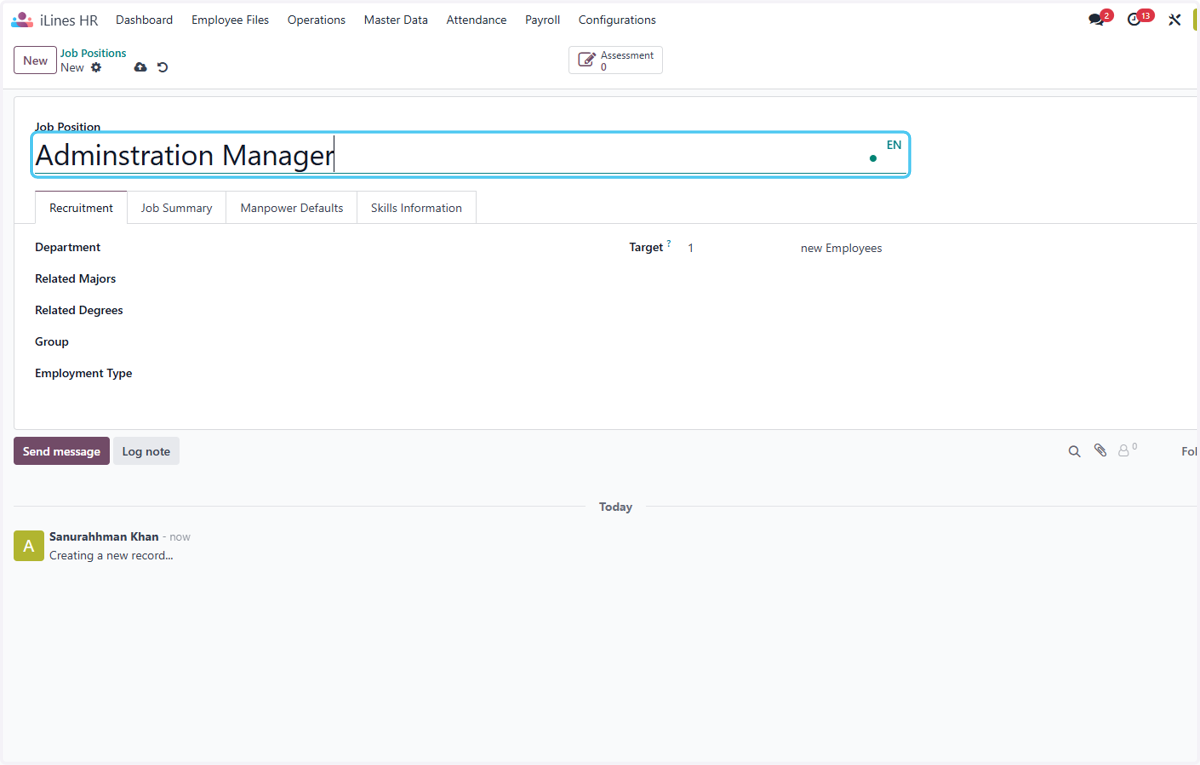
  31. 31. Type "Adminstration Manager"

    Type "Adminstration Manager"
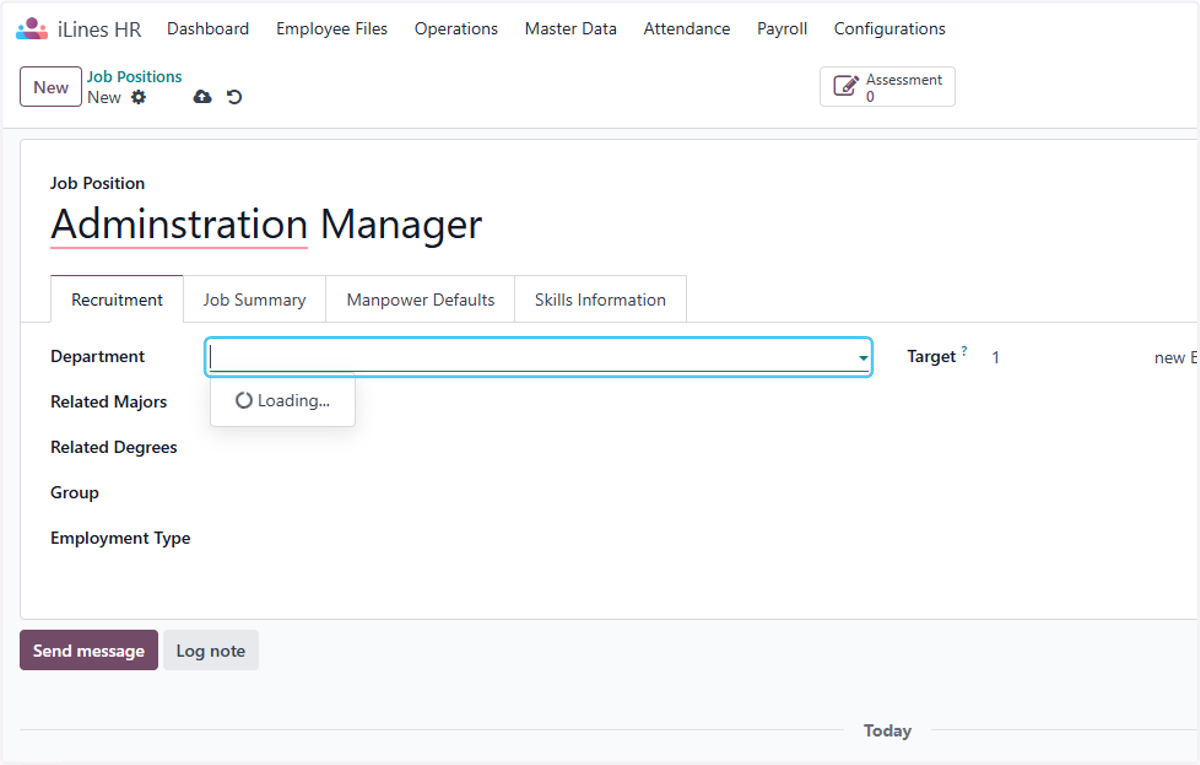
  32. 32. Click on Department

    Click on Department
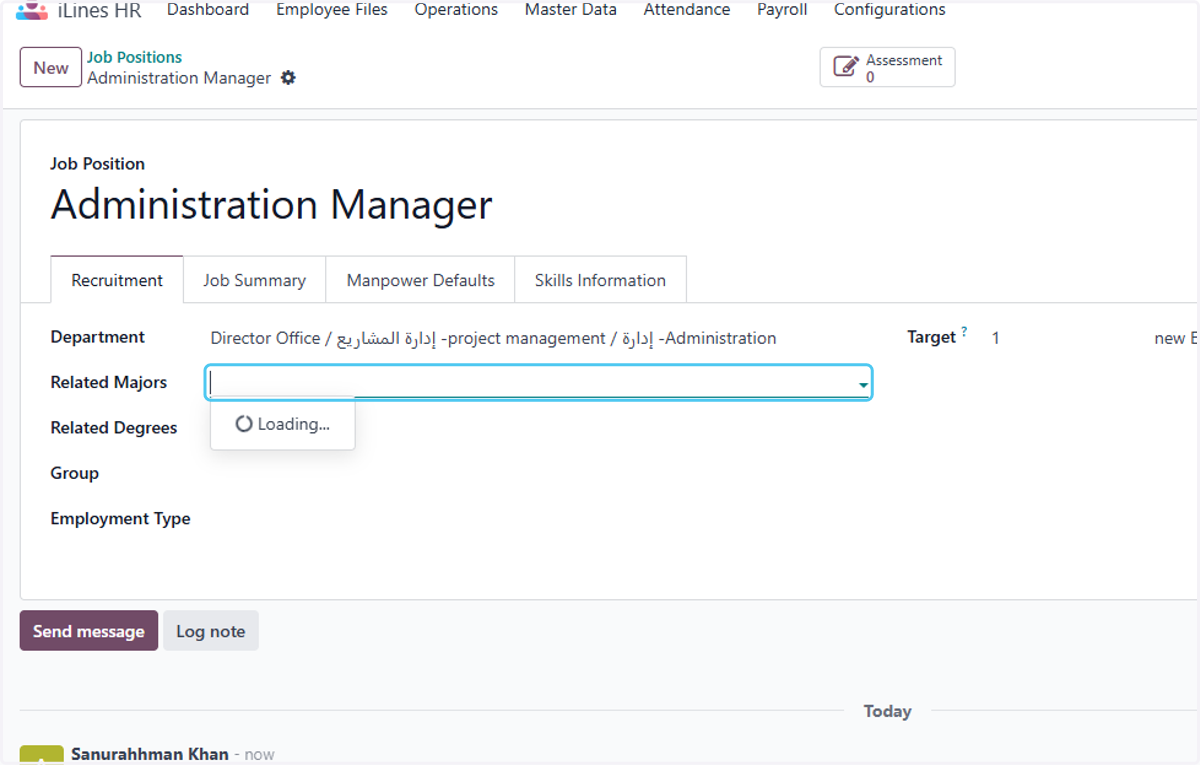
  33. 33. Click on Director Office / إدارة المشاريع -project management / إدارة -Administration
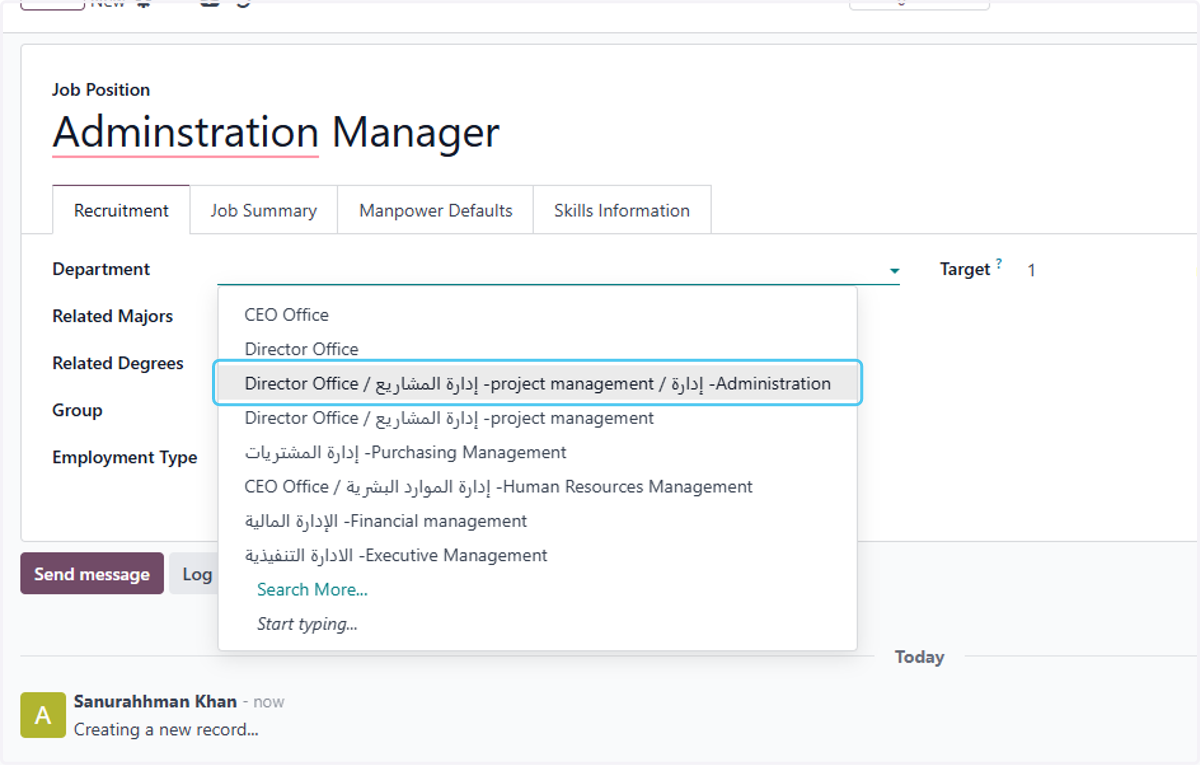
    Click on Director Office / إدارة المشاريع -project management / إدارة -Administration
  34. 34. Click on Related Majors

    Click on Related Majors
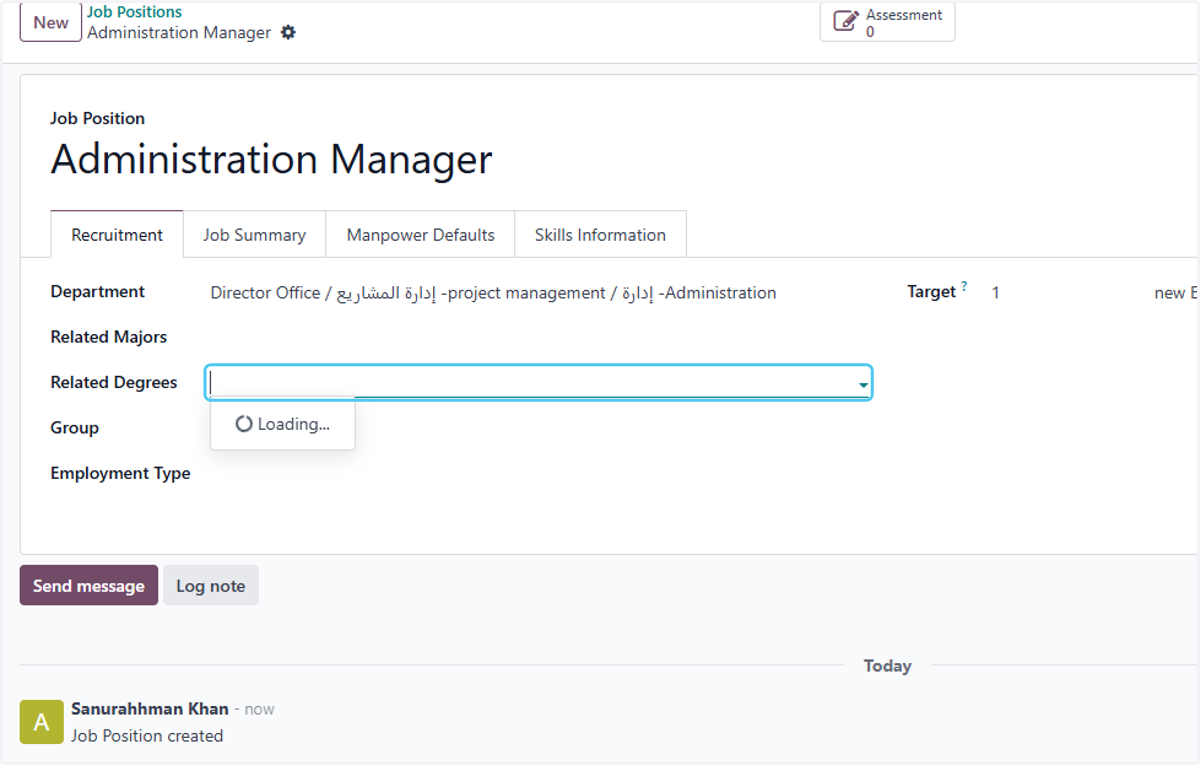
  35. 35. Click on Related Degrees

    Click on Related Degrees
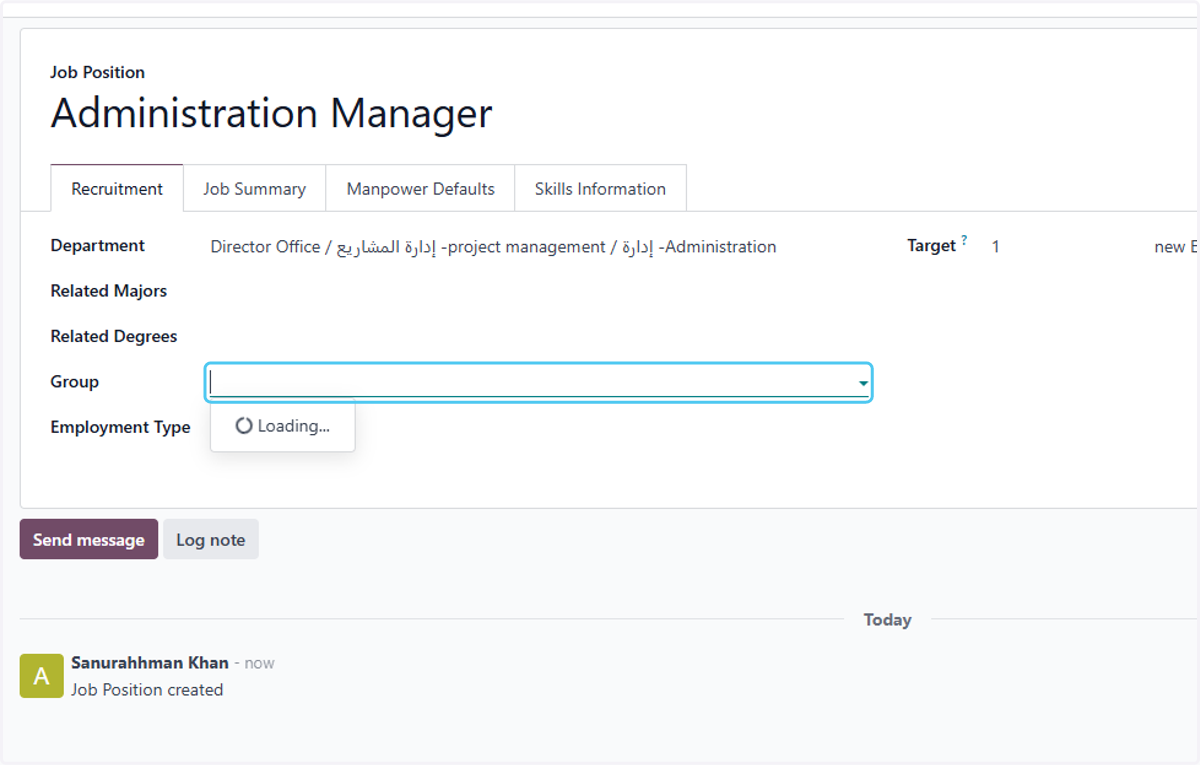
  36. 36. Click on Group

    Click on Group
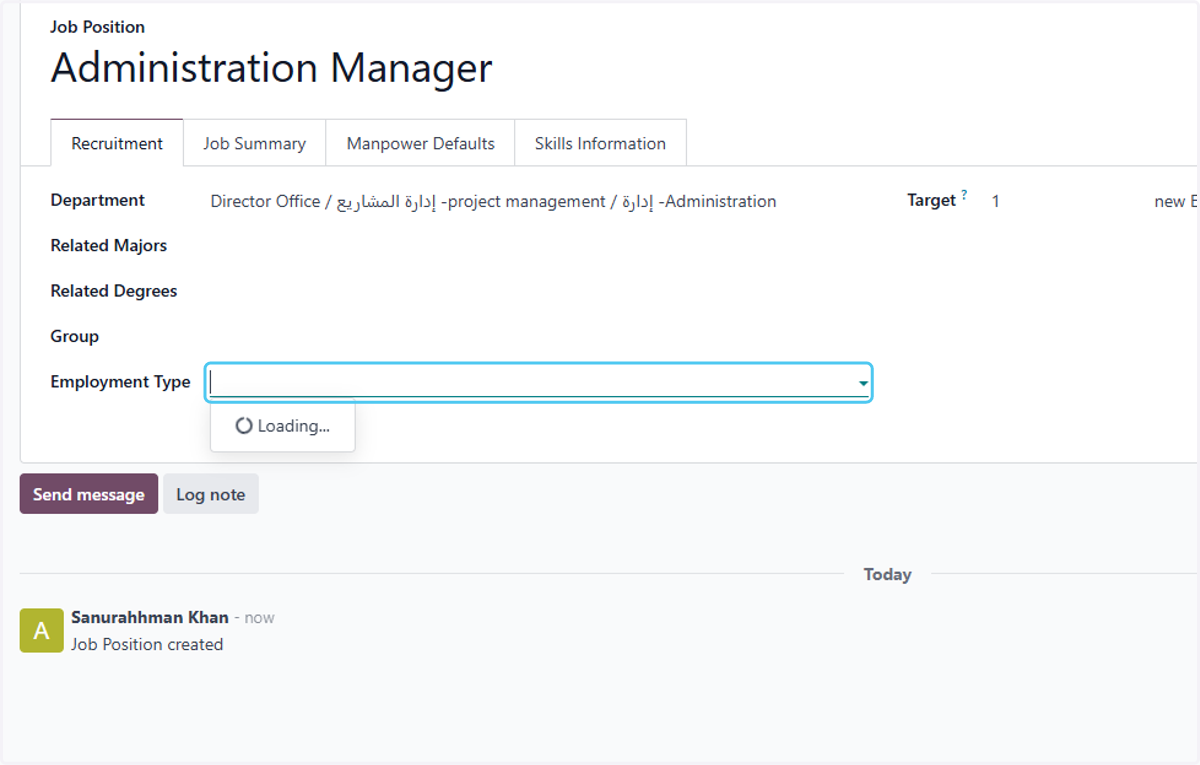
  37. 37. Click on Employment Type

    Click on Employment Type
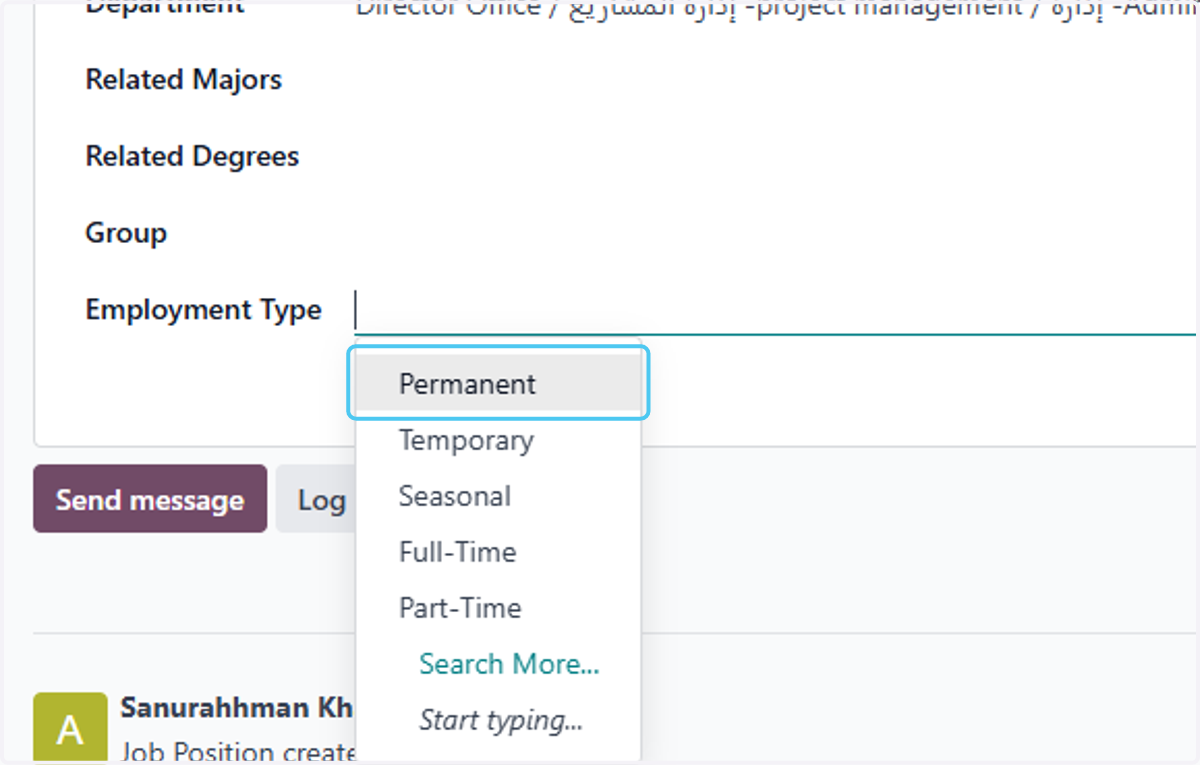
  38. 38. Click on Permanent

    Click on Permanent
  39. 39. Click on Save manually to create the job Possitionf
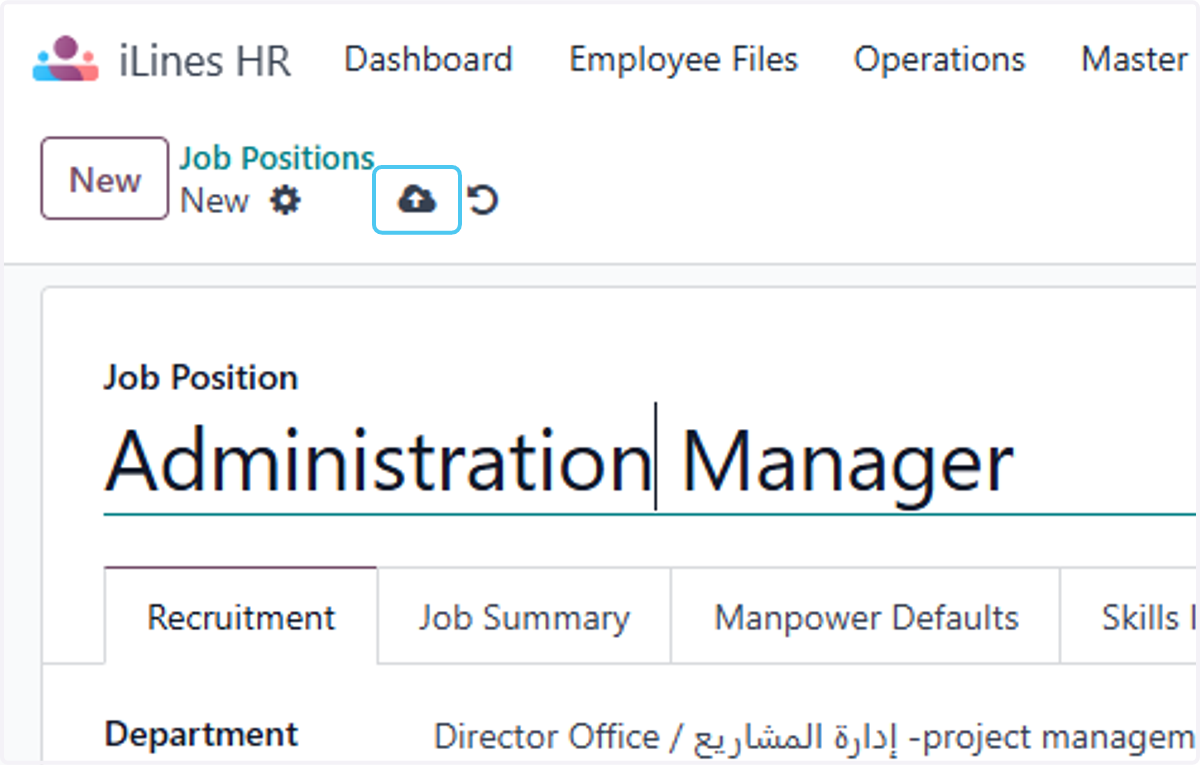
    Click on Save manually to create the job Possitionf
  40. 40. Click on New

    Click on New
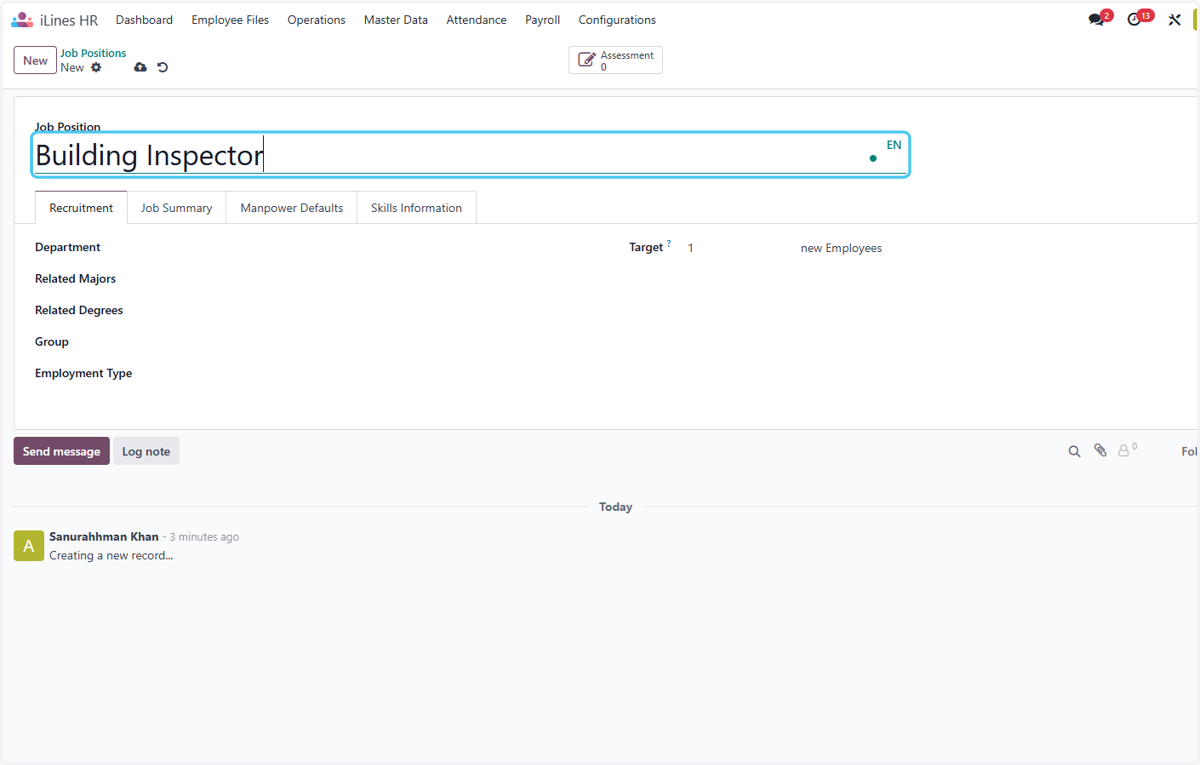
  41. 41. Type "Building Inspector"

    Type "Building Inspector"
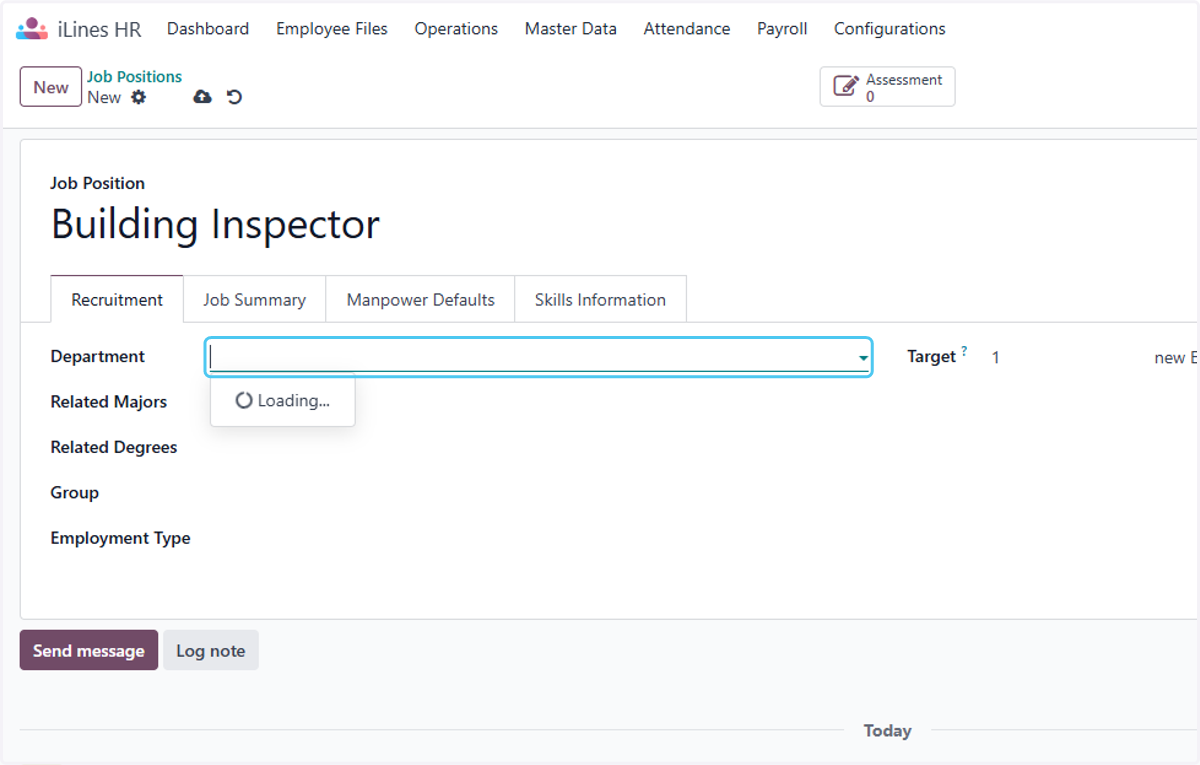
  42. 42. Click on Department

    Click on Department
  43. 43. Click on Director Office / إدارة المشاريع -project management
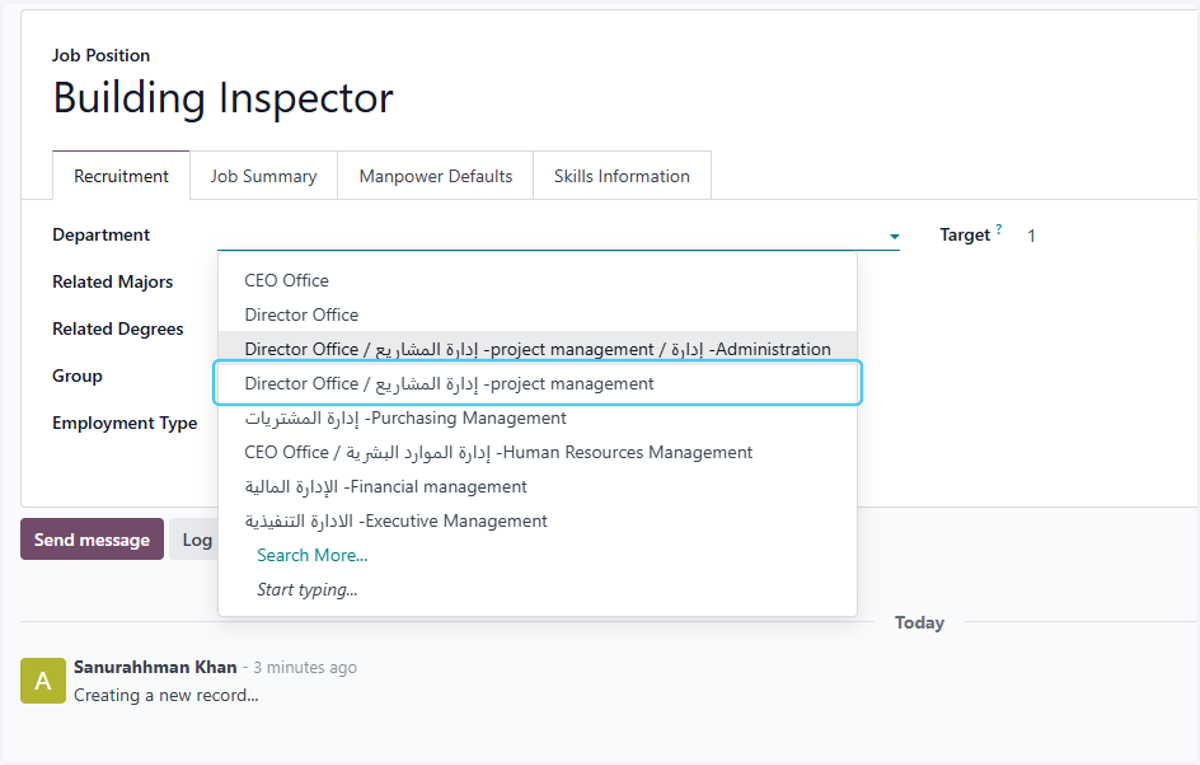
    Click on Director Office / إدارة المشاريع -project management
  44. 44. Click on Job Summary to add any summery for the positon
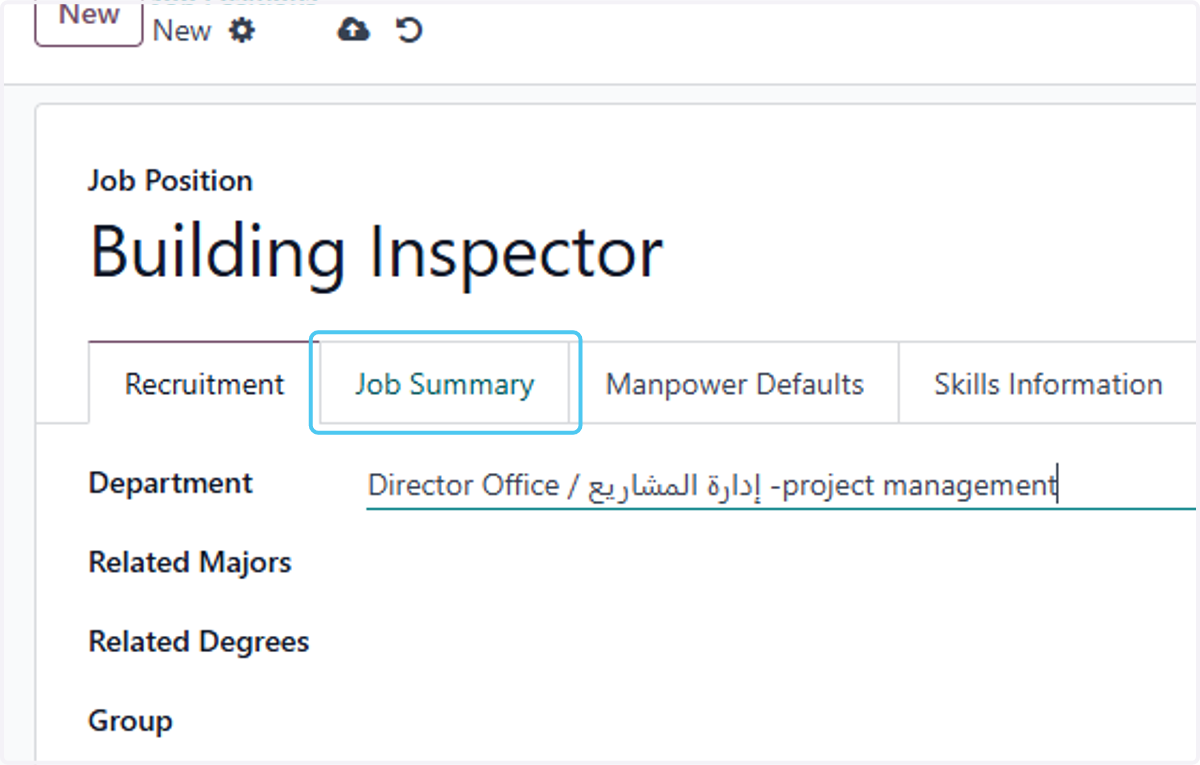
    Click on Job Summary to add any summery for the positon
  45. 45. Click on To enrich screen reader interactions, please activate Accessibility in Grammarly extension settings
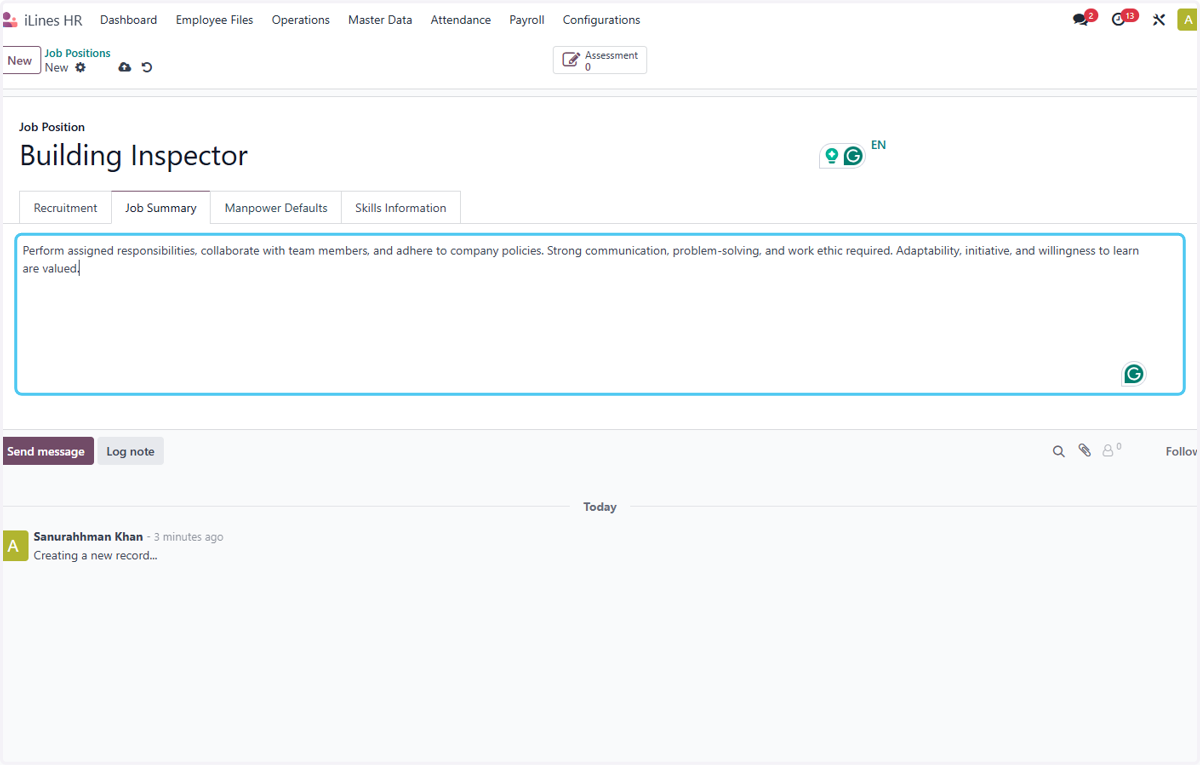
    Click on To enrich screen reader interactions, please activate Accessibility in Grammarly extension settings
  46. 46. Click on Manpower Defaults if you want to add default Manpower
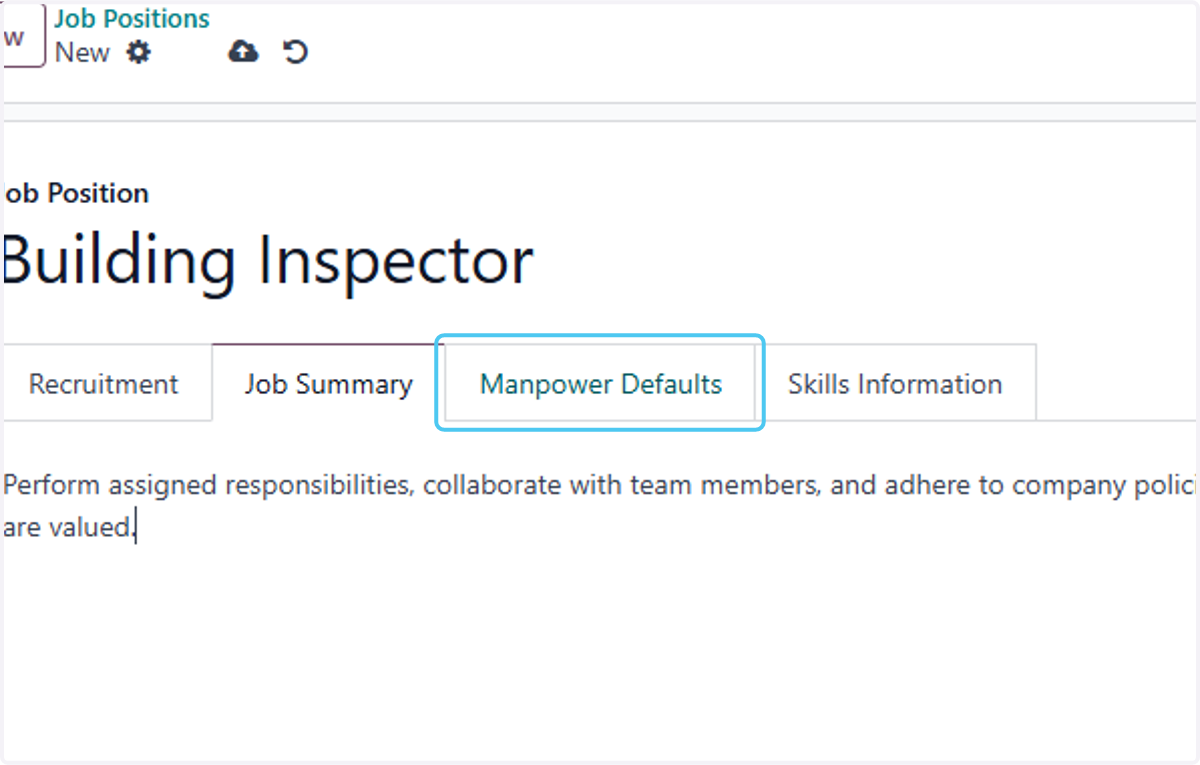
    Click on Manpower Defaults if you want to add default Manpower
  47. 47. Click on wage and add wage details if Any
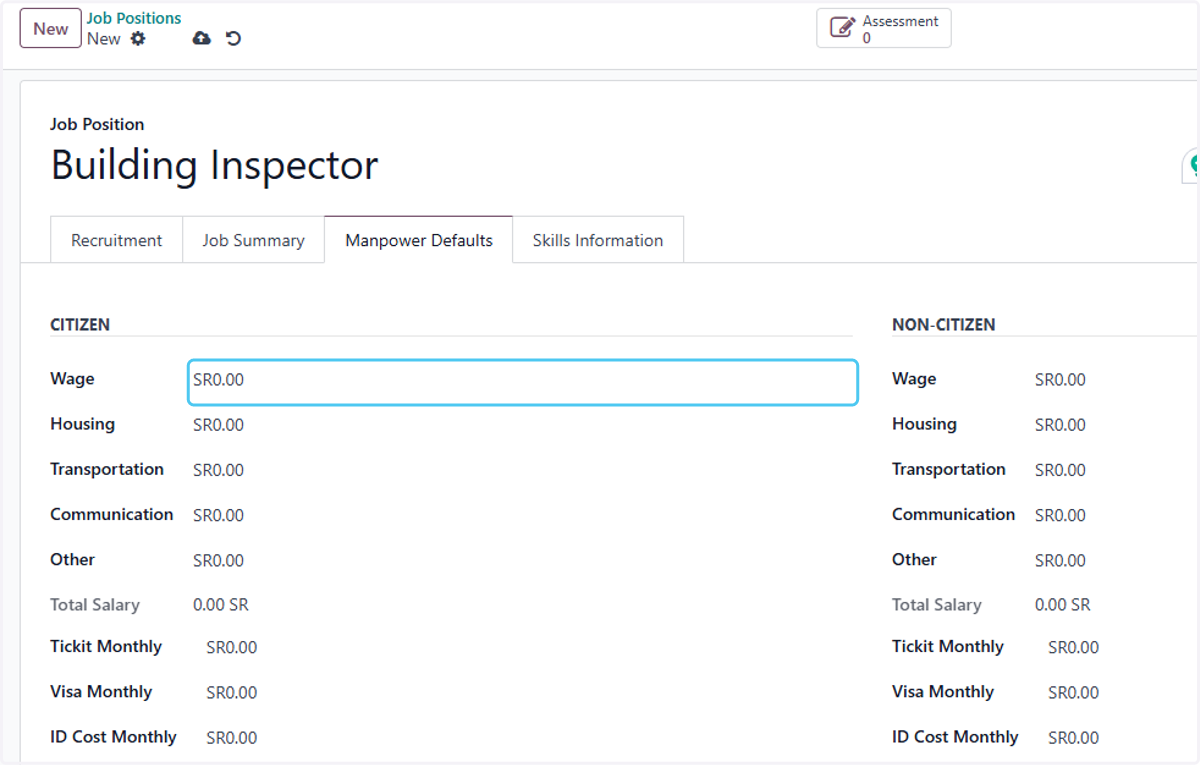
    Click on wage and add wage details if Any
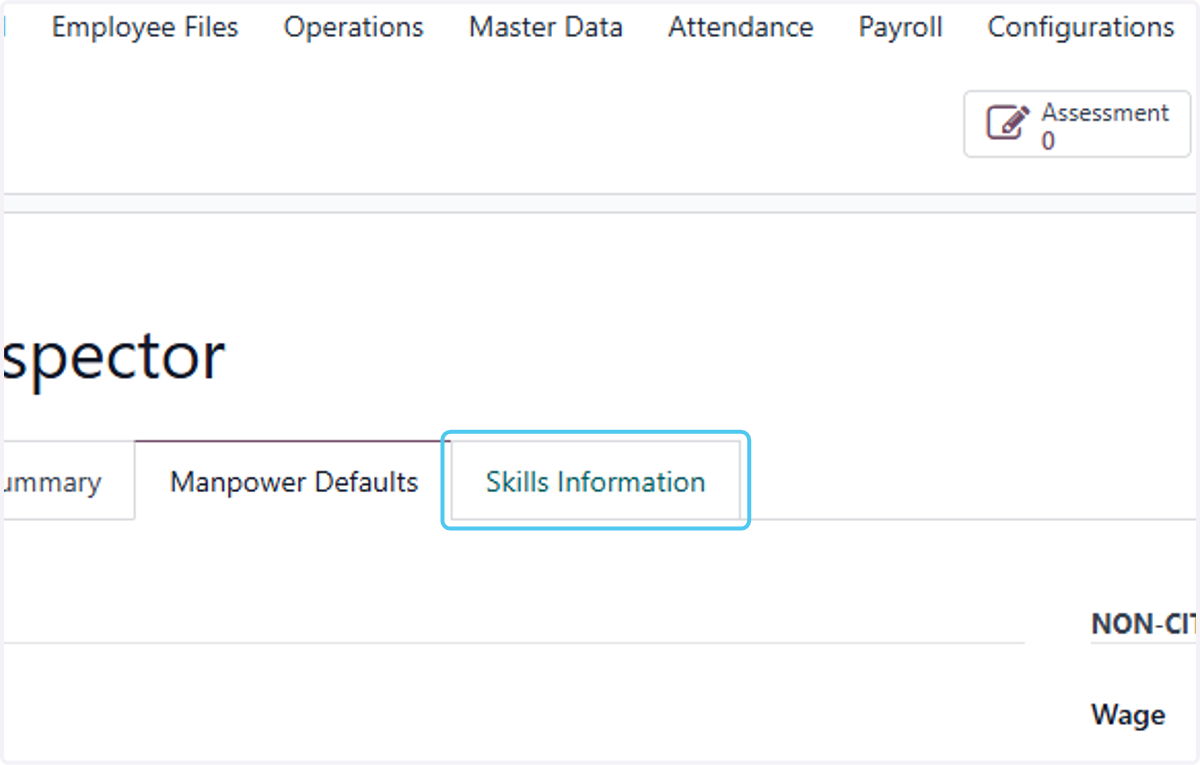
  48. 48. Click on Skills Information

    Click on Skills Information
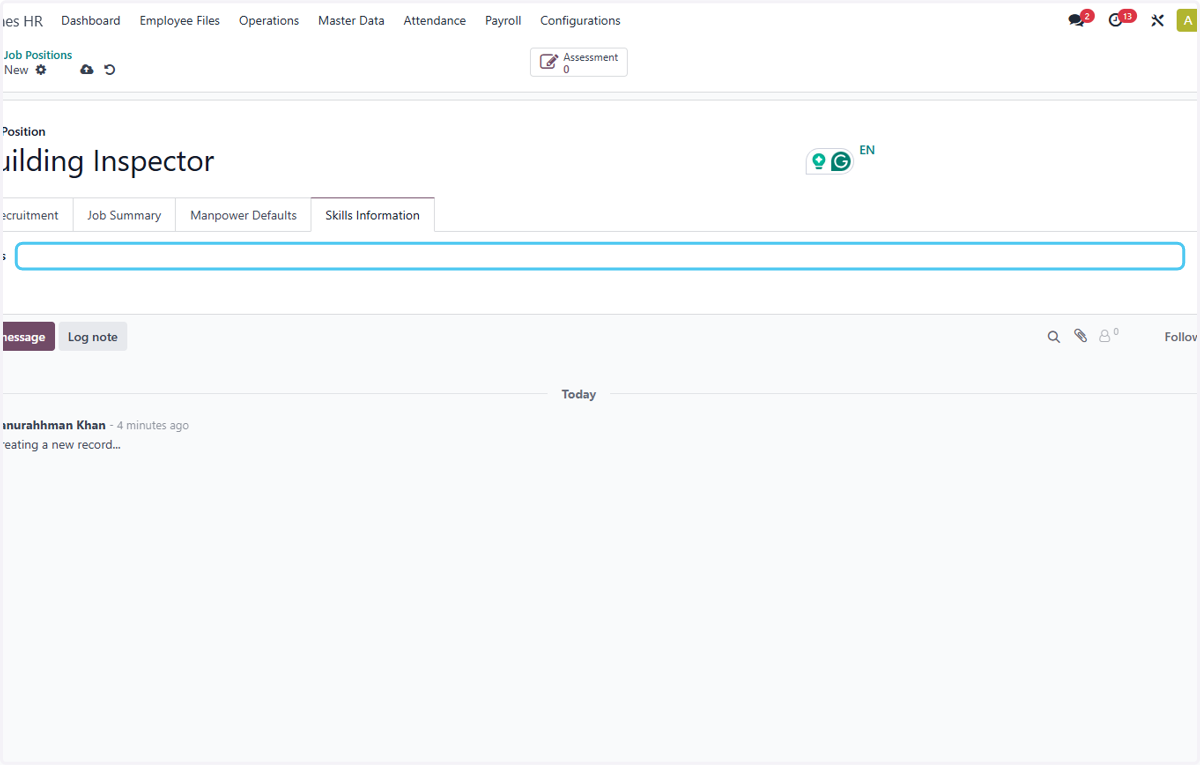
  49. 49. Click on Skills

    Click on Skills
  50. 50. Click on Save manually Finally the Job Position is created
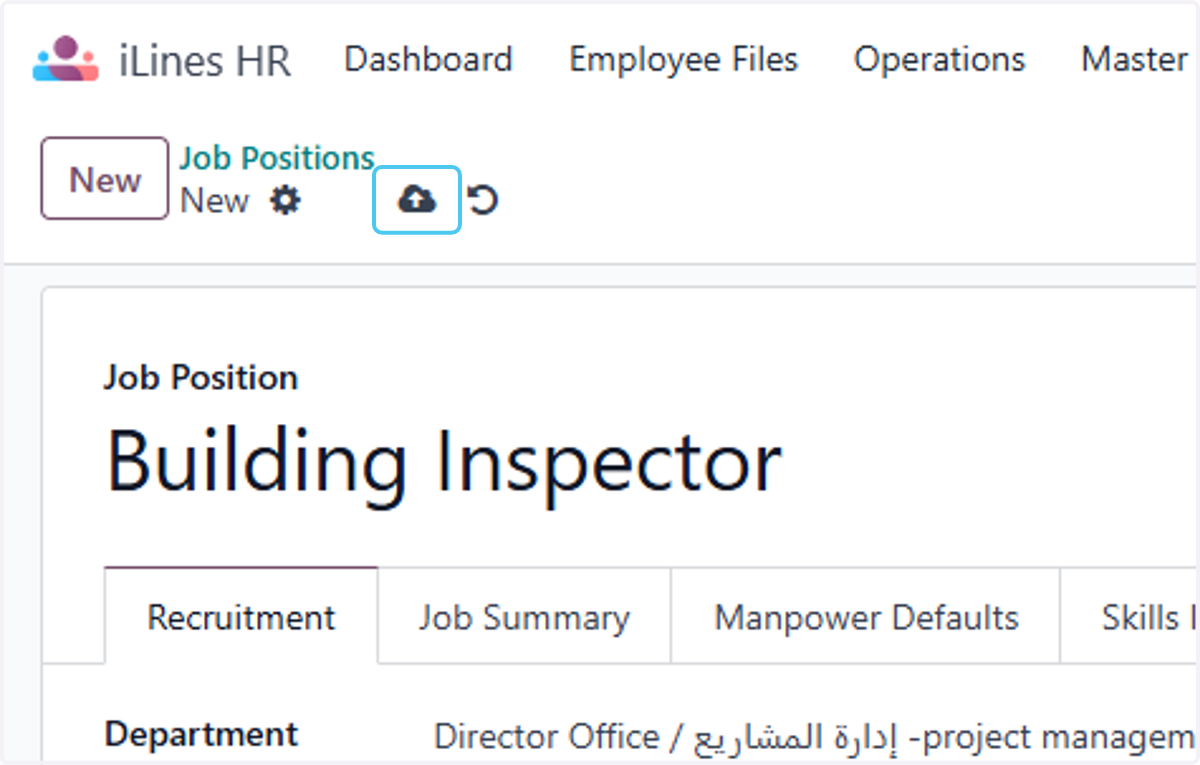
    Click on Save manually Finally the Job Position is created