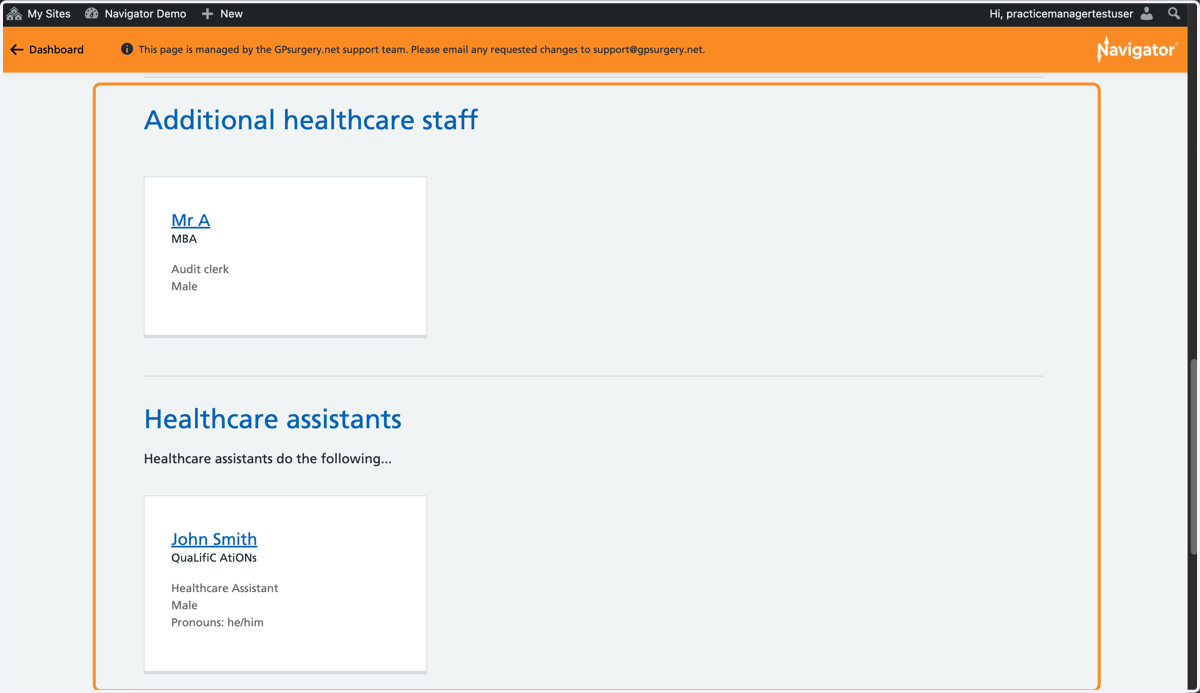
Reorder Occupations on a Navigator website
This tutorial explains how to reorder Occupations on a GPsurgery.net Navigator website Team page. You can move through the tutorial at your own pace using the NEXT button.
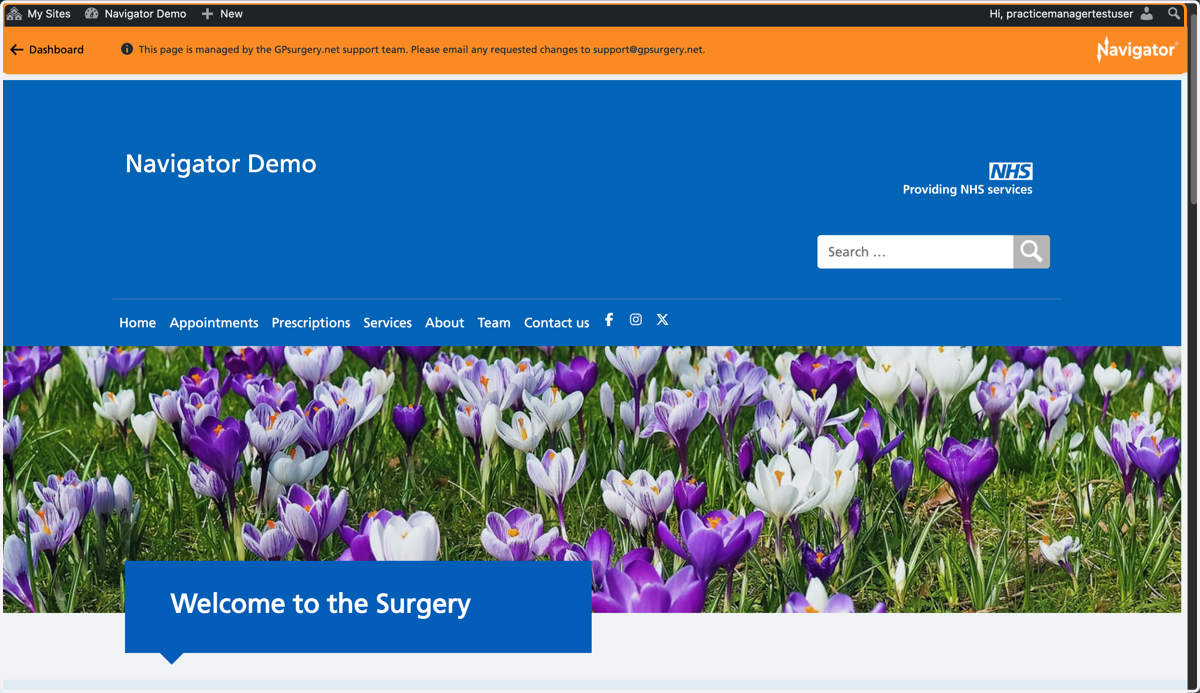
1. Ensure you are logged into your website. The orange Navigator toolbar and black admin toolbar should be visible at the top of your screen.
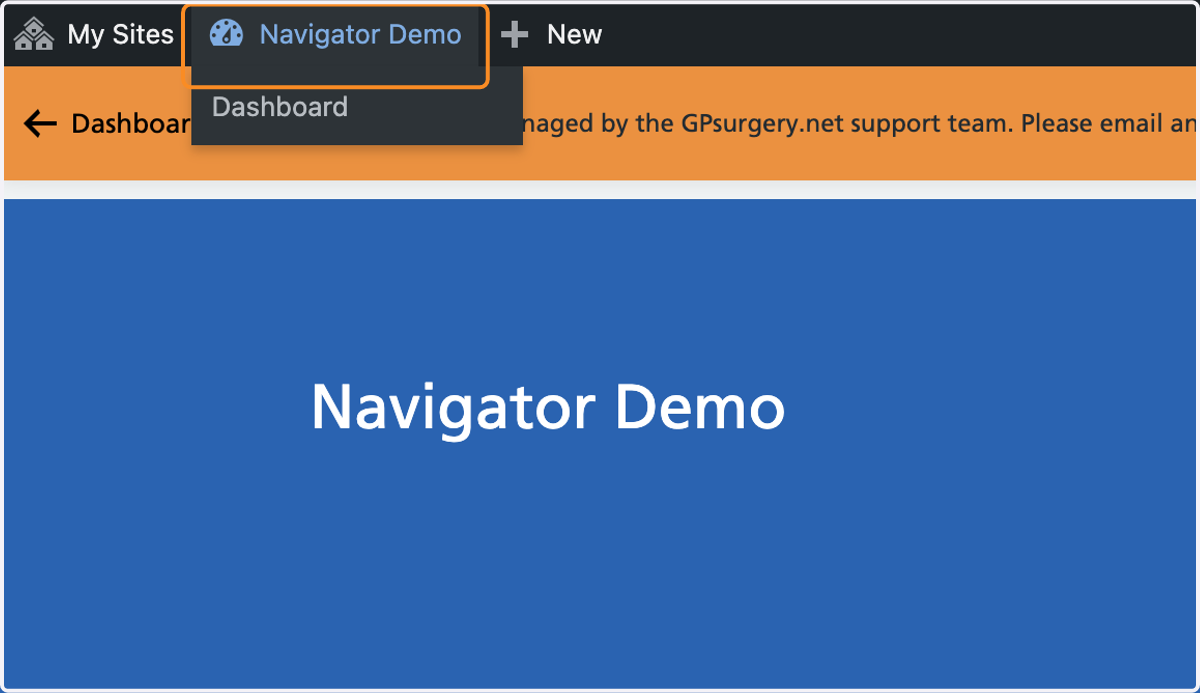
2. Select the name of your practice from the admin toolbar.
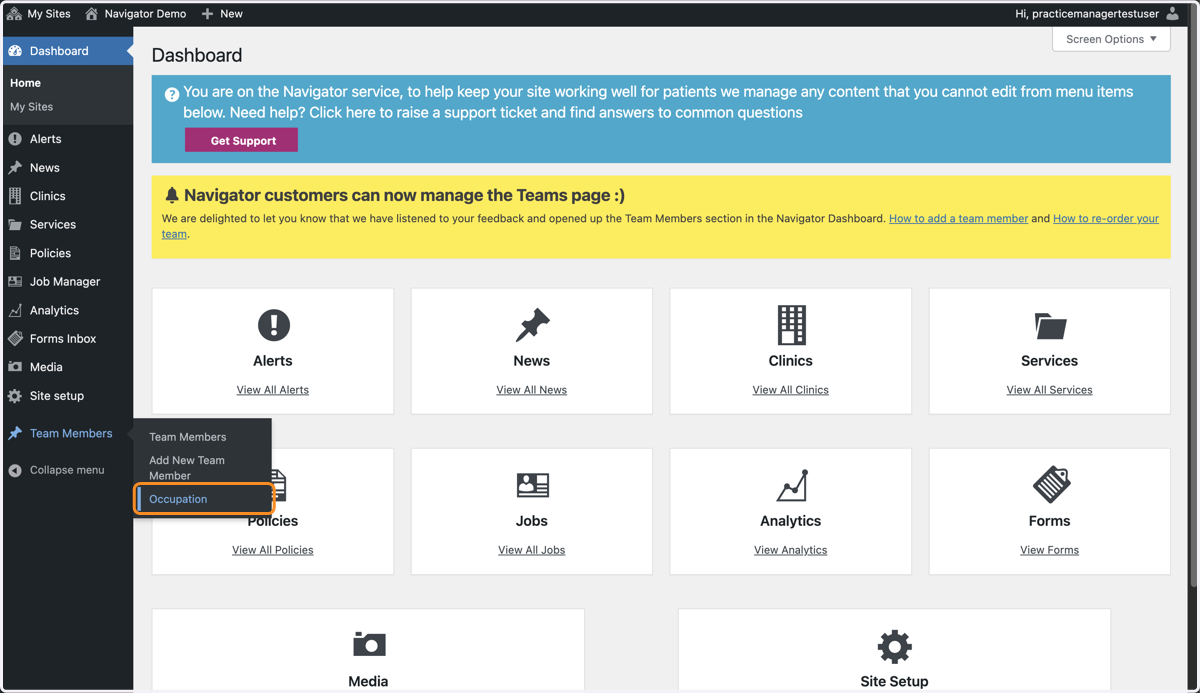
3. You are now in the Dashboard. Hover your mouse over Team Members in the left-hand toolbar, and select Occupation from the drop-down that appears.
4. You are now in the Occupations section of the Dashboard.
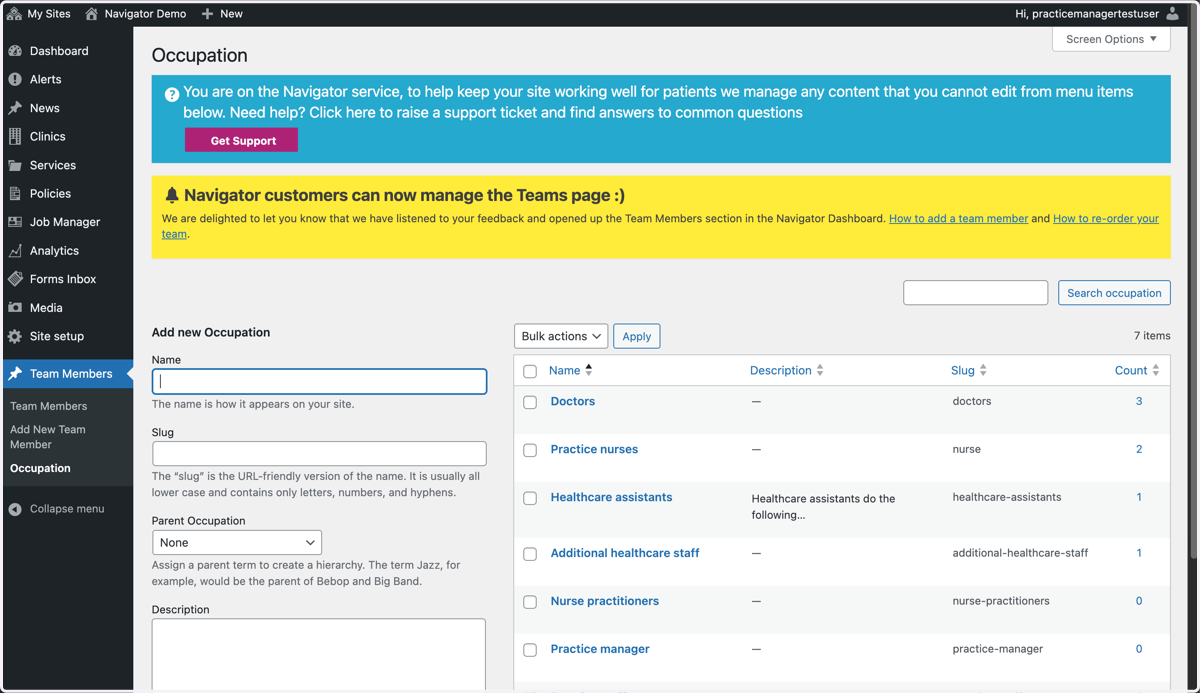
5. To reorder your Occupations, click and drag the occupation entry up or down to your desired new order. You do not need to save.
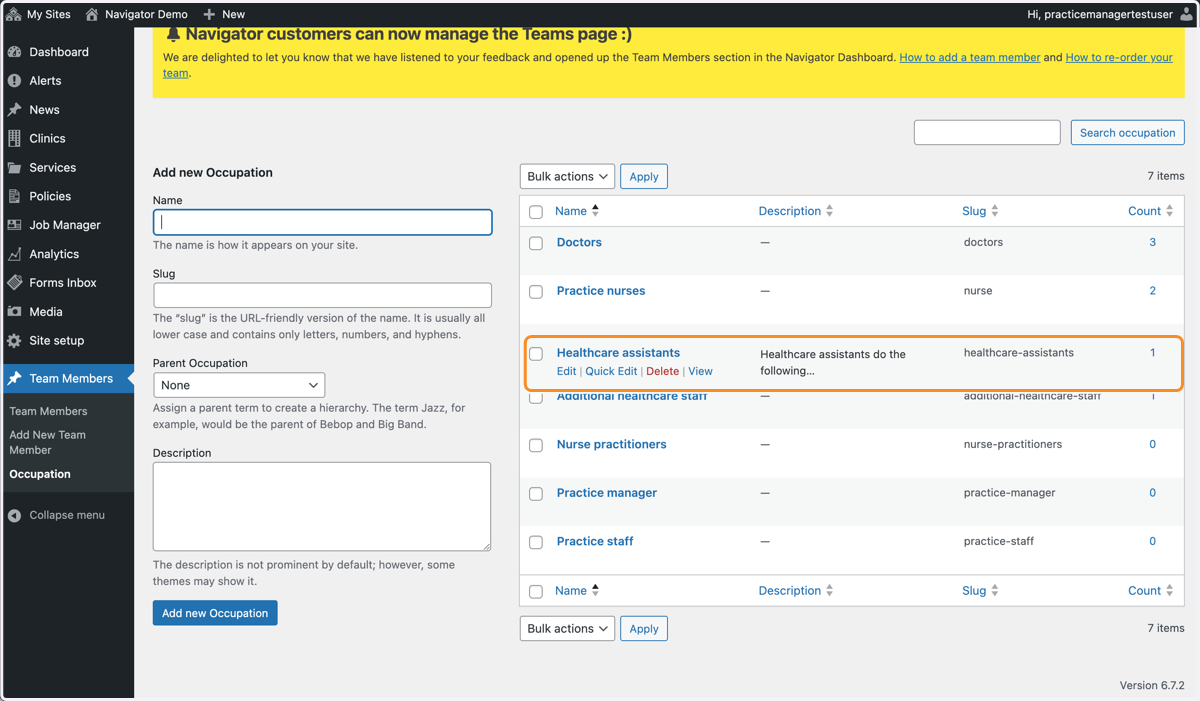
6. Your occupations will now be displaying on the Team page in your new desired order.