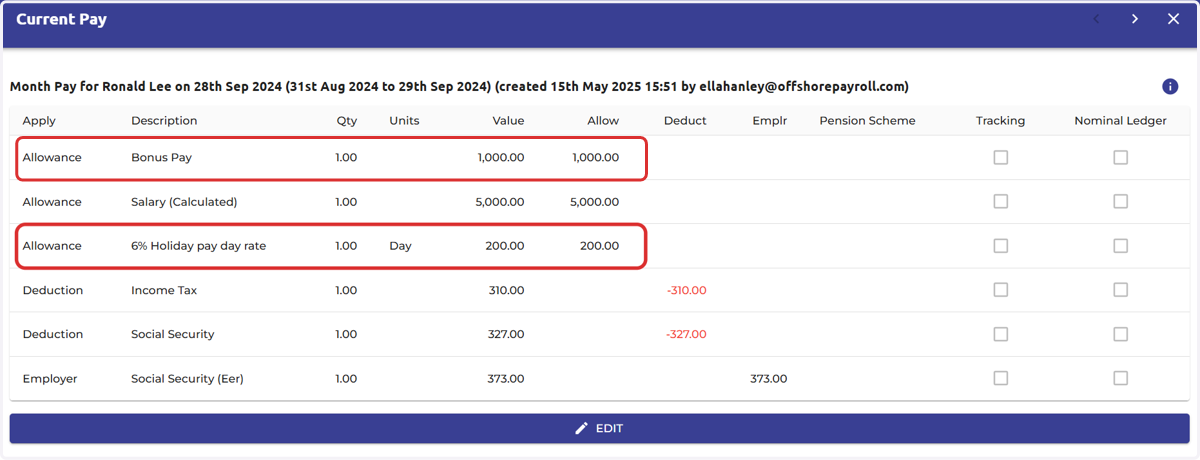
Import Pay Run Elements Feature
Tango
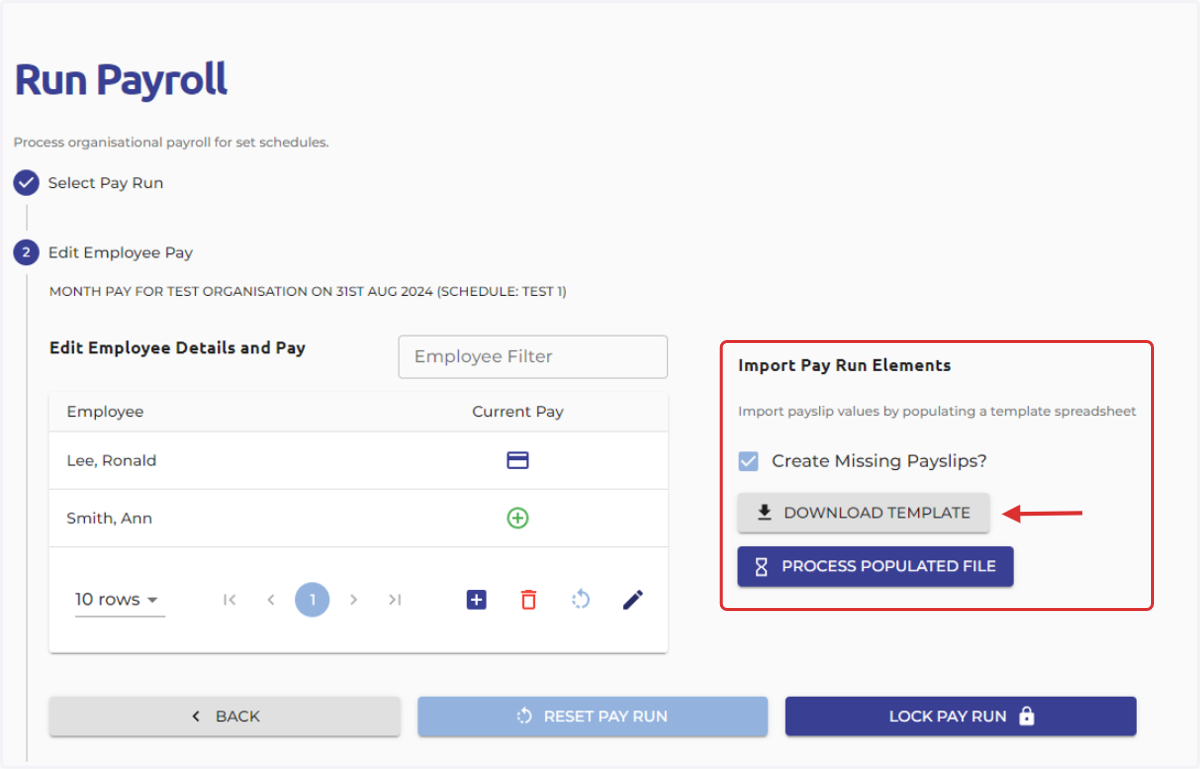
1. Once you have started your pay run you have the option to import pay run elements
Select Download Template to download the template Excel file
This template is pre-structured to match the system’s requirements
Make sure to save the file before editing to reduce any risk of data loss
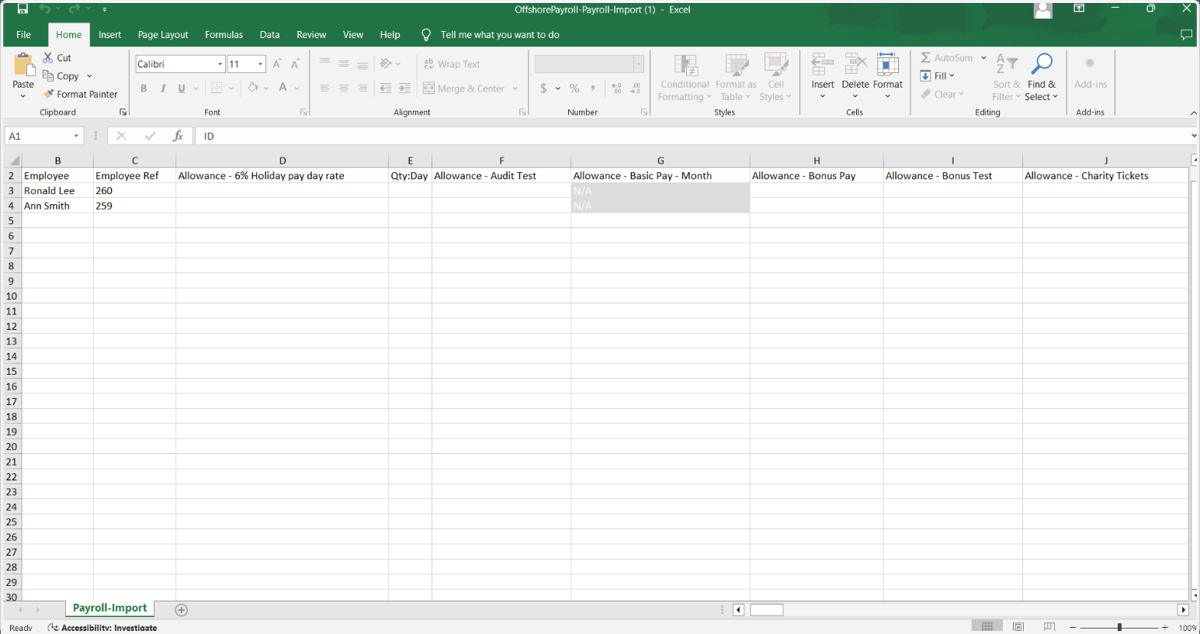
2. Open the downloaded file to begin populating the data
Important notes:
Column A: This is a hidden column, which contains unique IDs used to link records to individual employees. Ensure this column remains intact for accurate imports.
File Format Requirements: The import file must be in
.xlsxformat. Avoid converting it to.csvor other formats, as this may disrupt the import process.Avoid altering headers or the order of columns.
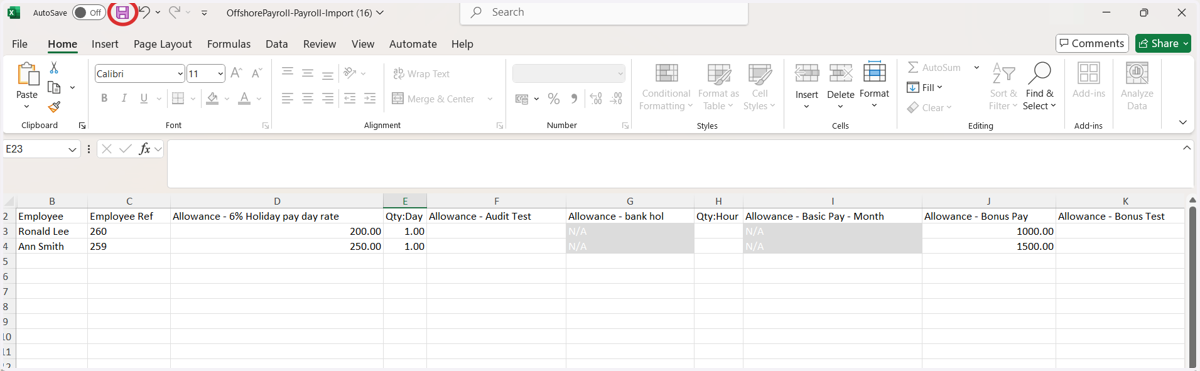
The app exports the employee names and reference numbers in the first two columns. All other columns are pay elements.
3. Fill in the necessary pay element details for each employee, including values like bonuses, or holiday allowance.
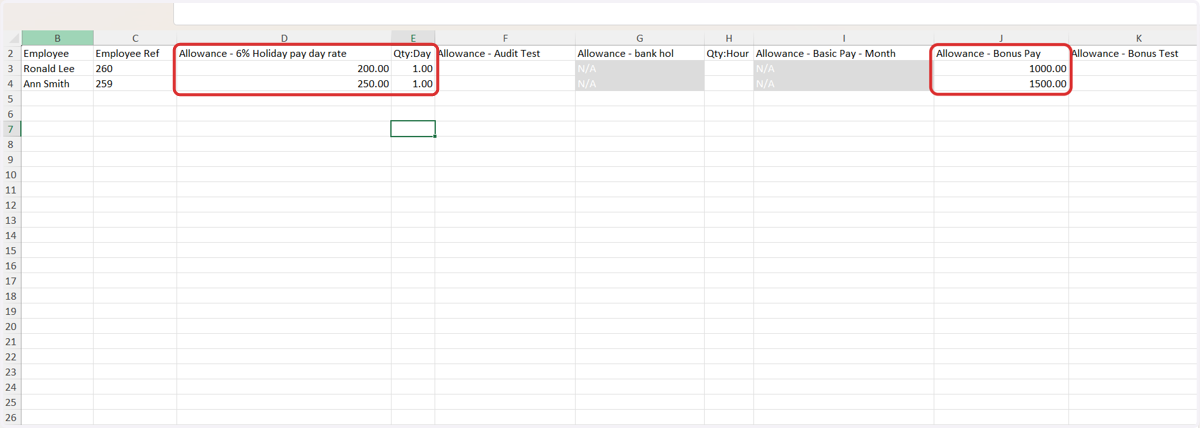
4. Save the completed import sheet
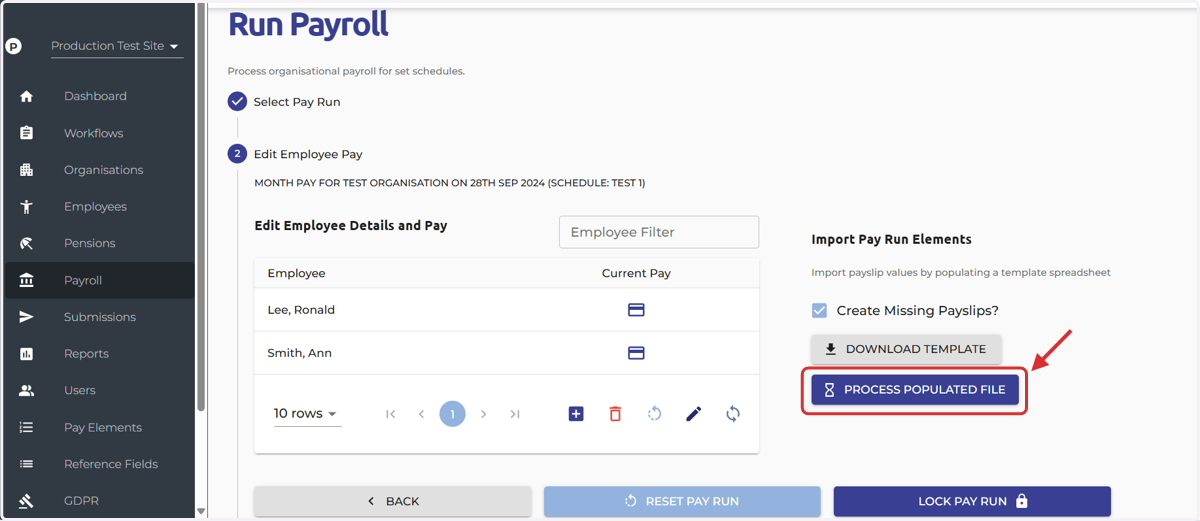
5. Navigate back to Offshore Payroll and select 'Process Populated File'
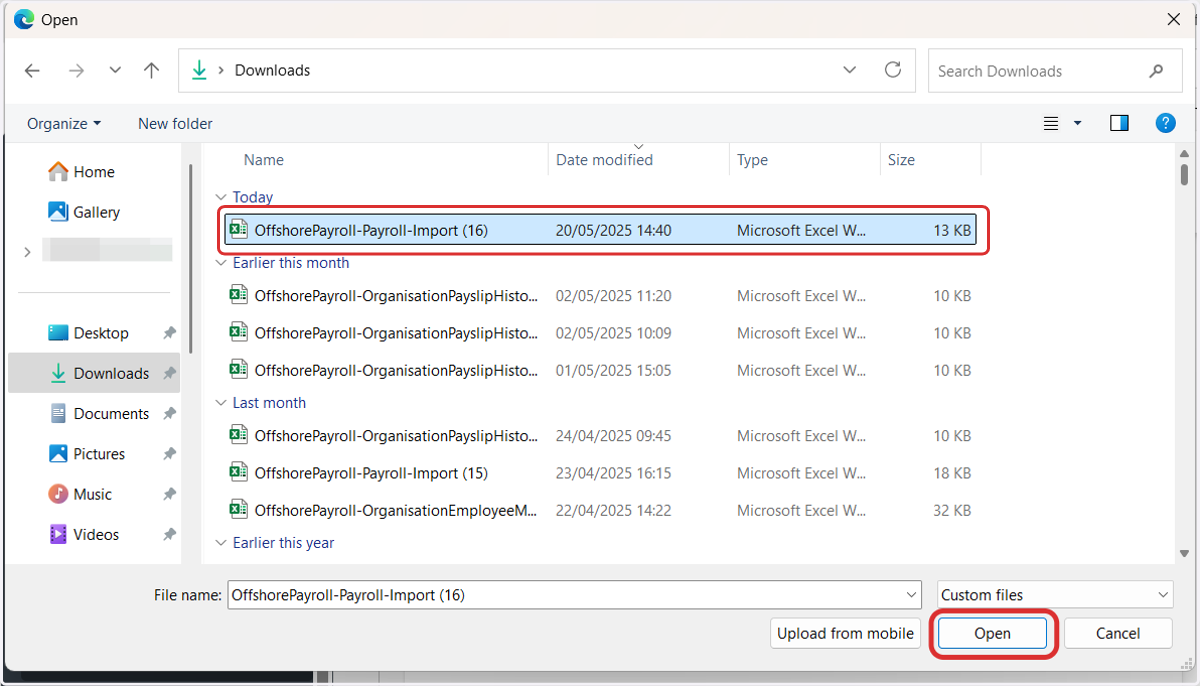
6. Select the saved spreadsheet and select 'Open'
7. Click 'Apply Selected Items' Once satisfied with the data, click Apply Selected Items to process the import.
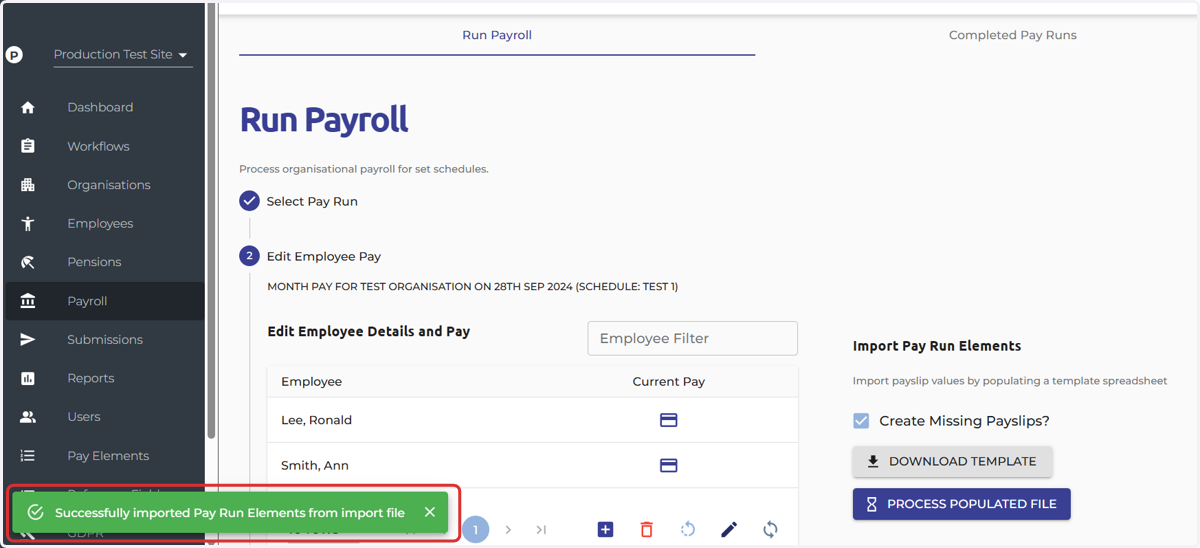
A green pop-up message will appear on screen notifying you that the file has successfully been uploaded.
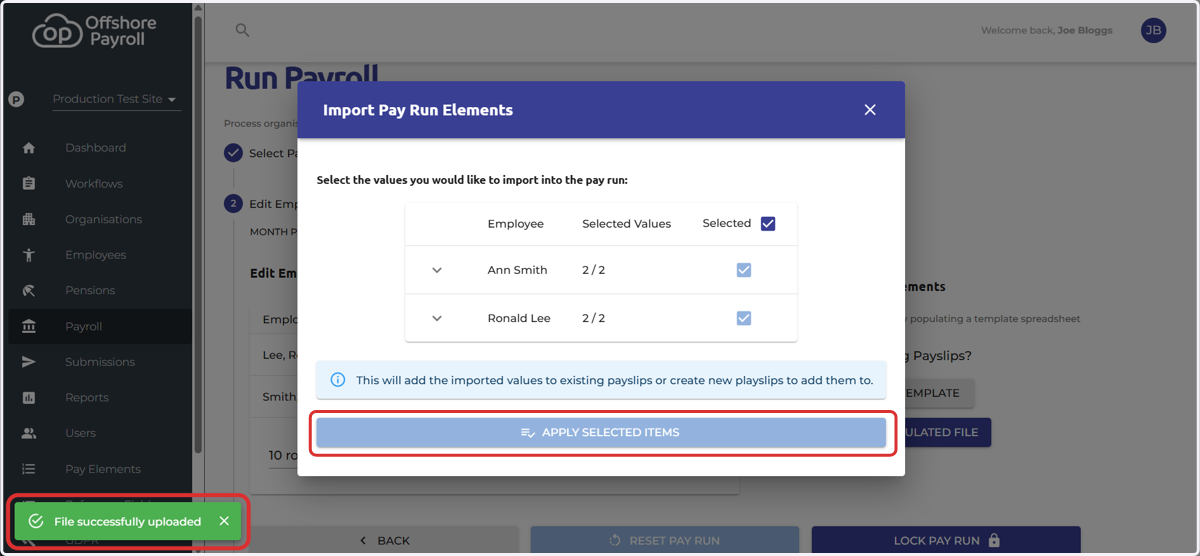
8. A green pop-up message will appear on screen notifying you that the import file has been successfully been imported.
9. You can then review the payslip to ensure the pay elements have been imported correctly.