How to Add a CompSet Group to a Unit
Before adding a CompSet Group to a unit, make sure that CompSet Pricing is enabled on your RevMax account. If CompSet Pricing is not enabled, please contact RevMax Support for assistance.
Step 1: Create or Review Your CompSet Groups in the CompSet Builder Page
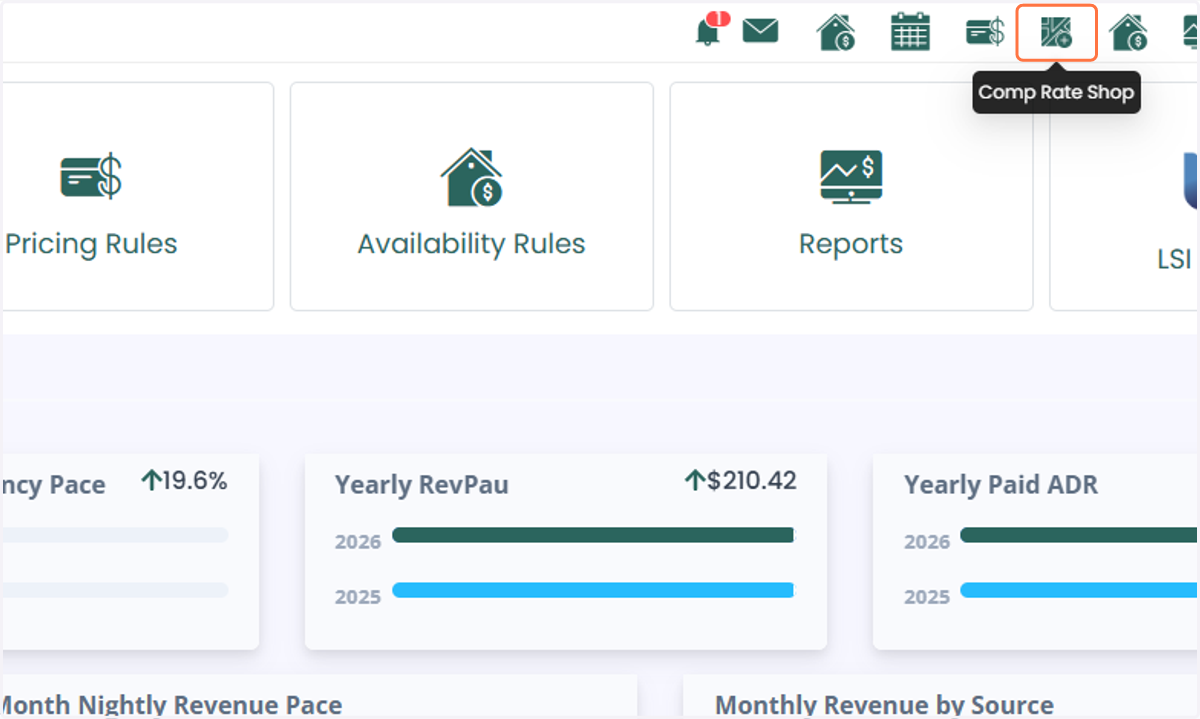
1. You can click on the Comp Rate Shop icon on the RevMax main page
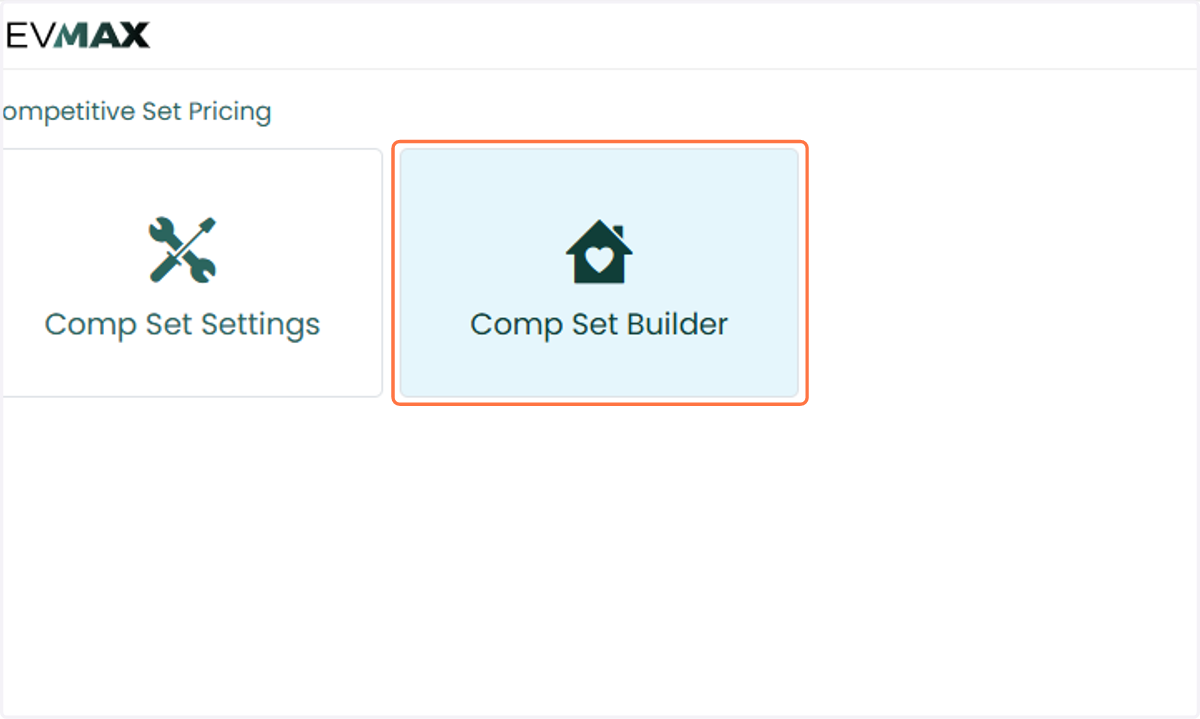
2. Or through the Comp Set Builder page under Competitive Set Pricing
3. If you already have CompSet Groups configured, review the groups you would like to assign to your unit.
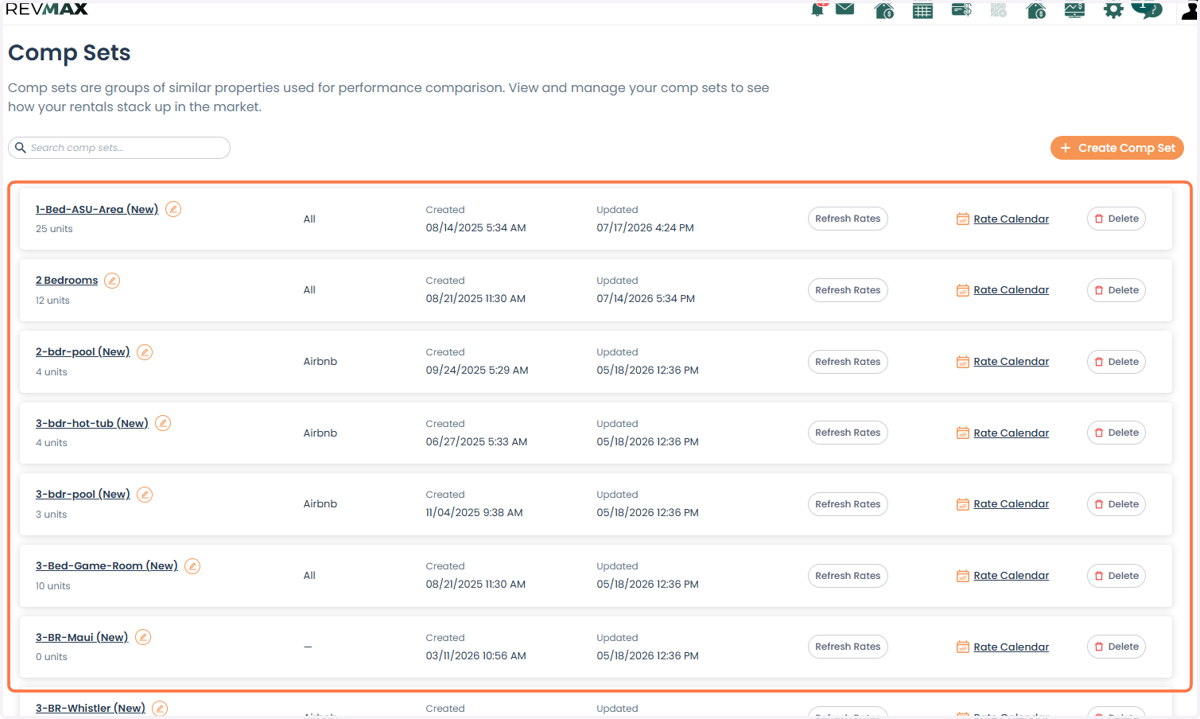
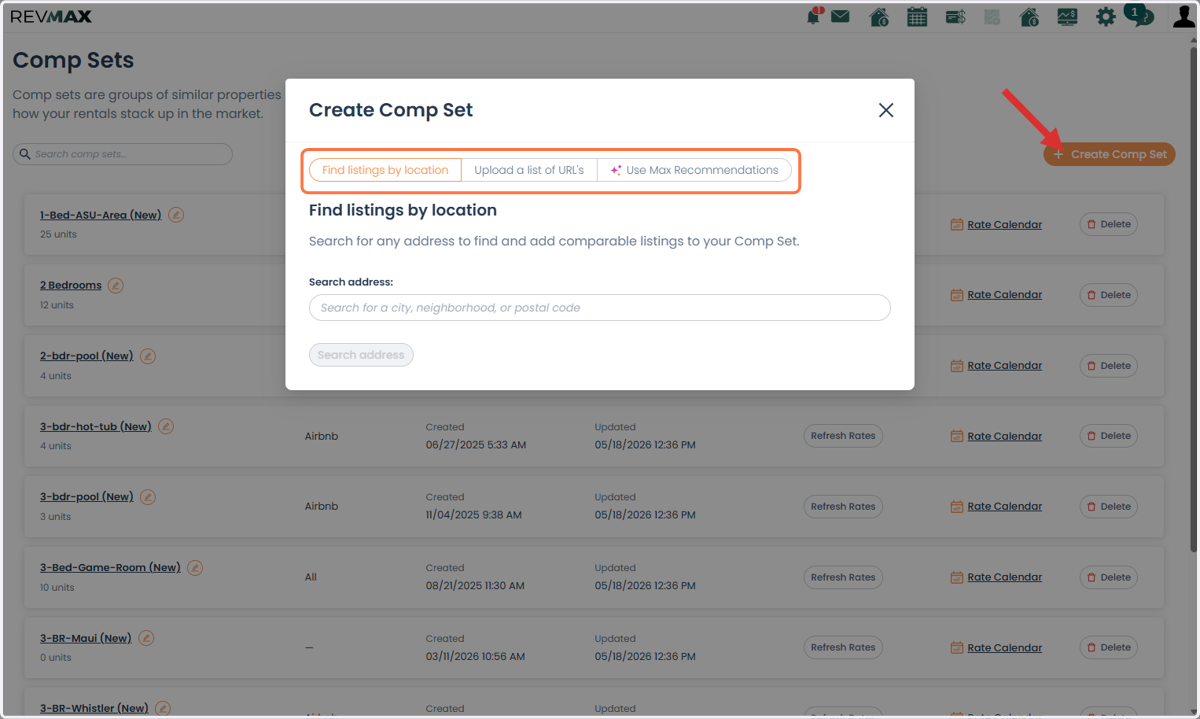
4. If you do not have any CompSet Groups yet, you can create one by clicking Create Comp Set.
You can create a CompSet using any of the following options:
-Find Listings by Location
-Upload a List of URLs
-Use Max Recommendations
Step 2: Assign a CompSet Group
5. Once you have your CompSet Groups, go to: Pricing Rules > Competitive Set Pricing > Comp Set Settings
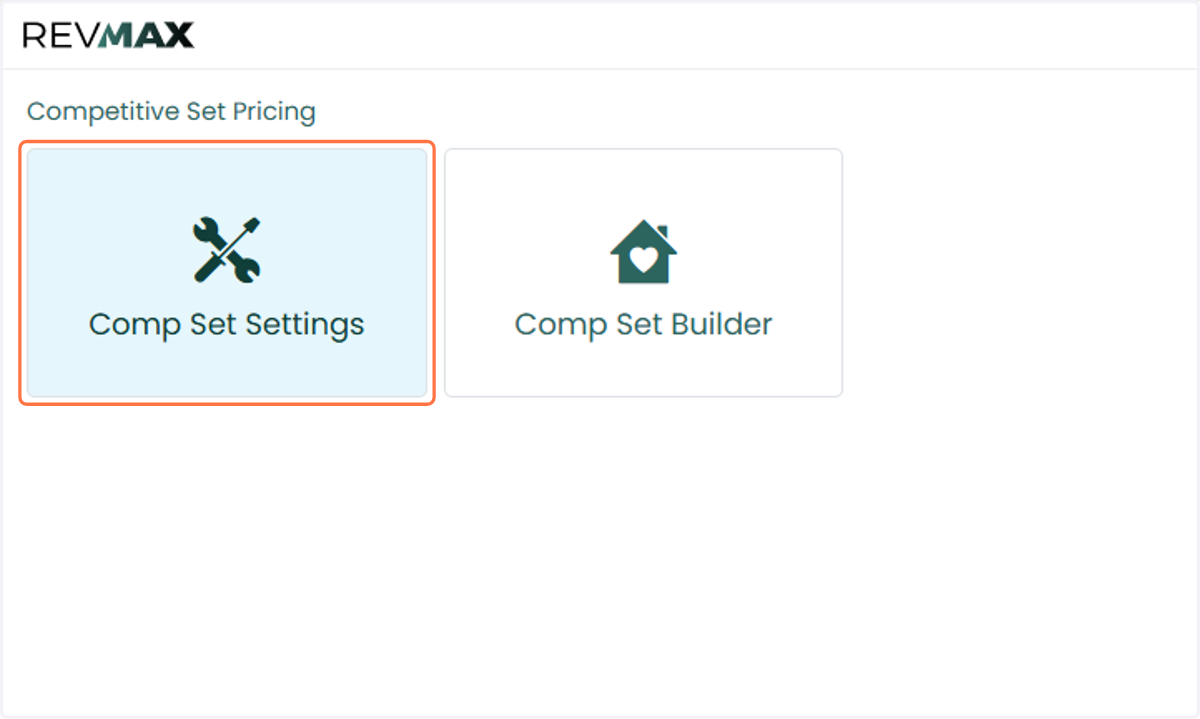
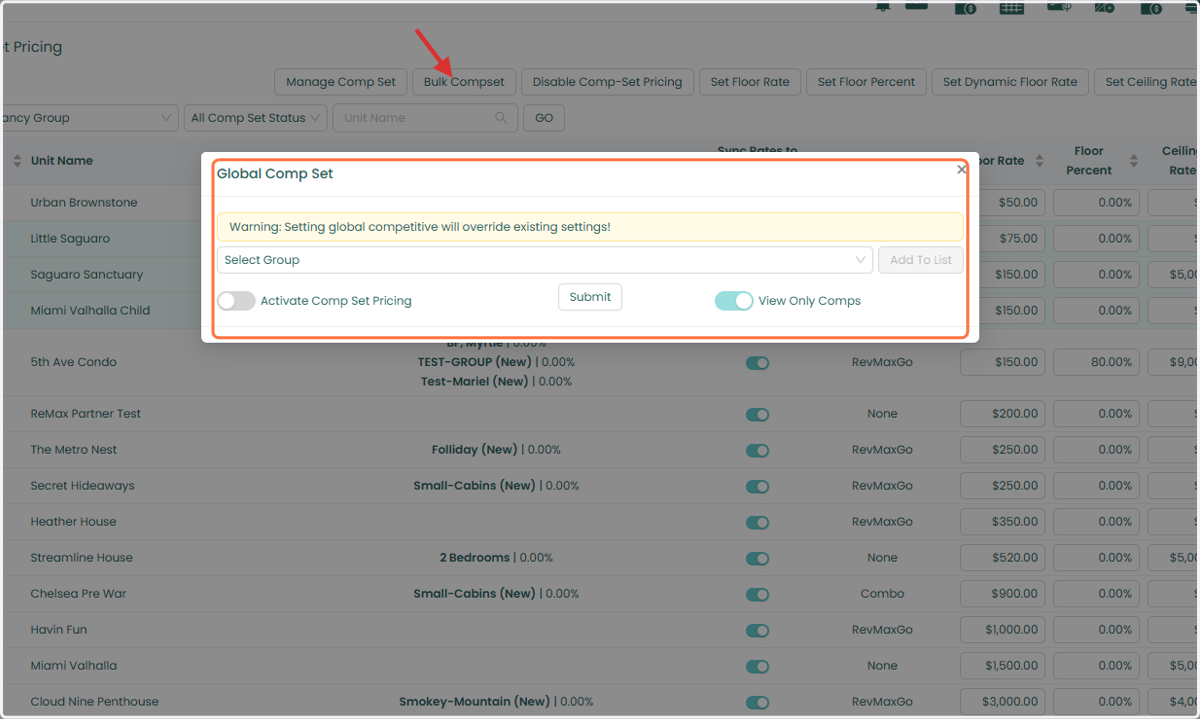
6. From this page, you can assign CompSet Groups and enable CompSet Pricing in bulk by selecting the desired unit(s) and clicking Bulk CompSet.
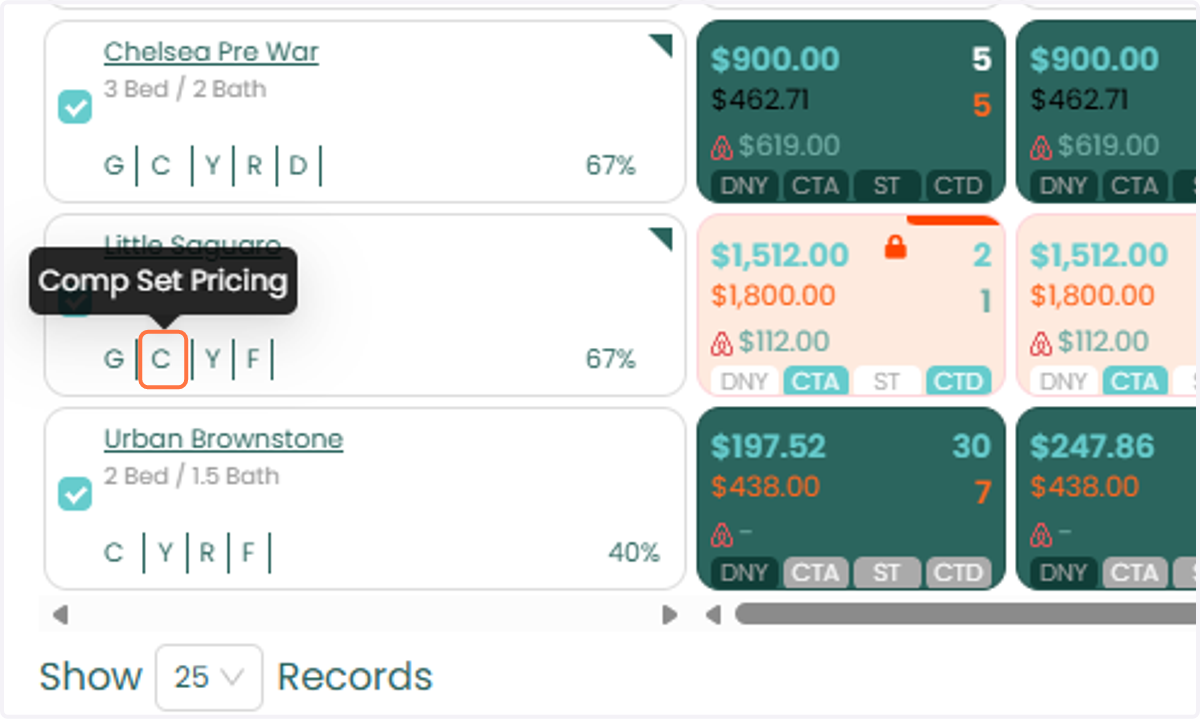
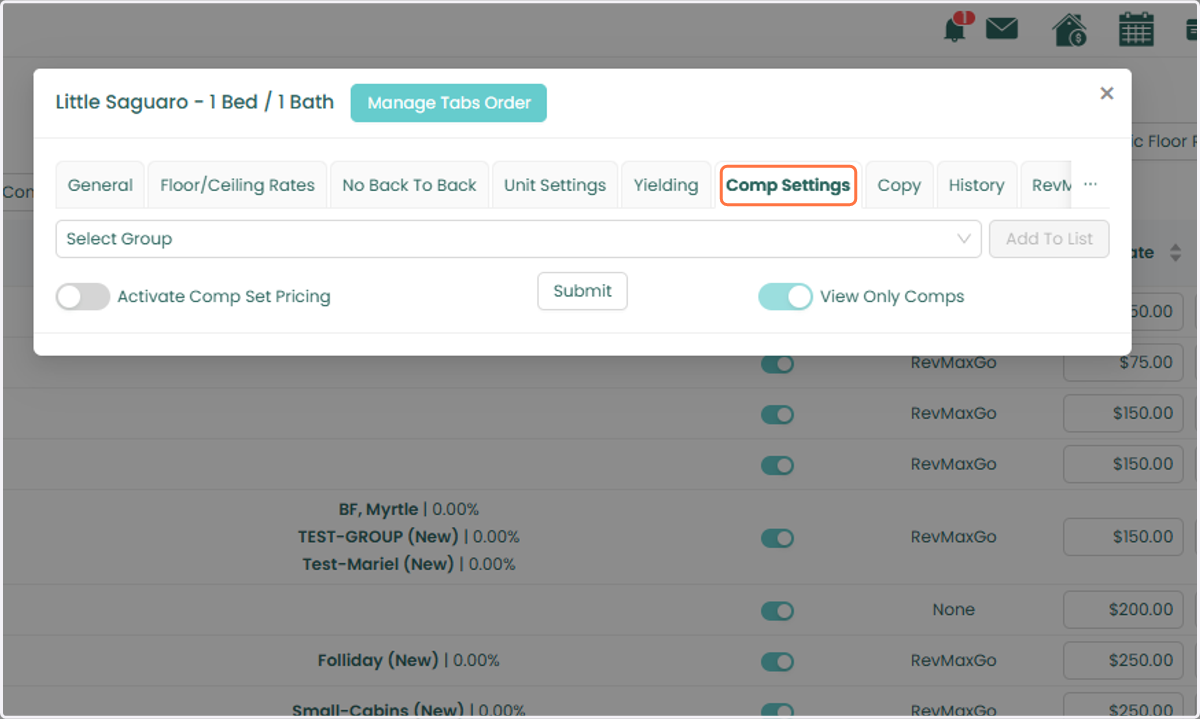
7. If you prefer to configure CompSet Pricing for an individual unit, go to the Unit-Level Settings > Comp Settings tab.
Step 3: Select a CompSet Group
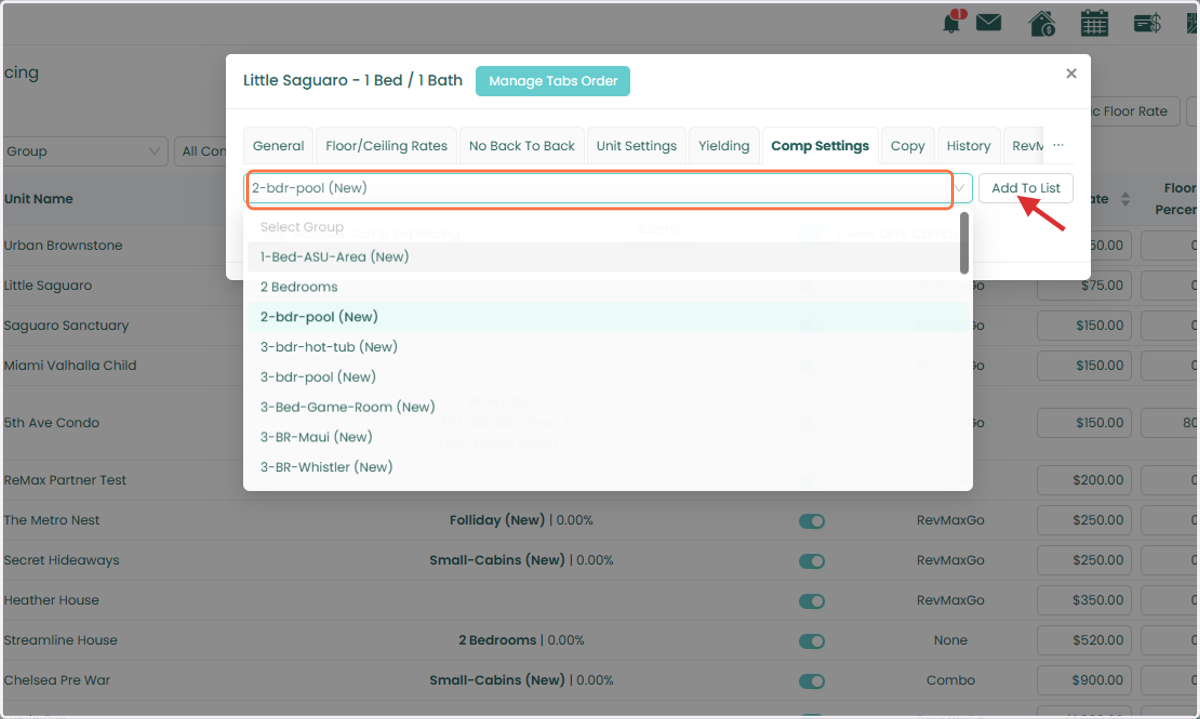
8. On the Comp Settings tab, select the desired CompSet Group/s from the dropdown menu and click Add to List.
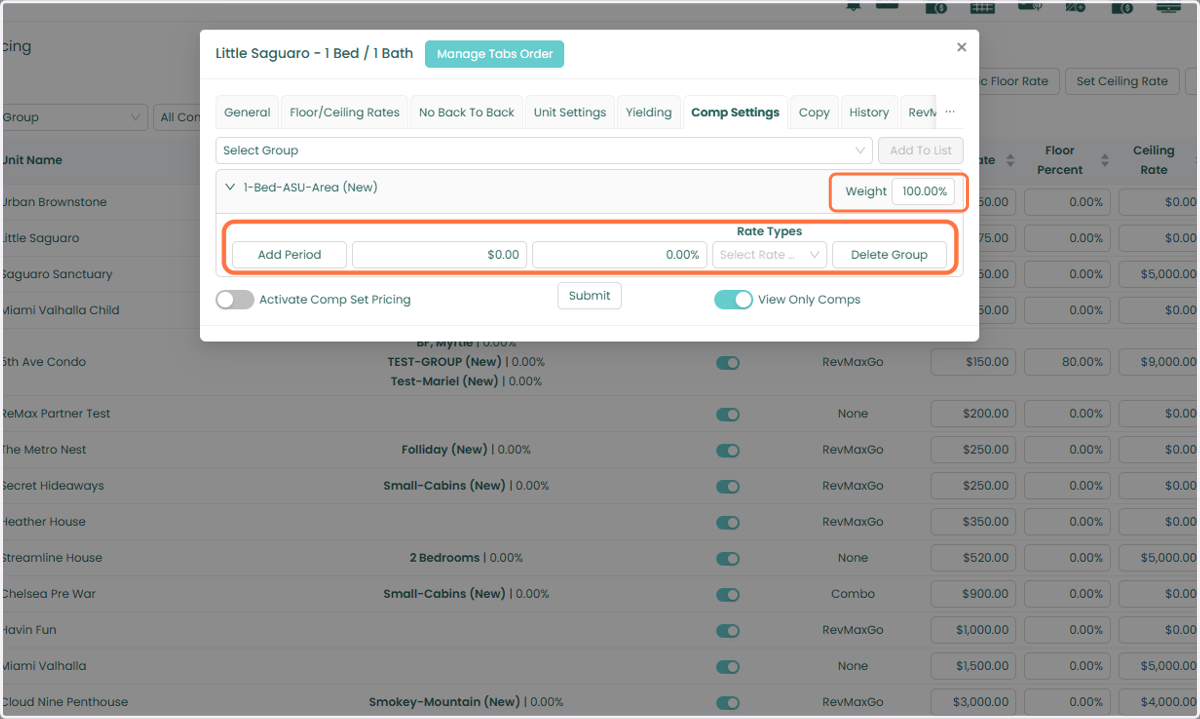
9. Once the group has been added, you can configure the following settings:
Weight: Determines how much influence the CompSet Group has on the unit's pricing. Higher weights give a group more influence when calculating the average rate.
Add Period: Allows you to specify a time period during which the CompSet Group will affect pricing.
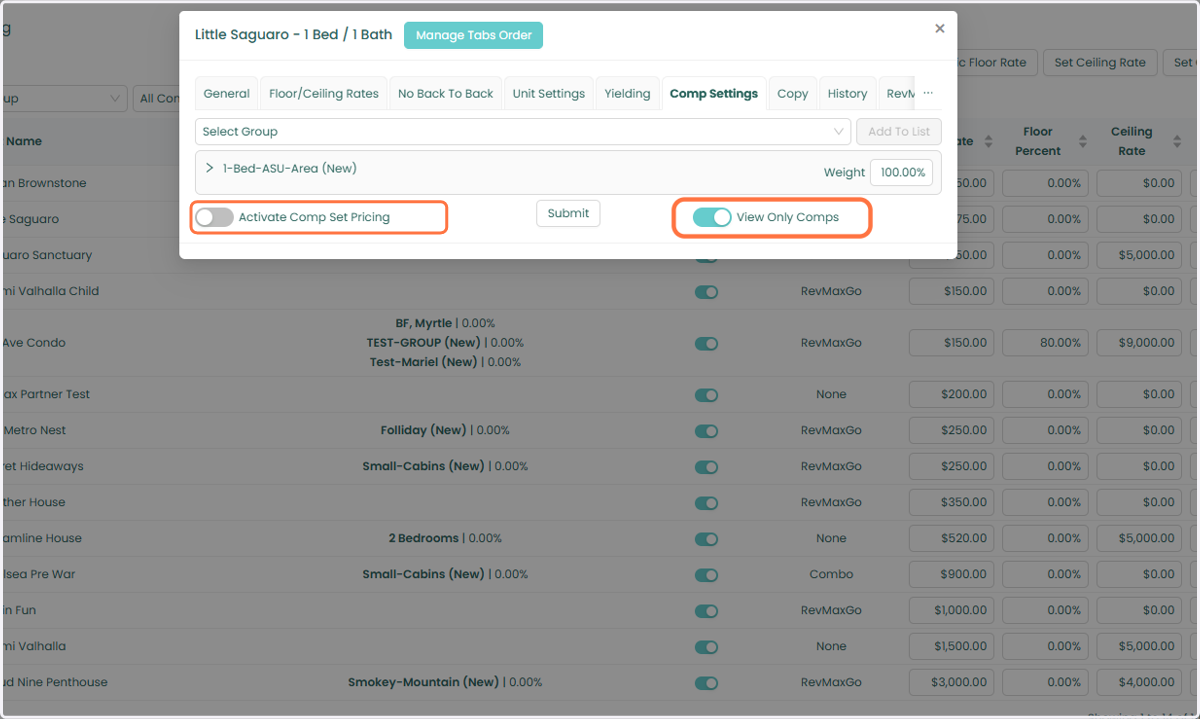
10. After adding the CompSet Group, you can choose between the following options:
Activate Comp Set Pricing: Activates CompSet Pricing for the unit and allows the unit's rates to be determined using CompSet data.
View Only Comps: Allows you to view CompSet data without activating CompSet Pricing for the unit.
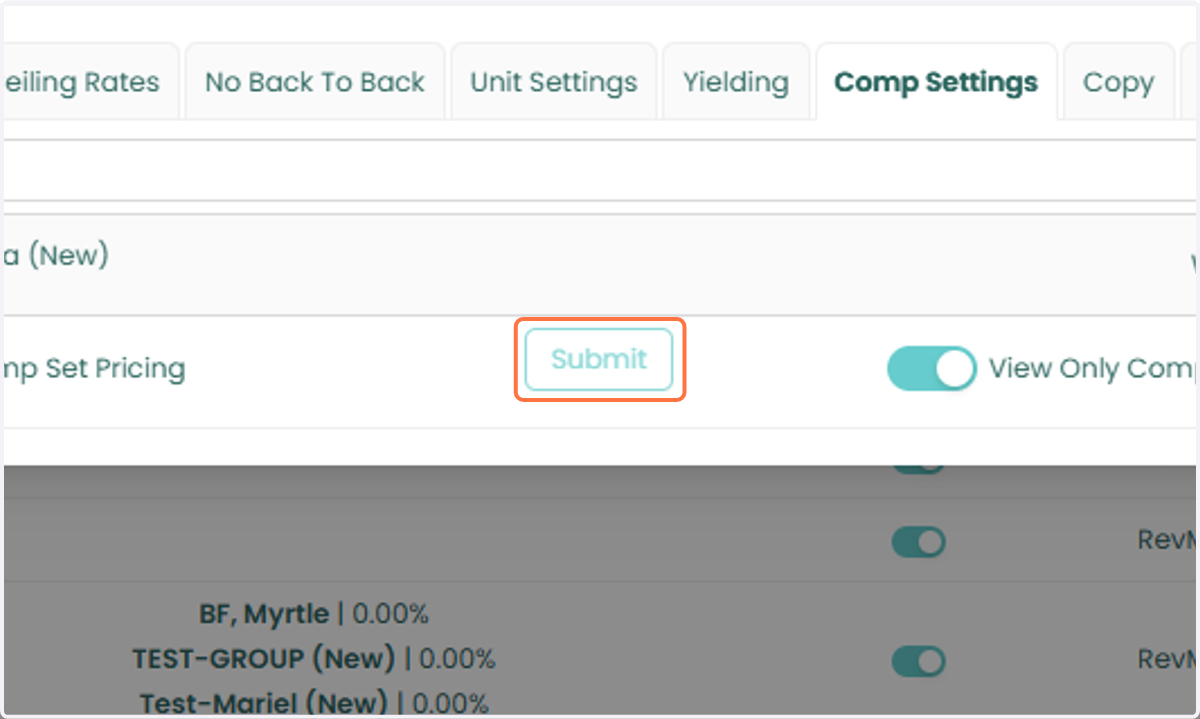
11. Once you have finished configuring the settings, click Submit to save your changes.
Step 4: Confirm the CompSet Pricing Setup
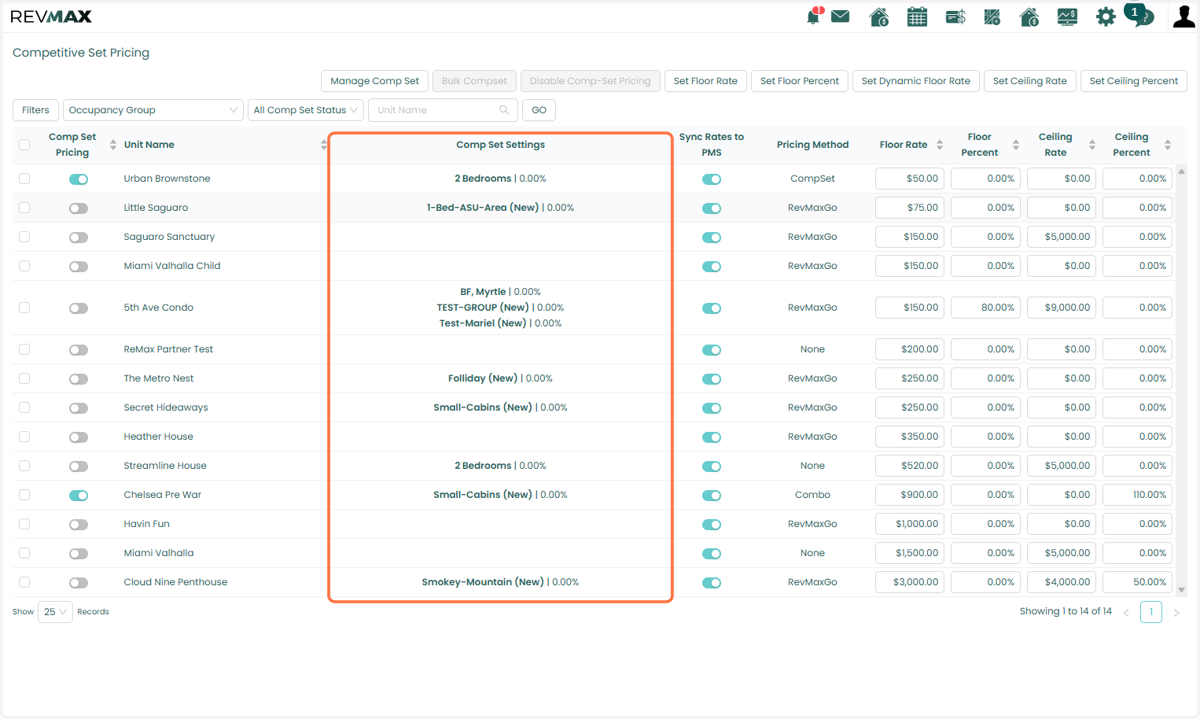
12. After saving your changes, you can view the assigned CompSet Group in the CompSet Settings column for the unit.
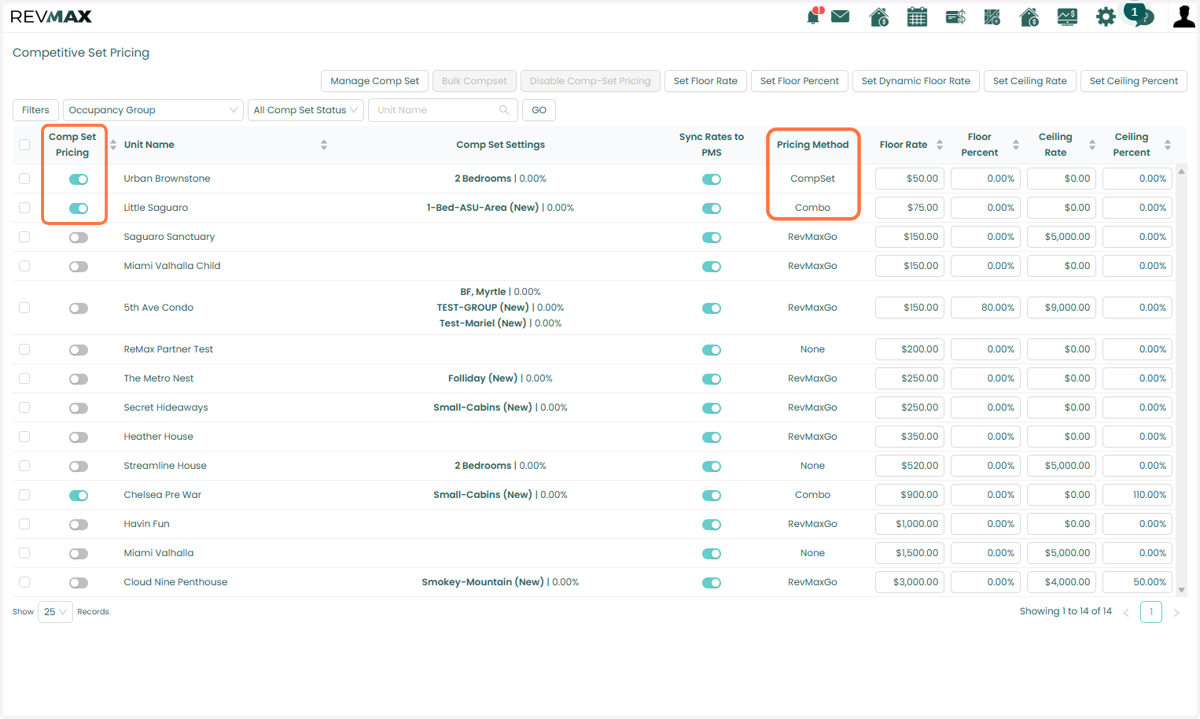
13. If CompSet Pricing has been activated: The CompSet Pricing toggle will be enabled. The Pricing Method will be set to CompSet (Combo if Yielding and/or RevMax Go is also enabled)
14. A “C” label will appear under the unit’s name in the Tape Chart, indicating that CompSet Pricing is active for the unit.