Dynamic Minimal Nights and How to Set it Up
RevMax
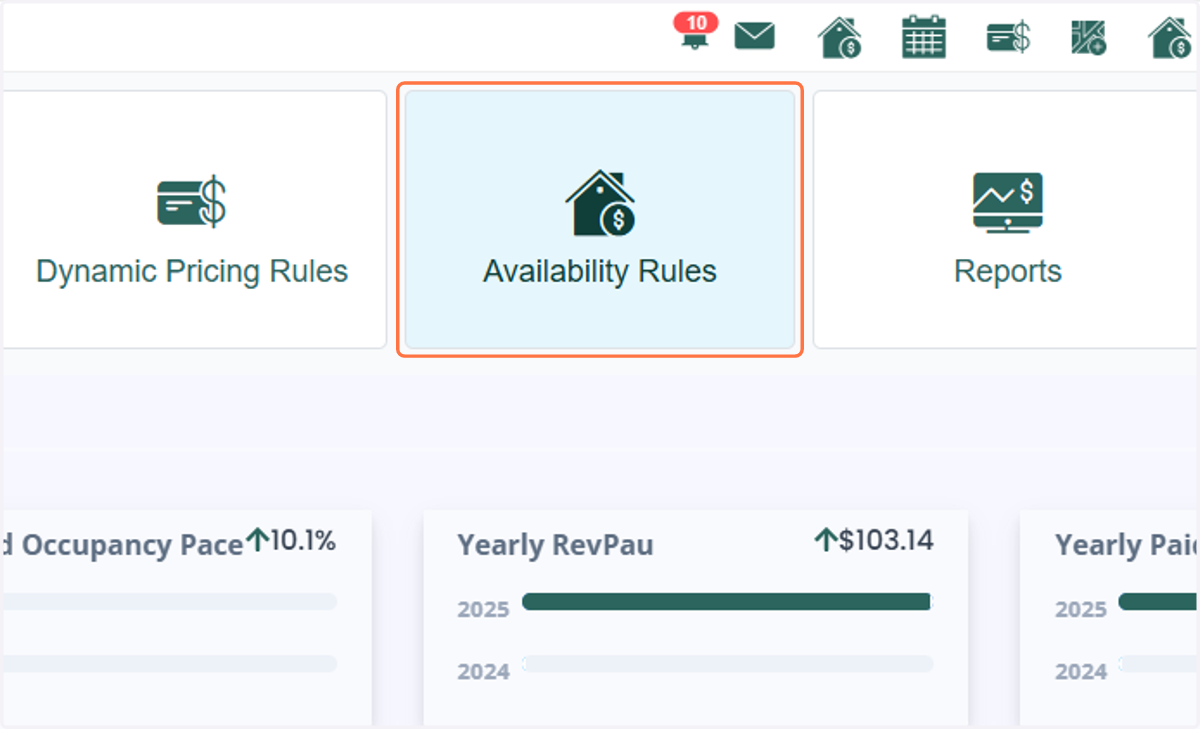
1. Click on Availability Rules
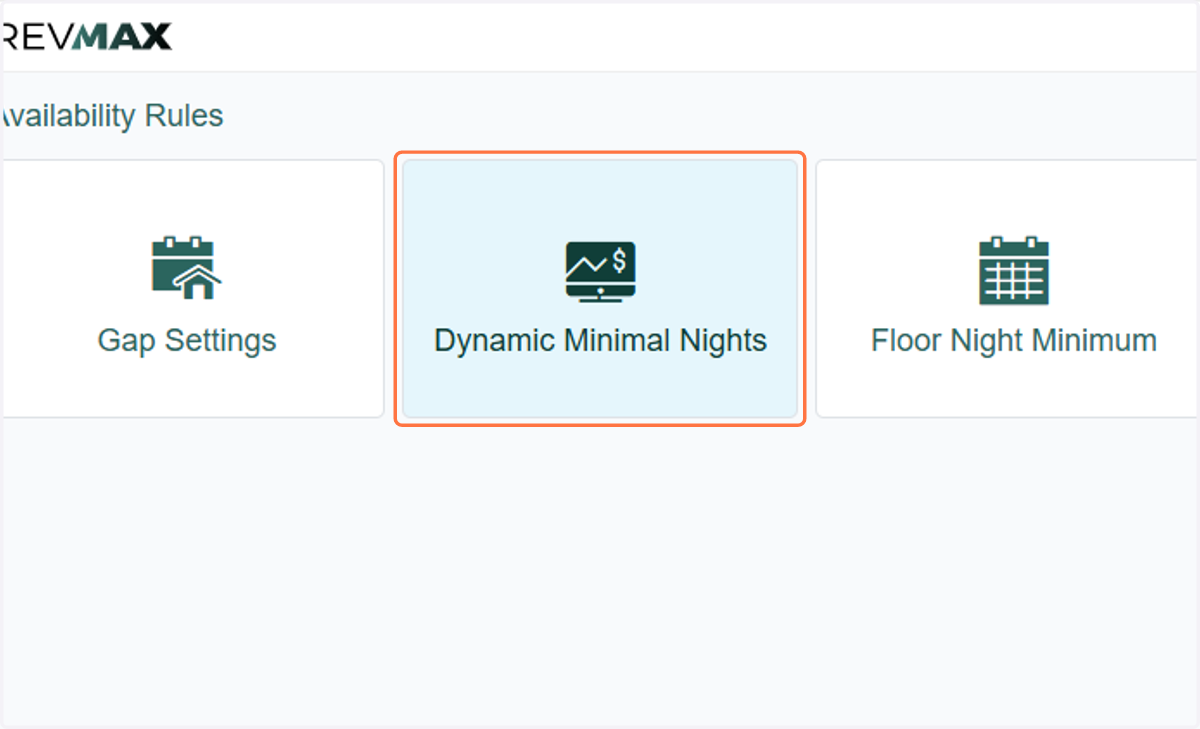
2. Click on Dynamic Minimal Nights
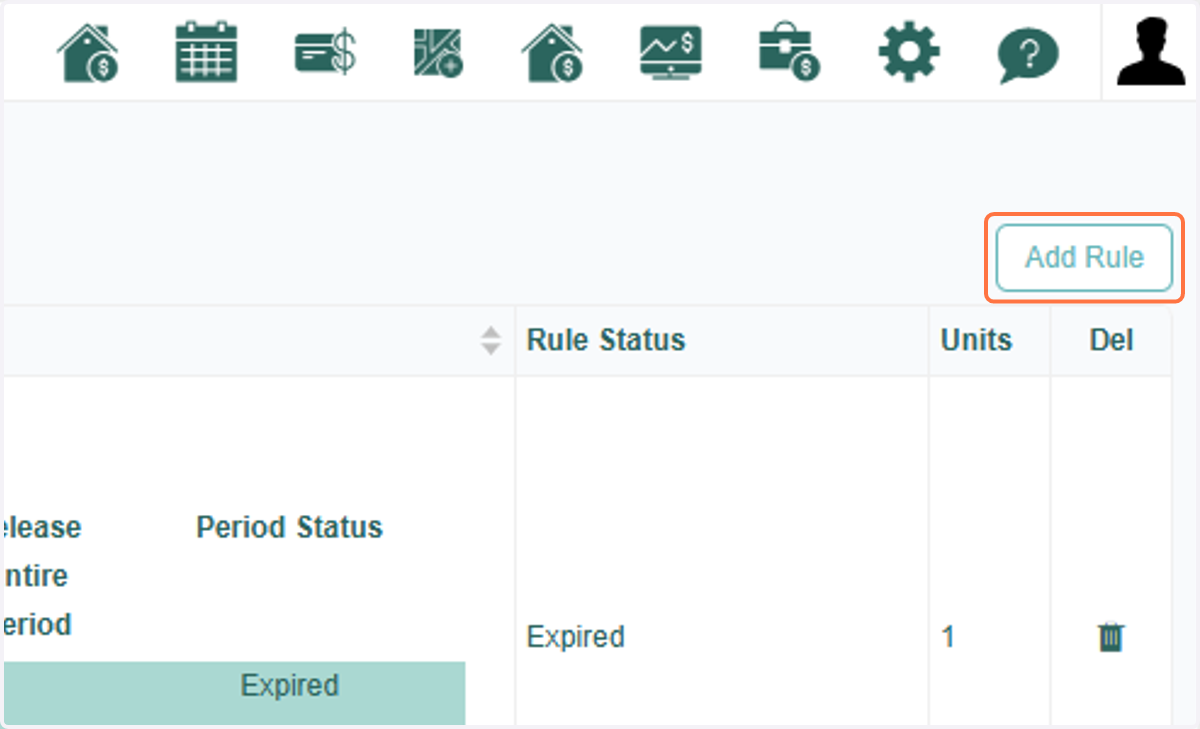
3. Click on Add Rule
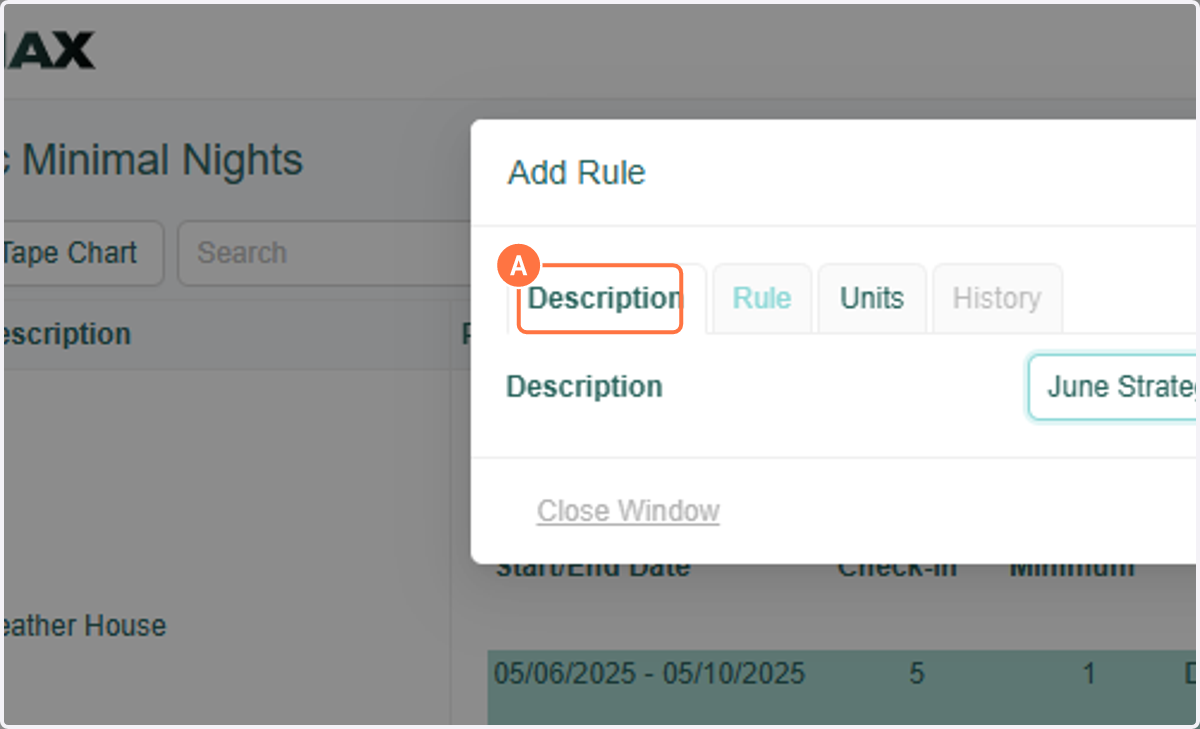
4. A. Click on Description and type a title for your strategy
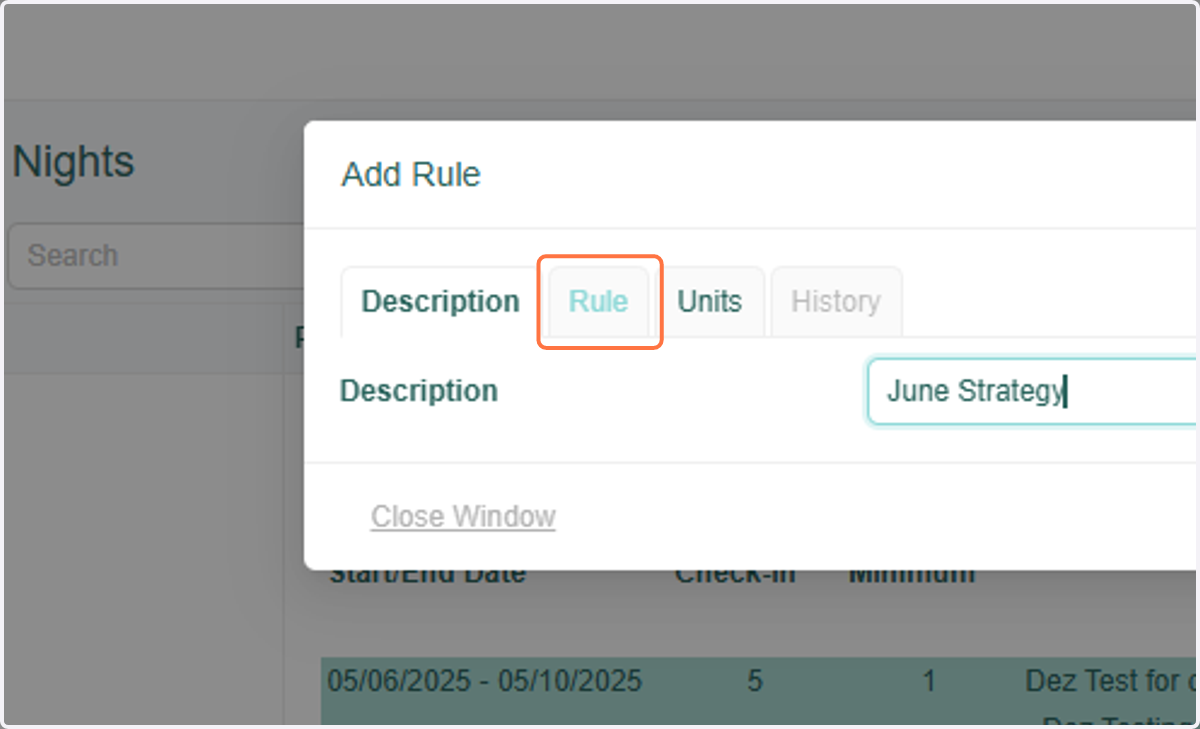
5. Click on Rule
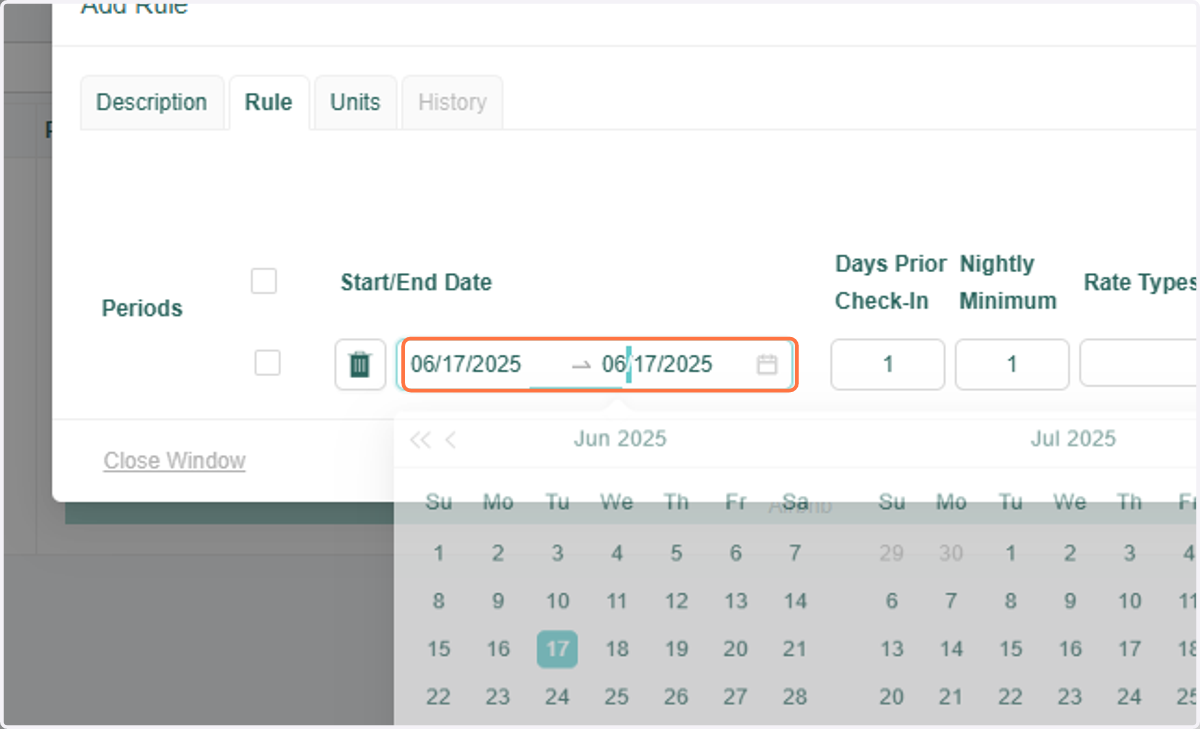
6. Then on the Rule Tab you will fill out your strategy starting with the timeframe.
7. A. Enter the number of days prior check-in that you'd like for this strategy to start working
7. B. Enter the nightly minimum that you'd like to change to
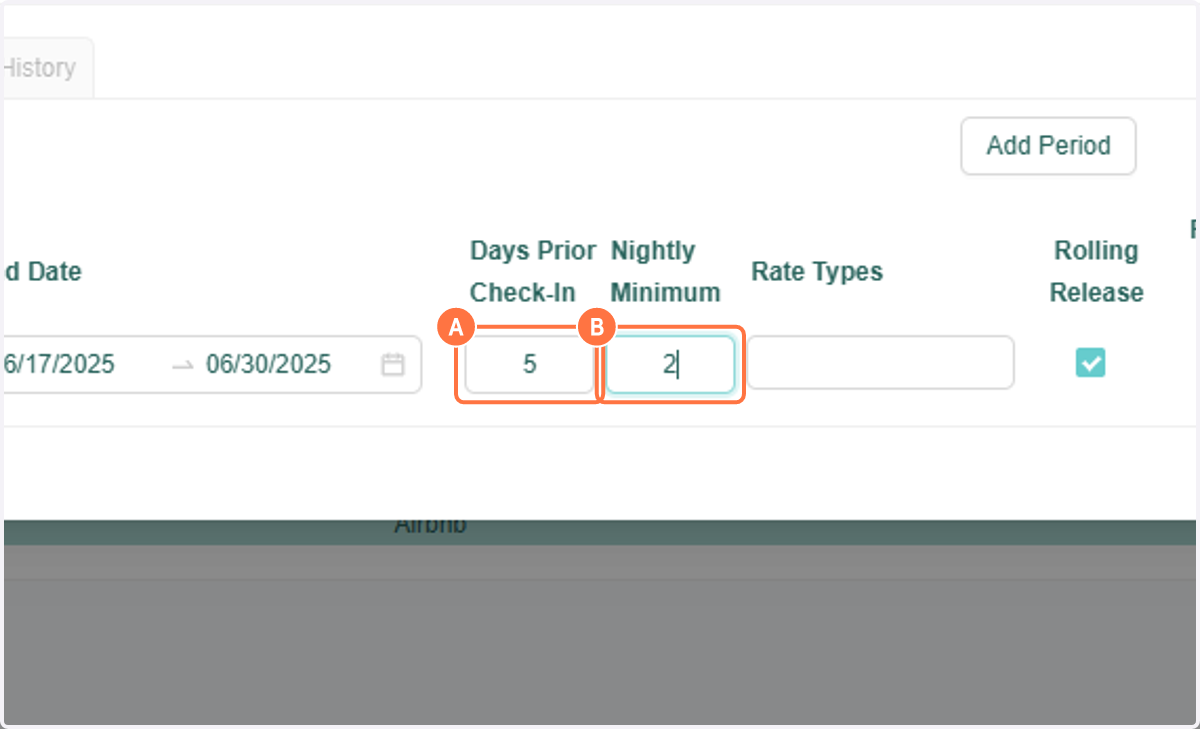
8. Select your rate type
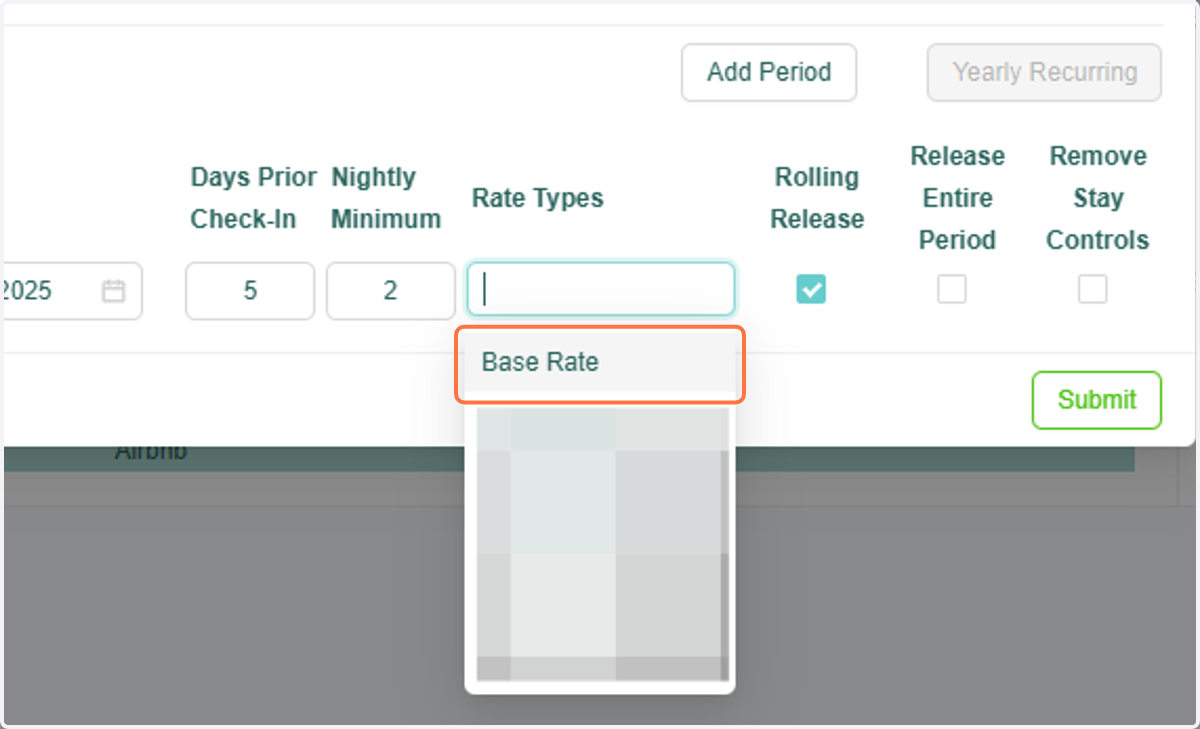
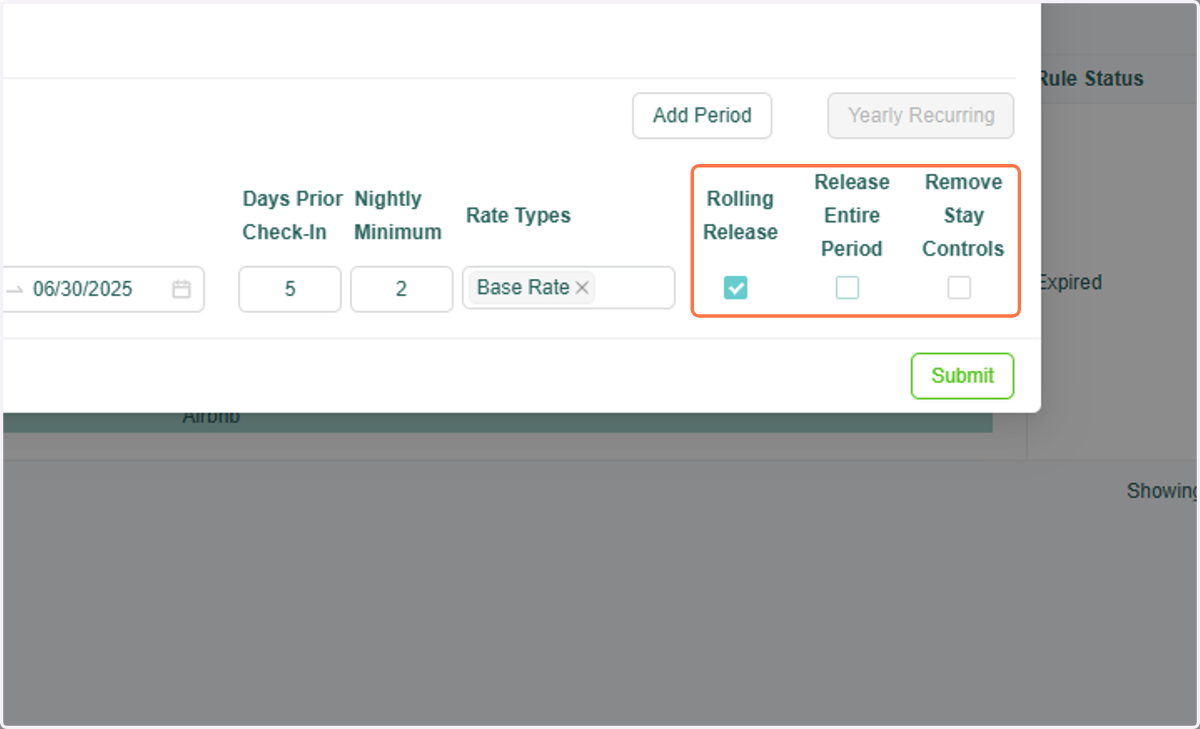
9. Options:
Rolling Release: This will continuously release the nightly minimum each day adhering to the "Days Prior to Check-in"
Release Entire Period: This would release the nightly minimum according to the time period determined on the date range
Remove Stay controls: this will remove CTA/CTD and ST
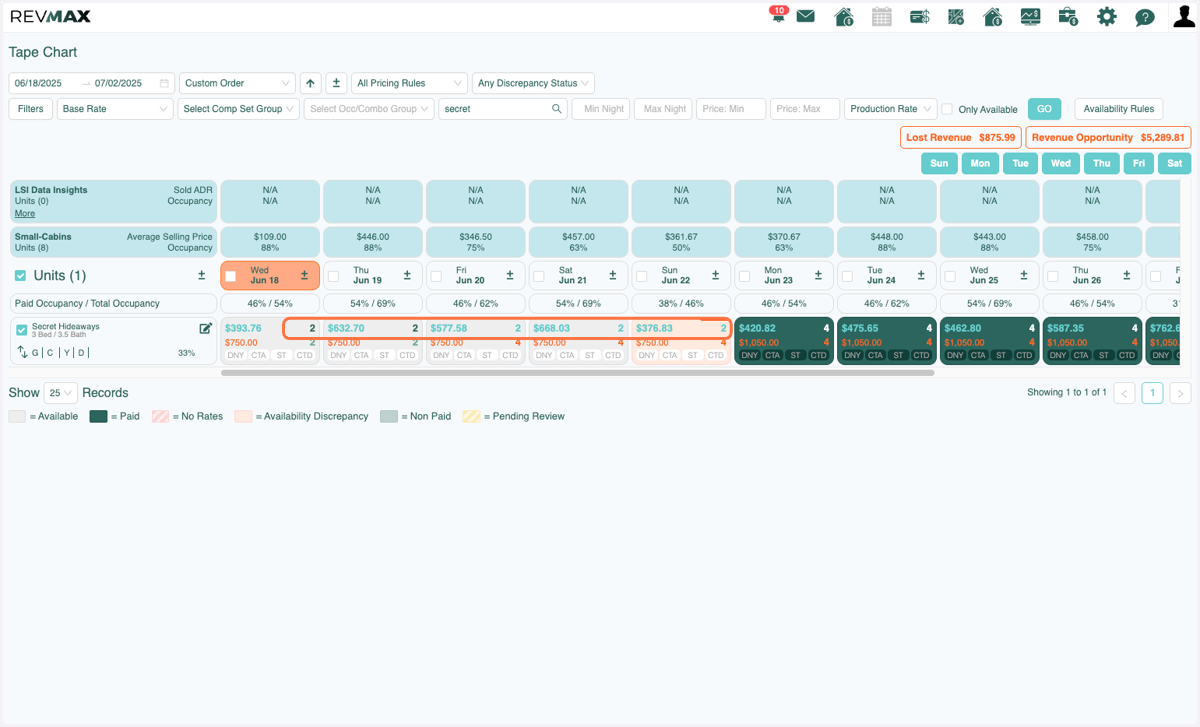
10. Rolling Release: Days Prior to Check-in equals 5, therefore 5 nights are released to a 2 night minimum
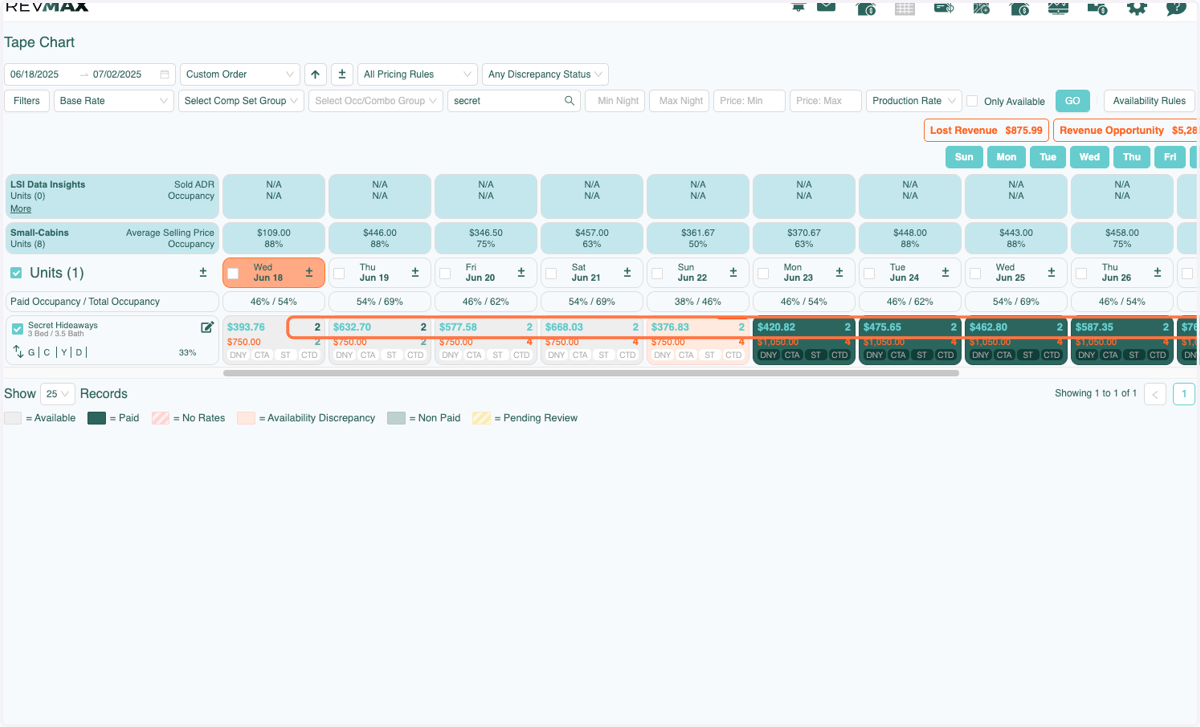
11. Release Entire Period: All days in the desired Time Period are released and set to a 2 night minimum
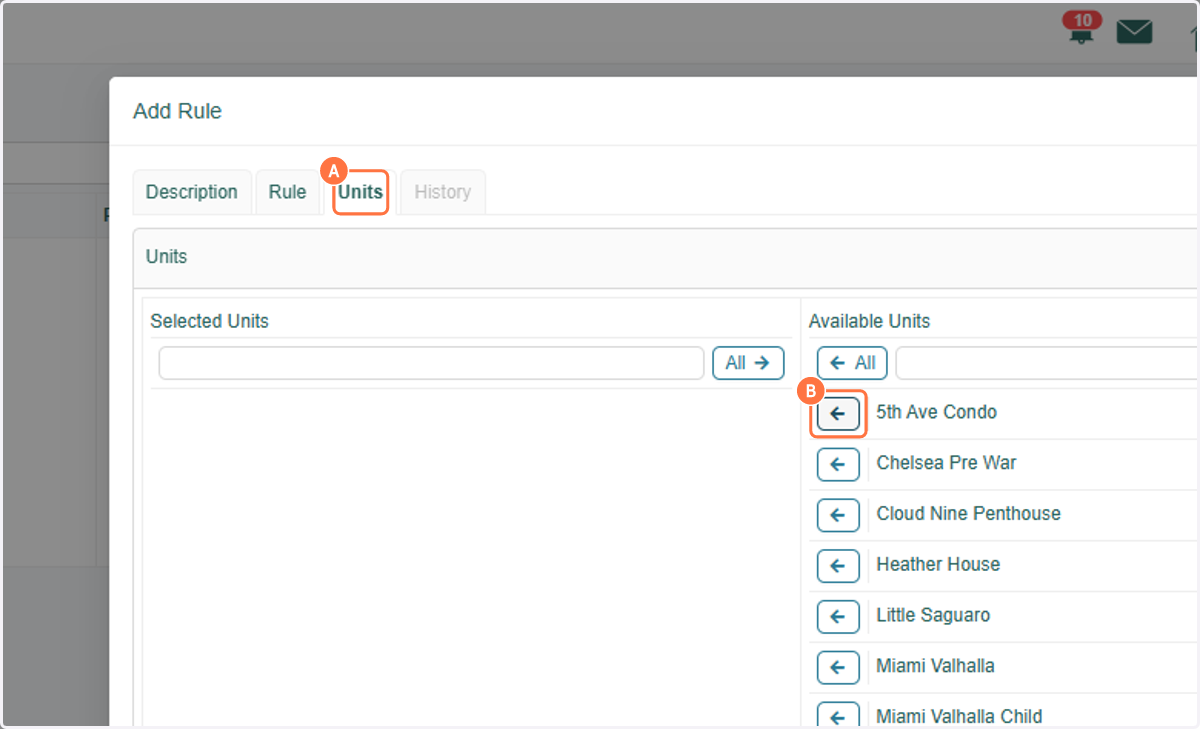
12. A. Go to Units Tab
12. B. Select the unit(s) you would like to apply this rule to
13. Click on Submit
14. Click on Close
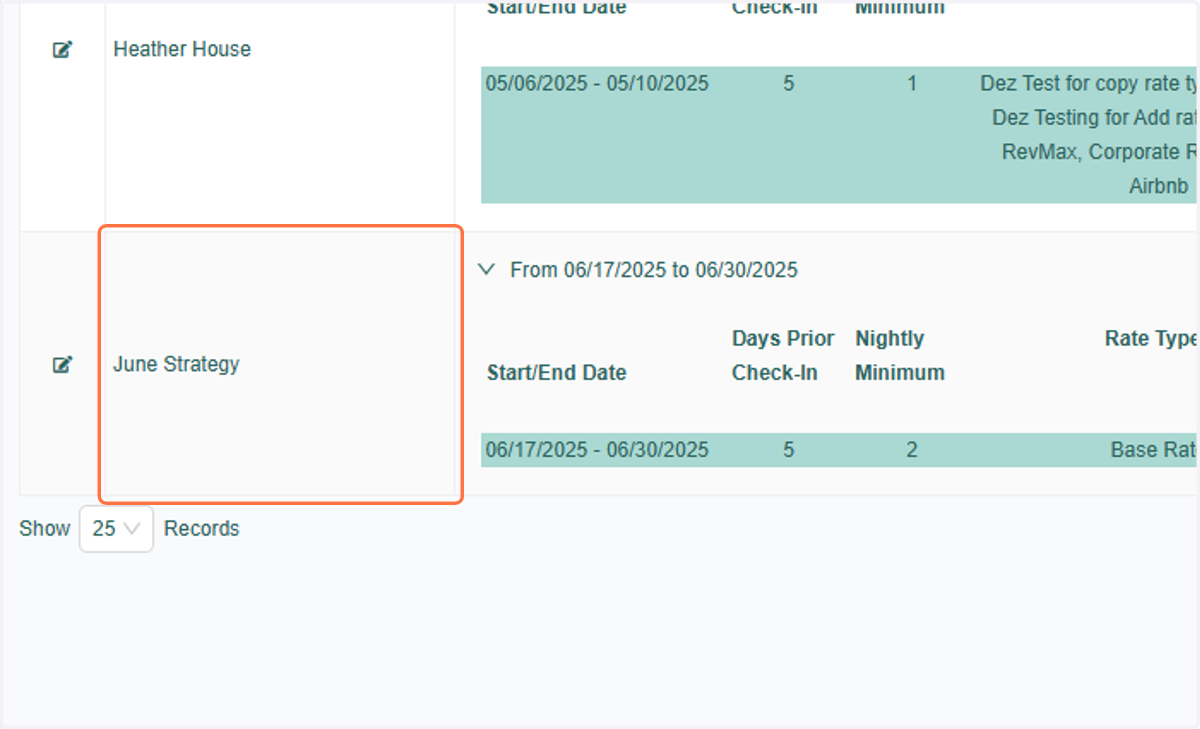
15. You will see that your Dynamic Minimal Nights Rule has been added.
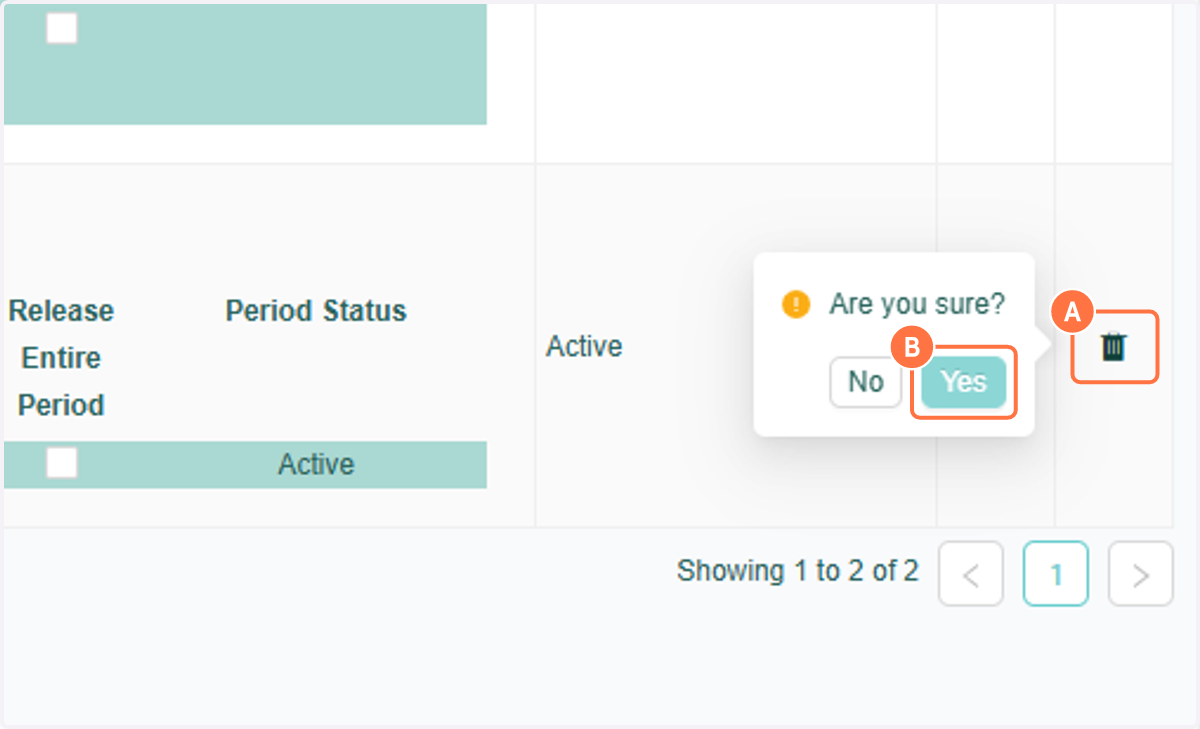
16. A. To remove a rule completely you can use the trash icon
16. B. Click on Yes