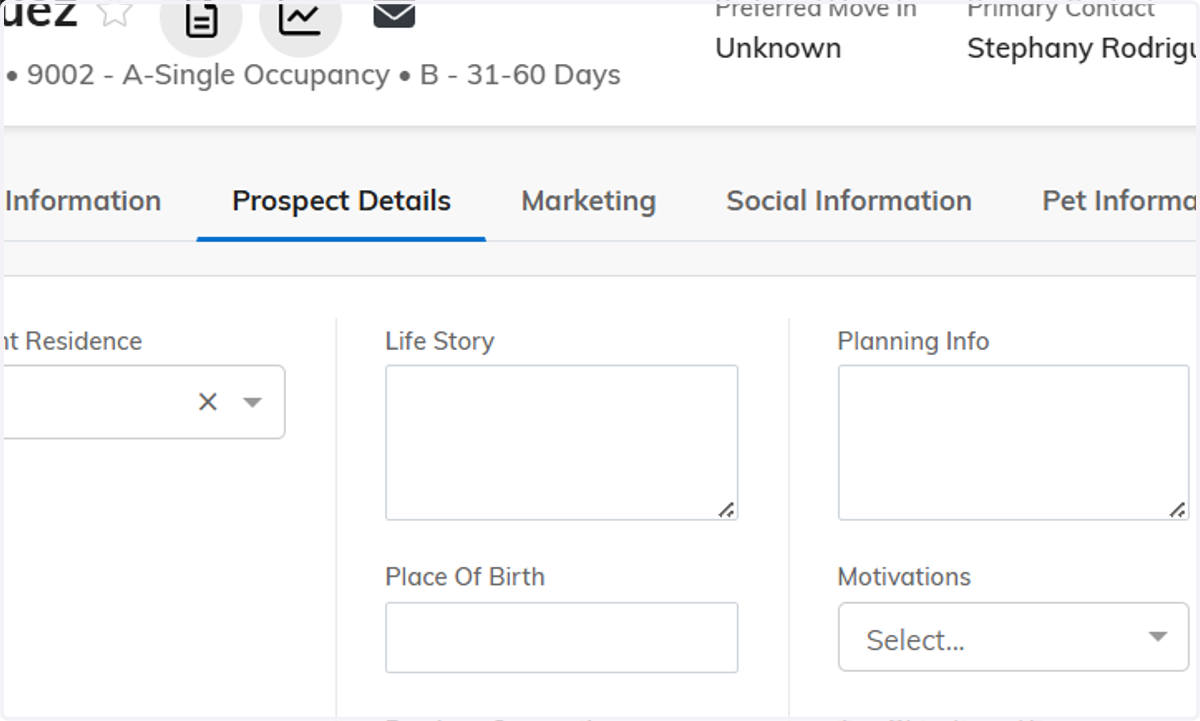
Using Speech to Text in Senior CRM
This is only available for those on Windows 11. If you are not, please reach out to the Help Desk.
Senior CRM
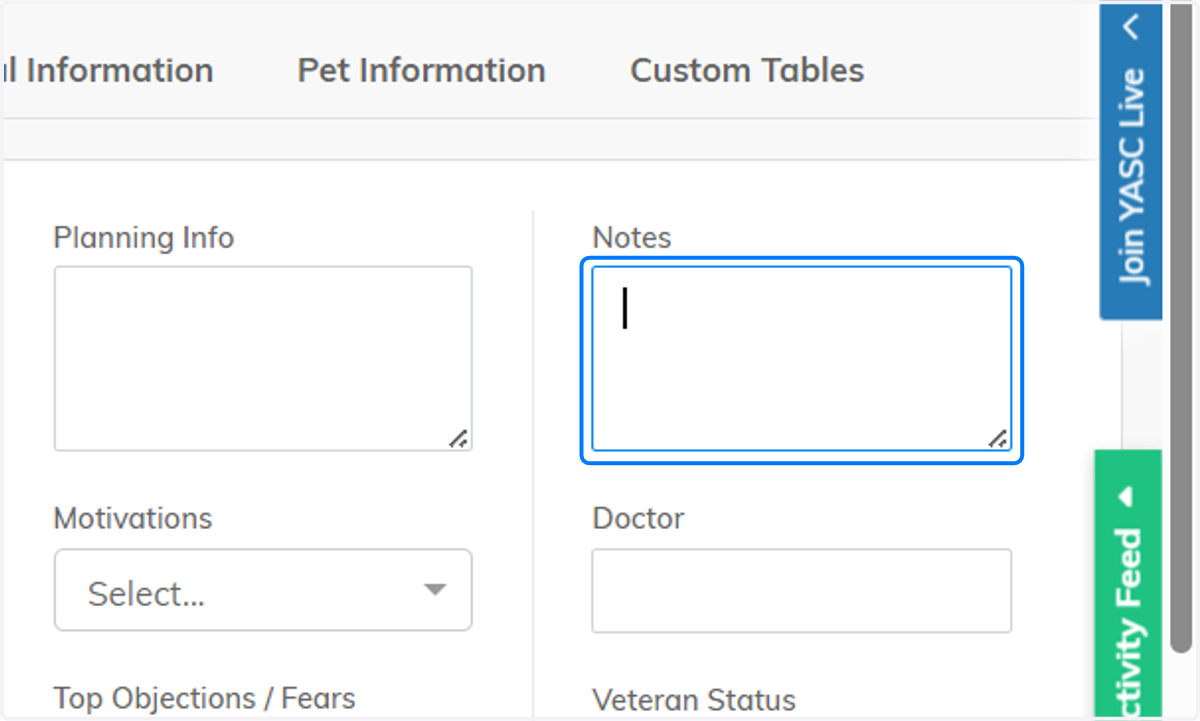
1. Click on the Notes section, or any field you would like to use Speech to Text
2. Click the Windows button on your keyboard, then click the H letter on your keyboard. An icon will pop up that looks like this below:
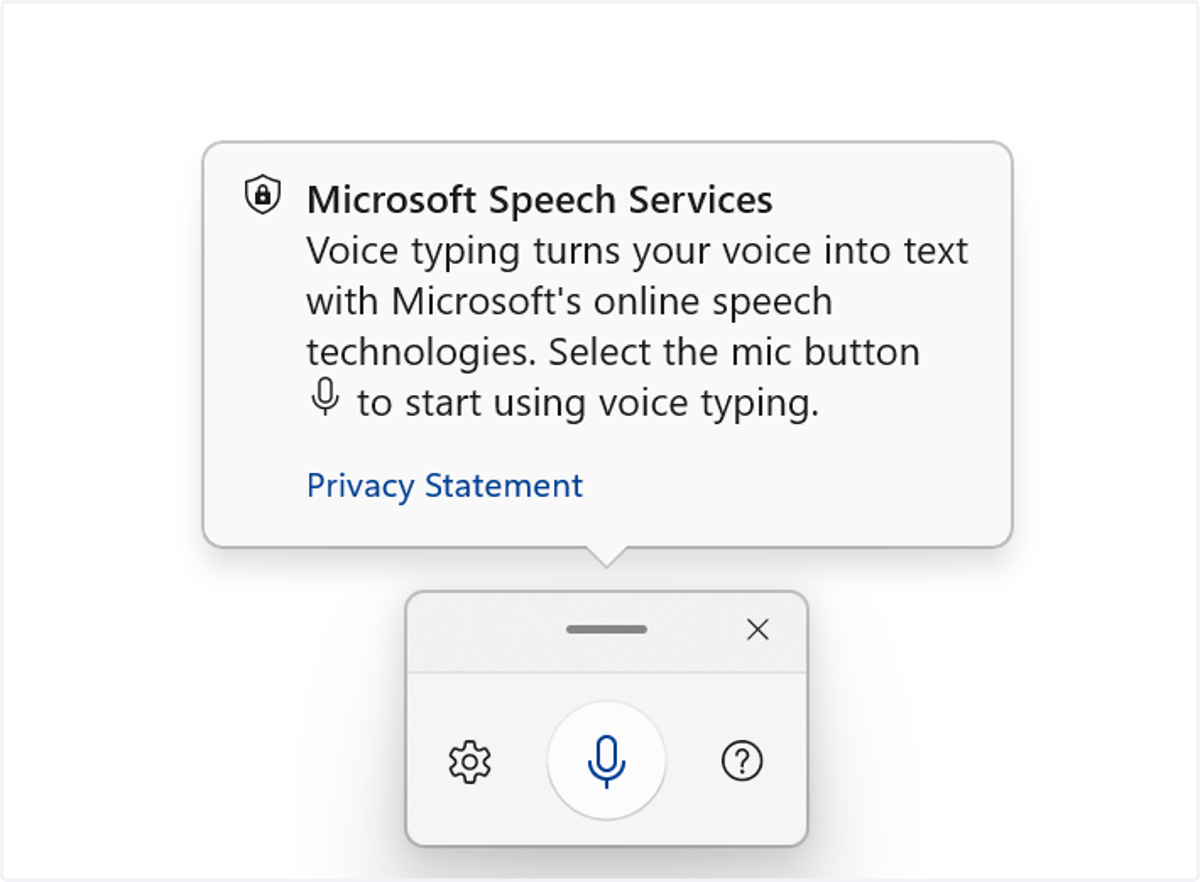
3. Start talking, and it should start auto generating text based on your speech!