Creating Messaging Templates in PhoneRaise
PhoneRaise
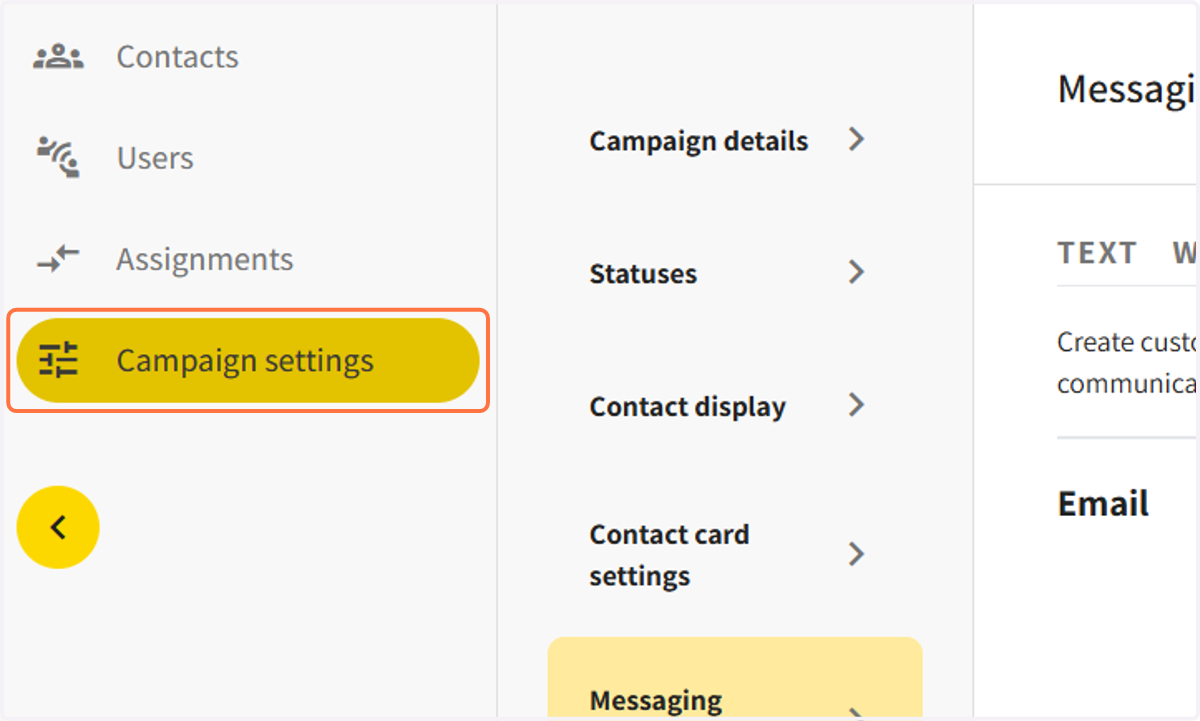
1. Click on 'Campaign Settings' in guide bar
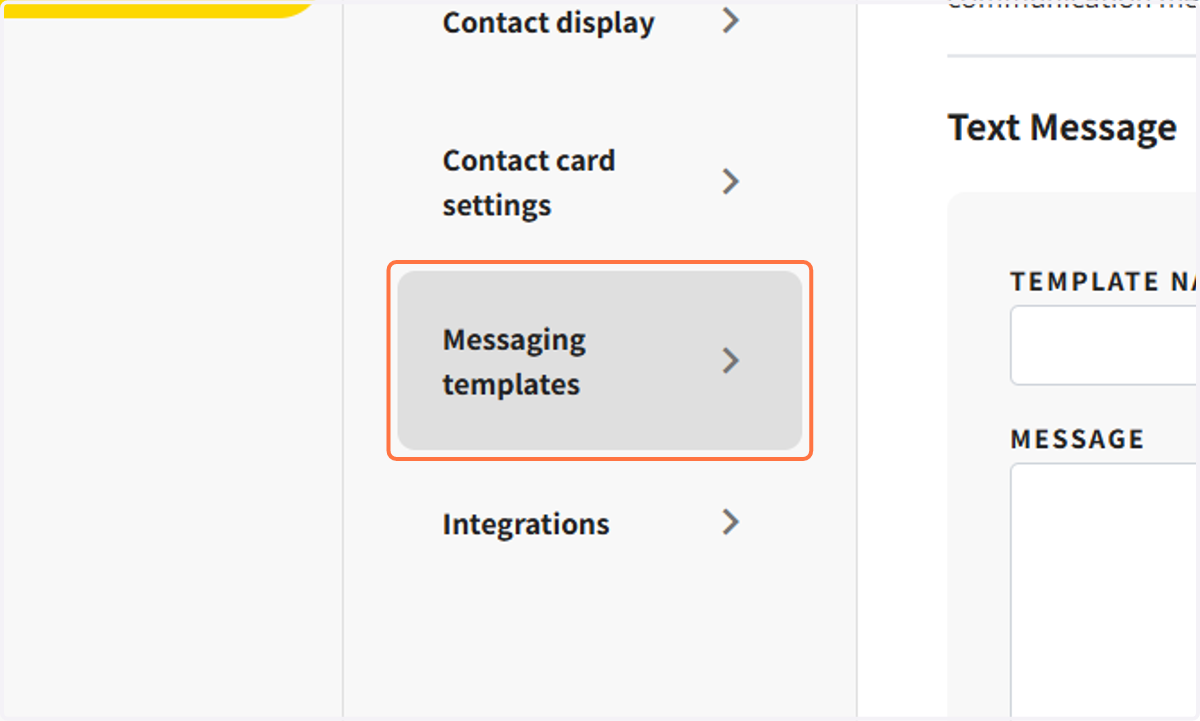
2. Click on Messaging templates…
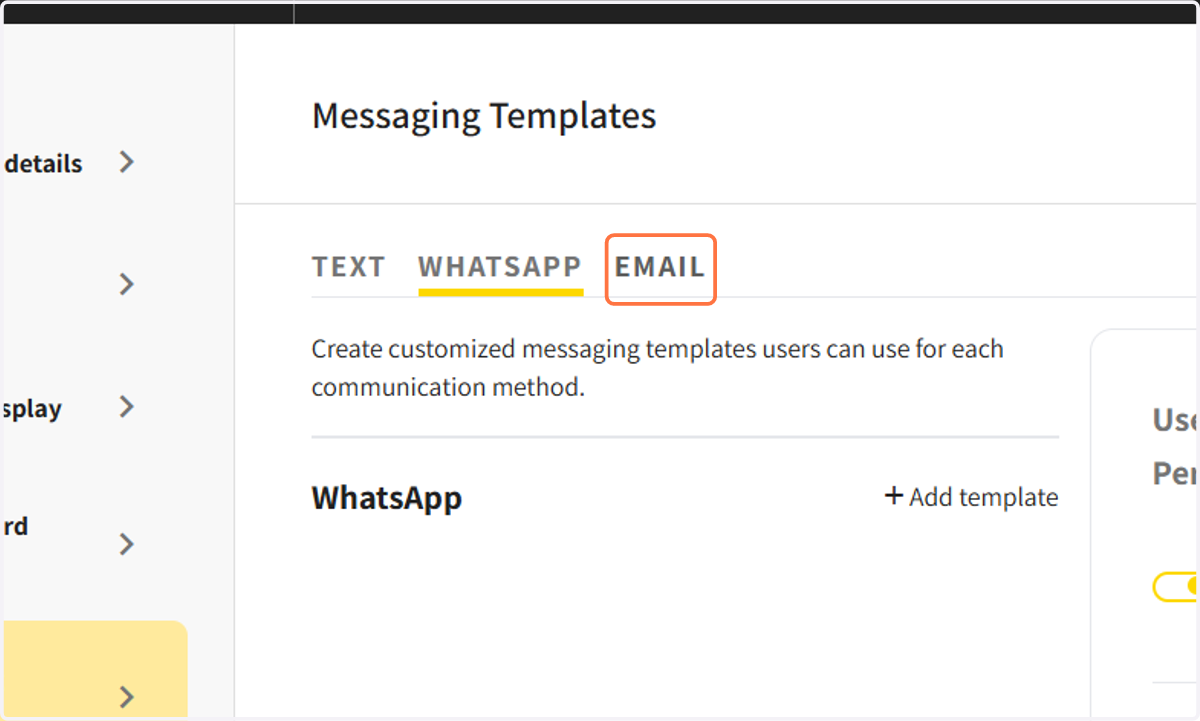
3. Choose a messaging channel
You can choose from EMAIL, WHATSAPP, or TEXT and create personalized messages for each channel.
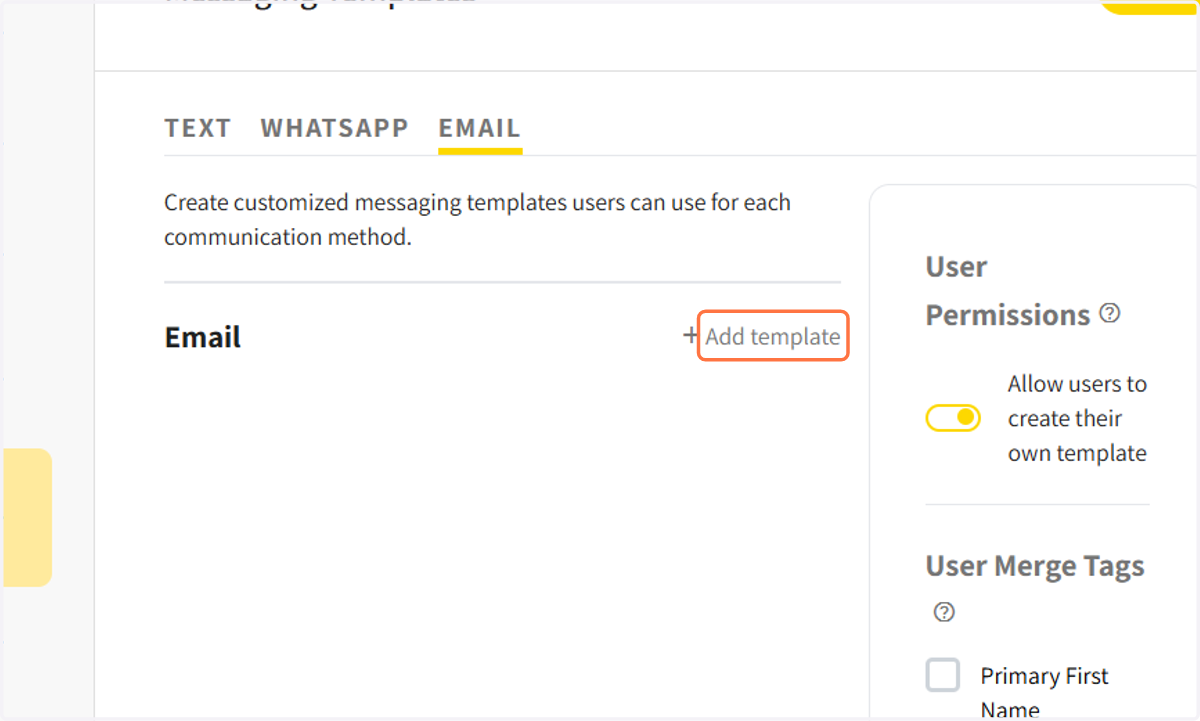
4. Click on 'Add template' and create a new template
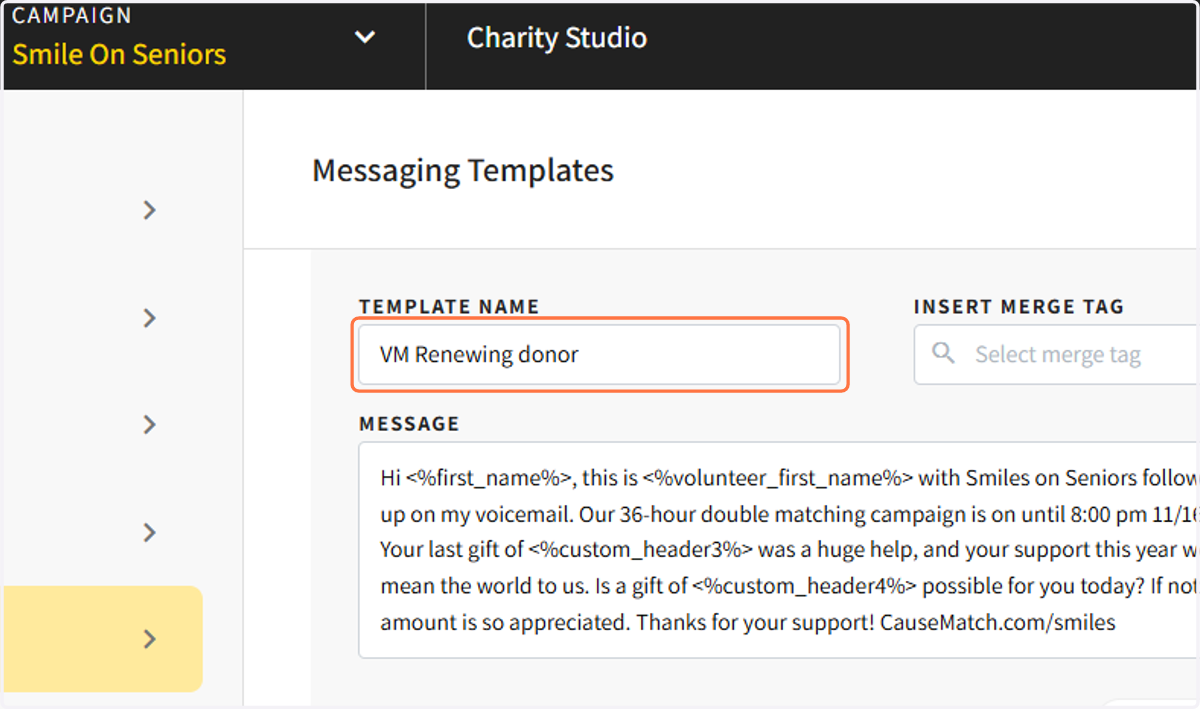
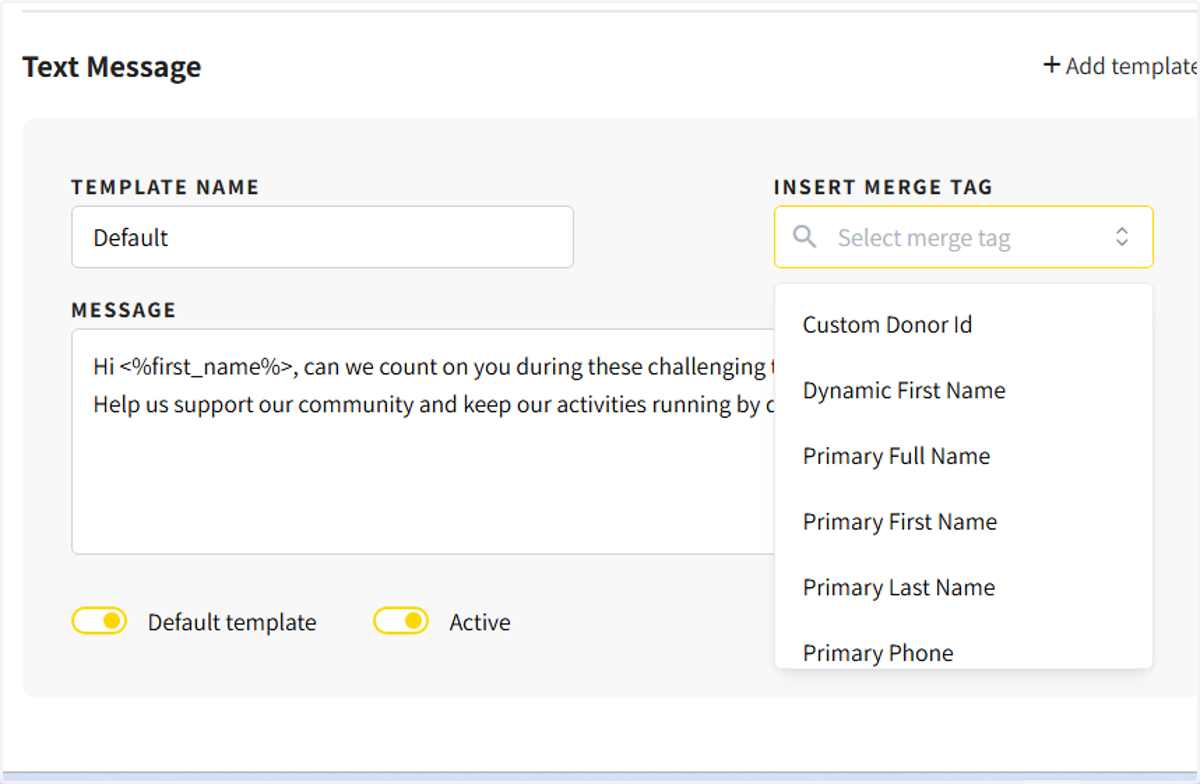
5. Add the name of the template
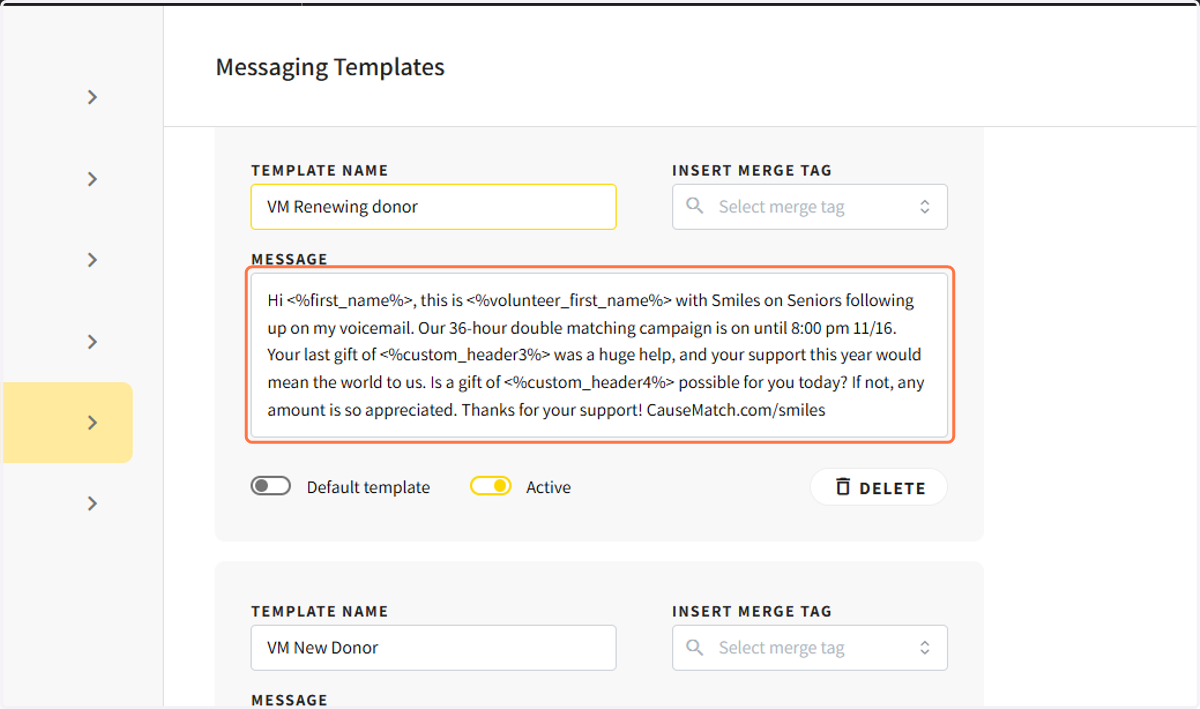
6. Enter in your message
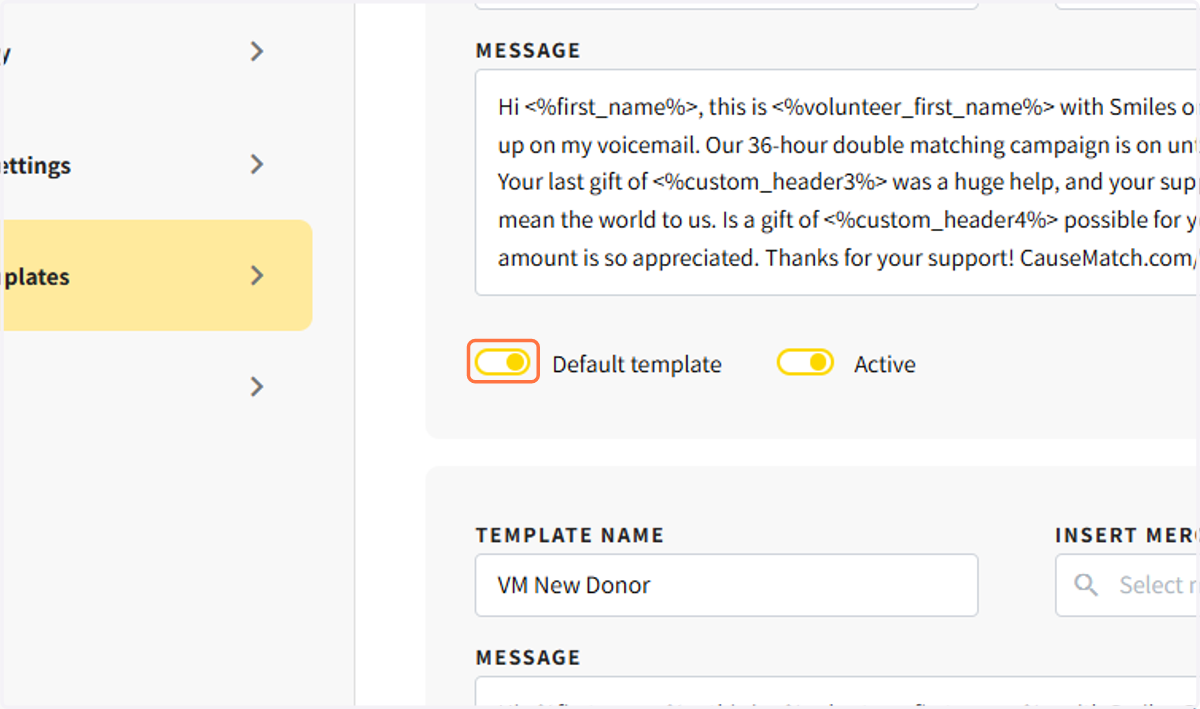
7. Select if this template should be active and if it should be the default template
Users see the default template when engaging donors. They can switch templates from the app.
8. Click 'INSERT MERGE TAG' to include personal information about the contact to be included in the message.
Examples include the contact's name, an ask amount, an amount that was previously donated, etc. By inserting a merge tag, you can include any data that was included in your data import in your template.
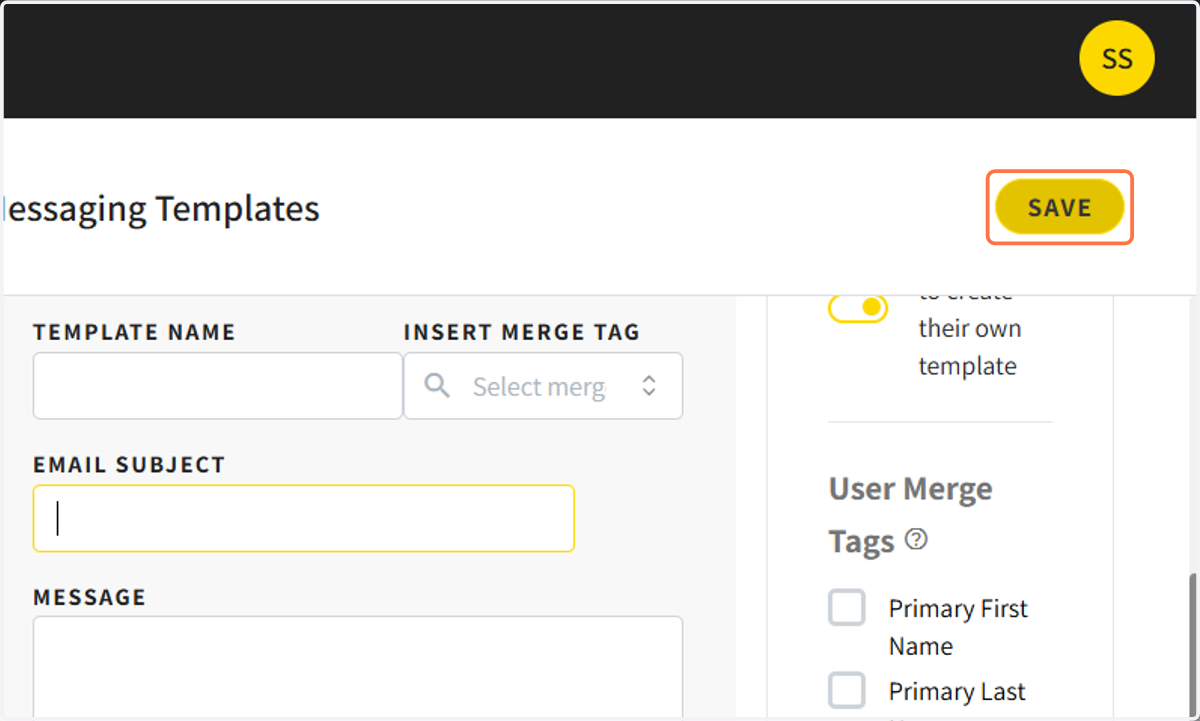
9. Click on 'SAVE' on the upper right corner to add your message to your campaign