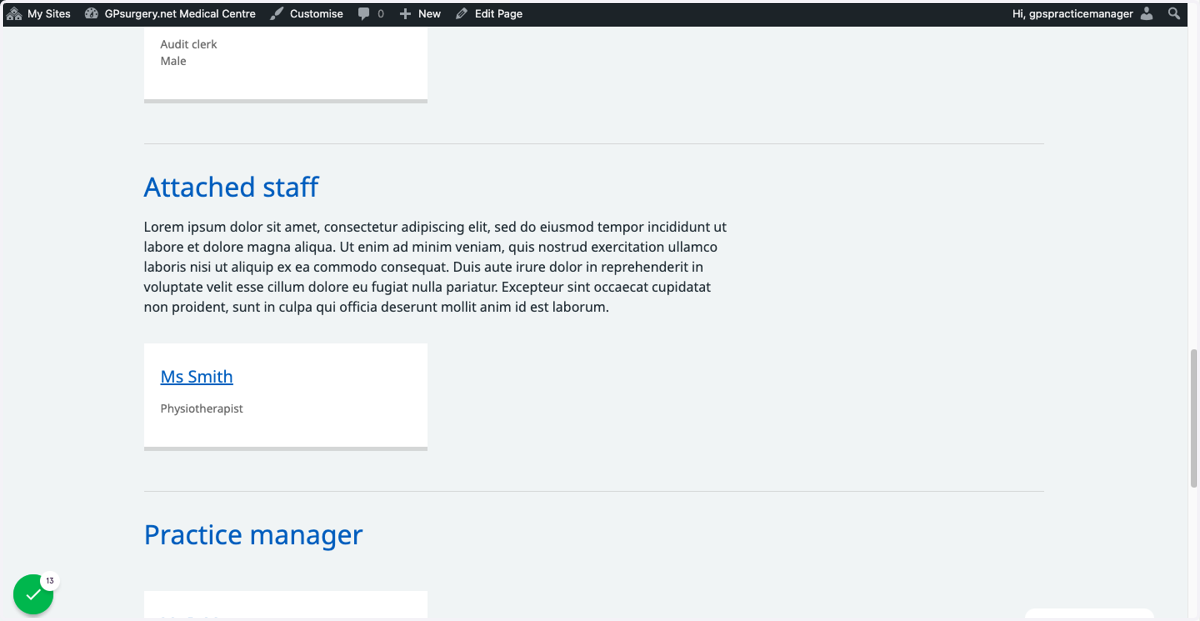
Add a new Occupation for your Team page
This tutorial will show you how to add a new Occupation to use on your Team page. You can move through the tutorial at your own pace using the NEXT button below.
Gpsurgery
1. Ensure that you are logged into your website. The black admin toolbar should be visible at the top of the screen.
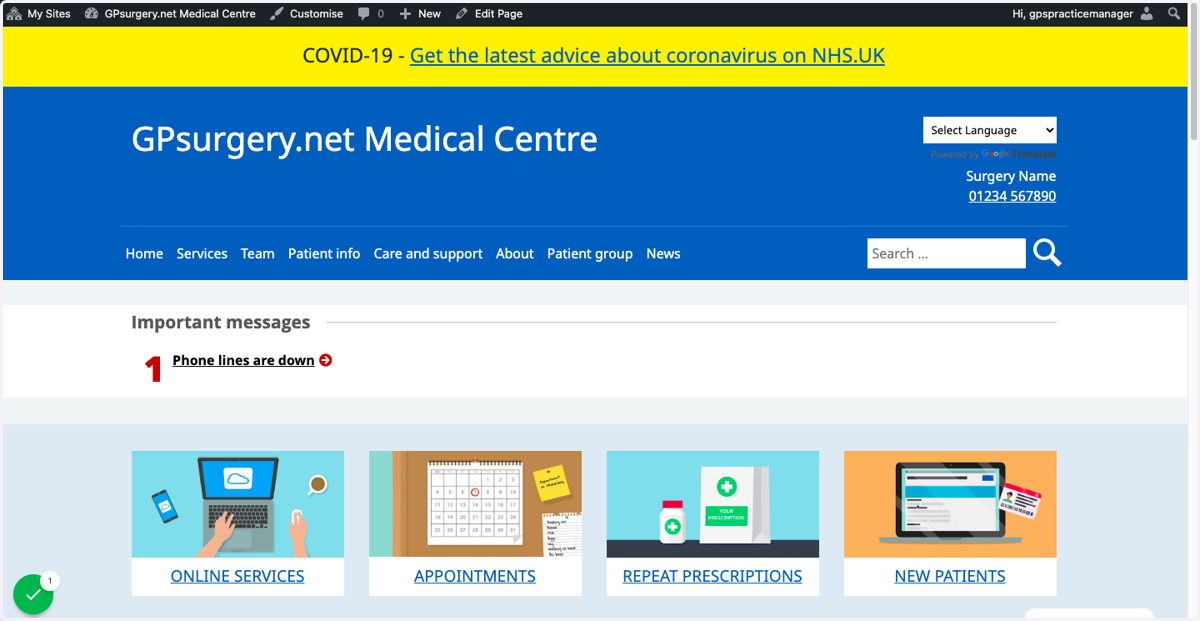
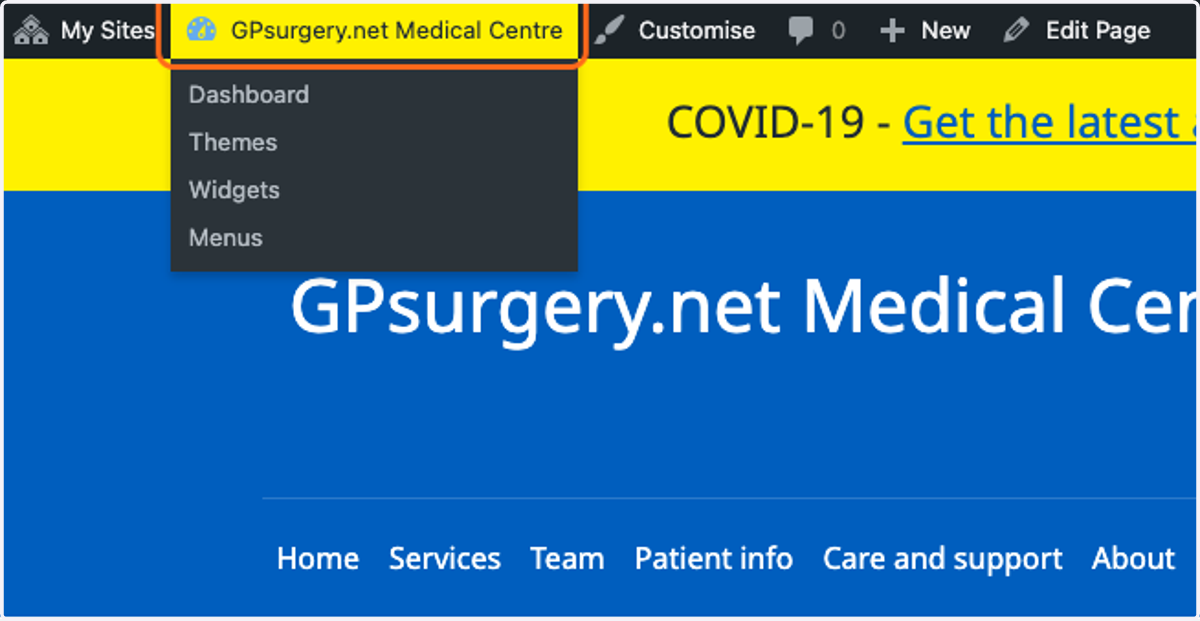
2. In the admin toolbar, click the name of your website to go to the dashboard.
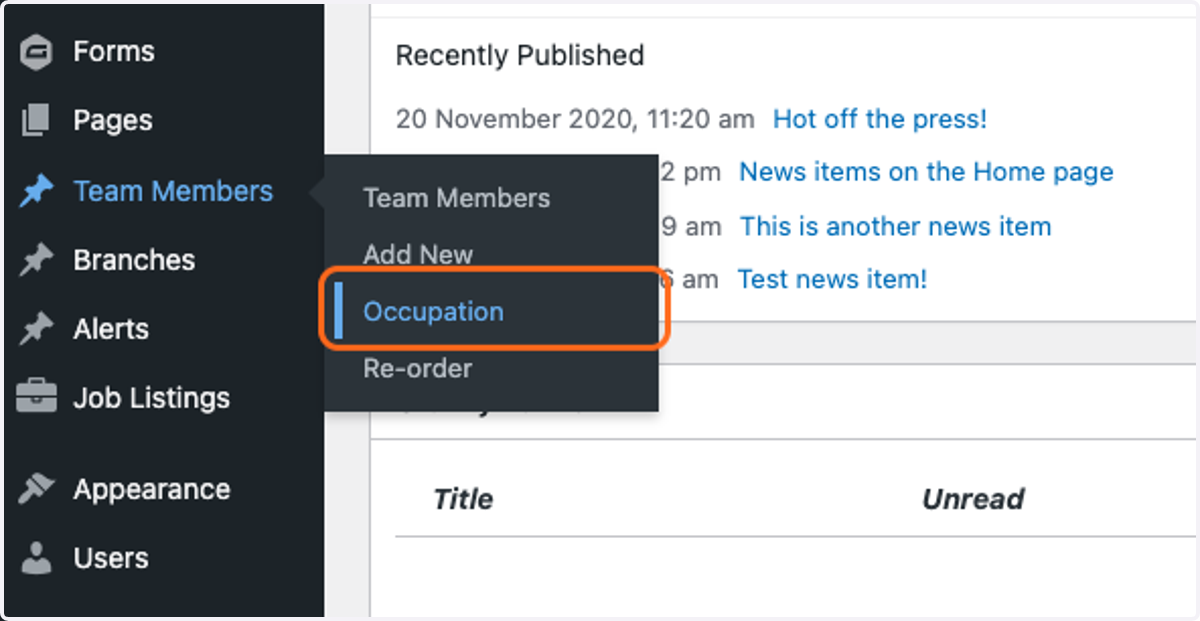
3. In the left-hand sidebar, hover your mouse over Team Members. Select Occupation from the drop-down list that appears.
4. This will bring you to the Occupation section of the dashboard. To add a new Occupation, you will be filling in the boxes on the left-hand side of this page.
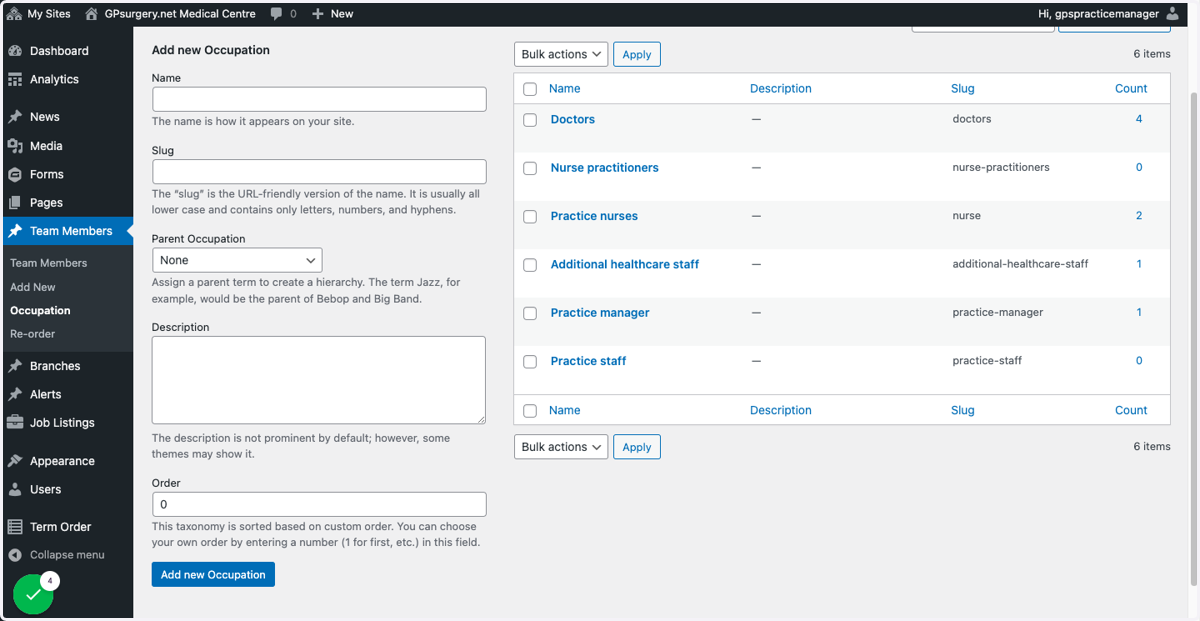
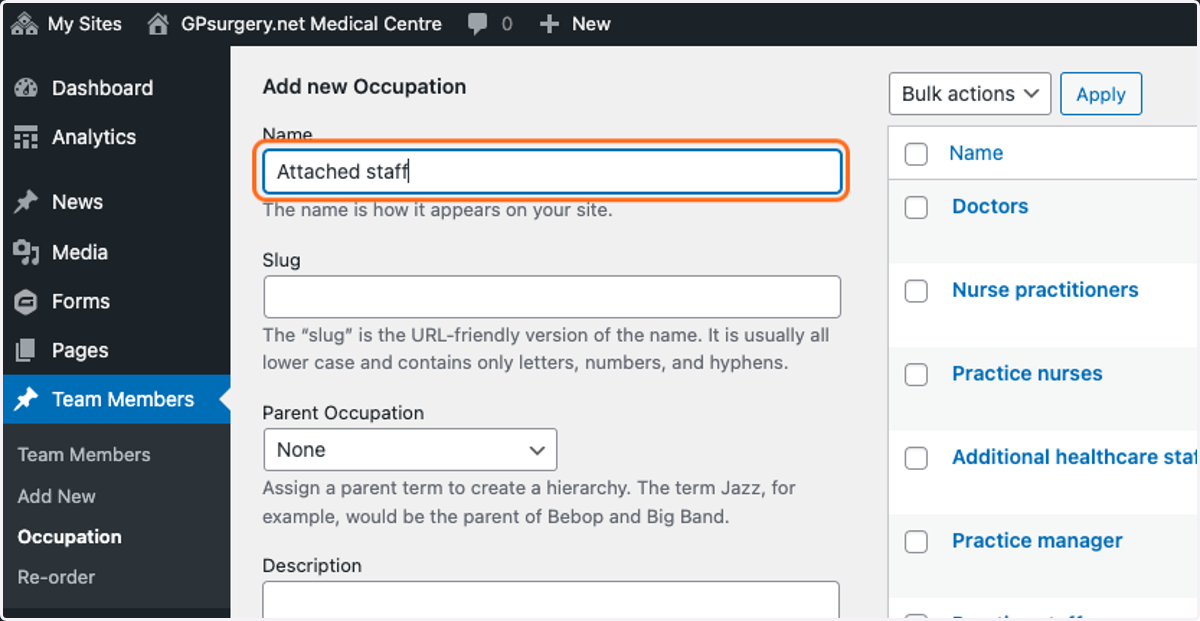
5. In the Name box, type the name of the Occupation. Choose something short and clear, to make sure that your website remains easy to understand.
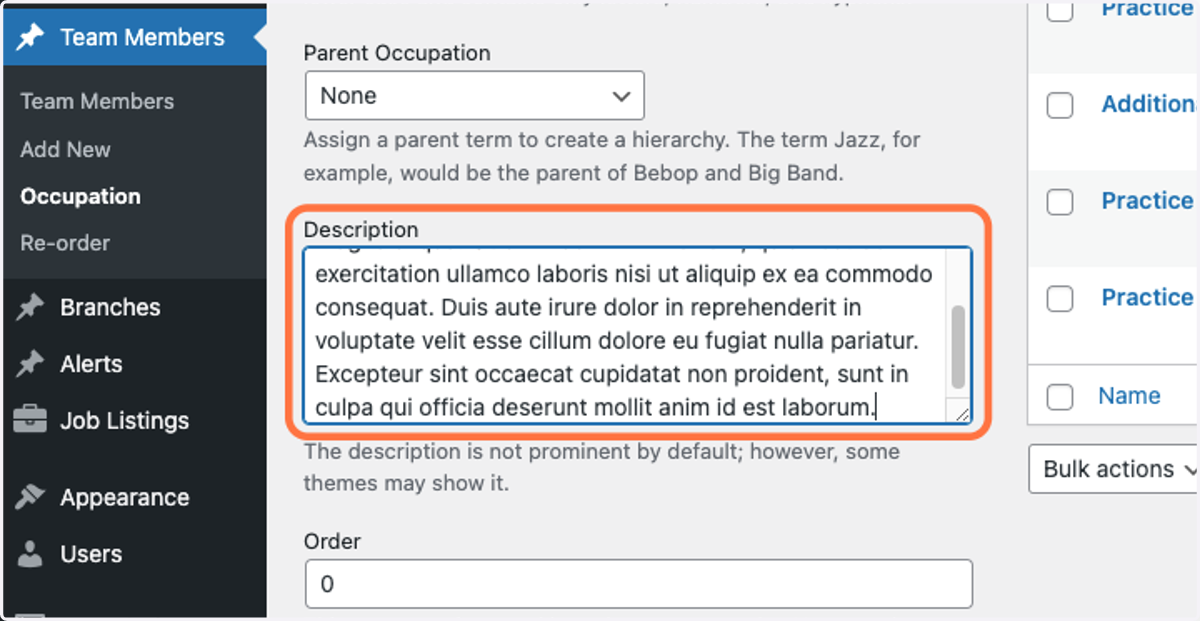
6. In the Description box, you have the option to add information about this Occupation, which will be displayed under the Occupation title on the Team page.
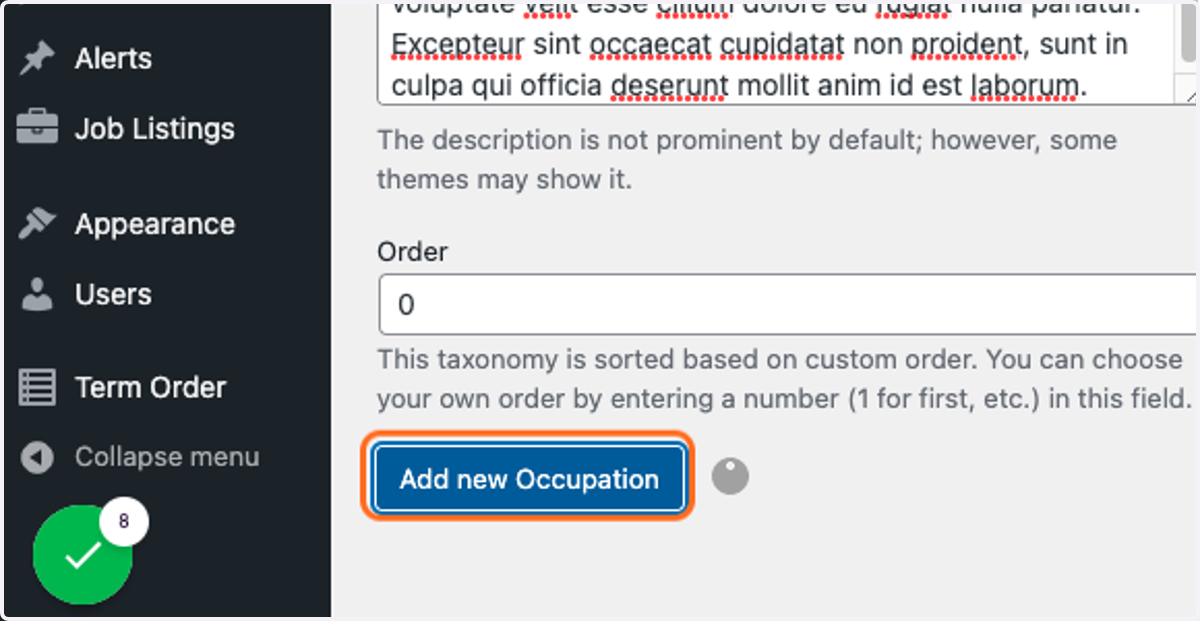
7. Click the blue Add new Occupation button to save your new Occupation.
Note: Leave the Slug, Parent occupation and Order boxes as they are.
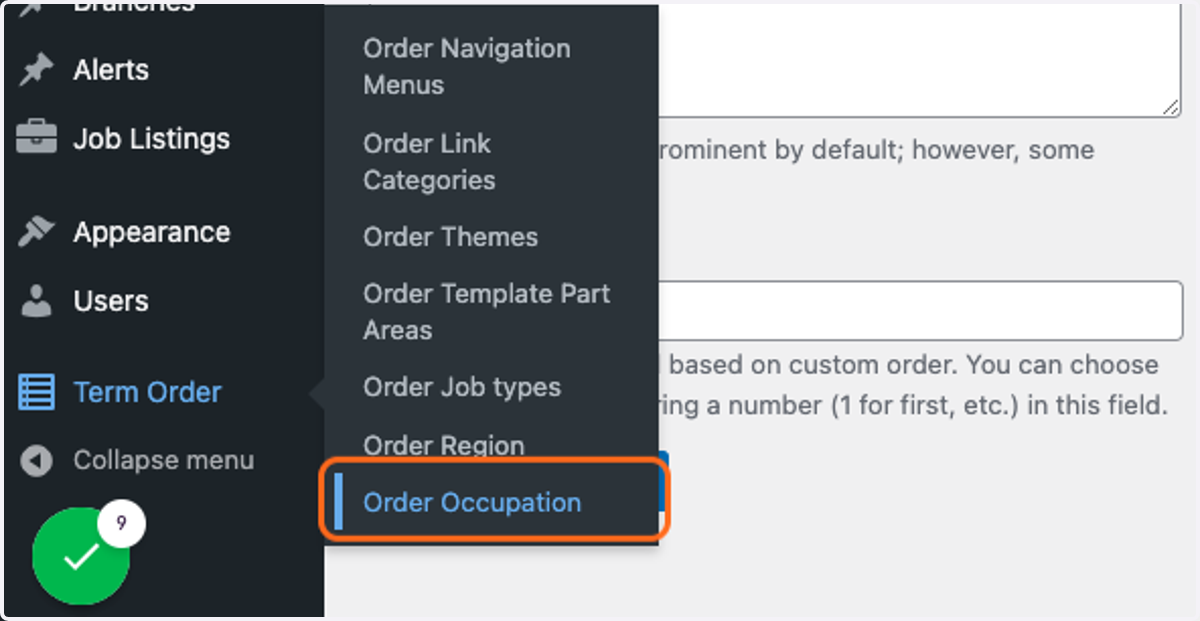
8. In the left-hand sidebar, hover your mouse over Term Order. Click Order Occupation from the drop-down menu that appears.
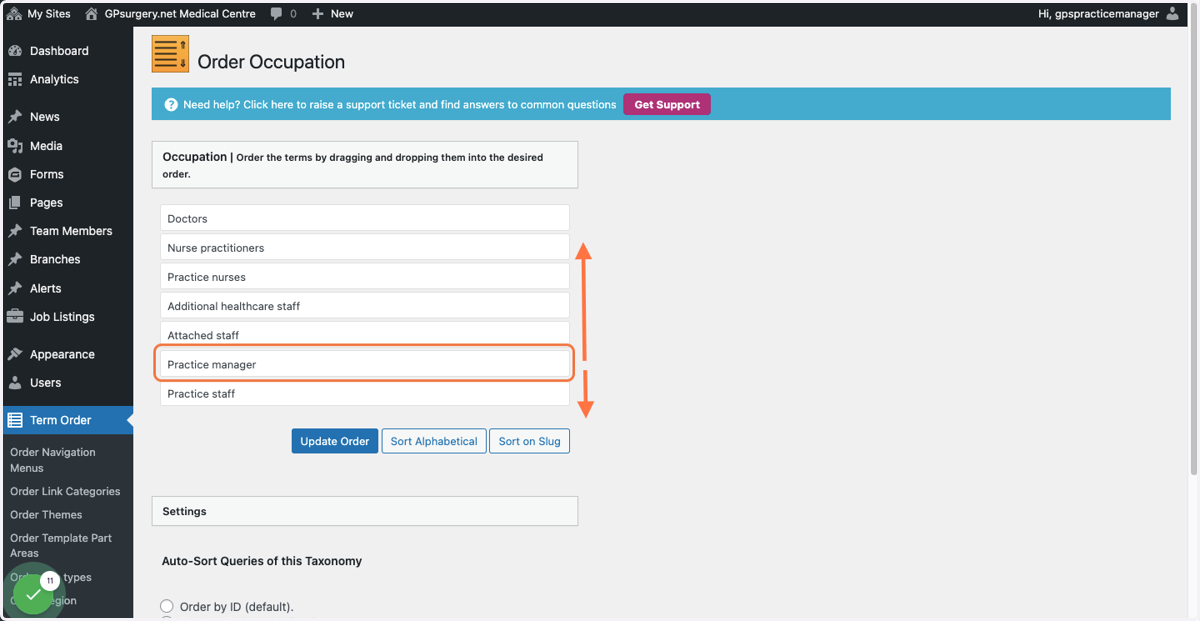
9. In the Order Occupation section, you can drag and drop the Occupation boxes to decide the order in which they display on the Team page.
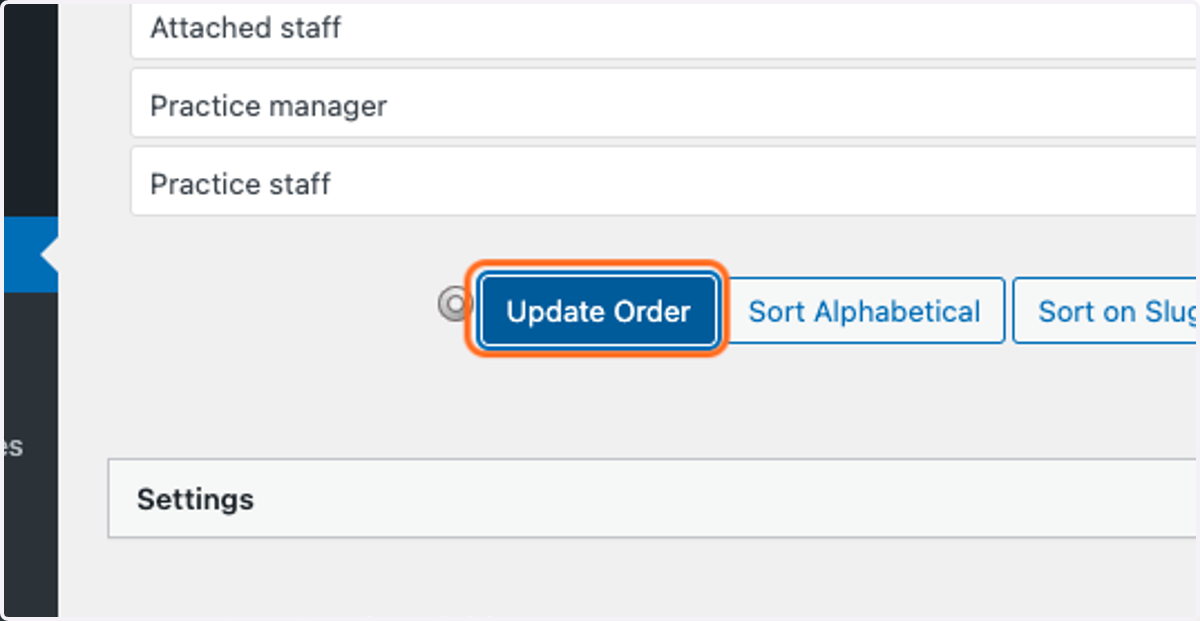
10. Once your Occupations are in your desired order, click the blue Update Order button.
11. Your Occupation will now display on the Team page, in your desired order. In this example you can see that a description appears under the name of the Occupation, and before any Team Members in the Occupation.
Note: Occupations will only display on the Team page if there are Team Members assigned to them.