Connecting Your DNS Records

Horse Business Manager

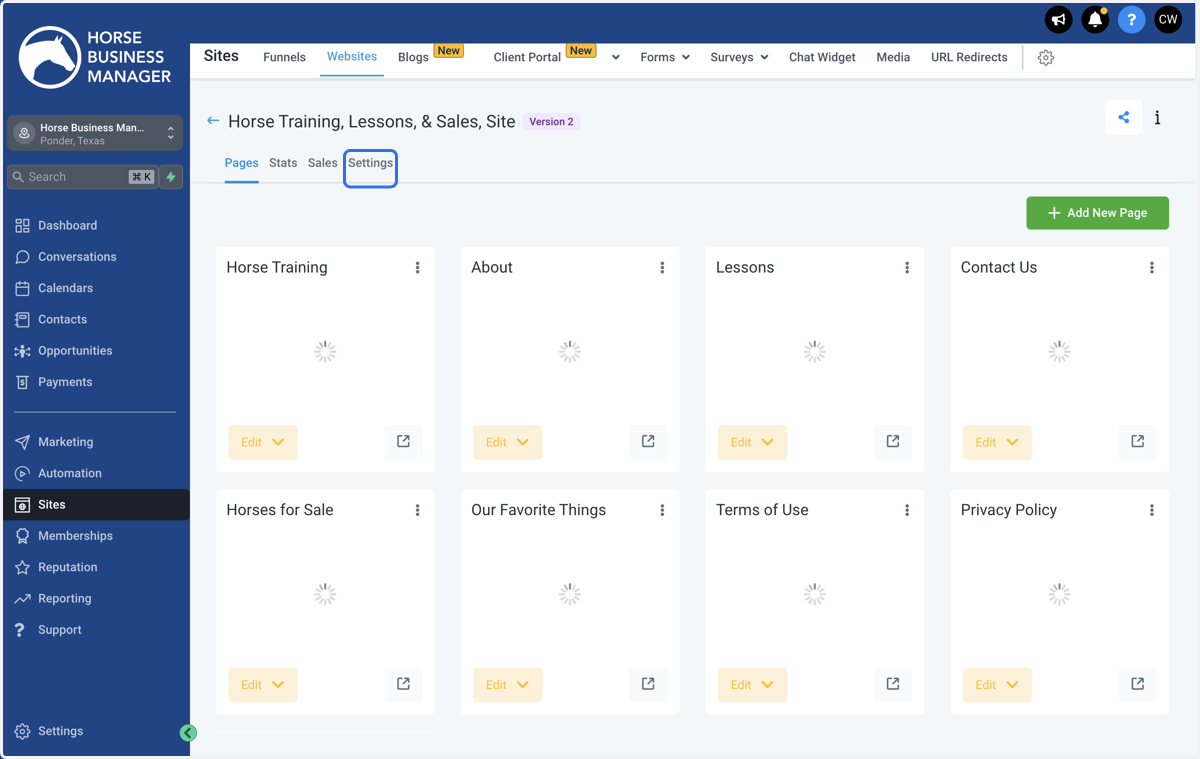
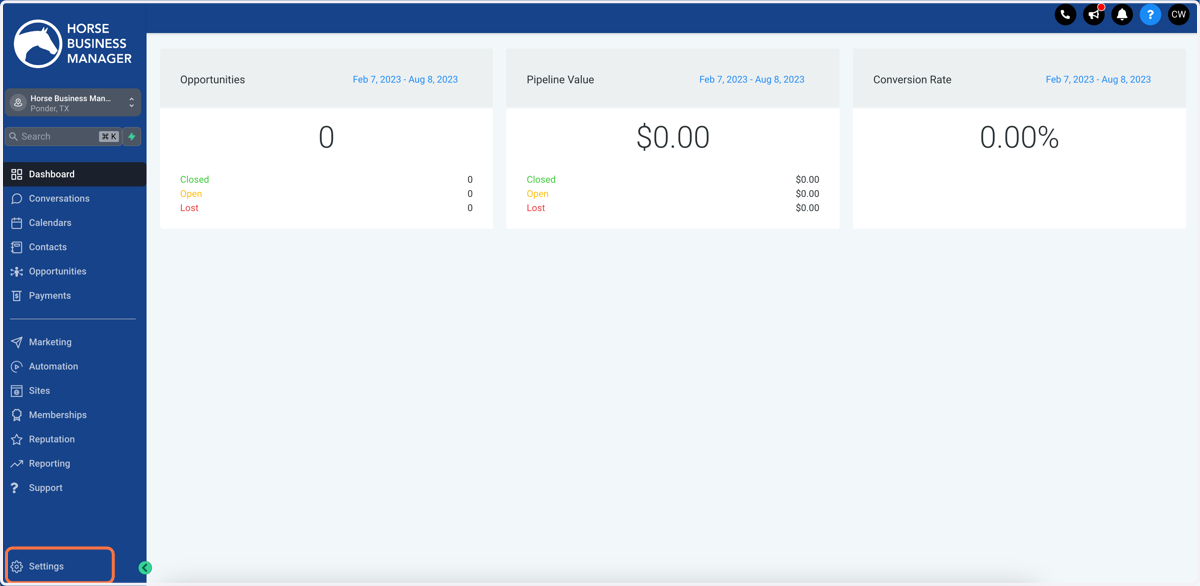
  1. 1. Click on Settings

    Click on Settings
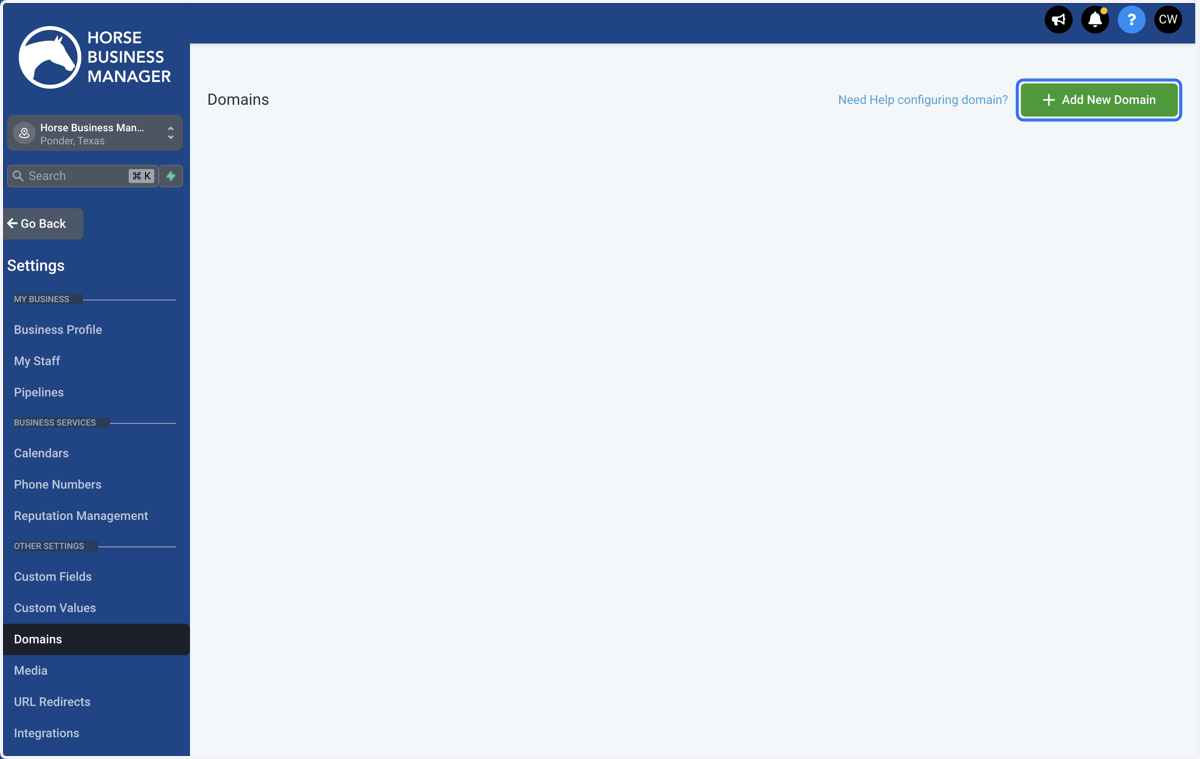
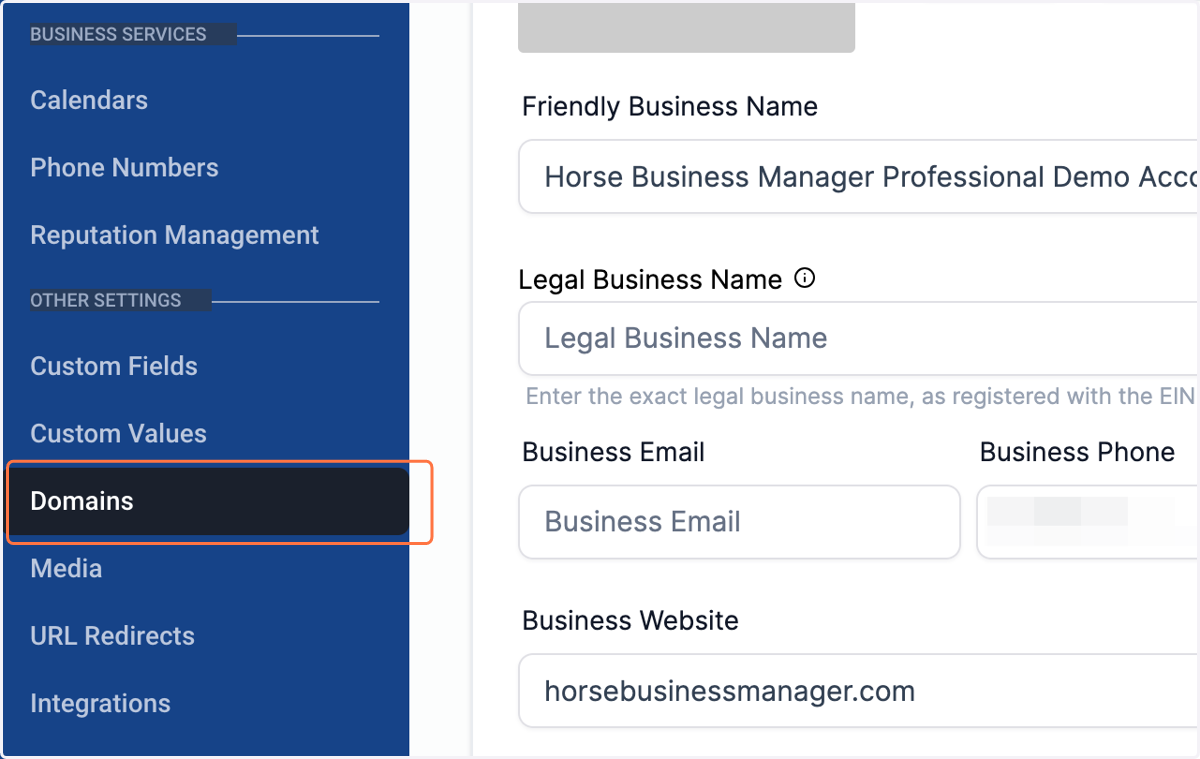
  2. 2. Click on Domains

    Click on Domains
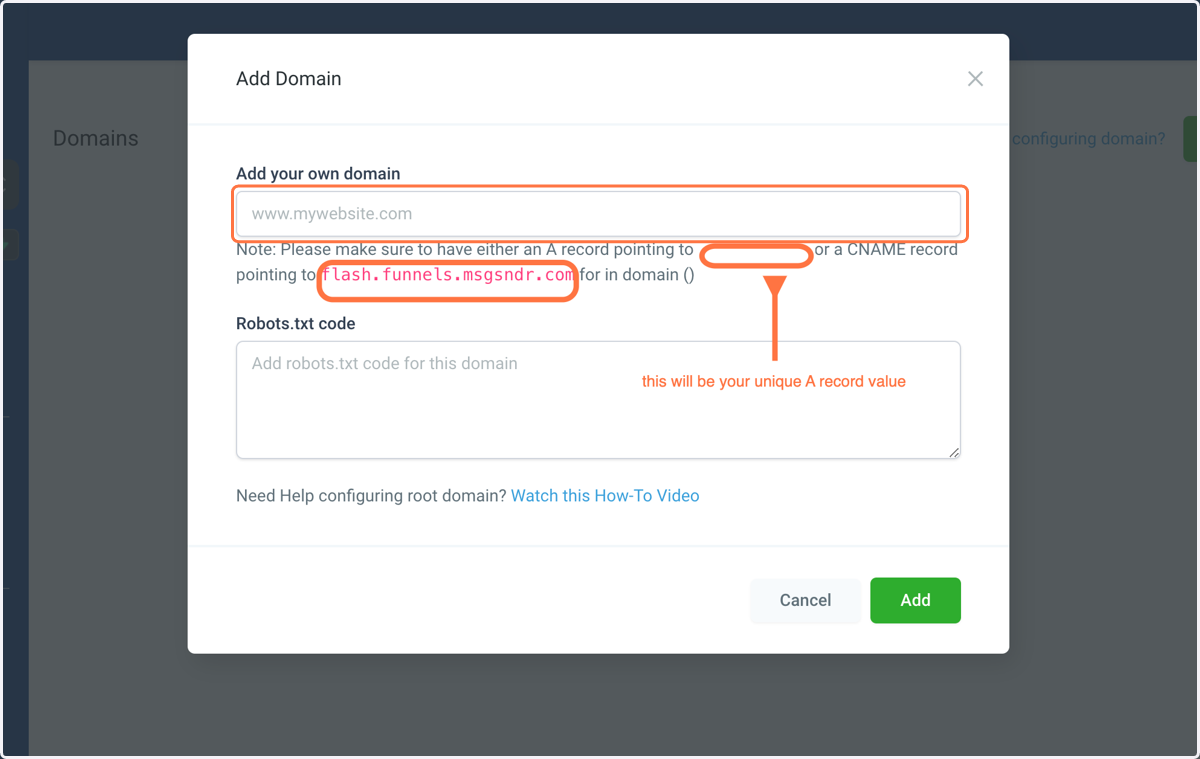
  3. 3. Click on Add New Domain

    Click on Add New Domain
  4. 4. Type in your website's URL

    Type in your website's URL

Go to your website host's website

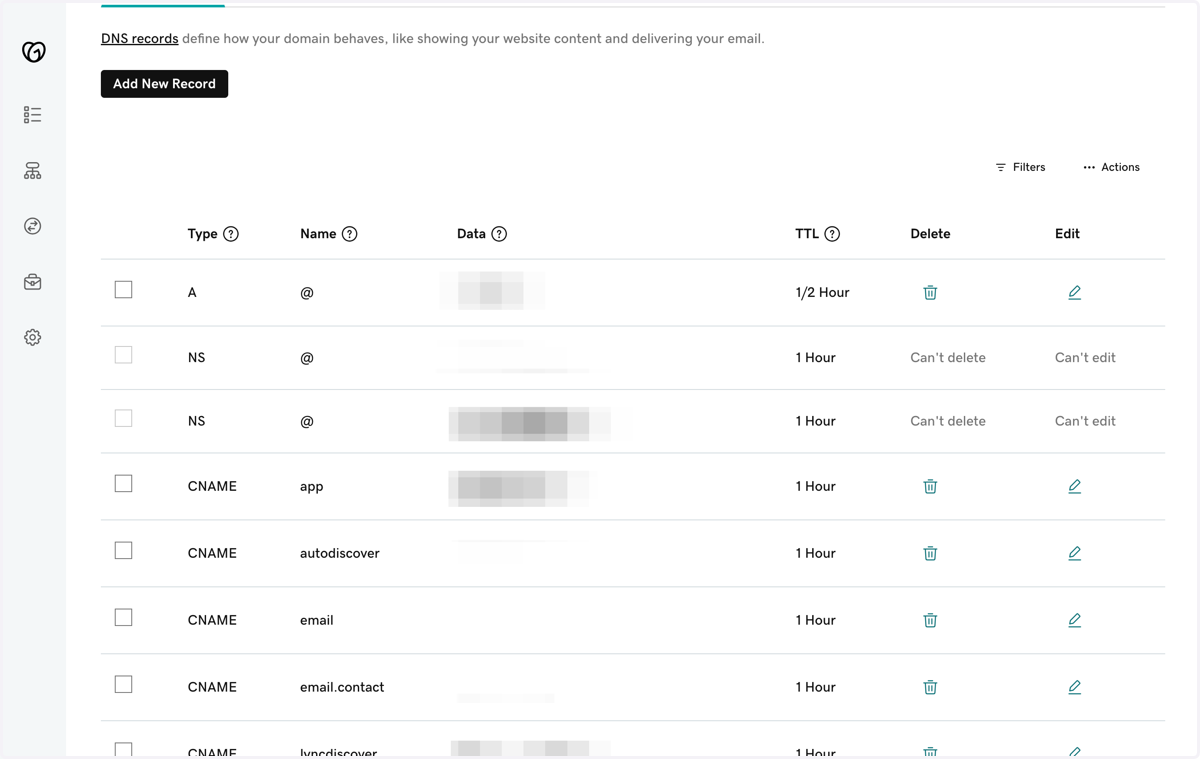
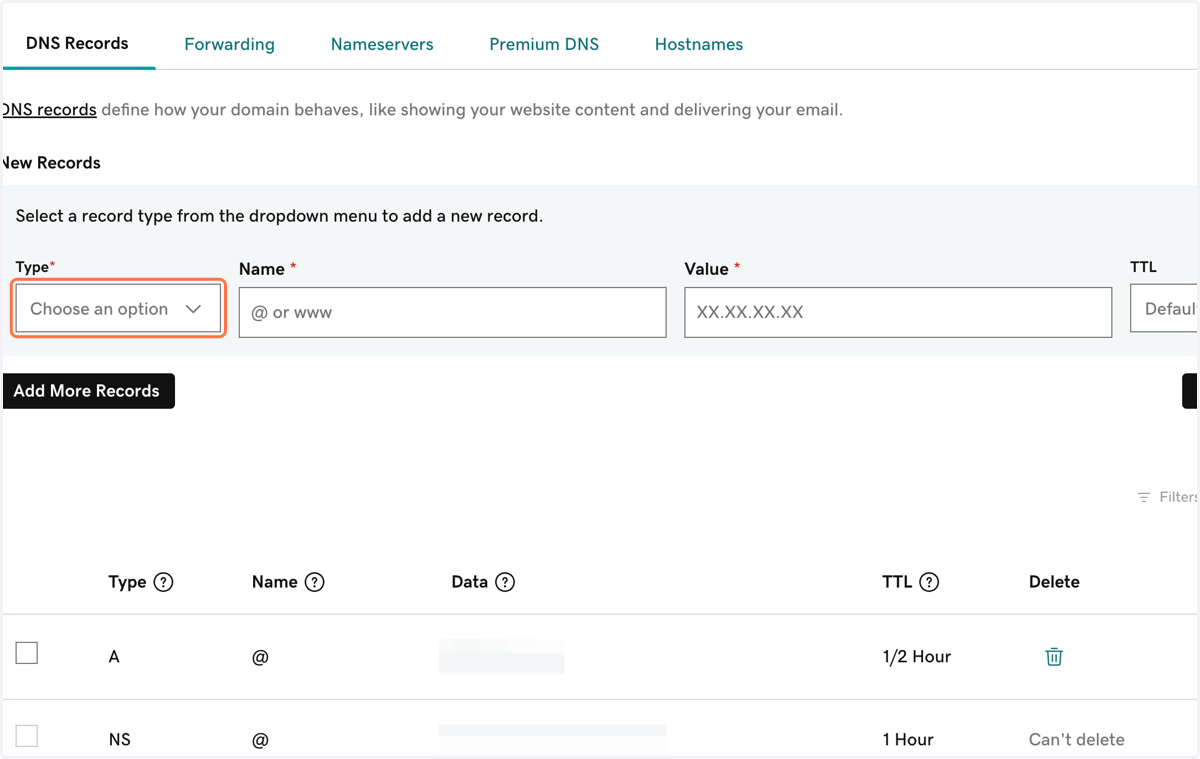
  1. 5. Open the DNS Record Editor

    Open the DNS Record Editor
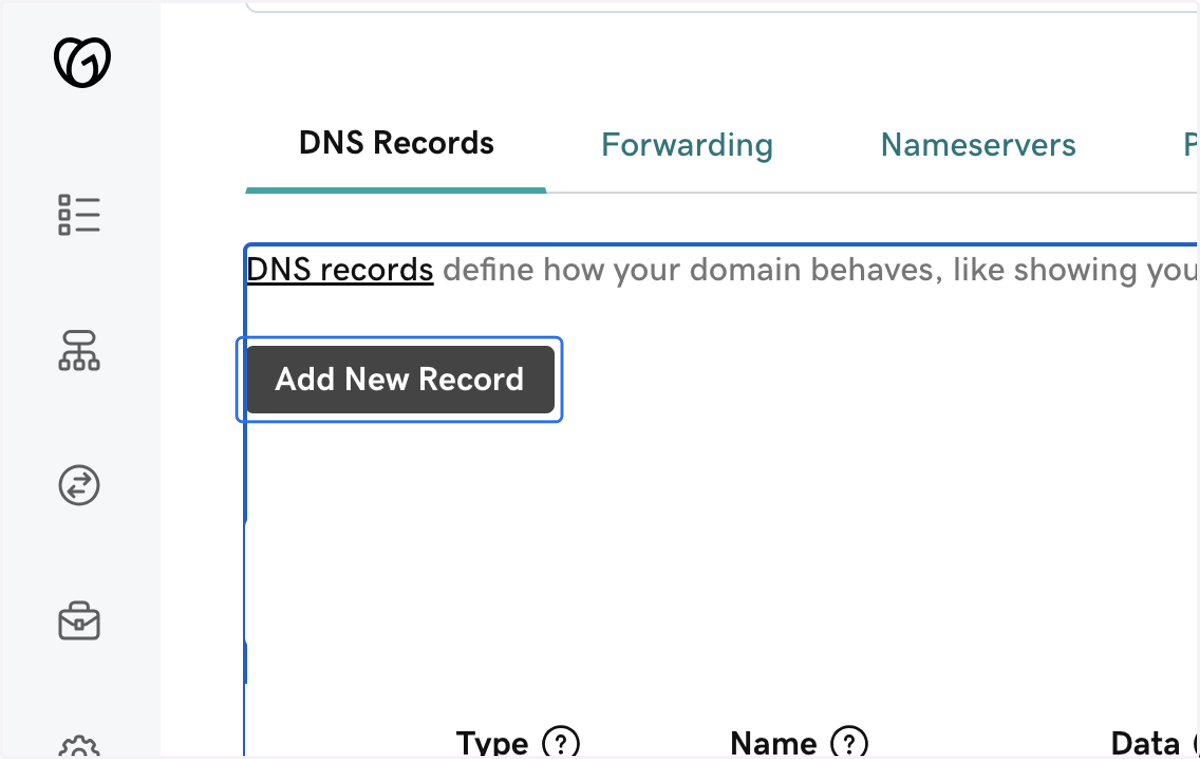
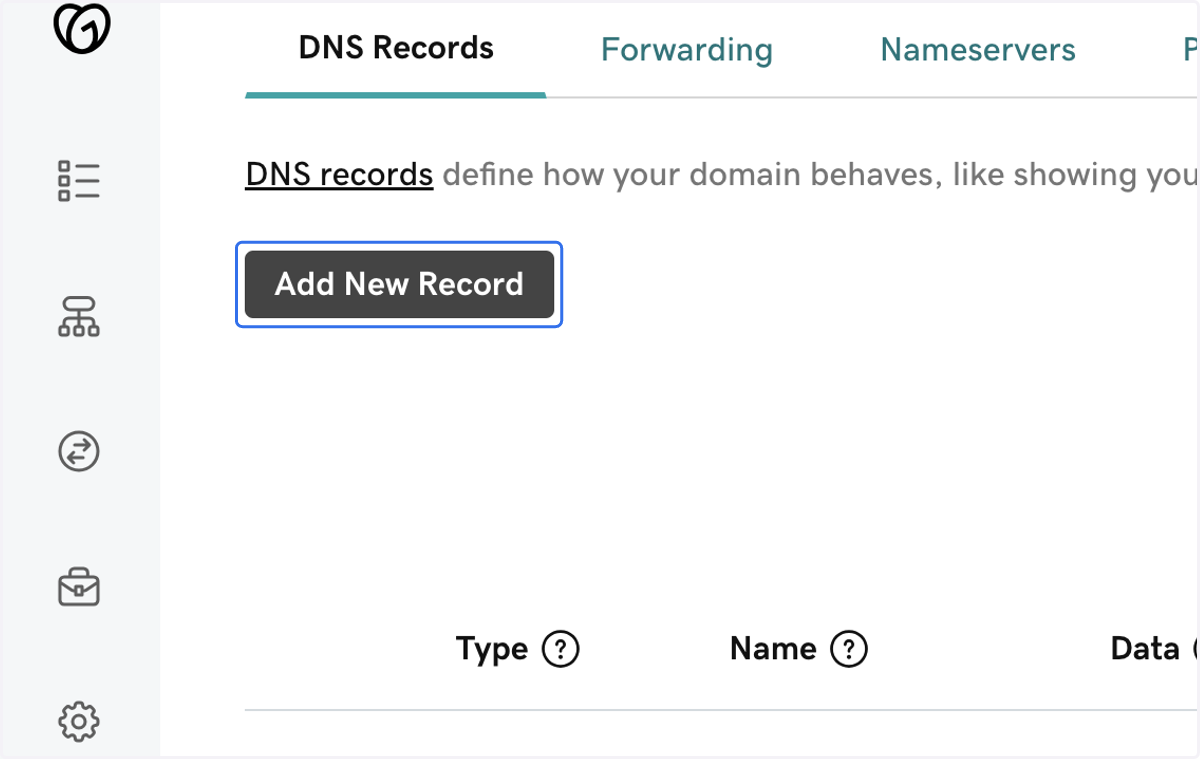
  2. 6. Click Add New Record

    Click Add New Record
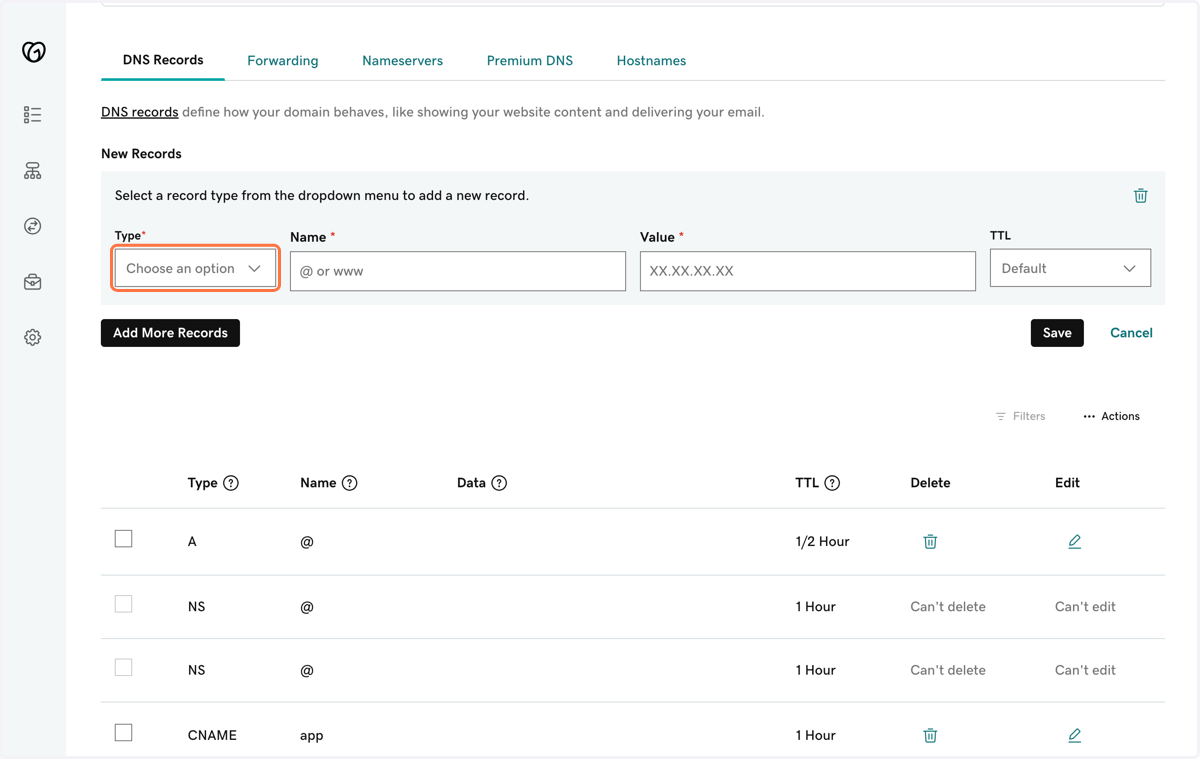
  3. 7. Set the A record to the value that was provided on HBM. 1. Select A record a Type 2. type @ or www for the Name 3. Paste the unique A record value in the Value field

    Set the A record to the value that was provided on HBM. 1. Select A record a Type 2. type @ or www for the Name 3. Paste the unique A record value in the Value field
  4. 8. If you want to add a CName Record, click Add New Record

    If you want to add a CName Record, click Add New Record
  5. 9. Set the CName record to the value that was provided on HBM. 1. Select CName record a Type 2. type www for the Name 3. Paste the unique CName value in the Value field
    Set the CName record to the value that was provided on HBM. 1. Select CName record a Type 2. type www for the Name 3. Paste the unique CName value in the Value field
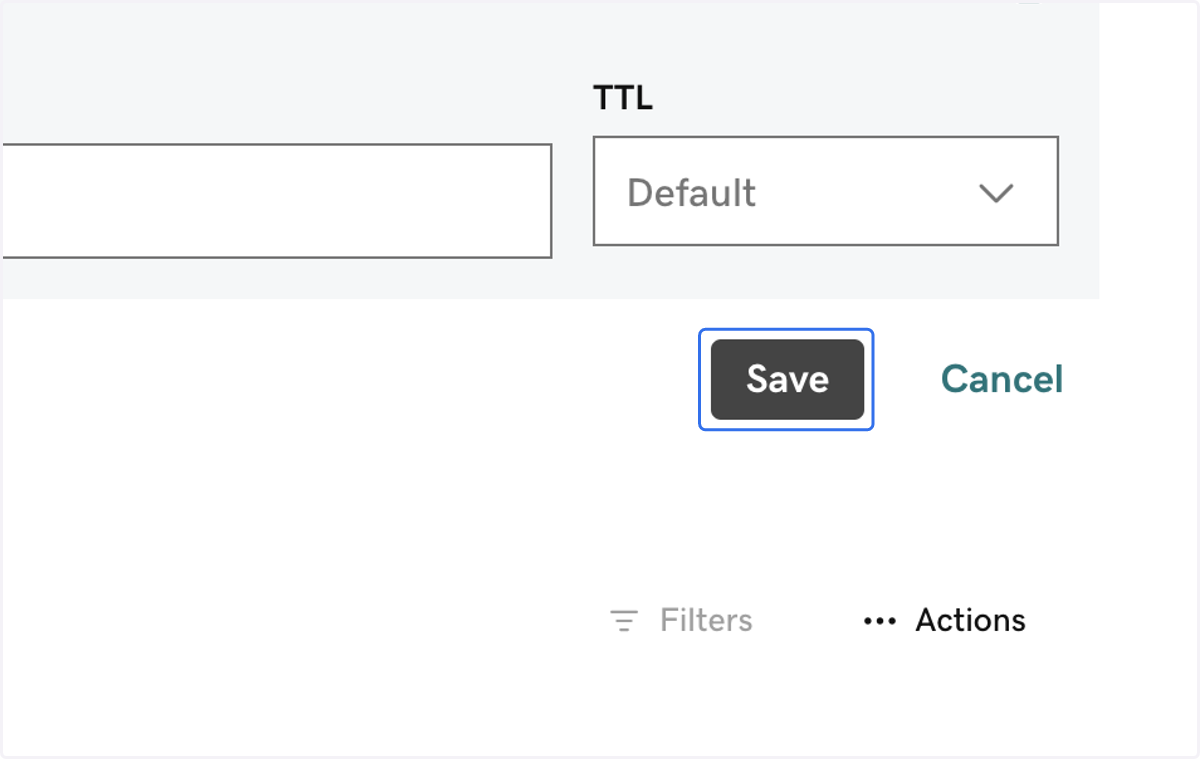
  6. 10. Click on Save

    Click on Save

Horse Business Manager

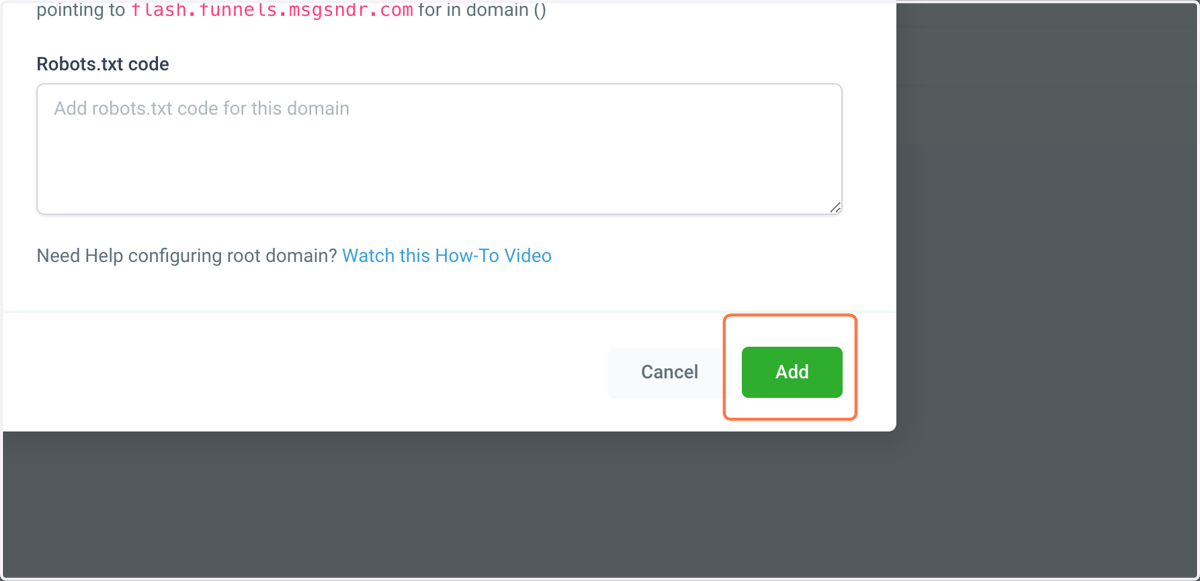
  1. 11. Once you have the records set, go back to HBM and click Add

    Once you have the records set, go back to HBM and click Add
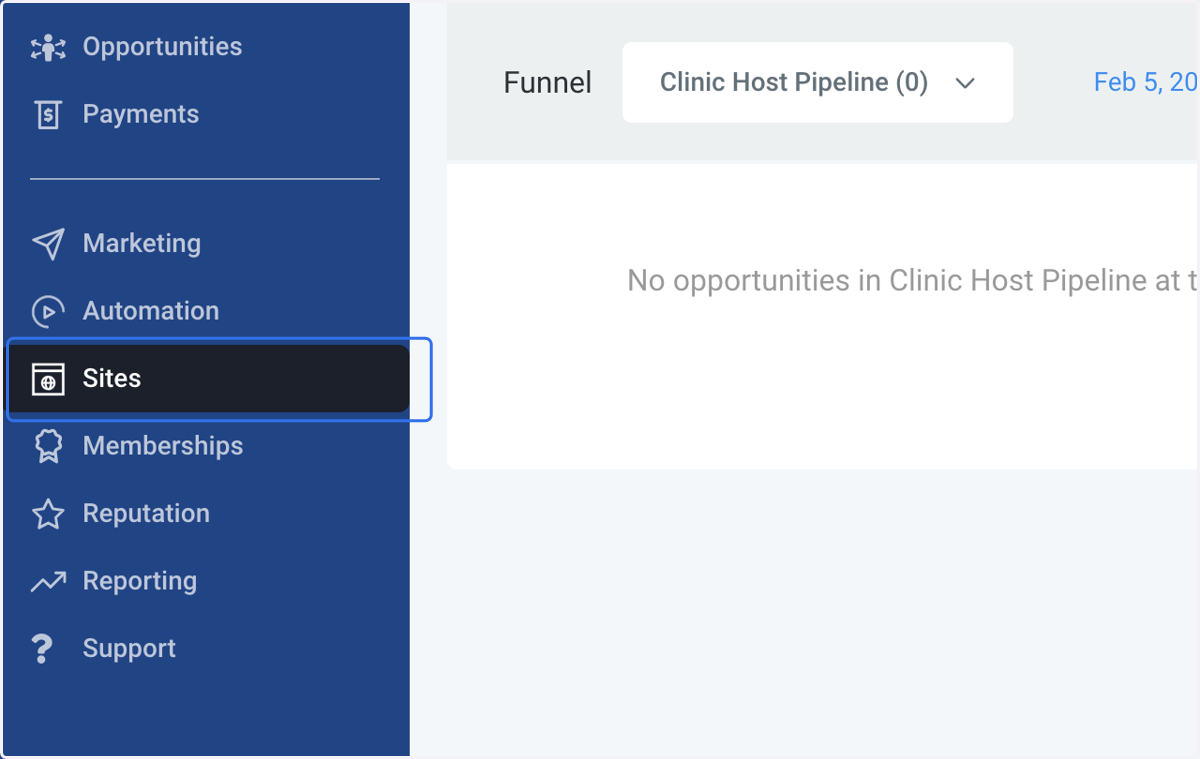
  2. 12. Go to Sites

    Go to Sites
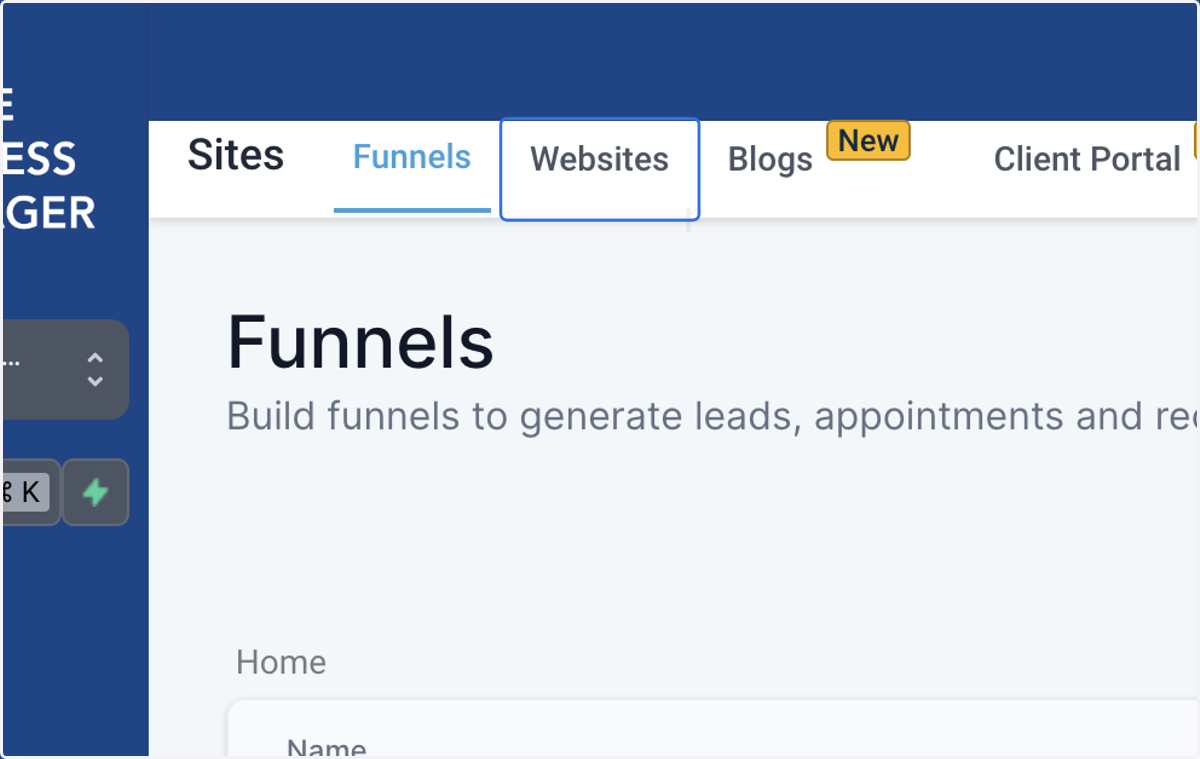
  3. 13. Click on Websites

    Click on Websites
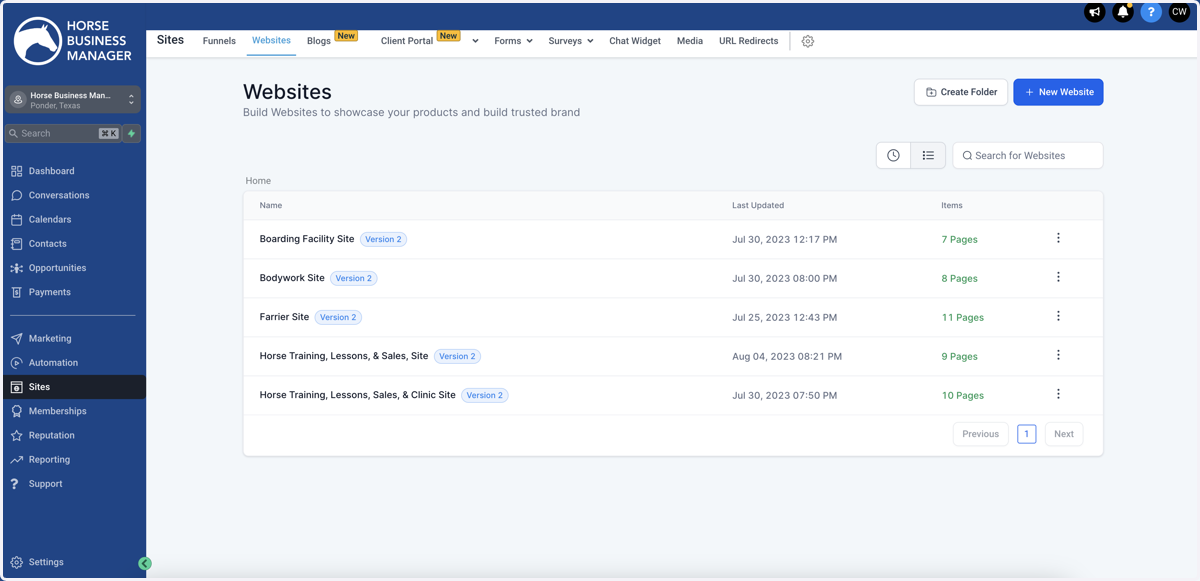
  4. 14. Open the site that you want to link your Domain to

    Open the site that you want to link your Domain to
  5. 15. Click on Settings

    Click on Settings
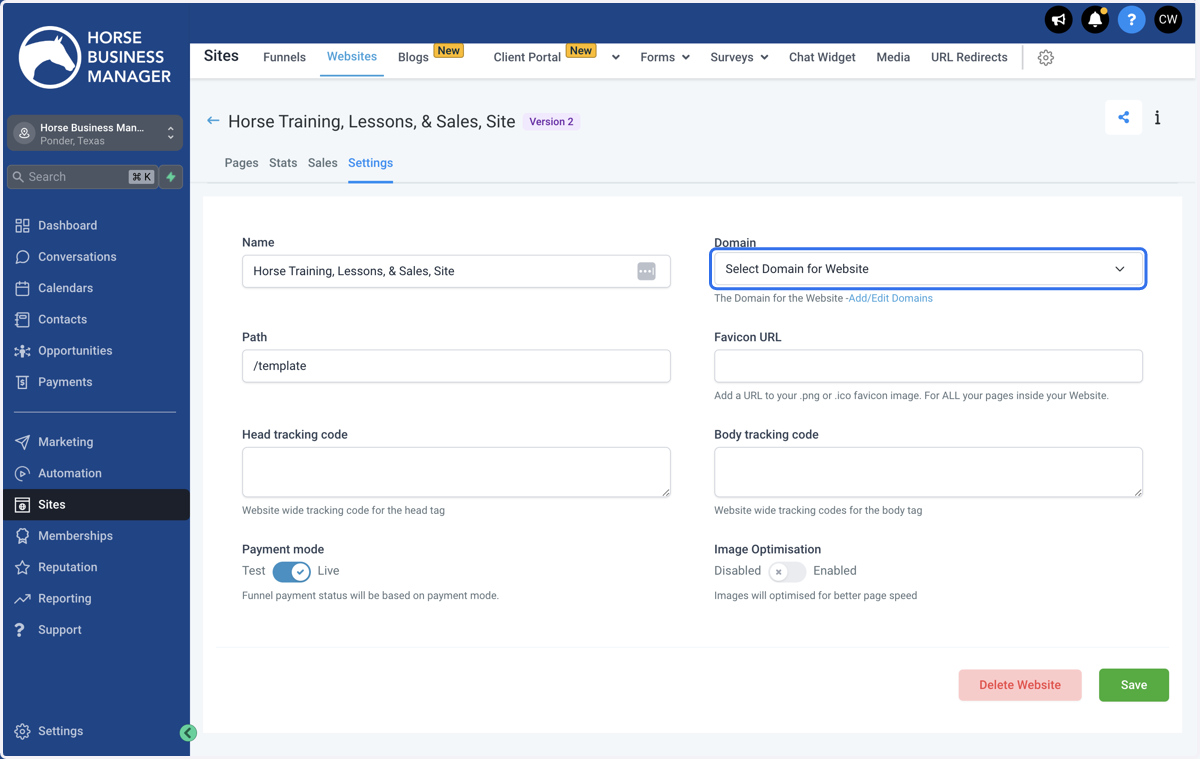
  6. 16. Click on Select Domain for Website

    Click on Select Domain for Website
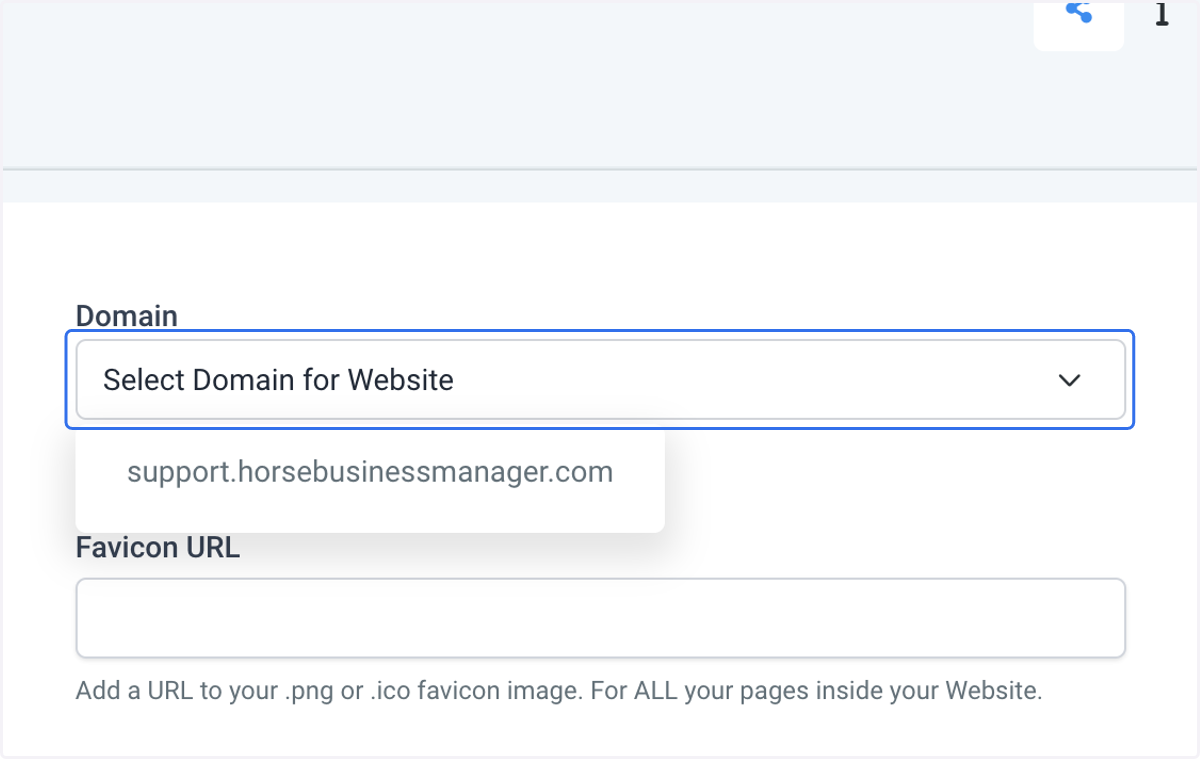
  7. 17. Select your domain from the list

    Select your domain from the list
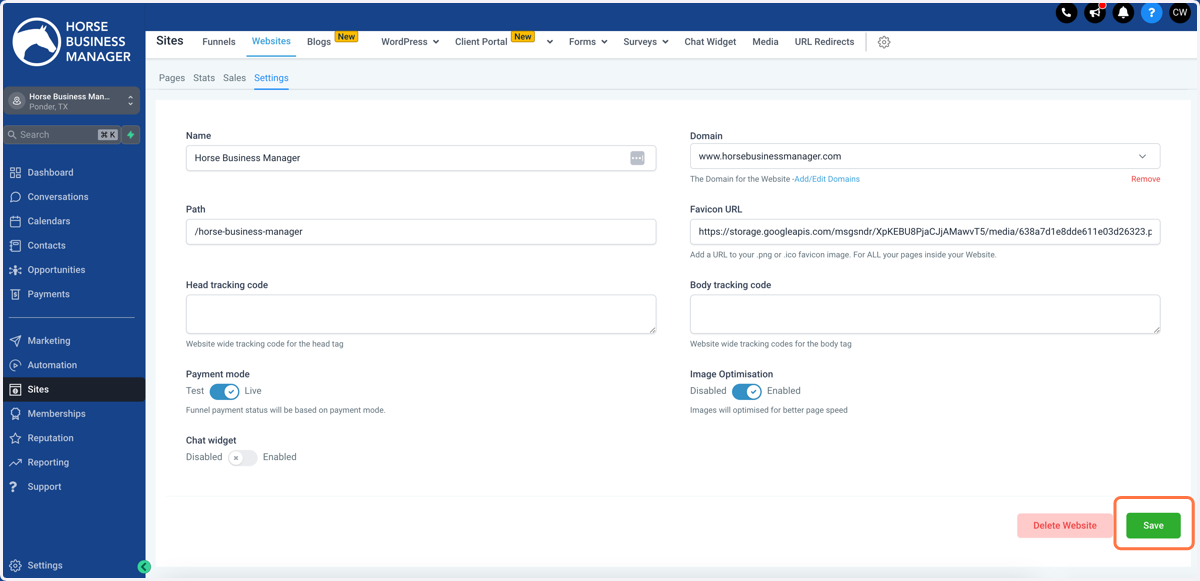
  8. 18. Click Save

    Click Save
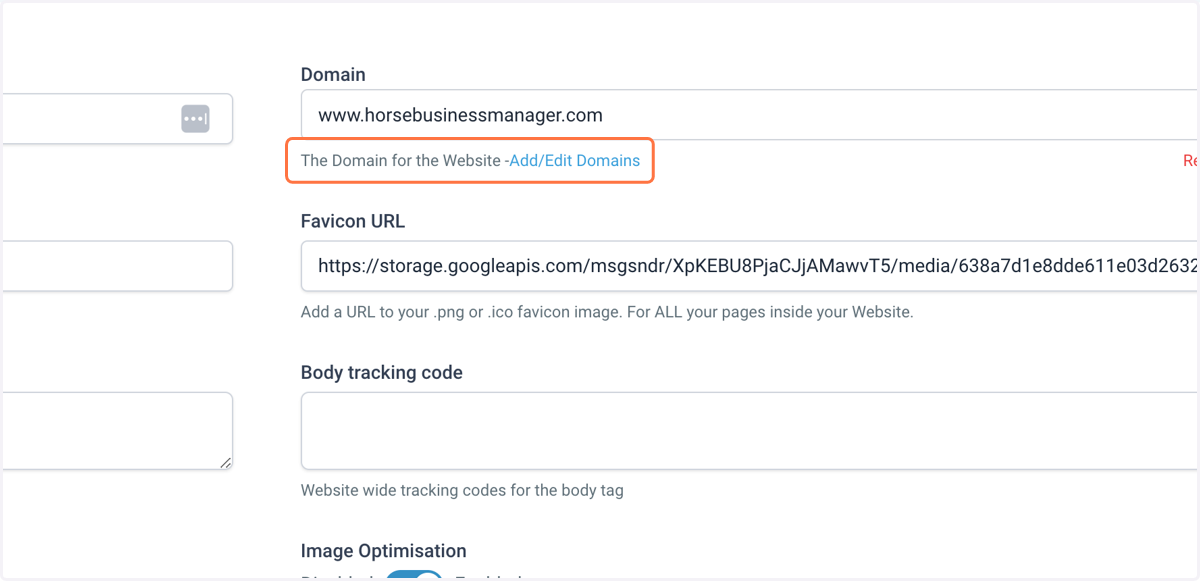
  9. 19. Click Add/Edit Domain

    Click Add/Edit Domain
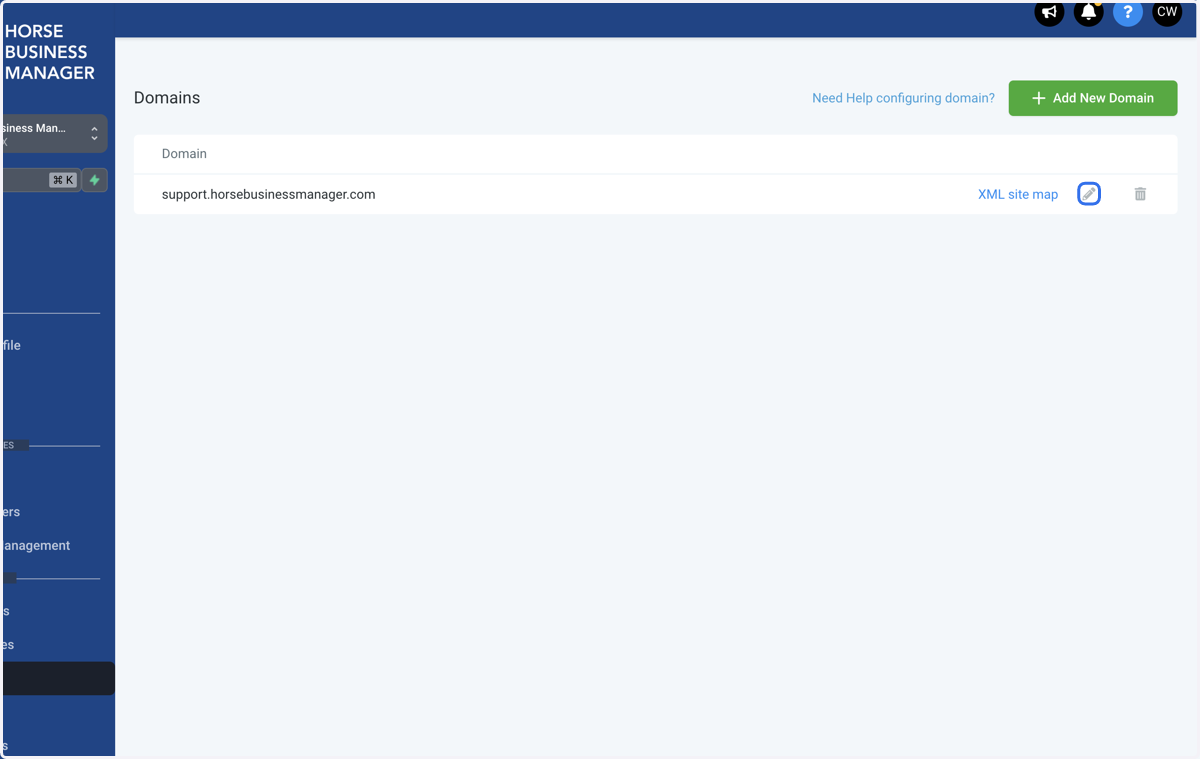
  10. 20. Click on the Edit icon

    Click on the Edit icon
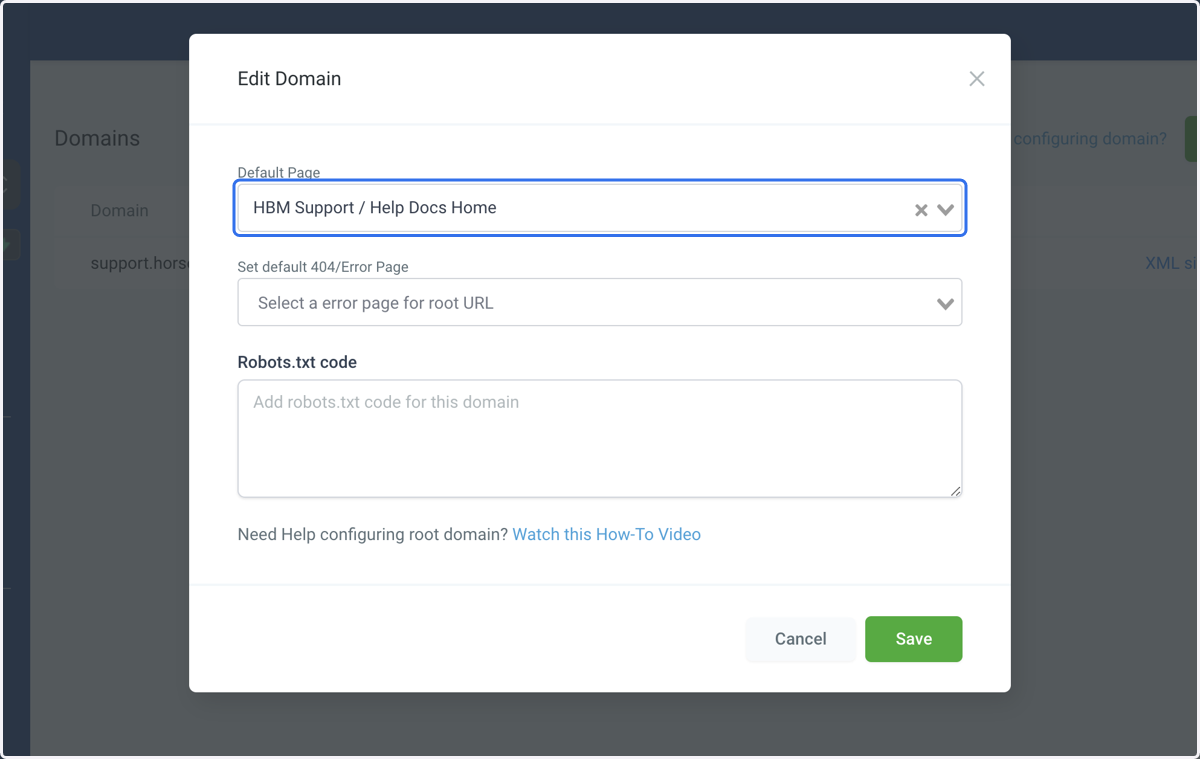
  11. 21. Select your default page (homepage) for the URL

    Select your default page (homepage) for the URL
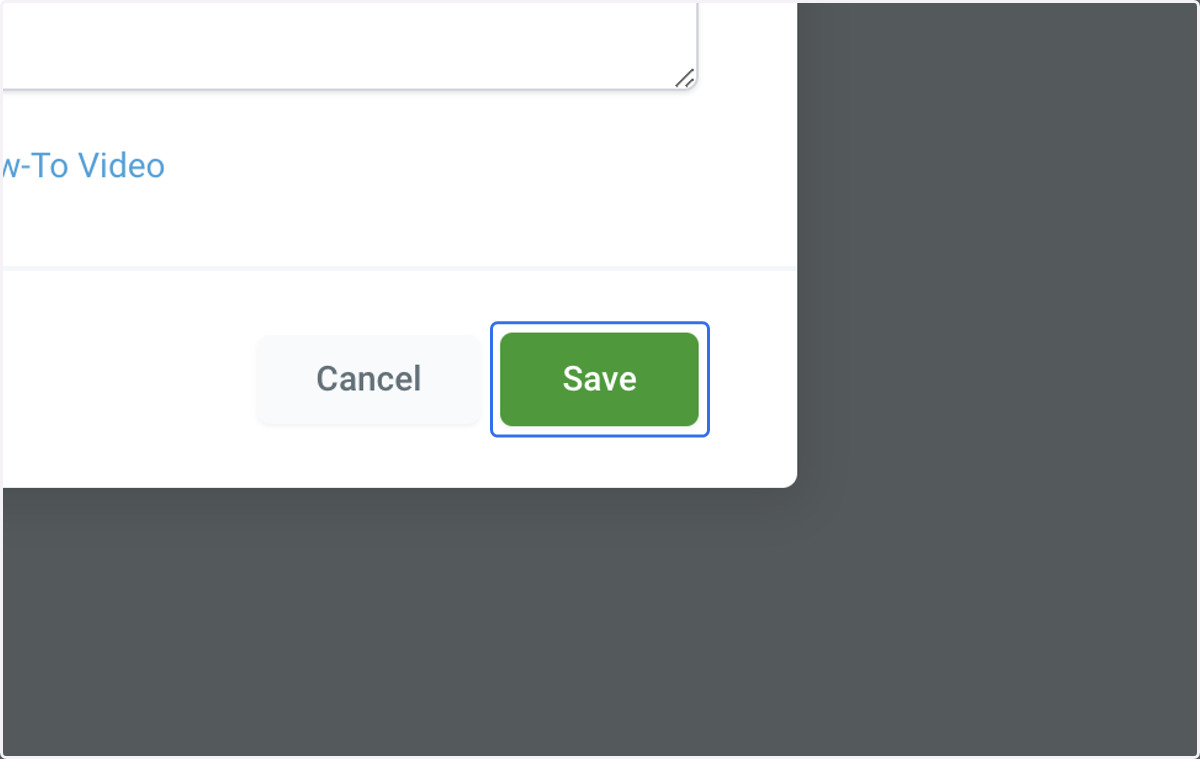
  12. 22. Click on Save

    Click on Save