Registration Modifications

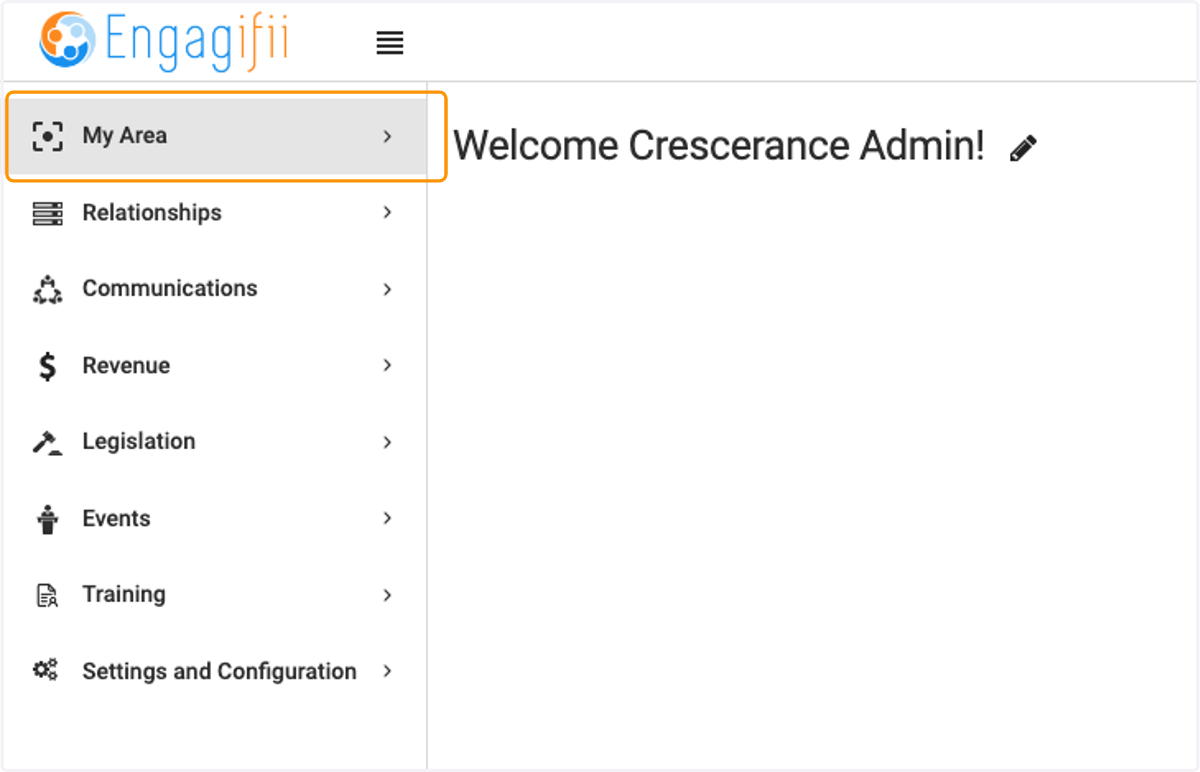
  1. 1. Click on My Area

    Click on My Area
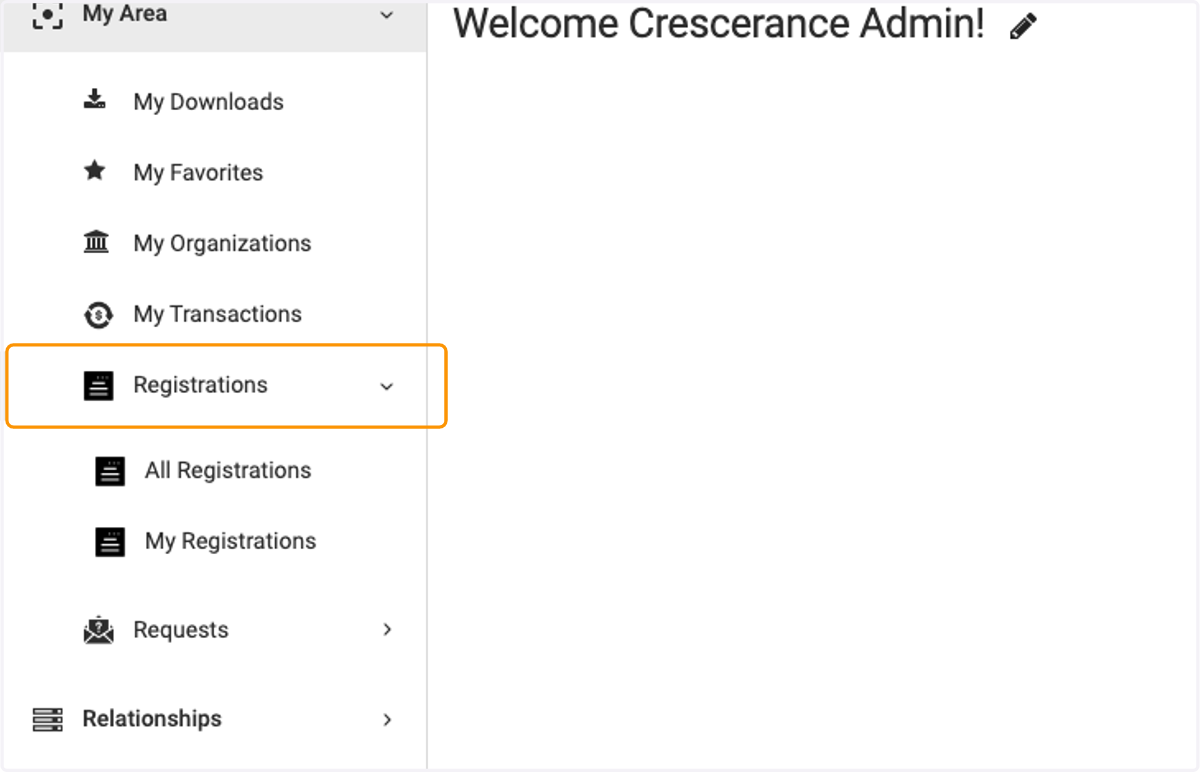
  2. 2. Click on Registrations

    Click on Registrations
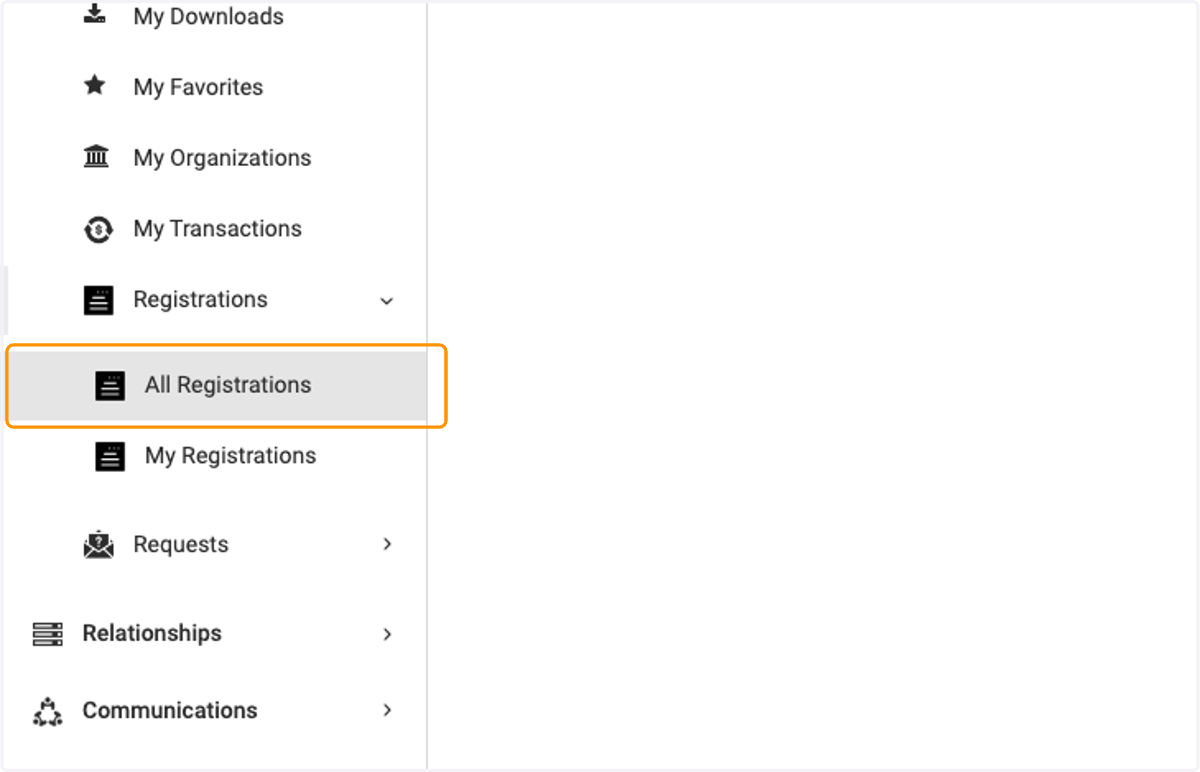
  3. 3. Click on All Registrations

    Click on All Registrations
  4. 4. Select the Registration ID or Group ID for the registration you wish to modify
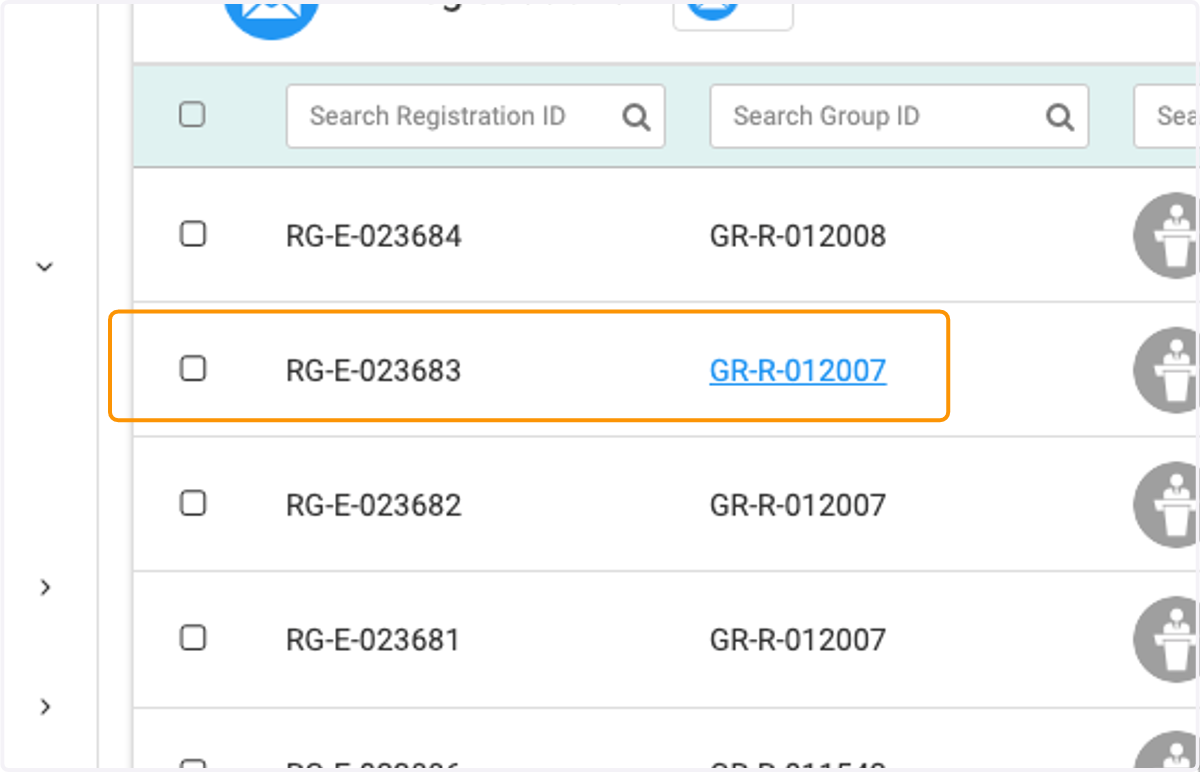
    Select the Registration ID or Group ID for the registration you wish to modify
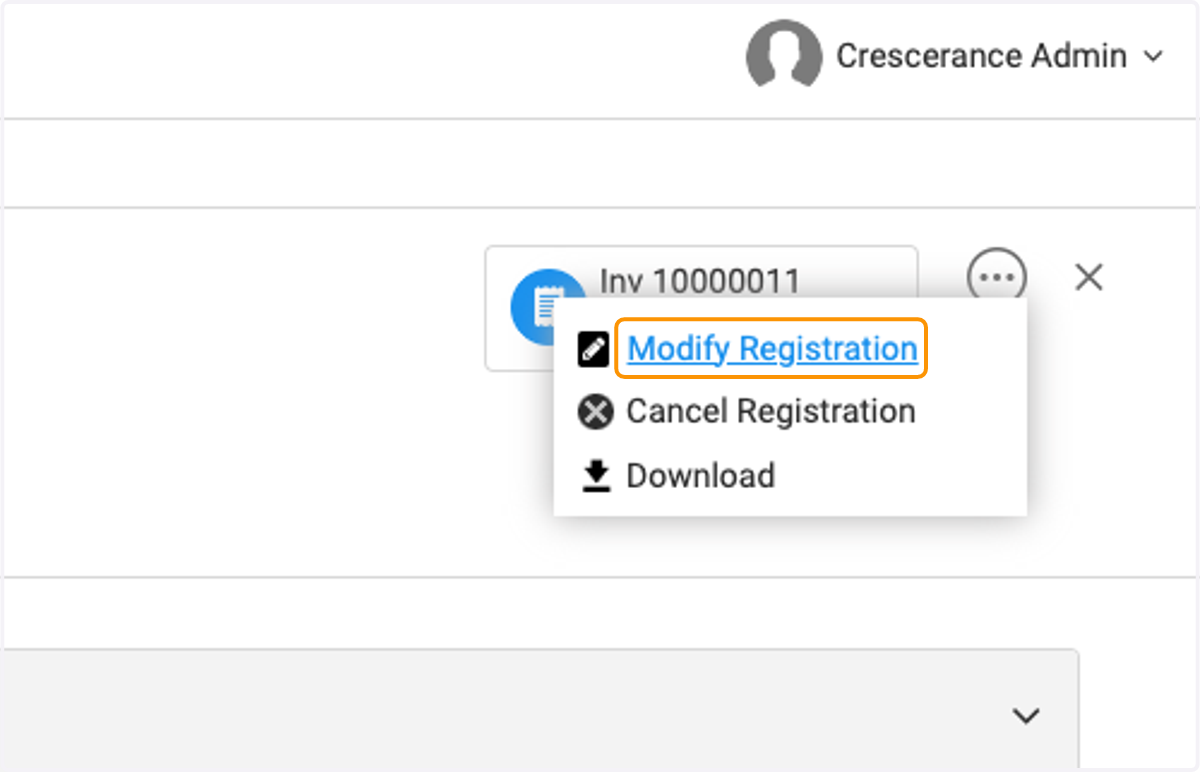
  5. 5. Click on 3 dots at the top right of the page
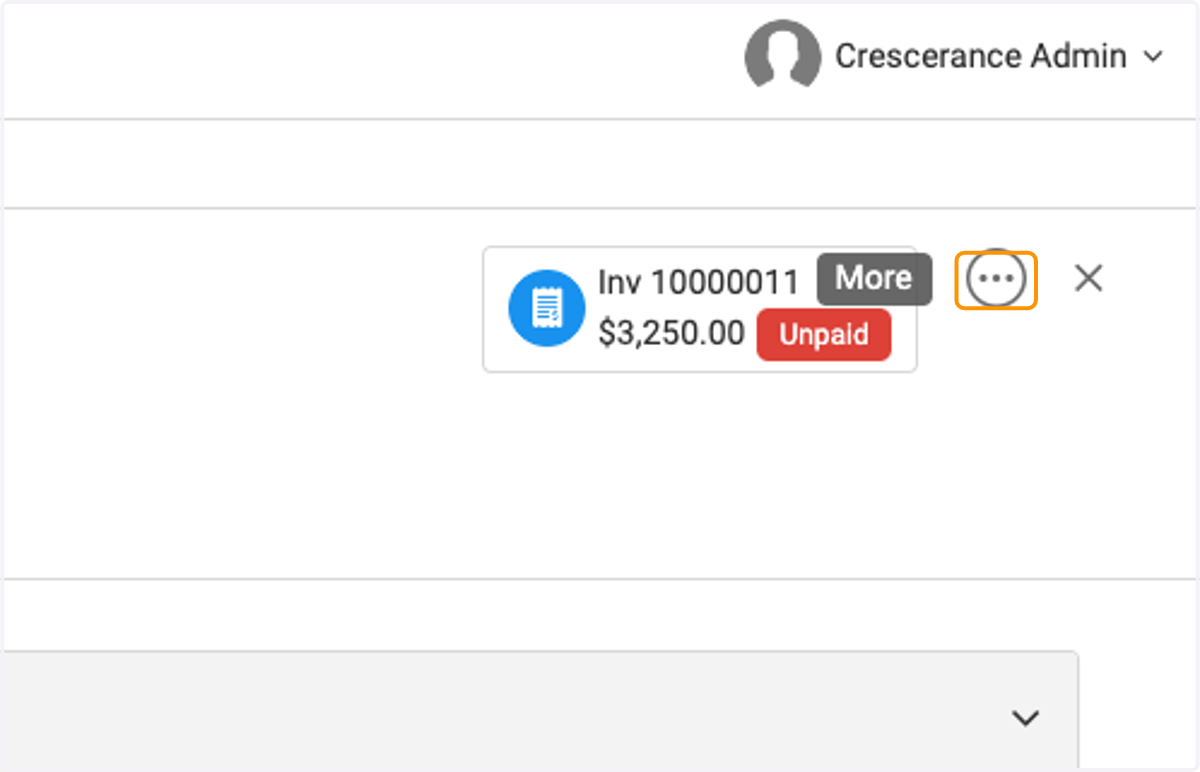
    Click on 3 dots at the top right of the page
  6. 6. Click on Modify Registration

    Click on Modify Registration
  7. 7. Select the correct circle for if a modification fee is charged
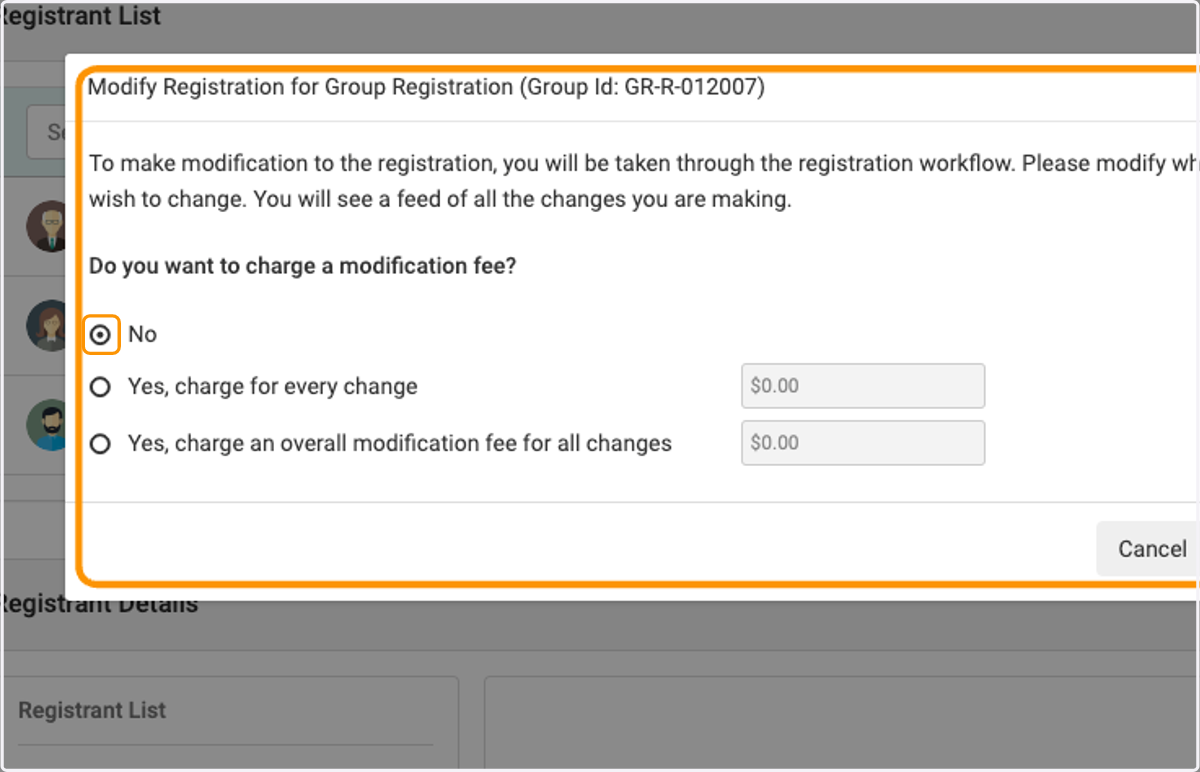
    Select the correct circle for if a modification fee is charged
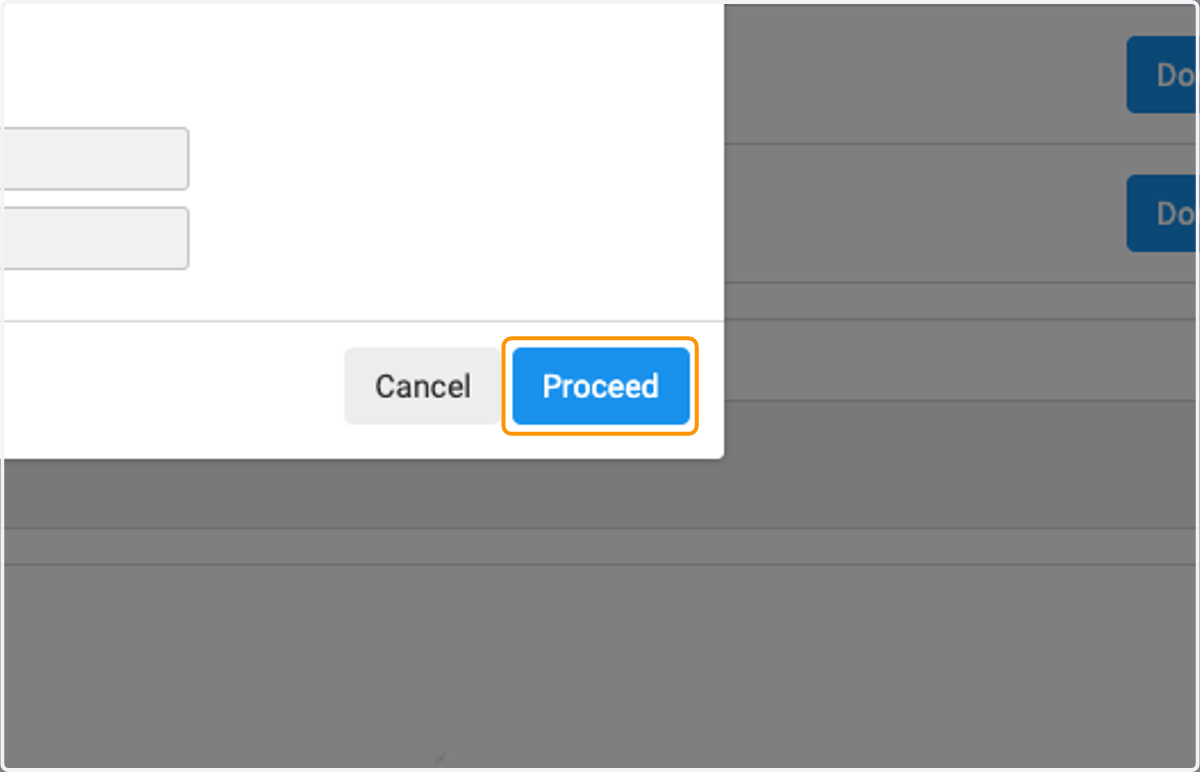
  8. 8. Click on Proceed

    Click on Proceed
  9. 9. The event registration page opens up, click on next to modify the registration
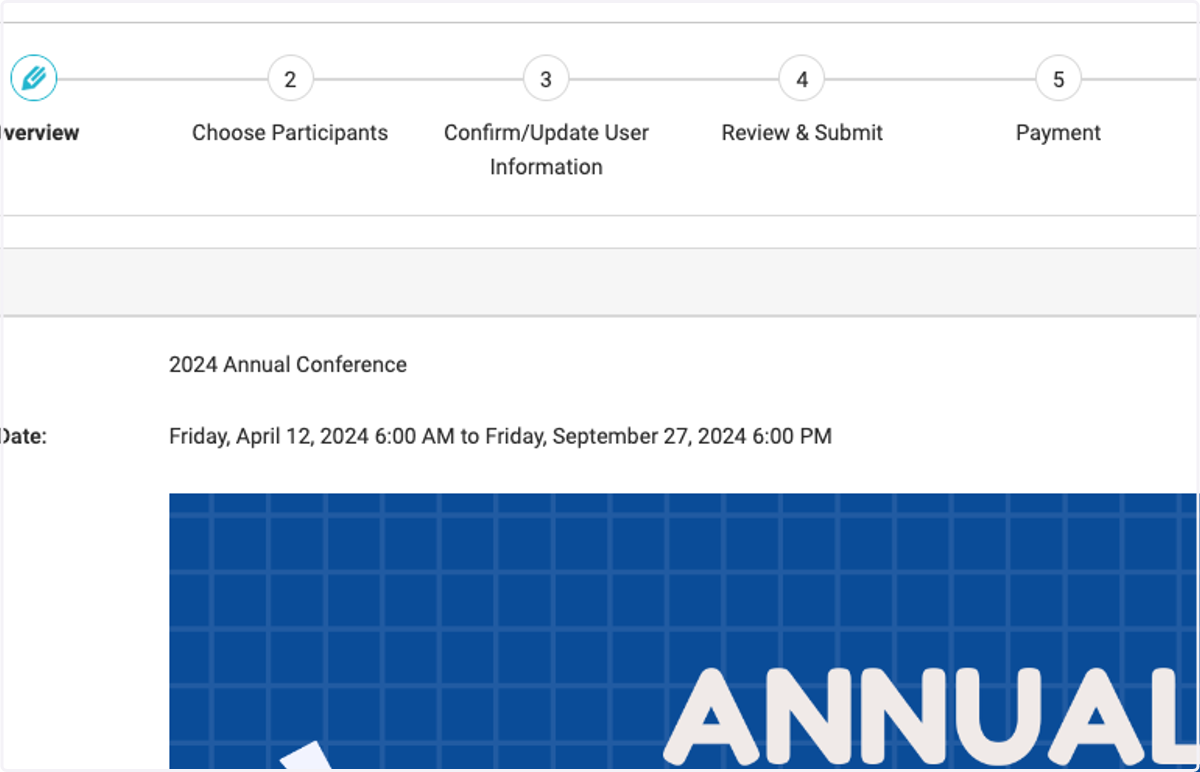
    The event registration page opens up, click on next to modify the registration
  10. 10. Uncheck the participant(s) you wish to remove. Note the blue bar at the bottom keeping track of your modifications.
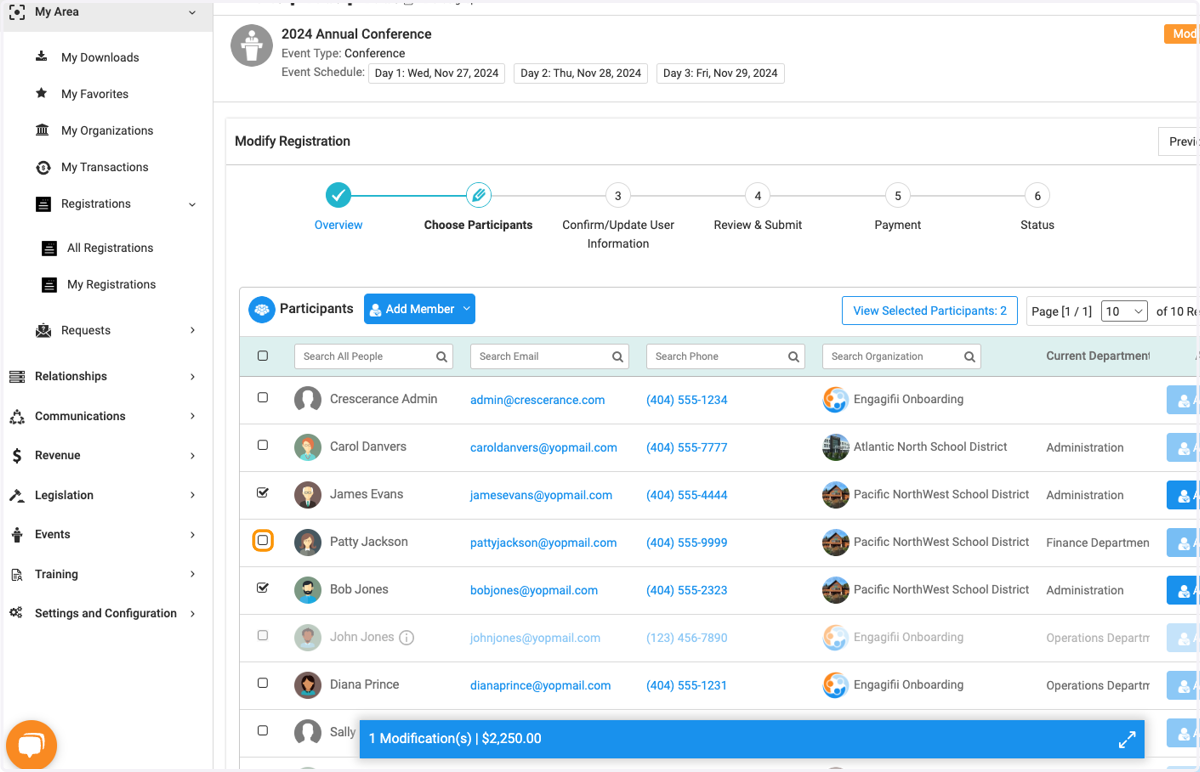
    Uncheck the participant(s) you wish to remove. Note the blue bar at the bottom keeping track of your modifications.
  11. 11. Check the participant(s) you wish to add
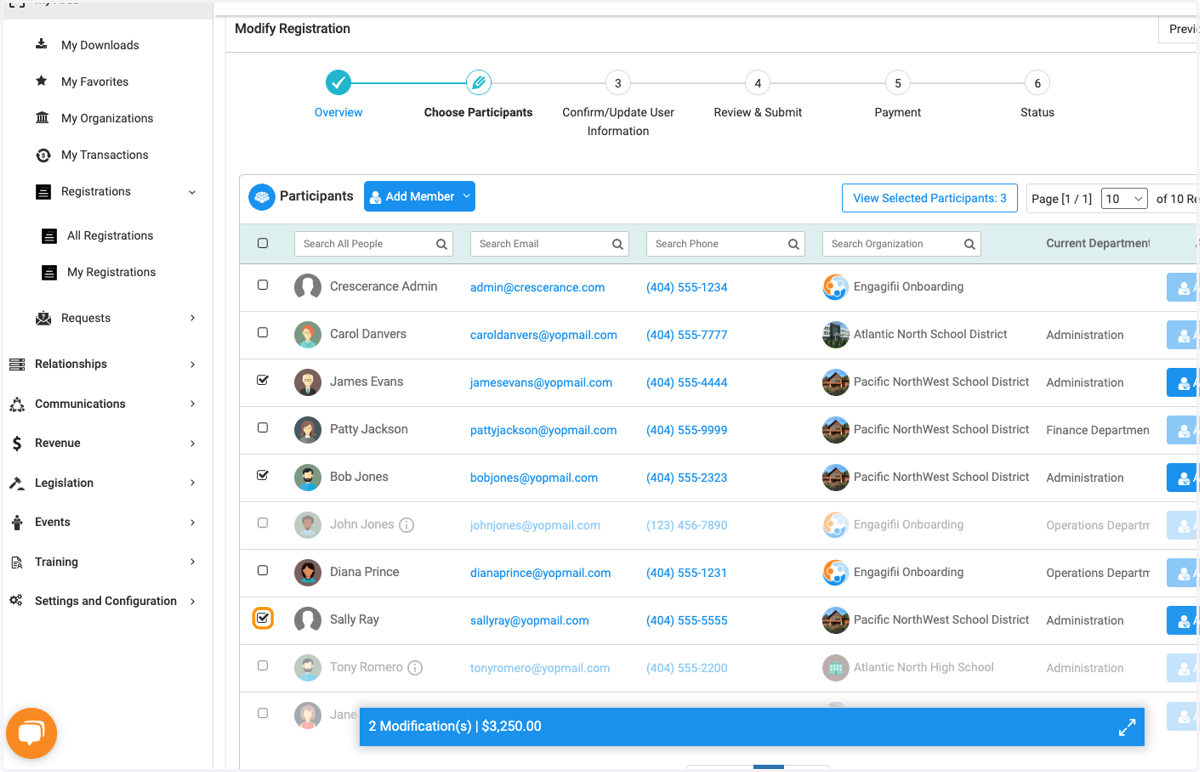
    Check the participant(s) you wish to add
  12. 12. Click on Next when finished making changes
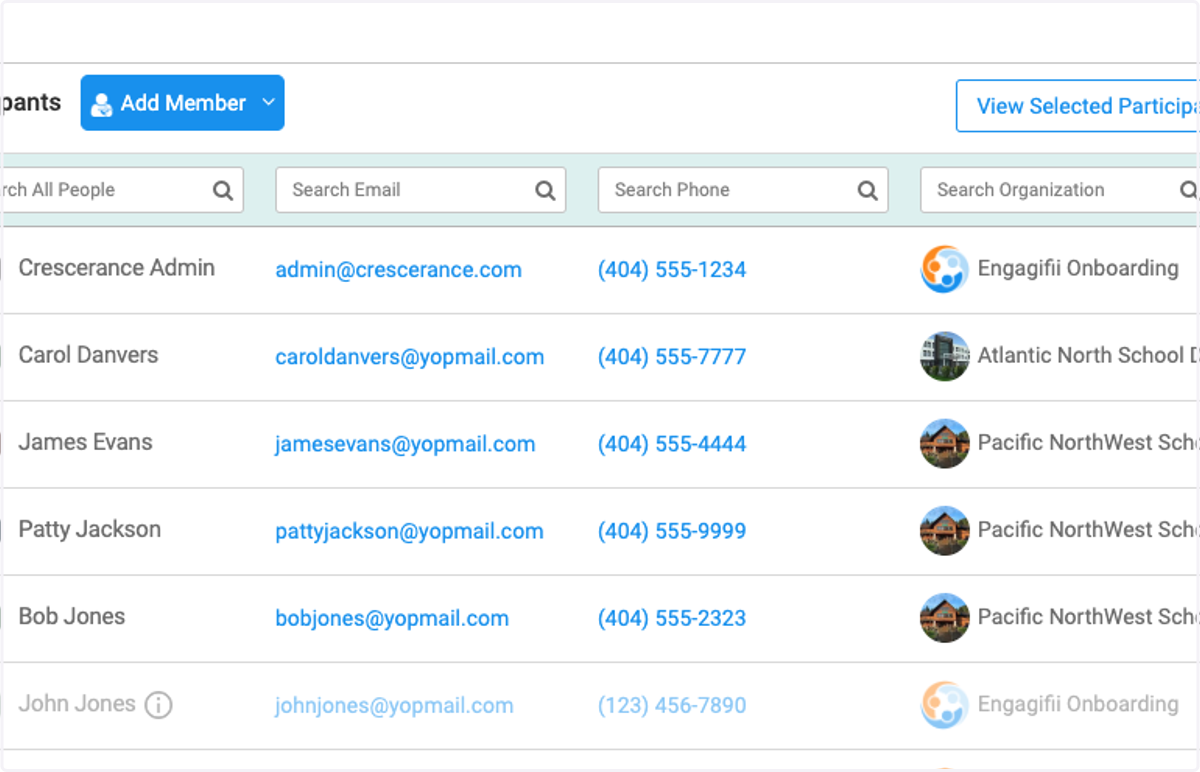
    Click on Next when finished making changes
  13. 13. Click on Next to verify user information
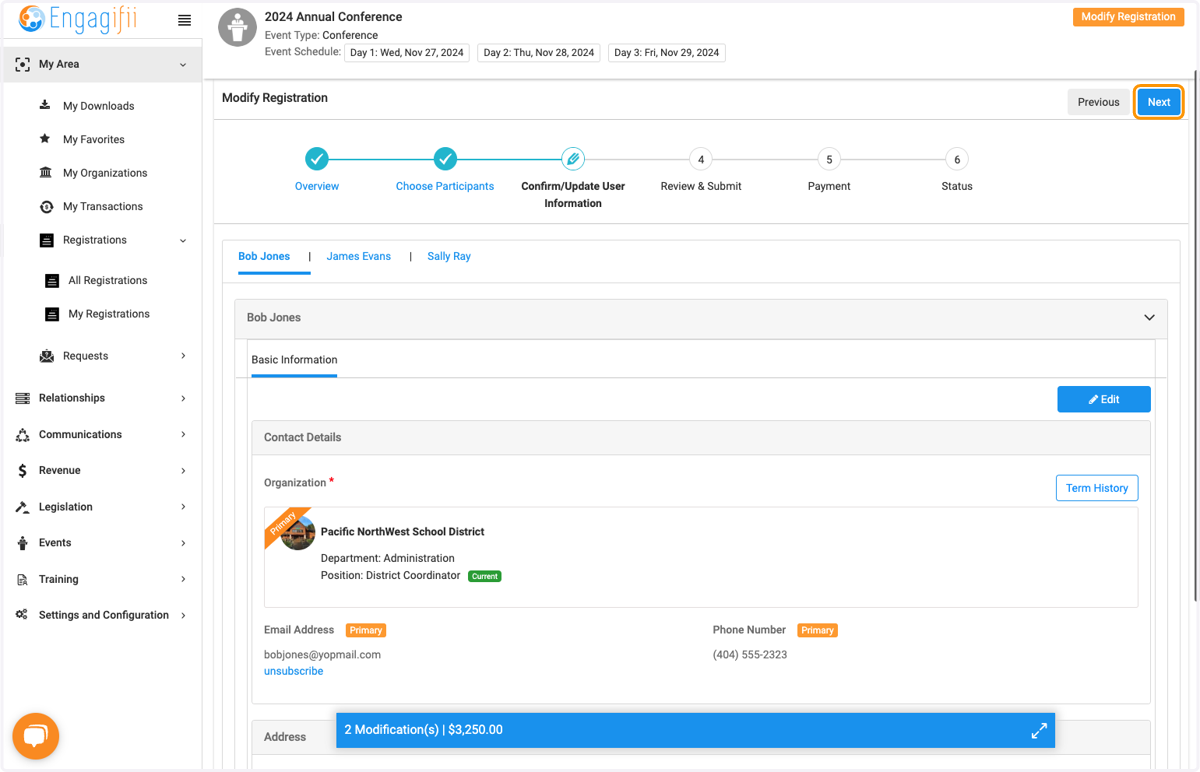
    Click on Next to verify user information
  14. 14. Verify in the new window the changes you have made, green for additions, red for removals
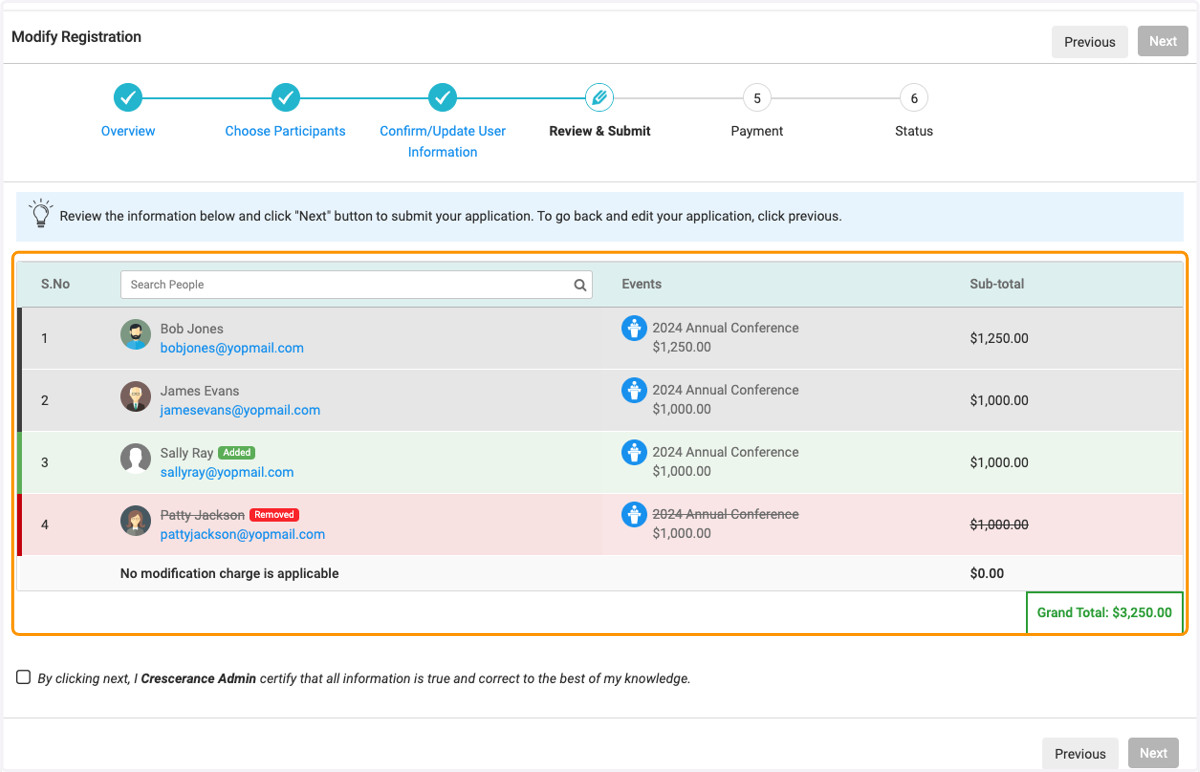
    Verify in the new window the changes you have made, green for additions, red for removals
  15. 15. Click on the acknowledgement and then click Next
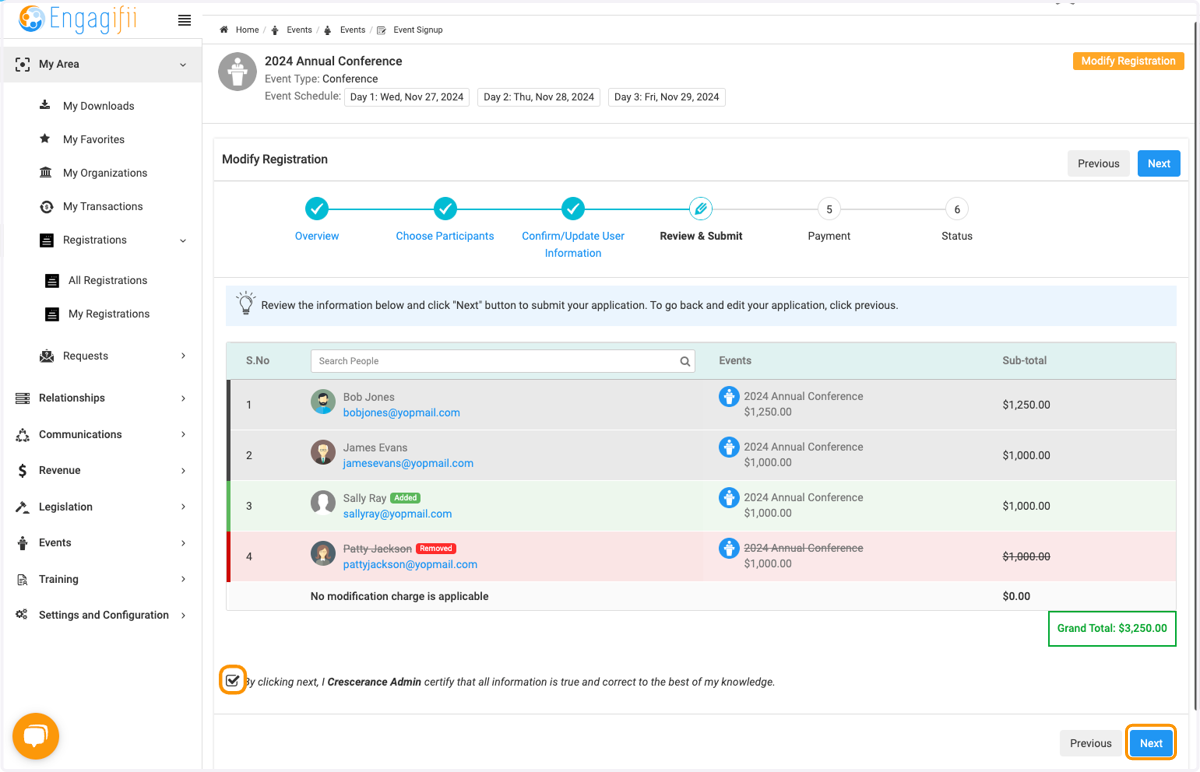
    Click on the acknowledgement and then click Next
  16. 16. New screen shows the changes for the new registration details
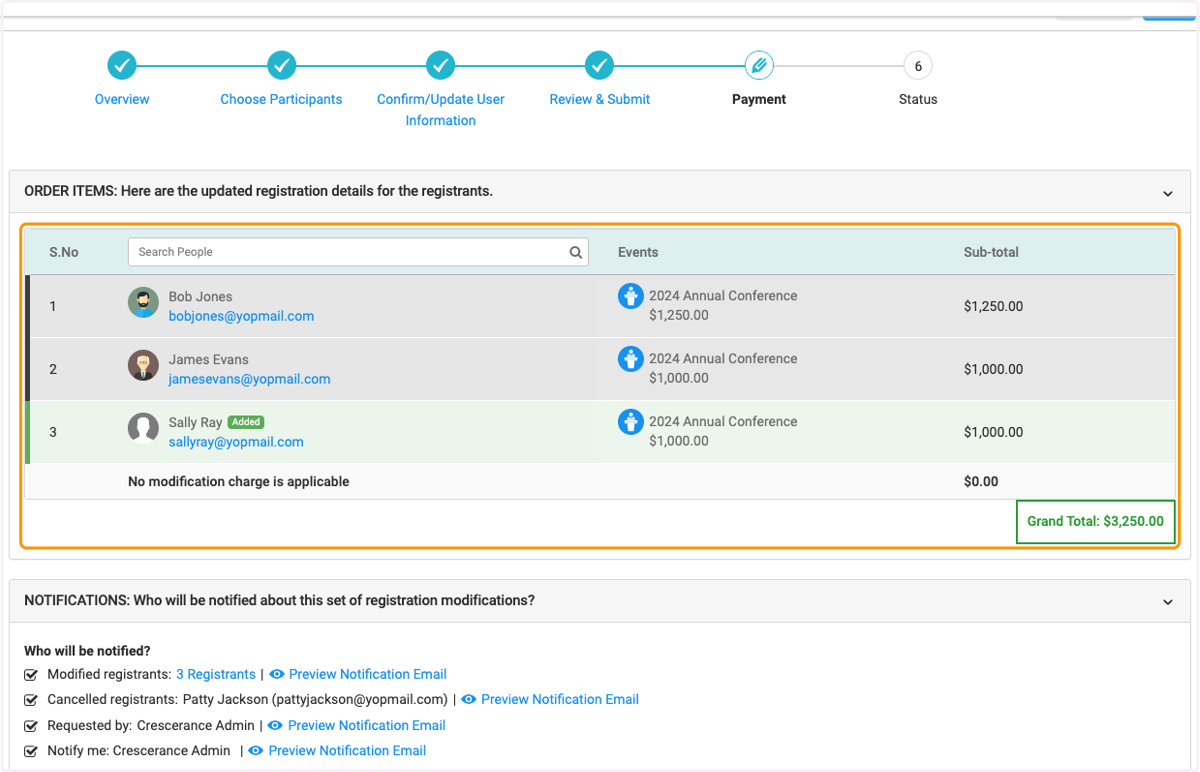
    New screen shows the changes for the new registration details
  17. 17. Scroll down to select who will be notified of these changes or add additional notification people
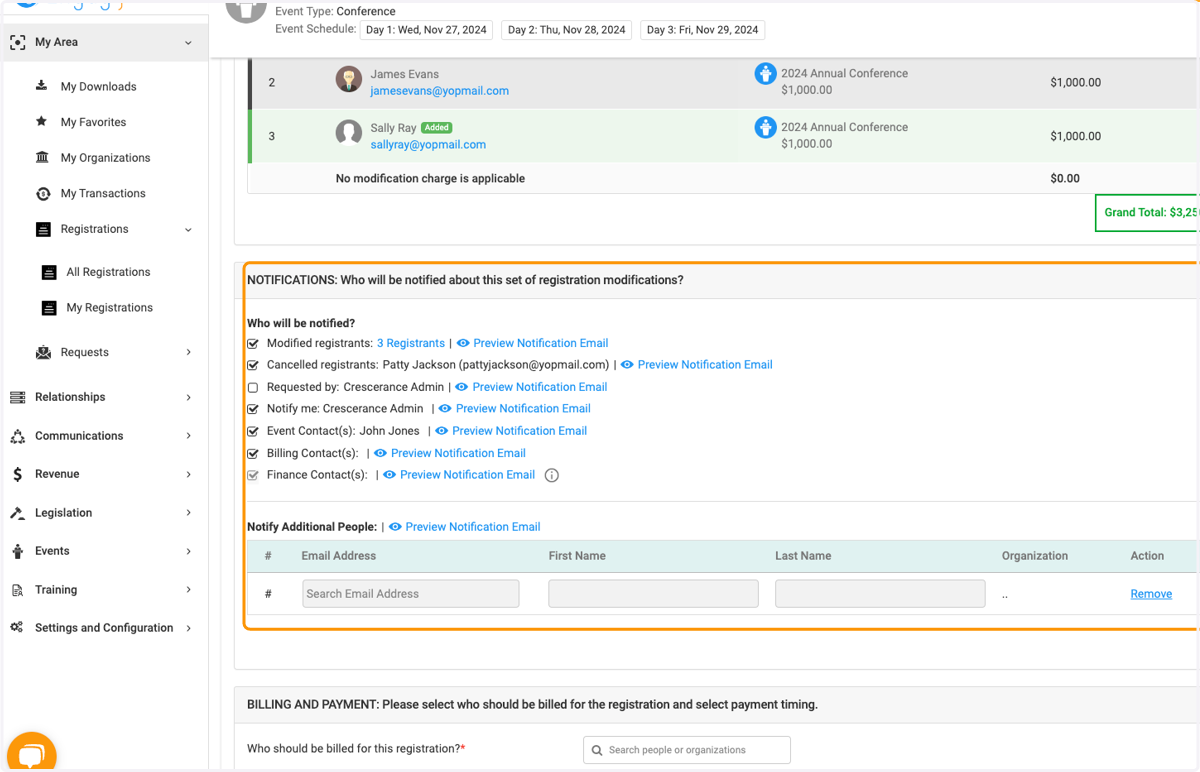
    Scroll down to select who will be notified of these changes or add additional notification people
  18. 18. Type in Billing Organization and select from dropdown
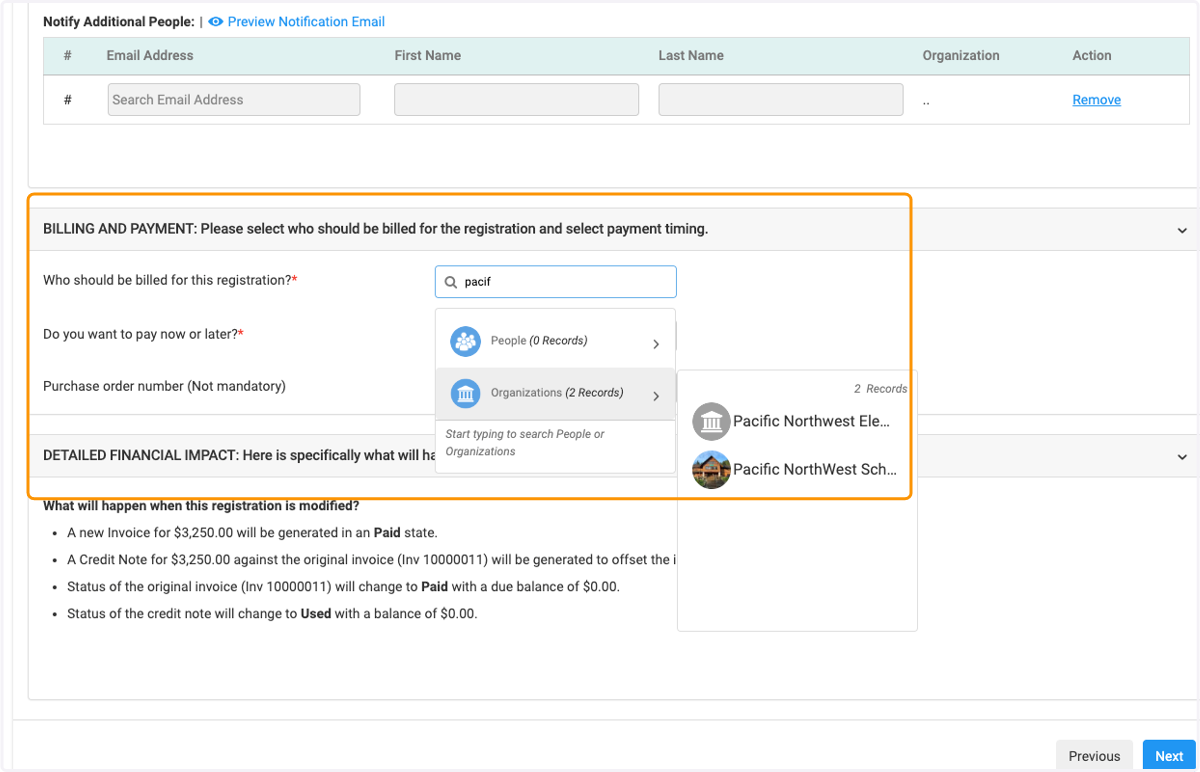
    Type in Billing Organization and select from dropdown
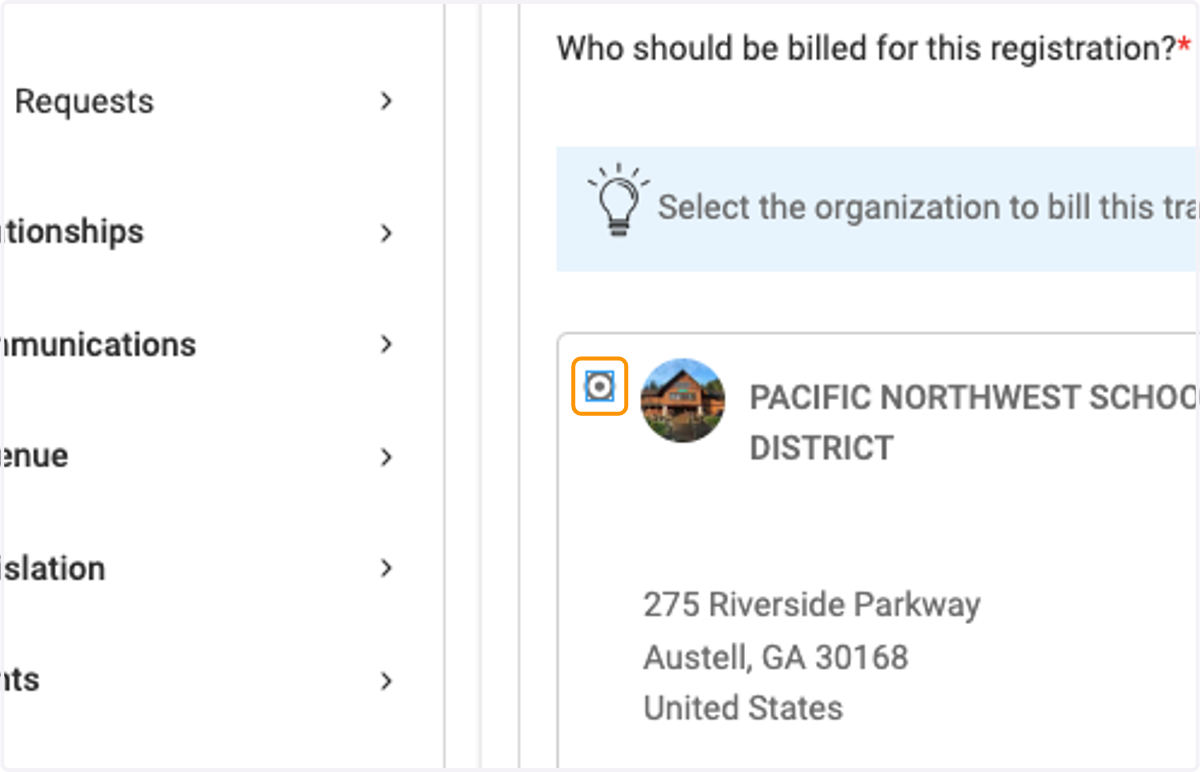
  19. 19. Select the organization

    Select the organization
  20. 20. Select Bill them to Pay Later or Bill Now
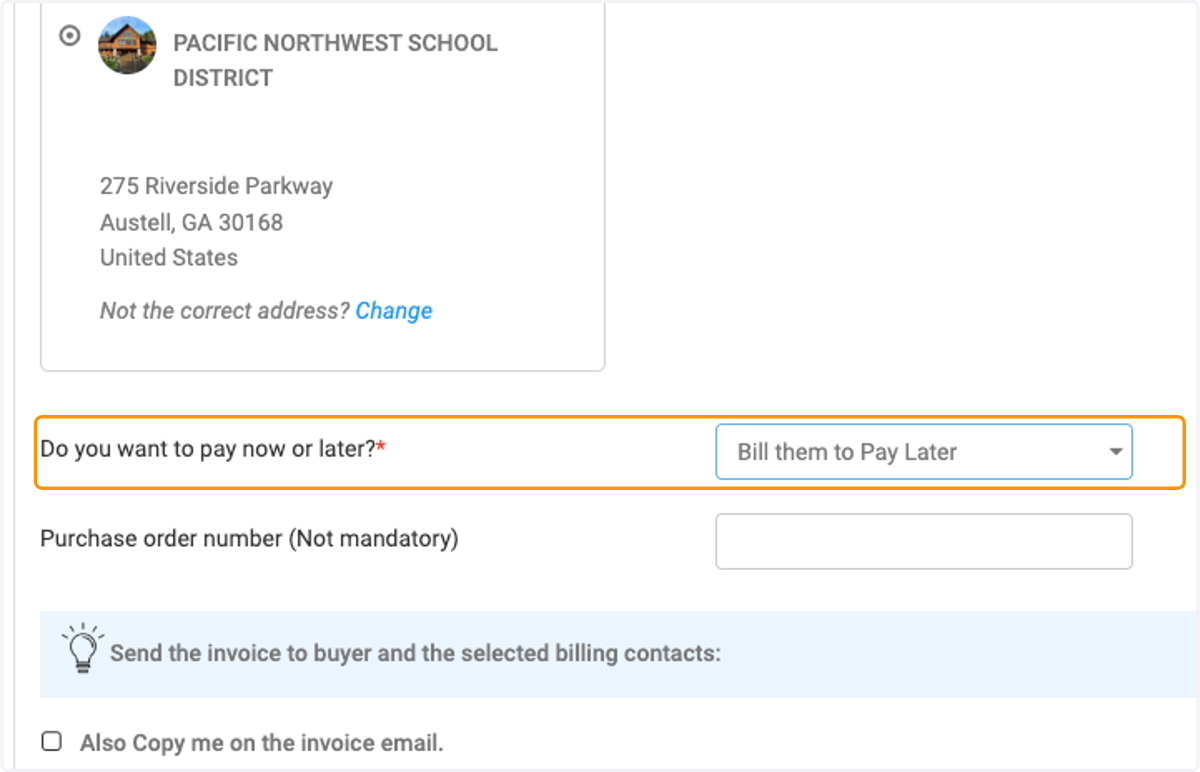
    Select Bill them to Pay Later or Bill Now
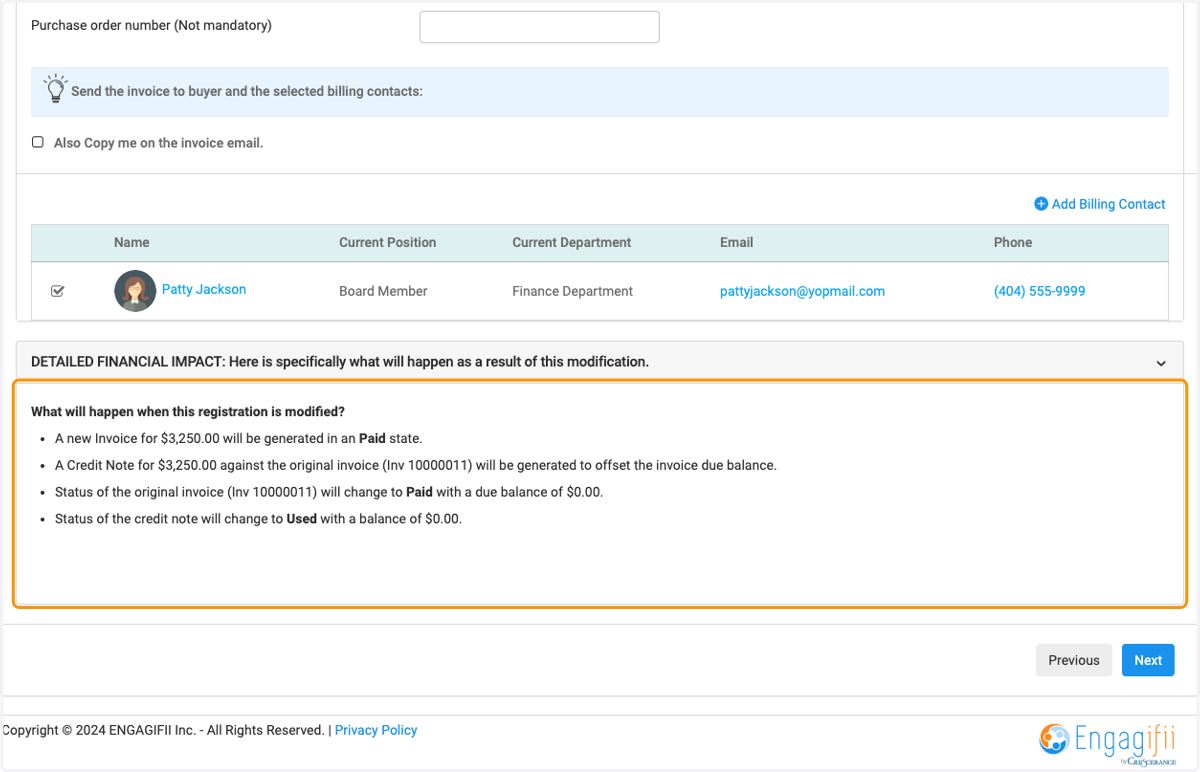
  21. 21. Review Detailed Financial Impact

    Review Detailed Financial Impact
  22. 22. Click on Next

    Click on Next
  23. 23. And view updated registration modification details
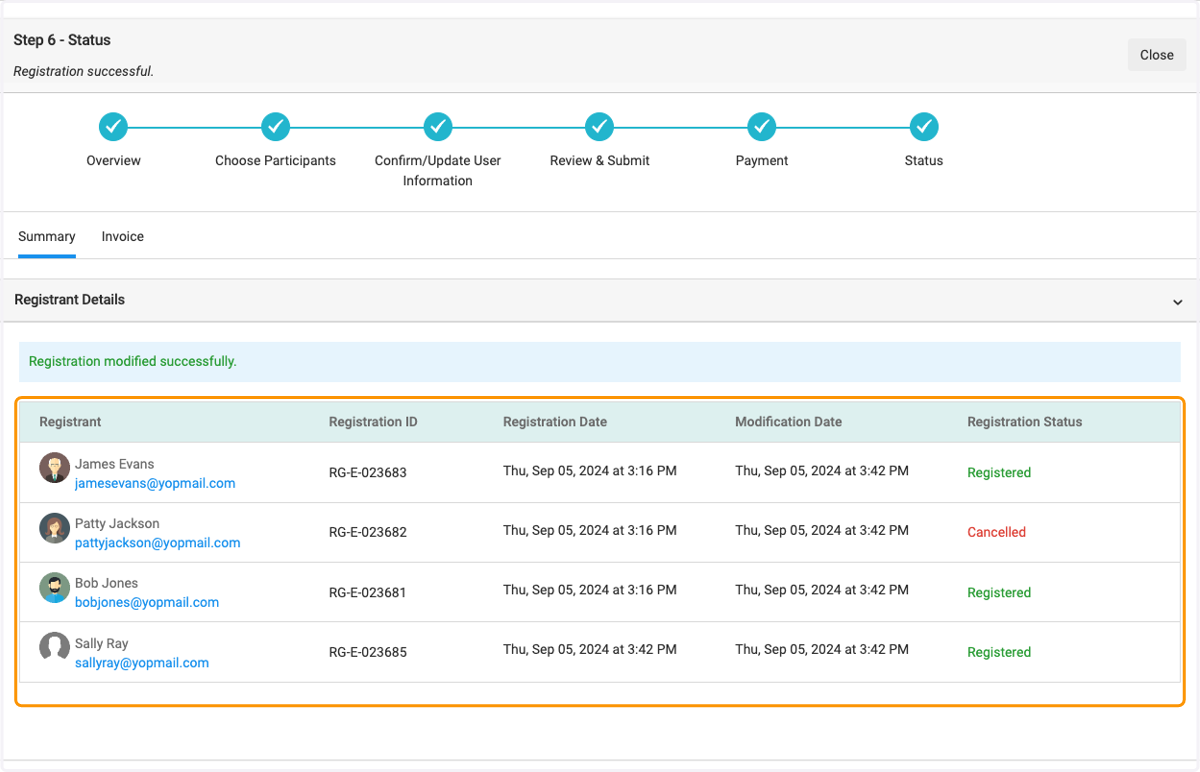
    And view updated registration modification details