Generate and Send Ancillary Docs in CRM 8
Navigate to a future-status prospect profile and ensure that they have a contact who has been successfully invited & activated in Rentcafe
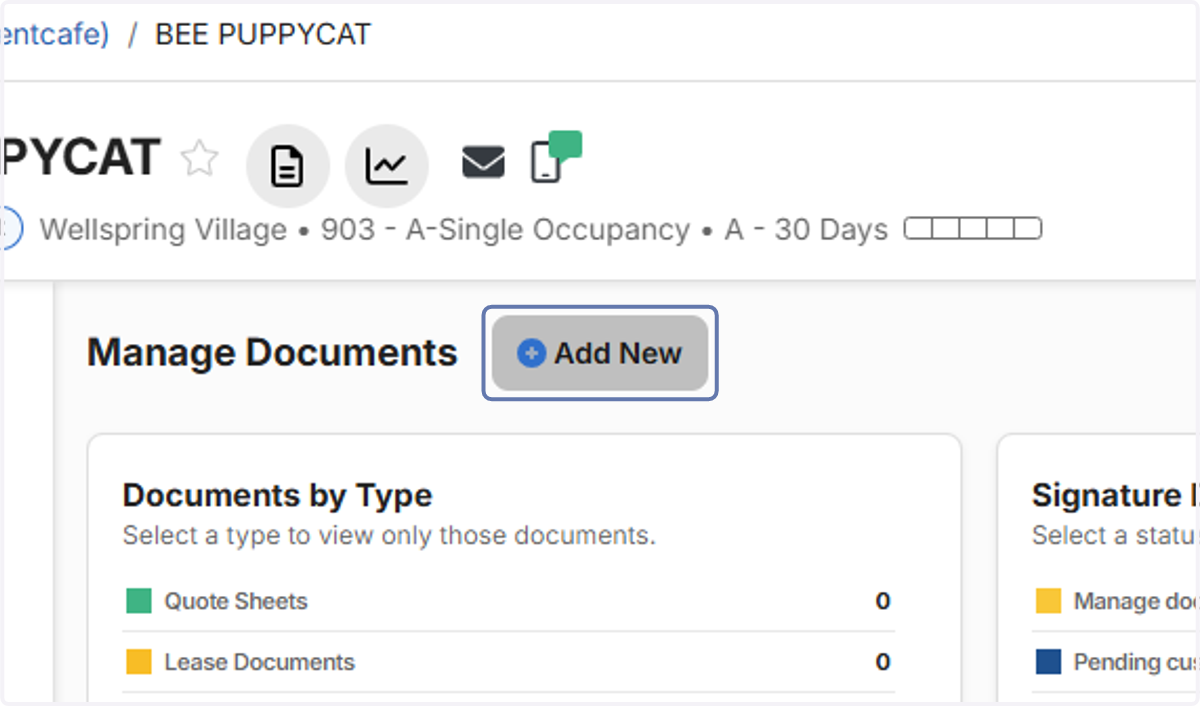
1. On the prospect profile, click on Add New
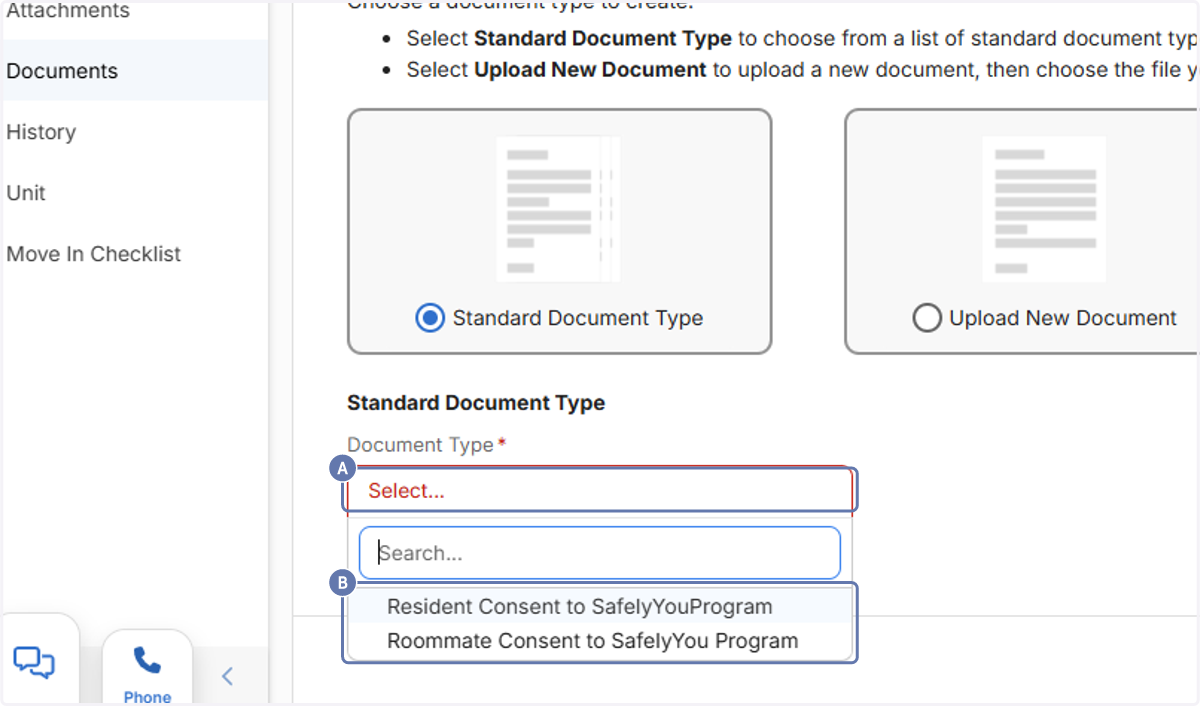
2. A. Click on Document Type dropdown
2. B. Select which document you need
3. Click on Save & Next

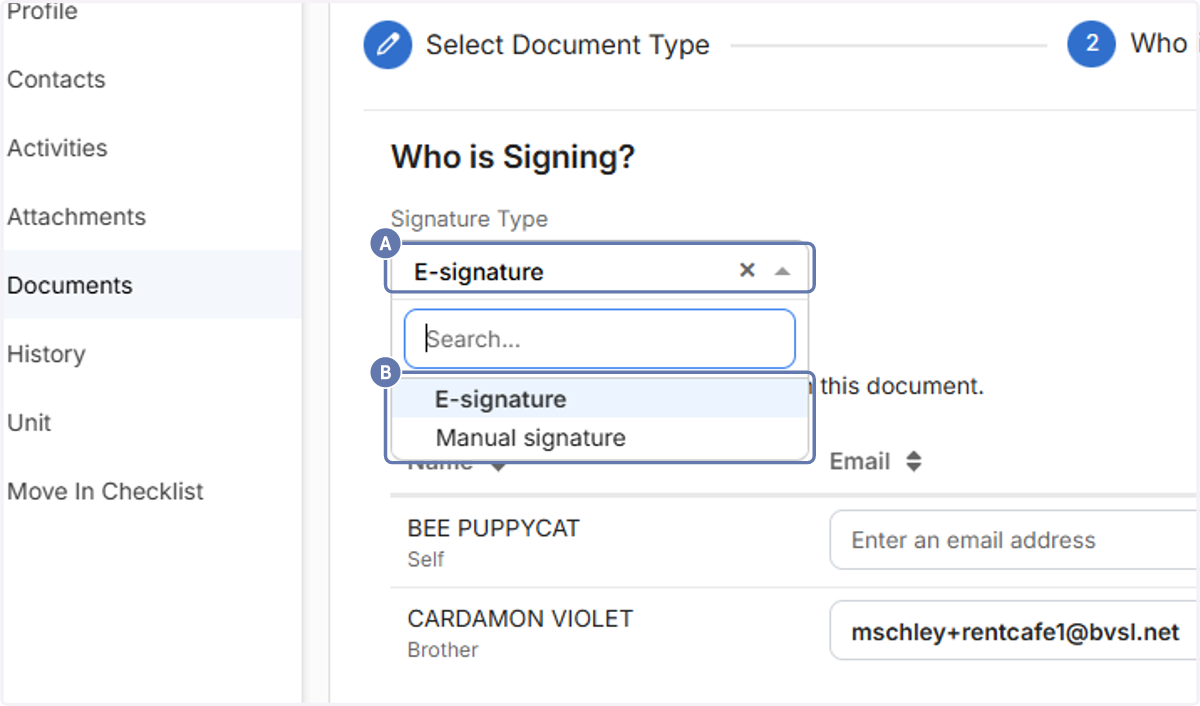
4. A. Click on Signature Type dropdown
4. B. Select an option
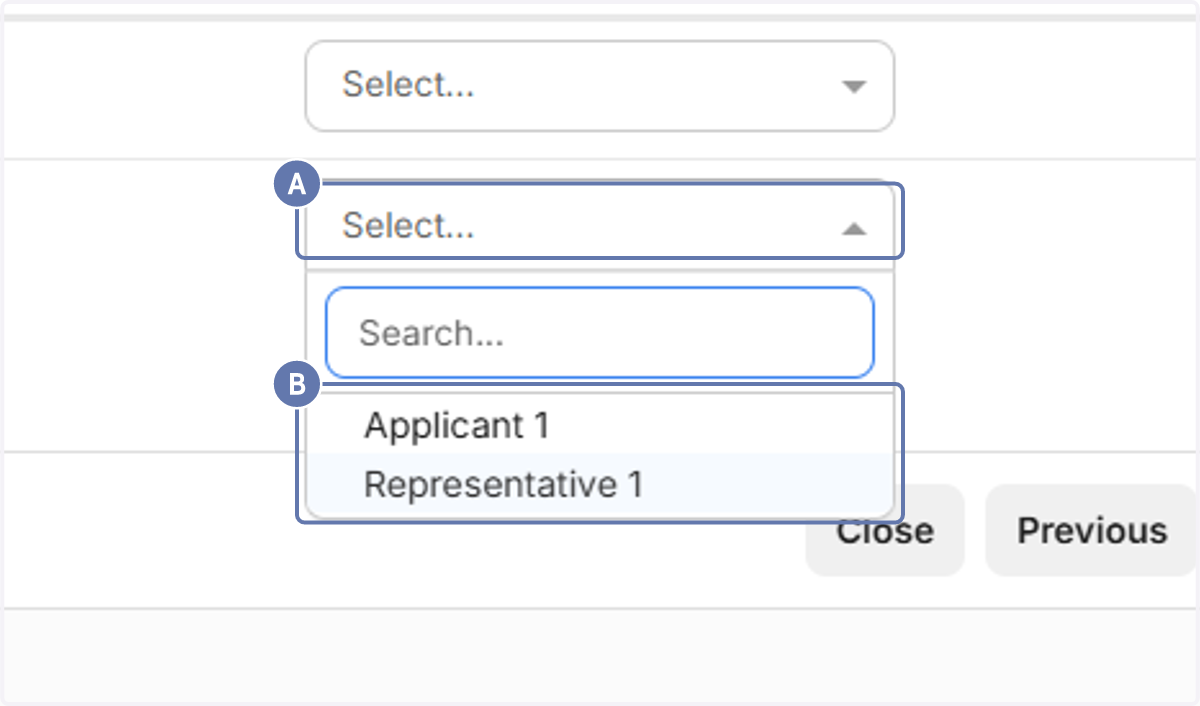
5. A. Click on Role
5. B. Select an option
6. Click on Next

7. Click on Generate Document

8. To send the signature request to the Rentcafe representative, click on Send Request
