Manage Protocol Files in Document Manager
Access Doc Manager and Add Protocols
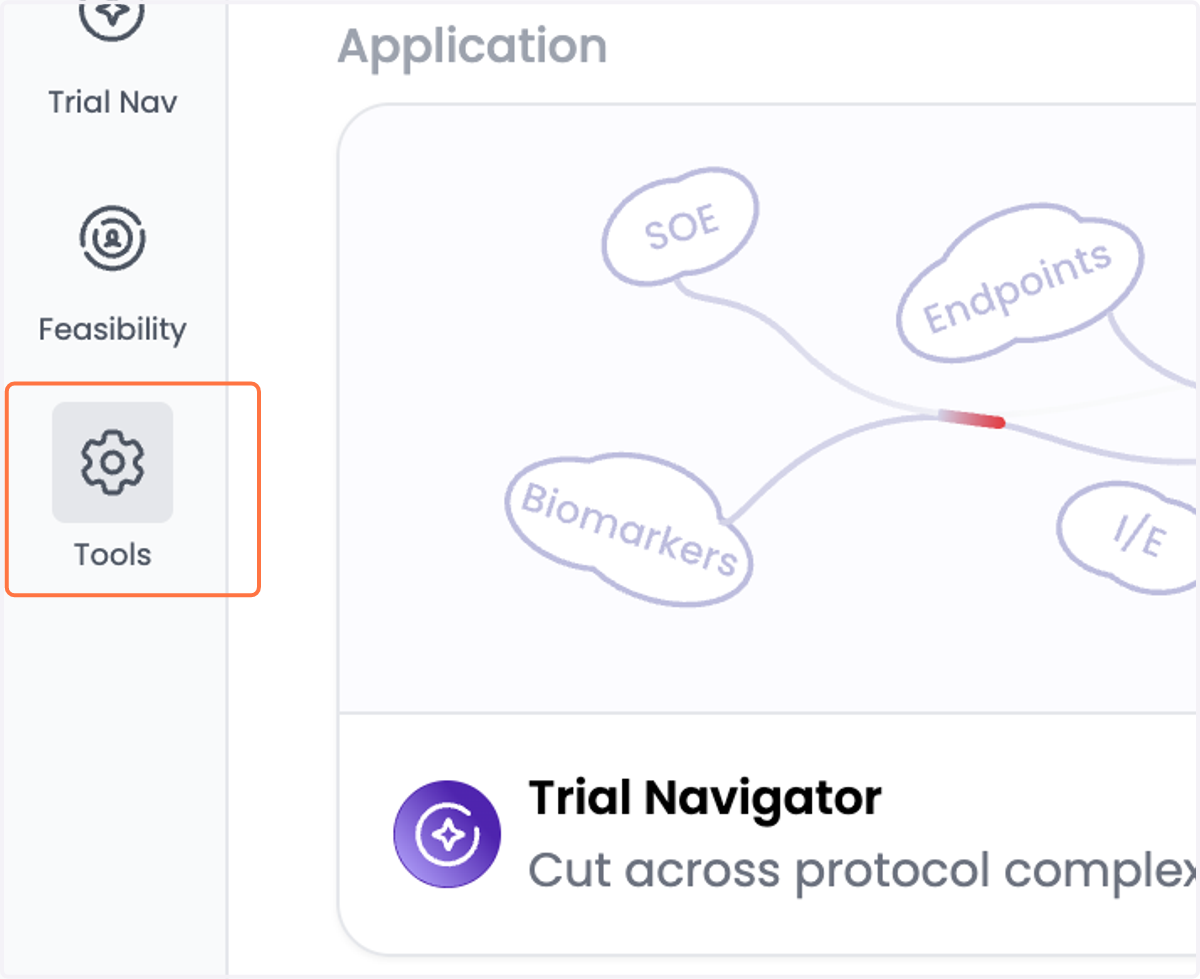
1. From the Ryght homepage, Click on Tools
This menu is only available to Admins. If you don't see this menu, contact Ryght support.
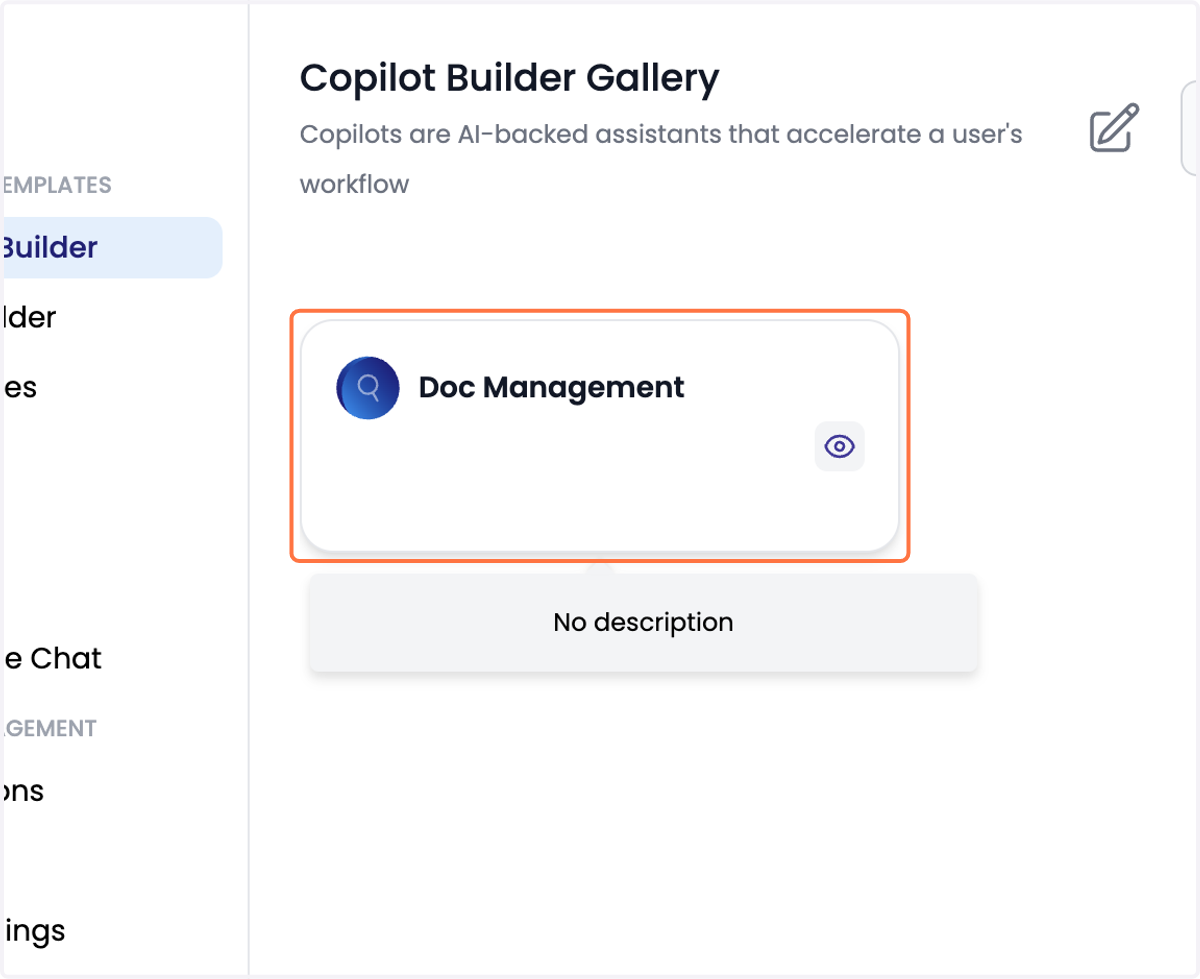
2. Click on Doc Management
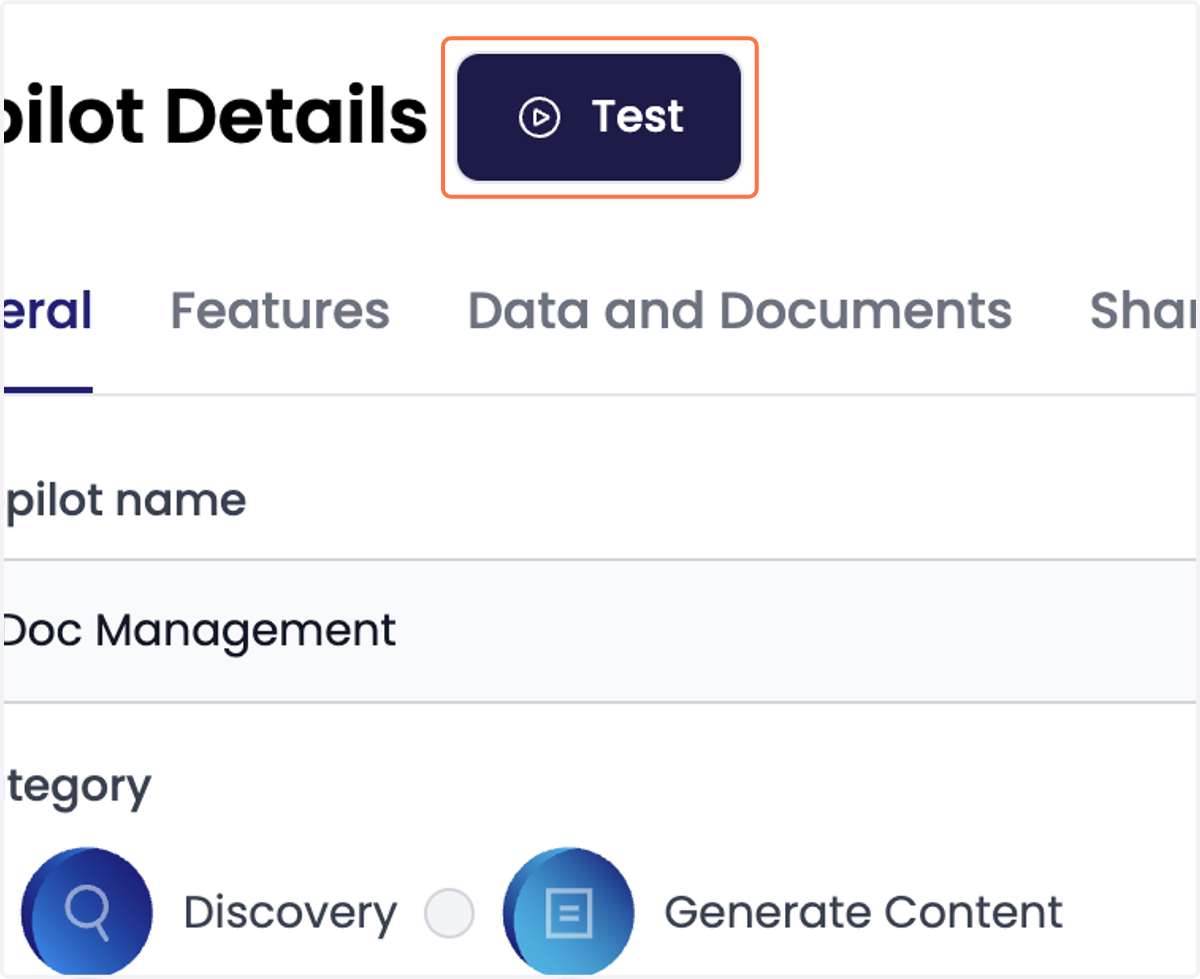
3. Click on Test
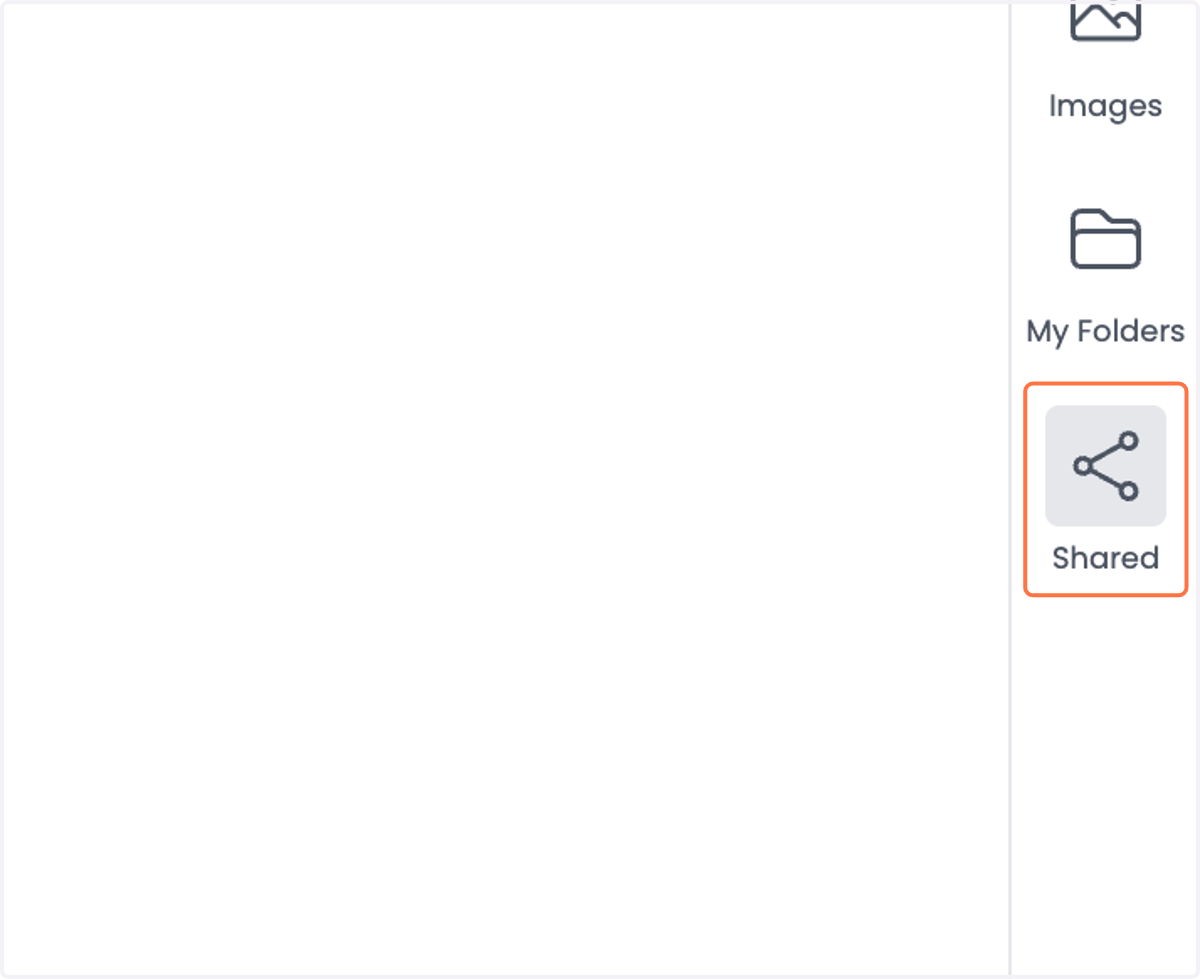
4. Click on Shared
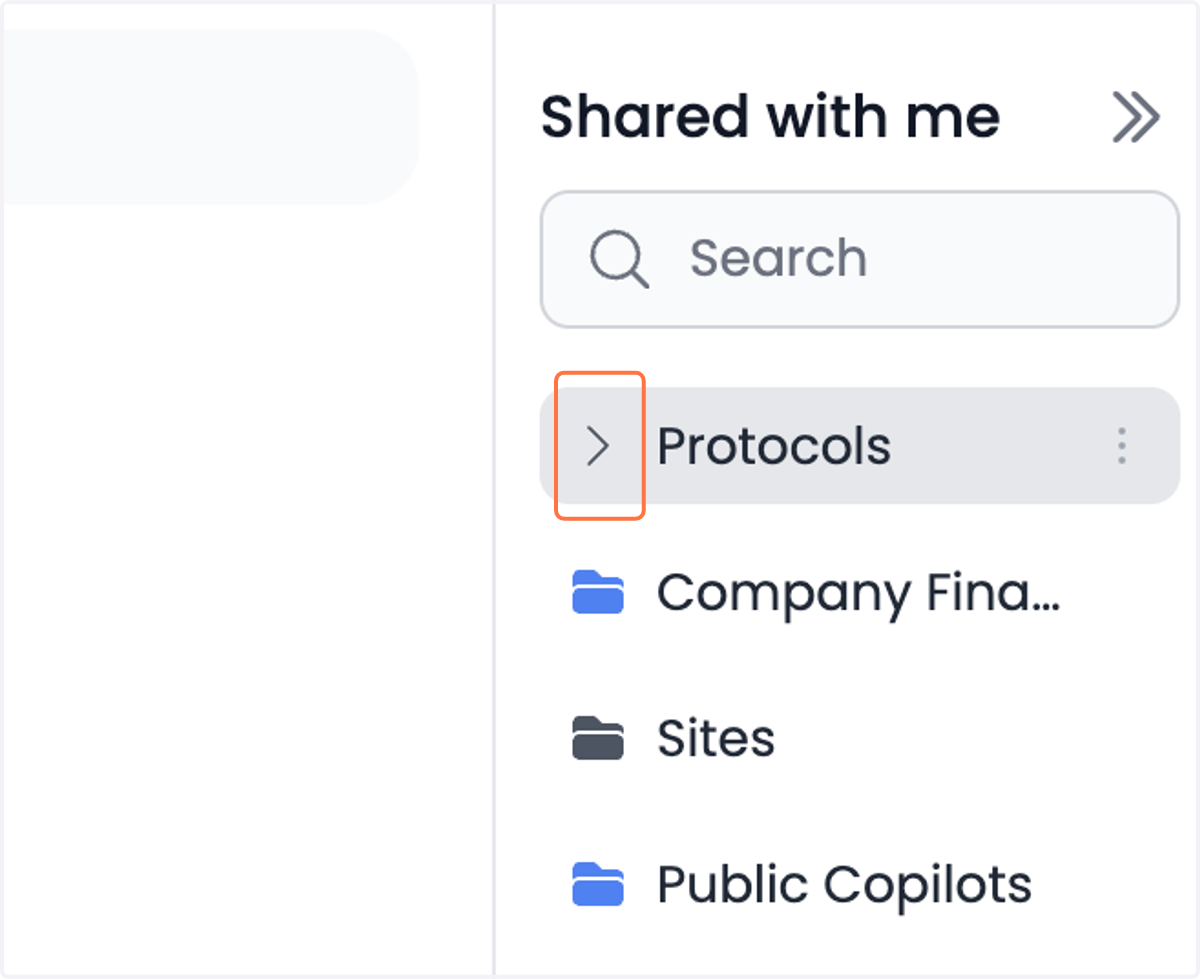
5. Click on Protocols to open up the folder of protocols for Trial Navigator
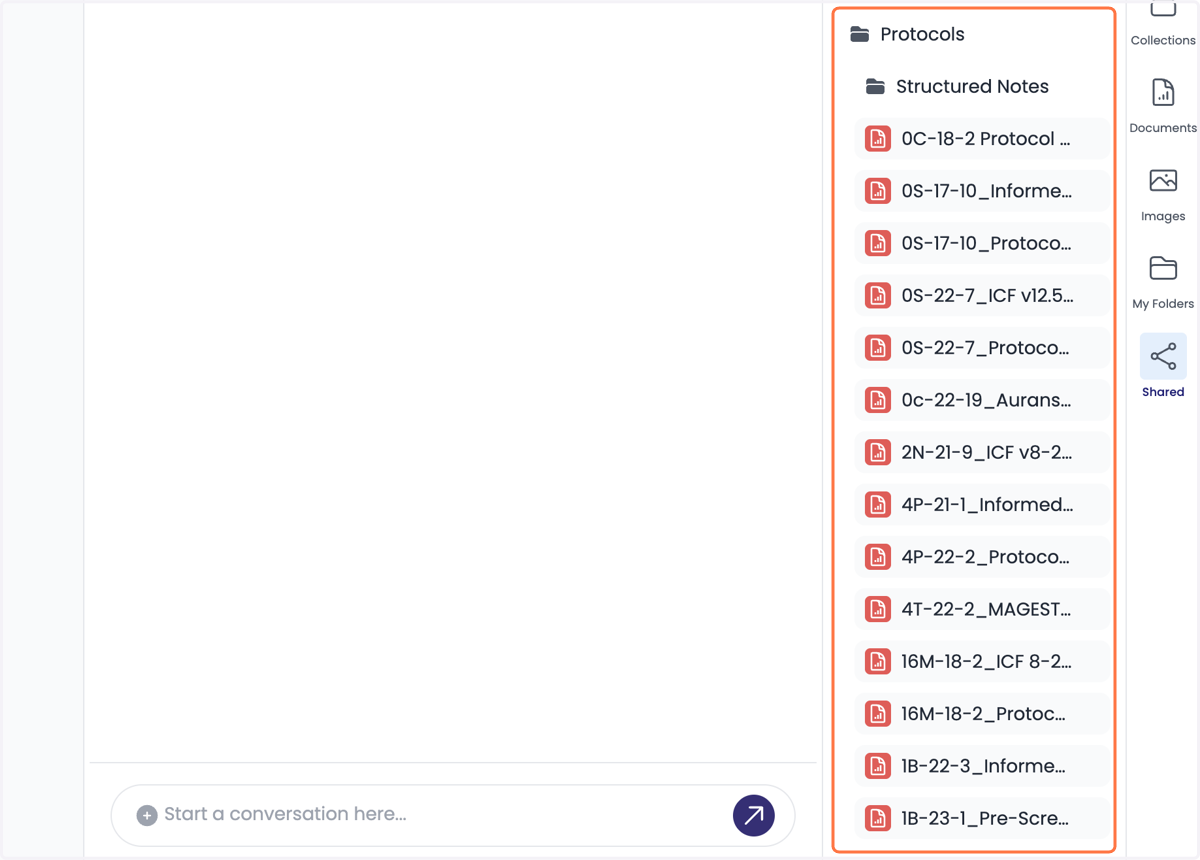
6. Here you will see all the files available in Trial Navigator
7. The structured notes folder is a backend function that can be ignored.
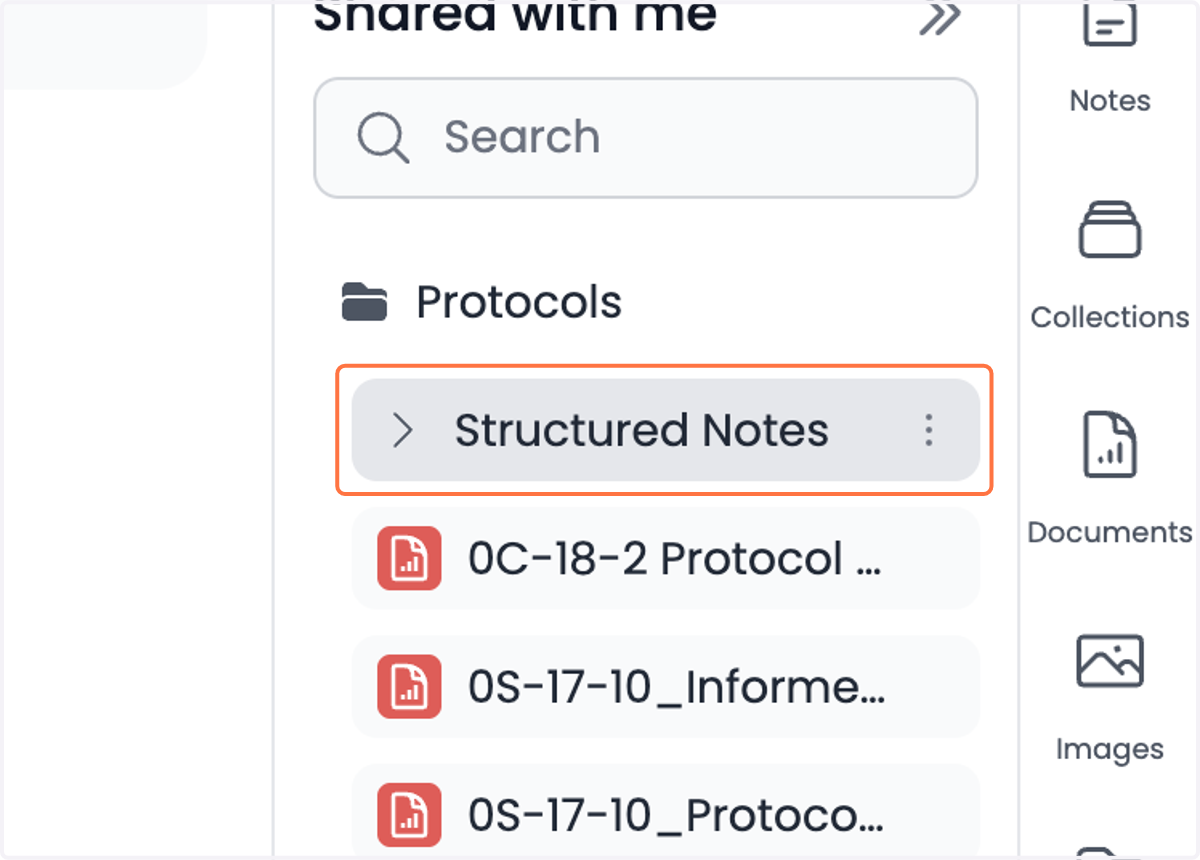
8. Click on the three dots to open a submenu. Click on add files.

9. Click on the plus next to the files header
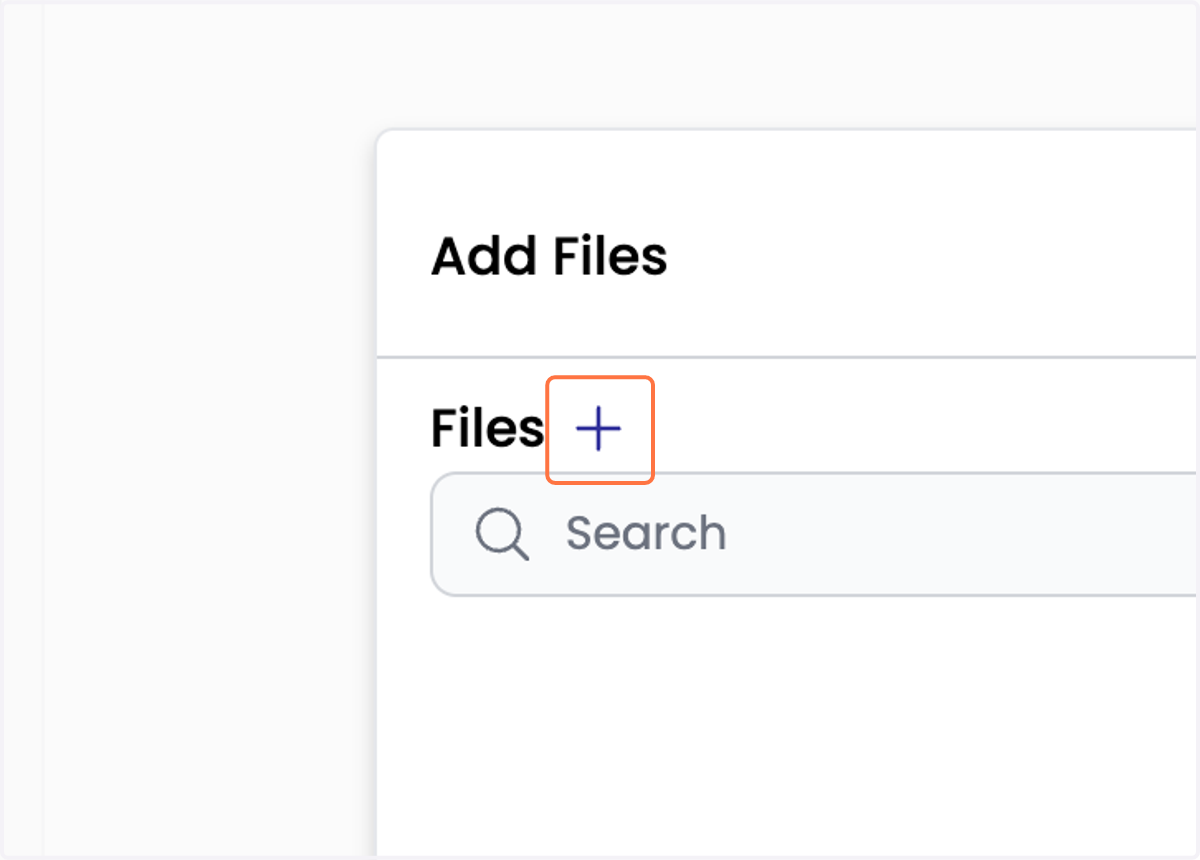
10. Select a file locally that you would like to upload
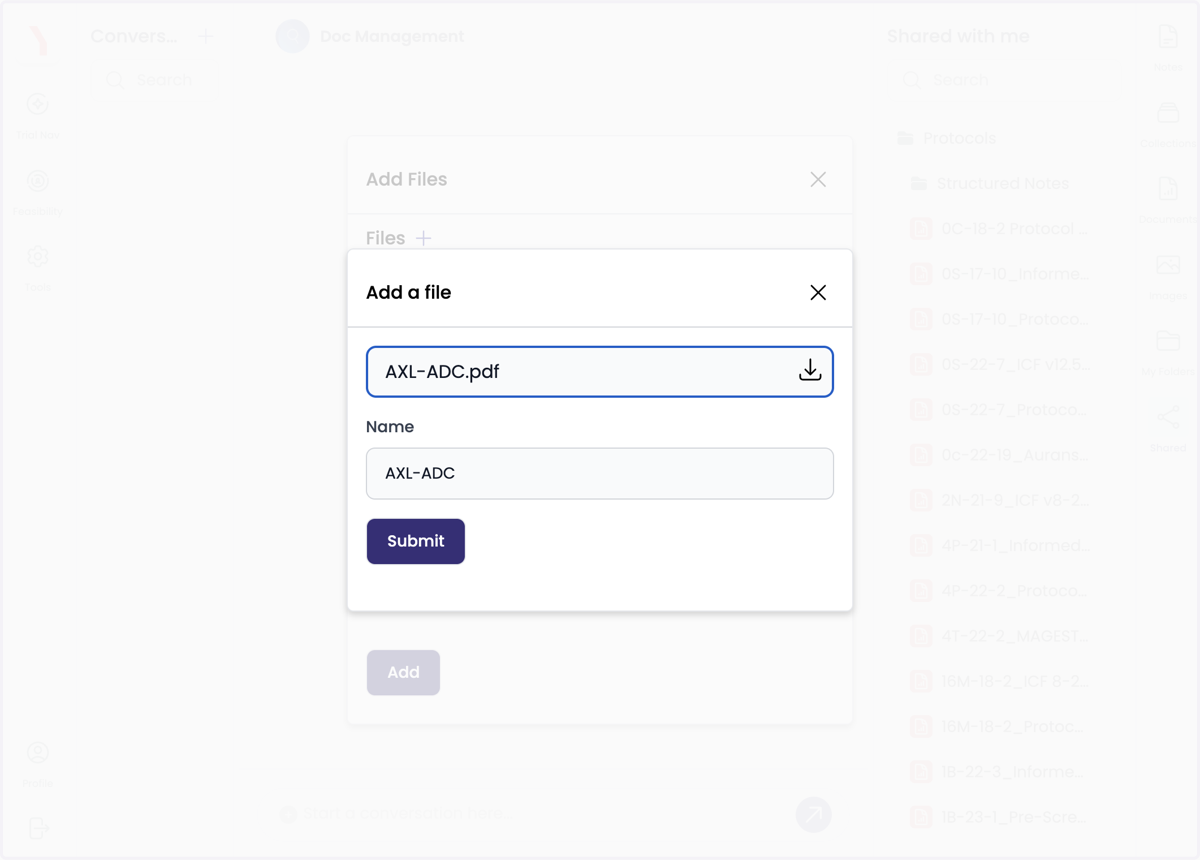
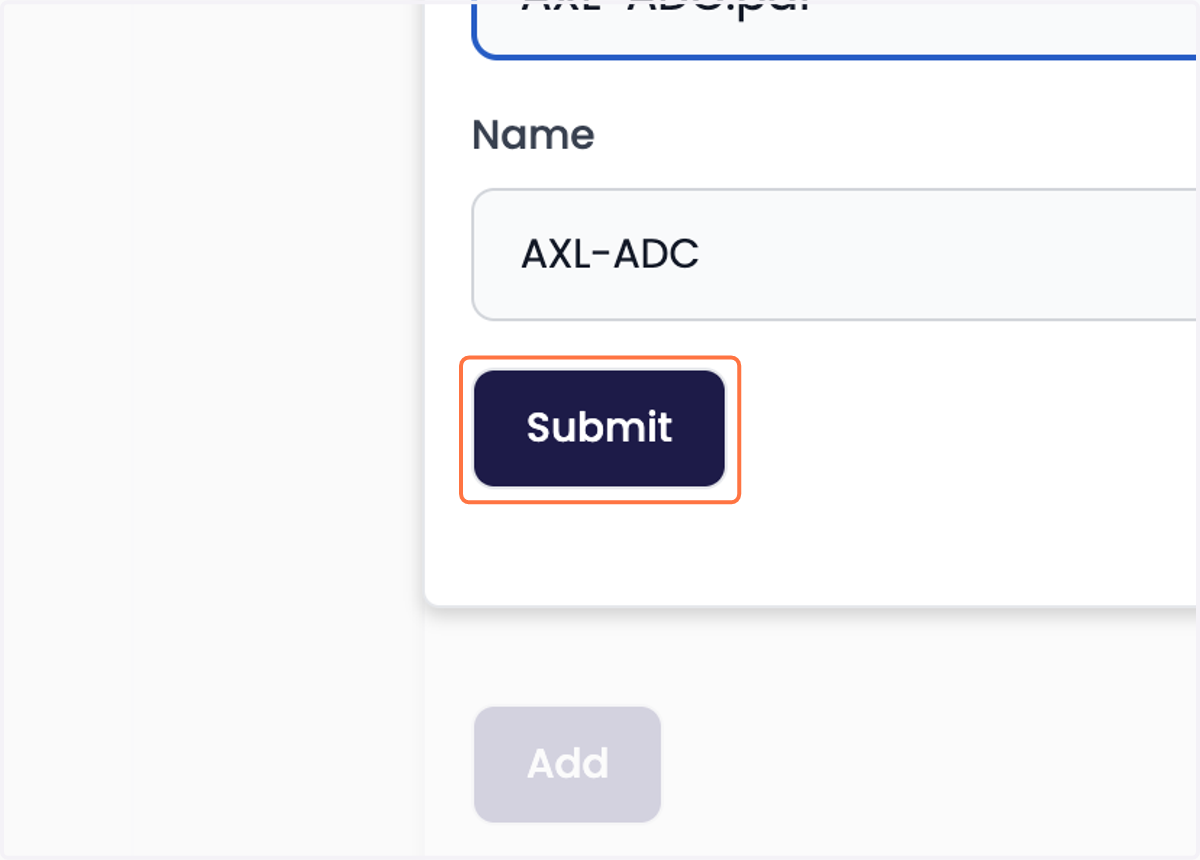
11. Rename document and click on Submit
12. Select the file
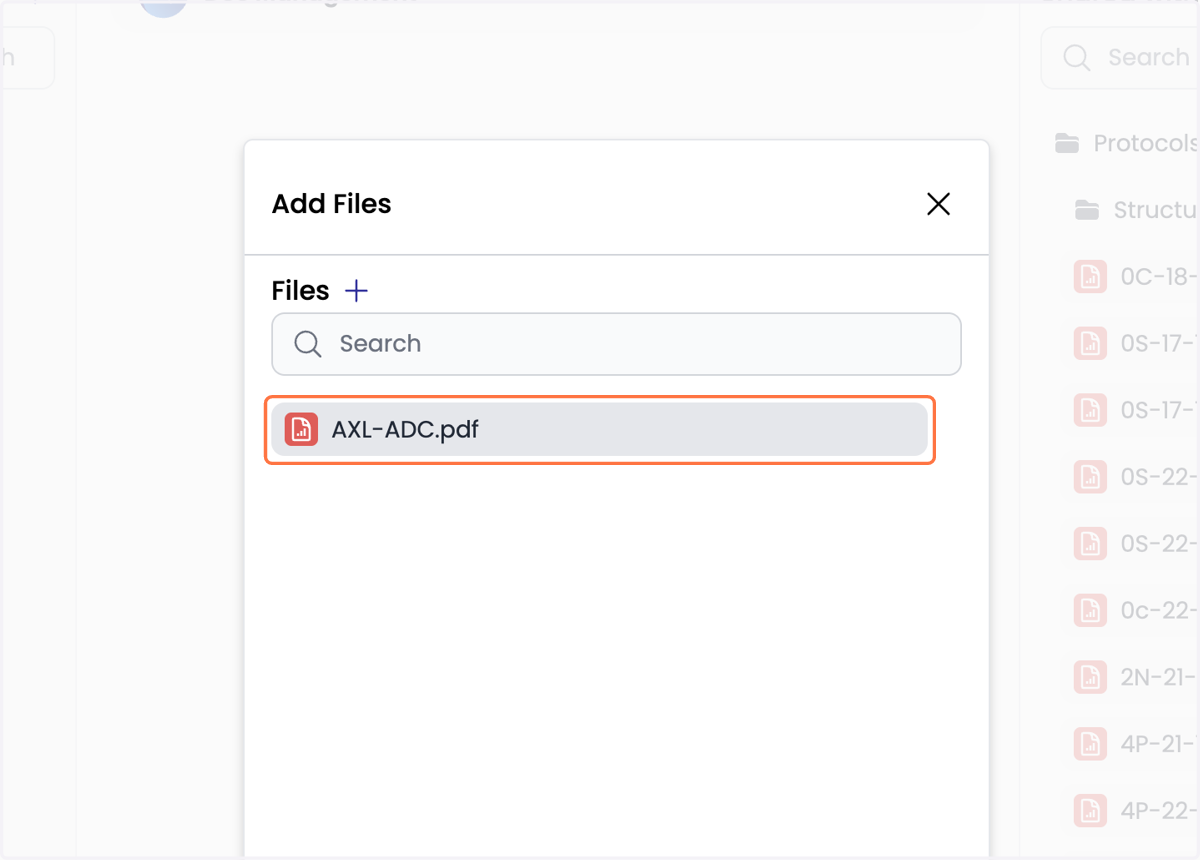
13. Click on Add
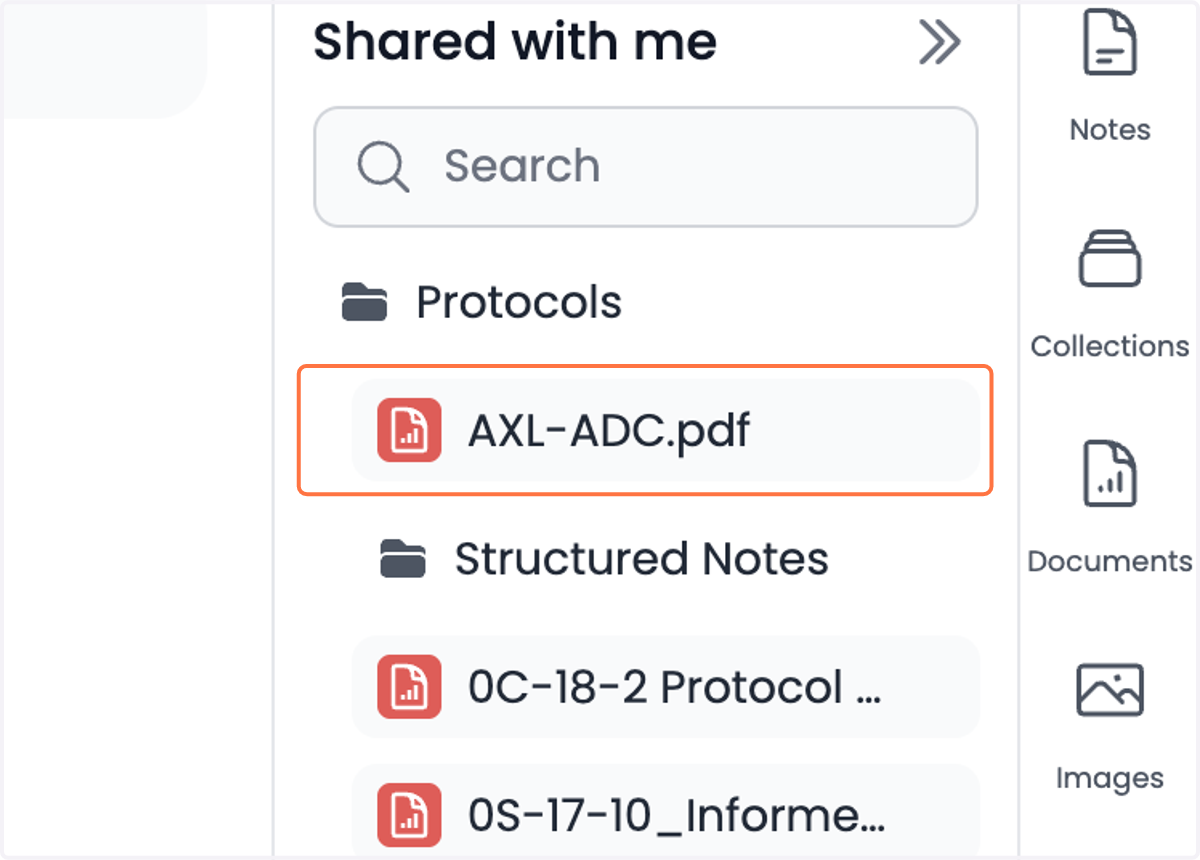
14. You should see the file listed under the Protocols folder
Remove Files
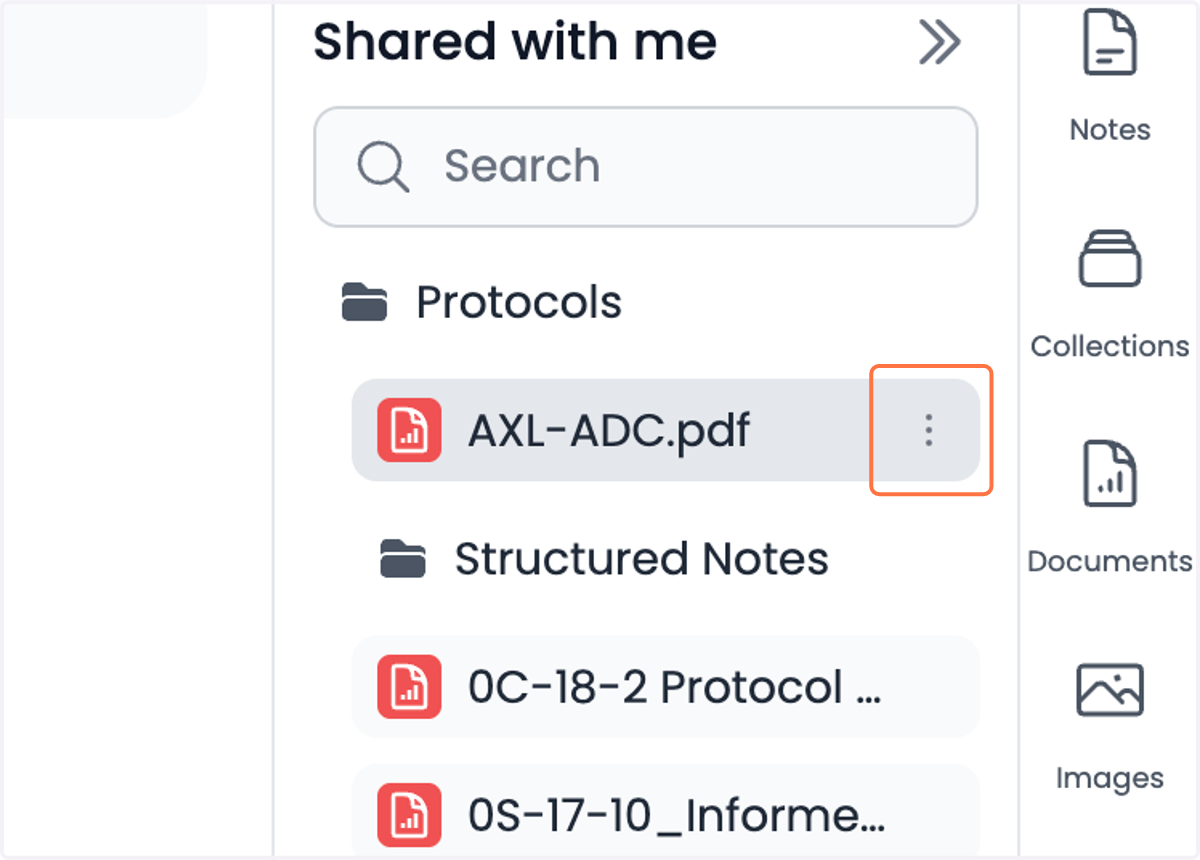
15. Click on the three dots of the file
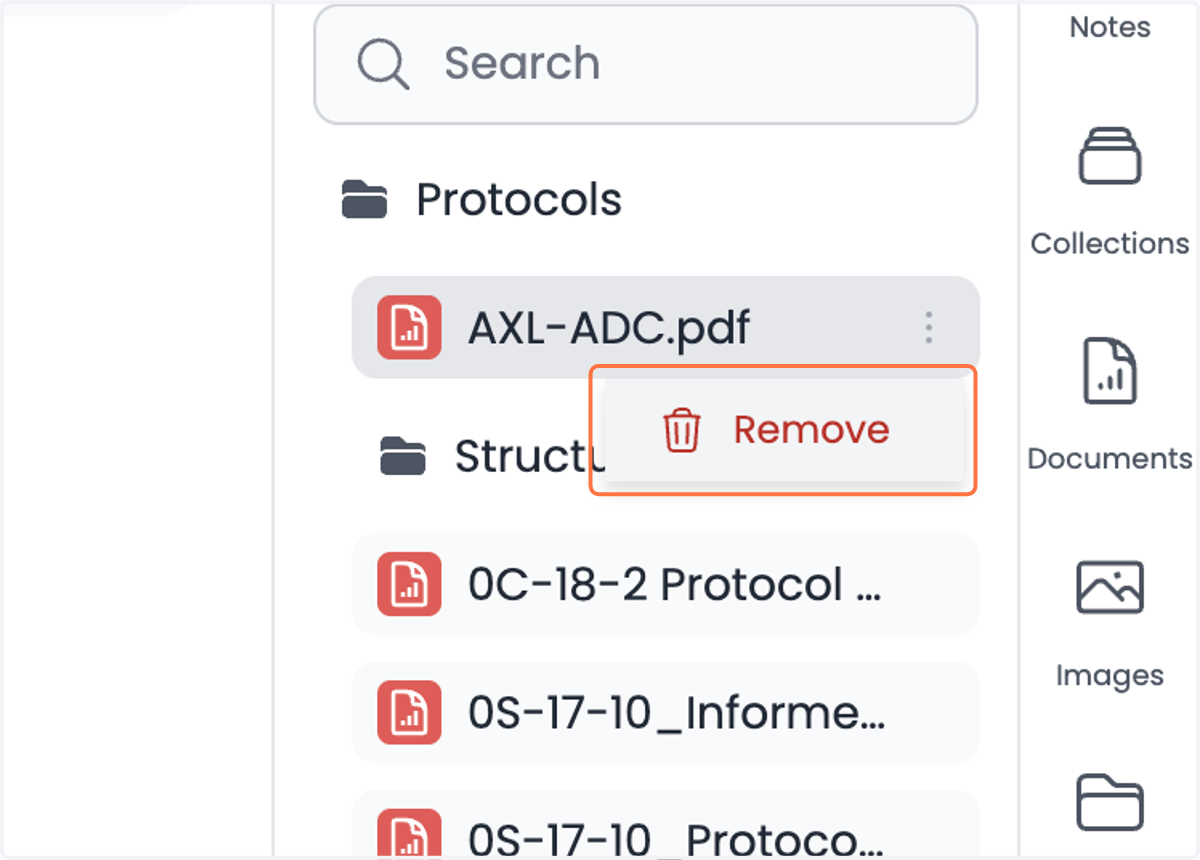
16. Click on Remove
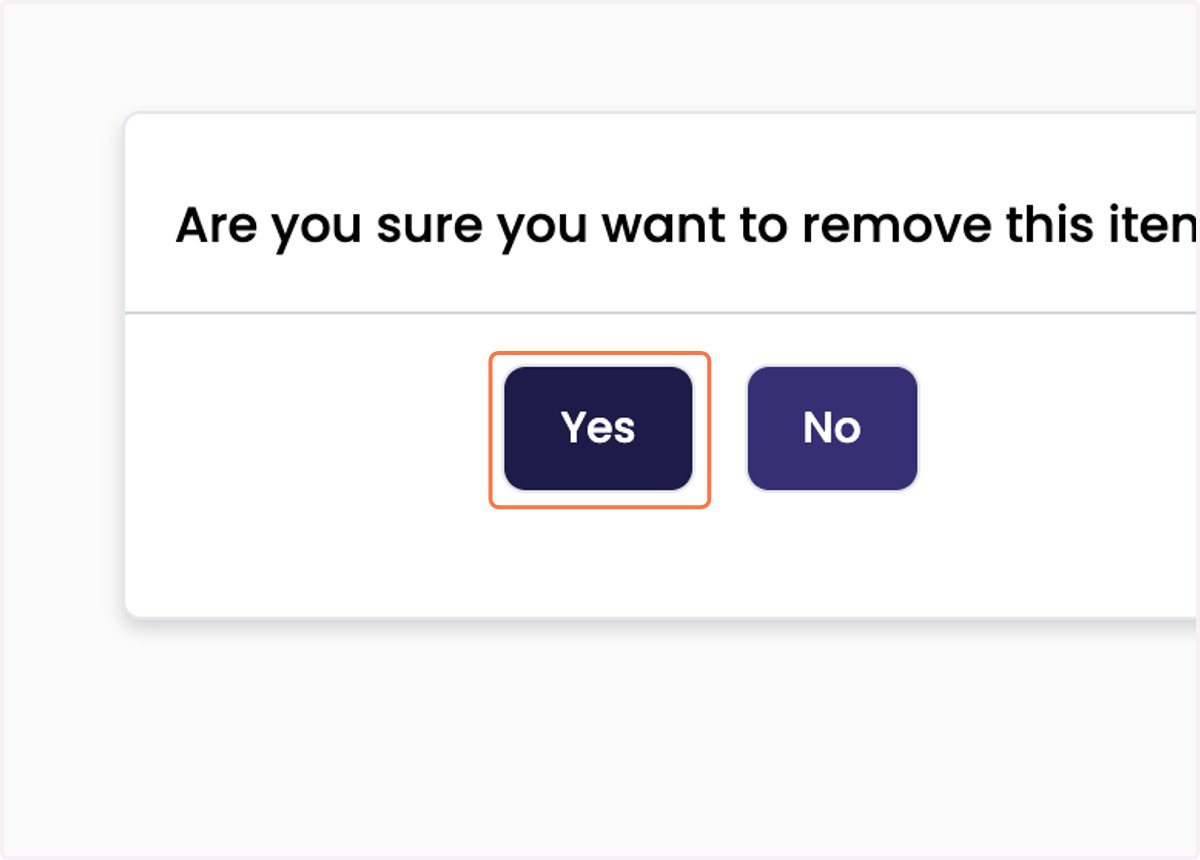
17. Click on Yes