Payroll Management Setup

Go to your RunLoyal staff portal on a Google Chrome browser. **All settings-related items must be updated while on a desktop or laptop.

Manage Payroll

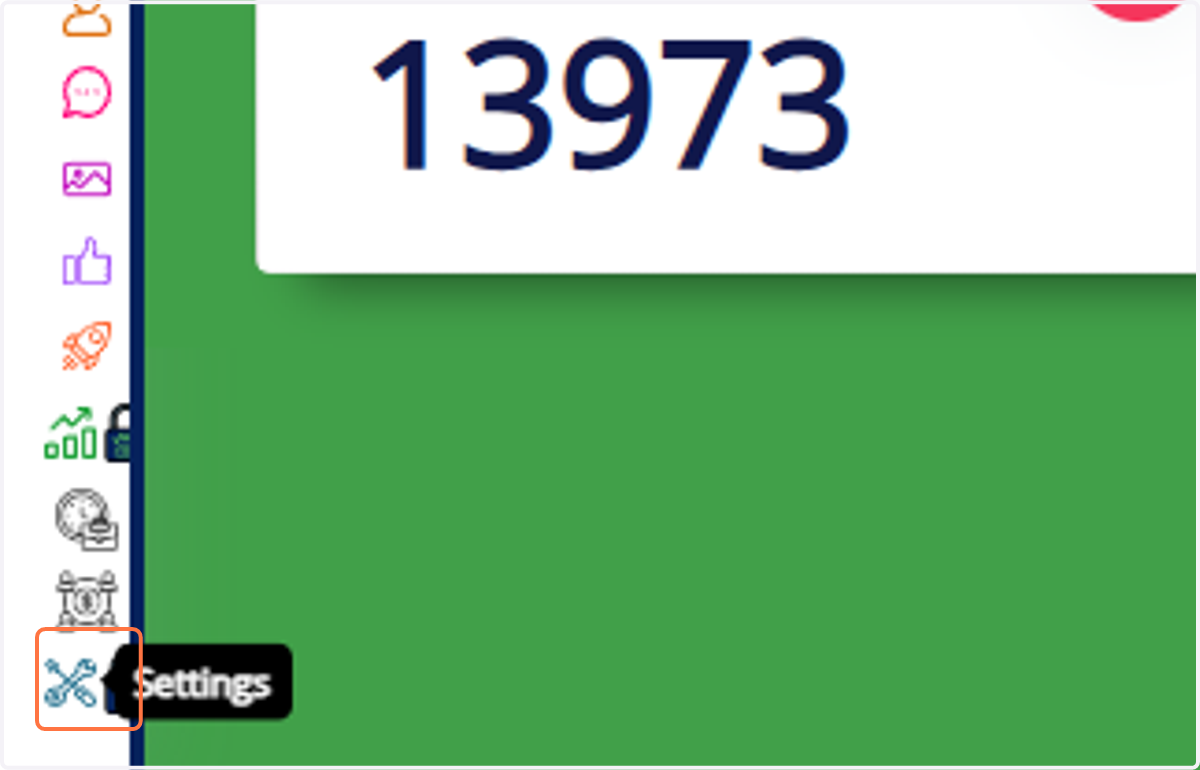
  1. 1. Click on "Settings"

    Click on "Settings"
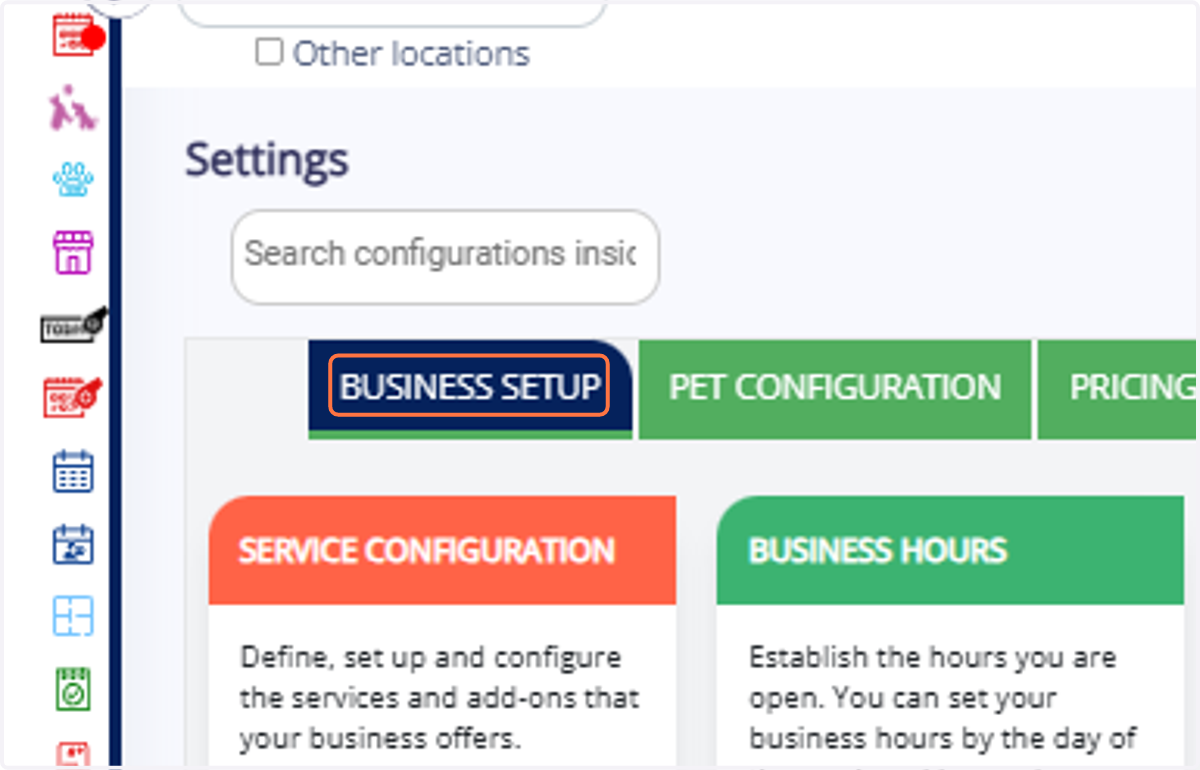
  2. 2. Click on "Business Setup"

    Click on "Business Setup"
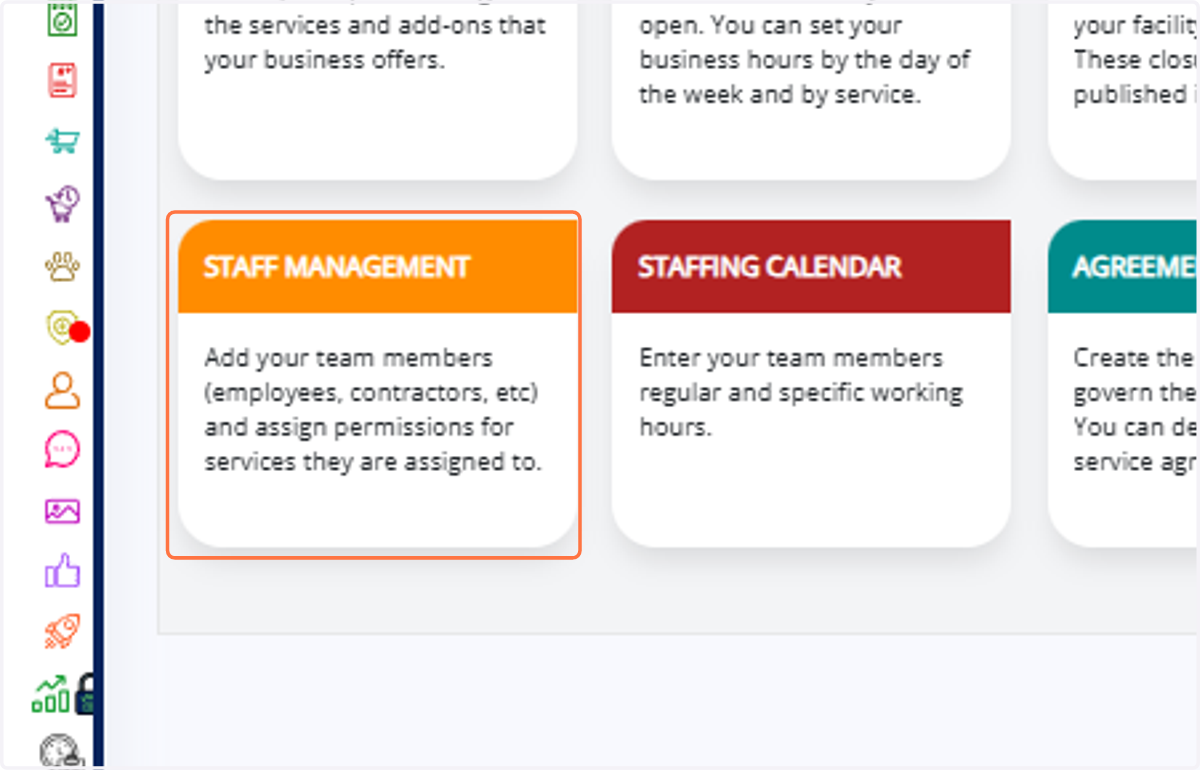
  3. 3. Click on "Staff Management"

    Click on "Staff Management"
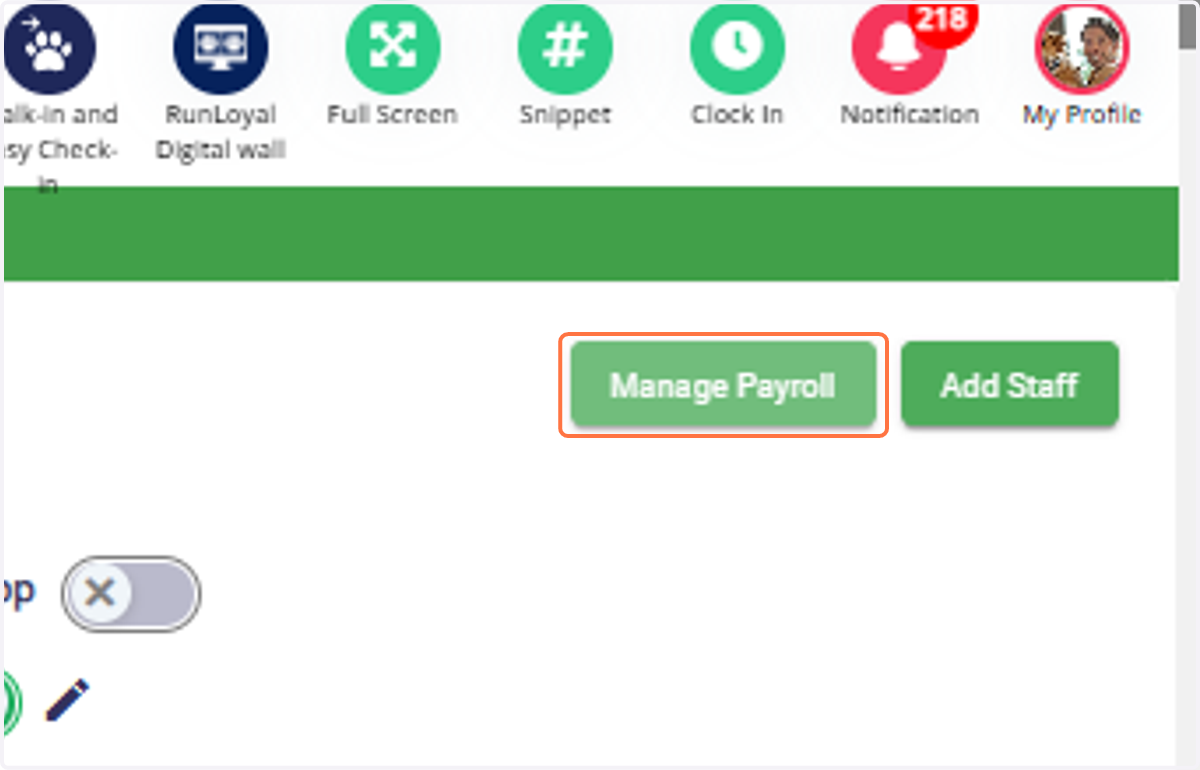
  4. 4. Click on "Manage Payroll"

    Click on "Manage Payroll"
  5. 5. Select the options for Payroll Schedule.
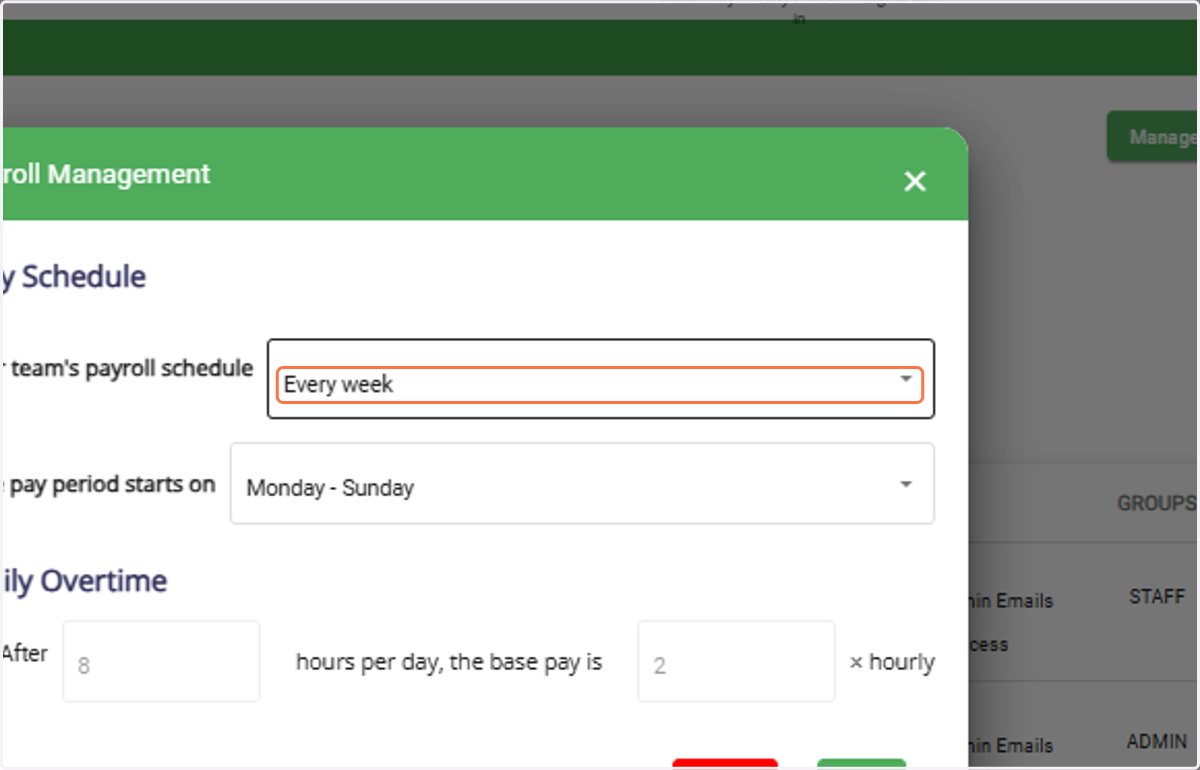
    Select the options for Payroll Schedule.
  6. 6. Select the Pay Period Starts option.
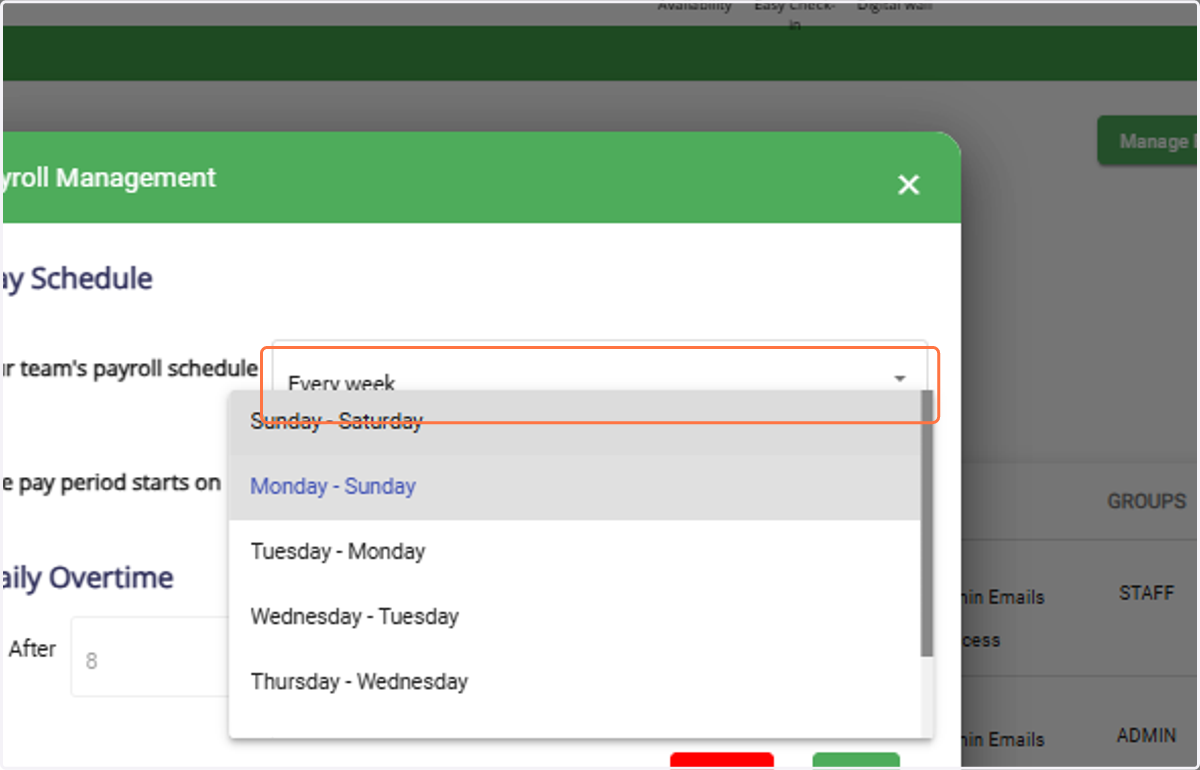
    Select the Pay Period Starts option.
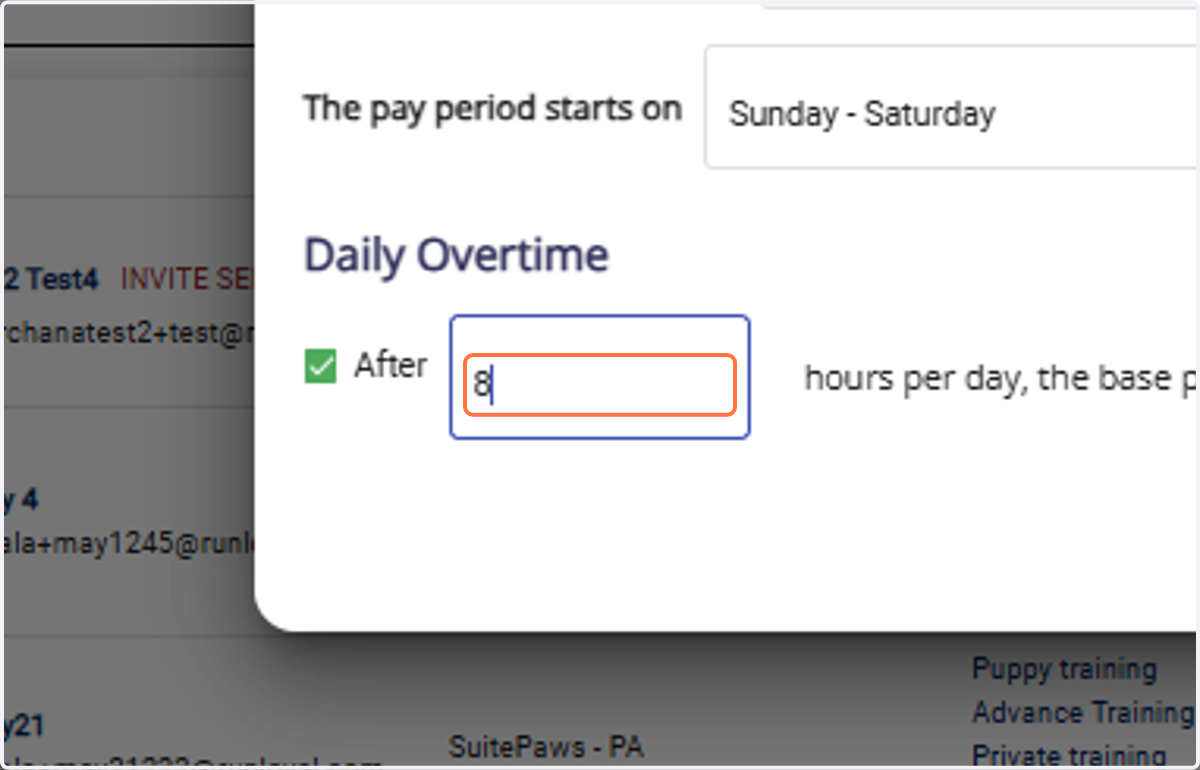
  7. 7. If calculating overtime for the employee, check the box.
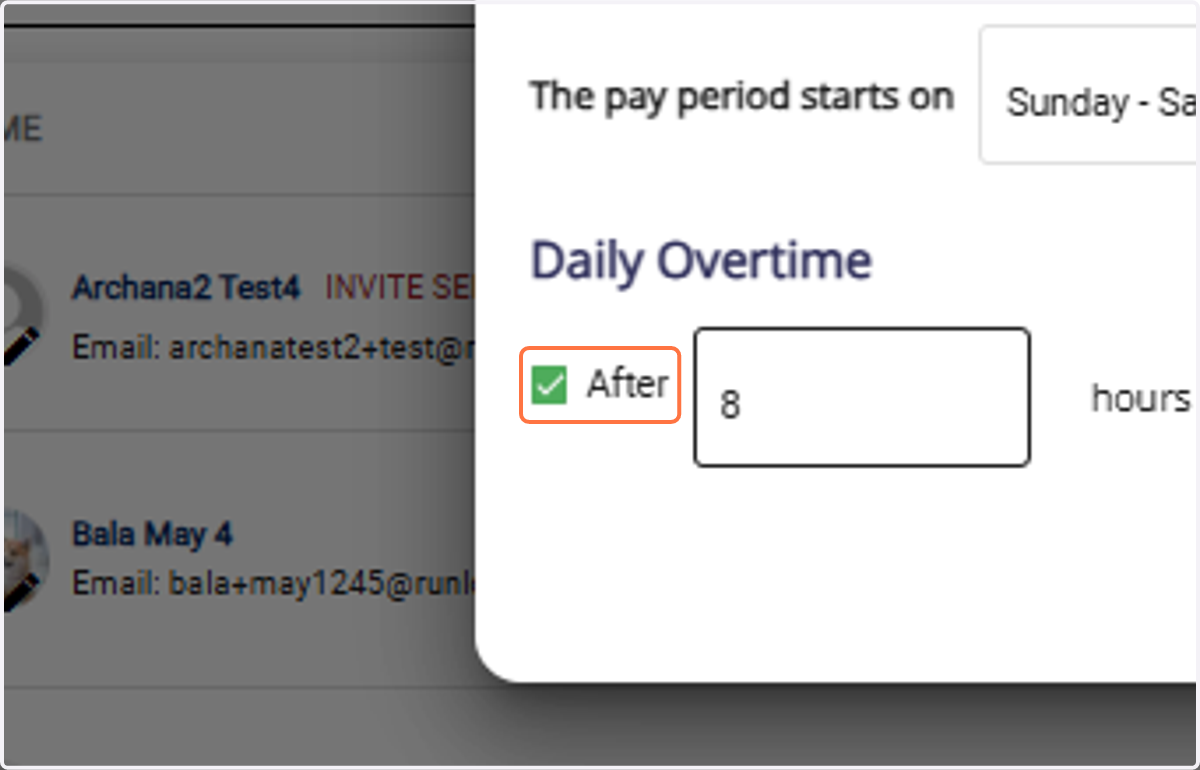
    If calculating overtime for the employee, check the box.
  8. 8. Enter the working hours per day.

    Enter the working hours per day.
  9. 9. Enter the base pay to calculate per hour.
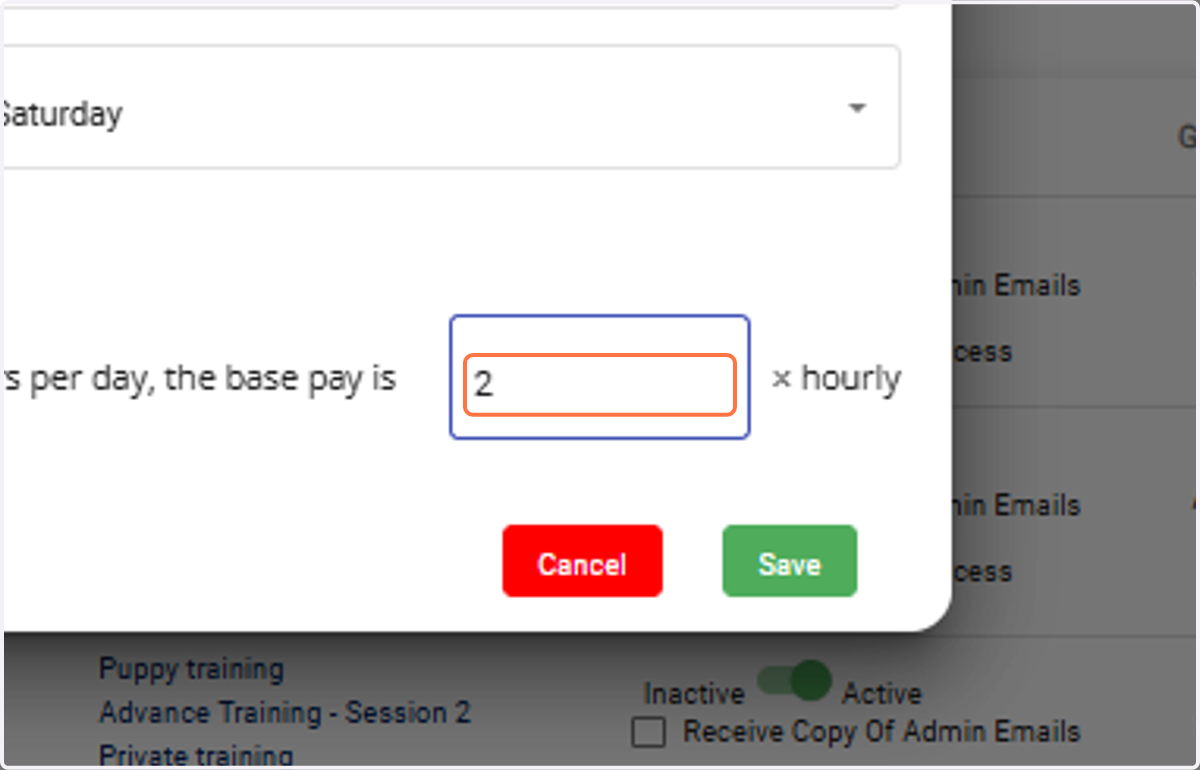
    Enter the base pay to calculate per hour.
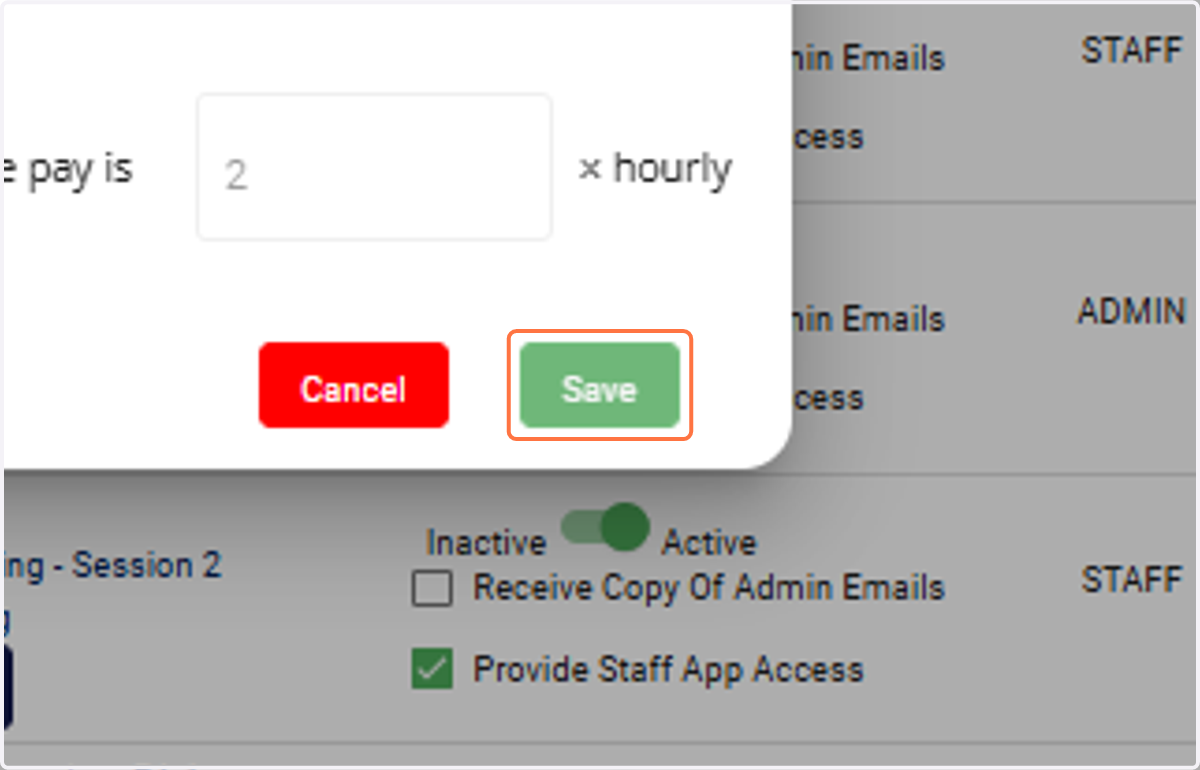
  10. 10. Click on "Save"

    Click on "Save"

Payroll Calculation

  1. 11. Navigate to "Payroll Calculation" menu
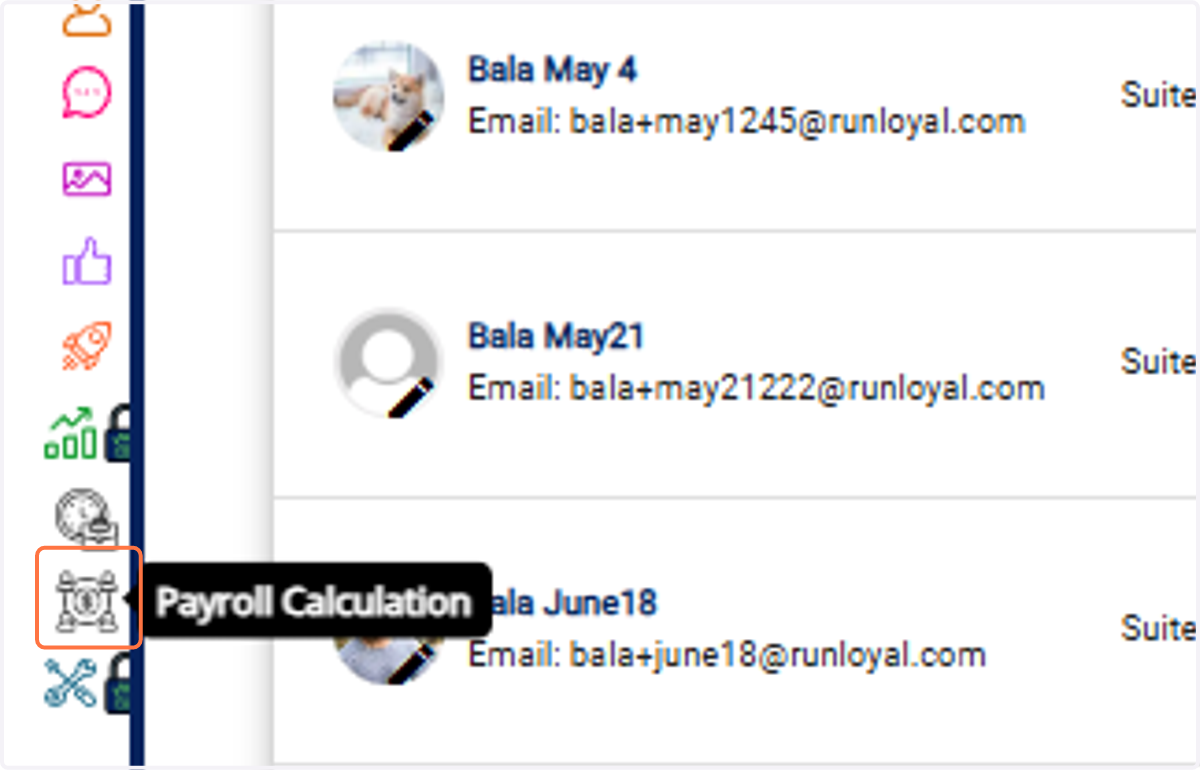
    Navigate to "Payroll Calculation" menu
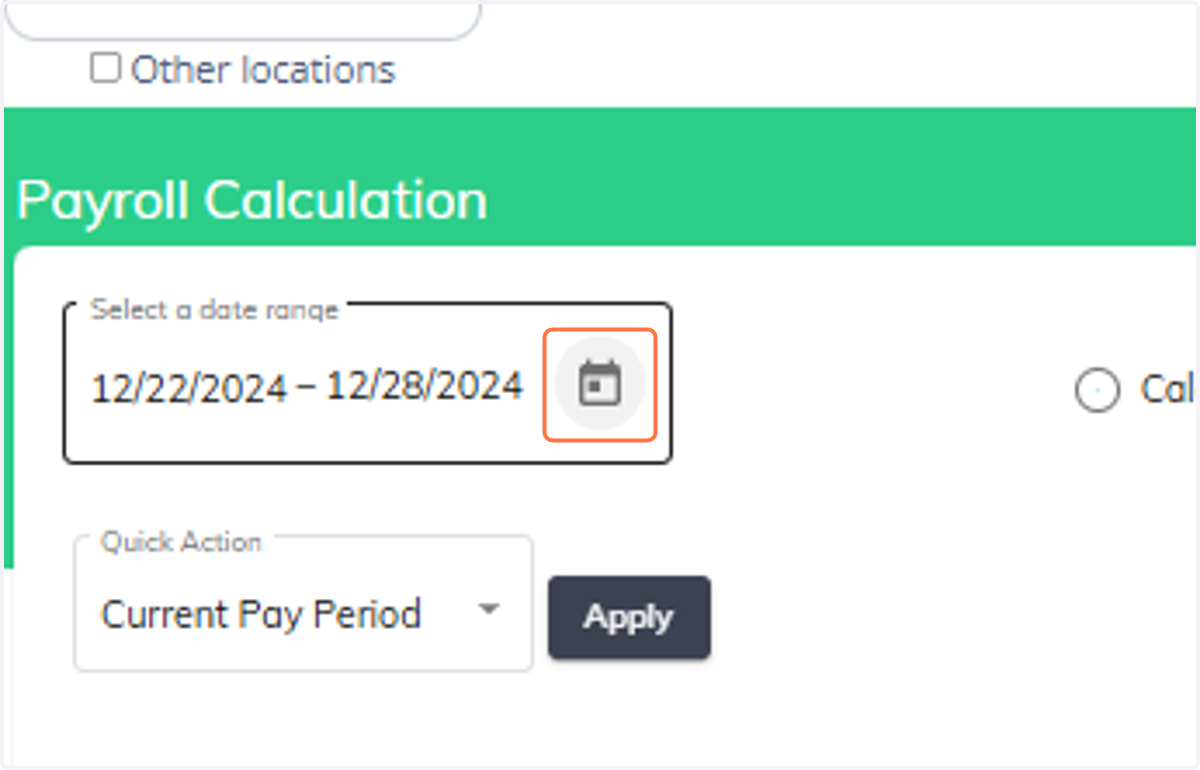
  2. 12. Select a date range.

    Select a date range.
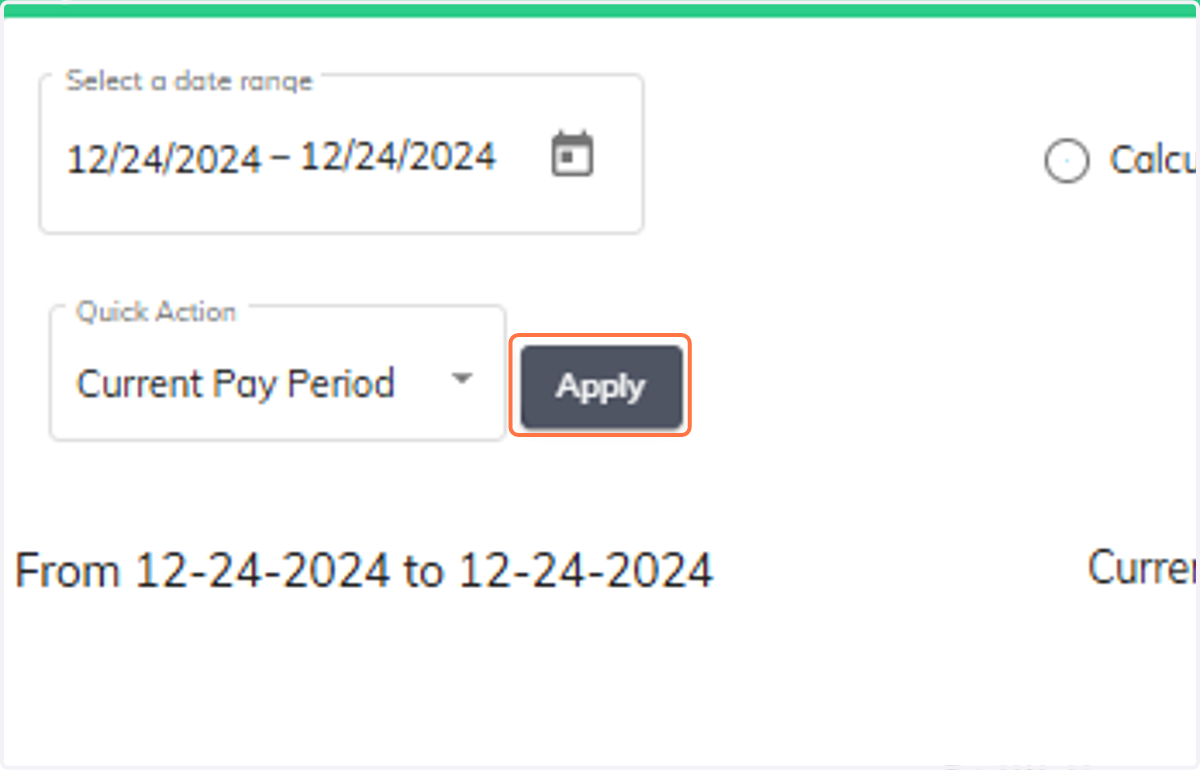
  3. 13. Click on Apply.

    Click on Apply.
  4. 14. The payroll has been calculated for the employee according to the setup.
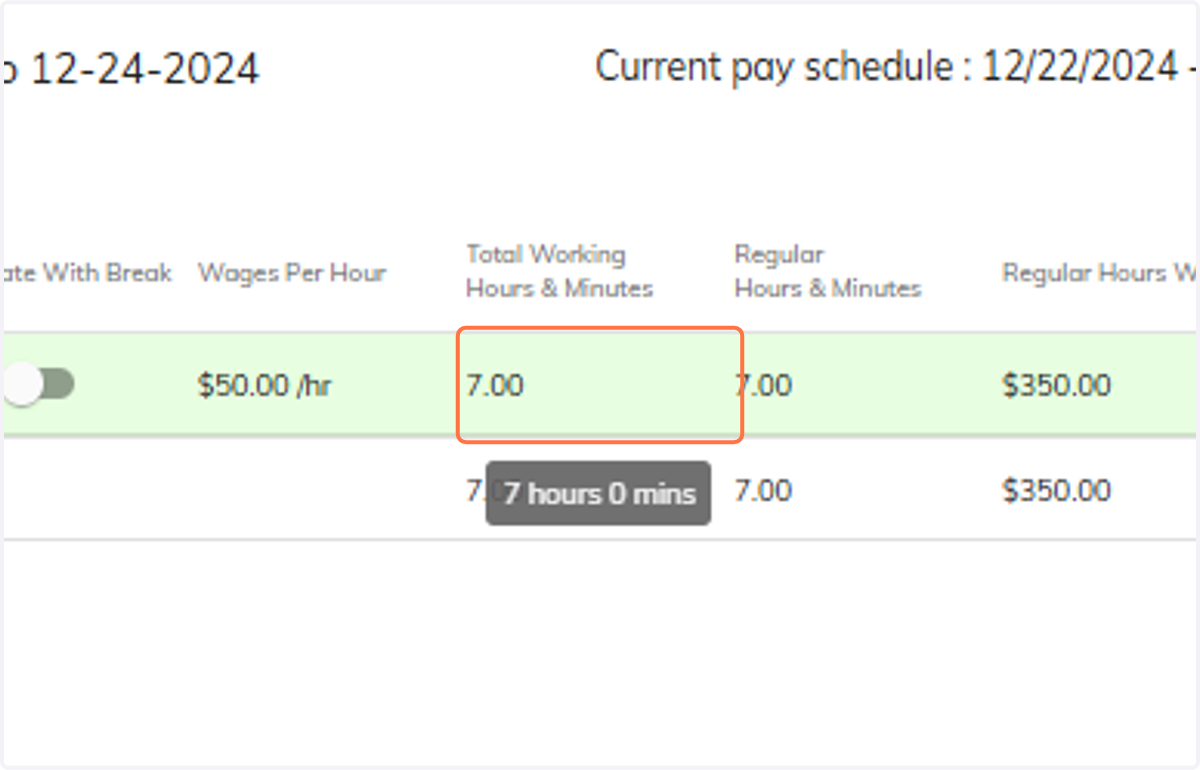
    The payroll has been calculated for the employee according to the setup.
  5. 15. To calculate with breaks, select Calculate with Break.
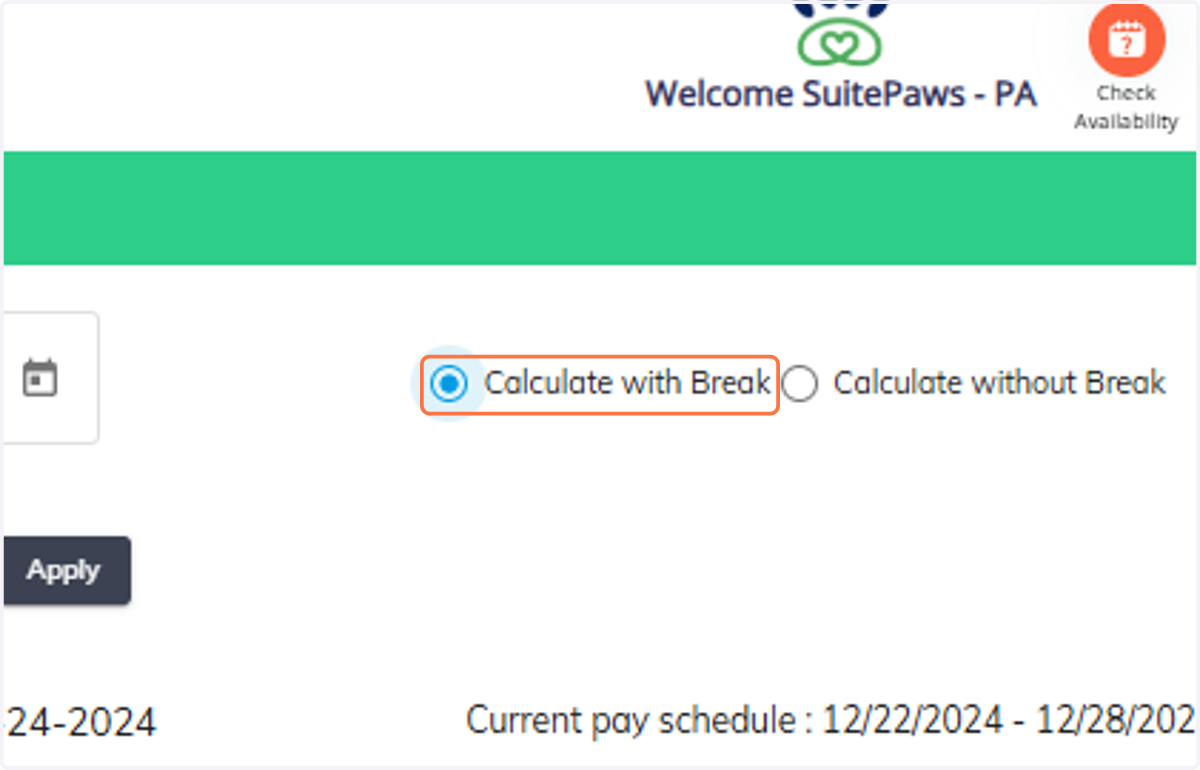
    To calculate with breaks, select Calculate with Break.
  6. 16. The payroll is recalculated with breaks included.
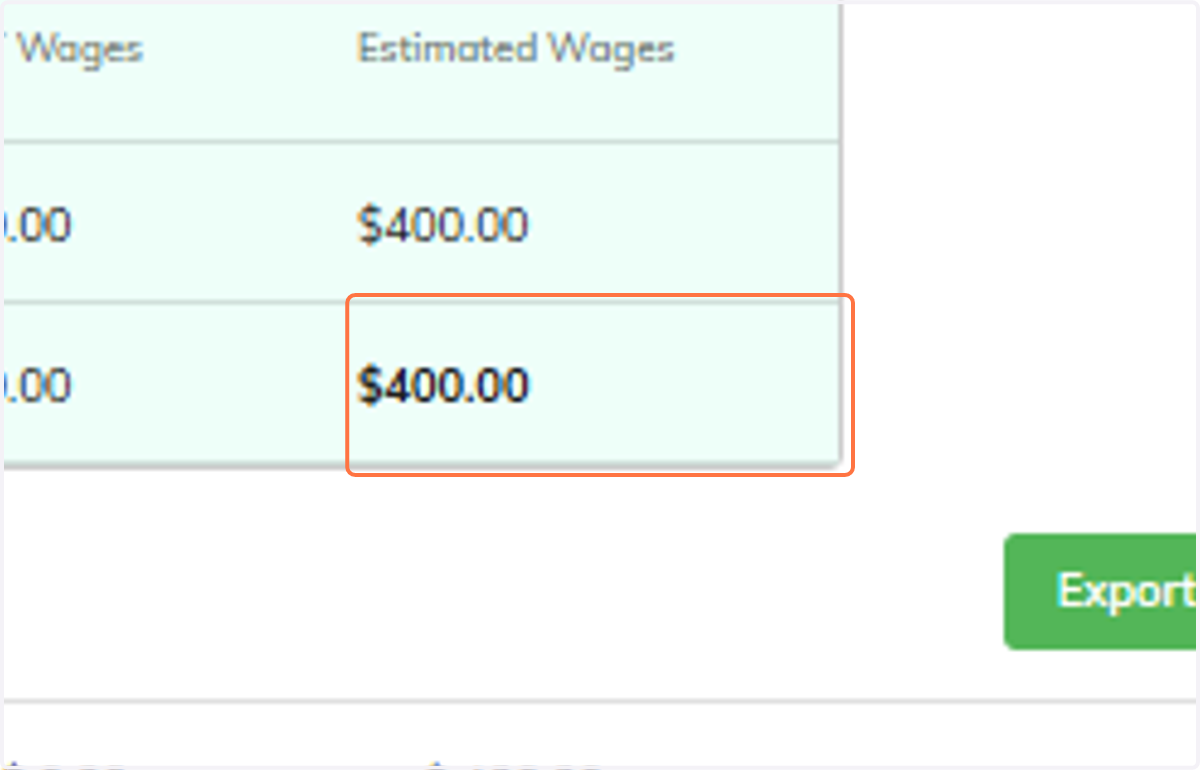
    The payroll is recalculated with breaks included.
  7. 17. To export the data, choose the desired export options.
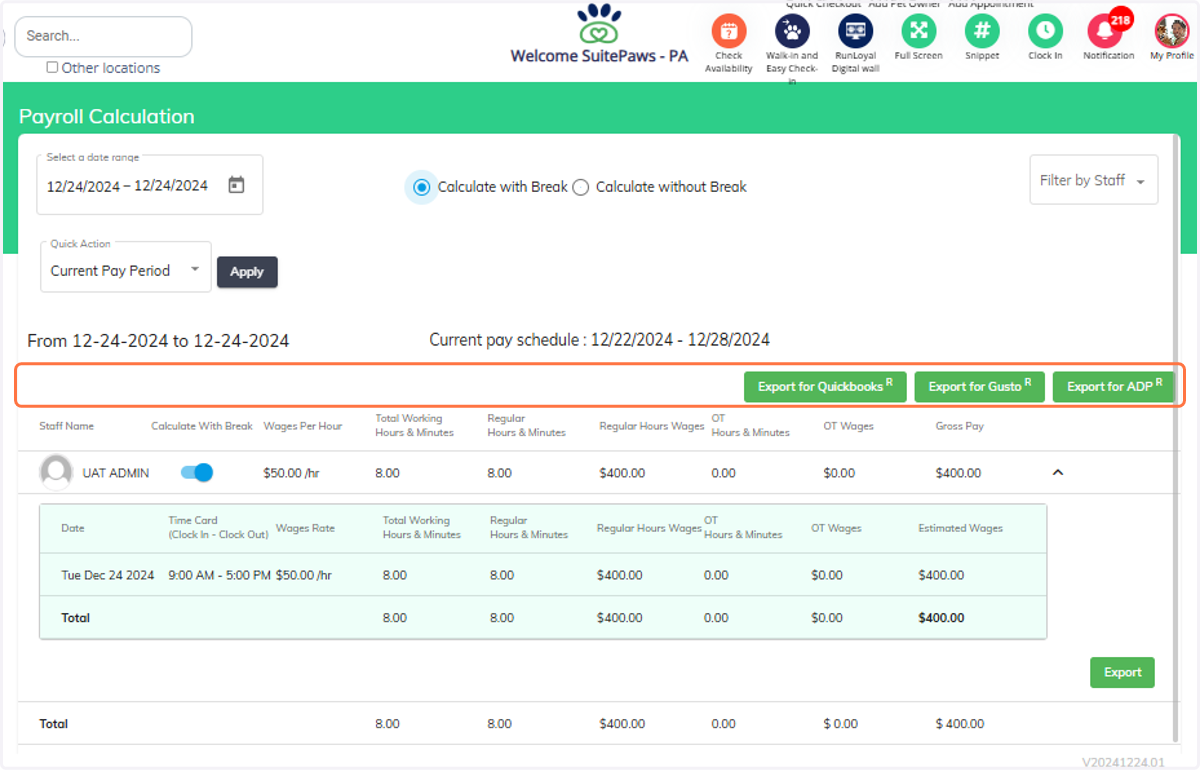
    To export the data, choose the desired export options.