Proposals with Invoicing
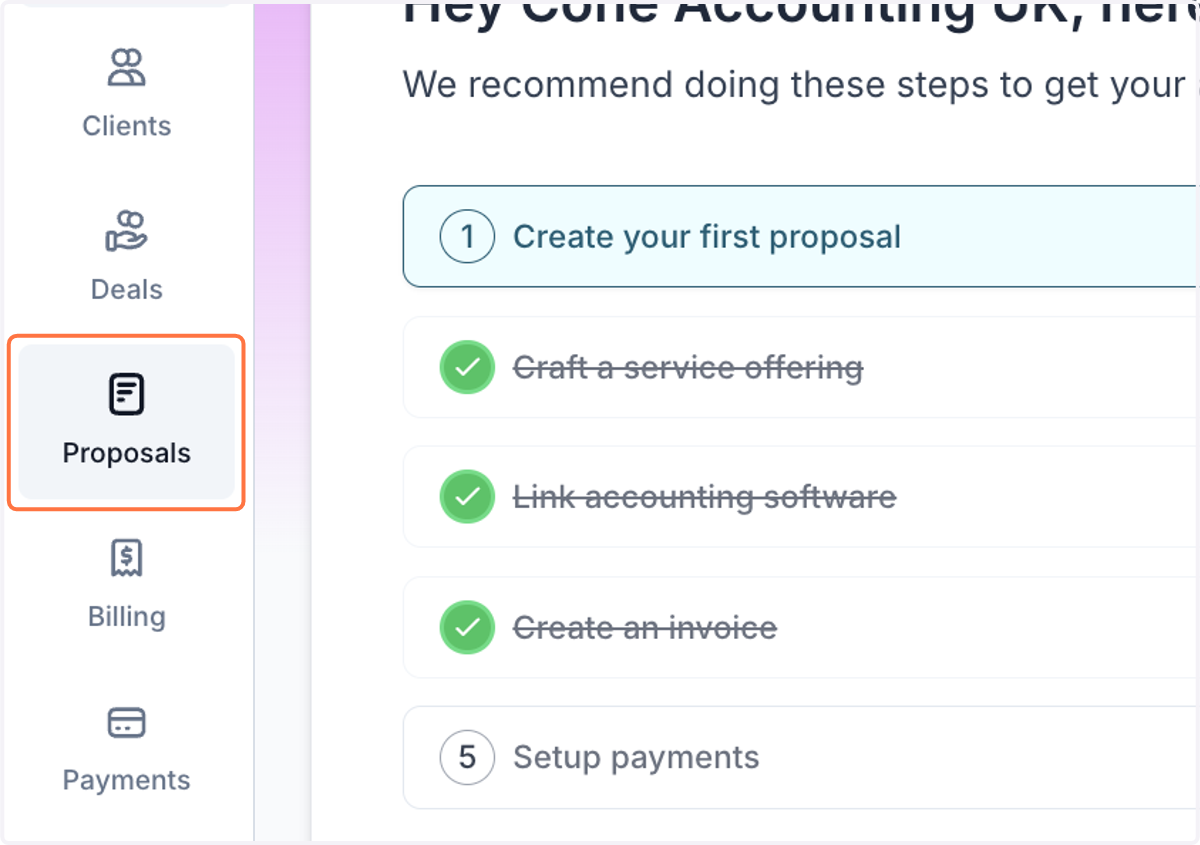
1. Click on 'Proposals'
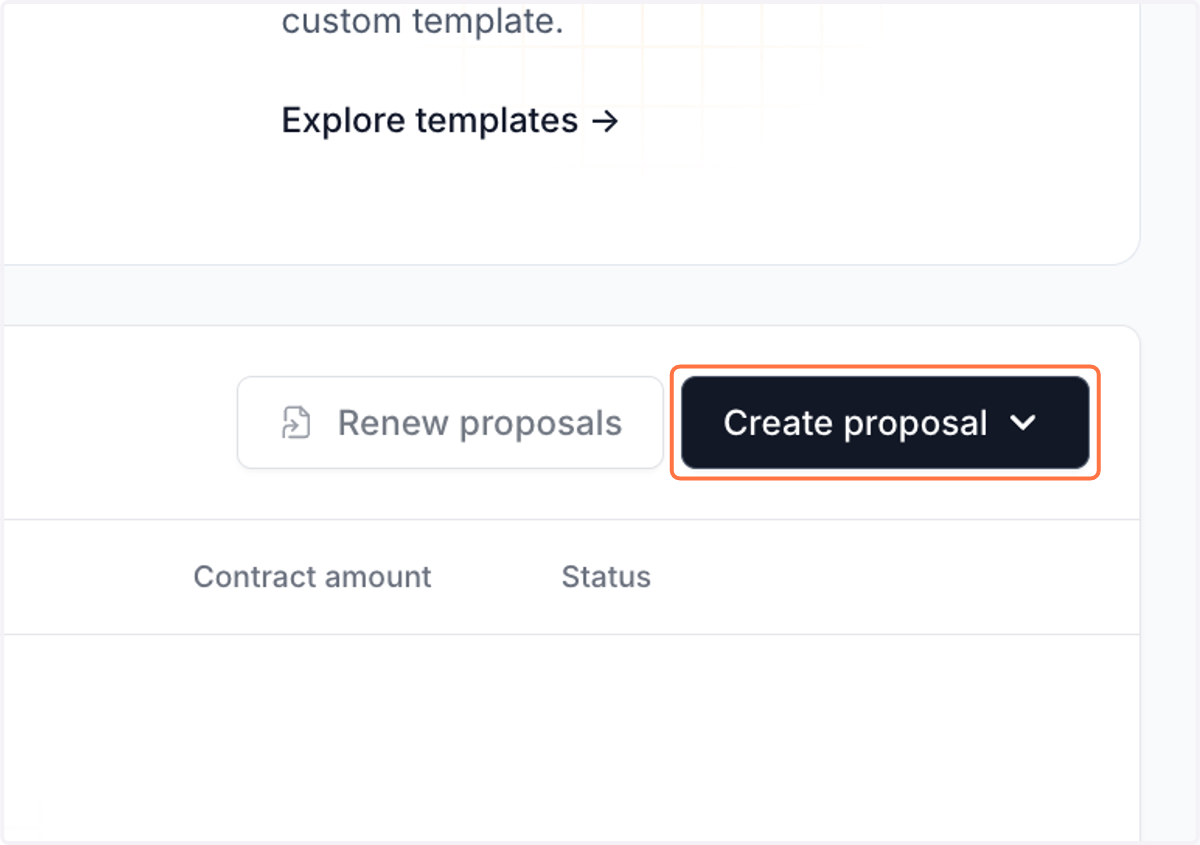
2. Click on 'Create proposal'
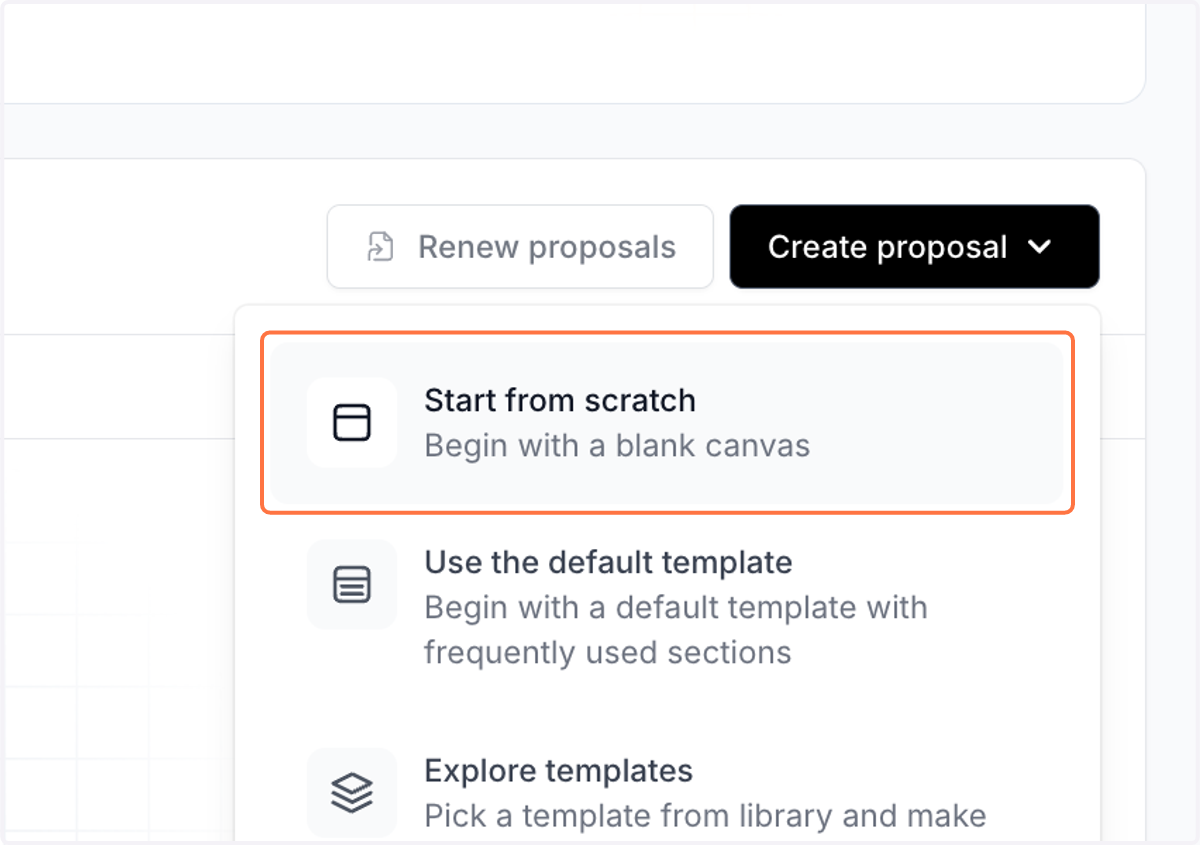
3. Click on 'Start from scratch'
4. Enter title for the proposal
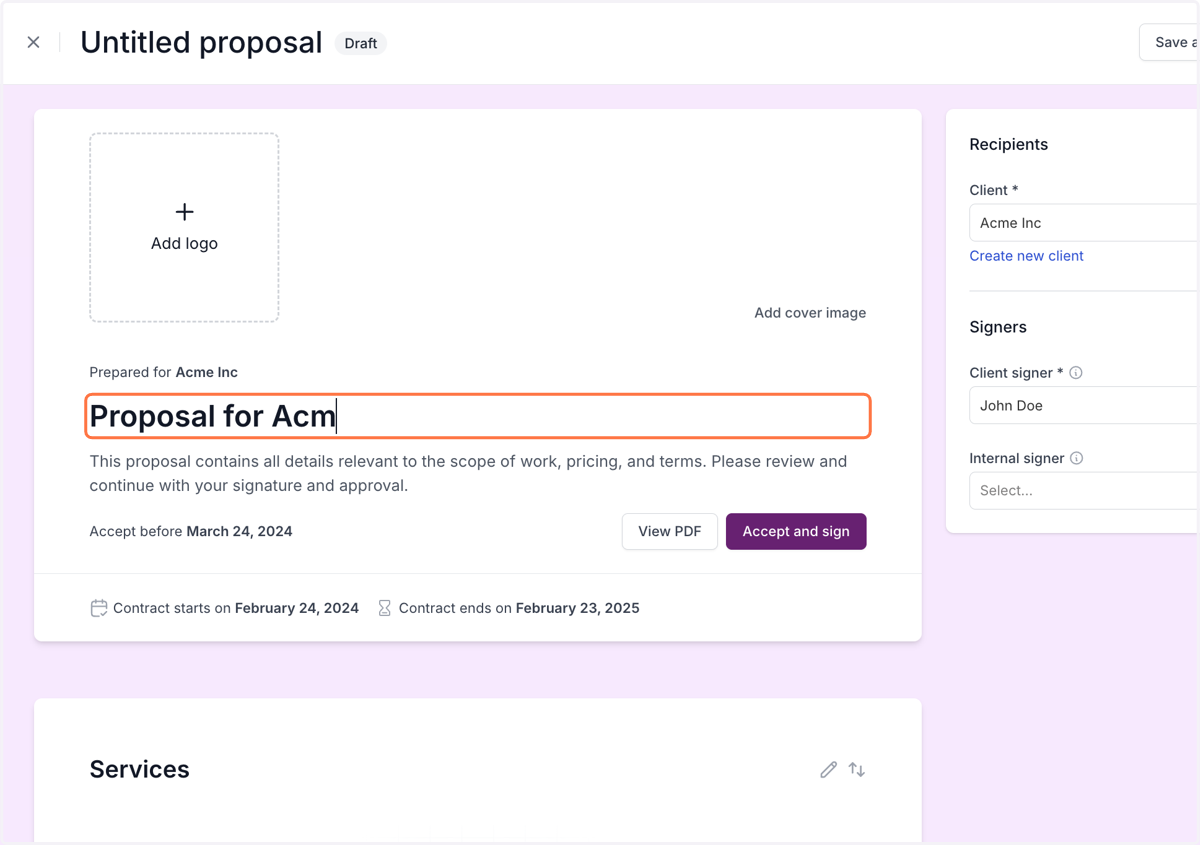
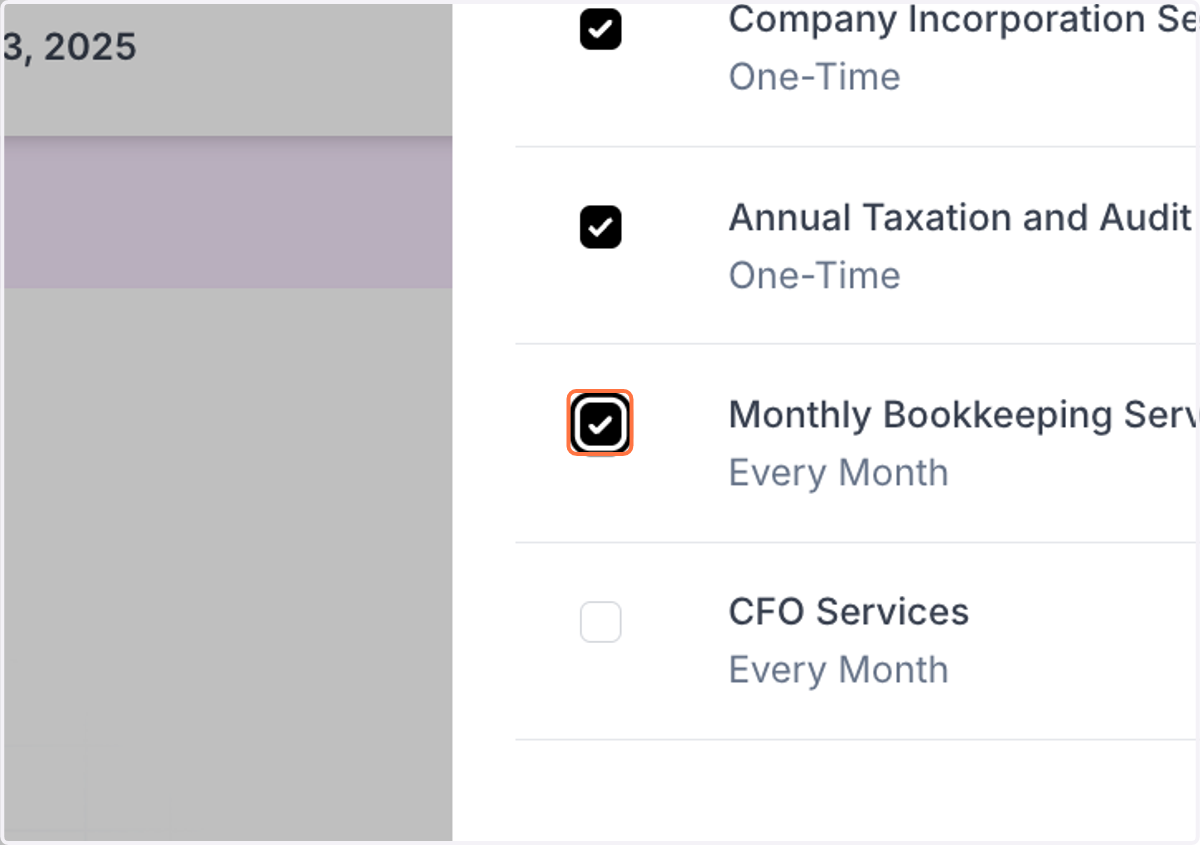
5. Select services to include in the proposal
6. Click on 'Create services' to add services to proposal
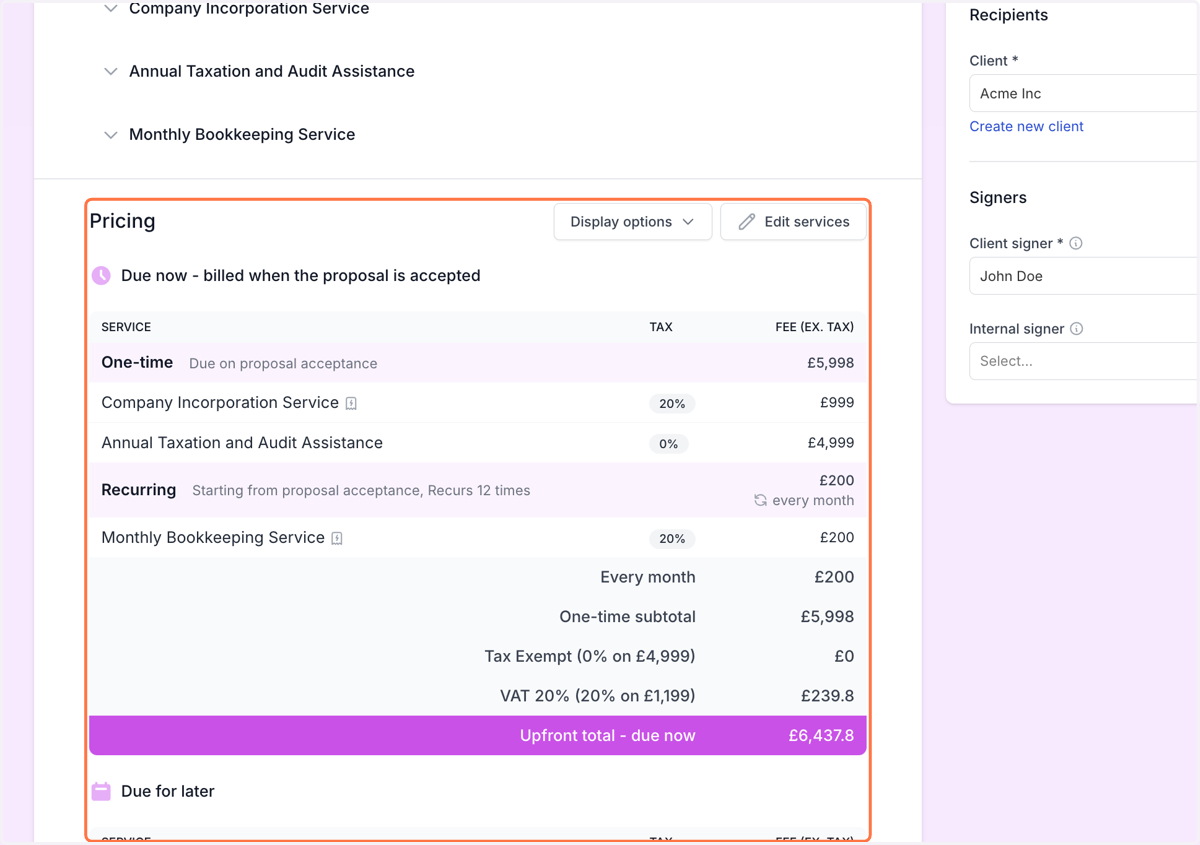
7. You can see the summary of the services added
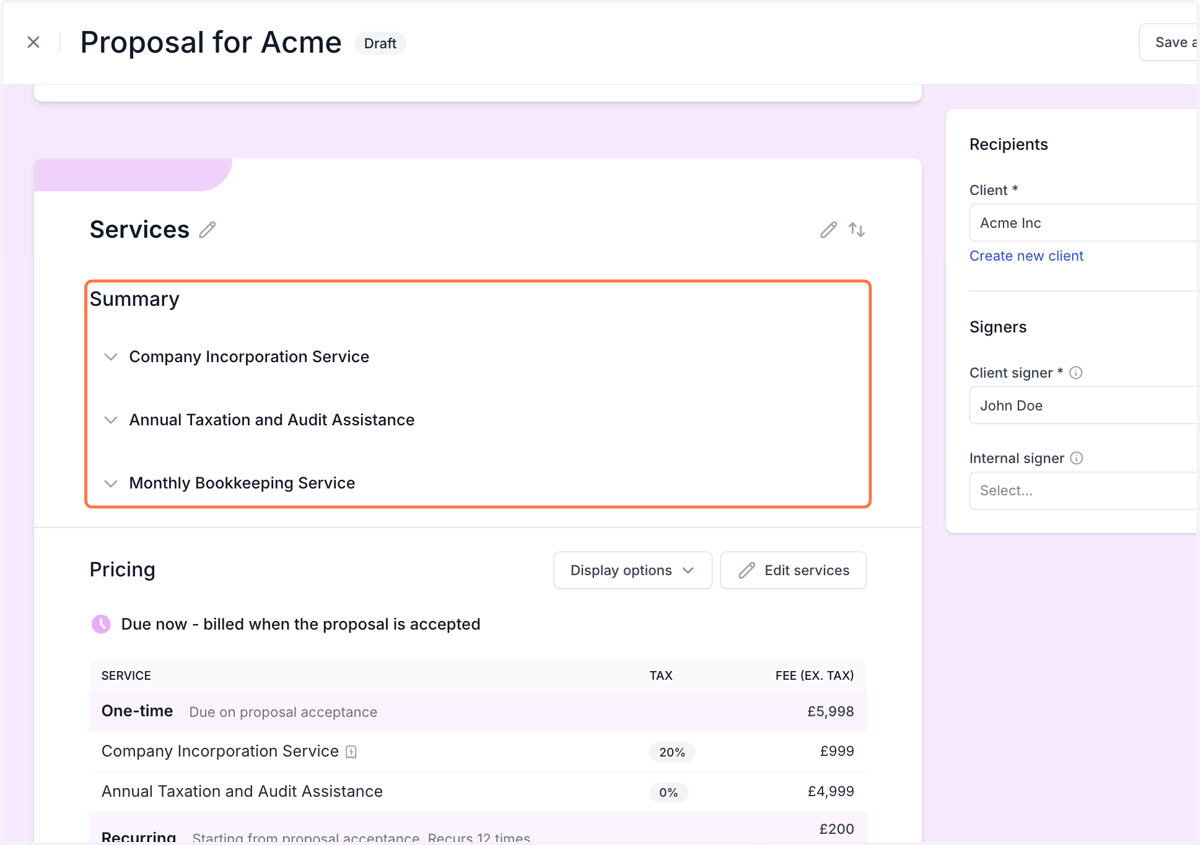
8. You can see the pricing of the added services
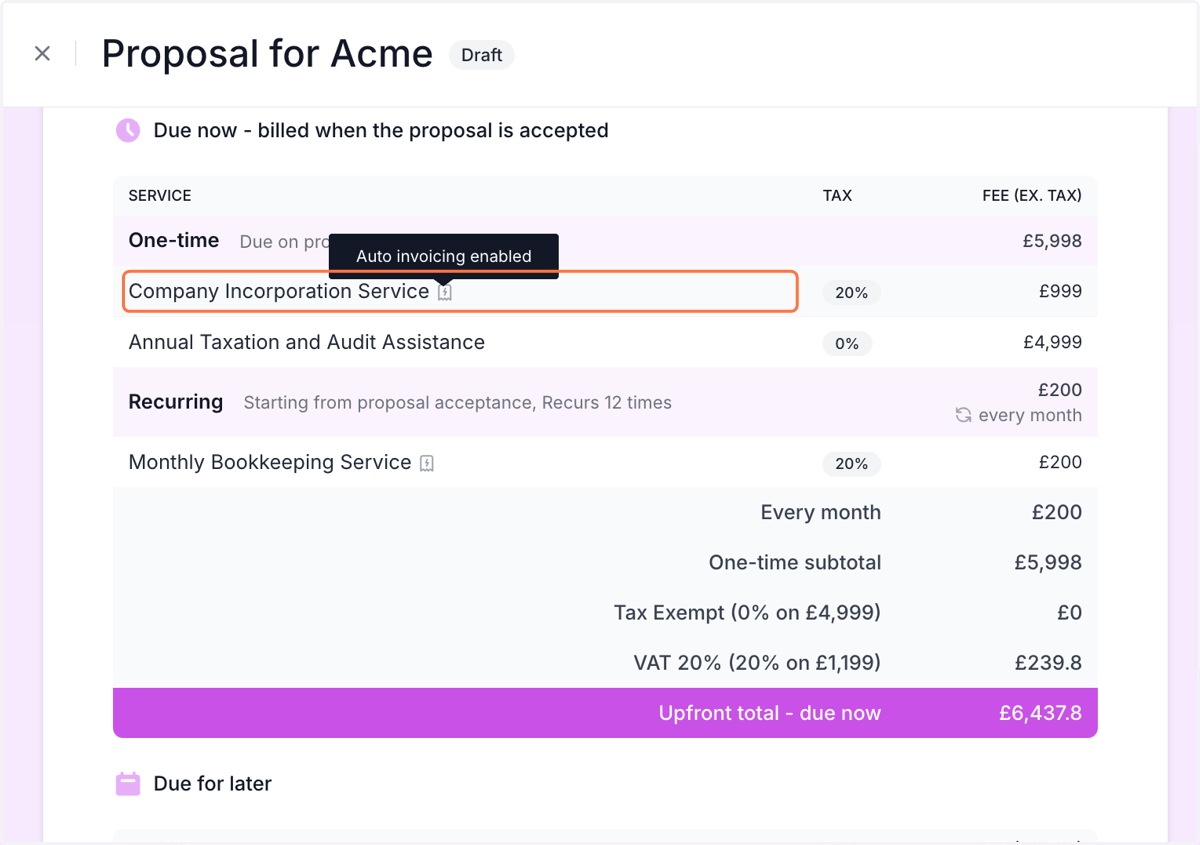
9. Auto-invoicing services are indicated by an icon
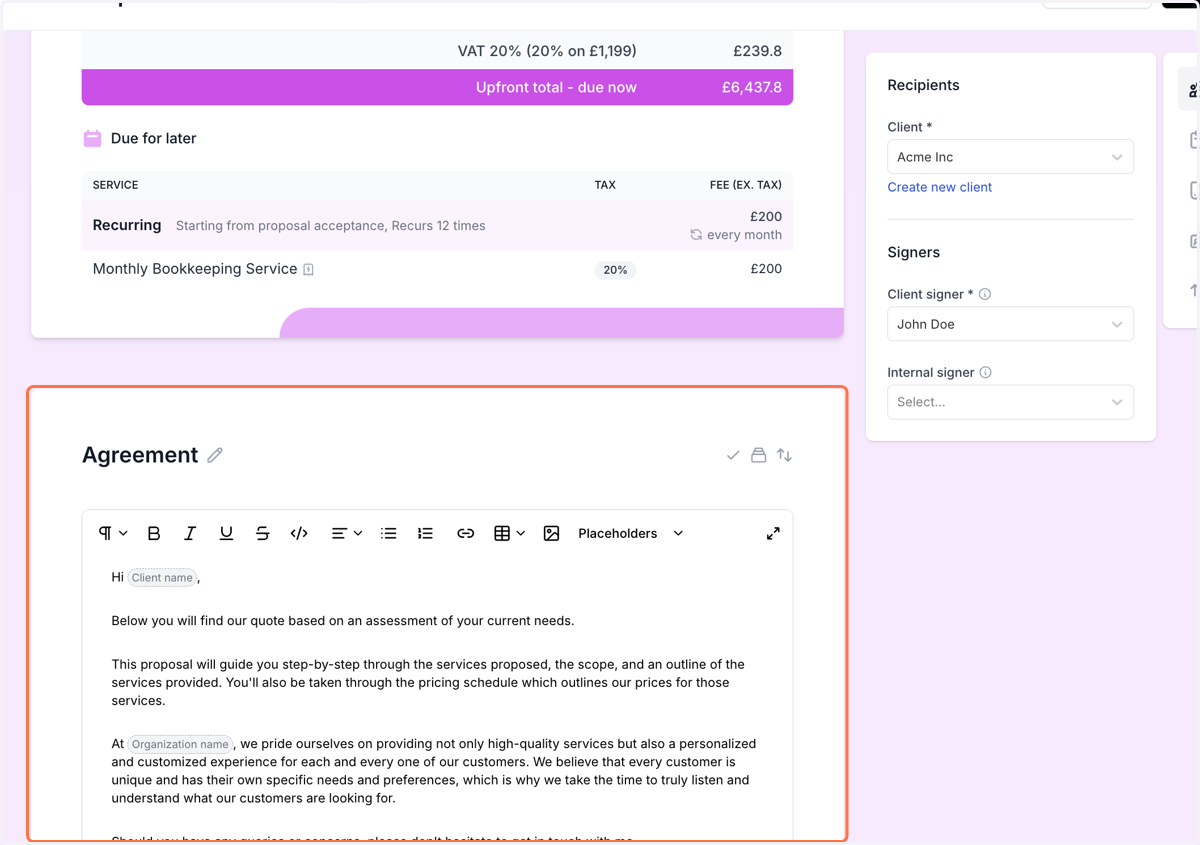
10. Add relevant agreement
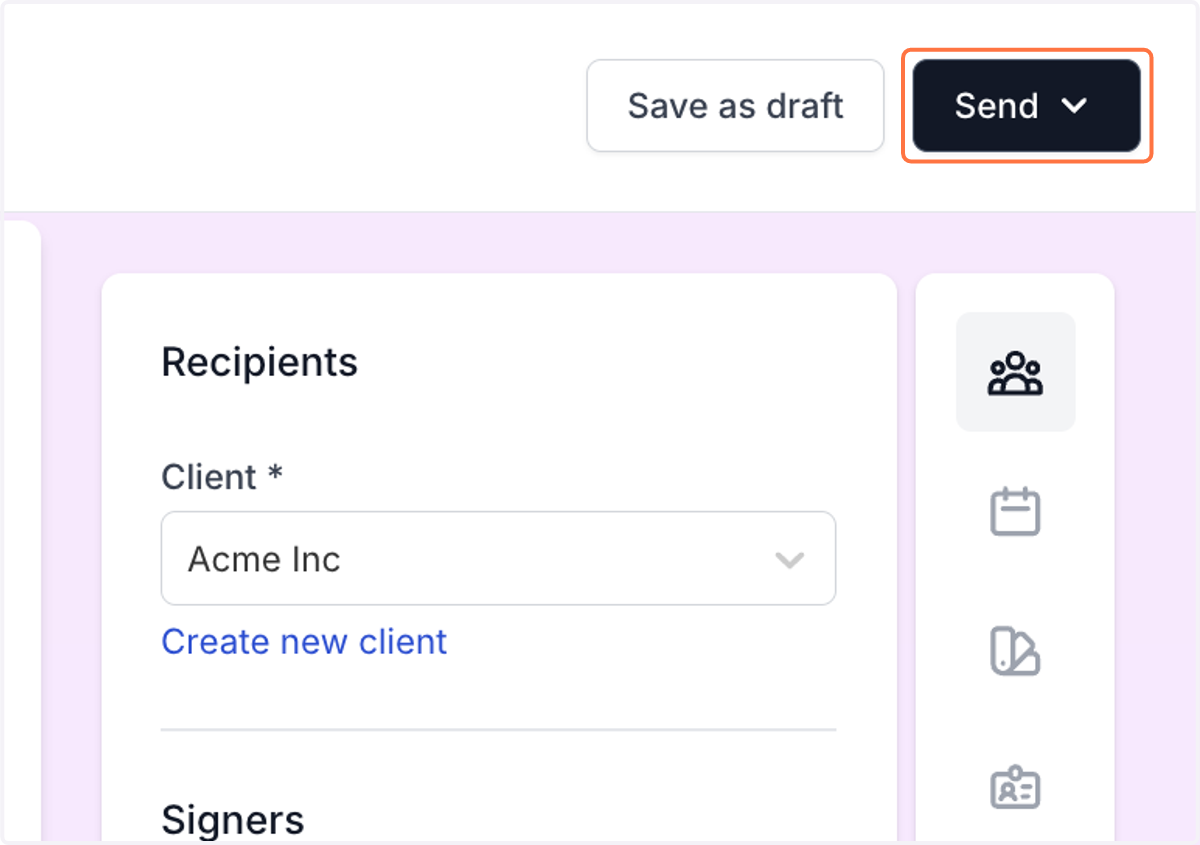
11. Send the proposal to client to get signature
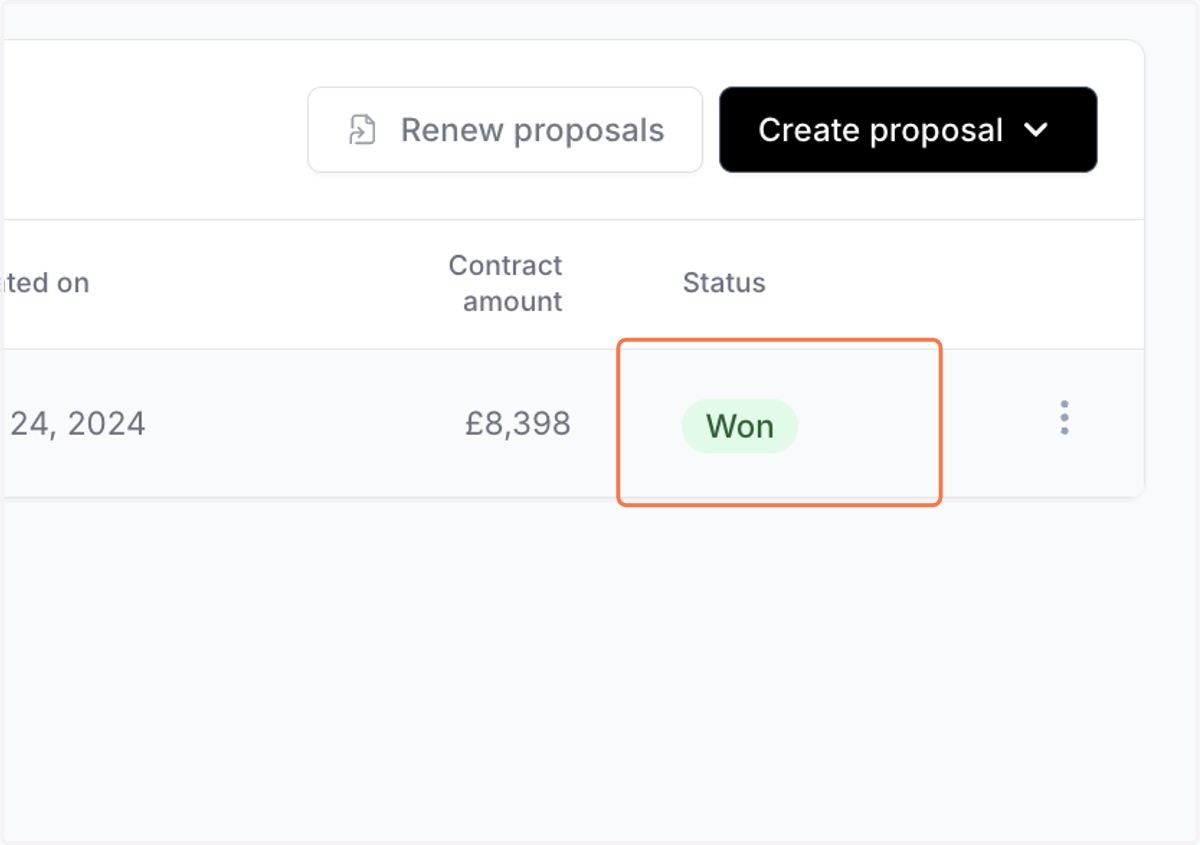
12. Once the proposal is won, it will be indicated under the status in the proposals listing
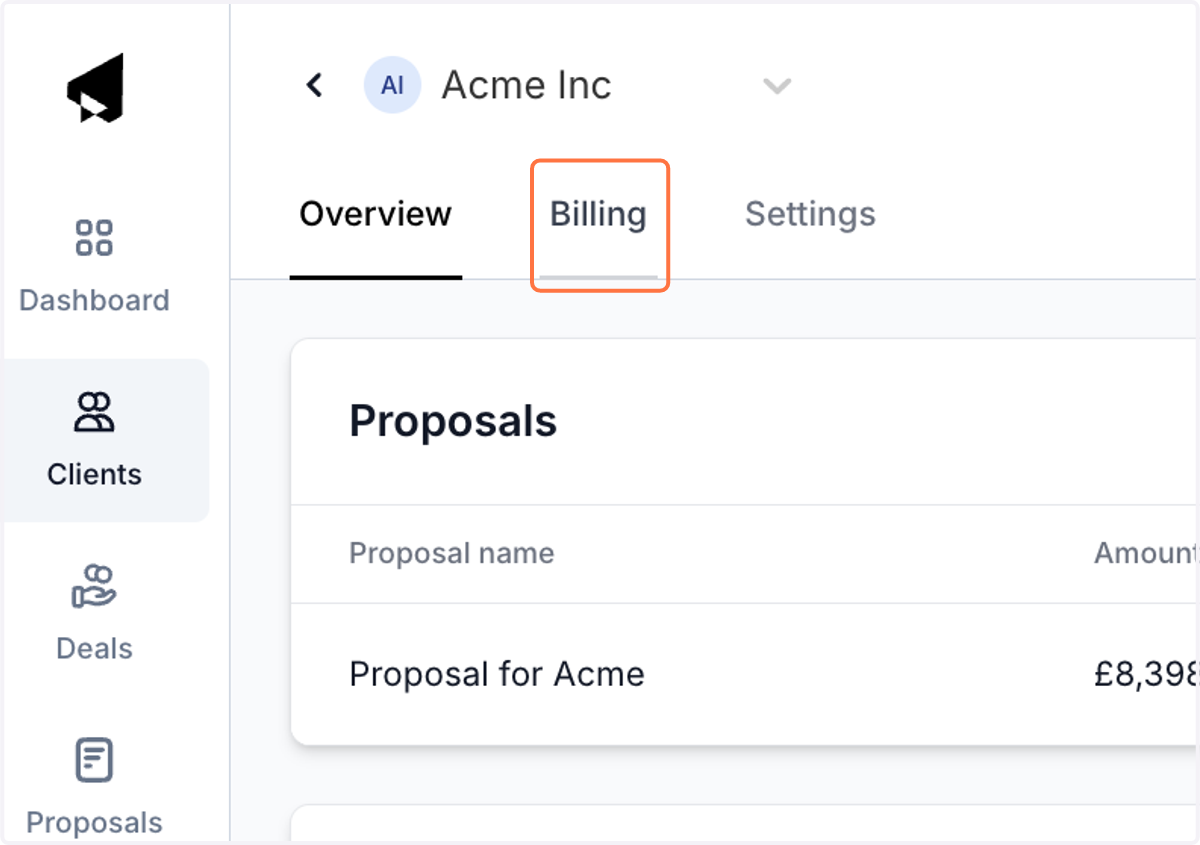
13. Next, navigate to 'Billing' under the client workspace
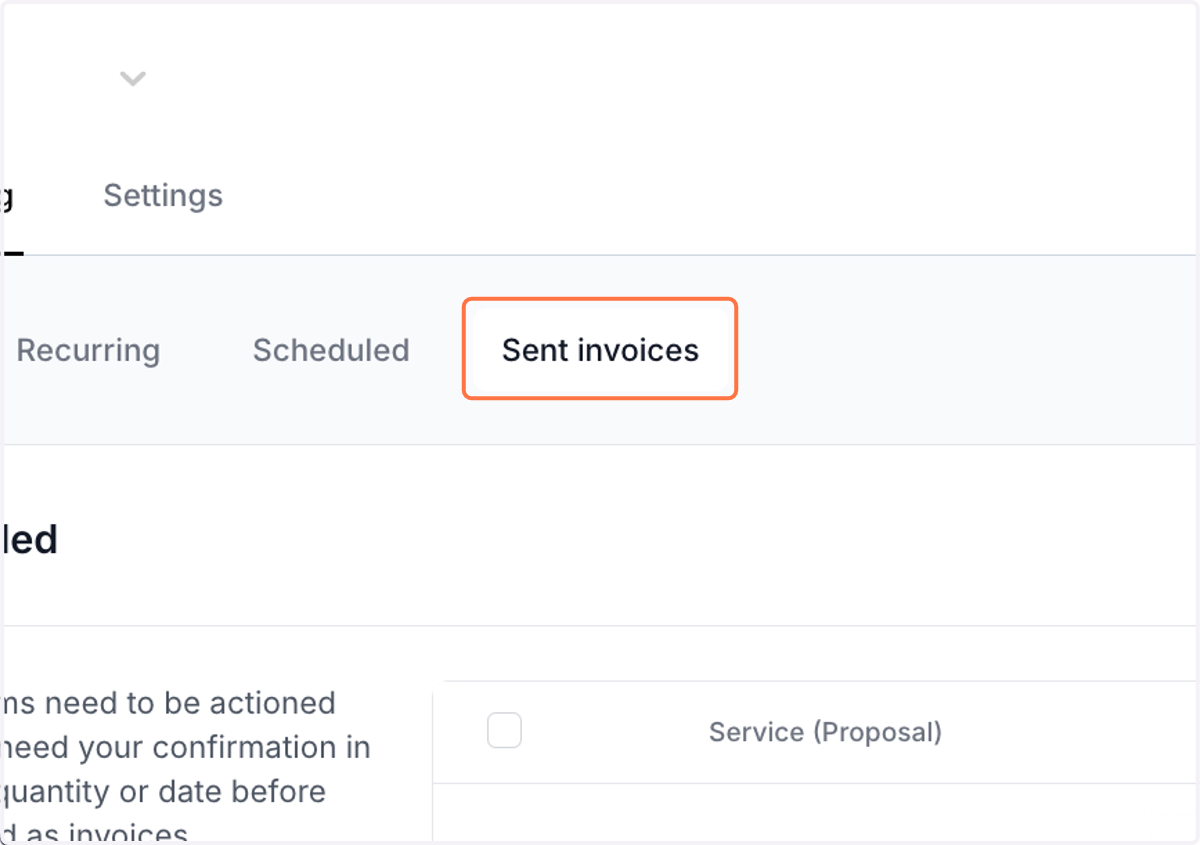
14. Click on 'Sent invoices'
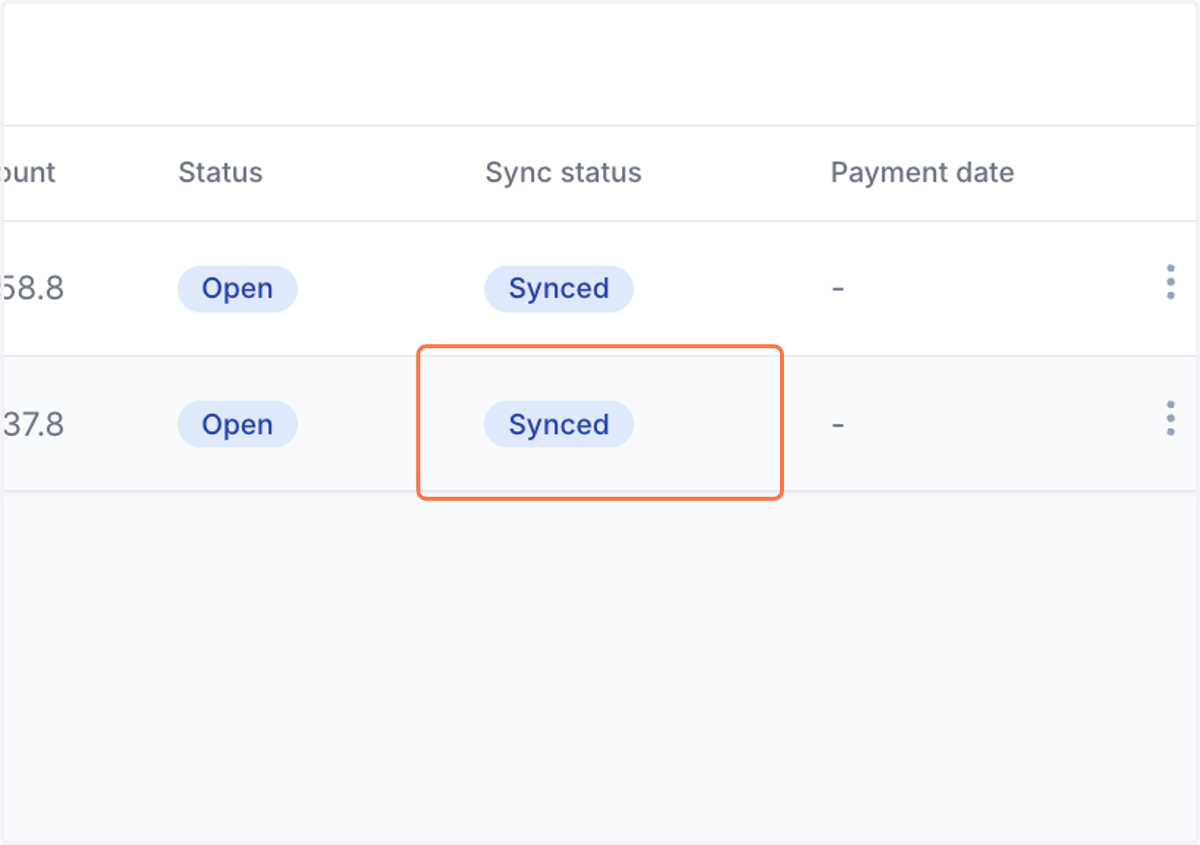
15. Invoices from proposal services
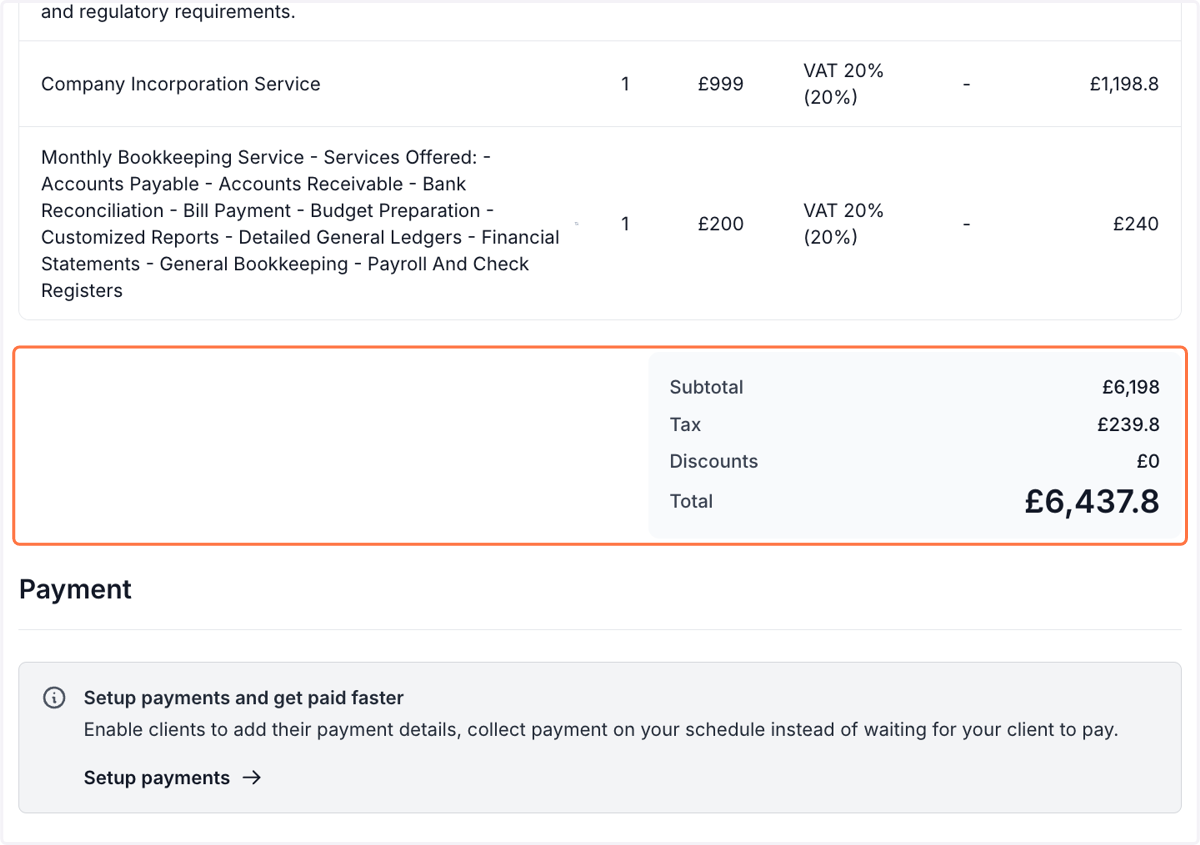
If the signed proposal had any services that has auto-invoicing configured, an invoice will be automatically created that includes those services. If syncing to accounting software is enabled, invoice will also be added to accounting software
16. Click on Invoice #INV-0032…
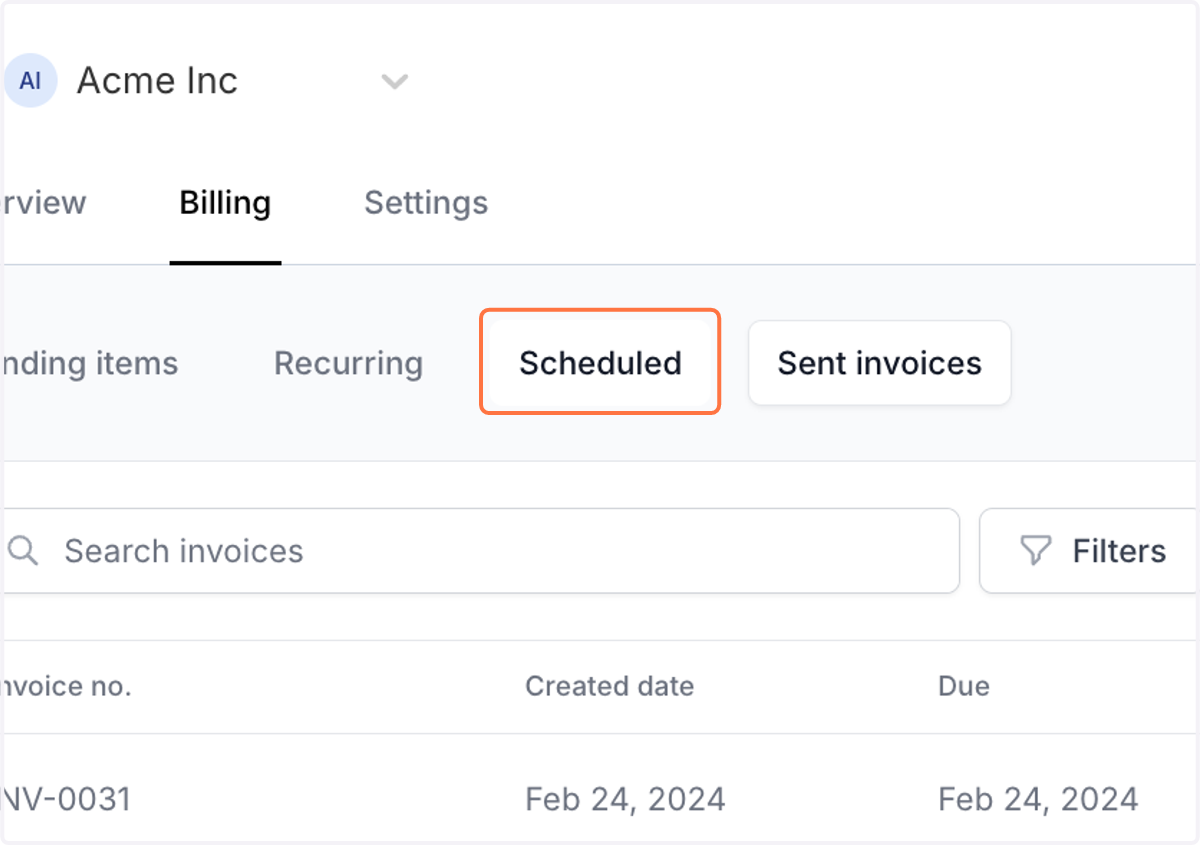
17. Invoices for recurring services from proposal
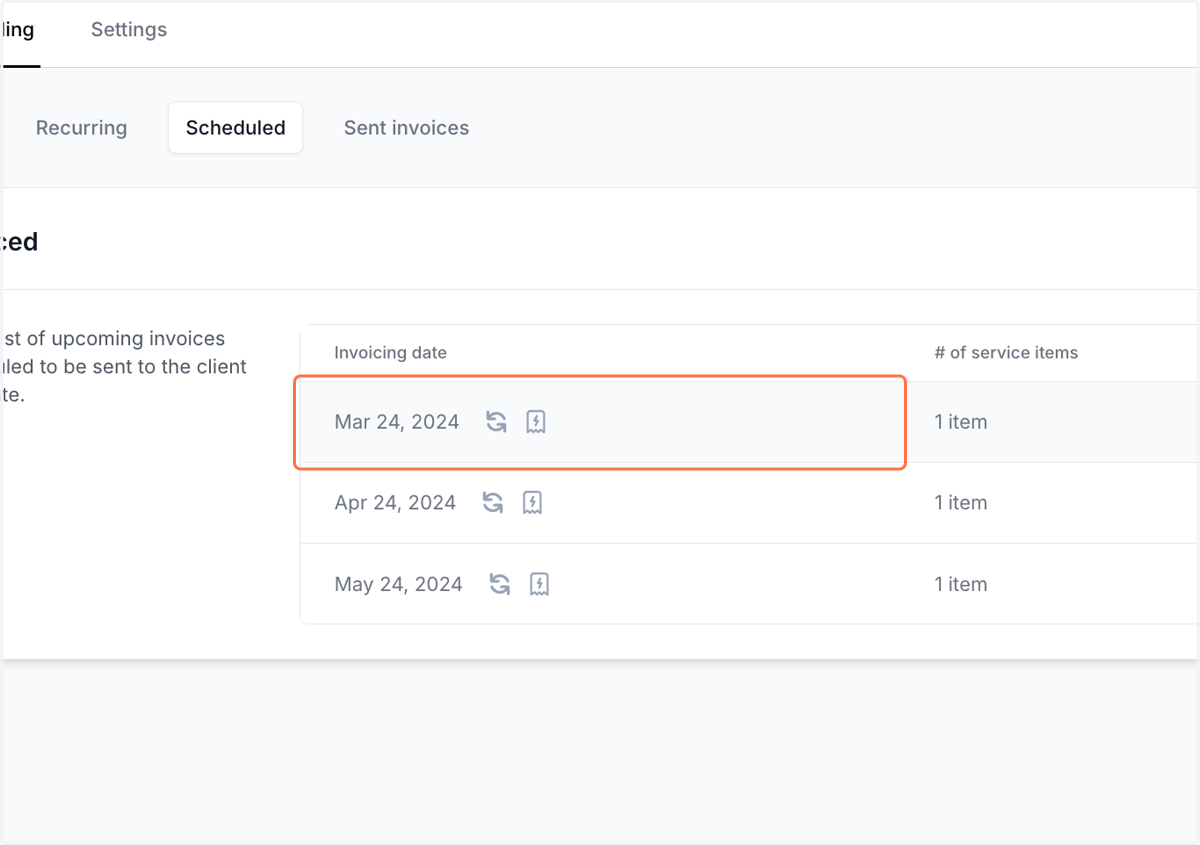
If there are any recurring services in the signed proposal, those services will be included in the future invoices and these will show up under 'Scheduled' tab
18. Future service invoice items from proposal
Future invoices for the next 3 months will be showed under 'Scheduled' tab
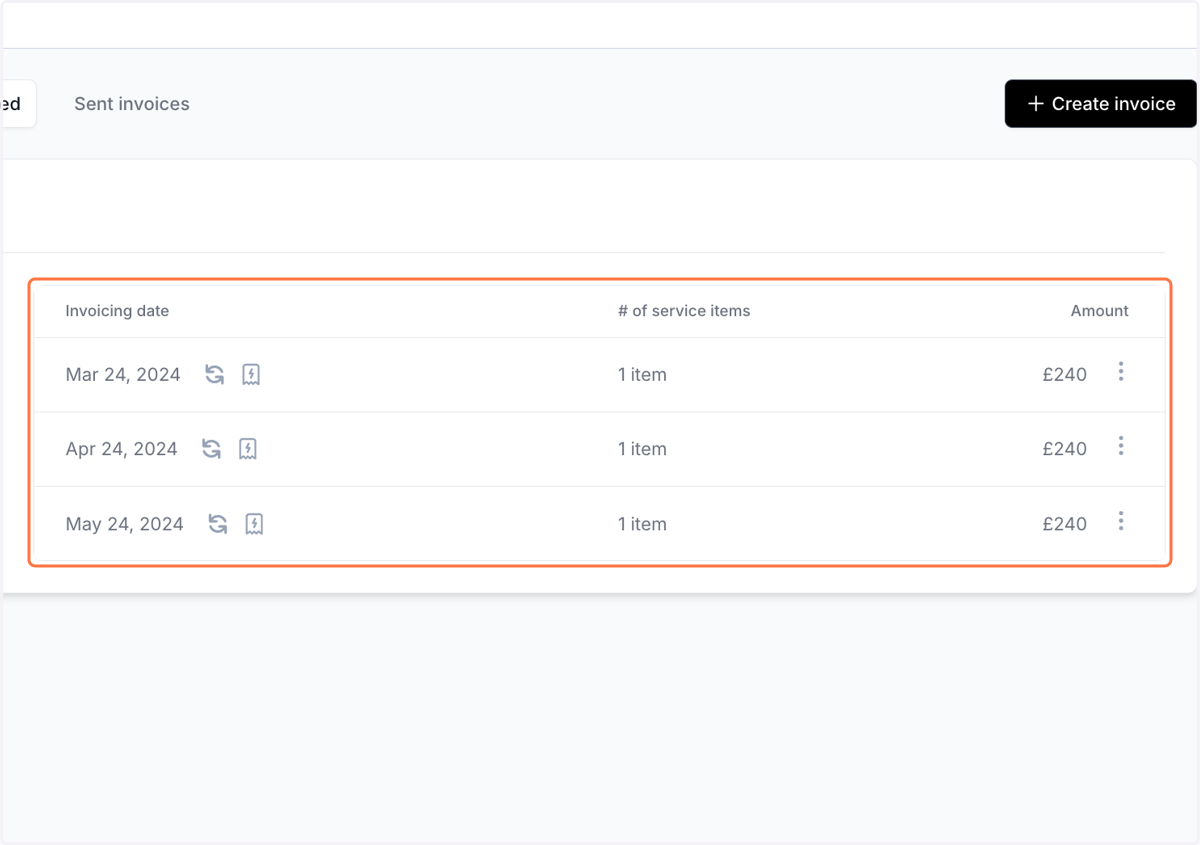
19. You can see the details by clicking on any of those