Humana
Google Chrome
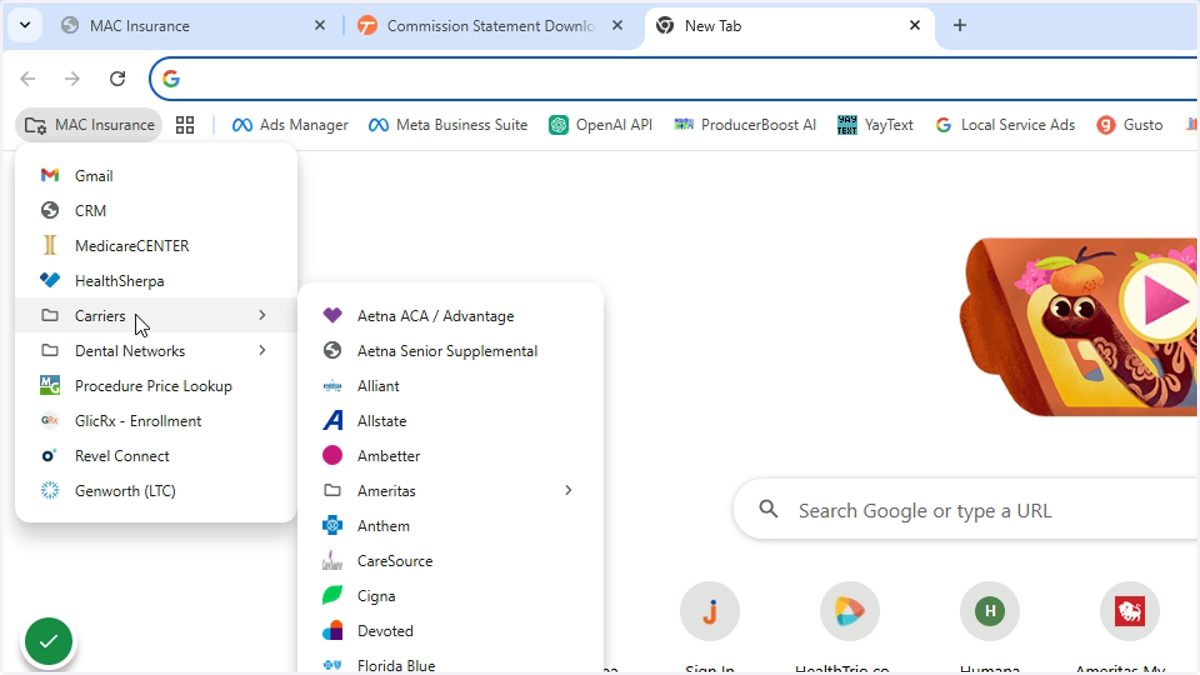
1. Go to the Humana Portal
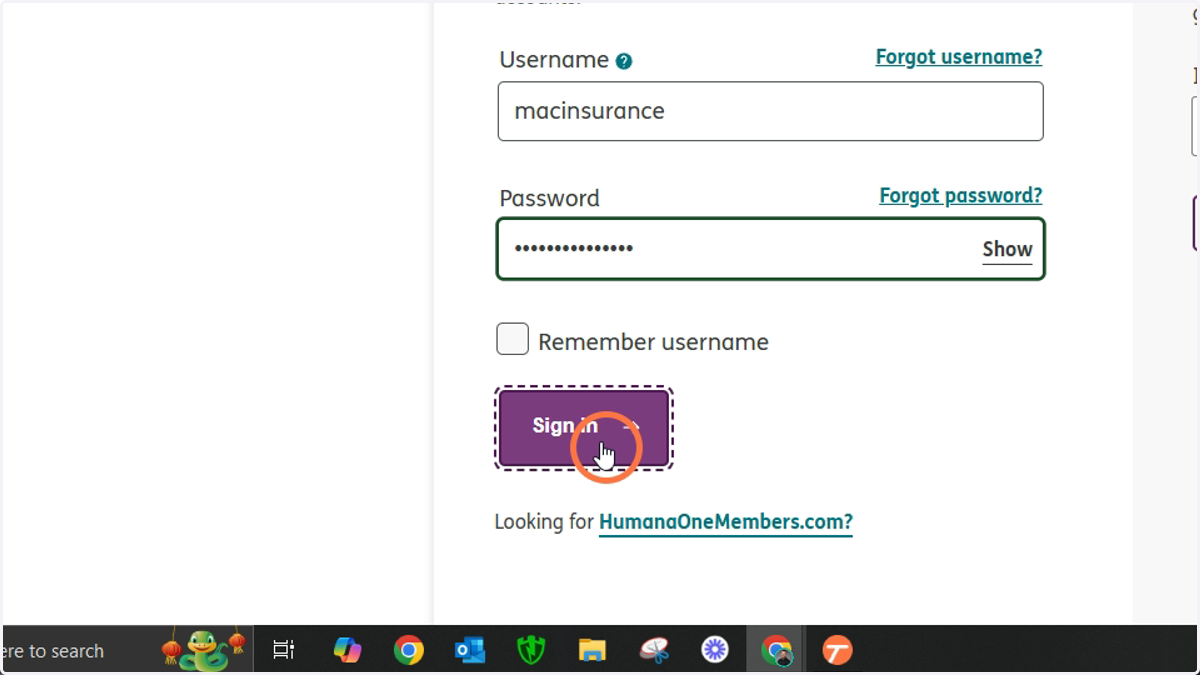
Username: macinsurance
2. Click Sign In
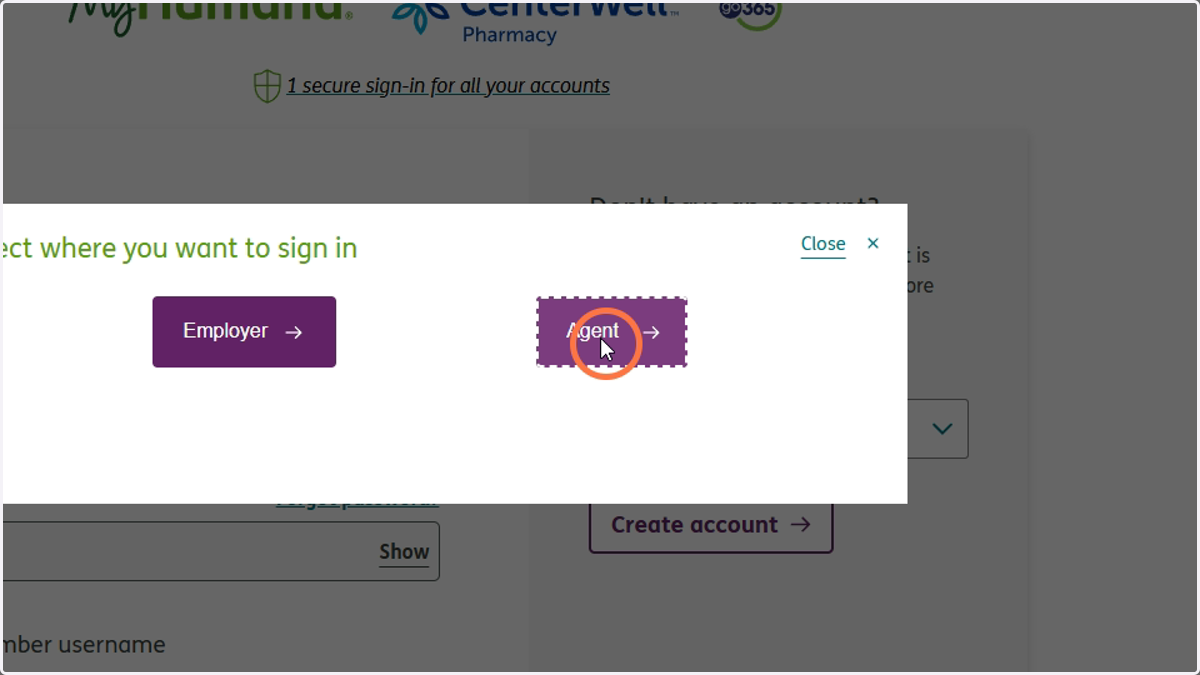
3. Click Agent
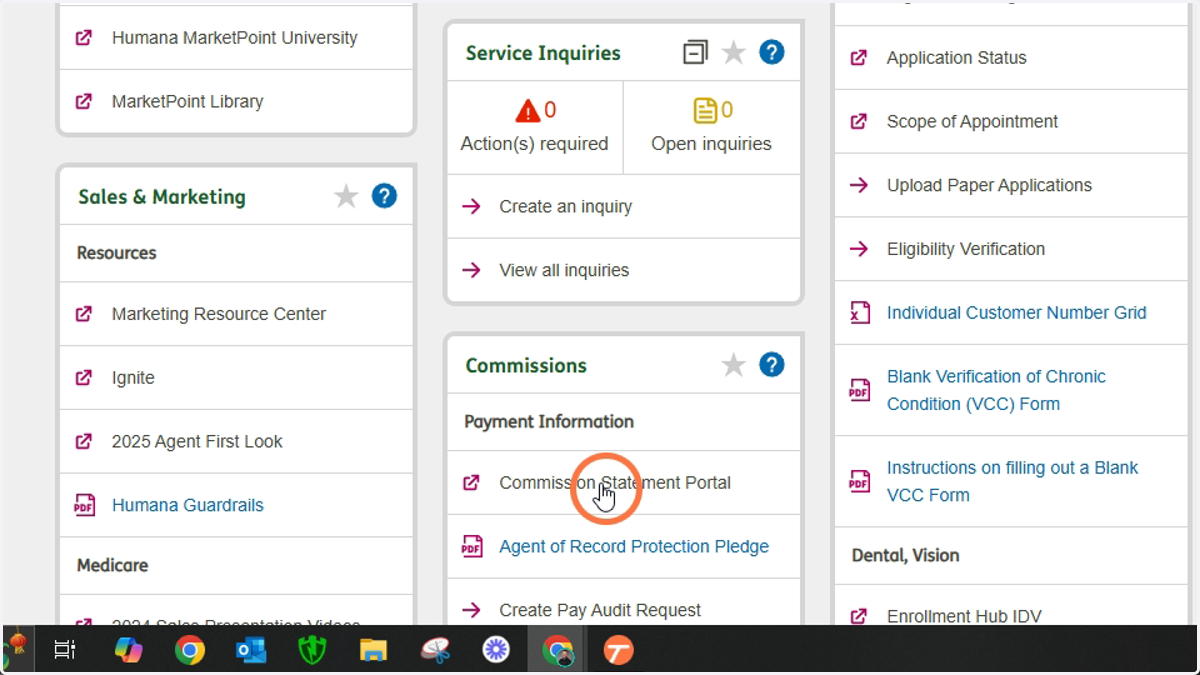
4. Click Commission Statement Portal
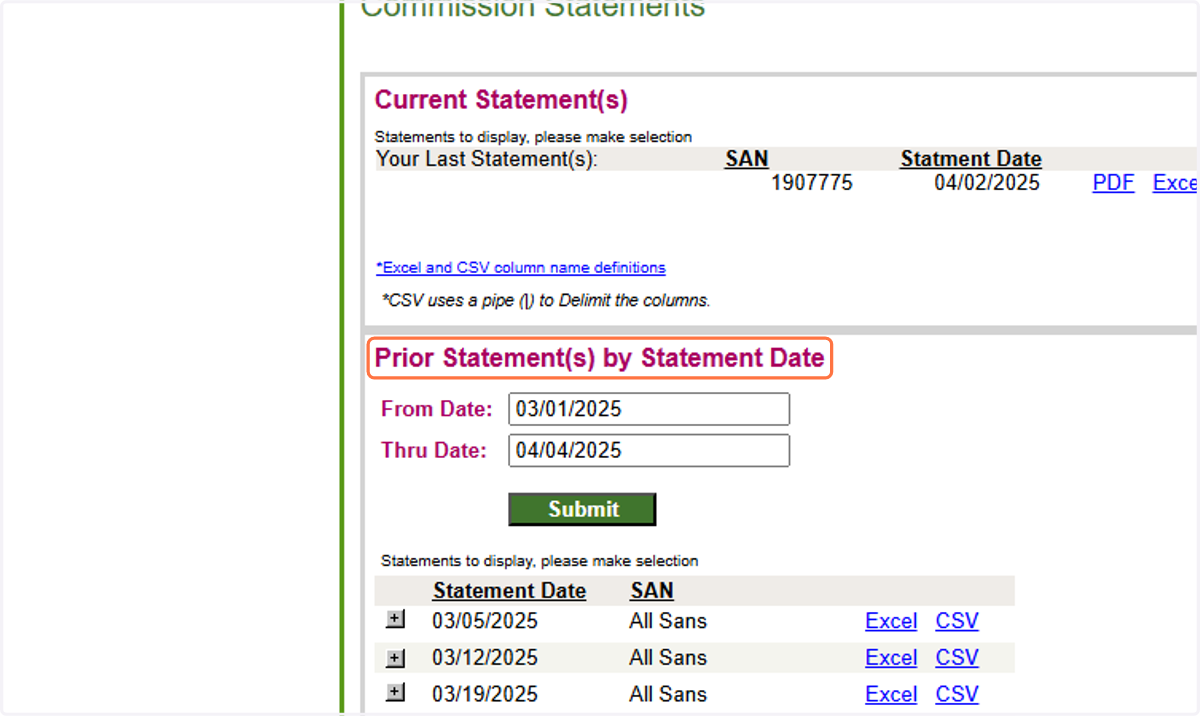
Commissions Statements
5. Click on Prior Statement(s) by Statement Date
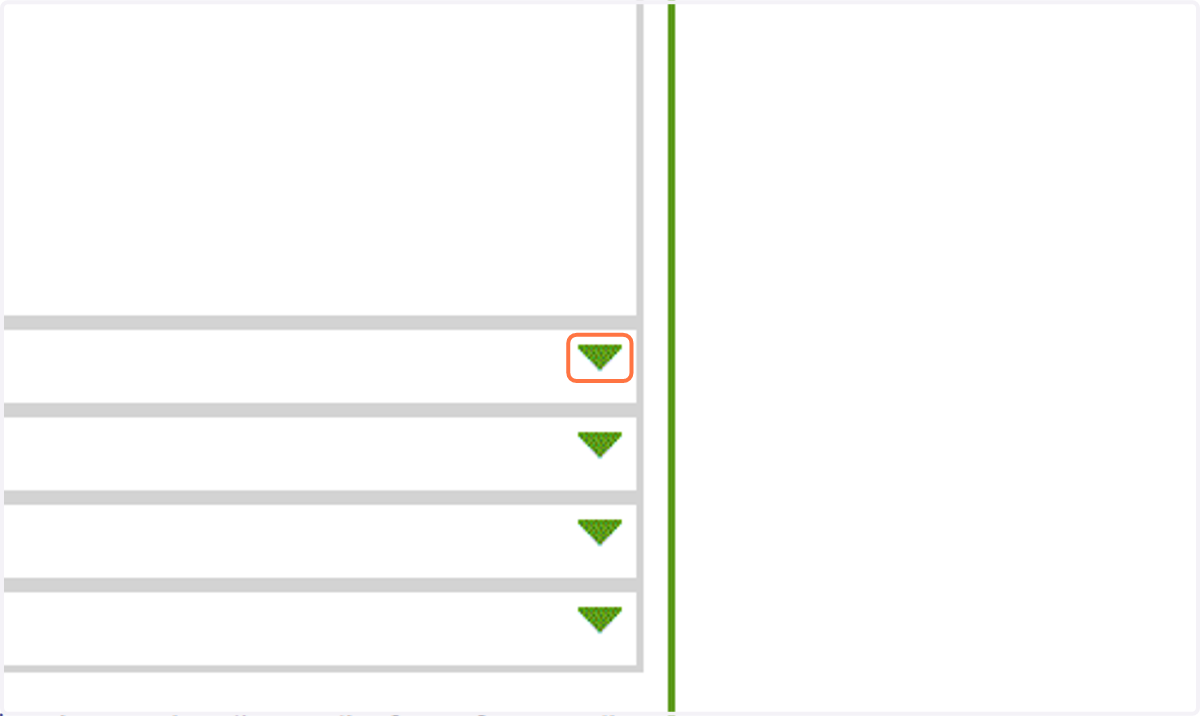
6. Click on Show
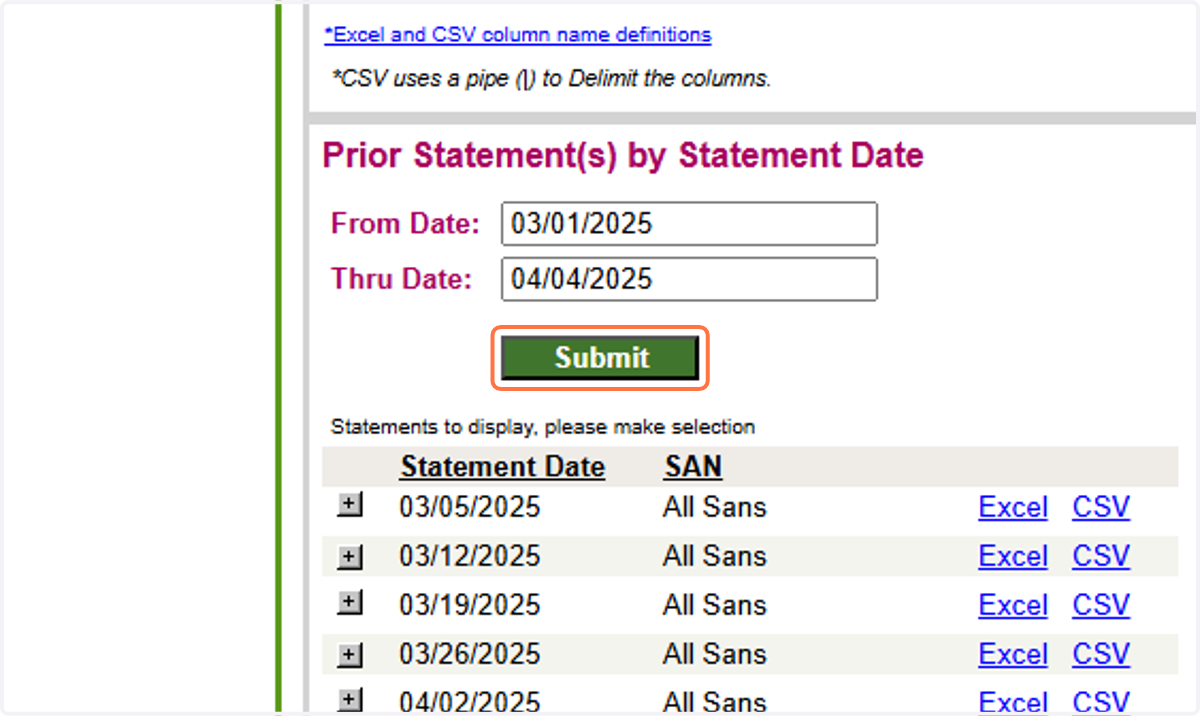
7. Click on Submit
8. Click on Excel
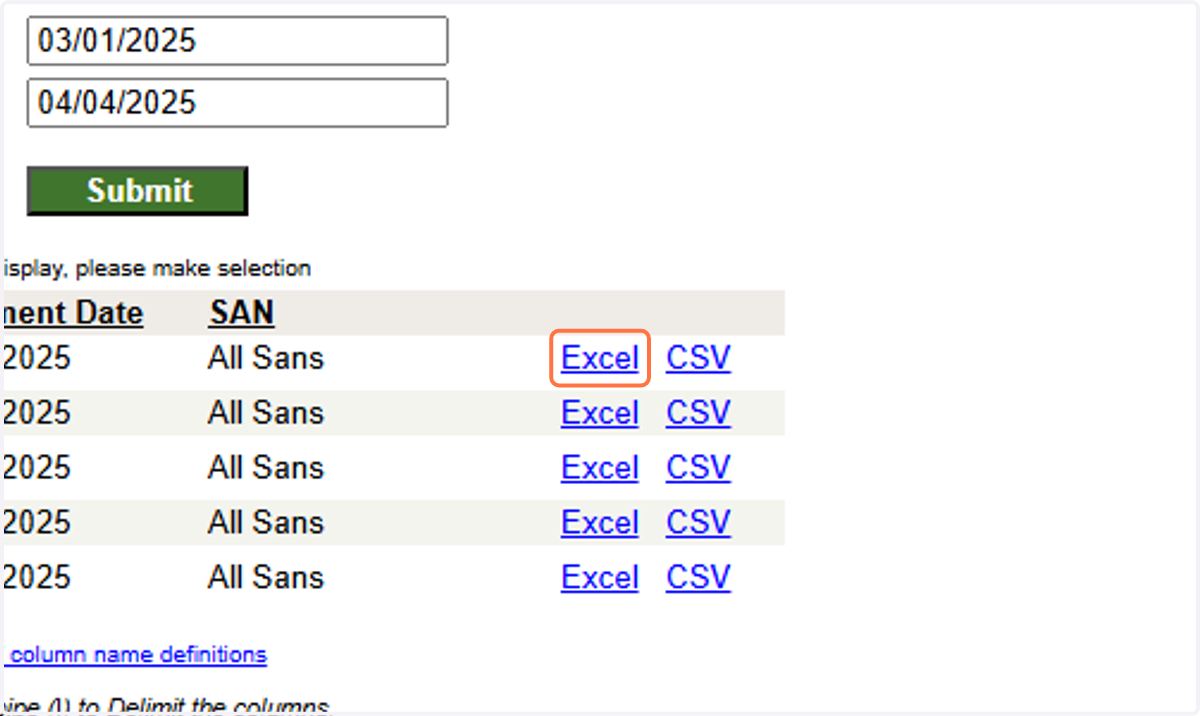
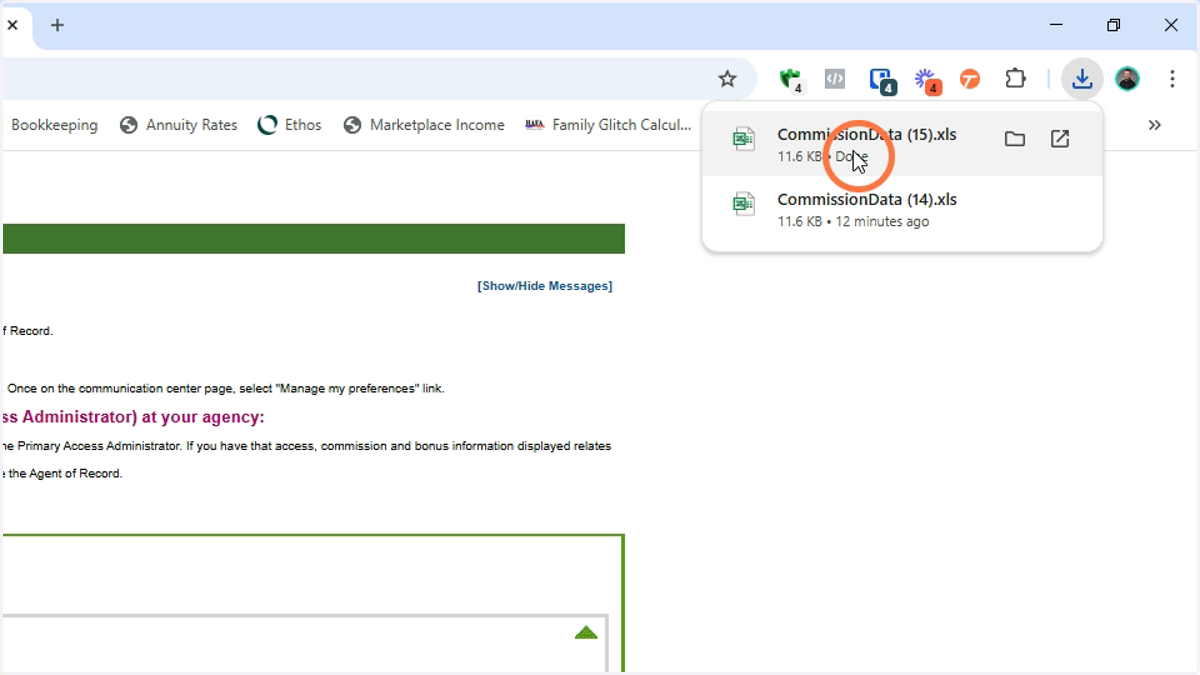
9. Open the file
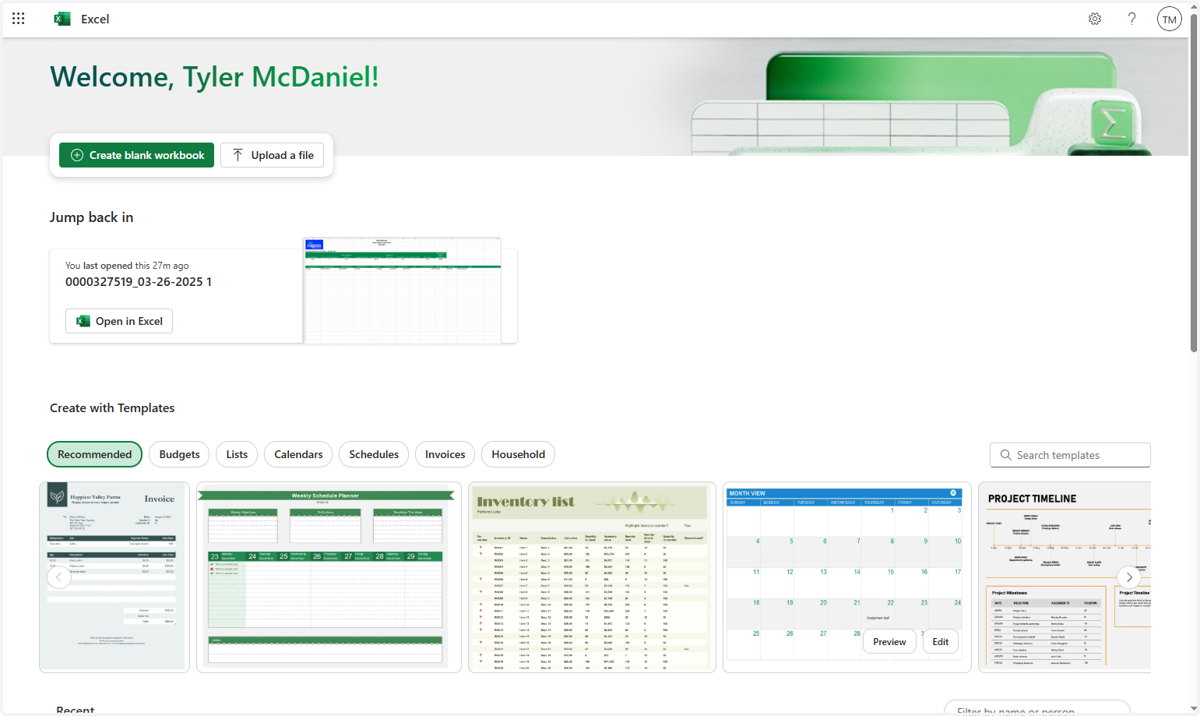
Microsoft Excel Online
10. Click on Upload a file
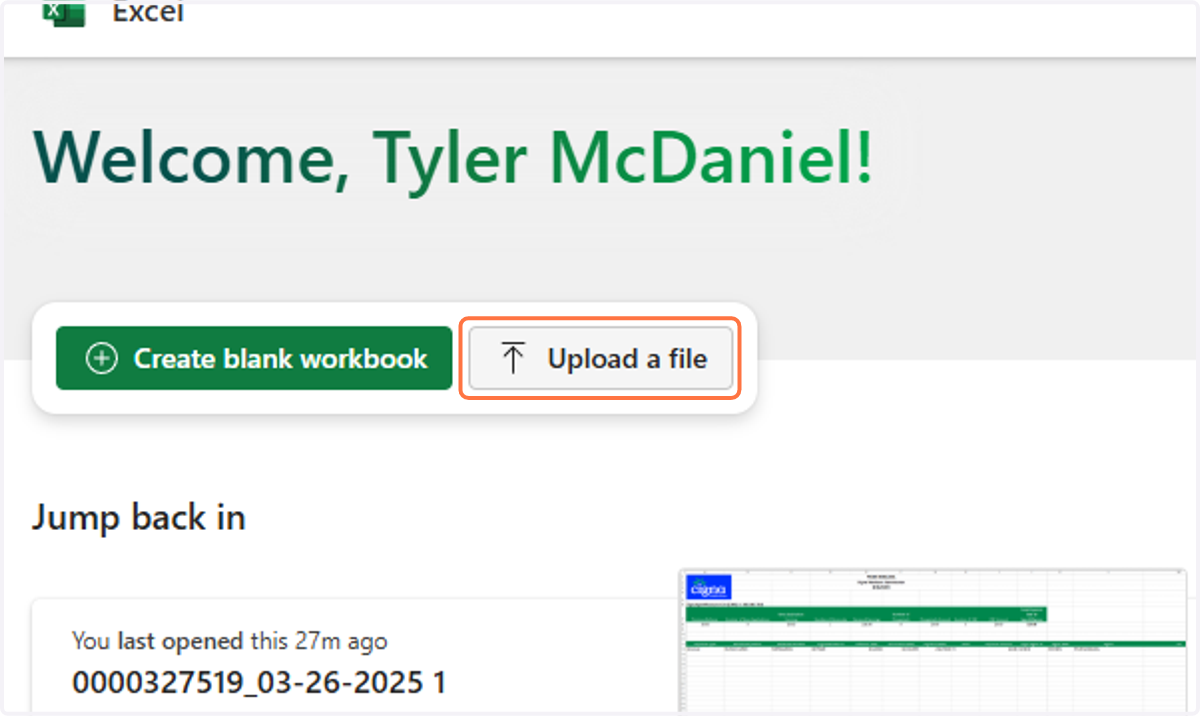
11. Select "CommissionStatement (25).xlsx" from file upload menu
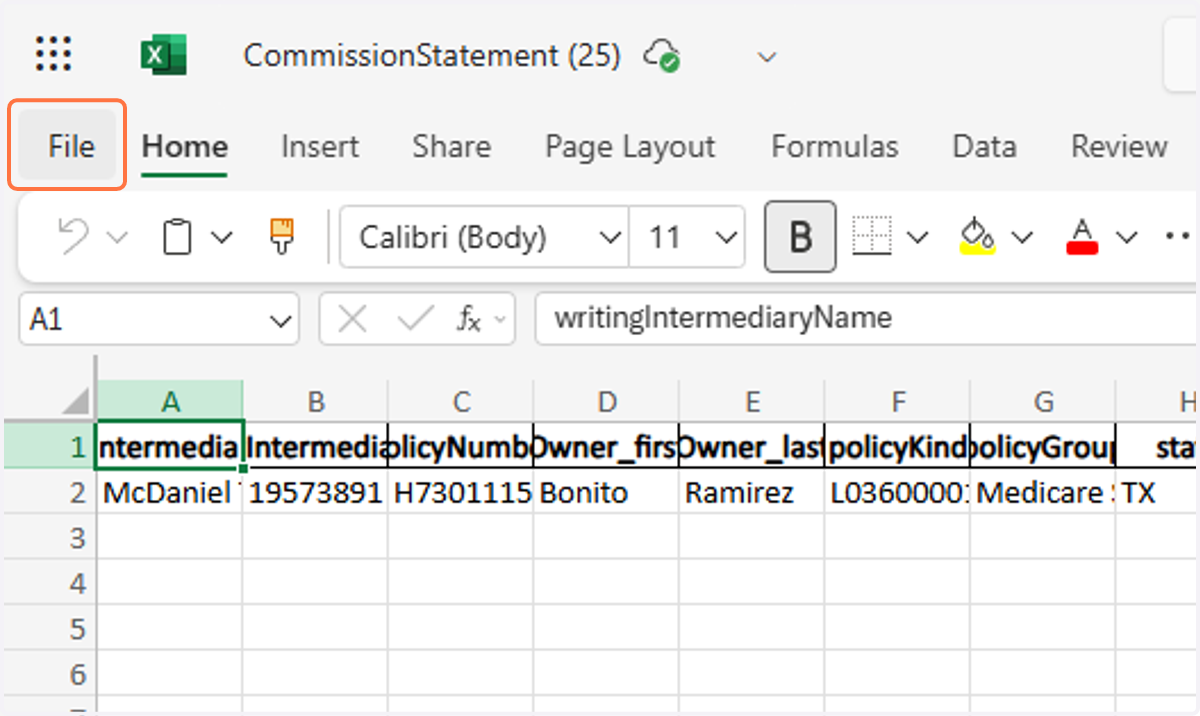
CommissionStatement (25).xlsx - Microsoft Excel Online
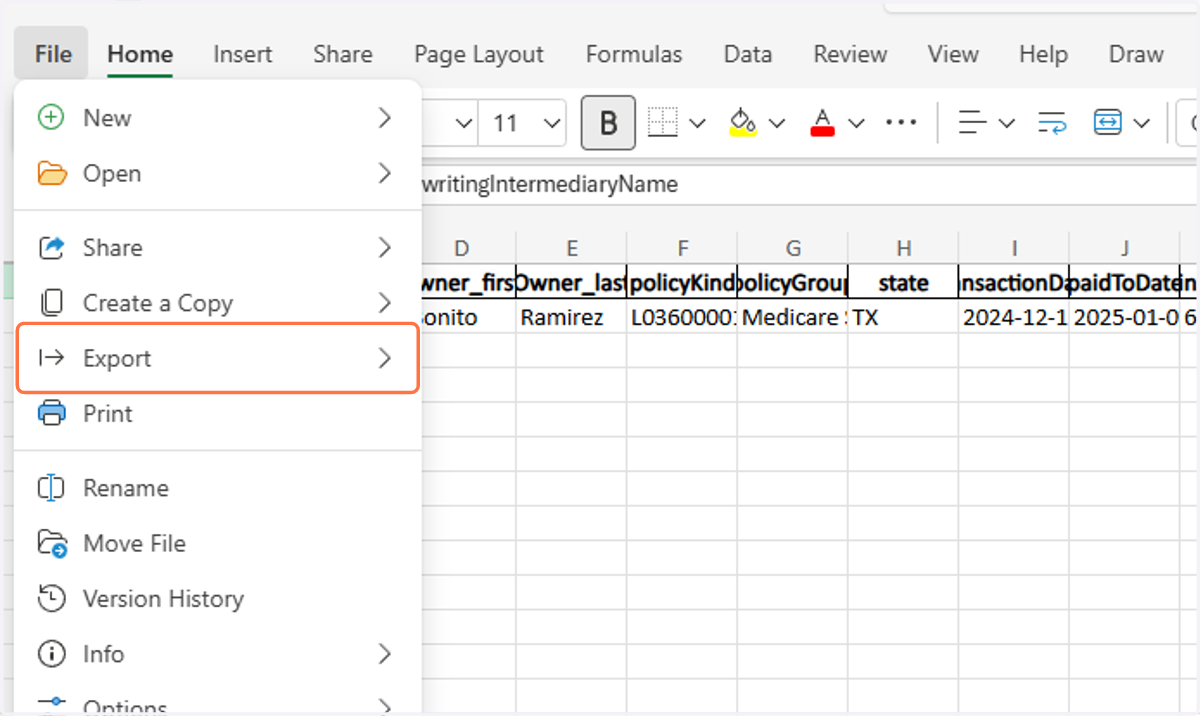
12. Click on File
13. Click on Export
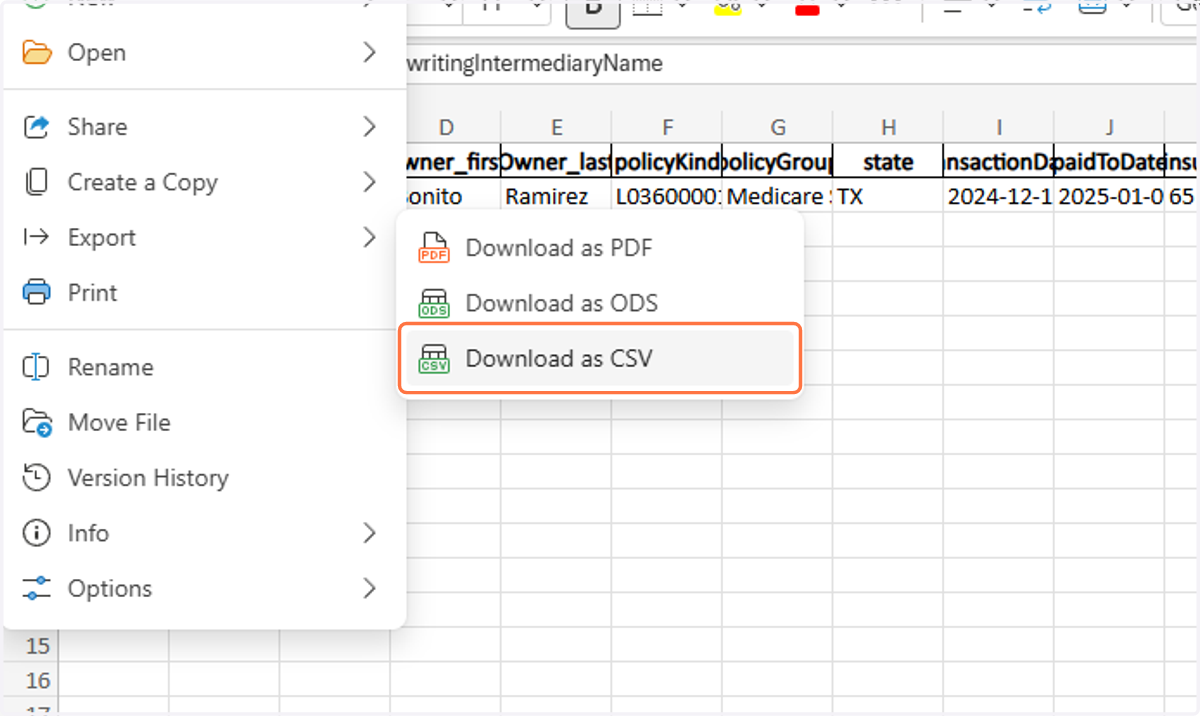
14. Click on Download as CSV
15. Save file in Google Drive
The Folder is in the MAC Insurance Shared folder > Commission Statements
BE SURE TO NAME THE DOCUMENT ---> COMPANY_STATEMENT DATE
This Example would be Humana_01.22.2025