How to Browse and Download Invoices in BV Marketplace
Administration Homepage: BV Marketplace
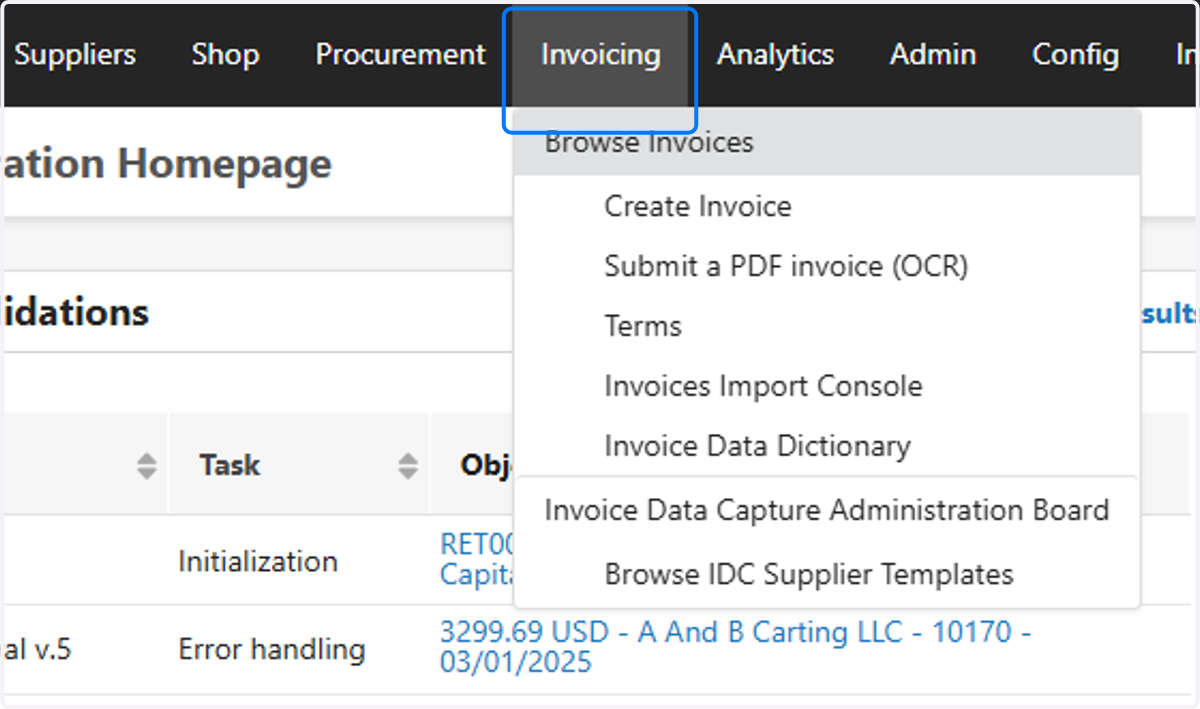
1. Click on Invoicing
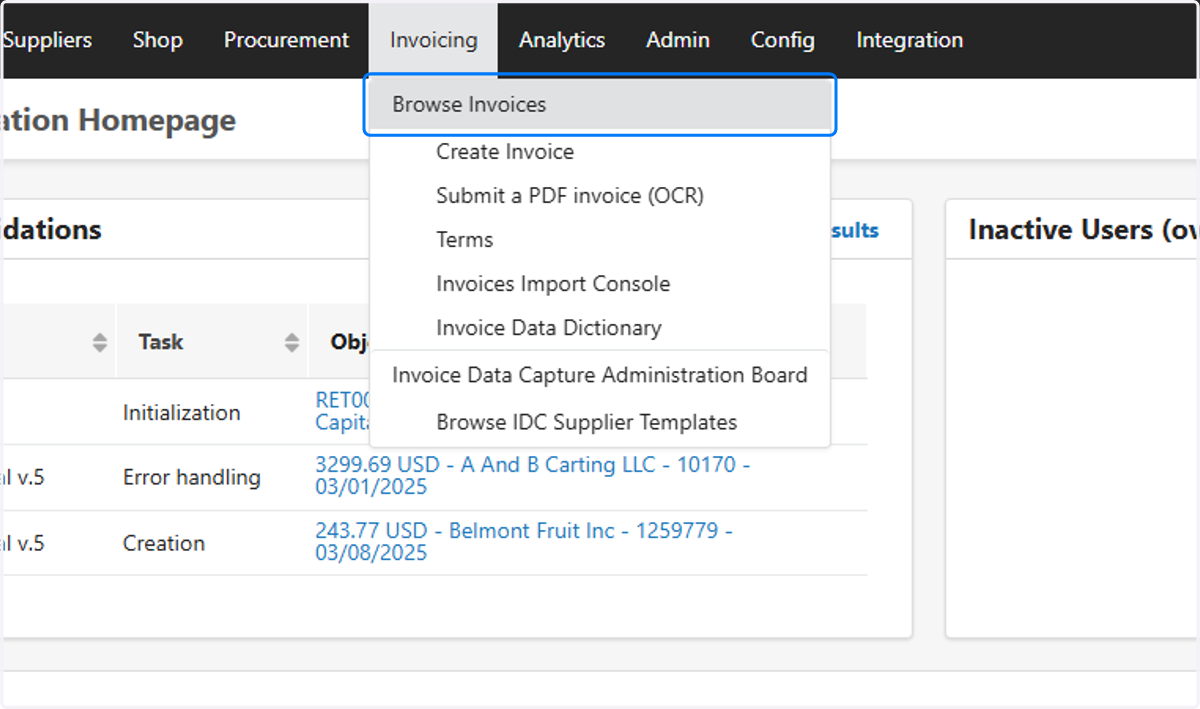
2. Click on Browse Invoices
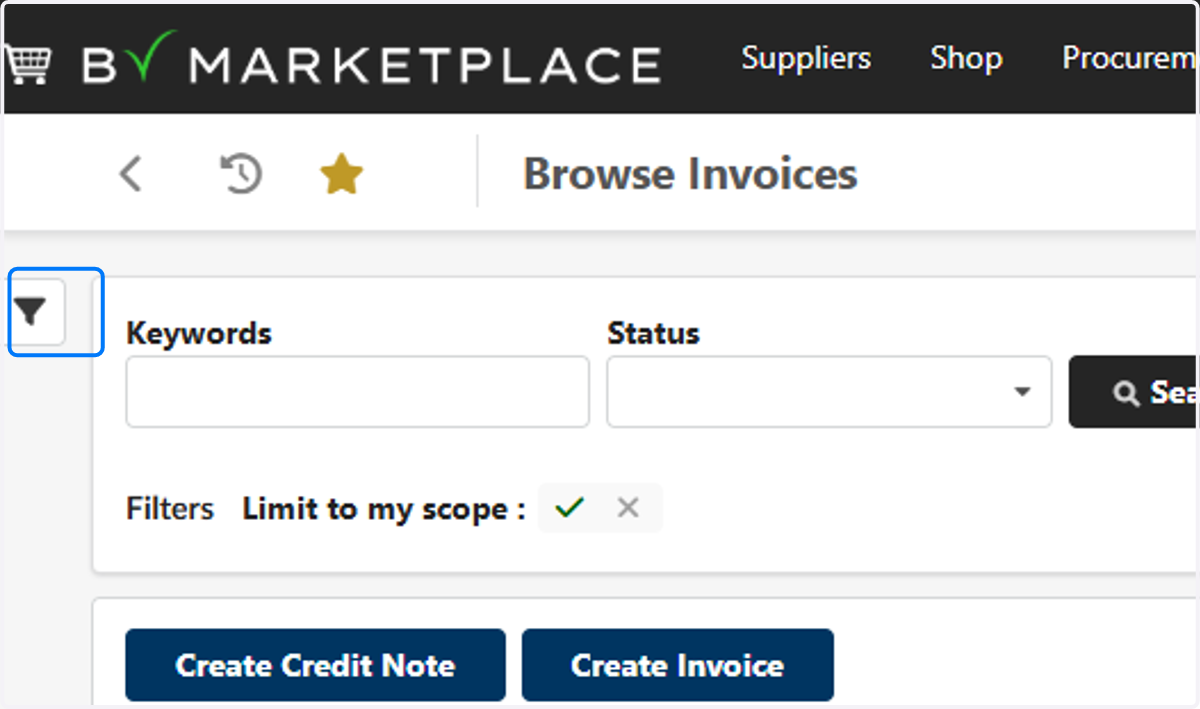
3. Click on Open the advanced filters panel
4. Click on Brightview Shelton
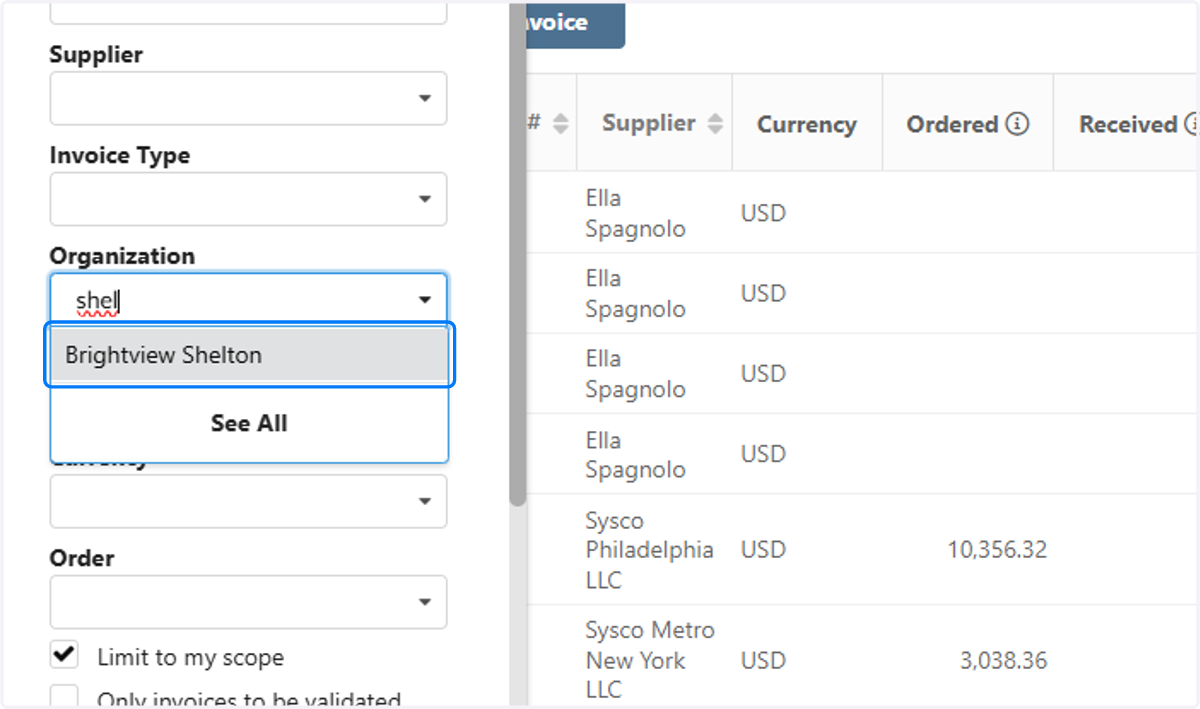
5. Click on Search
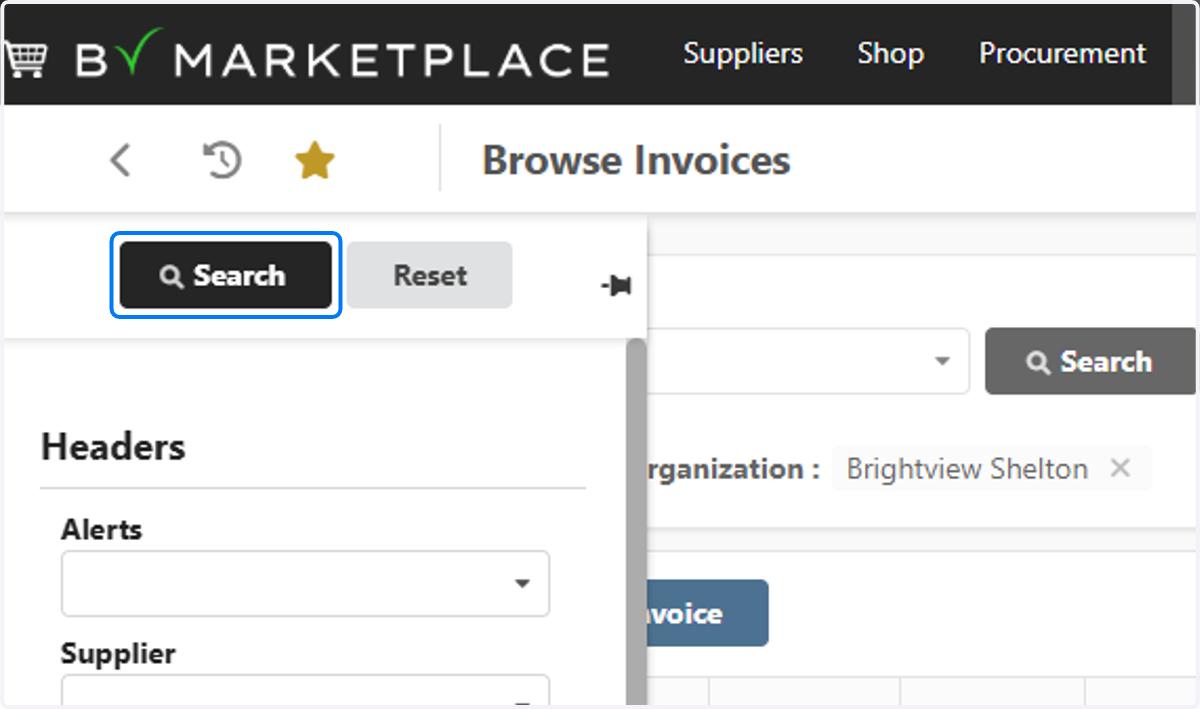
6. Type "sysco"
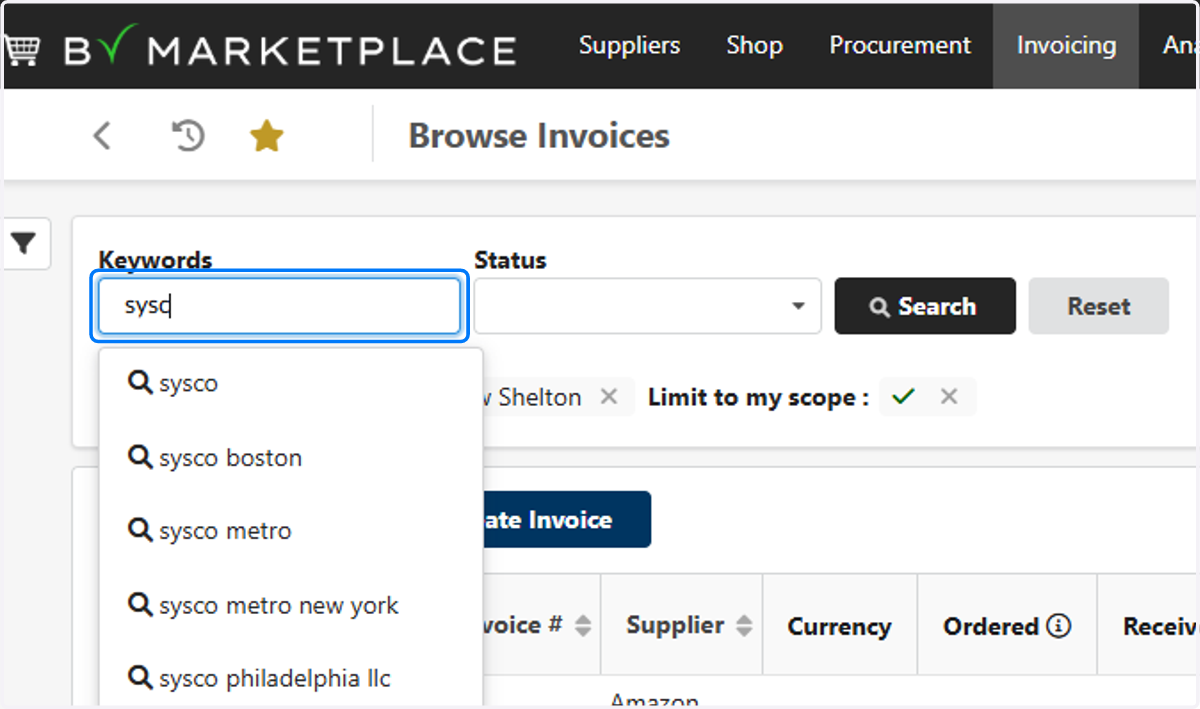
7. Click on Search
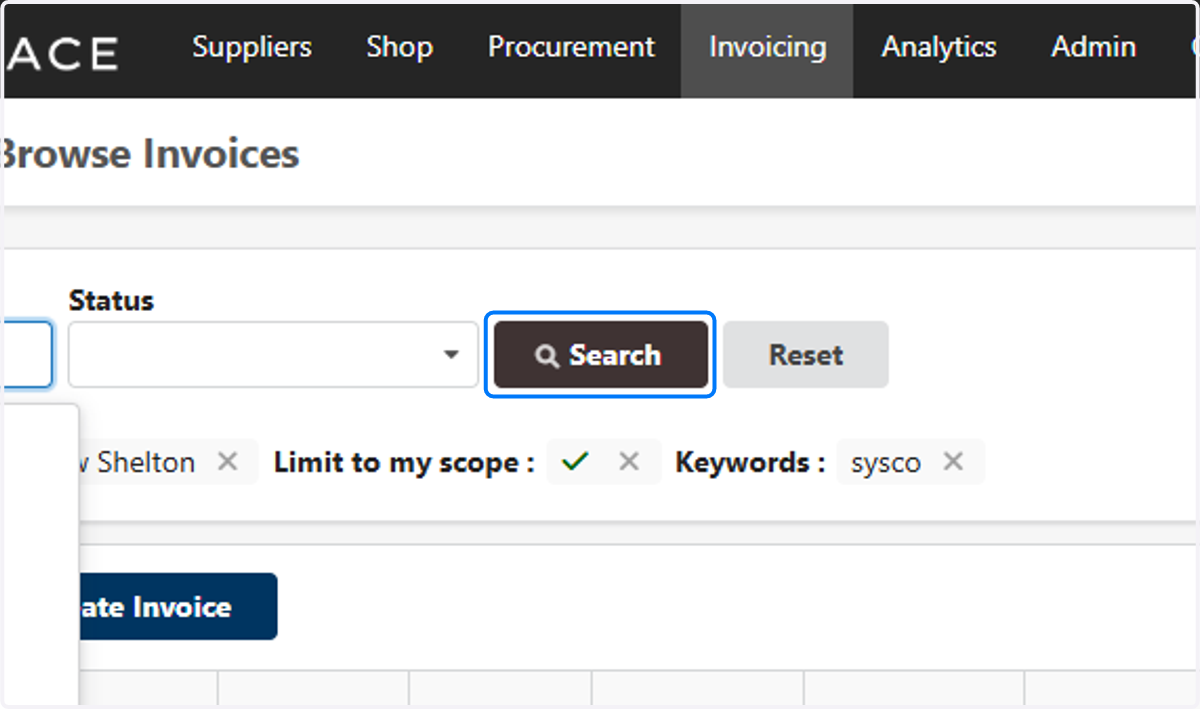
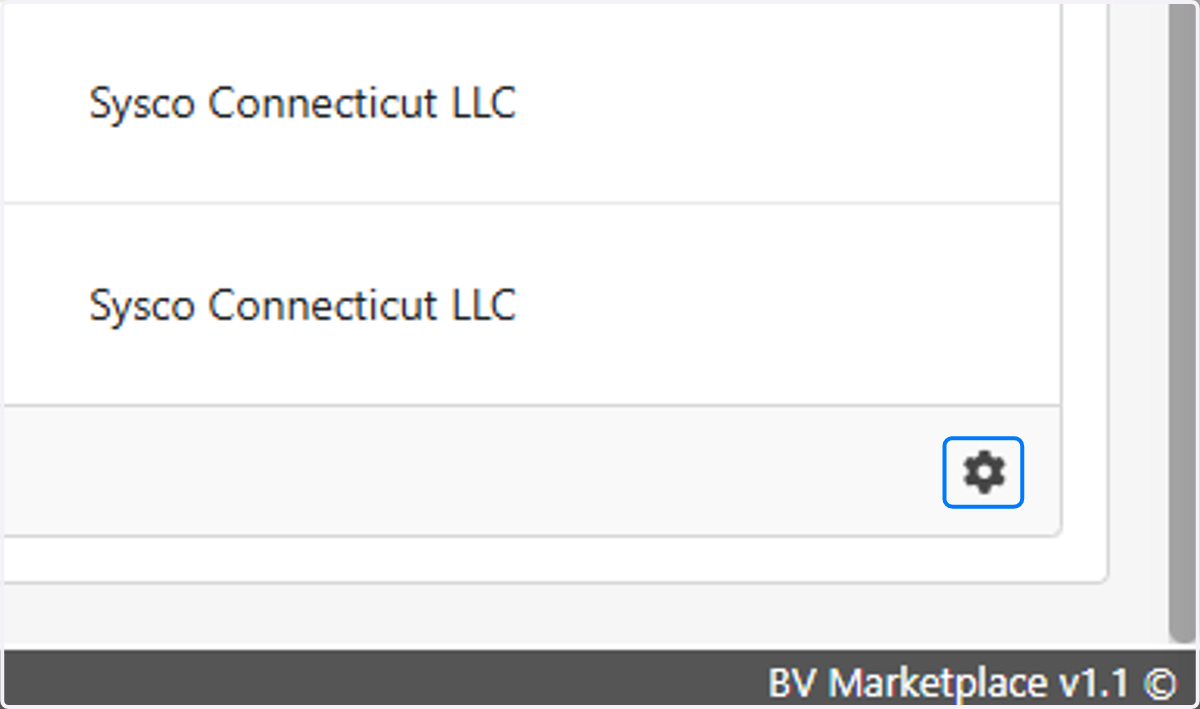
8. Click on Change settings for the table: Invoices
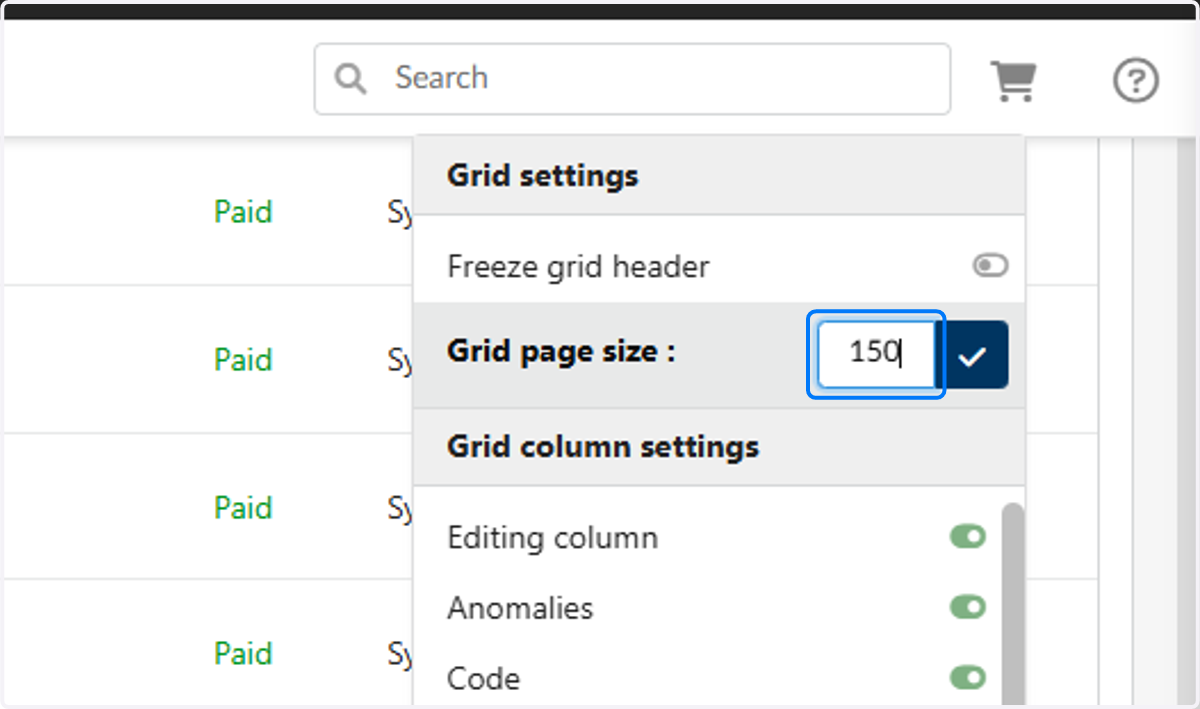
9. Type "150"
OPTIONAL so you can see all invoices on one page
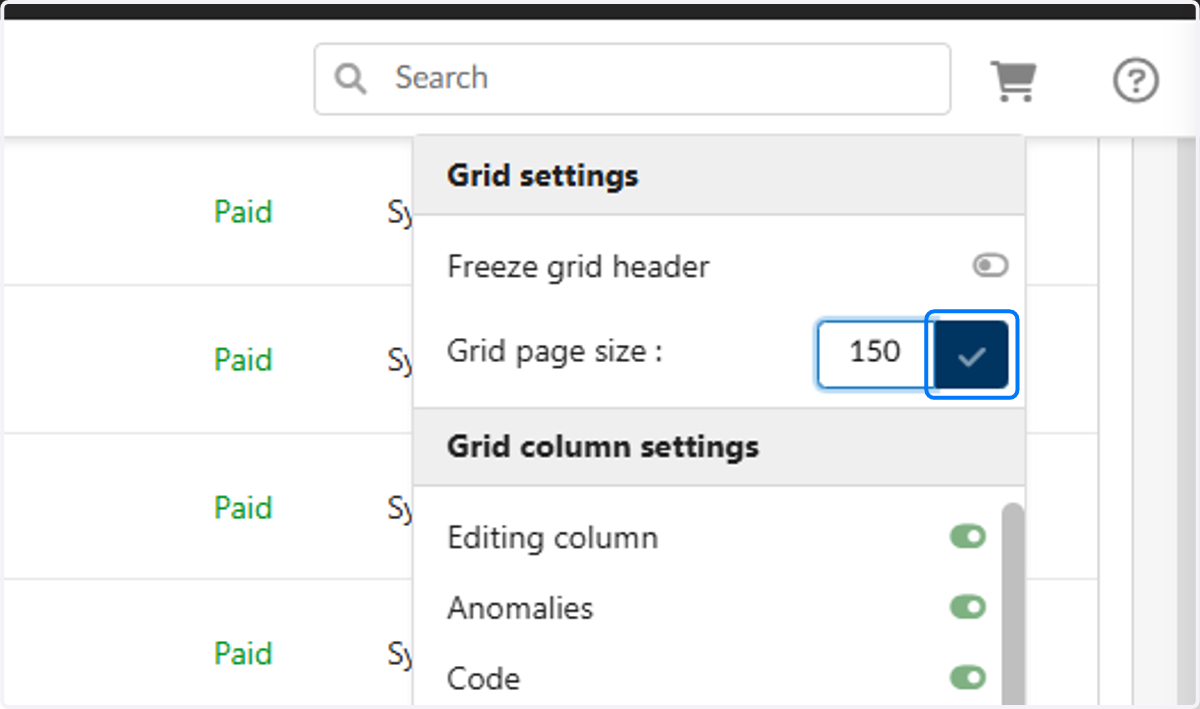
10. Click on Update table
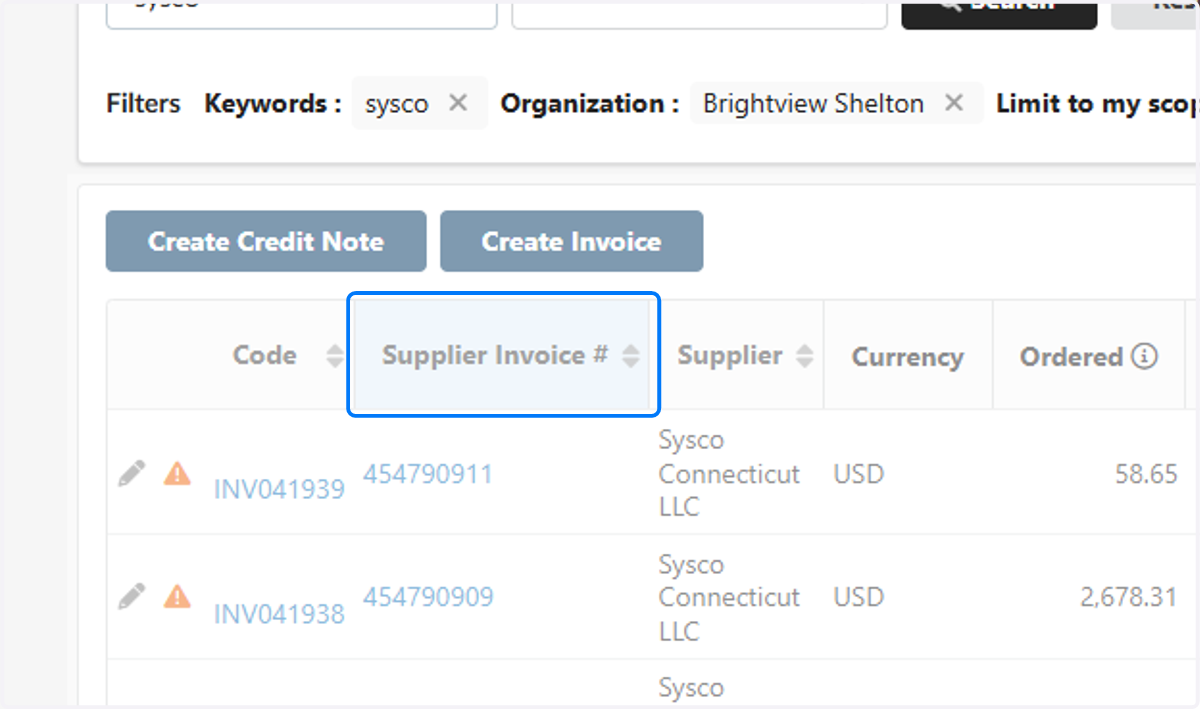
11. Click on Supplier Invoice # (activate to sort in ascending order)
OPTIONAL to make it easier to cross reference the statement
12. Click on Change settings for the table: Invoices
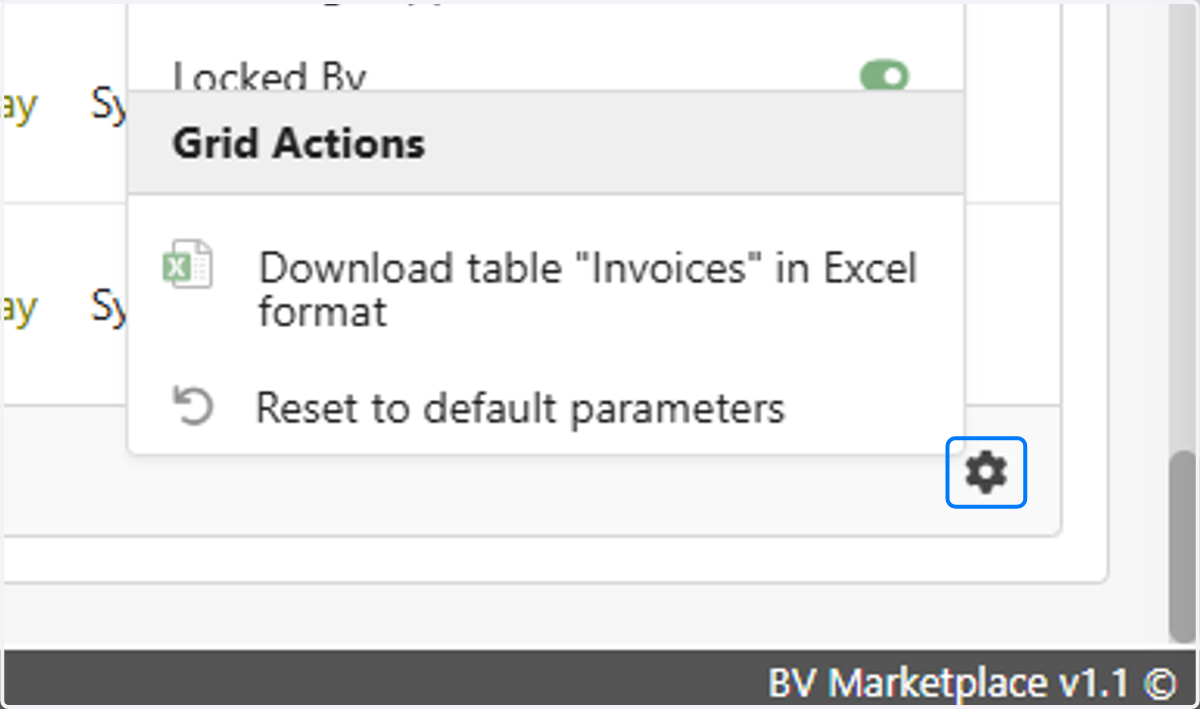
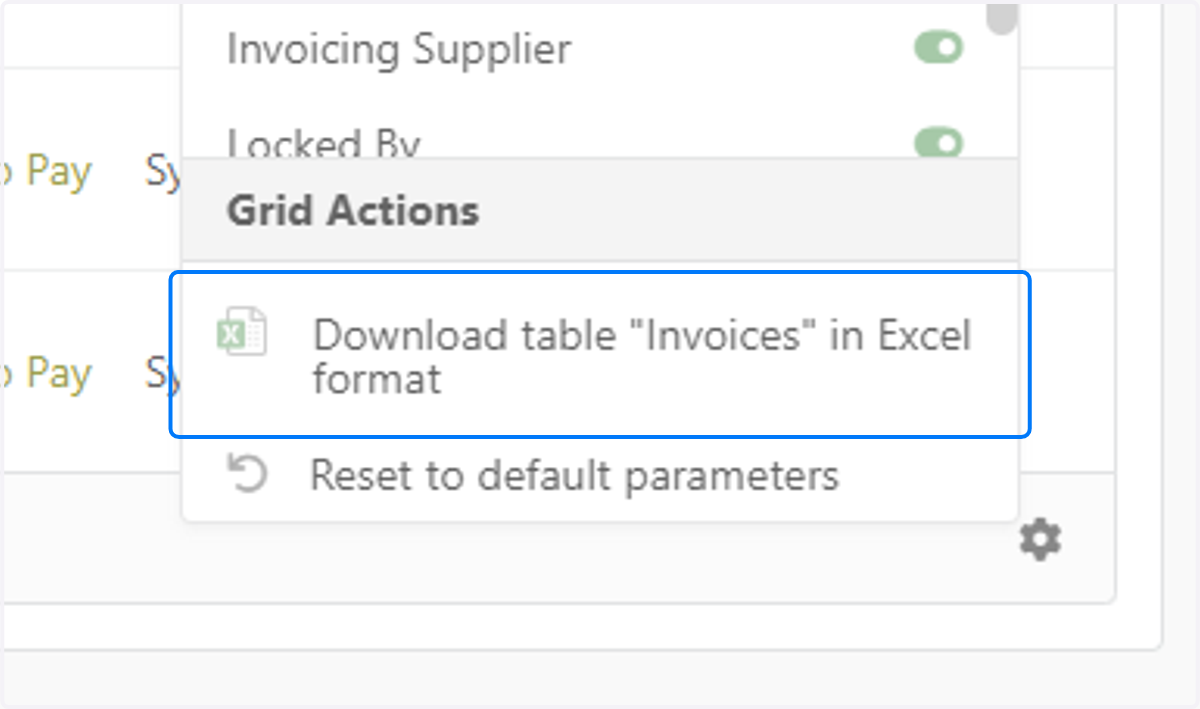
13. Click on Download table "Invoices" in Excel format
OPTIONAL to export to Excel