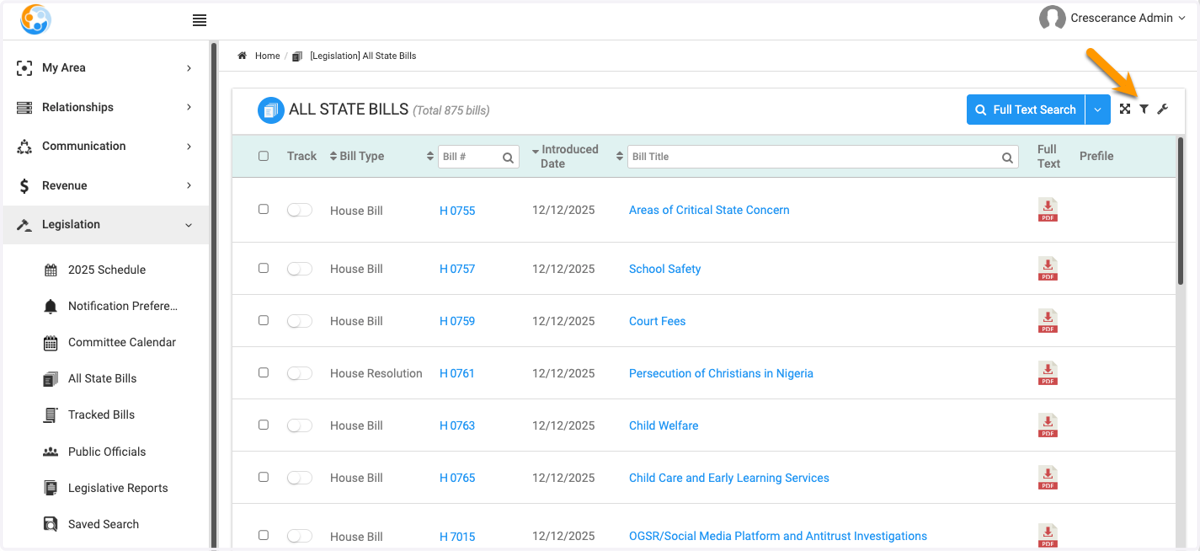
Navigating All Bills
Using the "All Bills" Page
MA_SUCCESS Home: Powered by Engagifii
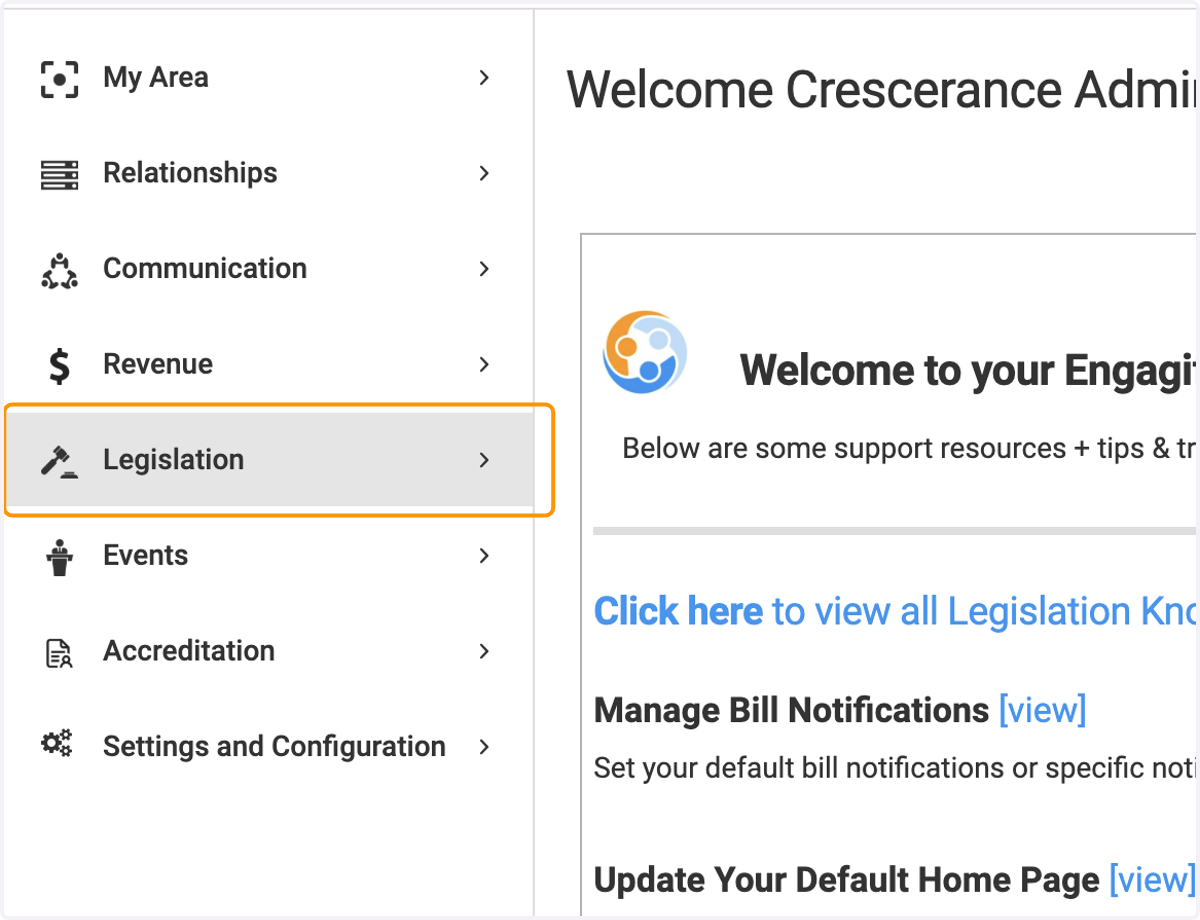
1. Click on Legislation
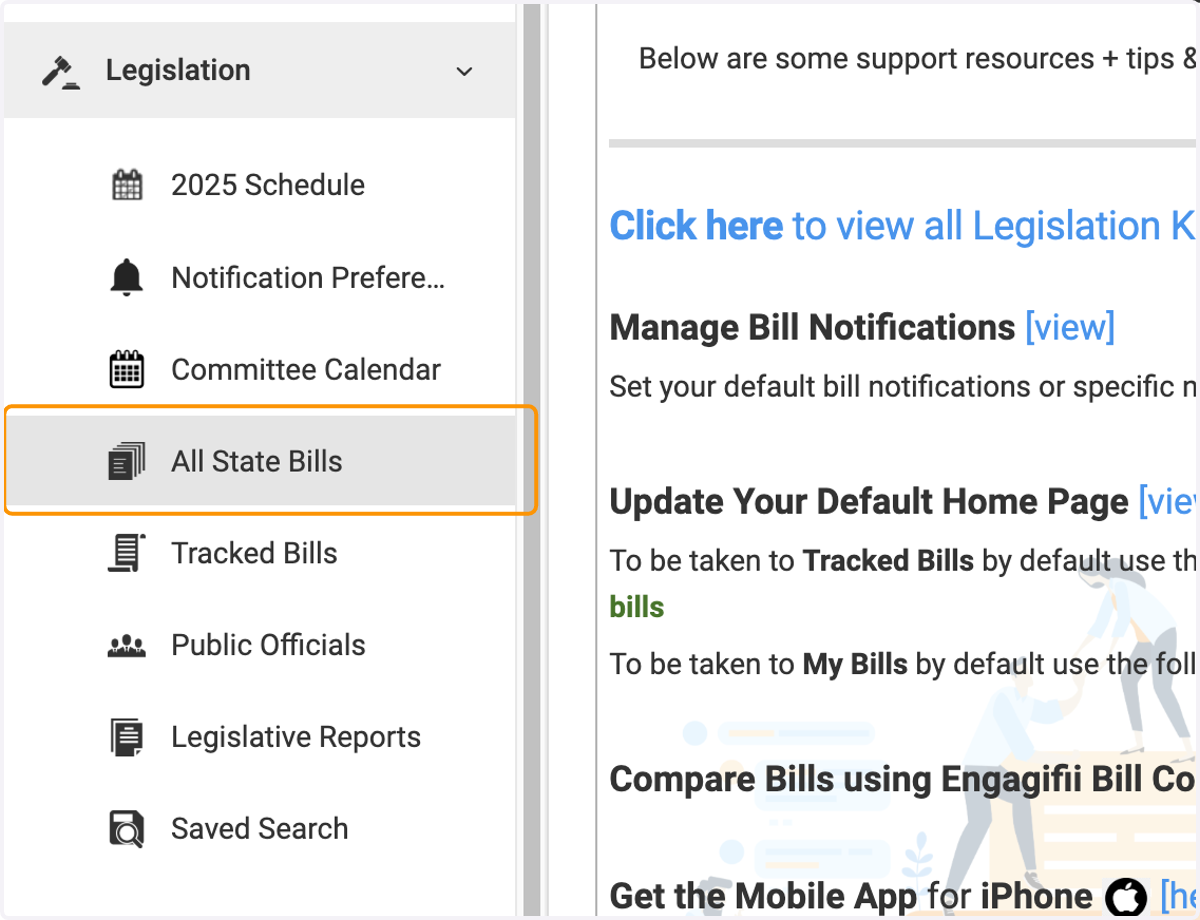
2. Click on All State Bills
Note, you may have relabeled the "All State Bills" page to display something else.
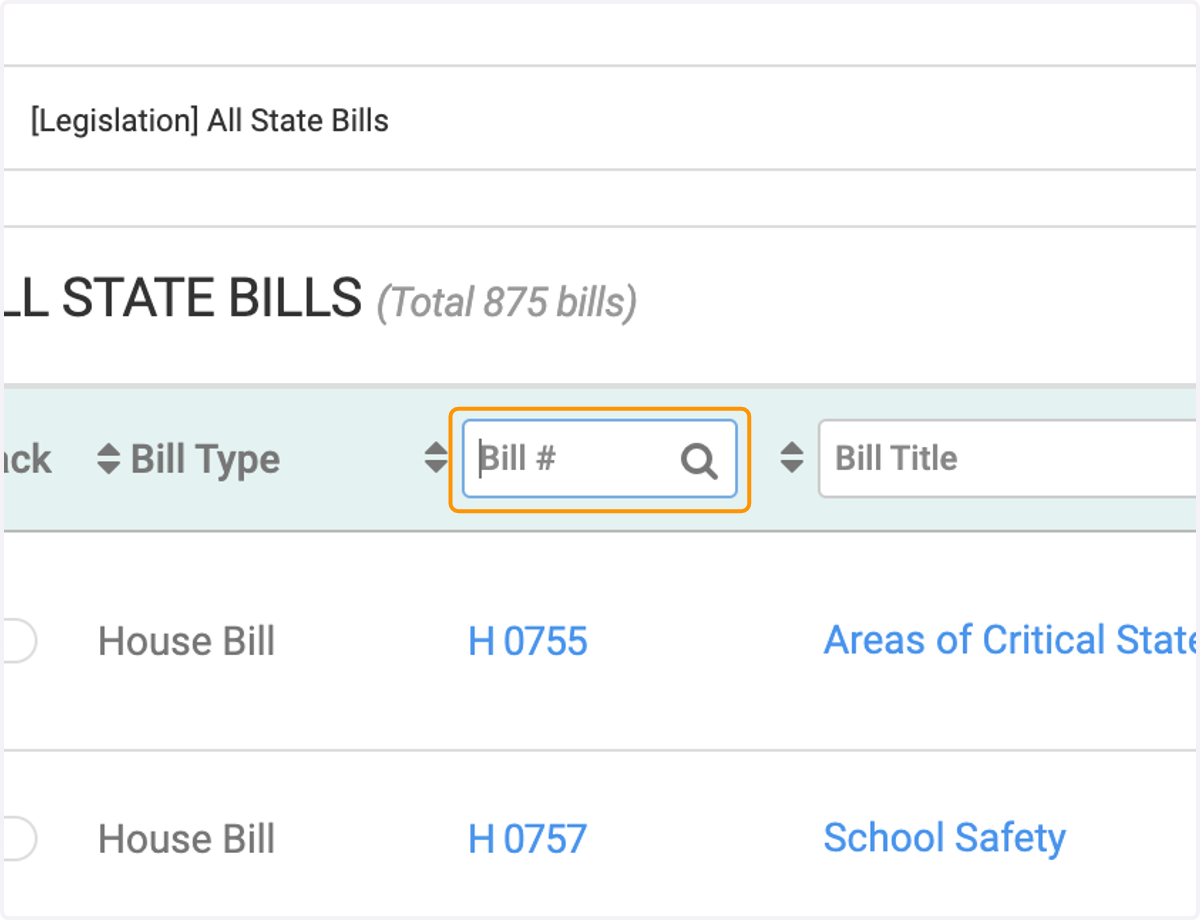
3. Search by Bill #
4. Search by Bill Title
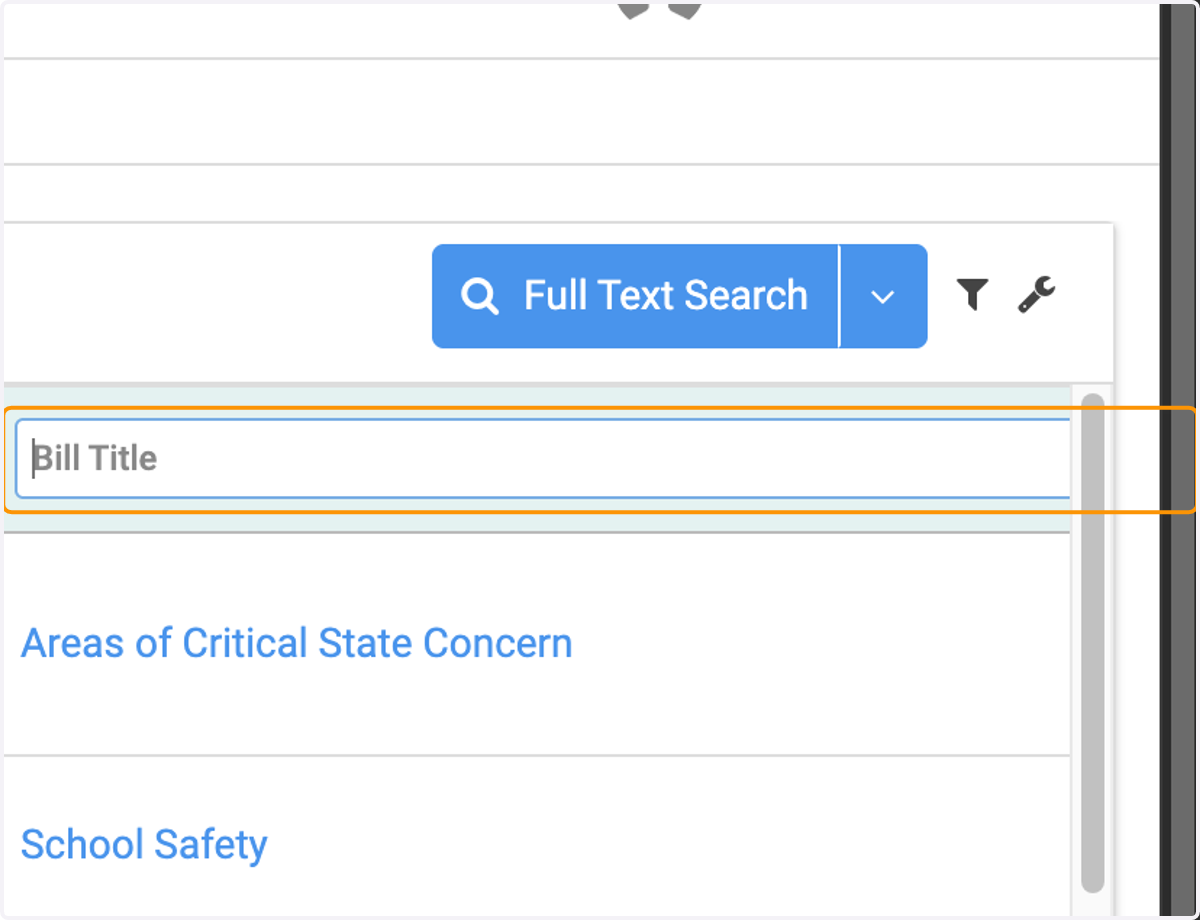
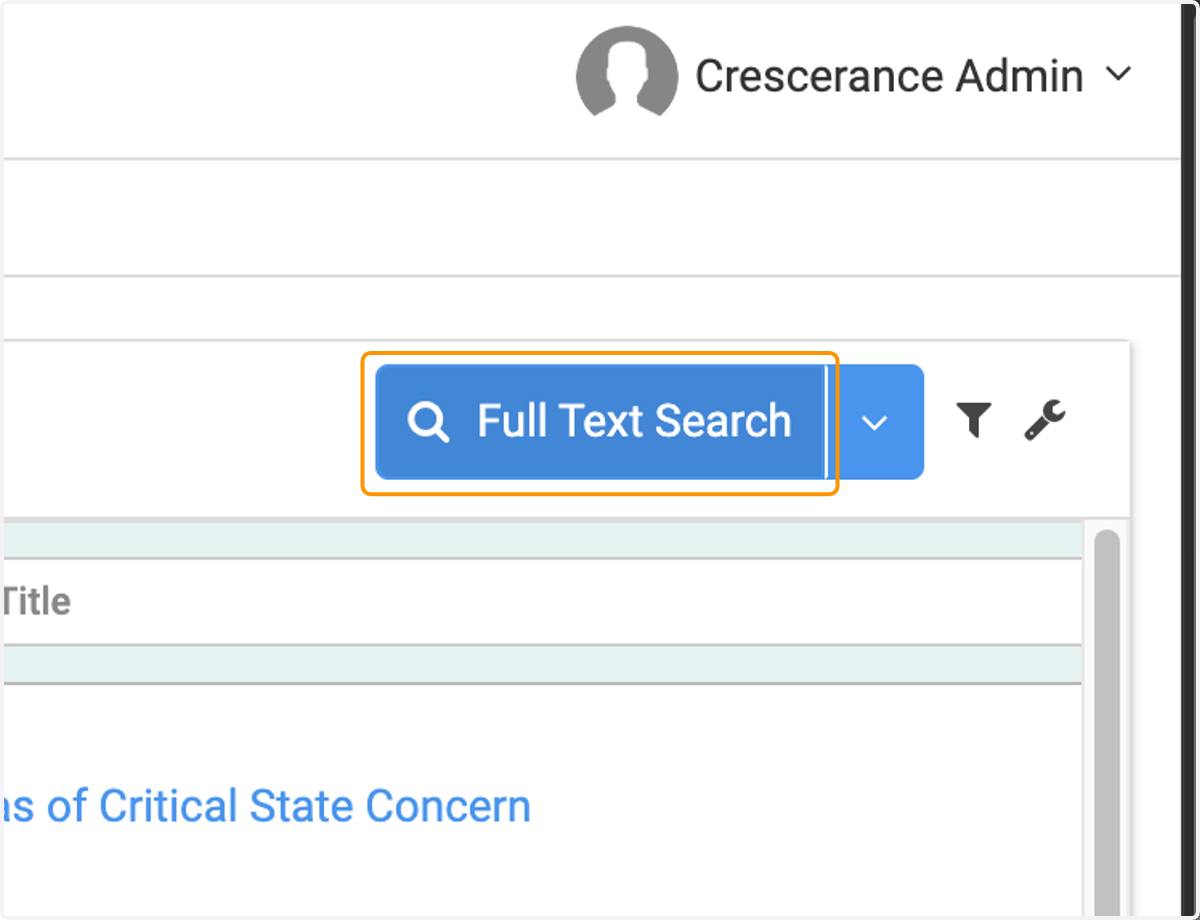
5. Search Full Text of Bills
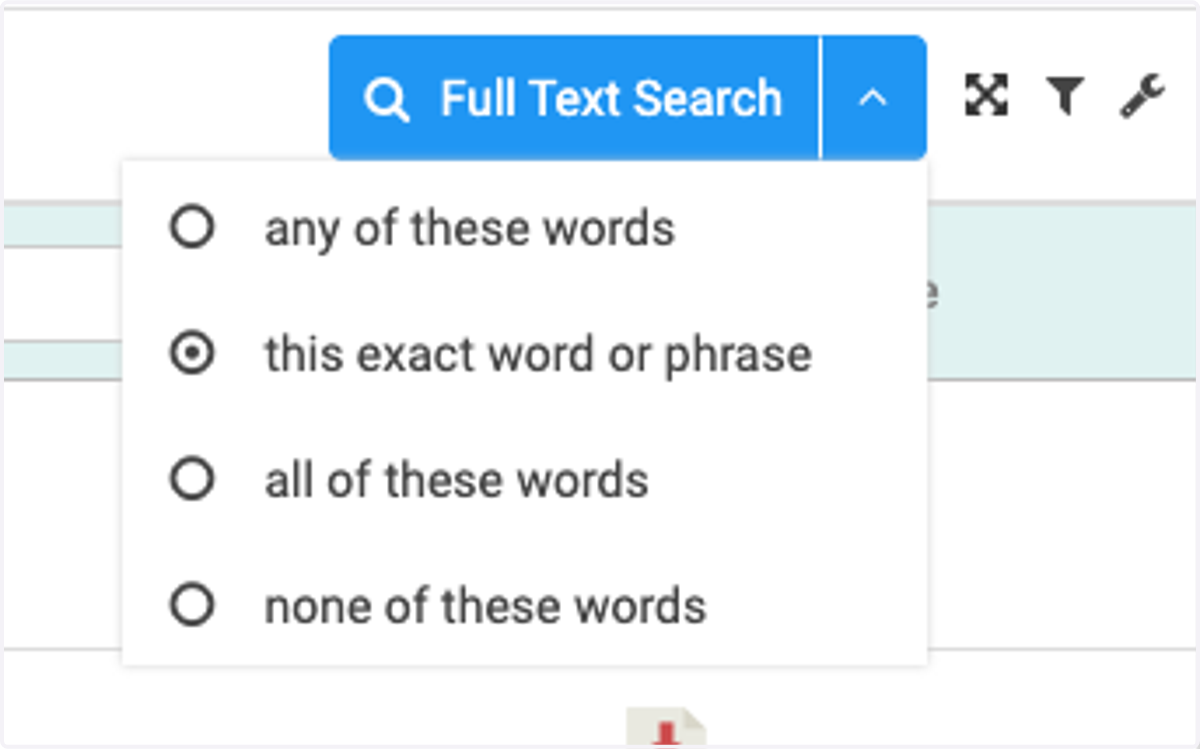
6. Select search mode
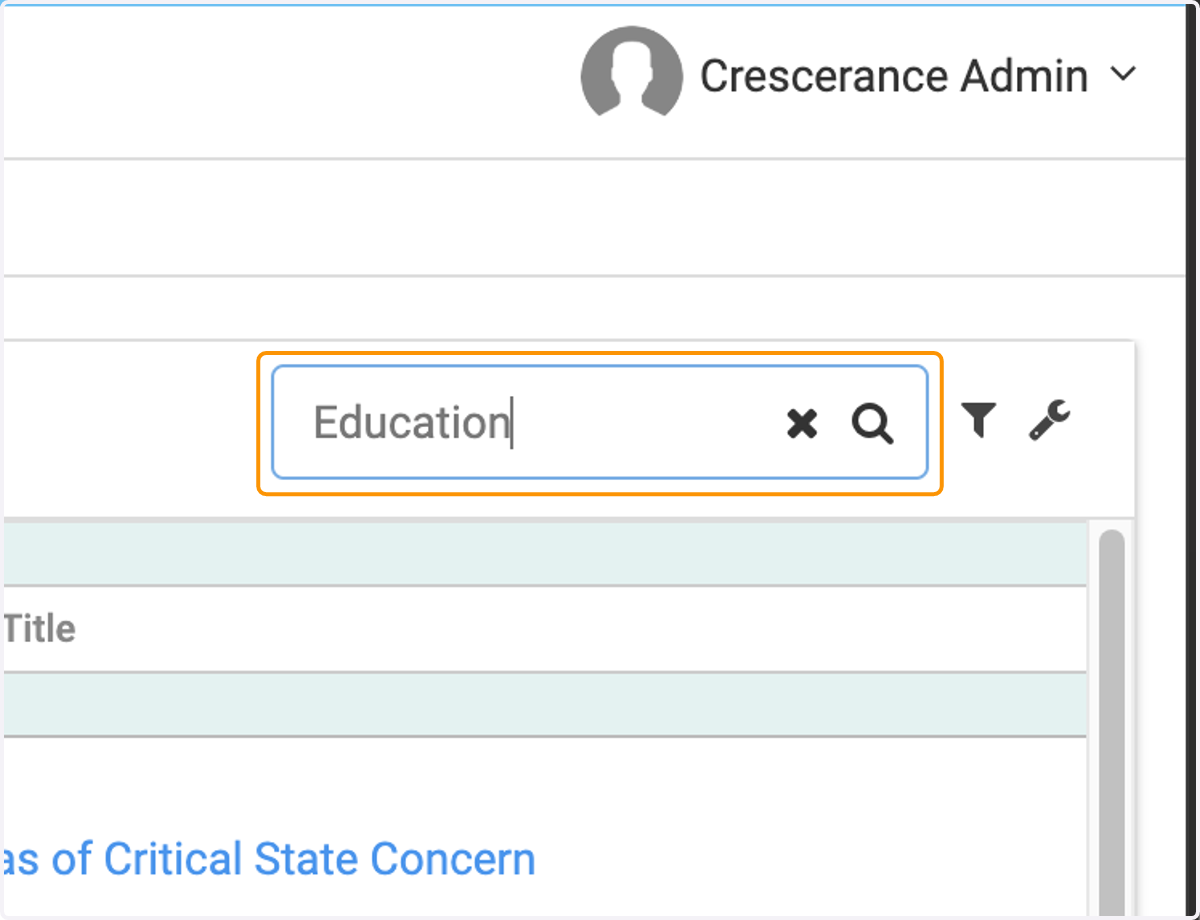
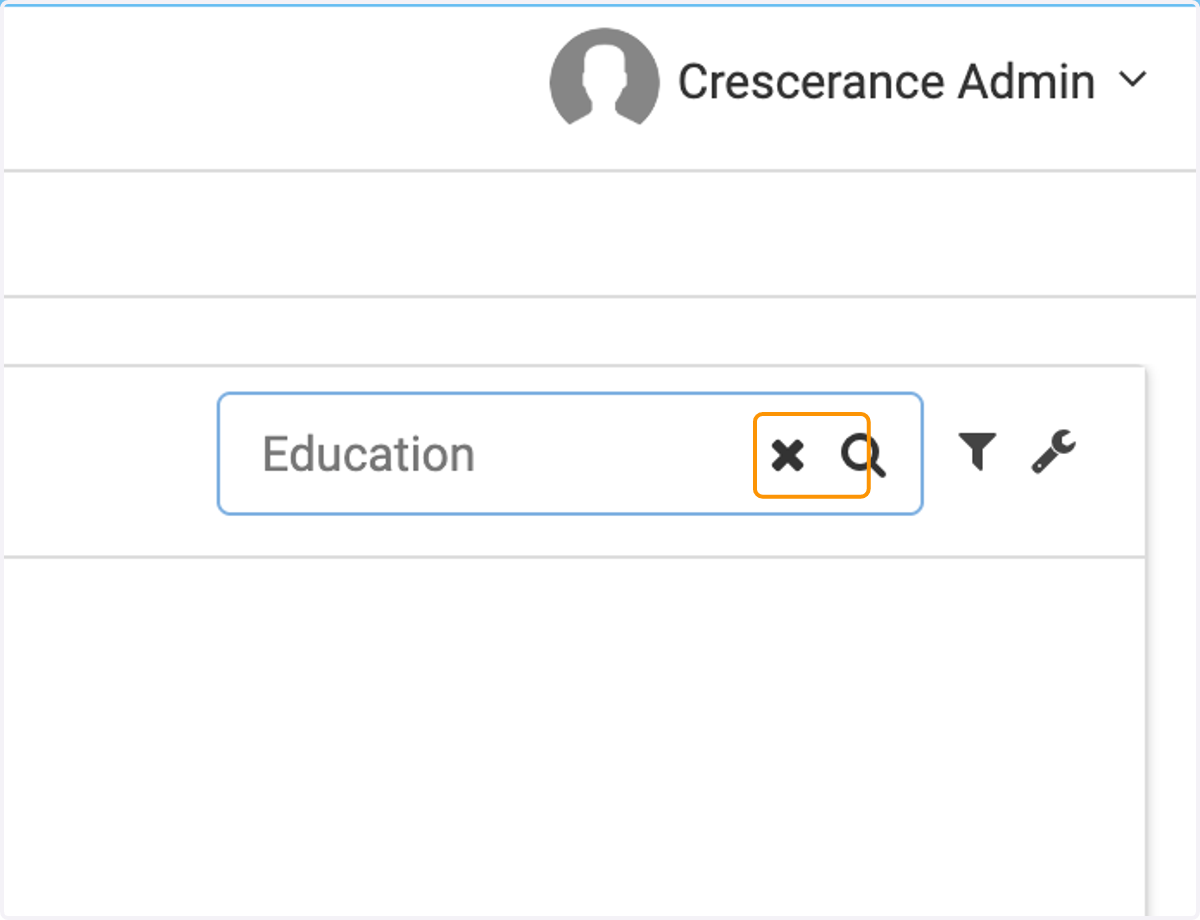
7. For example, type "Education"
This will load bills that have "Education" in their title or in their full text
8. When done, click on the "X" to clear it
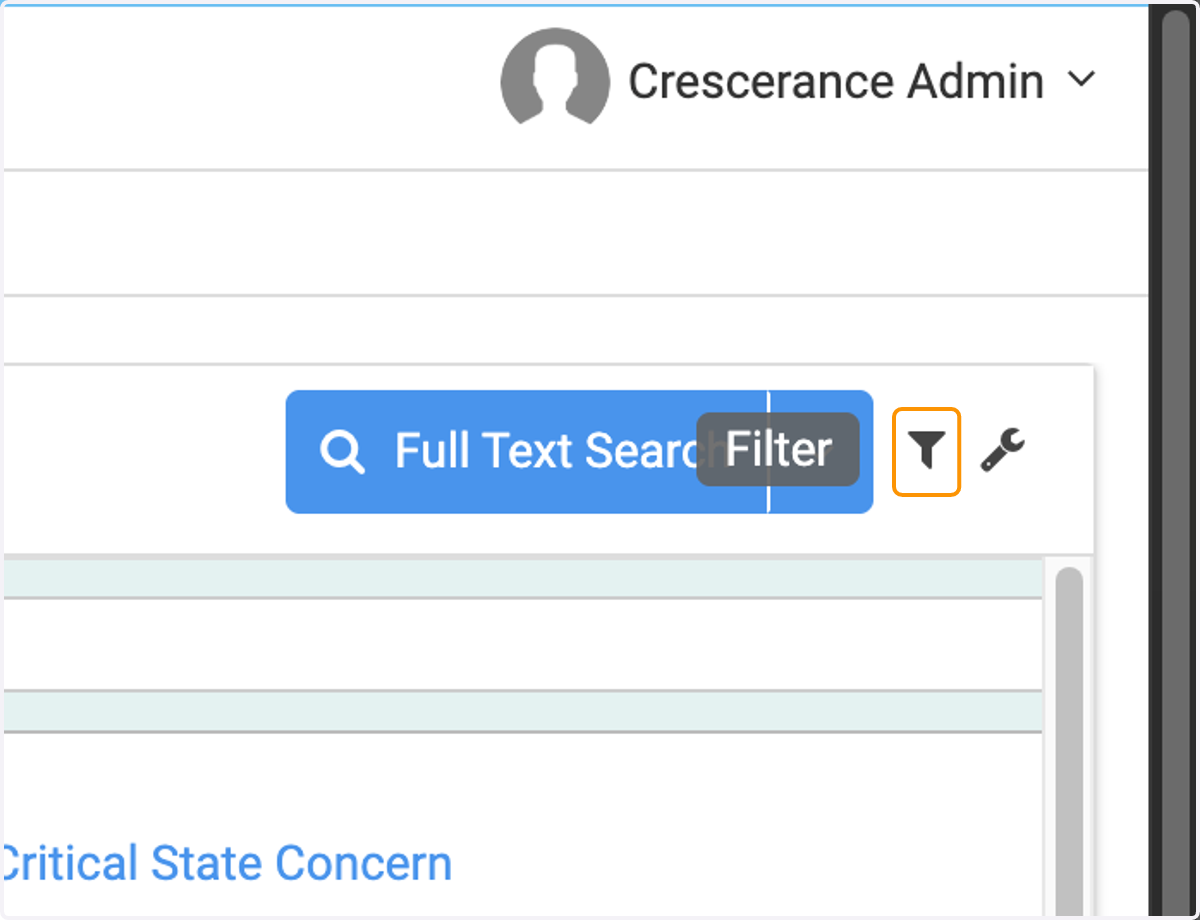
9. Click on Filter (funnel icon) to access filters
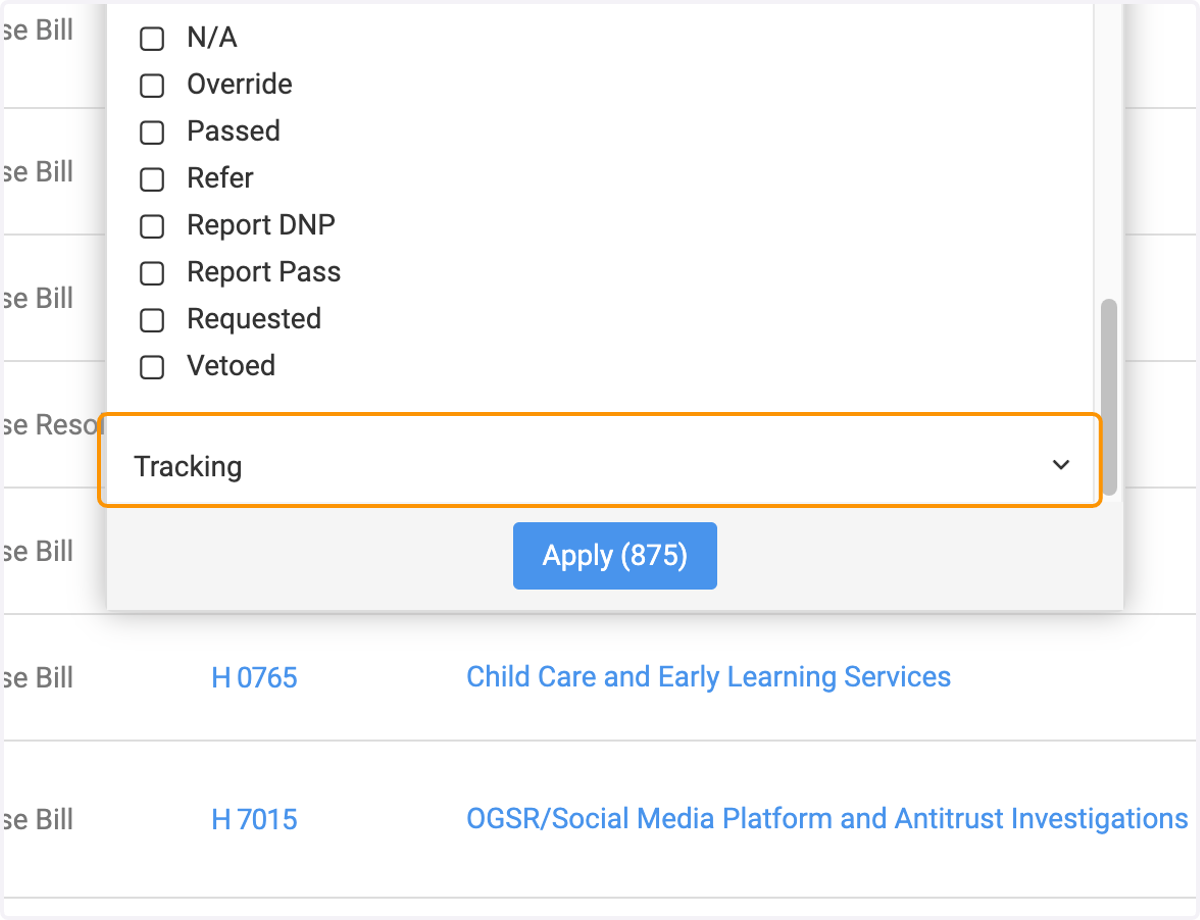
10. For example, click on 'Tracking' to access the Tracking options
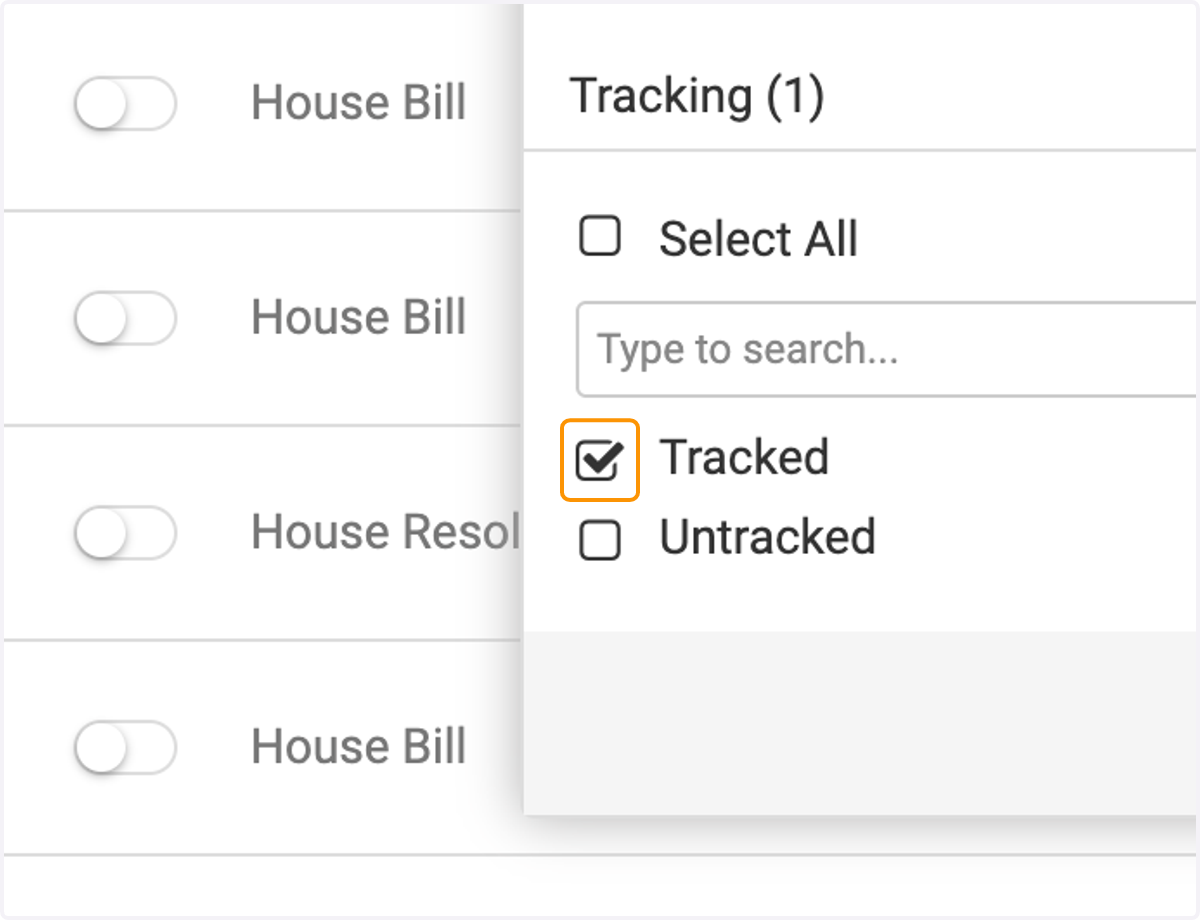
11. In this filter example, checking "Tracked" will filter in only tracked bills and exclude untracked bils
12. In this example, click on the blue 'Apply' button to add the filter
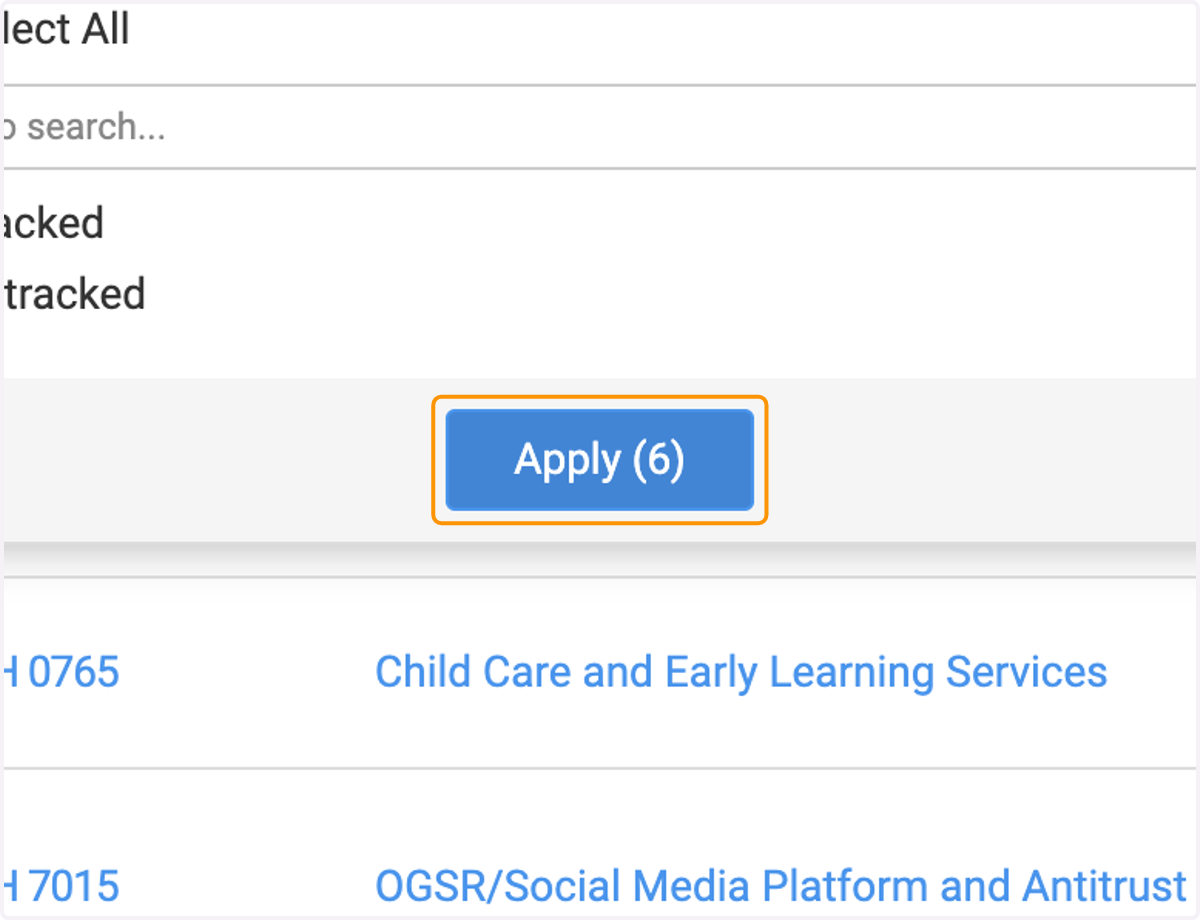
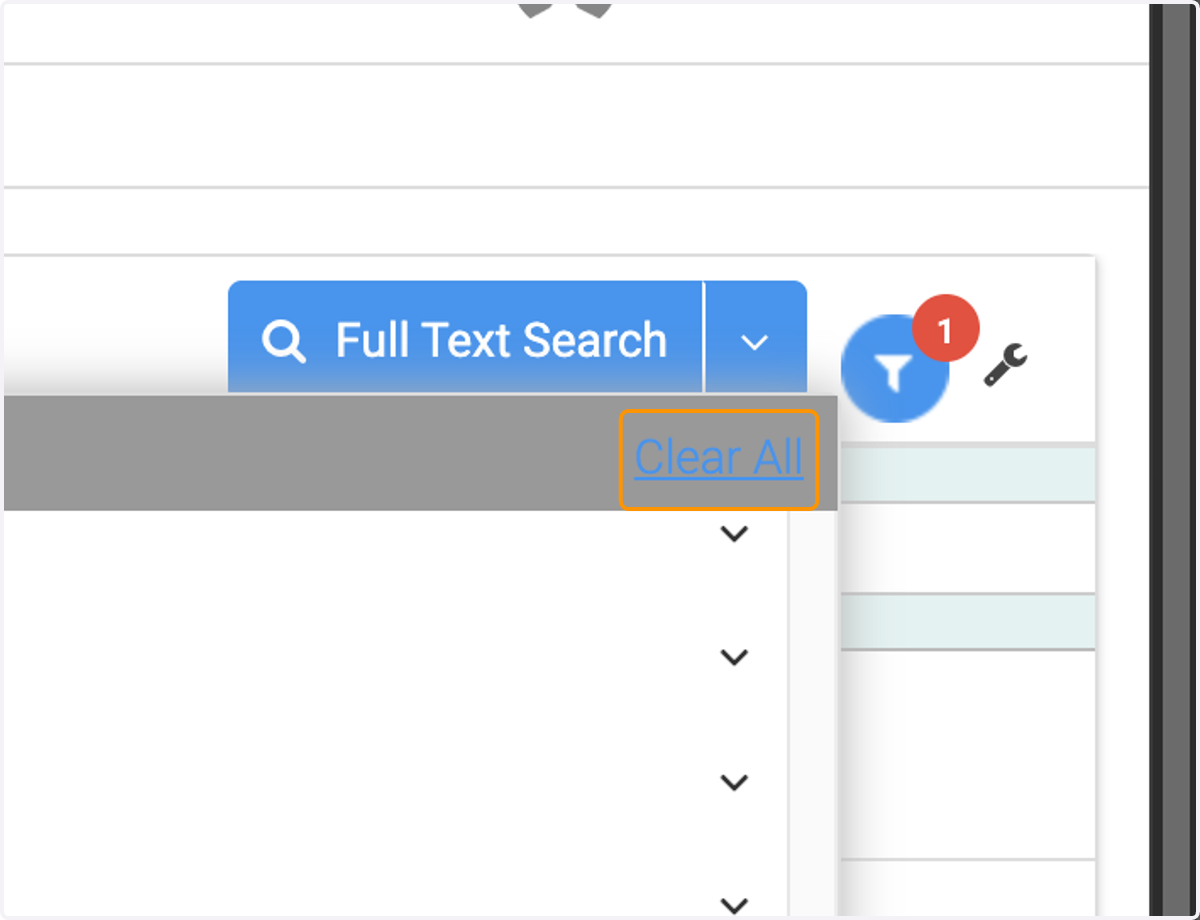
13. To clear all filters, click on "Clear All"
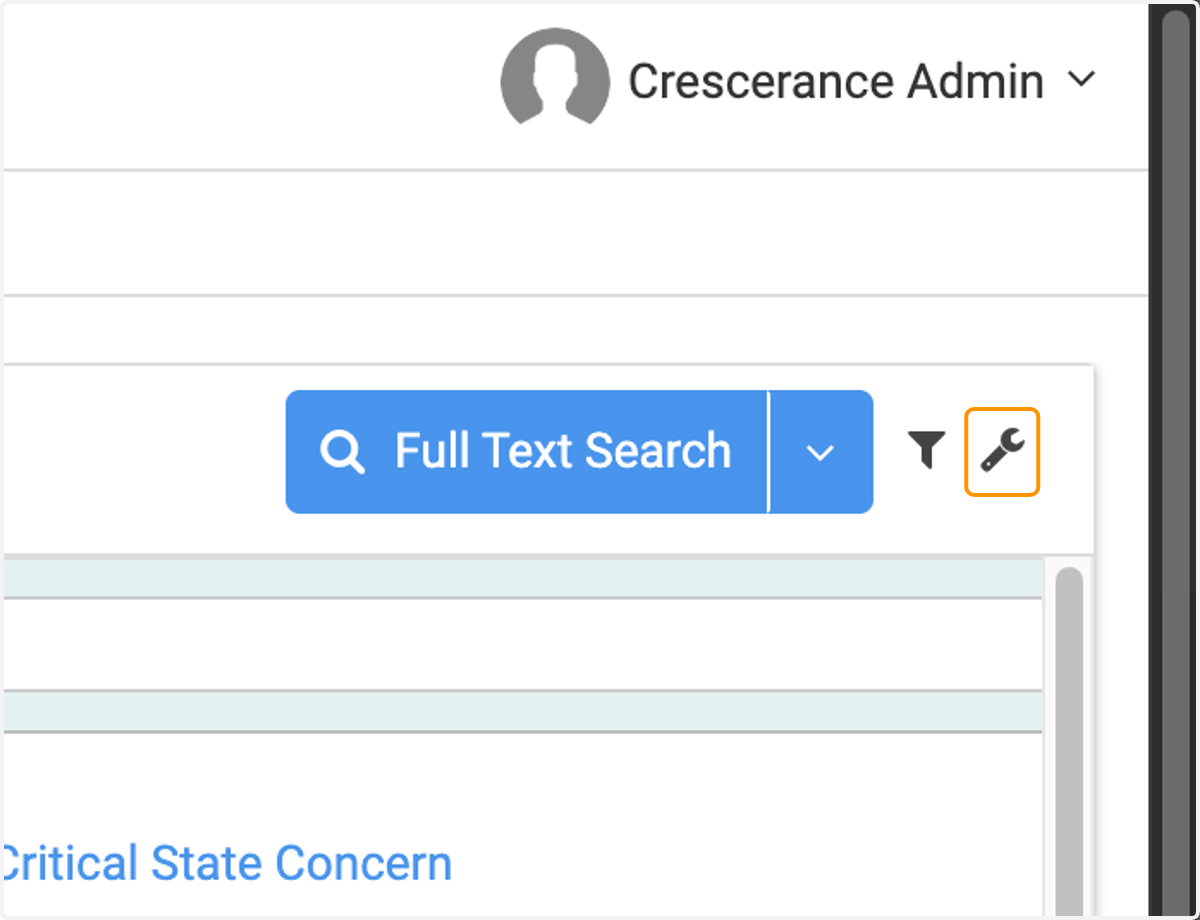
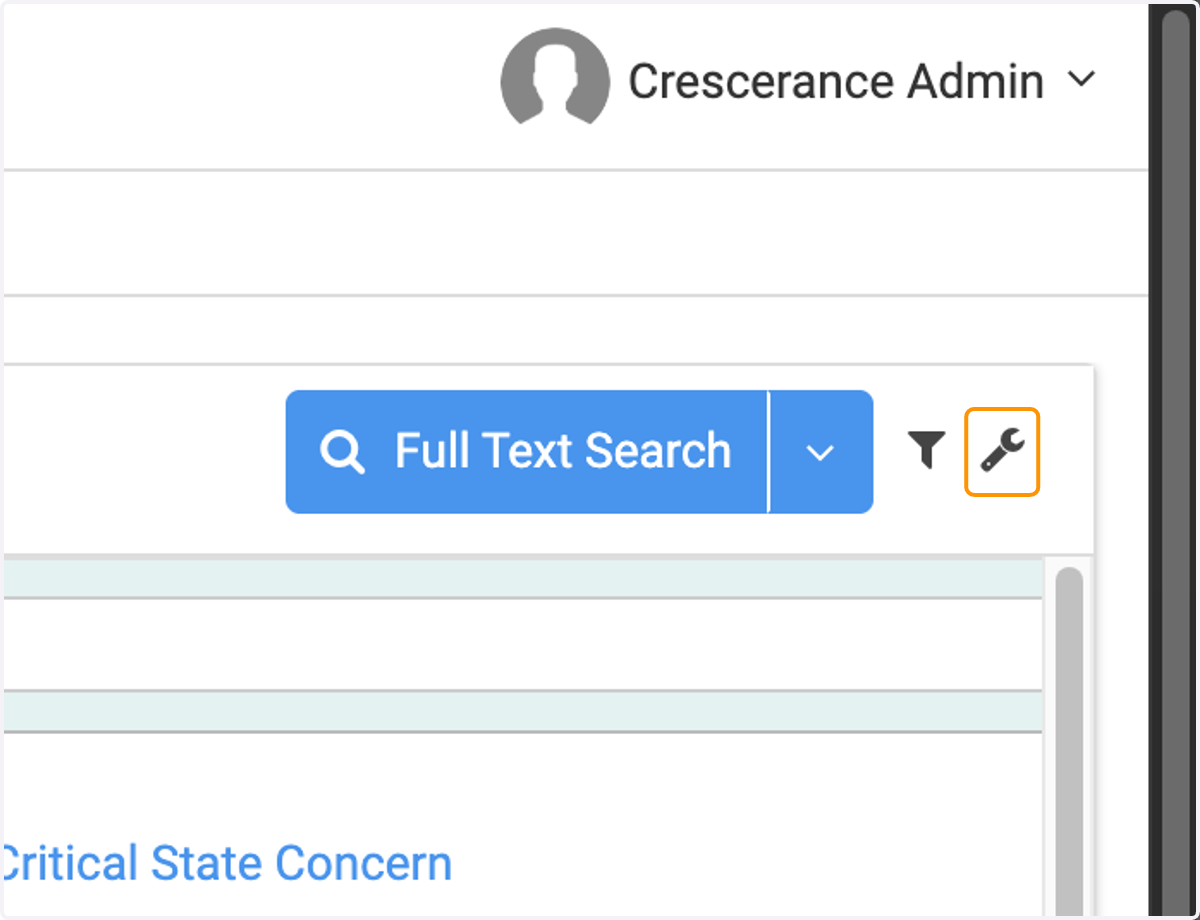
14. Click on the wrench icon to access more options for this page
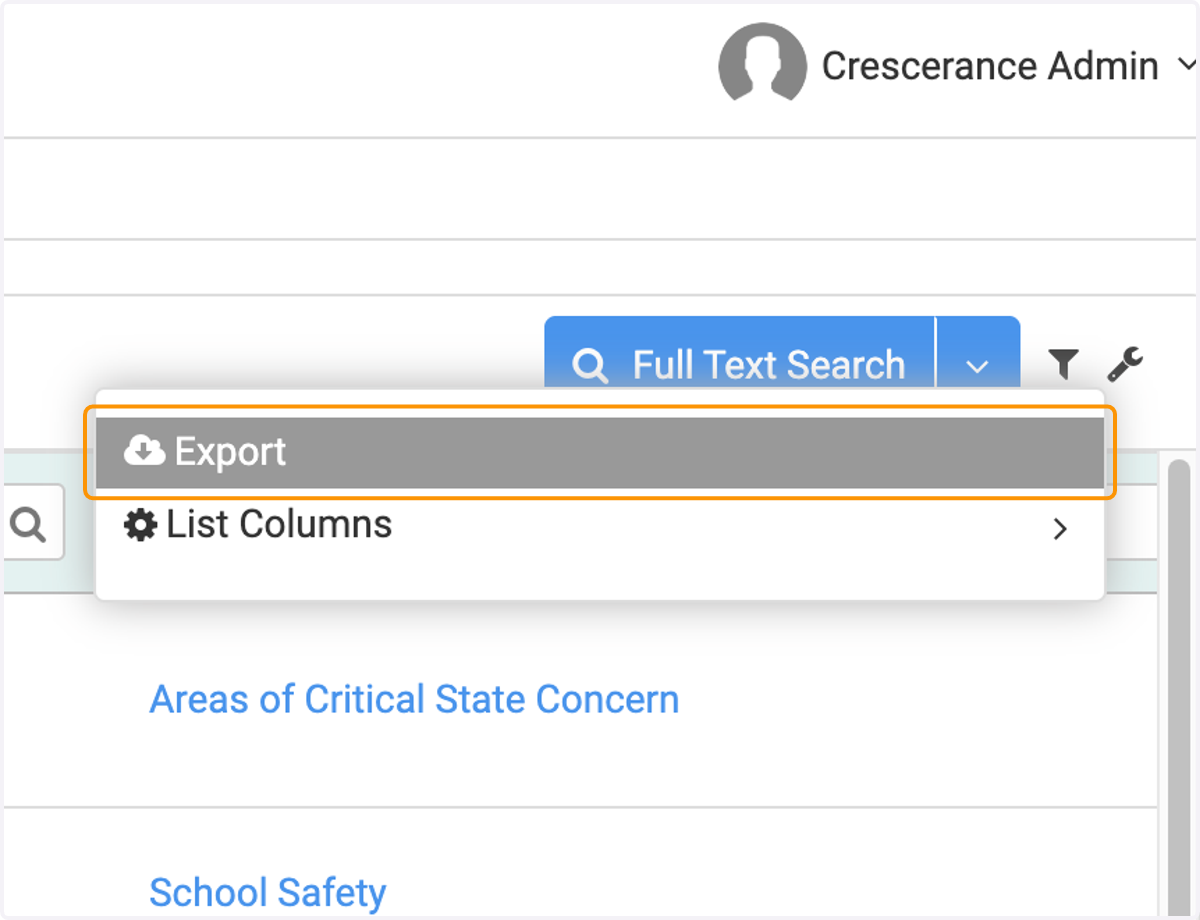
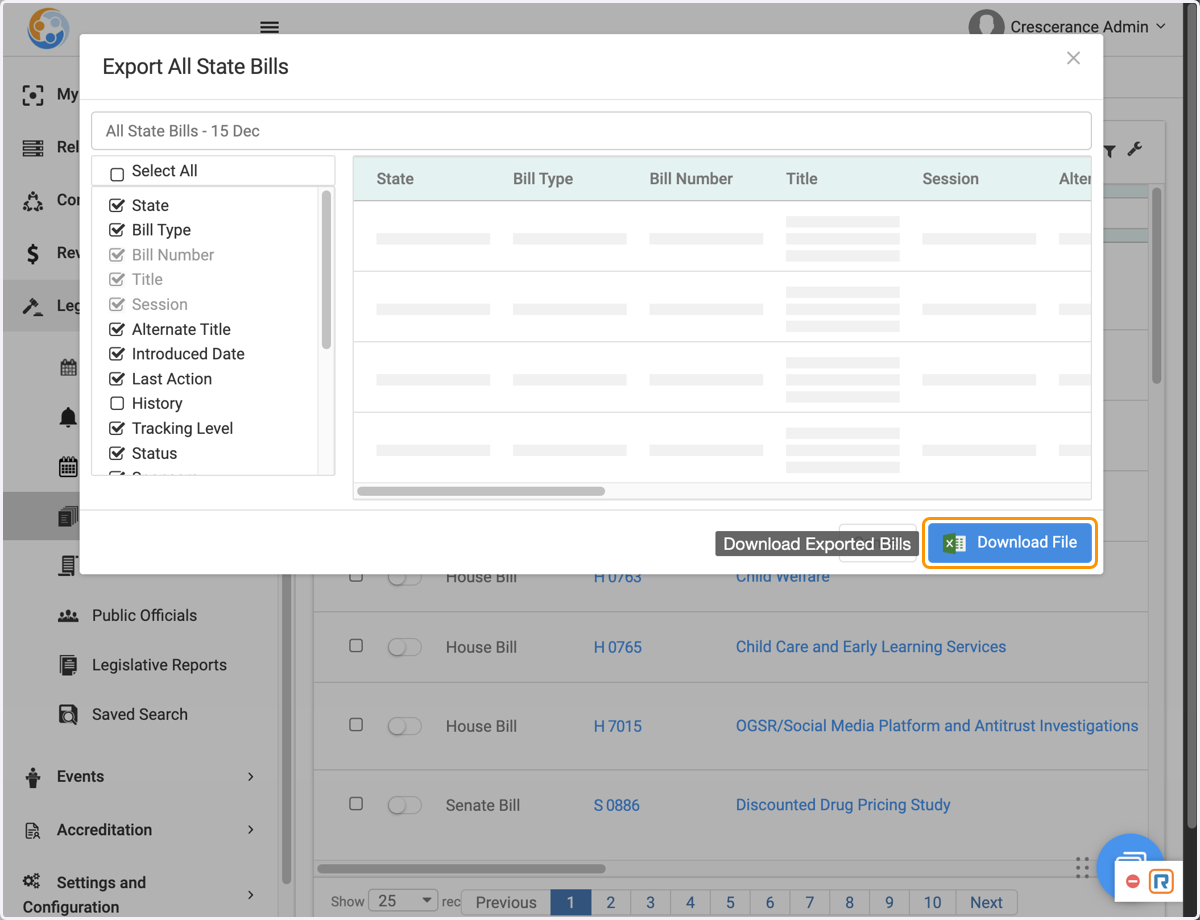
15. The first (to) opption is for an "Export"
16. If exporting, select the boxes for the fields you want to include in your export, then click on "Download File".
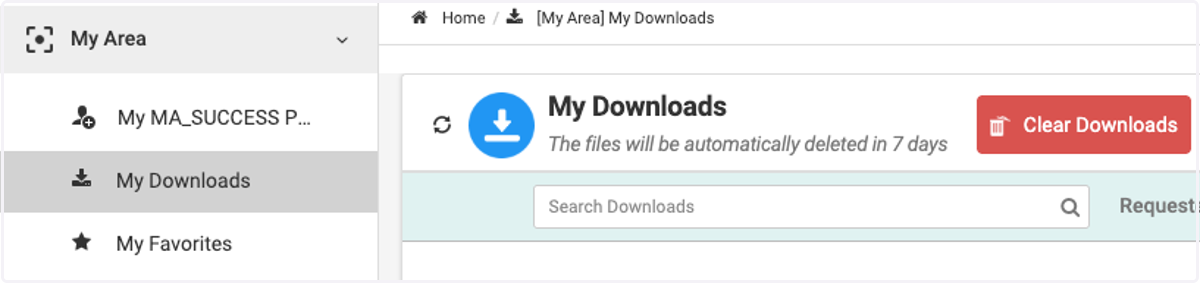
17. If you choose to do an export, your file will be in "My Area" > "My downloads"
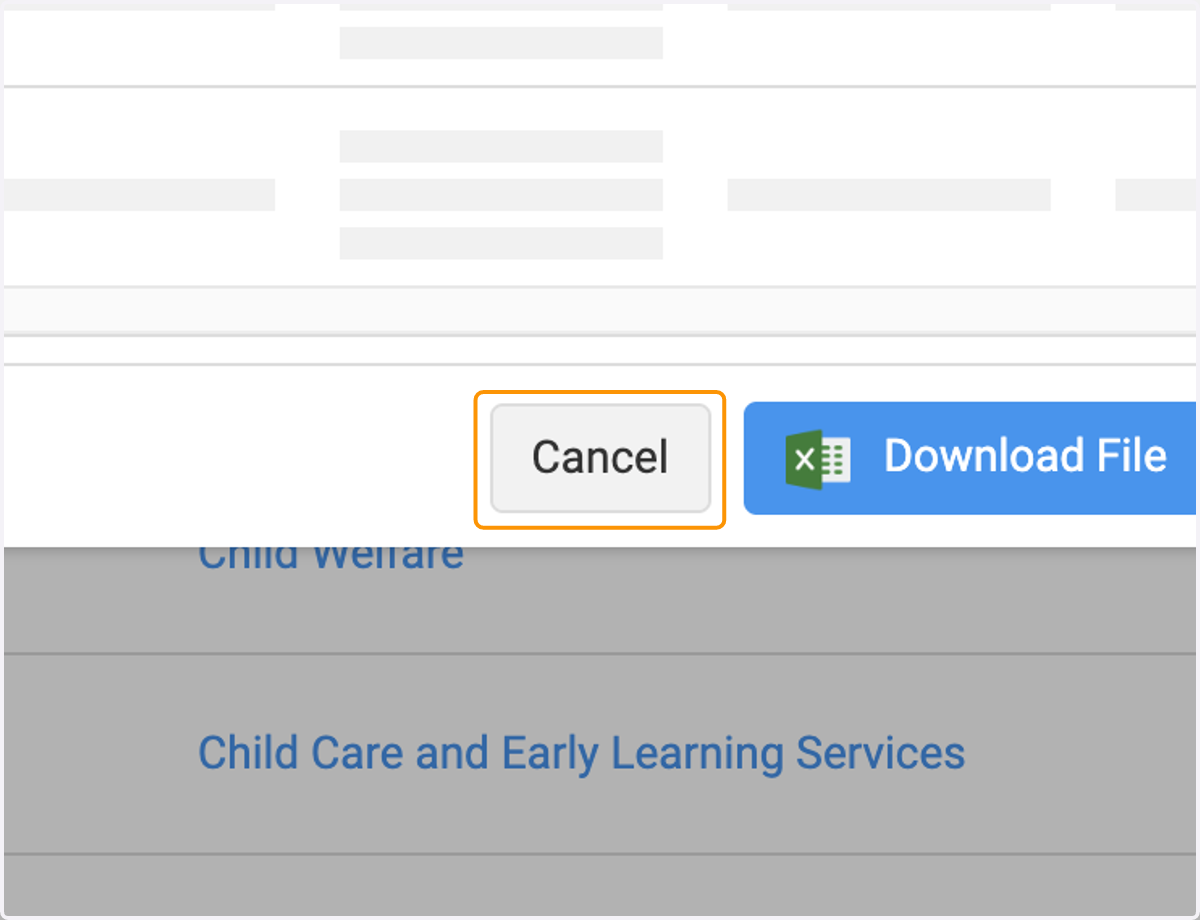
18. Click on 'Cancel' to abort the export
19. To use the other option in the wrench menu, click on the wrench icon again
20. Click on 'List Columns'
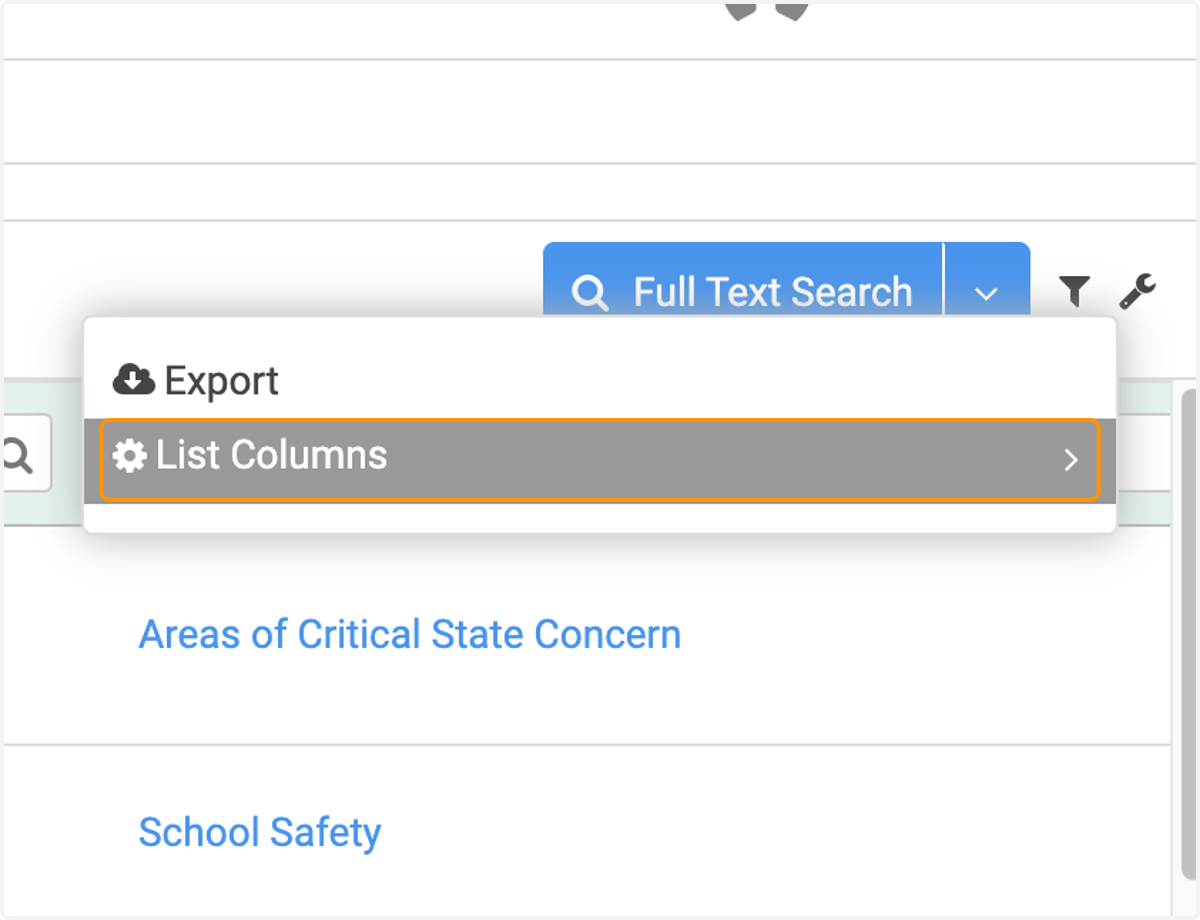
21. Toggle columns on/off to custom configure which columns display on this page
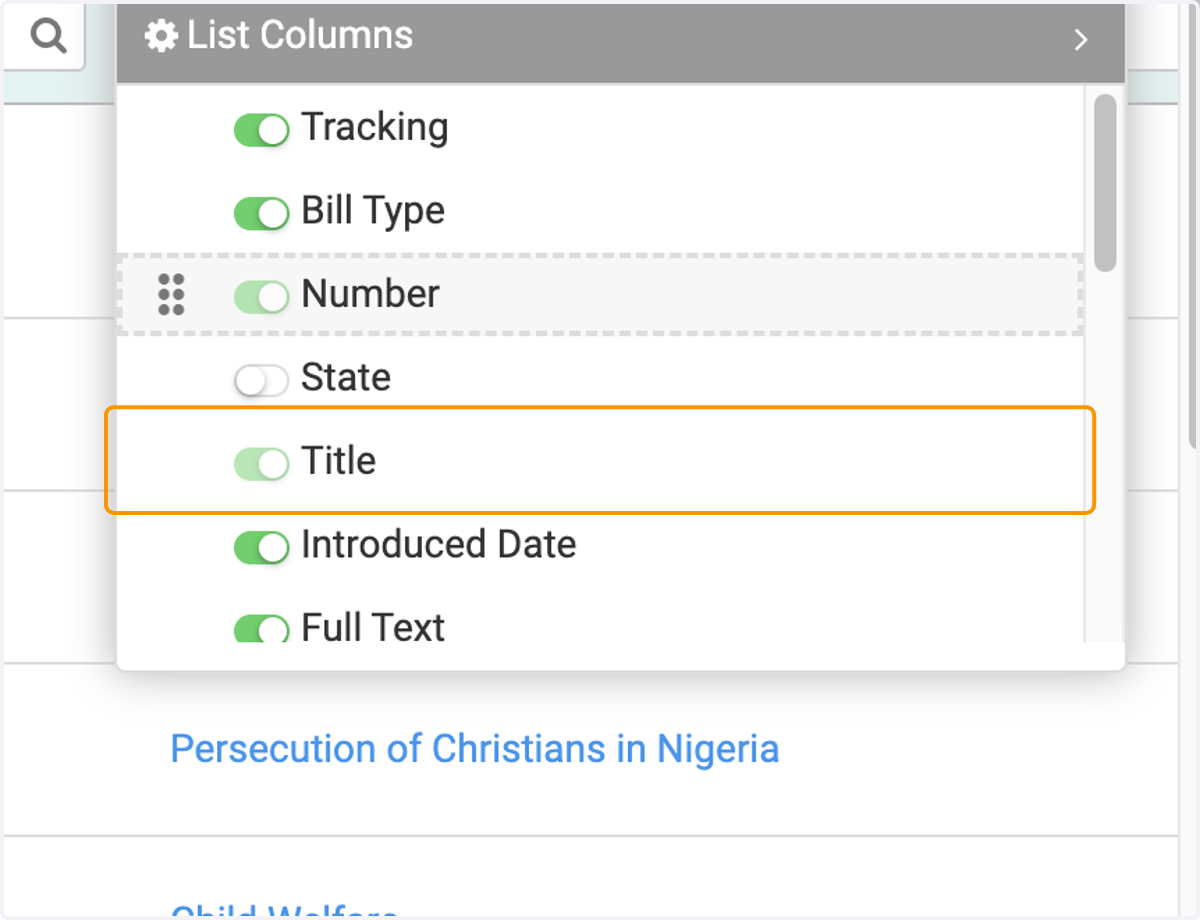
22. Click and hold the six dots to the left of a column name and drag it toward the top to move the column to the left (or drag to the bottom to move it to the right)
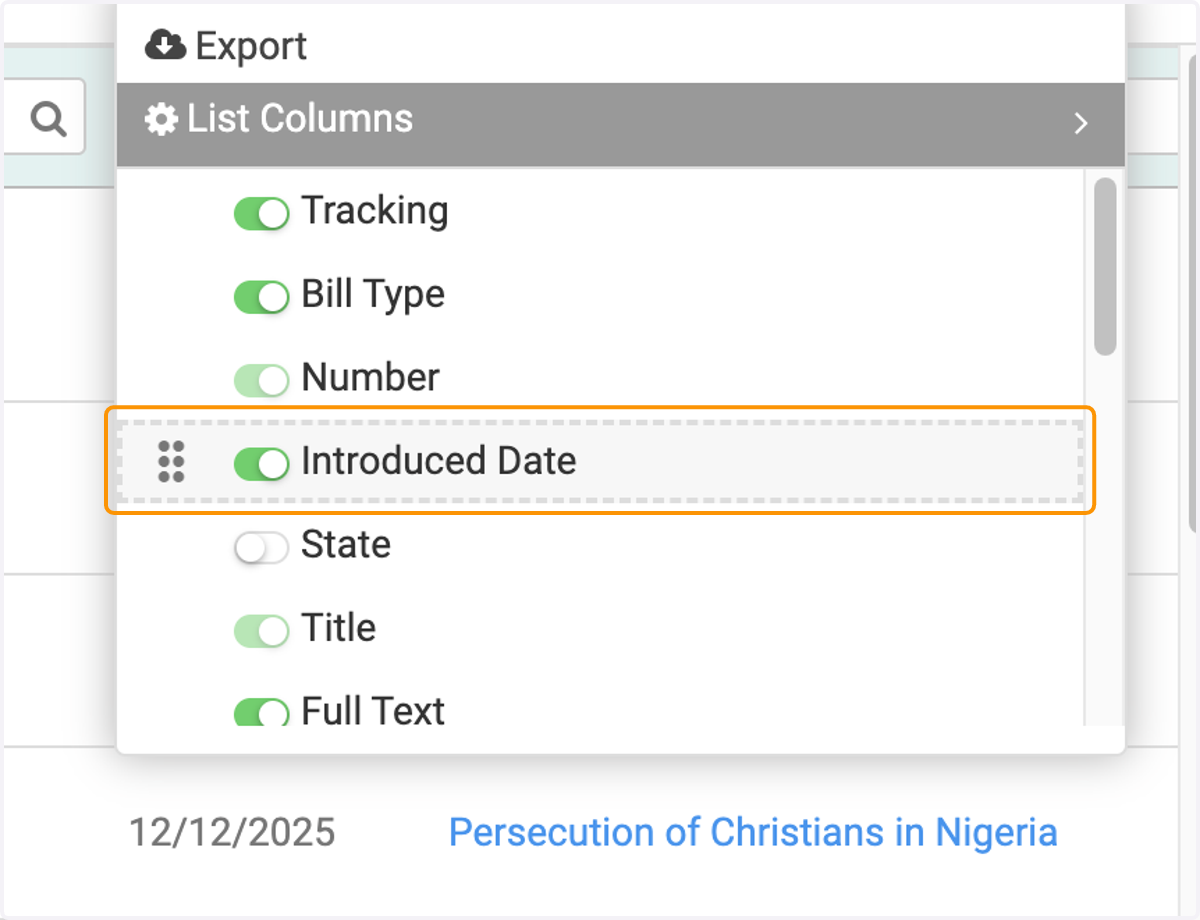
23. That's it! Enjoy search all bills to find the ones you care about. Tip: remember that filters stay in place until you change or reset them. Click the filter menu (funnel icon) to update filters or reset all filters.