Creating Custom Change Order Fields in FollowUpCRM
FollowUpCRM
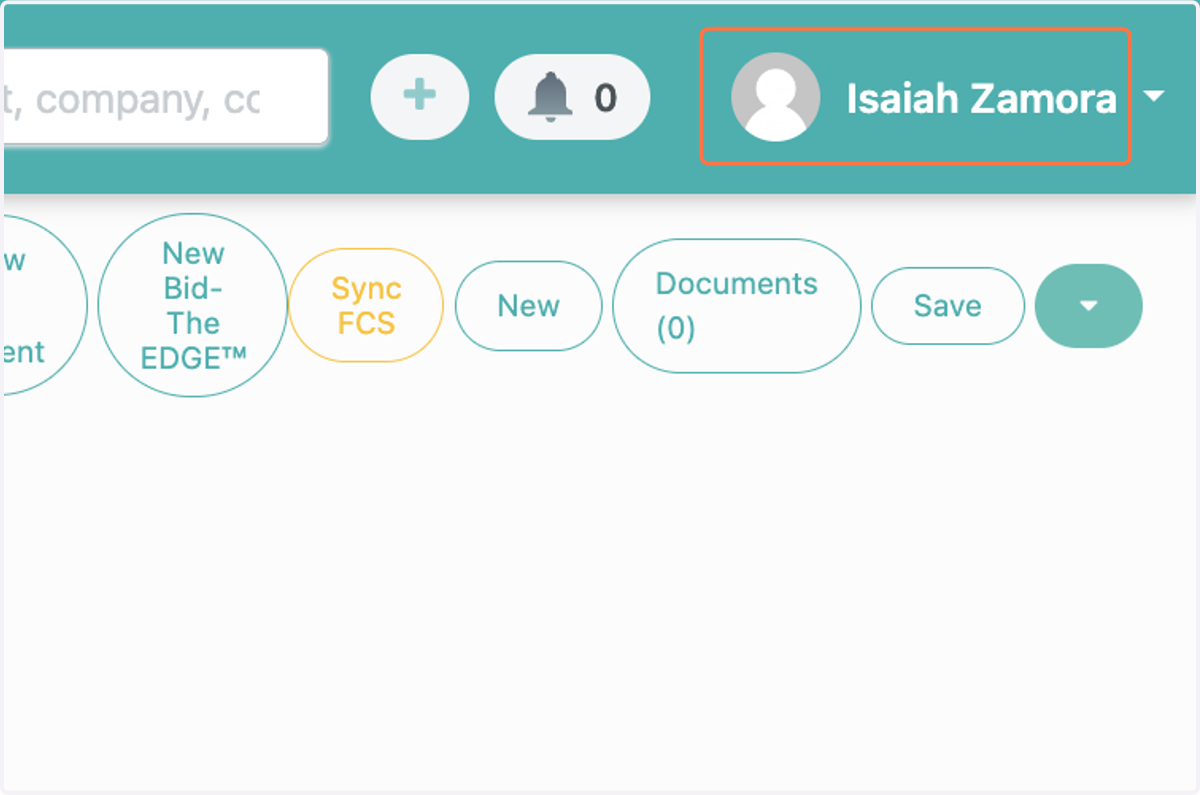
1. Click on your name in the top right of the page
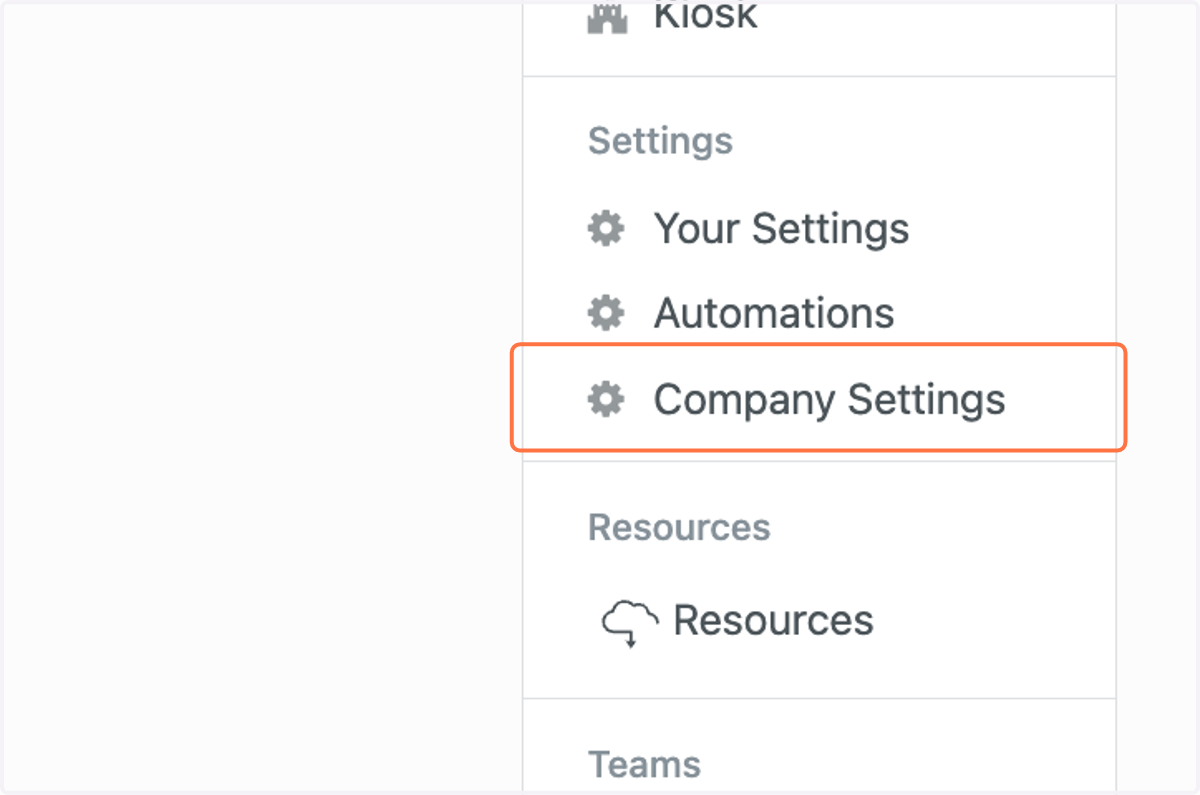
2. Click on Company Settings
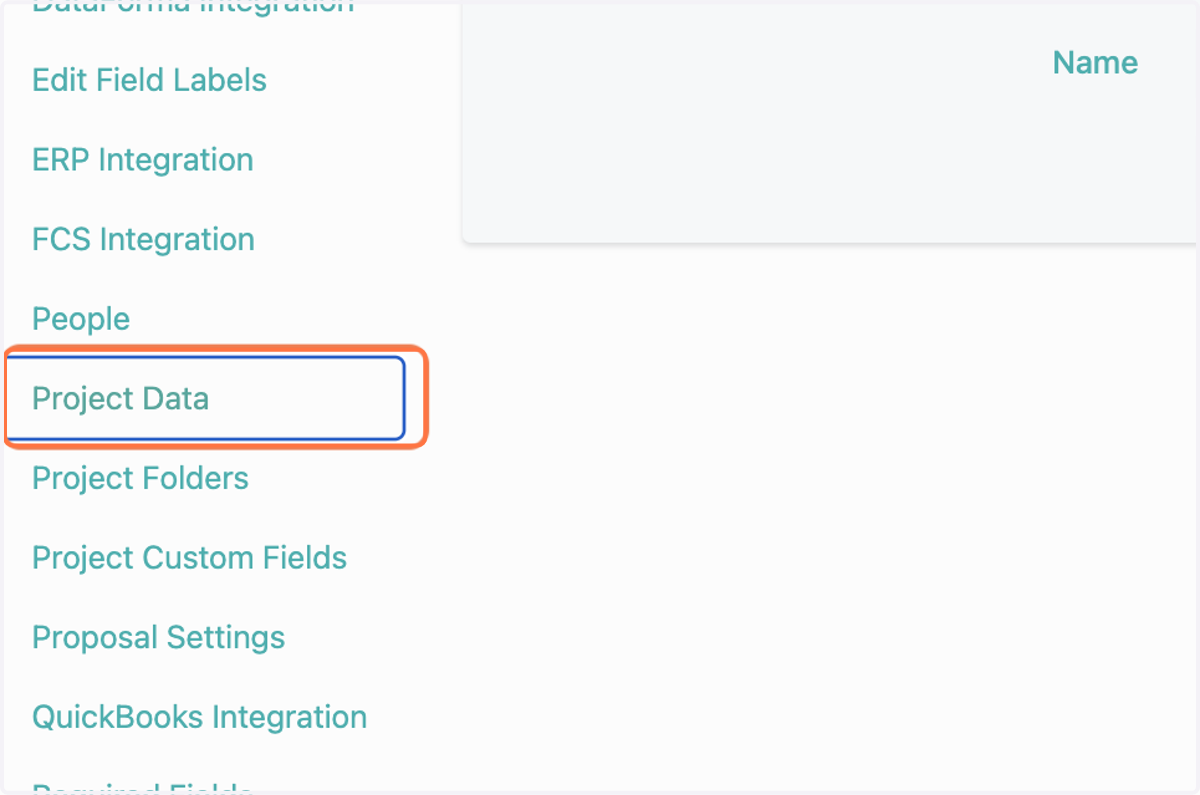
3. Click on Project Data
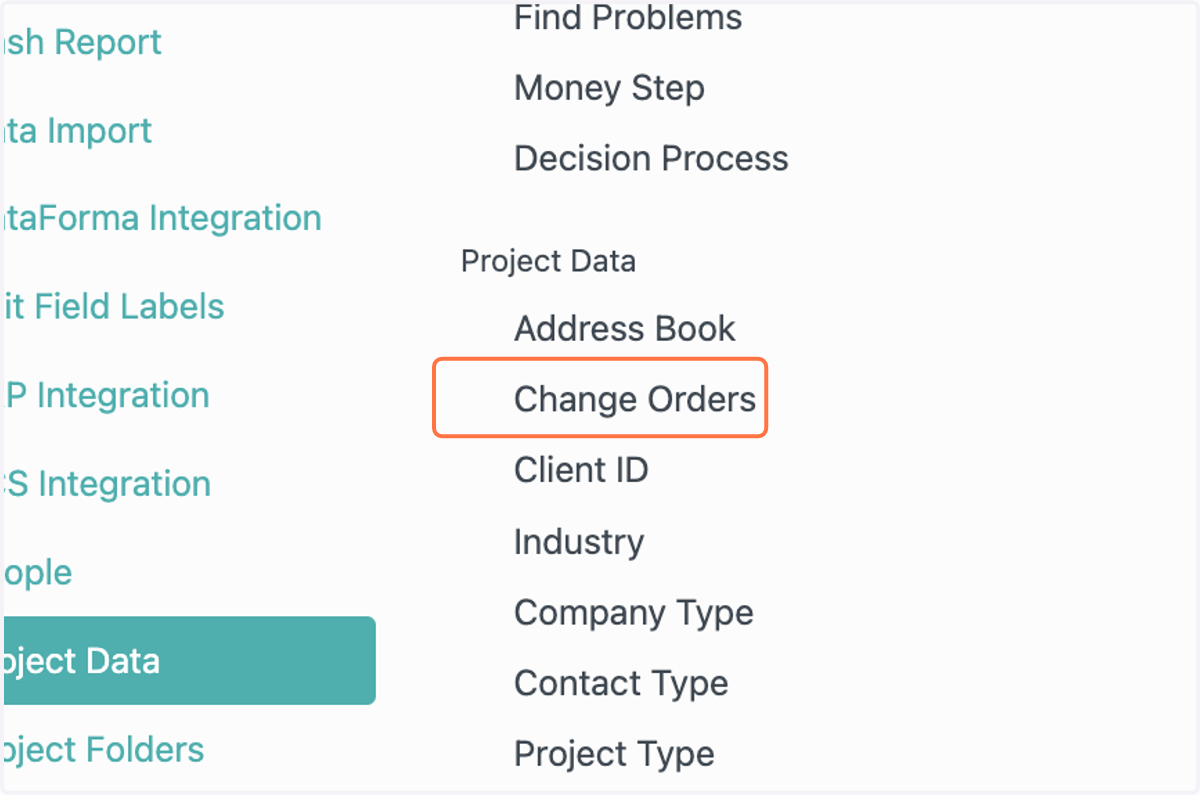
4. Click on Change Orders
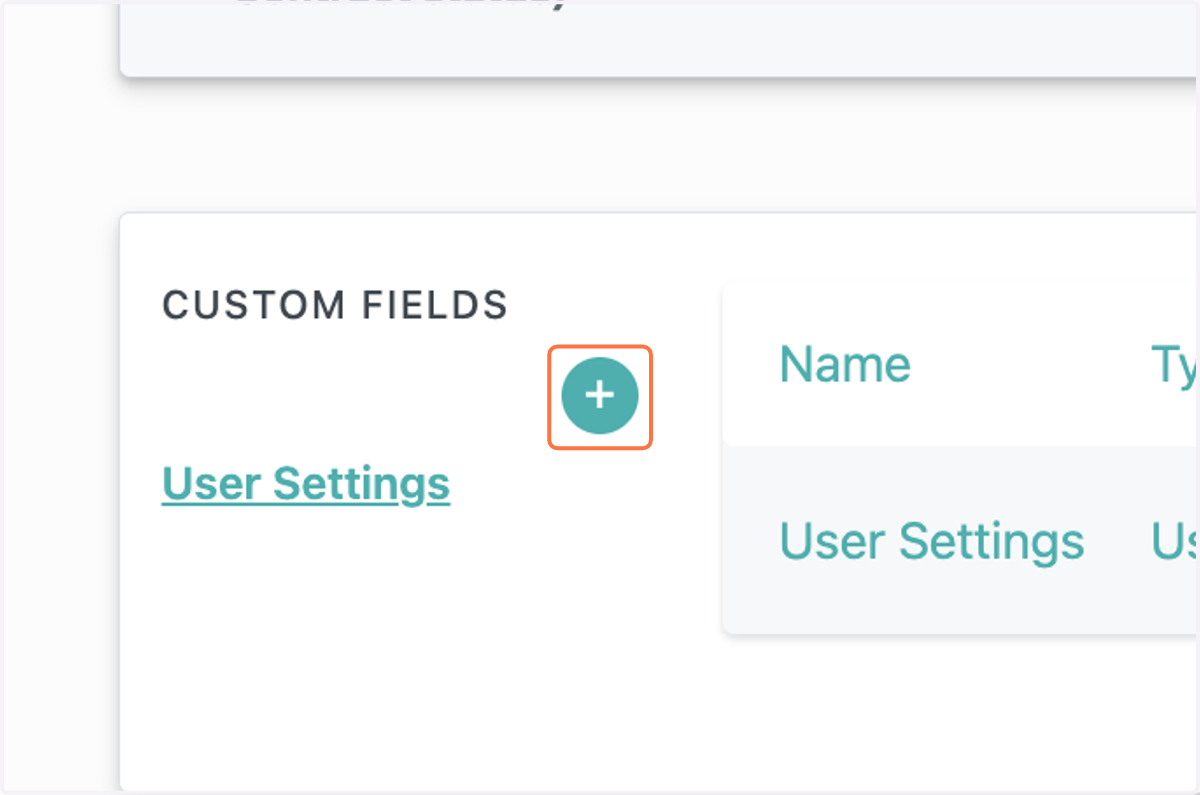
5. Click on add
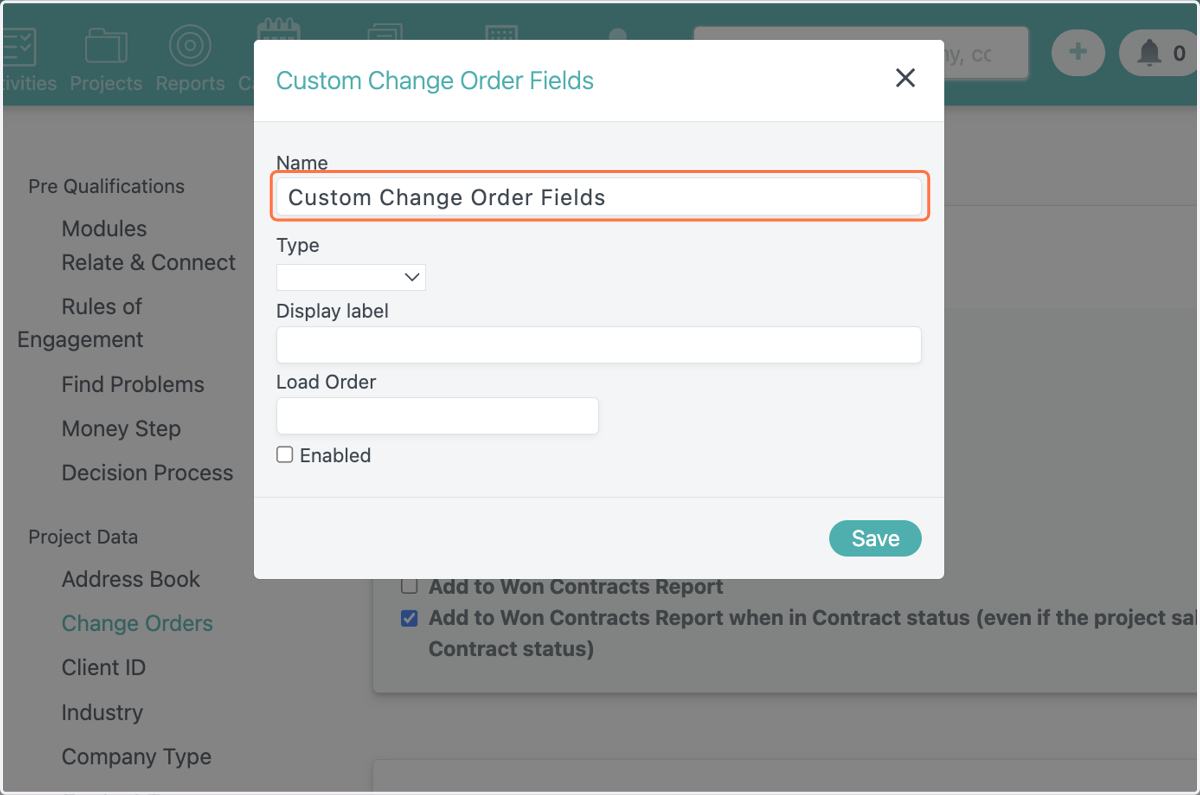
6. Type in a name for your custom field
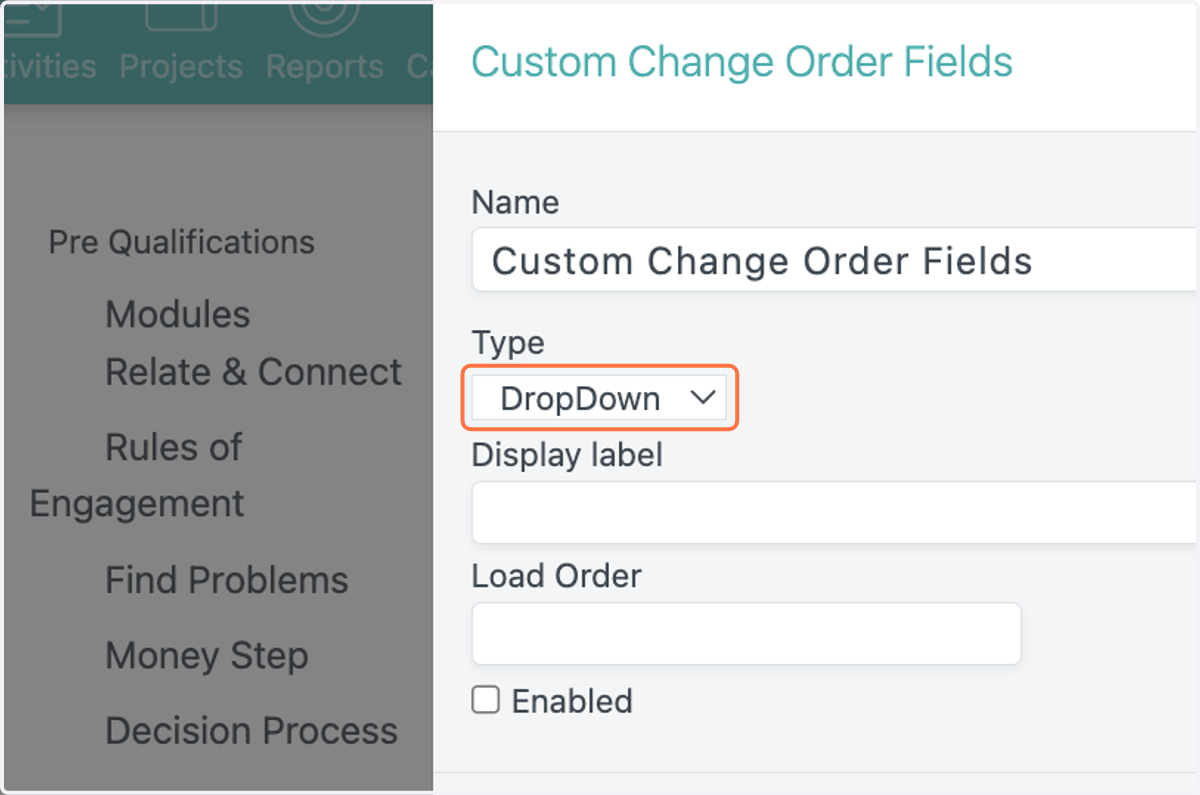
7. Select your custom field type
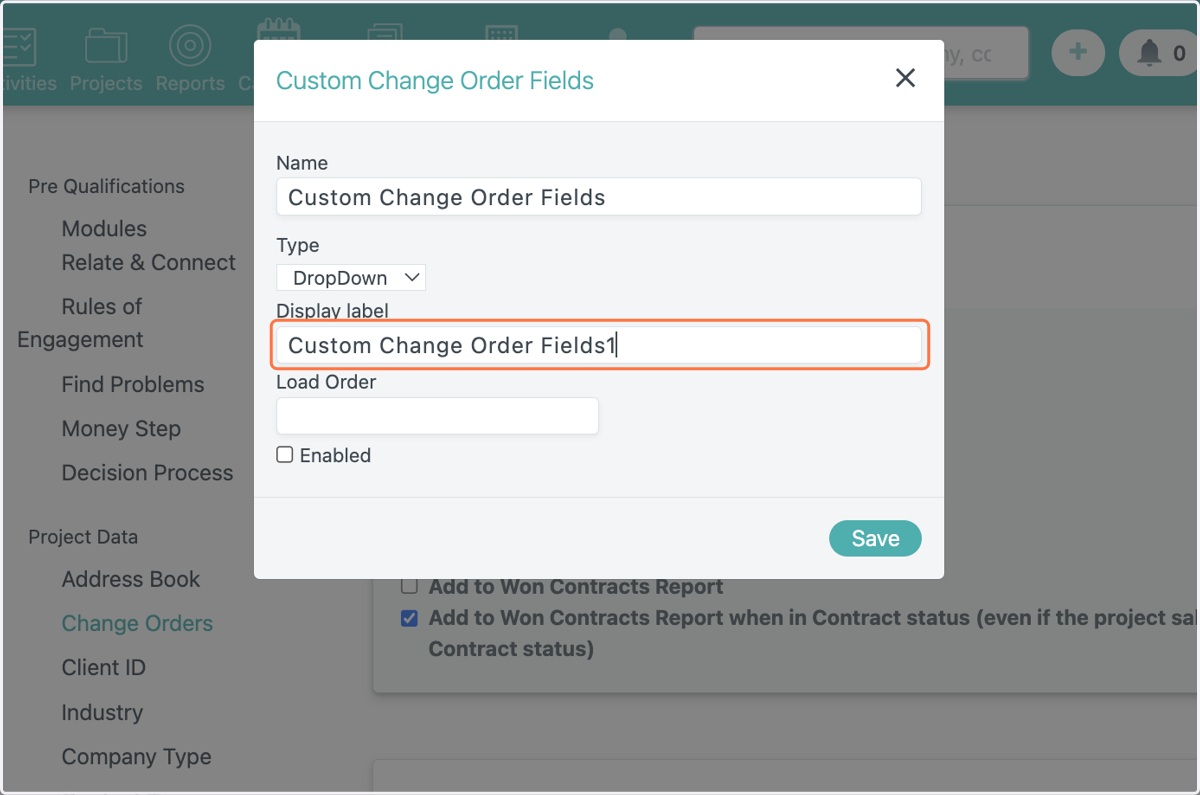
8. Type in your display label
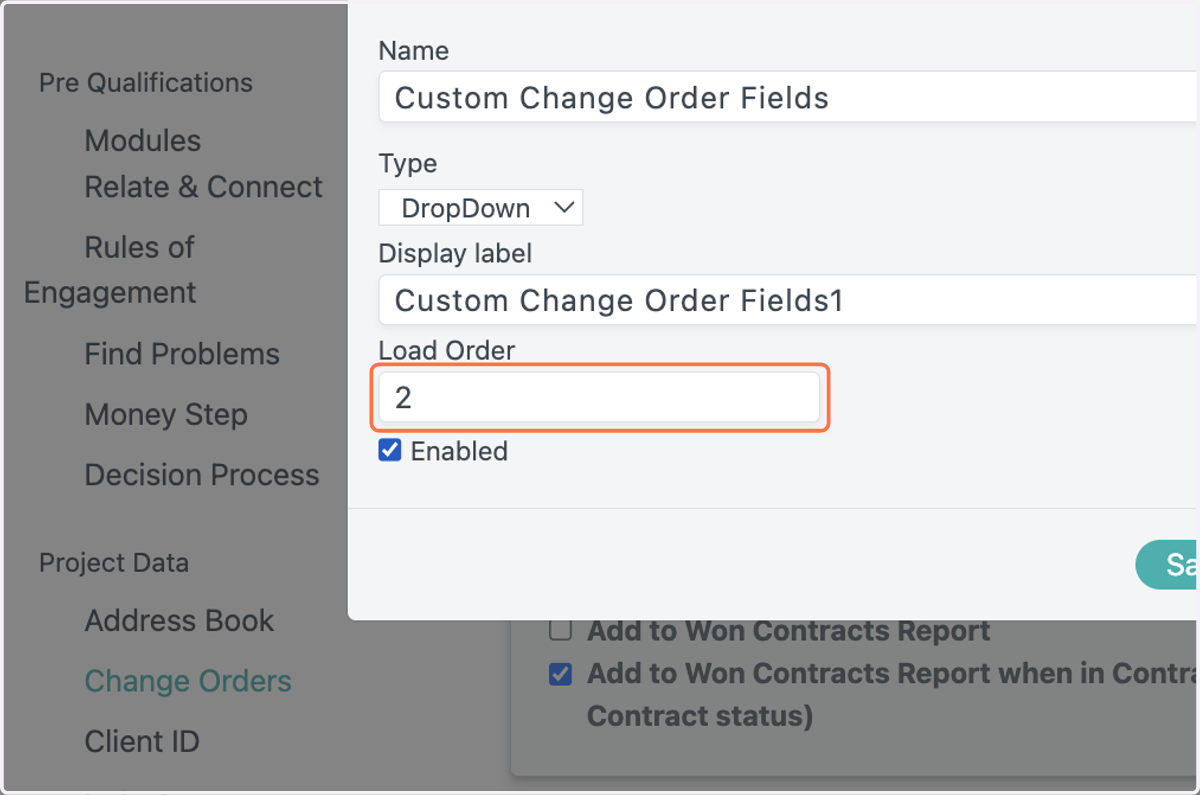
9. Type in your load order
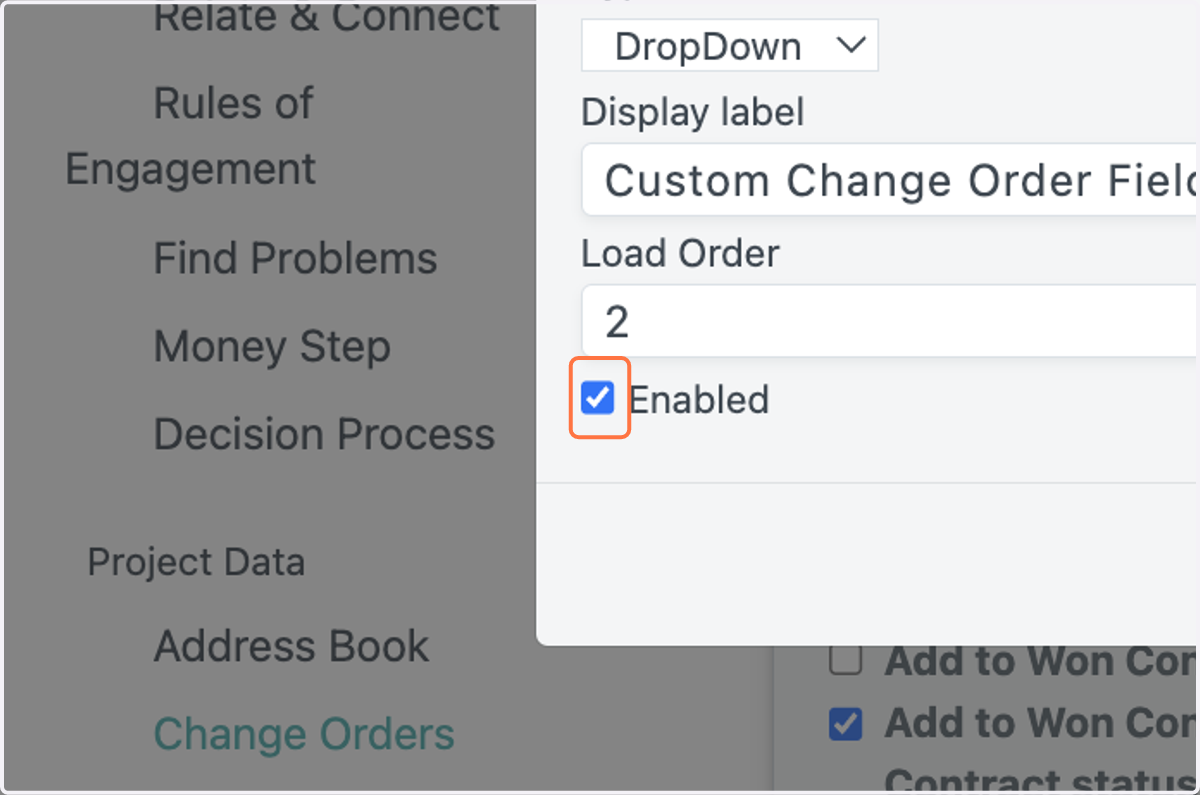
10. Check Enabled
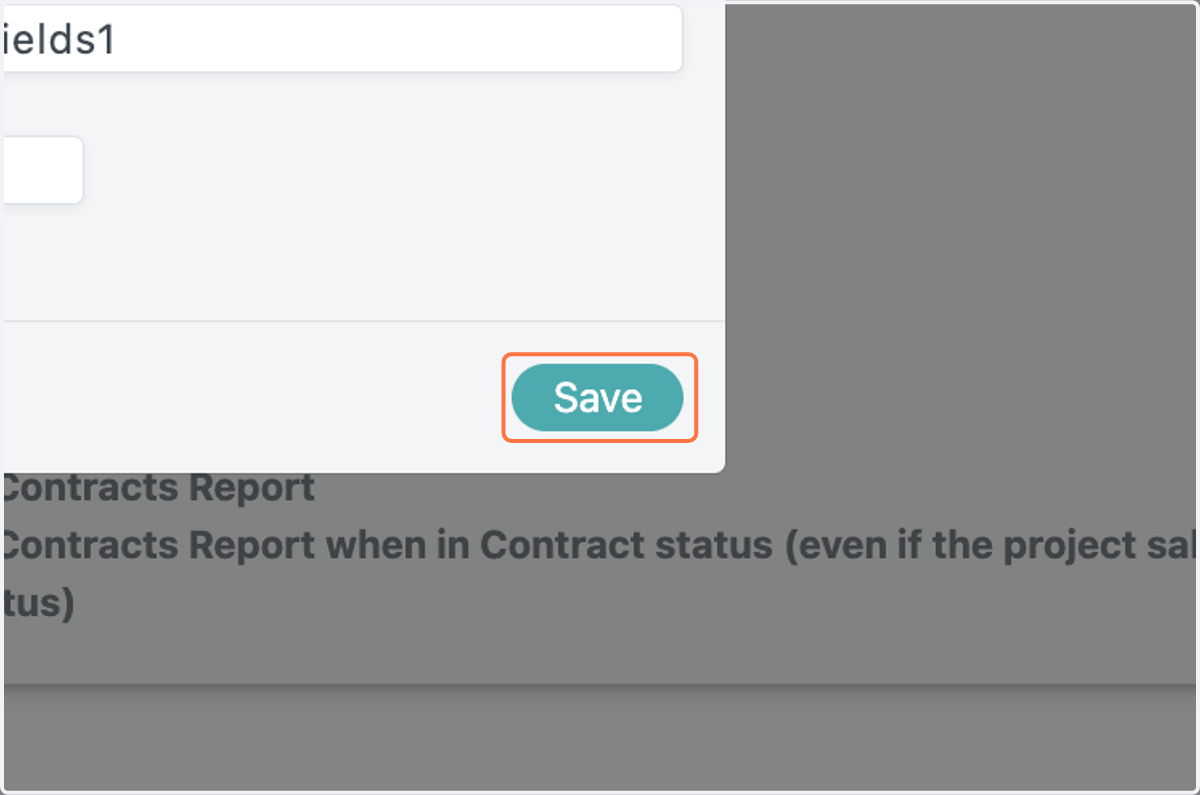
11. Click on Save