Navigating the Dashboard
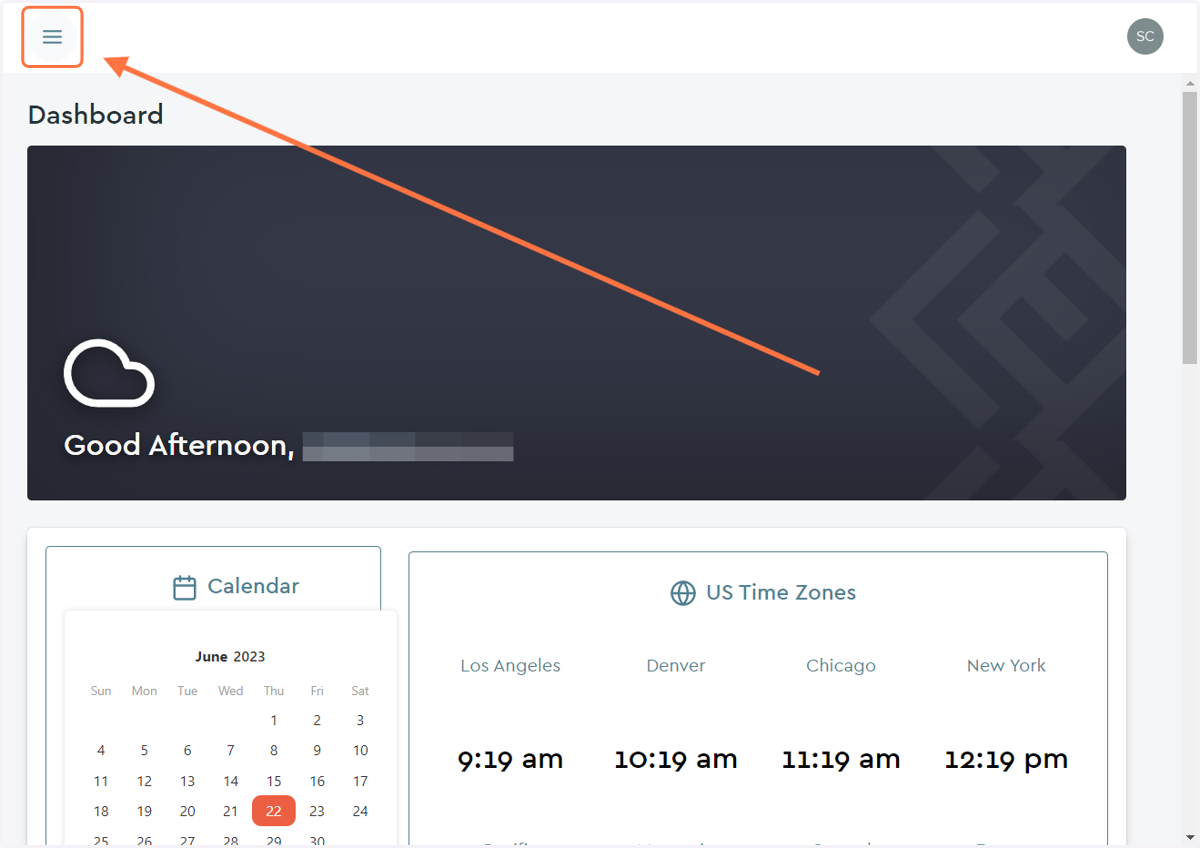
1. The Dashboard
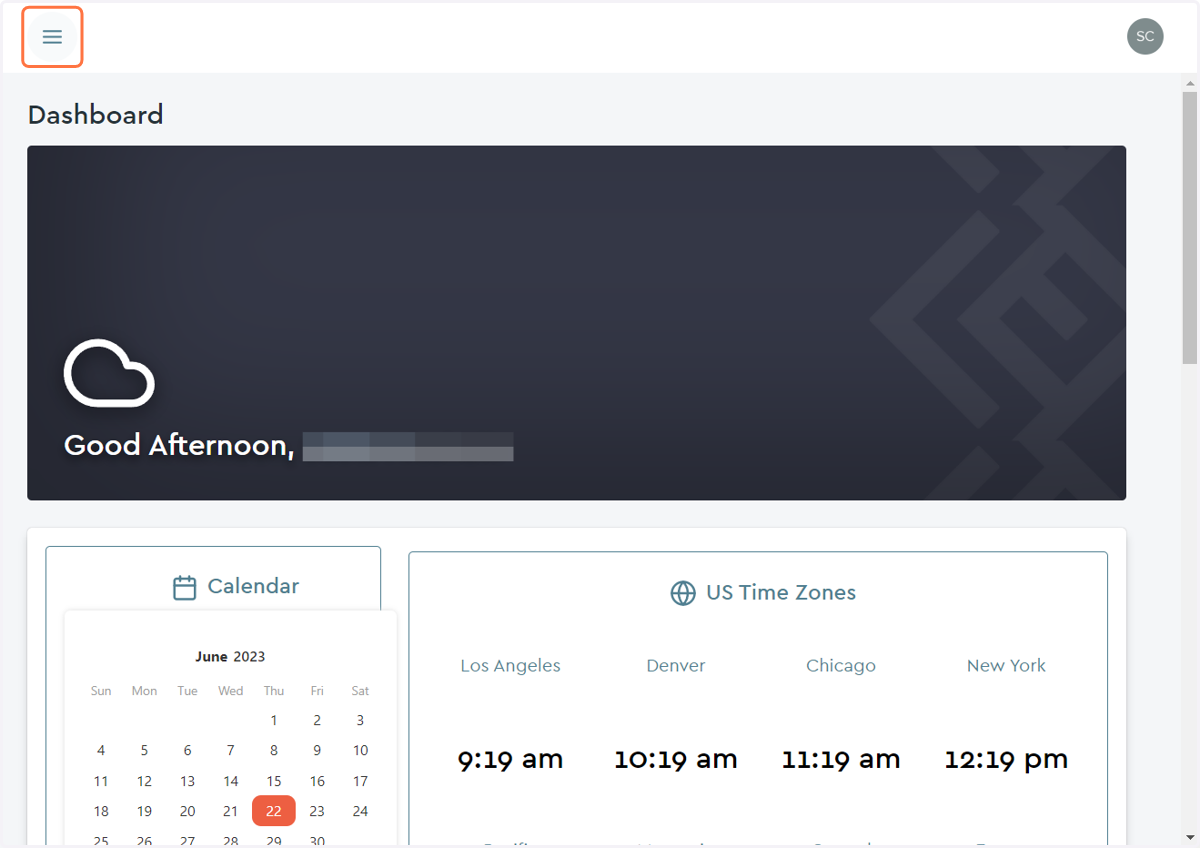
Once you sign into your account you will be taken to your dashboard. Here you can see a Calendar and Time Zone widgets to help you at a glance visualize the month. As well as contemplate the time differences between yourself and potential clients.
2. eSign widget
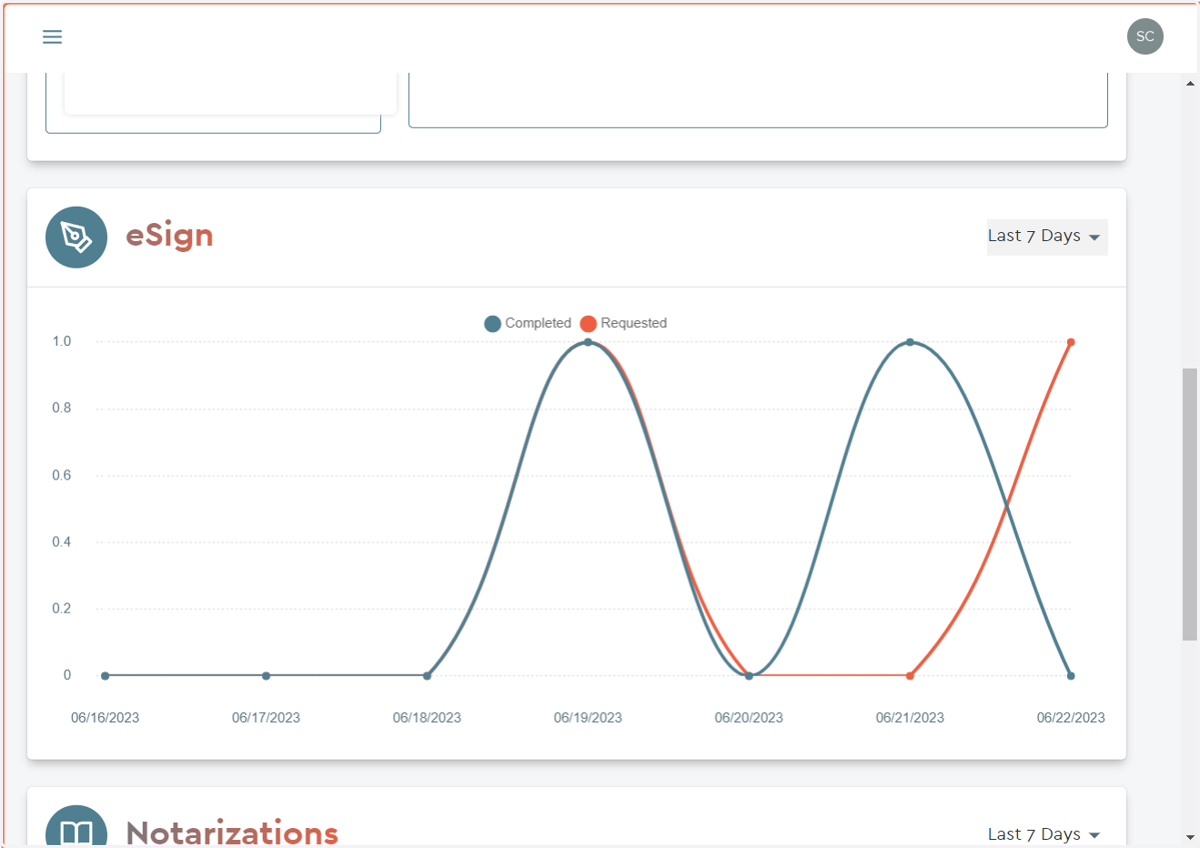
Scrolling down the dashboard page you will see a graphic to help you visualize your requested and completed eSign services over time.
3. Notarizations widget
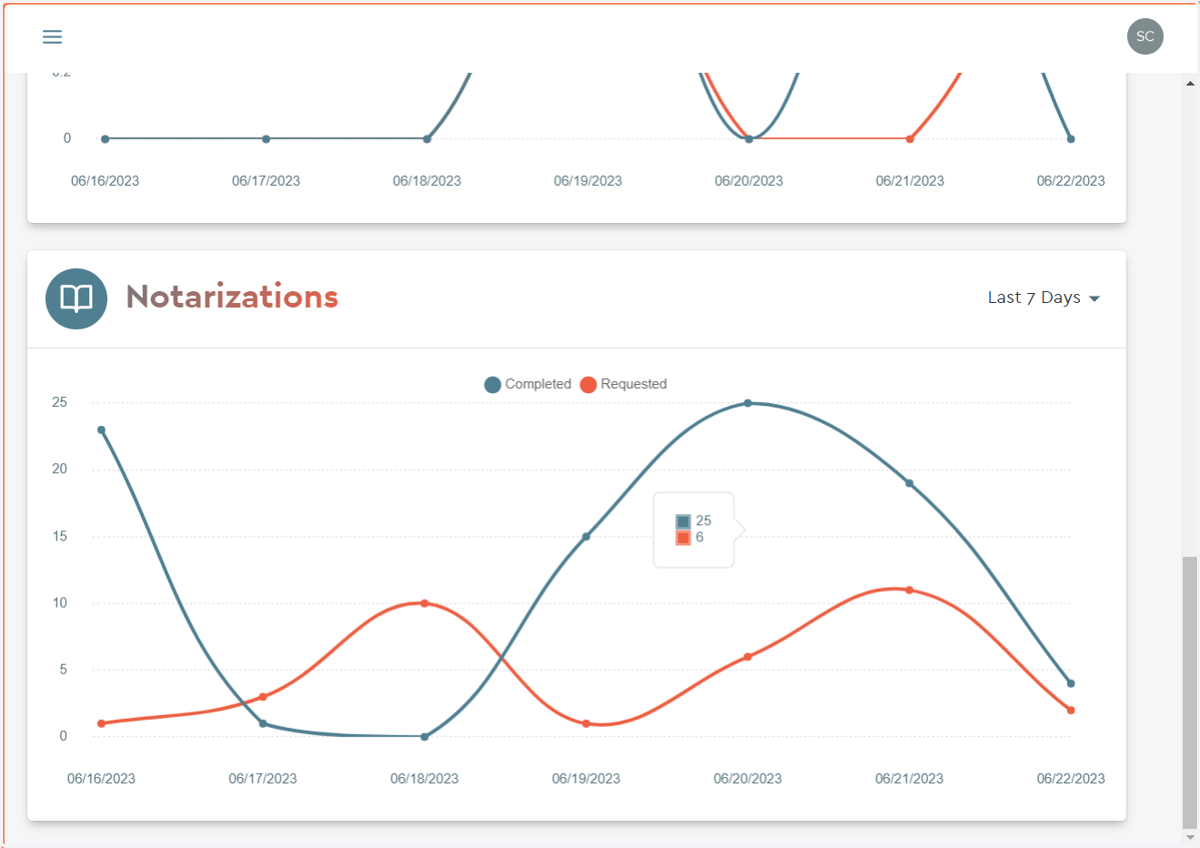
Scrolling further down the dashboard page you will see a graphic to help you visualize your requested and completed notarization services over time.
4. The Dashboard Menu
Additional tools and pages can be found by navigating to the dashboard's menu button.
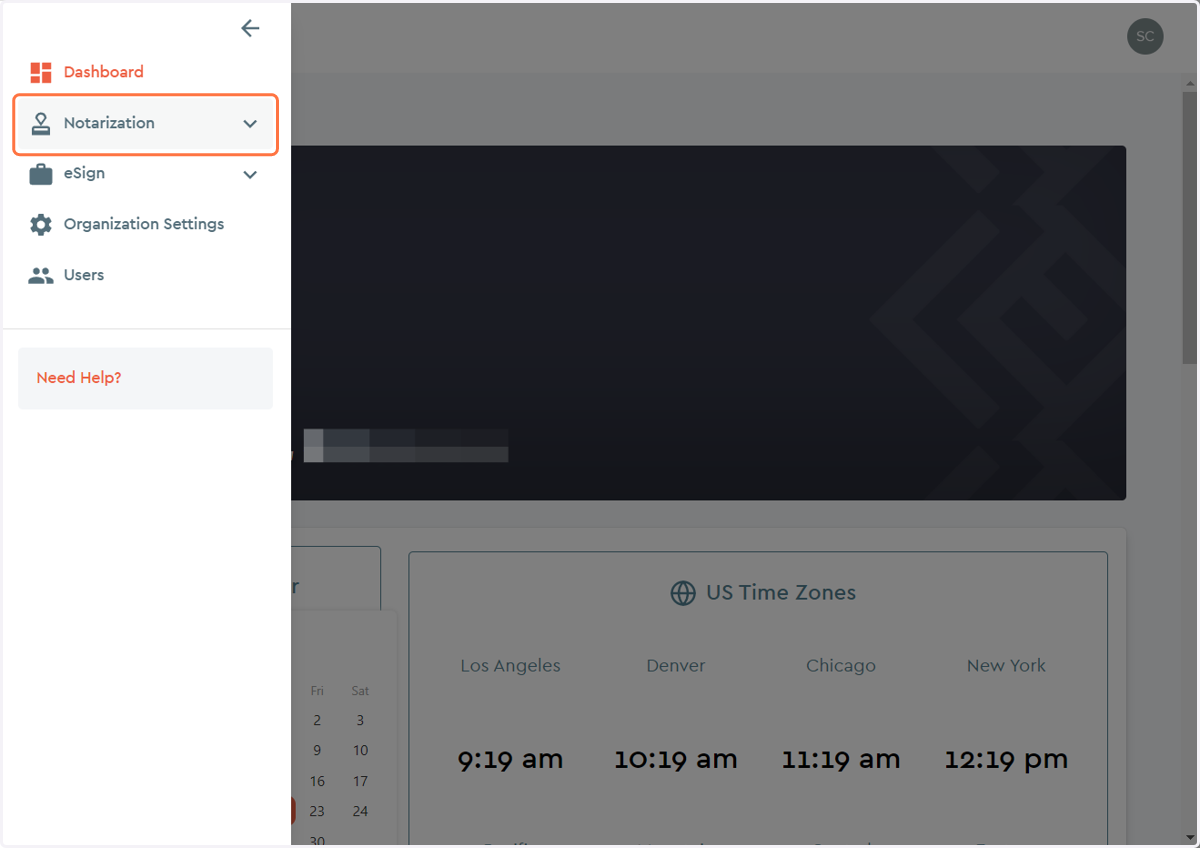
5. Notarization Dropdown Sub-menu
To Navigate to your Notarization services, click on the Notarization Dropdown Sub-menu button.
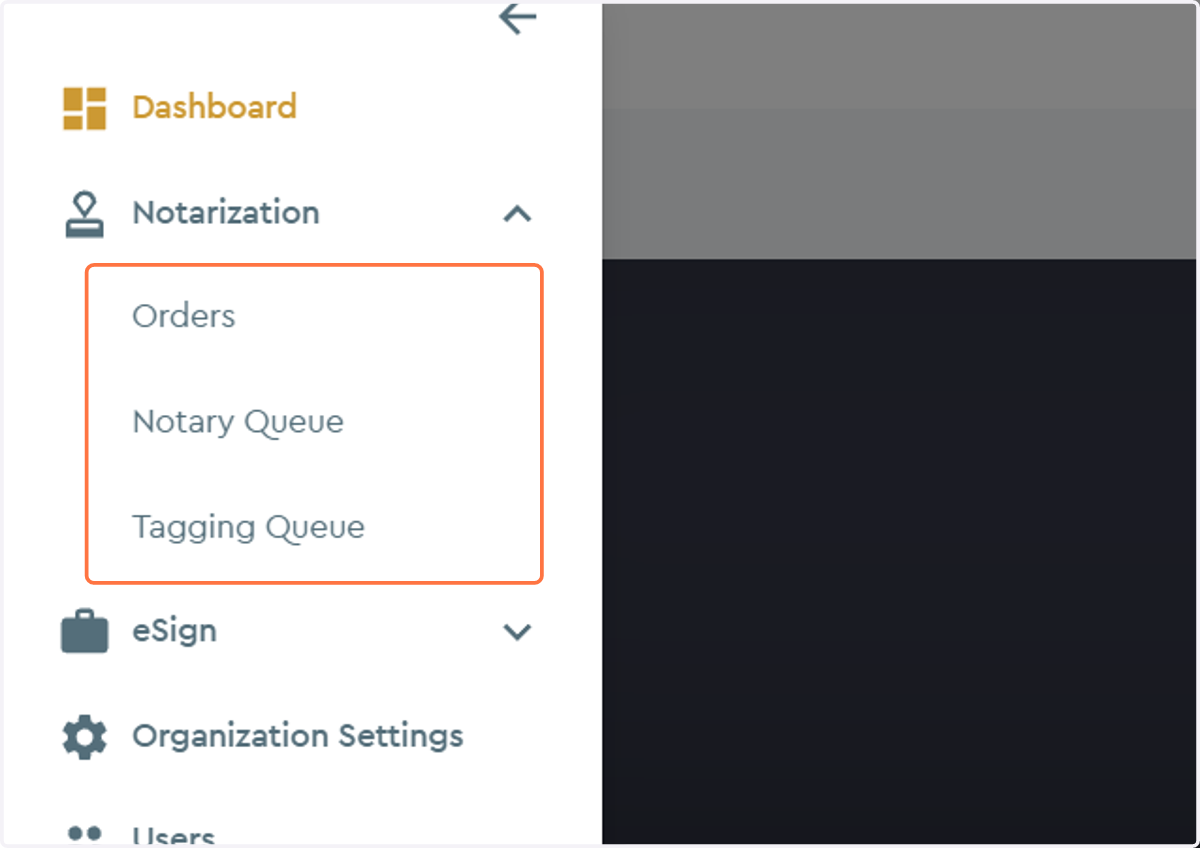
6. Under the Notarization Sub-menu
You can navigate to your Orders page, Notary Queue page, and Tagging Queue page by clicking on their respective buttons.
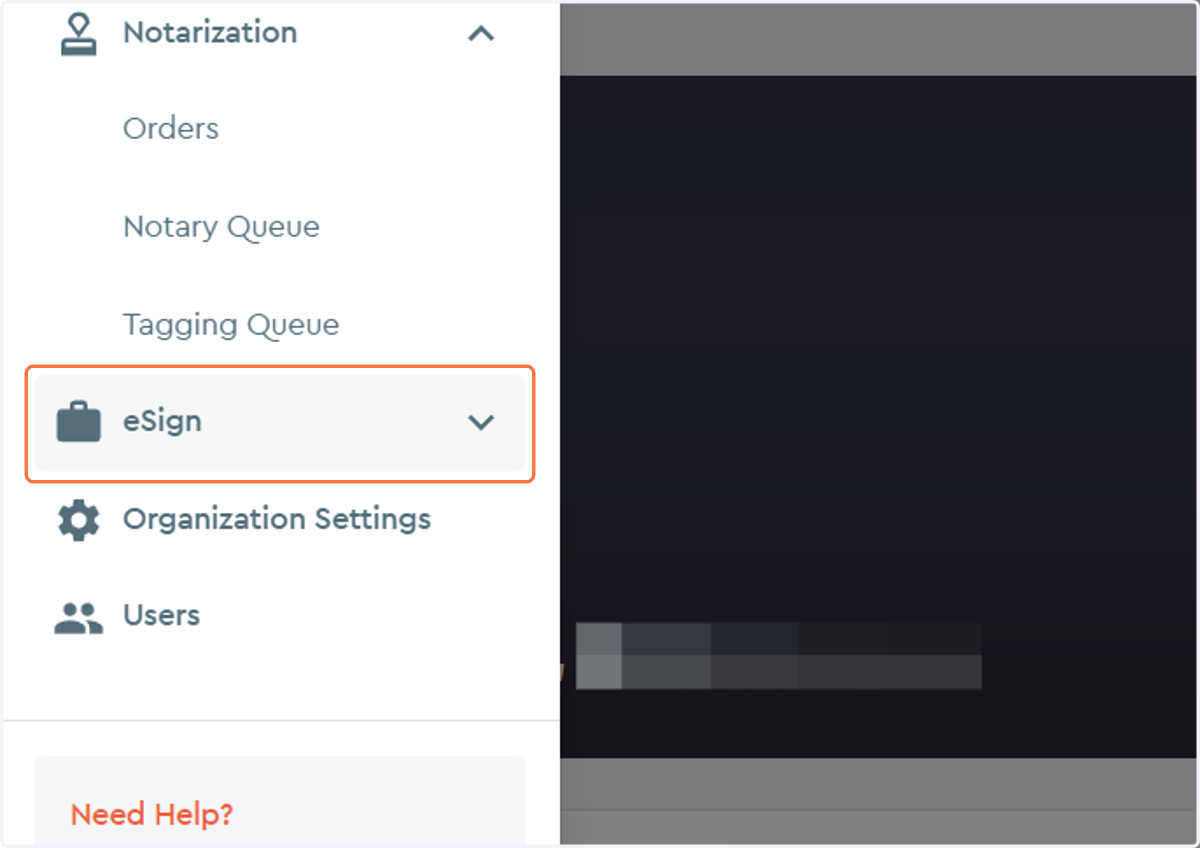
7. eSign Dropdown Sub-menu
To Navigate to your eSign services, click on the Notarization Dropdown Sub-menu button.
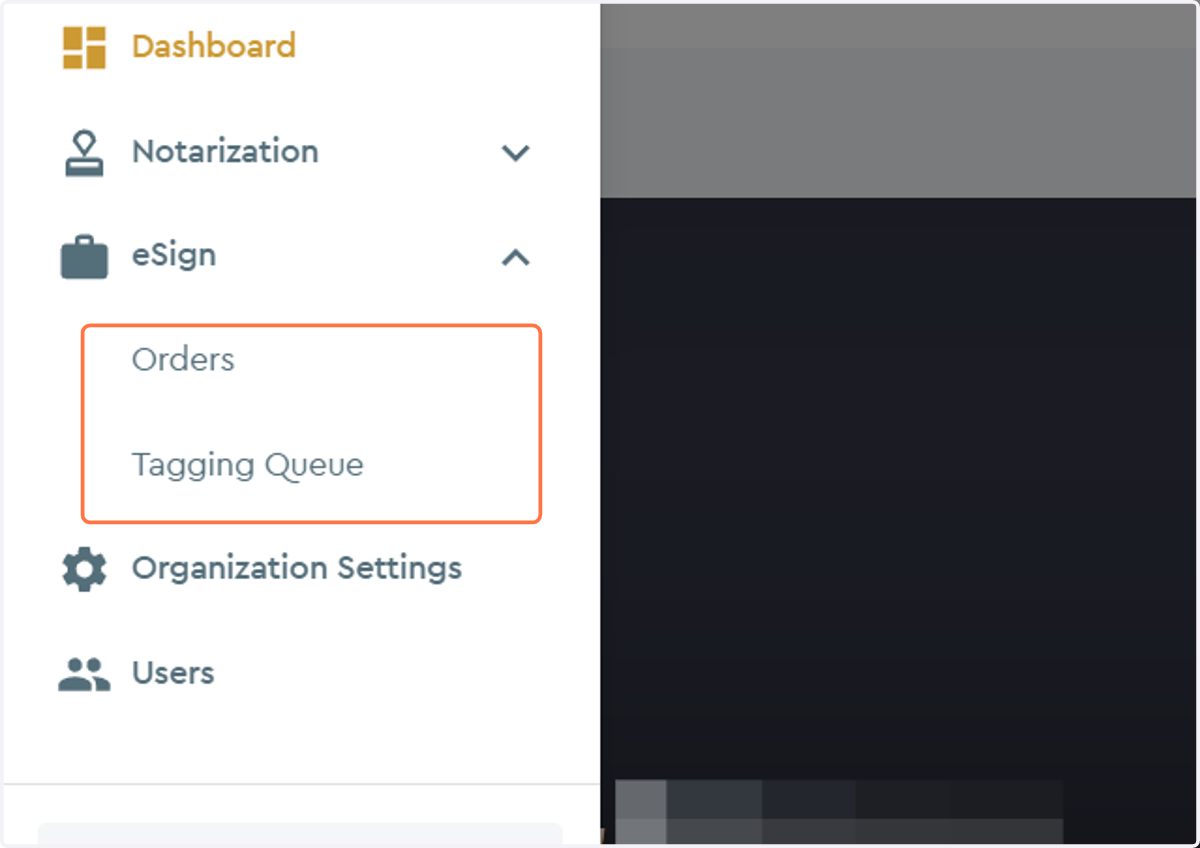
8. Under the eSign Sub-menu
You can navigate to your Orders page and Tagging Queue page by clicking on their respective buttons.
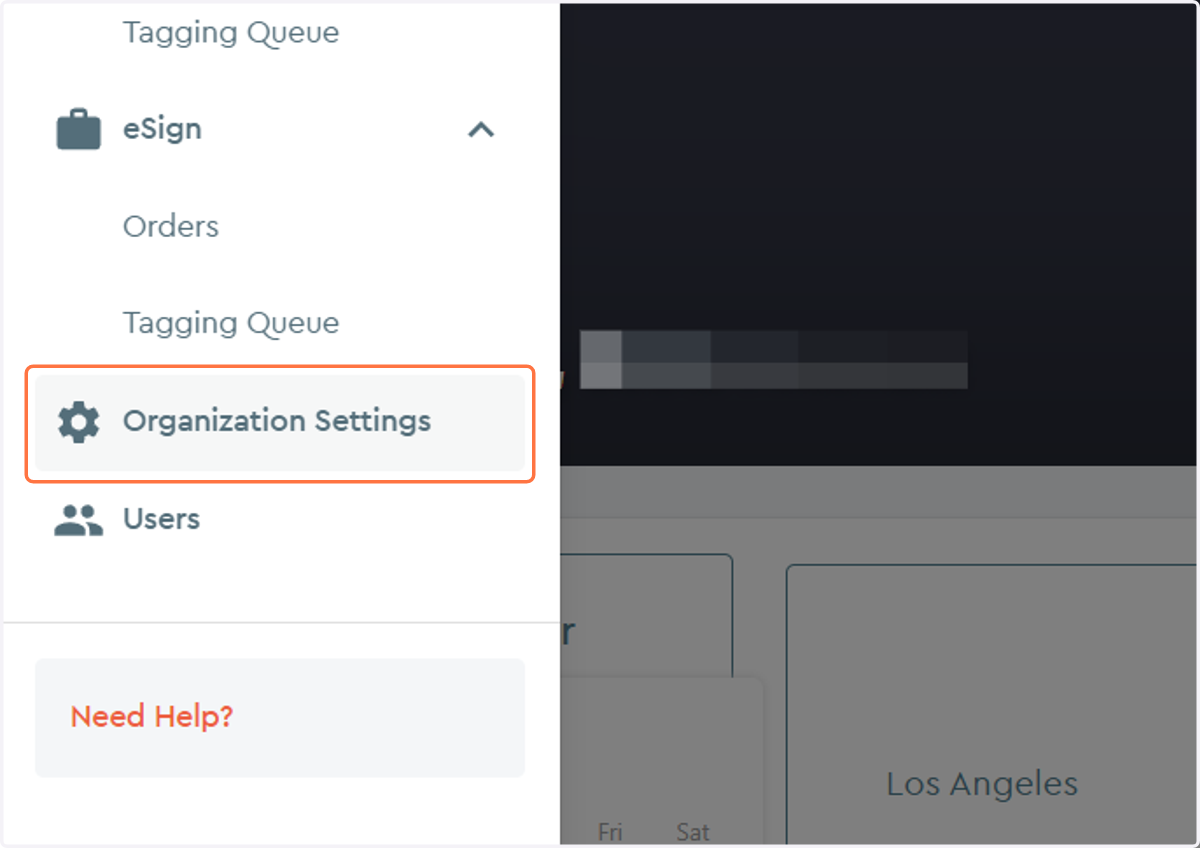
9. Organization Settings Sub-menu
To review or edit your Organization's Settings, click on the labeled button.
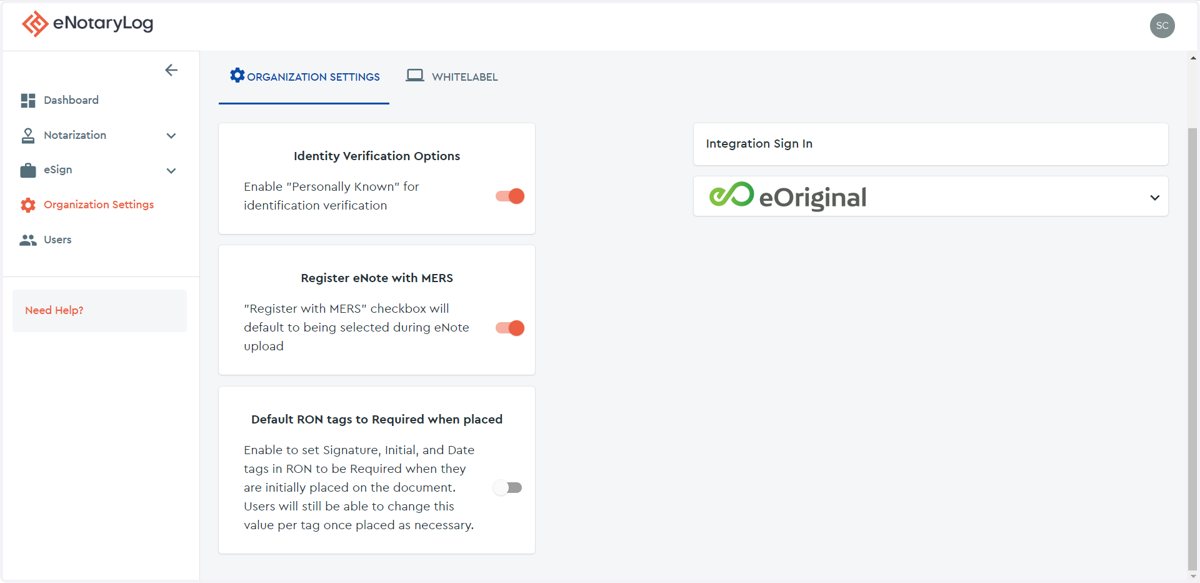
10. Organization Settings
Here you can toggle certain settings for your organizations.
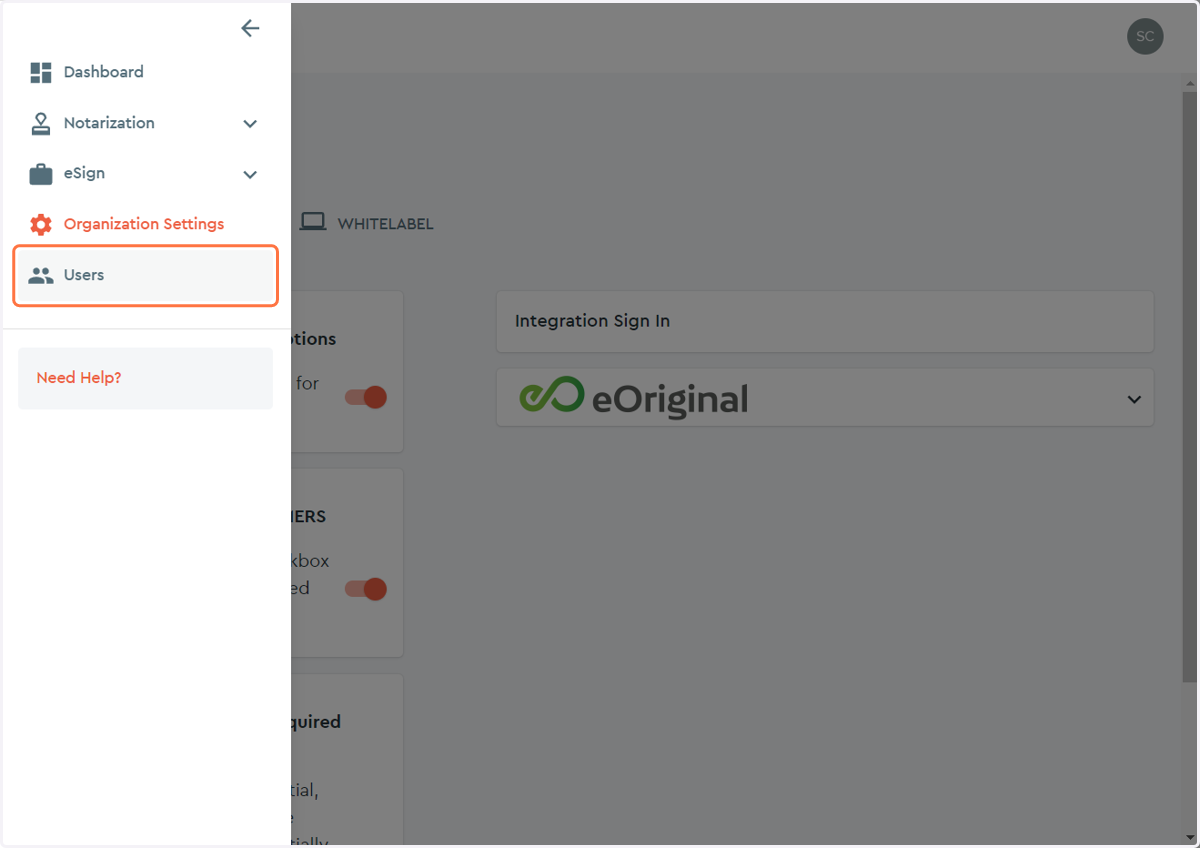
11. Users Sub-menu
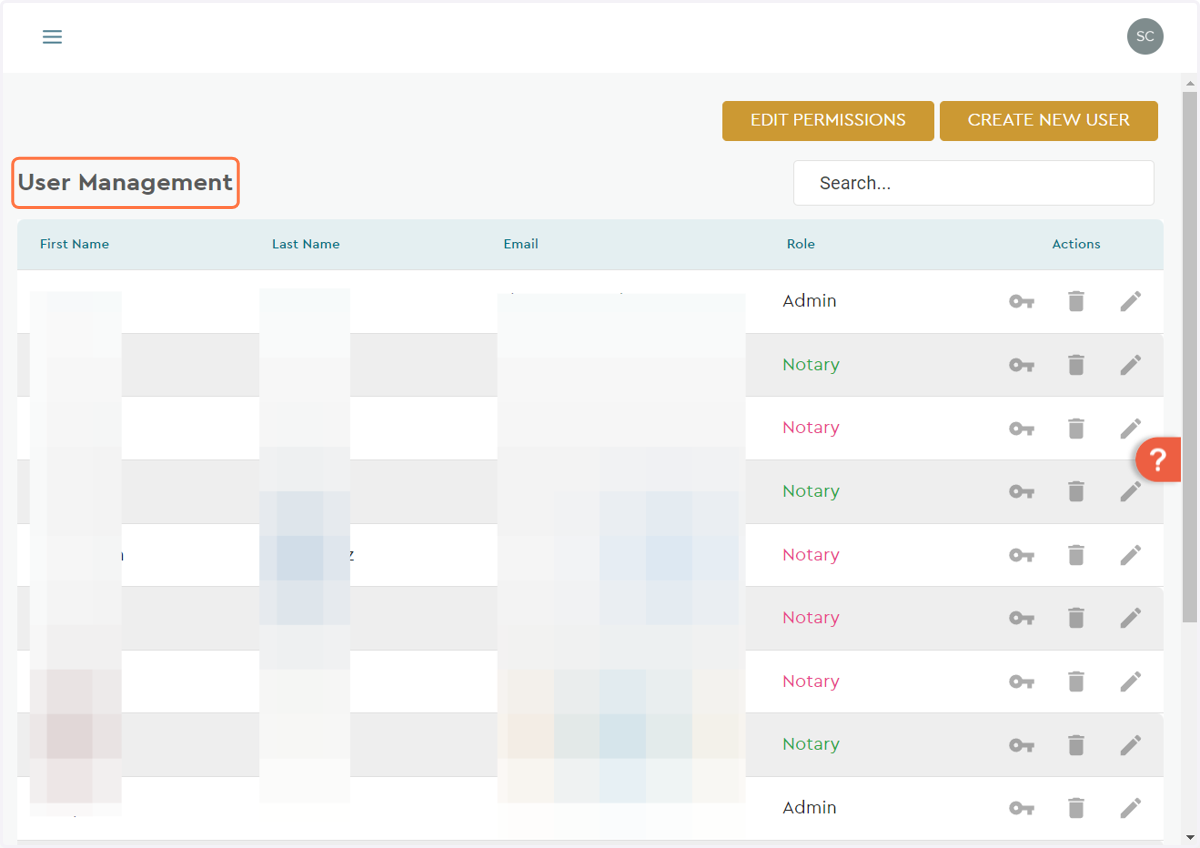
12. User Management Page
Here is where you can manage your Notaries and Admins.
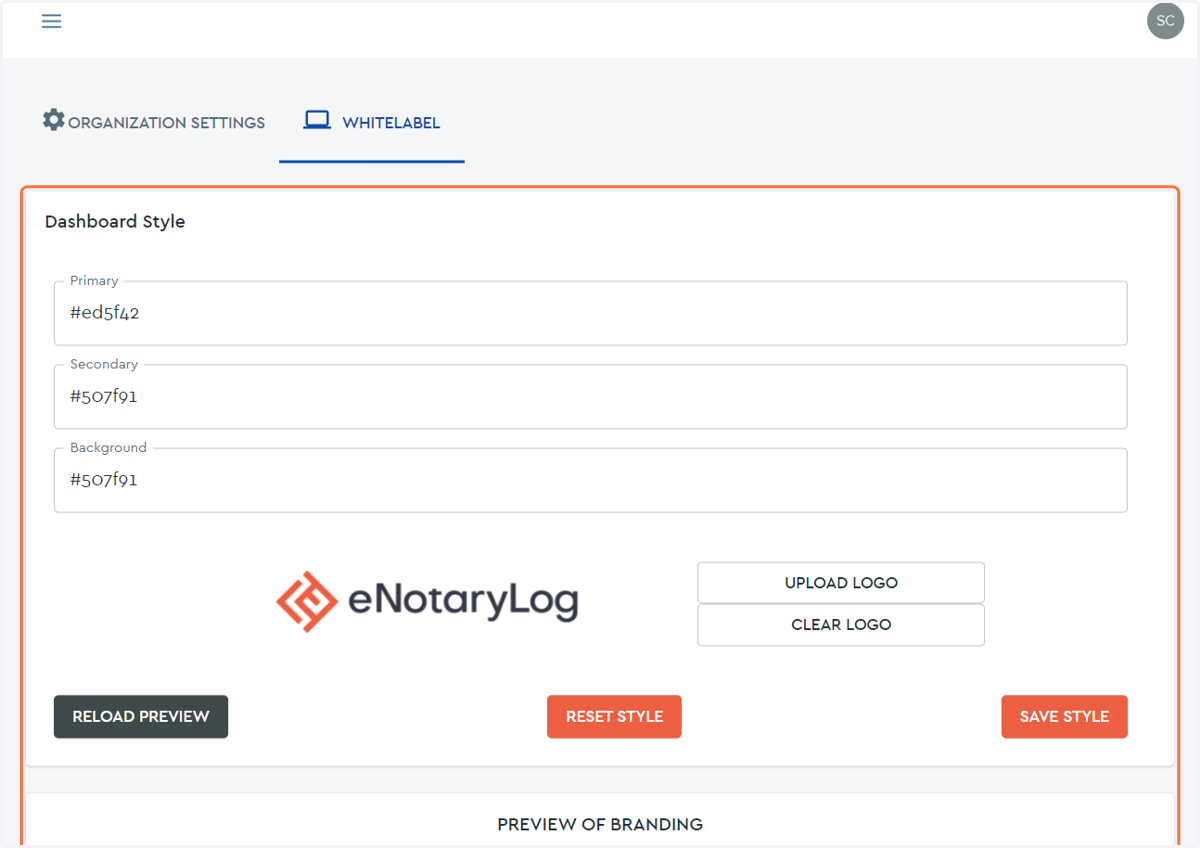
13. White Label Organization Settings Page
Utilizing Hex code, you can tailor our platform to be branded in your organizations colors.
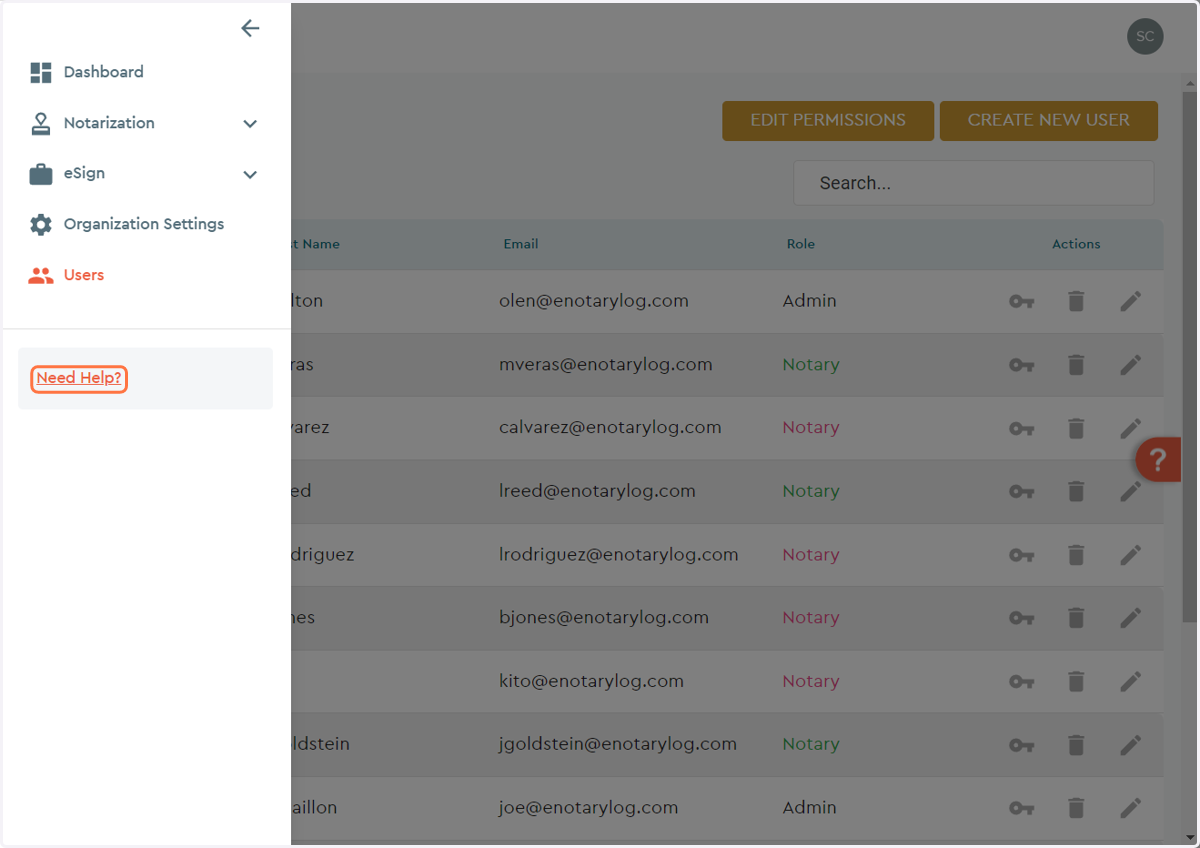
14. Need Help?
If you find yourself in need of FAQs, documentation, or technical support you can click on the hyper-link and you will be taken to our help.enotarylog.com page.
15. eNotaryLog Help Page