Relay (Split Load)

Loadops

  1. 1. Go to Loadops by Optym

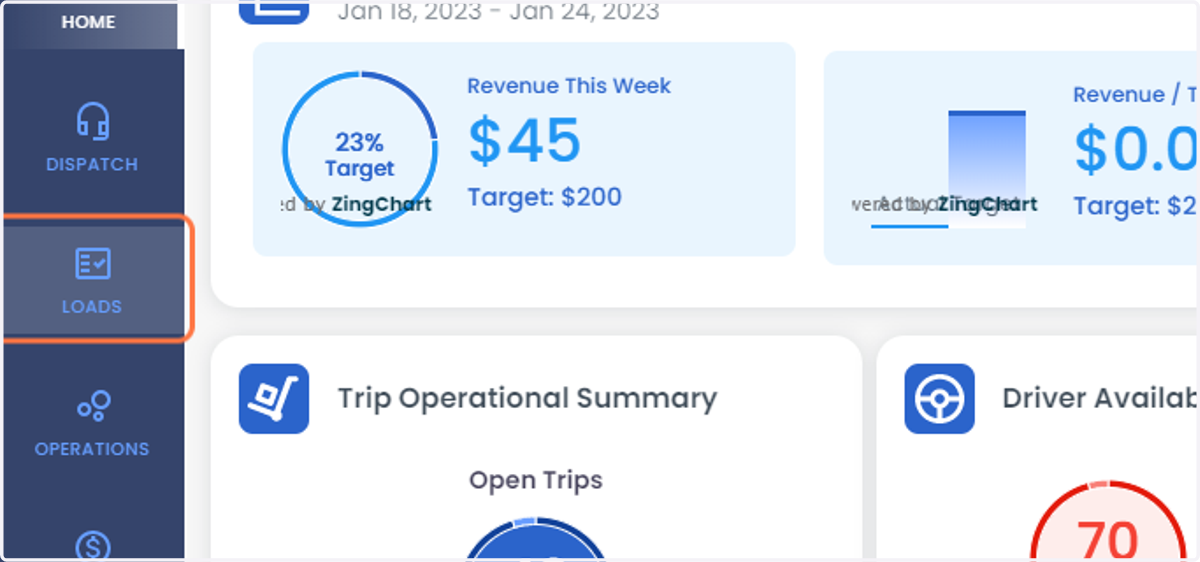
  2. 2. Click on LOADS

    Click on LOADS
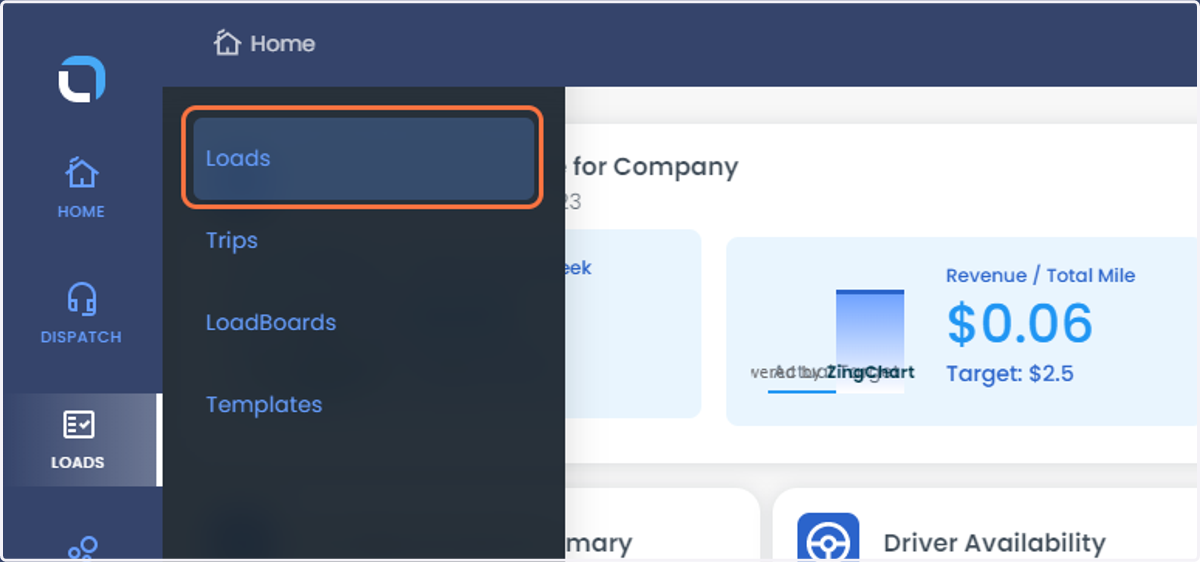
  3. 3. Click on Loads

    Click on Loads
  4. 4. Select the load which you would like to Split (Relay)
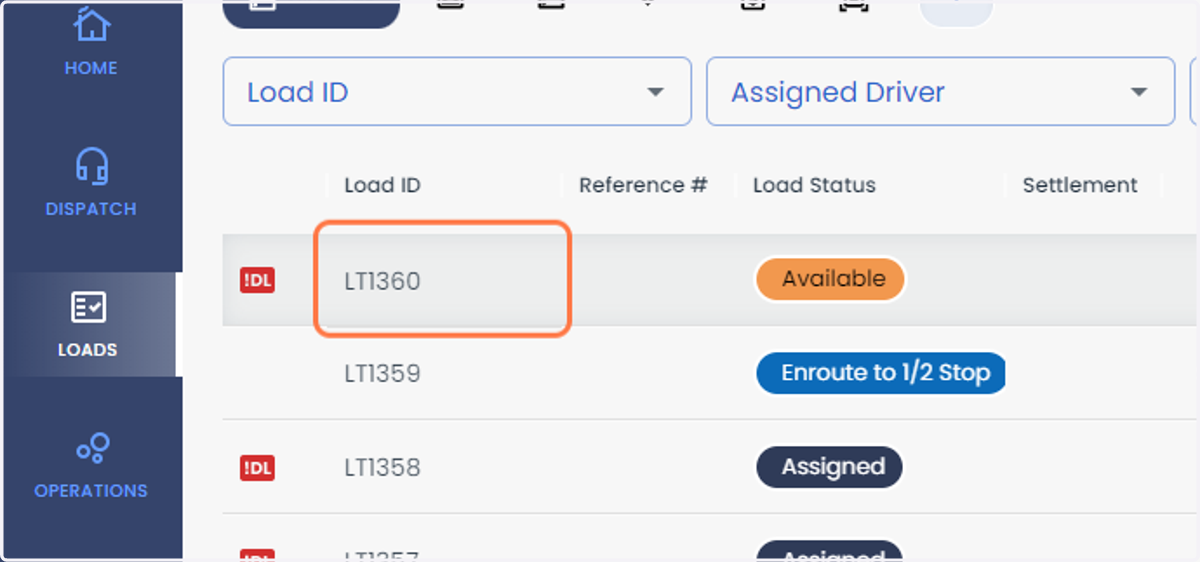
    Select the load which you would like to Split (Relay)
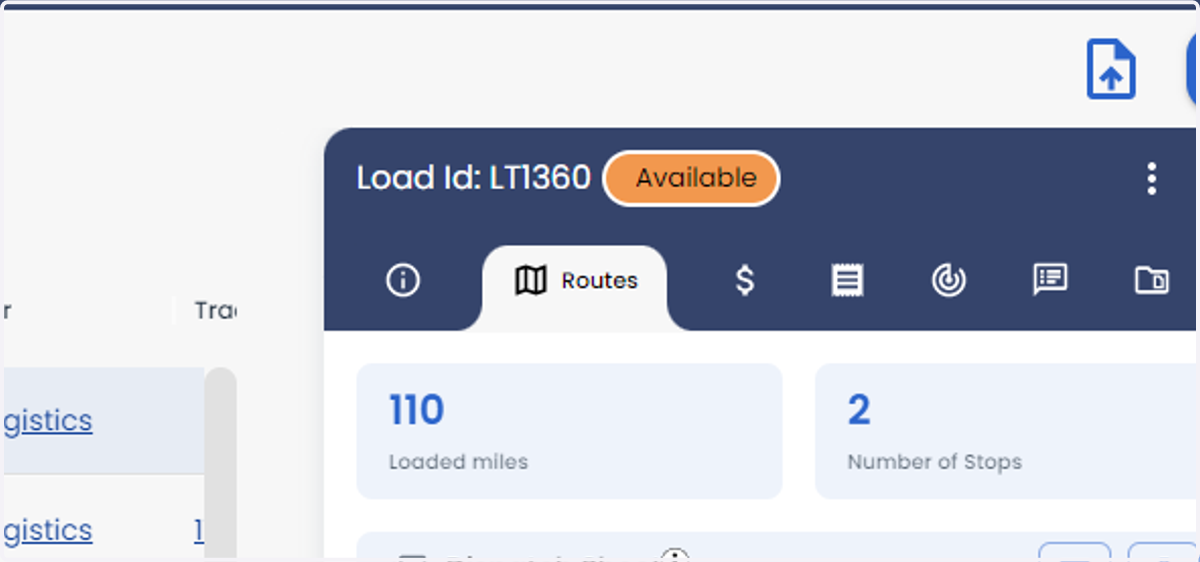
  5. 5. Click on Routes

    Click on Routes
  6. 6. Between the Pickup and Drop off select + button
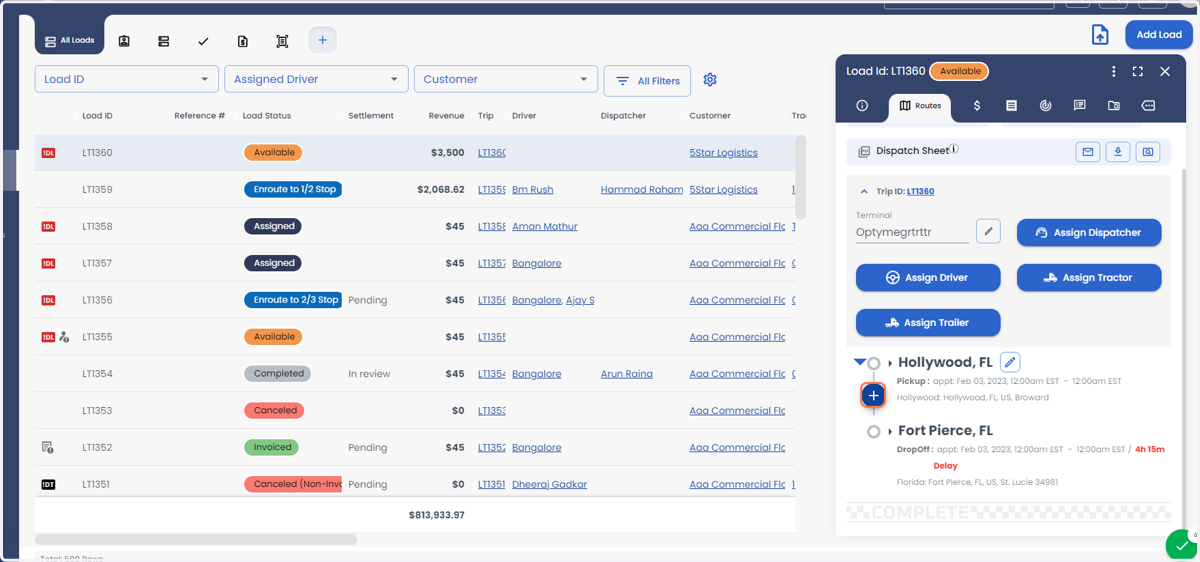
    Between the Pickup and Drop off select + button
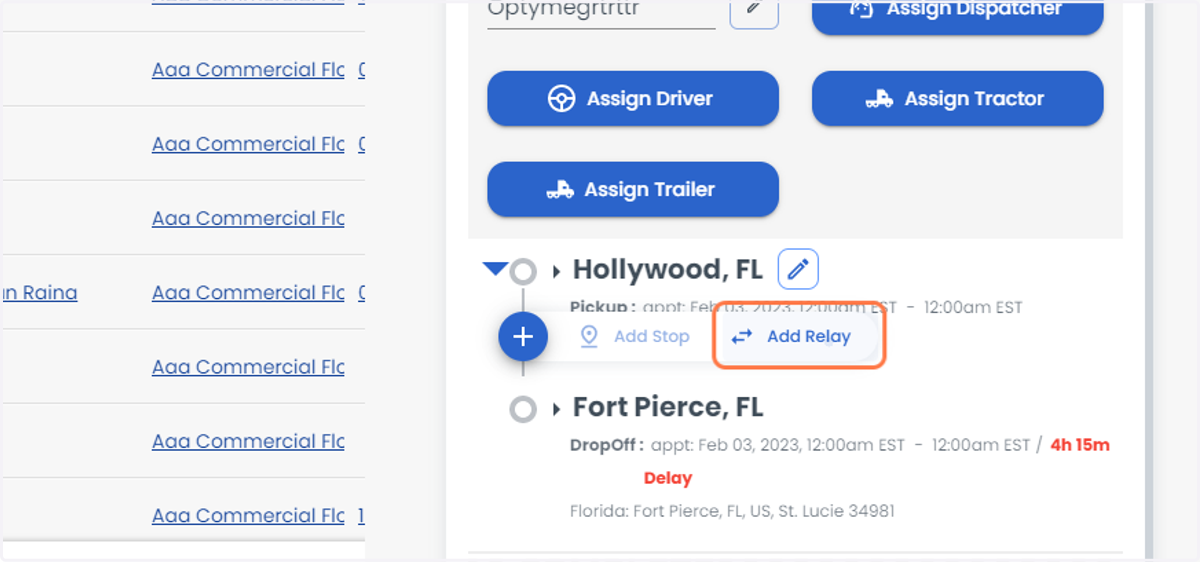
  7. 7. Click on Add Relay

    Click on Add Relay
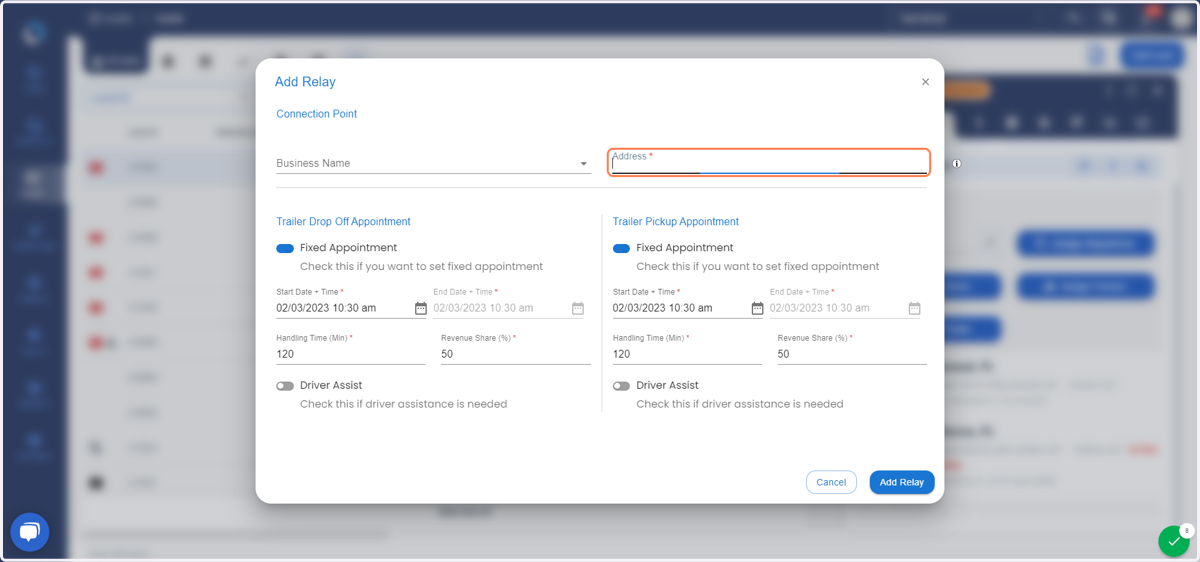
  8. 8. Enter the address

    Enter the address
  9. 9. Fill out the details and click on Add Relay
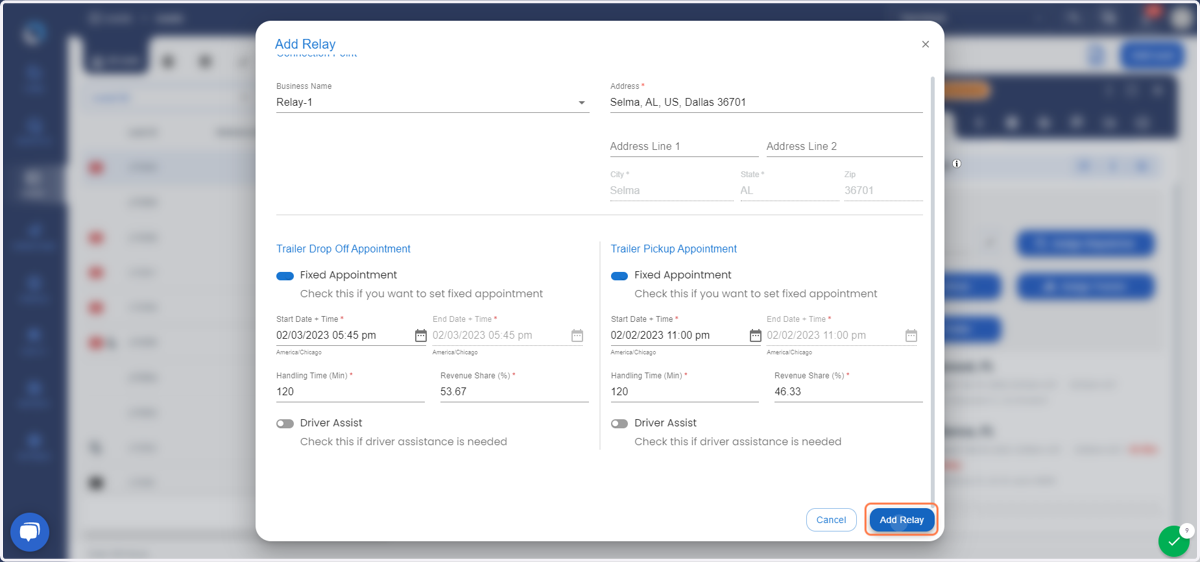
    Fill out the details and click on Add Relay
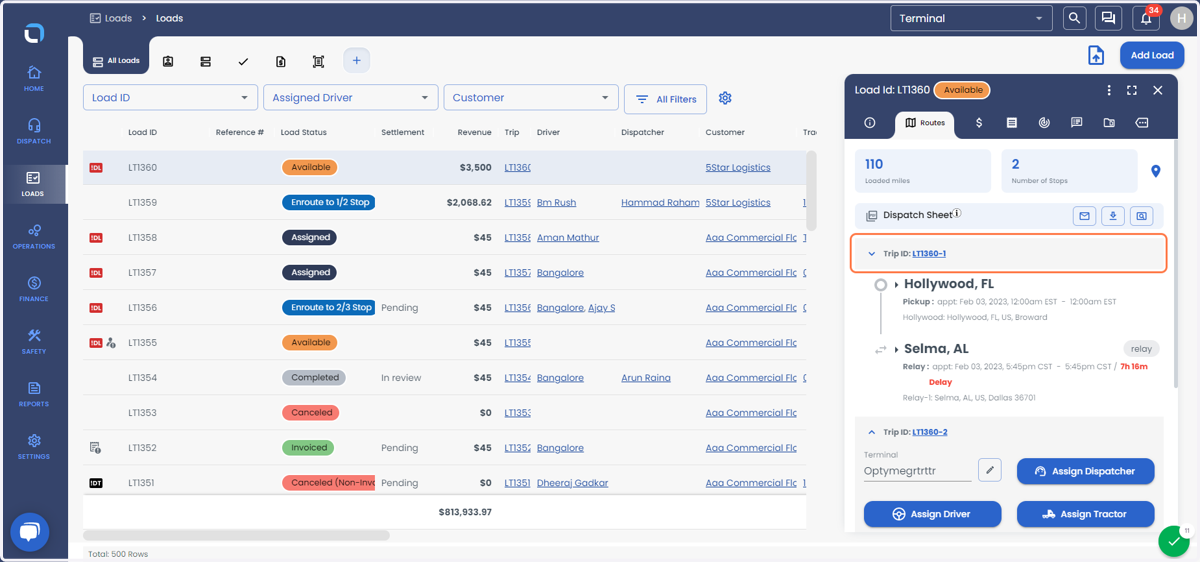
  10. 10. You have Trip-2 generated for the load
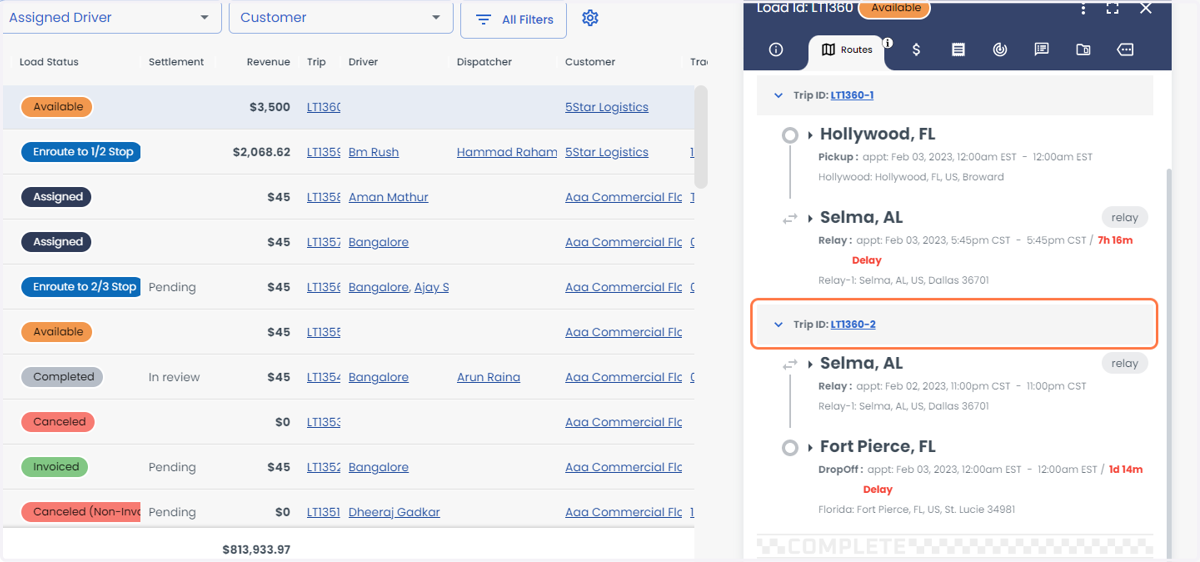
    You have Trip-2 generated for the load
  11. 11. Click on Trip ID-1

    Click on Trip ID-1
  12. 12. You can assign the driver, dispatcher, tractor, and Trailer for the Trip-1
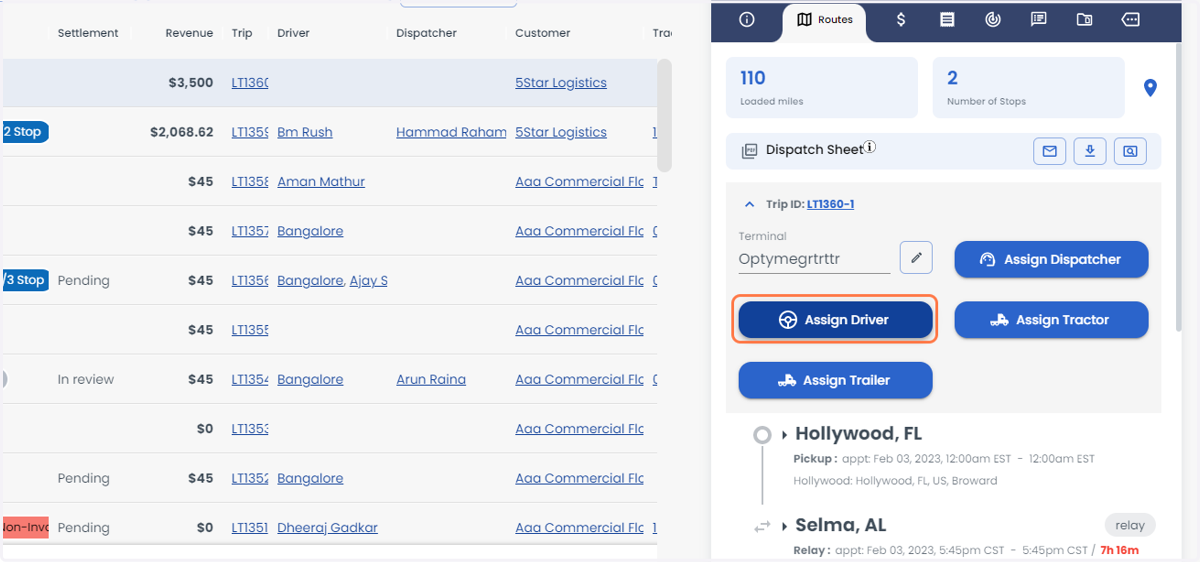
    You can assign the driver, dispatcher, tractor, and Trailer for the Trip-1
  13. 13. You can assign the driver, dispatcher, tractor, and Trailer for the Trip-2
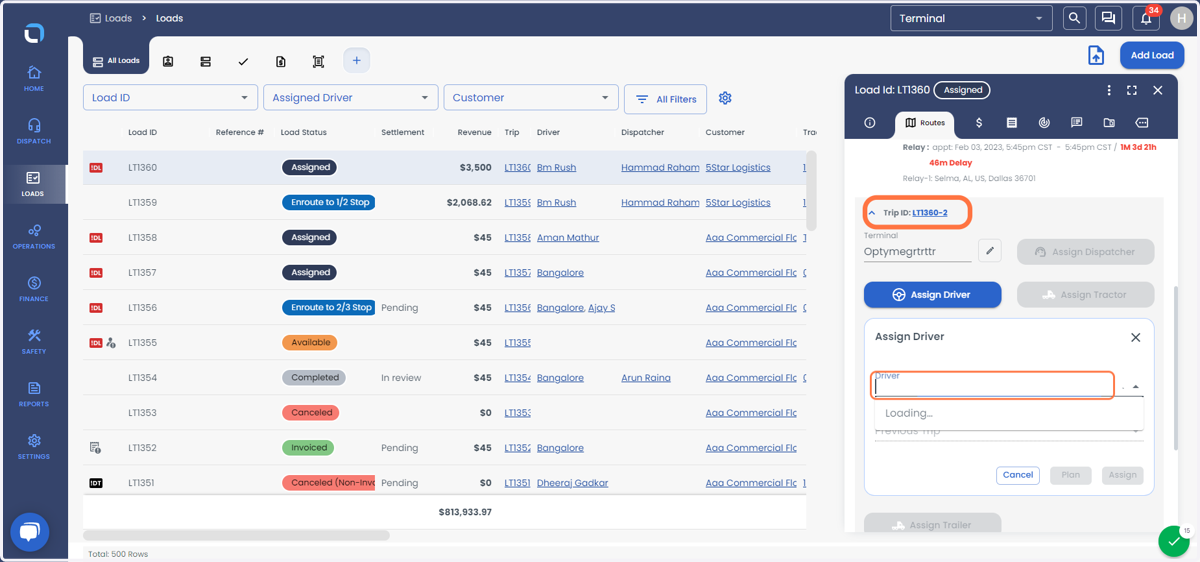
    You can assign the driver, dispatcher, tractor, and Trailer for the Trip-2
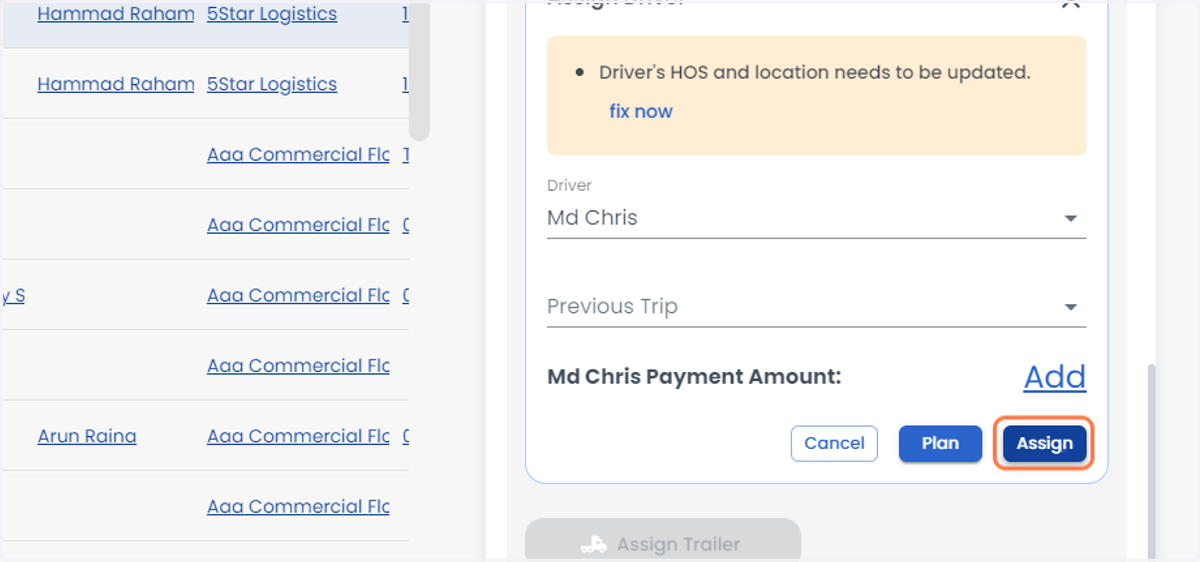
  14. 14. Once done click on Assign.

    Once done click on Assign.
  15. 15. With the Mini window click on the trip ID-1
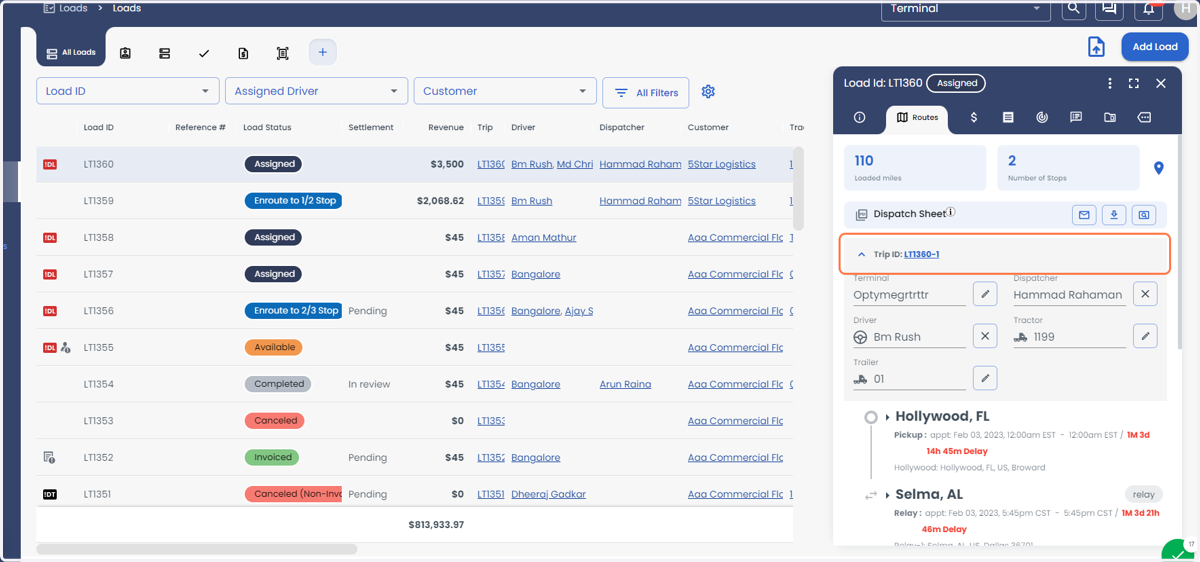
    With the Mini window click on the trip ID-1
  16. 16. Click on Route to get the route details for the Trip-1
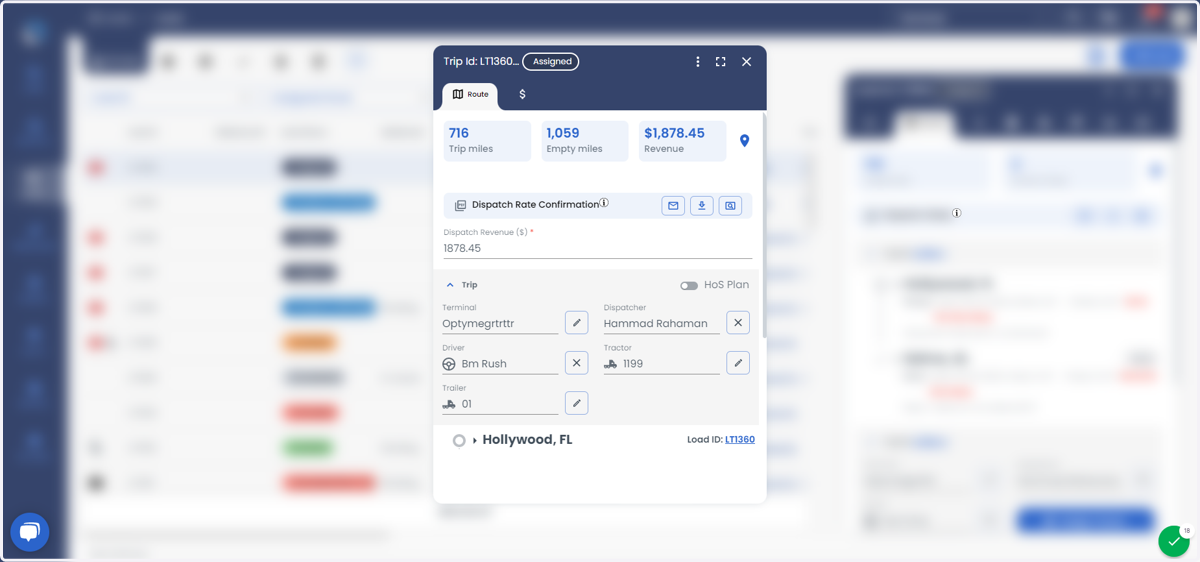
    Click on Route to get the route details for the Trip-1
  17. 17. Click on Finance to get the financial details for the Trip-1
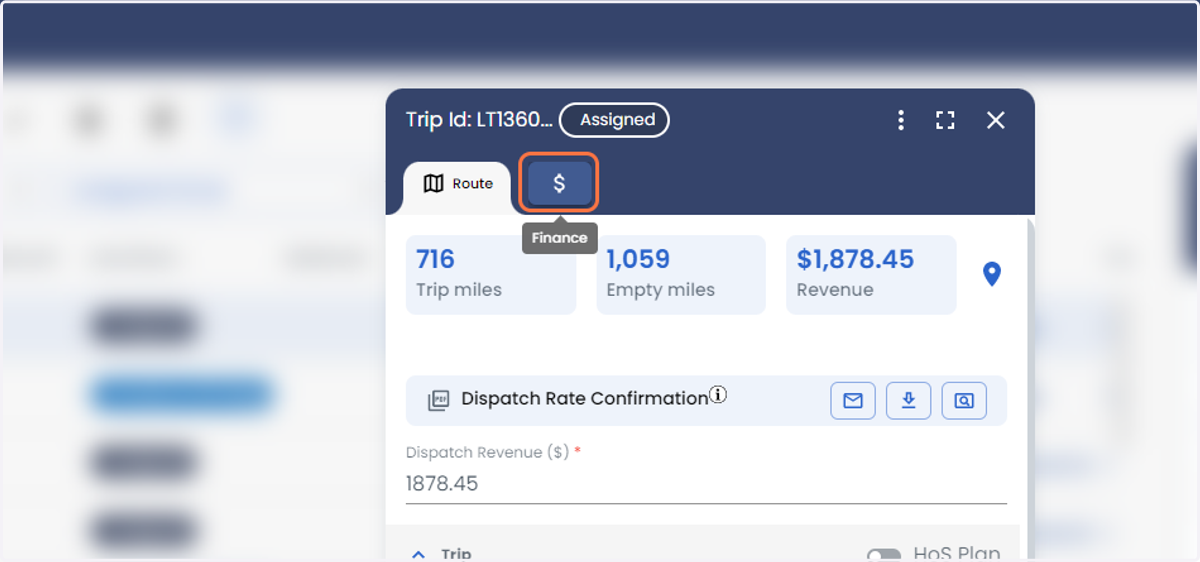
    Click on Finance to get the financial details for the Trip-1
  18. 18. Click on more

    Click on more
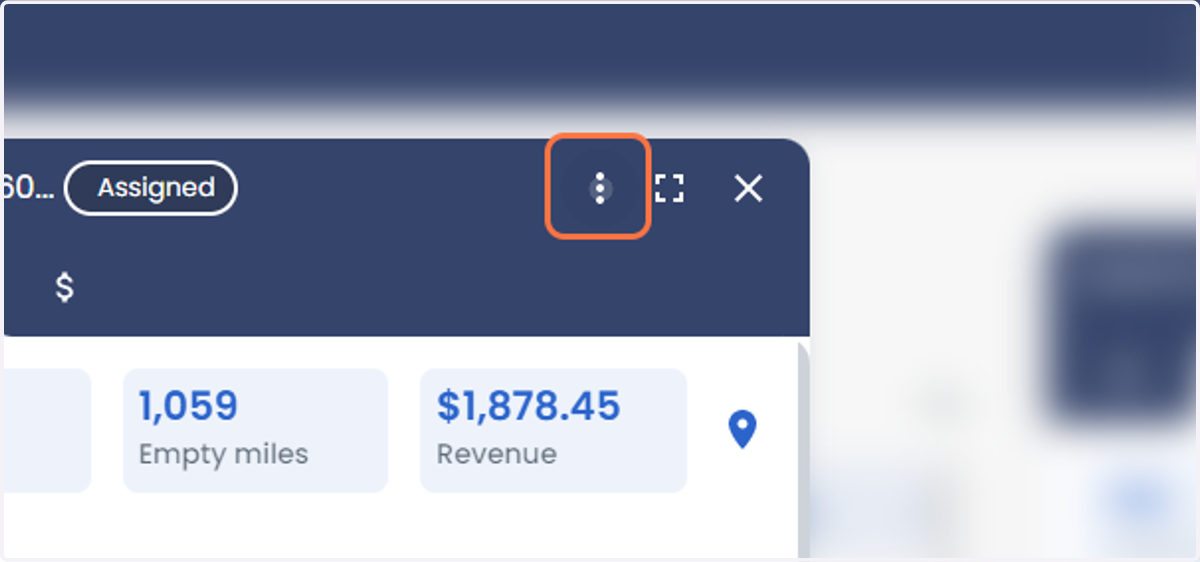
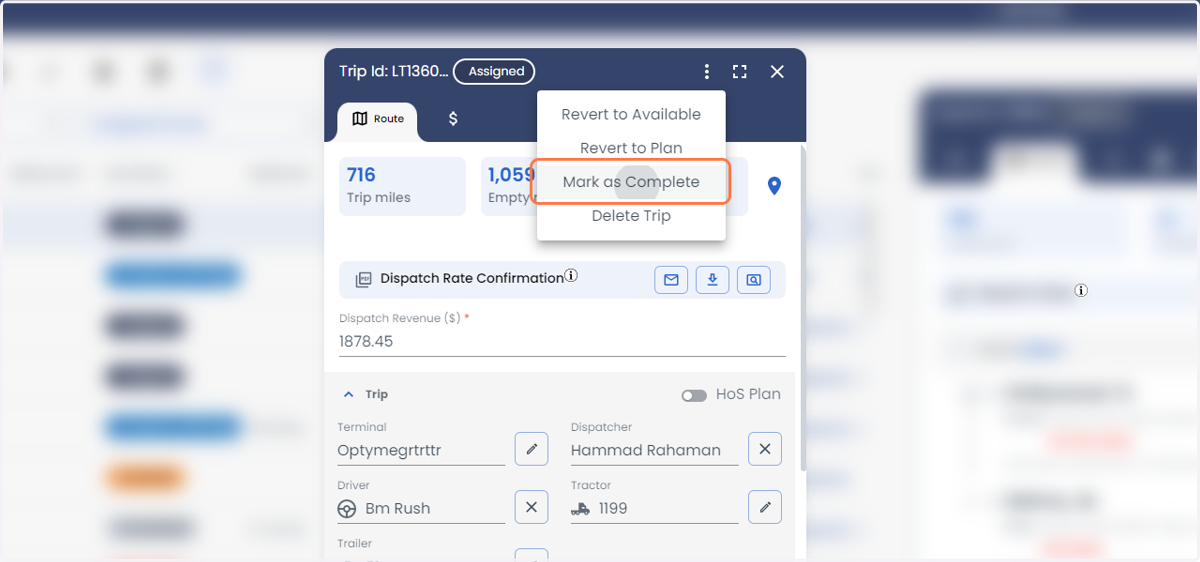
  19. 19. You can click on the three vertical dotted lines to get the option (Note: the option work only for the particular Trip-1)
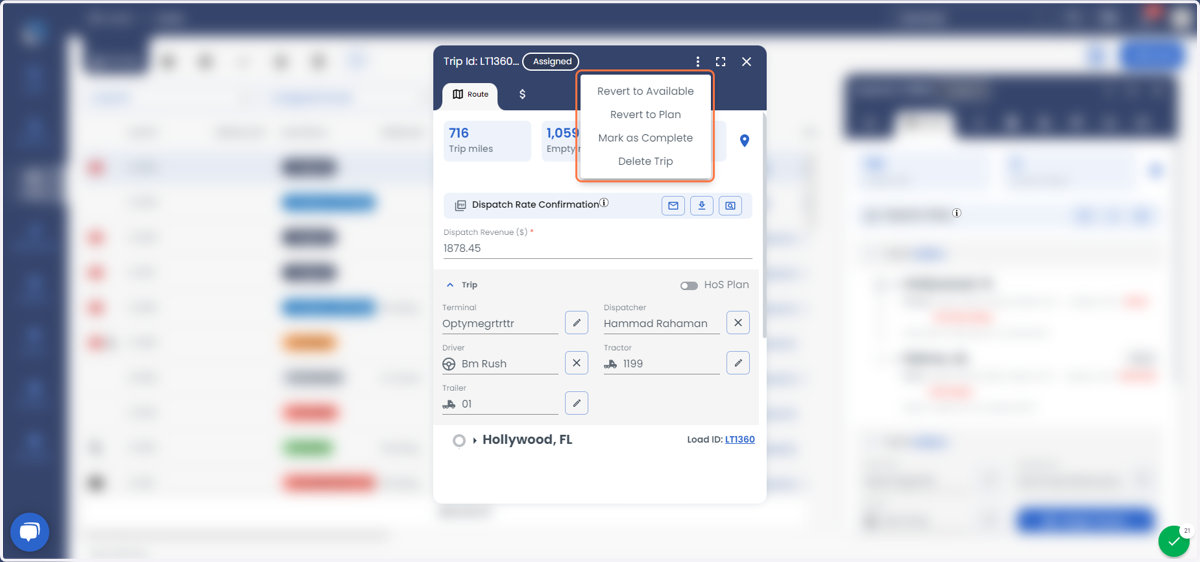
    You can click on the three vertical dotted lines to get the option (Note: the option work only for the particular Trip-1)
  20. 20. Click on Mark as Complete

    Click on Mark as Complete
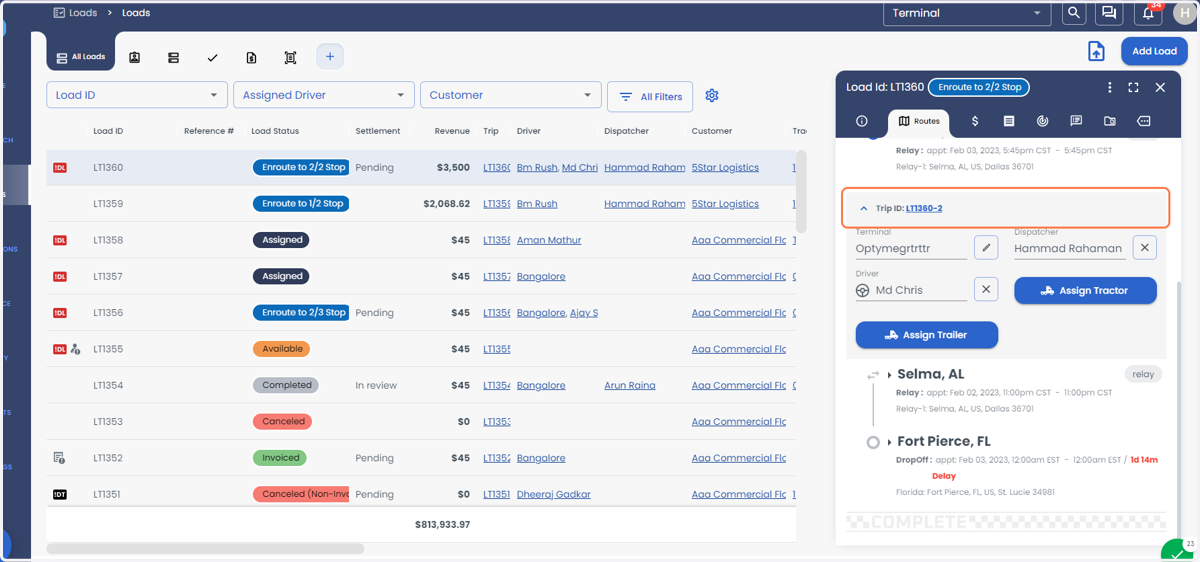
  21. 21. Click on LT1360-2

    Click on LT1360-2
  22. 22. Click on Route to get the route details for the Trip-2
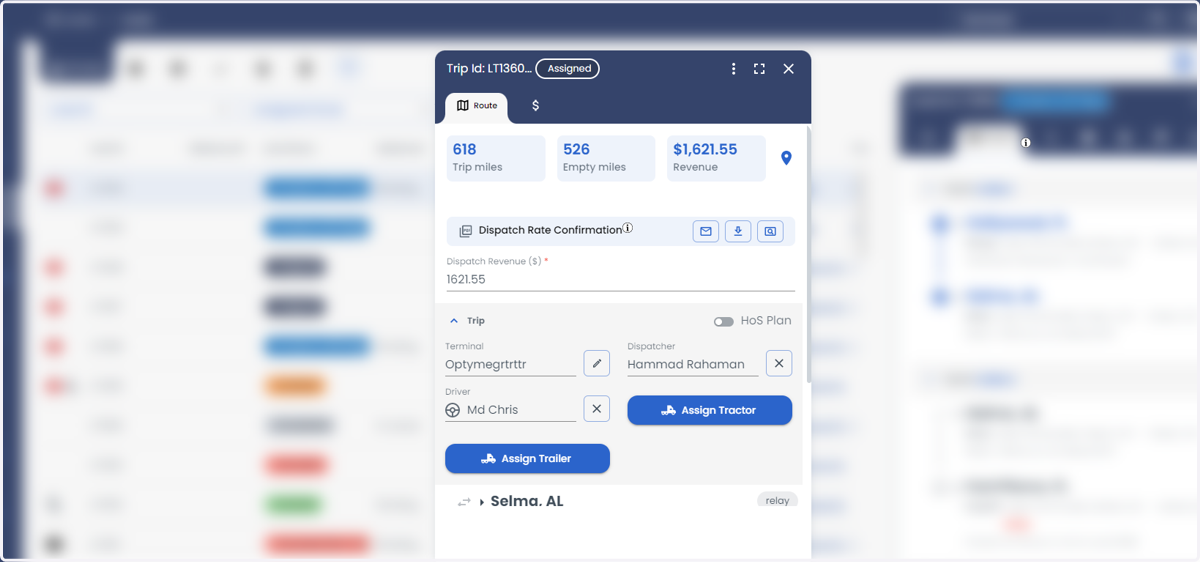
    Click on Route to get the route details for the Trip-2
  23. 23. Click on Finance to get the financial details for the Trip-2
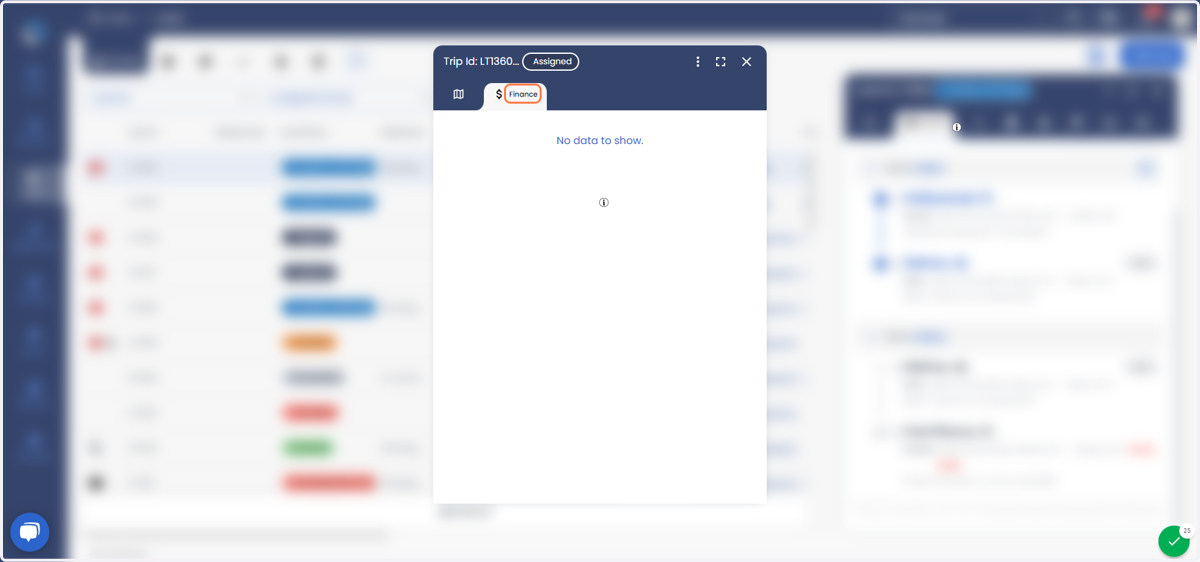
    Click on Finance to get the financial details for the Trip-2
  24. 24. Click on three vertical dotted lines
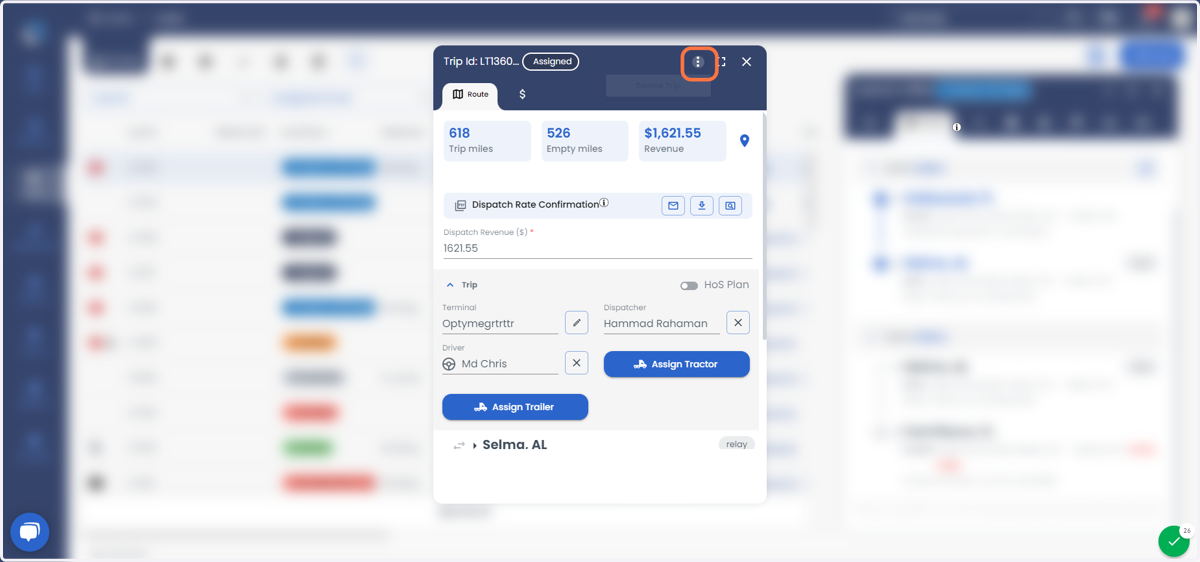
    Click on three vertical dotted lines
  25. 25. You can click on the three vertical dotted lines to get the option (Note: the option work only for the particular Trip-2)
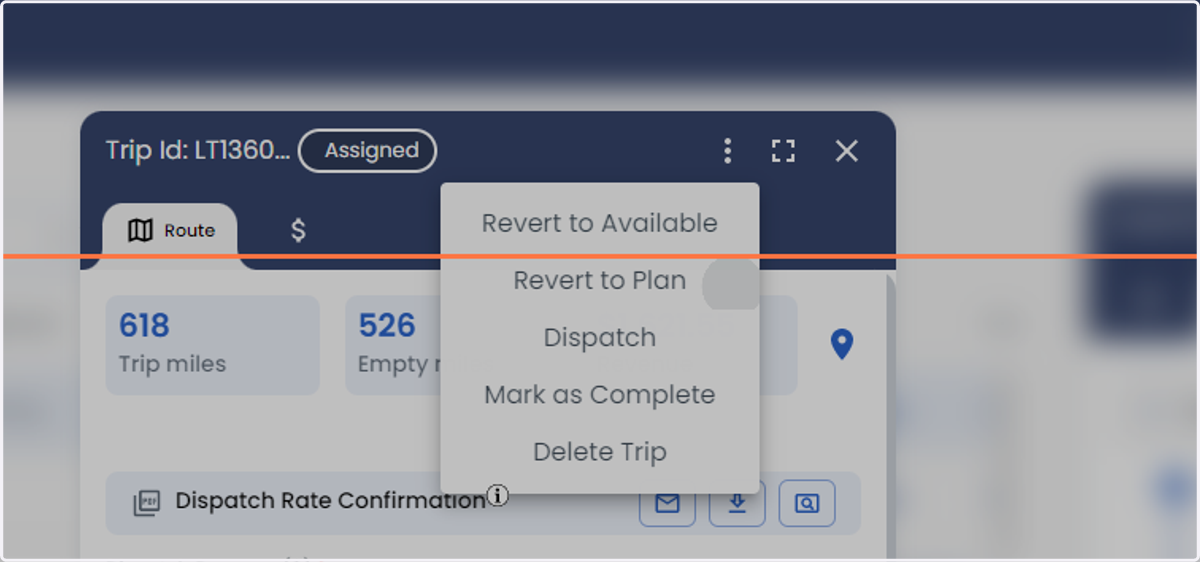
    You can click on the three vertical dotted lines to get the option (Note: the option work only for the particular Trip-2)
  26. 26. Click on three vertical dotted lines for the load
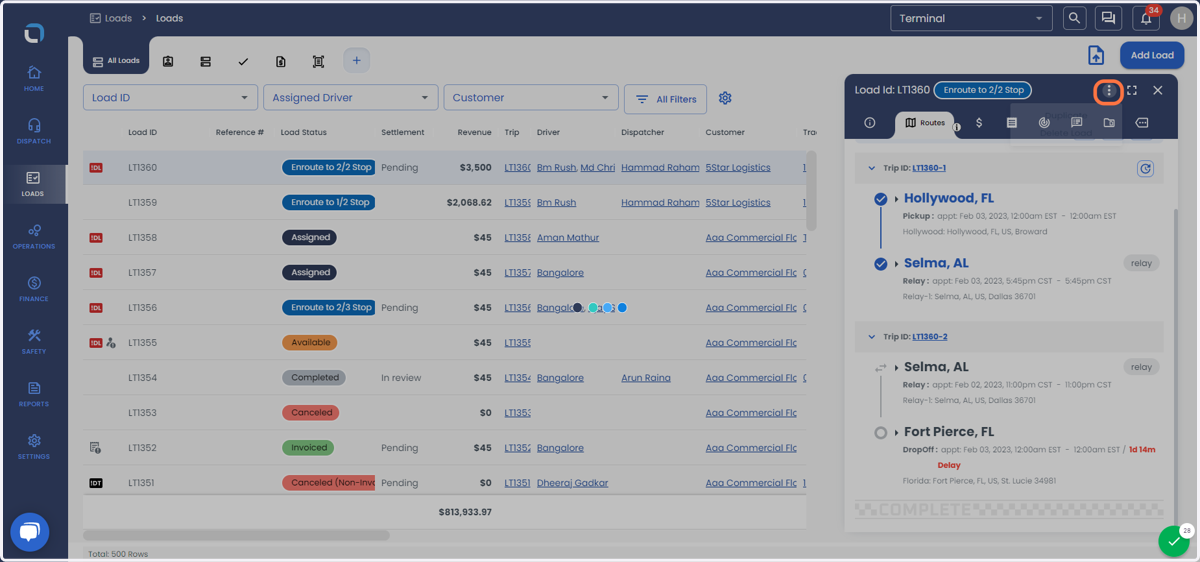
    Click on three vertical dotted lines for the load
  27. 27. You can select the options that would be applicable for the load.
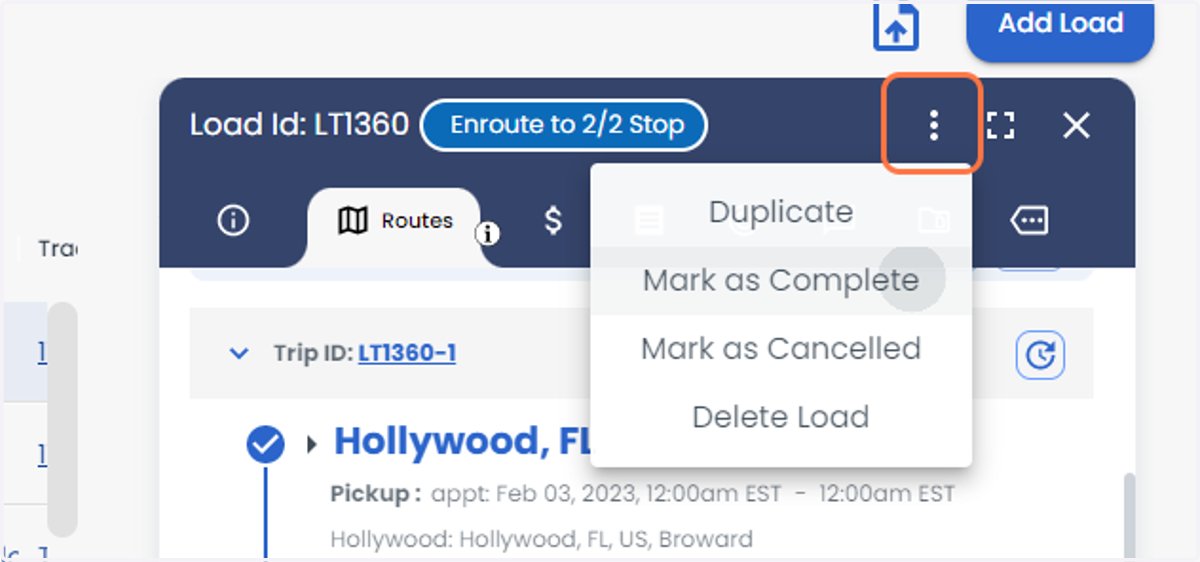
    You can select the options that would be applicable for the load.