How to set up a Canvas Integration
Academics
1. When a customer requests to integrate with Canvas, be sure to send them this guide and provide the 5 items that we need to set them up.
Client ID
Client Secret
Endpoint URL
Access Token
Canvas Admin Account ID
2. Click on Administration
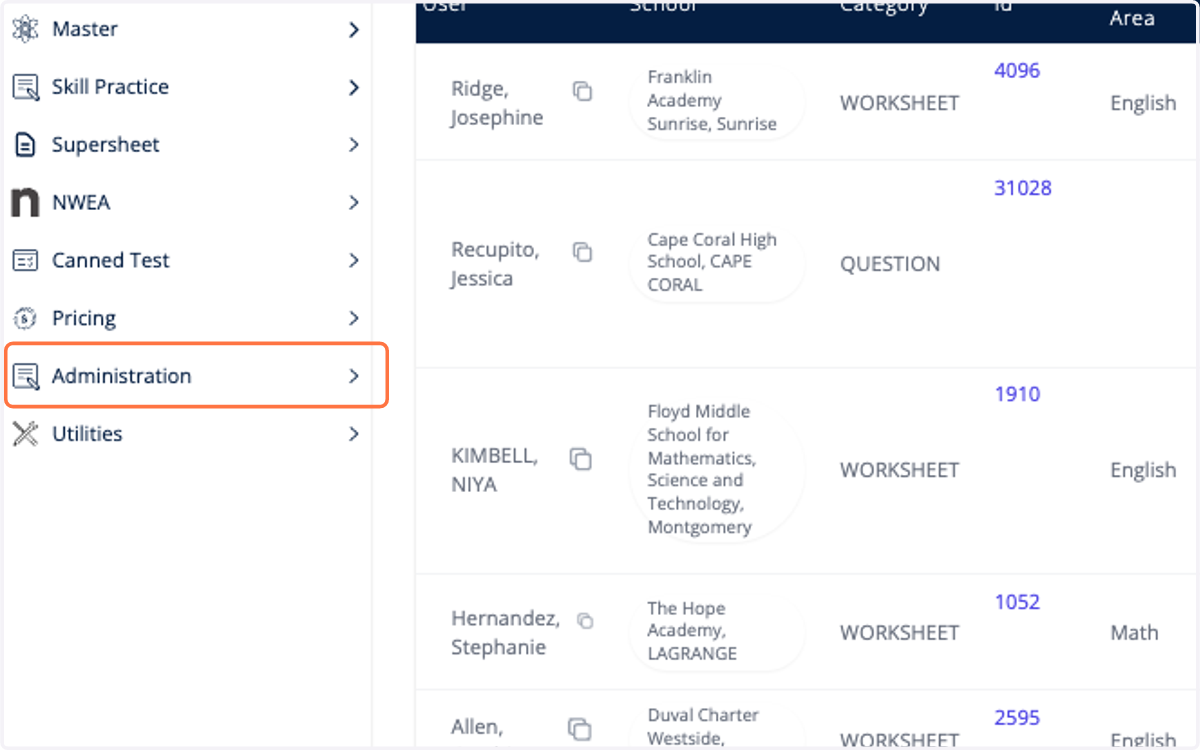
3. Click on Mini CRM
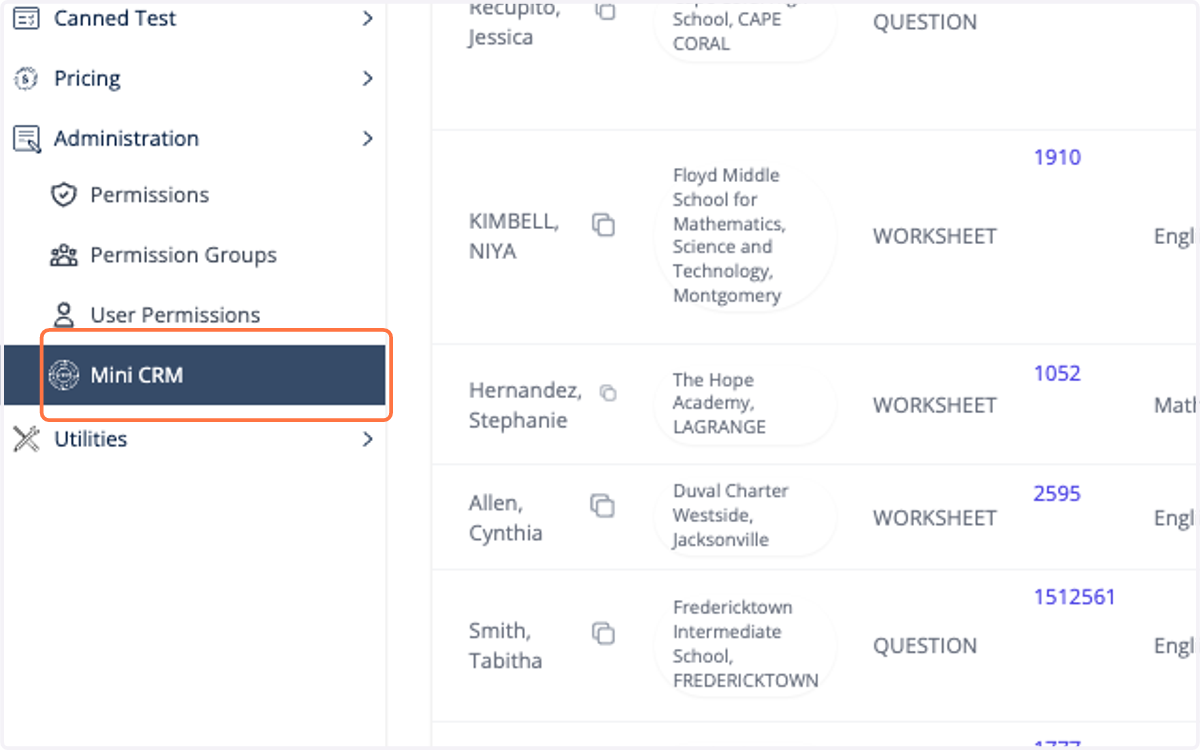
4. Click on Districts
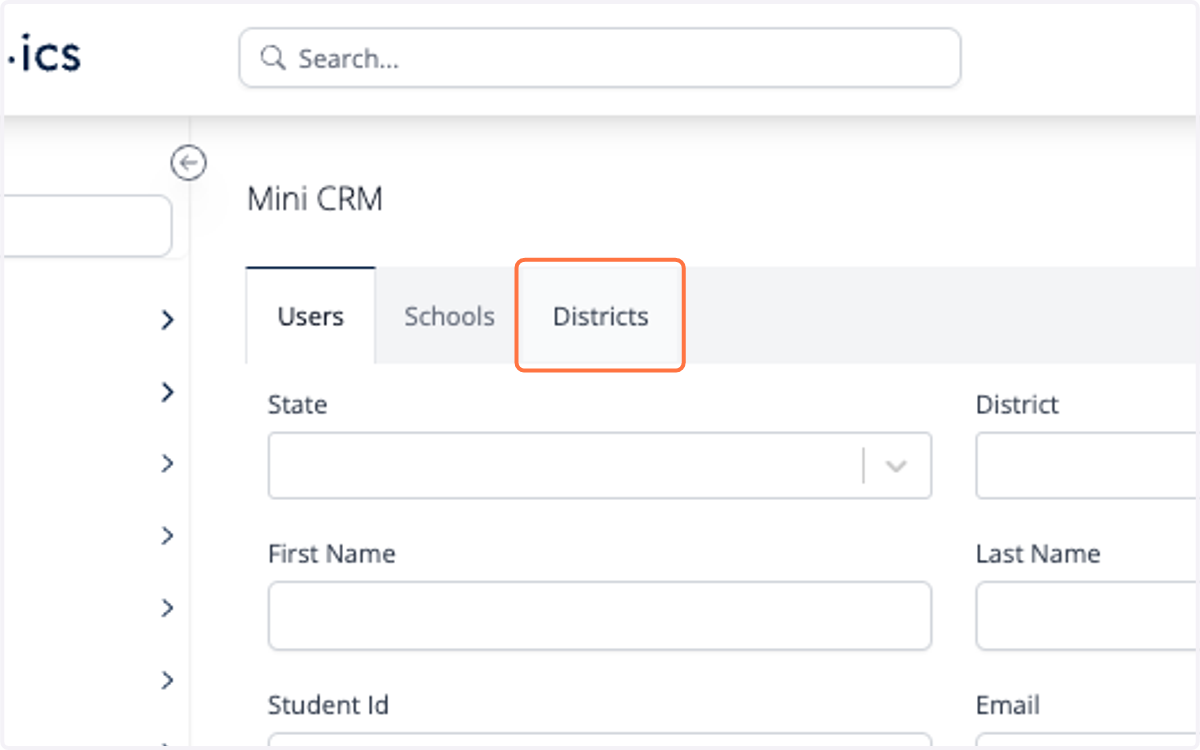
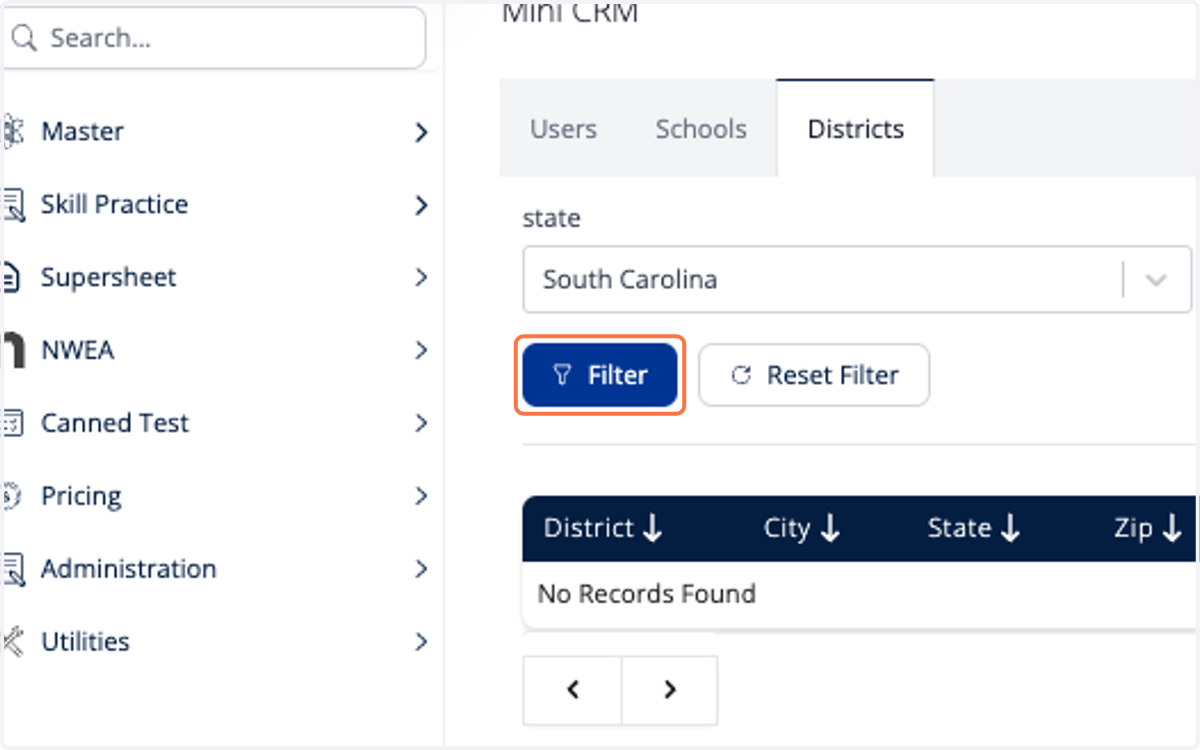
5. Type in the state
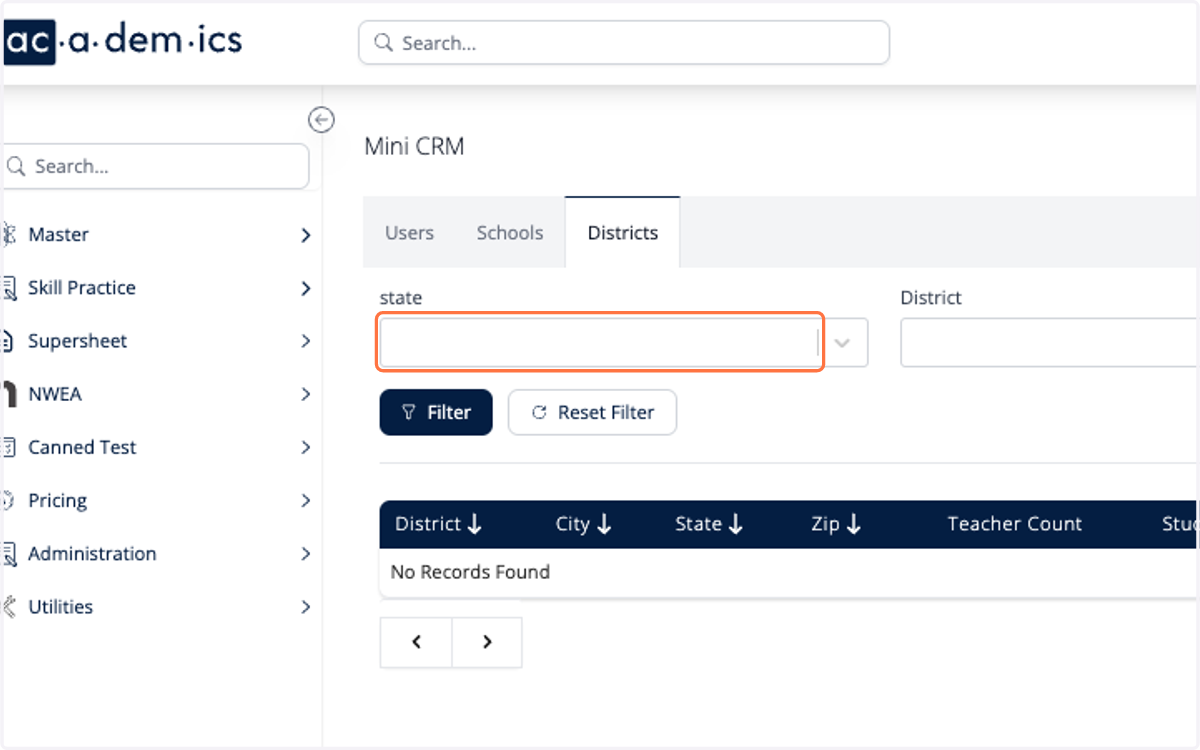
6. Type in the District Name
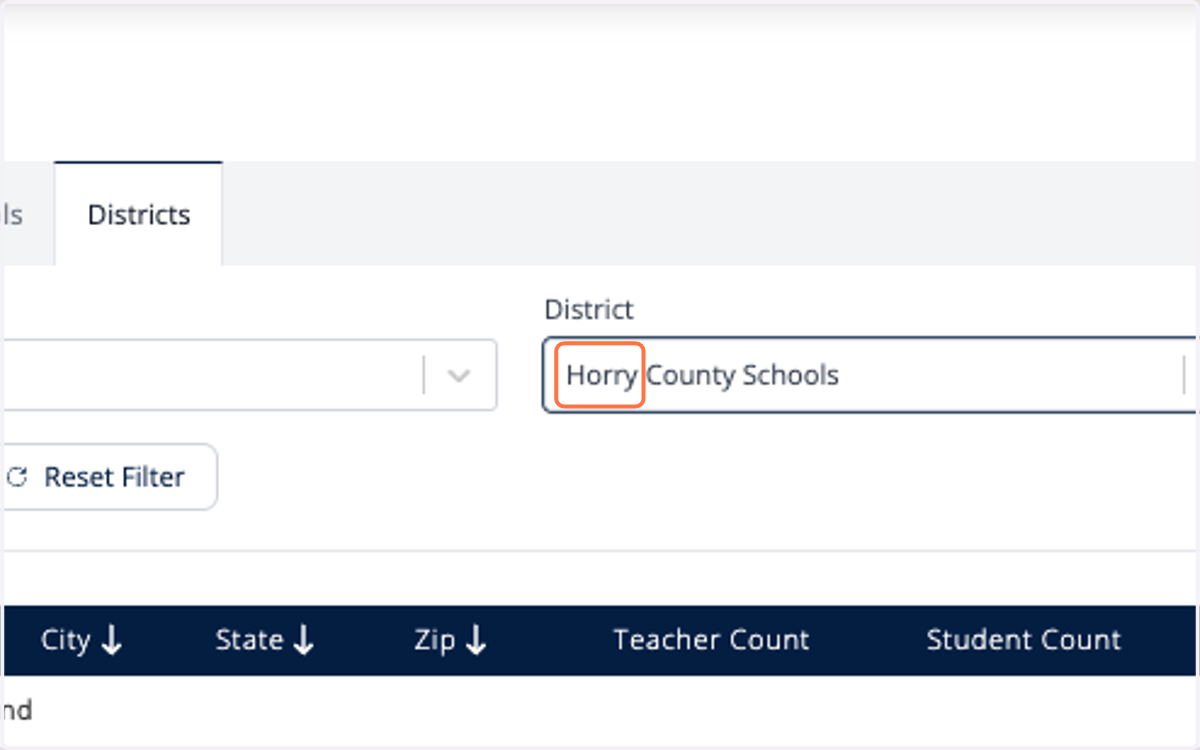
7. Select Filter
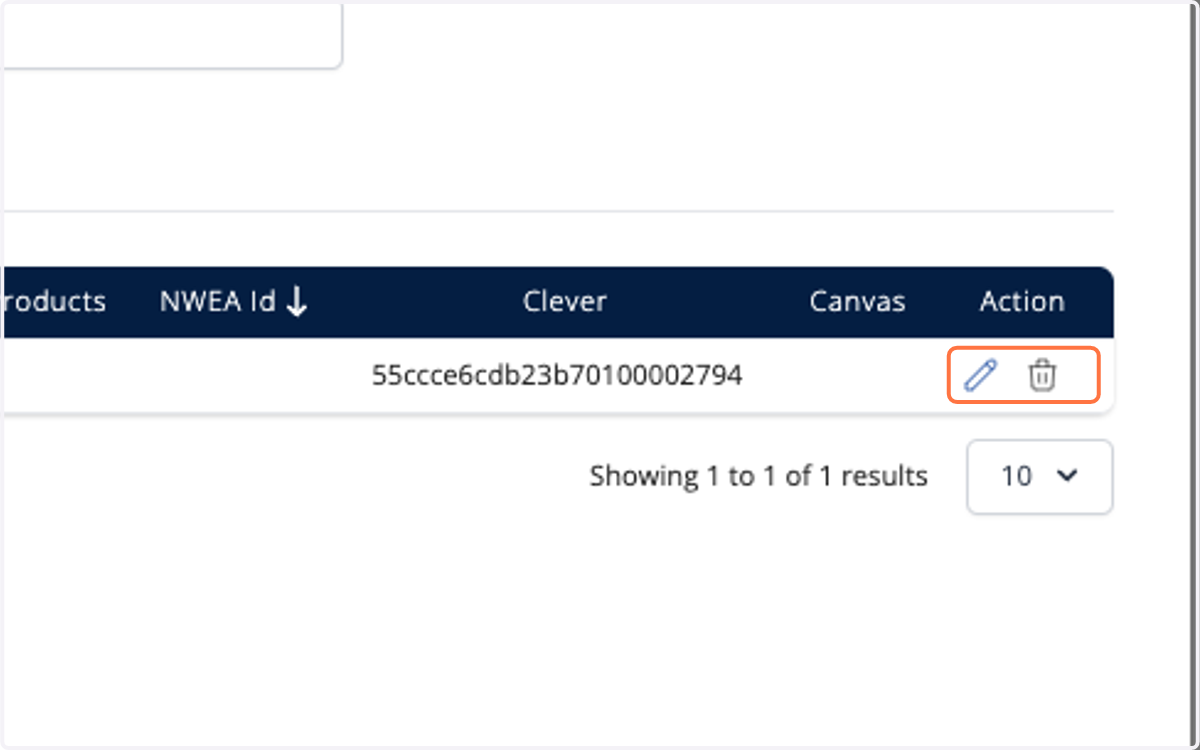
8. Select the pencil icon to the right of the corresponding district
Notice there is no Canvas ID displayed for the district
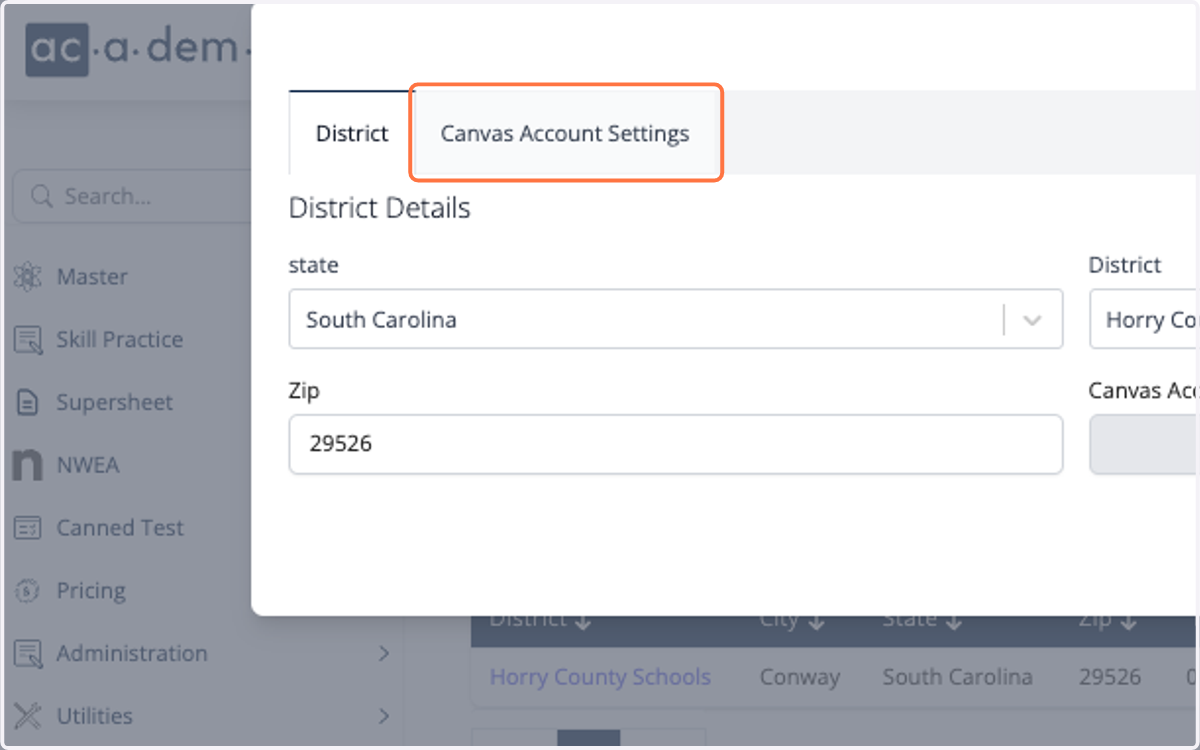
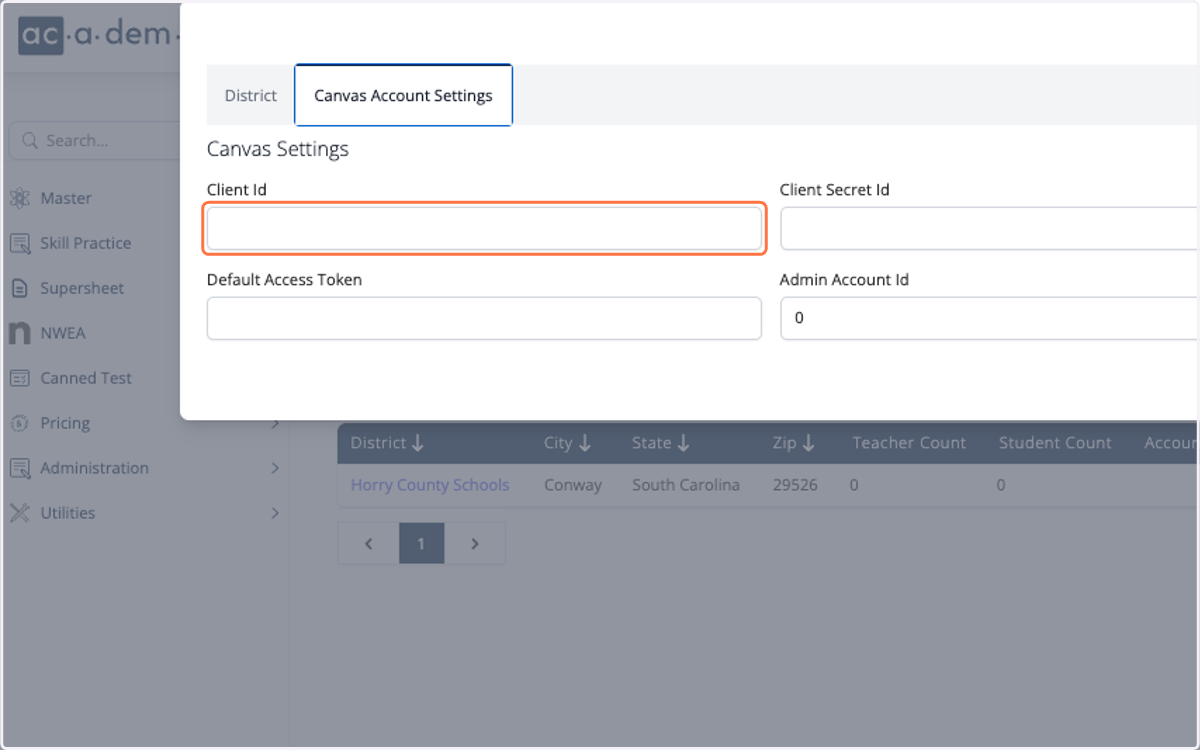
9. Click on the Canvas Account Settings tab
10. Enter the Client Id
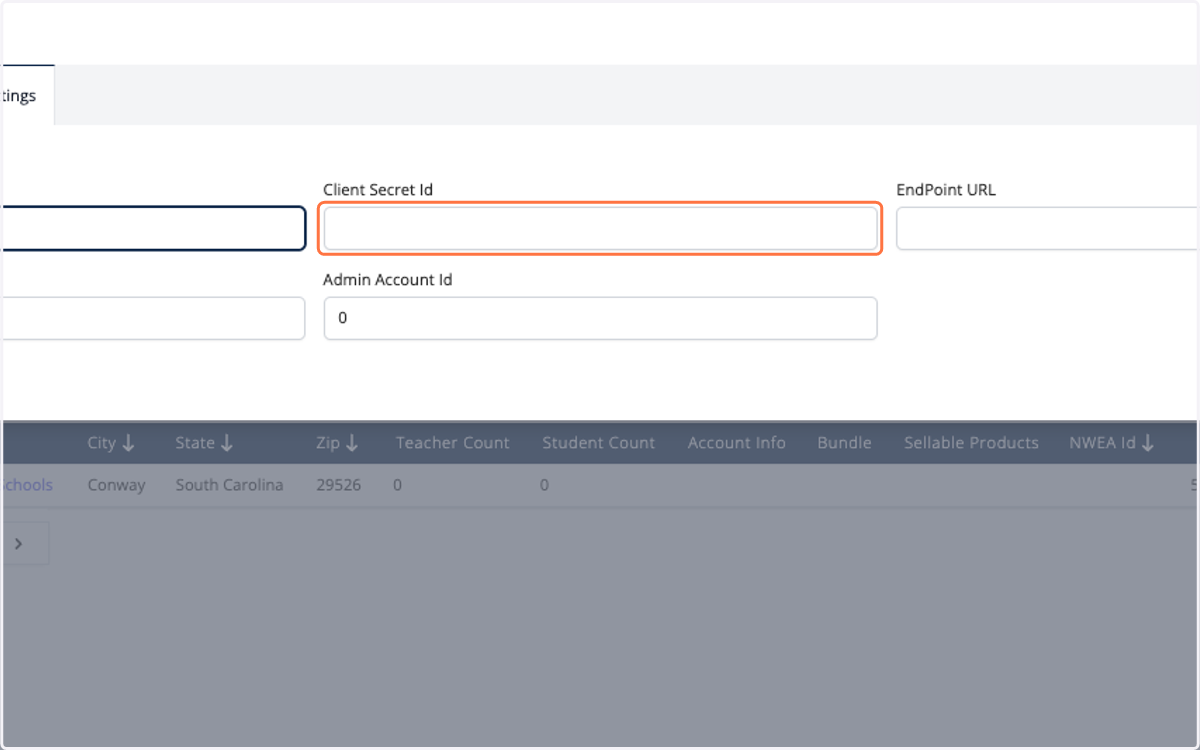
11. Enter the Client Secret
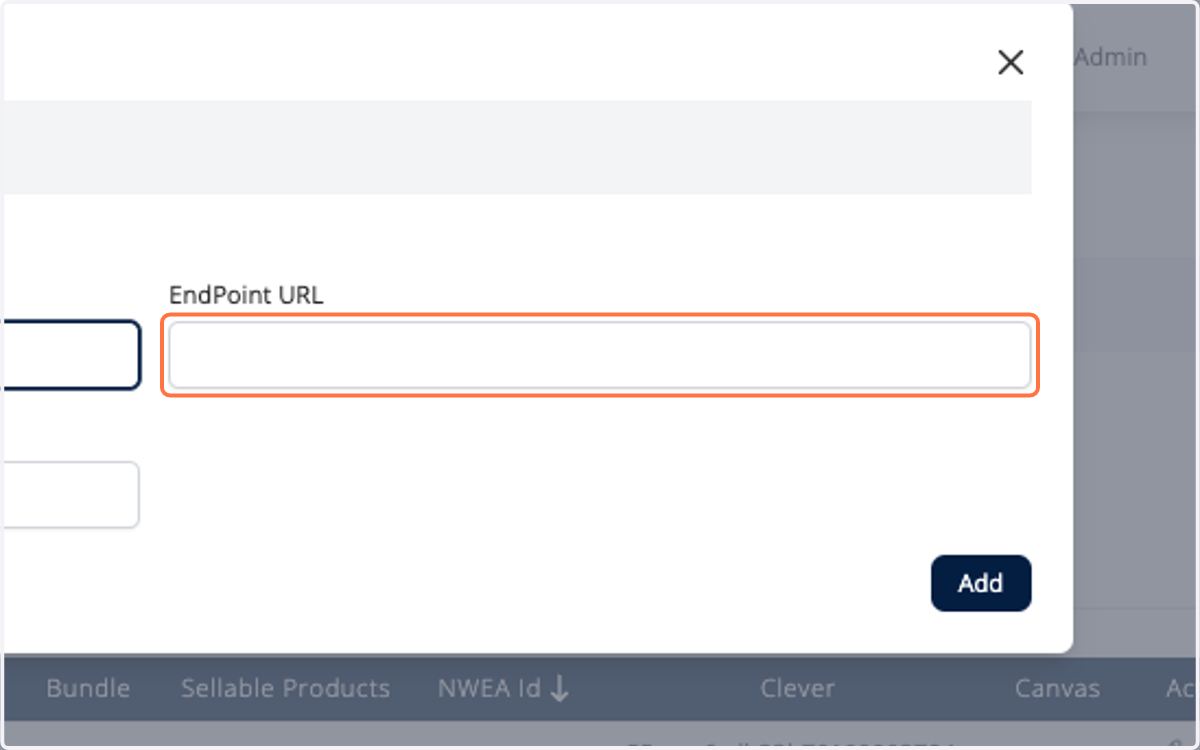
12. Enter the EndPoint URL in the format https://website.com
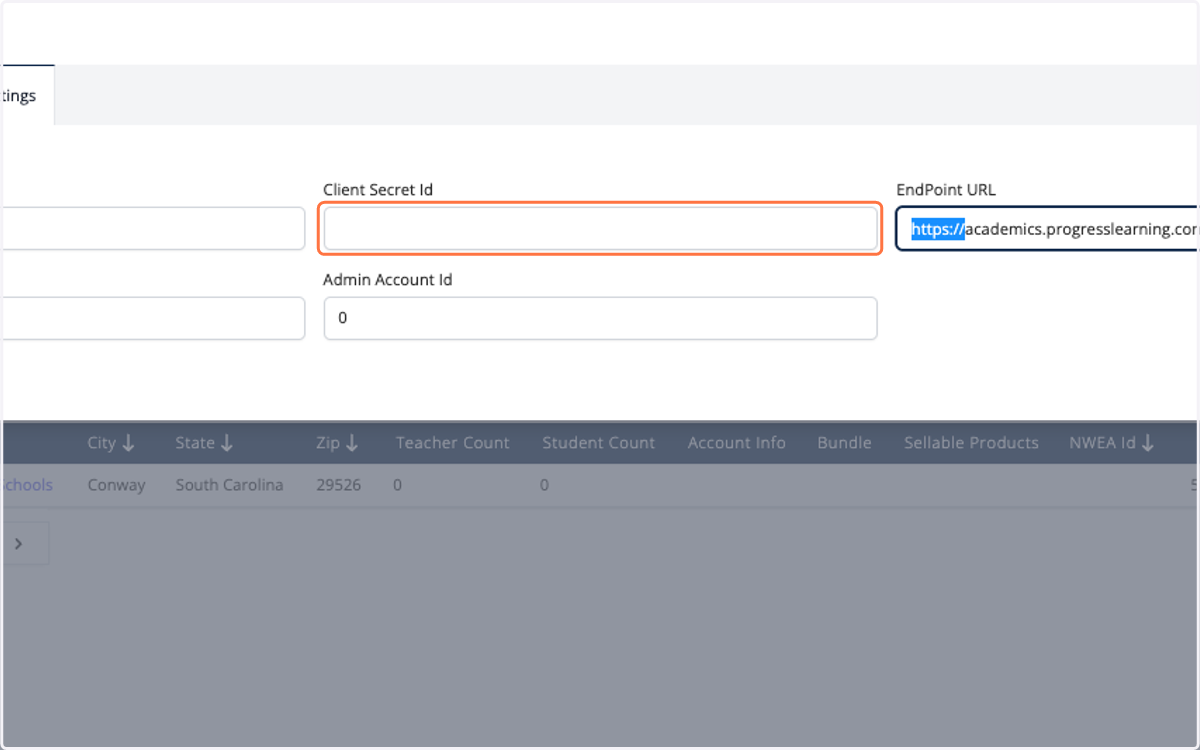
13. Ensure that https:// is included
This is important because some school systems will flag sites as insecure if the URL does not contain https. This causes confusion we want to avoid.
14. The Admin Account ID is typically 1, although it is sometimes a different number and can be several digits.
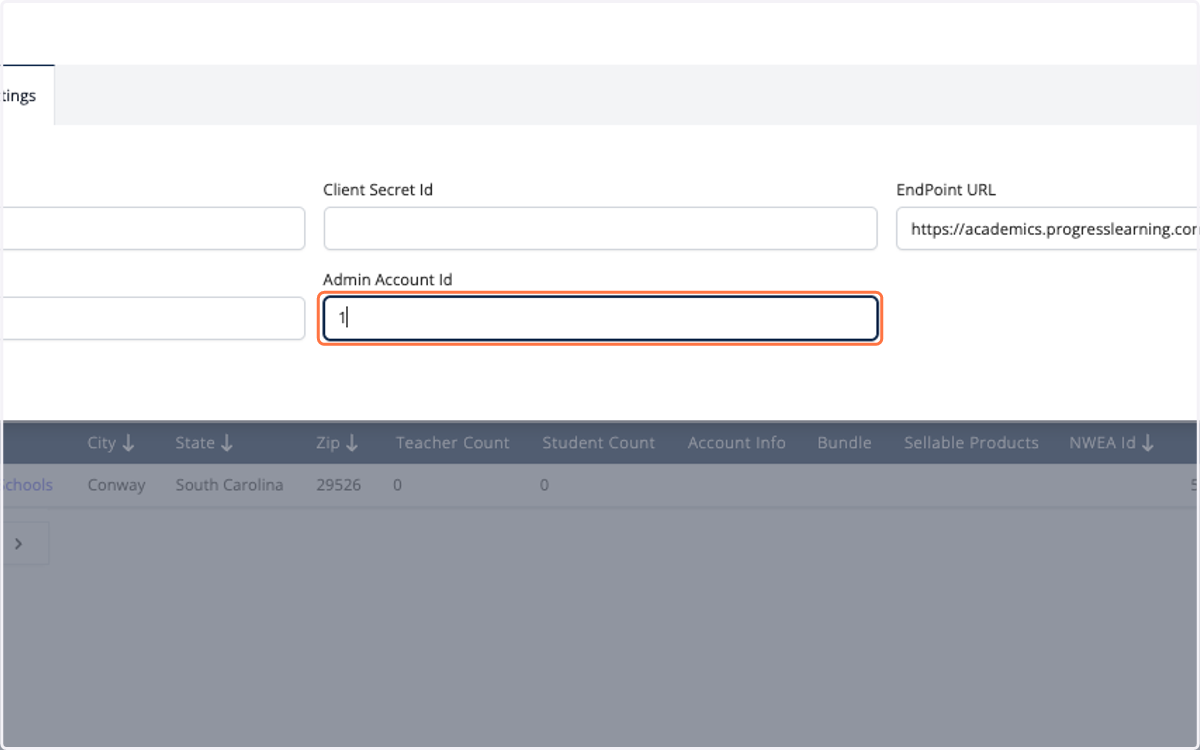
15. Click Save
16. The final step is to test the integration and log in as a teacher in the district. If you select Connect to Canvas on their profile page and land on an error page, please follow the following steps. If you land on a Canvas page or Google page they're good to go.
17. If you land on an error page like this when testing the integration, follow these steps to resolve the issue...
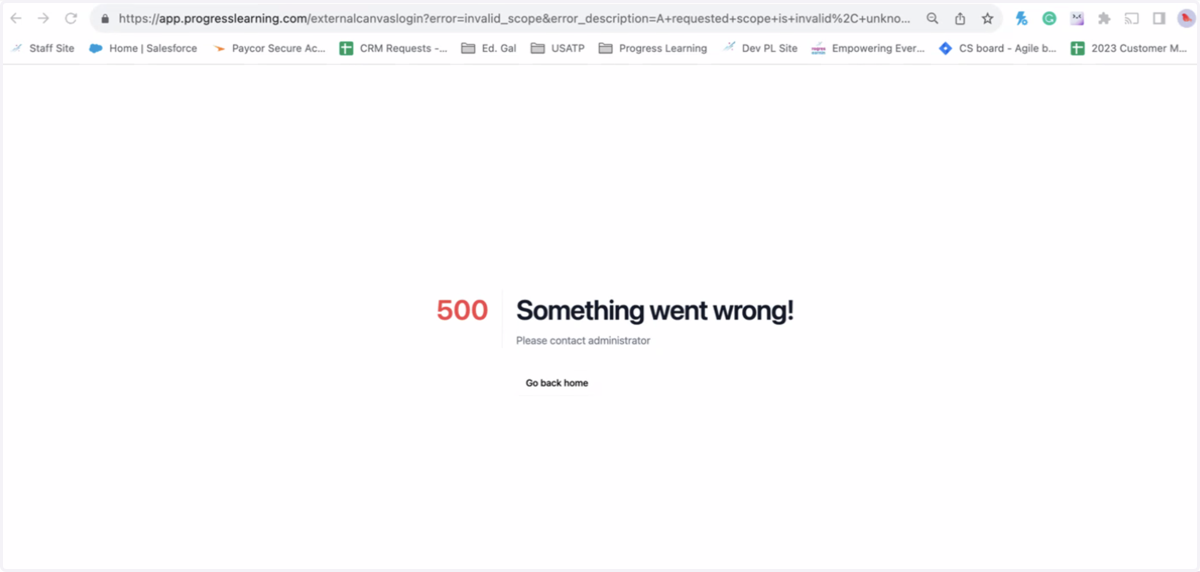
18. If you look at the URL, you will notice there are some invalid scopes. This means they didn't enable all of the scopes when setting up the developer key that we provided instructions for initially.
The URL above is what the error message will look like.
You can input the link HERE and select the decode option. This will make the link above look like this:
https://app.progresslearning.com/externalcanvaslogin?error=invalid_scope&error_description=A requested scope is invalid, unknown, malformed, or exceeds the scope granted by the resource owner. The following scopes were requested, but not granted: url:POST|/api/v1/courses/:course_id/assignments and url:POST|/api/v1/courses/:course_id/assignments/:assignment_id/overrides
What this means you need to tell the customer is that the following scopes need to be added to their developer key in Canvas. Be sure to save your changes and let us know once it's been updated so we can test it again before notifying staff that the integration is available.
url:POST|/api/v1/courses/:course_id/assignments
url:POST|/api/v1/courses/:course_id/assignments/:assignment_id/overrides