Adding Google Calendar to your RPM Dashboard
Your RPM Dashboard supports a variety of popular online calendars via the iCal standard, including Google Calendar. Creating a shared caregiver calendar can become a helpful way to keep others in-the-loop regarding your loved-one's upcoming appointments, visitations and other future events. You can view Google Calendar events at-a-glance right from your RPM Dashboard.
Google Calendar Integration
Updates/changes you make on your Google Calendar are automatically synchronized with your RPM Dashboard calendar. You can also integrate Alexa with Google Calendar to allow you to create and add calendar events using just your voice.
Follow these steps to add a Google Calendar to your RPM Dashboard:
1. Start by opening your existing Google Calendar & create a new calendar to share with others.
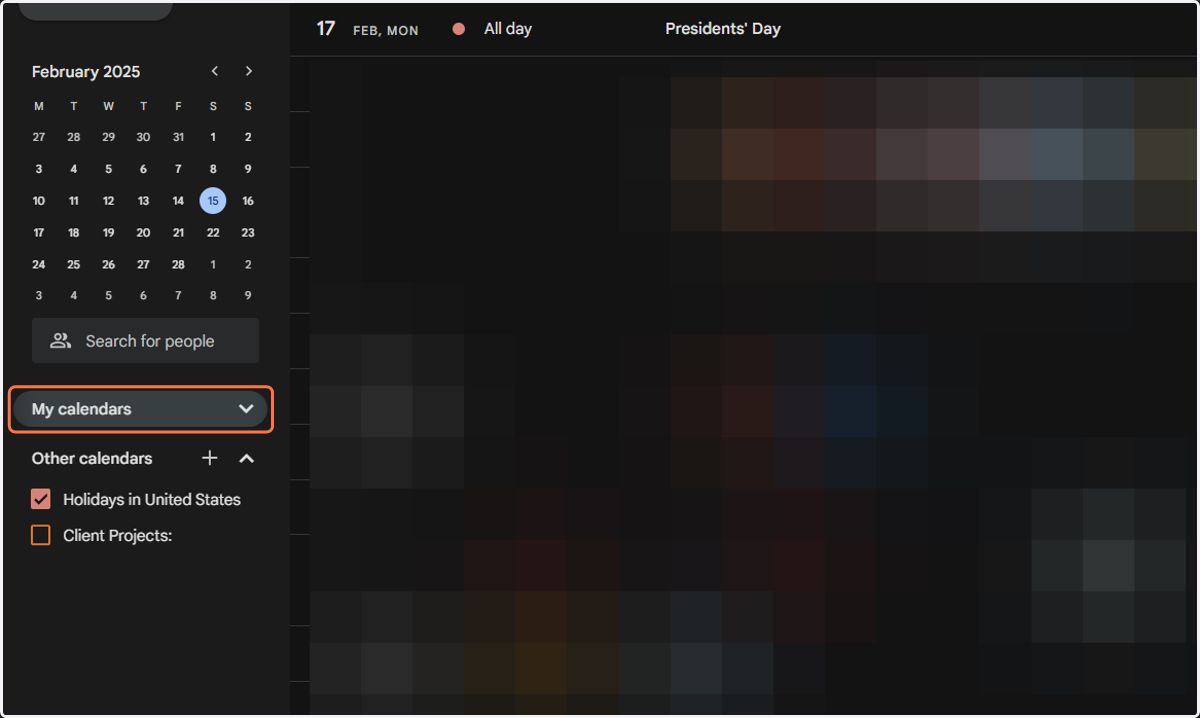
2. Click on "My calendars" and create a new calendar to set up & share with other family members. Alternatively, you can choose from an existing calendar you wish to use as appropriate.
Give it a relevant name such as Family, Caregiver or Mom's Calendar.
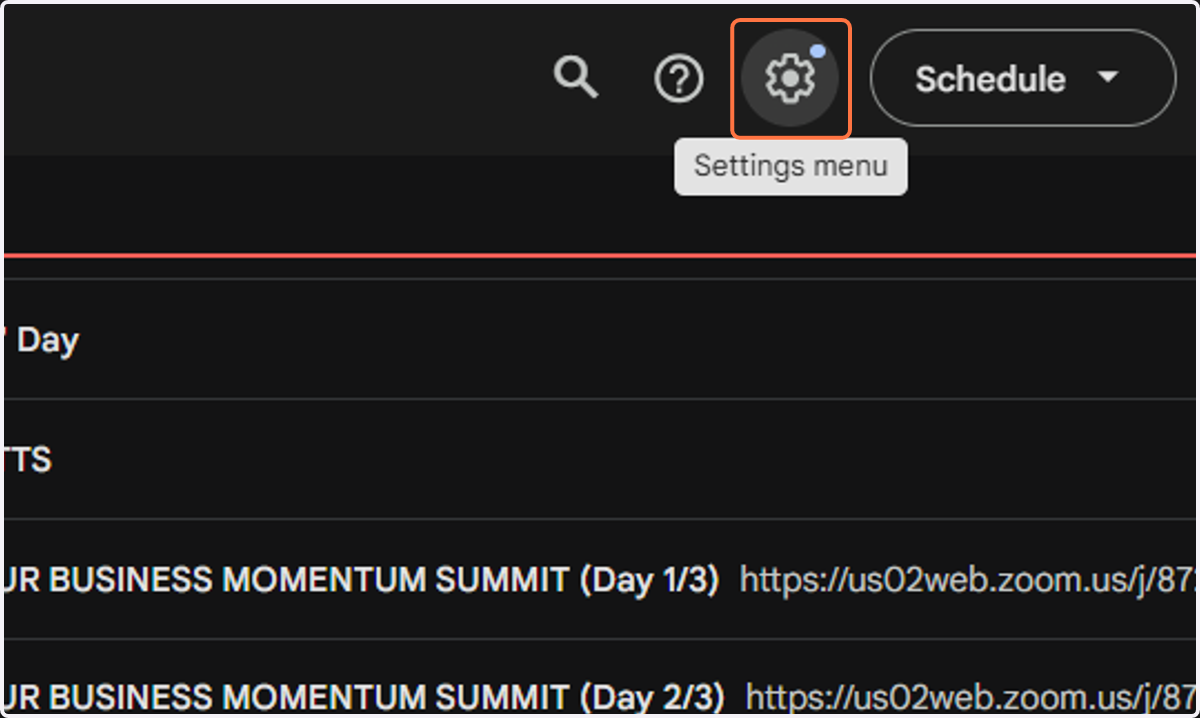
3. After you create your new calendar, go back to the main page for Google Calendar and open up the "Settings menu" (located in the upper right corner).
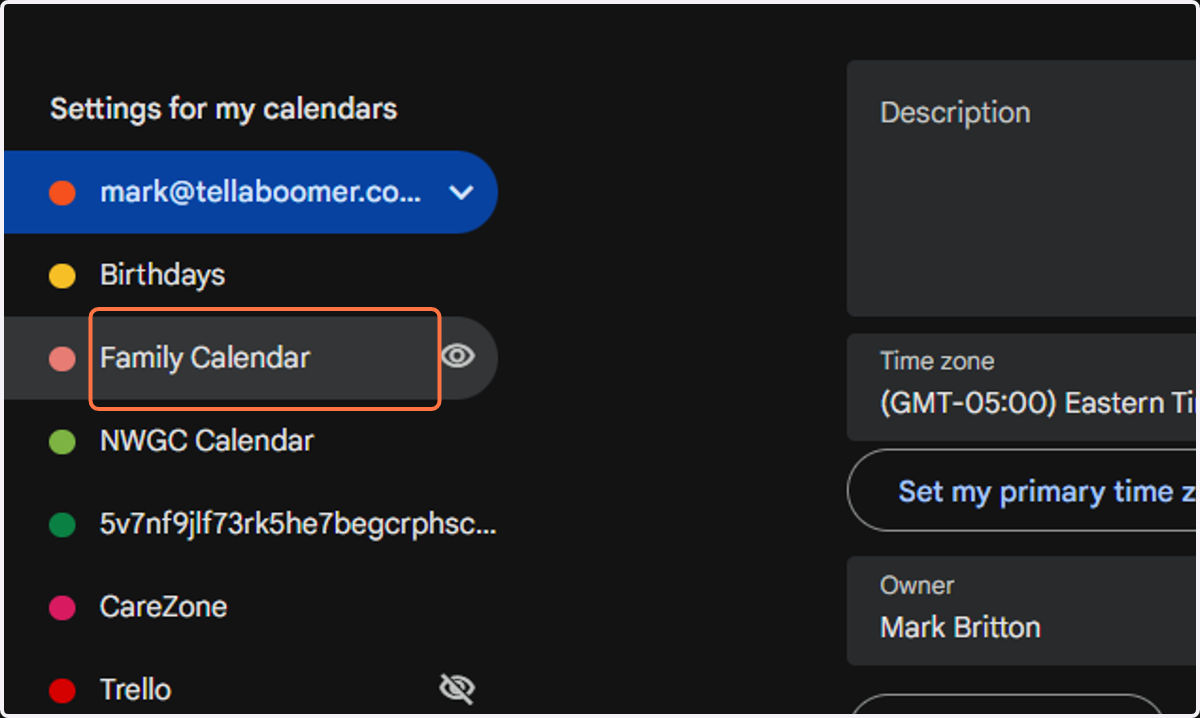
4. Now locate "Settings for my calendars" and select the calendar you just created.
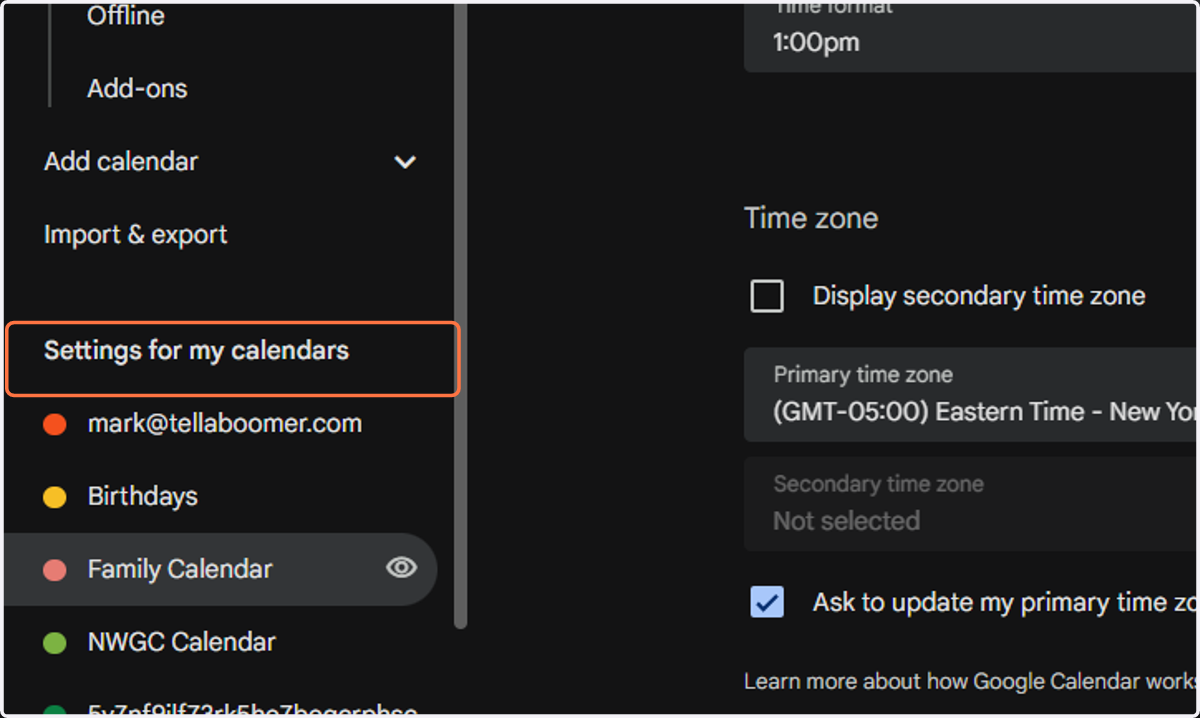
5. Select the desired calendar you wish to ad to your RPM Dashboard
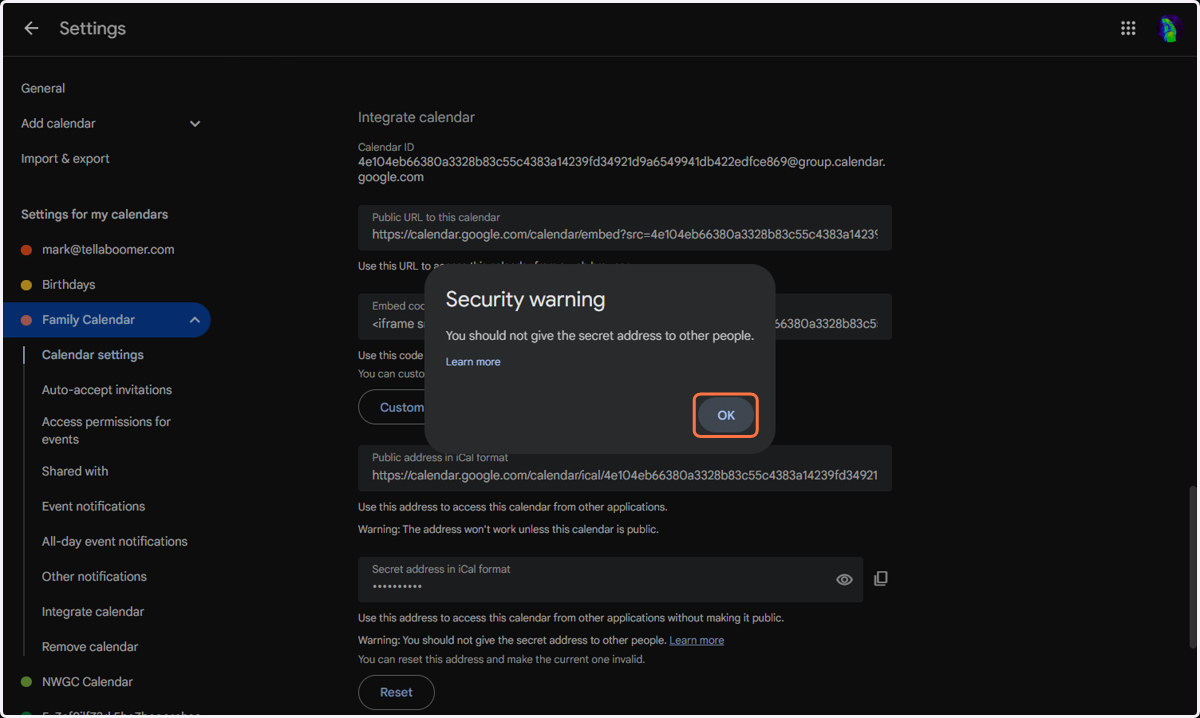
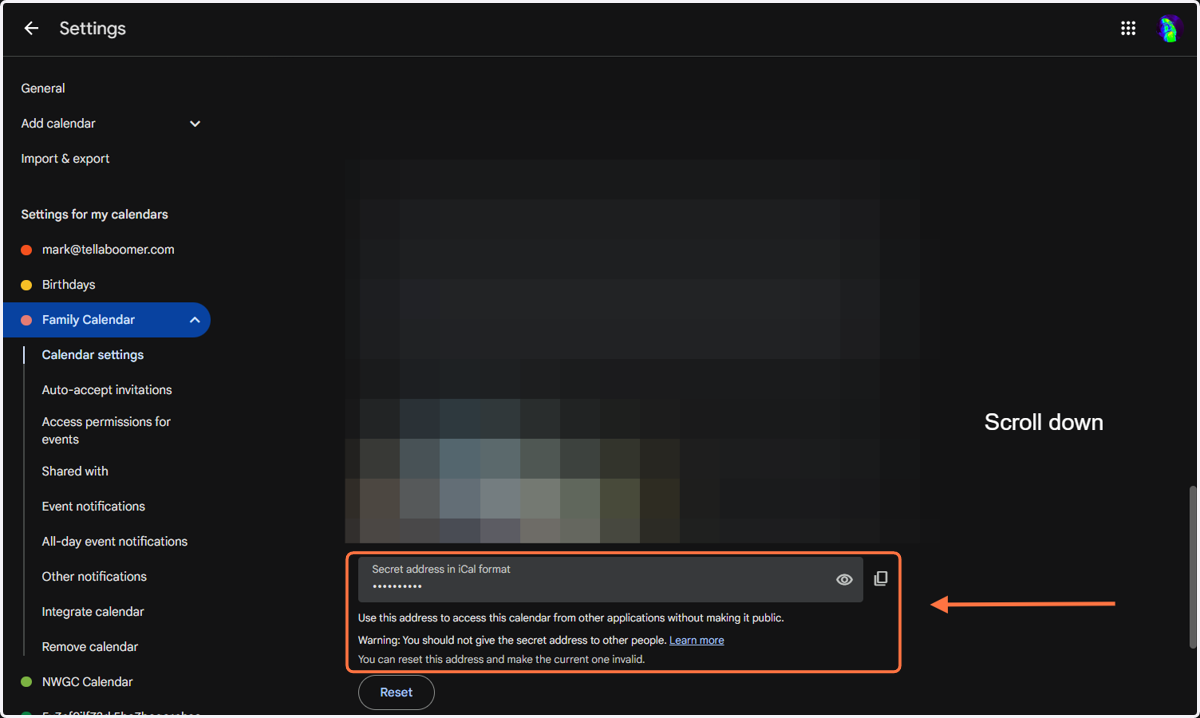
6. Scroll down to locate the "Secret address in iCal format" field
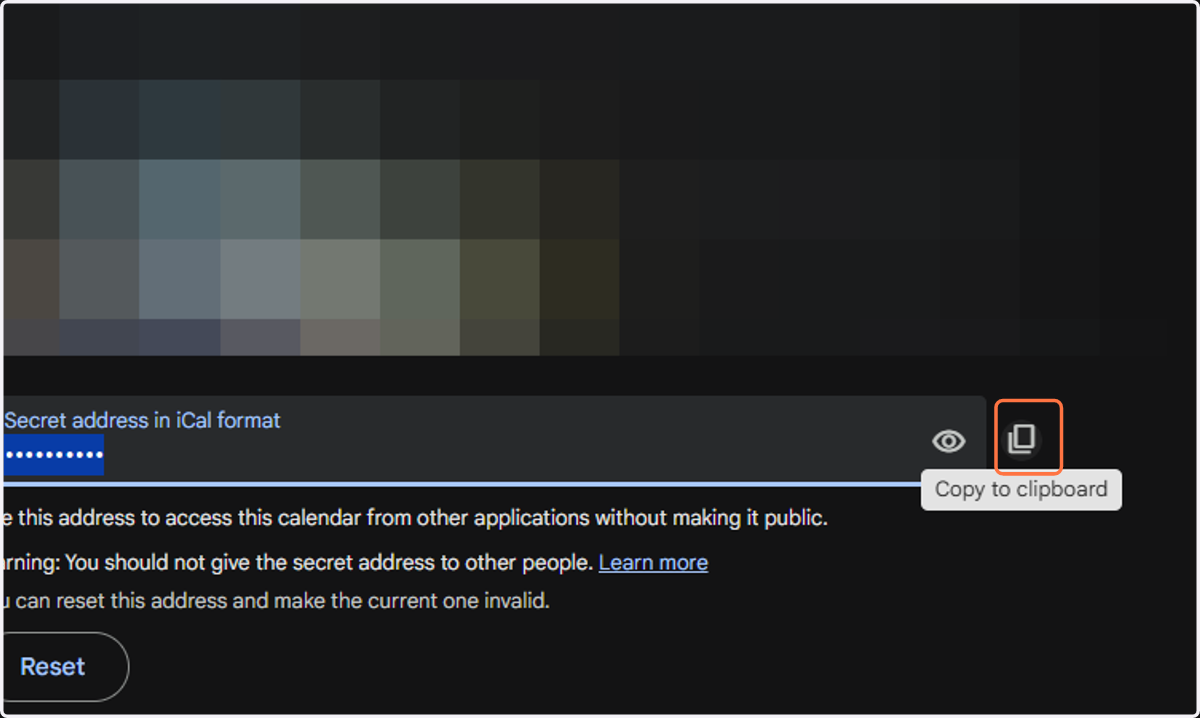
7. Once located, select the "copy to clipboard" icon to copy this URL.
8. Select "OK" to proceed and then paste the URL into either a TXT or eMail message to send to Tellaboomer.
TXT URL to: 914 315 9468
or
eMail URL to: mark@tellaboomer.com