Bill Compare: Legislative Bill Comparison and Change Tracking
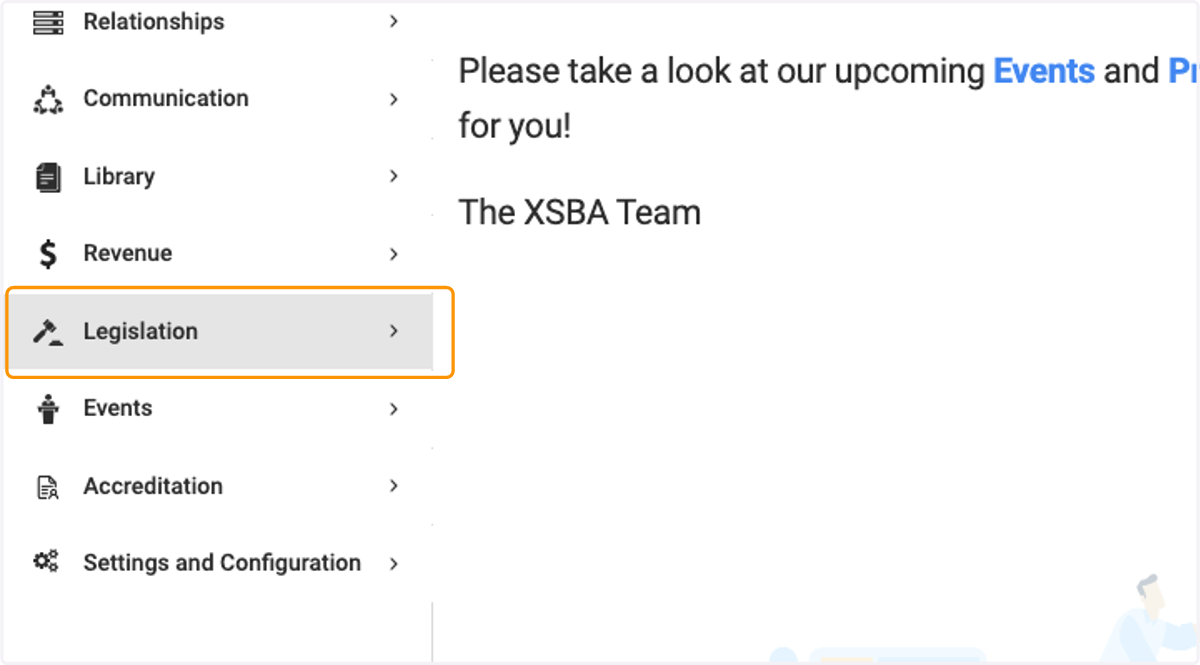
1. Click on Legislation
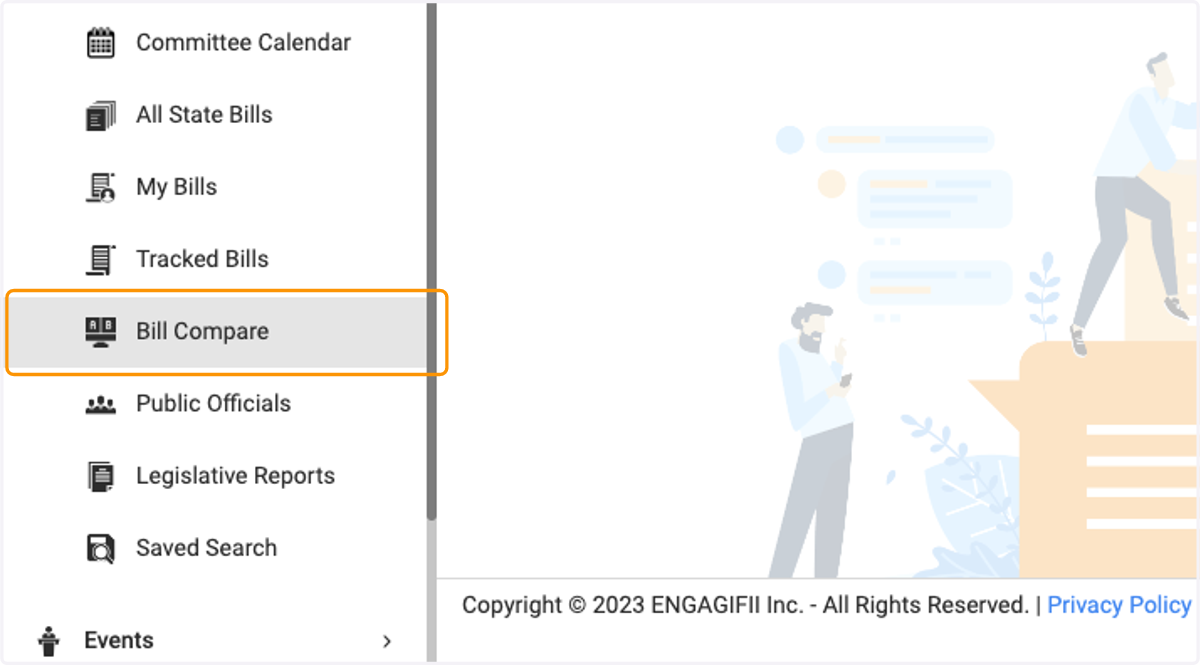
2. Click on Bill Compare
3. Select the session associated with the first bill that is being compared.
You can compare two different versions of a bill from the same session or two different bills entirely. You can also compare bills from different sessions.
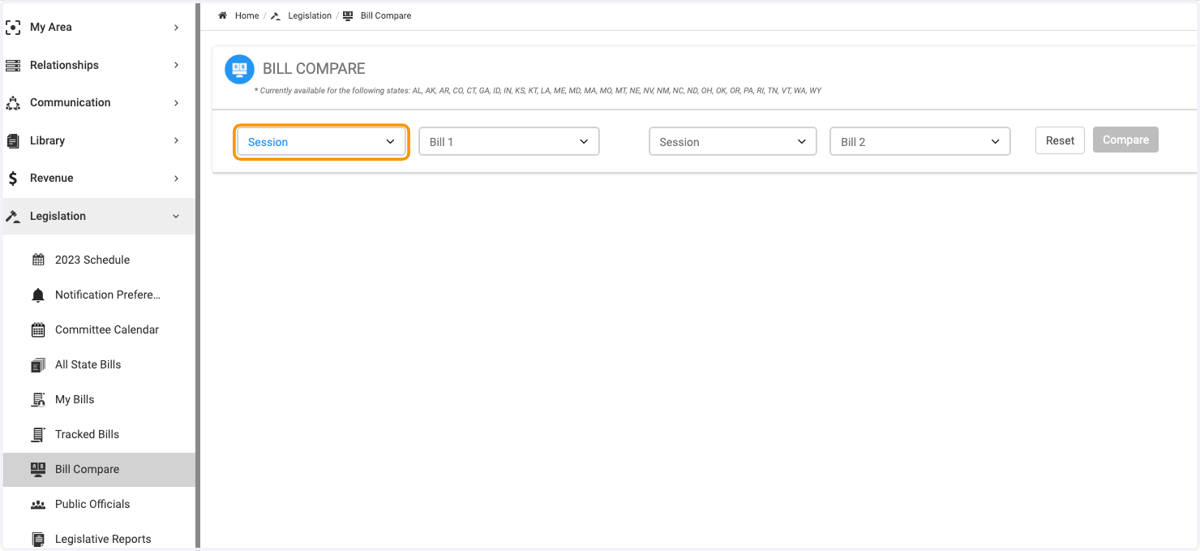
4. Select the first bill (and version)
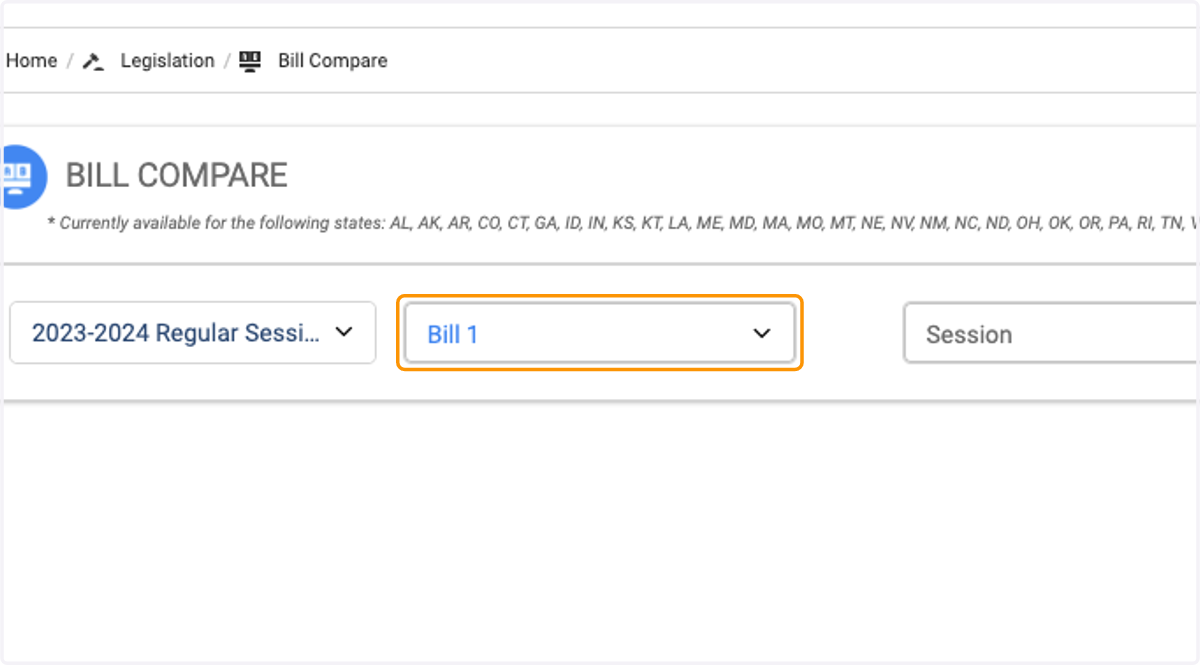
5. Click on Session to select the session associated with the second bill to be compared
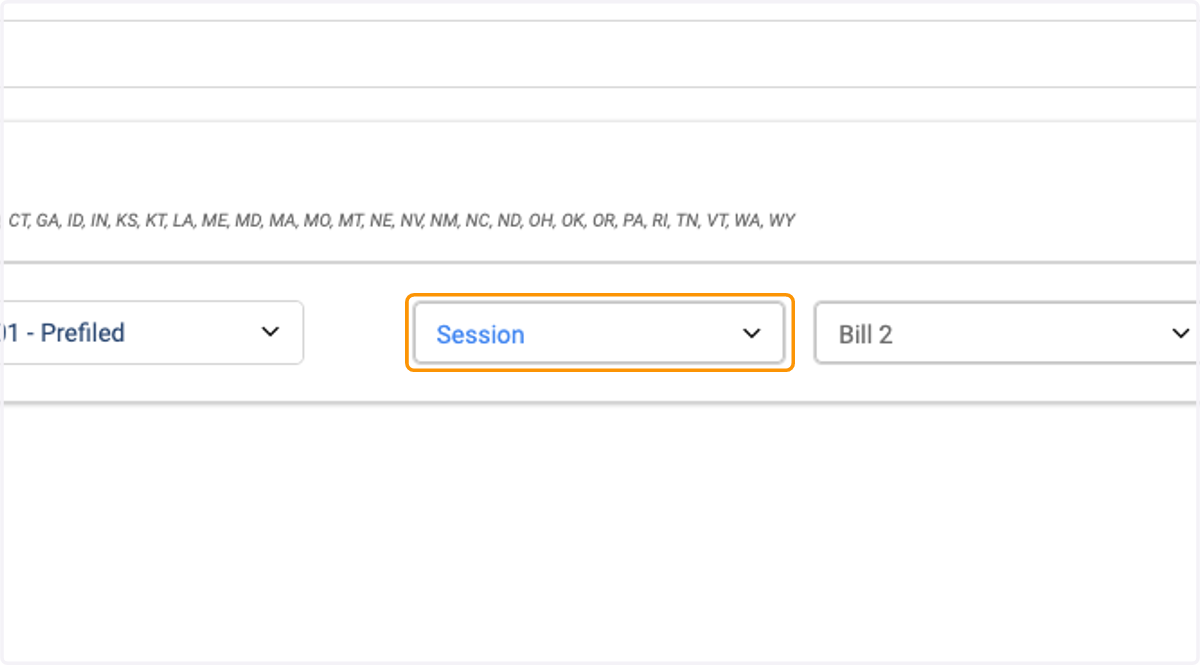
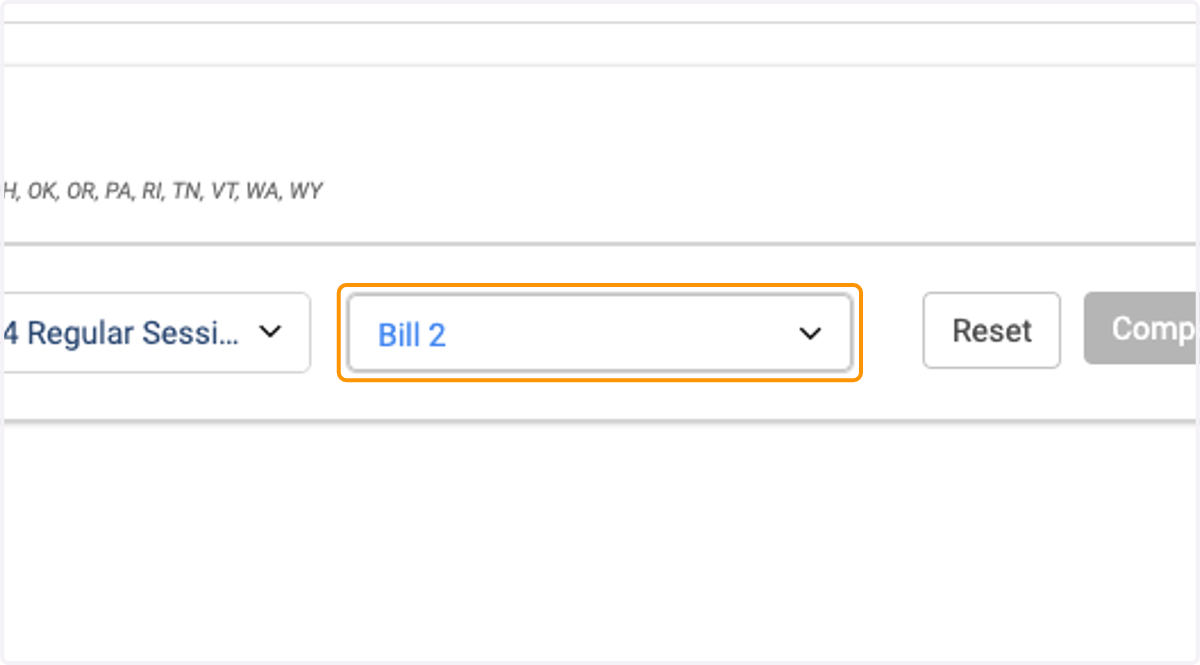
6. Select the second bill (and version)
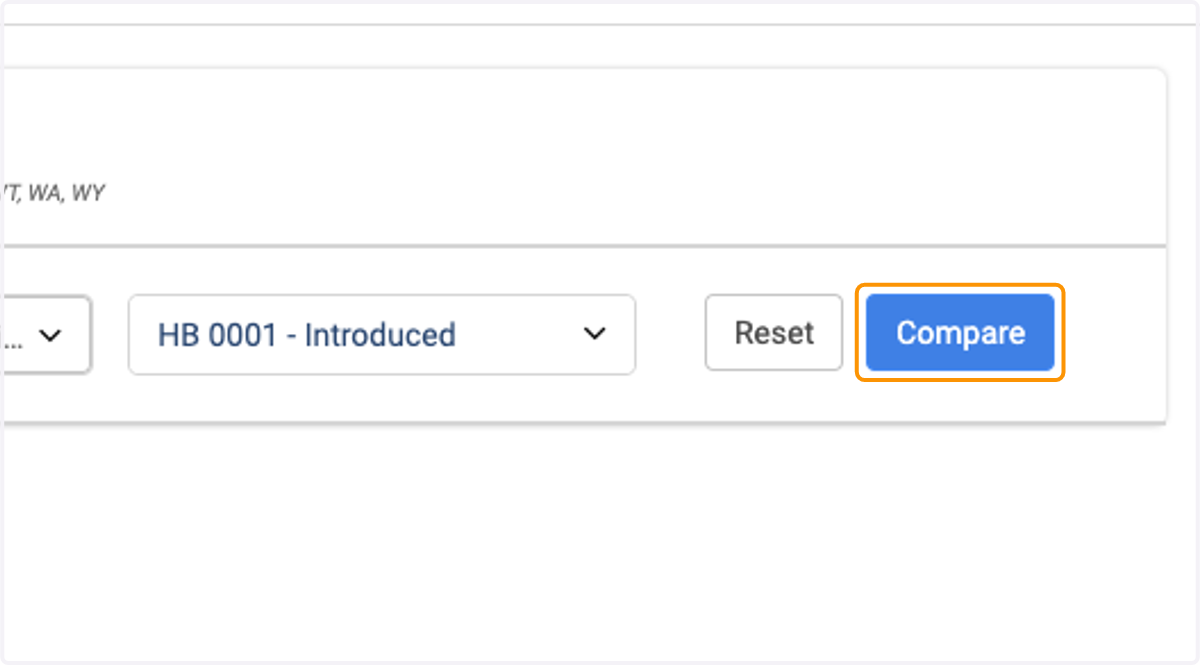
7. Click on Compare
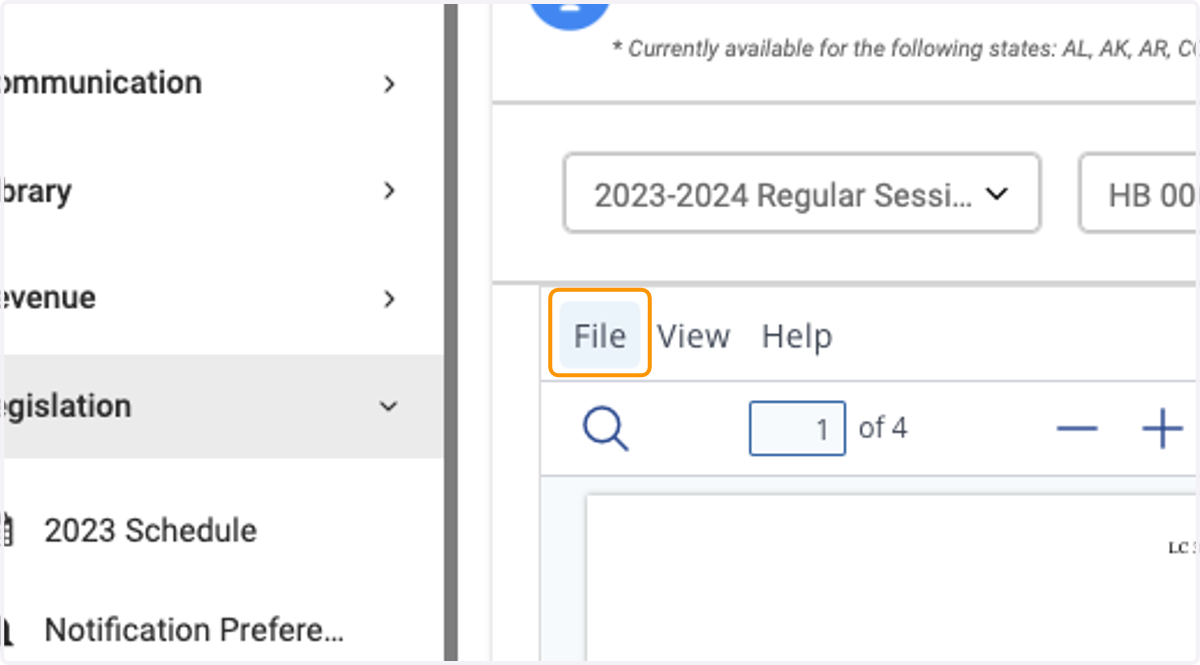
8. Click on File
Click on File to view a list of ways to save, share, or print a copy of your bill comparison
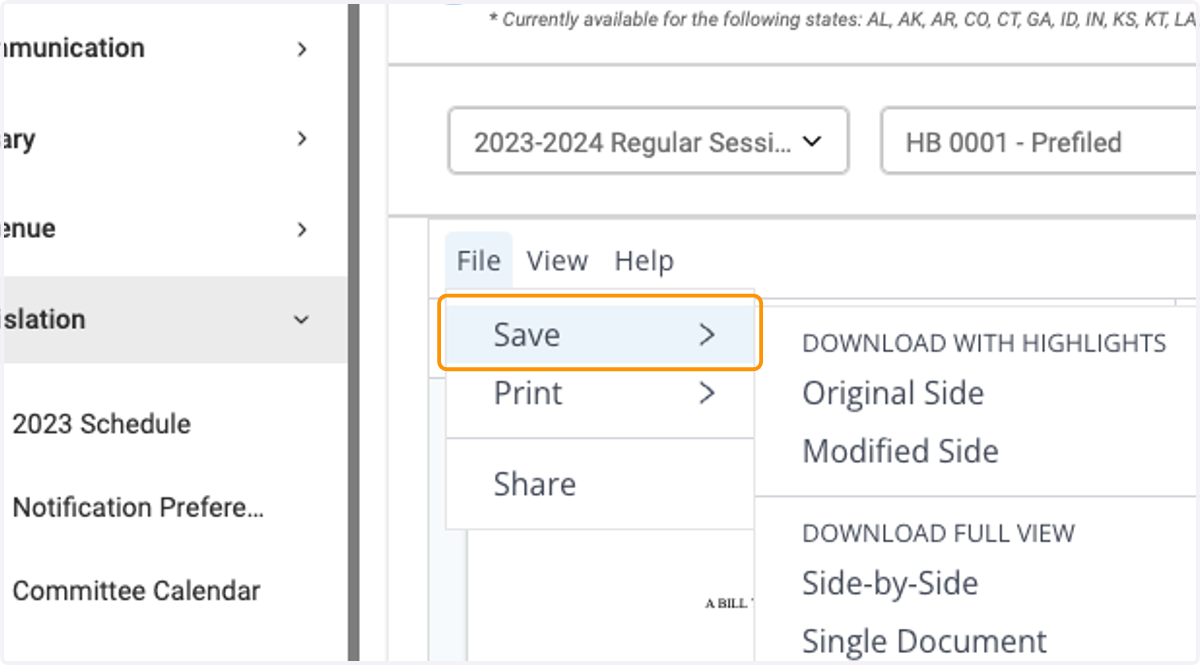
9. Click on Save
Click on Save to view all the options for downloading and saving a PDF copy of the bill compare results
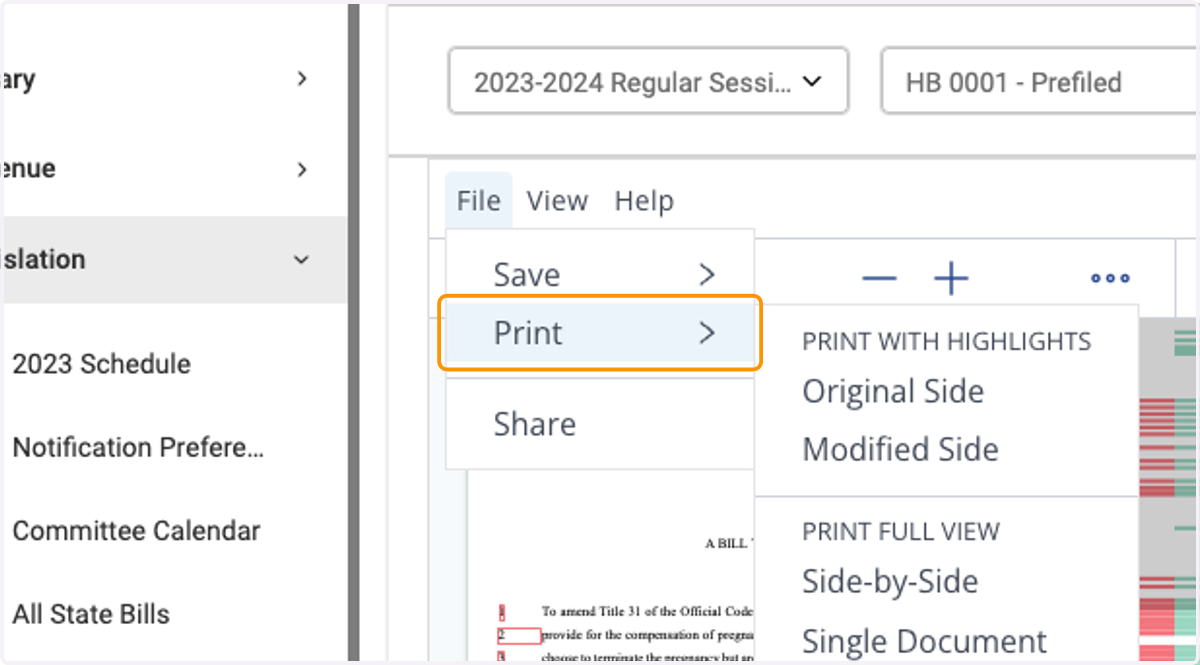
10. Click on Print
Click on Print to view all the options for printing a copy of the bill compare results
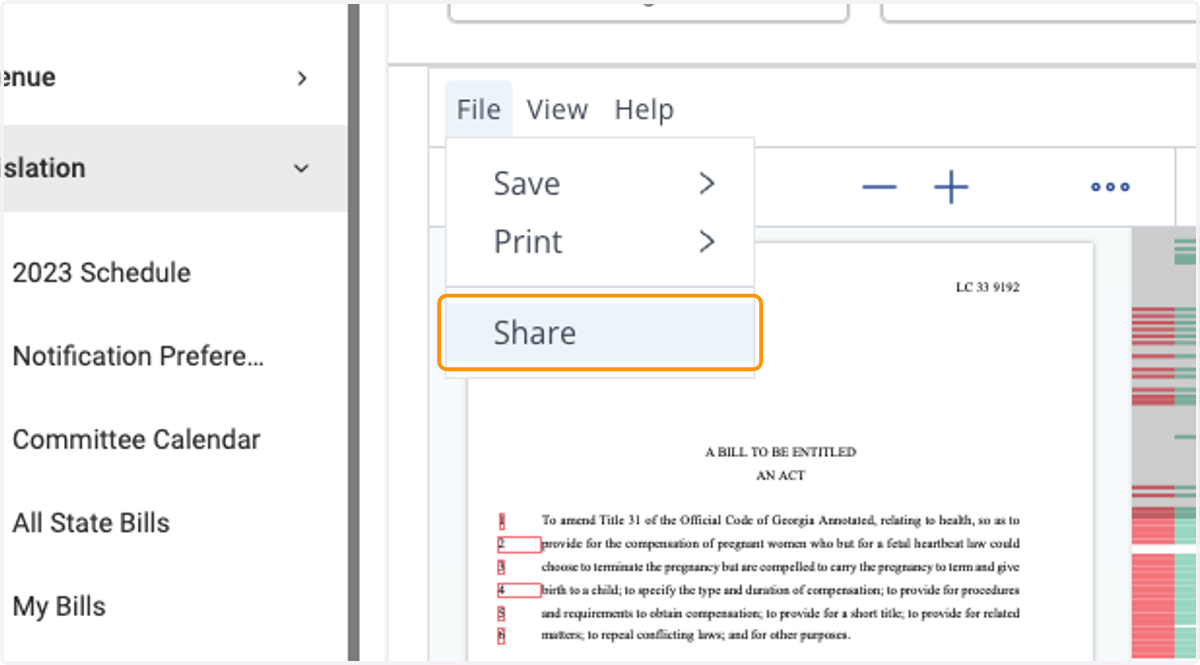
11. Click on Share
Click on Share to view all the options for sharing the bill compare results.
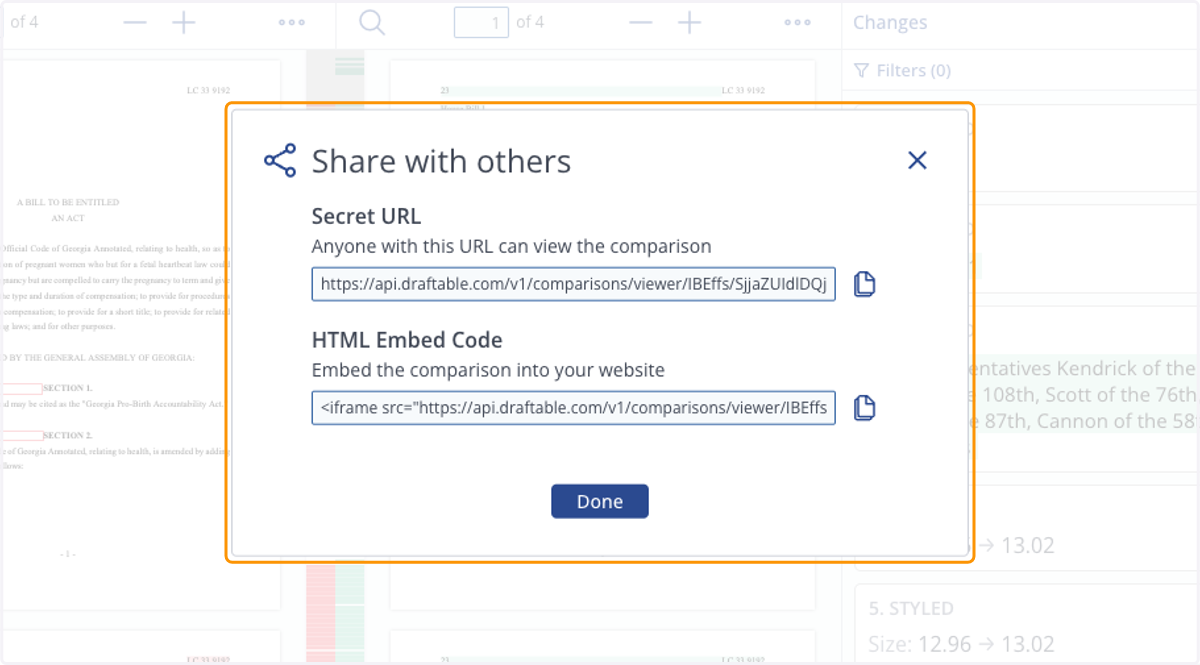
12. Click on Share
You can share a "secret" (or private) URL with desired recipients OR copy an embed code to embed the bill compare results on another site of your choosing.
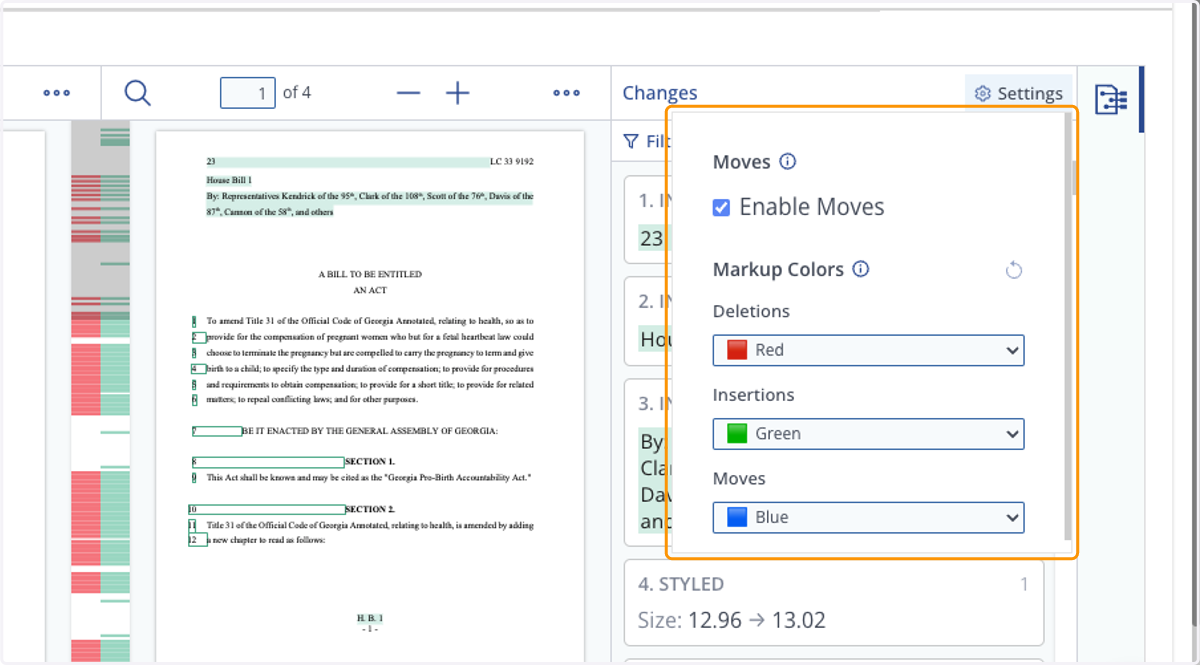
13. Click on Settings
You can customize the markup colors associated with your bill compare results by clicking on Settings in the right corner.
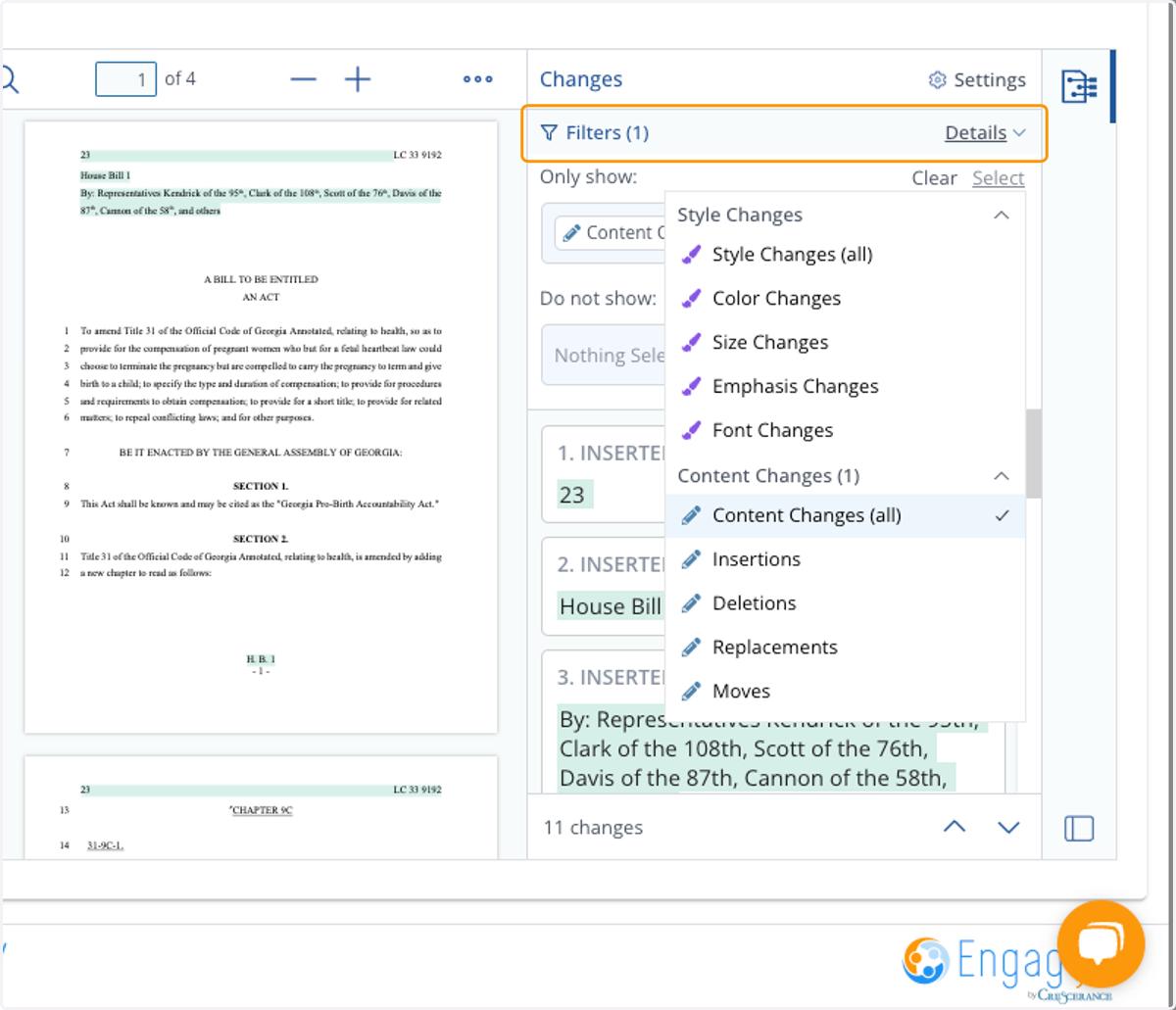
14. Click on Filters
You can filter for specific changes within the bill compare results by clicking on Filters
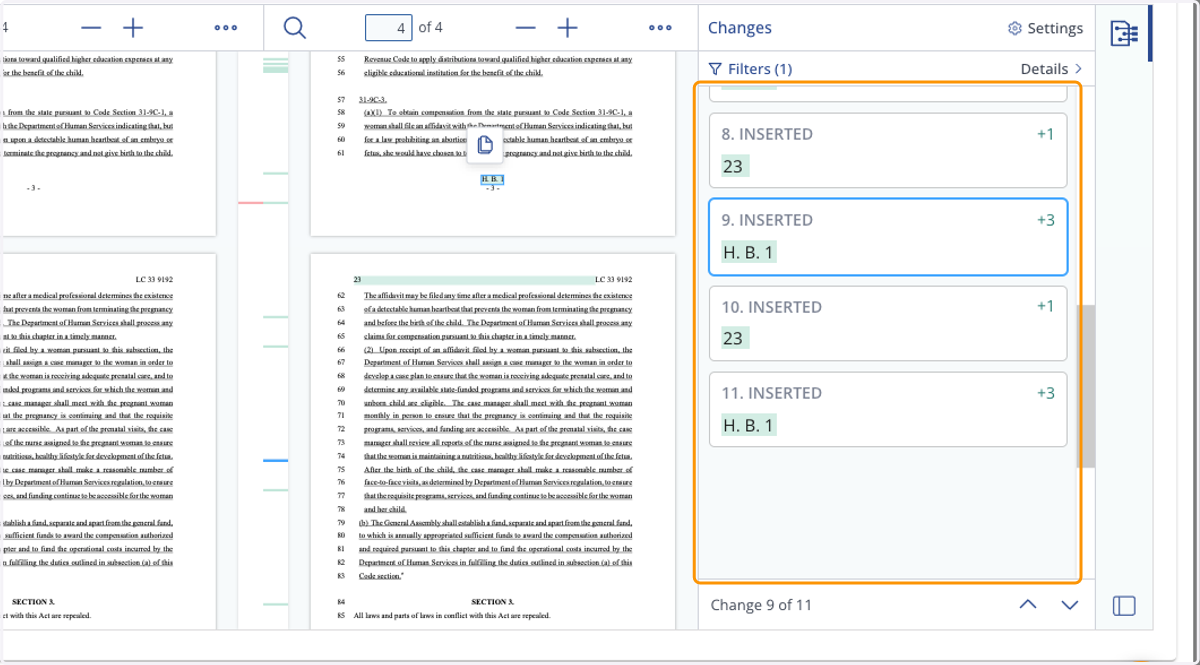
15. You can also navigate to specific changes in the bill compare results by clicking on the item highlighted in the menu bar.
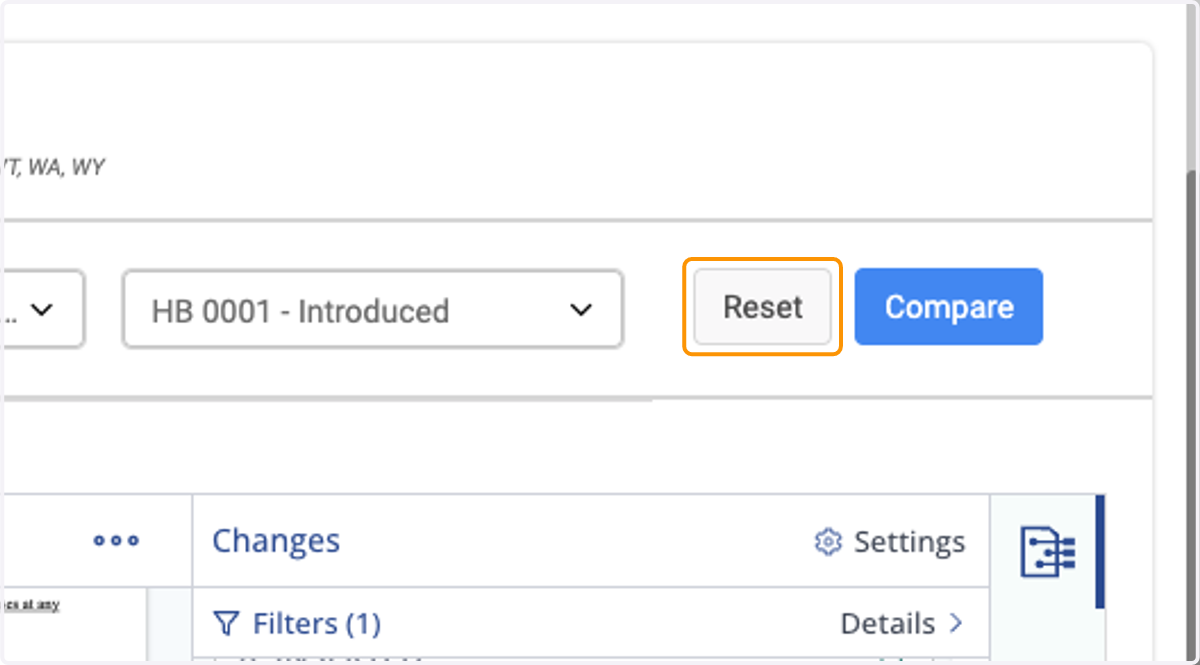
16. Click on Reset
Click Reset to input a new set of bills for comparison