Enrollify: Virtual vs. In-Person Appts.
This walkthrough will give a step-by-step tutorial on segmenting employees by location and how to assign in-person vs. virtual appointments by location.
Please Note: Employees only see the appointments that are available at the location they are assigned to. With this in mind, if certain employees should only have virtual appointments available while others should only have in-person you can do this using locations. This course will show you how!
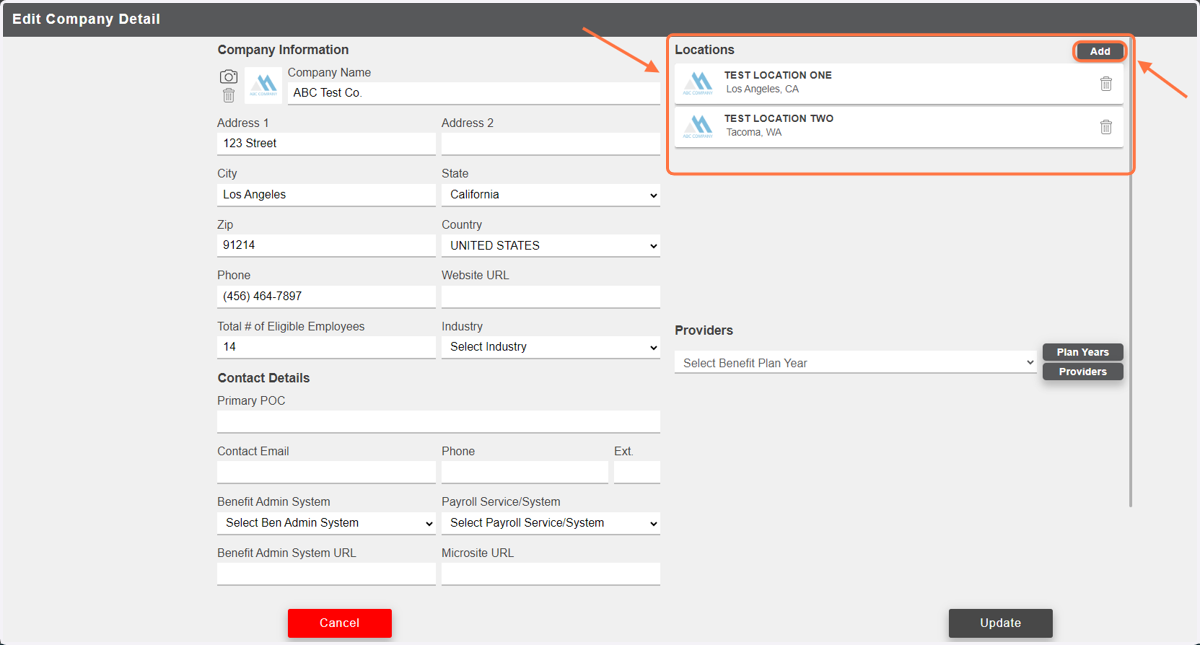
1. Segmenting employees by location begins in Company Detail. Be sure to set up as many locations as are necessary for your case's logistics. You can set up locations using the location census template, or add them individually with the 'Add' button in the upper right.
For example, if your case is all in-person at three different physical locations, you will need to set up a different location in Enrollify for each of those three locations. However, if your case is Hybrid with some employees at a single physical location and the rest virtual, then you will need two locations; one for the in-person employees and one for the virtual. If employees will have the option to be in-person or virtual, you may only need one location as you can have virtual AND in-person appointment available at the same location.
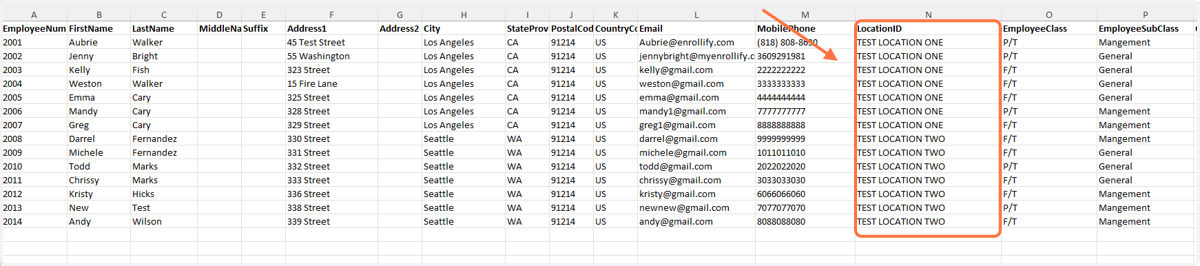
2. Once you have added as many locations as are needed for your case, use the 'LocationID' column on the employee census to assign employees to the location they belong to.
3. From the 'Edit Enrollment & Case Detail' Page, select the appropriate 'Enrollment Method' whether that be 'Face to Face', 'Virtual', or both.
Please note, the employees will only be able to see the appointment type(s) you have selected under 'Enrollment Method'. Be sure to include the appropriate enrollment method(s).
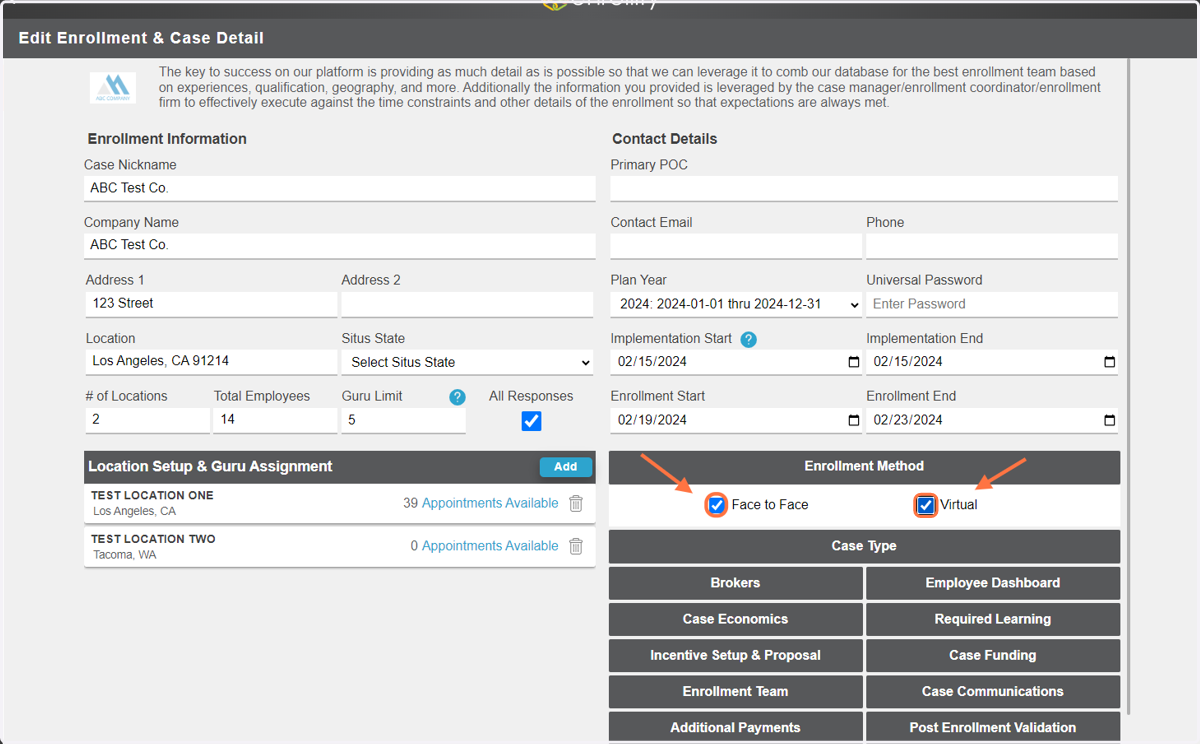
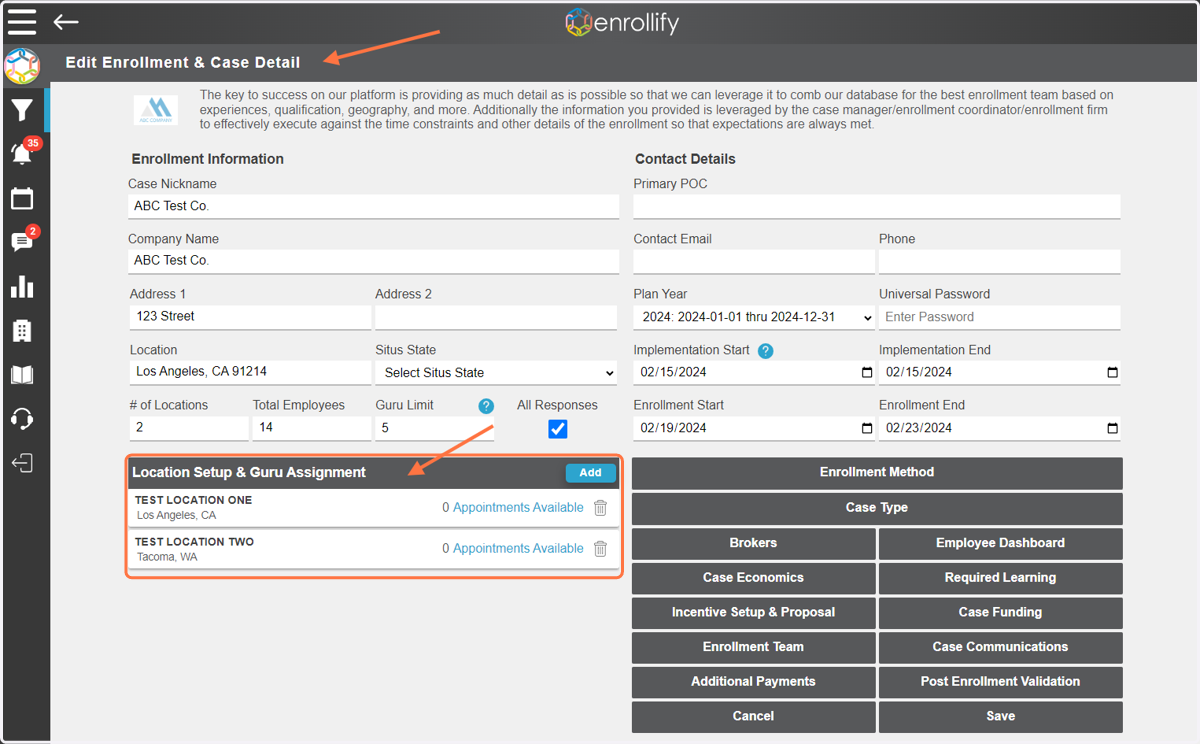
4. From the 'Edit Enrollment & Case Detail' page, you will set up appointment availability under the 'Location Setup & Guru Assignment' section.
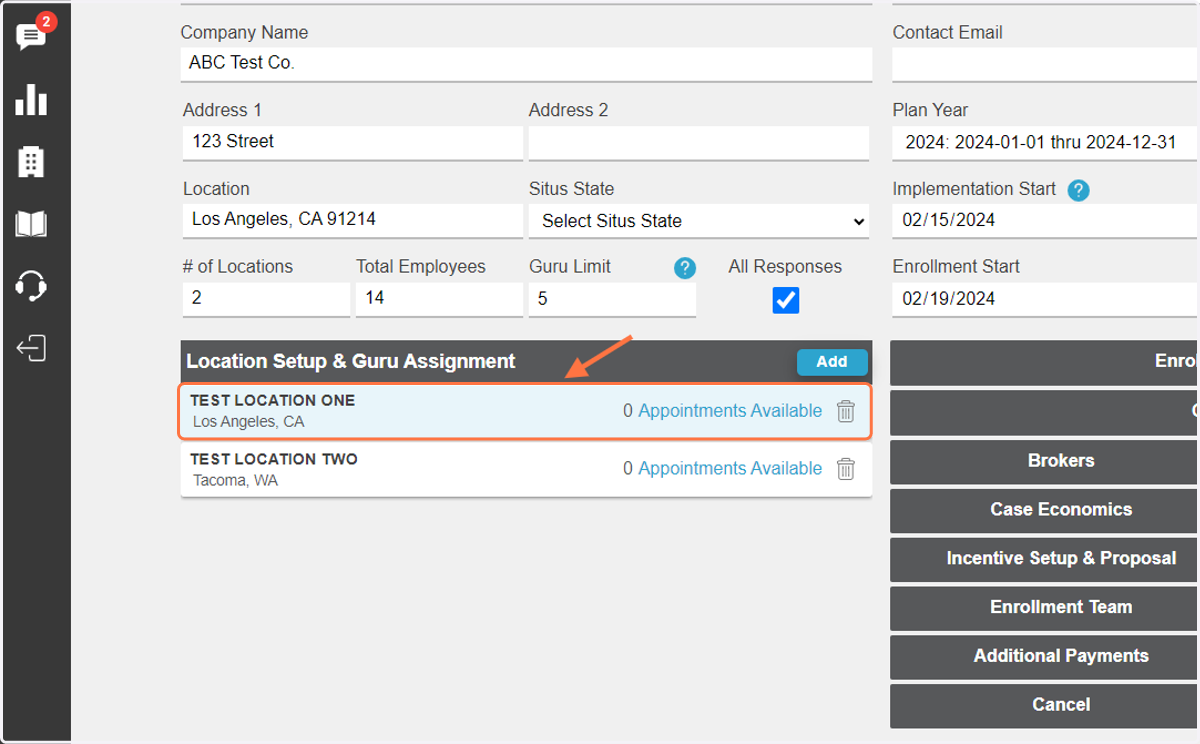
5. To set up appointment availability, click into the first location you would like to set up.
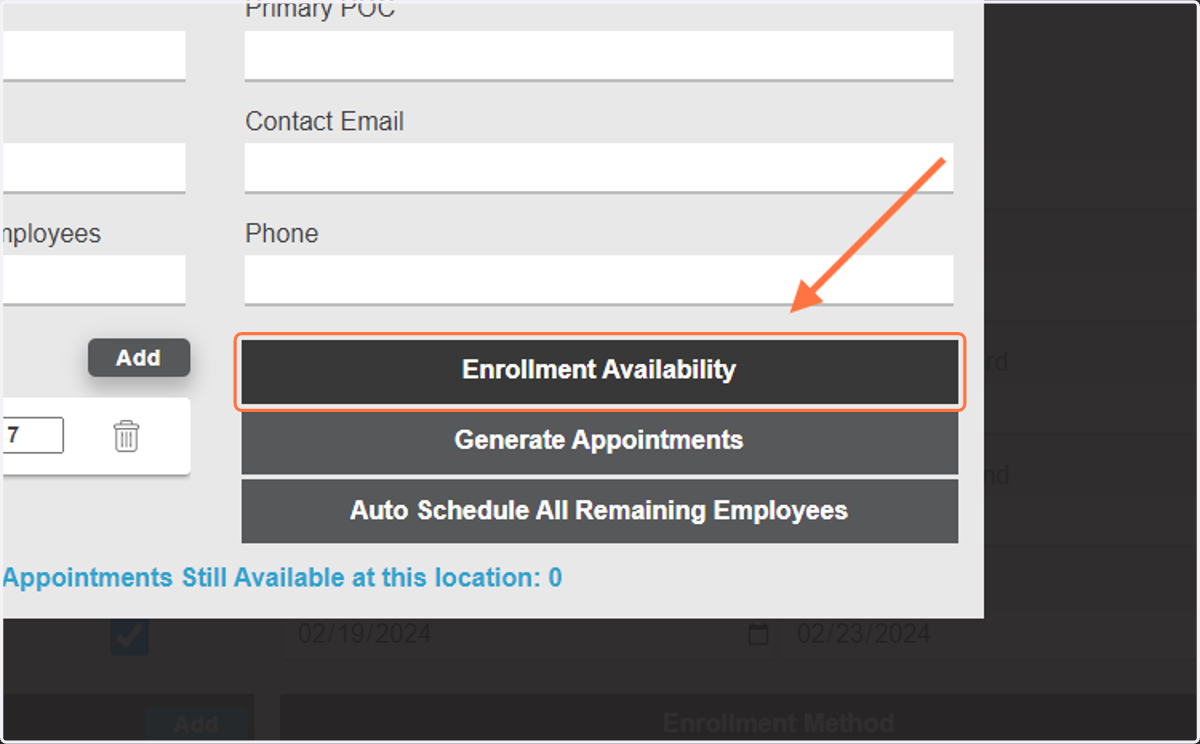
6. Click on 'Enrollment Availability'
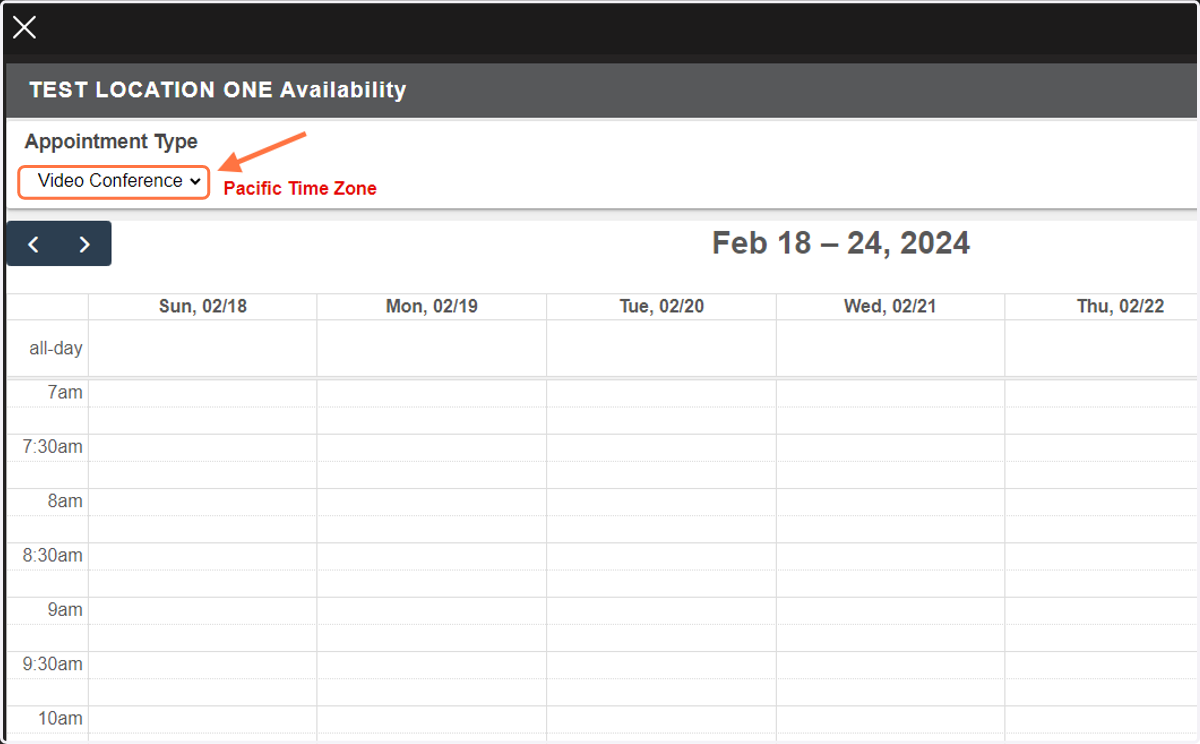
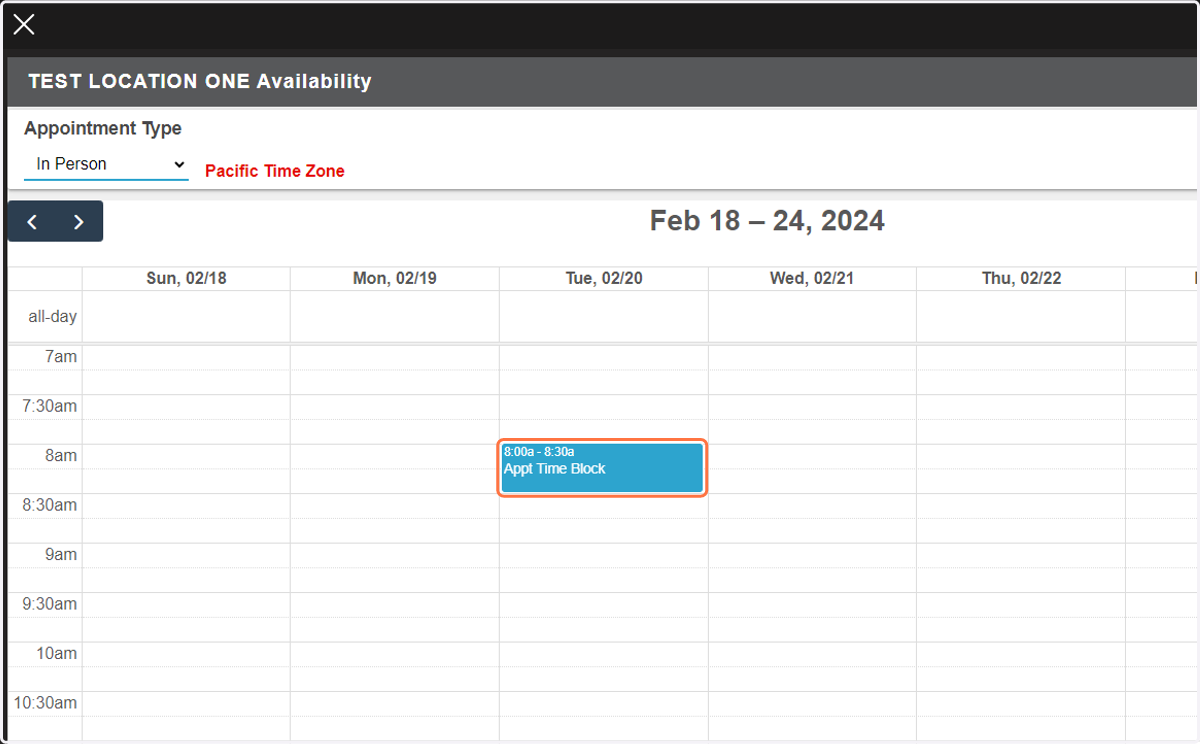
7. Under 'Appointment Type' you will find a dropdown with the option for 'Video Conference' or 'In Person'. Before you begin setting up time blocks for appointment availability, be sure to select the appropriate Appointment Type.
Please note: Appointments will be available based on the time zone listed at the top of this location availability page. The time zone is based off of the address you provided for this location.
8. After selecting the appropriate Appointment Type, begin creating appointment blocks by double clicking on the calendar. Remember to assign the appropriate Gurus to each block you create and 'Generate Appointments' when finished.
If this location should only have In Person appointments, only add availability under the 'In Person' appointment type, leave the 'Virtual' calendar blank. If this location should only have Virtual appointments, only set up time blocks under the 'Virtual' calendar. If this location should have both appointment types available, set up time blocks under BOTH the 'In Person' and 'Virtual' calendar drop downs.
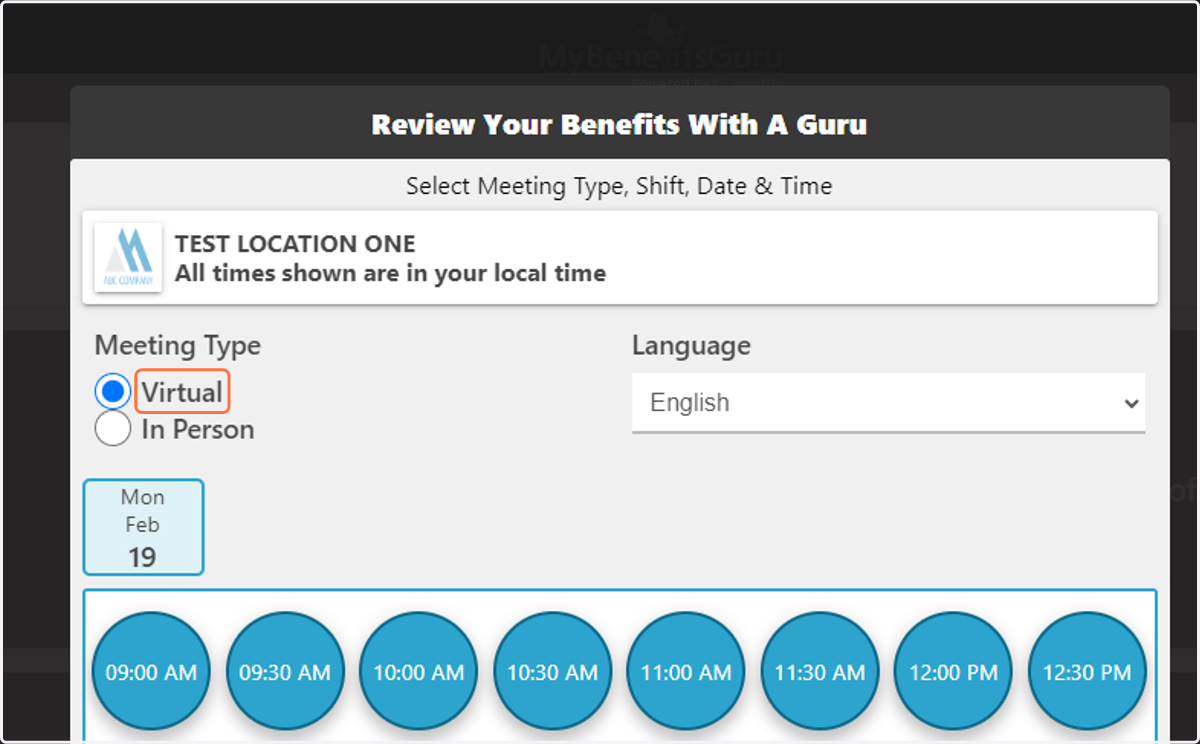
9. Employees will be able to see the appointments you have made available at the location they are assigned to. The image below is the employee view for a location that has Virtual and In Person appointments available.
Please note: If a location only has 'Virtual' or only has 'In Person' appointments available, the employee will only see that Meeting Type option, not both.