Create and Send Offers in GGEM Dashboard
GGEM Dashboard
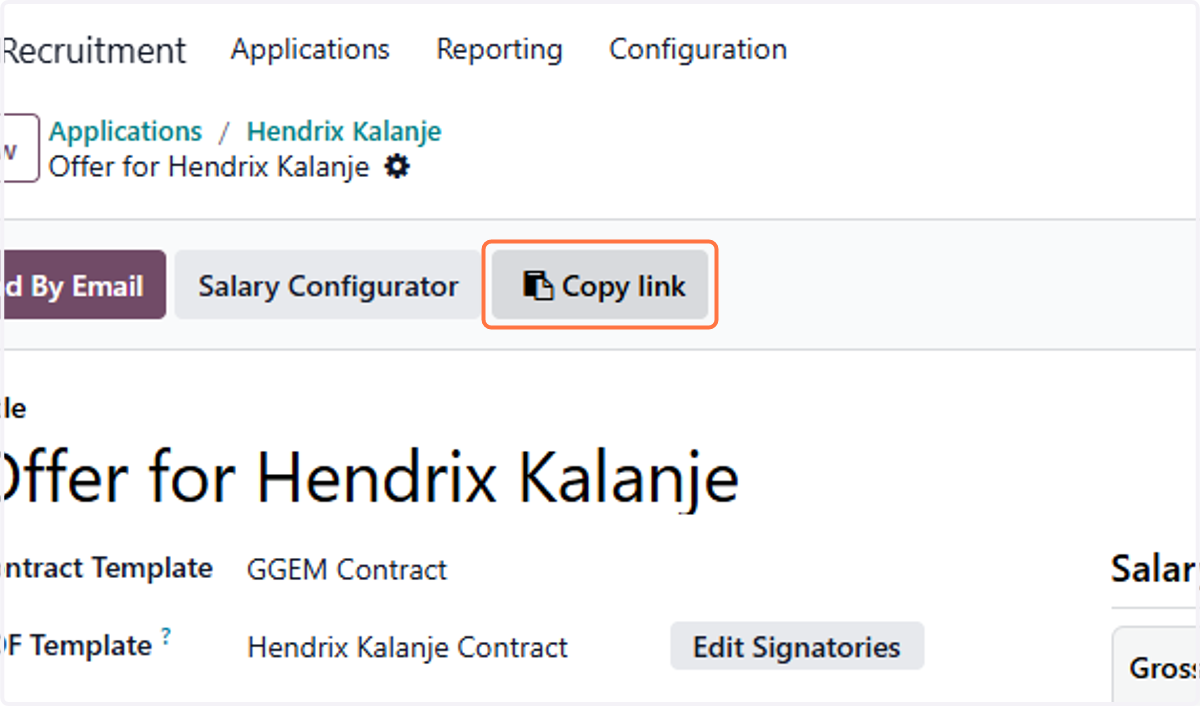
1. Click on Offers
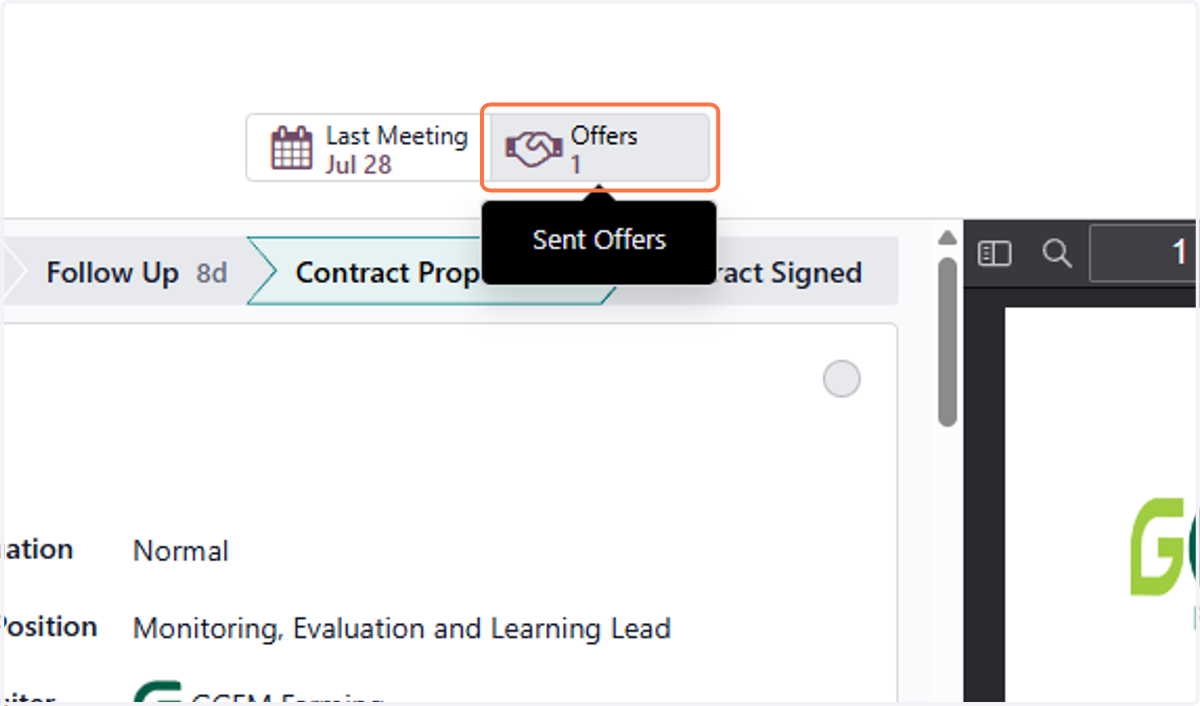
2. Enter Salary Offer
Numerical field only
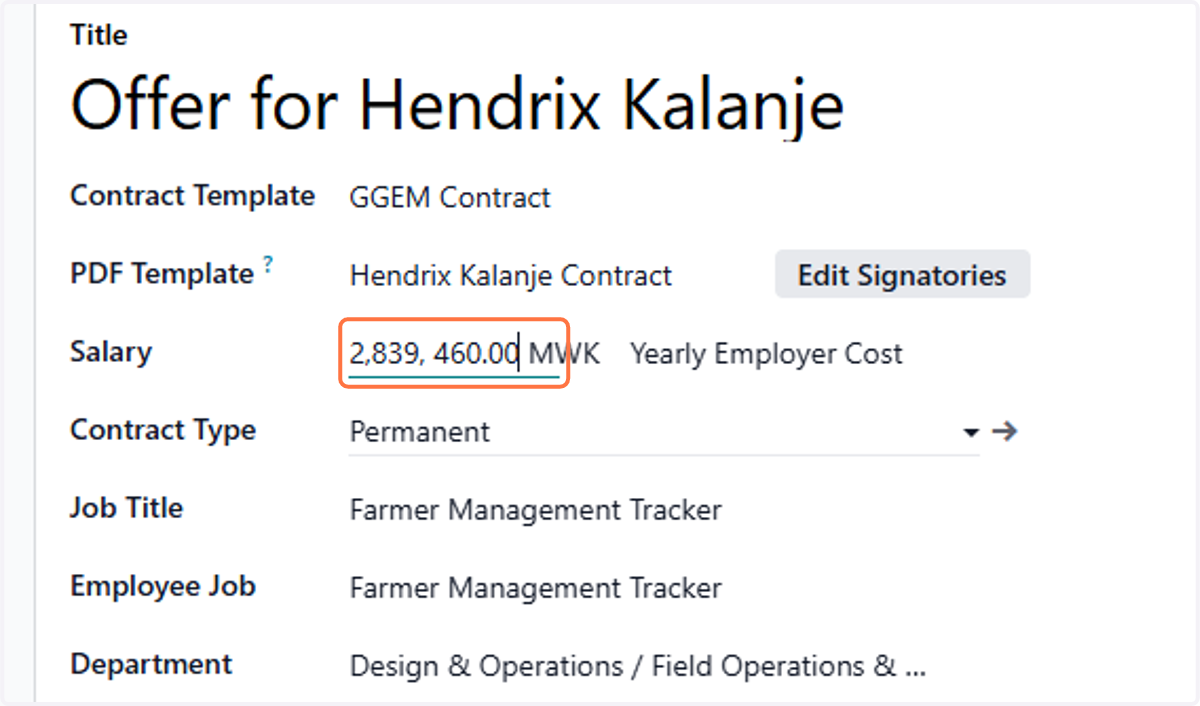
3. Click on Save manually
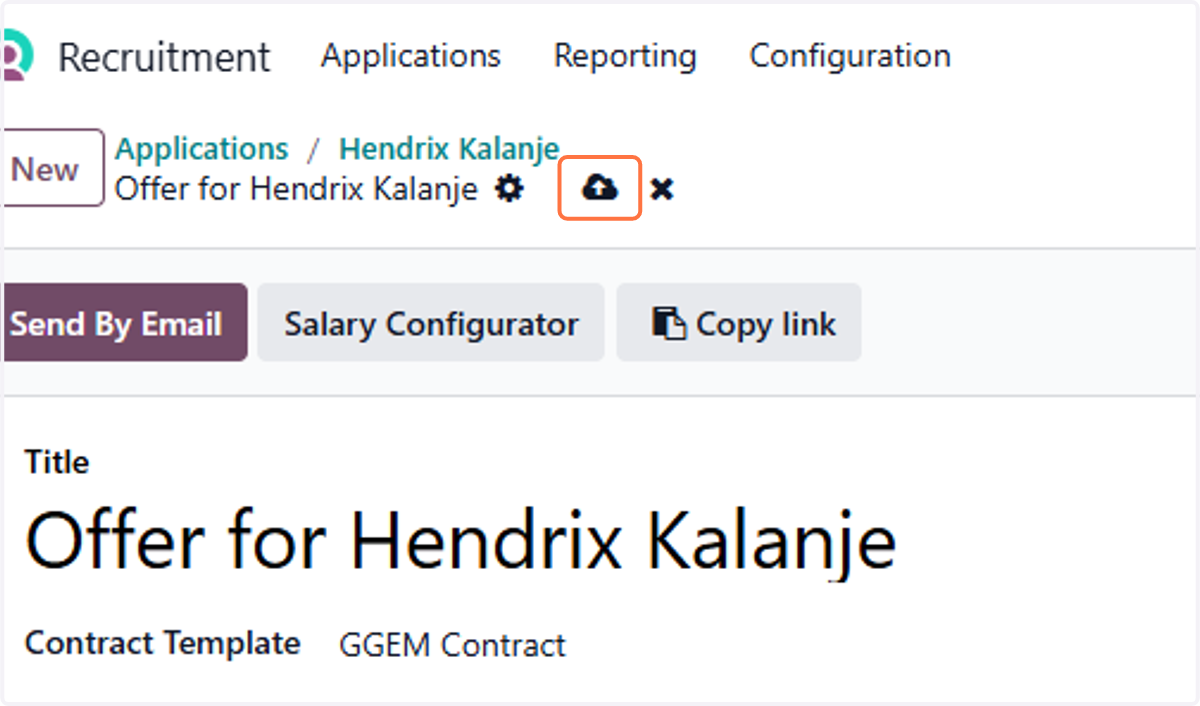
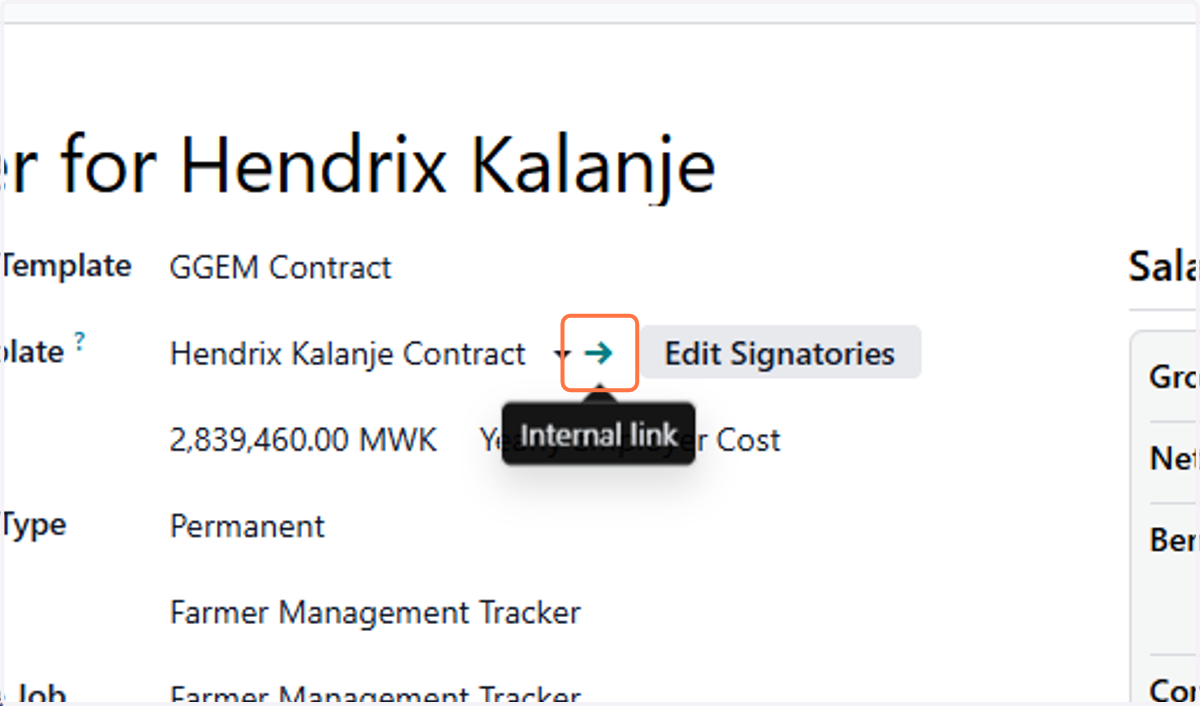
4. Click on Internal link
This will lead you to the contract form
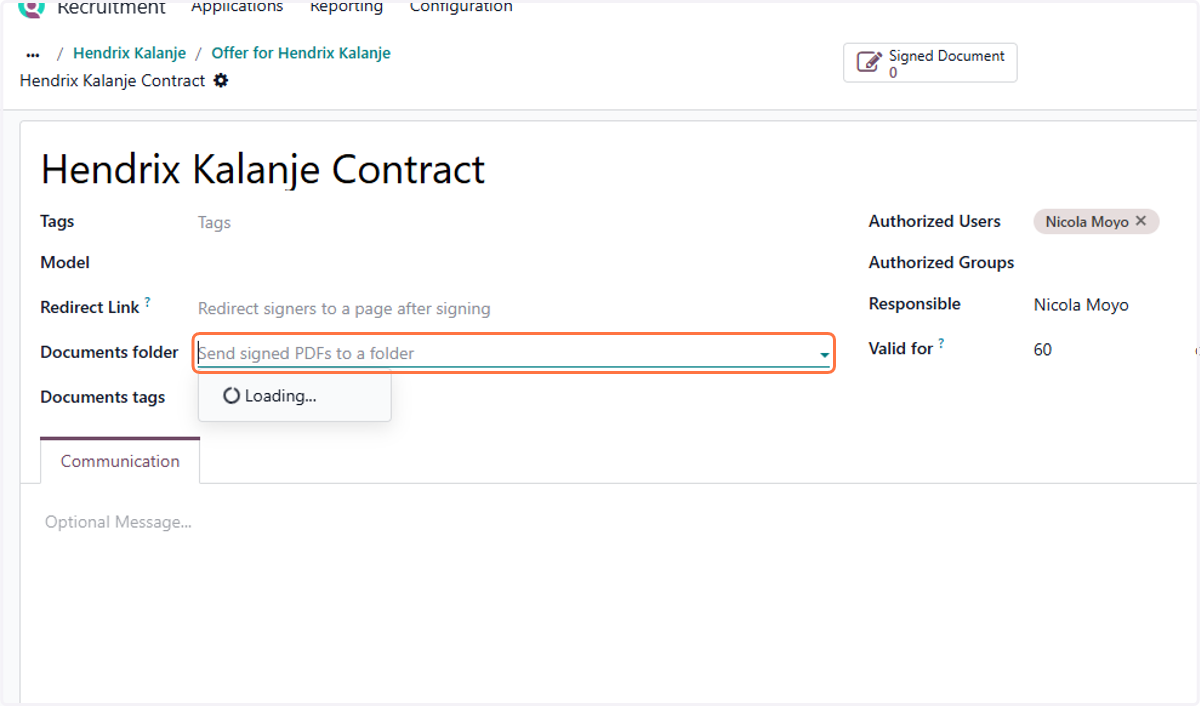
5. Click on Documents folder
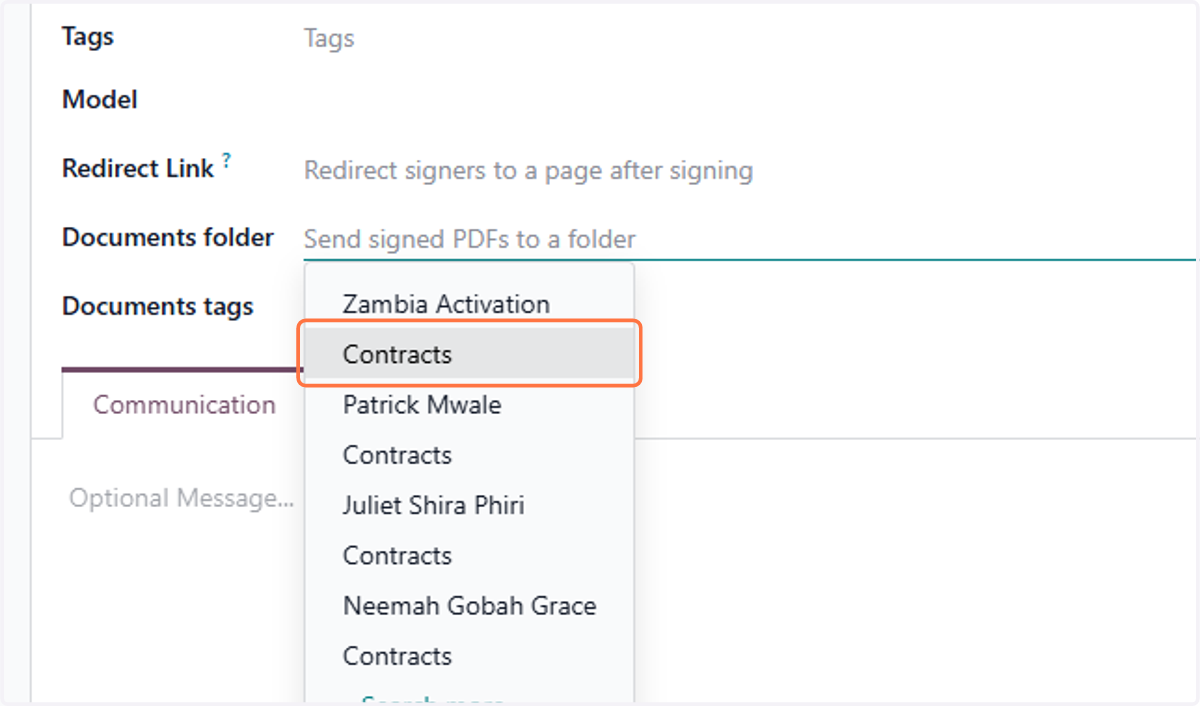
Select the folder where the contract will be held
6. Click on Contracts
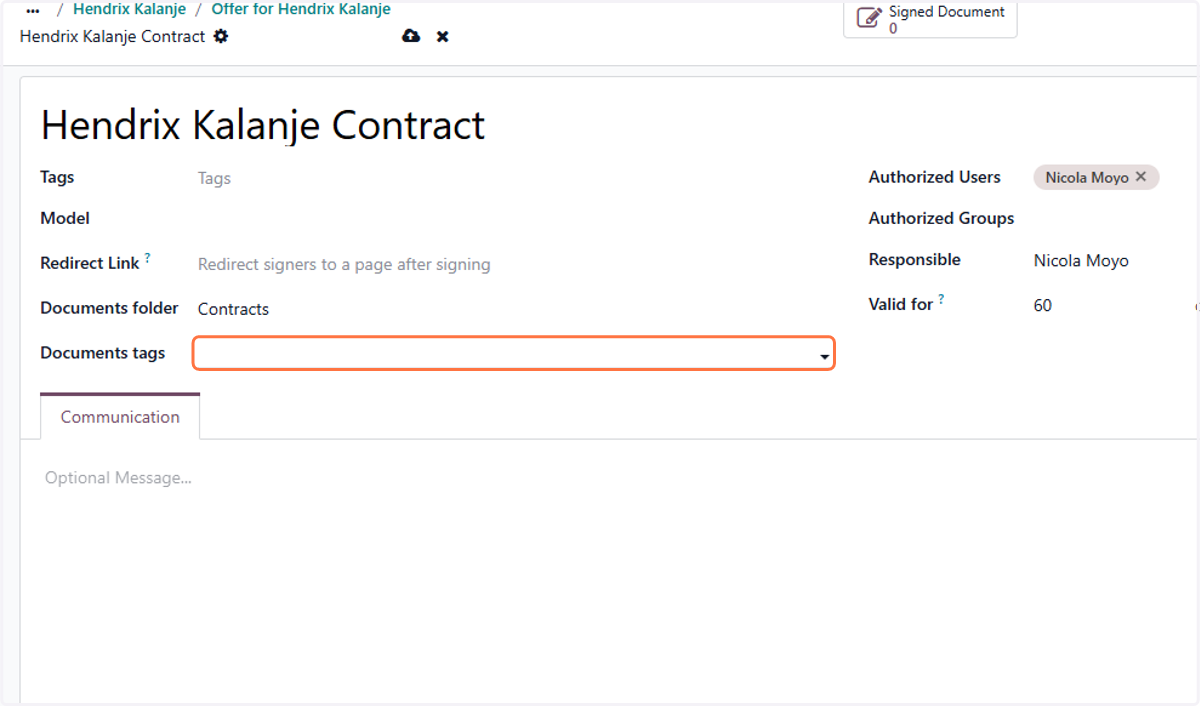
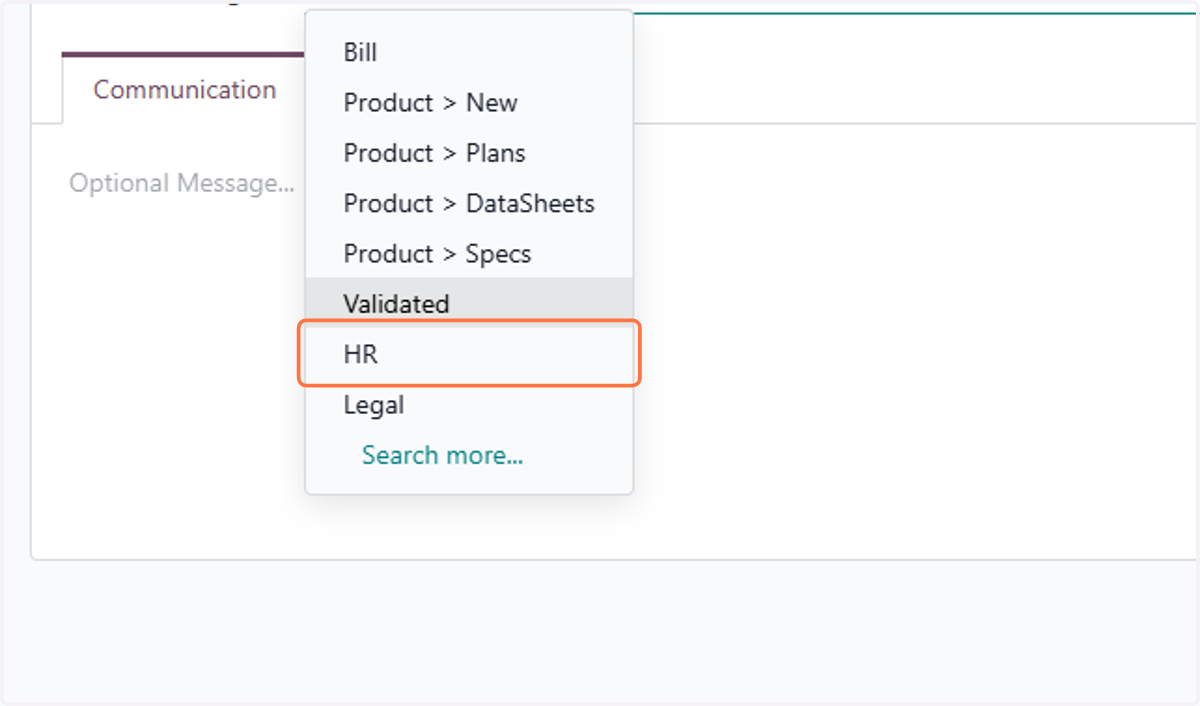
7. Click on Documents tags
8. Click on HR
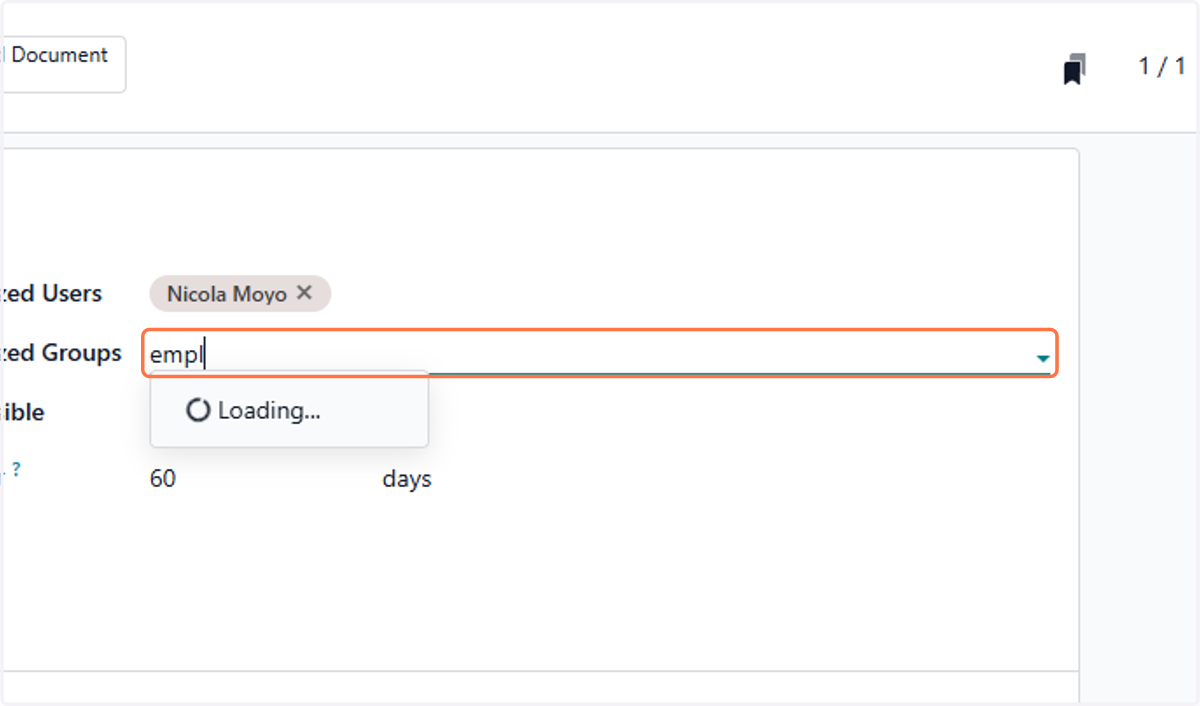
9. Type "empl"
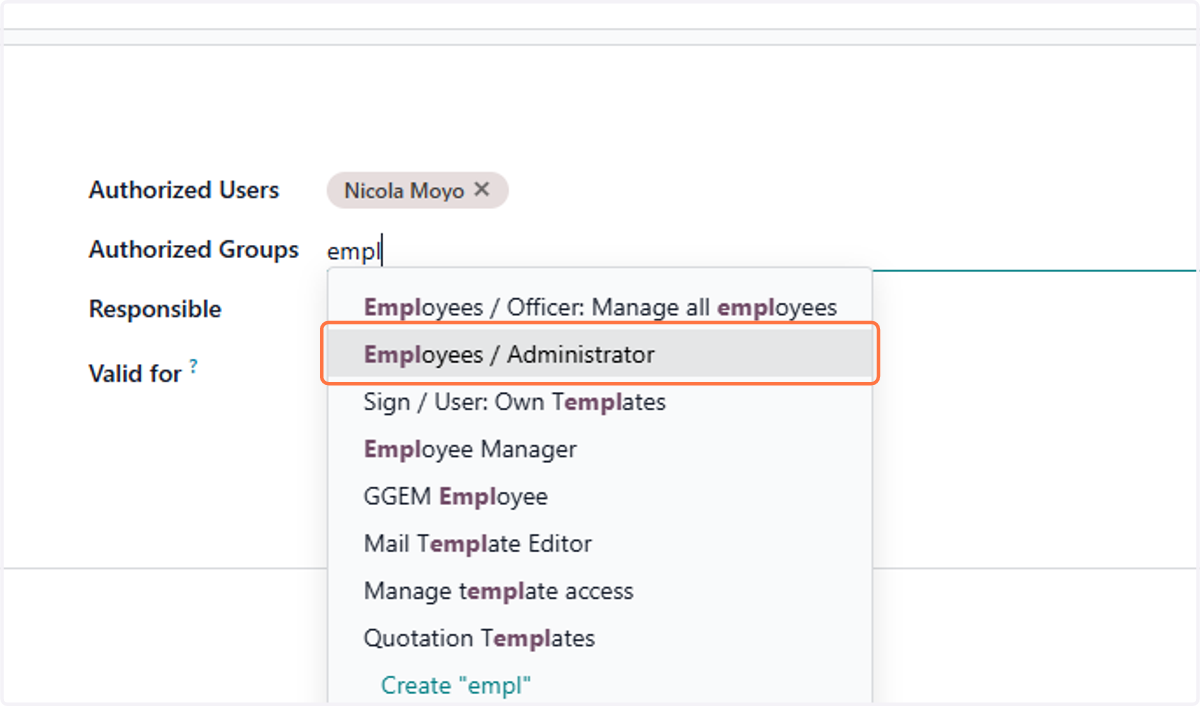
10. Click on Employees / Administrator
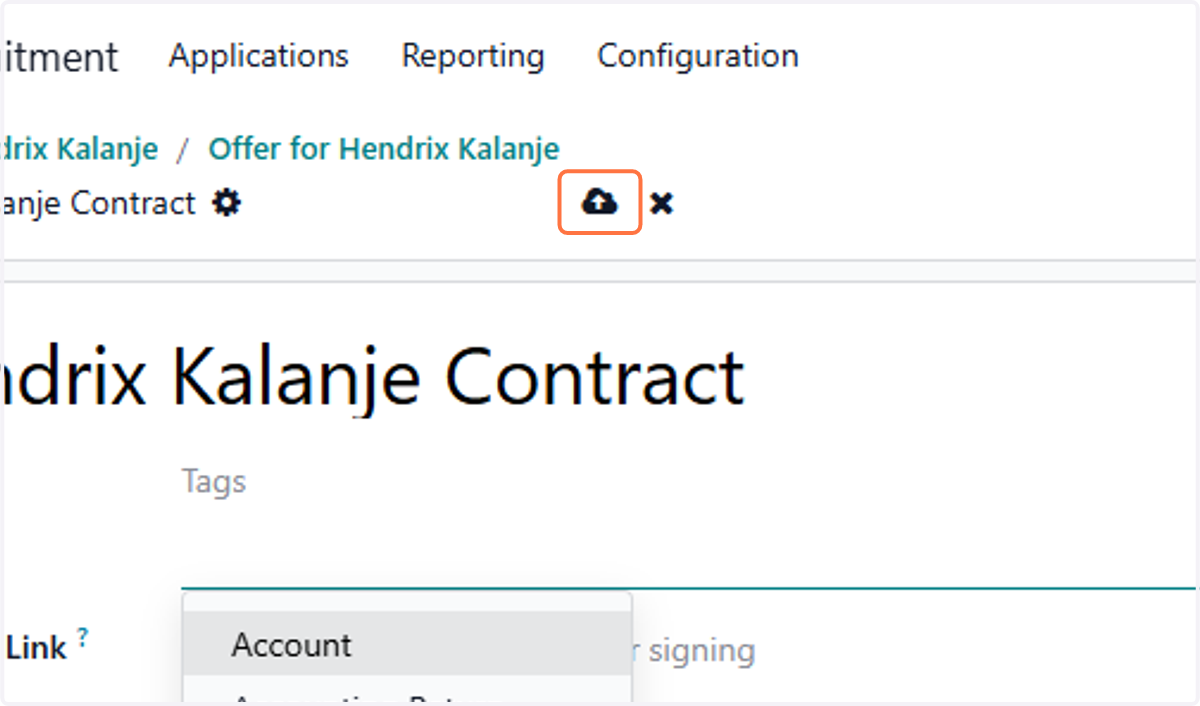
11. Click on Save manually
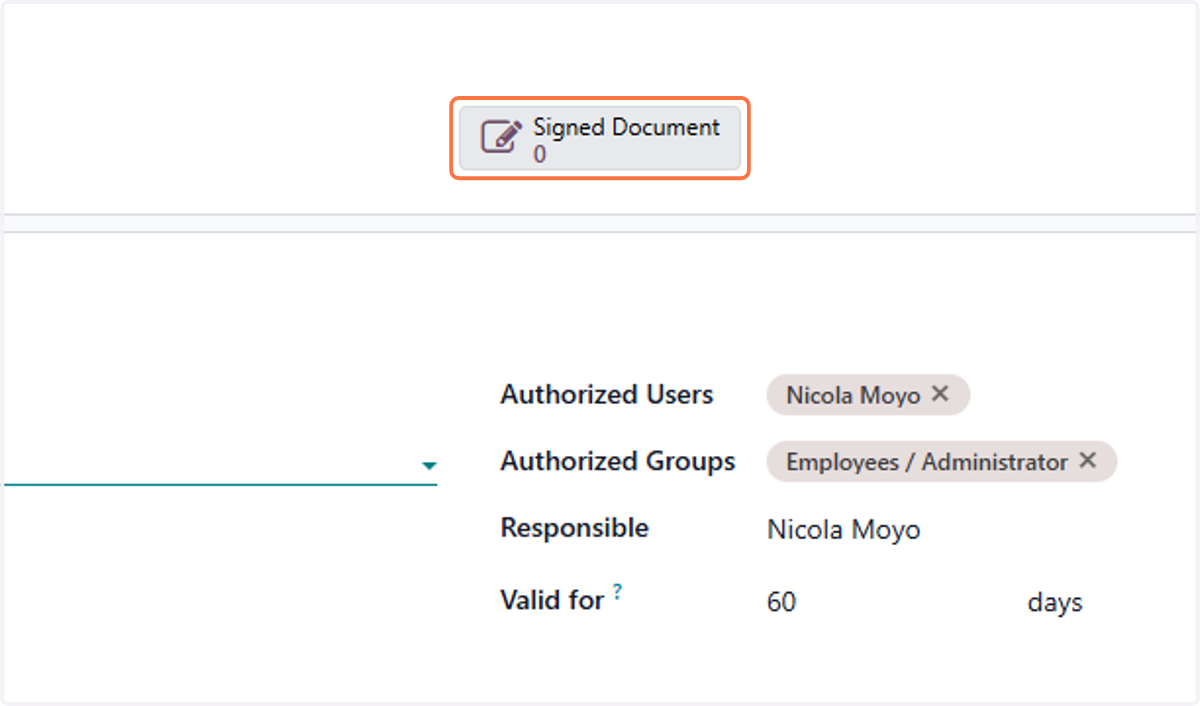
12. Click on Signed Document
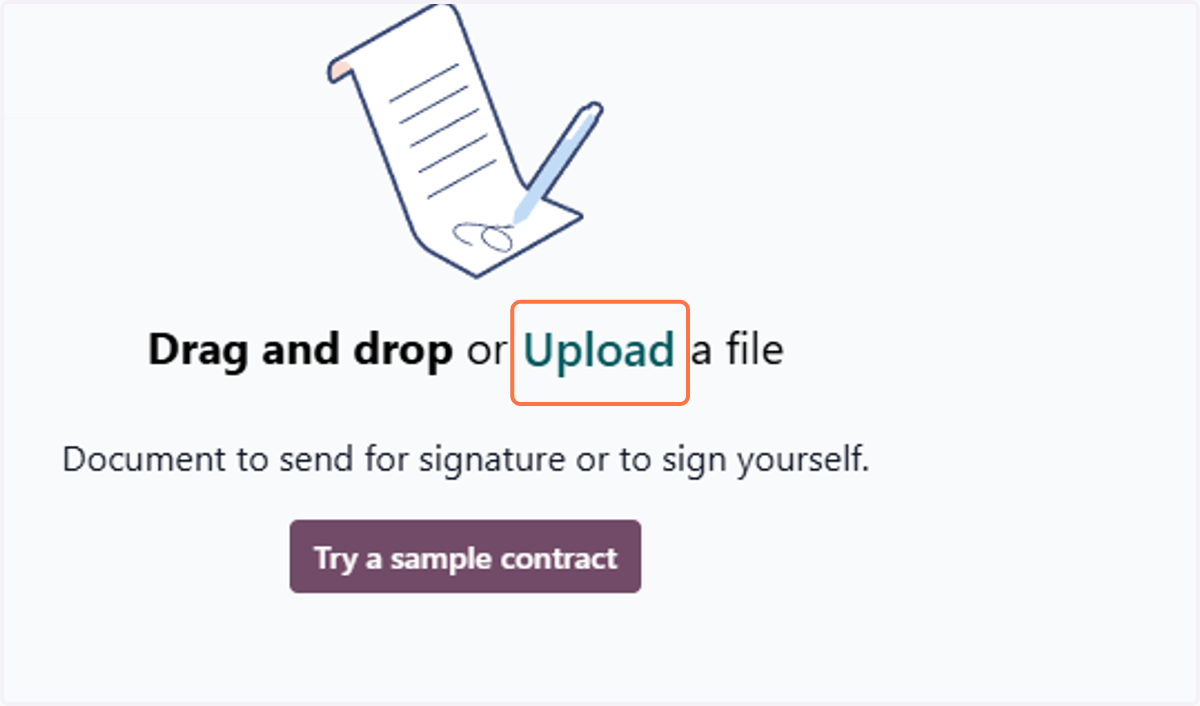
13. Click on Upload
Upload the contract
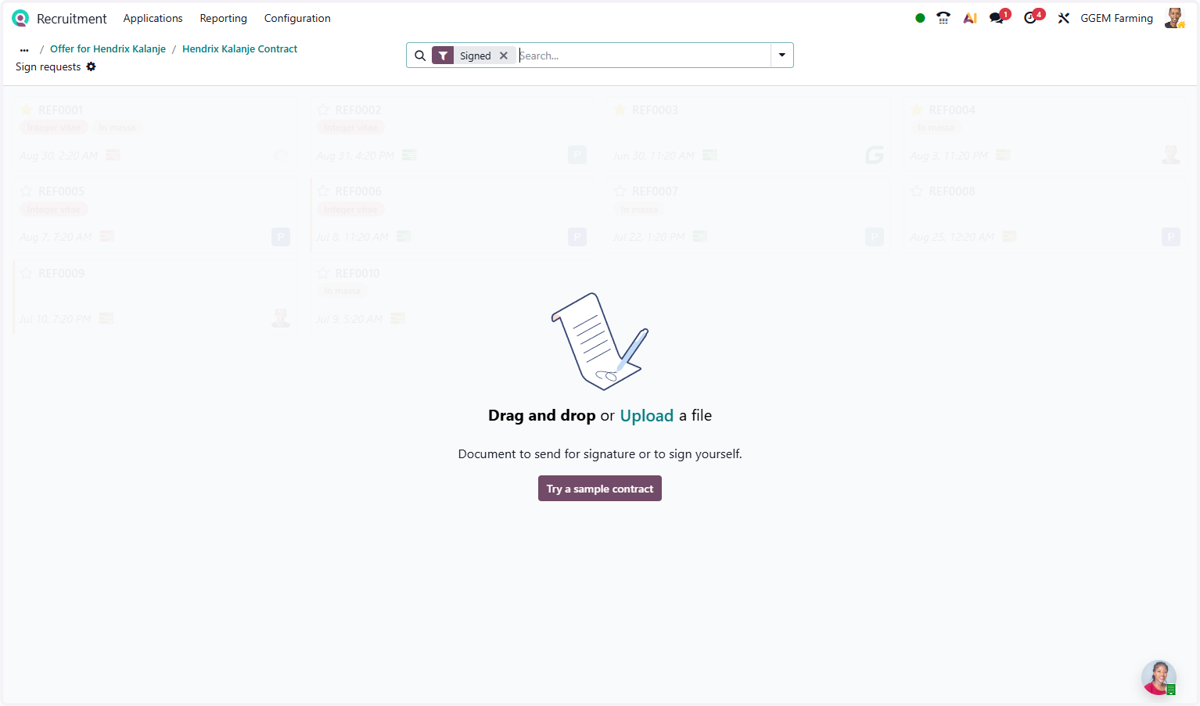
14. Select "Contract name" from file upload menu
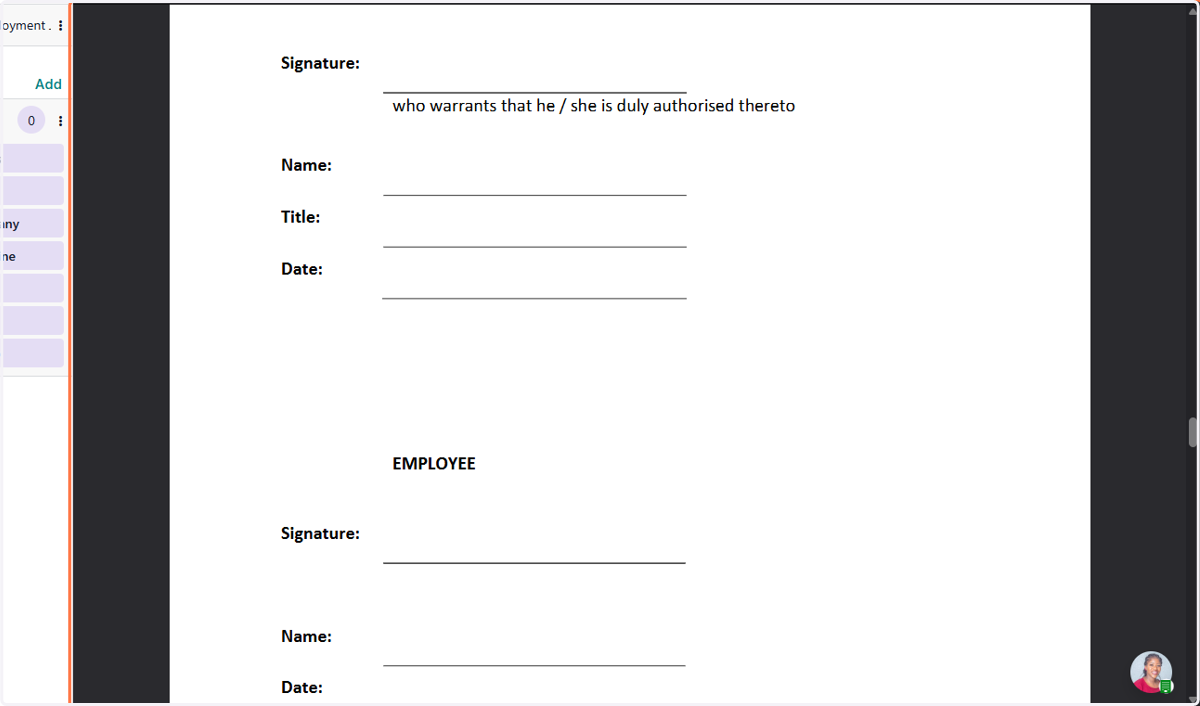
15. Drag highlighted element
Add the signature and other field elements as required
16. Click on Add
Add signatories
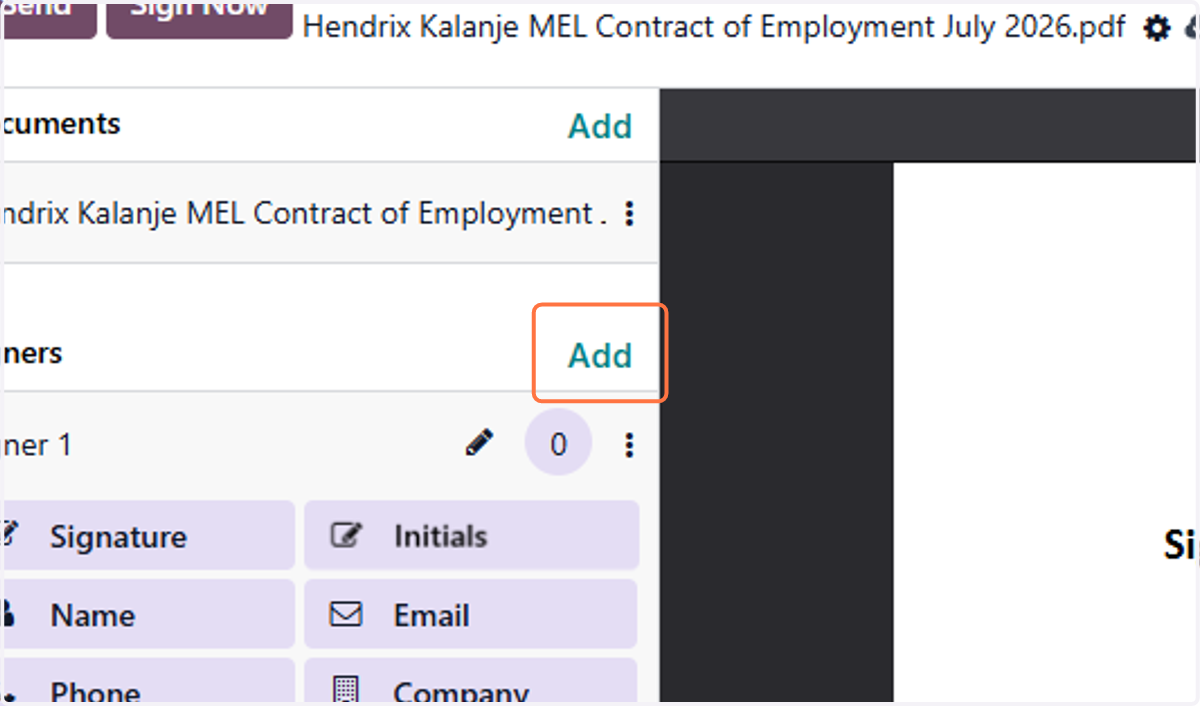
17. Click on edit
edit the name / identifier of the signatory
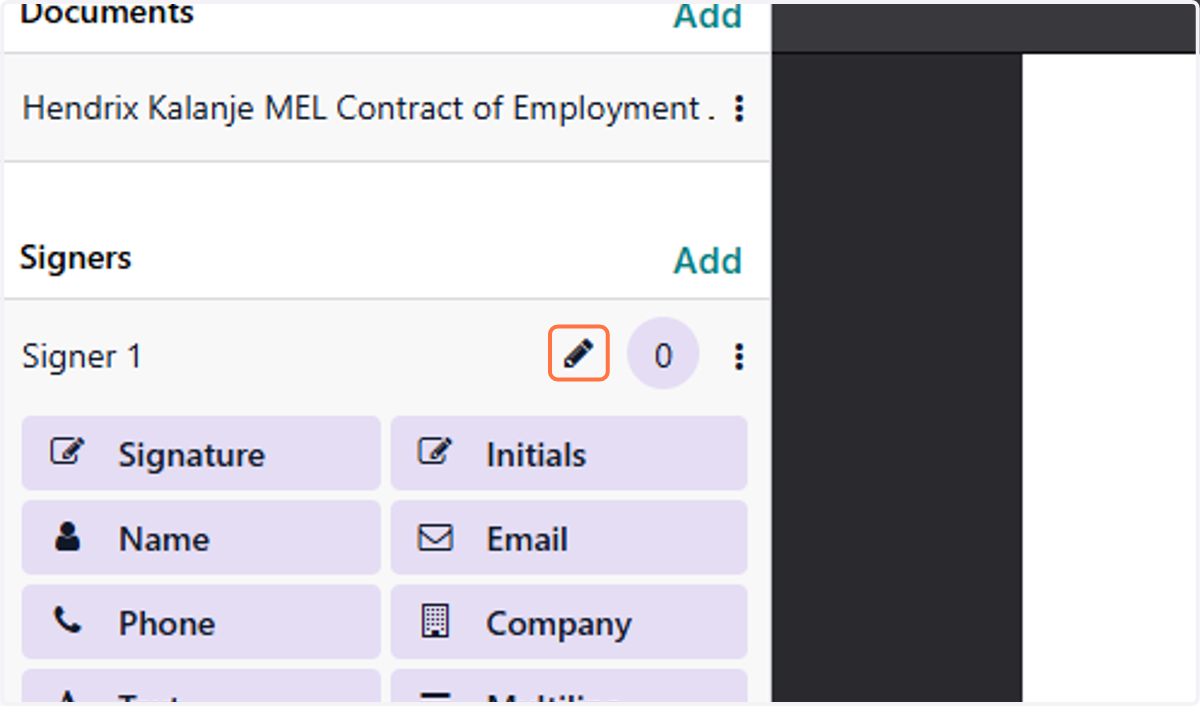
18. Type "GGEM Representative "
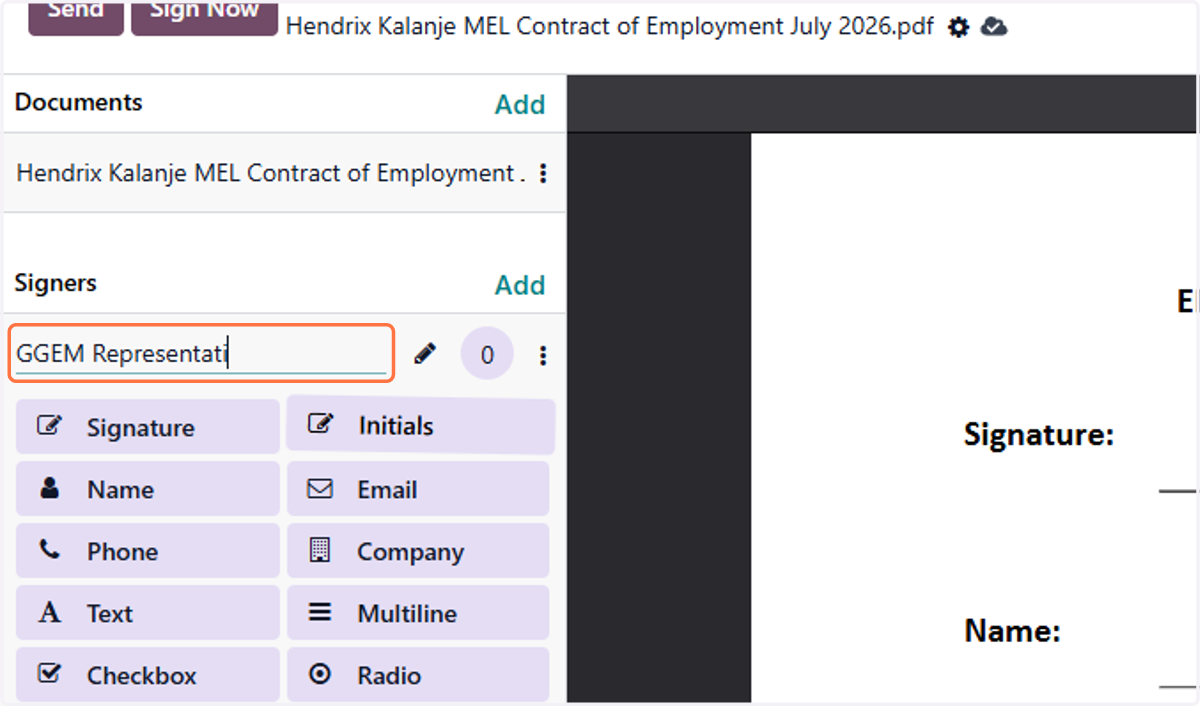
19. Click on Signer 2
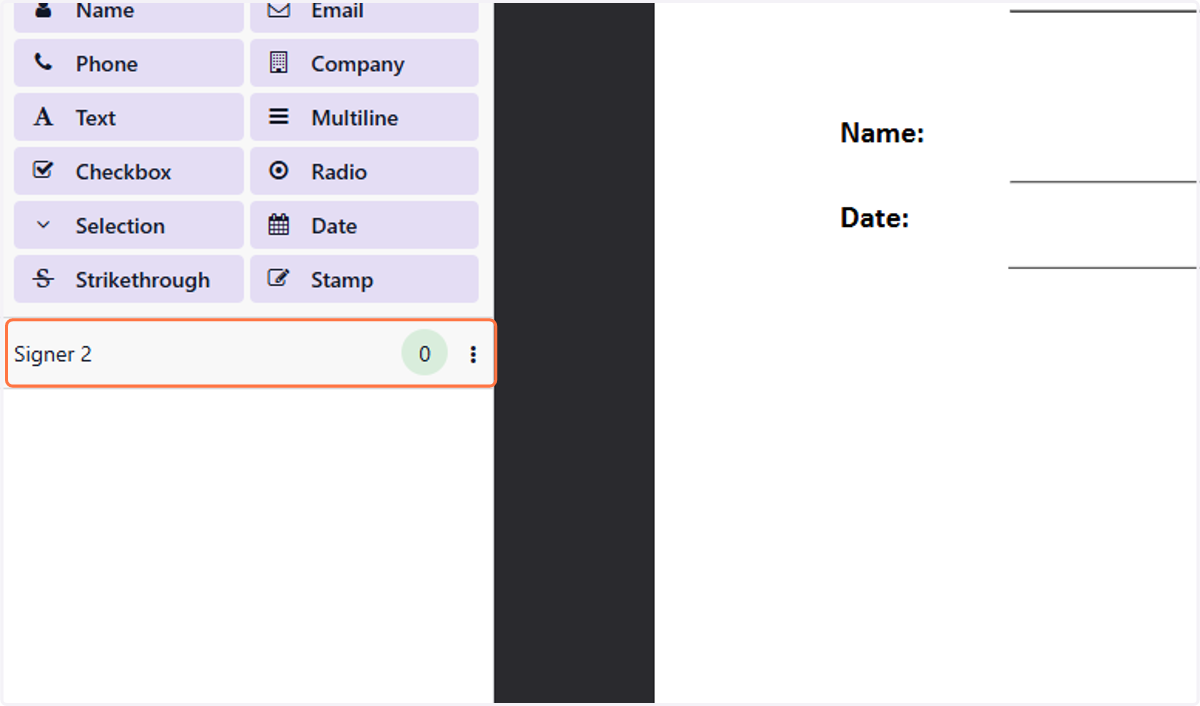
20. Click on edit
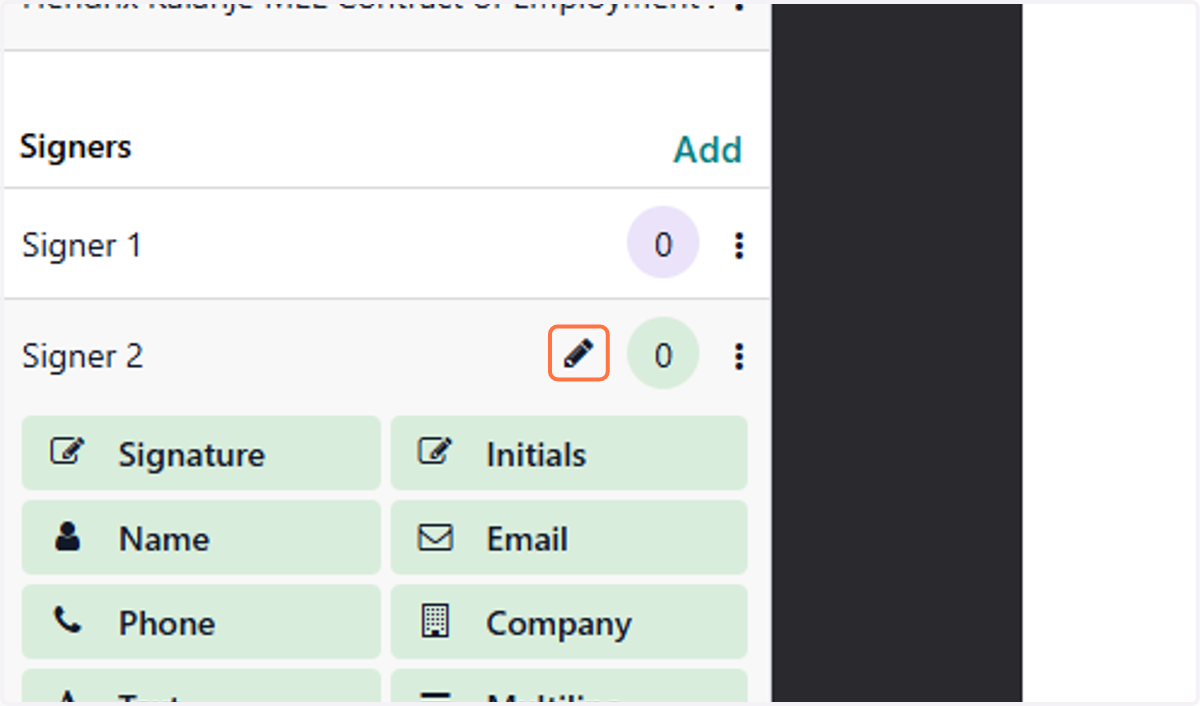
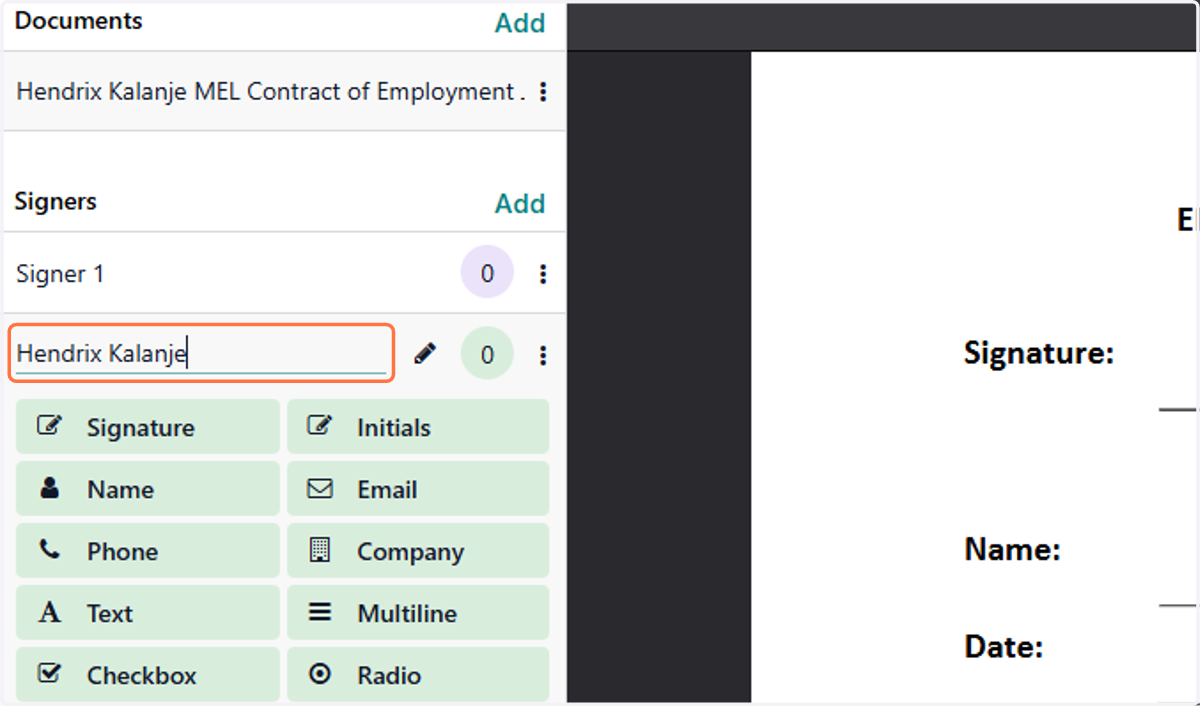
21. Type "Emplyee Name"
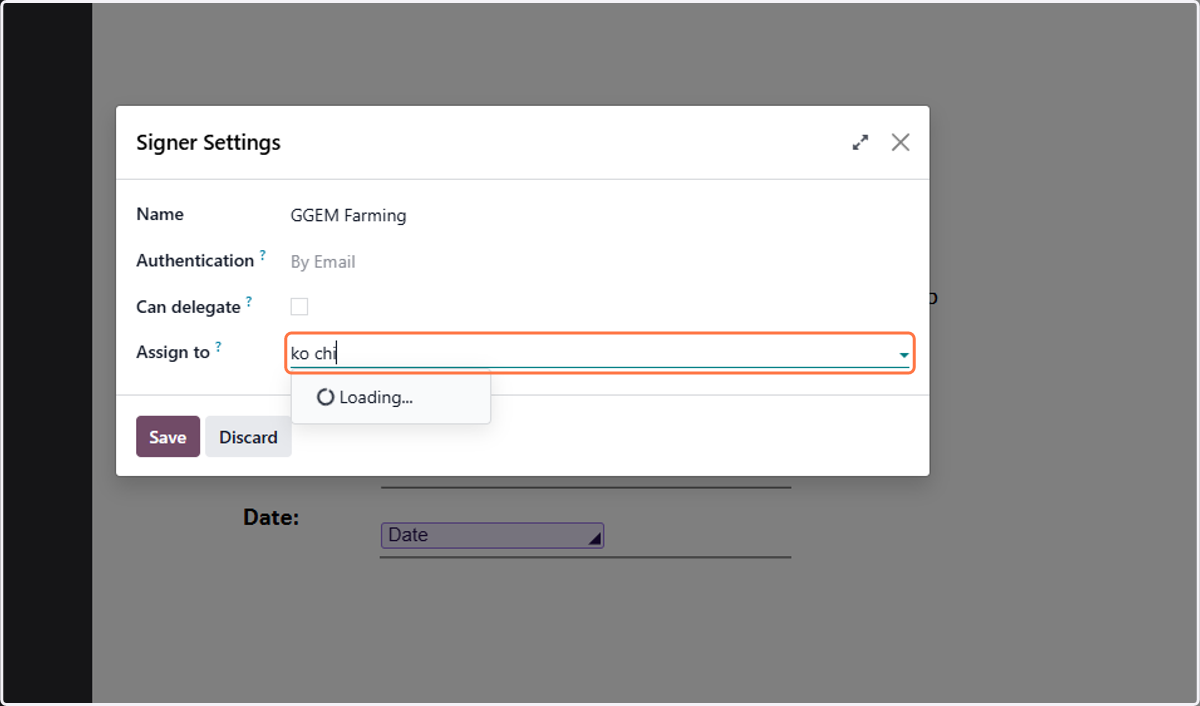
22. Click (three dot menu) to asign emials to singatories
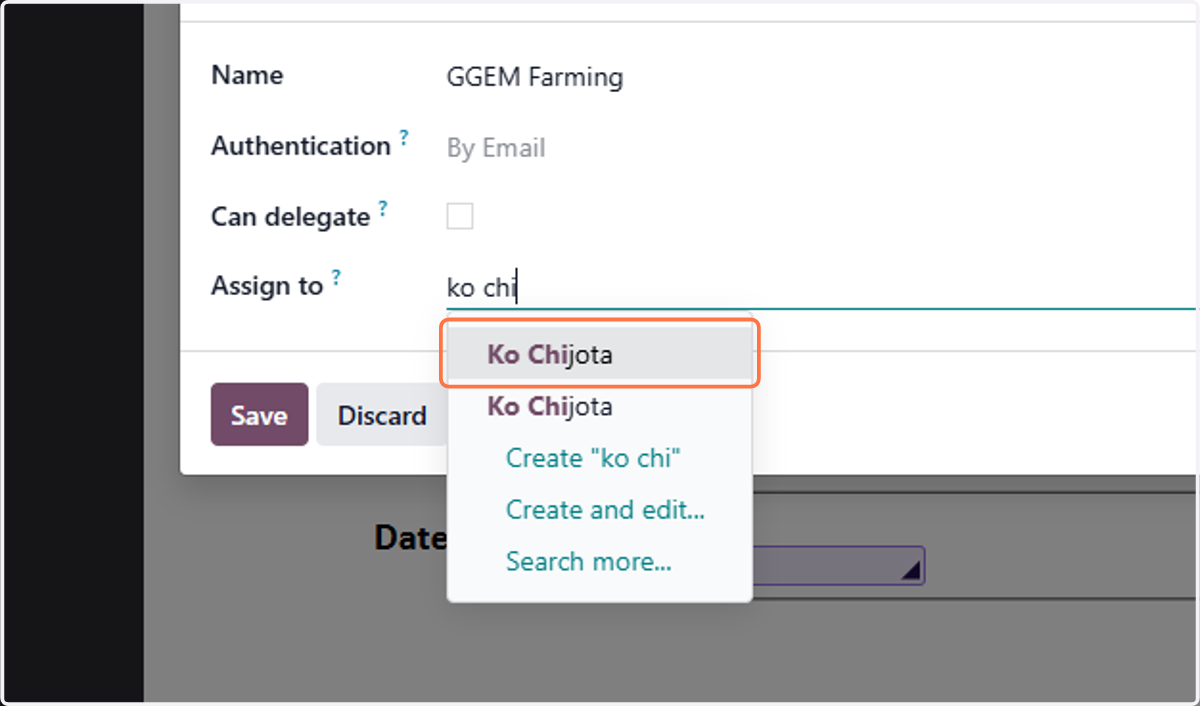
23. Click on Ko Chijota
24. Click on Save
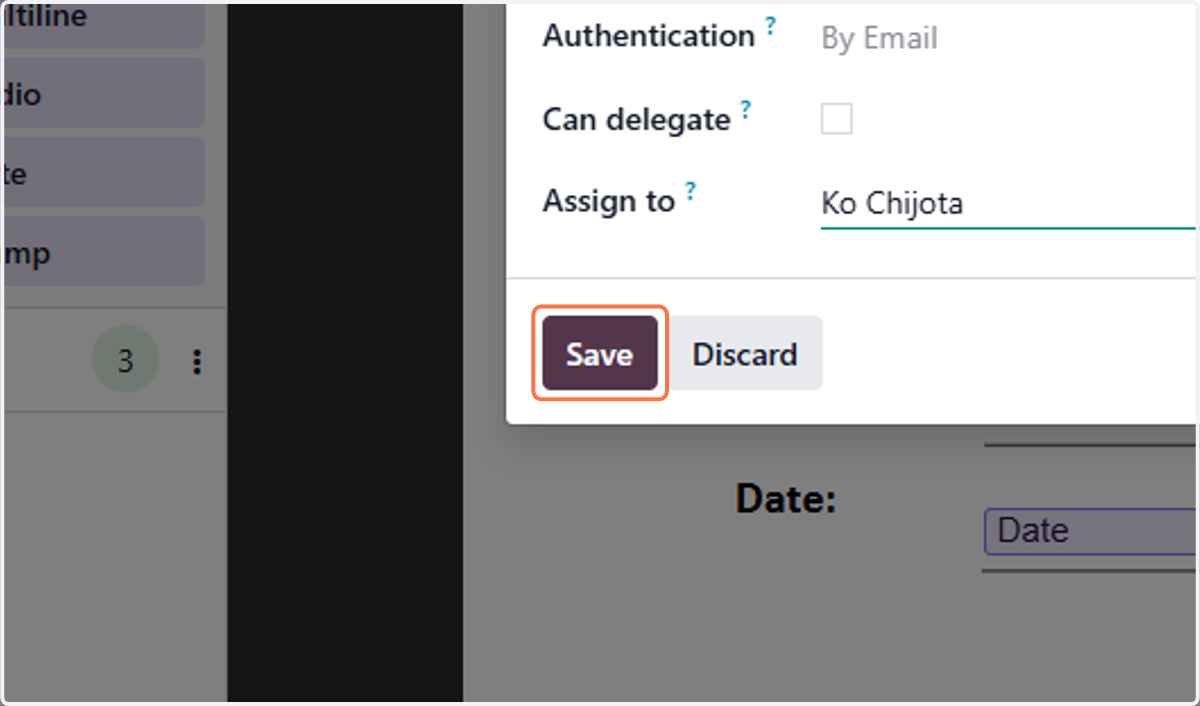
25. Click on highlight
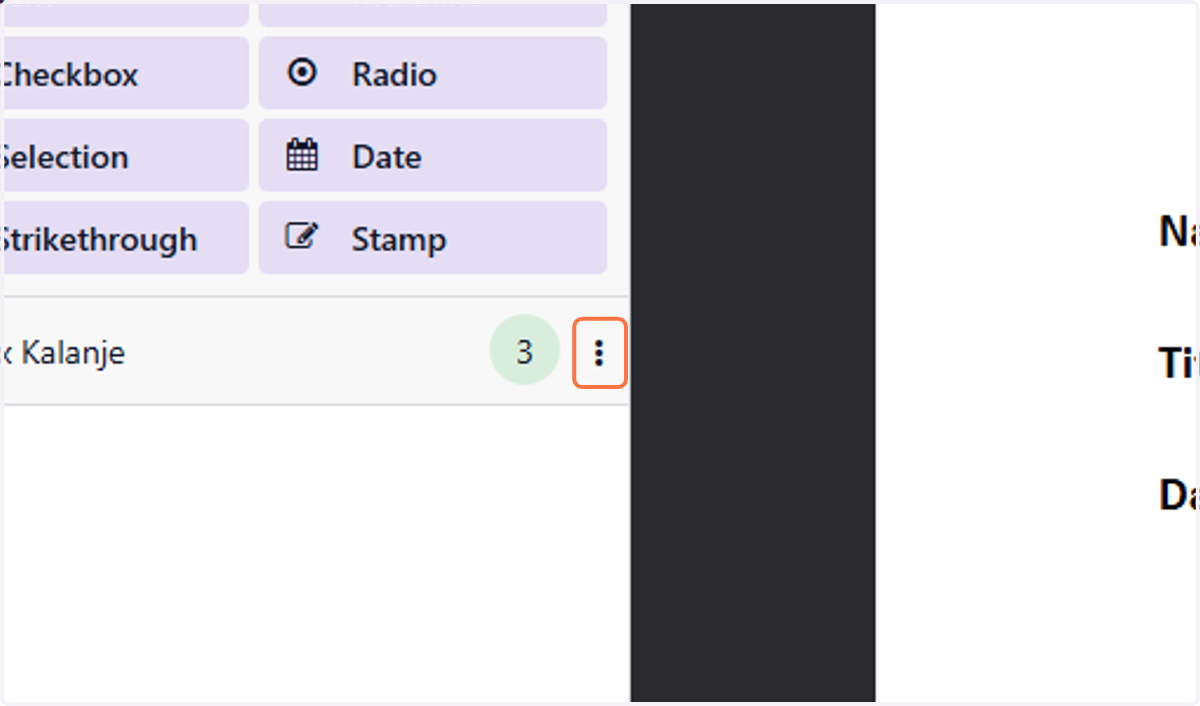
26. Click on Edit
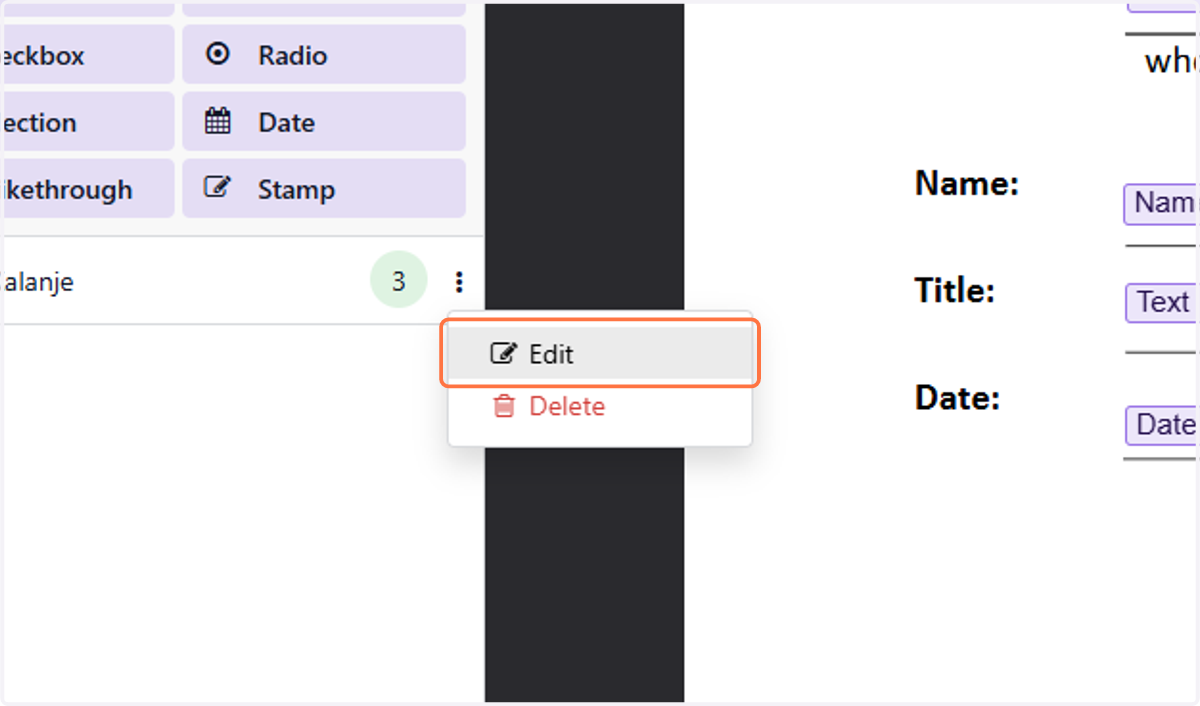
27. Type "Employee Name"
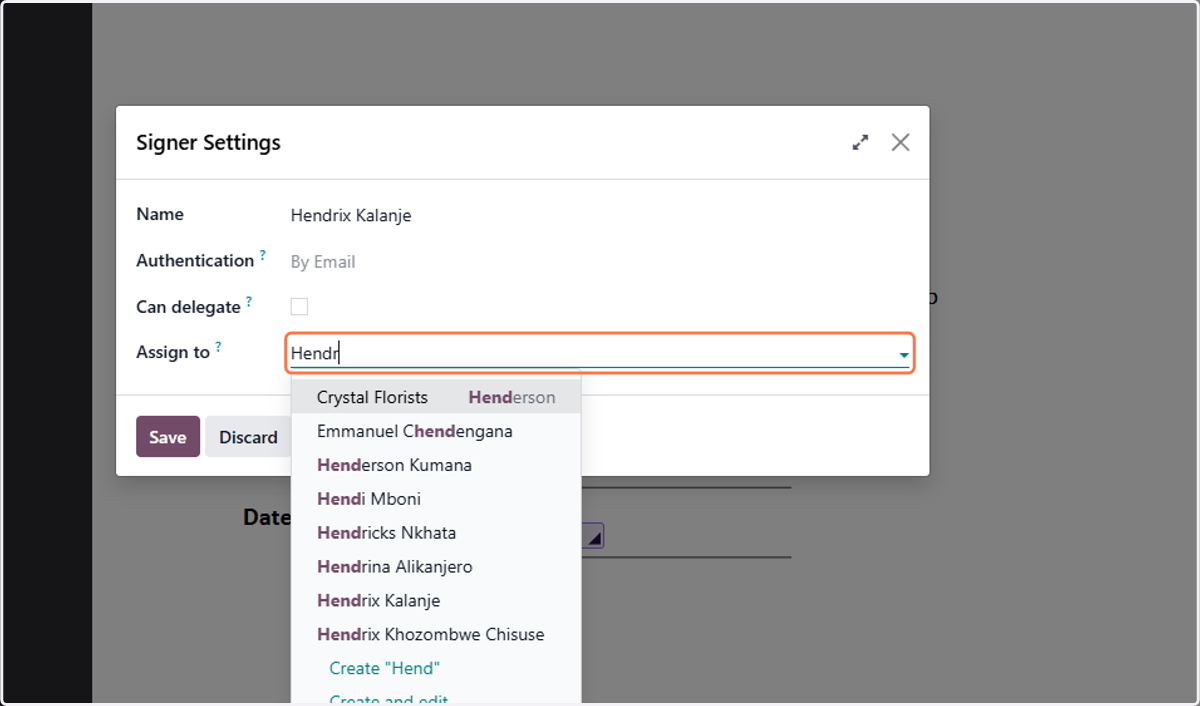
28. Click on Hendrix Kalanje
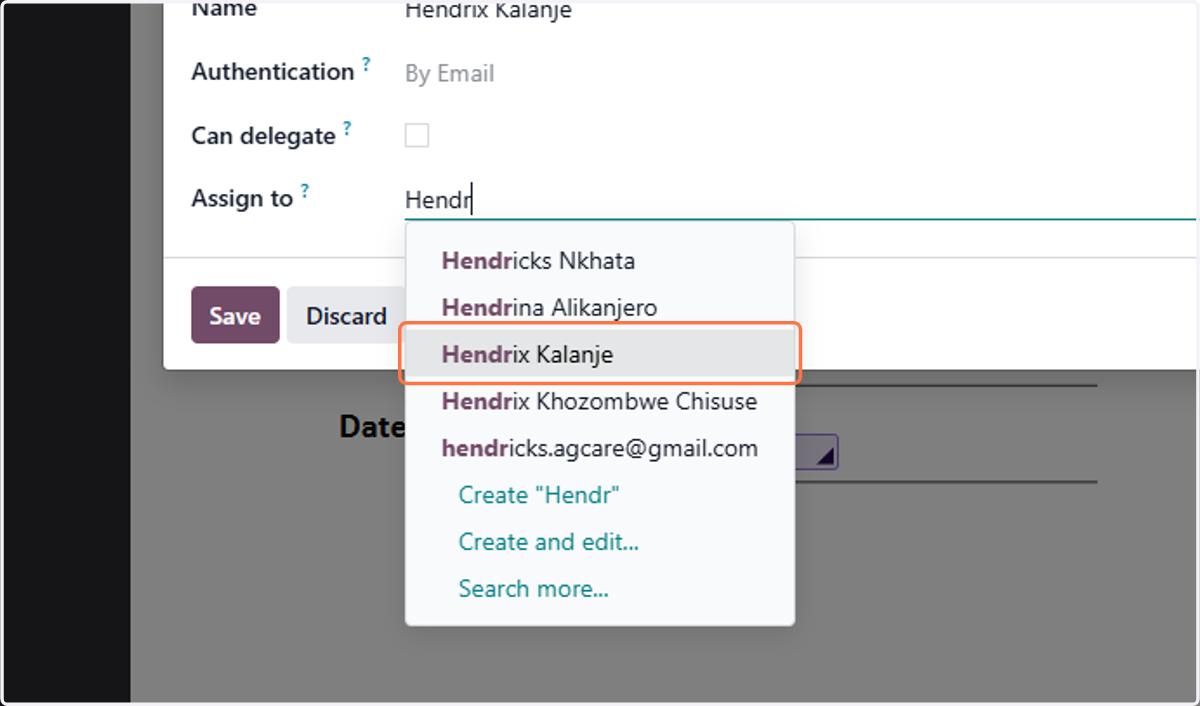
29. Click on Save
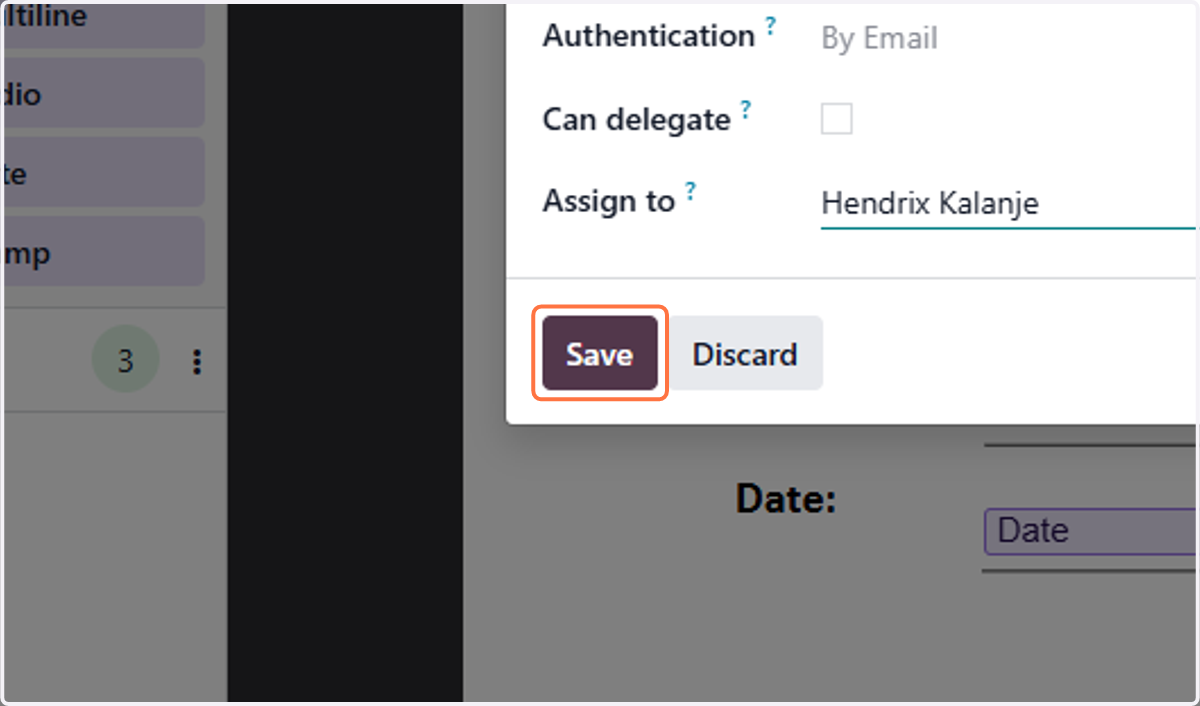
30. Click on Save manually
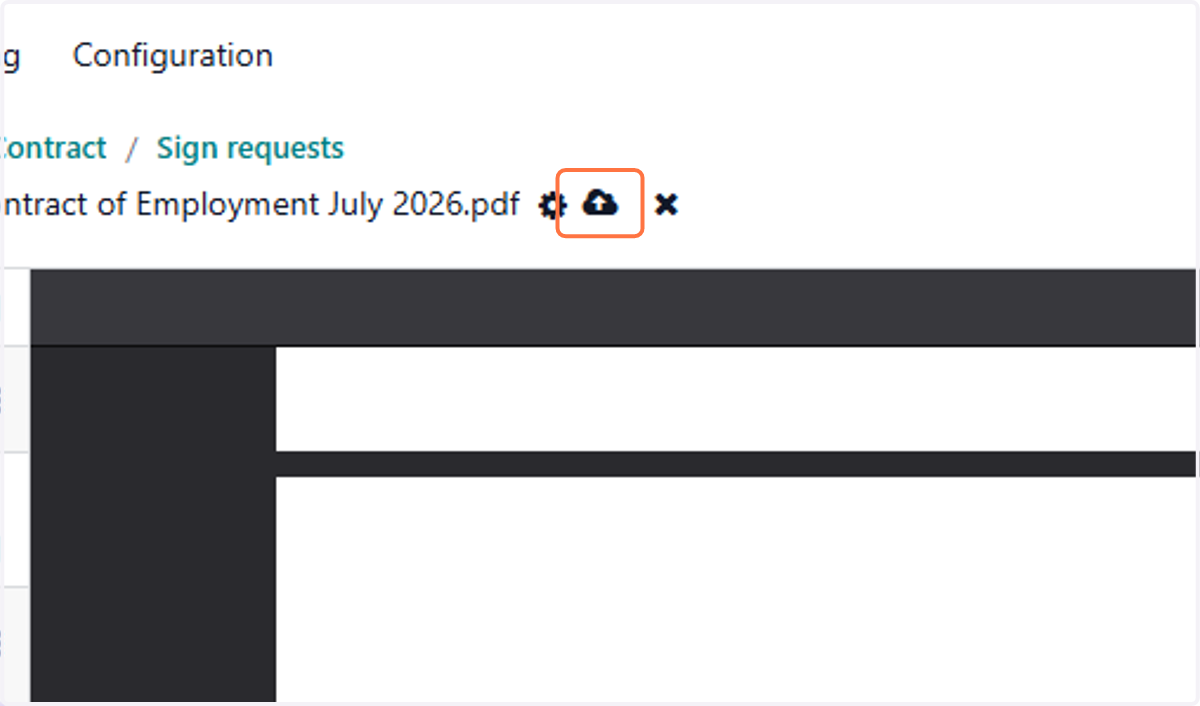
31. Click on [Employee Name] Contract
Click send now on contract to send out contract along with the offer
![Click on [Employee Name] Contract](https://images.tango.us/workflows/d129fa3d-3f10-407a-94de-3bb44a6c7b20/steps/ce02760f-40d9-47f1-8026-2cb8a53d068e/cd4b97f2-5d3d-4d1b-890f-318dc1149f6b.png?fp-x=0.1816&fp-y=0.0720&fp-z=2.4935&w=1200&border=F4F2F7&bx=201&by=50&bw=155&bh=30&c=FF7442&dpr=1.00)
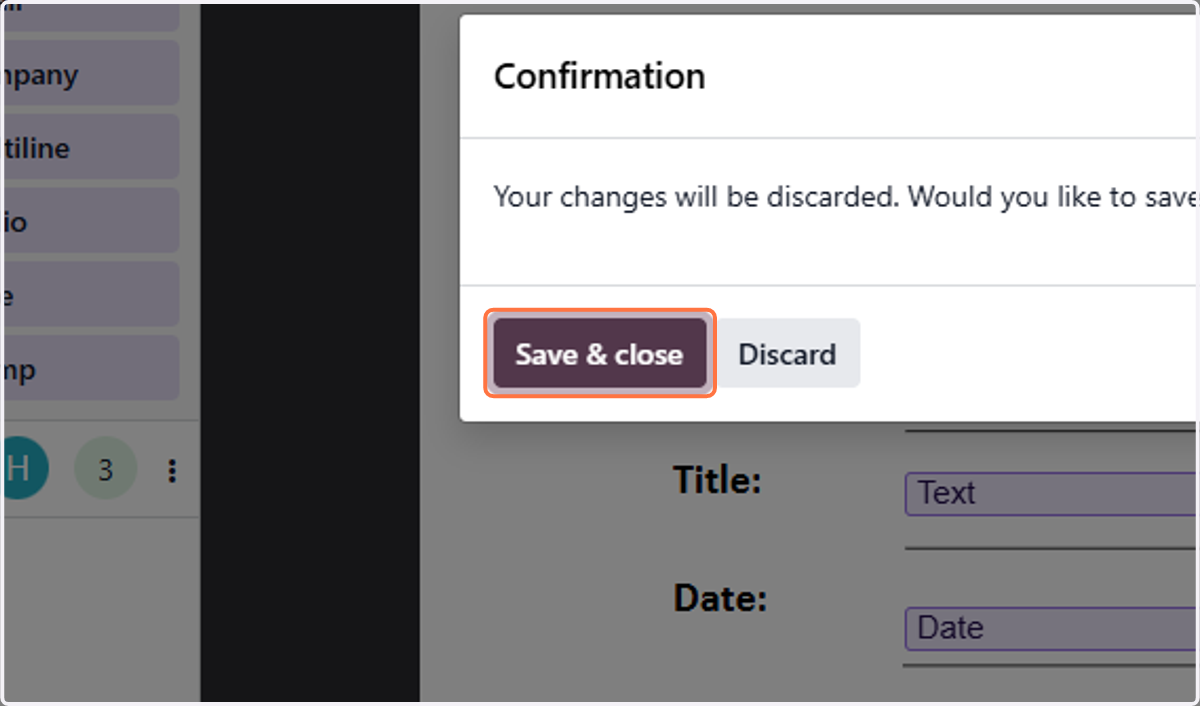
32. Click on Save & close
33. Click on Offer for [Employee Name]
![Click on Offer for [Employee Name]](https://images.tango.us/workflows/d129fa3d-3f10-407a-94de-3bb44a6c7b20/steps/23a56d53-3ee9-416a-b6b8-2b02051b3789/57d8d73e-92e4-4c49-bb25-d5cbf8f41367.png?fp-x=0.1617&fp-y=0.0720&fp-z=2.4895&w=1200&border=F4F2F7&bx=170&by=50&bw=156&bh=30&c=FF7442&dpr=1.00)
34. Send by Email