RevMaxGO - Bulk Event Adjustments
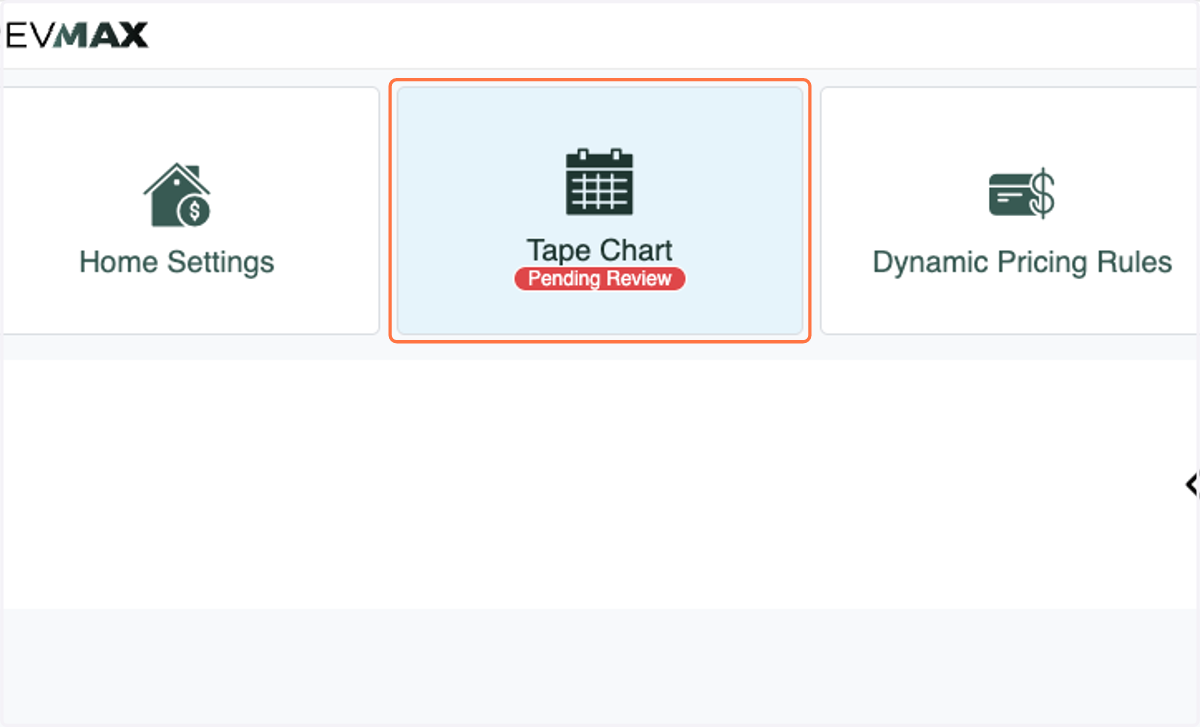
1. Click on Tape Chart…
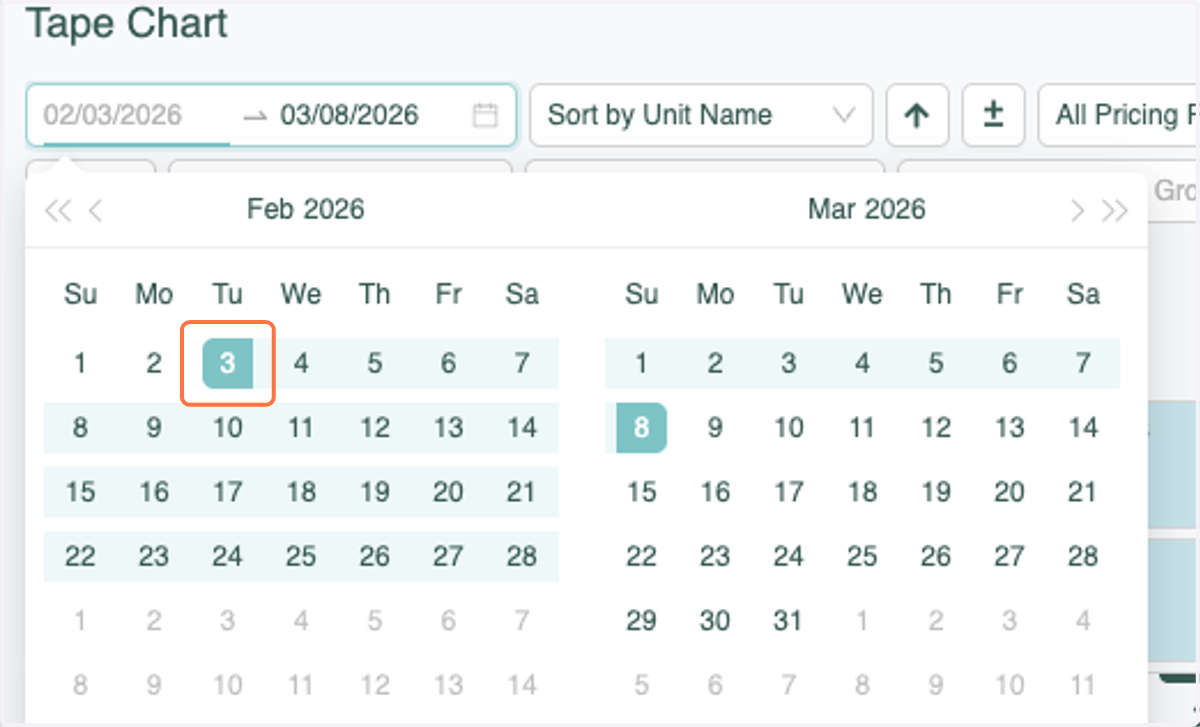
2. Select the Start Date you'd like to make Event Adjustments to
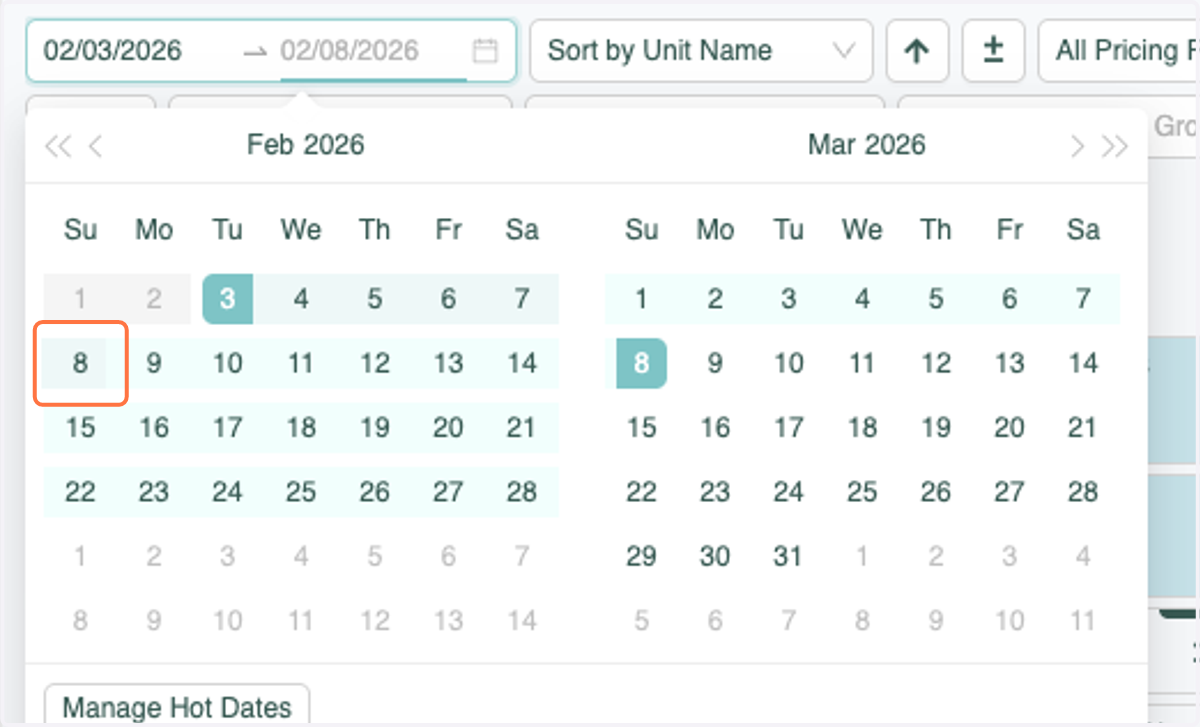
3. Select the End Date you'd like to make Event Adjustments to
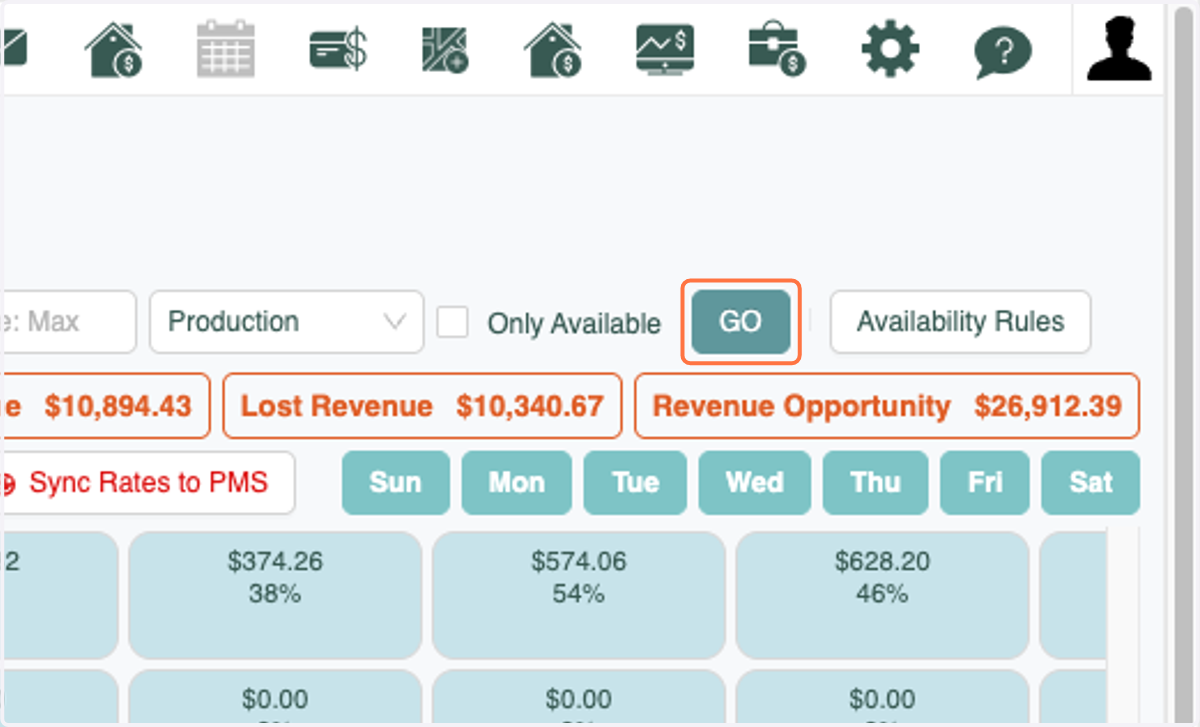
4. Click on GO
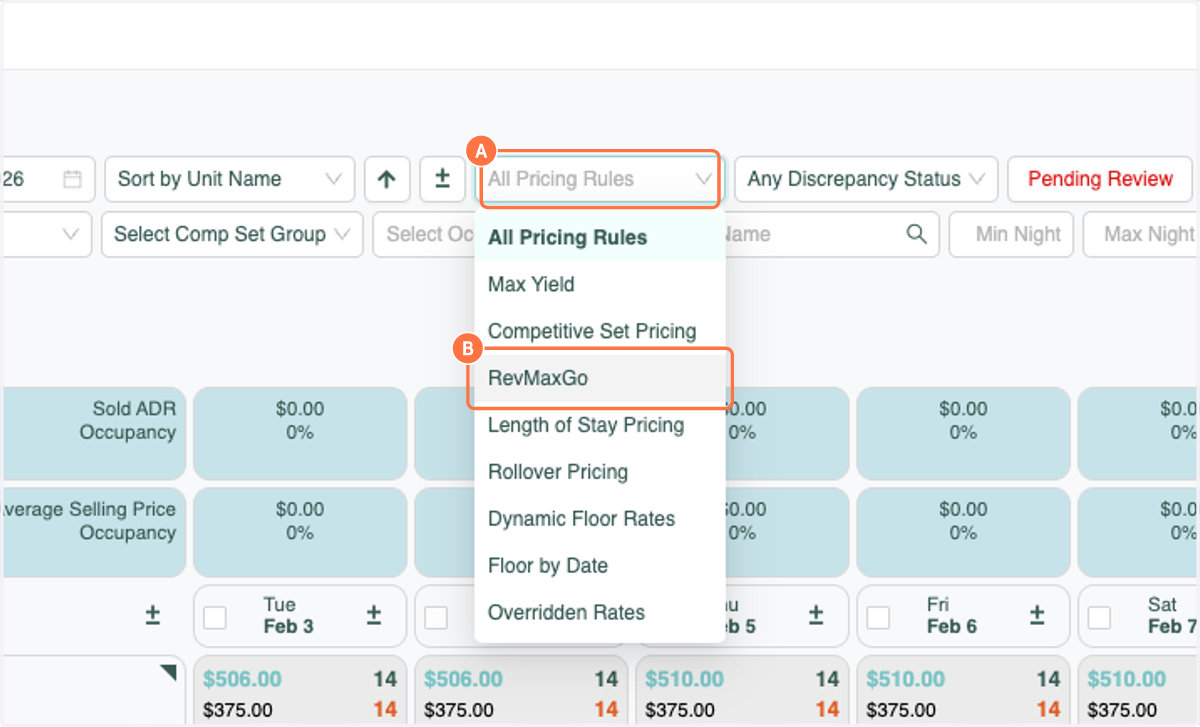
5. A. Click on All Pricing Rules
5. B. Click on RevMaxGo
You can also use other filters to select units that are on RevMaxGO to apply Event Adjustments.
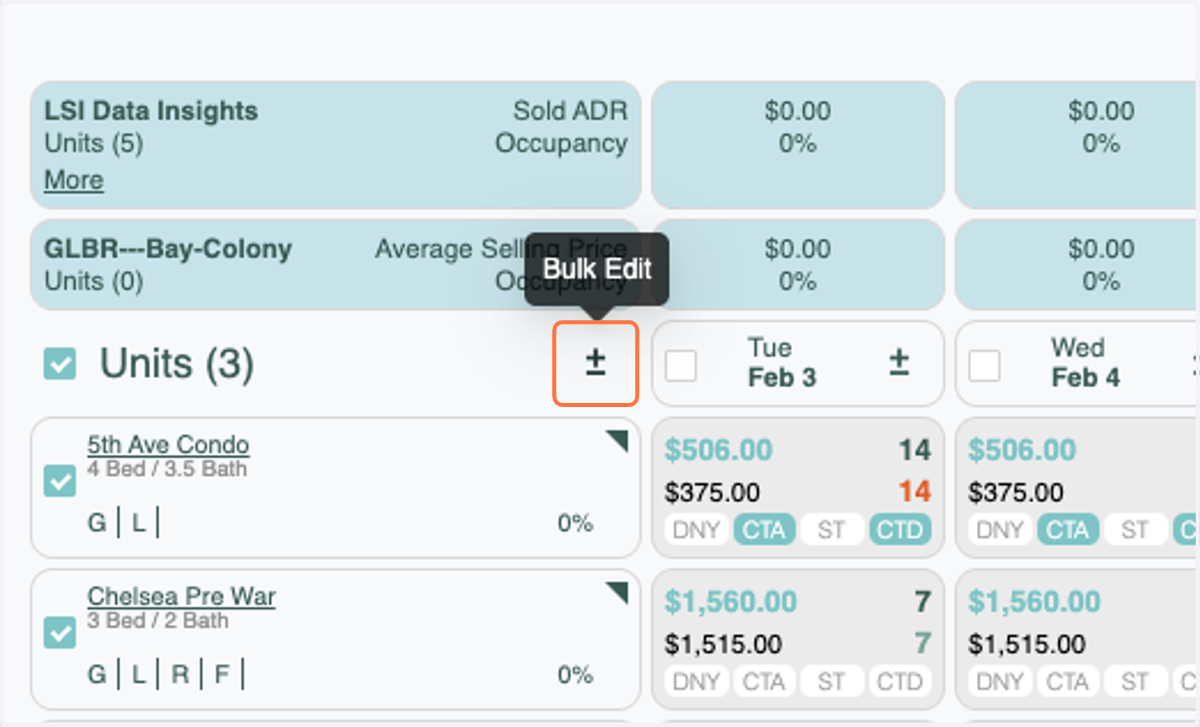
6. Click on the Bulk Edit Icon
PLEASE NOTE: You can not have units selected that do not have RevMaxGo as a strategy. If you do, the Event Adjustment tab will not show.
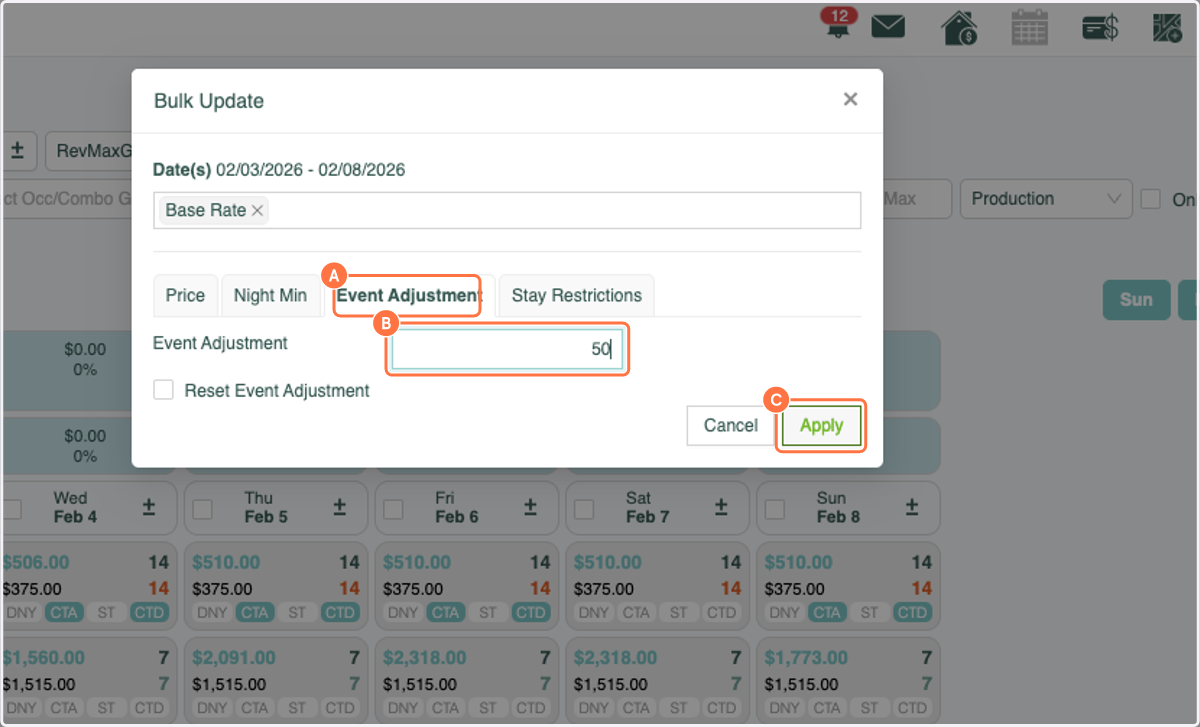
7. A. Click on Event Adjustment
7. B. Enter the percentage that you'd like to adjust by
7. C. Click on Apply
8. Click on Close
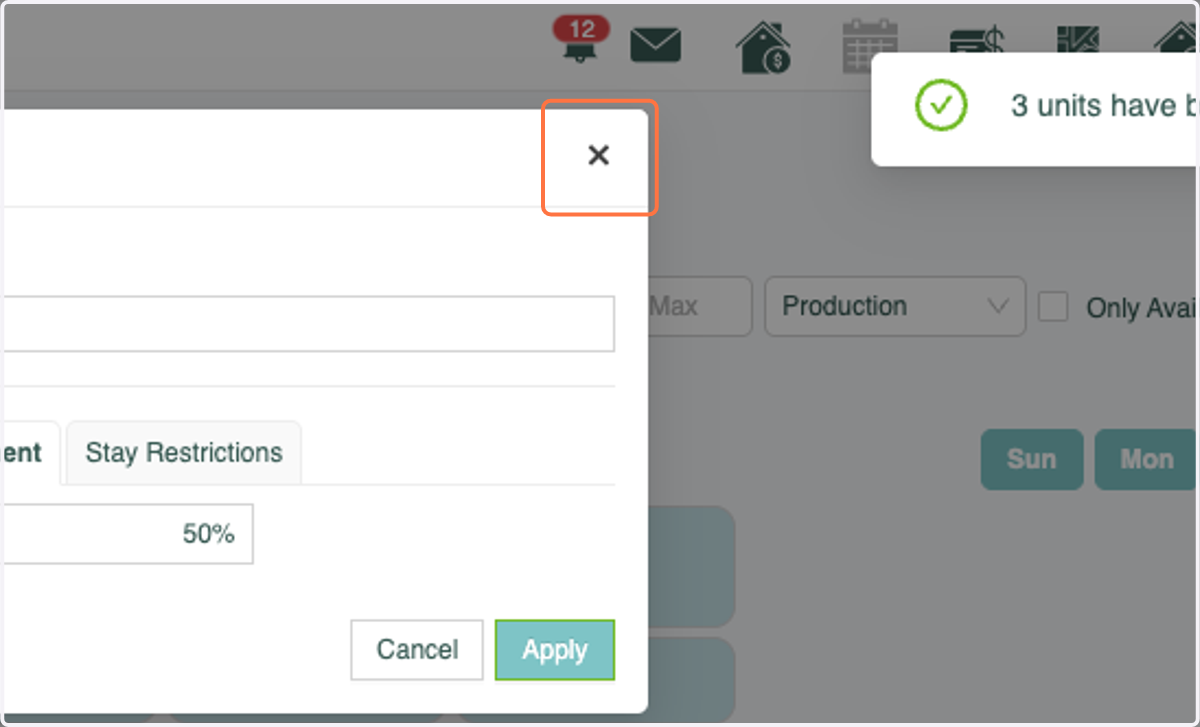
9. You will see that the prices have updated on the Tape Chart.
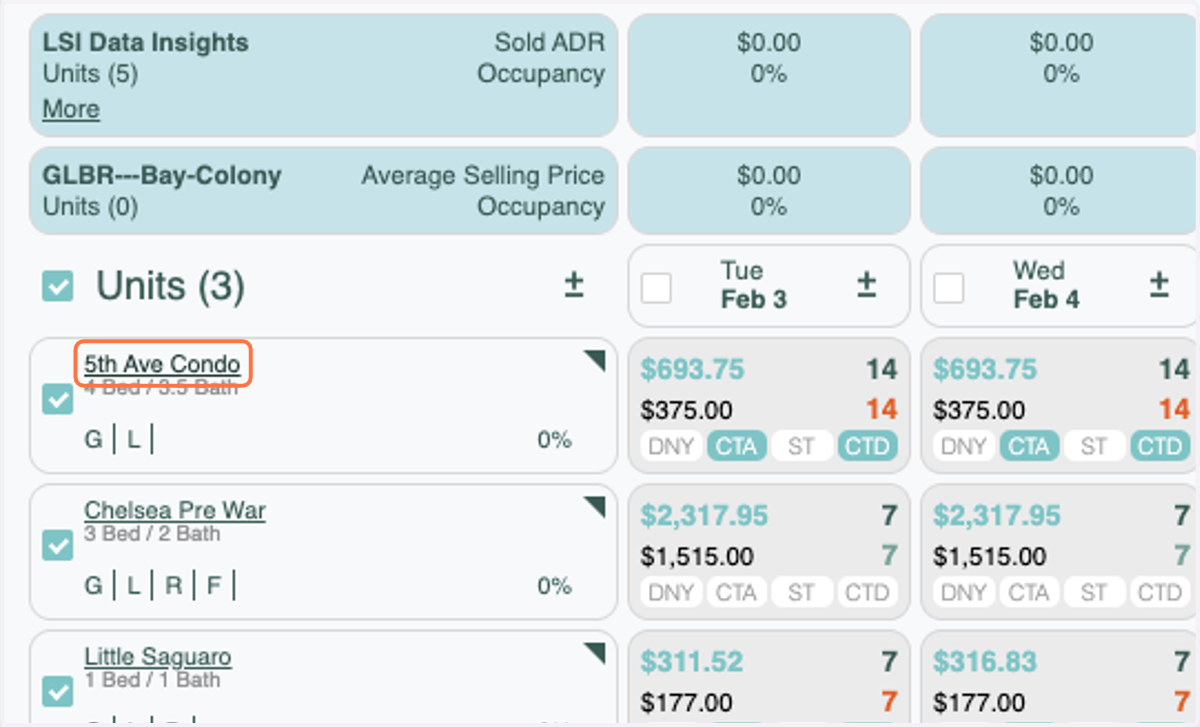
If you'd like to ensure that the Event Adjustments were applied, click on the Unit Name
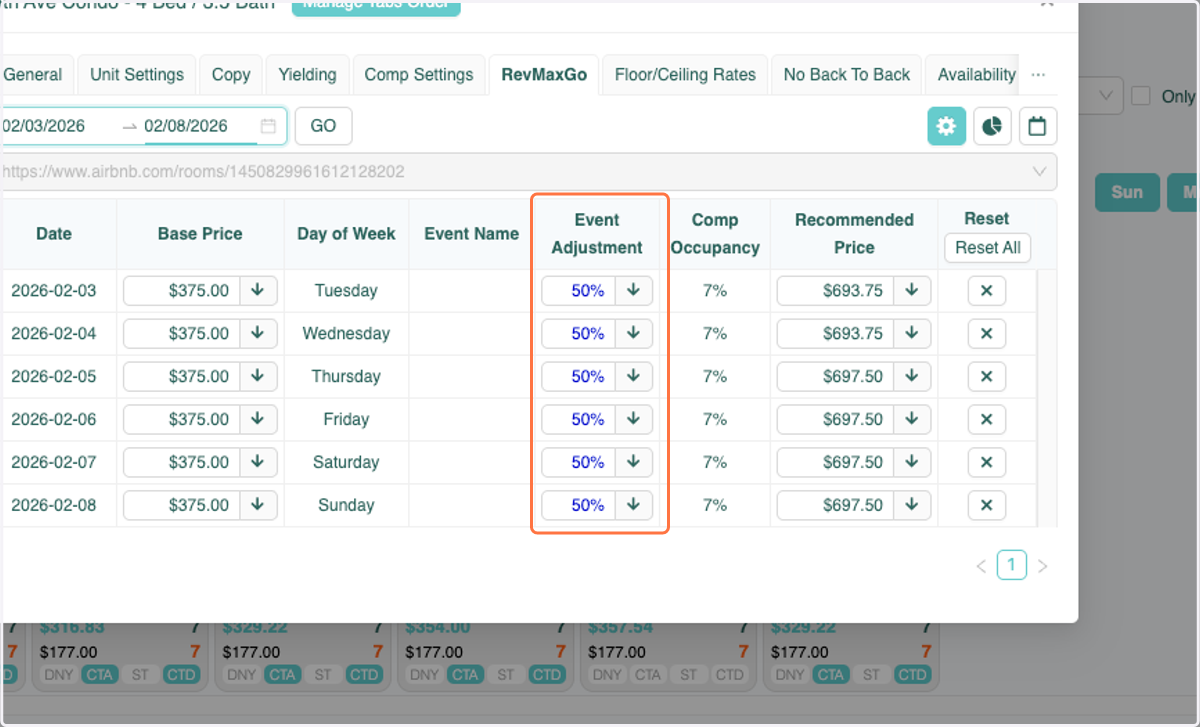
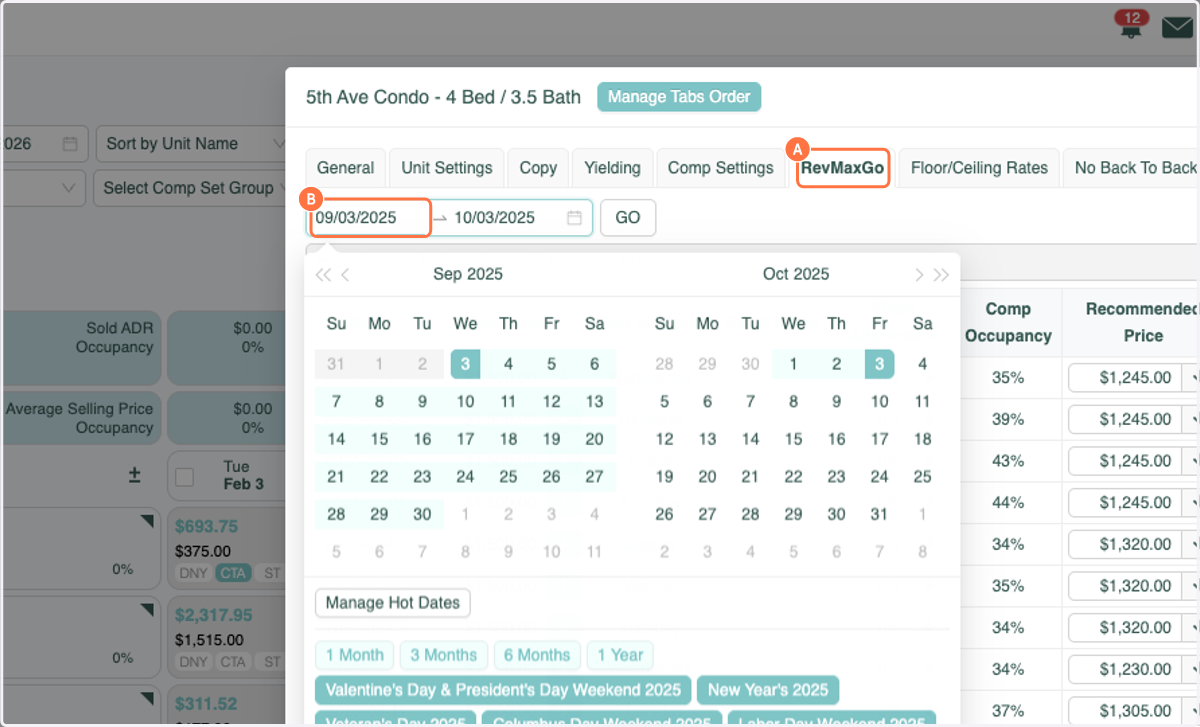
10. A. Click on the RevMaxGo tab
10. B. Select the dates that you made the adjustments to
11. Click on GO
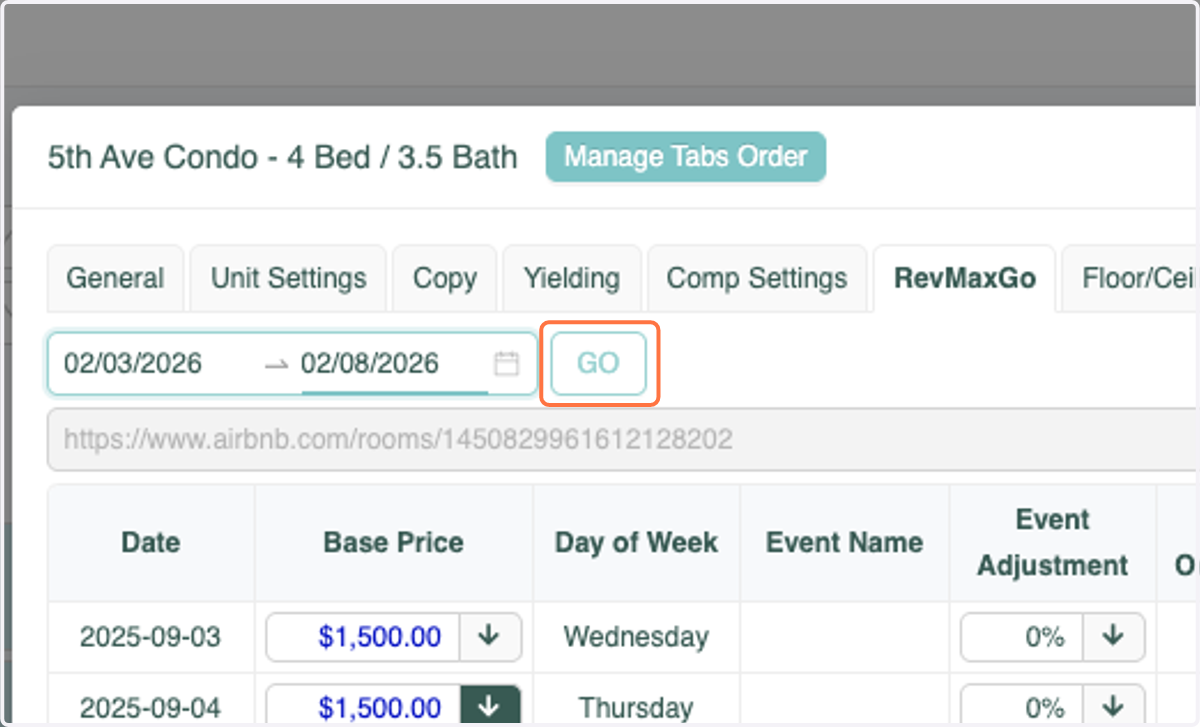
12. You will see that the Event Adjustment has been applied