Pricing: Set Pricing to Floor Rates in Bulk

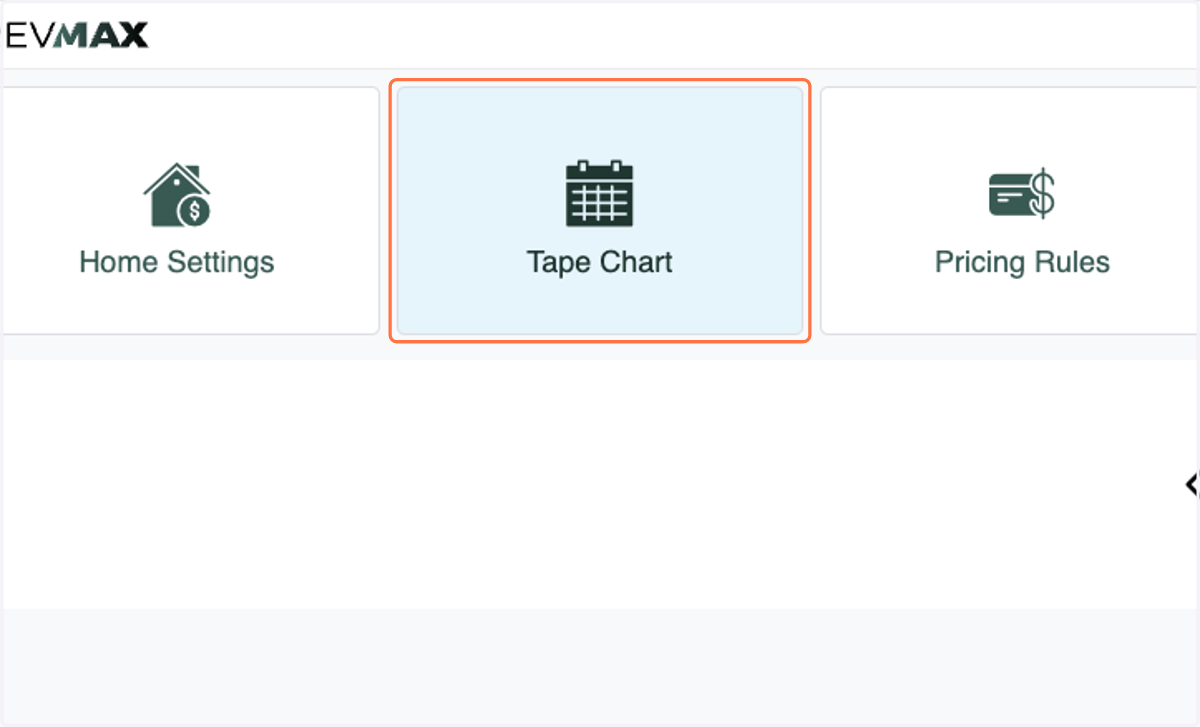
  1. 1. Click on Tape Chart

    Click on Tape Chart
  2. 2. Select the Dates you'd like to apply Floor Rates to
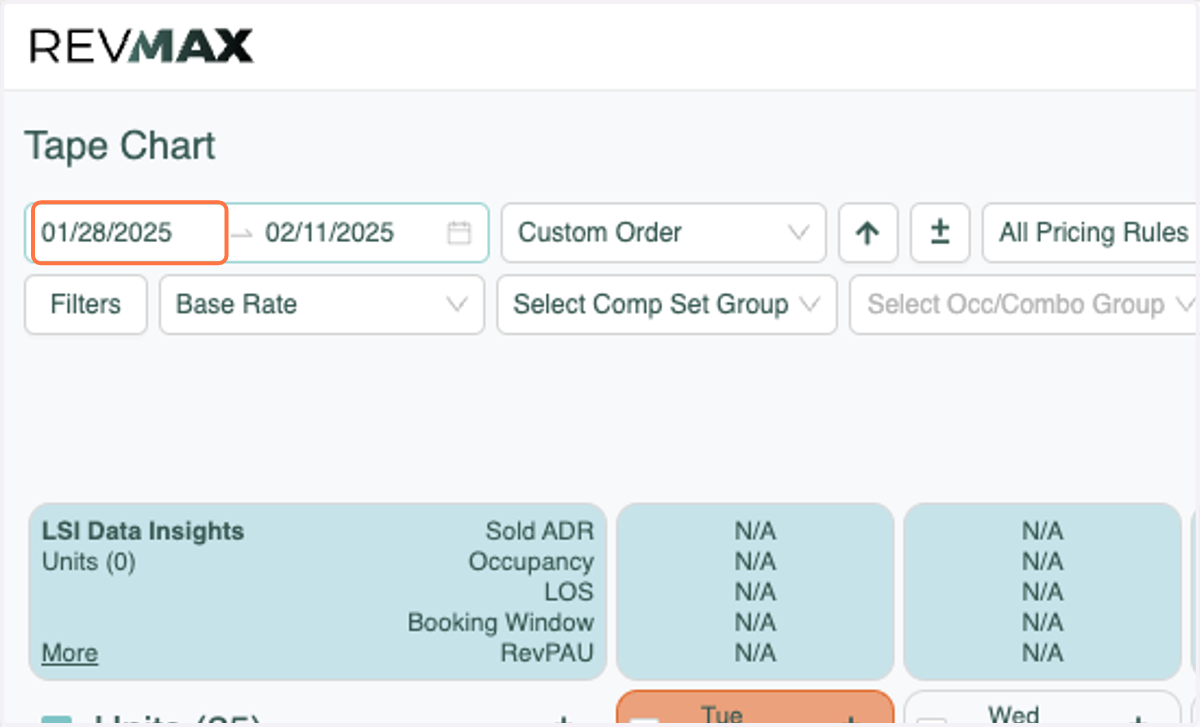
    Select the Dates you'd like to apply Floor Rates to
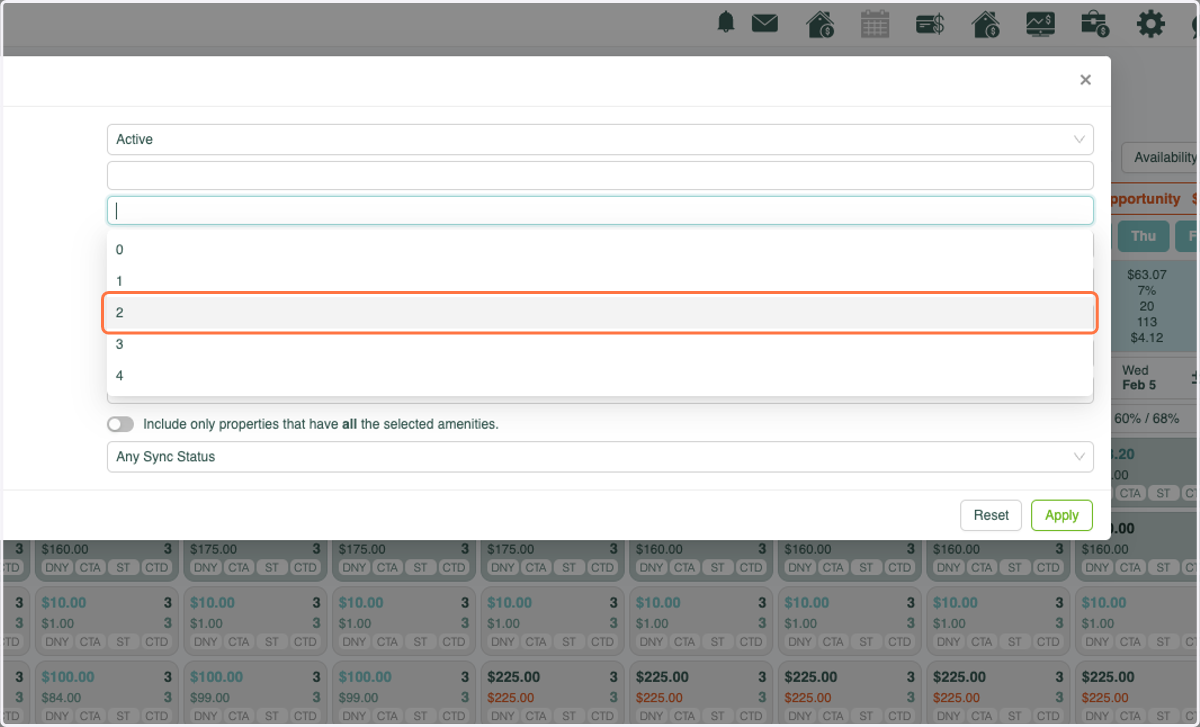
  3. 3. Select any Filters to pull units that you'd like to set Floor Rates
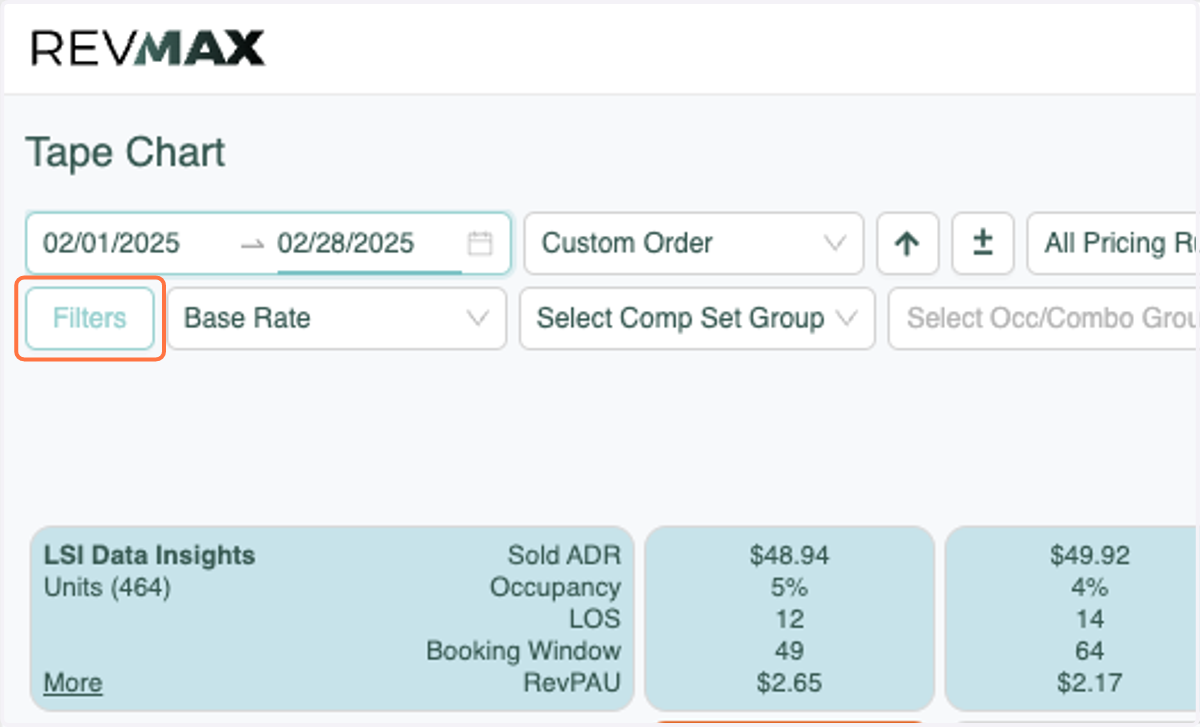
    Select any Filters to pull units that you'd like to set Floor Rates
  4. 4. Select the filter

    Select the filter
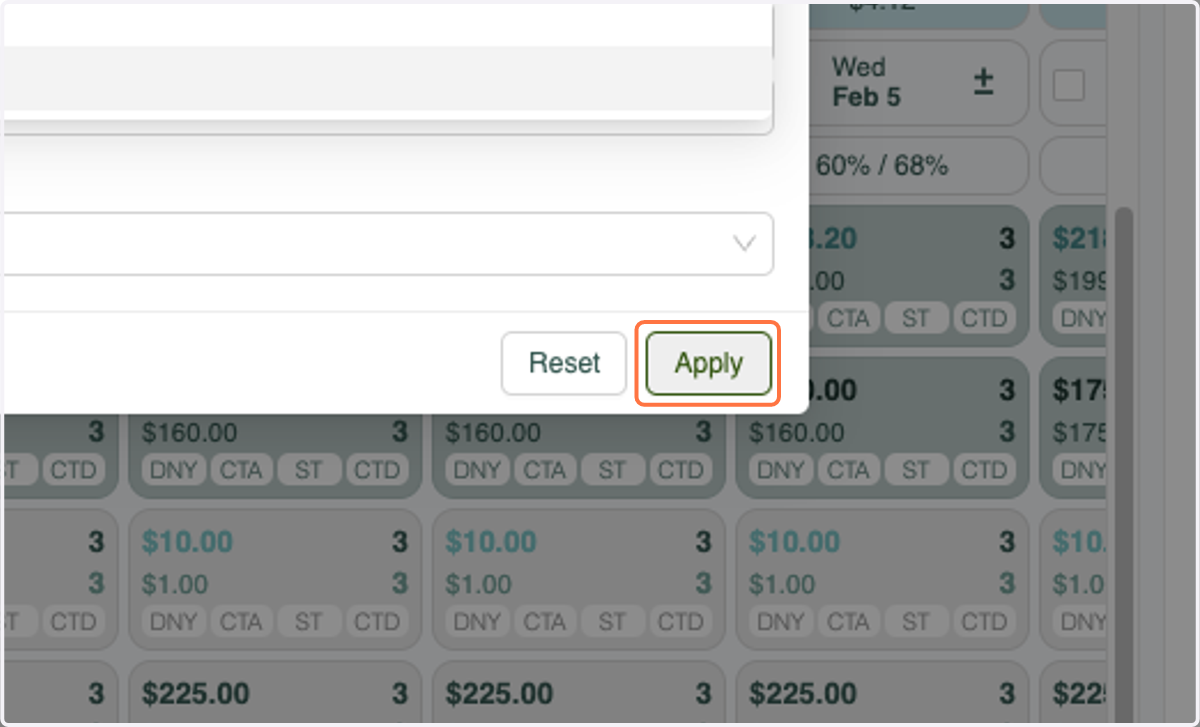
  5. 5. Click Apply

    Click Apply
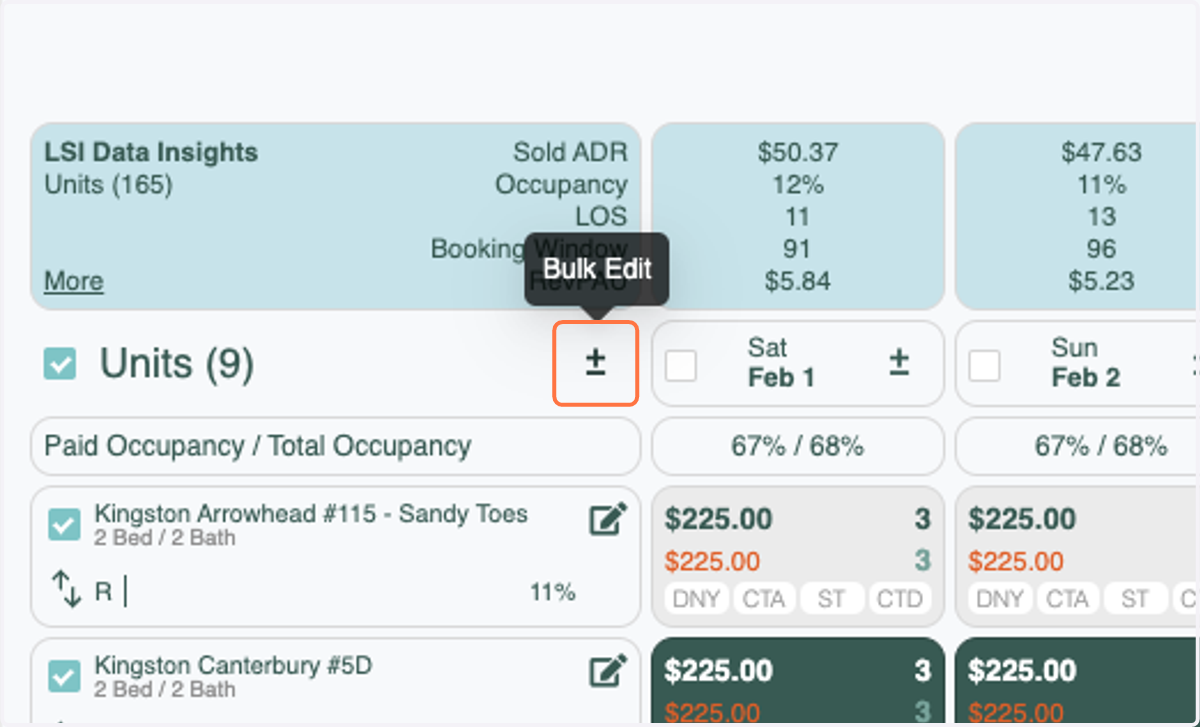
  6. 6. Click the Bulk Edit icon

    Click the Bulk Edit icon
  7. 7. On the Price tab keep Price Overide and select Set Pricing to the floor
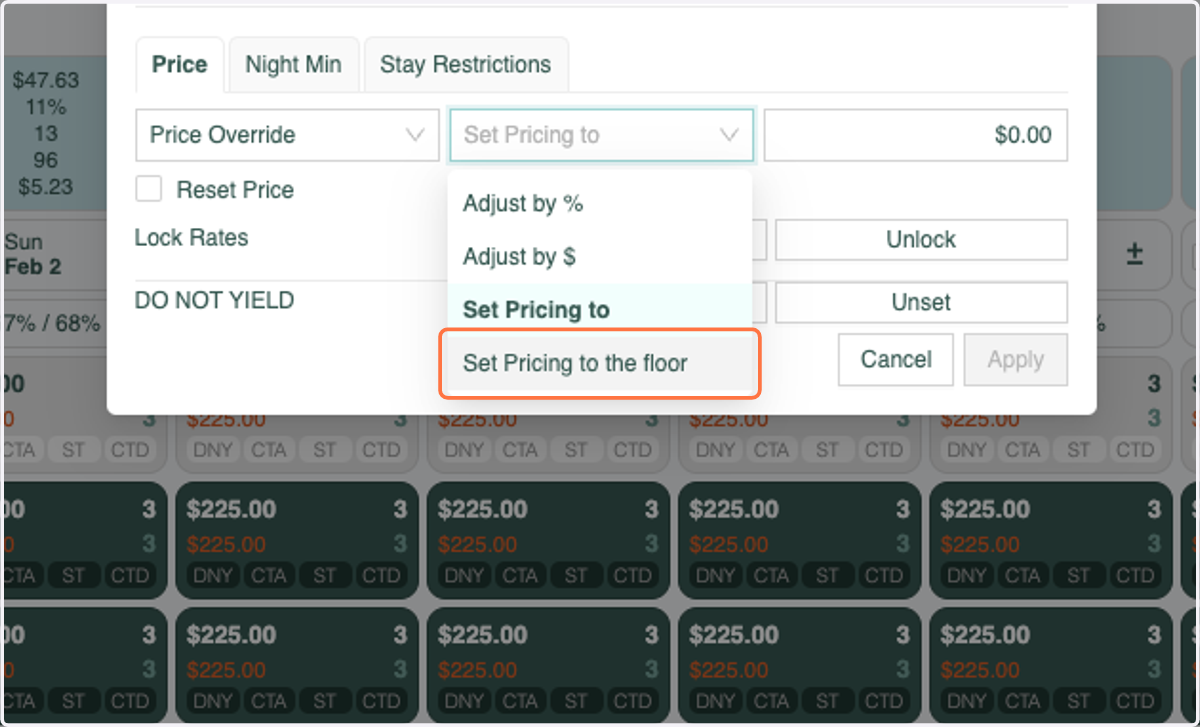
    On the Price tab keep Price Overide and select Set Pricing to the floor
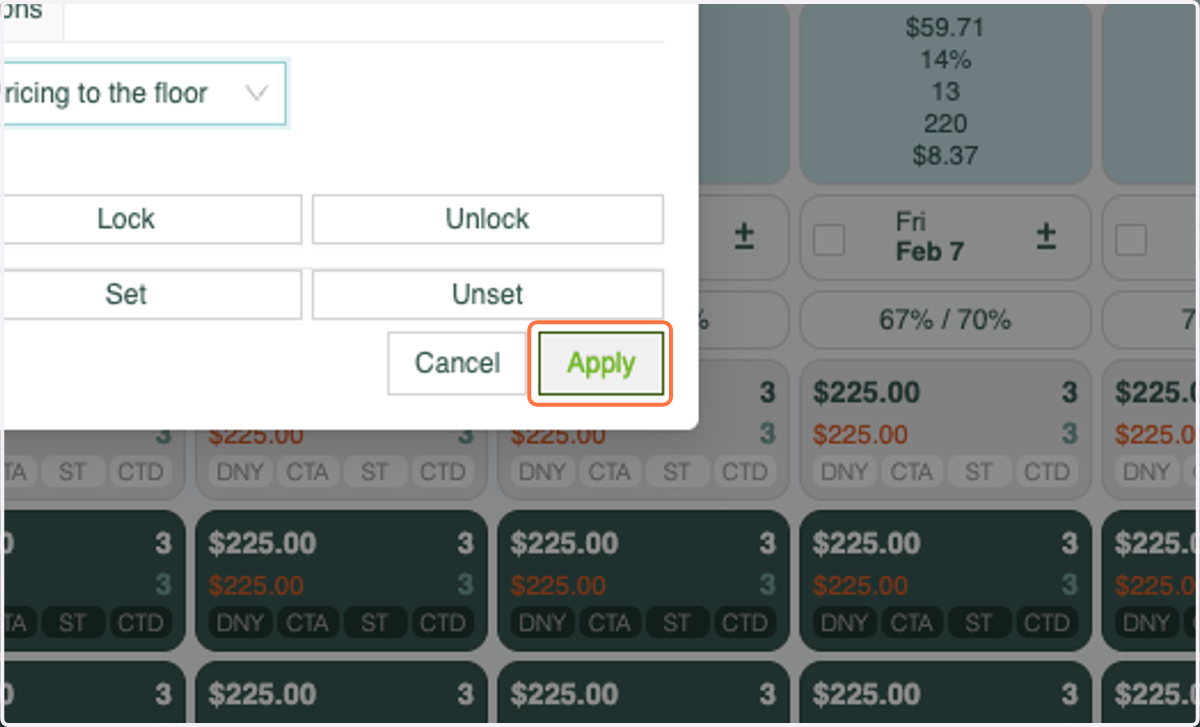
  8. 8. Click Apply

    Click Apply
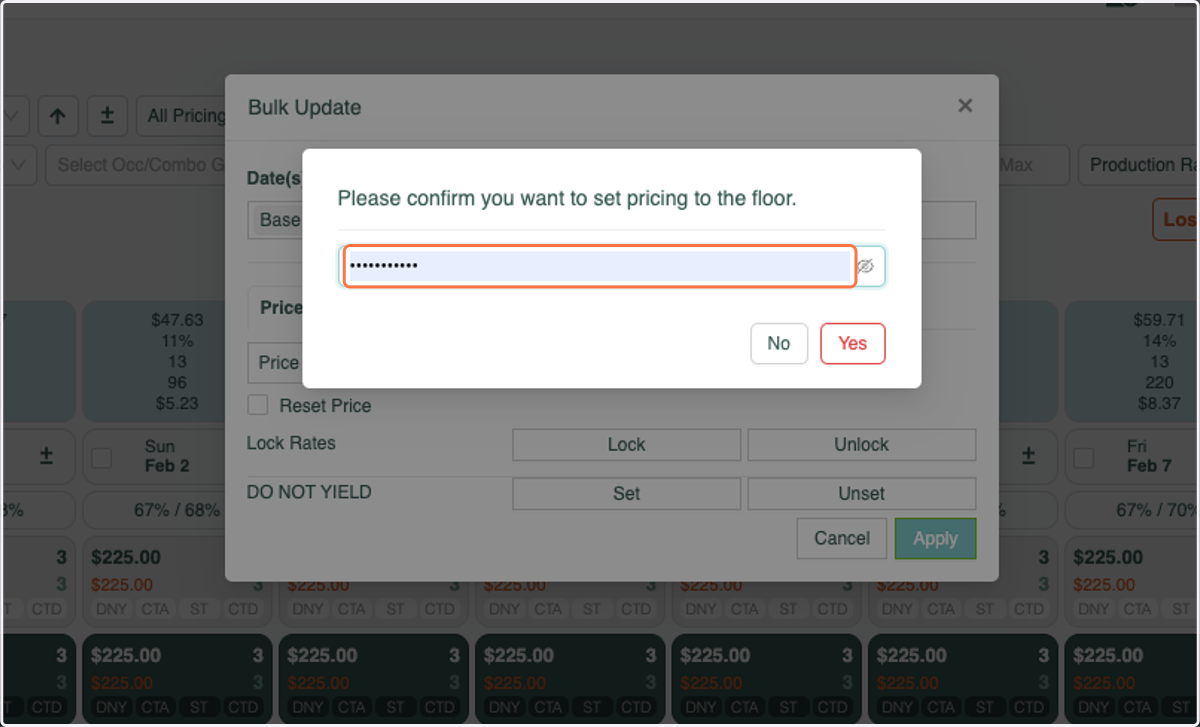
  9. 9. Enter your RevMax password

    Enter your RevMax password
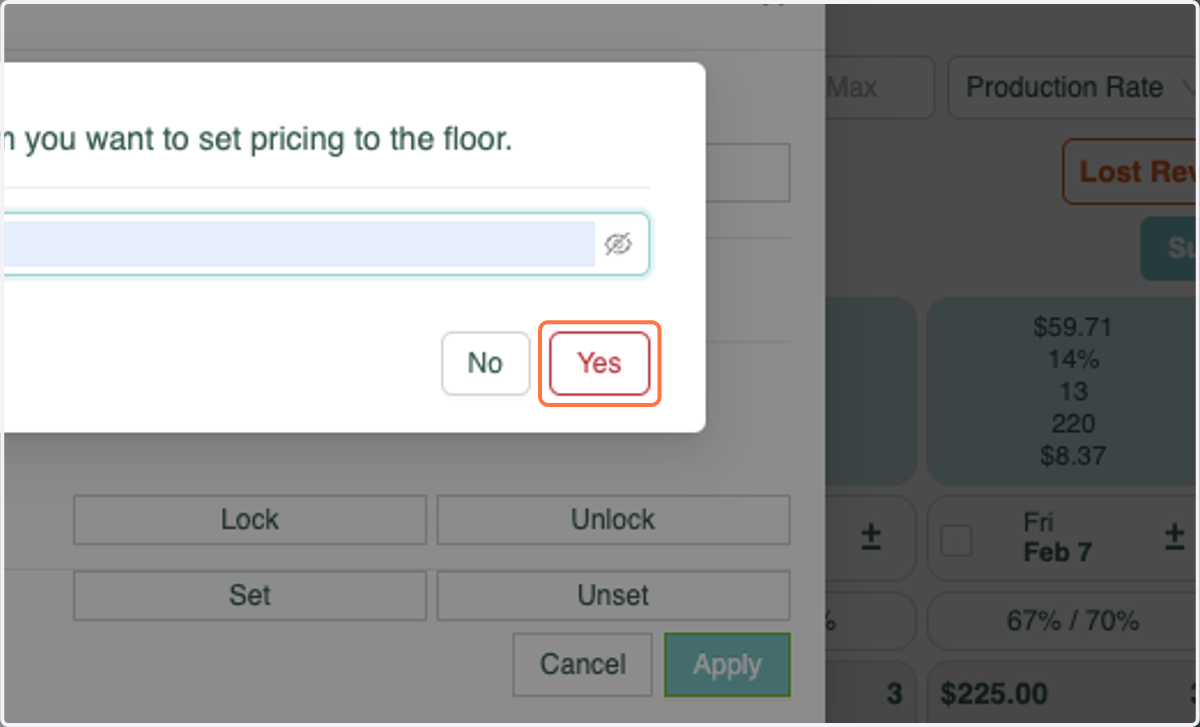
  10. 10. Click Yes

    Click Yes
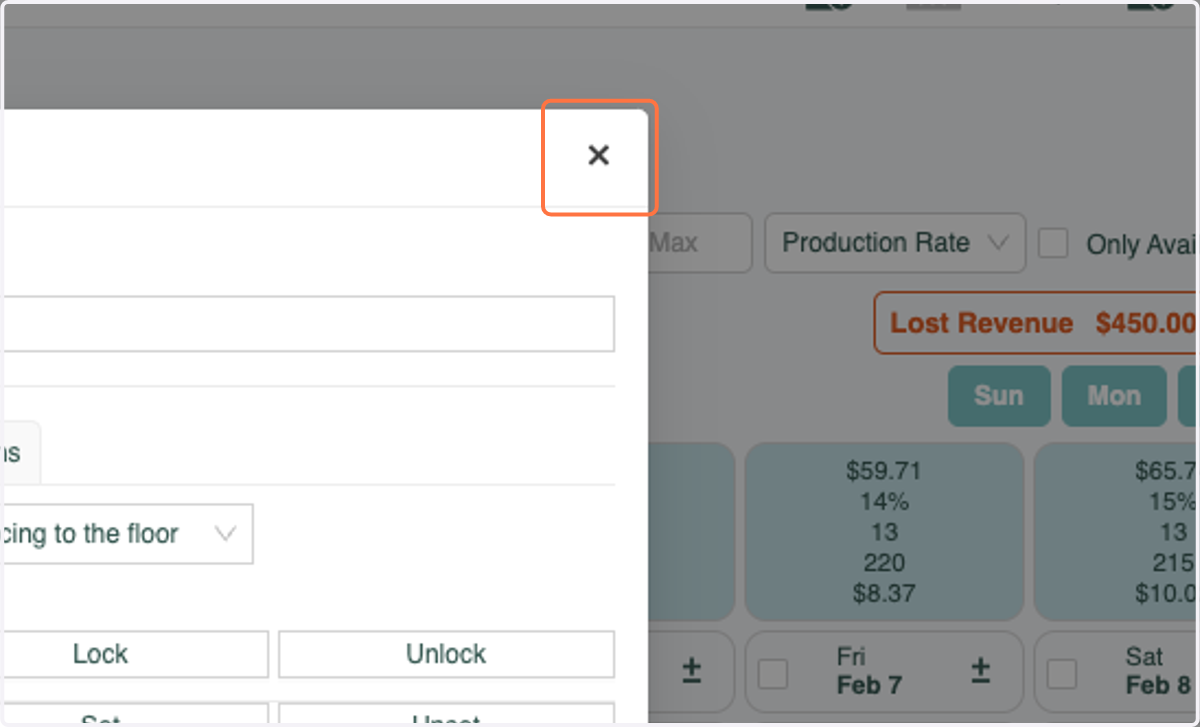
  11. 11. Click Close

    Click Close
  12. 12. You will see that all pricing has been updated to the Floor Rate
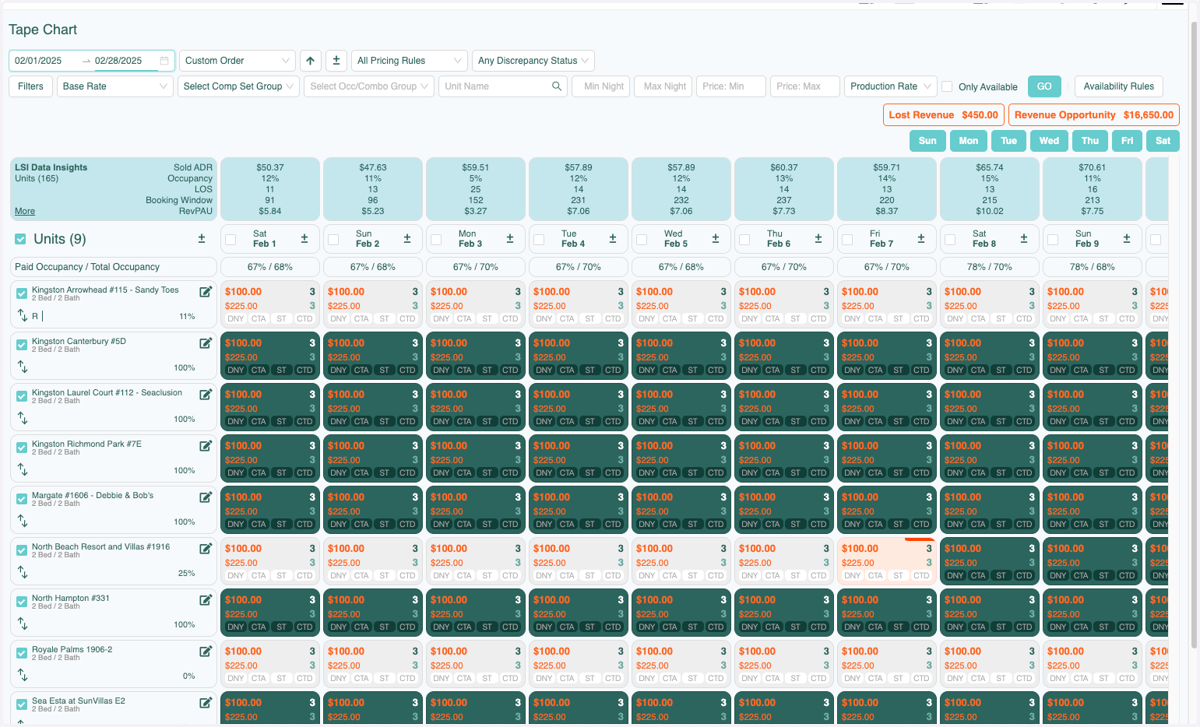
    You will see that all pricing has been updated to the Floor Rate
  13. 13. If not all units have a Floor Price you will be notified and the pricing for those units will not be updated
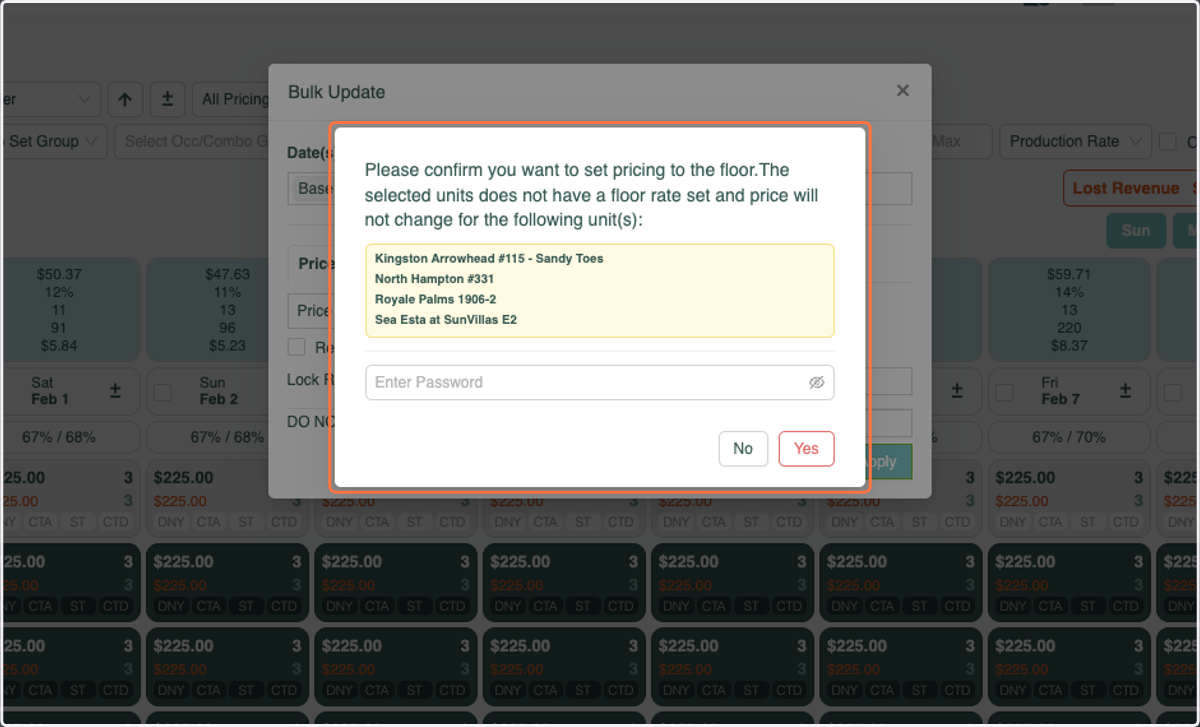
    If not all units have a Floor Price you will be notified and the pricing for those units will not be updated