How to Add Proposal Content

FollowUpCRM

  1. 1. Click on your name in the top right corner
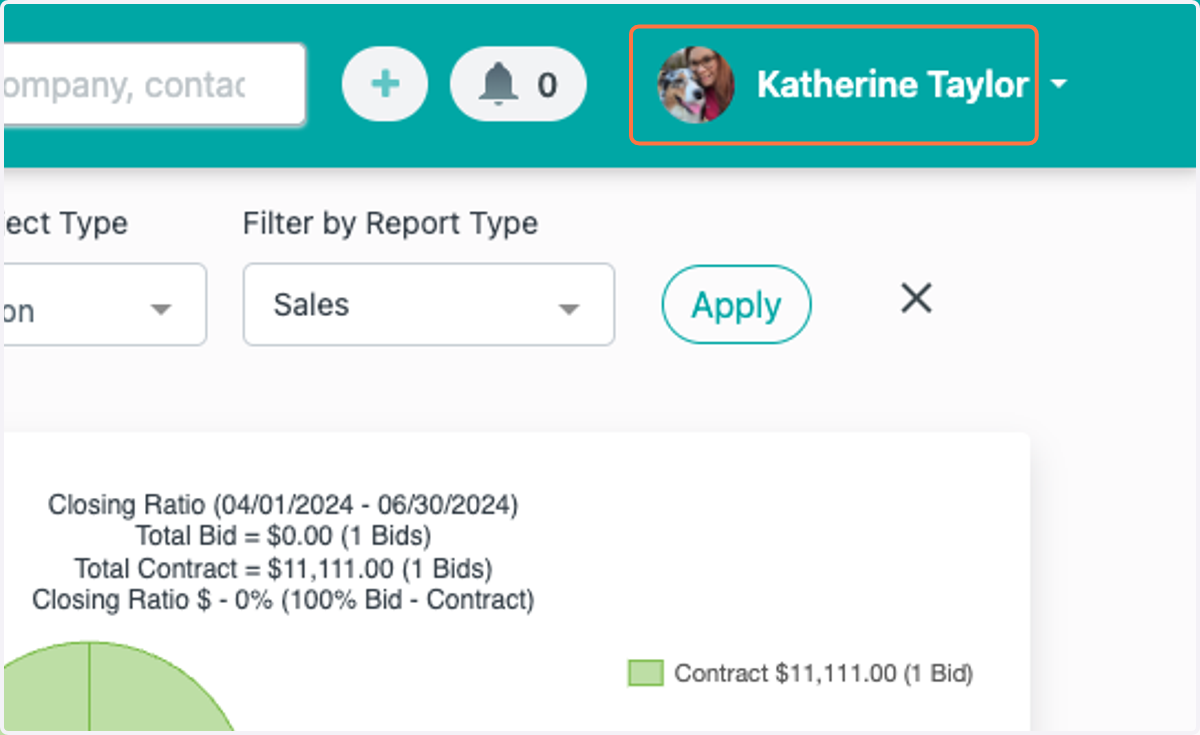
    Click on your name in the top right corner
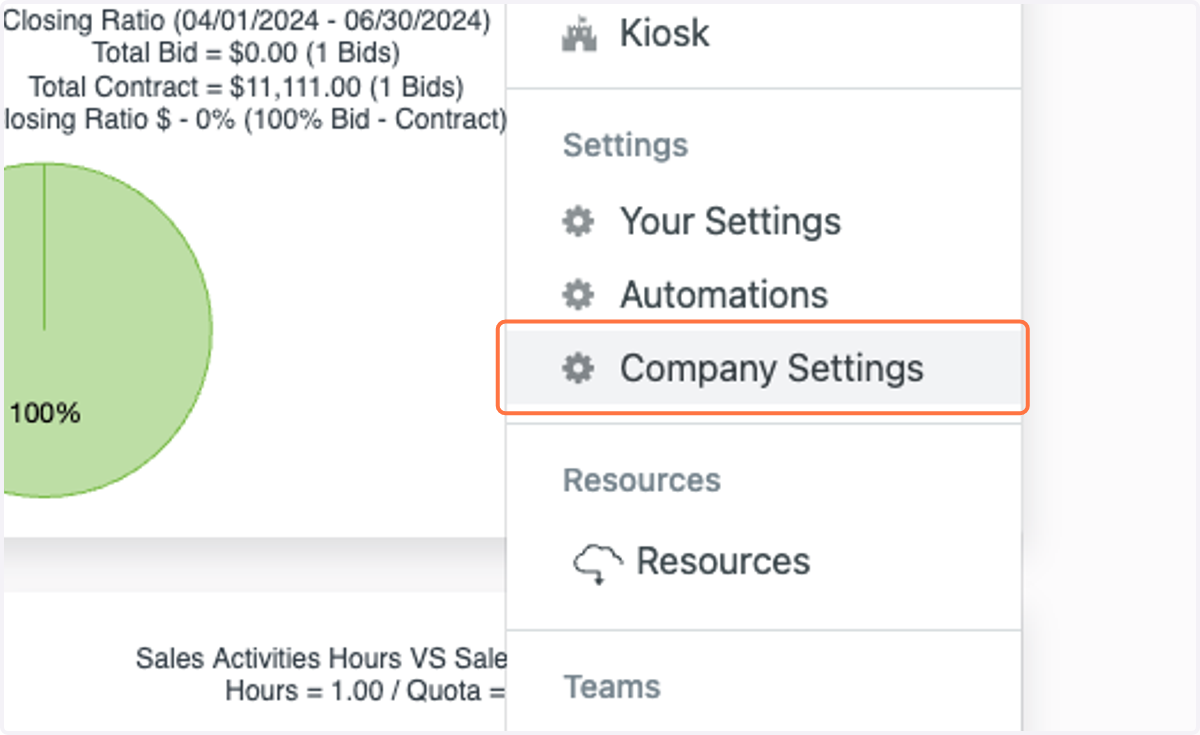
  2. 2. Click on Company Settings

    Click on Company Settings
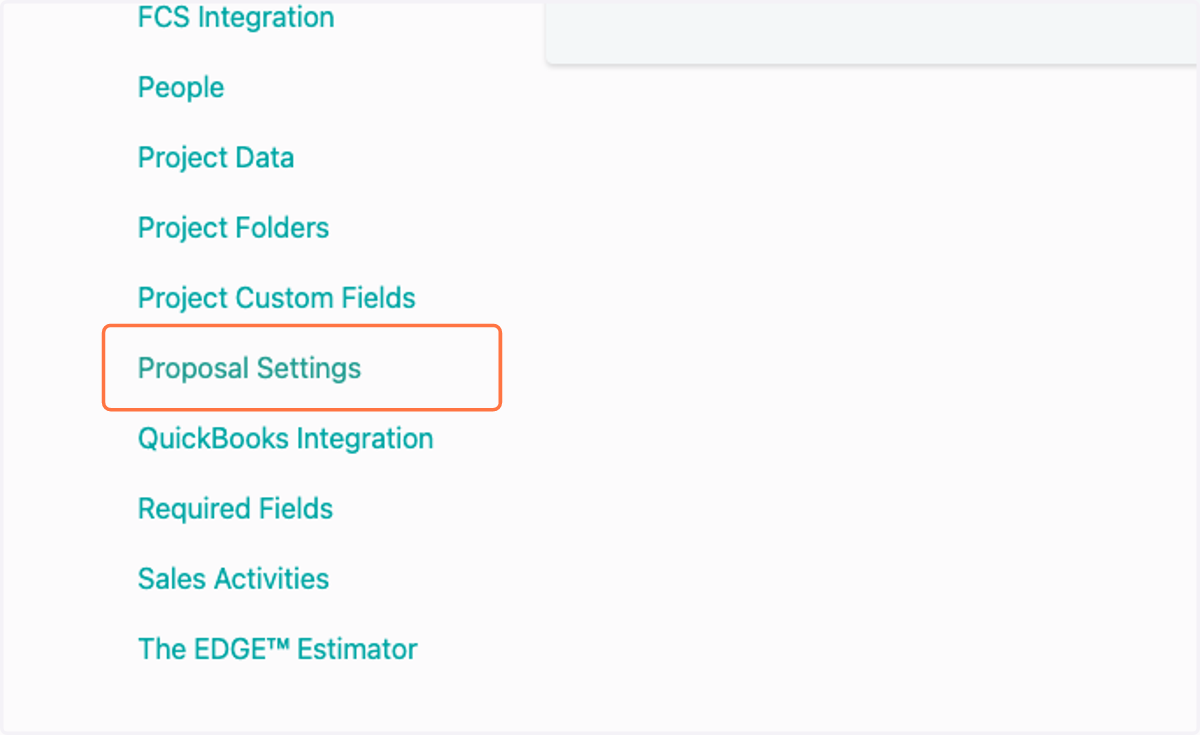
  3. 3. Click on Proposal Settings

    Click on Proposal Settings
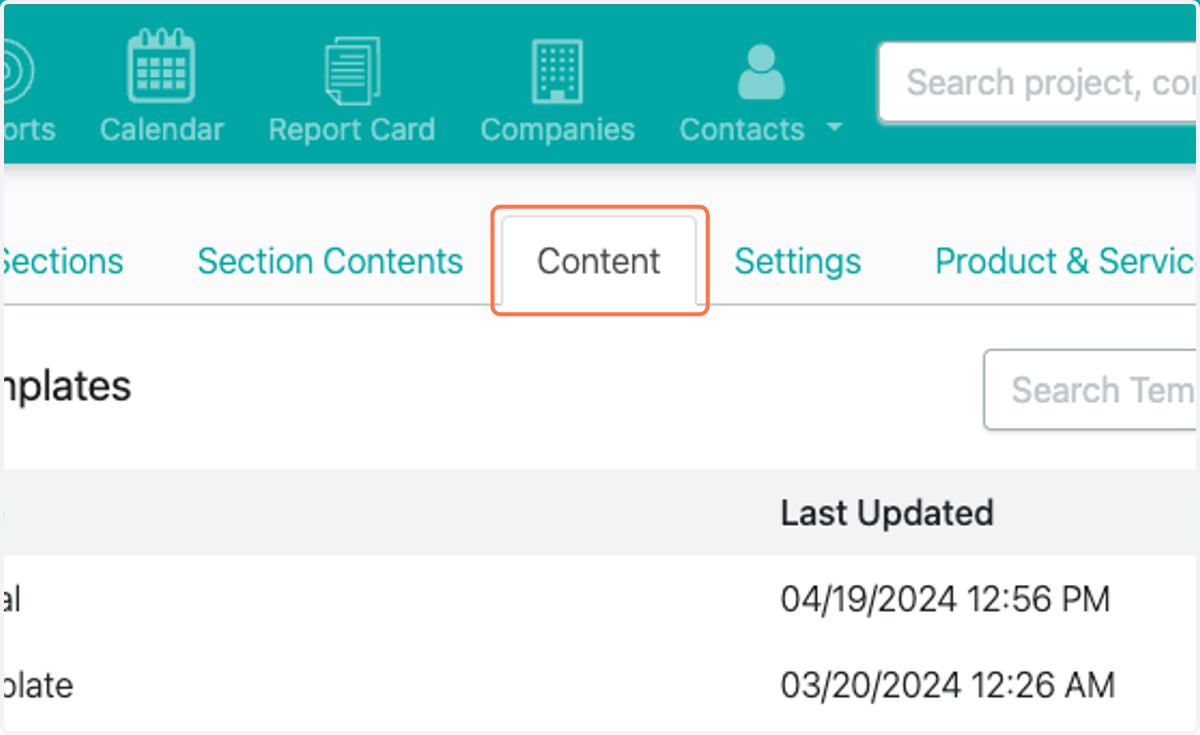
  4. 4. Click on Content

    Click on Content
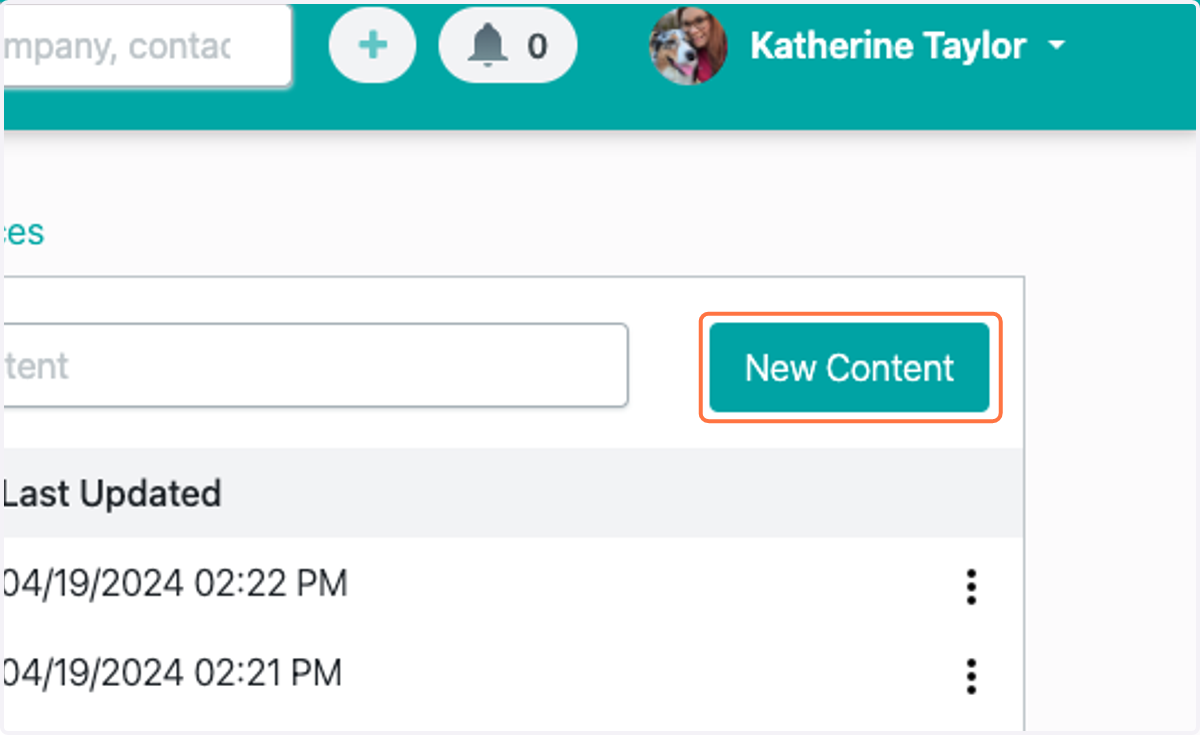
  5. 5. Click on New Content

    Click on New Content
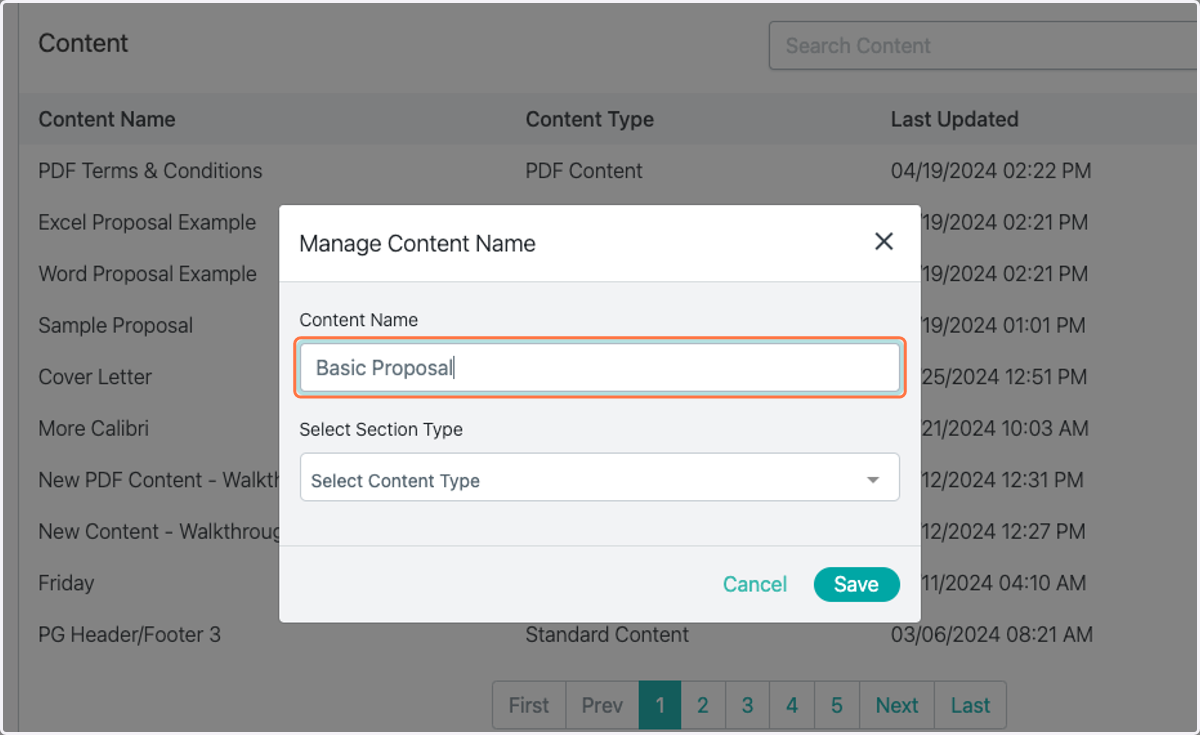
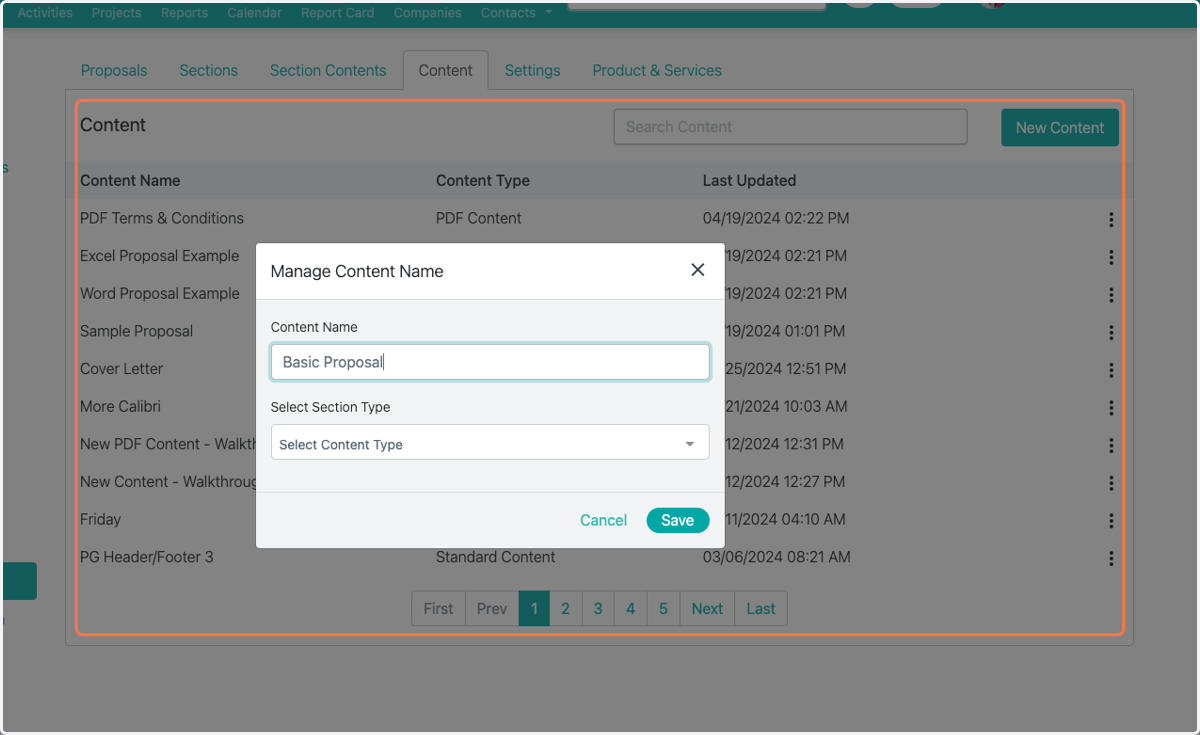
  6. 6. Type the name of your content

    Type the name of your content
  7. 7. Select your Section Type

    Select your Section Type
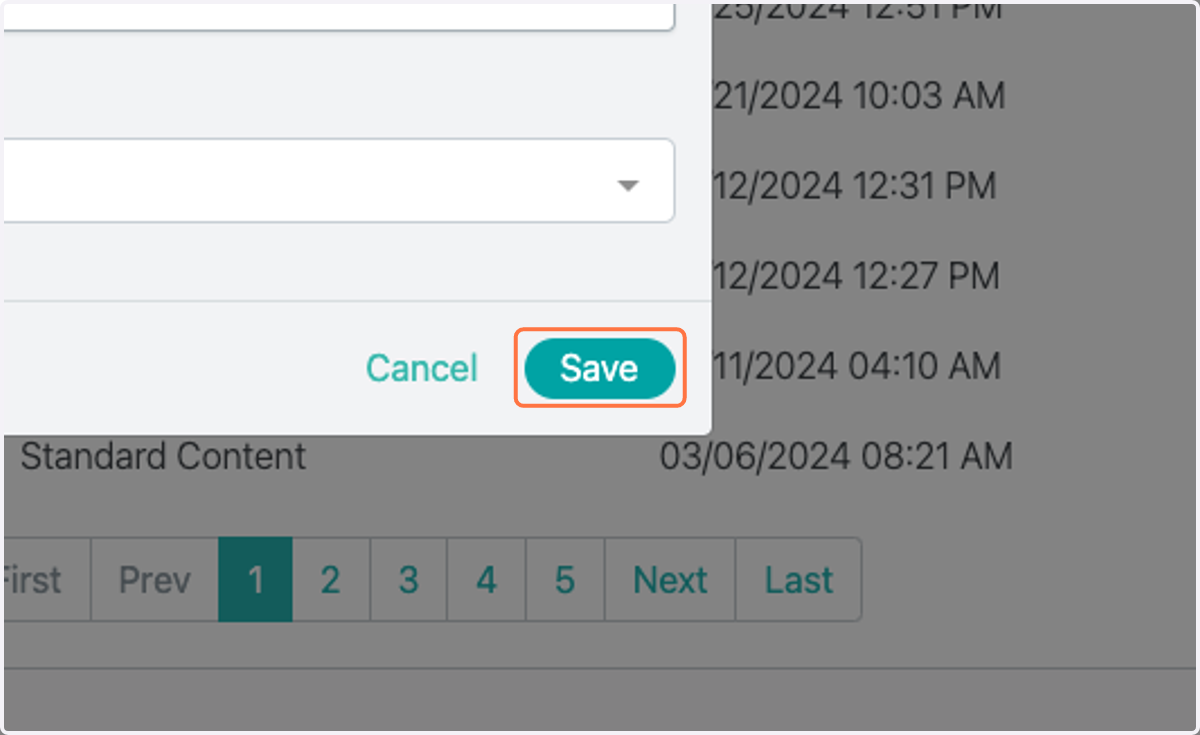
  8. 8. Click on Save

    Click on Save
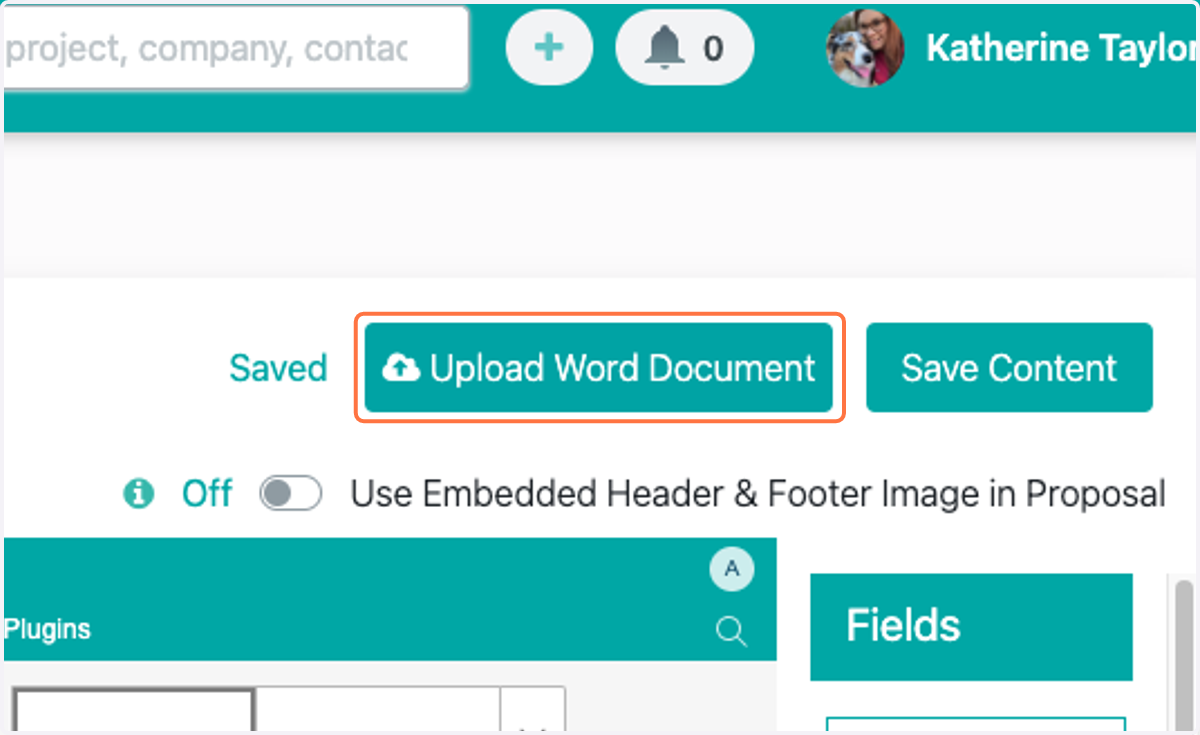
  9. 9. Click on Upload Word Document

    Click on Upload Word Document
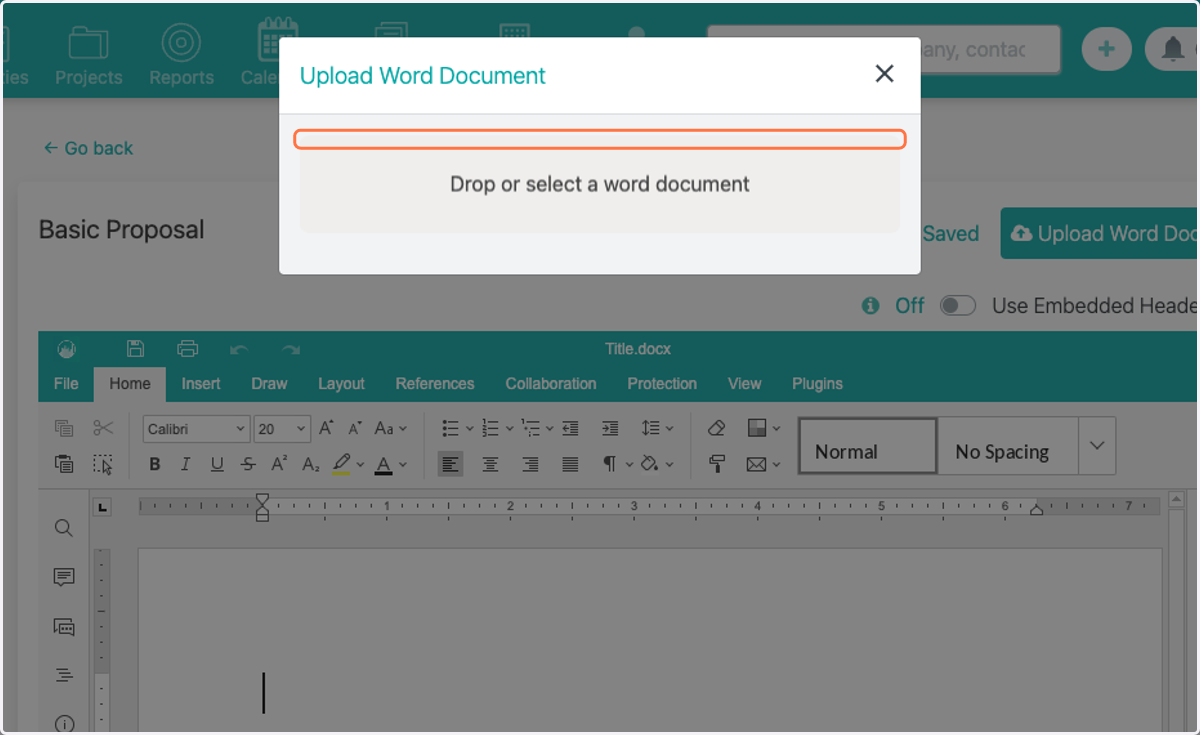
  10. 10. Drop or select a document

    Drop or select a document
  11. 11. Check Use Embedded Header & Footer Image in Proposal (for Word documents only)
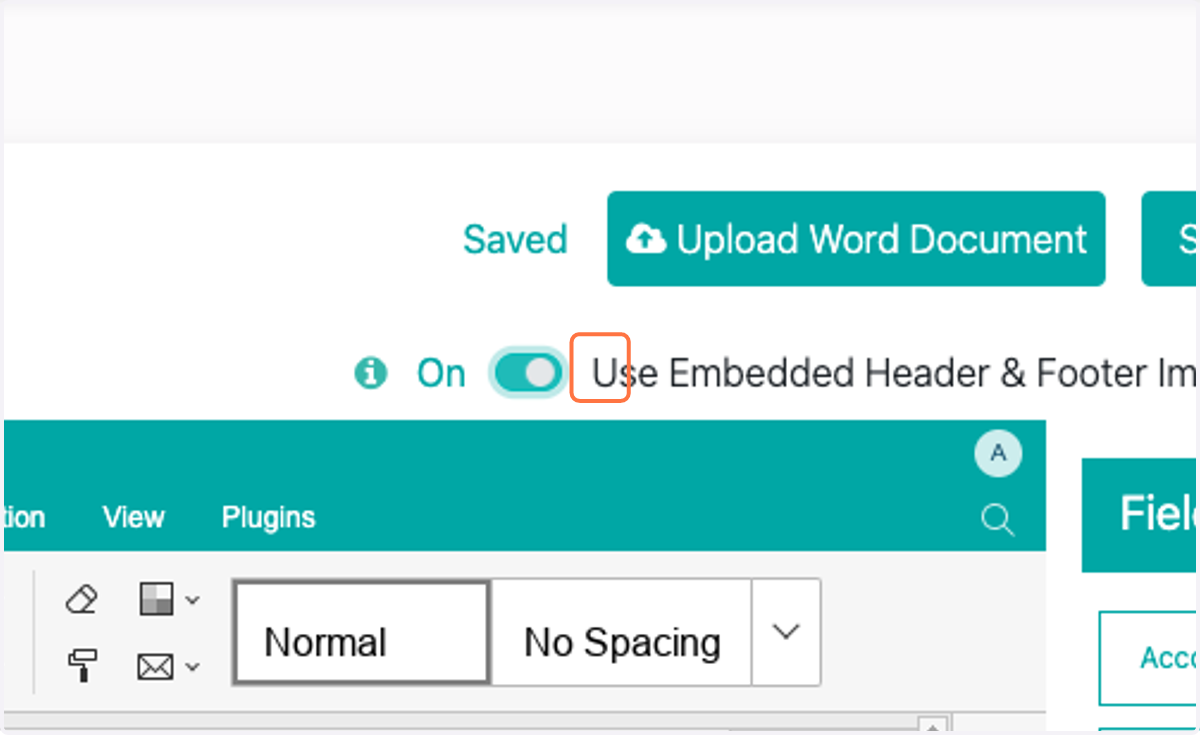
    Check Use Embedded Header & Footer Image in Proposal (for Word documents only)
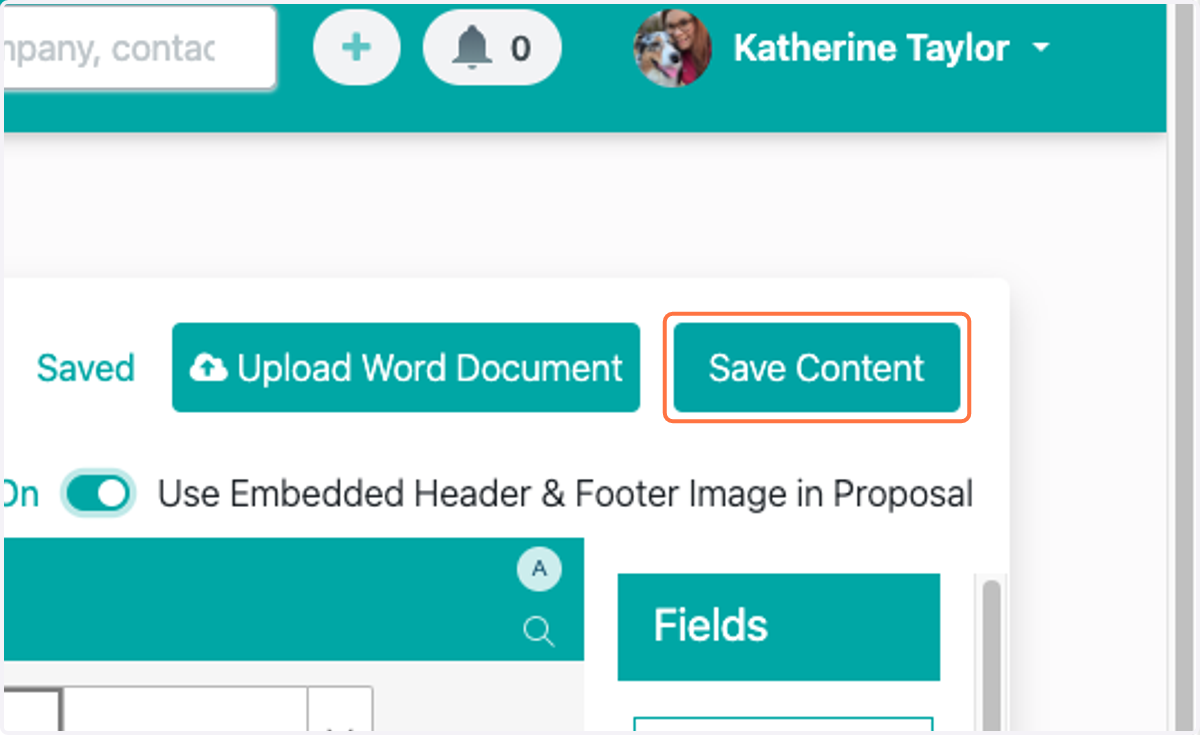
  12. 12. Click on Save Content

    Click on Save Content