How to Change or Add to part of your Academic Plan
Follow this step-by-step directional to see how to change or add to part of your academic plan. This can include: adding a major, changing a major, dropping a secondary major, adding a minor, or adding an academic emphasis.
Log into your StudentCenter
1. Click on eForms
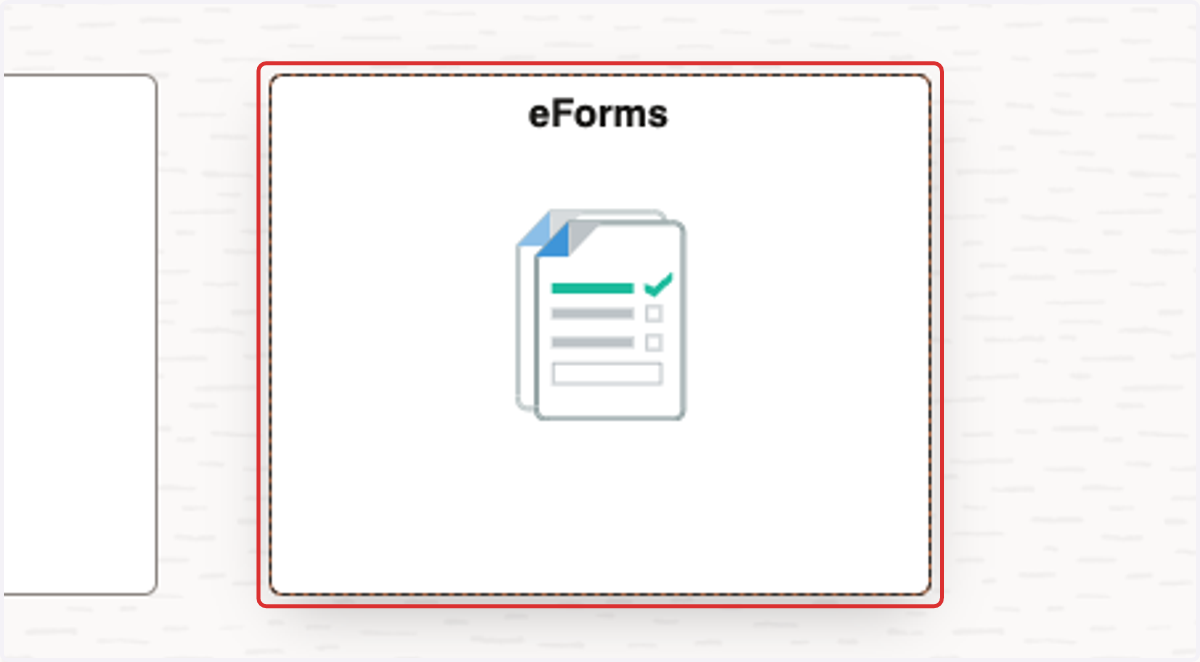
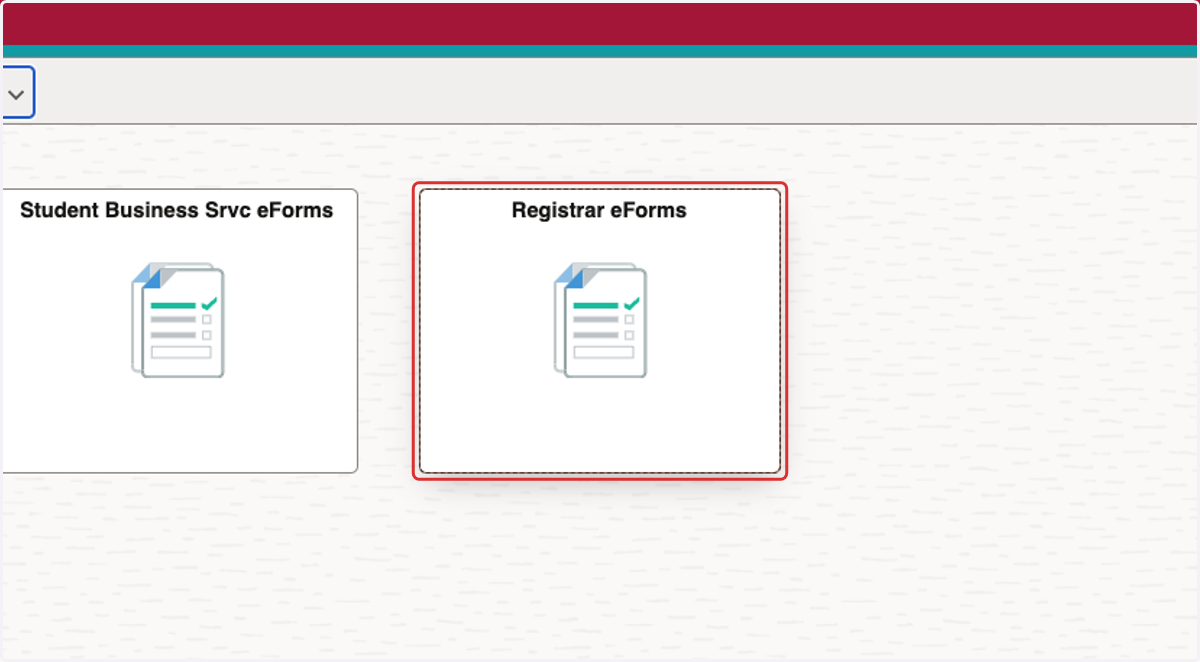
2. Click on Registrar eForms
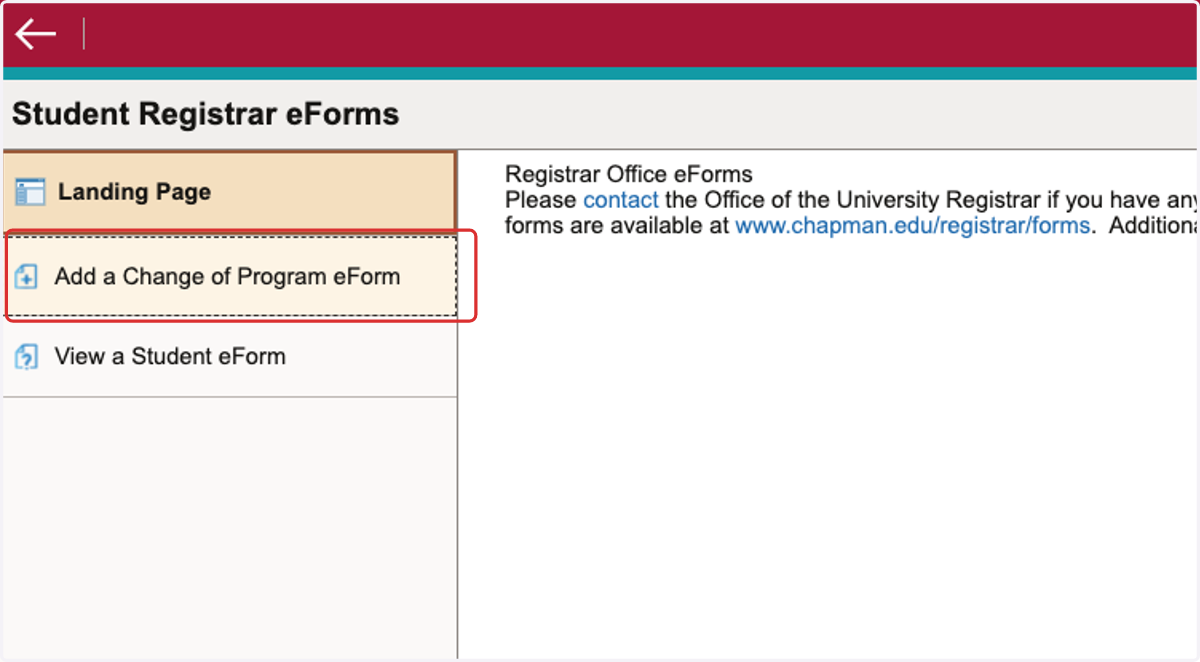
3. Click on Add a Change of Program eForm
4. Using the options listed, select your request type from the drop down menu. At this point, you will Add, Change or Drop part of your academic program.
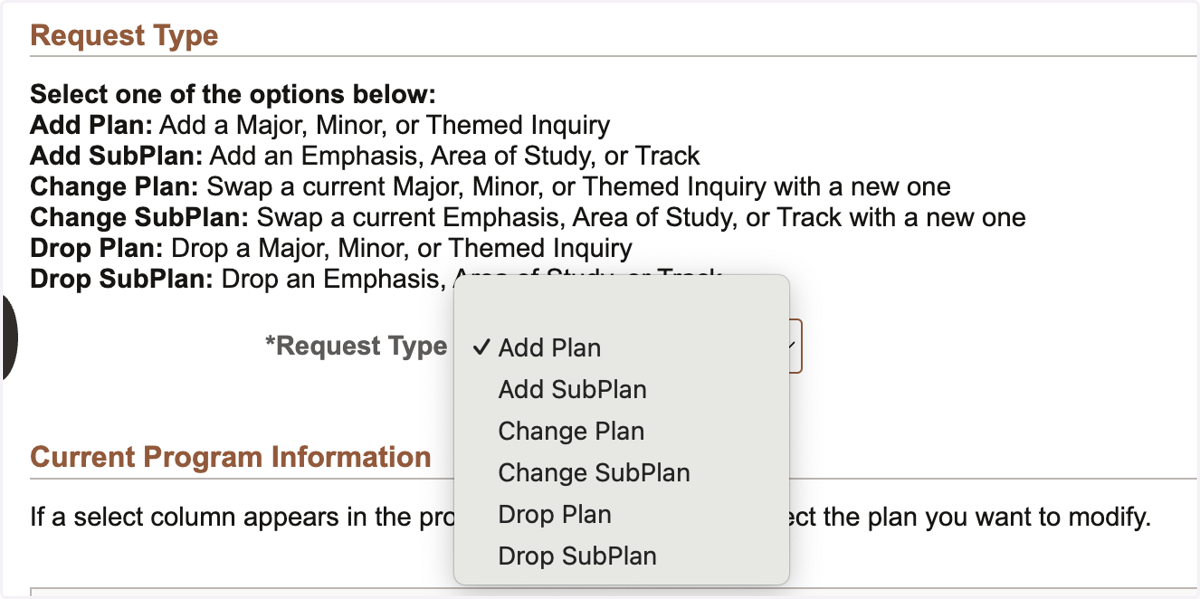
How to Add to Your Academic Program
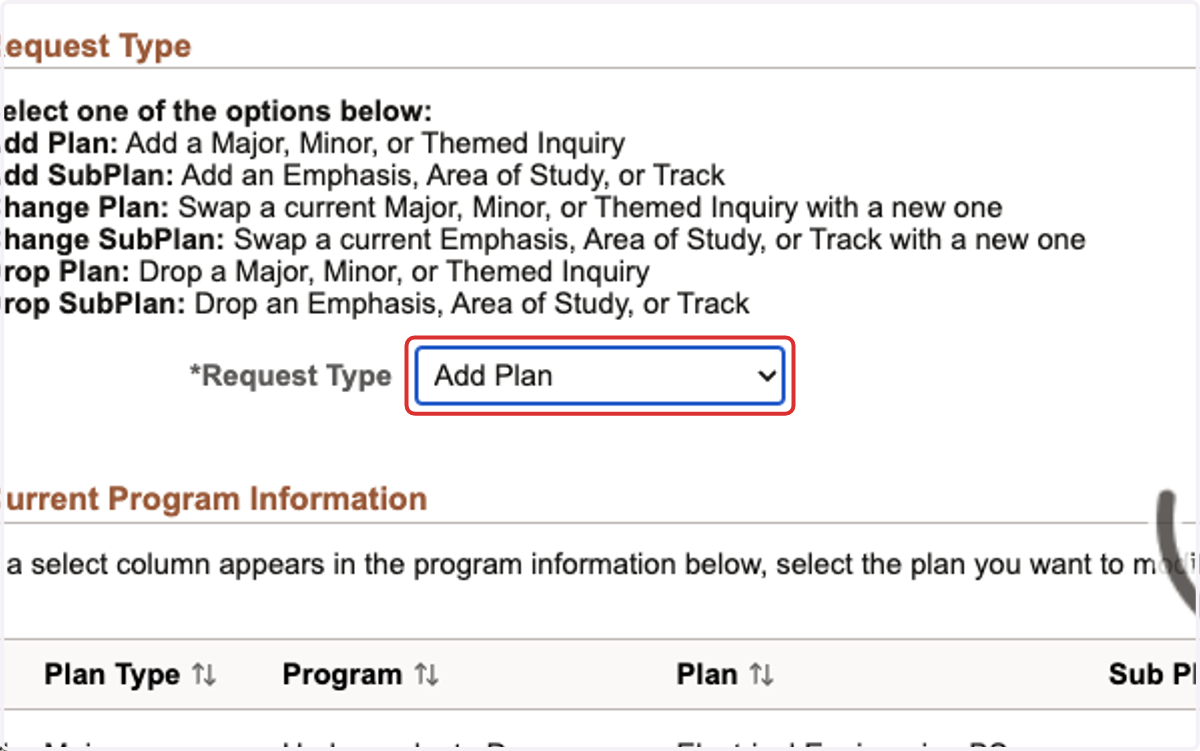
5. Select Add Plan from *Request Type to add to your academic program
Here you can add a double major, a minor or a themed inquiry. Be sure to follow the prompts for each addition you would like to make.
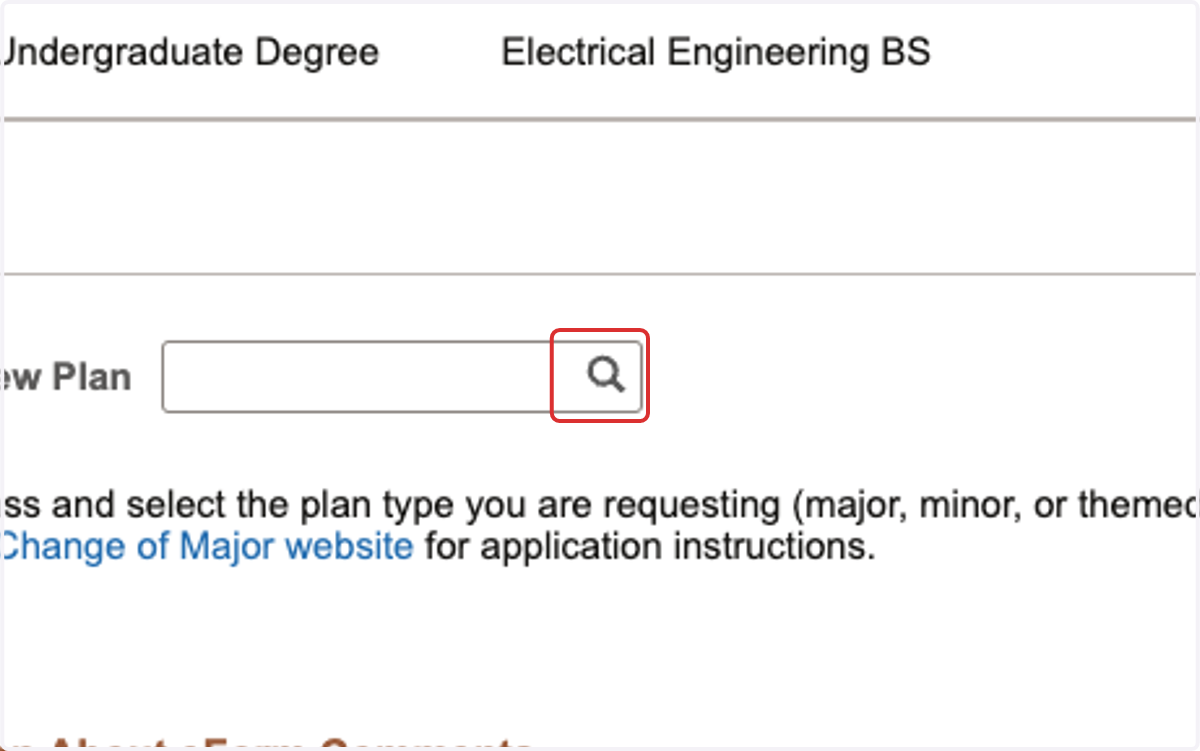
6. Click on the magnifying glass to search for the program you would like to add
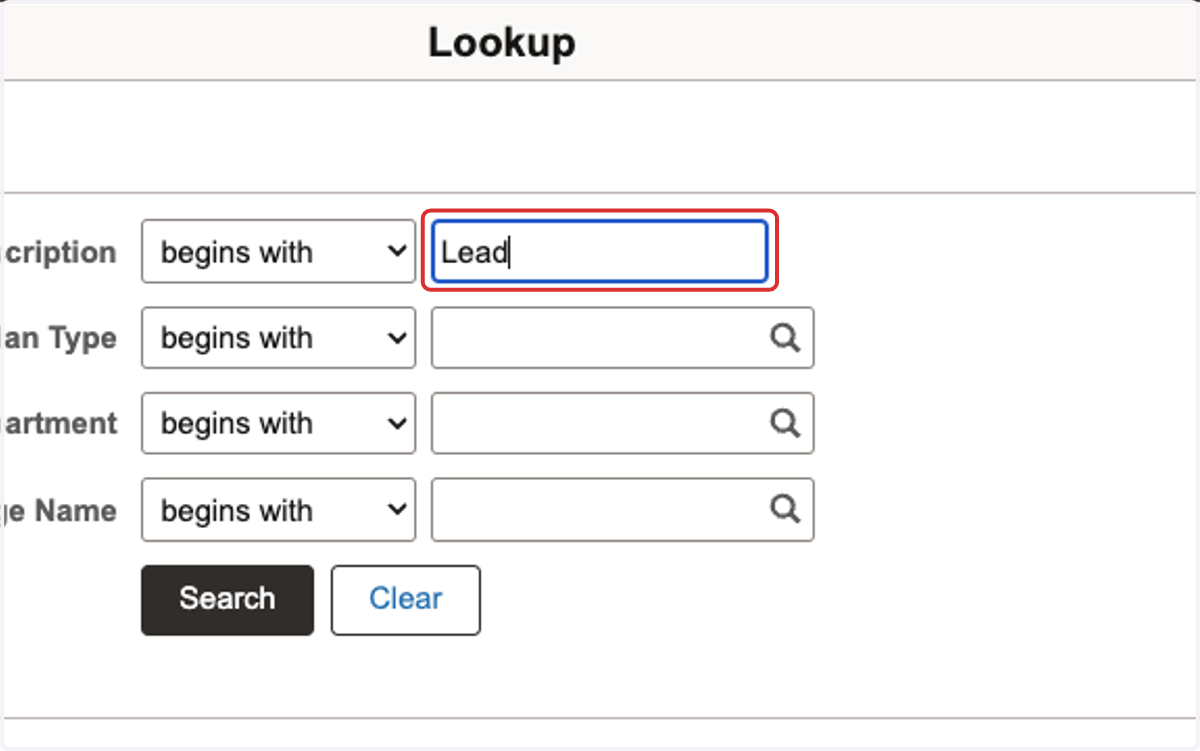
7. Using keywords, search the program you would like to add
This can be a major, minor or themed inquiry
8. Click on *New Plan
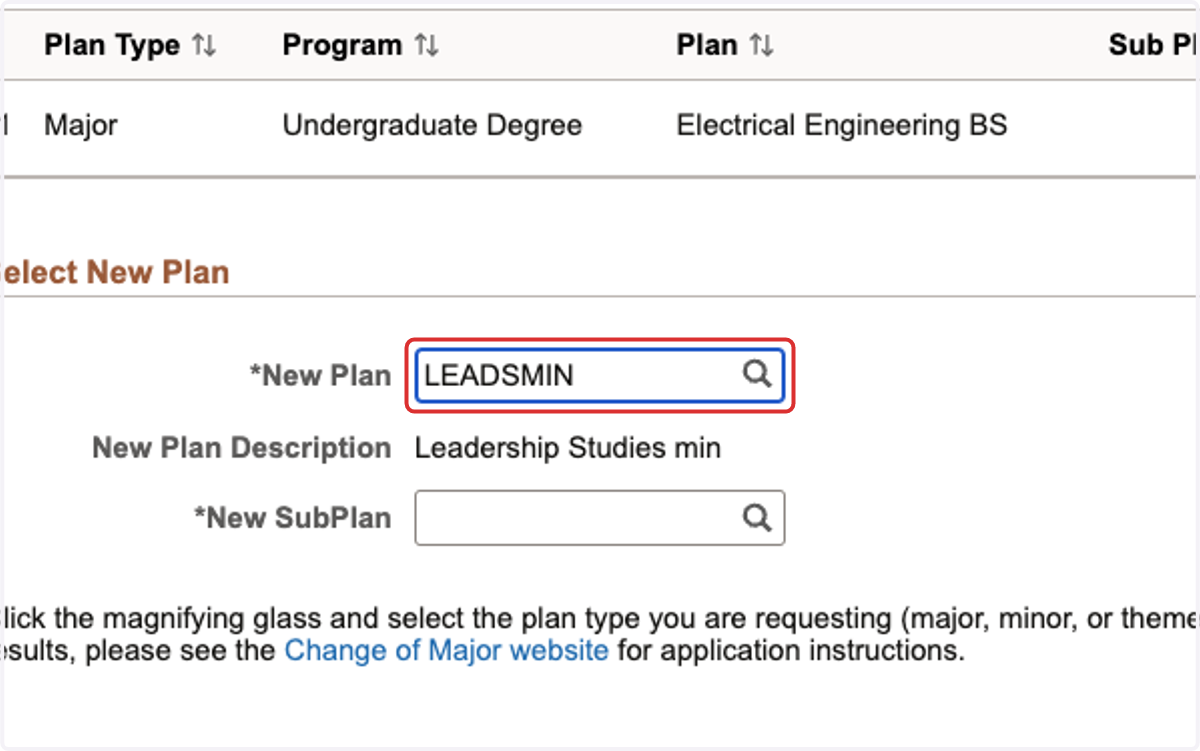
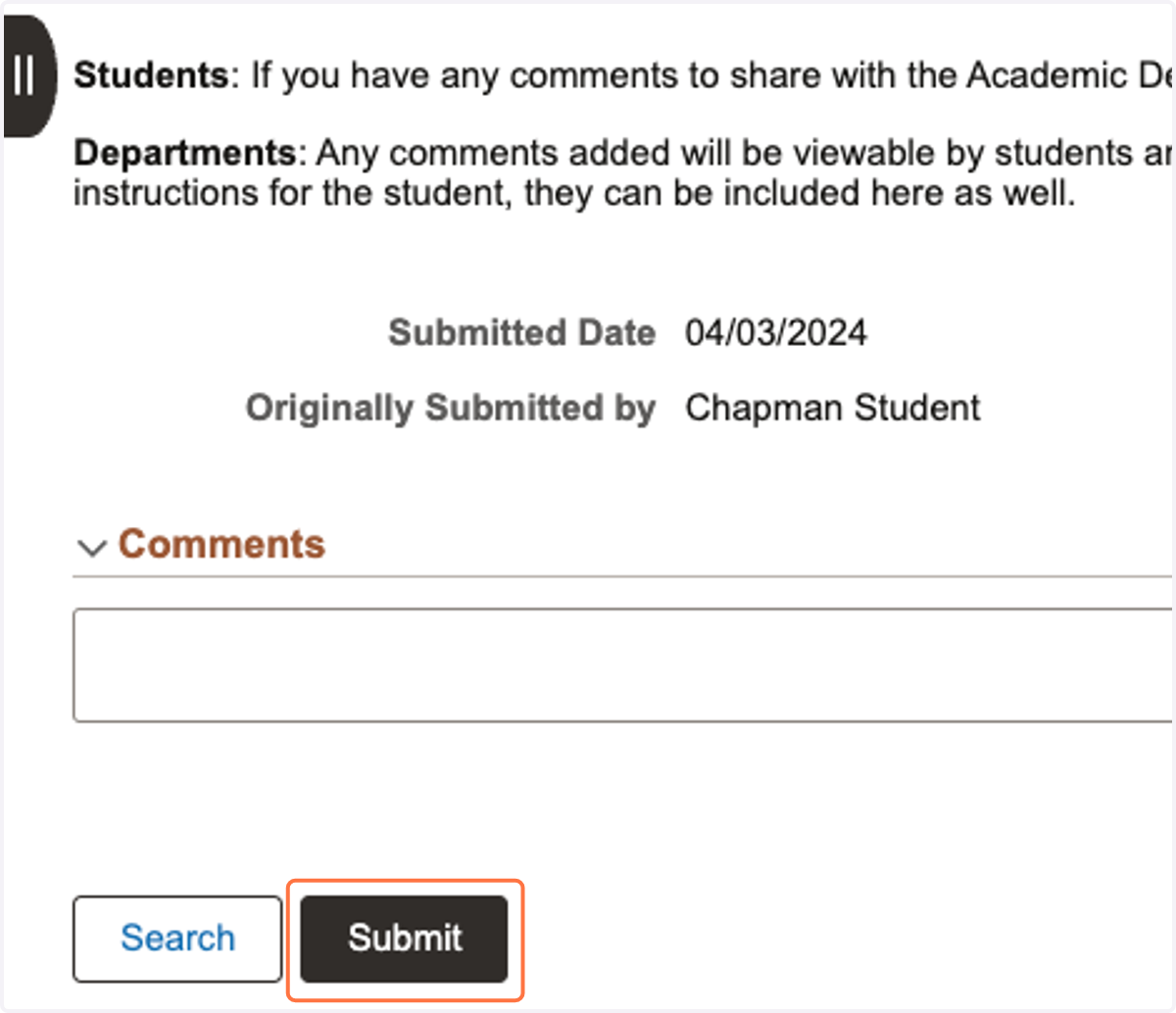
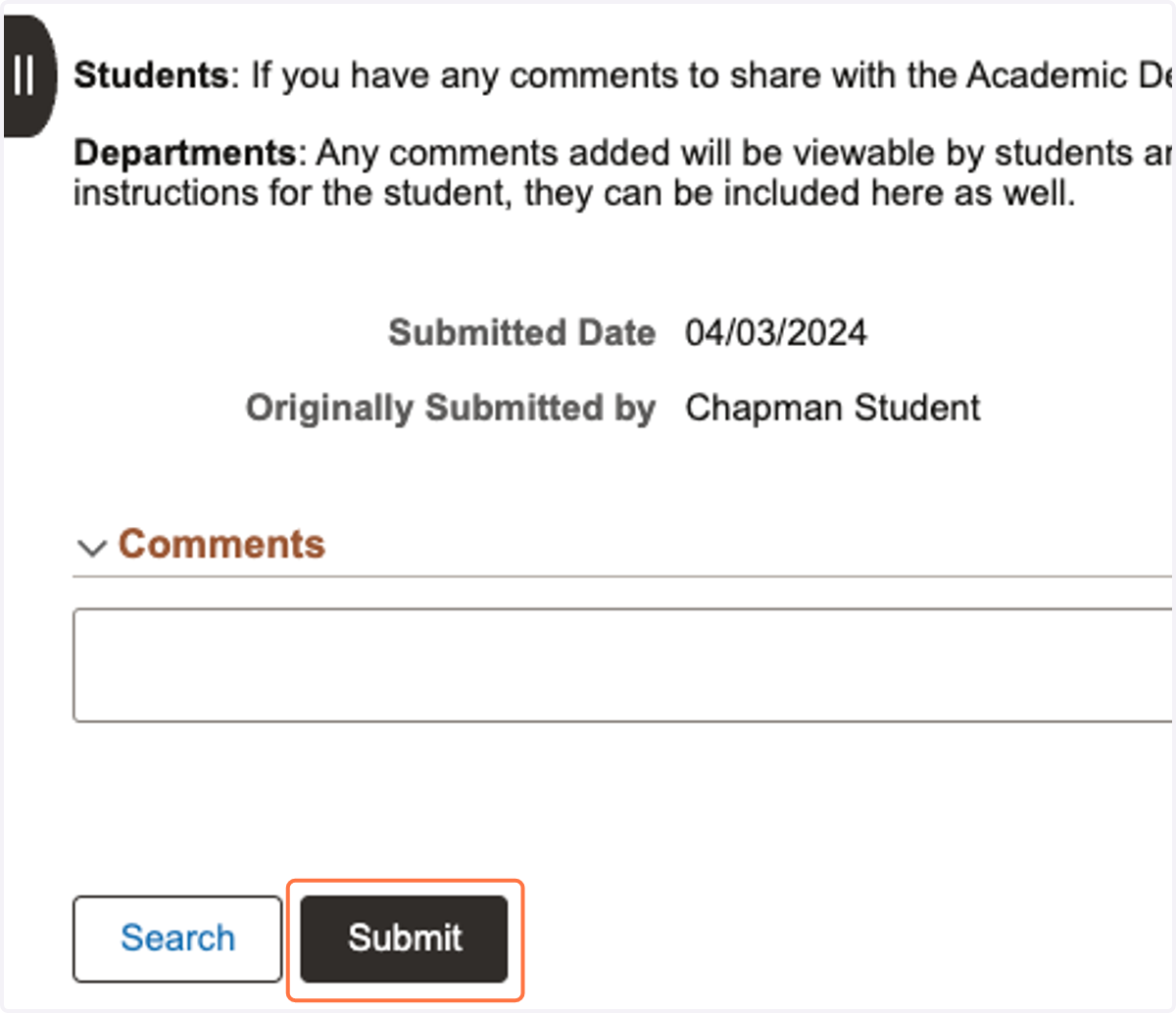
9. Leave comments for the registrar as necessary, then click submit!
How to Change Your Major
10. Select Change Plan from *Request Type
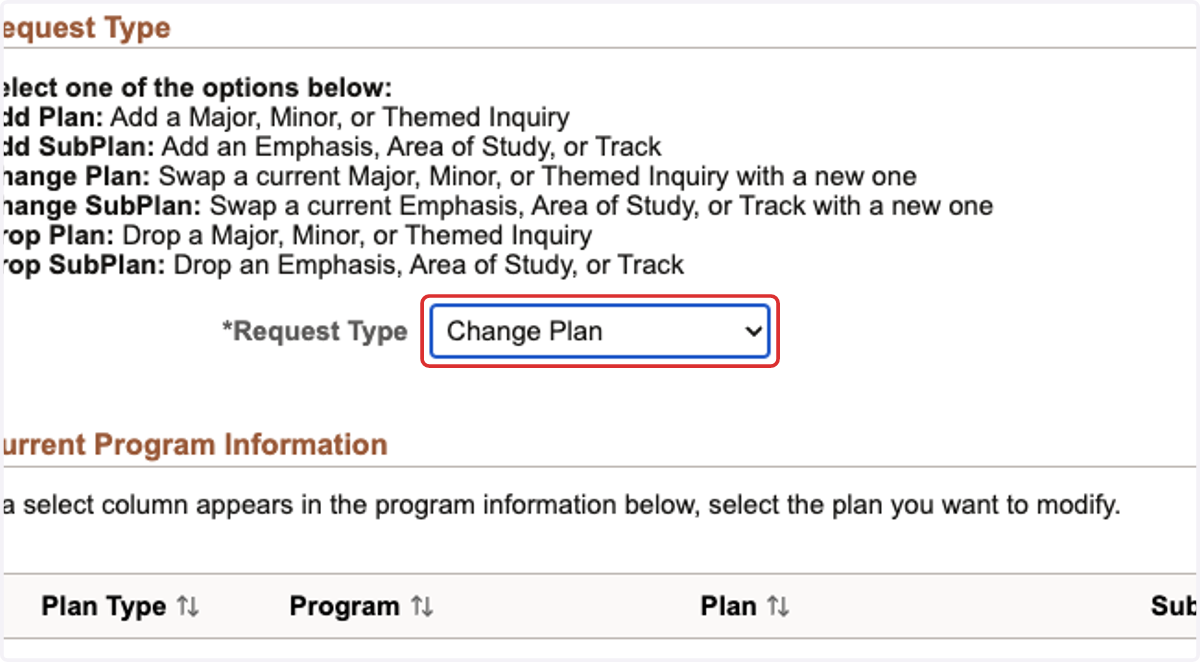
11. To search for your new major, click on the magnifying glass
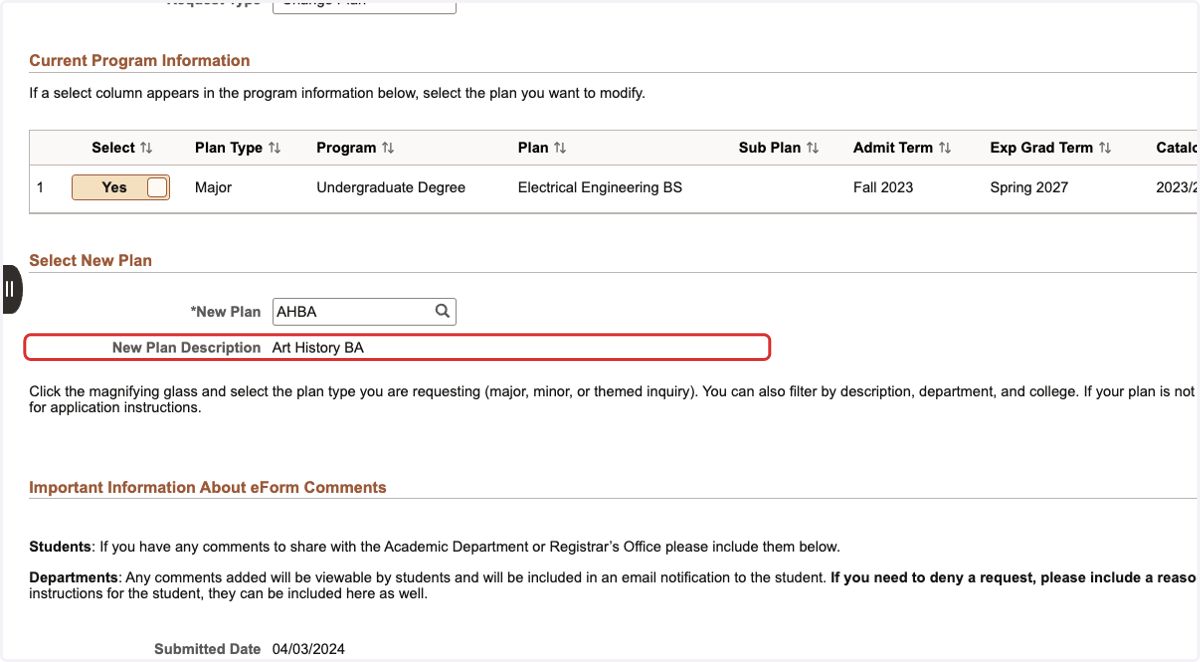
Under the "Select" column, toggle the switch from "No" to "Yes." This confirms the major that you will be changing out of.
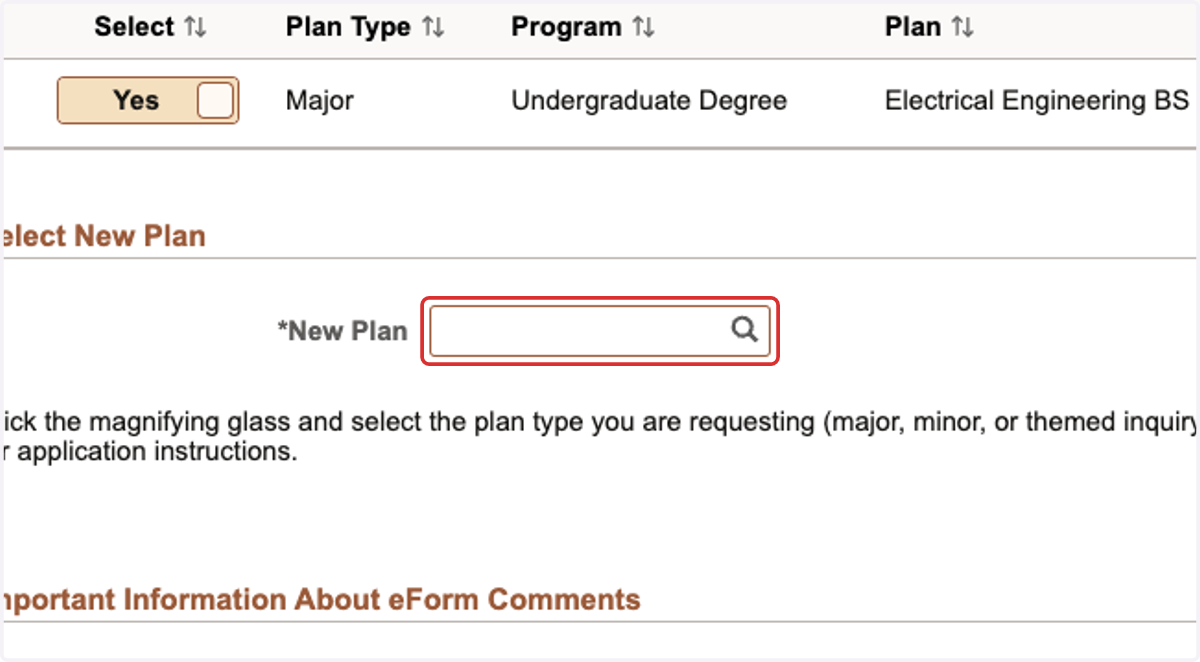
12. Using keywords, search the name of the major you would like to switch to
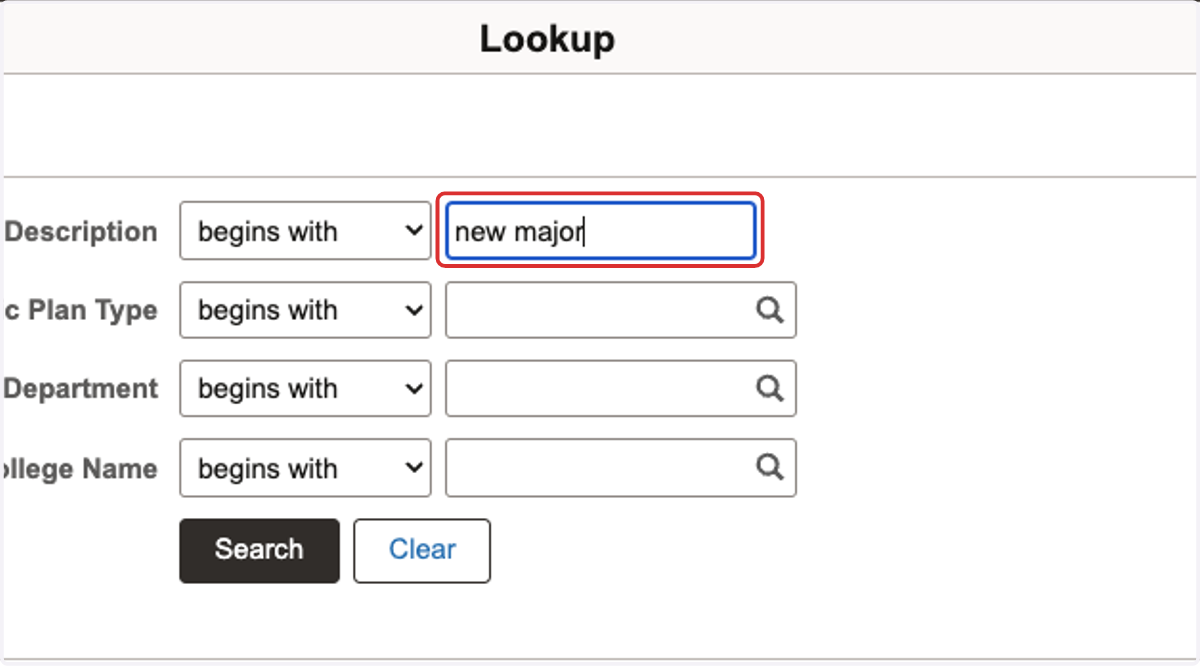
13. If applicable, you will need to add your selected sub-plan (area emphasis)
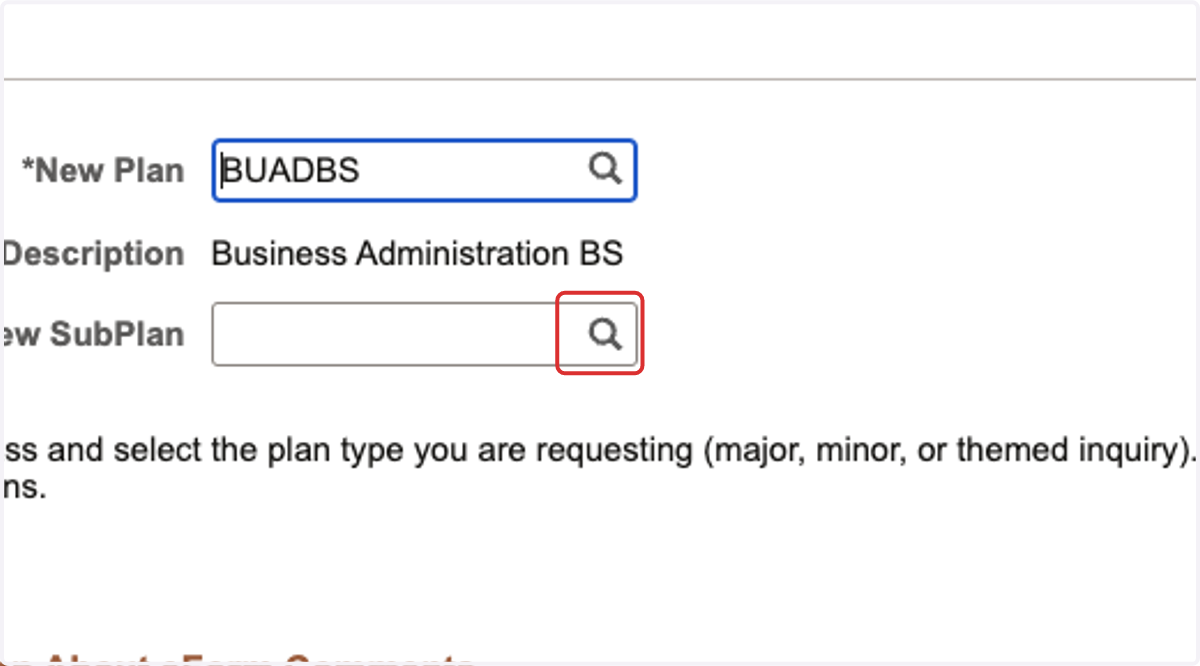
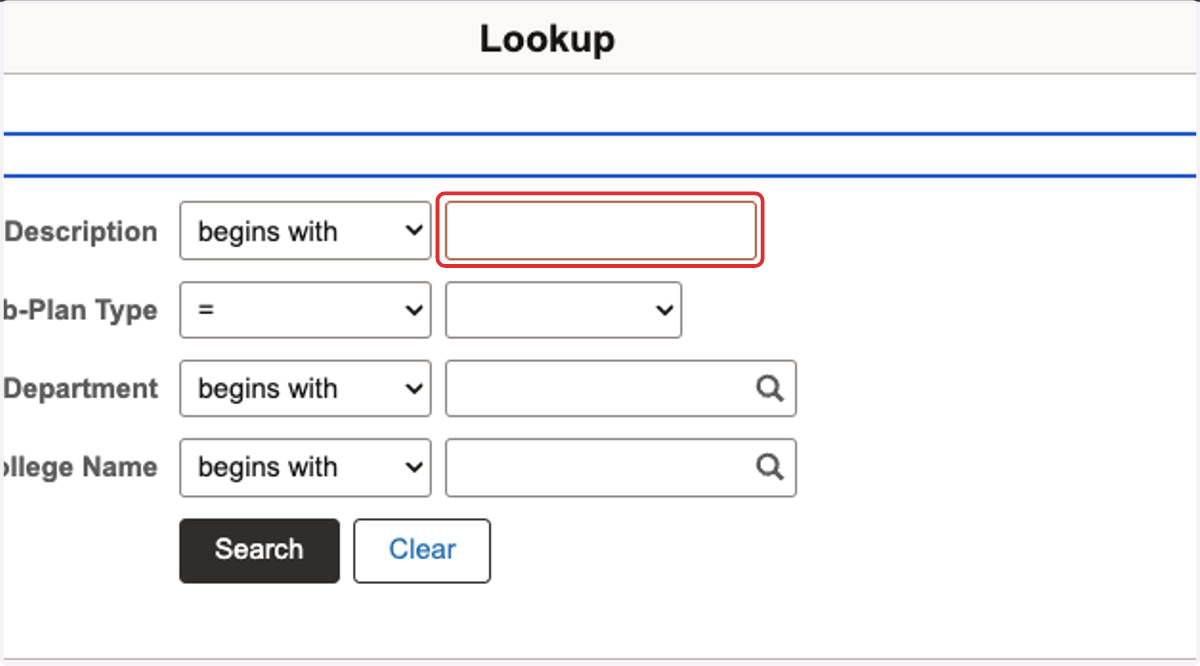
14. Using keywords, search the area of emphasis you have chosen
For example, if you are a Business Administration student, you would select something such as "real estate" as your emphasis.
15. Or select from the list that populates below
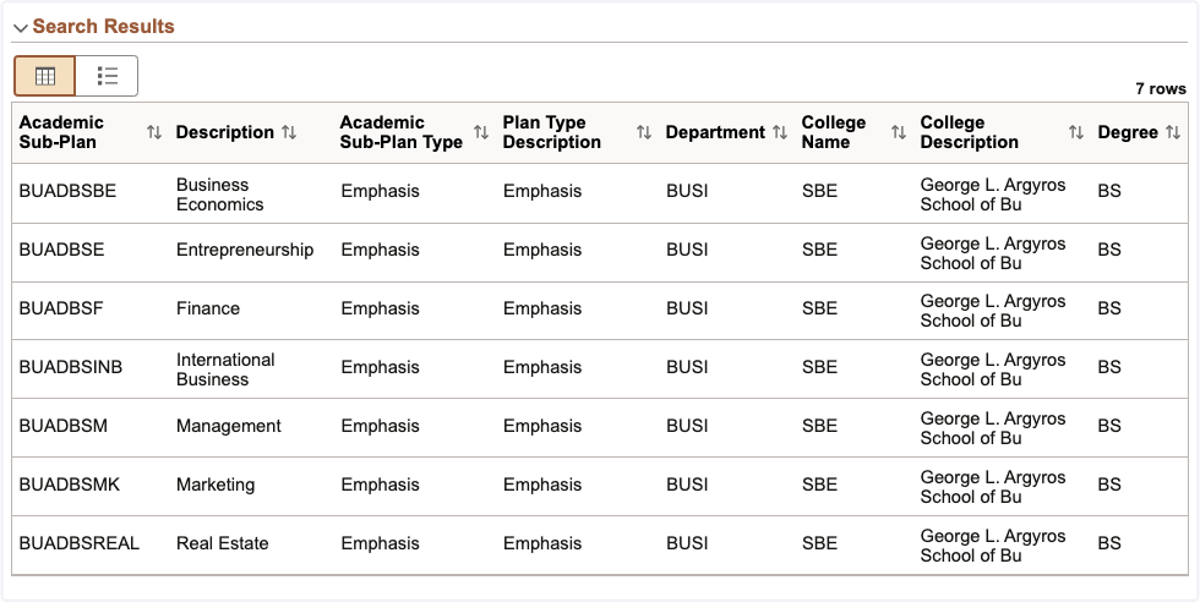
16. Verify the major you chose is correct
17. If needed, leave comments for the Department or Registrar to review
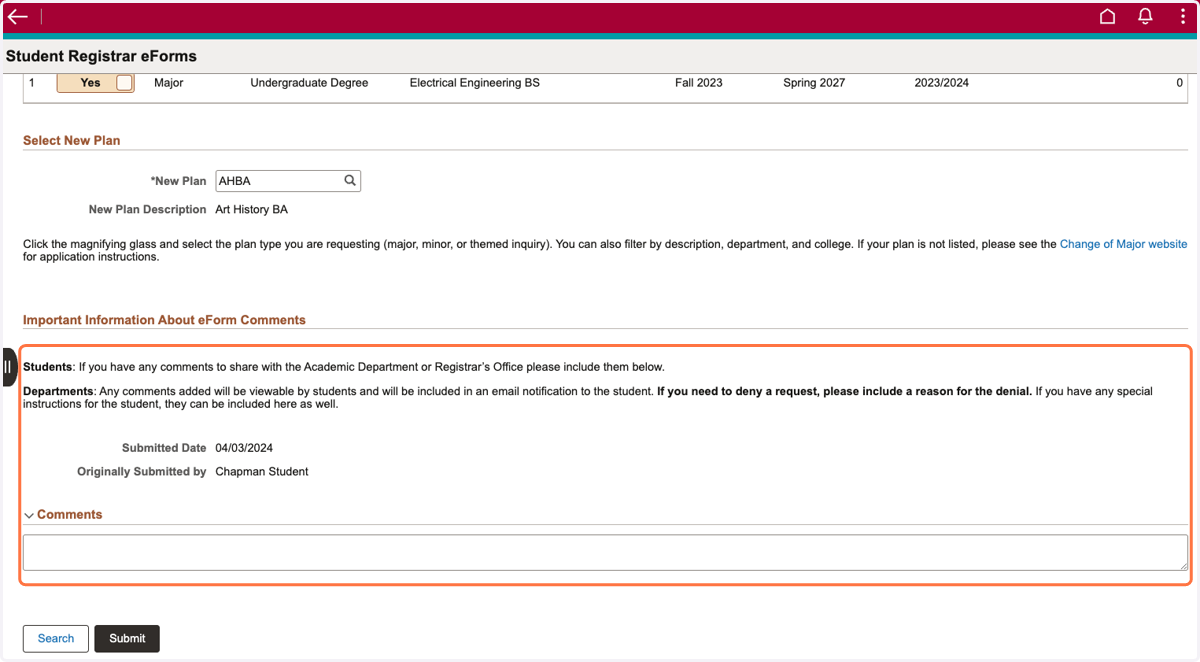
18. Click Submit