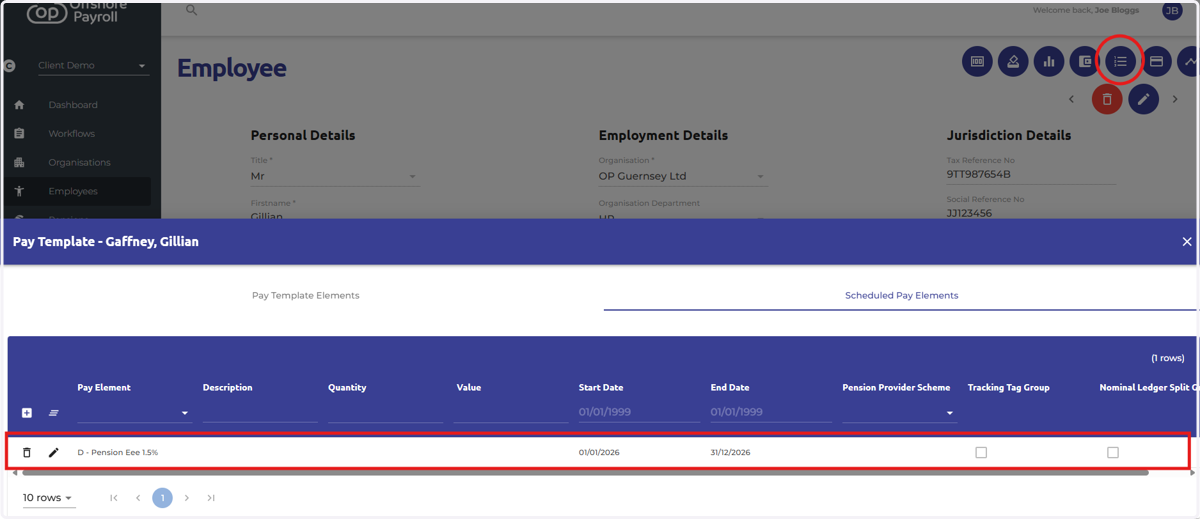
Pension Pay Element Schedule
By using the pay element schedule import, you can add pay elements to employees’ payslips in bulk, with the option to set start and end dates.
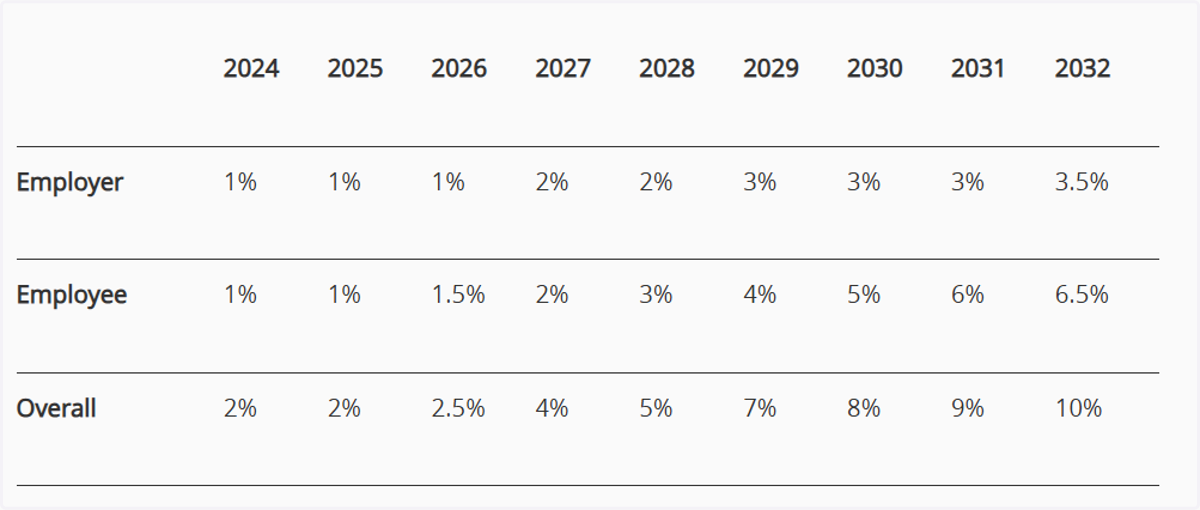
1. To comply with your secondary pension obligations, you must offer at least the minimum contributions. The minimum contributions increase for employees from 2026 from 1% to 1.5%. Please see table below and link to the government website.
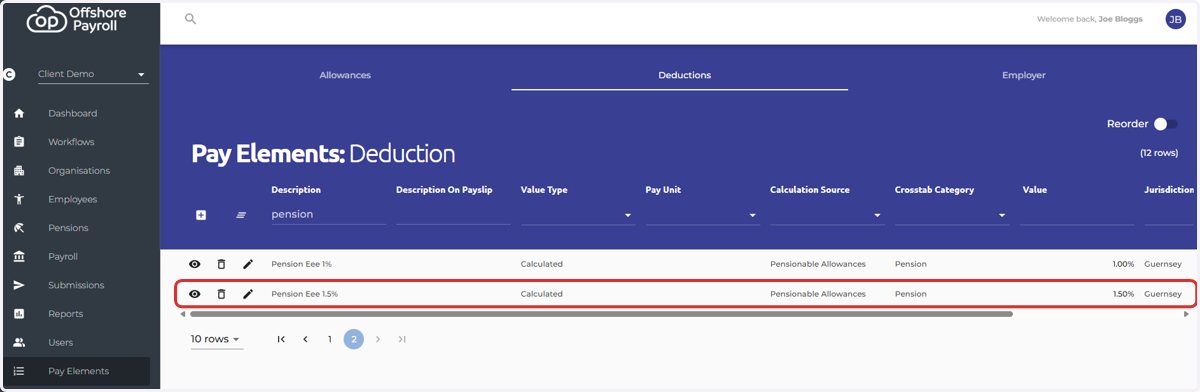
2. Firstly please ensure you have created your pension pay element
Please follow the link to our guide on creating pension pay elements.
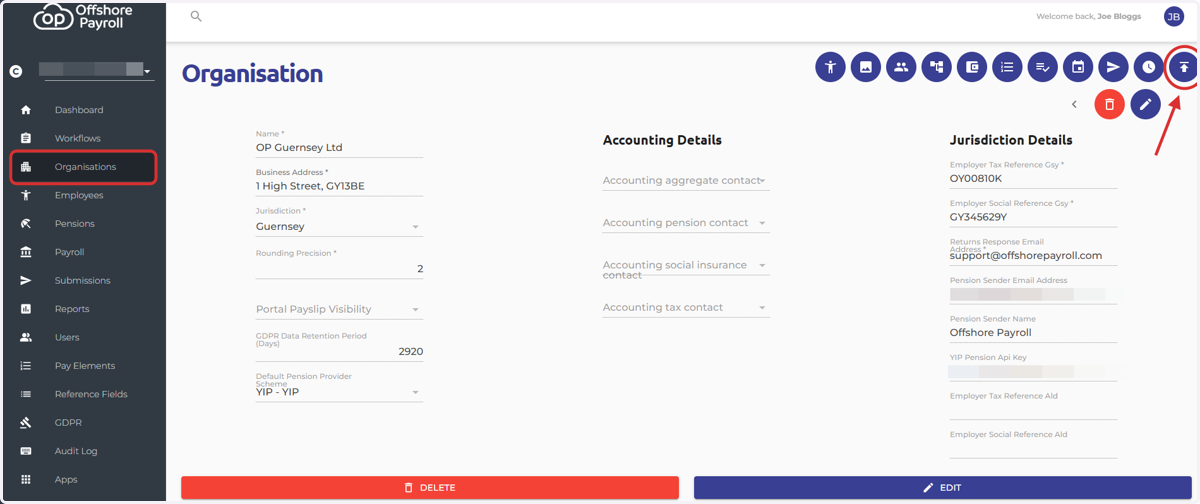
3. Navigate to the organisation screen
Select the 'Organisation Import' icon at the top right of the screen
4. Select 'Pay Element Schedule'
Select 'Download Template'
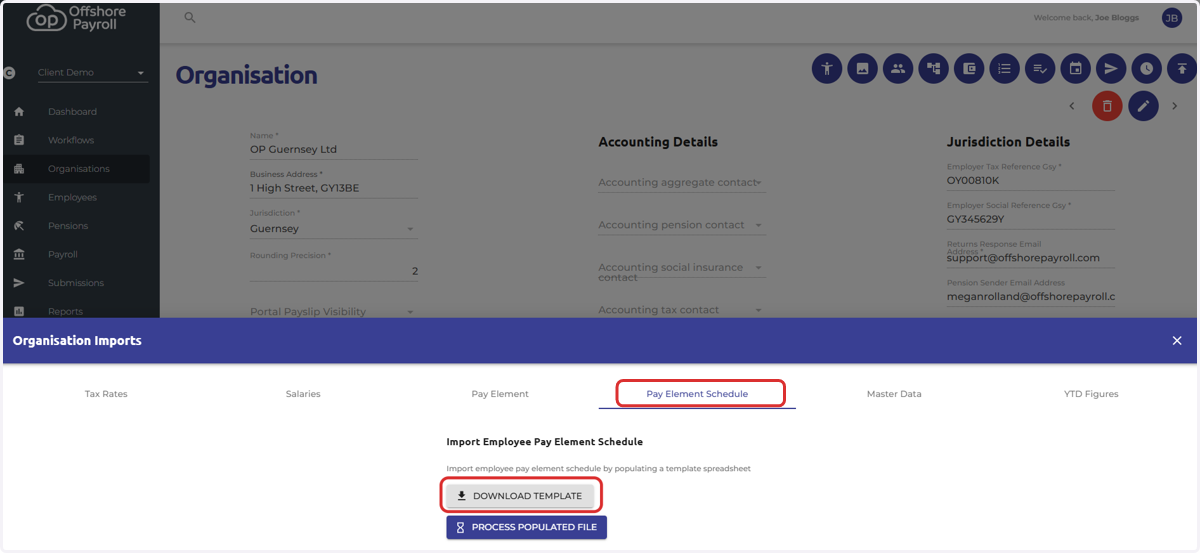
5. Once this has been downloaded you can begin to edit the spreadsheet
From the dropdown option next to the employee record, select the pension pay element you wish to add to the employee's payslip
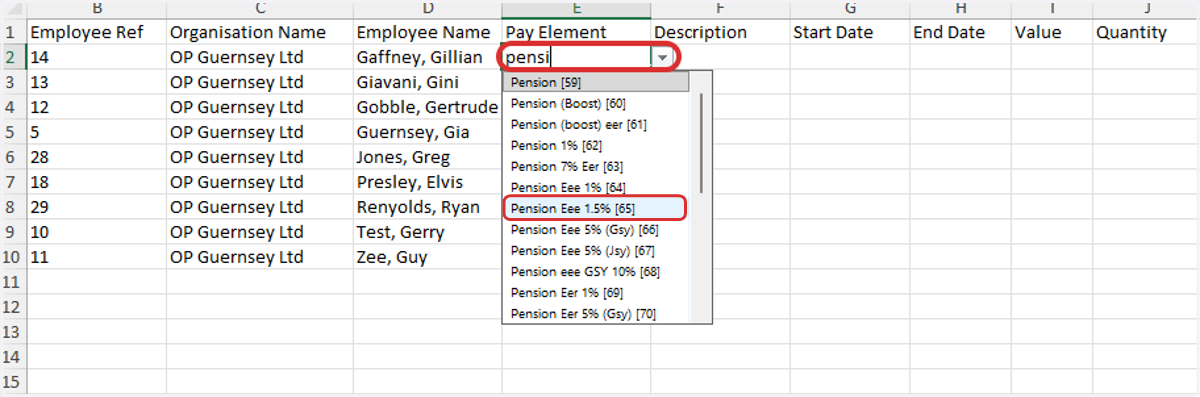
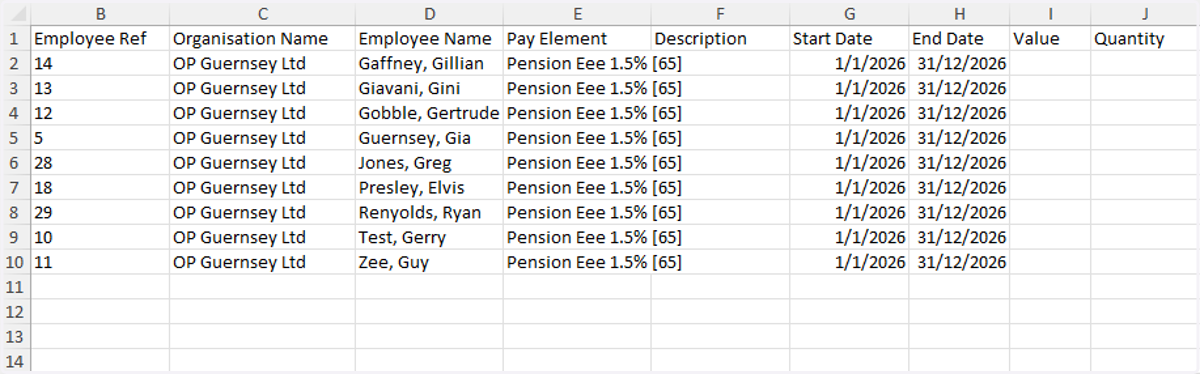
6. Once you have completed this for all of the relevant employees, you can enter the start and end date.
Please ensure you verify the import before selecting Save
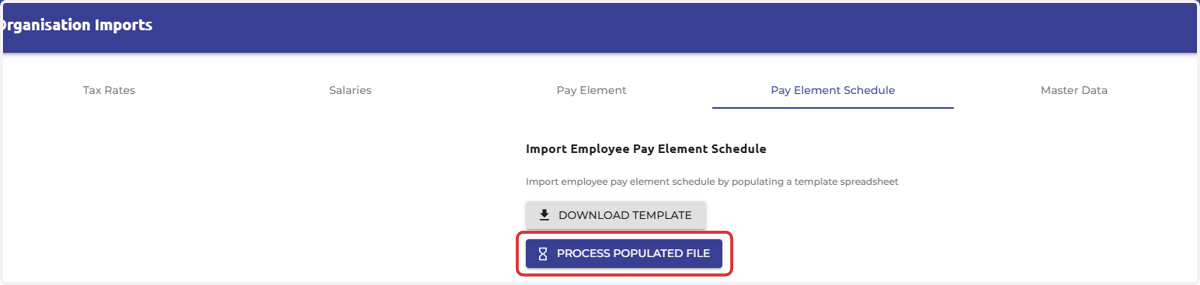
7. Navigate back to the organisation screen and select 'Process populated file'
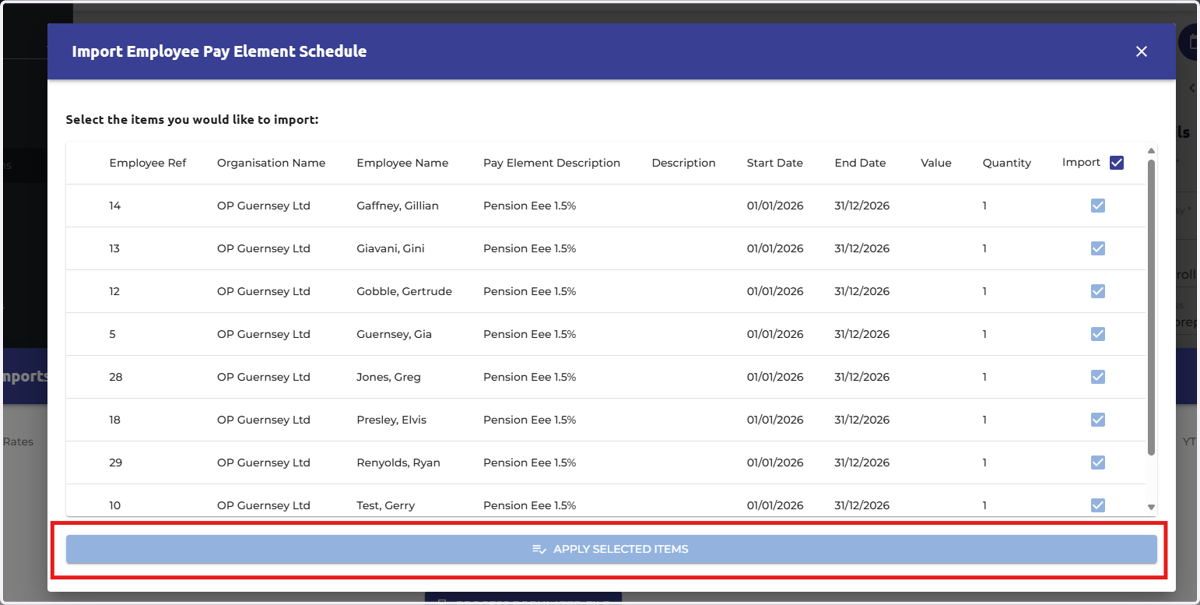
8. Spot check the import items before selecting 'Apply Selected Items'
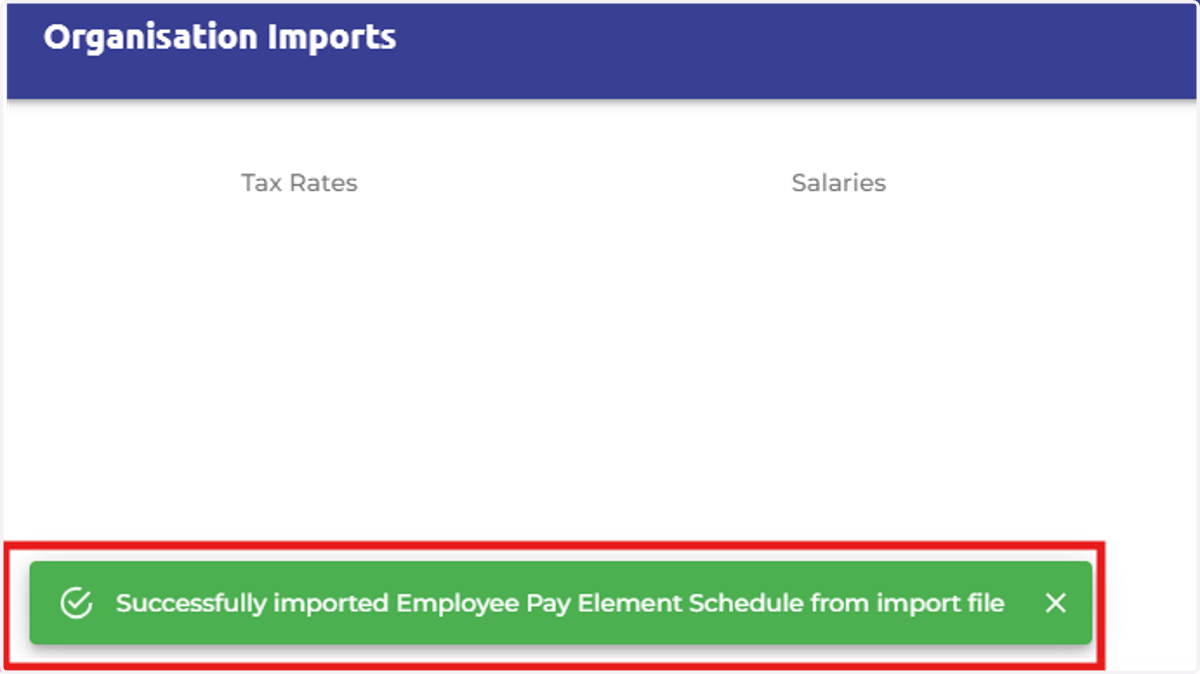
9. A green pop up message will appear on the screen, notifying you that the import was successful
10. Navigate to an employee record and select the 'Pay Template' icon at the top right of the screen. Select 'Schedule Pay Elements'
You can then view the imported scheduled pay element