Uploading Individual Letters
The steps below will show you how to upload the individual letters that faculty members in your department email to you.
Interfolio
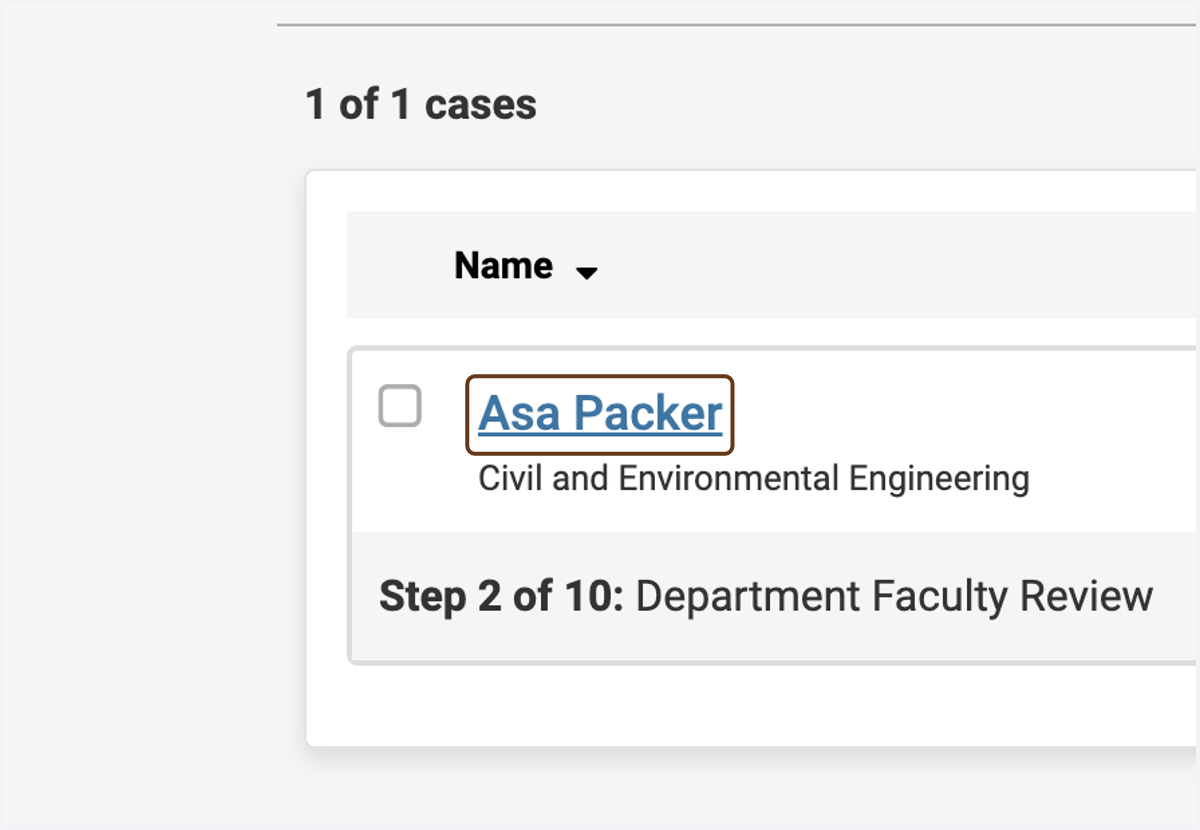
1. Click on the candidate's name
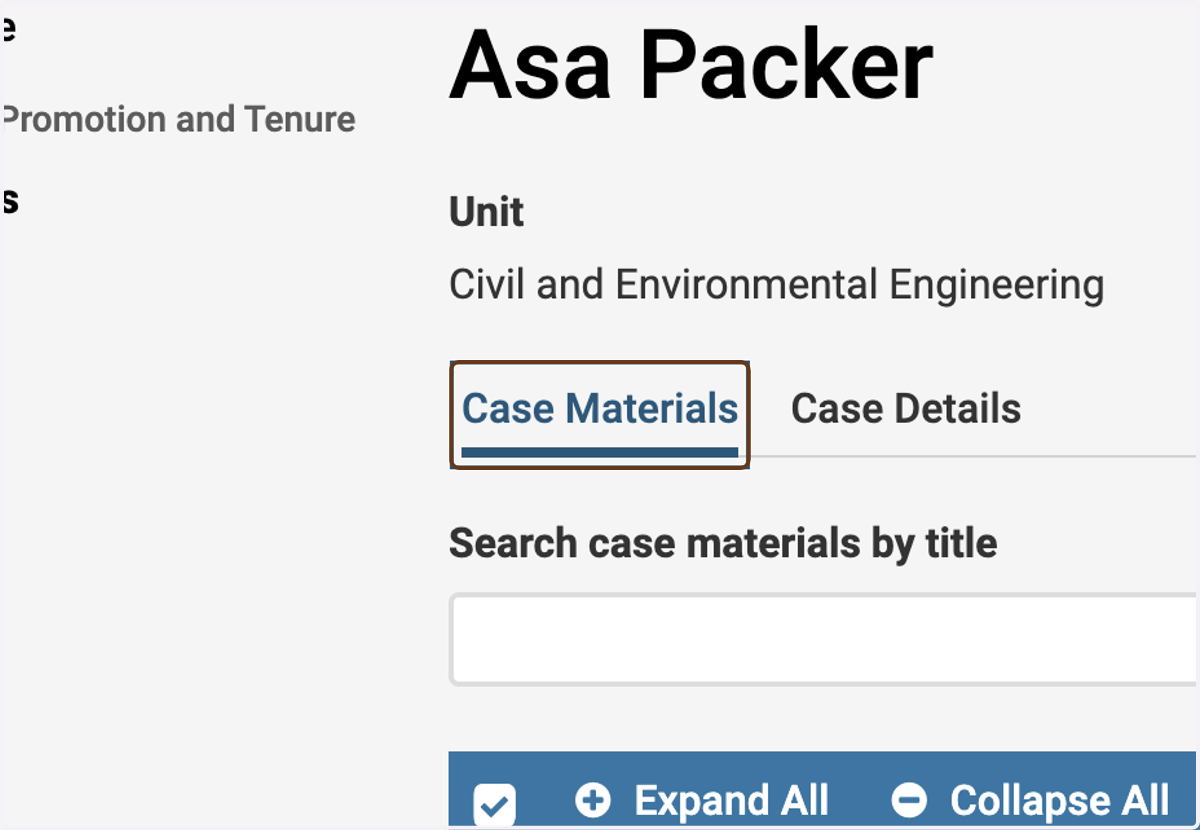
2. Make sure you are on the Case Materials tab
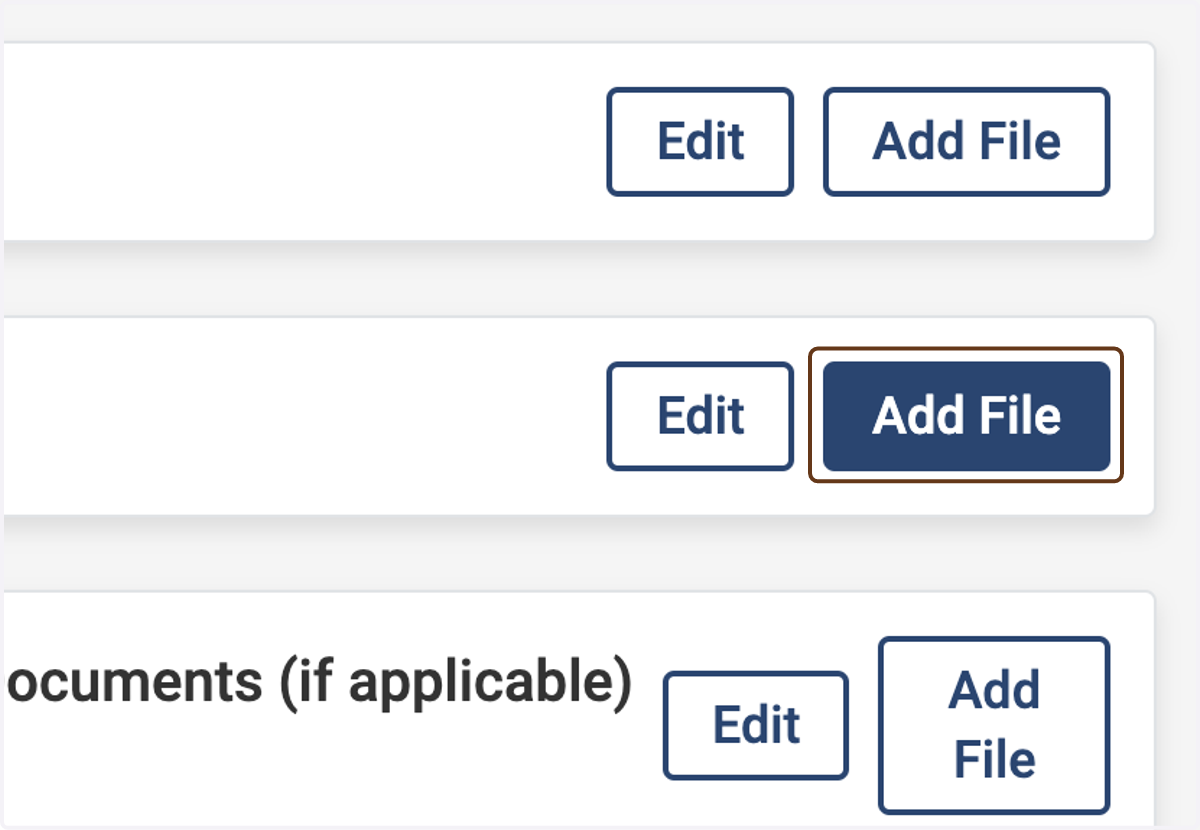
3. Click on Add File next to Department Letters
To find it, scroll down a bit, to the Internal Sections section.
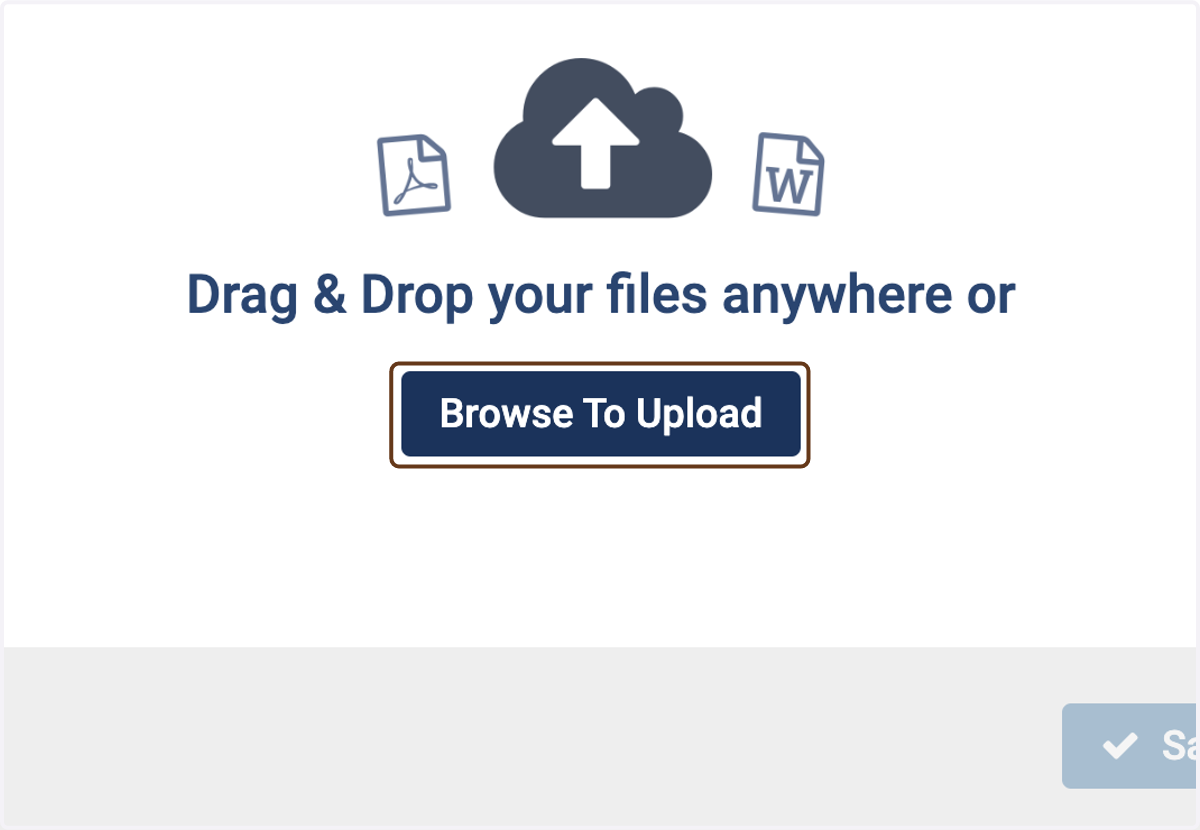
4. Click on Browse To Upload
(or drag and drop)
5. Select a file from upload menu
You can multi-select to include multiple files at once.
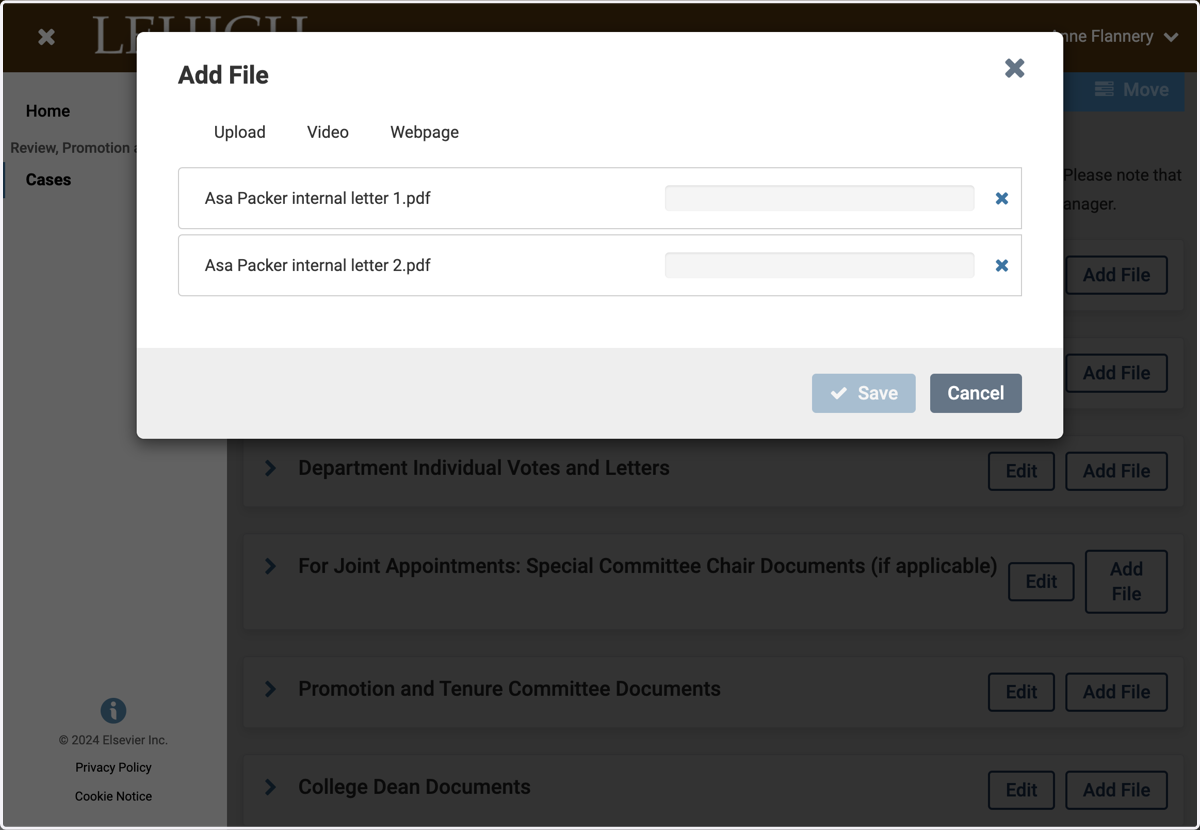
6. Click on Save
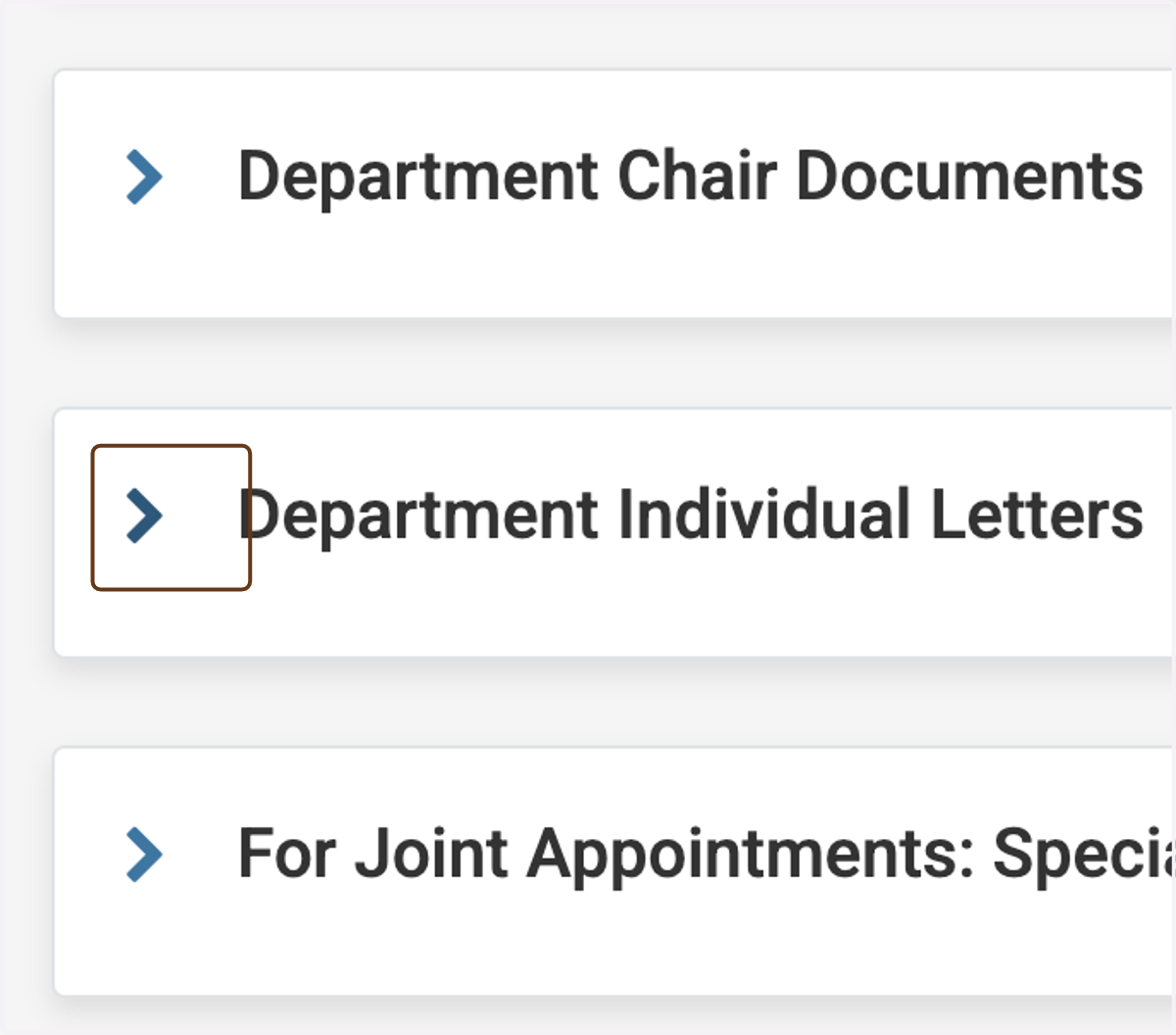
7. Expand the Department Letters section
8. Click on Expand Department Individual Letters
9. Check the visibility of the letters
The visibility of all letters should be set to "Administrators & Entire Committee" so that viewers at subsequent steps (e.g., the college P&T committee) can see the letters. By default, uploaded files are set to "Administrators & Entire Committee" but it's a good idea to check one or two just to be sure. The next steps show you how.
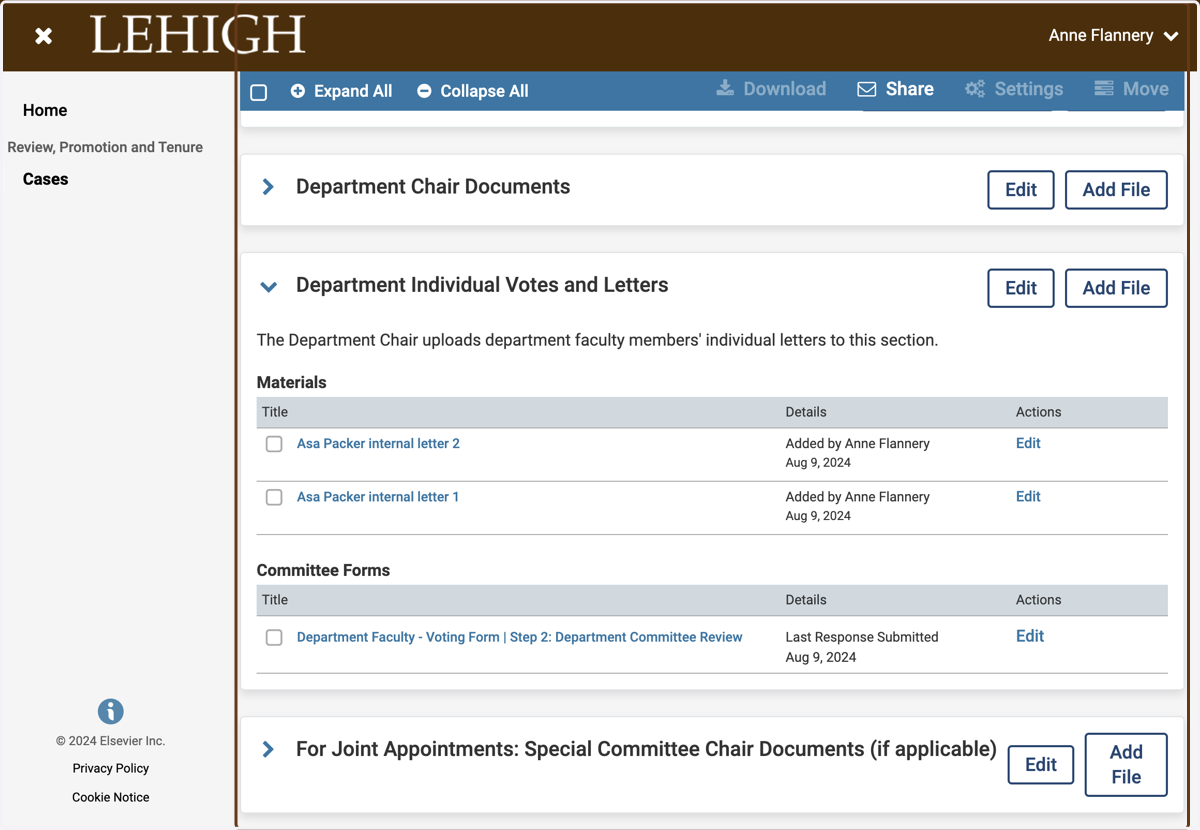
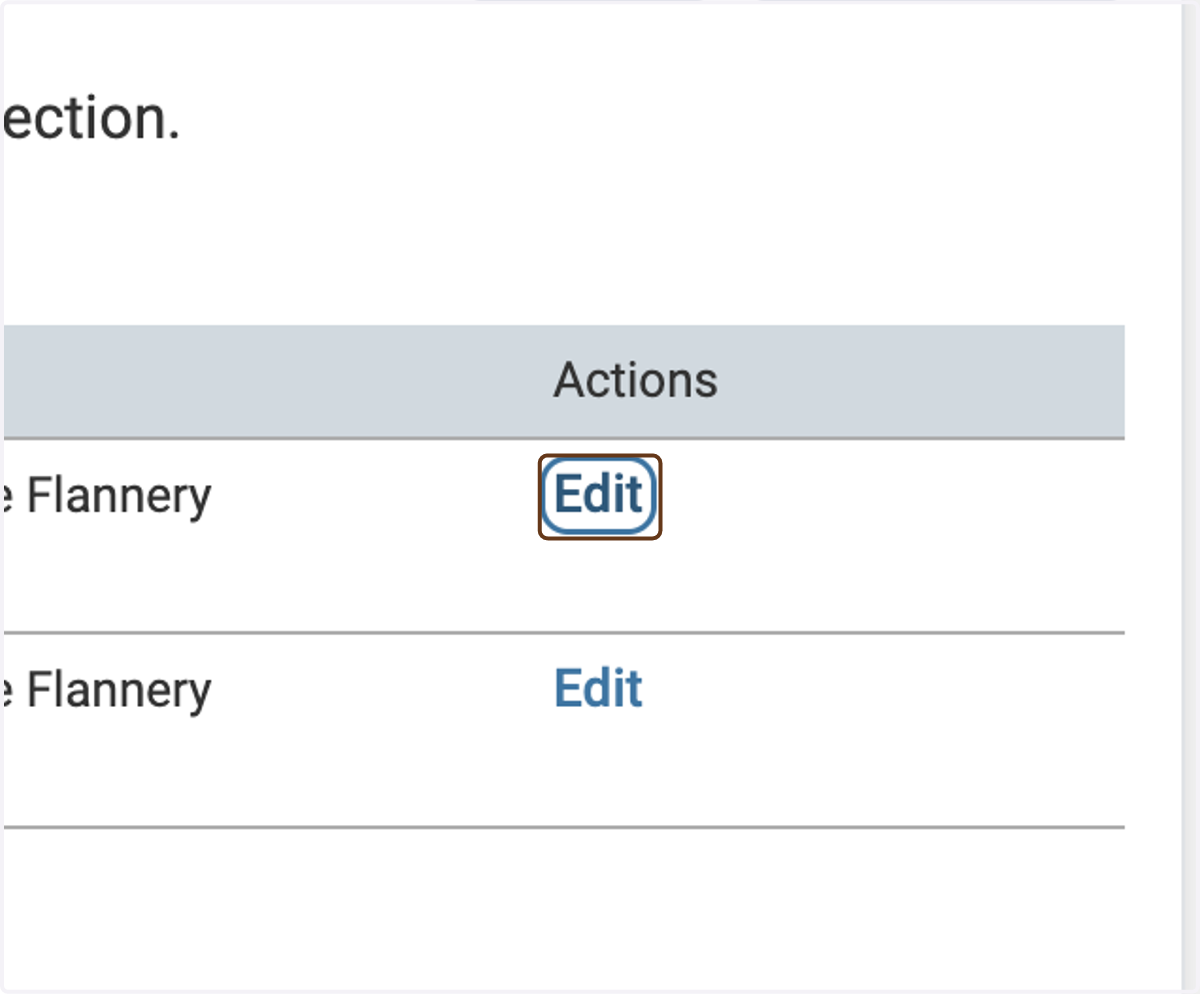
10. Click on Edit next to the letter you want to check or change the visibility of
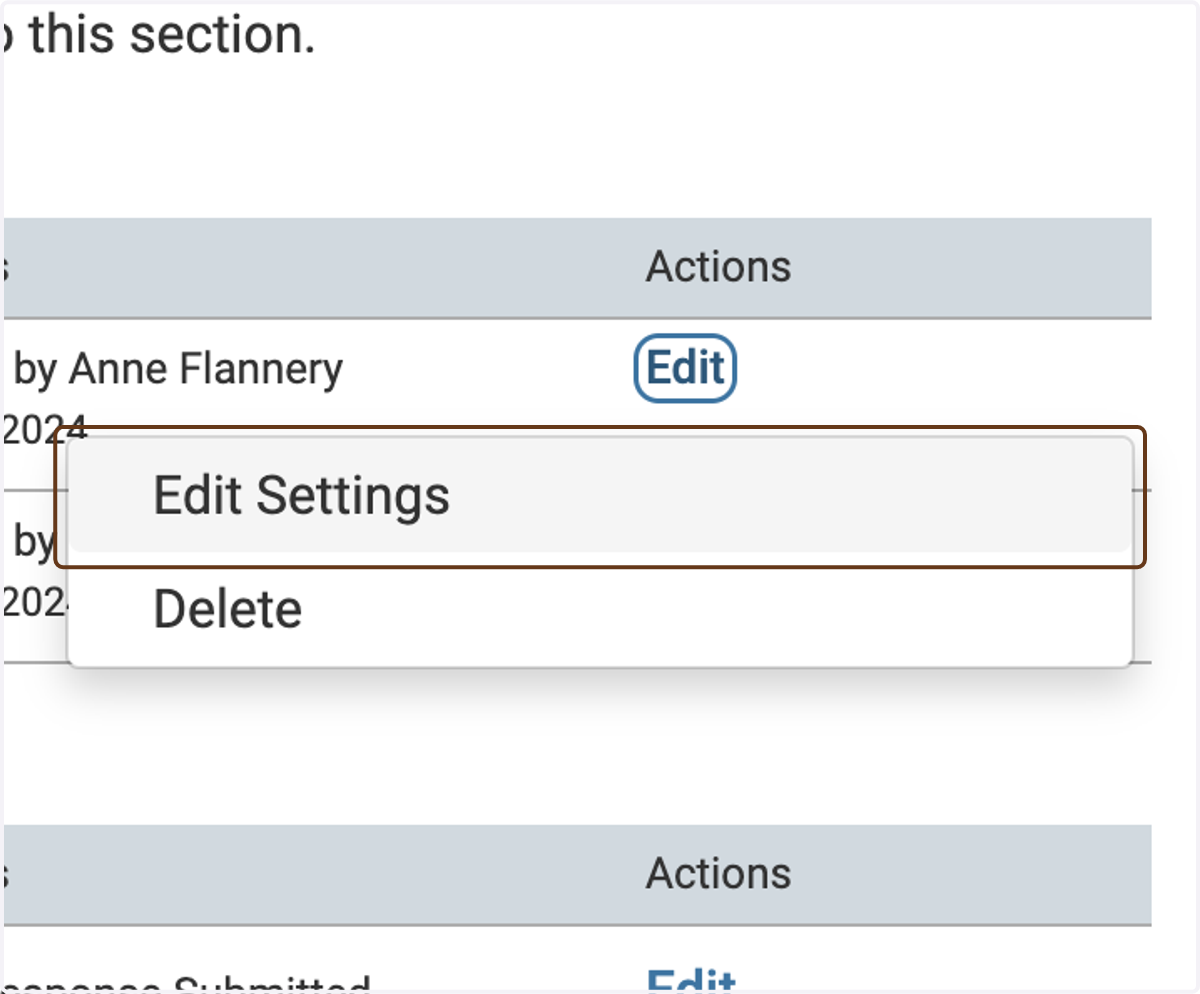
11. Click on Edit Settings
12. Select Administrators & Committee Managers, if it's not already selected
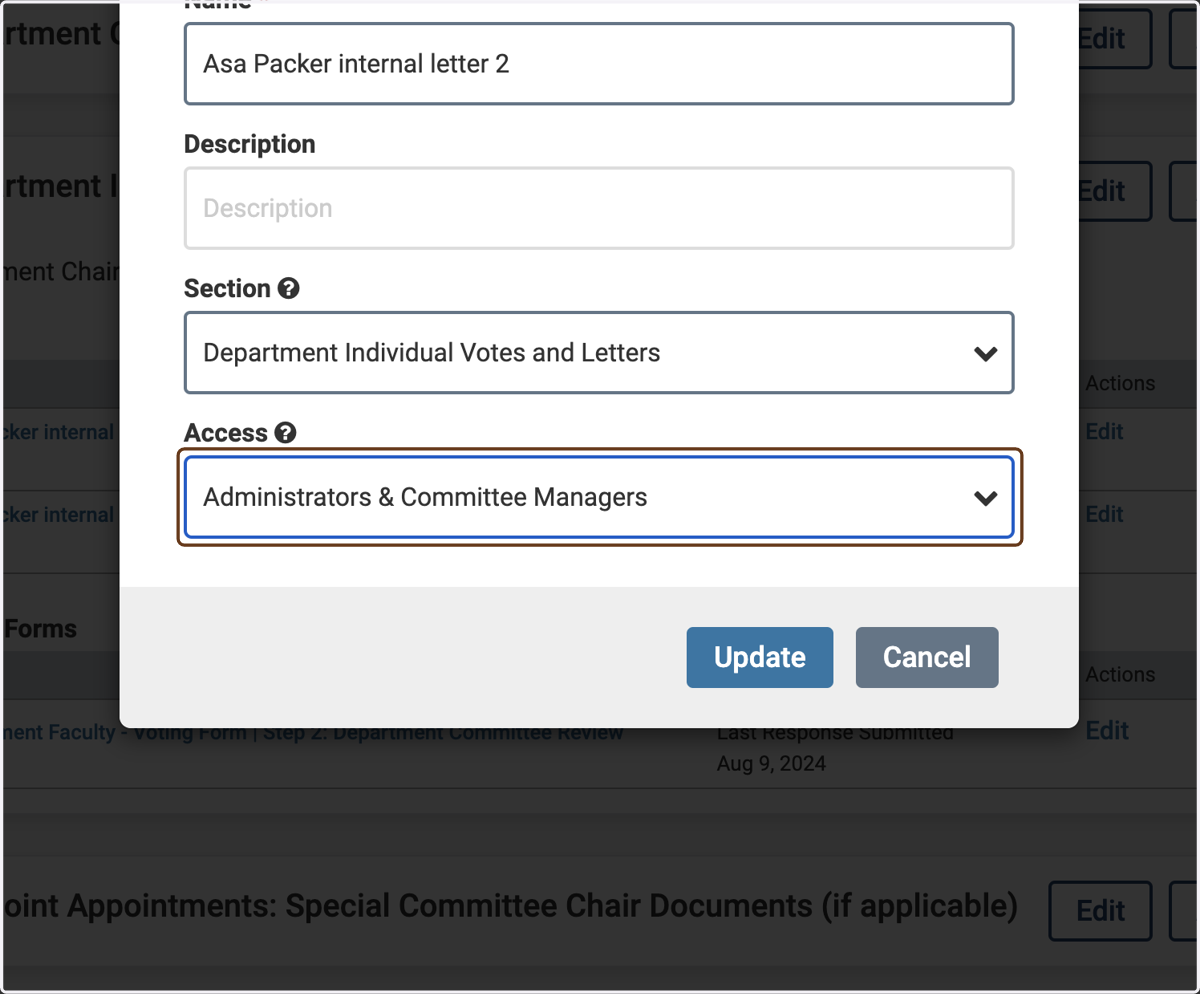
13. Click on Update