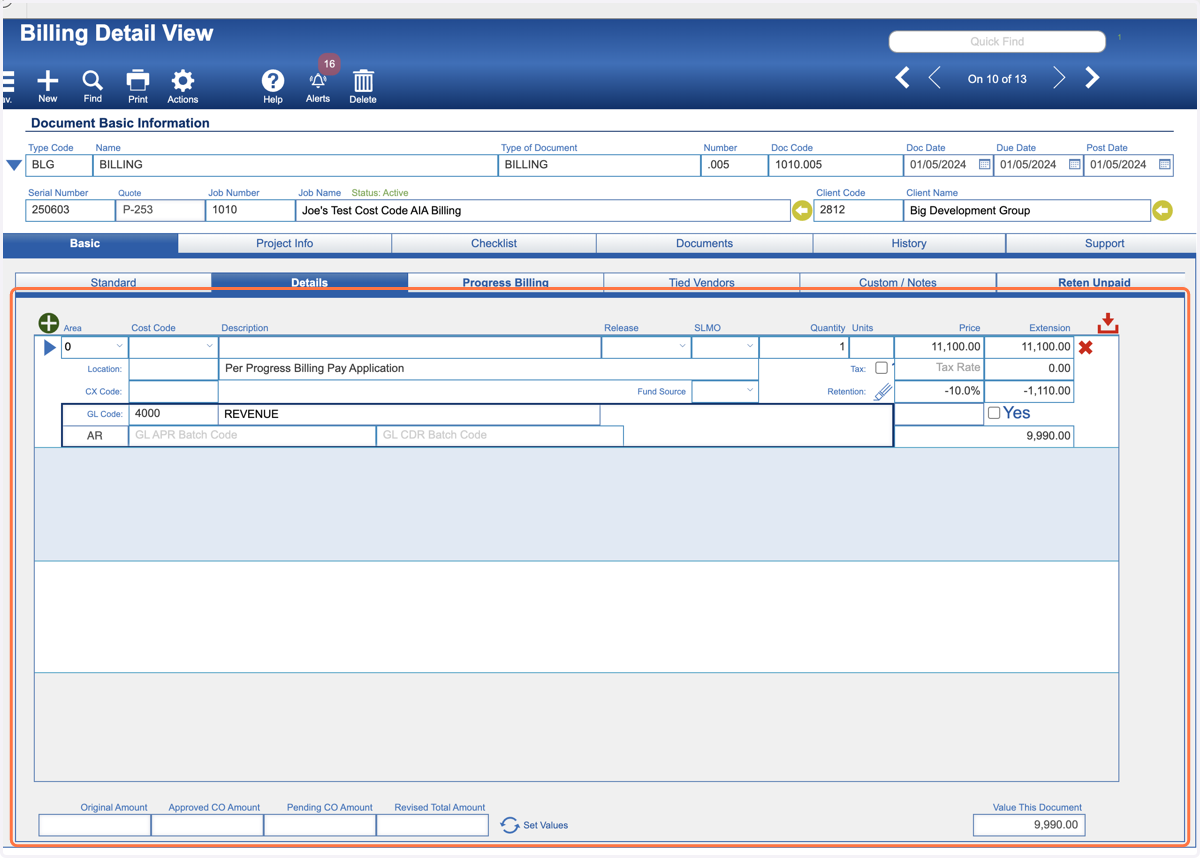
Creating Progress Billing Summary Records
There are three ways to create the Billing detail line items that represent the Progress Billing (AKA AIA pay application).
CMIS
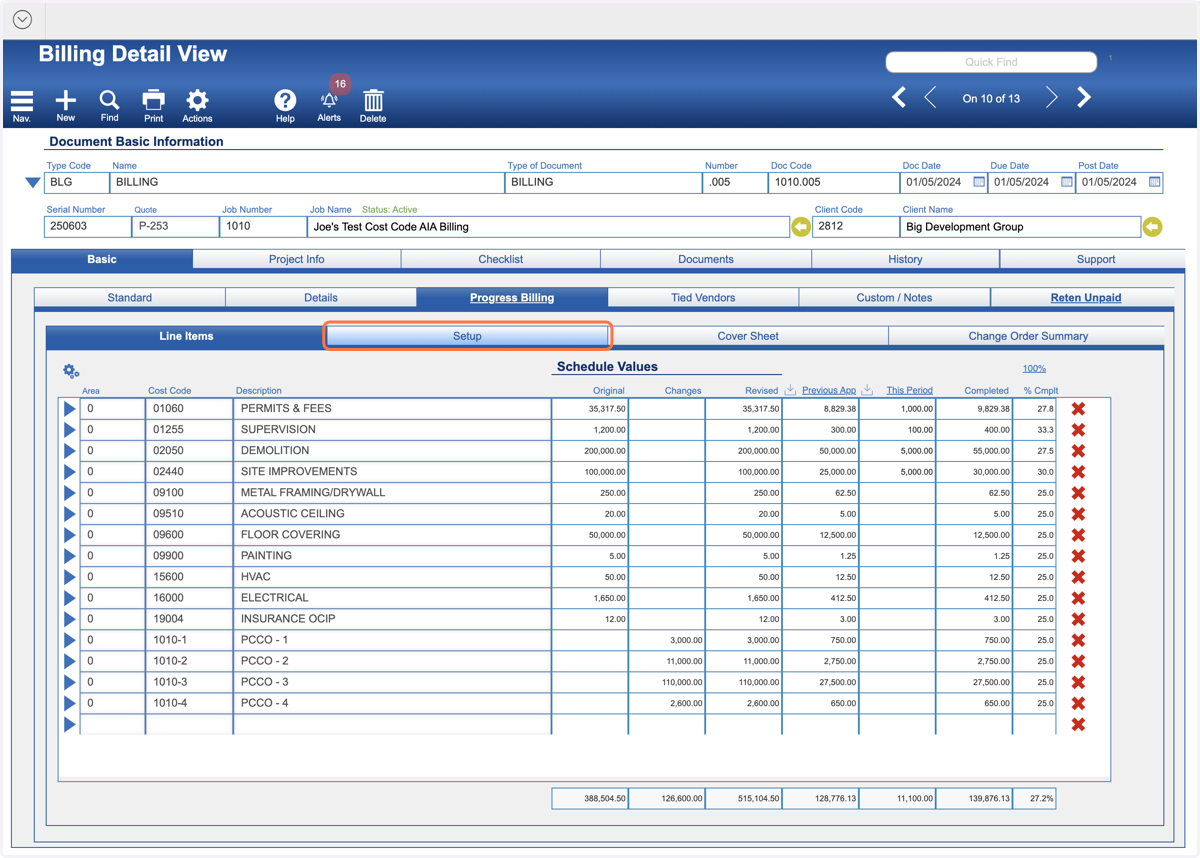
1. 1st Way: Navigate to your Progress Billing record and click on the Setup tab.
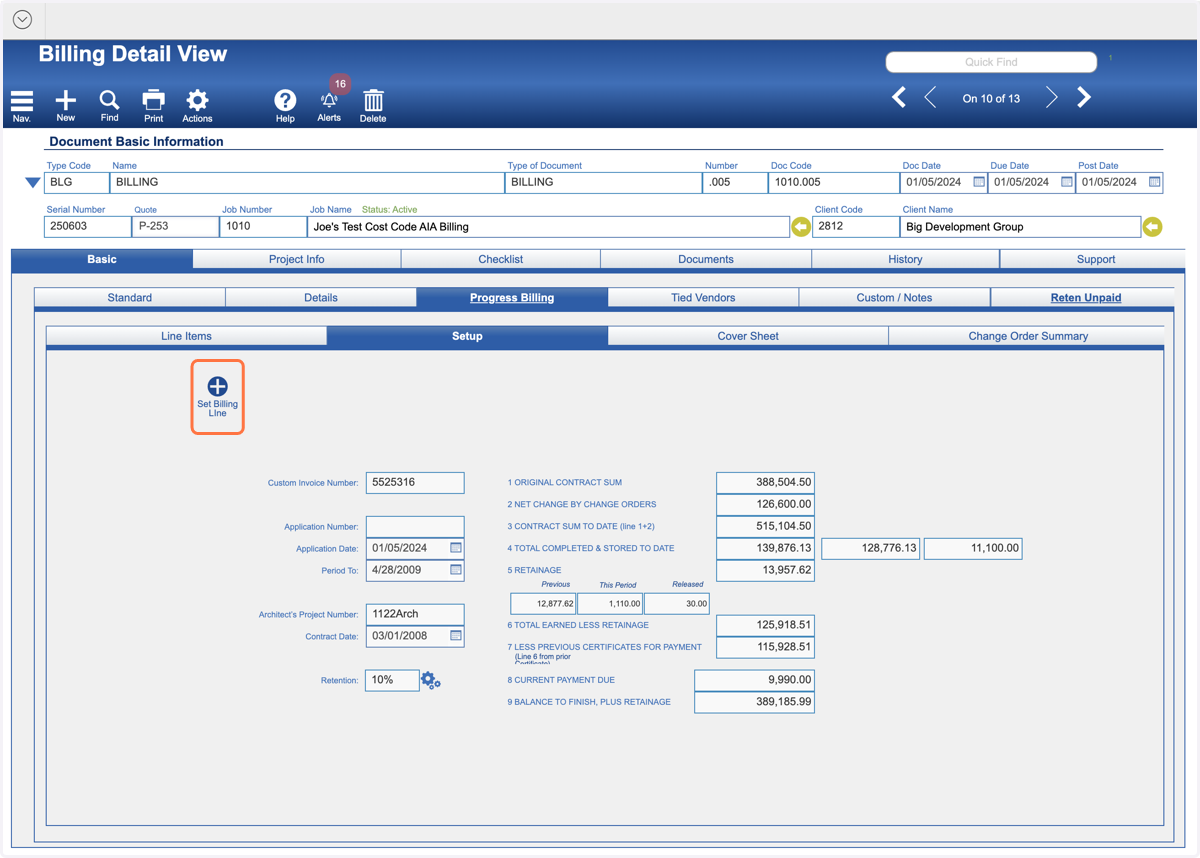
2. Click on Set Billing Line
It is a good idea to review the values in the Setup tab to make sure they are what you want.
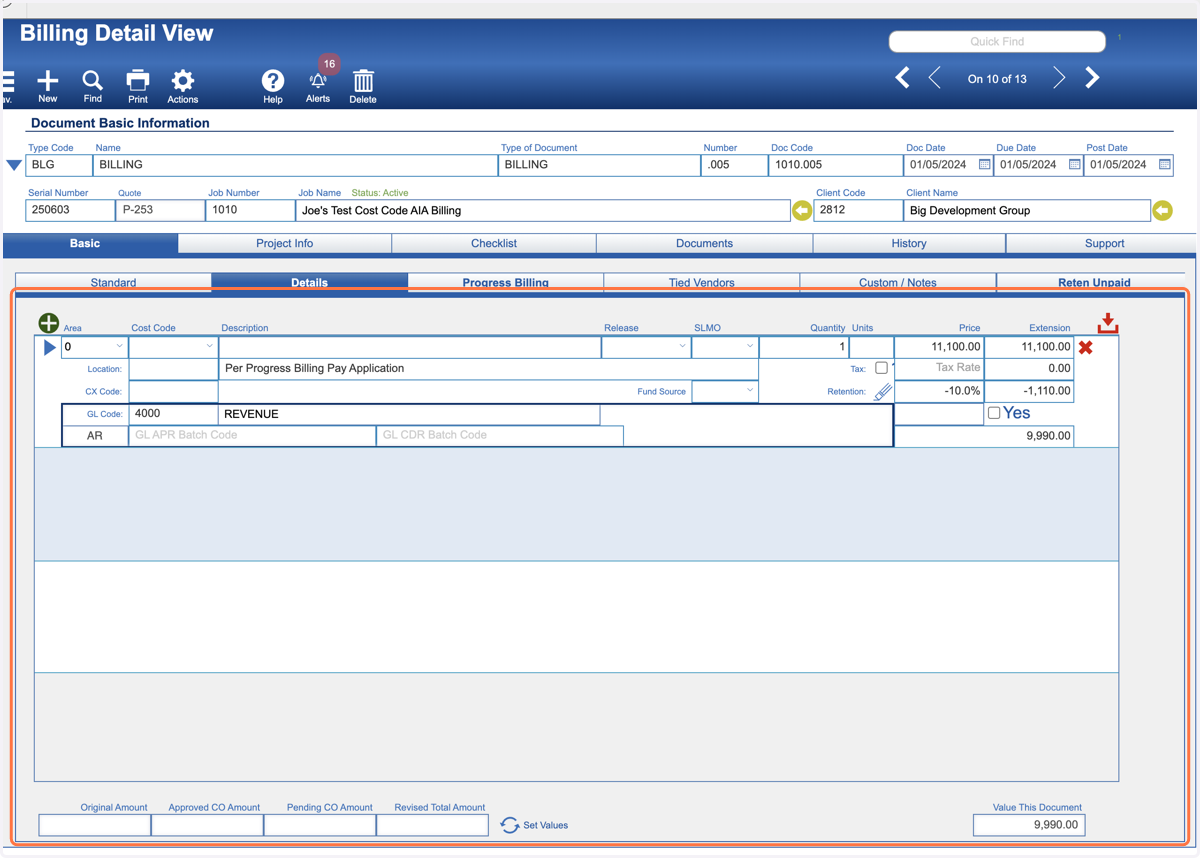
3. Your Summary Record is Completed
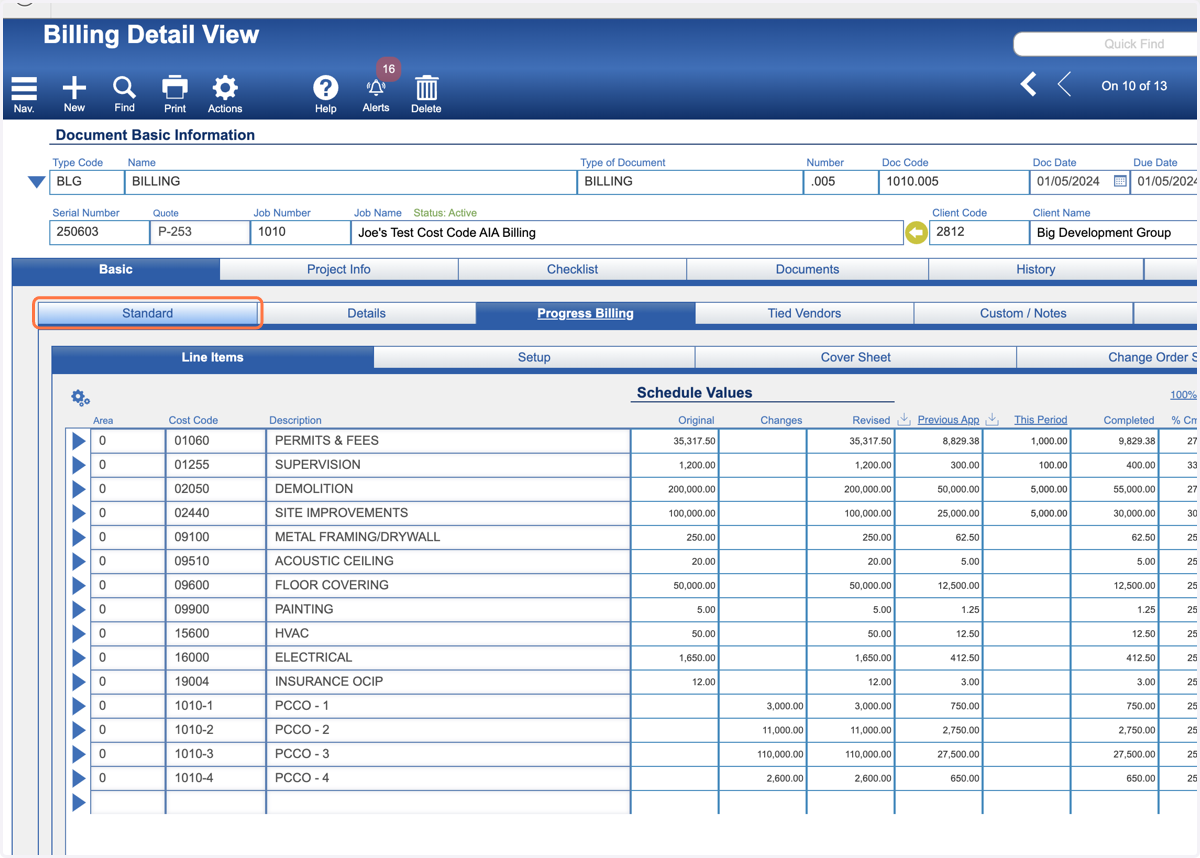
4. 2nd Way: Click on the Standard tab
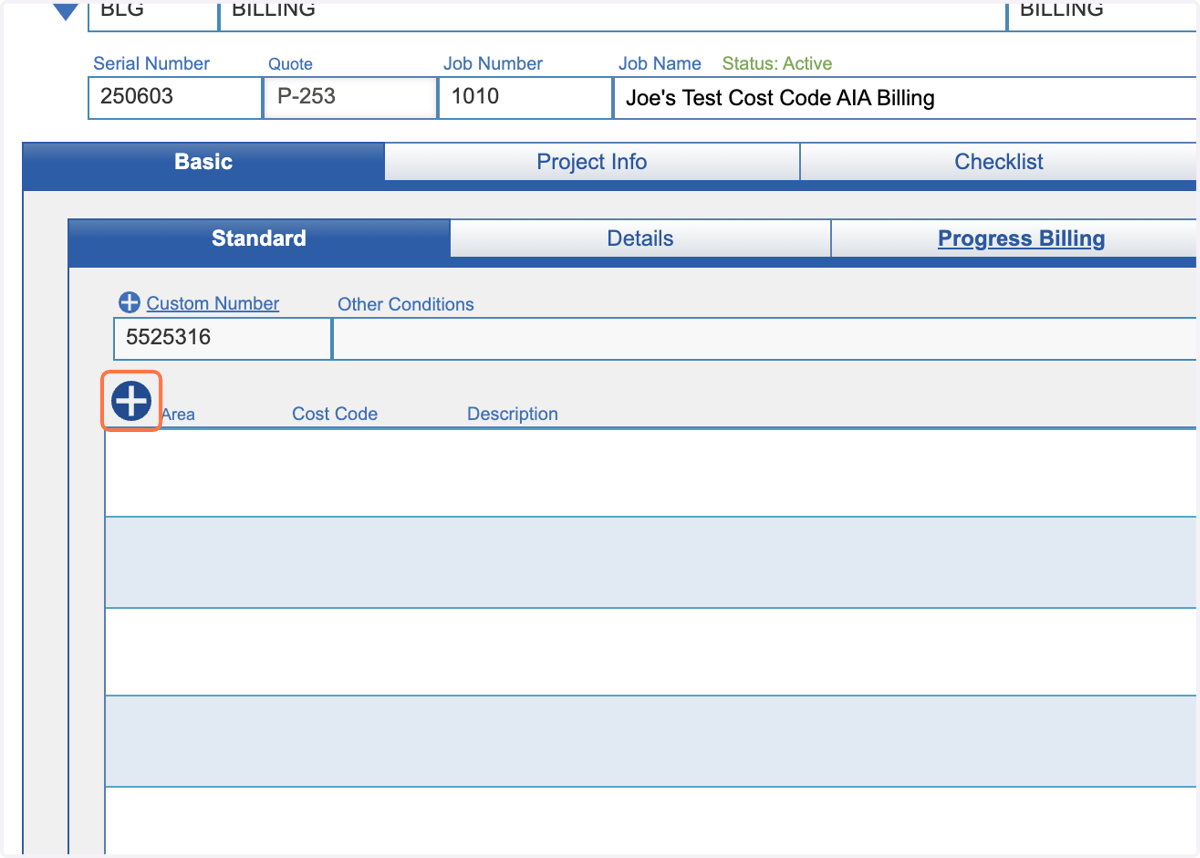
5. Click on the green Plus ad line button.
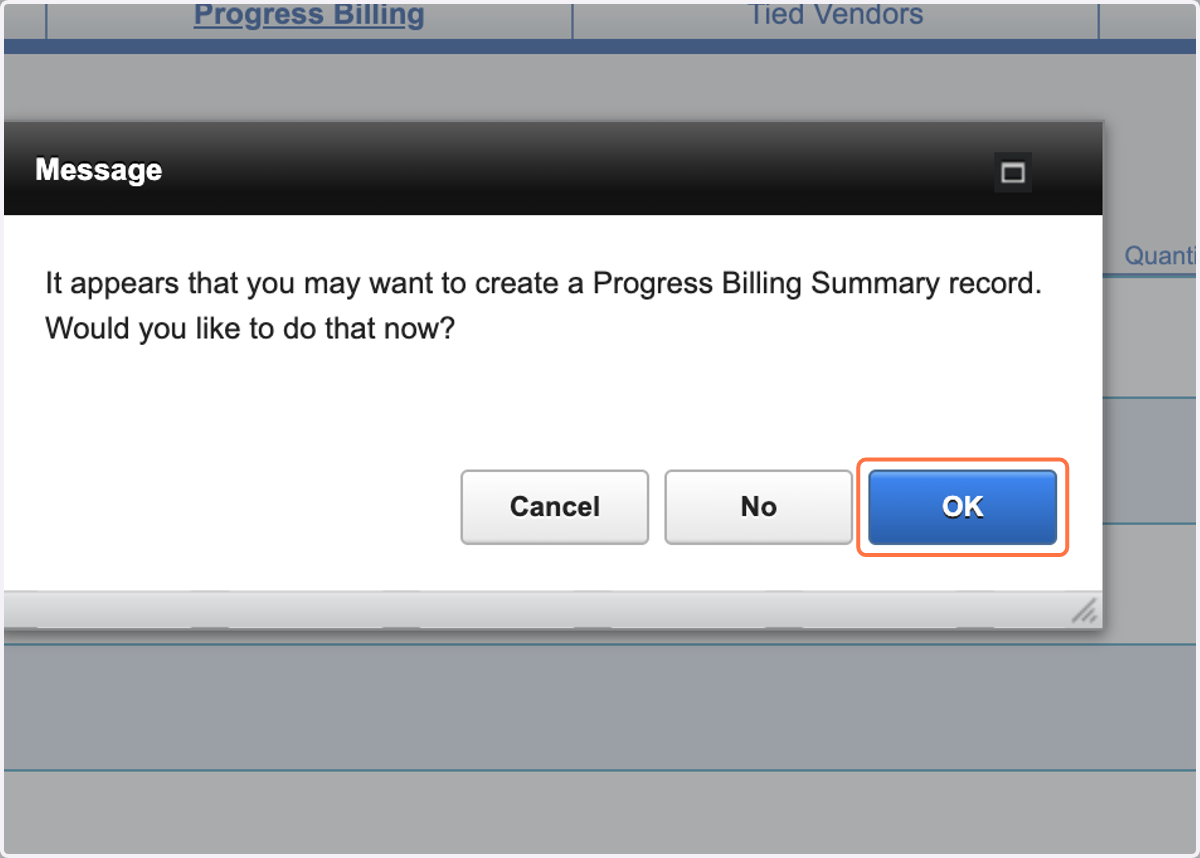
6. Click on OK to create the Progress Billing Summary record.
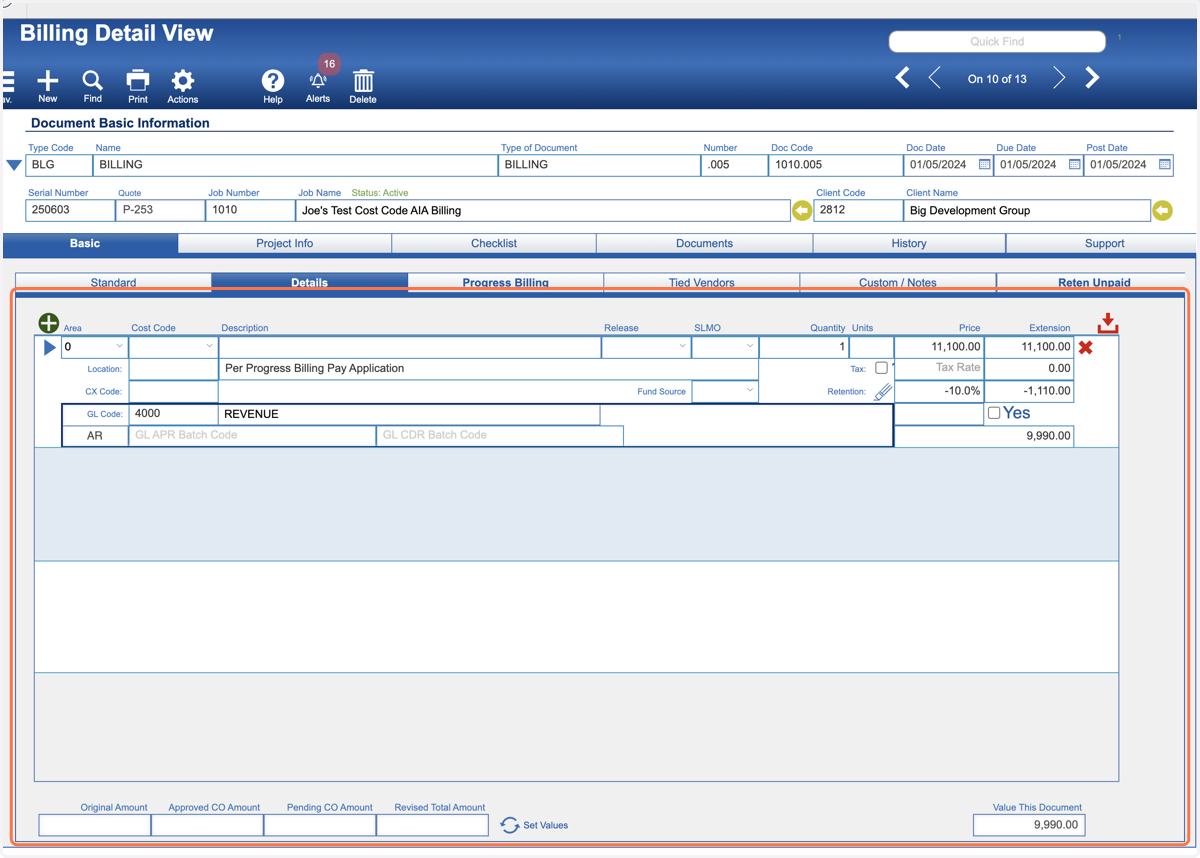
7. Your Summary Record is Completed
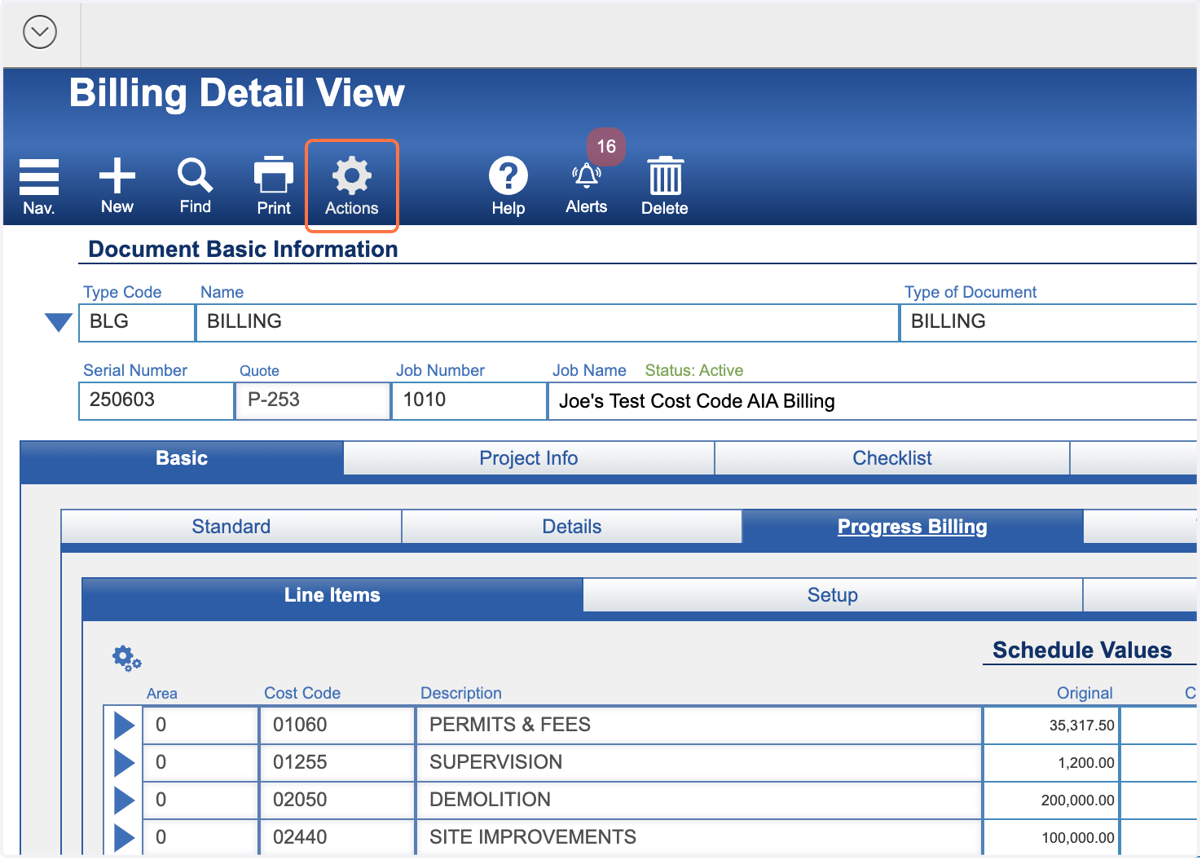
8. 3rd Way: Click on Actions
9. Select Set Progress Billing Value
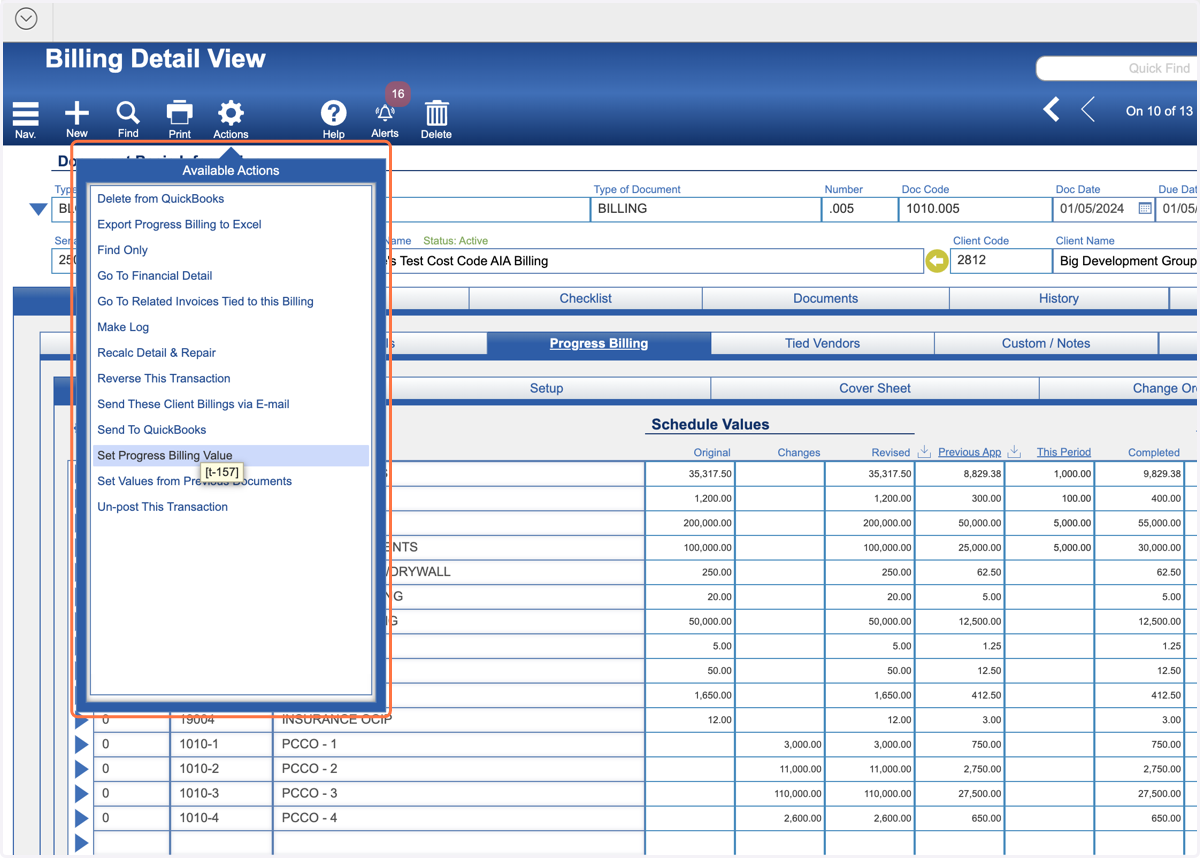
10. Your Summary Record is Completed