Change a Non PO invoice in your To Do list to a PO invoice in BV Marketplace
Procurement Portal: Brightview
1. Click on the invoice in your To Do list

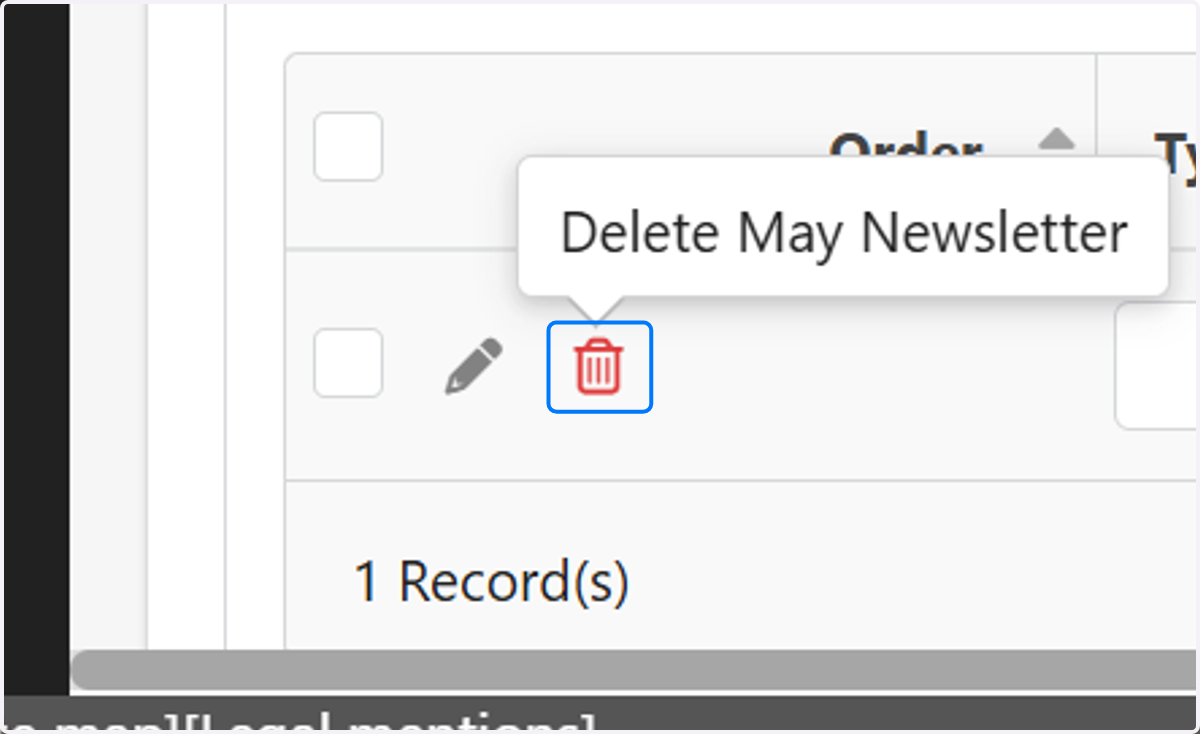
2. Click on the trashcan (delete) next to each item on the invoice
Make sure to note the price on each invoice item as you will need to change this amount if different than what is on the PO
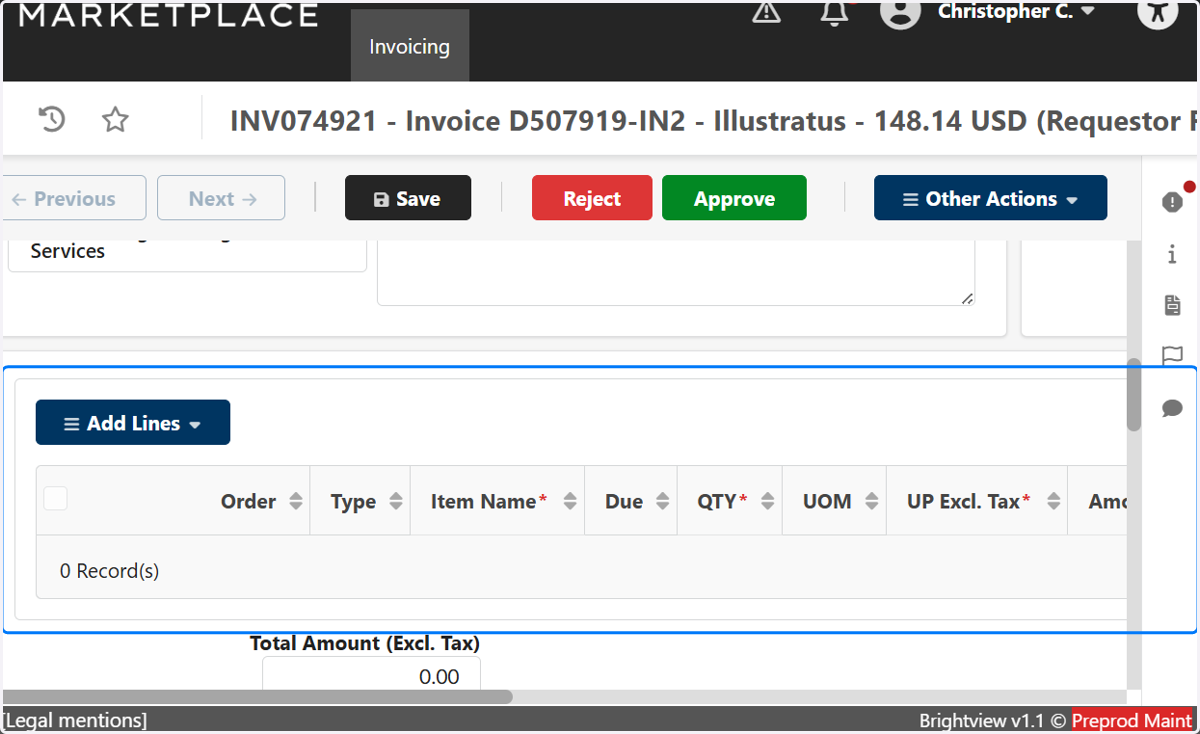
3. There are now no line items on your invoice
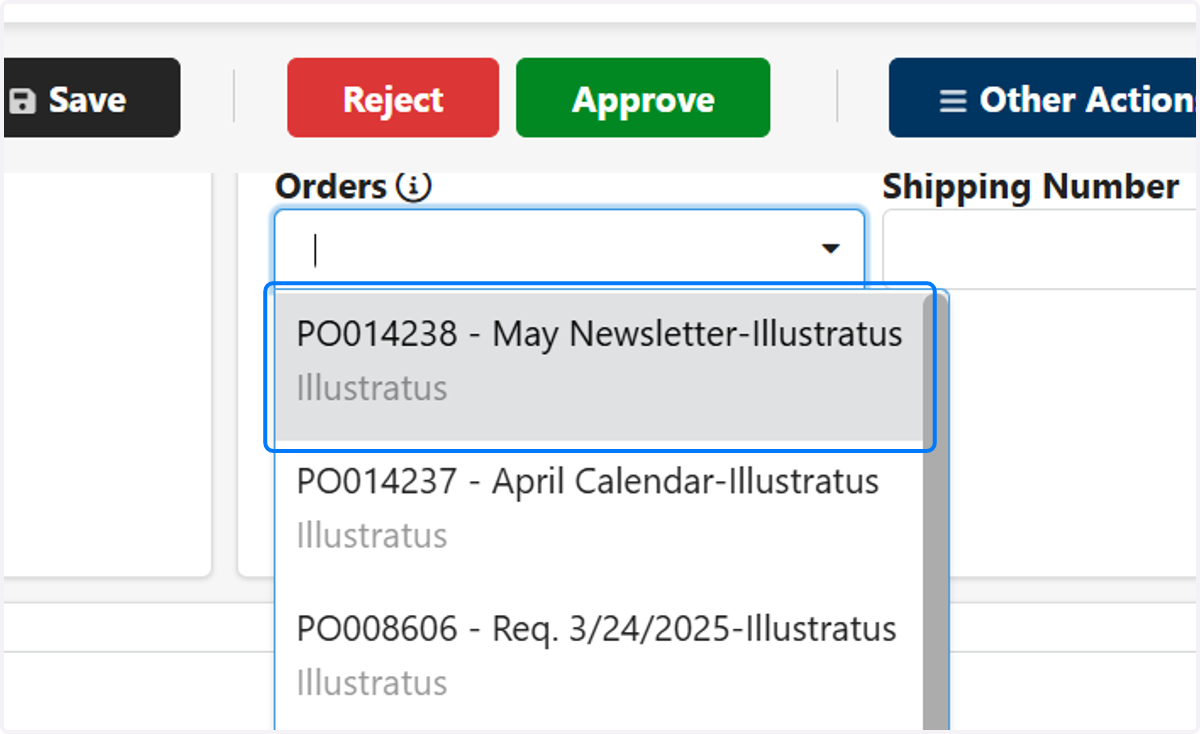
4. Click in the "Orders Field"

5. Find the PO the invoice should be associated to and click on it
6. Click on Save

7. Click on Add Lines

8. Click on Add All Ordered Items

9. Review the PO items and make sure the amounts match what was sent in the invoice and that all the line items were included.
If you need to change the amount to match what was invoiced make sure this is done in the "UP Excl. Tax" field then click save again after the line(s) have been updated
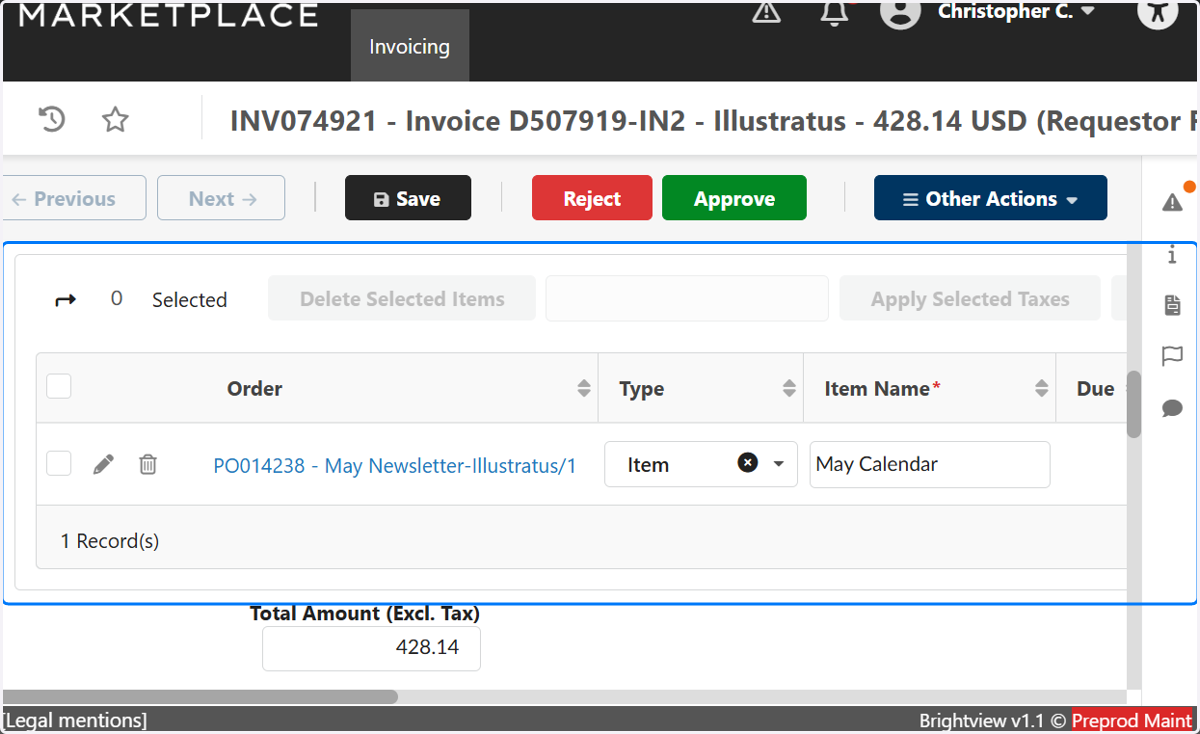
10. Make sure each line item has the PO in the "Order" field

11. Check the allocations to make sure the GL code(s) you need are there
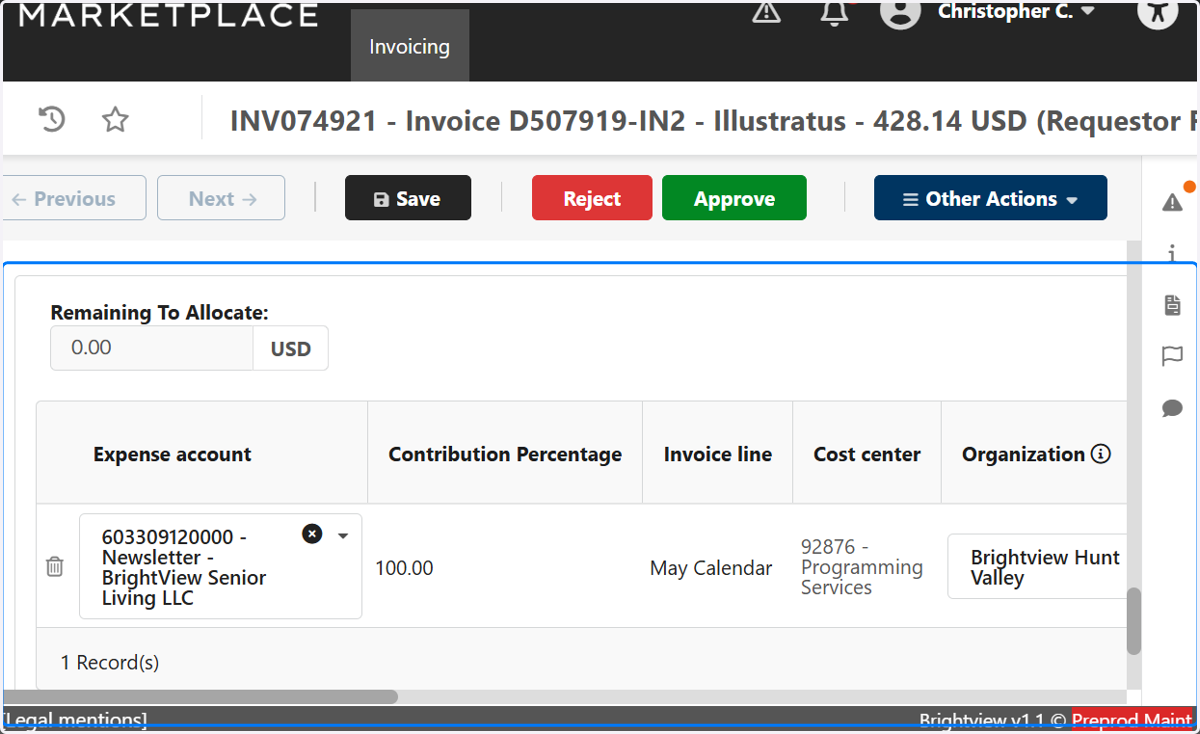
12. Click on Approve
