How to See Your Enrollment Date & Time
Use this step-by-step guide to find the date and time of your expected enrollment time. Note: all times are listed in
Log into your Student Center account
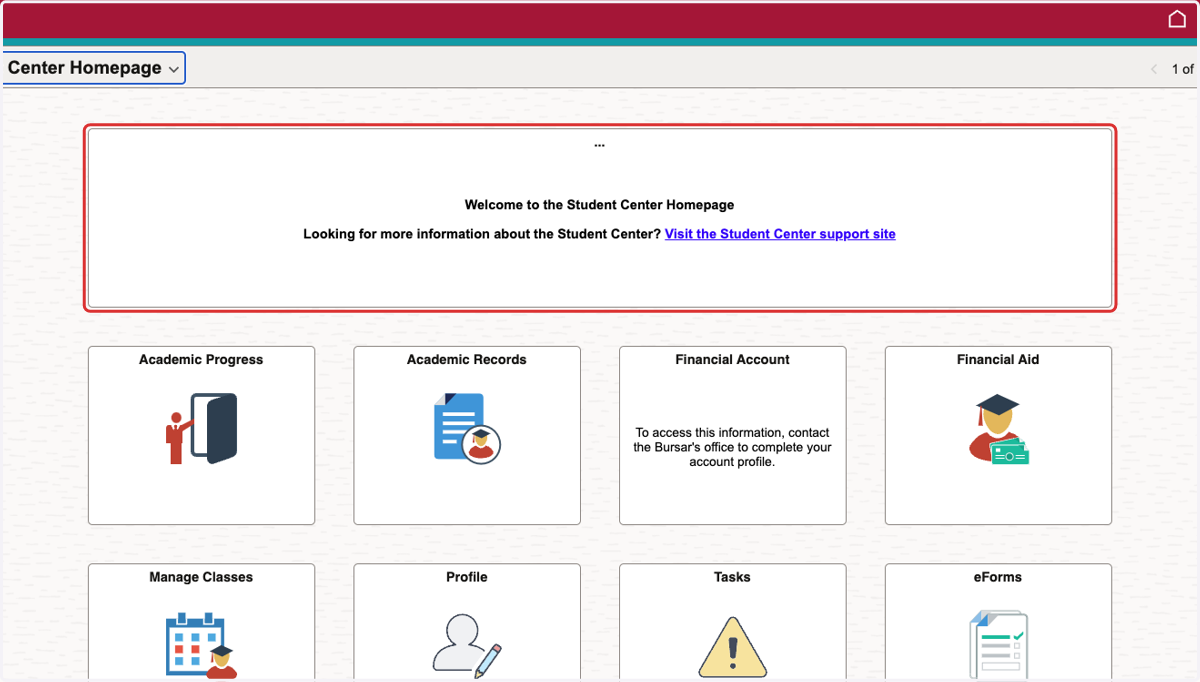
1. Verify you are in "Student Center Homepage"
You can select this in the upper left corner of the page.
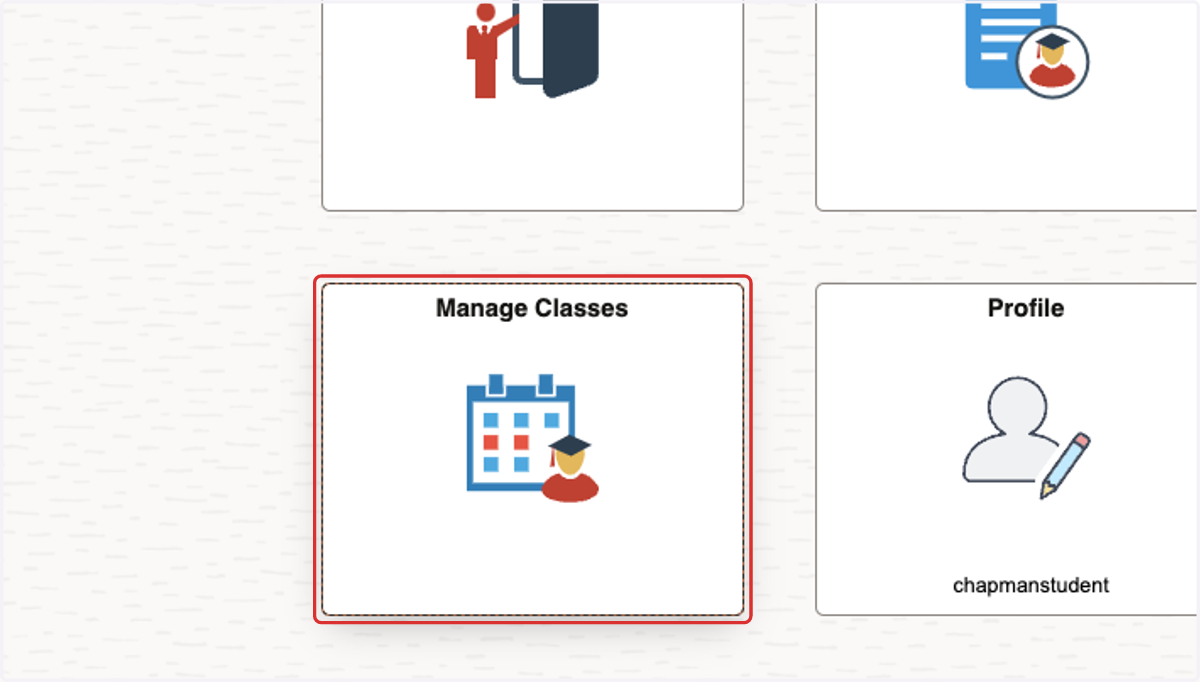
2. Click on Manage Classes
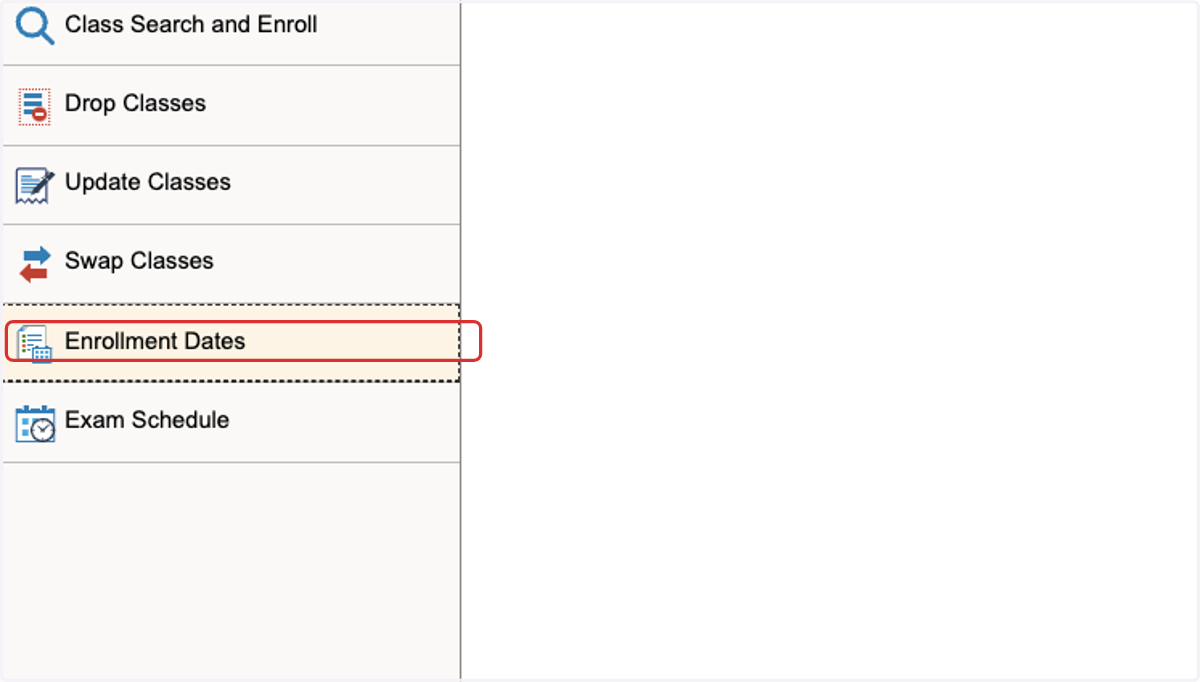
3. Click on Enrollment Dates
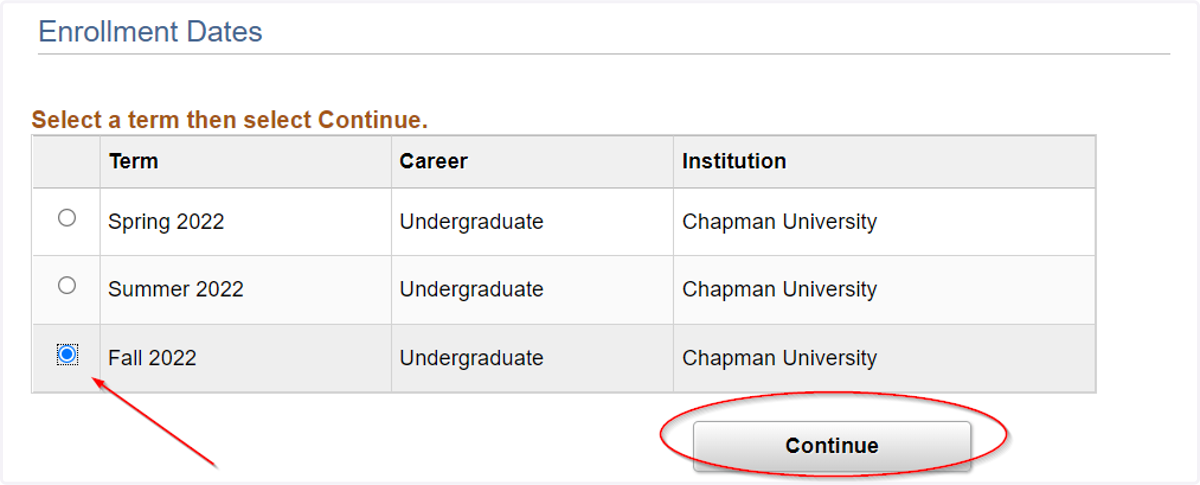
4. View & select the proper term
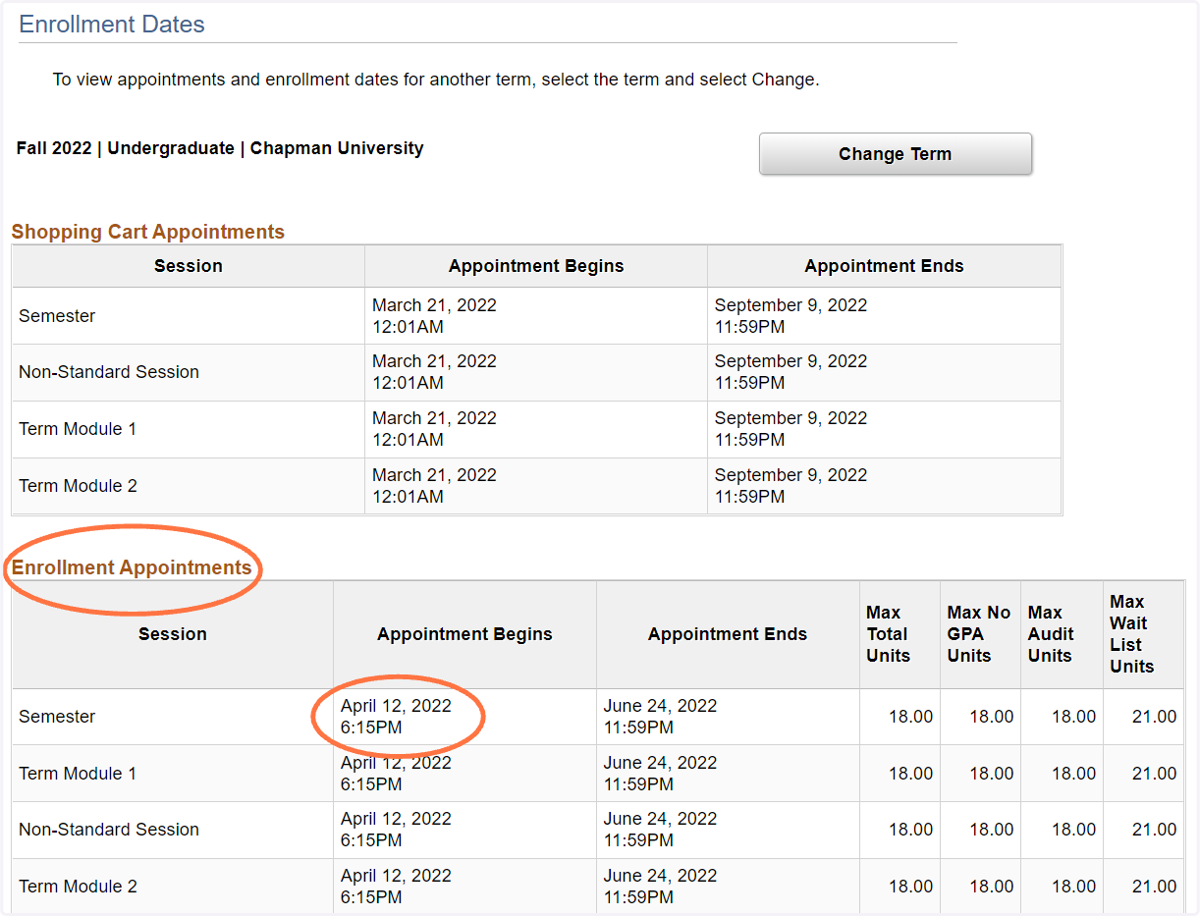
5. View your enrollment date
You can find your registration date and time under the "Enrollment Appointments" section, in the row called "Semester." This is the day and time when registration will open for you. (The "Shopping Cart" Appointment is when you can begin adding classes to your shopping cart in preparation for your Enrollment Appointment date.)
Open Chapman's Website
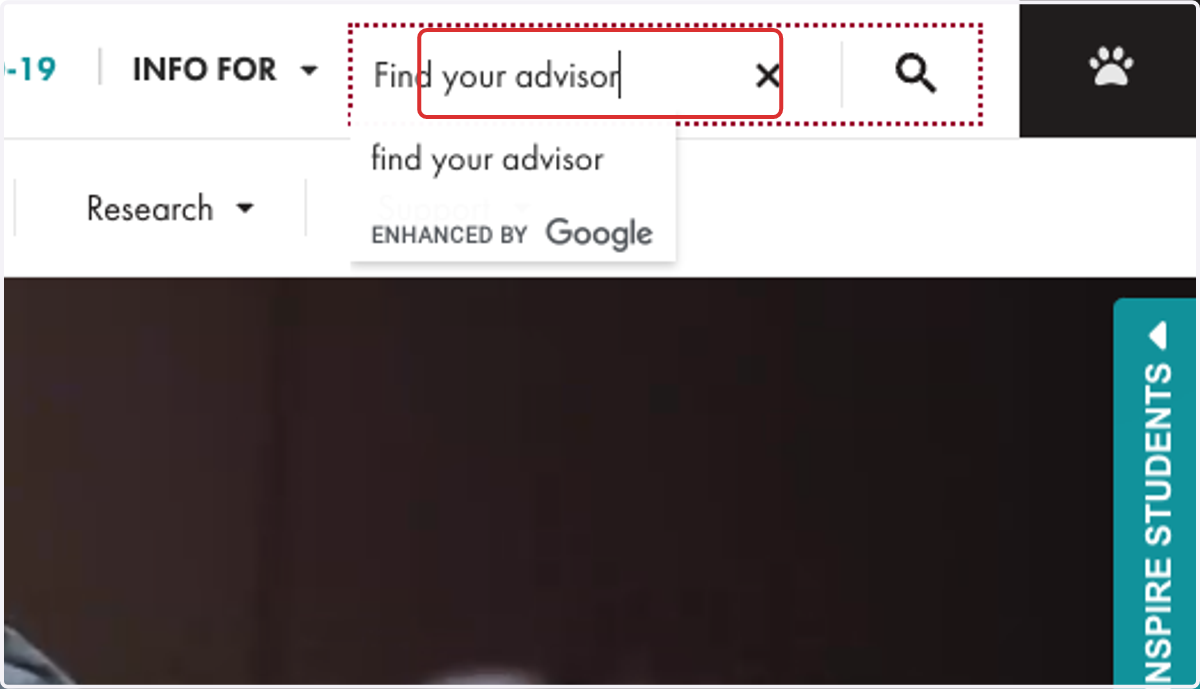
6. Type "Find your advisor" in the upper righthand search bar
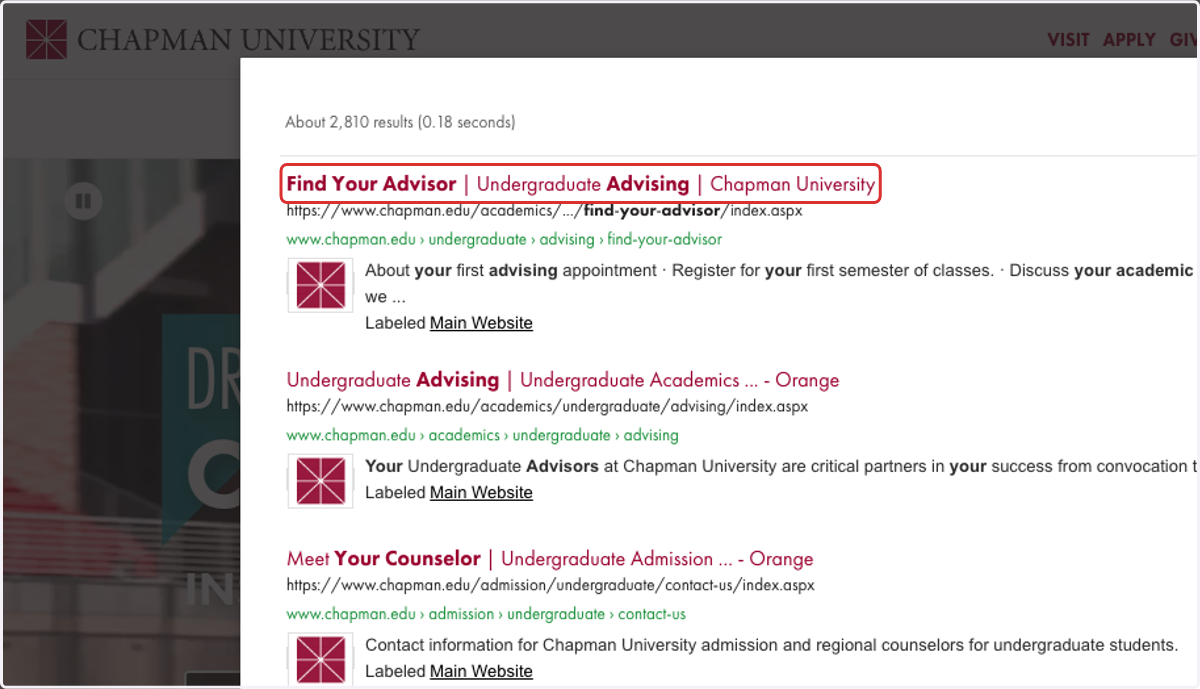
7. Click on Find Your Advisor | Undergraduate Advising | Chapman University
8. Select your major from the "What is your major?" dropdown
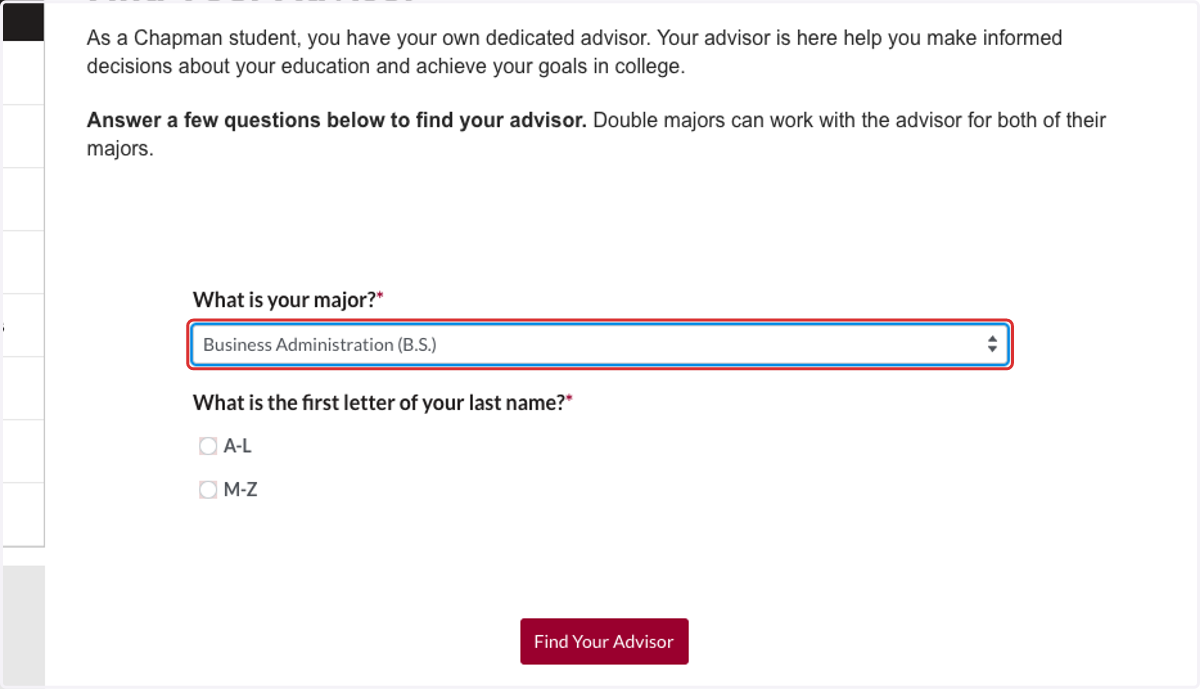
9. Click on Find Your Advisor
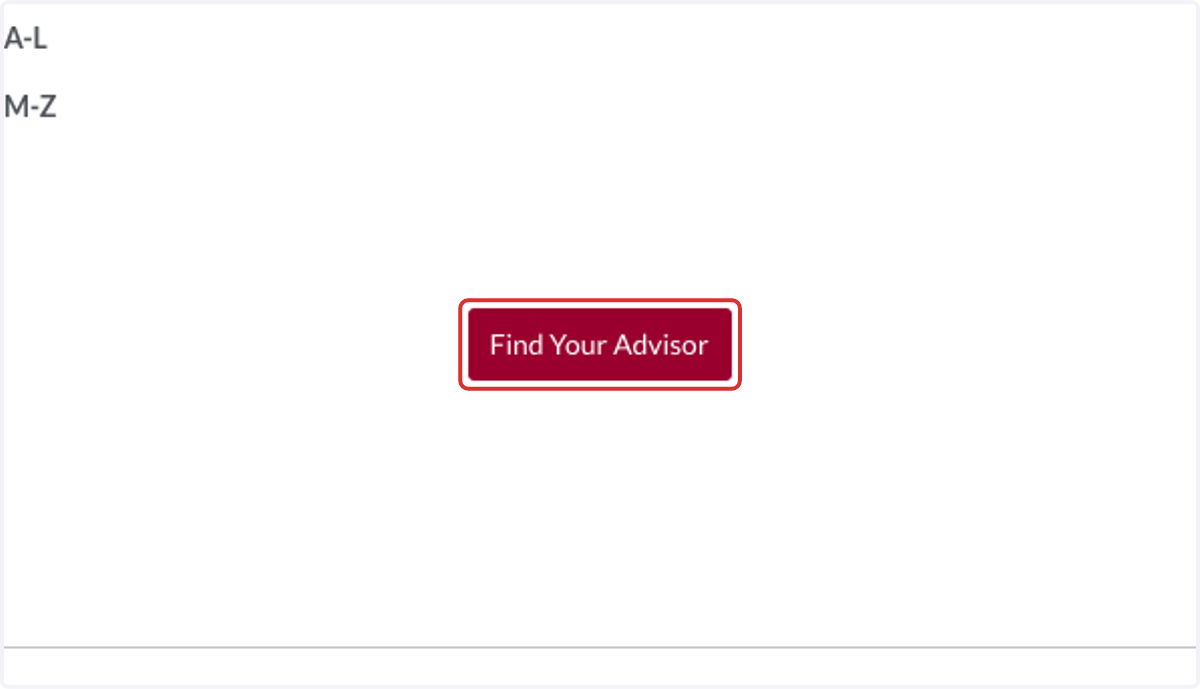
10. Your designated advisor will appear along with their contact information