Managing RentCafe Users
Business Office Directors use RentCafe Site Manager to view and update resident and family member portal accounts at their community.
RentCafe Site Manager
Open RentCafe Site Manager from your YardiOne dashboard.
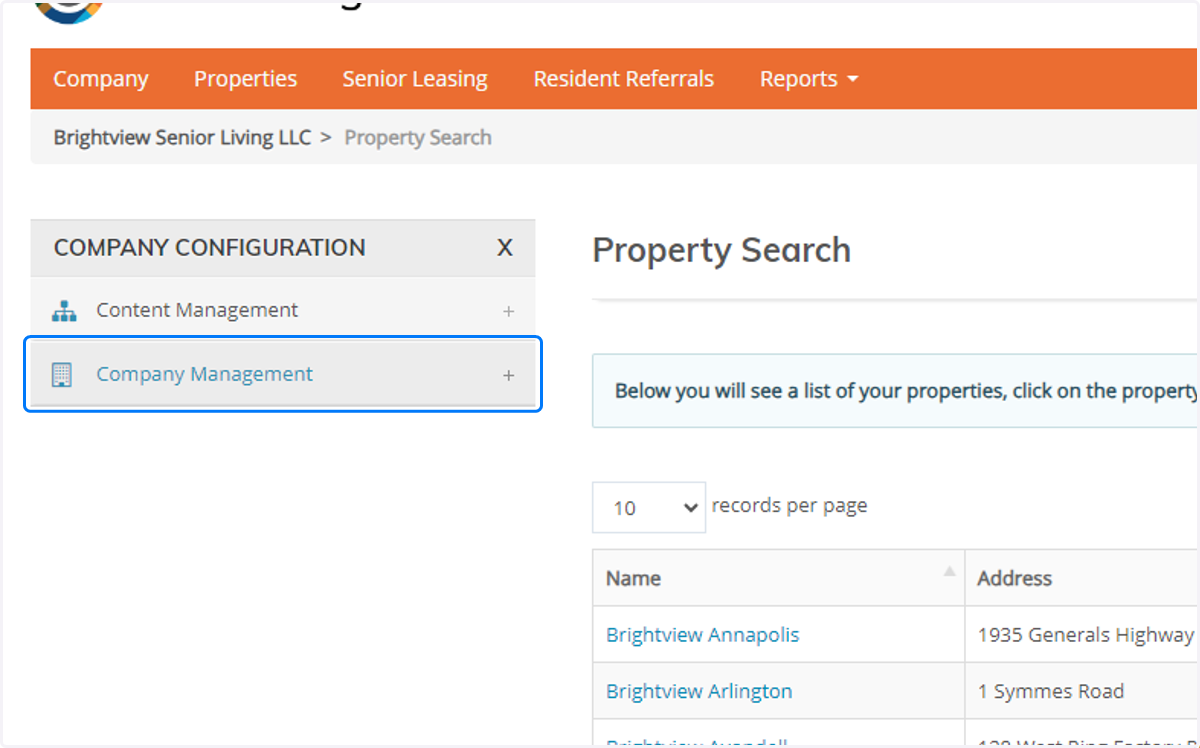
1. Click on Company Management
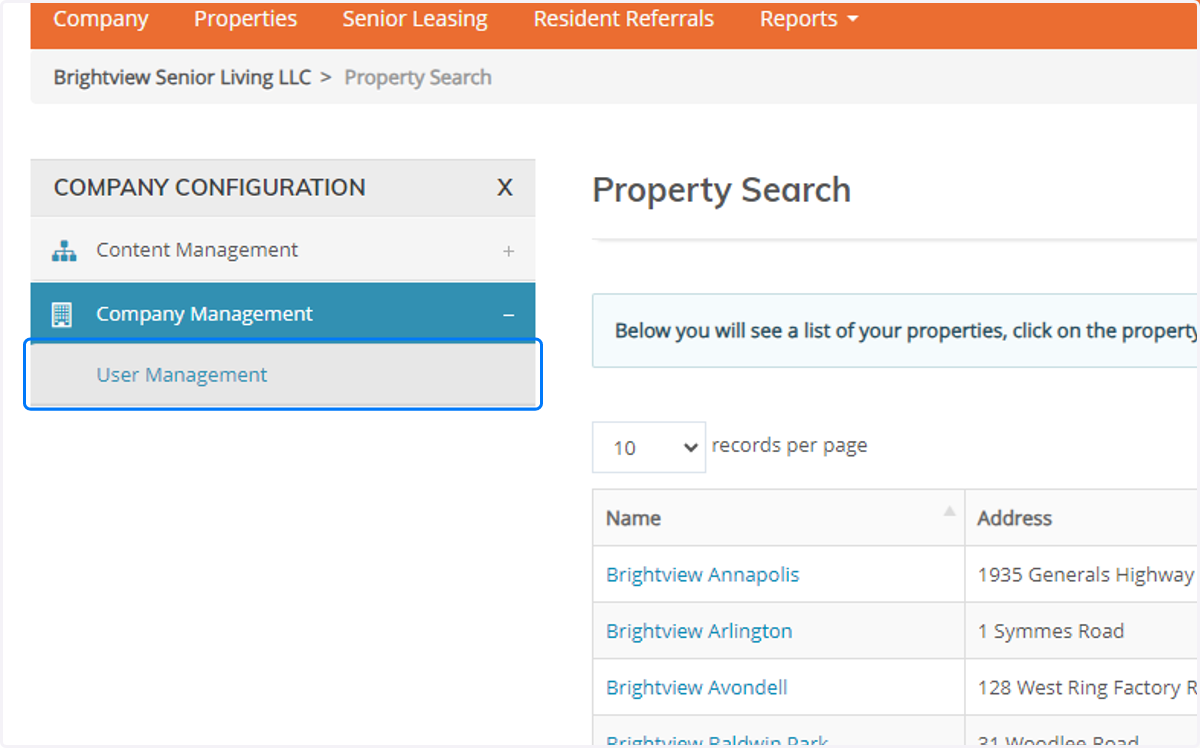
2. Click on User Management
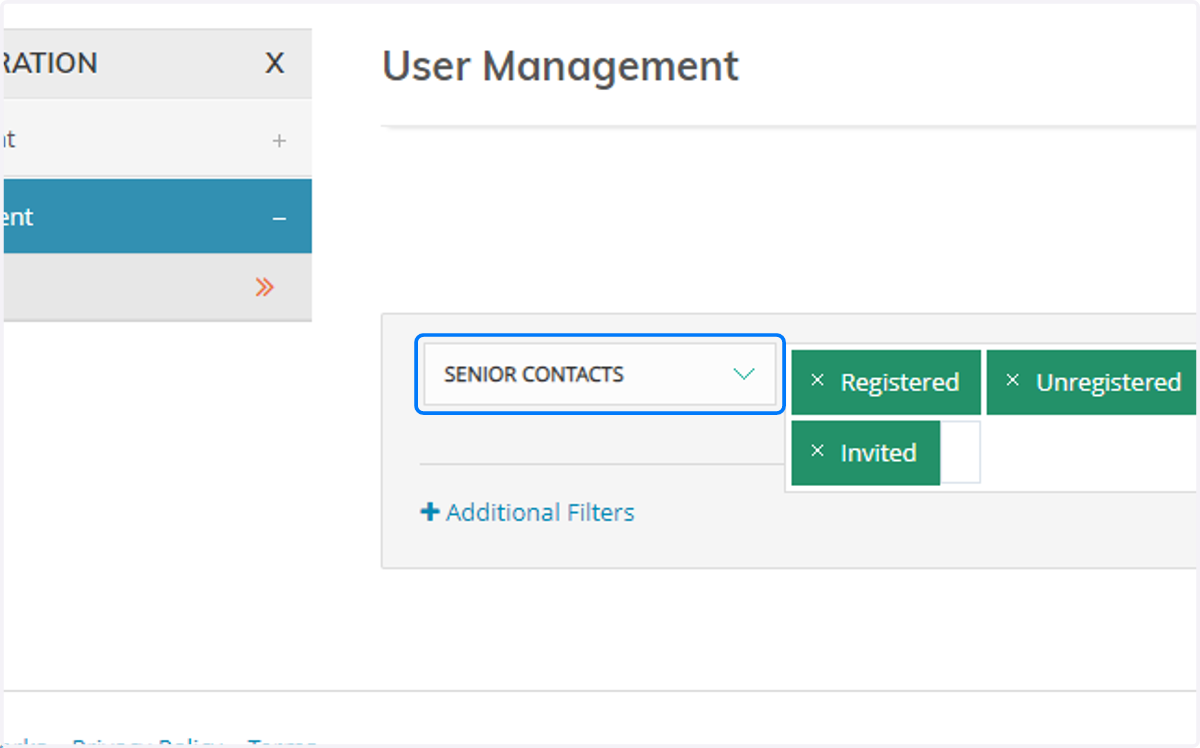
3. Select Senior Contacts
4. Properties Filter
Use the PROPERTIES filter to find your community.
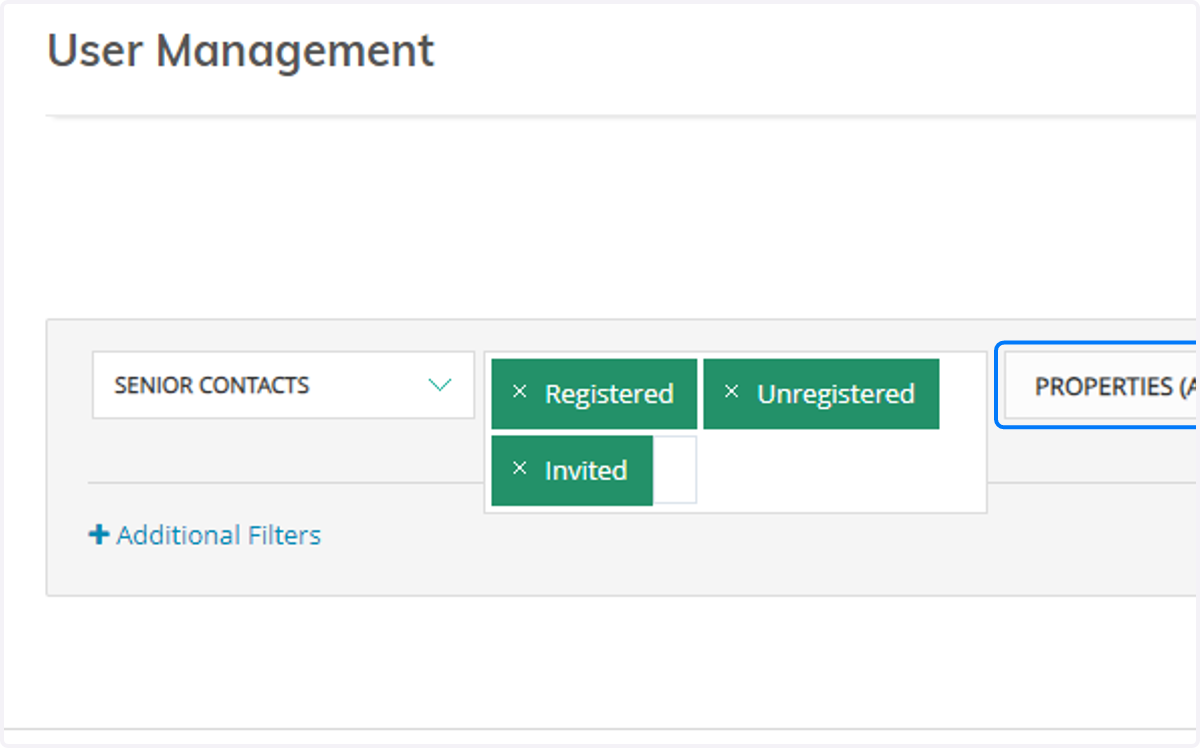
5. Search Community
Use the search bar to help you find your community name.
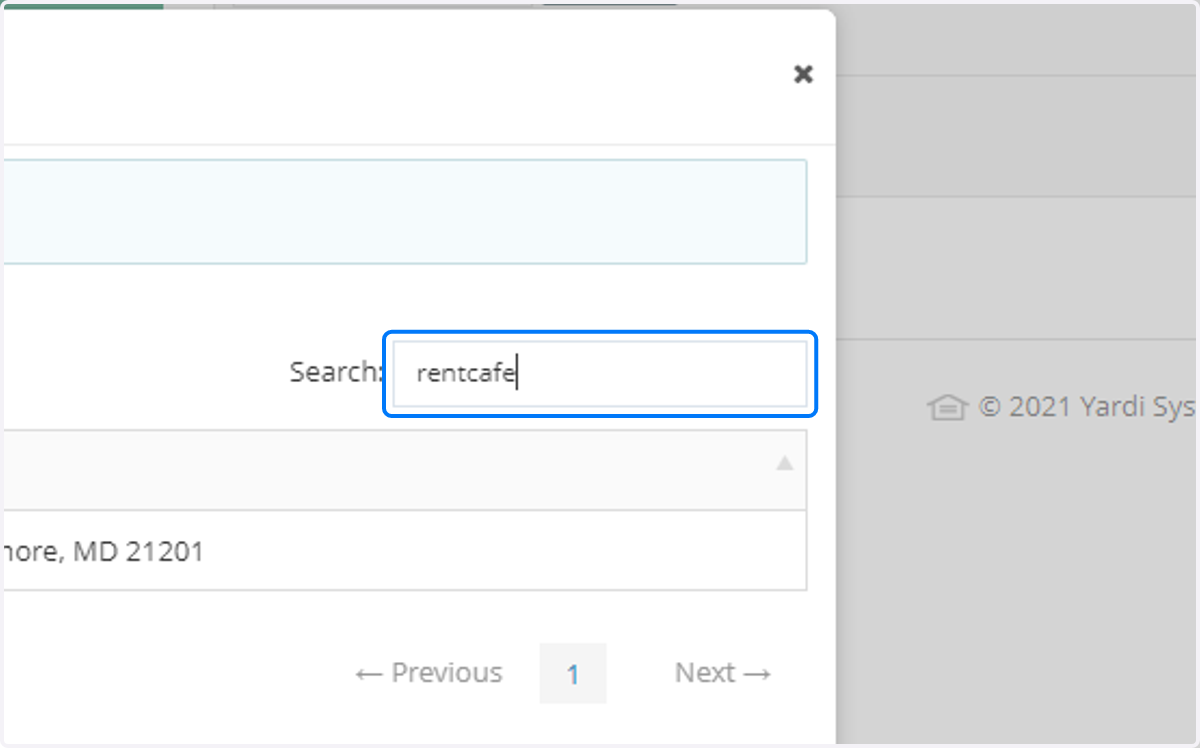
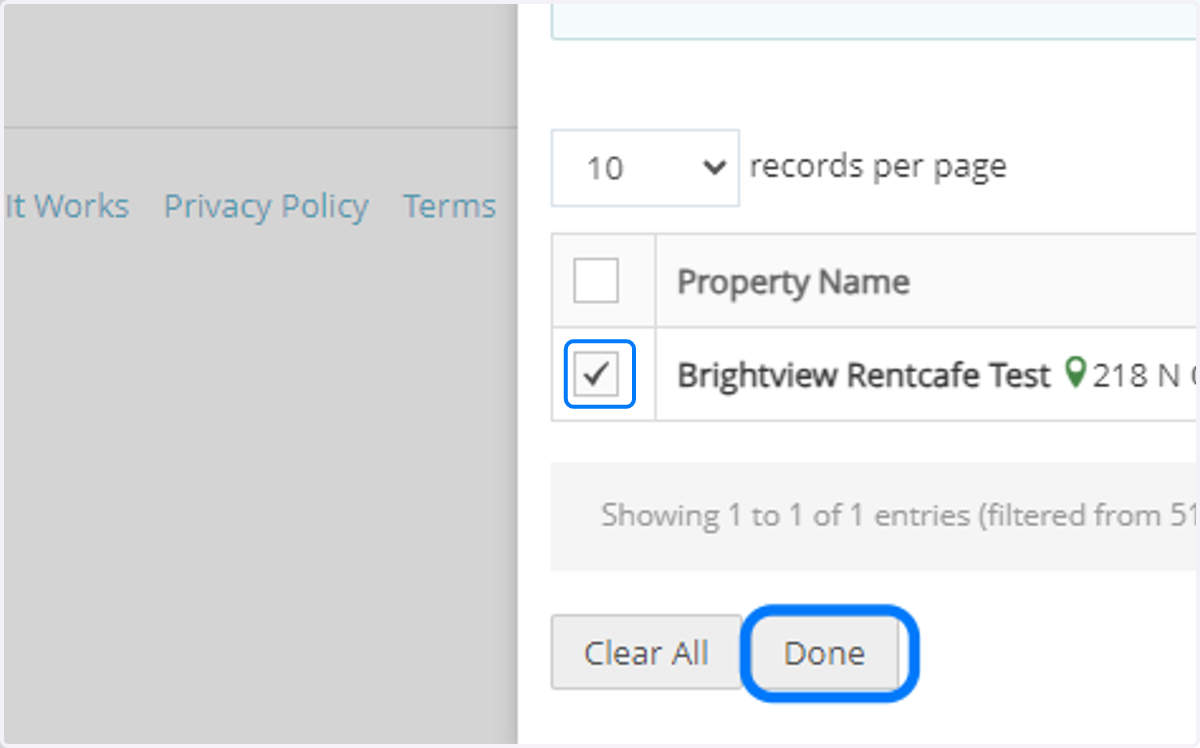
6. Select Community
Select your community then click Done.
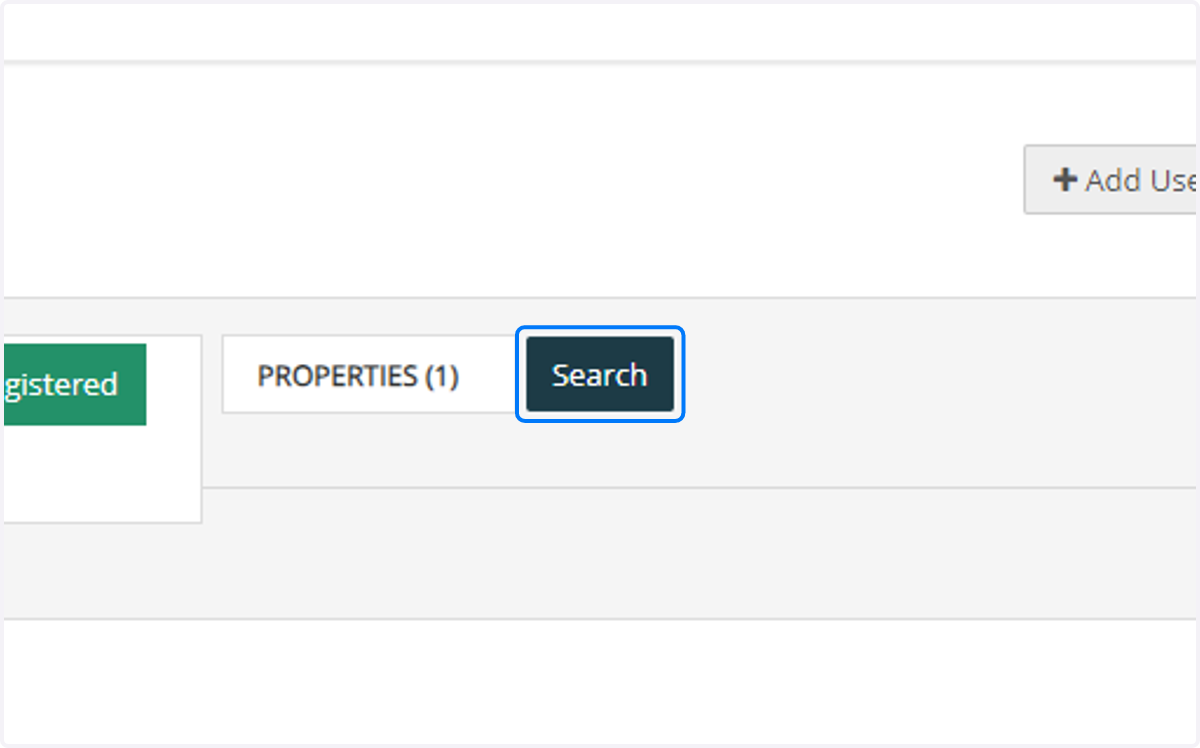
7. Click on Search
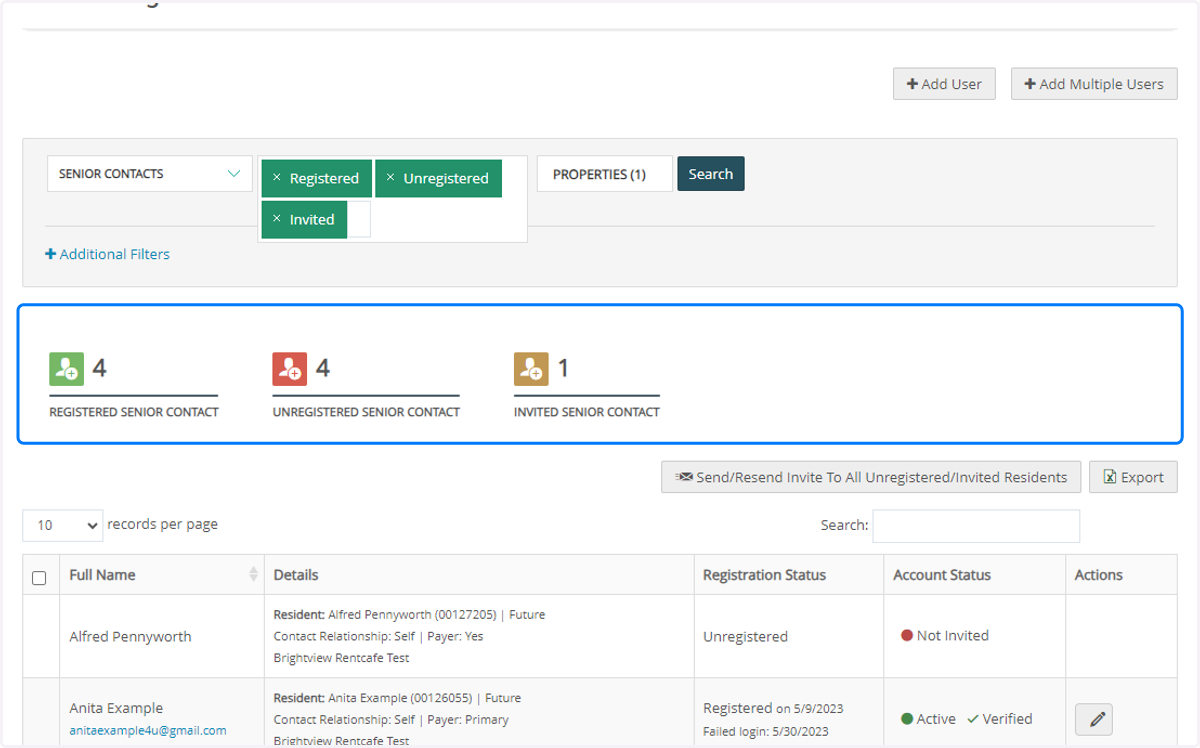
8. Review Snapshot
The section above your contact list will show a snapshot of registered, unregistered, and invited contacts.
9. Send Invitation
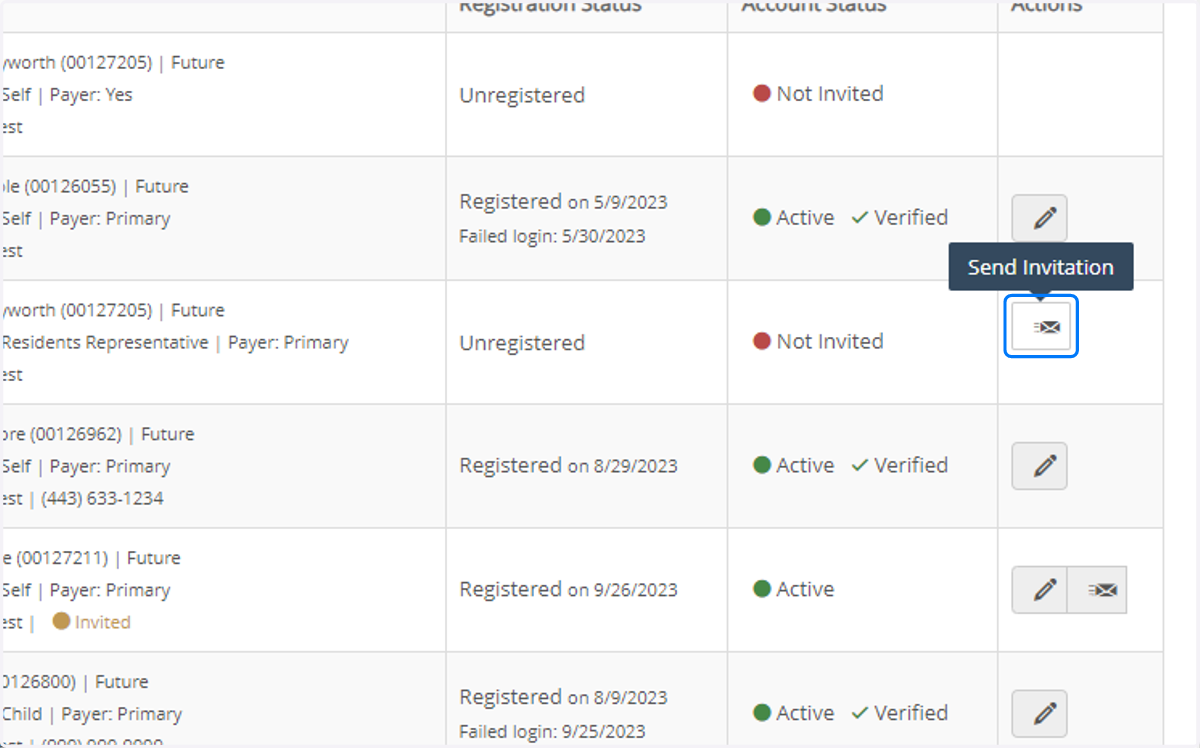
Use the envelope button next to any contact to send them an email invitation to create a RentCafe portal account.
Please note that this option is only available for contacts with a valid email address (added via Yardi CRM or Voyager)
10. Edit Contact
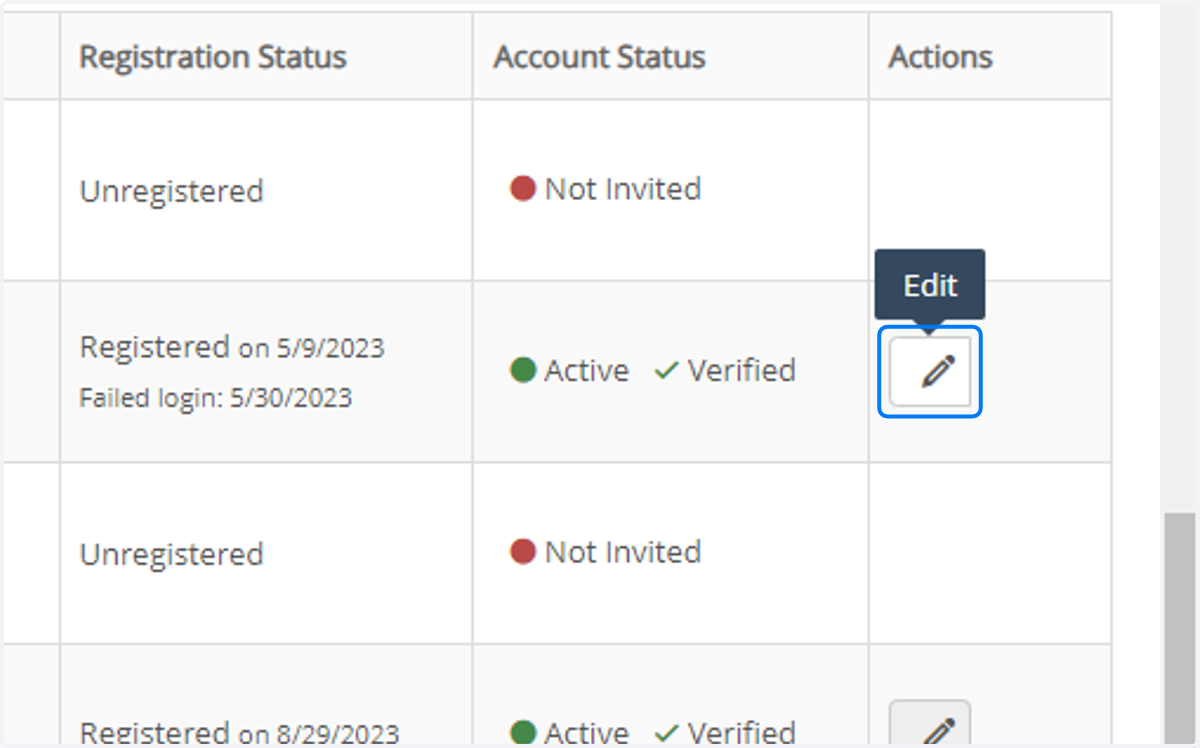
To edit a contact that already has a RentCafe portal account, select the pencil icon.
11. Preview/Delete
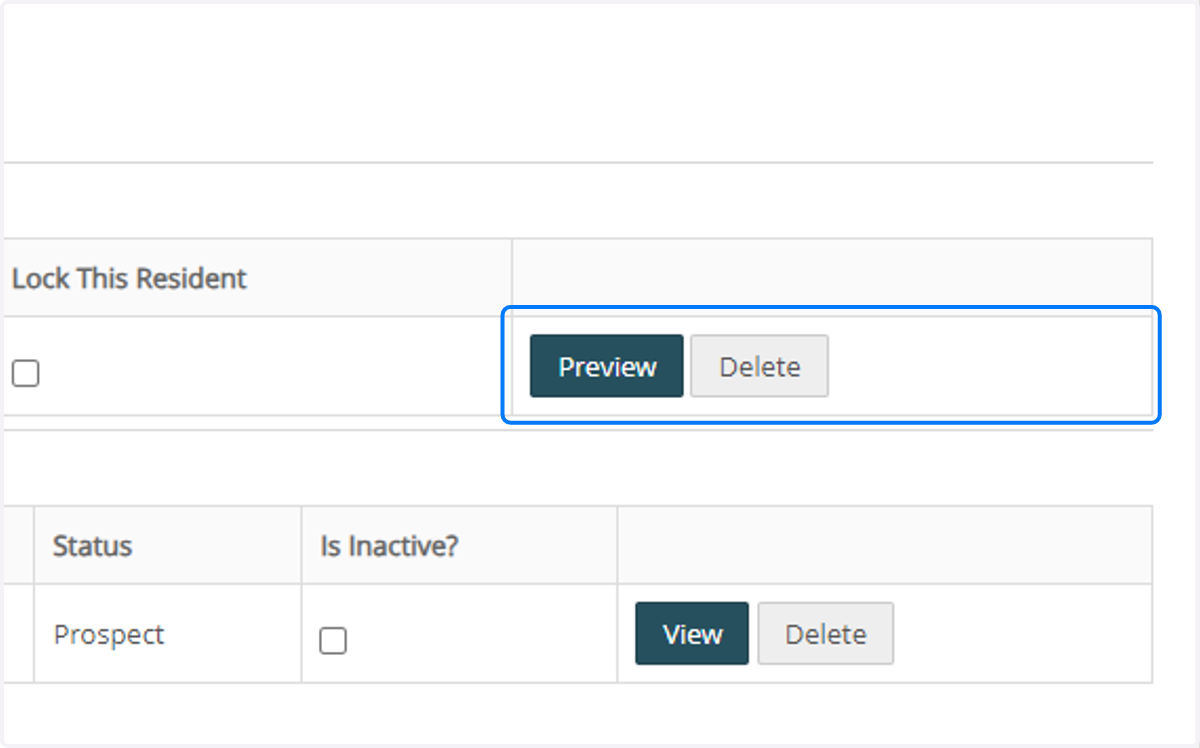
Select Preview to view the contact's view of their account.
Selecting Delete will completely remove the resident's account.
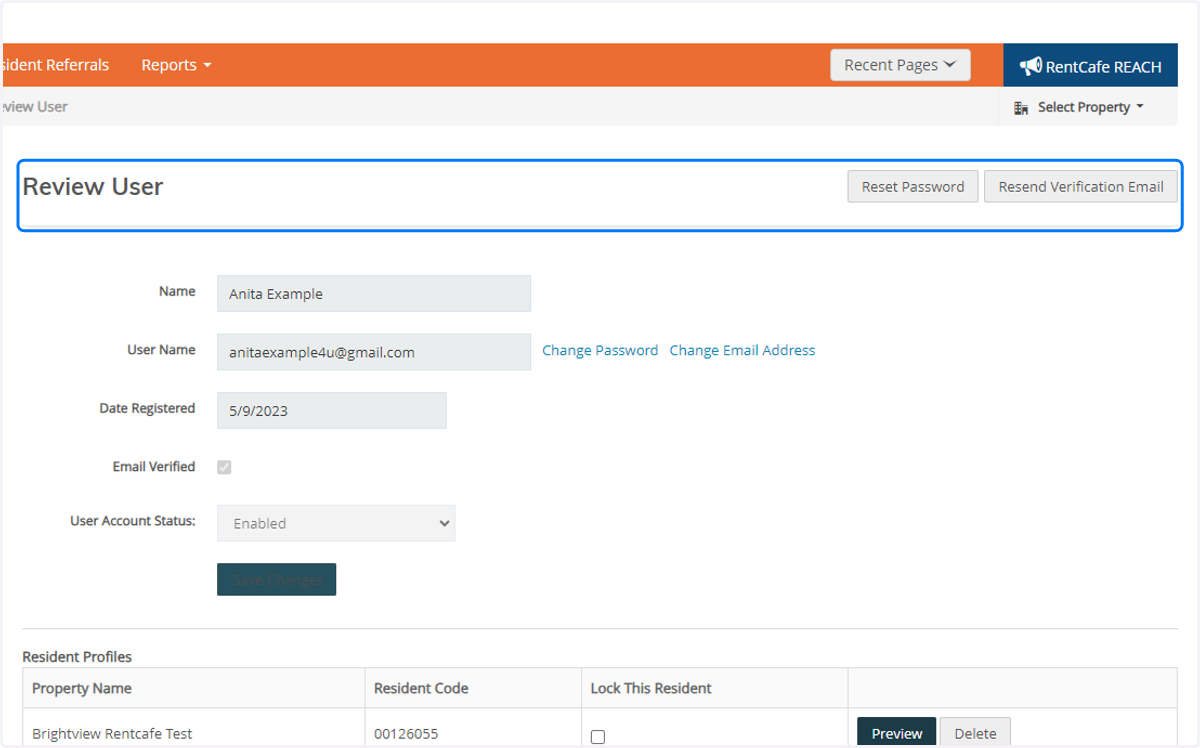
12. Reset Password
Click Reset Password to send the contact a password reset link to their email.
13. Change Email Address
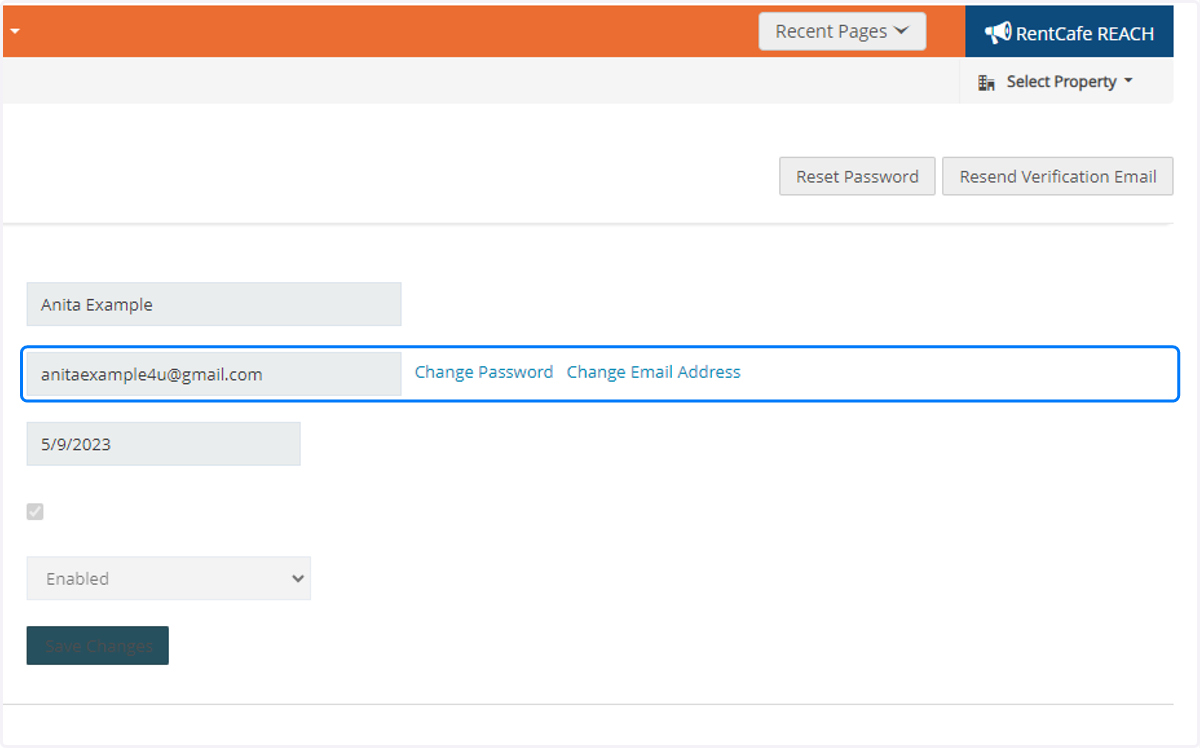
If a contact wants to update the email address connected to the site, you can change it by clicking Change Email Address.
You can also set a password for them by clicking Change Password.
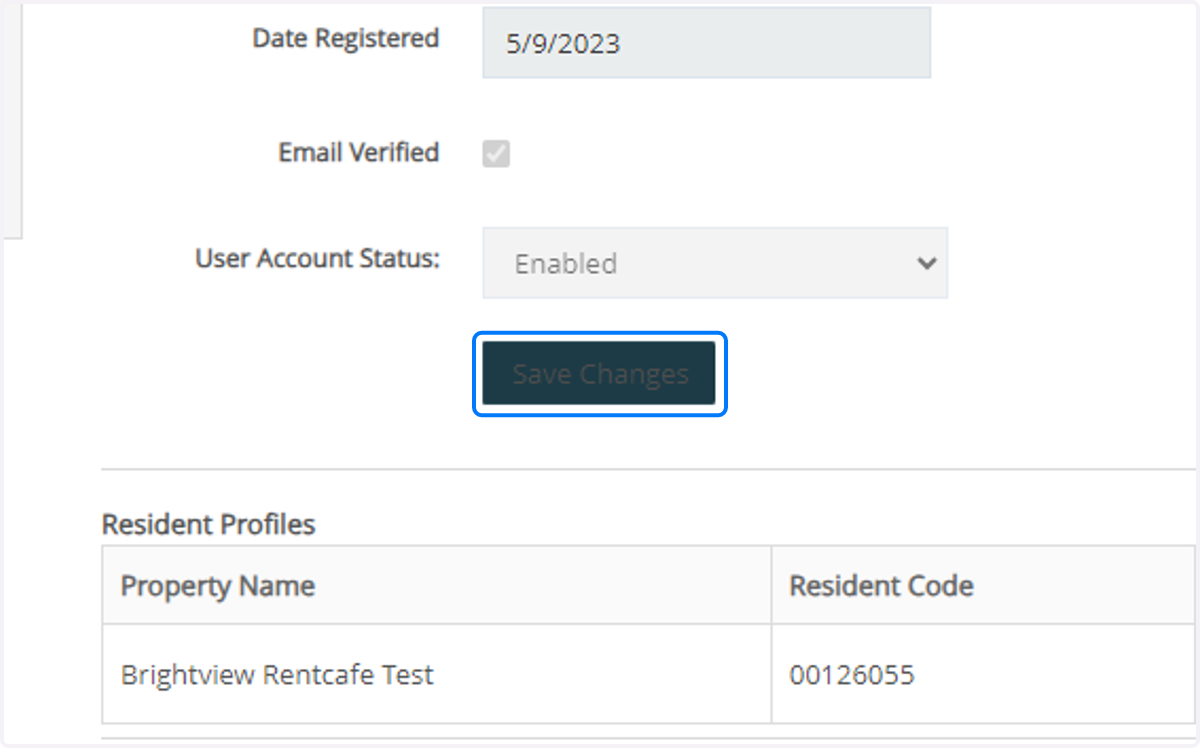
14. Save Changes
15. User Management
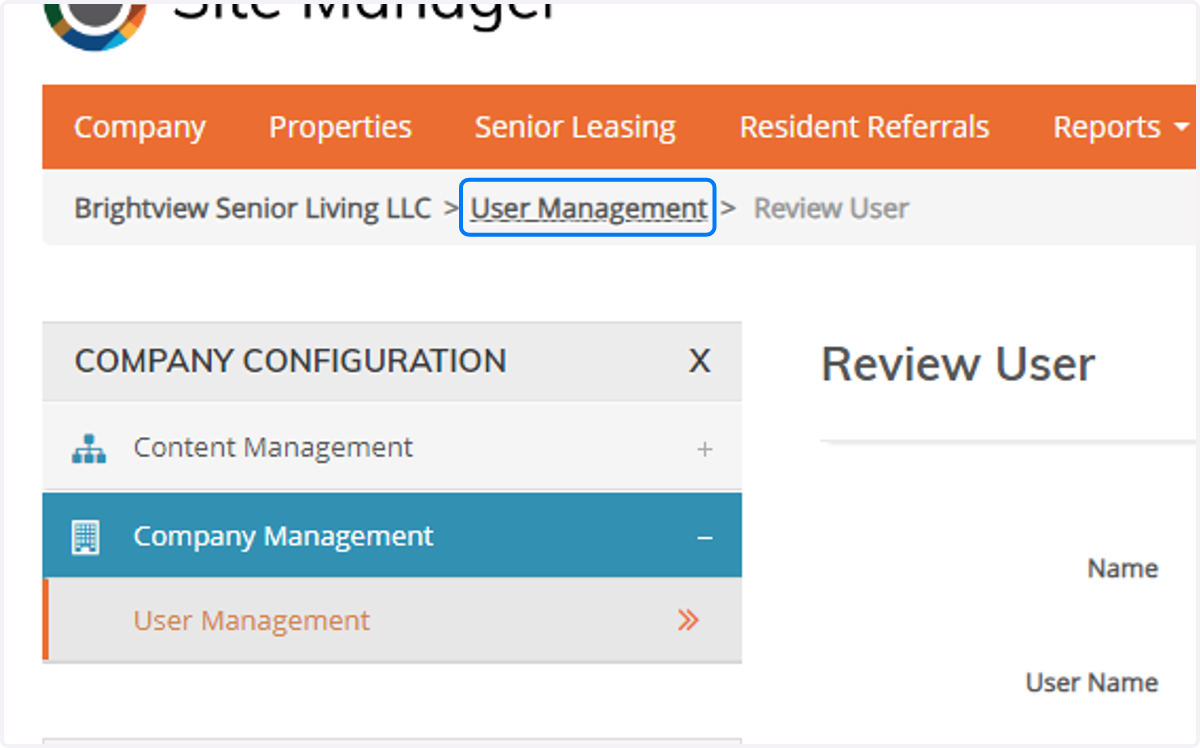
Click on User Management to return to the contact list.