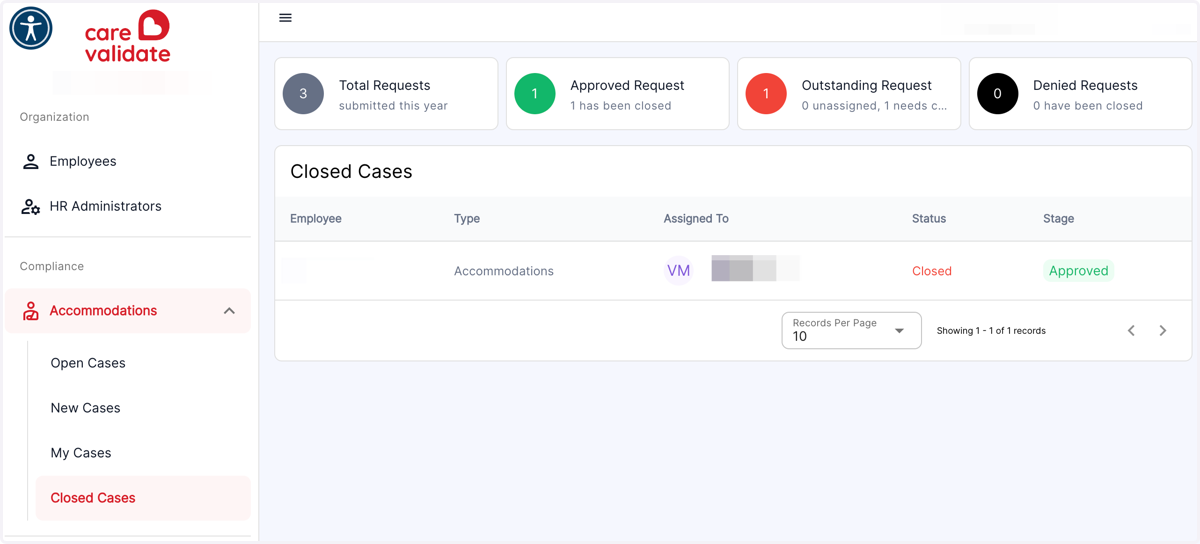
HR Representative Login with Email and Password
Logging in as a HR Representative using Email and Password
Carevalidate
1. Go to accommodations.carevalidate.com
2. Click on Log In…
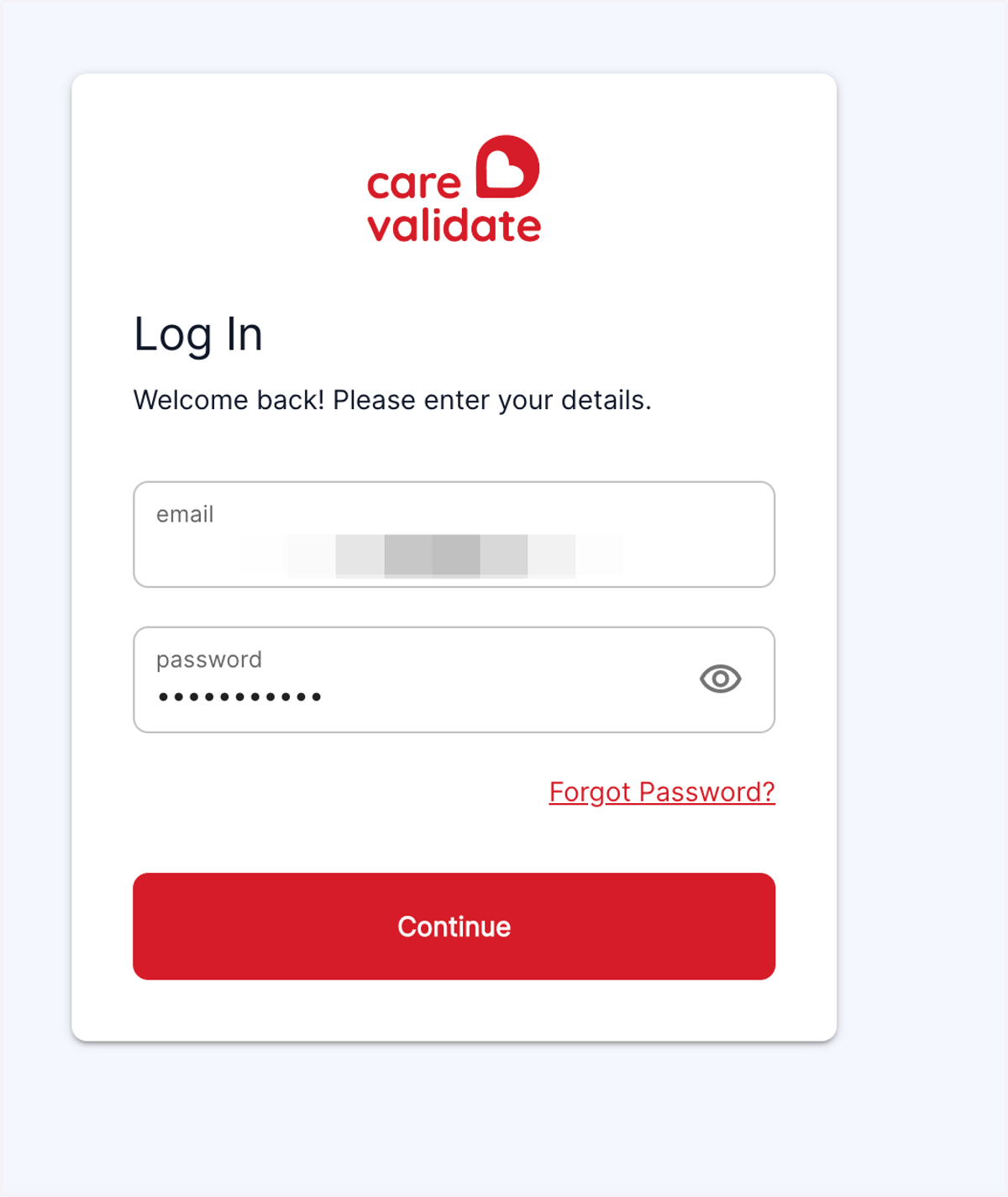
You will have received an invitation email from your employer that allowed you to set up your password. Enter your email address and password here.
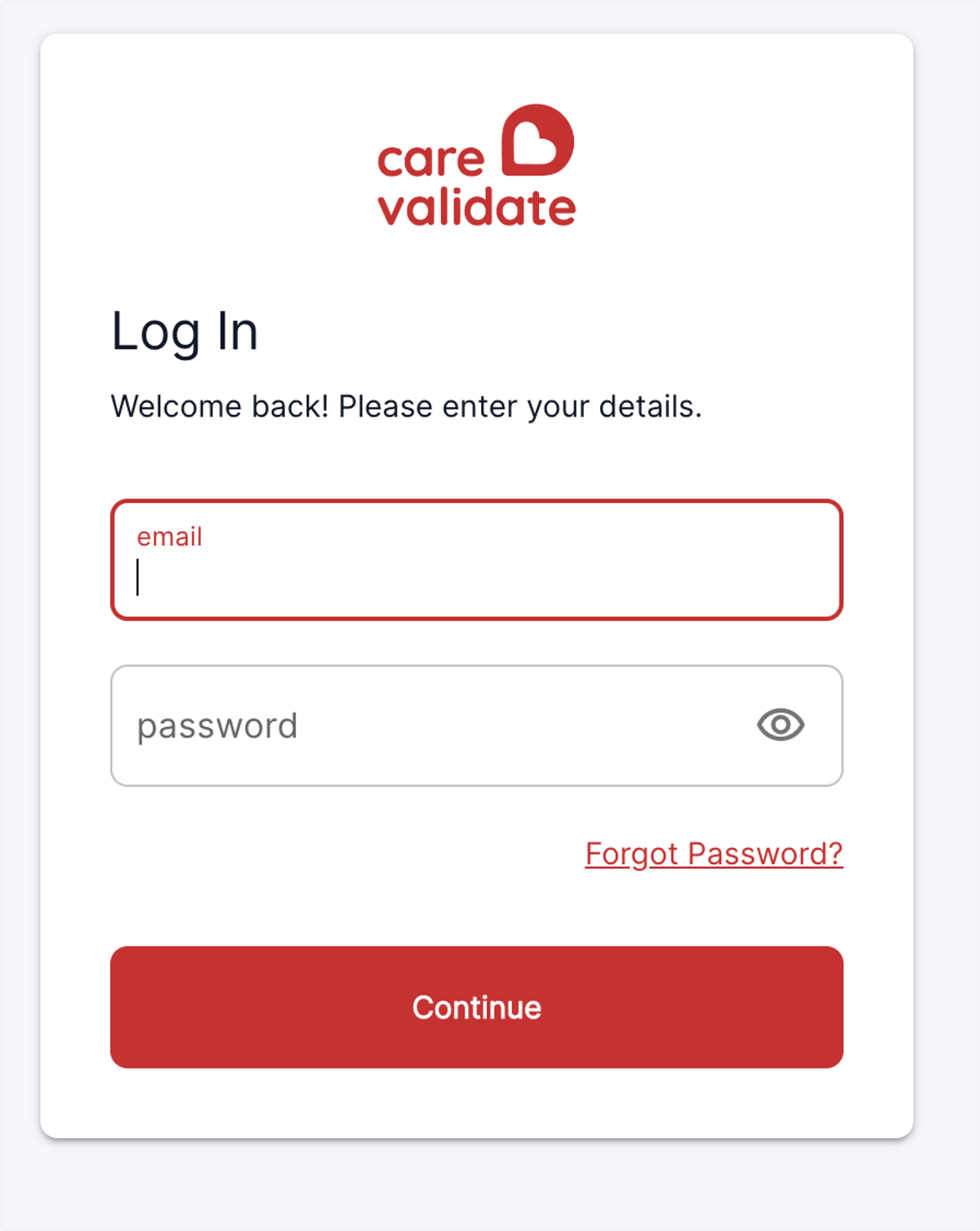
3. Click on Sign In
4. Landing Page - When you log in, you will land on the My Cases page
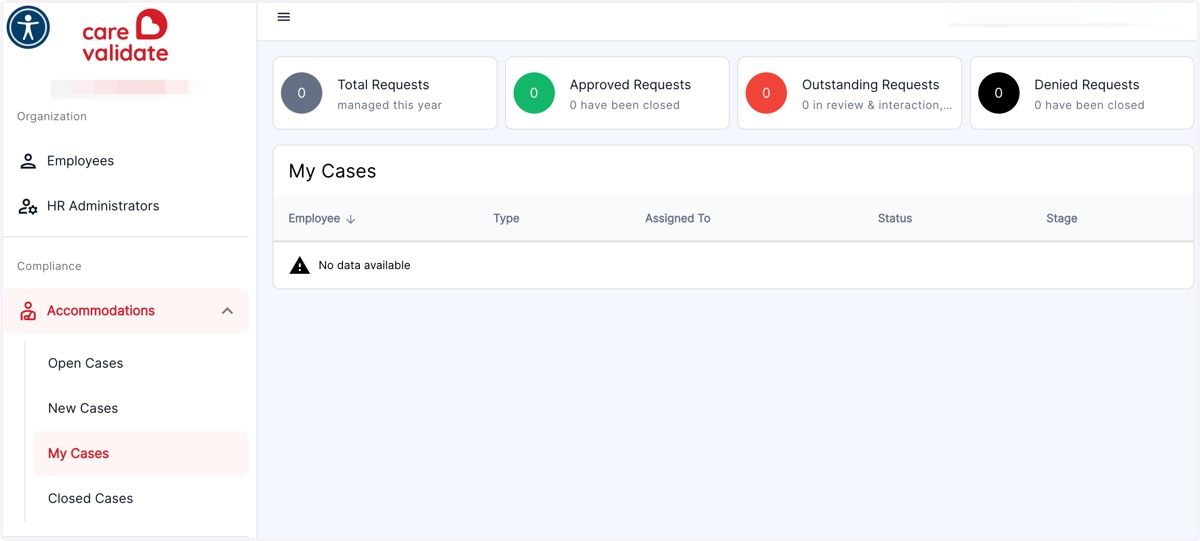
5. Click on Employees
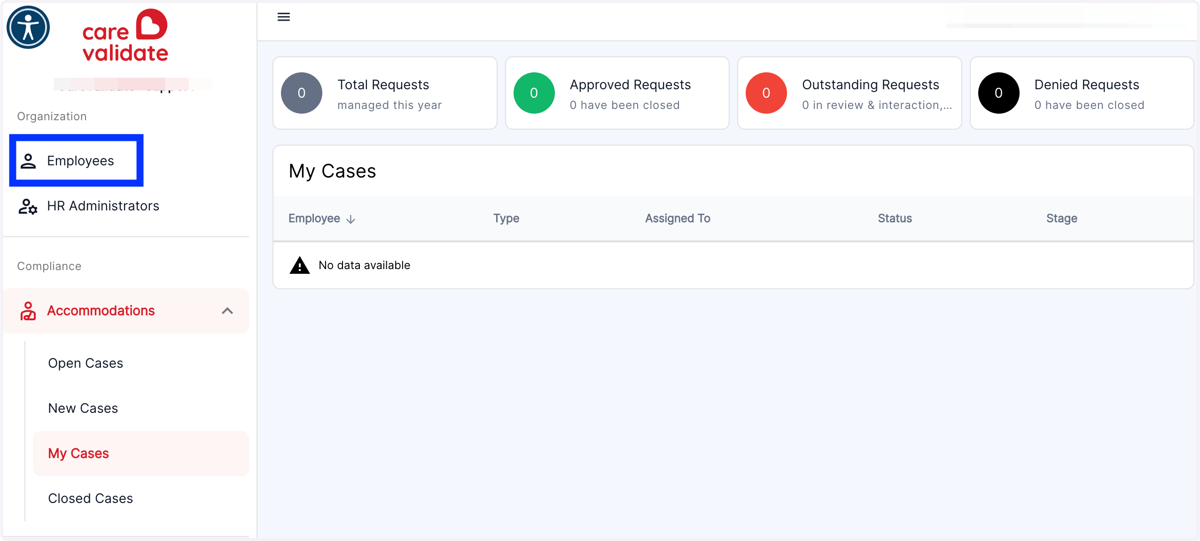
6. This will list all of the employees registerd in your organization; They can be sorted by the columns.
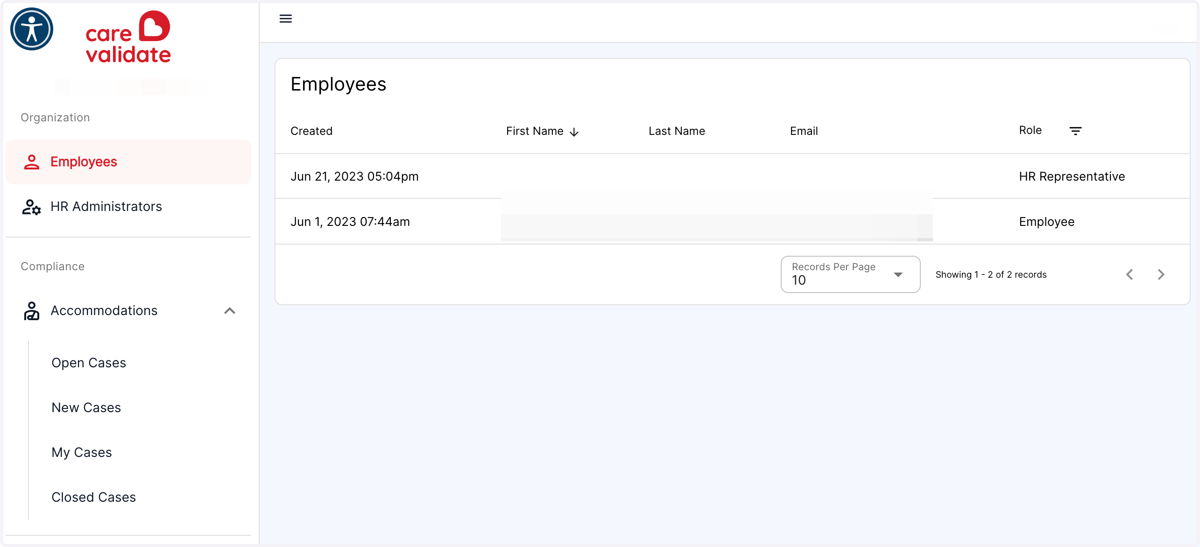
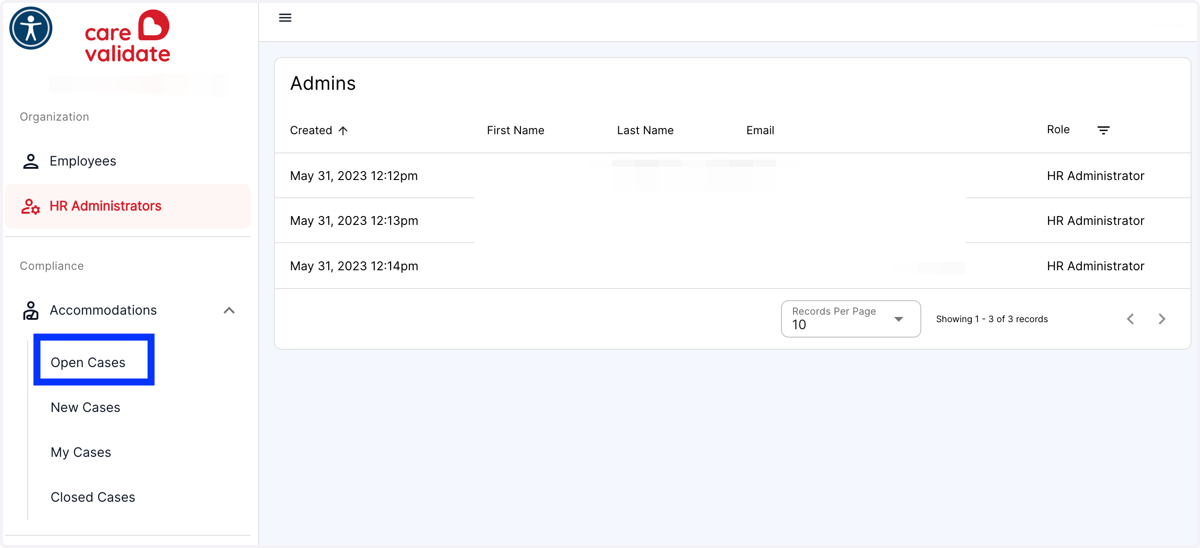
7. Click on HR Administrators
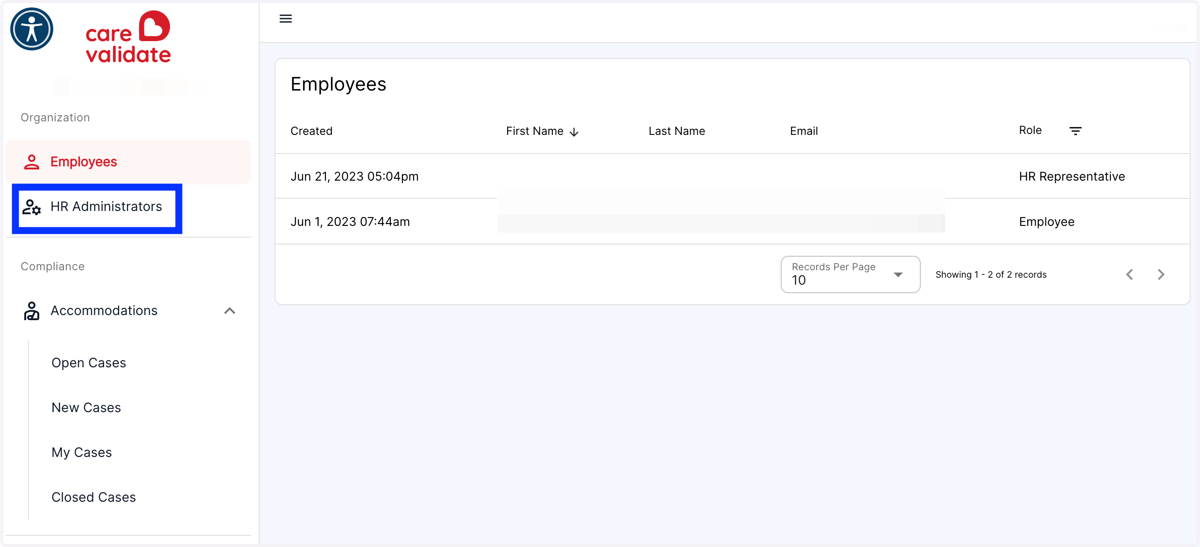
8. This will list all of the HR Administrators in your Organization
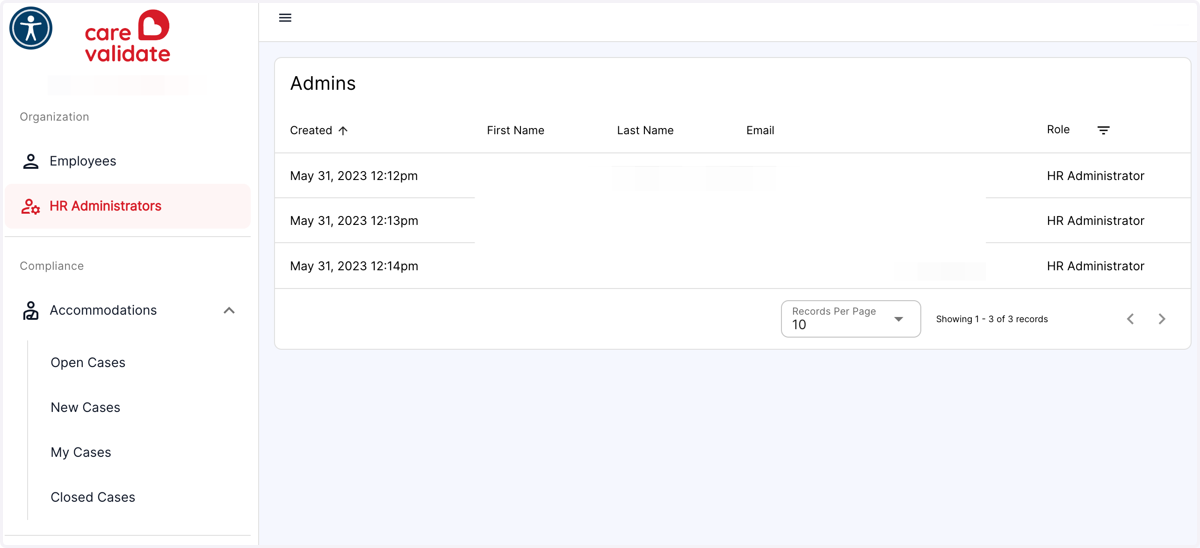
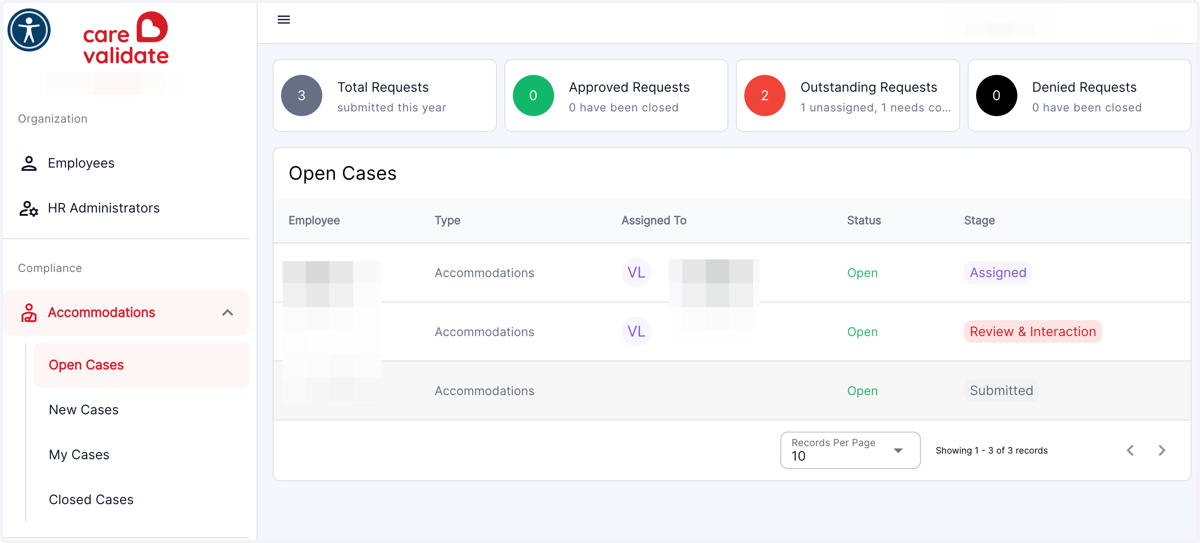
9. Click on Open Cases
10. This will list all of the Open Cases, you can see, who created them, who they are assigned to, and what state they are currently in
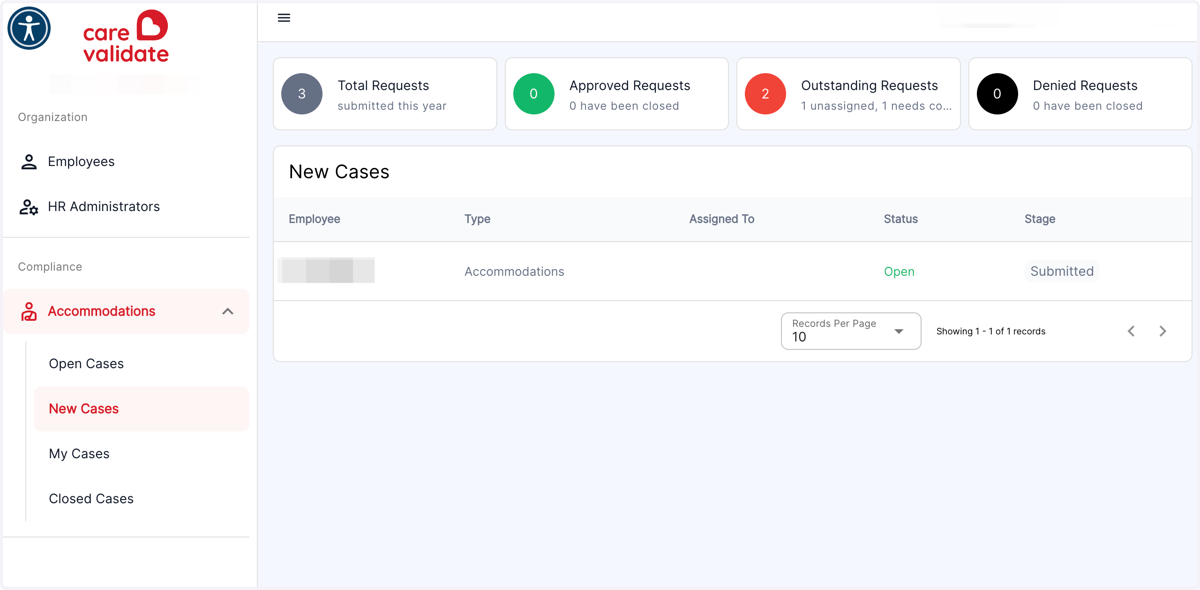
11. Click on New Cases
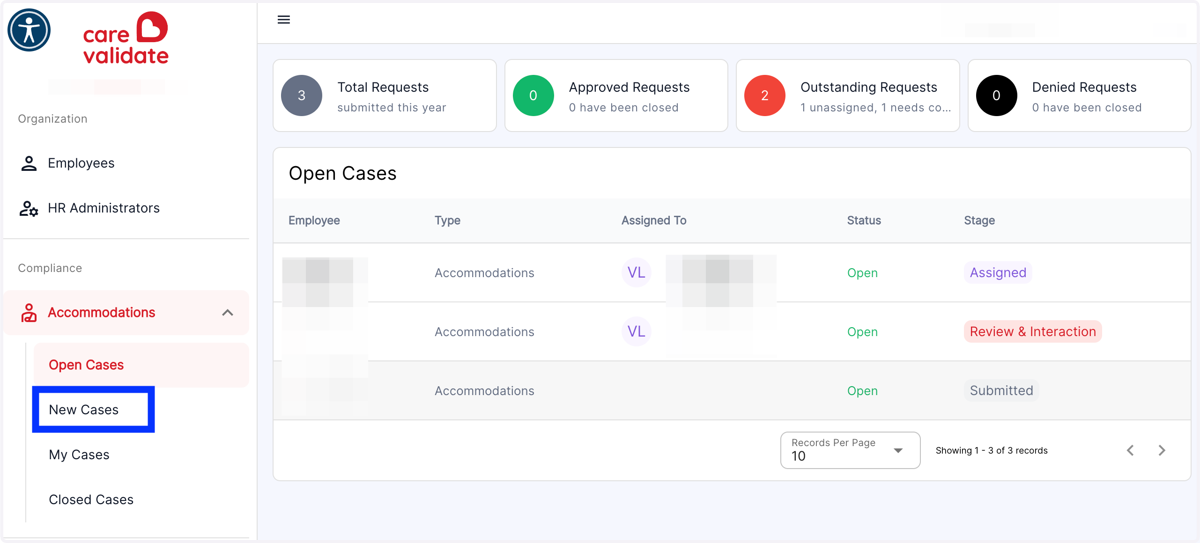
12. This will list all Cases that have been opened but not assigned to anyone
13. Click on My Cases
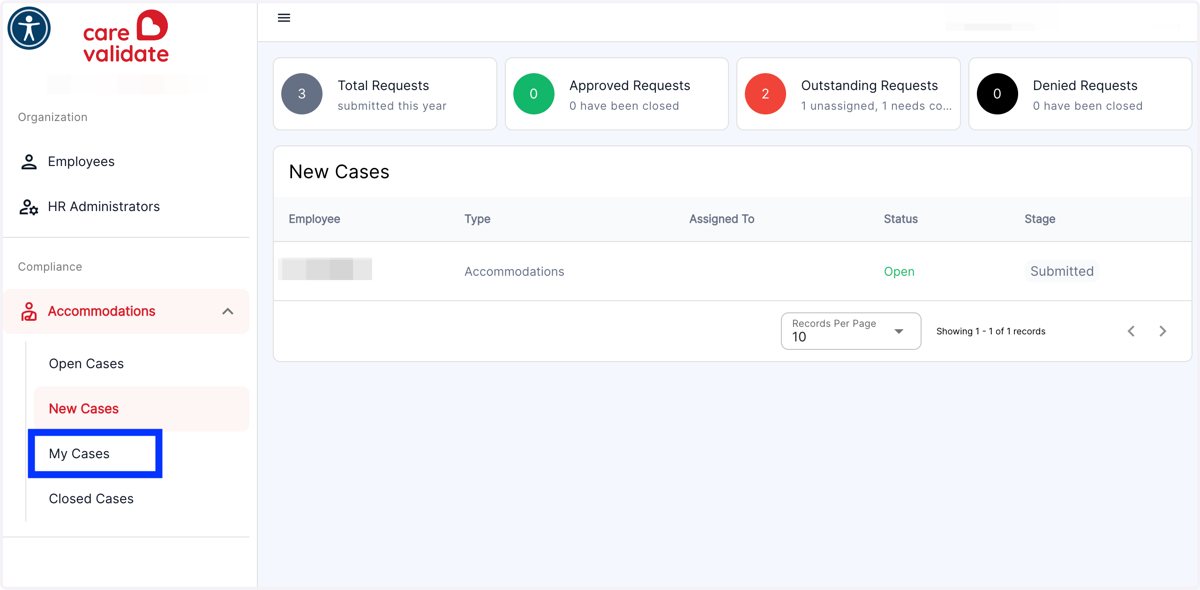
14. This will list all Cases that have been assigned to you
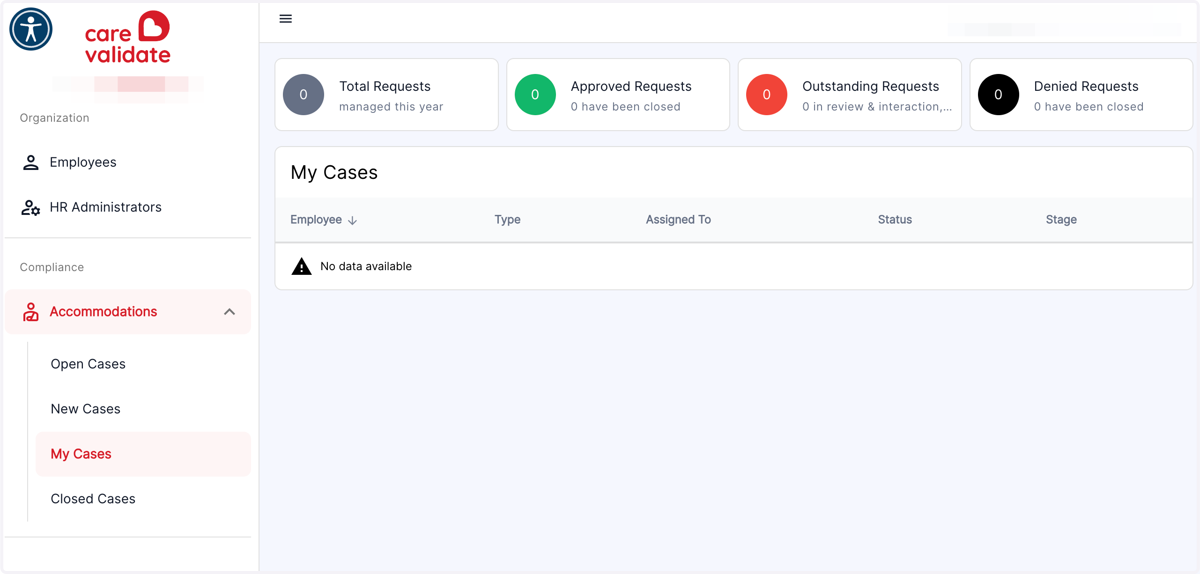
15. Click on Closed Cases
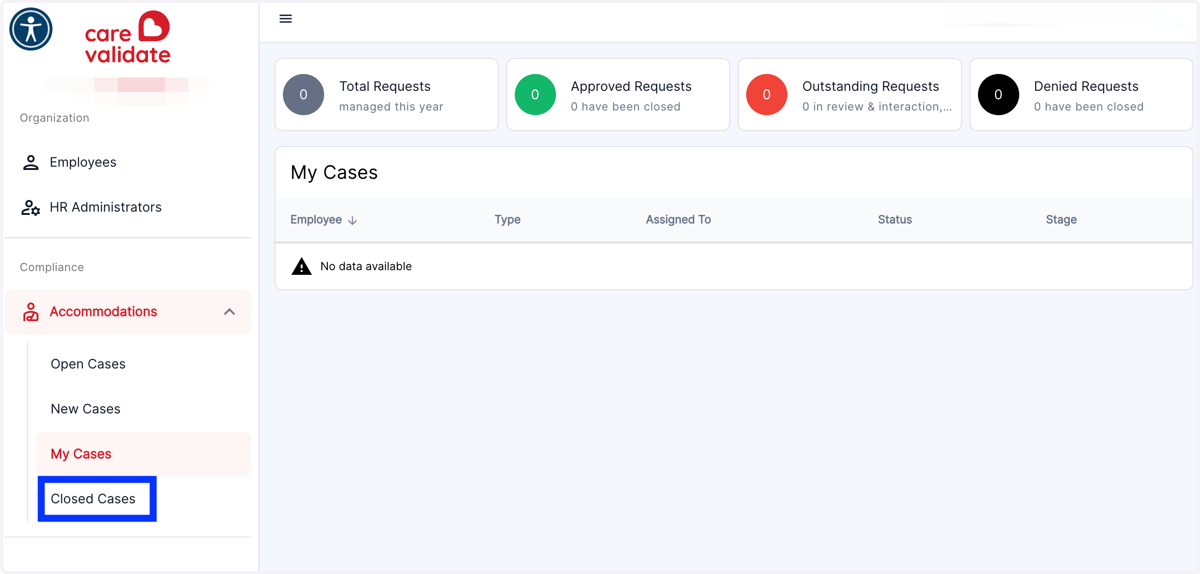
16. This will show you the archive of all Closed Cases that you can see