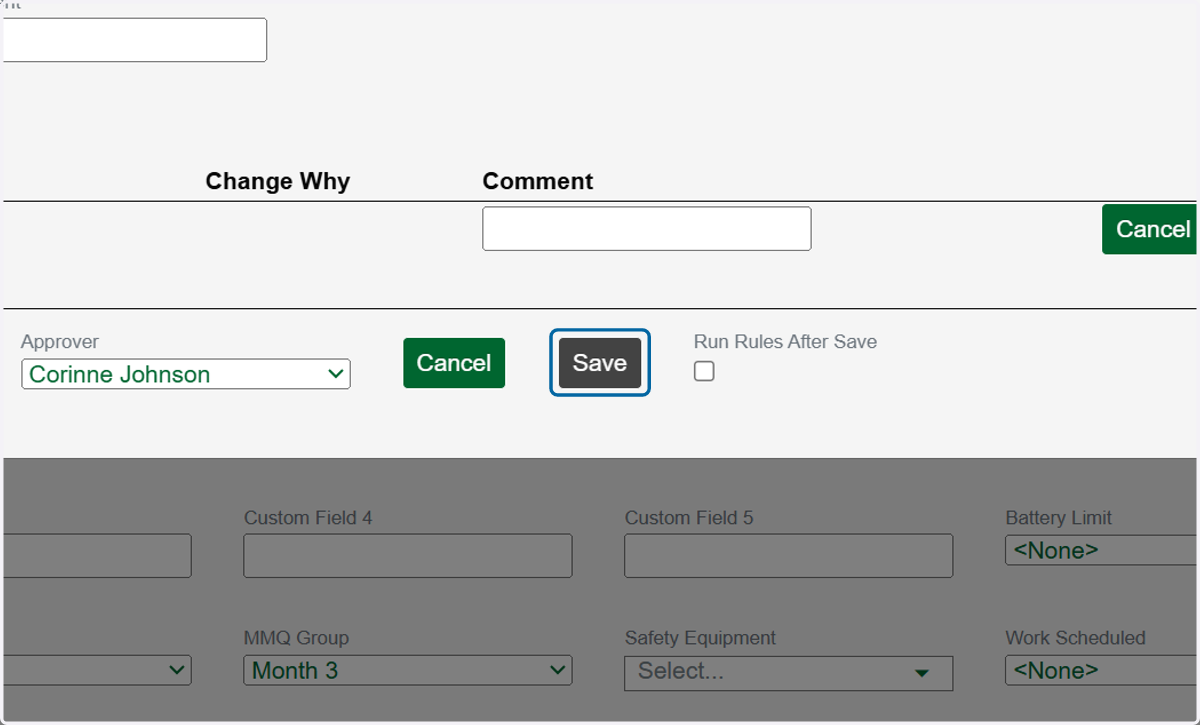
How to DeActivate a Component
Chateau How To
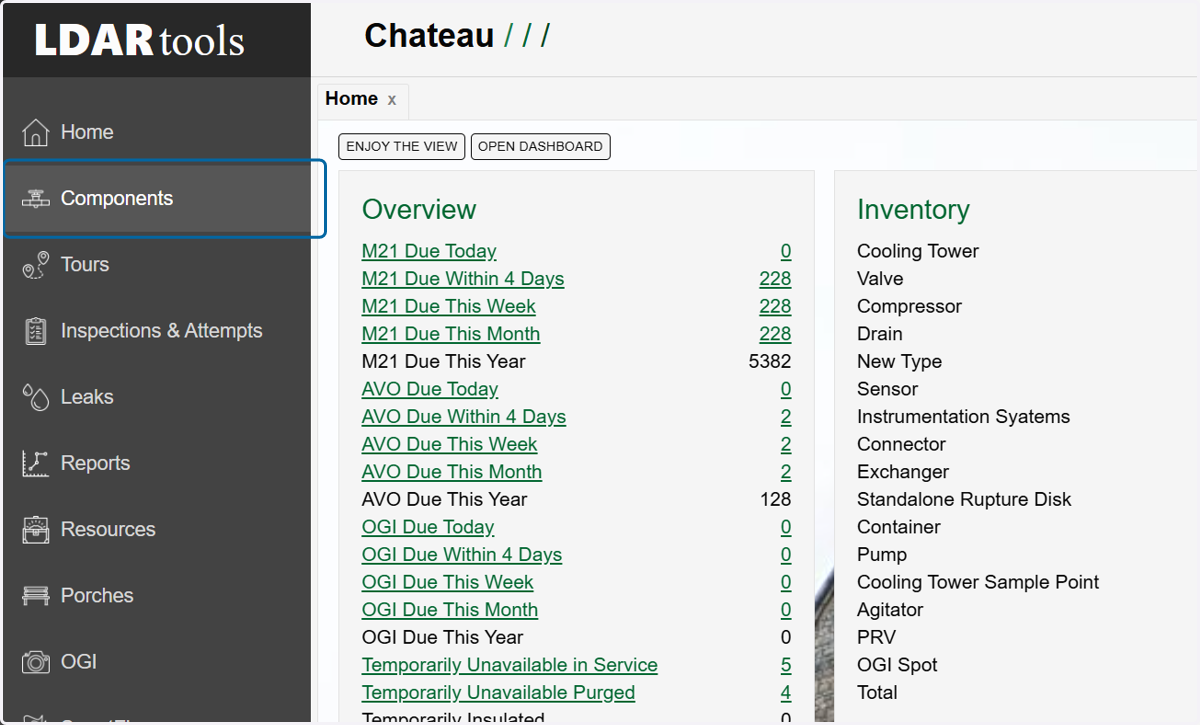
1. Click on Components
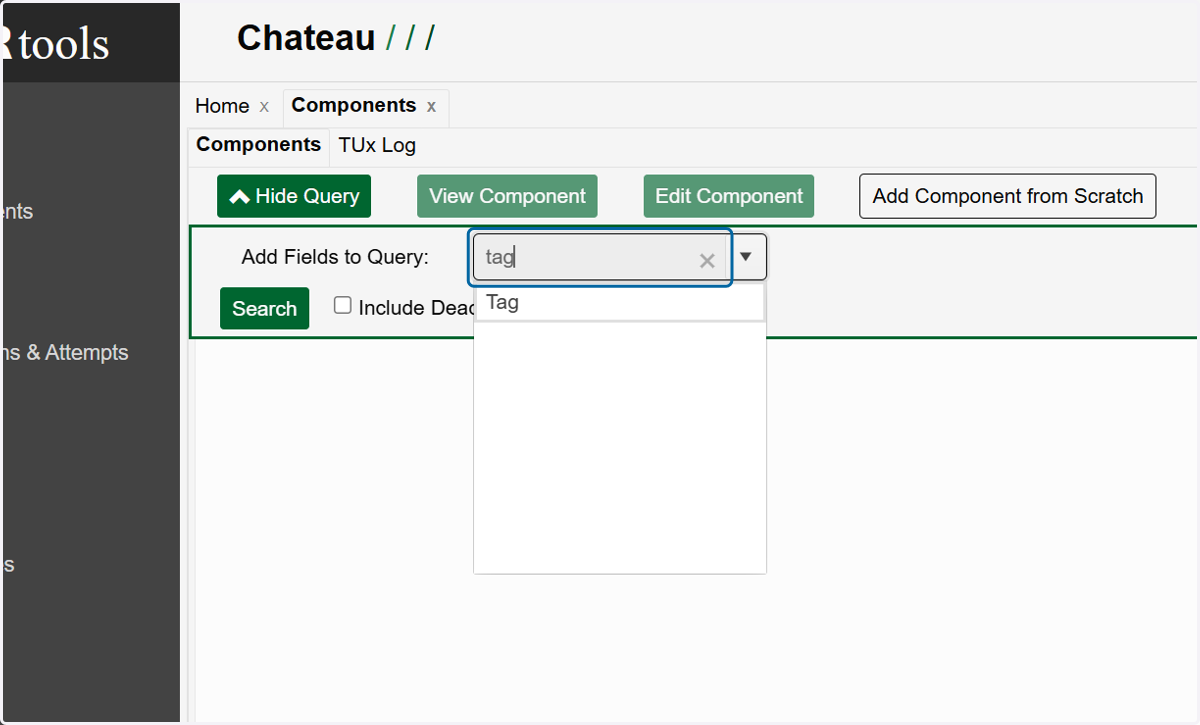
2. Type "tag" in the in the query field.
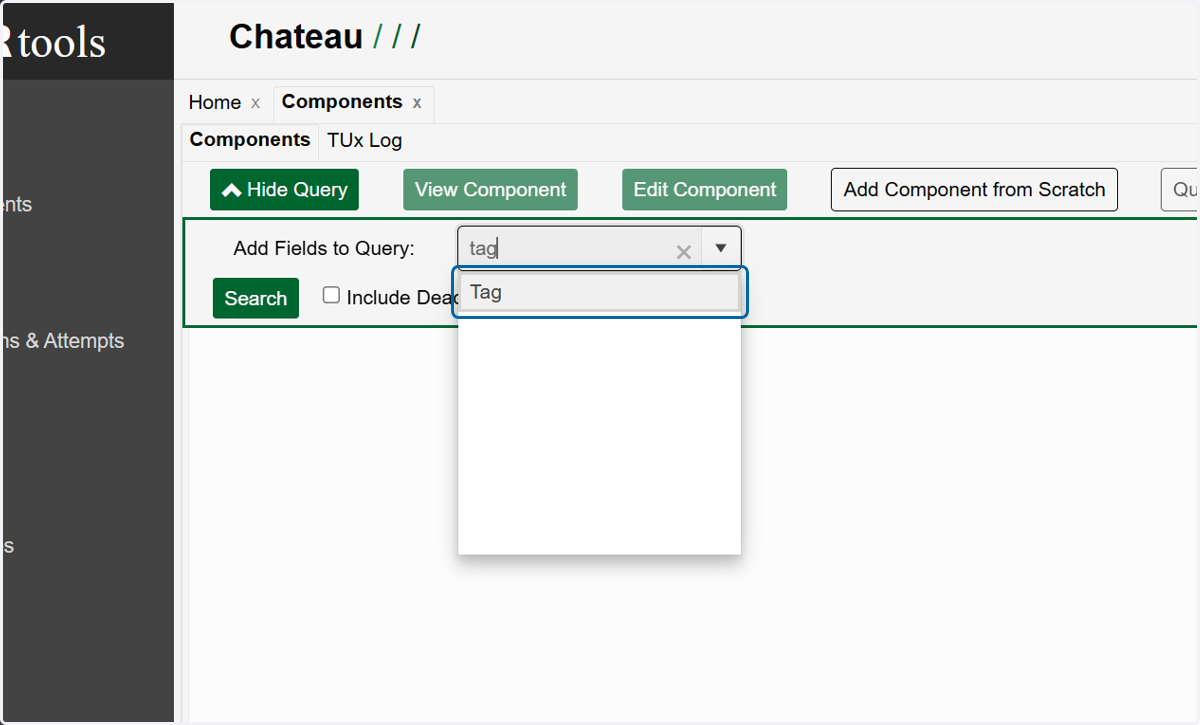
3. Click on the Tag option in the drop down.
4. Type the tag number of the specific component you need to deactivate and hit Enter
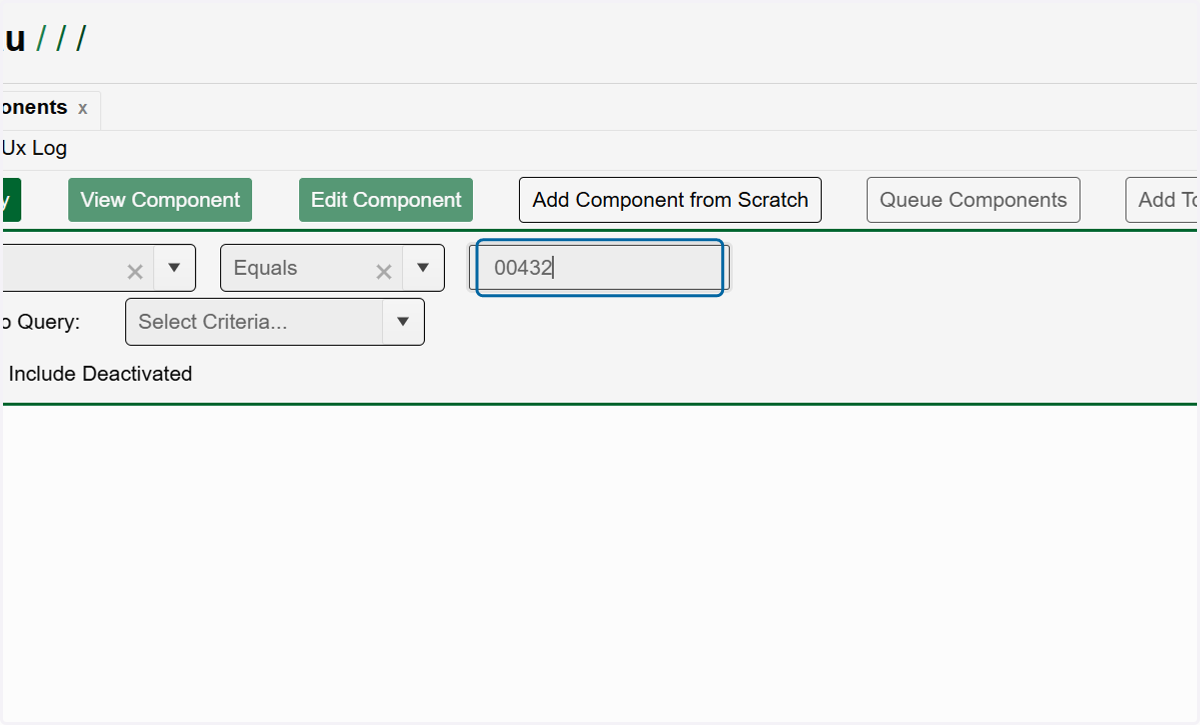
5. Click on Search.
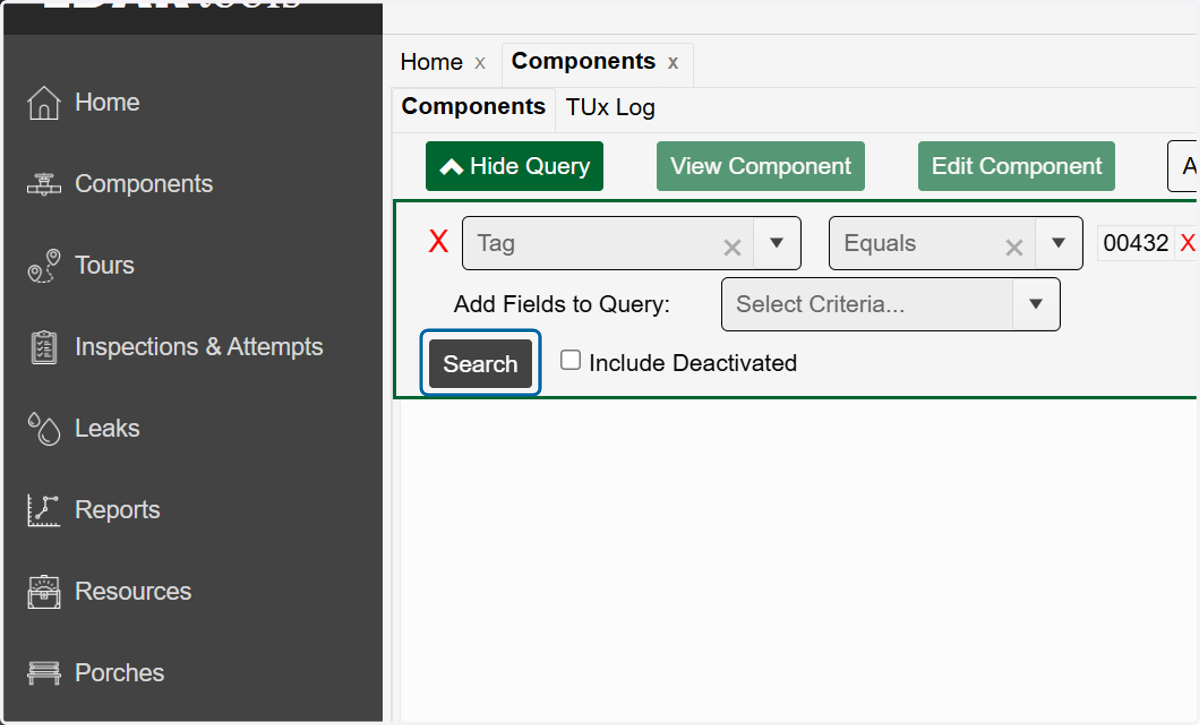
6. Click on the row to select that component.
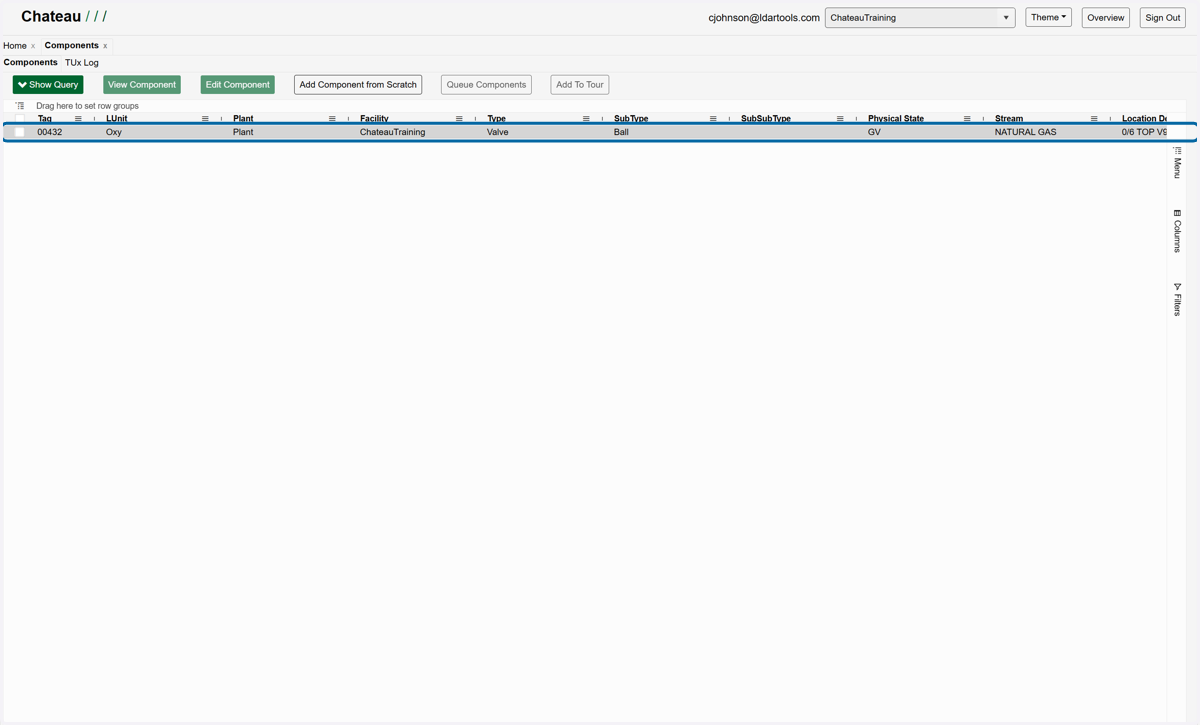
7. Click on View Component
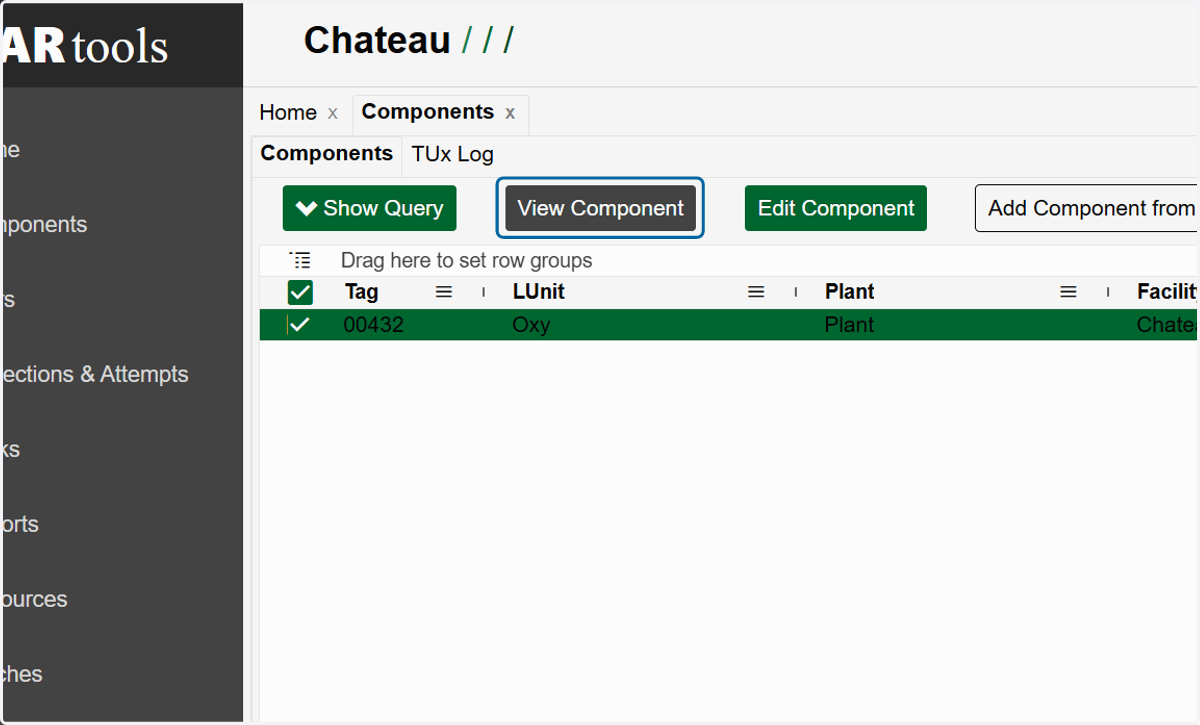
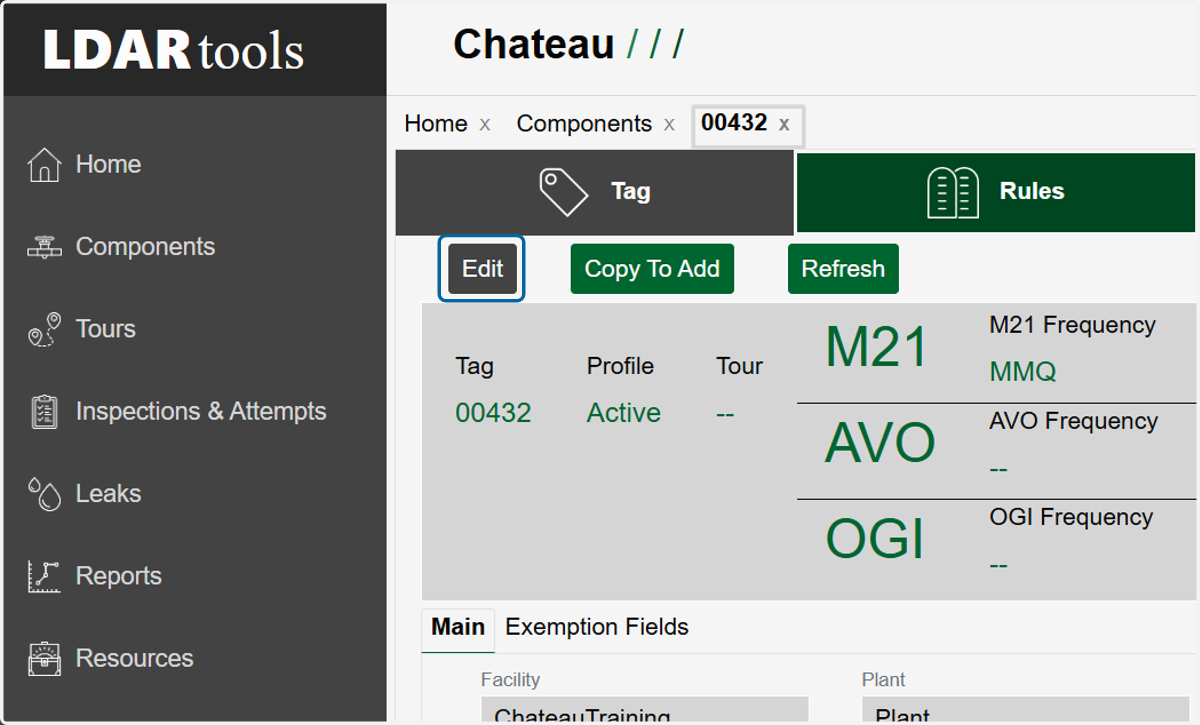
8. Click on Edit
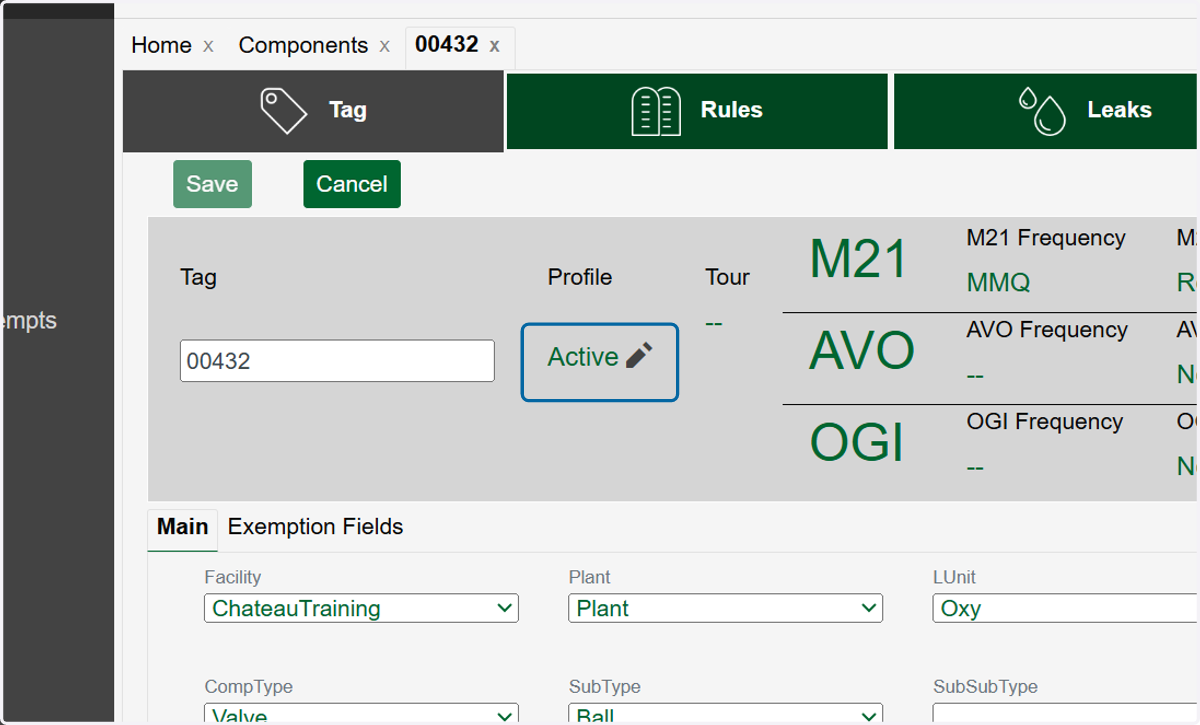
9. Click on the pencil icon next to the Active status in the Profile section.
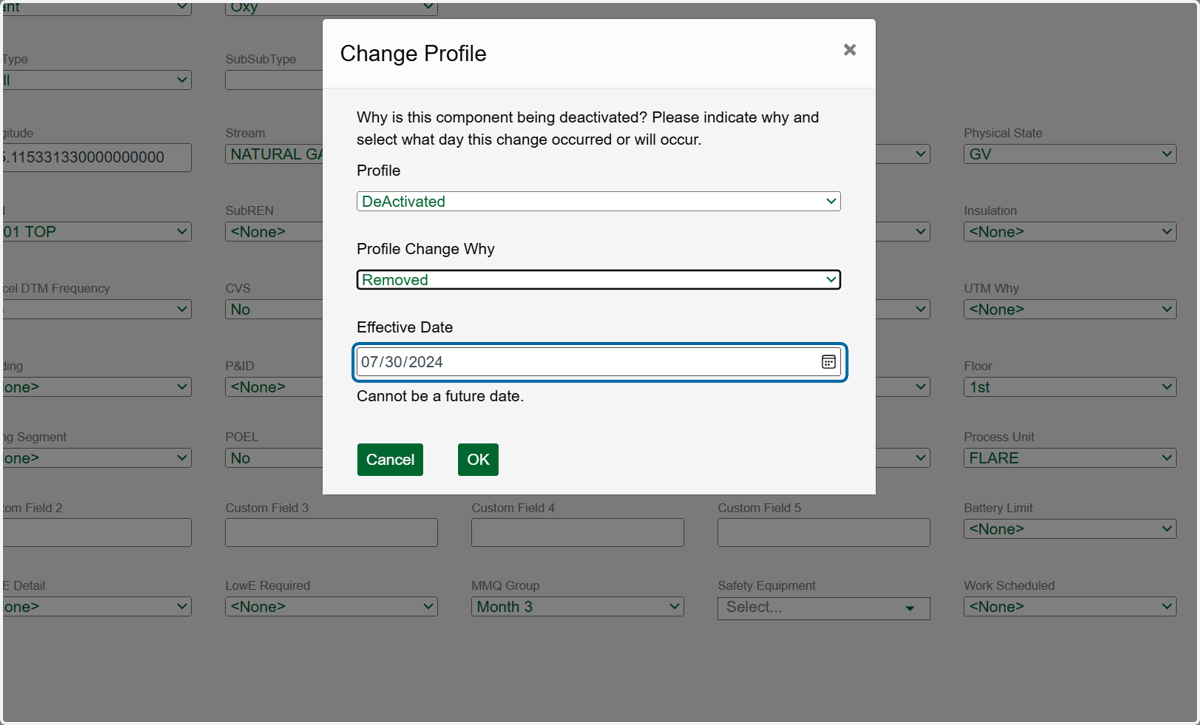
10. Select DeActivated in the Profile dropdown.
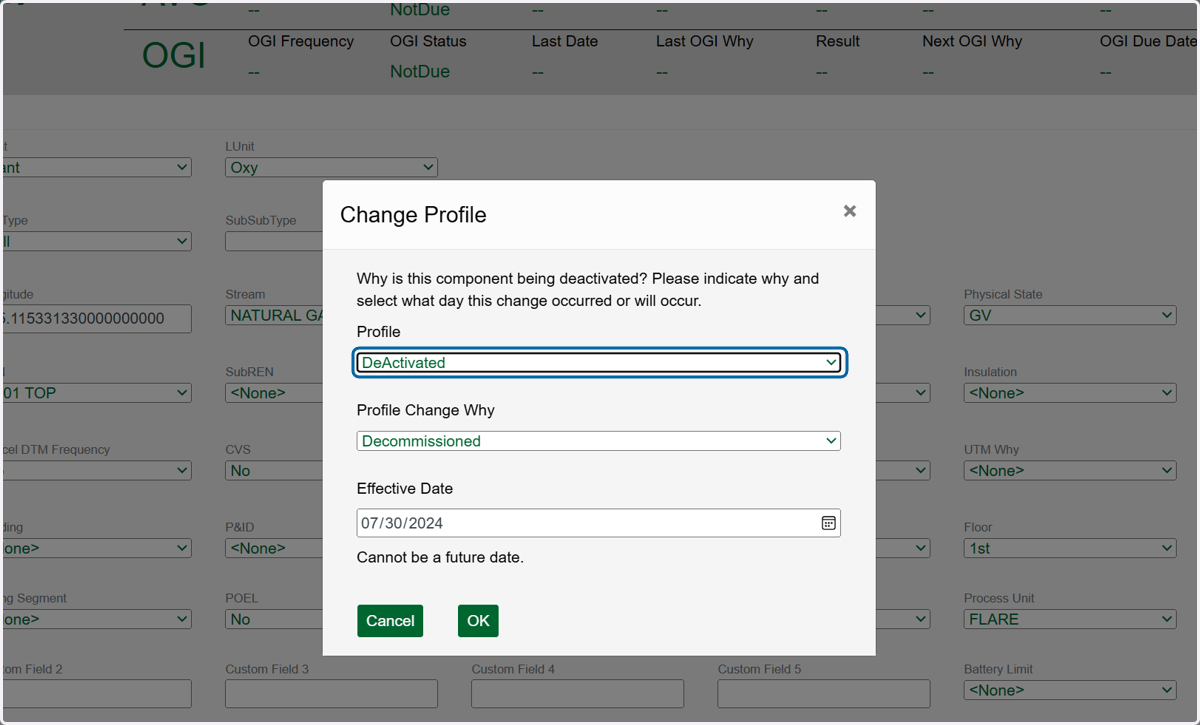
11. Select the reason for deactivation in the Profile Change Why dropdown.
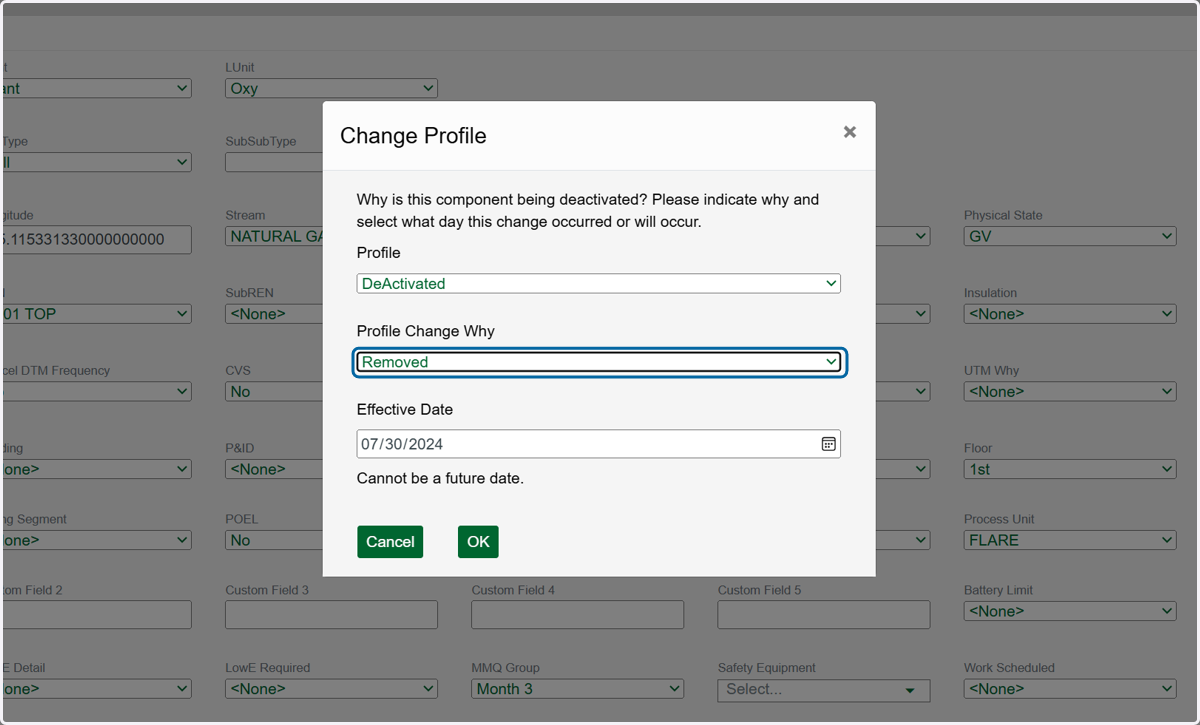
12. Select the date you want this deactivation to take place in the Effective Date box.
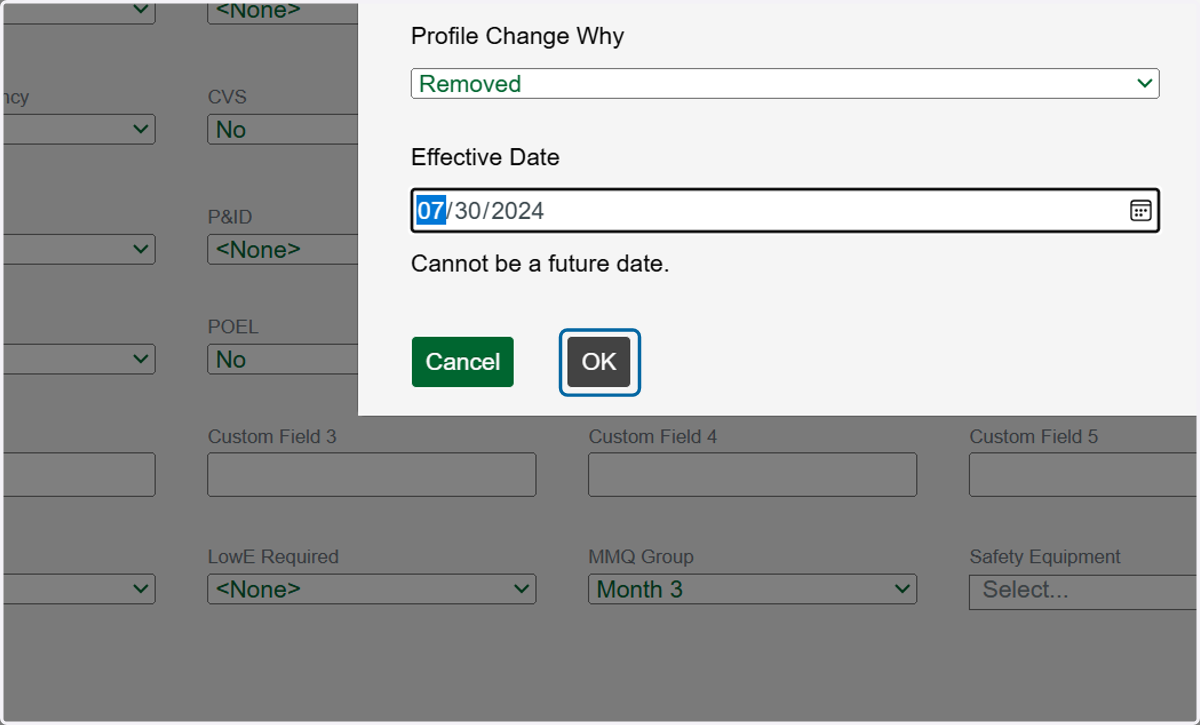
13. Click OK to save.
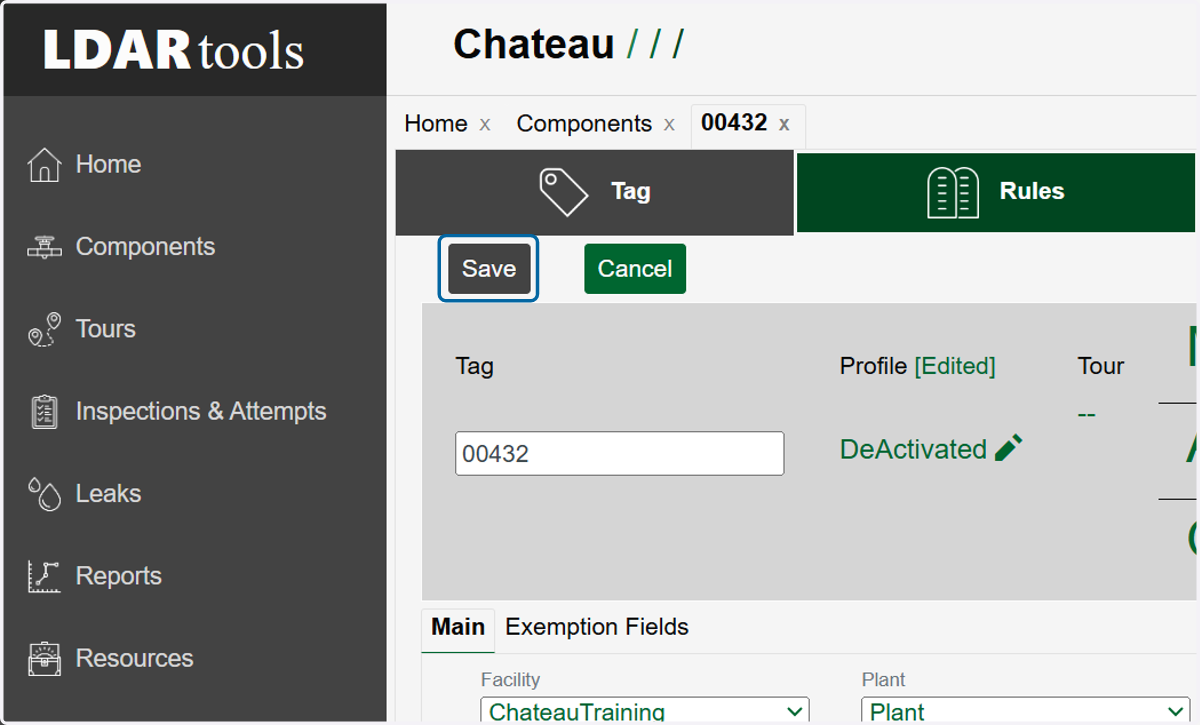
14. Click Save
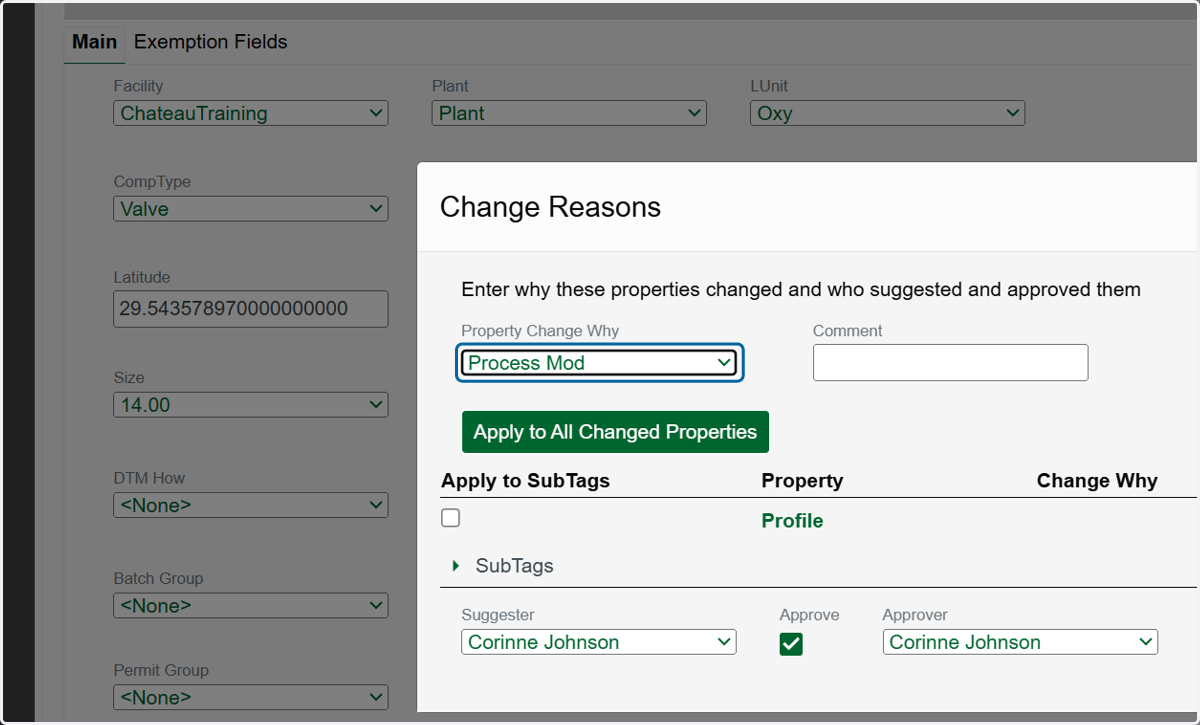
15. Select the reason for deactivation in the Profile Change Why dropdown.
In the Component grid, DeActivated components are hidden by default in the query. Remember to check Include DeActivated if you wish to see them.
16. Click on Save