How to link Medical Insurance with Financials in Odoo-iLines HR

Odoo

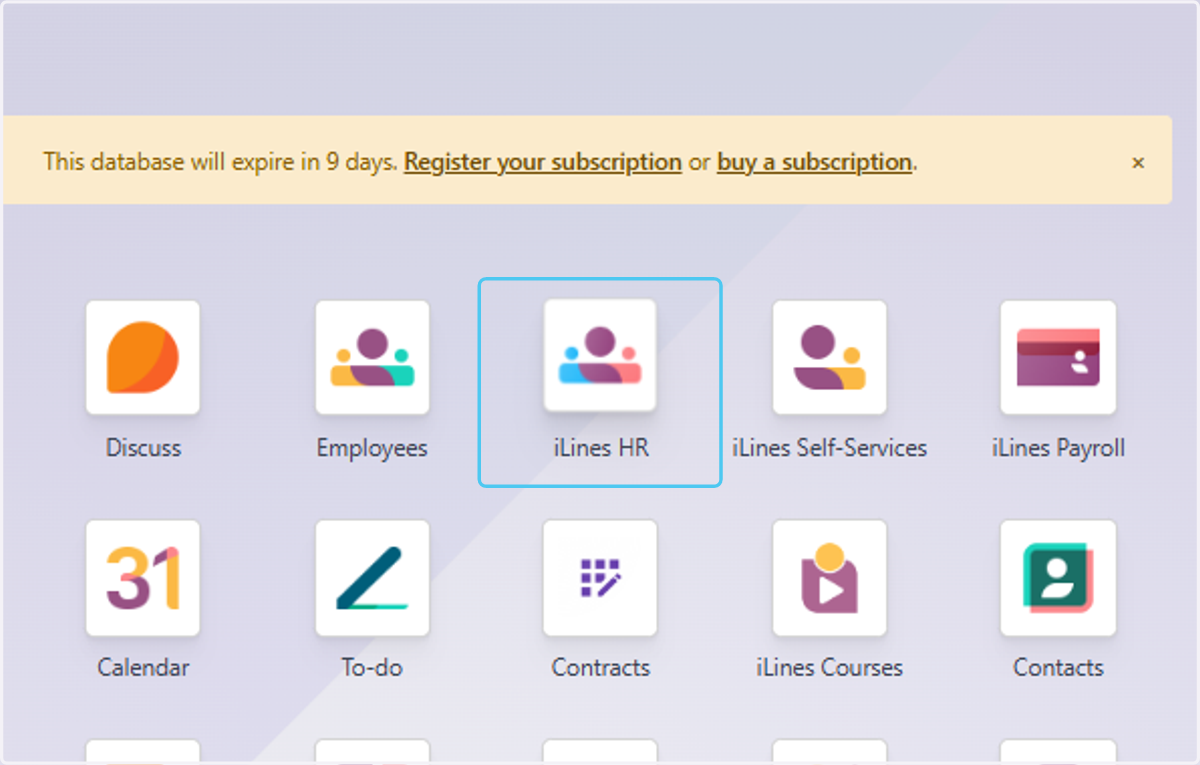
  1. 1. Click on iLines HR

    Click on iLines HR
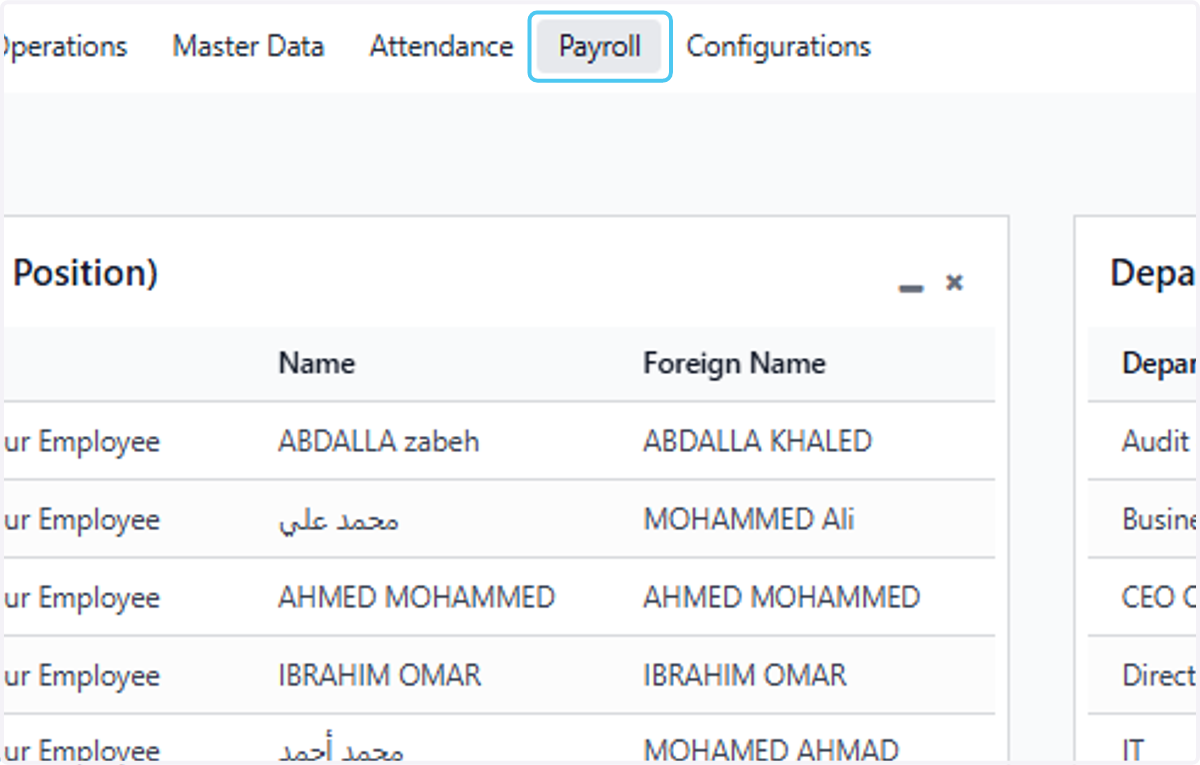
  2. 2. Click on Payroll

    Click on Payroll
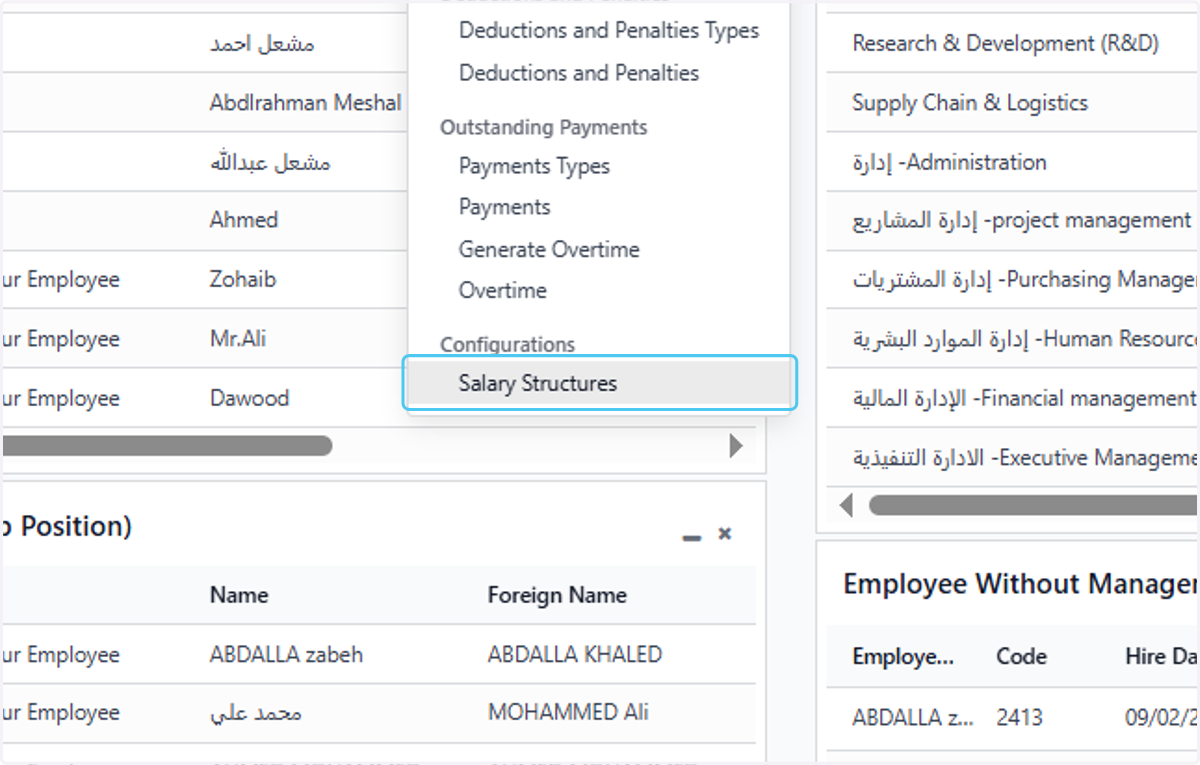
  3. 3. Click on Salary Structures

    Click on Salary Structures
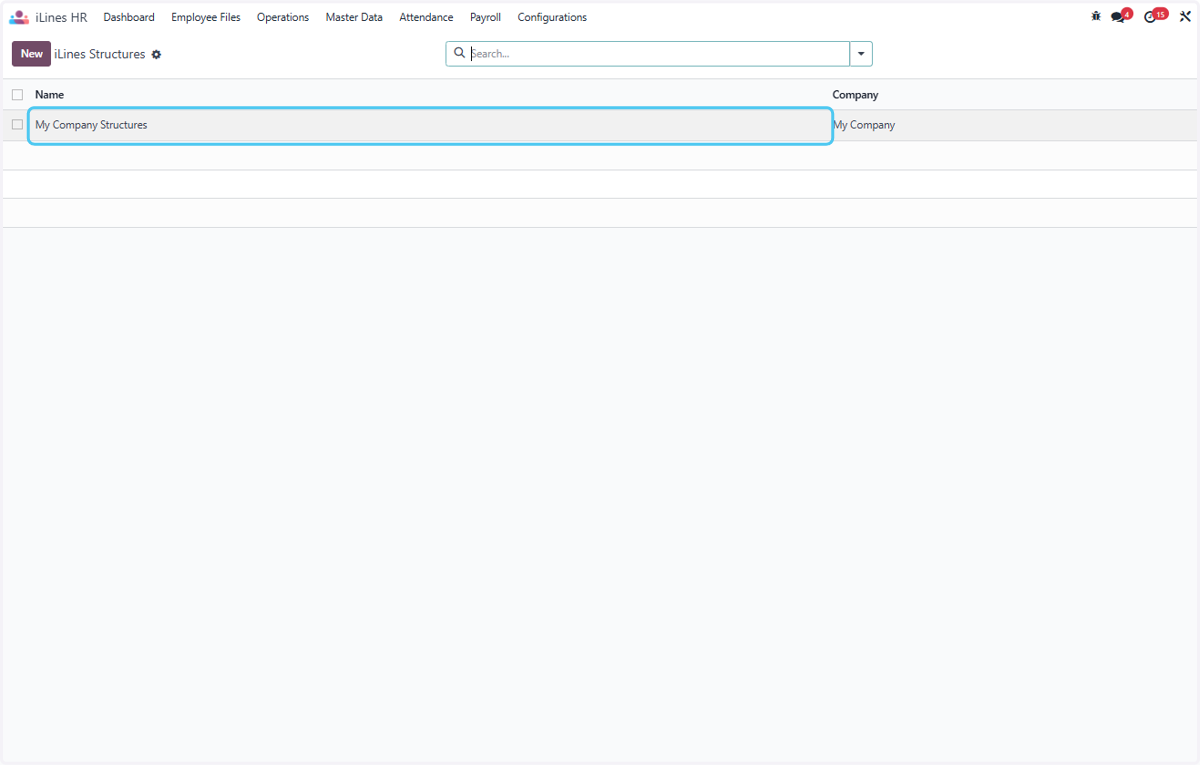
  4. 4. Click on My Company Structures

    Click on My Company Structures
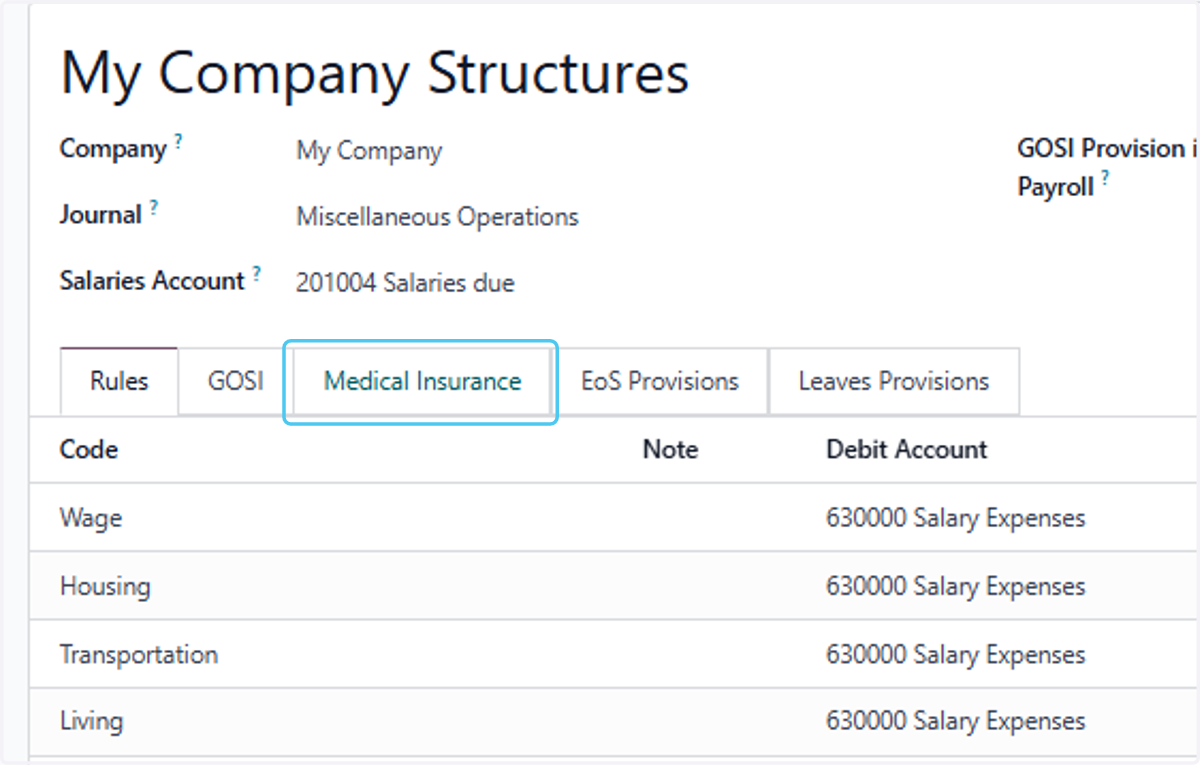
  5. 5. Click on Medical Insurance

    Click on Medical Insurance
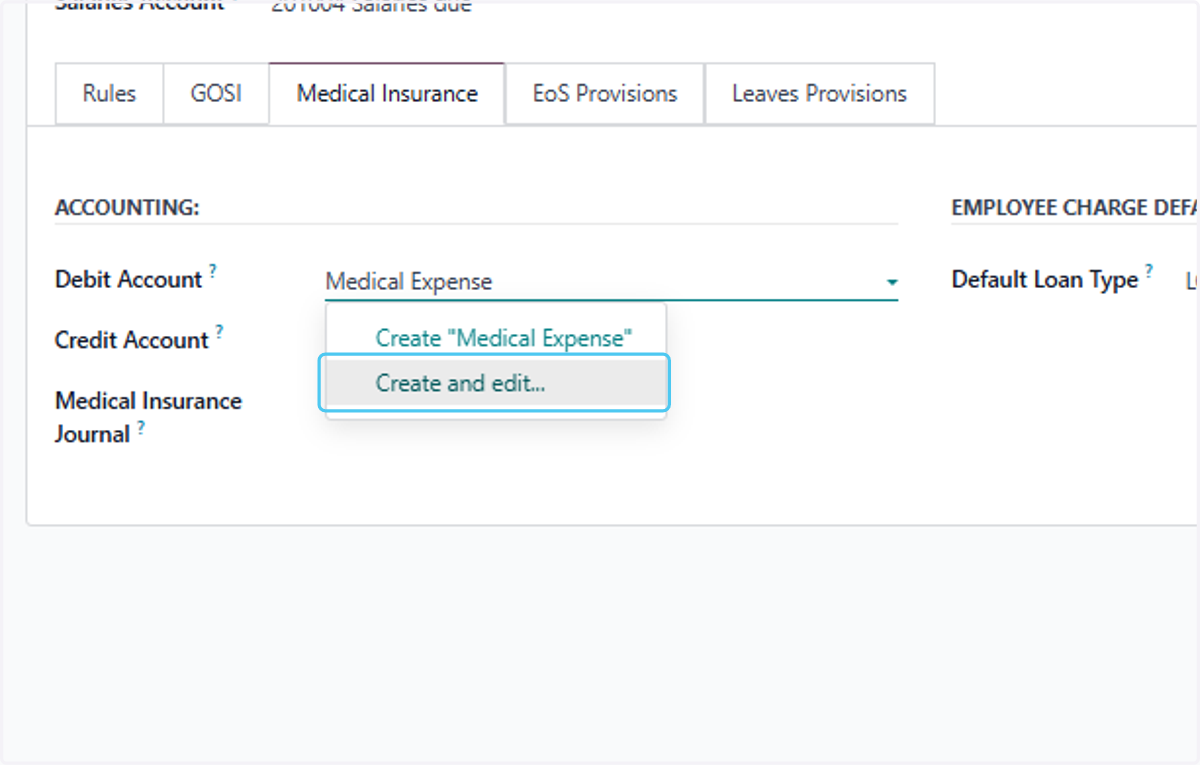
  6. 6. Type "Medical Expense" and Create an Expense Account
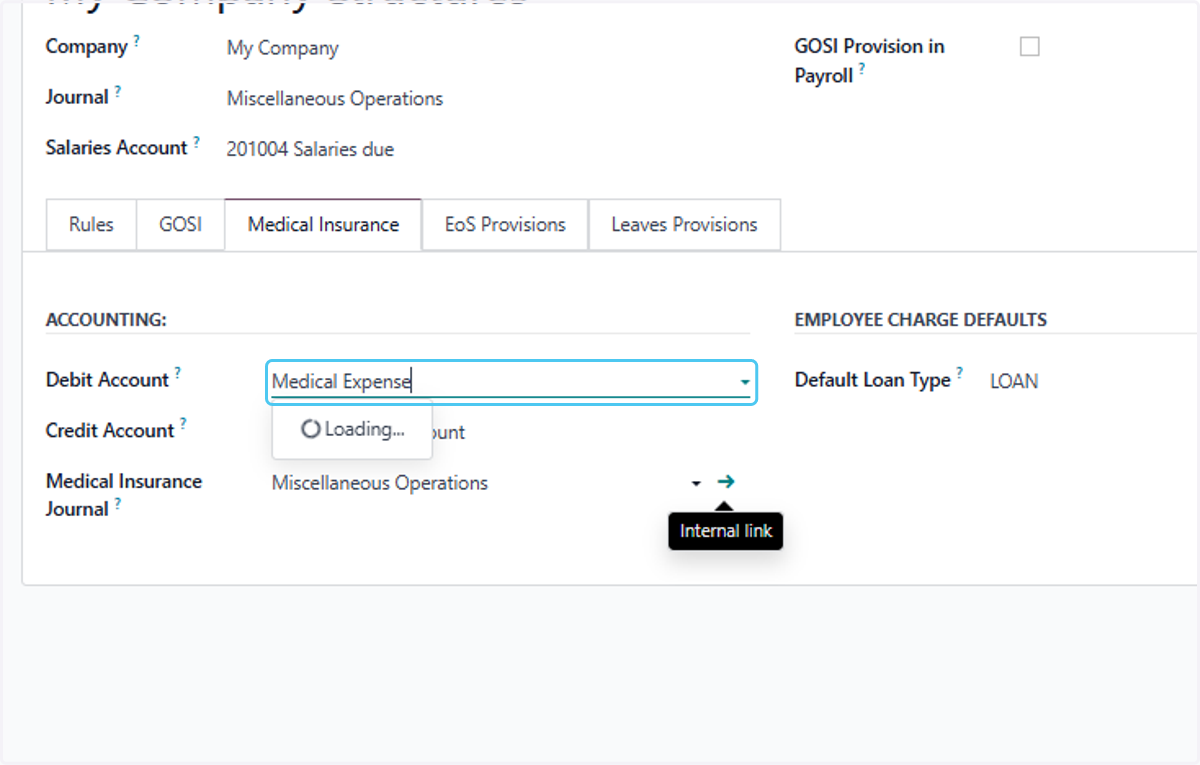
    Type "Medical Expense" and Create an Expense Account
  7. 7. Click on Create and edit...

    Click on Create and edit...
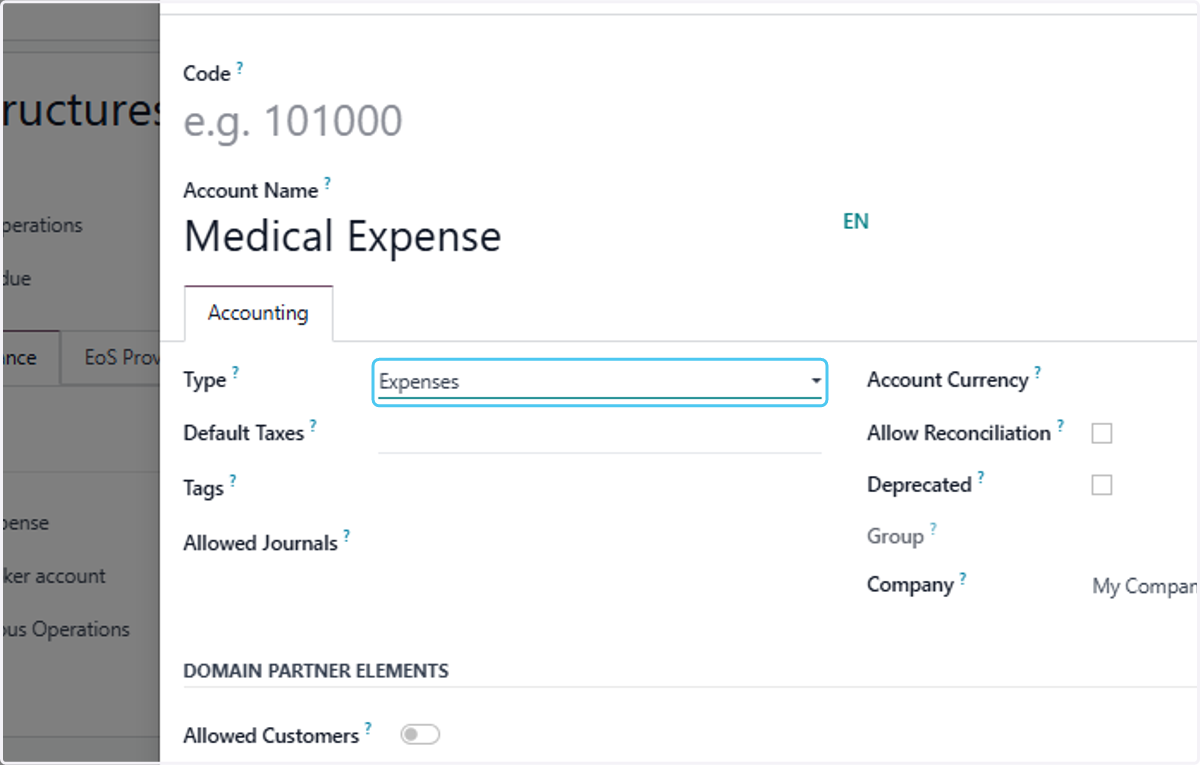
  8. 8. Select Expenses from Type?

    Select Expenses from Type?
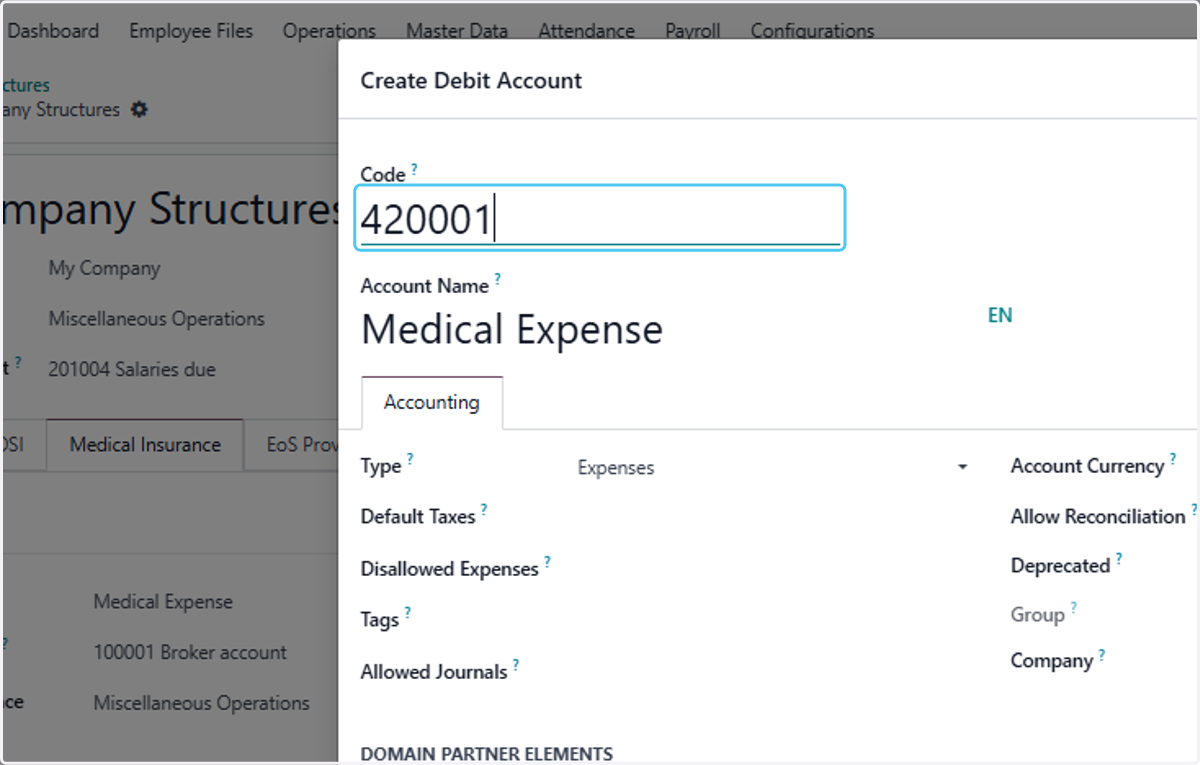
  9. 9. Type "42000123"

    Type "42000123"
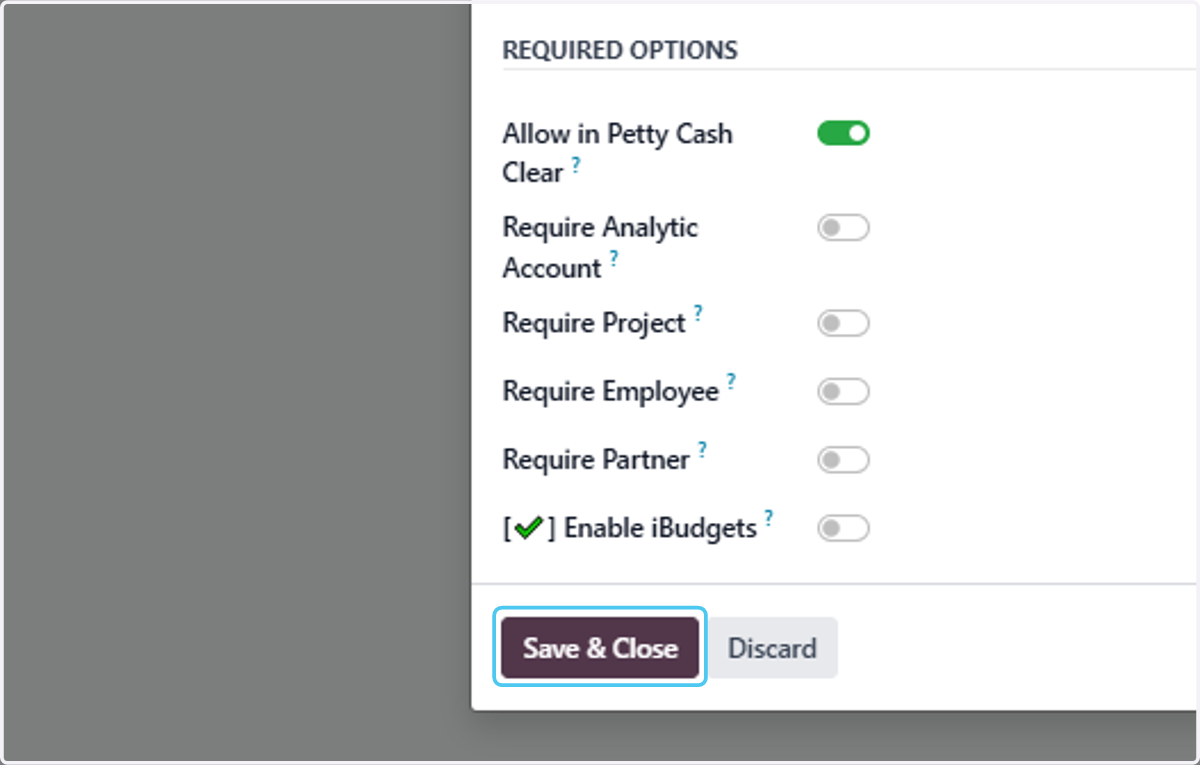
  10. 10. Click on Save & Close

    Click on Save & Close
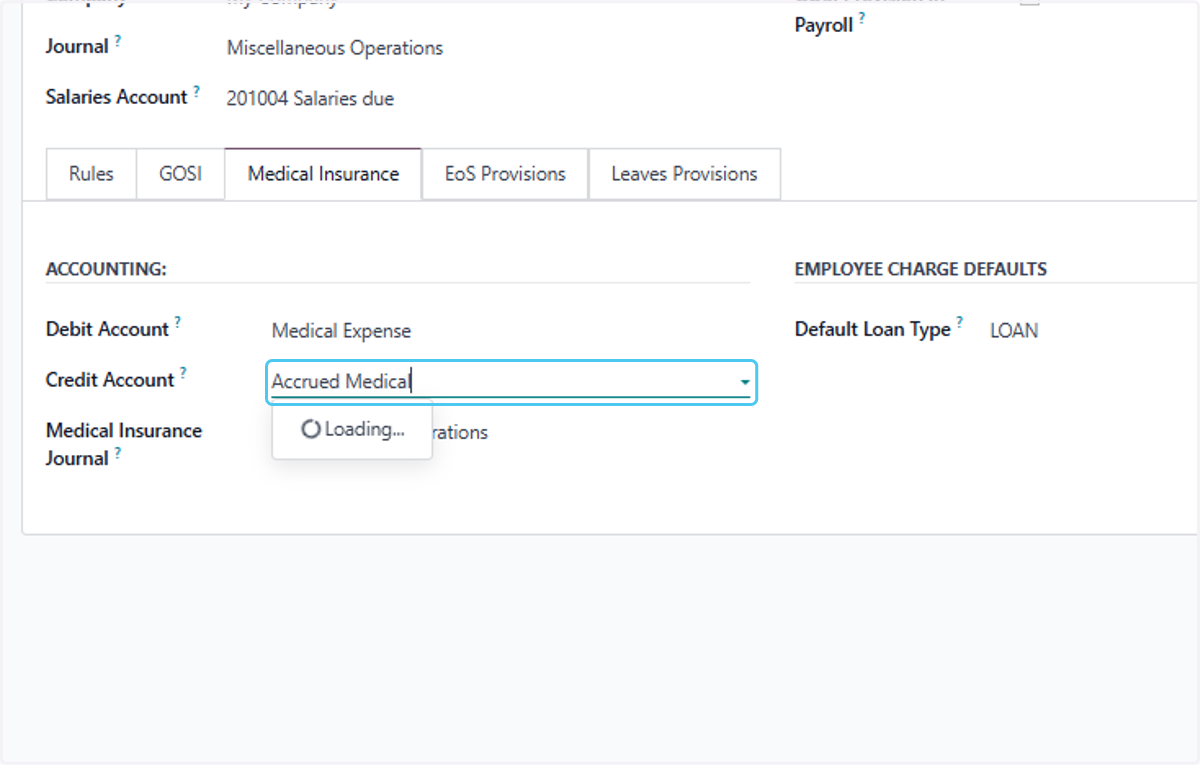
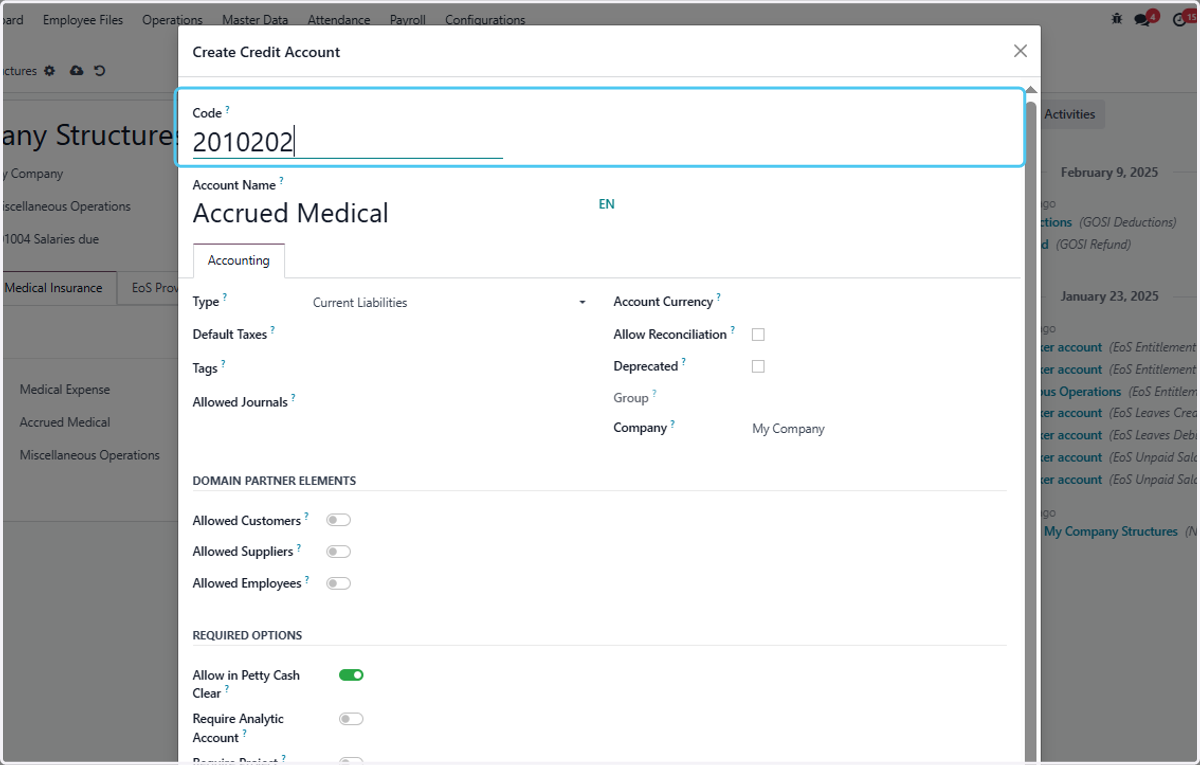
  11. 11. Type "Accrued Medical "

    Type "Accrued Medical "
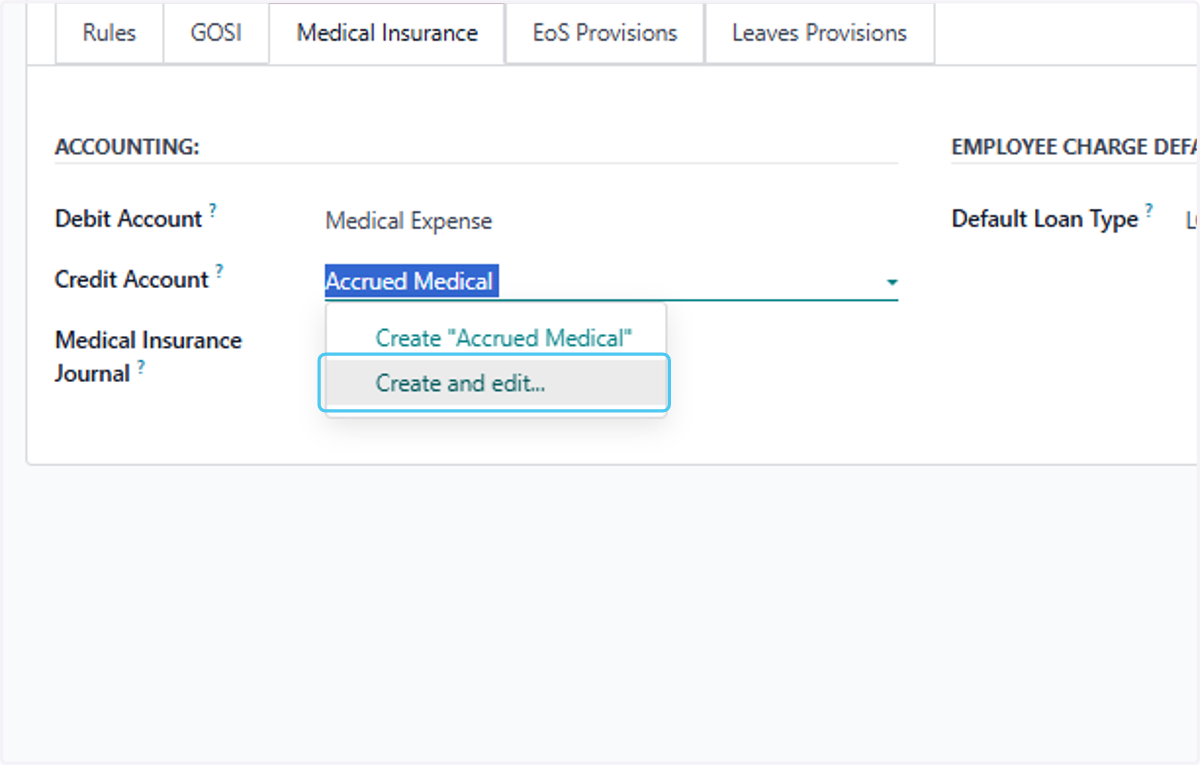
  12. 12. Click on Create and edit...

    Click on Create and edit...
  13. 13. Select Current Liabilities from Type?
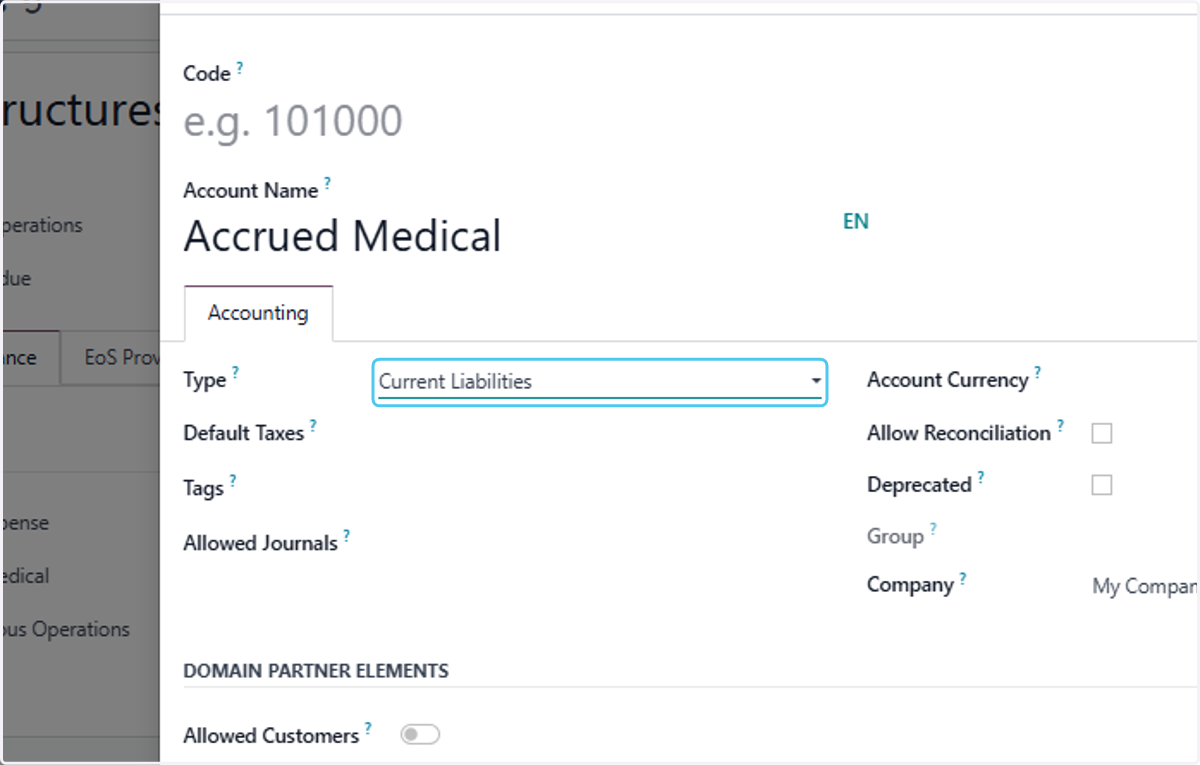
    Select Current Liabilities from Type?
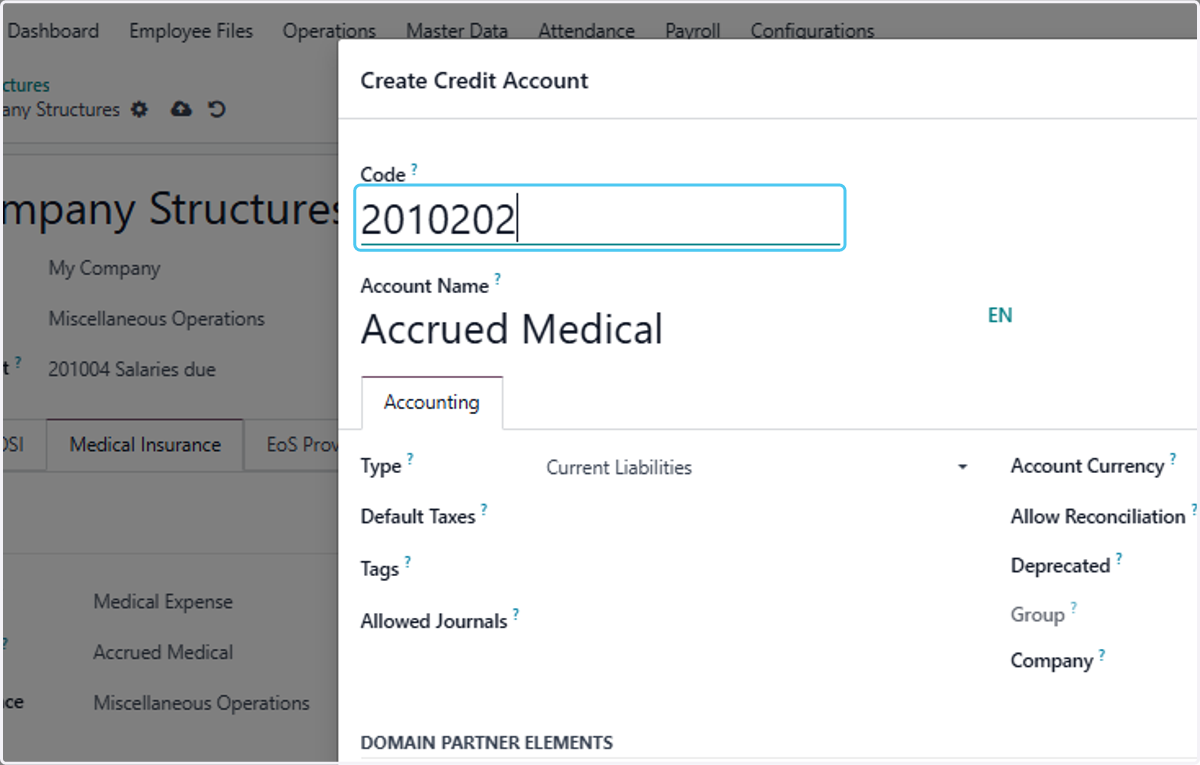
  14. 14. Type "2010202"

    Type "2010202"
  15. 15. Click on Create Credit Account…

    Click on Create Credit Account…
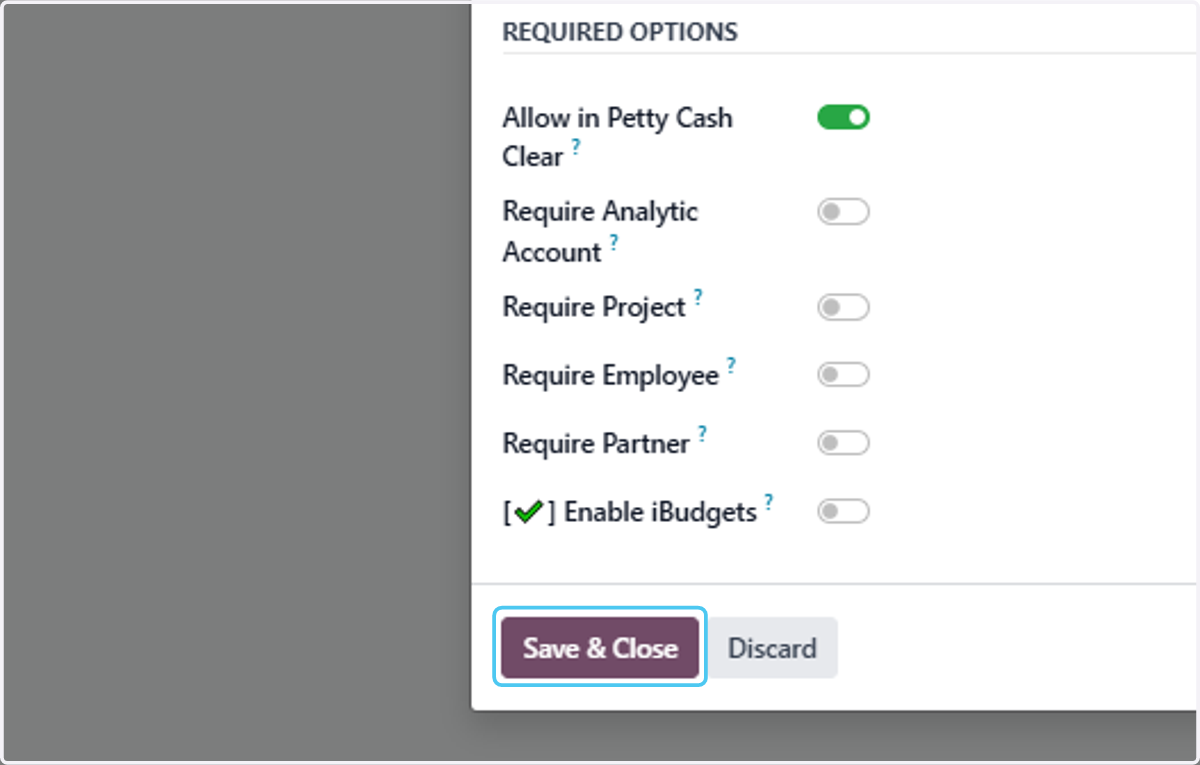
  16. 16. Click on Save & Close

    Click on Save & Close
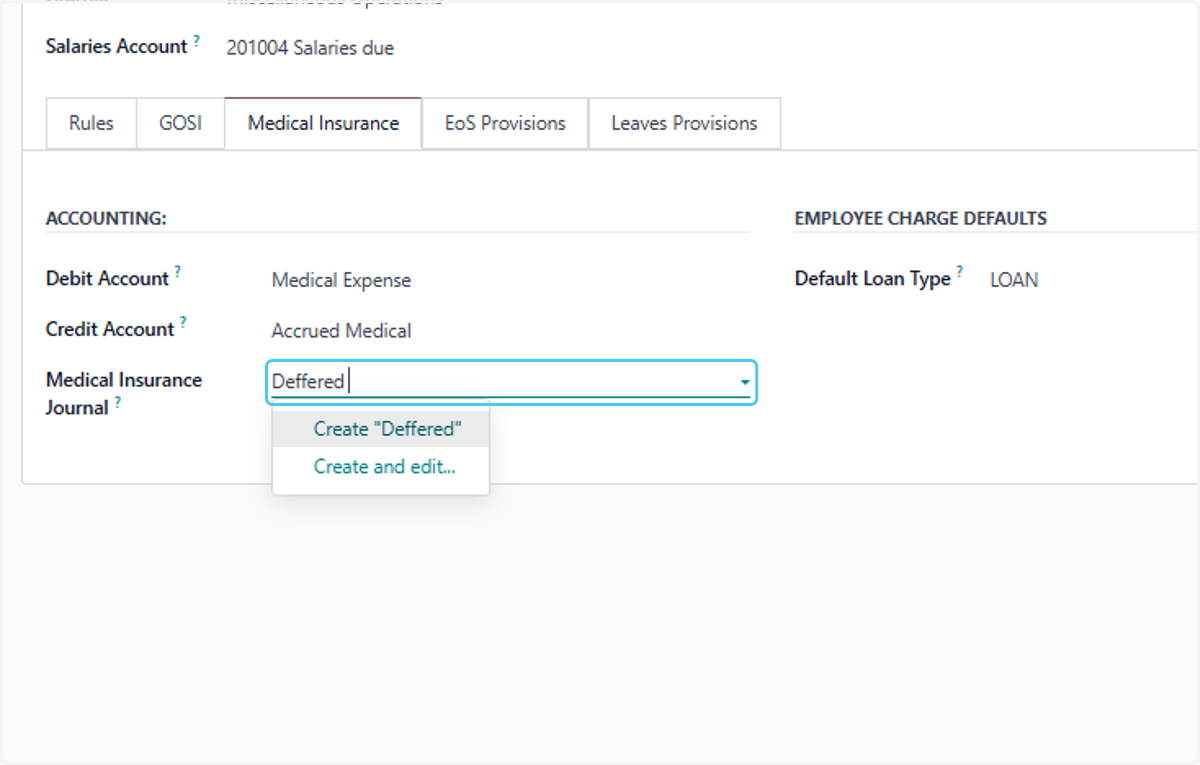
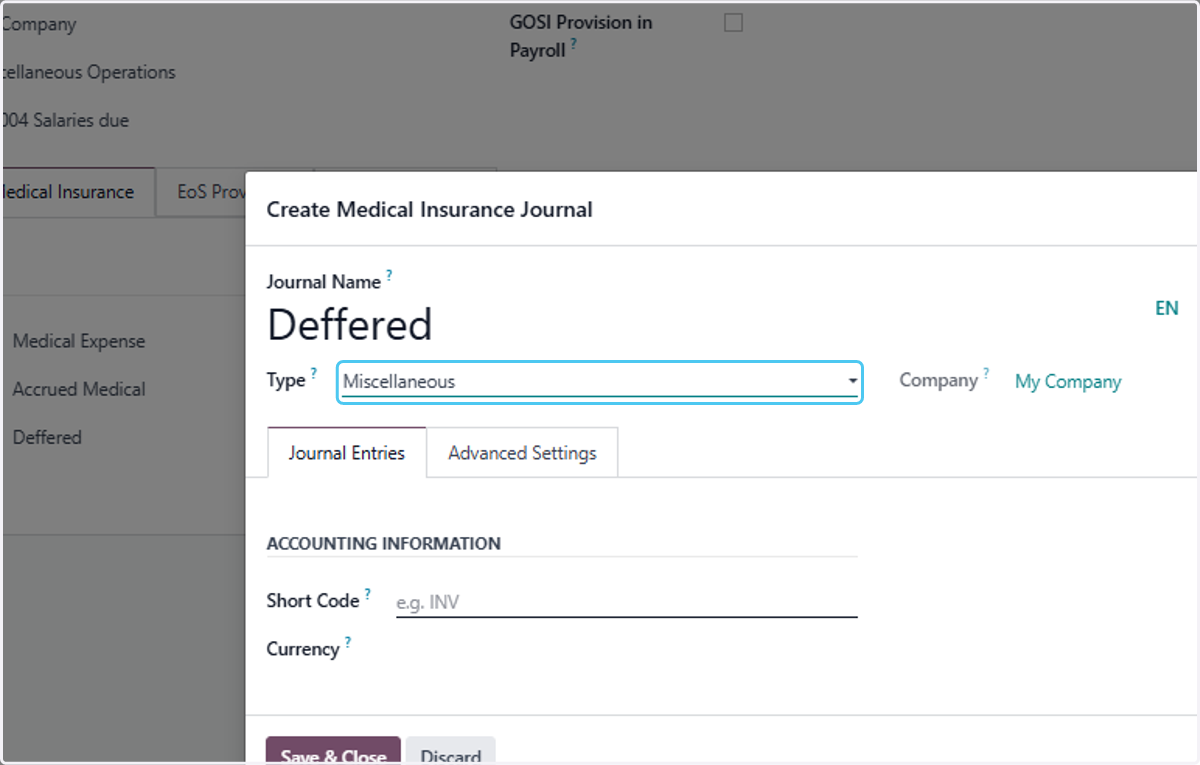
  17. 17. Type "Deffered "

    Type "Deffered "
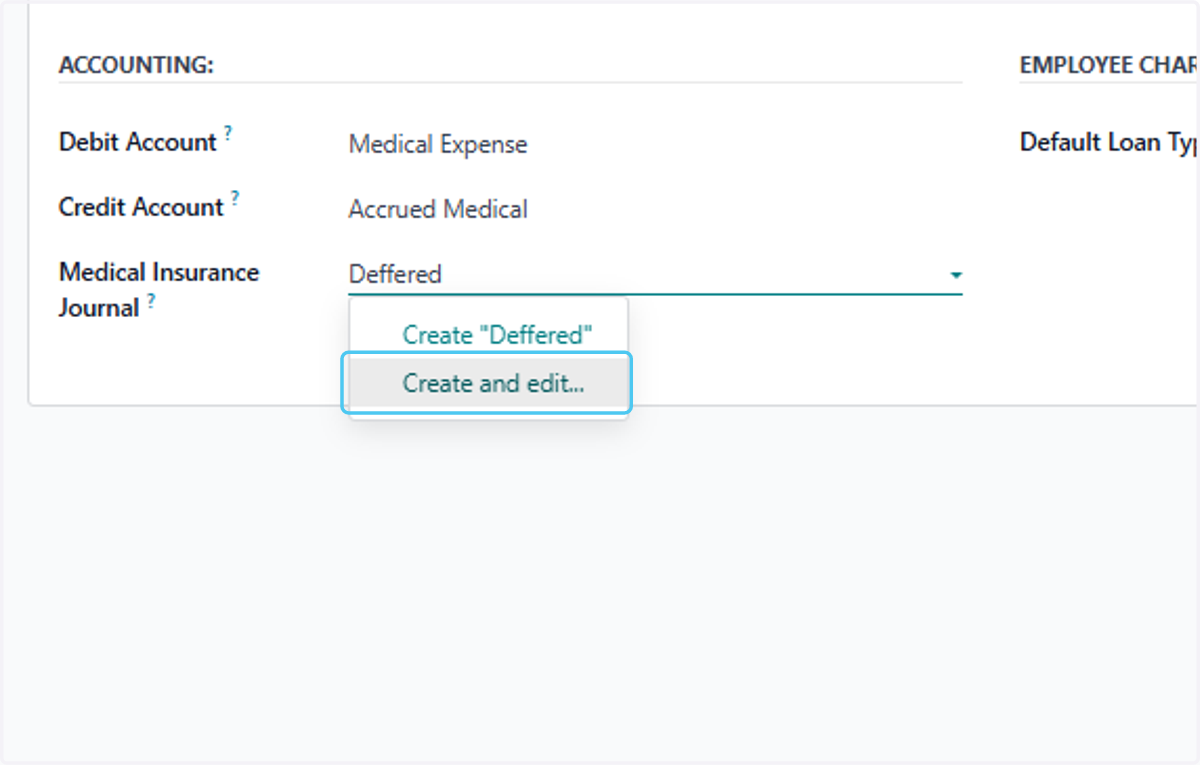
  18. 18. Click on Create and edit...

    Click on Create and edit...
  19. 19. Select Miscellaneous from Type?

    Select Miscellaneous from Type?
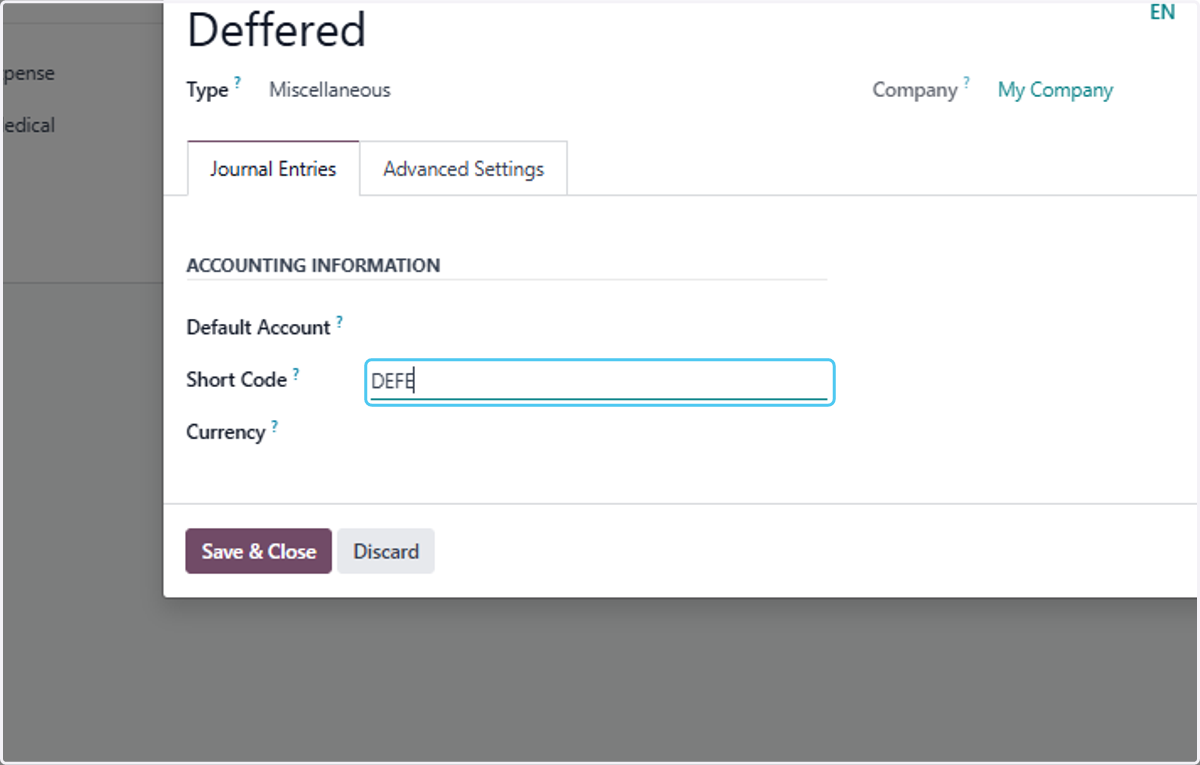
  20. 20. Type "DEFE"

    Type "DEFE"
  21. 21. Click on Create Medical Insurance Journal…
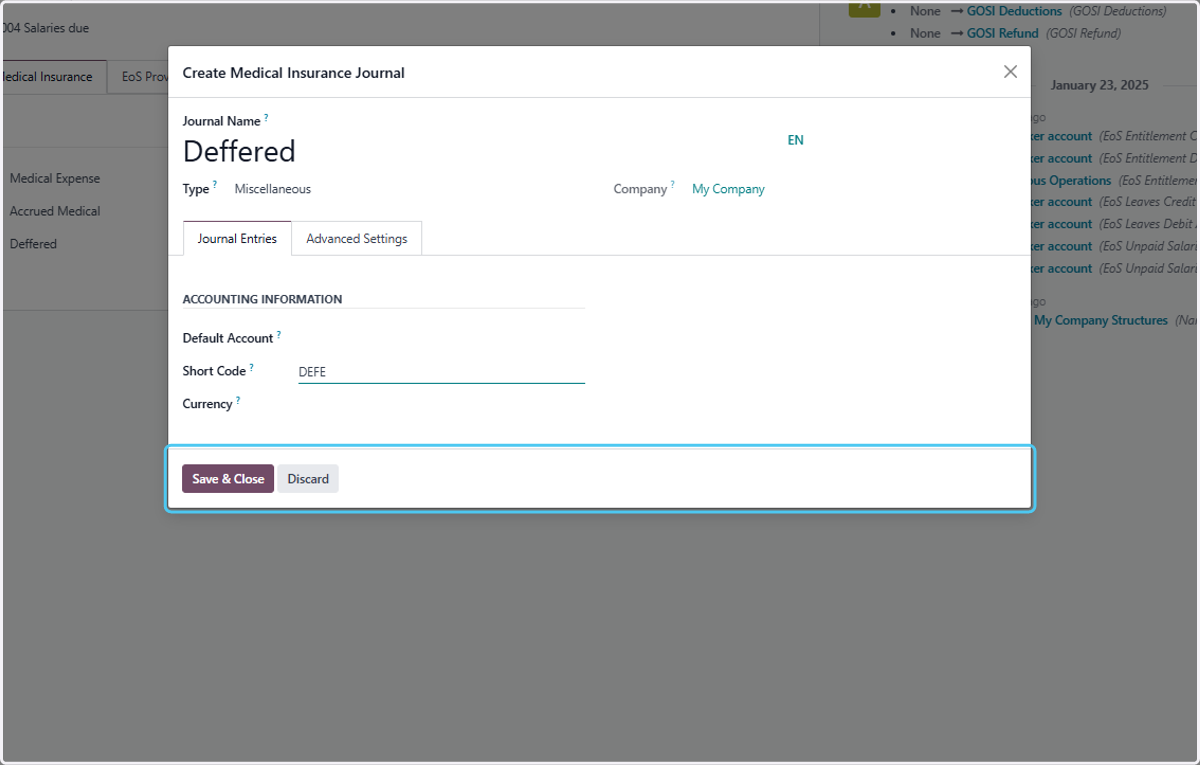
    Click on Create Medical Insurance Journal…
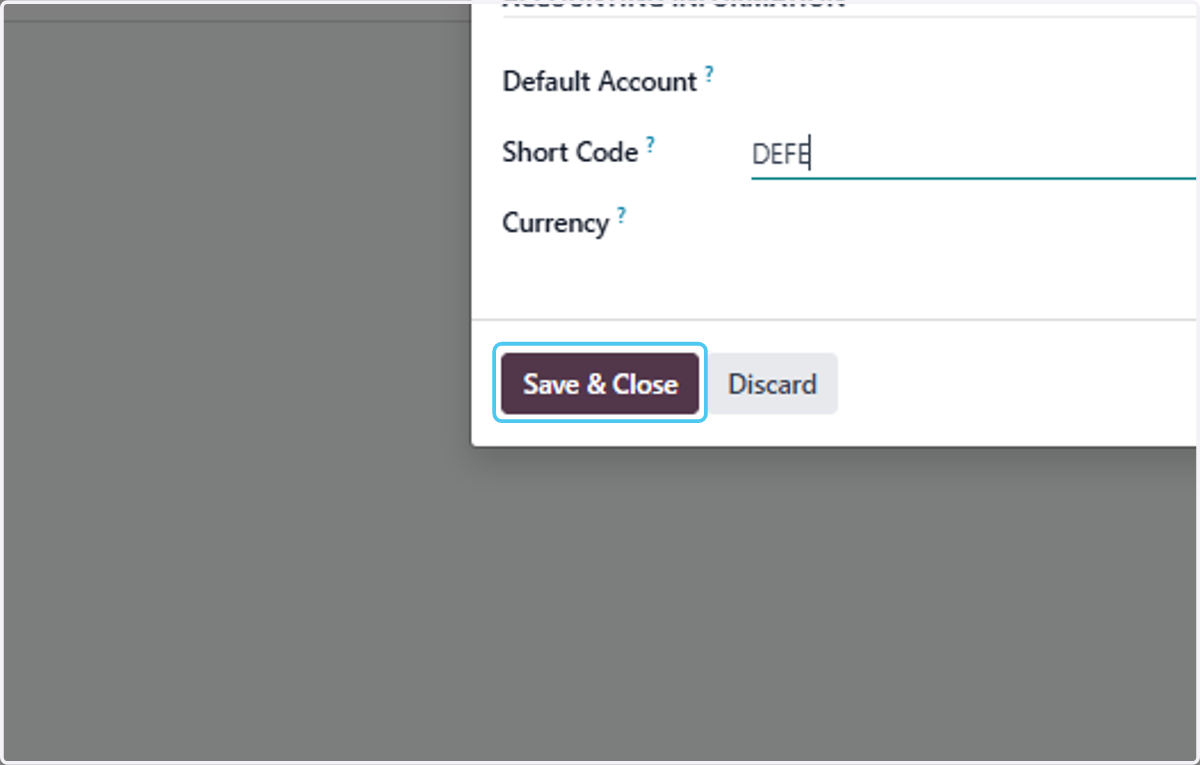
  22. 22. Click on Save & Close

    Click on Save & Close
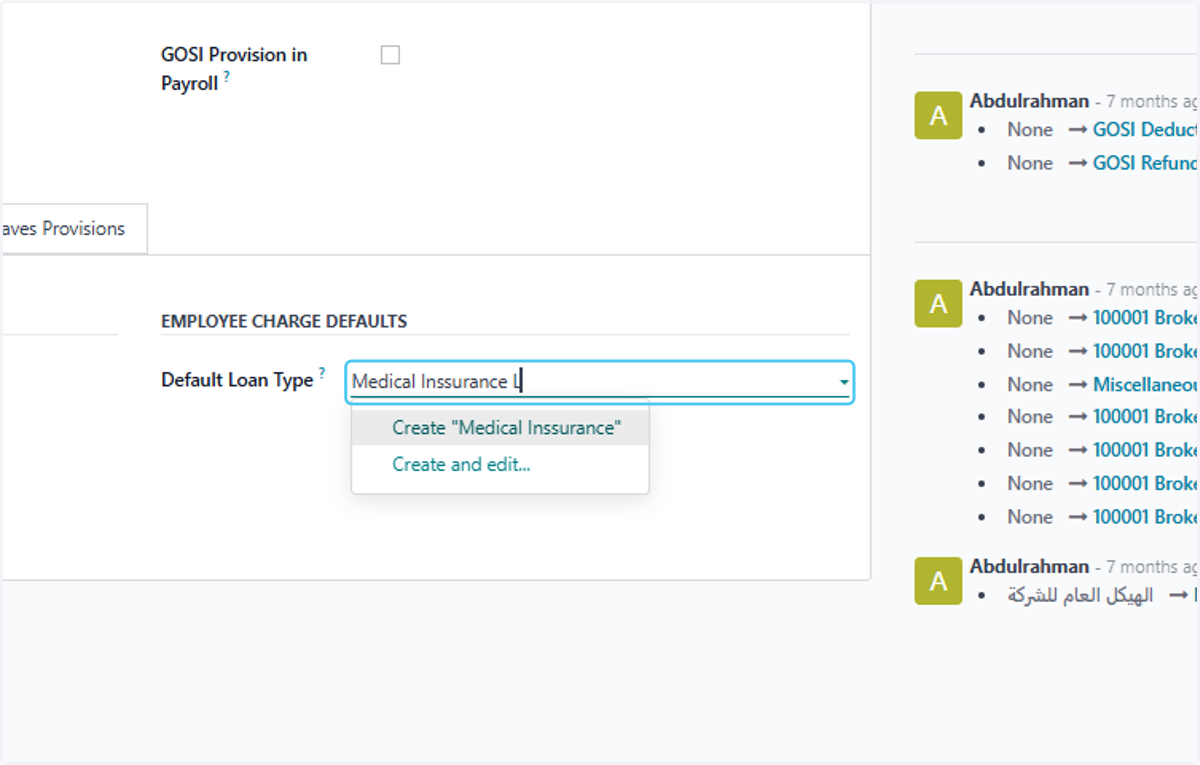
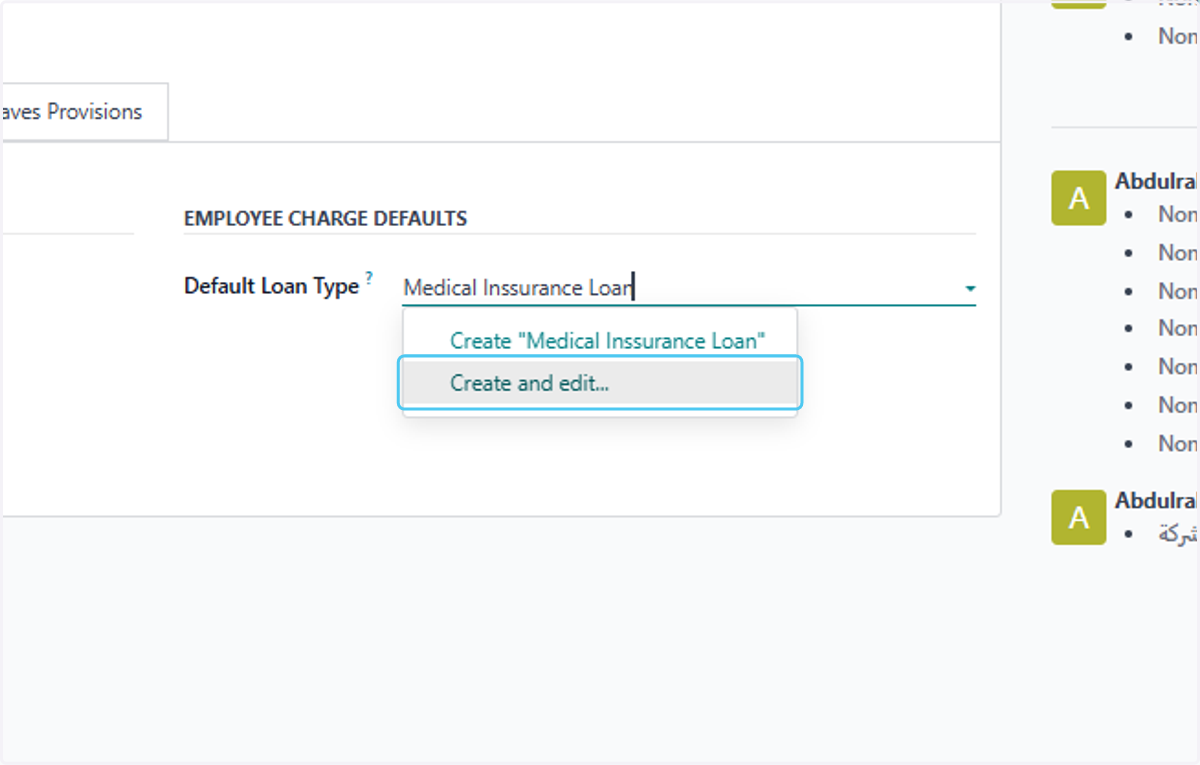
  23. 23. Now select the Employee Loan Type
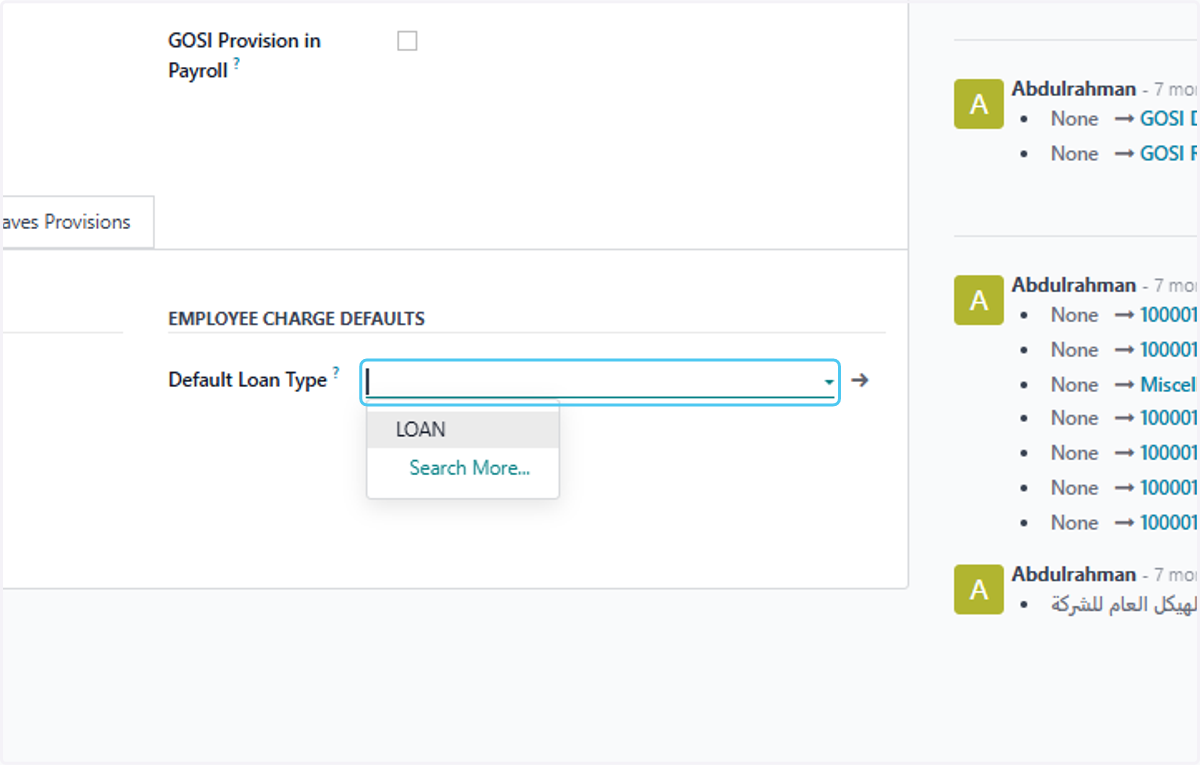
    Now select the Employee Loan Type
  24. 24. Type "Medical Inssurance Loan"

    Type "Medical Inssurance Loan"
  25. 25. Click on Create and edit...

    Click on Create and edit...
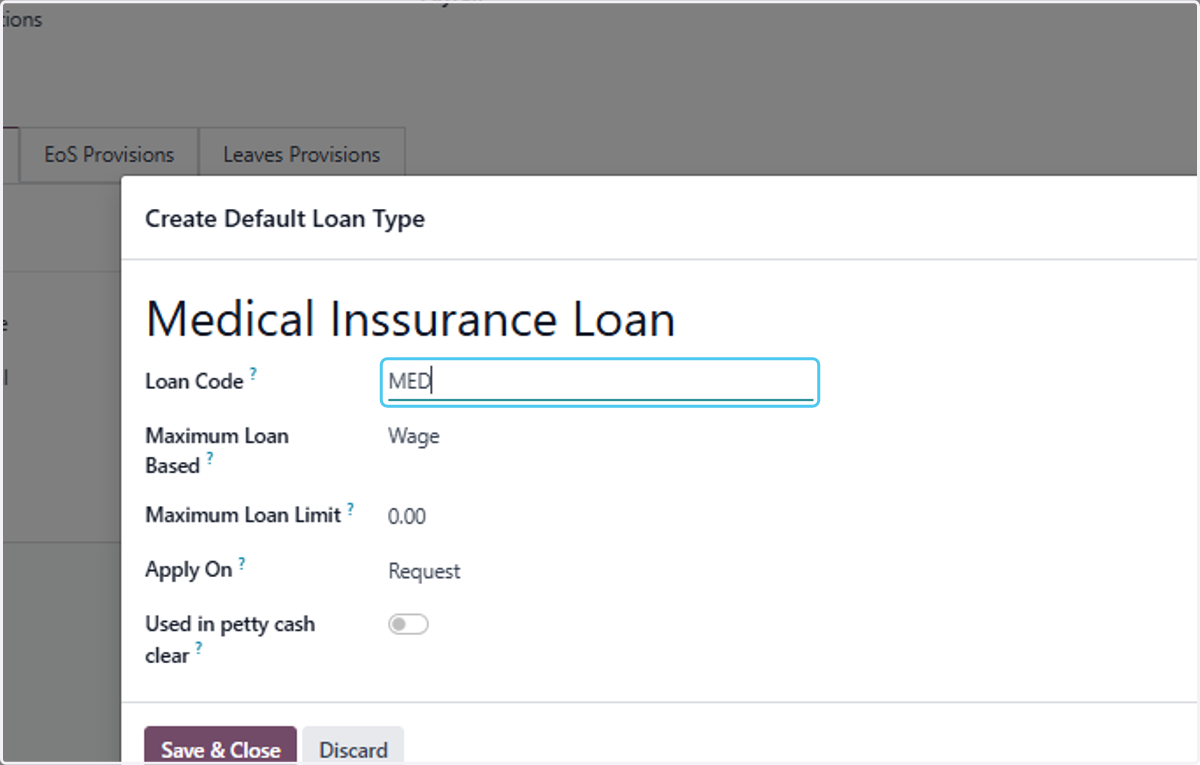
  26. 26. Type "MED"

    Type "MED"
  27. 27. Click on Save & Close to Create the Medical Type
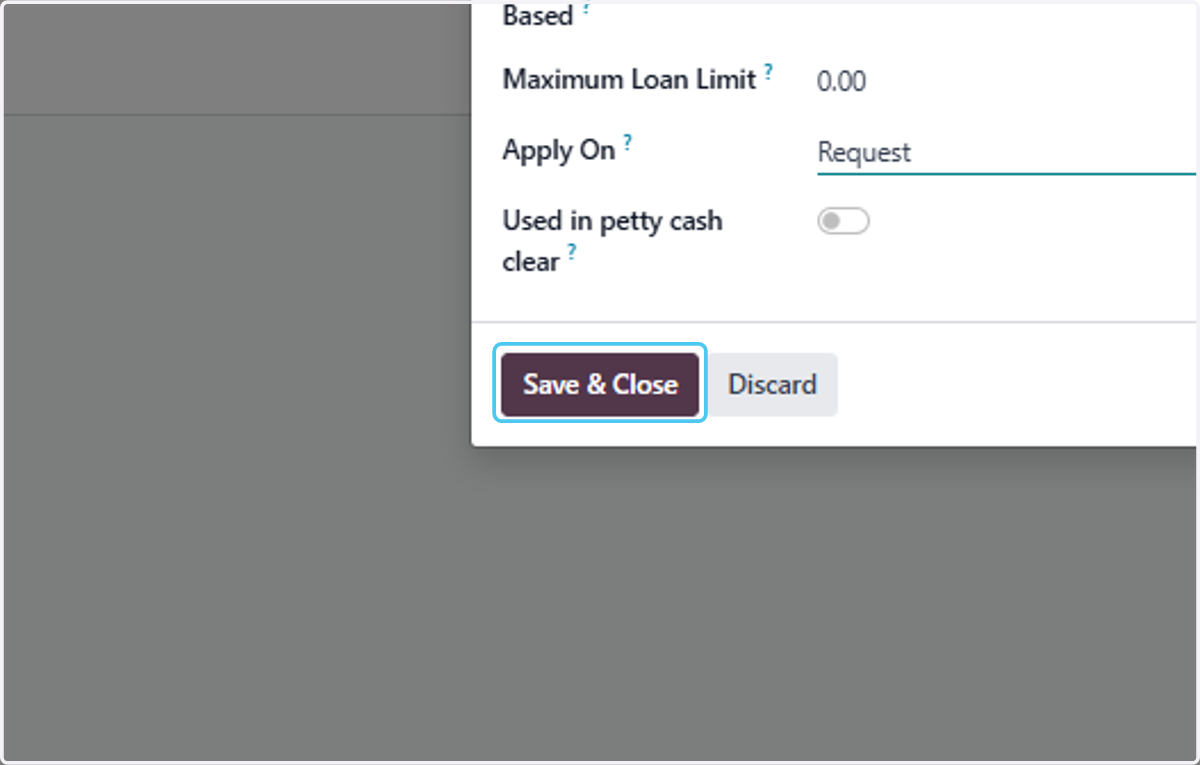
    Click on Save & Close to Create the Medical Type
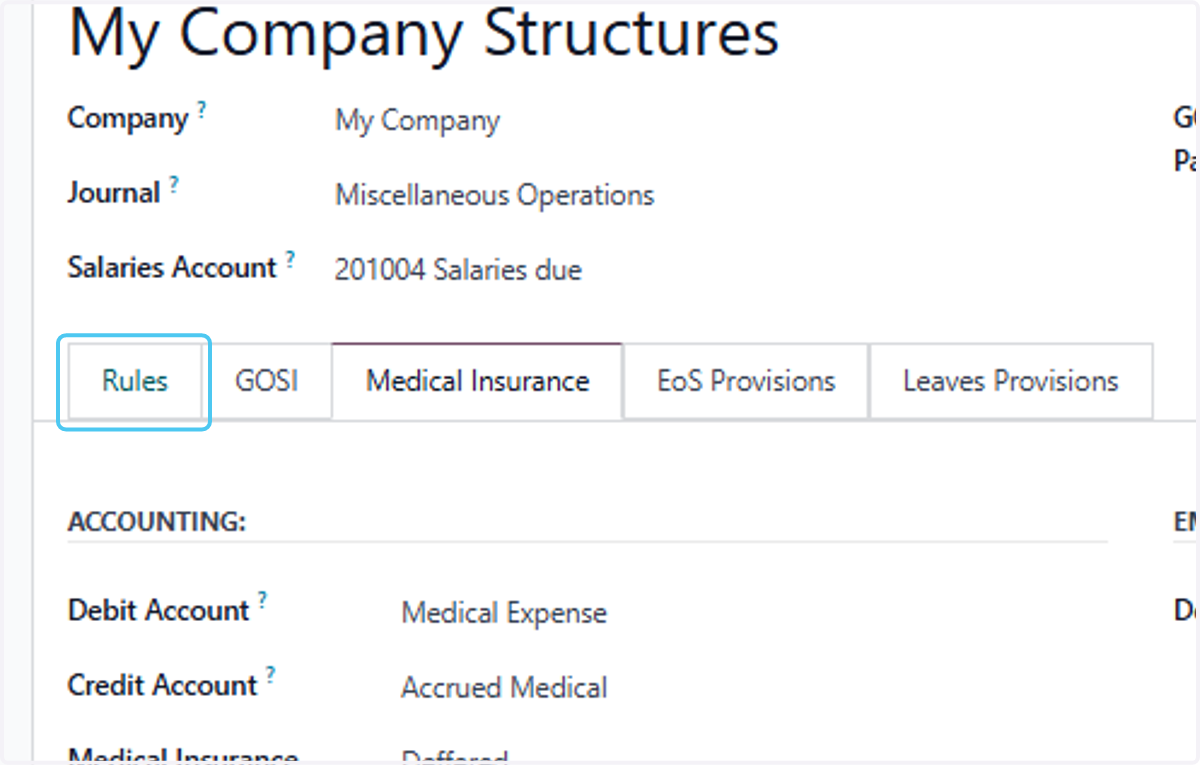
  28. 28. Click on Rules

    Click on Rules
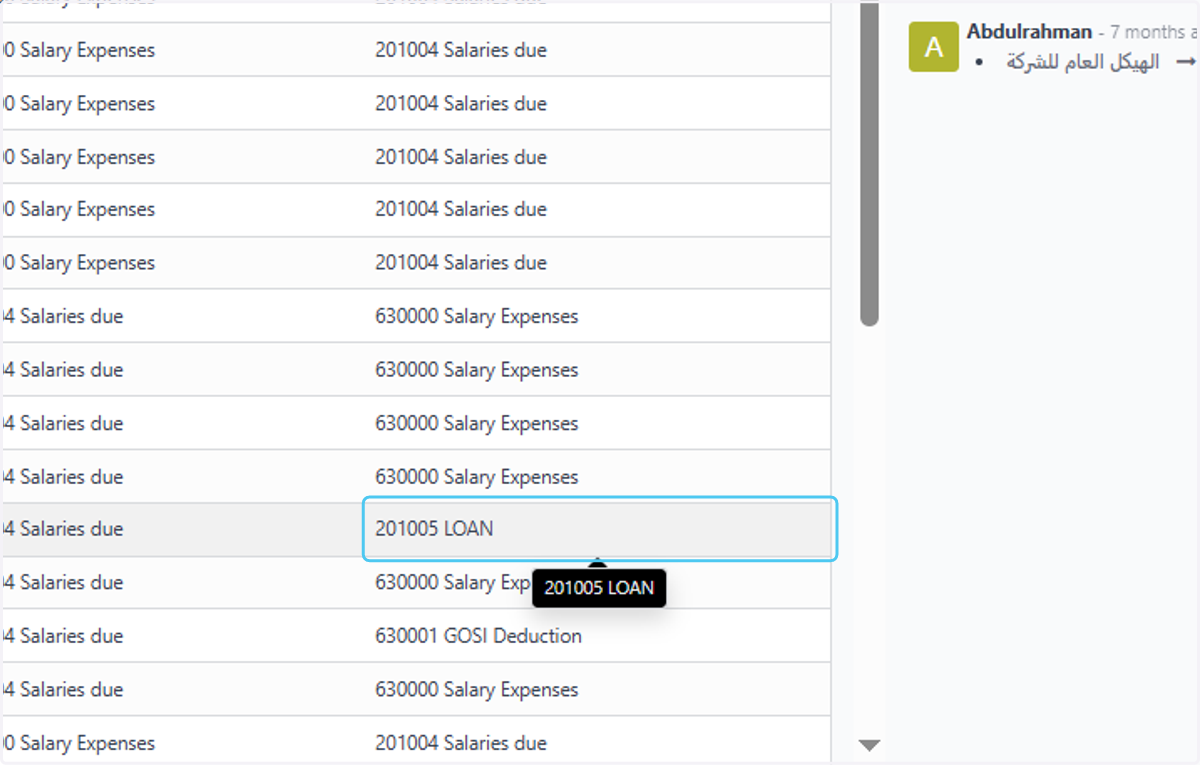
  29. 29. Click on 201005 LOAN

    Click on 201005 LOAN
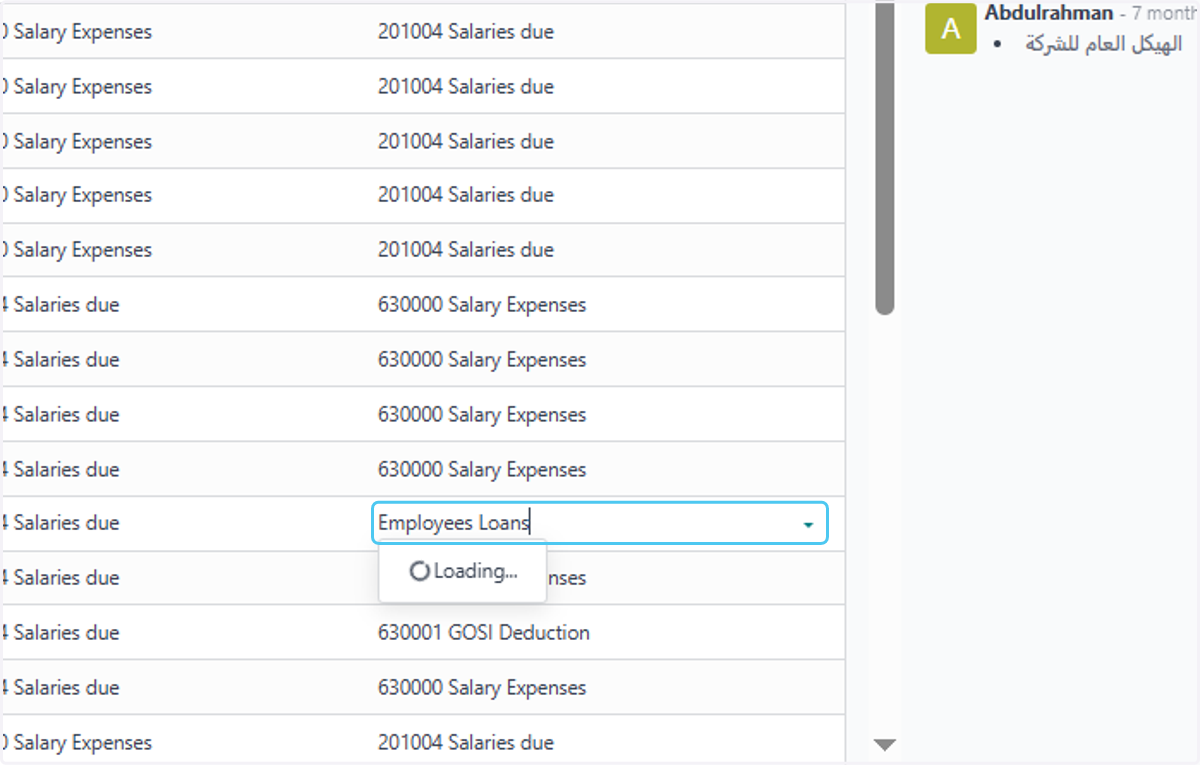
  30. 30. Type "Employees Loans"

    Type "Employees Loans"
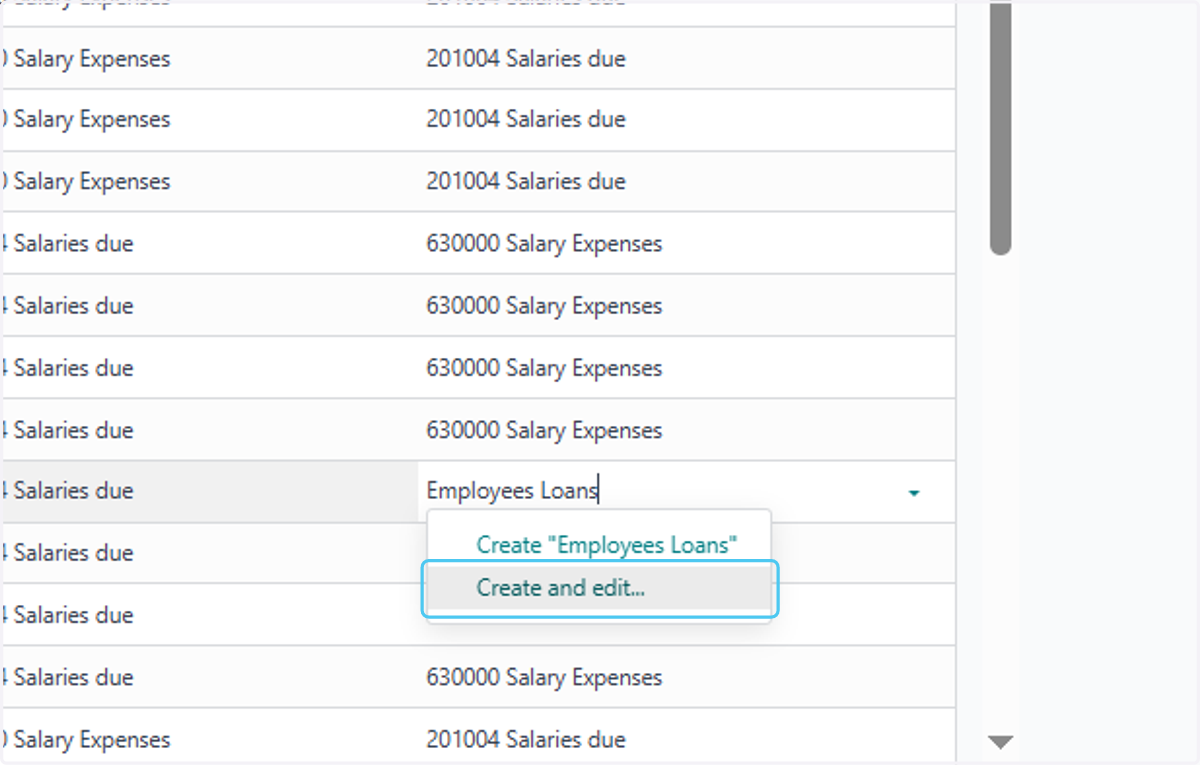
  31. 31. Click on Create and edit...

    Click on Create and edit...
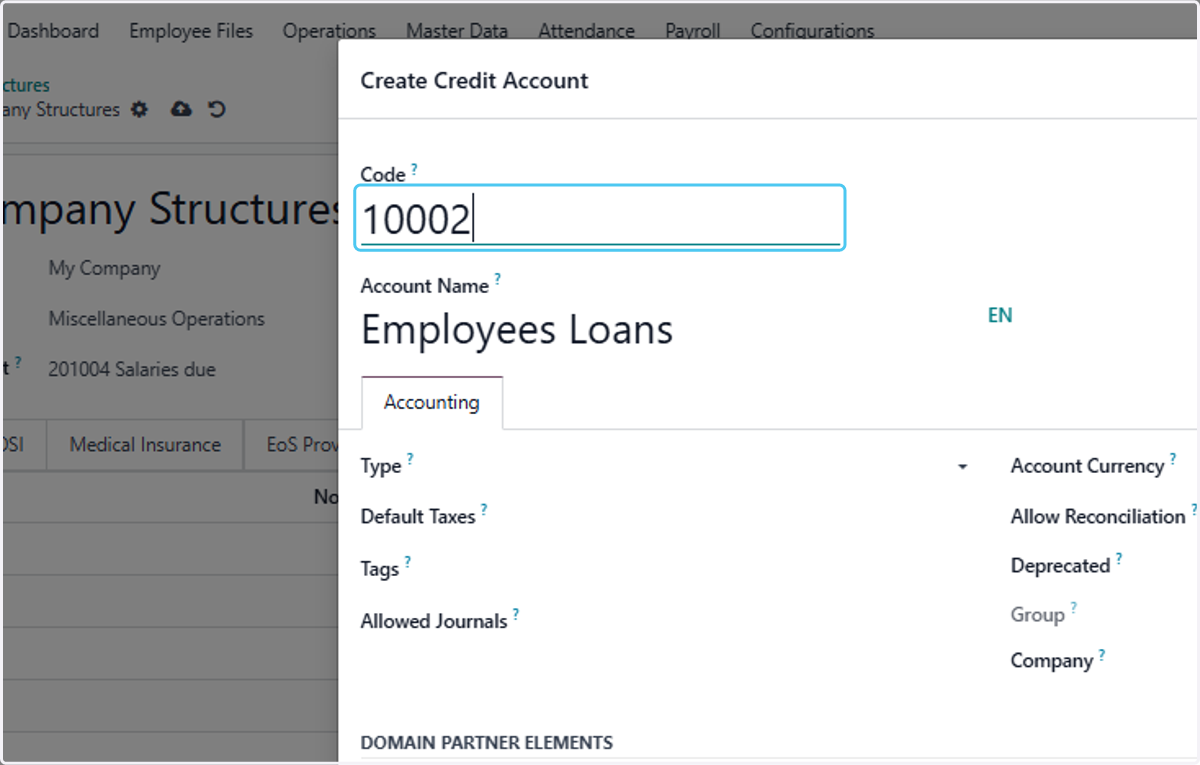
  32. 32. Type "1000202"

    Type "1000202"
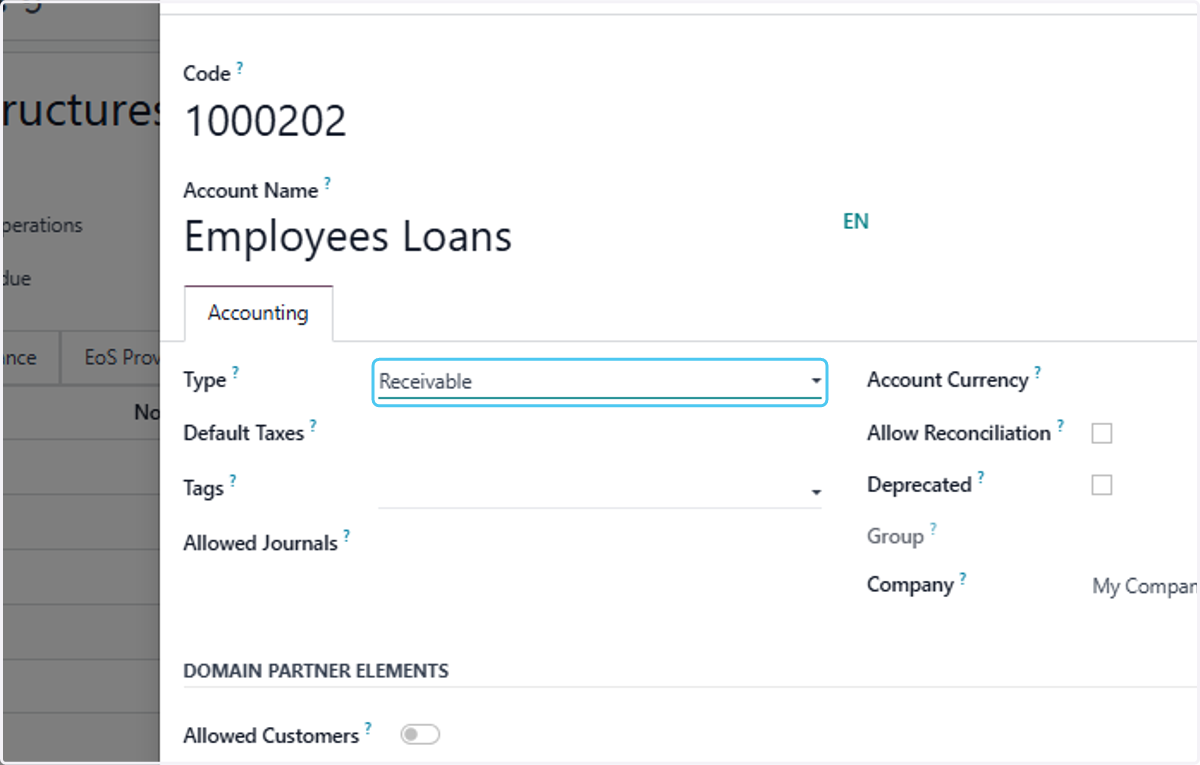
  33. 33. Select Receivable from Type?

    Select Receivable from Type?
  34. 34. Click on Save & Close To create the Laon Receiveable Account
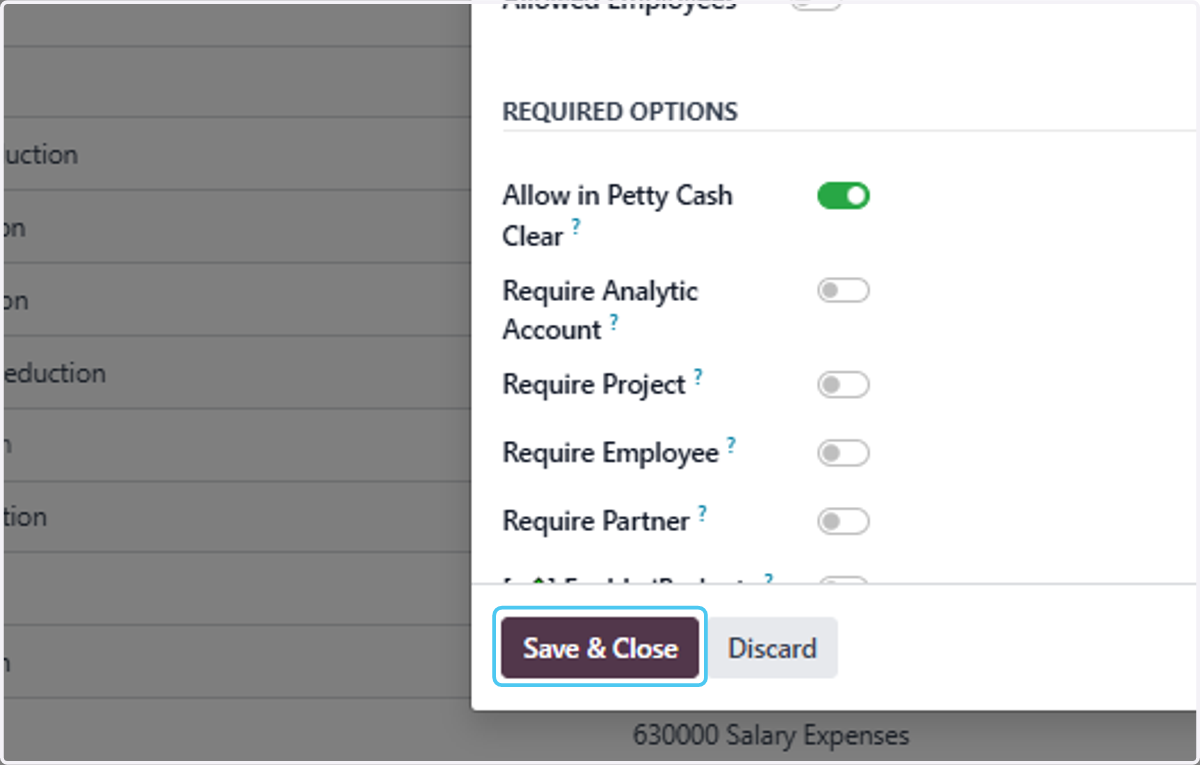
    Click on Save & Close To create the Laon Receiveable Account
  35. 35. Click on Save manually after linking all the details to sab
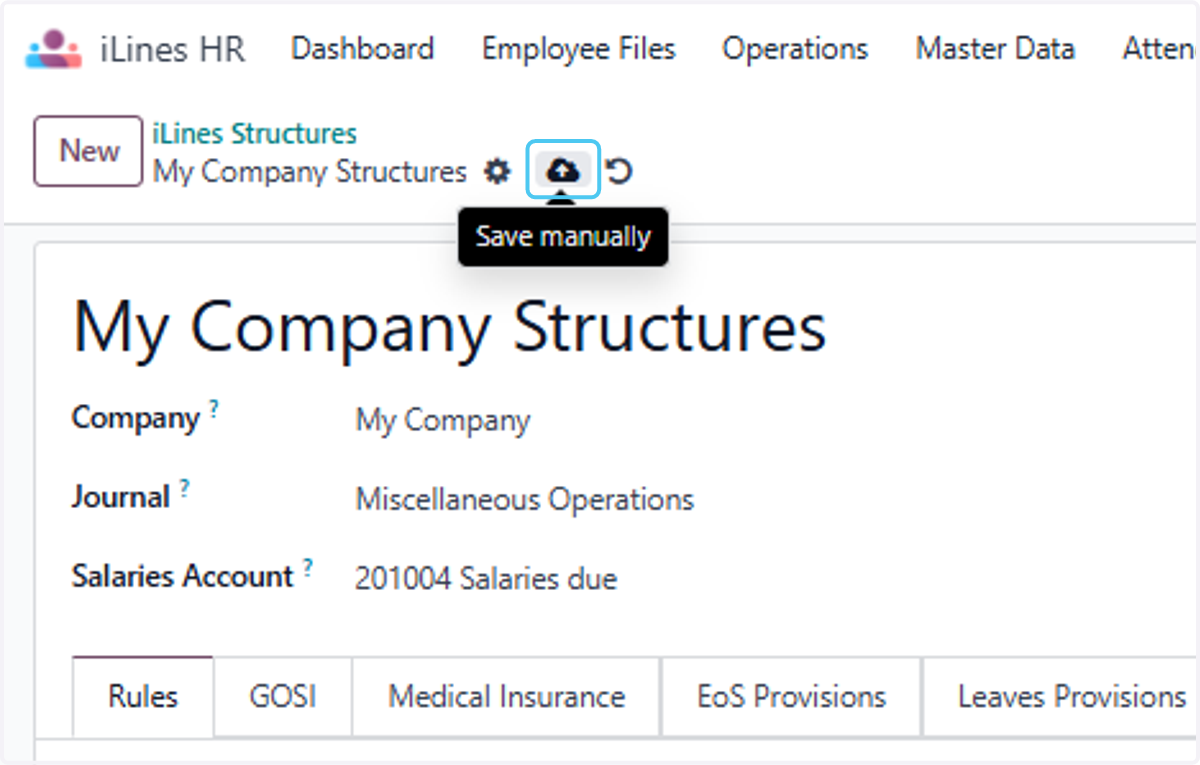
    Click on Save manually after linking all the details to sab